

Page 1
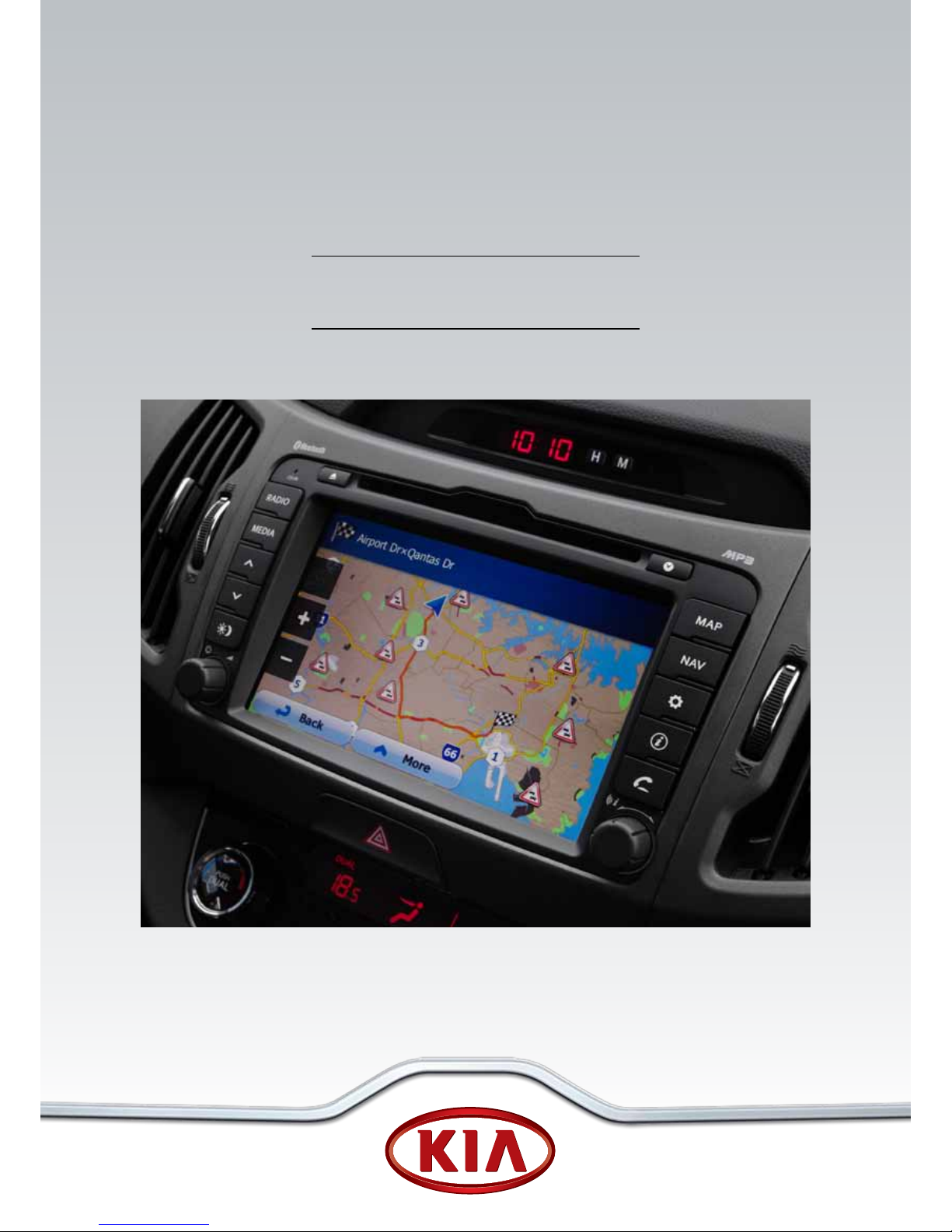
Kia Multimedia
Quick User Guide
Page 2
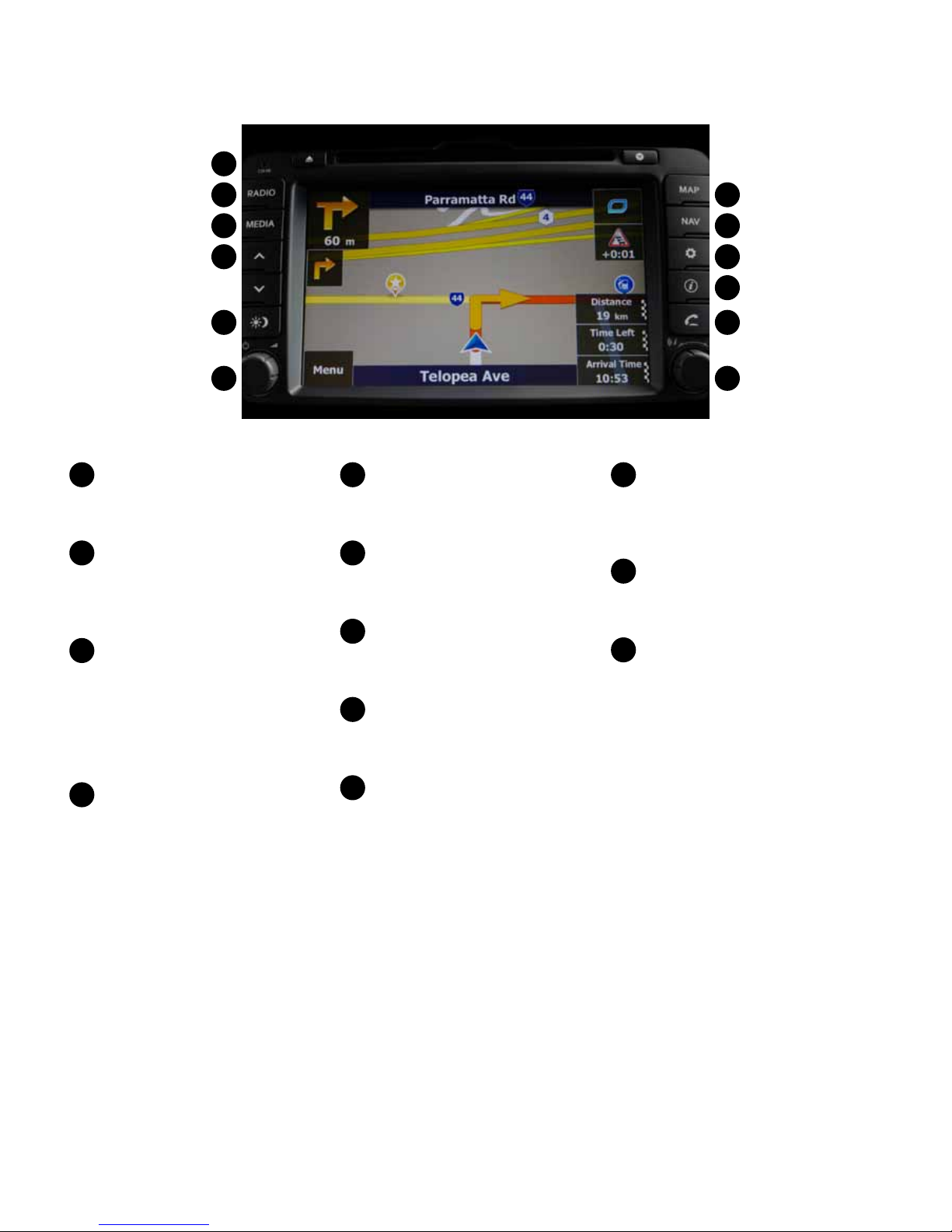
Kia Multimedia Overview:
DISC insert indicator LED
Displays when a DISC has
been inserted.
RADIO
Each press will change the bands
in the following order:
FM -> AM -> FM...
MEDIA
Each press will change the input in
the following order:
DISC (CD, MP3 )-> USB or iPod©
-> Aux -> Bluetooth Media -> DISC
(CD, MP3)...
^
v
(Seek buttons)
• SHORT KEY
- FM/AM Mode: automatically
searches for the previous or
next broadcast frequency and
starts playing.
- CD, MP3, US B, iPod© Mode:
plays the previous or next track/
le/song.
• LONG KEY
- FM/AM Mode: quickly moves
through the frequencies while
the key is pressed. Once released,
automatically searches for
broadcasts which can be received.
- CD, MP3, US B, iPod© Mode:
REW/ FF the current playing track/
le/song.
Display on/o
Switches between the display on
and o.
Left rotary
Push knob: turns the power on/o.
Turn knob: adjusts the volume.
MAP
Displays the MAP screen for the
current position.
NAV
Displays the Destination menu
screen.
SETUP
• SHORT KEY
Displays the Setup menu screen.
• LONG KEY
Displays the device ID, the
software version, the navigation
version, and the map version.
Info
Press to view the destination,
route, and trac information
when the route guidance is active.
PHONE
Displays the Bluetooth®
handsfree screen.
Right rotary
• Turn knob:
- FM/AM Mode: searches for the
previous or next radio frequency.
(Manual tuning).
- CD, MP3, USB, iPod© Mode: plays
the previous or next track/le/
song.
- Navigation Mode: changes the
map scale on the map screen.
(ZOOM IN/OUT )
• Push knob: repeats the voice
guidance.
1
1
2
2
7
7
3
3
8
8
4
4
9
9
10
10
11
11
12
12
5
5
6
6
Page 3
Kia Multimedia Overview:
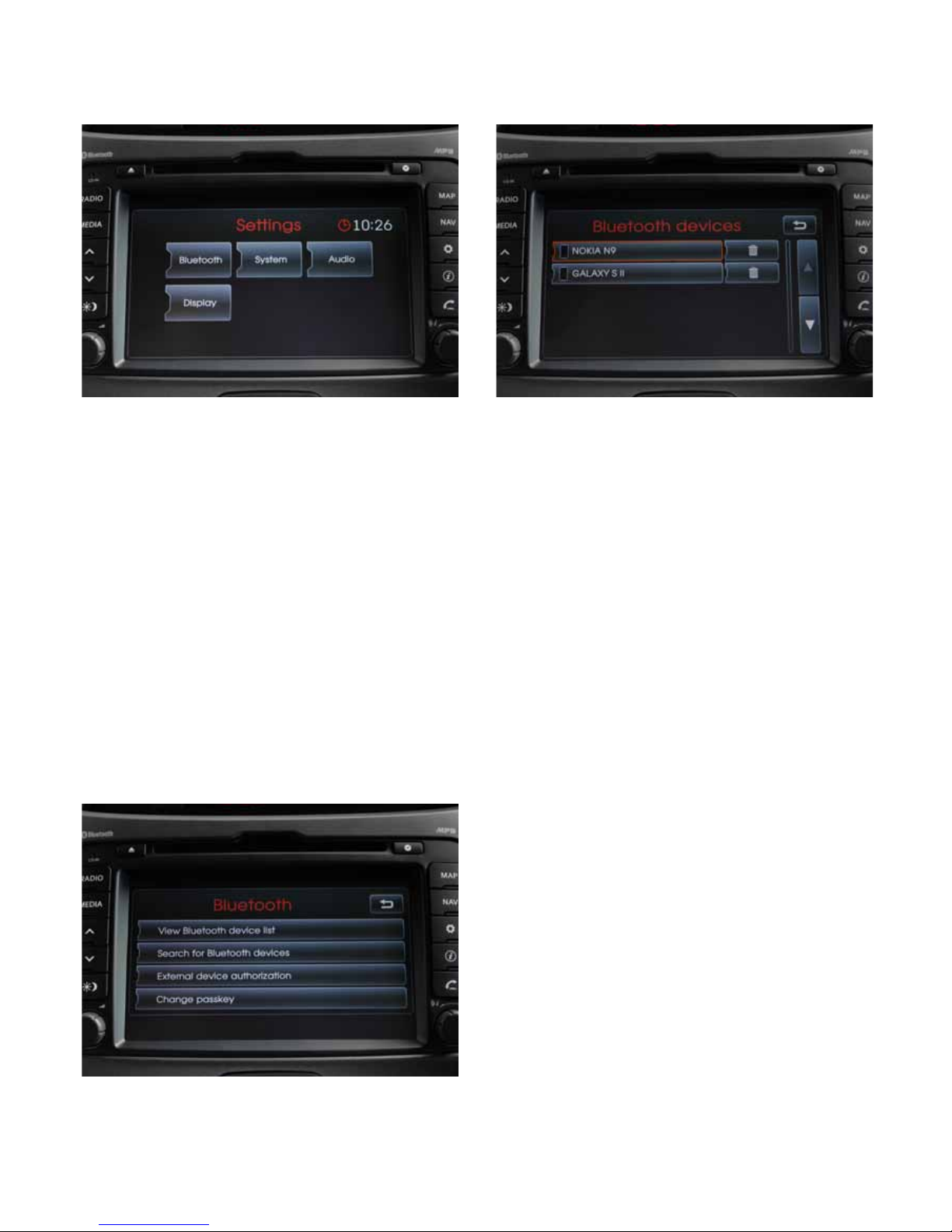
Phone Pairing:
• Ensure Bluetooth is active on your phone
• Press Setup button on Kia multimedia unit
• Touch Bluetooth tab in Settings menu
• Touch Search for Bluetooth devices on Bluetooth
menu
• Once your device is identied, select (touch) your
device name
• The screen will display a 4 digit code, to be entered
into your phone
• Pairing will be complete when Bluetooth symbol is
displayed on the top right of the screen – make sure
your phone settings enable automatic pairing
Alternatively:
• Search for devices via your mobile phone using
External Device Authorisation – Bluetooth menu
• Refer to your mobile device owners manual for device
specic instructions
Phone Connection (Selection):
Up to 10 phones or Bluetooth devices can be paired to
the Kia Multimedia system.
Device selection:
• Ensure Bluetooth is active on your phone
• Press Setup button on Kia multimedia unit
• Touch Bluetooth tab in Settings menu
• Touch View Bluetooth device list on Bluetooth
menu
• Select desired phone to activate pairing
Streaming from Bluetooth Devices:
Device selection:
• Ensure device is paired to Multimedia unit (see
instructions on pairing)
• Press the Media button
• With most devices the media / audio player will have
to be active for the streaming to commence
Page 4
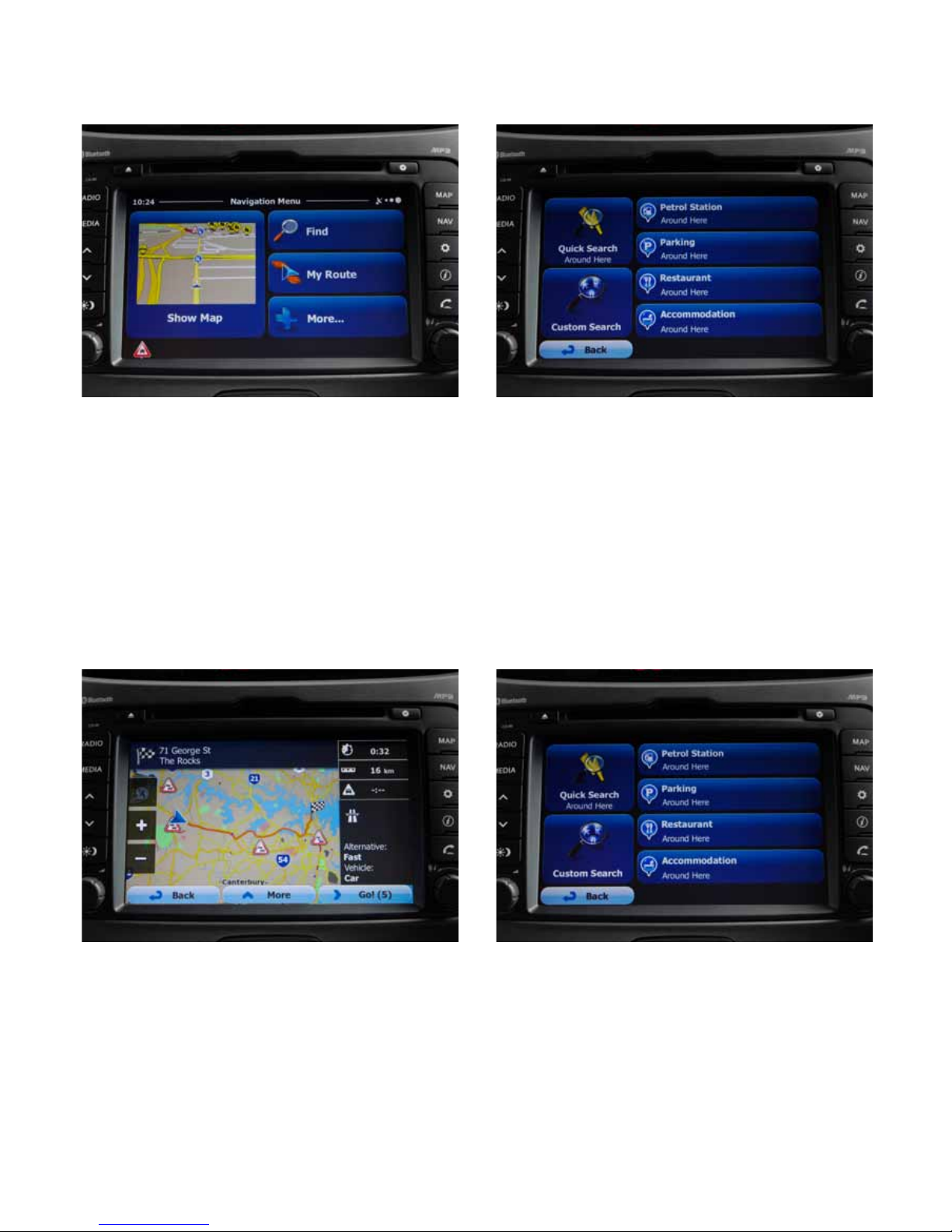
Navigation Guide:
Selecting Destination:
• Press Nav button to get access the Navigation Menu
Screen
• Press Find tab
• Press Find Address tab to enter address
• Compete each address eld (Town / Street / Number
or intersection)
• Review & conrm destination by touching Next
• Review & conrm route by selecting GO or waiting
10 seconds
• Commence travel to your destination
Selecting POI (Points of Interest):
• Press Nav button to get access the Navigation Menu
Screen
• Press Find tab
• Press Find Places
• Select from the quick search menu (Petrol Stations /
Parking / Restaurant / Accommodation)
• For a wider selection of POIs, select the Custom
Search tab
Setting Favourites:
• Press Nav button to get access the Navigation Menu
Screen
• Press Find tab to enter address
• Press History tab on Navigation Menu to access past
destinations
• Select the past destination that you wish to add to
favourites
• On overview screen select the More tab
• Select the Add to favourites tab
• You may save as a dierent name by typing a desired
name. Select Done to save
Cancelling a route:
• Select the Nav button
• Select My Route tab
• Conrm by selecting Cancel route tab
Page 5
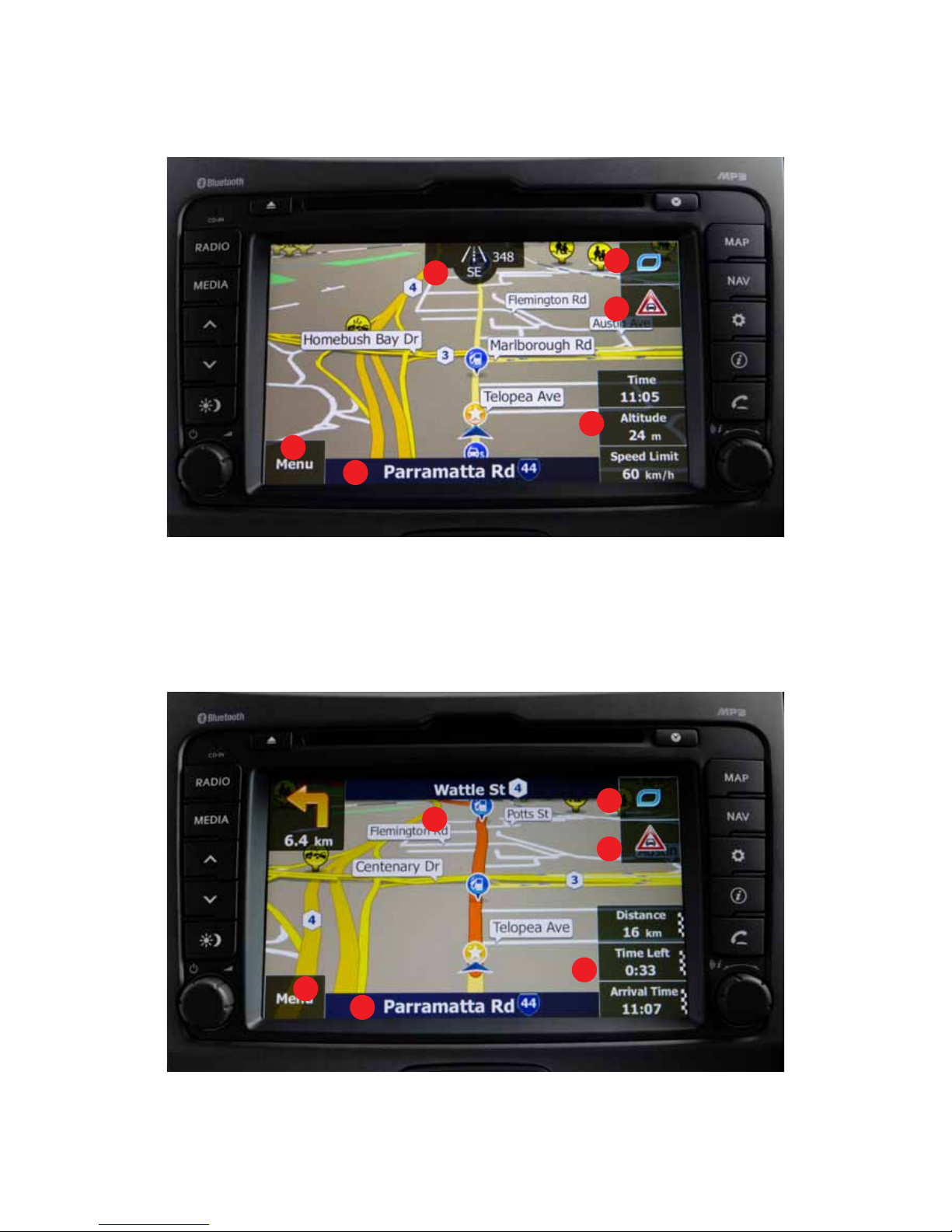
Navigation Guide:
Map Screen (no destination set)
1. Direction (Heading / Degrees)
2. Quick Customised menu
3. Live trac menu
4. Position information (expandable)
5. Current street
6. Navigation menu
Map Screen (destination selected)
1. Next turn street name
2. Quick Customised menu
3. Live trac menu
4. Journey info. Distance & time (expandable)
5. Current street
6. Navigation menu
1
1
2
2
3
3
4
4
5
5
6
6
Page 6
Navigation Guide:
Trac Management (Live Trac) Guide:
Initial Setup
1. Press Nav button to get access the Navigation Menu
Screen
2. Press More… to enter the navigation setup menu
3. Press Trac tab
4. Make sure Trac Receiver item is enabled
(default: on)
5. Press Detour to open detour menu
6. To receive conrmation of a detour route (if there is
a signicant trac delay) enable Do you want to
conrm the oered route? item
7. If Do you want to conrm the oered route?
is not enabled, system will select the best route
with possible avoidance of trac event without
notication
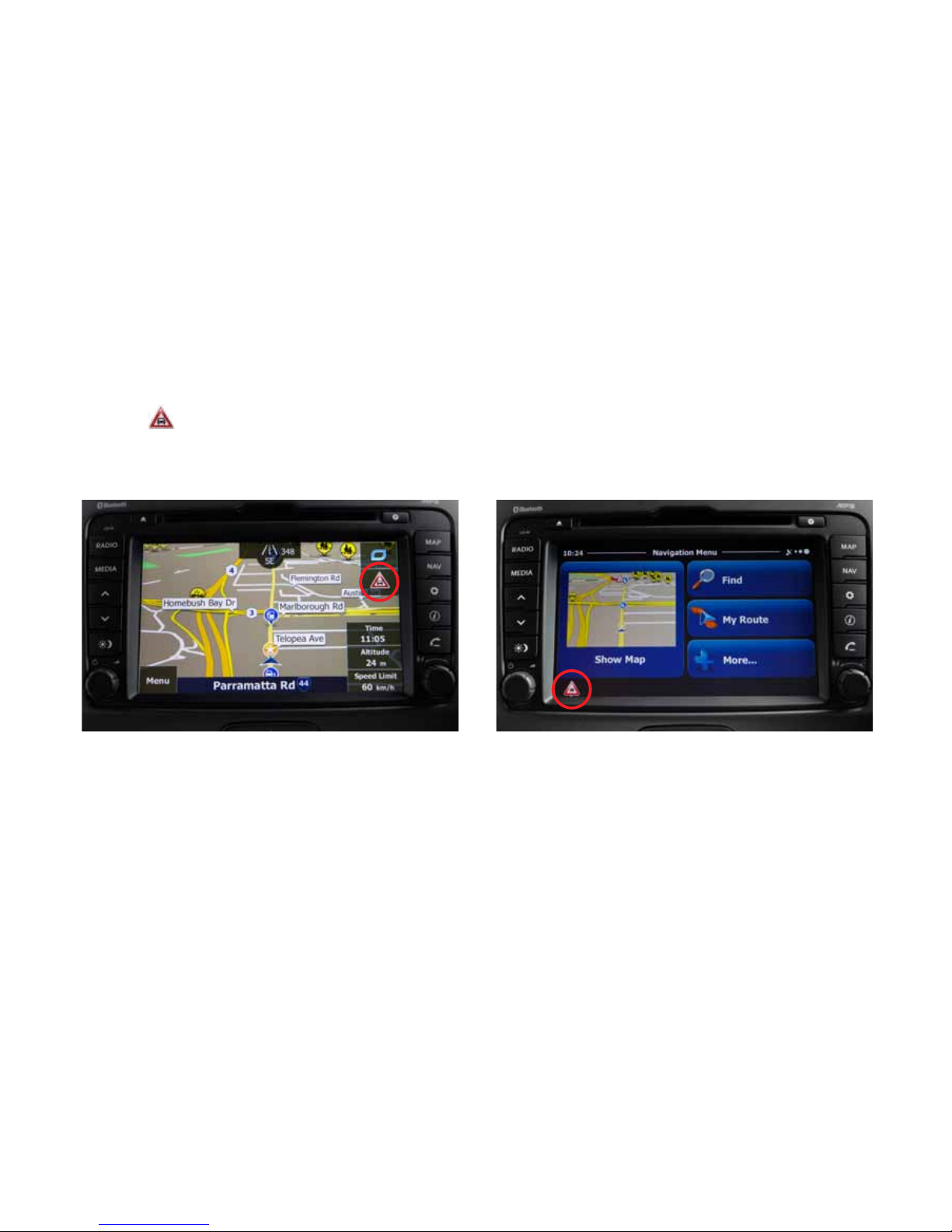
On map screen (no destination set)
1. Press will open the trac information screen
2. Select Event List to see all the trac incidents
happening around the area
Page 7
Navigation Guide:
On map screen (destination set)
1. If there are no trac incident(s) along the
route, then the same icon appears and pressing
will open the trac information screen
2. If there are trac incident(s) along the route, then
the icon of most immediate event is displayed (with
approx. time delay).
Trac event icons:
: Trac congestion, : Road works/blocks,
: Accident
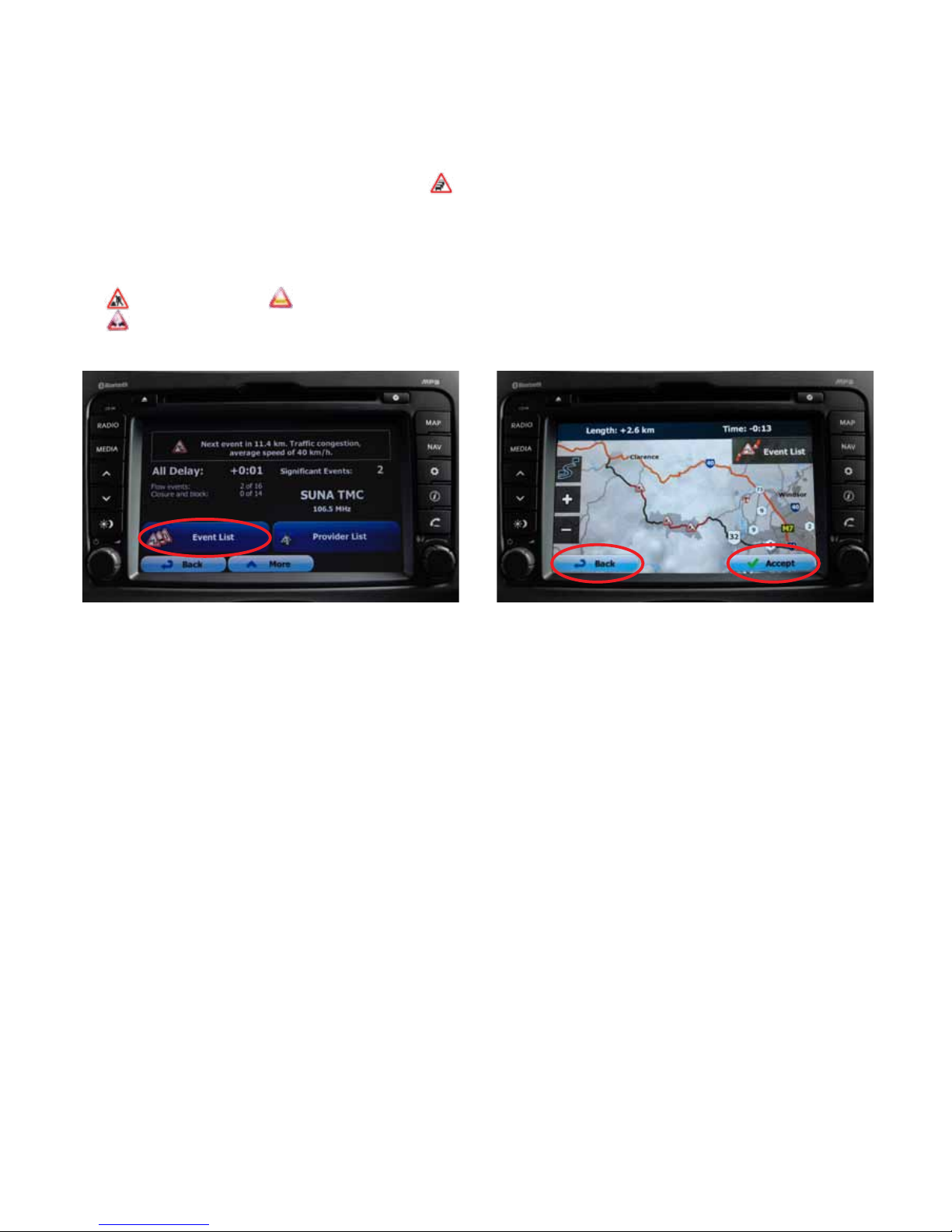
3. After setting up the destination, if there is a trac
incident (and the detour conrmation is on), a
window conrming alternative route will pop-up
4. Press either Ye s on the pop-up or the event icon to
bring up the detour screen
5. Press Accept to conrm detour change or Back to
keep original route
Page 8

Kia Motors Australia ABN 97110 483 353 PO Box 7506, Silverwater NSW 2128. Specification apply to satellite navigation equipped 2012 model year Sportage, Sorento & Optima. Kia Motors Australia reserves the right to
discontinue or change the models, features, specifications, options, designs and prices of products referred to in this sheet without incurring any liability whatsoever to any purchaser or prospective purchaser of any such
products. Consult your Kia dealer for the latest information on models, specifications, features, prices, map update and availability. iPod® is a registered trademark of Apple Computer Inc., registered in the U.S. and other countries.
Bluetooth® is a registered trademark of Bluetooth SIG. Drive safely and obey traffic rules. Operating navigation system while vehicle is in motion can lead to a serious accident. Make selections only while stopped. Speed limits and
zones may vary from information displayed on screen. Read the safety instructions from your manual and always follow local traffic regulations.
Sportage with navigation model shown.
Kia Motors Australia Pty Ltd ABN 97 110 483 353
PO Box 7506, Silverwater NSW 2128
Phone (toll free) 1800 600 010
kia.com.au
 Loading...