

Page 1
Keysight N437x Series
Lightwave Component Analyzer
Programmer’s
Guide
Page 2

Notices
CAUTION
WARNING
© Keysight Technologies 2018
No part of this manual may be reproduced
in any form or by any means (including
electronic storage and retrieval or translation into a foreign language) without prior
agreement and written consent from
Keysight Technologies as governed by
United States and international copyright
laws.
Manual Part Number
437XB-90A01
Edition
Edition 3.0, July 2018
Keysight Technologies Deutschland GmbH
Herrenberger Strasse 130,
71034 Böblingen, Germany
Technology Licenses
The hardware and/or software described in
this document are furnished under a
license and may be used or copied only in
accordance with the terms of such license.
U.S. Government Rights
The Software is “commercial computer
software,” as defined by Federal Acquisition
Regulation (“FAR”) 2.101. Pursuant to FAR
12.212 and 27.405-3 and Department of
Defense FAR Supplement
(“DFARS”) 227.7202, the U.S. government
acquires commercial computer software
under the same terms by which the software is customarily provided to the public.
Accordingly, Keysight provides the Software to U.S. government customers under
its standard commercial license, which is
embodied in its End User License Agreement (EULA), a copy of which can be found
at http://www.keysight.com/find/sweula.
The license set forth in the EULA represents
the exclusive authority by which the U.S.
government may use, modify, distribute, or
disclose the Software. The EULA and the
license set forth therein, does not require
or permit, among other things, that Keysight: (1) Furnish technical information
related to commercial computer software
or commercial computer software documentation that is not customarily provided
to the public; or (2) Relinquish to, or otherwise provide, the government rights in
excess of these rights customarily provided
to the public to use, modify, reproduce,
release, perform, display, or disclose commercial computer software or commercial
computer software documentation. No
additional government requirements
beyond those set forth in the EULA shall
apply, except to the extent that those
terms, rights, or licenses are explicitly
required from all providers of commercial
computer software pursuant to the FAR and
the DFARS and are set forth specifically in
writing elsewhere in the EULA. Keysight
shall be under no obligation to update,
revise or otherwise modify the Software.
With respect to any technical data as
defined by FAR 2.101, pursuant to FAR
12.211 and 27.404.2 and DFARS 227.7102,
the U.S. government acquires no greater
than Limited Rights as defined in FAR
27.401 or DFAR 227.7103-5 (c), as applicable in any technical data.
Warranty
THE MATERIAL CONTAINED IN THIS
DOCUMENT IS PROVIDED "AS IS," AND IS
SUBJECT TO BEING CHANGED, WITHOUT
NOTICE, IN FUTURE EDITIONS. FURTHER,
TO THE MAXIMUM EXTENT PERMITTED BY
APPLICABLE LAW, KEYSIGHT DISCLAIMS
ALL WARRANTIES, EITHER EXPRESS OR
IMPLIED WITH REGARD TO THIS MANUAL
AND ANY INFORMATION CONTAINED
HEREIN, INCLUDING BUT NOT LIMITED TO
THE IMPLIED WARRANTIES OF
MERCHANTABILITY AND FITNESS FOR A
PARTICULAR PURPOSE. KEYSIGHT SHALL
NOT BE LIABLE FOR ERRORS OR FOR
INCIDENTAL OR CONSEQUENTIAL
DAMAGES IN CONNECTION WITH THE
FURNISHING, USE, OR PERFORMANCE OF
THIS DOCUMENT OR ANY INFORMATION
CONTAINED HEREIN. SHOULD KEYSIGHT
AND THE USER HAVE A SEPARATE
WRITTEN AGREEMENT WITH WARRANTY
TERMS COVERING THE MATERIAL IN THIS
DOCUMENT THAT CONFLICT WITH THESE
TERMS, THE WARRANTY TERMS IN THE
SEPARATE AGREEMENT WILL CONTROL.
Safety Notices
A CAUTION notice denotes a hazard. It
calls attention to an operating procedure, practice, or the like that, if not
correctly performed or adhered to,
could result in damage to the product
or loss of important data. Do not proceed beyond a CAUTION notice until
the indicated conditions are fully
understood and met.
A WARNING notice denotes a hazard. It
calls attention to an operating procedure, practice, or the like that, if not
correctly performed or adhered to,
could result in personal injury or death.
Do not proceed beyond a WARNING
notice until the indicated conditions
are fully understood and met.
2 Keysight N437x Series Lightwave Component Analyzer, Programmer’s Guide
Page 3

Contents
1 Remote Operation
Overview 6
Transferring code from the 8703A/B to the Keysight N437x Series
Lightwave Component Analyzer 9
LCA System Configuration 10
How to configure the LCA for networking 10
How to connect the LCA to your network 10
How to change network settings 11
Install the LCA Remote Client 13
How to use the LCA Remote Client 14
Adding references to your project 14
Declare and create the required objects 16
Basic structure of an LCA client application 18
Synchronous vs. Asynchronous Method Calls 19
Troubleshooting 21
LCA Remote Programming 22
LCA remote control DLLs 22
Specific Commands 23
Interface structure 23
Enumeration 23
Class LCAMeasParams 24
Interface ILCARemoteClient4 29
General commands 29
Measurement commands 32
Properties 36
Keysight N437x Series Lightwave Component Analyzer, Programmer’s Guide 3
Page 4

Contents
The LCA SCPI Interface 39
Overview 39
Port Types 39
Configuration 40
Start/Stop the LCA SCPI Module 41
LCA SCPI Commands 42
Overview 42
Command Tree 42
Command Details 44
2 Programming Examples
3 Warranty Information
Warranty 74
System 74
Remove all doubt 74
Keysight E-mail Updates 74
myKeysight 74
Keysight Open 75
Phone or Fax 76
Keysight Online Information 77
4 Keysight N437x Series Lightwave Component Analyzer, Programmer’s Guide
Page 5

Keysight N437x Series Lightwave Component Analyzer
Programmer’s Guide
1 Remote Operation
Overview / 6
Transferring code from the 8703A/B to the Keysight N437x Series Lightwave
Component Analyzer
LCA System Configuration / 10
Install the LCA Remote Client / 13
How to use the LCA Remote Client / 14
Synchronous vs. Asynchronous Method Calls / 19
Troubleshooting / 21
LCA Remote Programming / 22
Specific Commands / 23
Interface ILCARemoteClient4 / 29
The LCA SCPI Interface / 39
Start/Stop the LCA SCPI Module / 41
LCA SCPI Commands / 42
Command Details / 44
/ 9
Page 6

1 Remote Operation
Overview
This programming guide supports LCA models beginning with the B
generation. These now include: the 43.5GHz to 67 GHz single-mode fiber
models N4373E, N4373D, N4373C and N4373B, the 4.5 GHz single-mode
fiber model N4374B, the 26.5 GHz single-mode fiber models N4375E,
N4375D and N4375B, as well as the 26.5 GHz multi-mode fiber 850 nm
models N4376E, N4376D and N4376B.
This chapter will help you control an LCA from your own computer. The
chapter covers how to write your own applications. The next chapter
explains examples based on VBA/Excel in more detail. Note that
applications for remote control can also be run on the LCA itself, which is
useful for automated measurement procedures.
The LCA is a remoting enabled, Microsoft .NET instrument that can be
controlled across any LAN that can relay an http web page. The provided
remote control client has an Active X interface and a .NET interface, so you
can program the LCA from COM and .NET enabled programming
environments such as C# and VBA.
Beginning with the LCA software version 3.00.03 for Windows XP systems
or 3.01.00 with Window 7, an SCPI interface is also available, which may
be more comfortable for other environments like Labview. The SCPI
interface can be used over either a LAN or USB port.
The LCA uses .NET remoting as the foundation for its external
communications. Remoting is the process of programs or distributed
components interacting across different processes or machines.
In .NET remoting, the server program publishes an object on a network
channel and the client program subscribes to that channel when loading
or connecting to that object. In the case of the LCA, a RemoteObject
object is published to an http channel and the subscribing client program
is the LCA RemoteClient. A Remoting server is embedded in the LCA
Server application.
The LCA RemoteClient is a layer of abstraction, which provides an easy to
use interface with methods to control the LCA. The LCA Remote Client
layer consists of 3 files, named "RemoteClient.dll", "RemoteObjects.dll"
and "RemoteClient.tlb".
These files are installed as part of the the LCA Remote Client installation
package, together with a number of programming examples.
6 Keysight N437x Series Lightwave Component Analyzer, Programmer’s Guide
Page 7
Remote Operation 1
Since the LCA interface does not provide any methods to set network
analyzer related parameters or to retrieve measurement data from the
network analyzer, most applications also need to program the network
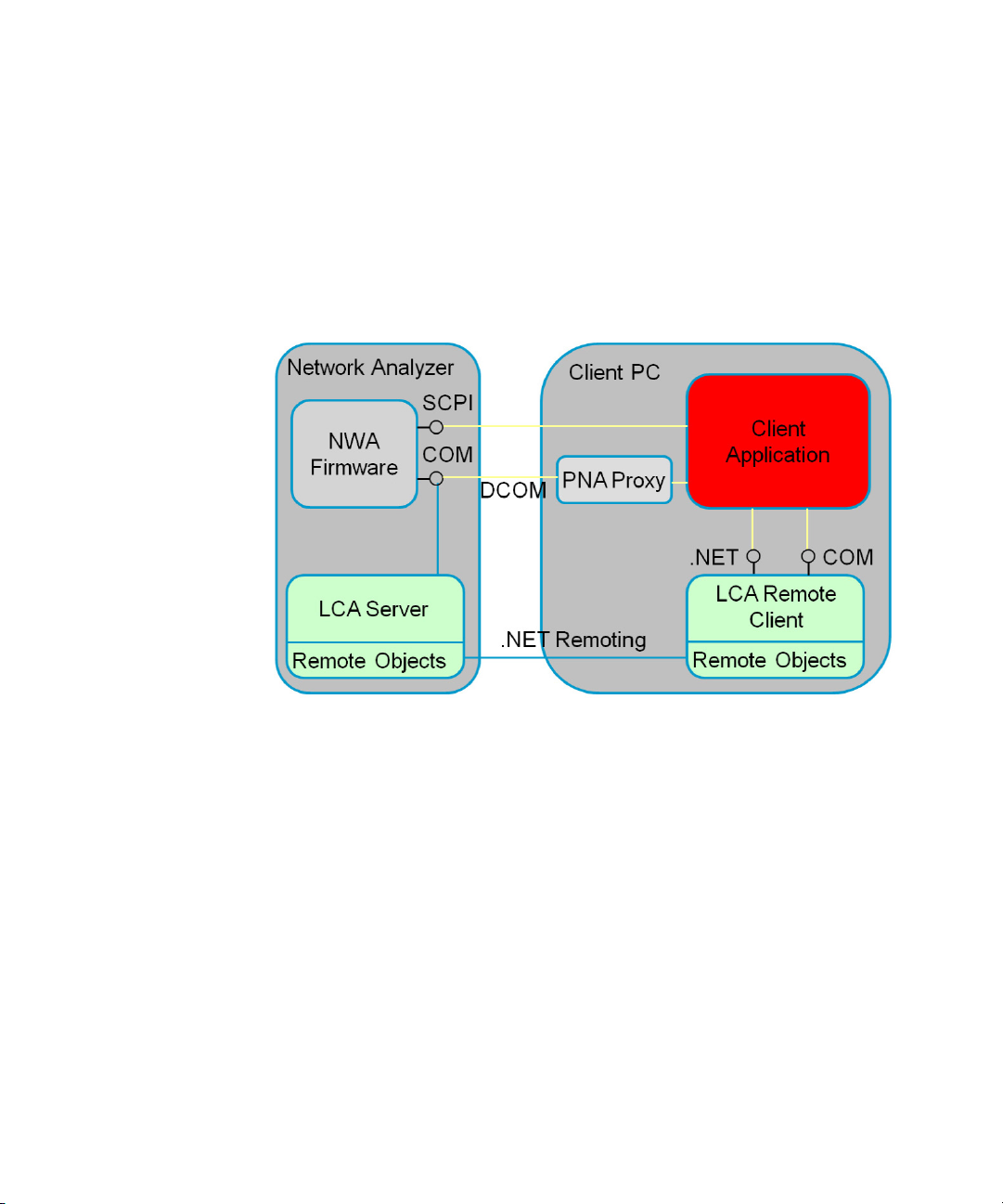
analyzer. The network analyzer’s native functions can be controlled either
using SCPI or COM. We recommend using the COM interface. This is
reflected in the programming examples.
Figure 1 LCA Remoting Architecture
While this chapter assumes you are familiar with your programming
environment, it does not assume familiarity with controlling remote objects
from within that environment.
Examples are provided for VB.NET, C#, VBA and Keysight VEE, which can
be extrapolated to most environments for controlling the LCA. After
installing the LCA Remote Client on your computer, you can find these
examples in the folder:
C:\Program Files\Agilent\Agilent LCA Remote Client
(on 32-bit systems)
C:\Program Files (x86)\Agilent\Agilent LCA Remote Client
(on 64-bit systems)
Keysight N437x Series Lightwave Component Analyzer, Programmer’s Guide 7
Page 8

1 Remote Operation
The location on your computer depends on the folder in which you
installed the LCA Remote Client.
The Excel-VBA example pulls data directly from the LCA into Excel. This is
very useful if you are setting up measurements manually, but want to
analyze the results on your own computer.
8 Keysight N437x Series Lightwave Component Analyzer, Programmer’s Guide
Page 9

Remote Operation 1
Transferring code from the 8703A/B to the Keysight N437x Series Lightwave Component Analyzer
Tools are available to migrate code from the 8720 network analyzer to the
new PNA network analyzer platform at
www.keysight.com/find/nadisco
The 8703A/B Lightwave Component Analyzers are based on the 8720
network analyzers, so you can use these code conversion tools to migrate
existing code to the N437x Series LCA based on the PNA platform.
Most of the code in a typical application for the 8703 LCA controls the
functionality of the network analyzer. This part of the application can be
migrated with these tools.
The code related to LCA specific functionality has to be migrated by hand.
Keysight N437x Series Lightwave Component Analyzer, Programmer’s Guide 9
Page 10
1 Remote Operation
NOTE
NOTE
NOTE
LCA System Configuration
How to configure the LCA for networking
How to connect the LCA to your network
Remote programming of the LCA with the .NET interface is only possible if
the LCA is connected to a local area network (LAN) via the built-in LAN
connector. When the LCA is connected to a network, it is also possible to
connect it to network printers and remote servers, with access to shared
folders and files.
Using the SCPI interface, the LCA can also be controlled from a USB port.
The LCA comes configured for DHCP networking, and has a default
machine name. In many cases, connecting the LCA to your LAN is simply a
case of registering the machine name with your IT department.
Do not connect the LCA to a network that is configured to automatically
install software on network devices. Installing or overwriting files on the
LCA computer system may impact the operation of the instrument.
Please contact your network administrator or IT department to find out if
you have this type of network.
The LCA LAN connector supports 10 Base-T and 100 Base-T Ethernet
networks using TCP/IP and other Microsoft supported networking
protocols. The LCA uses Microsoft Windows 7 or XP.
10 Keysight N437x Series Lightwave Component Analyzer, Programmer’s Guide
Page 11

How to change network settings
NOTE
NOTE
NOTE
You can change the LCA network settings as needed so that it connects
properly to your specific network.
Because your network settings are unique to your IT infrastructure,
Keysight Technologies will not be able to assist you with connecting your
instrument to your network. Please contact your network administrator
or IT department for assistance. For more information, refer to the MS
Windows resource kit (available from Microsoft) that is appropriate for
your computer system. You can also refer to the online Help for Windows
(Start > Help).
By default, as the instrument starts up, you are logged on as an
administrator. On N52xxA PNAs, the default administrator name is
"pna-admin", password "pna". On N52xxB PNAs, the default
administrator name is "instrument", password "measure4you".
Keysight only recommends using the LCA application while you are
logged on as an administrator.
Remote Operation 1
You can change network settings by using the standard Microsoft
Windows functions.
To view or change the computer machine name
1 On the Task bar, click Start, point to Settings, and then click Control
Panel.
2 Double-click the System icon and click on the Computer Name tab.
From here you can view or change the machine name.
3 When you have finished making changes, restart the instrument.
To configure TCP/IP to use DNS or WINS
If using a protocol other than TCP/IP, please contact your IT department
for assistance.
Keysight N437x Series Lightwave Component Analyzer, Programmer’s Guide 11
Page 12
1 Remote Operation
NOTE
NOTE
NOTE
NOTE
Editing your instrument’s protocols and file access permissions can
result in unwanted behaviors that are difficult to reverse. Ensure that
your changes are valid!
Please consult with your network administrator concerning advanced
TCP/IP and multi-protocol configuration settings to support your
network.
Please contact your network administrator or IT department if you have
any problems connecting the LCA to your network.
4 On the Task bar, click Start, point to Settings, and then click Network
and Dial-up Connections.
5 Then click Local Area ConnectionProperties.
6 On the General tab (for a local area connection) or the Networking tab
(all other connections), click Internet Protocol (TCP/IP), and then click
Properties. From here, you can make all desired changes.
7 When you have finished making changes, restart the instrument.
For more information, click Start > Help > Index, and search for “DNS” or
“WINS” or “static” or “dynamic.”
To configure TCP/IP for static or dynamic addressing
• To get started, follow the same steps listed above.
12 Keysight N437x Series Lightwave Component Analyzer, Programmer’s Guide
Page 13

Install the LCA Remote Client
NOTE
Remote Operation 1
The LCA Remote Client is described in Overview on page -6.
This installation is not for the LCA itself. (Applications using the remote
programming commands can be run on the LCA itself without installing
the remote client package.)
1 1 If not already installed, install the .NET Framework Version 2.0 from
Microsoft. Go to www.microsoft.com and search for ‘How to get the
Microsoft .NET framework’. Be sure to get the framework and all the
service packs. Make sure that you get the framework, not the SDK
(software development kit.)
2 The LCA CD shipped with the LCA contains the Remote Client
Installation Package to install the LCA specific DLLs and the
programming examples. The most recent version of the LCA Remote
Client Installation Package is available from the Keysight web site
(www.keysight.com/find/lca).
• Insert the CD into the CD drive, use Windows Explorer to find LCA
Remote Client Installer Folder, or
• Start the downloaded installer.
3 If you want to program the network analyzer via its COM interface you
need to install the PNAProxy. The installation executable
“PNAProxy.exe” can be found on the network analyzer in the folder:
C:\Program Files\Agilent\Network Analyzer\Automation
(on 32-bit systems)
C:\Program Files (x86)\Agilent\Network Analyzer\
Automation
Install the PNA Proxy by running the installation program
“PNAProxy.exe” on your client machine.
When asked to type in the host name or IP address of the remote
network analyzer during installation, you do not need to type in
anything.
You can specify the host name or IP address during program
development or execution.
(on 64-bit systems)
Keysight N437x Series Lightwave Component Analyzer, Programmer’s Guide 13
Page 14

1 Remote Operation
How to use the LCA Remote Client
Here you can see the basic steps required to write an LCA client
application.
The code sequences presented here are in VB.NET syntax. For sequences
in other languages like C#, VBA or C++ refer to the different programming
examples. You can find these examples in the “Examples” folder, in the
“Keysight LCA Remote Client” installation folder.
Since most client applications will also control the network analyzer for
setting measurement parameters like start- and stop-frequency and for
reading out the measurement data, we also show the basic steps required
to control the network analyzer using its COM interface over LAN (DCOM).
The network analyzer can also be programmed using its SCPI interface,
but this is not covered here. For details about programming the network
analyzer, please refer to the relevant network analyzer documentation.
Adding references to your project
In .NET and COM projects, you have to add references to the LCA Remote
Client Library and to the PNAProxy type library (the network analyzer
proxy, assuming you also want to program the network analyzer).
The LCA Remote Client implements two different interface technologies.
• In environments which support .NET assemblies, we recommend using
• If your programming environment does not support .NET assemblies,
Here we show how this is done in Microsoft Visual Studio 2005 using the
LCA Remote Client .NET assembly directly. When using the COM interface,
the basic structure is the same.
For the differences, please check the VBA and C++ example projects,
installed with the LCA Remote Client.
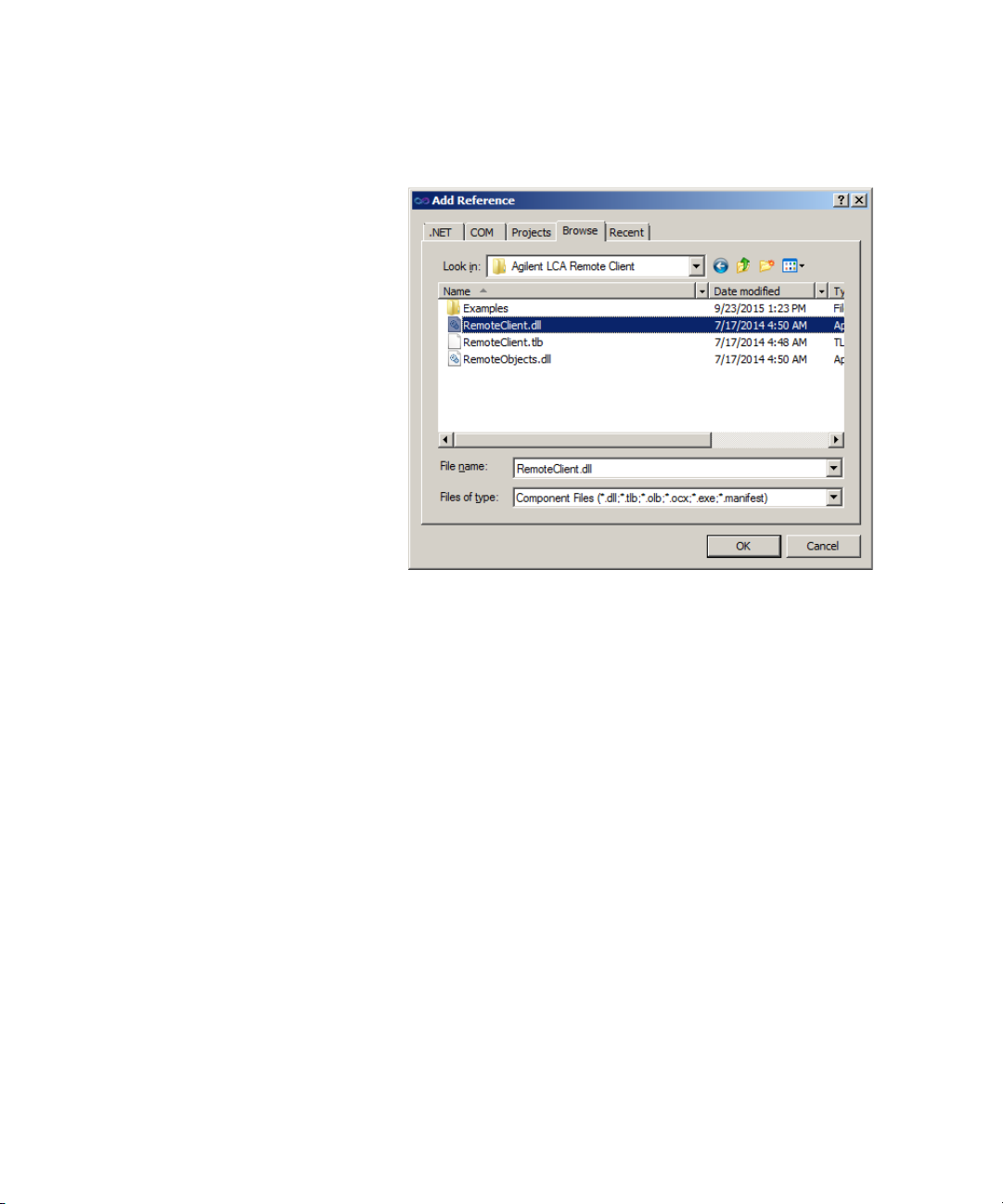
1 From the “Project” menu, select “Add Reference”.
2 Switch to the “Browse” tab.
3 Browse to your LCA Remote Client installation folder.
the LCA Remote Client .NET assembly directly.
use the LCA Remote Client over its COM interface.
14 Keysight N437x Series Lightwave Component Analyzer, Programmer’s Guide
Page 15
Remote Operation 1
4 Select “RemoteClient.dll” and press OK.
5 If you also want to use the network analyzer COM interface, please
refer to the network analyzer documentation, including:
http://na.support.keysight.com/pna/programming/
In environments which cannot work directly with .NET assemblies, you
have to use the COM interface of the LCA Remote Client.
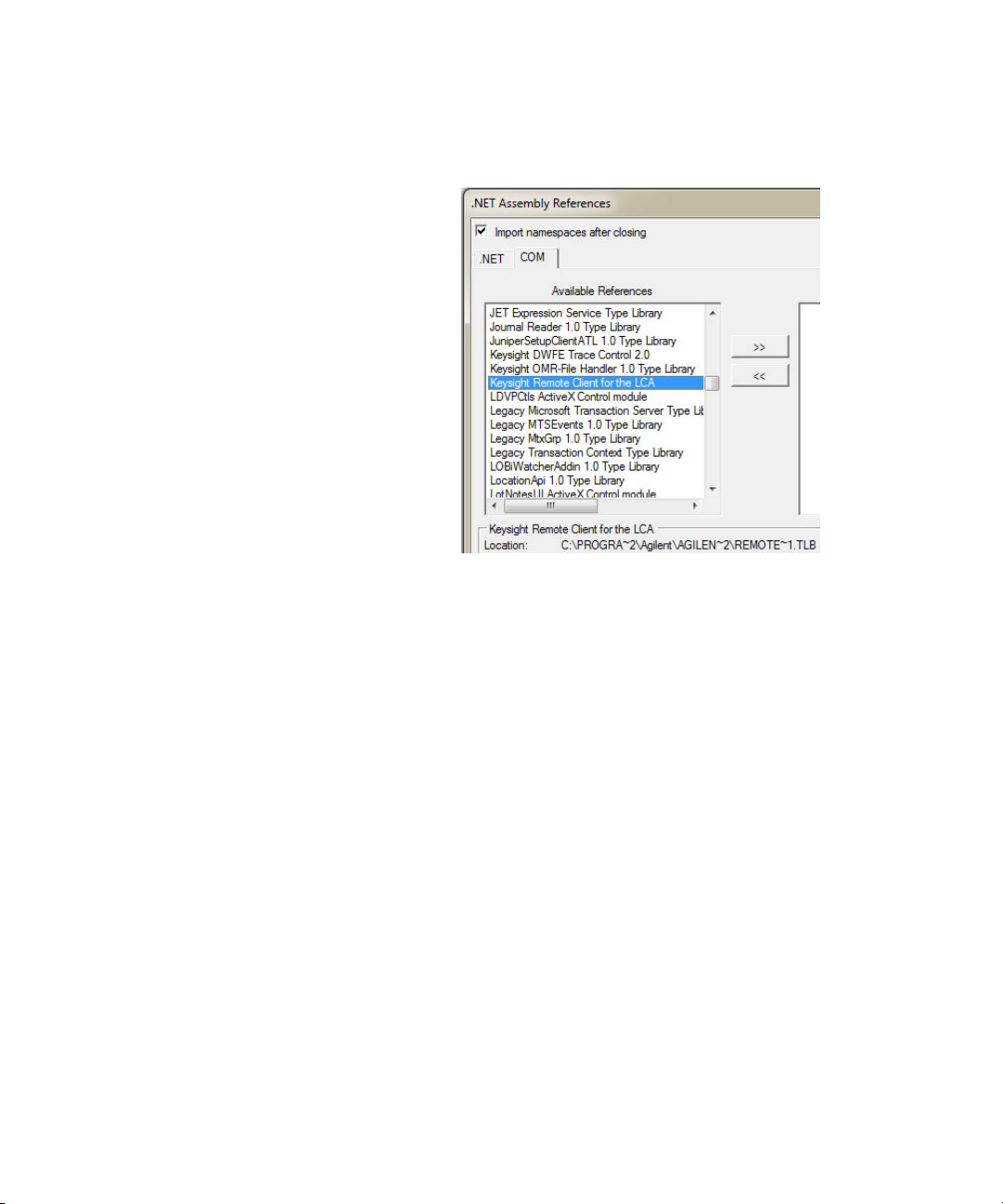
1 In VBA, open the “Tools” menu and select “References”.
You will see a dialog like the following:
Keysight N437x Series Lightwave Component Analyzer, Programmer’s Guide 15
Page 16
1 Remote Operation
2 Select “Keysight Remote Client for the LCA”.
Declare and create the required objects
The LCA Remote Client defines
• three interfaces ILCARemoteClient4, ILCAMeasParams2,
ILCAProperties3 and
• three classes, LCARemoteClient, LCAMeasParams and LCAProperties.
Each of these classes implements the corresponding interface. To be able
to use the LCA Remote Client, you have to create objects from these
classes.
‘ Declare the objects
Private lcaClient As
Agilent.LCA.RemoteClient.LCARemoteClient
Private lcaMeasParams As
Agilent.LCA.RemoteClient.LCAMeasParams
Private lcaProperties As
Agilent.LCA.RemoteClient.LCAProperties
….
‘Create the objects
lcaClient = New Agilent.LCA.RemoteClient.LCARemoteClient()
16 Keysight N437x Series Lightwave Component Analyzer, Programmer’s Guide
Page 17

Remote Operation 1
lcaMeasParams = New Agilent.LCA.RemoteClient.LCAMeasParams()
lcaProperties = New Agilent.LCA.RemoteClient.LCAProperties()
If you also want to use the network analyzer, you have to declare and
create a network analyzer application object.
This is quite different to the LCA. When working with the LCA you are
creating a local LCA Remote Client object. The connection to the remote
LCA server is done with the “Connect” command on the LCA Remote
Client interface.
When using the network analyzer over its COM interface, you are using
DCOM and have to remotely activate the network analyzer interface. For
examples on how this is done in different programming environments, see
the programming examples installed with the LCA Remote Client.
Here we show how this is done in VB.NET:
‘ Declare the object
Private pnaClient As AgilentPNA835x.Application
…
Public Sub Open(ByVal serverName As String)
‘ the class-id of the AgilentPNA835x.Application class
Dim clsID As System.Guid = New Guid(
"16D3C697-5F97- 11D2-BC1F-0060B0B52EA7")
Dim srvtype As System.Type =
System.Type.GetTypeFromCLSID(
clsID, serverName, True)
‘ now we connect to the remote PNA
pnaClient =
CType(System.Activator.CreateInstance(srvtype),
AgilentPNA835x.IApplication9)
End Sub
For further details on programming the network analyzer, please refer to
the relevant network analyzer documentation.
Keysight N437x Series Lightwave Component Analyzer, Programmer’s Guide 17
Page 18

1 Remote Operation
Basic structure of an LCA client application
When programming the LCA you have to follow this basic structure:
1 (optional) Set a time-out value
lcaClient.SetTimeout(timout_ms)
2 Connect to the LCA server.
lcaClient.Connect(serverName)
now you could call commands which do not require an open session. In
the case of the LCA client, this is the GetLCAProperties command.
lcaClient.GetLCAProperties(lcaProperties)
3 Open a session on the LCA, and check the return value of the Open()
command. A return value False indicates that the Open() command
has failed.
lcaClient.Open()
4 All commands that change the state of the LCA require an active
session opened on the LCA. All these commands have to be enclosed
by Open() and Close() commands.
Commands which do not change the state of the LCA, like reading
properties, only require a passive session on the LCA.
5 When finished with working on the LCA, close the session
lcaClient.Close()
6 Before leaving the application, make sure to call the Disconnect()
command. This prevents unnecessary processing overhead on the LCA,
needed to monitor and close inactive sessions.
lcaClient.Disconnect()
18 Keysight N437x Series Lightwave Component Analyzer, Programmer’s Guide
Page 19

Synchronous vs. Asynchronous Method Calls
A traditional remote control application consists of a list of actions that you
send to the instrument, expecting it to execute them in that order and to
tell you when it is done. This makes programming easy - you can do your
whole measurement in a single function or sub-routine.
In this approach you send the actions to the instrument in synchronous
mode. This means that an action you send to the instrument blocks the
program flow of the calling thread until it finishes. The advantage is that
your program structure is very simple. The drawback is that you have to
wait for the instrument to finish the action. For example this could lead to
an unresponsive user interface.
This can be solved using multi threading. Run the measurement sequence
in a new thread while the main thread handles other things like running
the user interface.
A third possibility is to call potentially time consuming actions
asynchronously. The LCA Remote Client lets you call some commands in
asynchronous mode. This means that the call returns immediately, even
before the action on the instrument has finished execution.
In such cases you need an additional method to determine, when an action
finishes. The LCA Remote Client offers two different methods to
accomplish this.
• The first is the property OperationComplete().
This property value is True, when the last asynchronously called
operation on the LCA has finished execution.
Otherwise the property value is False.
• The other method is named WaitForOPC(). This method blocks program
execution on the calling thread until the operation on the instrument
finishes.
Remote Operation 1
Here are two short examples in VB.NET syntax, showing the usage of
asynchronous calls:
Keysight N437x Series Lightwave Component Analyzer, Programmer’s Guide 19
Page 20

1 Remote Operation
Using the OperationComplete() Property in a loop:
oLCAClient.Init_OO(params, False)
Do
‘ let the application handle events
Application.DoEvents()
System.Threading.Thread.Sleep(200)
While oLCAClient.OperationComplete = False
Using the WaitForOPC() command:
oLCAClient.Init_OO(params, False)
DoMyActionsAfterCallingInit() ‘ doing some other stuff
‘ When we are done with our own stuff,
‘ we need to wait for Init_OO to finish
oLCAClient.WaitForOPC()
20 Keysight N437x Series Lightwave Component Analyzer, Programmer’s Guide
Page 21

Troubleshooting
NOTE
Remote Operation 1
During application development you may encounter situations where the
Open() call fails.
This happens when a session on the LCA is already open. If there are no
other applications using the LCA, the most likely reason is that an
application finished without closing its session, for example when running
an application in the debugger and you terminate it by stopping the
debugger.
The LCA and the LCA Remote Client have a heartbeat mechanism to
detect abandoned sessions. The LCA checks for 60 seconds of inactivity. If
nothing happens in this time, the LCA assumes the session has been
abandoned and it closes this session, so that other clients are able to open
a session.
You may want to workaround this behavior during application
development. There are two cases here.
• If your client application halts on a breakpoint, the heartbeat is
suspended, so if your application is suspended for more than 60
seconds, the server closes the session. When you try to continue
execution, you get an error telling you that no session is open.
To keep sessions open, start the LCA server on the network analyzer
with the command-line parameter “NOAUTOCLOSE”.
• If you are running into problems restarting your application because
aborted sessions are still open, call CloseAll() before the Open() call.
We recommend you only use these workarounds during development.
Only use CloseAll() in environments where you are sure no other client
could have a session opened. CloseAll() will close sessions from all the
LCA clients.
Keysight N437x Series Lightwave Component Analyzer, Programmer’s Guide 21
Page 22

1 Remote Operation
NOTE
LCA Remote Programming
LCA remote control DLLs
The LCA remote programming interface uses Microsoft.NET Remoting
technology. It is controlled by manipulating the properties and methods
exposed by the server object. The list of properties and methods in this
section describe the interface that is available to a programmer wanting to
program the LCA system in other applications.
The LCA RemoteClient DLL provides a communication link with the LCA
server. The DLLs are comprised of a set of properties, and methods that
together provide a basic set of remote LCA capabilities. The two DLLs of
interest are: RemoteClient.dll and RemoteObjects.dll. By default these two
DLLs are installed to:
C:\Program Files\Agilent\Agilent LCA Remote Control\
(on 32-bit systems)
C:\Program Files (x86)\Agilent\Agilent LCA Remote Control\
(on 64-bit systems)
From version 3.1.4 onwards, remote control DLLs are generally installed
in C:\Program Files (x86)\Agilent\Agilent LCA Remote Control\
Independent from that, they can be used within 32-bit and 64-bit
processes.
22 Keysight N437x Series Lightwave Component Analyzer, Programmer’s Guide
Page 23
Specific Commands
Interface structure
Enumeration
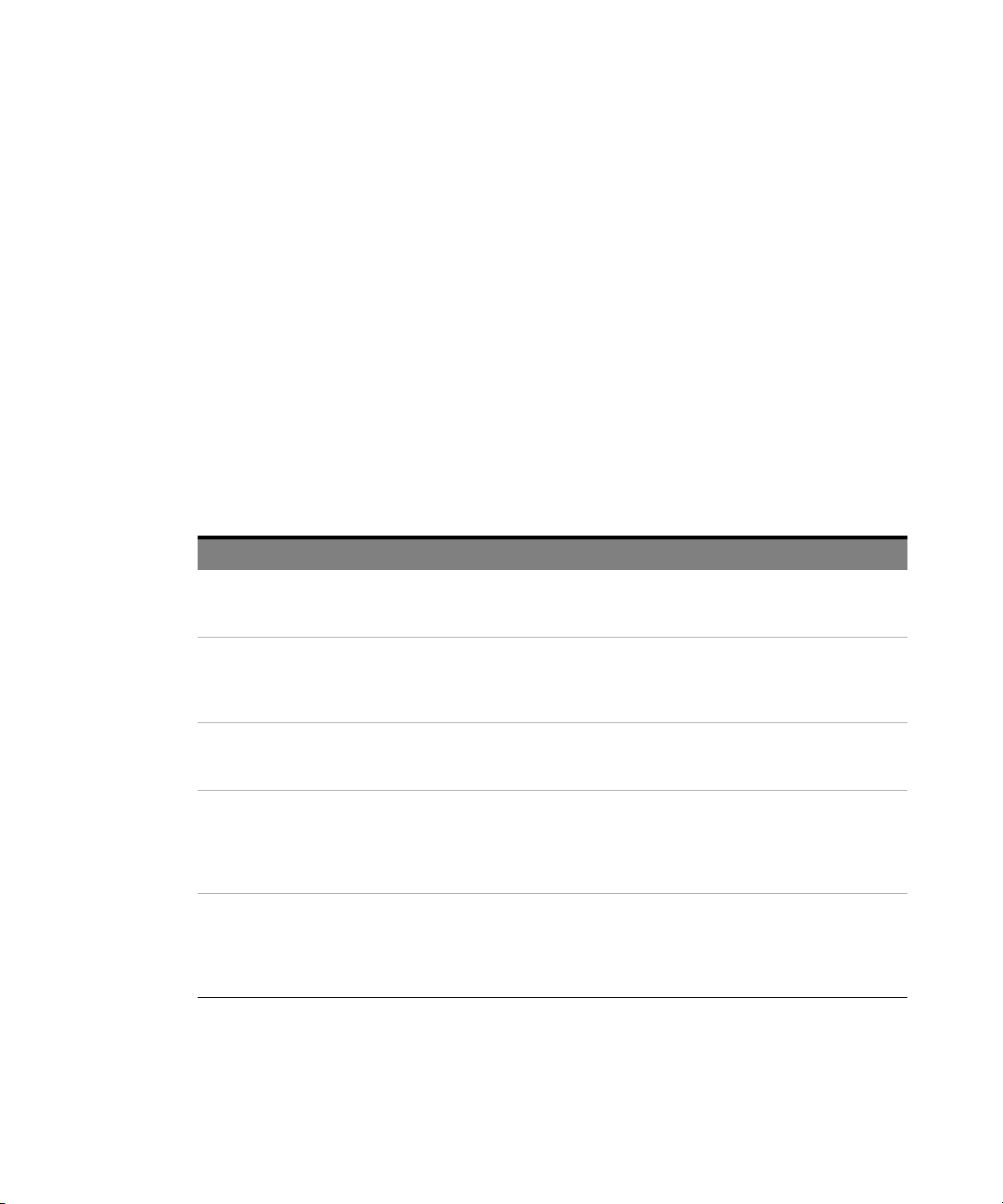
Enumeration Description Possible values
Remote Operation 1
There are three classes to control the LCA: the LCAMeasParams, the
LCAProperties and the LCARemoteClient.
• The class LCAMeasParams summarizes all possible parameters of your
measurement.
• The class LCAProperties provides read-only properties, which give you
some information about the network analyzer and the LCA.
• The class LCARemoteClient provides the methods to connect to the
LCA, perform measurements and change hardware settings.
This is the list of enumeration names, with their possible values.
ELaserState Enumerates the possible laser states, on or off. NotSet
ELaserWvl Enumerates the possible laser wavelengths. NotSet
EMeasMode Specify if you are doing single ended or differential measurements.
Note: differential measurements require a 4-port network analyzer.
EMeasType Enumerates the different LCA measurement types NotSet
EModBiasOpt Specify how often a modulator bias voltage optimization has to be
performed.
Once: only once when the laser is switched on.
EverySweep: prior to each measurement started by the LCA.
Continuous: the optimization loop runs continuously.
LaserOff
LaserOn
Wvl_850nm
Wvl_1310nm
Wvl_1550nm
NotSet
SingleEnded
Differential
EE
EO
OE
OO
NotSet
Once
EverySweep
Continuous
Keysight N437x Series Lightwave Component Analyzer, Programmer’s Guide 23
Page 24
1 Remote Operation
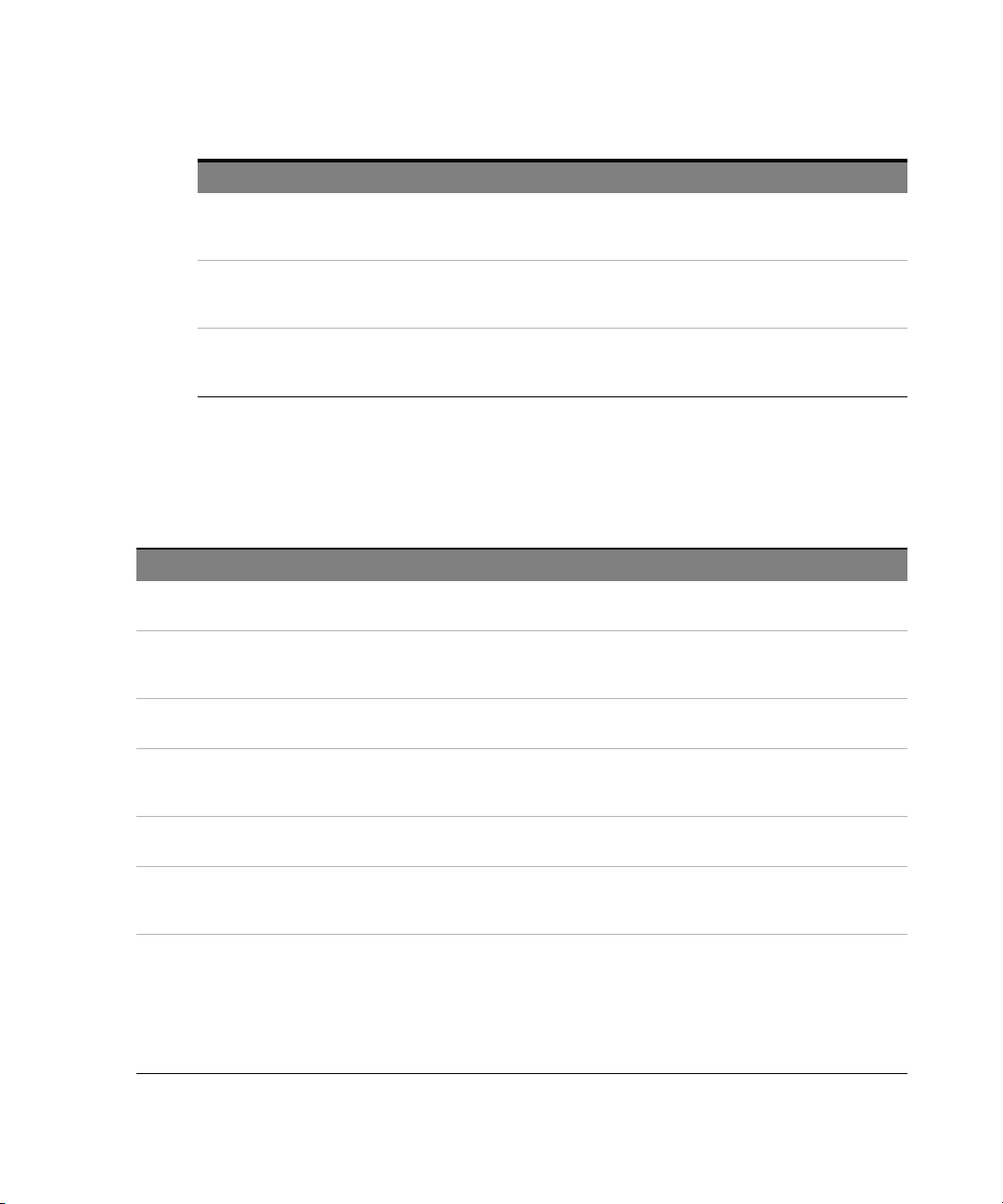
Enumeration Description Possible values
EOpticalInput Enumerates the optical inputs on the optical test head’s front panel.
High power input is comparable to input 2 and standard to input 1.
ERFSwitch Enumerates the RF switches in a switched LCA system NotSet
ERFSwitchState Enumerates the possible settings of the RF switches UnKnown
NotSet
Standard
HighPower
Source
Receiver
Thru
Intern
Class LCAMeasParams
These are common properties of the LCA measurement parameters.
Property Description Typ e Default value
Wavelength_nm Specify with which laser wavelength the LCA will measure. Enum ELaserWvl NotSet
WavelengthInt_nm Specify with which laser wavelength the LCA will measure. Use this
method when using ExternalInput and the wavelength does not
match any of the internal wavelengths of the test head.
OpticalPower_dBm Specify the optical output power of the LCA in dBm Double 0.0
Integer
HighPower_Input If you are using the high power optical input you have to set the
HighPower_Input property to true.
MeasMode Specify if you want to do single ended or differential measurements Enum EMeasMode SingleEnded
ModBiasOptimization Specify how often a modulator bias voltage optimization has to be
performed
Advanced Enable the possibility to overwrite some of the default behavior of the
LCA. In advanced mode you can force the LCA to switch the laser on
or off independently of the measurement type. You also have
additional Optical- and RF- path deembedding possibilities, or can
apply additional deembedding on the receiver and the source side,
independent of the measurement type.
24 Keysight N437x Series Lightwave Component Analyzer, Programmer’s Guide
Boolean False
Enum EModBiasOpt EverySweep
Boolean – if true,
advanced features
are active
False
Page 25

Remote Operation 1
Property Description Typ e Default value
Laser_On Switch the intern laser on or off.
Note: The value of this property is only evaluated in advanced mode.
In default mode the laser is switched on or off according to the
measurement type.
SkipUserCal If set to True, factory calibration data are used, no additional user
calibration is used.
NRUserCal If set to True, IF-BW is reduced to reduce the noise on the user
calibration data. The default bandwidth reduction factor is defined in
the LCAConfig.xml file.
Imp75_Ohm Set to True to measure components with 75 Ohm impedance. Boolean False
ForwardRFPower_dBm Sets the RF power level for the source port(s). For balanced
measurements (on 4-port network analyzers), Ports 2 and 3 of the
network analyzer are forward for EO measurements and reverse for
OE measurements.
Increasing the forward RF power for OE measurements increases the
optical modulation amplitude.
ReverseRFPower_dBm Sets the RF power level for the receiver port(s).
We recommend the factory calibrated default value for the best
results.
To reset to the factory default, leave the text box empty or enter a
value less than -200 dBm.
Boolean – if true,
the
laser is on
Boolean False
Boolean False
Double Double.NaN
Double Double.NaN
Tru e
ExternalInput Set to True to use a laser source connected to the optional external
input (on the rear of the optical test set.
Set to False to use the laser source in the optical test set.
Keysight N437x Series Lightwave Component Analyzer, Programmer’s Guide 25
Boolean False
Page 26
1 Remote Operation
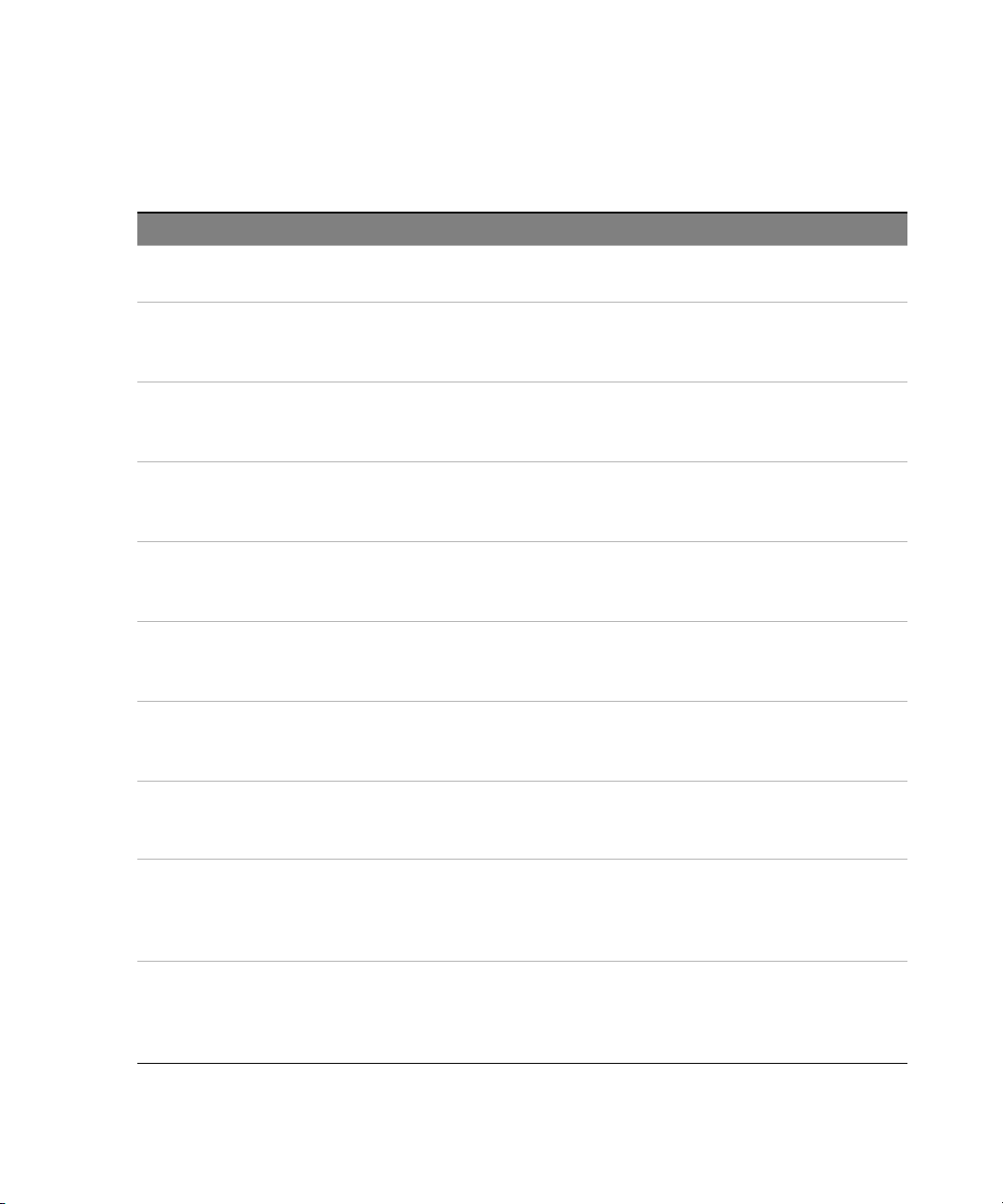
The following properties control additional optical path deembedding.
Property Description Typ e Default value
UseOpticalConnData With this property you could switch the whole optical path
SrcAttOpt_dB Specify the optical attenuation on the source path in dB. In default
RcvAttOpt_dB Specify the optical attenuation on the receiver path in dB In default
SrcRefIdx Specify the refractive index of the source path in dB.
RcvRefIdx Specify the refractive index of the receiver path in dB.
SrcLengthOpt_m Specify the geometrical length of the source path in m.
RcvLengthOpt_m Specify the geometrical length of the receiver path in m.
UseOpticalS2PFile Specify if you want to describe the optical paths by the parameters
deembedding on or off.
mode only evaluated for O/E and O/O measurements.
mode only evaluated for E/O and O/O measurements.
In default mode only evaluated for O/E and O/O measurements.
In default mode only evaluated for E/O and O/O measurements.
In default mode only evaluated for O/E and O/O measurements.
In default mode only evaluated for E/O and O/O measurements.
above or by transmission data stored in a s2p file. Only the S21
transmission data is used.
Boolean False
Double 0.0
Double 0.0
Double 0.0
Double 0.0
Double 0.0
Double 0.0
Boolean False
OptRcvFile The name of the s2p file to use for additional adaptor deembedding
on the receiver side
In default mode only evaluated for E/O and O/O measurements.
OptSrcFile The name of the s2p file to use for additional adaptor deembedding
on the source side.
In default mode only evaluated for O/E and O/O measurements.
26 Keysight N437x Series Lightwave Component Analyzer, Programmer’s Guide
String Empty string
String Empty string
Page 27
Remote Operation 1
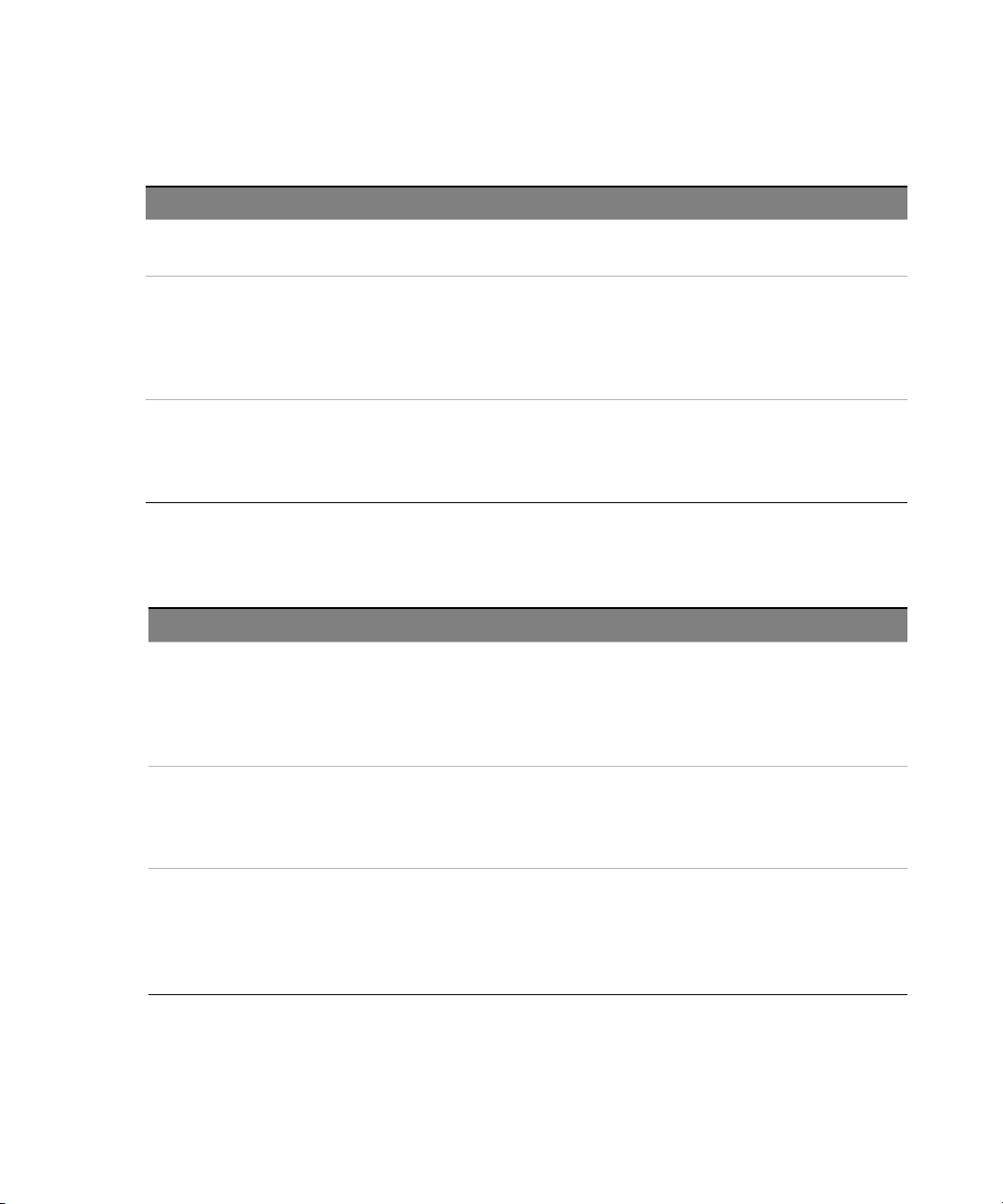
Property Description Typ e Default value
UseElAdaptor With this property you could switch the whole electrical path
deembedding on or off.
ElRcv1File The name of the s2p file to use for electrical adaptor deembedding.
This property has to be used for receiver side deembedding in
single ended measurements or for the receiver port with the lower
number in differential measurements.
ElRcv2File The name of the s2p file to use for electrical adaptor deembedding.
This property has to be used only for the receiver port with the
higher number in differential measurements.
Property Description Typ e Default value
ElSrc1File The name of the s2p file to use for electrical adaptor deembedding.
This property has to be used for source side deembedding in single
ended measurements or for the source port with the lower number
in differential measurements.
Boolean False
String Empty string
String Empty string
String Empty string
ElSrc2File The name of the s2p file to use for electrical adaptor deembedding.
This property has to be used only fo r the source port with the higher
number in differential measurements.
CalSetUserCal Name a Calset on the network analyzer which has to be used for the
user calibration measurement.
If an empty string is passed, the current calset is used. If “NONE” is
passed, no calset is applied for the user calibration measurement.
Keysight N437x Series Lightwave Component Analyzer, Programmer’s Guide 27
String Empty string
String Empty string
Page 28
1 Remote Operation
NOTE
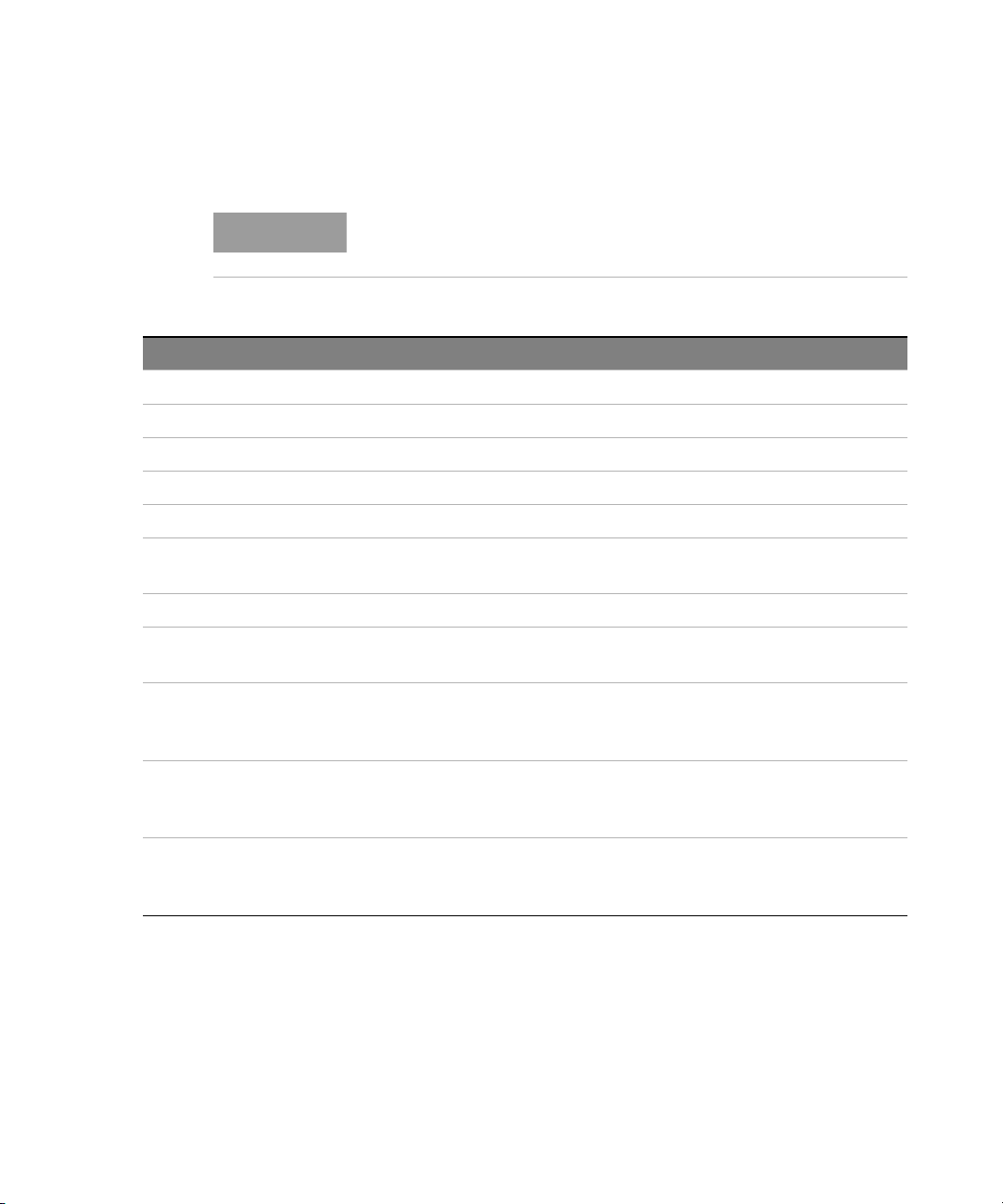
Property Description Typ e Default value
NWAModel The model number of the network analyzer String
NumNWAPorts The number of ports of the network analyzer Integer
NumOpticalInputs The number of optical inputs of the LCA test head Integer
ProductNumber The product number of the LCA system String
SerialNumber The serial number of the LCA system String
Class LCAProperties
These properties are all read-only.
SwitchedArchitecture True: LCA test head has a switched architecture, False: non
SoftwareVersion The version of the LCA server software String
SourceWvl An array showing all available wavelengths of the LCA test
MaxPower_dBm An array holding the maximum optical output power values
MinPower_dBm An array holding the minimum optical output power values
HasExternalInput True: LCA test head has external laser input
switched architecture
head
in dB. These values are correlated to the wavelength values
in “SourceWvl” at the same position.
in dB. These values are correlated to the wavelength values
in “SourceWvl” at the same position.
False: LCA test head has no external input
Boolean
array ELaserWvl
array double
array double
Boolean
28 Keysight N437x Series Lightwave Component Analyzer, Programmer’s Guide
Page 29

Interface ILCARemoteClient4
General commands
Parameters ByVal server As String
Return value No return value.
Parameters No parameters.
Return value No return value.
Remote Operation 1
Sub Connect (ByVal server As String)
Create a connection to an LCA server application.
An LCA client application can only have one open connection to an LCA
server at any time.
The LCA server could handle several open connections concurrently.
Host name or IP address of the network analyzer where the LCA server is
running.
Sub Disconnect ()
Closes the connection to the LCA server application.
Function IsConnected() As Boolean
Checks if a connection to an LCA server already exists.
Parameters No parameters.
Return value Boolean
True: a connection to an LCA server exists False: no connection exists.
False: no connection exists
Function Open () As Boolean
Opens an active session on the LCA.
All commands that change the state of the LCA require an active session.
The LCA server allows only one active session at any time.
Keysight N437x Series Lightwave Component Analyzer, Programmer’s Guide 29
Page 30

1 Remote Operation
All actions allowed in a passive session are also allowed in an active
session.
Parameters No parameters.
Return value
Boolean True: A session has been opened
False: Opening a session failed
Function OpenPassive () As Boolean
Opens an passive session on the LCA.
All commands that just read settings from the LCA require at least an open
passive session.
Several passive sessions could be opened concurrently.
Parameters No parameters.
Return value Boolean
True: A session has been opened
Parameters No parameters.
Return value No return value.
Parameters No parameters.
Return value No return value.
30 Keysight N437x Series Lightwave Component Analyzer, Programmer’s Guide
False: Opening a session failed
Sub Close ()
Closes active session on the LCA.
Sub ClosePassive ()
Closes passive session on the LCA.
Sub CloseAll ()
Closes the active sessions on the LCA. Any measurements that are
currently running are aborted.
Page 31

This can be useful if an abandoned, open session prevents a successful
Open() command. However, be careful not to disturb any other connected
client applications.
The LCA automatically closes abandoned sessions after some time (>60s)
of inactivity.
Parameters No parameters.
Return value No return value.
Sub ResetLCASystem ()
Restarts the LCA server. Open sessions are closed and running
measurements are aborted.
A restart is necessary, when the network analyzer application has been
restarted or when the LCA testhead has been switched off while the LCA
server was running.
Parameters No parameters.
Return value No return value.
Remote Operation 1
Sub GetLCAProperties
(ByVal properties As RemoteClient.ILCAProperties3)
Read out the properties of the LCA system.
Parameters ByVal properties As RemoteClient.ILCAProperties3
The properties are written to this LCAProperties object
Return value No return value.
Sub SetTimeout (ByVal timeout_ms As Integer)
Set the timeout value for the .NET remoting.
A value of 0 or -1 indicates an infinite timeout period, which is also the
default value.
The timeout value is set in the .NET remoting layer during execution of the
“Connect” command. If you want to set a timeout value, you have to do
this before calling the “Connect” command.
If you are using the LCA Remote Client .NET assembly directly, you can
also specify the timeout value in the LCARemoteClient constructor.
Keysight N437x Series Lightwave Component Analyzer, Programmer’s Guide 31
Page 32

1 Remote Operation
When using the COM interface you could only use the default constructor,
so you have to use this command to specify a nondefault timeout value.
Parameters ByVal timeout_ms As Integer
An integer that specifies the number of milliseconds to wait before a .NET
remoting request times out
Return value No return value.
Measurement commands
Sub Init_EE
(ByVal parameters As RemoteClient.ILCAMeasParams2, ByVal sync As
Boolean)
Initializes the LCA for a EE measurement.
Parameters: ByVal parameters As RemoteClient.ILCAMeasParams2
The measurement parameters for initialization Optional ByVal sync As
Boolean
True (default): the call is blocked until initialization is complete
False: the call returns immediately.
For synchronization use the synchronization methods WaitForOPC or
OperationComplete
Return value No return value.
Sub Init_EO (ByVal parameters As RemoteClient.ILCAMeasParams2,
ByVal sync As Boolean)
Initializes the LCA for an EO measurement.
Parameters ByVal parameters As RemoteClient.ILCAMeasParams2
The measurement parameters for initialization Optional ByVal sync As
Boolean
True (default): the call is blocked until initialization is complete
False: the call returns immediately. For synchronization use the
synchronization methods WaitForOPC or OperationComplete
Return value No return value.
32 Keysight N437x Series Lightwave Component Analyzer, Programmer’s Guide
Page 33

Sub Init_OE (ByVal parameters As RemoteClient.ILCAMeasParams2,
ByVal sync As Boolean)
Initializes the LCA for an OE measurement.
Parameters ByVal parameters As RemoteClient.ILCAMeasParams2
The measurement parameters for initialization Optional ByVal sync As
Boolean
True (default): the call is blocked until initialization is complete
False: the call returns immediately.
For synchronization use the synchronization methods WaitForOPC or
OperationComplete
Return value No return value.
Sub Init_OO (ByVal parameters As RemoteClient.ILCAMeasParams2,
ByVal sync As Boolean)
Initializes the LCA for an OO measurement.
Parameters ByVal parameters As RemoteClient.ILCAMeasParams2
Remote Operation 1
The measurement parameters for initialization Optional ByVal sync As
Boolean
True (default): the call is blocked until initialization is complete
False: the call returns immediately.
For synchronization use the synchronization methods WaitForOPC or
OperationComplete
Return value No return value.
Sub LoadOOTxCalData (ByVal parameters As
RemoteClient.ILCAMeasParams2, ByVal filename As String, ByVal sync
As Boolean)
Use this command instead of Init_OE if you want the LCA to load and use
previously saved user calibration data.
The loaded user calibration data will be used by the LCA until the next
initialization command is called.
See also SaveUserCalData
Keysight N437x Series Lightwave Component Analyzer, Programmer’s Guide 33
Page 34

1 Remote Operation
NOTE
Parameters ByVal parameters As RemoteClient.ILCAMeasParams2
The measurement parameters for initialization ByVal filename As String
The name of the file containing the user calibration data Optional ByVal
sync As Boolean
True (default): the call is blocked until initialization is complete
False: the call returns immediately.
For synchronization use the synchronization methods WaitForOPC or
OperationComplete
Return value No return value.
Sub LoadOETxCalData (ByVal parameters As
RemoteClient.ILCAMeasParams2, ByVal filename As String, ByVal sync
As Boolean)
Use this command instead of Init_OE if you want the LCA to load and use
previously saved user calibration data.
The loaded user calibration data will be used by the LCA until the next
initialization command is called.
See also SaveUserCalData
Parameters ByVal parameters As RemoteClient.ILCAMeasParams2
The measurement parameters for initialization ByVal filename As String
The name of the file containing the user calibration data Optional ByVal
sync As Boolean
True (default): the call is blocked until initialization is complete
False: the call returns immediately. For synchronization use the
synchronization methods WaitForOPC or OperationComplete
Return value No return value.
Sub Measure (ByVal continuous As Boolean, ByVal sync As Boolean)
Be careful when calling a continuous measurement in synchronous
mode. Since the synchronous call blocks the program execution of the
calling thread, you can't stop this measurement from the calling thread.
It can only be stopped from another thread.
34 Keysight N437x Series Lightwave Component Analyzer, Programmer’s Guide
Page 35

Triggers a measurement on the LCA.
If you call a continuous measurement while another measurement is
running, the original measurement is stopped without starting a new
measurement.
If you call a single measurement while another measurement is running,
this measurement is stopped and a new single measurement is started.
It requires that one of the initialization routines above has been called. If
no measurement type has been initialized, an “InvalidOperationException”
is thrown. The type of the measurement is the one initialized by the last
“Init_XX” or “LoadXXTxCalData” call.
You should trigger your DUT measurements with this routine, as it takes
care of optical DC power dependent deembedding and modulator bias
voltage optimization.
For synchronization use the synchronization methods WaitForOPC or
OperationComplete.
Parameters ByVal continuous As Boolean
True: measurements are done continuously
False (default): a single measurement is triggered
Optional ByVal sync As Boolean
True (default): the call is blocked until initialization is complete
False: the call returns immediately.
Remote Operation 1
Return value No return value.
Sub SaveUserCalData (ByVal filename As String)
Save the measured user calibration data into a s2p-file.
If no user calibration data has been measured during last OE or OO
initialization, default values are stored.
This command is only allowed when OE or OO measurement mode is
inititalized.
Parameters ByVal filename As String
The filename, where the data should be stored.
Return value No return value.
Keysight N437x Series Lightwave Component Analyzer, Programmer’s Guide 35
Page 36

1 Remote Operation
Sub Abort ()
Aborts a currently running measurement or initialization.
Parameters No parameters.
Return value No return value.
Sub WaitForOPC ()
Waits until the last asynchronously called command has finished
execution. Exceptions thrown during execution of an asynchronously
called command could be caught when calling WaitForOPC() or
OperationComplete().
Se also property OperationComplete()
Parameters No parameters.
Return value No return value.
36 Keysight N437x Series Lightwave Component Analyzer, Programmer’s Guide
Properties
Reading these properties requires only a passive session, while setting
these properties requires an active session.
LaserWvl_nm As RemoteClient.ELaserWvl
Get or set the current wavelength of the LCA optical output in nanometers.
Parameters No parameters.
LaserPower_dBm As Double
Get or set the current power of the LCA optical output in dBm
Parameters No parameters.
LaserState As RemoteClient.ELaserState
Get or set the current state of the LCA optical output
Parameters No parameters.
Page 37

Remote Operation 1
OpticalInput As RemoteClient.EOpticalInput
Get or set the current optical input of the LCA testhead
Parameters No parameters.
RFSwitchState
(ByVal RFSwitch As RemoteClient.ERFSwitch)
Setting the RF switches in the LCA testhead. With a non switched LCA
system, setting this property has no effect. Trying to set this property to
UnKnown, is ignored. Reading this property from a non switched system
will always return UnKnown.
Parameters ByVak RFSwich As RemoteClient.ERFSwitch The switch you want to read
from or you want to set.
RFPowerFwd_dBm As Double
Gets or sets the RF power on the network analyzer ports for forward
measurements. To set this property back to the factory defined default
value, set it to Double.NaN or a value < - 200dBm.
Parameters No parameters.
RFPowerRev_dBm As Double
Gets or sets the RF power on the network analyzer ports for reverse
measurements. To set this property back to the factory defined default
value, set it to Double.NaN or a value < - 200dBm.
Parameters No parameters.
ReadOnly OpticalDCPower_dBm As Double
Get the actual optical DC power, measured by the optical powermeter
built into the LCA testhead
Parameters No parameters.
Keysight N437x Series Lightwave Component Analyzer, Programmer’s Guide 37
Page 38

1 Remote Operation
ReadOnly LCAProperties As RemoteClient.ILCAProperties3
See the command GetLCAProperties
Parameters No parameters.
ReadOnly CurrentMeasType As RemoteClient.EMeasType
Get the measurement type which has been initialized by the last call to one
of the Init_XX commands or by one of the LoadXXTxCalData commands.
Parameters No parameters.
ReadOnly OperationComplete As Boolean
Get the operation status of the last asynchronously called command.
Exceptions thrown during execution of an asynchronously called command
could be caught when calling WaitForOPC() or OperationComplete().
Parameters No parameters.
38 Keysight N437x Series Lightwave Component Analyzer, Programmer’s Guide
Page 39

The LCA SCPI Interface
Overview
Port Types
Remote Operation 1
The LCA instrument is a combined instrument. It is a network analyzer
with additional hardware and software to become the LCA. The network
analyzer already offers a SCPI interface on different ports. Now the new
LCA SCPI interface extends the existing LCA application. It is implemented
with the Keysight Translator Framework and the LCA Remote Server. Each
SCPI command is intercepted and linked to an LCA Remote Interface
method. The LCA SCPI interface is not completely IEEE compliant. It only
implements the most necessary common commands besides the
application specific commands.
The LCA SCPI interface is available either on a network socket or on the
device USB port. Other ports like GPIB are not supported. You may select
and configure one of the available types. Using both ports in parallel is not
supported.
Socket Port
The LCA SCPI talker/listener runs on port 5026. The network analyzer SCPI
interface runs on port 5025. You may run both SCPI interfaces for the
LCA and the network analyzer application in parallel, since they take
different socket ports.
USB Port
The LCA system is an integrated system. The system has only one USB
device port which can be used to control the application from a remote PC.
Therefore you can use the USB port to control either the network analyzer
via SCPI or the LCA application via SCPI. You can’t control both
applications over the USB port at the same time.
You always have to run the network analyzer application to get the LCA
functionality. Therefore if you only run the network analyzer and NOT the
LCA SCPI interface, the USB device port is taken by the network analyzer
SCPI talker/listener. When you first connect your PC with a USB cable to
the LCA (combined instrument), you get the Network Analyzer
identification string if you send the *IDN? query.
Keysight N437x Series Lightwave Component Analyzer, Programmer’s Guide 39
Page 40

1 Remote Operation
If you start the LCA SCPI interface and configure it to run on the USB
device port, you will get the identification string for the LCA instrument
when you send the *IDN? SCPI query.
However, if you run the LCA SCPI interface on the socket port and have
connected your PC via USB with the LCA instrument, the network analyzer
identification string will still be returned.
After a system reboot, the USB device port is always taken by the network
analyzer SCPI interface by default. The LCA SCPI interface has to be
started manually. If you run the LCA SCPI interface on the USB device port
and want to switch to the socket port, you have to stop the LCA SCPI
interface first, then change the configuration to socket port and save it.
This action will restart the network analyzer application automatically, to
reclaim the USB device port for the network analyzer. Now the LCA SCPI
interface can be restarted with the new configuration.
GPIB port
The LCA SCPI interface doesn’t support the GPIB port. However you may
control the network analyzer application through SCPI over the GPIB port.
This gives you the possibility to control the instrument independent of LAN
by controlling the LCA application through SCPI over USB and the network
analyzer application through SCPI over GPIB.
Configuration
Select the communication port for your LCA SCPI interface, either the LAN
socket port 5026 or the USB device port. Run the
Agilent.LCA.SCPI.Config.exe program or click on the LCA SCPI
Configuration shortcut on the network analyzer macro list to select the
preferred port. The LCA SCPI talker/listener runs on the socket port 5026
by default. The port is not selectable to avoid conflicts with the network
analyzer SCPI interface, which runs on port 5025.
For support purposes, you may turn the logging on or off. The logging
stores all program outputs into a file. Note: it may fill up your hard disk if
you run the SCPI interface in logging mode for a long time.
When done with configuration, click the “Save Config” button to store all
settings. After saving the settings, the LCA SCPI module will adopt the
modified configuration when you click on the “Start SCPI” button.
40 Keysight N437x Series Lightwave Component Analyzer, Programmer’s Guide
Page 41

Start/Stop the LCA SCPI Module
All LCA modules require the network analyzer application. It should always
start after a system reboot automatically. If the network analyzer is not
running, please start it manually.
Like all other LCA modules, the LCA SCPI module does not start
automatically. You have to start it manually. Use the
Agilent.LCA.SCPI.Conf.exe program to start or stop the LCA SCPI
interface. To launch this program, you may either use the LCA SCPI link in
the network analyzer GUI macro list under utilities, or the shortcut LCA
SCPI Interface on the desktop or in the program menu.
The LCA SCPI interface is implemented on the LCA Remote Interface
methods and the Agilent Translator Framework. Therefore the LCA Server
starts automatically when you start the LCA SCPI interface. When you click
on the “Start SCPI” button on the SCPI configuration form, the Agilent
Translator Framework starts and loads the Agilent.LCA.SCPI.Module. The
LCA Server cannot handle more than one session. Therefor you can run
either the LCA Measurement Setup application or the LCA SCPI
interface, but not both in parallel. This is the same for the LCA Remote
Client. It also connects to the LCA Server and therefore the SCPI interface
cannot run at the same time.
Remote Operation 1
Keysight N437x Series Lightwave Component Analyzer, Programmer’s Guide 41
Page 42

1 Remote Operation
LCA SCPI Commands
Overview
Command Tree
The LCA SCPI commands do not fulfill the IEEE standard. They just offer a
simple way to control the LCA application on a LAN dependent socket port
or on a USB port.
Except for the *IDN? and :SYST:ERR? Commands, there is always a direct
relation between a SCPI command and a method or property of the
LCA.Net Remote Interface.
*CLS
[:LCA]:PNUMber? -> <string> [:LCA]:SNUMber? -> <string>
[:LCA]:SOFTware:VERSion? -> <string>
:LOAD:OO:CALibration:NAME noquery “<string>”
:LOAD:OE:CALibration:NAME noquery “<string>”
:MEASurement:ABORt
:MEASurement:CALData:SAVE noquery “<string>”
:MEASurement:CURRent:TYPE? -> <string>
:MEASurement:INITialize:EE
:MEASurement:INITialize:EO
:MEASurement:INITialize:OE
:MEASurement:INITialize:OO
:MEASurement:STARt <SINGle|CONTinuous>
:NWA:MODel? -> <string>
:NWA:PORT:NUMBer? -> <integer>
*OPC? -> <0|1> as string
:PARameter:ADVAnced:MODE /? -> <0|1> as string
:PARameter:ELECtrical:PATH:DEEMbedding /? -> <0|1> as string
:PARameter:ELECtrical:PATH:DEEMbedding:75Ohm /? ->
<0|1|ON|OFF> as string
:PARameter:ELECtrical:RECeiver:S2PFile[n] /? <string> (index
n = 1|2)
:PARameter:ELECtrical:SOURce:S2PFile[n] /? -> <string >
(index n = 1|2)
42 Keysight N437x Series Lightwave Component Analyzer, Programmer’s Guide
Page 43

Remote Operation 1
Rameter:MEASurement:MODE /? -> <SINGel|DIFFerential >
:PA
:PARameter:MODUlator:BIAS:MODE /? <CONTinuous|
EVERysweep|ONCE>
:PARameter:OPTical:INPut:POWer:HIGH /? -> <0|1> as string
:PARameter:OPTical:OUTput:POWer /? -> <double>
:PARameter:OPTical:PATH:DEEMbedding /? -> <0|1> as string
:PARameter:OPTical:RECeiver:S2PFile /? -> <string >
:PARameter:OPTical:S2PFile:USE /? -> <0|1> as string
:PARameter:OPTical:SOURce:S2PFile /? -> <string >
:PARameter:RECeiver:ATTenuation /? -> <double>
:PARameter:RECeiver:PATH:LENGth /? -> <double>
:PARameter:RECeiver:REFR:INDex /? -> <double>
:PARameter:SOURce:ATTenuation /? -> <double>
:PARameter:SOURce:EXTernal /? -> <0|1|ON|OFF> as string
:PARameter:SOURce:POWer:STATe /? -> <0|1|off|on >
:PARameter:SOURce:PATH:LENGth /? -> <double>
:PARameter:SOURce:REFR:INDex /? -> <double>
:PARameter:USER:CALIbration:CALSet /? -> <string>
:PARameter:WAVelength /? -> <string>
:RF:POWer:FWD /? -> <double> unit is dBm
:RF:POWer:REVerse /? -> <double> unit is dBm
:RF:SWITch:STATe /? <RECeiver|SOURce >,<INTern|THRu >
:SOURce{n}:MAXPower? qonly -> <string>, n = index of array
:SOURce{n}:MINPower? qonly -> <string>, n = index of array
:SOURce:POWer /? -> <double> {dBm}
:SOURce:STATe /? <ON|OFF|0|1>
:SOURce:WAVelength /? -> <1310|1550> as string
:SOURce:WAVelength:ALL? qonly -> <string>
:THEAd:INPut:MODe /? ->< STD|HIGH>
:THEAd:INPut:POWer? qonly <double> unit is dBm
:THEAd:INPut:NUMBers? qonly -> <integer>
:THEAd:SWITched:ARCHitecture? qonly -> <0|1>
:THEAd:TYPE? qonly -> <Rx|Tx|TxRx>
Keysight N437x Series Lightwave Component Analyzer, Programmer’s Guide 43
Page 44

1 Remote Operation
Command Details
Command : *CLS
Syntax *CLS
Description Clears the system error queue.
Parameters none
Response none
Example *cls
Command [:LCA]:PNUMber?
Syntax [:LCA]:PNUMber?
Description The product number of the LCA system
Parameters none
Response string
C# (property) ProductNumber
Example :PNUM? -> N4373B
Command [:LCA]:SNUMber?
Syntax [:LCA]:SNUMber?
Description The serial number of the LCA system
Parameters none
Response string
C
C# (property) SerialNumber
Example :SNUMber? ->,MY49151038
Command [:LCA]:SOFTware:VERSion?
Syntax :[:LCA]:SOFTware:VERSion?
Description The version of the LCA server software parameters:none
44 Keysight N437x Series Lightwave Component Analyzer, Programmer’s Guide
Page 45

Remote Operation 1
Response string
C# (property)
Example SOFT:VERS? -> 2.3.10.2
Command :LOAD:OO:CALibration:NAME
Syntax :LOAD:OO:CALibration:NAME<wsp>”<path string>”
Description Use this command instead of Init_OO if you want the LCA to load and use
previously saved user calibration data
Parameters “<string>” path and filename enclosed in double quotes
Response none
C# (method) LoadOOTxCalData
Example :LOAD:OO:CAL:NAME “c:\temp\test.s2p”
Command :LOAD:OE:CALibration:NAME
Syntax :LOAD:OE:CALibration:NAME<wsp>”<path string>”
Description Use this command instead of Init_OE if you want the LCA to load and use
previously saved user calibration data
Parameters “<string>” path and file name enclosed in double quotes
Response none
C# (method) LoadOETxCalData
Example :LOAD:OE:CAL:NAME “c:\temp\test.snp”
Command :MEASurement:ABORt
Syntax :MEASurement:ABORt
Description Aborts a currently running measurement or initialization.
Parameters none
Response none
C# (method) Abort()
Example :MEAS:ABOR
Keysight N437x Series Lightwave Component Analyzer, Programmer’s Guide 45
Page 46

1 Remote Operation
Command :MEASurement:CALData:SAVE
Syntax :MEASurement:CALData:SAVE<wsp>”<path string>”
Description Save the measured user calibration data into a s2p-file. parameters:
“<string>” path and file name enclosed in double quotes response: none
C# (method) SaveUserCalData()
Example :MEAS:CALD:SAVE “c:\temp\test.s2p”
Command :MEASurement:CURRent:TYPE?
Syntax :MEASurement:CURRent:TYPE?
Description Get the measurement type that has been initialized by the last call to one
of the :MEAS:INIT XX commands or by one of the.:LOAD:XX: commands.
Parameters none
Response <string> NotSet | EE | EO | OE | OO
C# (method) CurrentMeasType()
Example :MEAS:CURR:TYPE? -> OO
Command :MEASurement:INITialize:EE
Syntax :MEASurement:INITialize:EE
Description Initializes the LCA for an EE measurement
Parameters none
Response none
C# (method) Init_EE()
Example :MEAS:INIT:EE
Command :MEASurement:INITialize:EO
Syntax :MEASurement:INITialize:EO
Description Initializes the LCA for an EO measurement. parameters:none
Response none
C# (method) Init_EO()
Example :MEAS:INIT:EO
46 Keysight N437x Series Lightwave Component Analyzer, Programmer’s Guide
Page 47

Remote Operation 1
Command :MEASurement:INITialize:OE
Syntax :MEASurement:INITialize:OE
Description Initializes the LCA for an OE measurement parameters:none
Response none
C# (method) Init_OE
Example :MEAS:INIT:OE
Command :MEASurement:INITialize:OO
Syntax :MEASurement:INITialize:OO
Description Initializes the LCA for an OO measurement parameters:none
Response none
C# (method) Init_OO()
Example :MEAS:INIT:OO
Command :MEASurement:STARt
Syntax MEASurement:STARt<wsp>[SINGle|CONTinuous]
Description Triggers a measurement on the LCA. If you call a continuous measurement
while another measurement is running, the original measurement is
stopped without starting a new measurement
Parameters <string> SINGle | CONTinuous none
Response none
C# (method) Measure()
Example :MEAS:STAR CONT
Command :NWA:MODel?
Syntax :NWA:MODel?
Description The model number of the network analyzer
Parameters none
Response string
C# (property) NWAModel
Keysight N437x Series Lightwave Component Analyzer, Programmer’s Guide 47
Page 48

1 Remote Operation
Example :NWA:MOD? -> N5245A
Command :NWA:PORT:NUMBer?
Syntax :NWA:PORT:NUMBer?
Description The number of network analyzer ports
Parameters none
Response integer
C# (property) NumNWAPorts
Example :NWA:PORT:NUMBer? -> 4
Command *OPC?
Syntax *OPC?
Description Retrieves the operation complete state
Parameters none
Response <string> 0 | 1
C# (method) OperationComplete()
Example *OPC? -> 1
Command :PARameter:ADVAnced:MODE?
Syntax :PARameter:ADVAnced:MODE?
Description Returns 1 if advanced mode is enabled. In advanced mode you can force
the LCA to switch the laser on or off, independent of the measurement
type. You also have additional optical- and RF- path de-embedding
possibilities, or can apply additional de- embedding on the receiver and
the source side, independent of the measurement type.
Parameters none
Response C#
<string> 0 | 1 (property) Advanced
Example :PAR:ADVA:MODE? -> 0
48 Keysight N437x Series Lightwave Component Analyzer, Programmer’s Guide
Page 49

Remote Operation 1
Command :PARameter:ADVAnced:MODE
Syntax :PARameter:ADVAnced:MODE<wsp>ON | OFF | 1 | 0
Description Enables or disables advance mode, which allows changing some default
settings. In advanced mode you can force the LCA to switch the laser on or
off, independent of the measurement type. You also have additional
optical- and RF-path de-embedding possibilities, or can apply additional
de-embedding on the receiver and the source side, independent of the
measurement type.
Parameters <string> ON | OFF | 1 | 0 none
Response none
C# (property) Advanced
Example :PAR:ADVA:MODE ON
Command :PARameter:ELECtrical:PATH:DEEMbedding?
Syntax :PARameter:ELECtrical:PATH:DEEMbedding?
Description Retrieves the property which shows whether the whole electrical path
de-embedding is switched on or off.
Parameters none
Response <string> 1 | 0
C# (property)UseElAdaptor
Example :PAR:ELEC:PATH:DEEM? -> 0
Command :PARameter:ELECtrical:PATH:DEEMbedding
Syntax :PARameter:ELECtrical:PATH:DEEMbedding<wsp>ON|OFF|1|0
Description Sets the property which enables or disables the whole electrical path de-
embedding.
Parameters <string> ON | OFF | 1 | 0
Response none
C# (property)UseElAdaptor
Example :PAR:ELEC:PATH:DEEM OFF
Keysight N437x Series Lightwave Component Analyzer, Programmer’s Guide 49
Page 50

1 Remote Operation
Command :PARameter:ELECtrical:PATH:DEEMbedding:75OHm
Syntax :PARameter:ELECtrical:PATH:DEEMbedding:75OHm
Description Specifies if components with 75 Ohm impedance are to be measured.
Parameters <string> 0 | 1 | ON | OFF
Response none
C# (property) LCAMeasParams.Imp75_Ohm
Example :PAR:ELEC:PATH:DEEM:75OH ON
Command :PARameter:ELECtrical:PATH:DEEMbedding:75OHm?
Syntax :PARameter:ELECtrical:PATH:DEEMbedding:75OHm?
Description Retrieves the property which defines whether components with 75 Ohm
impedance are to be measured.
Parameters none
Response <string> 0 | 1
C# (property) LCAMeasParams.Imp75_Ohm
50 Keysight N437x Series Lightwave Component Analyzer, Programmer’s Guide
Example :PAR:ELEC:PATH:DEEM:75OH? ? 1
Command :PARameter:ELECtrical:RECeiver:S2PFile[1 - 2]?
Syntax :PARameter:ELECtrical:RECeiver:S2P:FILE[1 - 2]:NAME?
Description Gets the name of the s2p file to use for electrical adaptor de-embedding.
File index 1 has to be used for receiver side de-embedding in single-ended
measurements or for the receiver port with the lower number in differential
measurements. Index 2 has to be used only for the receiver port with the
higher number in differential measurements
Parameters none
Response <string>
C# (property) ElRcv1File / ElRcv2File
Example :PAR:ELEC:REC:S2PFile? -> c:\temp\test.s2p
Page 51

Remote Operation 1
Command :PARameter:ELECtrical:RECeiver:S2PFile[1 - 2]
Syntax :PARameter:ELECtrical:RECeiver:S2P:FILE[1 - 2]:NAME<wsp>“<path
string>”
Description Sets the name of the s2p file to use for electrical adaptor de-embedding.
File index 1 has to be used for receiver side de-embedding in single-ended
measurements or for the receiver port with the lower number in differential
measurements. Index 2 has to be used only for the receiver port with the
higher number in differential measurements
Parameters “<string>” path and file name
Response none
C# (property) ElRcv1File / ElRcv2File
Example :PAR:ELEC:REC:S2PFile“c:\temp\test.s2p”
Command: PARameter:ELECtrical:SOURce:S2PFile[ 1 - 2]?
Syntax :PARameter:ELECtrical:SOURce:S2PFile[[ 1- 2]:NAME?
Description Gets the name of the s2p file to use for electrical adaptor de-embedding.
This property has to be used with file index 1 for source side deembedding in single-ended measurements or for the source port with the
lower number in differential measurements. Index 2 is the file for the
source port with the higher number in differential measurements.
Parameters none
Response <string> path and file name
C# (property) ElSrc1File / ElSrc2File
Example :PARameter:ELECtrical:SOURce:S2PFile1? -> c:\temp\test.s2p
Command: PARameter:ELECtrical:SOURce:S2PFile[ 1 - 2]
Syntax :PARameter:ELECtrical:SOURce:S2PFile[[ 1- 2]<wsp>“<path string>”
Description Sets the name of the s2p file to use for electrical adaptor de- embedding.
This property has to be used with file index 1 for source side
de-embedding in single-ended measurements or for the source port with
the lower number in differential measurements. Index 2 is the file for the
source port with the higher number in differential measurements
Parameters “<string>” path and file name
Response none
Keysight N437x Series Lightwave Component Analyzer, Programmer’s Guide 51
Page 52

1 Remote Operation
C# (property) ElSrc1File / ElSrc2File
Example :PARameter:ELECtrical:SOURce:S2PFile1 “c:\temp\test.s2p”
Command :PARameter:MEASurement:MODE?
Syntax :PARameter:MEASurement:MODE?
Description Returns setting for selecting single-ended or differential measurements
Parameters none
Response <string> DIFFerential|SINGleended | NOTSet
C# (property) MeasMode
Example :PAR:MEAS:MODE? -> NotSet
Command :PARameter:MEASurement:MODE
Syntax :PARameter:MEASurement:MODE<wsp>DIFFerential|SINGleended|NOTSe
t
Description Specify single ended or differential measurements
52 Keysight N437x Series Lightwave Component Analyzer, Programmer’s Guide
Parameters <string> DIFFerential|SINGleended | NOTSet
Response none
C# (property) MeasMode
Example :PAR:MEAS:MODE SING
Command :PARameter:MODUlator:BIAS:MODE?
Syntax :PARameter:MODUlator:BIAS:MODE?
Description Returns how often a modulator bias voltage optimization will be performed
Parameters <string> Continuous|EverySweep|Once
Response none
C# (property) ModBiasOptimization
Example :PAR:MODU:BIAS:MODE? -> EverySweep
Page 53

Remote Operation 1
Command :PARameter:MODUlator:BIAS:MODE
Syntax :PARameter:MODUlator:BIAS:MODE<wsp>CONT|EVER|ONCE description:
Specify how often a modulator bias voltage optimization will be performed
Parameters <string> CONTinuous|EVERysweep|ONCE
Response none
C# (property) ModBiasOptimization
Example :PAR:MODU:BIAS:MODE EVER
Command :PARameter:OPTical:INPut:POWer:HIGH?
Syntax :PARameter:OPTical:INPut:POWer:HIGH? description:Returns the state of
the high power input property.
Parameters none
Response <string> 1 | 0, input power high true = 1, false = 0
C# (property) HighPower_Input
Example :PAR:OPT:INP:POWer:HIGH? -> 0
Ccommand :PARameter:OPTical:INPut:POWer:HIGH
Syntax :PARameter
OPTical:INPut:POWer:HIGH<wsp>ON|OFF|1|0
Description Gets the state of the high power input property.
Parameters <string> ON | 1 enables high power input, OFF | 0 disables high power
input
Response none
C# (property) HighPower_Input
Example :PAR:OPT:INP:POWer:HIGH ON
Command :PARameter:OPTical:OUTput:POWer?
Syntax :PARameter:OPTical:OUTput:POWer?
Description Returns the optical output power of the LCA in dBm.
Parameters none
Keysight N437x Series Lightwave Component Analyzer, Programmer’s Guide 53
Page 54

1 Remote Operation
Response <double> power value, the default unit is dBm.
C# (property) OpticalPower_dBm
Example :PAR:OPT:OUT:POWer -> -1
Command :PARameter:OPTical:OUTput:POWer
Syntax :PARameter:OPTical:OUTput:POWer<ws><power> description:Specify the
optical output power of the LCA in dBm.
Parameters power <double>, power value in dBm
Response none
C# (property) OpticalPower_dBm
Example :PAR:OPT:OUT:POWer -1
Command :PARameter:OPTical:PATH:DEEMbedding?
Syntax :PARameter:OPTical:PATH:DEEMbedding?
Description Returns whether the whole optical path de-embedding is set on or off.
54 Keysight N437x Series Lightwave Component Analyzer, Programmer’s Guide
Parameters none
Response <string> 1 = optical path de-embedding is enabled, 0 = disabled
C# (property) UseOpticalConnData
Example :PAR:OPT:PATH:DEEM? -> 1
Command :PARameter:OPTical:PATH:DEEMbedding
Syntax :PARameter:OPTical:PATH:DEEMbedding<wsp>ON|1|OFF|0
Description Switches the whole optical path de-embedding on or off.
Parameters <string> ON | 1 = enabled optical path de-embedding, OFF | 0 = disable
Response None
C# (property) UseOpticalConnData
Example :PAR:OPT:PATH:DEEM? -> 1
Page 55

Remote Operation 1
Command :PARameter:OPTical:RECeiver:S2PFile?
Syntax :PARameter:OPTical:RECeiver:S2PFile?
Description Returns the name of the s2p file to use for additional adaptor de-
embedding on the receiver side. In default mode, only evaluated for E/O
and O/O measurements.
Parameters none
Response <string> path and file name
C# (property) OptRcvFile
Example :PAR:OPT:REC:S2PF? -> c:\temp\test1.s2p
Command :PARameter:OPTical:RECeiver:S2PFile
Syntax :PARameter:OPTical:RECeiver:S2PFile<wsp>”<path string>”
Description Sets the name of the s2p file which is used for additional adaptor de-
embedding on the receiver side. In default mode only evaluated for E/O
and O/O measurements.
Parameters “<string>” file name and path enclosed in double quotes
Response none
C# (property) OptRcvFile
Example :PAR:OPT:REC:S2PF “c:\temp\test1.s2p”
Command :PARameter:OPTical:S2PFile:USE?
Syntax :PARameter:OPTical:S2PFile:USE?
Description Returns whether the optical paths are described by transmission data
stored in an s2p file. Only the S21 transmission data is used.
Parameters none
Response <string> 1 = s2p file use enabled, 0 = disabled
C# (property) UseIOpticalS2PFile
Example :PAR:OPT:S2PF:USE? -> 0
Keysight N437x Series Lightwave Component Analyzer, Programmer’s Guide 55
Page 56

1 Remote Operation
Command :PARameter:OPTical:S2PFile:USE
Syntax :PARameter:OPTical:S2PFile:USE<wsp>ON|1|OFF|0
Description enables or disables description of the optical paths by transmission data
stored in an s2p file. Only the S21 transmission data is used
Parameters <string> ON | 1 = s2p file use enabled, OFF | 0 = disabled
Response none
C# (property) UseIOpticalS2PFile
Example :PAR:OPT:S2PF:USE ON
Command :PARameter:OPTical:SOURce:S2PFile?
Syntax :PARameter:OPTical:SOURce:S2PFile?
Description Retrieves the name of the s2p file to use for additional adaptor de-
embedding on the source side. In default mode only evaluated for O/E and
O/O measurements.
Parameters none
Response <string> file name and path of the s2p file on the LCA system.
C# (property) OptSrcFile
Example :PAR:OPT:SOUR:S2PF? -> c:\temp\test1.s2p
Command :PARameter:OPTical:SOURce:S2PFile
Syntax :PARameter:OPTical:SOURce:S2PFile<wsp>“<path string>”
Description Specifies the name of the s2p file to use for additional adaptor
de-embedding on the source side. In default mode only evaluated for O/E
and O/O measurements.
Parameters “<string>” the file name and path enclosed in double quotes.
Response <string> file name and path of the s2p file on the LCA system.
C# (property) OptSrcFile
Example :PAR:OPT:SOUR:S2PF “c:\temp\test1.s2p”
56 Keysight N437x Series Lightwave Component Analyzer, Programmer’s Guide
Page 57

Remote Operation 1
Command :PARameter:RECeiver:ATTenuation?
Syntax :PARameter:RECeiver:ATTenuation?
Description Retrieves the optical attenuation on the receiver path. In default mode only
evaluated for E/O and O/O measurements
Parameters none
Response <double> attenuation value, default unit is dB
C# (property) RcvAttOpt_dB
Example :PAR:REC:ATT? -> 3
Command :PARameter:RECeiver:ATTenuation
Syntax :PARameter:RECeiver:ATTenuation <wsp><attenuation>
Description Specifies the optical attenuation on the receiver path. In default mode only
evaluated for E/O and O/O measurements
Parameters attenuation <double> attenuation value, default unit is dB
Response none
C# (property) RcvAttOpt_dB
Example :PAR:REC:ATT 2
Command :PARameter:RECeiver:PATH:LENGth?
Syntax :PARameter:RECeiver:PATH:LENGth?
Description Retrieves the geometrical length of the receiver path in m. In default mode
only evaluated for E/O and O/O measurements
Parameters none
Response <double> The path length value, default unit is meter. (property)
C# RcvLengthOpt_m
Example :PAR:REC:PATH:LENG? -> 0.3
Keysight N437x Series Lightwave Component Analyzer, Programmer’s Guide 57
Page 58

1 Remote Operation
Command :PARameter:RECeiver:PATH:LENGth
Syntax :PARameter:RECeiver:PATH:LENGth<wsp> <length>
Description Specifies the geometrical length of the receiver path in m. In default mode
only evaluated for E/O and O/O measurements
Parameters length <double> path length value, default unit is meter.
Response none.
C# (property) RcvLengthOpt_m
Example :PAR:REC:PATH:LENG 0.45
Command :PARameter:RECeiver:REFR:INDex?
Syntax :PARameter:RECeiver:REFR:INDex?
Description Retrieves the refractive index of the receiver path in dB. In default mode
only evaluated for E/O and O/O measurements.
Parameters none
Response <double> the refractive index value, unit is dB.
Command :PARameter:RECeiver:REFR:INDex
Description Specifies the refractive index of the receiver path in dB. In default mode
Parameters index <double> the receiver refractive value, unit id dB.
58 Keysight N437x Series Lightwave Component Analyzer, Programmer’s Guide
C# (property) RcvRefIdx
Example :PAR:REC:REFR:IND? -> 0
Syntax :PARameter:RECeiver:REFR:INDex<wsp><index>
only evaluated for E/O and O/O measurements.
Response none
C# (property) RcvRefIdx
Example :PAR:REC:REFR:IND 1.3
Page 59

Remote Operation 1
Command :PARameter:SOURce:ATTenuation?
Syntax :PARameter:SOURce:ATTenuation?
Description Retrieves the optical attenuation on the source path. In default mode only
evaluated for O/E and O/O measurements.
Parameters none
Response <double> attenuation value in dB
C# (property) SrcAttOpt_dB
Example :PAR:SOUR:ATT? -> 0
Command :PARameter:SOURce:ATTenuation
Syntax :PARameter:SOURce:ATTenuation<wsp><attenuation>
Description Specifies the optical attenuation on the source path. In default mode only
evaluated for O/E and O/O measurements.
Parameters attenuation <double> attenuation value in dB
Response none
C# (property) SrcAttOpt_dB
Example :PAR:SOUR:ATT 0.4
Command :PARameter:SOURce:EXTernal
Syntax :PARameter:SOURce:EXTernal
Description Specifies whether to use the optional external input or the internal laser of
the optical test set.
Parameters <string> 0 | 1 | ON | OFF
Response none
C# (property) LCAMeasParams.ExternalInput
Example :PAR:SOUR:EXT ON
Keysight N437x Series Lightwave Component Analyzer, Programmer’s Guide 59
Page 60

1 Remote Operation
Command :PARameter:SOURce:EXTernal?
Syntax :PARameter:SOURce:EXTernal?
Description Retrieves the property which defines whether the optional external input is
used or the internal laser of the optical test set is used.
Parameters None
Response <string> 0 | 1
C# (property) LCAMeasParams.ExternalInput
Example :PAR:SOUR:EXT? ? 1
Command :PARameter:SOURce:POWer:STATe?
Syntax :PARameter:SOURce:POWer:STATe?
Description Retrieves the internal laser state, on or off. Note: the value of this property
is only evaluated in advanced mode. In default mode the laser is switched
on or off according to the measurement type.
Parameters none
Response <string> 1 = internal laser is on, 0 = internal laser is off
C# (property) Laser_On
Example :PAR:SOUR:POW:STAT? -> 1
Command :PARameter:SOURce:POWer:STATe
Syntax :PARameter:SOURce:POWer:STATe<wsp>ON|1|OFF|0
Description Switches the internal laser on or off. Note: The value of this property is only
evaluated in advanced mode. In default mode the laser is switched on or
off according to the measurement type
Parameters <string> ON | 1 to switch the laser on, OFF | 0 to switch the laser off
Response none
C# (property) Laser_On
Example :PAR:SOUR:POW:STAT ON
60 Keysight N437x Series Lightwave Component Analyzer, Programmer’s Guide
Page 61

Remote Operation 1
Command :PARameter:SOURce:PATH:LENGth?
Syntax :PARameter:SOURce:PATH:LENGth?
Description Retrieves the geometrical length of the source path in m . In default mode
only evaluated for O/E and O/O measurements
Parameters none
Response <double> the path length in meter
C# SrcLengthOpt_m
Example :PAR:SOUR:PATH:LENG? -> 0.27
Command :PARameter:SOURce:PATH:LENGth
Syntax :PARameter:SOURce:PATH:LENGth<wsp><length>
Description Specifies the geometrical length of the source path in m. In default mode
only evaluated for O/E and O/O measurements
Parameters length <double> the path length value, default unit is meter.
Response none
C# SrcLengthOpt_m
Example :PAR:SOUR:PATH:LENG 0.42
Command :PARameter:SOURce:REFR:INDex?
Syntax :PARameter:SOURce:REFR:INDex?
Description Retrieves the refractive index of the source path in dB. In default mode
only evaluated for O/E and O/O measurements.
Parameters none
Response <double> the refractive index
C# (property) SrcRefIdx
Example :PAR:SOUR:REFR:IND? -> 0
Keysight N437x Series Lightwave Component Analyzer, Programmer’s Guide 61
Page 62

1 Remote Operation
Command :PARameter:SOURce:REFR:INDex
Syntax :PARameter:SOURce:REFR:INDex<wsp><index>
Description Specifies the refractive index of the source path in dB. In default mode only
evaluated for O/E and O/O measurements.
Parameters index <double> the refractive index value in dB
Response none
C# (property) SrcRefIdx
Example :PAR:SOUR:REFR:IND 0.13
Command :PARameter:USER:CALIbration:CALSet?
Syntax :PARameter:USER:CALIbration:CALSet?
Description Retrieves the name of a Calset on the network analyzer to be used for the
user calibration measurement. If an empty string is returned, the current
Calset is used. If “NONE” is returned, no Calset is applied for the user
calibration measurement.
Parameters none
62 Keysight N437x Series Lightwave Component Analyzer, Programmer’s Guide
Response <string> NONE | path and file name
C# (property) CalSetUserCal
Example :PAR:USER:CAL:CALS? -> c:\temp\calset1.s2p
Command :PARameter:USER:CALIbration:CALSet
Syntax :PARameter:USER:CALIbration:CALSet<wsp>[NONE | “<path string>”]
Description Specifies the name of a Calset on the network analyzer to be used for the
user calibration measurement. If an empty string is passed, the current
Calset is used. If “NONE” is passed, no Calset is applied for the user
calibration measurement.
Parameters NONE| <string> |No argument, None or the path and file name surrounded
by double quotes.
Response none
C# (property) CalSetUserCal
Example :PAR:USER:CAL:CALS “c:\temp\calset1.s2p”
Page 63

Remote Operation 1
Command :PARameter:WAVelength?
Syntax :PARameter:WAVelength?
Description Returns the laser wavelength set on the LCA.
Parameters none
Response <string> The wavelength and unit as a string.
C# (property) Wavelength_nm
Example :PAR:WAV? -> Wvl_1550nm
Command :PARameter:WAVelength
Syntax :PARameter:WAVelength
:PARameter WAVelength<wsp>850|1310|1550
Description Specifies with which laser wavelength the LCA will measure parameters:
<string> 850 | 1310 | 1550
Response none
C# (property) Wavelength_nm
Example :PAR:WAV 1550
Command :RF:POWer:FWD?
Syntax :RF:POWer:FWD?
Description Gets the RF power on the network analyzer ports for forward
measurements
Parameters none
Response <double> forward power value in dBm
C# (property) RFPowerFwd_dBm
Example :RF:POWer:FWD? -> -8
Keysight N437x Series Lightwave Component Analyzer, Programmer’s Guide 63
Page 64

1 Remote Operation
Command :RF:POWer:FWD
Syntax :RF:POWer:FWD<wsp><power>
Description Sets the RF power on the network analyzer ports for forward
measurements
Parameters power <double> forward power value in dBm
Response none
C# (property) RFPowerFwd_dBm
Example :RF:POWer:FWD -1
Command :RF:POWer:REVerse?
Syntax :RF:POWer:REVerse?
Description Gets the RF power on the network analyzer ports for reverse
measurements.
Parameters none
Response <double> RF reverse power value in dBm.
Command :RF:POWer:REVerse
Description Sets the RF power on the network analyzer ports for reverse
Parameters power <double> RF reverse power value in dBm.
64 Keysight N437x Series Lightwave Component Analyzer, Programmer’s Guide
C# (property) RFPowerRev_dBm
Example :RF:POW:REV? -> -8
Syntax :RF:POWer:REVerse<wsp><power>
measurements. To set this property back to the factory defined default
value, set it to Double.NaN or a value < -200dBm.
Response none
C# (property) RFPowerRev_dBm
Example :RF:POW:REV -4
Page 65

Remote Operation 1
Command :RF:SWITch:STATe?
Syntax :RF:SWITch:STATe?
Description Retrieves the RF switch settings in the LCA test-head. With a non-
switched LCA system, setting this property has no effect.. Reading this
property from a non-switched system will always return Unknown.
Parameters none
Response <string> NotSet | Receiver | Source , Intern | Thru | Unknown
C# (property) RFSwitchState
Example :RF:SWIT:STAT? -> NotSet, Unknown
Command :RF:SWITch:STATe
Syntax :RF:SWITch:STATe<wsp>REC|SOUR,INT|THRU
Description Setting the RF switches in the LCA testhead. With a non switched LCA
system, setting this property has no effect. Trying to set this property to
UnKnown, is ignored. Setting this property for a non switched system will
stay UnKnown.
Parameters <string> RECeiver | SOURce , INTern, THRU
Response none
C# (property) RFSwitchState
Example :RF:SWIT:STAT REC,INT
Command :SOURce[1 – n]:MAXPower?
Syntax :SOURce[1 – n]:MAXPower?
Description Retrieves the maximum optical output power values in dB. The maximum
power for an index n corresponds to the wavelength value from
:SOUR:WAV:ALL? at position n.
Parameters none
Response <double> The maximum power value in dBm. For an invalid index it returns
-200 and there is an entry in the error queue. See :SYST:ERR?.
C# (property) MaxPower_dBm
Example :SOUR:MAXP? -> 6
Keysight N437x Series Lightwave Component Analyzer, Programmer’s Guide 65
Page 66

1 Remote Operation
Command :SOURce[1 – n]:MINPower?
Syntax :SOURce[1 – n]:MINPower?
Description Retrieves the minimum optical output power value in dBm. The minimum
power for an index n corresponds to the wavelength value from
:SOUR:WAV:ALL at position n.
Parameters none
Response <double> The minimum power value in dBm. For an invalid index it returns
-200 and there is an entry in the error queue. See :SYST:ERR?.
C# (property) MimPower_dBm
Example :SOUR:MINP? -> -1
Command :SOURce:POWer?
Syntax :SOURce:POWer?
Description Gets the current power of the LCA optical output in dBm
Parameters none
Response <double> Laser power value in dBm.
C# (property) LaserPower_dBm
Example :SOUR:POW? -> 5.00375
Command :SOURce:POWer
Syntax :SOURce:POWer<wsp><power>
Description Sets the current power of the LCA optical output in dBm
Parameters power <double> Laser power value in dBm
Response none
C# (property) LaserPower_dBm
Example :SOUR:POW 2.45
66 Keysight N437x Series Lightwave Component Analyzer, Programmer’s Guide
Page 67

Remote Operation 1
Command :SOURce:STATe?
Syntax :SOURce:STATe?
Description Gets the current state of the LCA optical output.
Parameters none
Response <string> LaserOn | LaserOff
C# (property) LaserState
Example :SOUR:STAT? -> LaserOn
Command :SOURce:STATe
Syntax :SOURce:STATe<wsp>ON|OFF|1|0 description:Sets the current state of the
LCA optical output. parameters:<string> ON | 1 | OFF | 0
Response none
C# (property) LaserState
Example :SOUR:STAT ON
Command :SOURce:WAVelength?
Syntax :SOURce:WAVelength?
Description Gets the current wavelength of the LCA optical output.
Parameters none
Response <string> The wavelength as string together with the unit.
C# (property) LaserWavelength_nm
Example :SOUR:WAV? -> <Wvl_1550nm
Command :SOURce:WAVelength
Syntax :SOURce:WAVelength<wsp><wavelength>
Description Sets the current wavelength of the LCA optical output. The available
wavelengths can be retrieved with :SOUR:WAV:ALL?
Parameters wavelength <string> the wavelength value as string, unit is nm e. g. 1550.
Response none
Keysight N437x Series Lightwave Component Analyzer, Programmer’s Guide 67
Page 68

1 Remote Operation
C# (property) LaserWavelength_nm
Example :SOUR:WAV 1550
Command :SOURce:WAVelength:ALL?
Syntax :SOURce:WAVelength:ALL?
Description Retrieves a list showing all available wavelengths of the LCA test head.
Parameters none
Response <string> comma separated list of wavelengths units.
C# (property) SourceWvl
Example :SOUR:WAV:ALL? -> Wvl_1310nm, Wvl_1550nm
Command :THEAd:INPut:MODe?
Syntax :THEAd:INPut:MODe?
Description Gets the current optical input of the LCA test-head.
Parameters none
Response <string> Standard | HighPower
C# (property) OpticalInput
Example THEA:INP:MODE? -> Standard
Command :THEAd:INPut:MODe
Syntax :THEAd:INPut:MODe<wsp>STAN|HIGH description:Sets the current
optical input of the LCA test-head. parameters:<string> HIGH | STANdard
Response none
C# (property) OpticalInput
Example THEA:INP:MODE HIGH
68 Keysight N437x Series Lightwave Component Analyzer, Programmer’s Guide
Page 69

Remote Operation 1
Command :THEAd:INPut:POWer?
Syntax :THEAd:INPut:POWer?
Description Gets the actual optical DC power, measured by the optical power meter
built into the LCA test-head.
Parameters none
Response <double> the power value in dBm.
C# (property) OpticalDCPower_dBm
Example :THEA:INP:POW? -> -40.3798
Command :THEAd:INPut:NUMBers?
Syntax :THEAd:INPut:NUMBers?
Description Gets the number of optical inputs of the LCA test-head
Parameters none
Response <integer> number of optical inputs.
C# (property) NumOpticalInputs
Example :THEA:INP:NUMB? -> 2
Command :THEAd:SWITched:ARCHitecture?
Syntax :THEAd:SWITched:ARCHitecture?
Description Gets the LCA test-head architecture.
True: LCA test head has switched, False: non-switched architecture.
Parameters none
Response <string> 0 = false or 1 = true
C# (property) SwtichedArchitecture
Example :THEA:SWIT:ARCH? -> 0
Keysight N437x Series Lightwave Component Analyzer, Programmer’s Guide 69
Page 70

1 Remote Operation
Command :THEAd:TYPE?
Syntax :THEAd:TYPE?
Description Gets the LCA test-head type.
‘Rx’: LCA testhead with receiver only,
‘Tx’: LCA testhead with transmitter only,
‘TxRx’: LCA testhead with transmitter and receiver.
Parameters none
Response <string> Rx or Tx or TxRx
(property) TestHeadType
C#
Example :THEA:TYPE? -> TxRx
70 Keysight N437x Series Lightwave Component Analyzer, Programmer’s Guide
Page 71

Keysight N437x Series Lightwave Component Analyzer
Programmer’s Guide
2 Programming
Examples
.NET and COM programming examples are installed with the LCA Remote
Client in the folder:
C:\Program Files\Agilent\Agilent LCA Remote Client\Examples
(on 32-bit systems)
C:\Program Files (x86)\Agilent\Agilent LCA Remote Client\
Examples
The location on your computer depends on the folder in which you
installed the LCA Remote Client.
The COM example is written in C++. There are two .NET examples, one
written in C# and another one written in Visual Basic. All three examples
perform the same measurement steps.
A number of older, unsupported programming examples in VEE,
VBA/Excel, VisualBasic 6.0 can be found in the folder:
C:\Program Files\Agilent\Agilent LCA Remote Client\Examples\
Unsupported
C:\Program Files (x86)\Agilent\Agilent LCA Remote Client\
Examples\Unsupported
(on 64-bit systems)
(on 32-bit systems)
(on 64-bit systems)
Page 72

Page 73

Keysight N437x Series Lightwave Component Analyzer
Programmer’s Guide
3 Warranty Information
Warranty / 74
Phone or Fax / 76
Keysight Online Information / 77
Page 74

3 Warranty Information
Warranty
All system warranties and support agreements are dependent upon the
integrity of the Keysight Lightwave Component Analyzer. Any modification
of the system software or hardware will terminate any obligation that
Keysight Technologies may have to the purchaser. Please contact your
local Keysight field engineer before embarking in any changes to the
system.
To check the warranty of your product, visit the following web page:
www.keysight.com/find/warranty
System
In addition to the warranty, extended warranty periods, on-site
troubleshooting, reduced response times and increased coverage hours
can be negotiated under a separate support agreement and will be
charged at an extra cost.
Remove all doubt
Keysight offers a wide range of additional expert test and measurement
services for your equipment, including initial start- up assistance onsite
education and training, as well as design, system integration, and project
management.
Our repair and calibration services will get your equipment back to you,
performing like new, when promised. You will get full value out of your
Keysight equipment throughout its lifetime. Your equipment will be
serviced by Keysight- trained technicians using the latest factory
calibration procedures, automated repair diagnostics and genuine parts.
You will always have the utmost confidence in your measurements.For
more information on repair and calibration services, go to
www.keysight.com/find/removealldoubt
Keysight E-mail Updates
Get the latest information on the products and applications you select.
www.keysight.com/find/emailupdates
myKeysight
Quickly choose and use your test equipment solutions with confidence.
www.keysight.com/find/mykeysight
74 Keysight N437x Series Lightwave Component Analyzer, Programmer’s Guide
Page 75

Keysight Open
Warranty Information 3
Keysight Open simplifies the process of connecting and programming test
systems to help engineers design, validate and manufacture electronic
products. Keysight offers open connectivity for a broad range of system
ready instruments, open industry software, PC-standard I/O and global
support, which are combined to more easily integrate test system
development.
www.keysight.com/find/open
Keysight N437x Series Lightwave Component Analyzer, Programmer’s Guide 75
Page 76

3 Warranty Information
Phone or Fax
United States:
(tel) 800 829 4444
(fax) 800 829 4433
Canada:
(tel) 877 894 4414
(fax) 800 746 4866
China:
(tel) 800 810 0189
(fax) 800 820 2816
Europe:
(tel) 31 20 547 2111
Japan:
(tel) (81) 426 56 7832
(fax) (81) 426 56 7840
Korea:
(tel) (080) 769 0800
(fax) (080) 769 0900
Latin America:
(tel) (305) 269 7500
Taiwan:
(tel) 0800 047 866
(fax) 0800 286 331
Other Asia Pacific Countries:
(tel) (65) 6375 8100
(fax) (65) 6755 0042
Email: [email protected]
76 Keysight N437x Series Lightwave Component Analyzer, Programmer’s Guide
Page 77

Keysight Online Information
Warranty Information 3
Optical test instruments
www.keysight.com/find/oct
Lightwave Component Analyzers
www.keysight.com/find/lca
Polarization solutions
www.keysight.com/find/pol
Spectral analysis products
www.keysight.com/comms/octspectral
Electro-optical converters
www.keysight.com/find/ref
Optical test instruments accessories
www.keysight.com/comms/oct-accessories
Firmware and driver download
www.keysight.com/comms/octfirmware
Keysight photonic discussion forum
http://www.keysight.com/find/photonic_forum
For Network analyzer related literature, please visit:
Keysight Network Analyzers:
www.keysight.com/find/na
Mechanical and Electronic Calibration Kits:
www.keysight.com/find/ecal
RF Test Accessories, Cabinets, Cables:
ww.keysight.com/find/accessories
Keysight N437x Series Lightwave Component Analyzer, Programmer’s Guide 77
Page 78

This information is subject to
change without notice.
© Keysight Technologies 2018
Edition 3.0, July 2018
www.keysight.com
 Loading...