

Page 1
LA5155 Wireless Remote Contr o l Keyfob
POWER
SETUP
User Guide
Specifications
LED Transmission indication
Power Supply 3V DC (1x CR2032 Lithium Coin size Battery)
Battery Li fe Approximate Up to 12 months
Coverage Range Up to 50 meters (line of sight)
Dimension 61mm x 37mm x 13.5mm
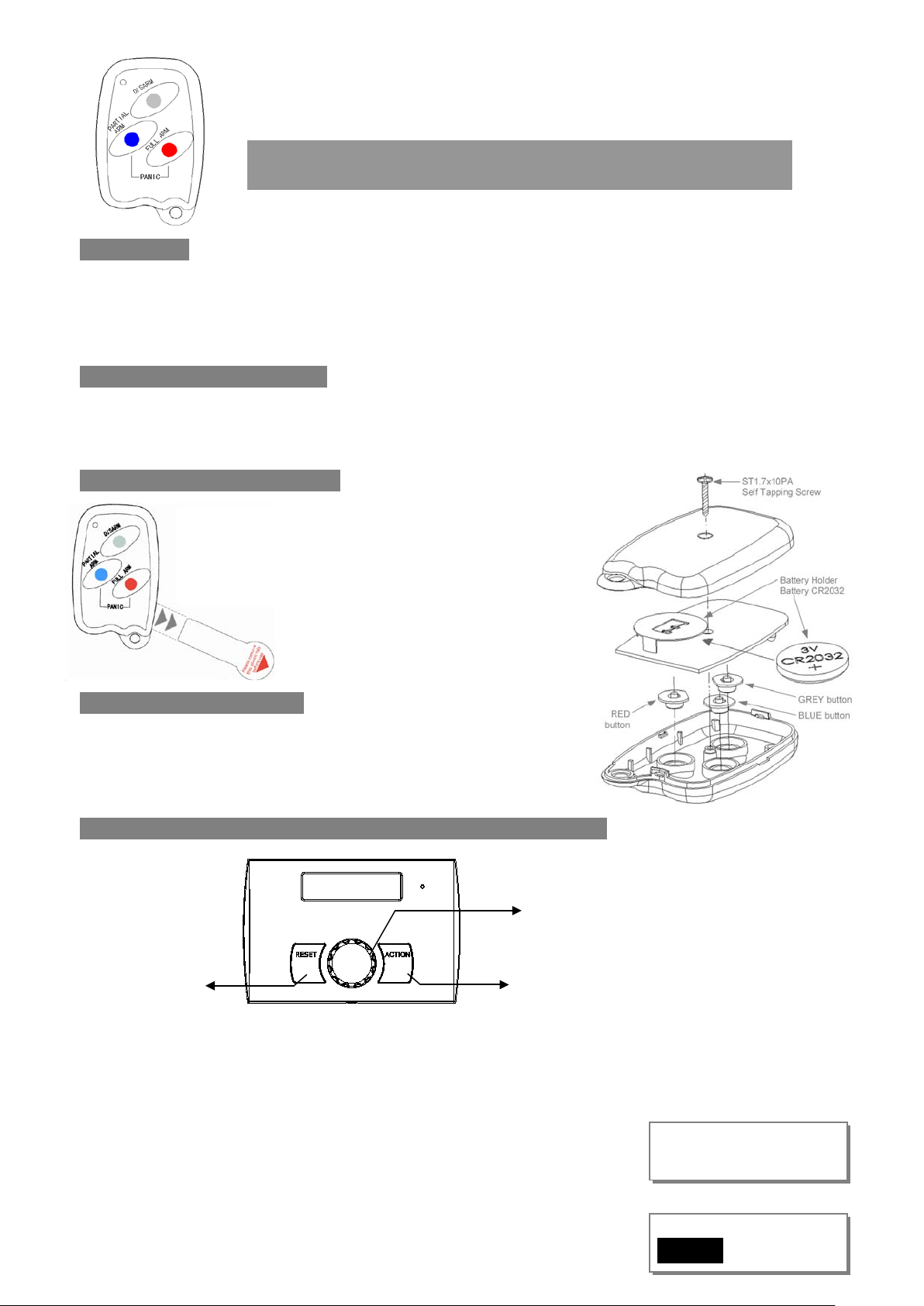
Remote Control Function Keys
DISARM Press once to disarm the system
FULL ARM Press once to arm the system
PARTIAL ARM Press to partial arm the system with partial arm (For sele c ted system only)
FULL ARM + PA RTIAL ARM Press both buttons at the same time to activate the panic alarm
Remove Tag when Programming
If the wireless remote con trol keyfob co mes with a
system kit, it has been pre-programmed into the
Control Unit and is not necessary to program it.
You could remove the battery protection tag –
Replace or Reinstall Battery
i. Remove back cover screw and back cover.
ii. Replace or reinstall t he CR2032 Lithium coin size Battery from its holder in
the correct polarity as shown.
iii. Replace back cover and tighten the screw.
\
Programming Remote Control Keyfob into your wireless system
[RESET]
LA5592 Home Automation Controller
Programming Keyfob into Home Automation Controller system, can select input device type Remote Key
or Other, if the Keyfob set other input device type, it will only use for Matrix Action Input condition.
[SET]
[ACTION]
e.g. Setup the detector parameter: input device 3, Remote Key
• It is accessed directly from Day mode via press [SET] key
• Press [SET] key will go into Program Mode
08:00 01- Jan
DAY
08:00 01- Jan
1
ACT INFO
Page 2
• When cursor indicate SETUP, press [SET] key will go
into SETUP program mode
• Rotate [SET] key to select Input Device?
and press [S ET] key go into Input Device function.
• Rota te [ SE T] key to select Input 3?
and press [S ET] key go into setup input device 3 function.
• Rotate [SET] key to select Device Type?
and press [S ET] key go into Input Device Type function.
• Rotate [SET] key to select Remote Key type,
Note: If system generate an have error tone , please go into
Input Device/Enable, set OFF
• Press [SET] key to save it, or press [RESET] key to cancel,
it will exit and go to “Learn In_Device”.
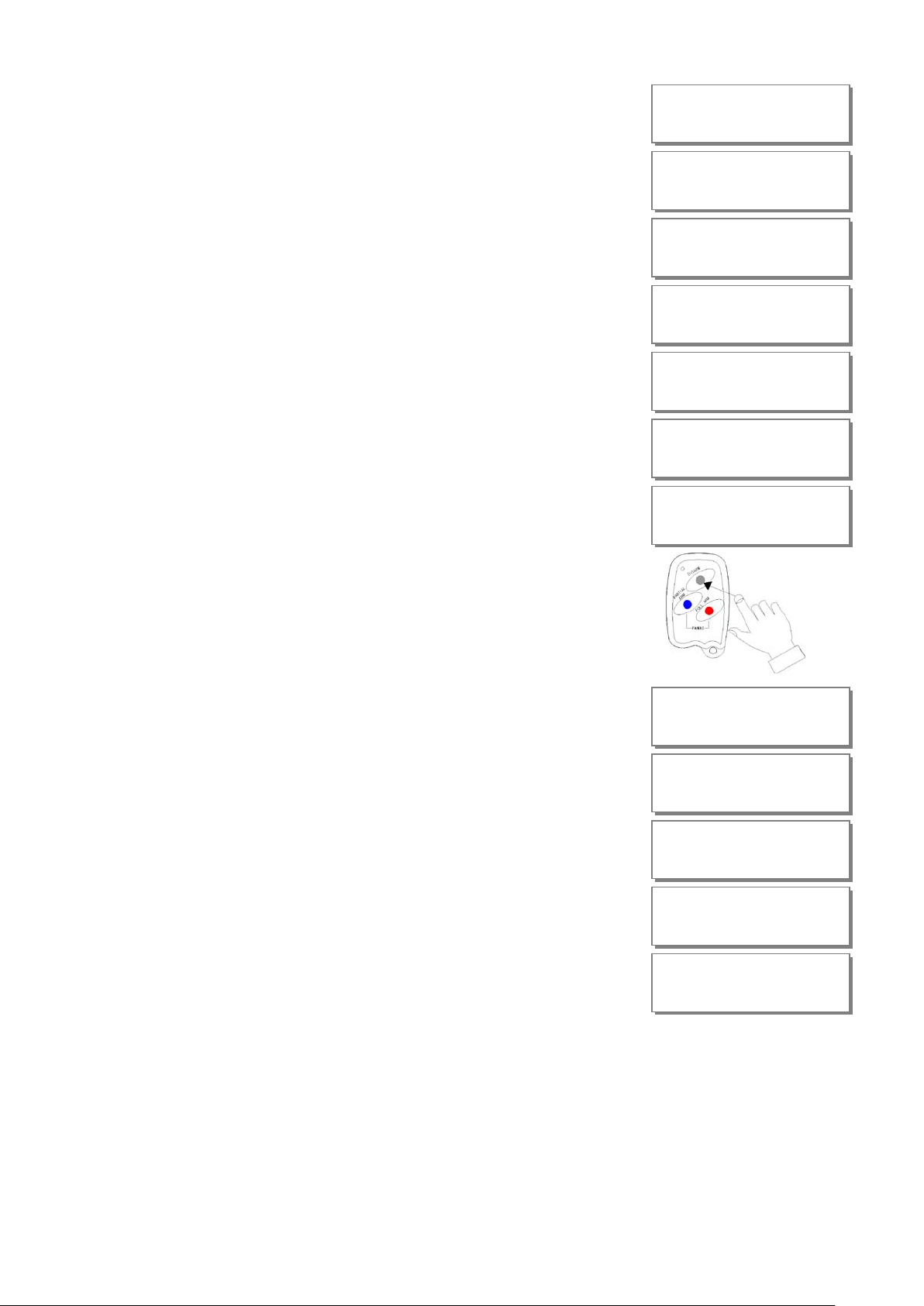
• Press [SET] key go into Learning… status.
Trigger the wireless device within 10 seconds ensuring it is kept
at least 0.5m away from the Controlle r. To trigger:
SETUP MENU
Setup System?
SETUP MENU
Input Device?
INPUT DEVICE
Input 3?
Input Device
Device Type?
Device Type
Remote Key?
Input Device
Learn In_Device?
Learn In_Device
Learning…
• P r ess and release the disarm button once.
• Learn OK, Contro lle r will generate an have OK tone,
it will exit and go into Enable function
• LCD will display current enable status..
• Rotate [SET] key to select ON,and press [SET] key to accept,
it will enable Input Device 3 work
• System genera te an have OK tone, it will exit and go
into next Input Device
Input Device
Enable?
Enable Work
OFF?
Enable Work
ON?
INPUT DEVICE
Input 4?
• Press [RESET] key multiple, controller will return to Day Mode
08:00 01- Jan
DAY
Note:Set Enable Work/ OFF, If the wireless device have been accepted into the system, It will clea r the inpu t device.
HEALTH WARNING:
The Wireless Remote Control Keyfob is fitted with a Coin Cell (CR2032) battery. When removing this cell, do not place in your mouth as
this could impair your health. Also please ensure young children are kept out of reach from this battery to prevent them from swallowing it
and choking.
Disposal and Recycling
Batteries and waste electrical products should not be disposed of with household waste. P lease recycle where these facilities exist. Check
with your local authority or retailer for recycling advice.
2
 Loading...