

Page 1
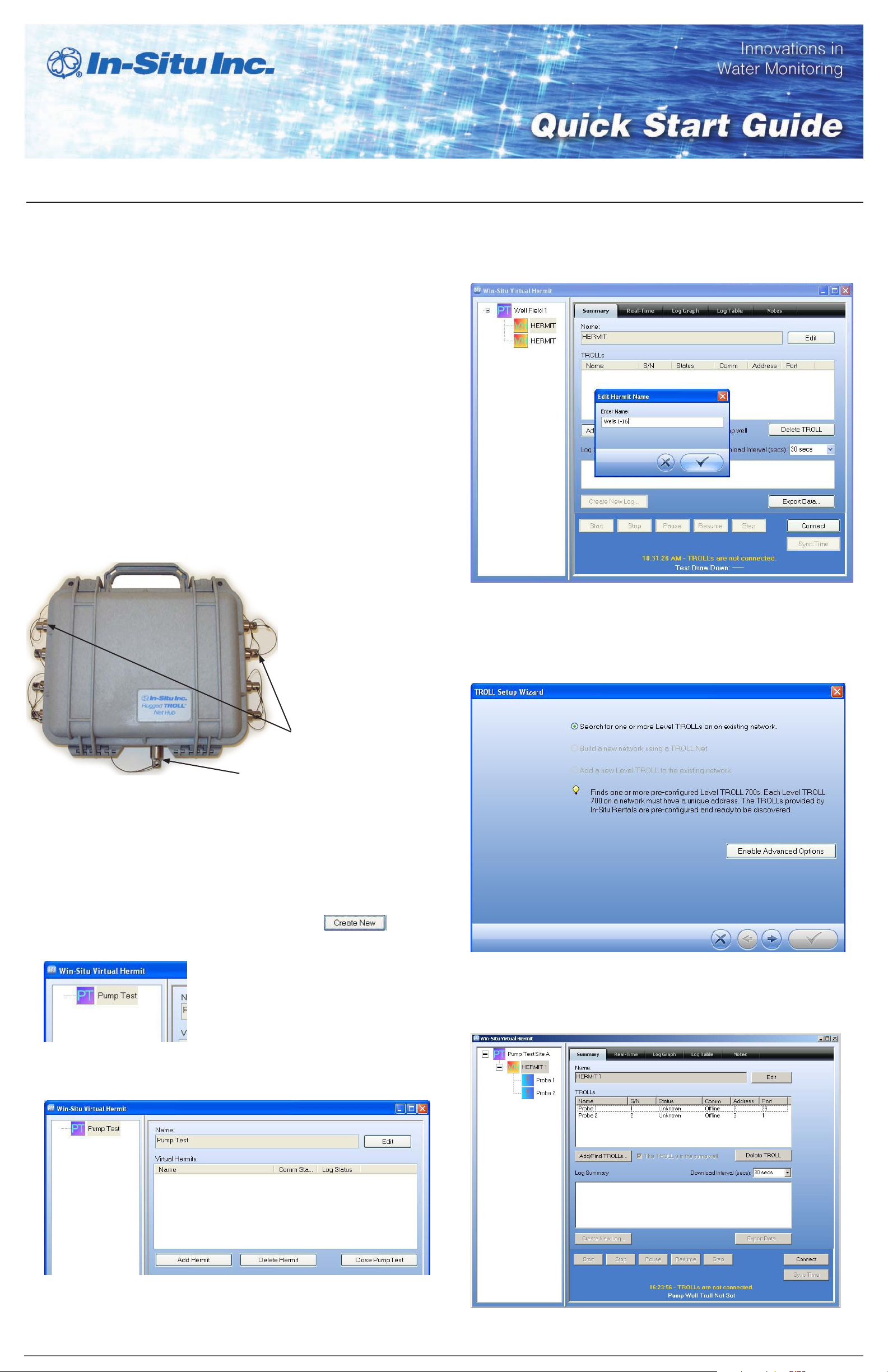
Using the Virtual HERMIT® Pump Test Kit
Overview
Virtual HERMIT software is used with Level TROLL® 700 instruments and the
TROLL® Net hub to set up instruments and collect data from pump tests.
Up to 16 Level TROLL instruments can be connected to each “HERMIT”
but there is no limit to the number of HERMITs each pump test can have.
With this software, all instruments can be set up identically and can begin
monitoring the pump test simultaneously.
Required Equipment
Rugged TROLL Net hub•
Level TROLL 700 instruments from In-Situ Rentals•
RuggedCable•
instrument and 1 for the TROLL Net hub)
Serial TROLL•
RuggedReader
USB TROLL•
RuggedCable® system
Virtual HERMIT software (on enclosed CD)•
®
system with Twist-Lock connectors (1 for each
®
Com programming cable for use with the
®
handheld PC
®
Com programming cable for use with a laptop PC and
Cable Connections
Click a HERMIT branch in the navigation tree to edit your settings 7.
for that particular HERMIT. The HERMIT Summary tab will appear.
Click the Edit button to name the HERMIT. Click the Check Mark
button to save the HERMIT name.
Set Up a Pump Test
Connect all the Level TROLL instruments to the TROLL Net hubs.1.
Install the Virtual HERMIT software from the CD. 2.
Open the software.3.
From the Main screen, click the Create New button. 4.
Click the Add/Find TROLLs button to congure your Level TROLL 8.
using the Probe Setup Wizard. Select Search for one or more Level
TROLLs on an existing network.
Click the Forward arrow.
Bulkhead cable connectors on both sides
Master cable connector on bottom
Click Pump Test, in the top left window. 5.
Click the Edit button to name or rename the pump test. Click the 6.
Check Mark button to save the pump test name. Then click the Add
HERMIT button to add the needed number of “HERMITs”.
Select “Search for TROLLs”. The software will congure the sensors. 9.
It doesn’t matter which TROLL goes to which port.
10.
When all the Level TROLL instruments have been congured, you
will return to the main screen. Click the Connect button.
Page 2
Click the Create New Log button. The Log Setup Wizard will appear. 11.
Enter the data as prompted by the Wizard. Note that you can use
the same site name and log name for all the Level TROLL devices.
Click the forward arrow and proceed through the screens. When 12.
you are done, the Summary screen will appear. Click the Check
Mark button to write the log to each Level TROLL device.
Setting Up Multiple HERMITs to Run Concurrently
Set up each HERMIT separately. The Level TROLL devices within 1.
each HERMIT can be set to have the same Site Name and Log
Name.
2.
After each HERMIT is properly congured, you will need to start
each HERMIT separately, if you chose a Manual Start.
13.
Click the Start button to begin the log (if you selected
the Manual Start option) or wait for your log to begin.
The remaining buttons have the following functions:14.
Stop—Stops the log•
Pause—Temporarily pauses logging•
Resume—Begins logging after a pause•
Step—The software gives you the option to subdivide a test into •
steps. This feature is useful when running constant-rate and
stepped-rate pump tests, with or without a recovery phase or
anytime you want to restart fast sampling in a log cycle. When
you step a test, the software will record the start date and time of
the step and restart its programmed sampling schedule.
Download and View Data
Note Regarding Battery Life
The TROLL Net Hub is powered by an internal 9 V battery. This battery
will provide 72 hours of usage under “continuous on” circumstances.
In certain scenarios that demand longer continuous usage, the battery
will require replacement during the test. This will not aect data
collection because the data and data logs are stored in the individual
Level TROLL instruments. Follow these steps to replace the battery:
1.
Open the gray Pelican® case. Use a screwdriver to remove the 4
screws from the internal box and remove the cover.
2.
Replace the existing 9 V battery with a new battery.
Replace the lid, the screws, and tightly close the gray case.3.
Proceed with your application4.
Note Regarding Level TROLL Care
You may disconnect the Level TROLL cables from the Rugged TROLL
Net Hub during the test. If you do this, you must:
Cover the Rugged TROLL Net Hub bulkheads with the red dust •
caps.
Place a desiccant cap on the end of each cable to prevent •
moisture or water from entering the cable.
Failure to properly care for the equipment will result in additional
charges for replacement and/or repair of damaged equipment.
The Download Interval pull-down menu allows you to dene how 1.
frequently the data are downloaded from any connected Level
TROLLs.
When using the RuggedReader and Win-Situ Mobile to collect •
data from disconnected Level TROLL devices, the data logs are
“sync’ed” back at the laptop using Win-Situ Sync. Virtual HERMIT
software automatically imports the data.
2.
You can view data for the “HERMIT” or each Level TROLL in three
ways:
Summary tab—View a summary of the running log•
Log Table tab—View the data in a columnar format•
Log Graph tab—View each parameter graphically•
3.
Click the Export Data button to export the data from your Level
TROLL instruments to a *.csv or *.txt le.
4.
When you are nished, click the Disconnect button.
Note: If you plan to calculate Barometric Eciency, run a BaroTROLL®
concurrently with the Virtual HERMIT test and post-correct the data
with BaroMerge® software.
Information is subject to change without notice. In-Situ and the In-Situ logo, Win-Situ, TROLL, BaroTROLL, RDO, RuggedReader, and RuggedCable are trademarks or registered trademarks of In-Situ Inc. Microsoft, Windows, Excel, Internet Explorer, and
ActiveSync are trademarks or registered trademarks of Microsoft Corporation. Copyright © 2010 by In-Situ Inc. All rights reserved.
0087752 rev 002 04/10
 Loading...