

Page 1
CREDIT SALE
• Swipe customer card
• Choose CREDIT
• Enter sale amount and press ENTER
• Enter tip amount and press ENTER
• Terminal dials out, and receipt prints
MAIL/PHONE SALE
• Press 1
• Choose CREDIT
• Enter sale amount and press ENTER
• Enter card number and press ENTER
• Enter expiration date (MMYY) and press
ENTER
• Enter tip amount and press ENTER
• Press Enter to accept transaction
• Card present? Choose YES or NO
- Enter V-Code/CID Code and press
Enter, or press Enter to bypass
- If bypassed, Choose V-Code option:
1 (Unreadable), 2 (Not Present), 3 (Not
Provided)
- Enter street address number and press
ENTER, or press ENTER to bypass
• Enter Zip Code and press ENTER, or press
ENTER to bypass
• Terminal dials out, and receipt prints
DEBIT SALE
• Swipe customer card
• Choose DEBIT
• Enter sale amount and press ENTER
• Enter tip amount and press ENTER
- Enter cash back amount and press ENTER,
or press ENTER to bypass
• Press ENTER to accept total
• Terminal dials out,
and receipt prints
CREDIT REFUND
• Press 2
• Choose CREDIT
• Enter refund amount and press ENTER
• Swipe customer card or enter card
number and press ENTER
- Enter expiration date (MMYY)
and press ENTER
• Terminal displays Captured, and receipt
prints
DEBIT REFUND
• Press 2
• Choose DEBIT
• Enter refund amount and press ENTER
• Enter original transaction date
(MMDDYY) and press ENTER
• Enter original transaction time
(HHMMSS) and press ENTER
• Swipe customer card
• Have customer enter PIN on PIN pad
and press ENTER
• Terminal dials out, and receipt prints
REVERSAL
• Press 4
• Choose a search option
• Enter retrieval information and
press ENTER
• Choose SELECT
• Press ENTER to accept transaction
• Terminal dials out, and receipt prints
CREDIT OFFLINE ENTRY
• Press 5
• Choose CREDIT
• Enter amount and press ENTER
• Swipe customer card or enter card
number and press ENTER
- Enter expiration date (MMYY) and
press ENTER
- Card present? Choose YES or NO
• Enter approval code (six digits),
and press ENTER
• Enter transaction ID (15 digits),
and press ENTER
• Terminal displays Captured, and receipt
prints
TERMINAL MESSAGES
AMOUNT DUE/BALANCE DUE: A partial
authorization has occurred. Ask
customer for another form of payment
for the remaining balance of the sale.
Press ENTER to print the receipt.
Pressing CANCEL will not void the
transaction.
AVS (ADDRESS VERIFICATION SERVICE): Checks if
the street address and ZIP code entered
match the customer’s billing address.
CALL: Call Voice Authorization Center. If
approved, proceed with Offline Entry.
HOLD/CALL OR PICK UP CARD: Hold the card.
Call the Voice Authorization Center.
CARD READ ERROR: Magnetic stripe did not
read. Swipe card again or manually keyin account number.
LOST COMM WITH HOST: A communication
error has occurred. Check line
connections, call Help Desk.
GB (NUMBER): Good batch. Batch
transmission accepted.
MANUAL ENTRY NOT ALLOWED: Current
transaction will not allow manual entry.
Debit cards may not be manually keyedin.
QD (NUMBER) OR RB (NUMBER): Quit
Duplicating or Rejected Batch. Call Help
Desk.
RECORD NOT FOUND: Invoice number is not
found in terminal batch.
SETTLEMENT UNSUCCESSFUL: Settlement failed,
call help desk.
V-CODE: Verification Code. A 3-4 digit
non embossed number found on card
signature panel or near embossed
account number on front. V-code may
be prompted for on a manually-entered
transaction.
EBT DEFINITIONS
ELECTRONIC VOUCHER: Form which is
completed by a merchant when a Food
Stamp transaction authorization cannot
be received through the terminal.
FCSID (FOOD AND CONSUMER SERVICES
IDENTIFIER): Identifies a merchant as
approved to accept Food Stamps.
VOUCHER AP (VOUCHER APPROVAL CODE):
A Voice Authorized Approval Code
received when a Food Stamp transaction
authorization through the terminal is
not possible. To obtain, call the Voice
Authorization Center.
VOUCHER S/N (VOUCHER SERIAL NUMBER):
A pre-printed number found on an
Electronic Voucher form.
Bank Name ______________________
Bank Phone ______________________
Help Desk Phone __________________
V Number _______________________
Voice Authorization Phone ____________
Merchant Number ID _______________
Other __________________________
QUICK REFERENCE
_______________________________
Quick
Reference
Guide
0300006
V070313
© 2013 Total System Services, Inc. All rights reserved worldwide. TSYS is a federally registered service mark of Total System Services, Inc. Other marks are trademarks
or registered trademarks of their respective owner.
www.tsysacquiring.com
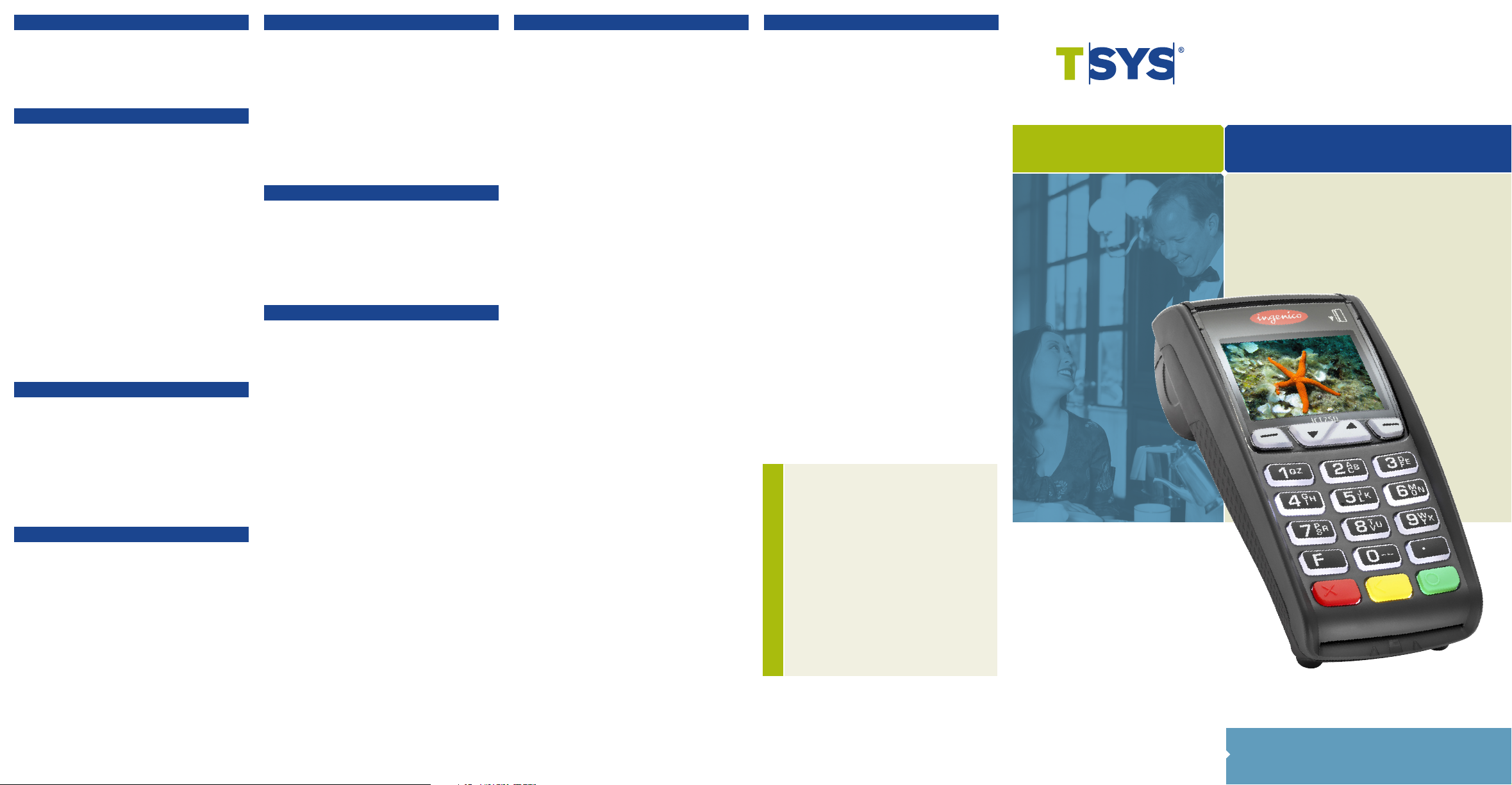
INGENICO®
iCT220, iCT250, iWL220, iWL250
ING01
RESTAURANT
Page 2

DEBIT RE-ENTER
• Press 5
• Choose REENTER
• Enter amount and press ENTER
• Swipe customer card or enter card
number and press ENTER
- Enter expiration date (MMYY)
and press ENTER
- Card present? Choose YES or NO
• Enter approval code (six digits),
and press ENTER
• Enter transaction ID (15 digits), and
press ENTER
• Terminal displays Captured, and receipt
prints
AUTHORIZATION ONLY
• Press 9
• Choose AUTH ONLY
• Choose AMT AUTH
• Swipe customer card or enter card
number and press ENTER
- Enter expiration date (MMYY)
and press ENTER
- Card present? Choose YES or NO
- Enter Zip Code and press ENTER, or
press ENTER to bypass
• Terminal dials out, and receipt prints
BALANCE INQUIRY
• Press 7
• Choose card type
• Swipe customer card or enter card
number and press ENTER
- Enter expiration date (MMYY) and press
ENTER
• Terminal dials out, and receipt prints
TIP ADJUST
• Press 6
• Choose a search option
• Enter retrieval information and press
ENTER
• Choose SELECT
• Enter new tip amount and press ENTER
• Terminal displays Captured, and receipt
prints
• Add Another? Choose YES or NO
- If Yes, repeat steps to add another tip
OPEN TAB
• Press 3
• Choose OPEN
- Tab Amount: Choose Accept or Change
• Enter tab amount and press ENTER
• Swipe customer card or enter card
number and press ENTER
- Enter expiration date (MMYY)
and press ENTER
- Card present? Choose YES or NO
- Enter Zip Code and press ENTER, or
press ENTER to bypass
• Terminal dials out, and receipt prints
CLOSE TAB
• Press 3
• Choose CLOSE
• Enter retrieval information and press
ENTER
• Choose SELECT
• Press ENTER to accept transaction
• Enter tip amount and press ENTER
• Terminal displays Captured, and receipt
prints
DELETE TAB
• Press 3
• Choose DELETE
• Enter retrieval information and press
ENTER
• Choose SELECT
• Choose YES
• Terminal displays Tab Deleted, and
receipt prints
ADD SERVER
• Press #
• Choose CLERK MENU
• Choose ADD ID
• Enter server ID and press ENTER
• Add Another? Choose YES or NO
- If Yes, repeat steps to add another
server
TRANSACTION ADJUST
• Press 9
• Choose TRANS ADJUST
• Choose a search option
• Enter retrieval information and press
ENTER
• Choose SELECT
• Enter new sale amount and press ENTER
• Terminal displays Captured, and receipt
prints
REPRINT A RECEIPT
• Press 9
• Choose REPRINT
• Choose a search option
• Enter retrieval information and
press ENTER
• Choose SELECT
• Choose a receipt type
• Receipt prints
REPORTS
• Press #
• Choose Reports Menu
• Choose report: Summary (total amount)
or Detail (each transaction)
• Choose PRINT
• Report prints
• Press CANCEL
VIEW TOTALS
• Press #
• Choose BATCH MENU
• Choose BATCH TOTALS
• Terminal displays totals
• Press ENTER
• Press CANCEL
MANUAL BATCH SETTLEMENT
• Press 8
• Choose YES
- Print Reports? Choose YES or NO
- Report prints
FAILED SETTLEMENT
• Terminal will display QDXXXXX or
RBXXXXX
• DO NOT DELETE BATCH OR CONTINUE
WITHOUT HELP DESK VERIFICATION
• Call Help Desk
STORE AND FORWARD
PROCESSING
The Store and Forward Mode (Store/
Fwd) feature is a way to input credit
sales into the terminal when there is no
communication method available. Sales
are then authorized and settled when a
communication method is available.
NOTE: Sales are not authorized until
communication is available so there is
a risk that the sale may not receive an
approval.
STORE/FWD (ENTER MODE)
• Press #
• Choose SETUP MENU
• Choose TRANS OPTIONS
• Choose CREDIT
• Choose STORE FORWARD
• Enter password and press ENTER
• Choose STORE FORWARD
• Choose ON ALWAYS
• Press CANCEL
STORE/FWD (EXIT MODE)
• Press #
• Choose SETUP MENU
• Choose TRANS OPTIONS
• Choose CREDIT
• Choose STORE FORWARD
• Enter password and press ENTER
• Choose STORE FORWARD
• Choose OFF
• Press CANCEL
STORE/FWD (AUTHORIZE
SALES)
• Press 7
• Choose YES
• Close Batch and Deposit Funds?
Choose NO
AUTHENTICATE THE TERMINAL
• Press #
• Choose MAINTENANCE
• Choose AUTHENTICATE
• Enter authentication code and press
ENTER
• Enter zip code and press ENTER
• Terminal dials out, and receipt prints
DEACTIVATE THE TERMINAL
• Press #
• Choose MAINTENANCE
• Choose DEACTIVATE
• Choose YES
• Terminal dials out, and receipt prints
ALPHA CHARACTERS
• Press key corresponding with desired
letter
• Press F key until desired letter appears
[Number + F key = Letter]
CARD TYPES ACCEPTED
• Visa
• MasterCard
• American Express
• Discover
• JCB
• Diners Club
• Carte Blanche
• ATM/Debit Cards
NOTE: Italicized steps are optional and may not be prompted for.
NOTE: Printing the customer copy is an option on all transactions.
 Loading...