

Page 1
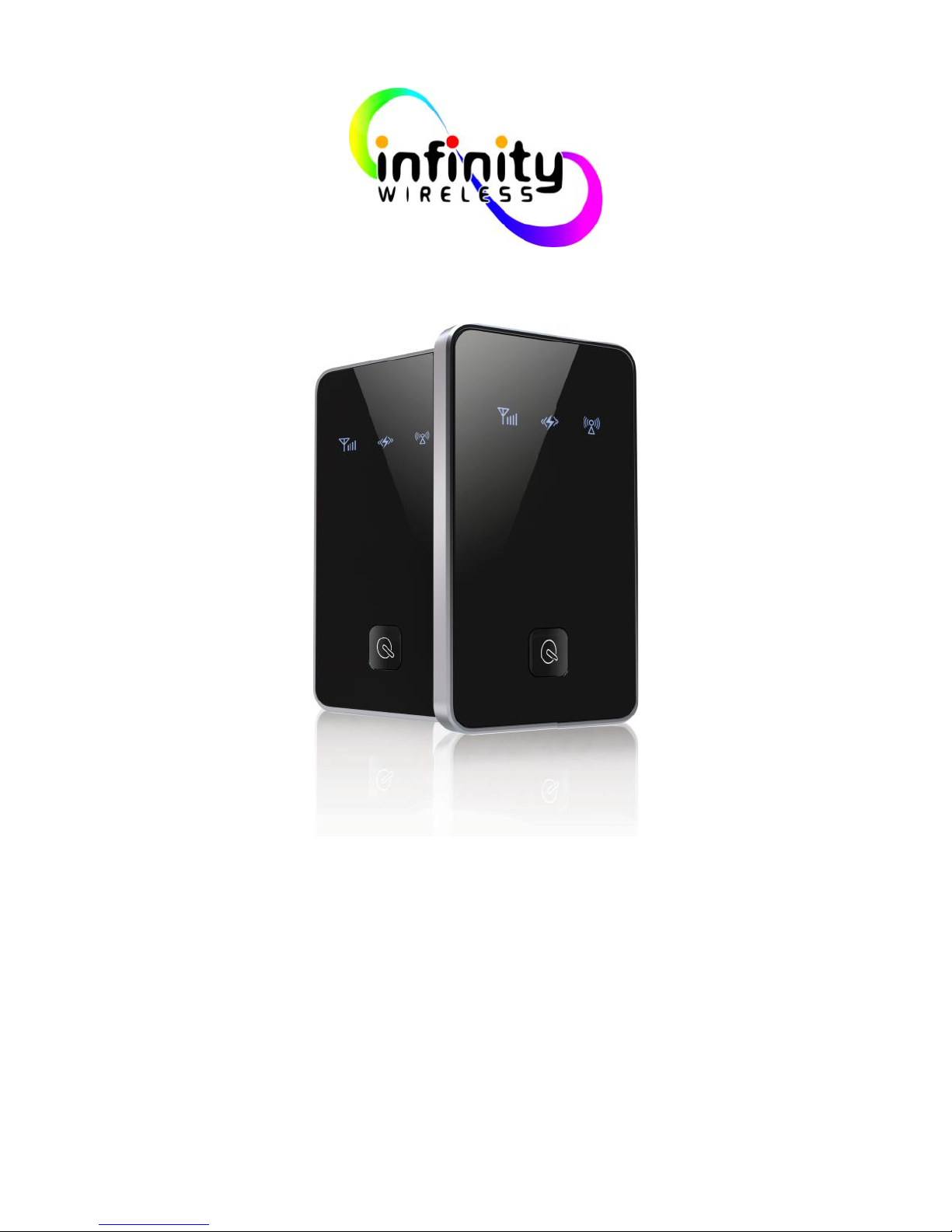
IW-033
21Mb mobile hotspot device
Page 2
Infinity Wireless – Mobile Broadband Devices Page
1
Table of contents
Contents
Table of contents ......................................................................................... 1
Warning and precautions ............................................................................. 2
Product description ...................................................................................... 3
Specifications .............................................................................................. 4
Light indicators ............................................................................................ 5
Quick start ................................................................................................. 6
FAQ - Frequently asked questions ................................................................. 7
Device Configuration website ........................................................................ 8
Device Configuration website ........................................................................ 9
Device Configuration website ...................................................................... 10
Device Configuration website ...................................................................... 11
Device Configuration website ...................................................................... 12
Appendix A ............................................................................................... 13
Appendix B ............................................................................................... 14
Page 3
Infinity Wireless – Mobile Broadband Devices Page
2
Warning and precautions
In order to ensure the normal work of the router and prolong service life, please follow the following notice:
Electronic Device
Turn off your device near high-precision electronic devices. The wireless device may affect the performance of
these devices. Such devices include hearing aids, pacemakers, fire alarm system, automatic gates, and other
automatic devices can be affected. If you are using an electronic medical device, consult the device
manufacturer to confirm whether the radio wave affects the operation of this device.
Hospital
Pay attention to the following points in hospitals or health care facilities:
- Do not take your wireless device into the operating room, intensive care unit, or Coronary care unit.
- Do not use your wireless device at places for medical treatment where wireless device use is prohibited.
Storage Environment
- Do not place magnetic storage media such as magnetic cards and floppy disks near the wireless device.
Radiation from the wireless device may erase the information stored on them..
- Do not put your wireless device and other accessories in containers with strong magnetic field, such as an
induction cooker and a microwave oven. Otherwise, circuit failure, fire, or explosion may occur.
- Do not leave your wireless device in a very hot or cold place. Otherwise, malfunction of the products, fire, or
explosion may occur.
- Do not subject your wireless device to serious collision or shock. Otherwise, wireless device malfunction,
overheat, fire, or explosion may occur.
Operating Environment
The wireless device is not water-resistant. Keep it dry. Protect the wireless device from water or vapor.
- Do not touch the wireless device with a wet hand. Otherwise, short-circuit and malfunction of the product or
electric shock may occur.
- Do not use the wireless device in dusty, damp and dirty places or places with magnetic field. Otherwise,
malfunction of the circuit may occur.
- Do not use your wireless device outdoors on a thunder stormy day.
The wireless device may interfere with nearby TV sets, radio and PCs.
In accordance with international standards for radio frequency and radiation, use wireless device accessories
approved by the manufacturer only.
Cleaning and Maintenance
Before you clean or maintain the wireless device, turn off it and disconnect it from the power. Otherwise, electric
shock or short-circuit may occur.
- Do not use any chemical detergent, powder, or other chemical agent (such as alcohol and benzene) to clean
the device. Otherwise, part damage or a fire can be caused. You can clean the device with a piece of soft
antistatic cloth that is a little wet.
- Do not scratch the shell of the wireless device. Otherwise, the shed coating may cause skin allergy. Once it
happens, stop using the device at once and go to see a doctor.
If the wireless device or any of its fittings does not work, turn to the local authorize service centre for help.
Page 4
Infinity Wireless – Mobile Broadband Devices Page
3
Product description
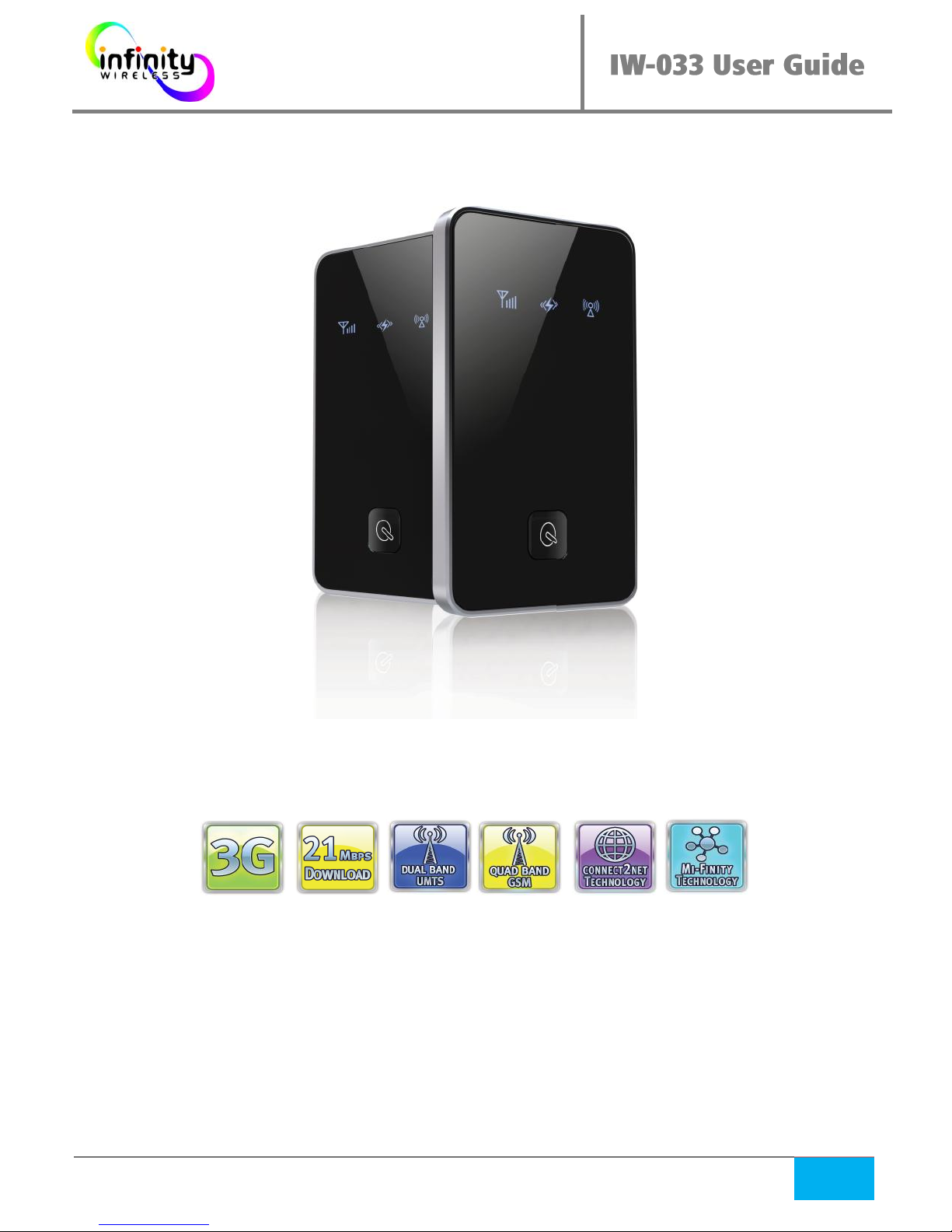
Thank you for choosing IW-033 Wireless Router, it is the
HSPA+ pocket hotpot, which provides up to 21.6Mbps
downlink, up to 5.76Mbps uplink. You can surf internet
anywhere and anytime when 3G network covered. The powerful
router function which supports up to 10 Wi-Fi devices can help
users to enjoy their network sharing life.
Page 5
Infinity Wireless – Mobile Broadband Devices Page
4
Specifications
Support for HSPA/UMTS Dual-band HSPA/UMTS
2100/1900/850MHz
Quad-band EDGE/GPRS/GSM 850/900/1800/1900MHz
Access HSPA+ (21.6Mbps download and 5.76Mbps upload)
intelligent pocket hotpot. Users can share the high speed network
anywhere and anytime when 3G network covered.
Allows up to 10 Wi-Fi enabled devices to connect to the internet.
Easily and quickly charge. The device can be charged by USB
Battery can support 5 hours continuous using and 150 hours
standby.
Integrated high-capacity micro SDHC slot. Provide storage capacity
of up to 32GB.
WIFI Coverage is up to 30m.
Support 802.11 b/g/n mode.
Support WEP, WPA, and WPA2 (personal).
Support VPN pass through L2TP/PPTP/IPSEC.
Support WLAN Mode and Data card Mode.
Page 6
Infinity Wireless – Mobile Broadband Devices Page
5
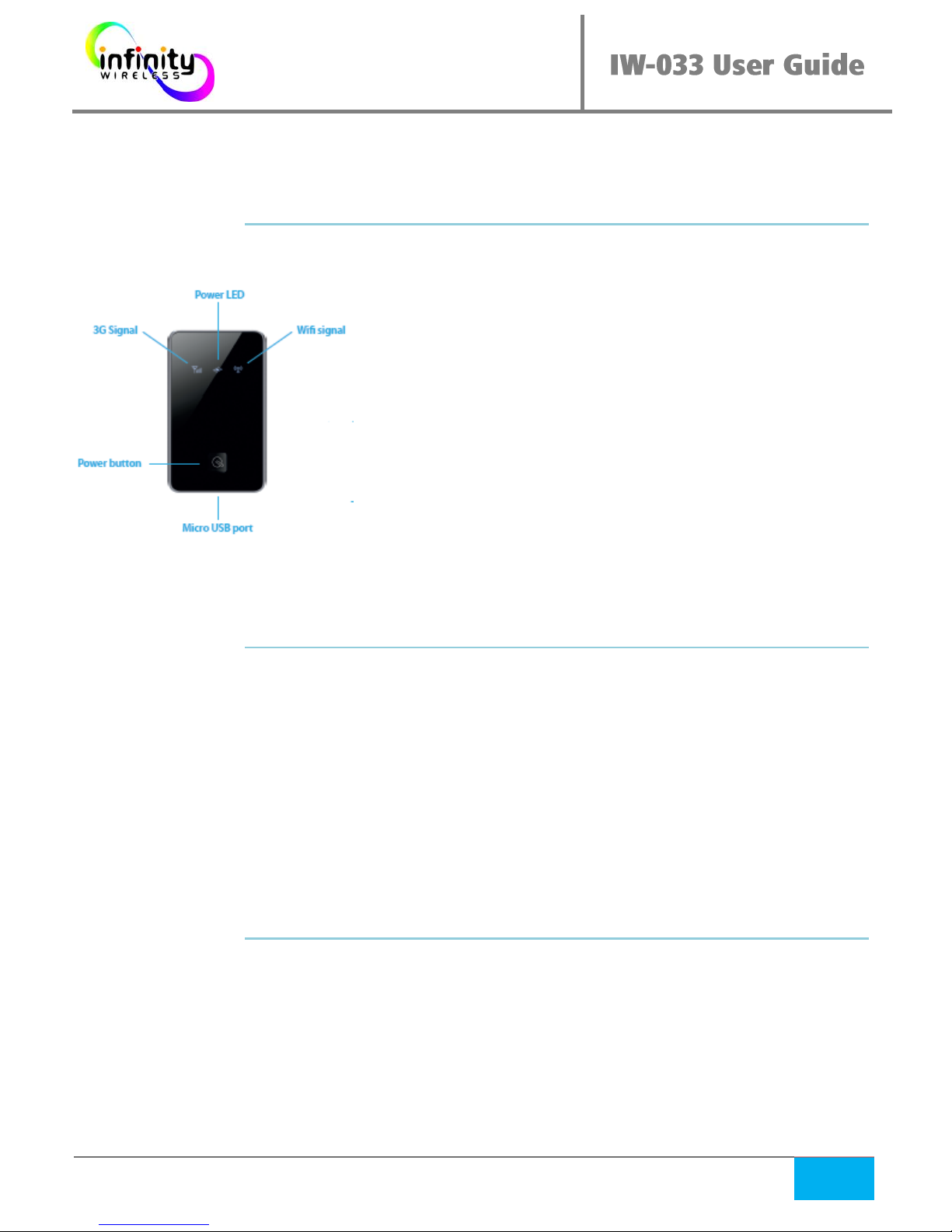
Light indicators
Indicator Status Description
Power LED Blue solid for 30* Power on
Then off
Red Flashing Low power
Red solid Lower power and will power off
soon
Green solid Charged
Blue flashing slowly Wi-Fi Sleeping
Wi-Fi Signal Blue solid Wi-Fi is active
Blue flashing twice Linked with wireless network
LED Off Wi-Fi Sleeping
3G Signal Green flashing Connecting to 2G network
Green flashing slowly Registering to 2G network
Green solid Data connection established
Transferring to 2G network
Blue flashing Connecting to 3G network
Blue flashing slowly Registered to 3G network
Blue Solid Data connection established
Transferring to 2G network
Blue and Green flashing Cant register to a network
SIM is not ready or invalid PIN
LED Off Sleeping
Power Button (On / Off)
Press and hold the button more than 3 seconds to power on/off.
Press the button shortly to wake-up when in sleep mode.
Micro USB Port
Charging when it is connected via USB cable.
Access the T-flash Card when it is connected via USB cable
Page 7
Infinity Wireless – Mobile Broadband Devices Page
6
Quick start
Before using the device:
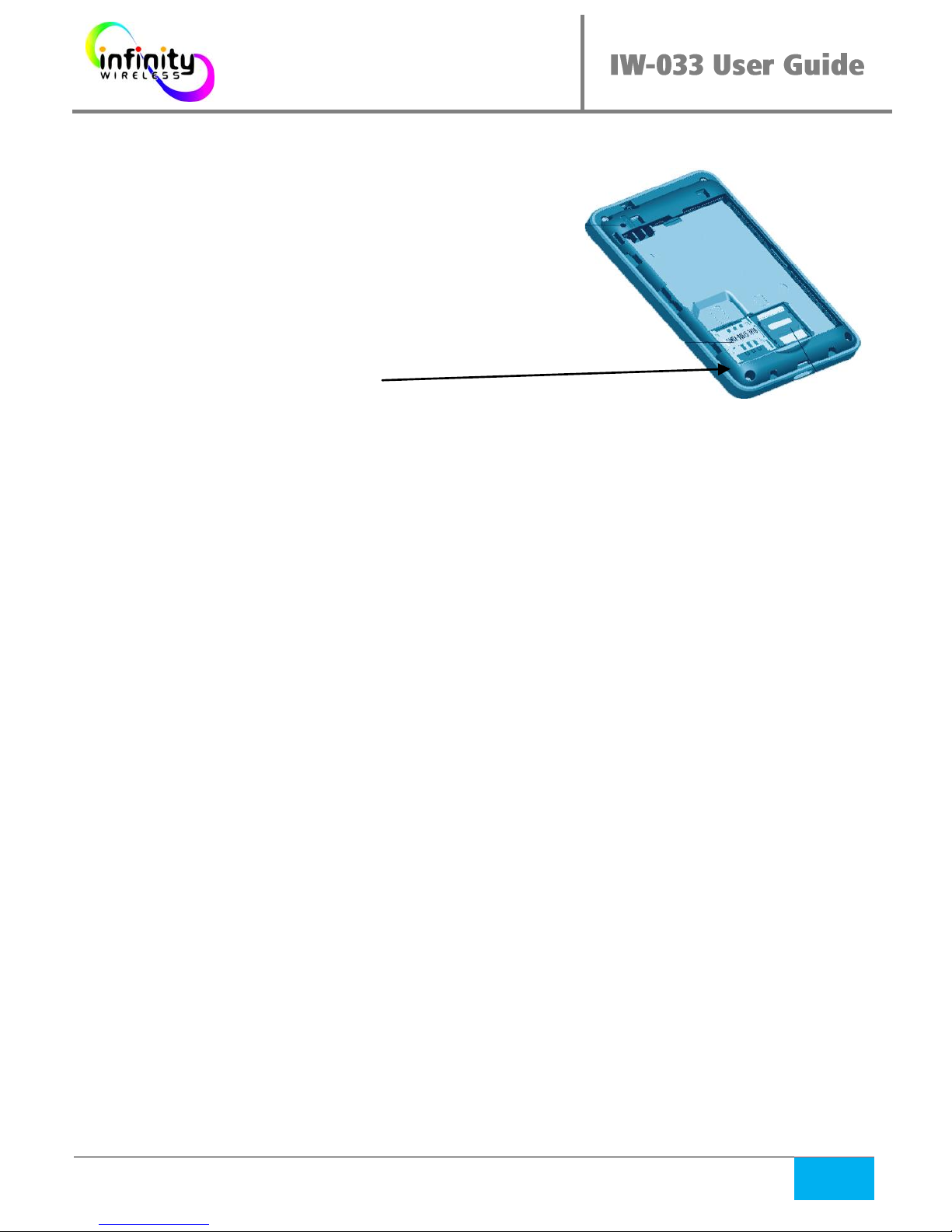
Remove back cover by sliding it off
Remove the battery
Insert your SIM card.
Insert the battery
Place back cover back on device
Hold the Power button to power on
From your laptop, mobile phone, or Wi-Fi device:
Open your wireless / Wi-Fi settings
Choose the network (SSID) named IW033
Type the password (your Wi-Fi key)
You should now be connected to the internet. Please check the light
indicators as described in the previous page for more information about
the device status.
For advanced configuration options
Your IW-033 device provides advanced features that can be configured
using the “Device Configuration Website”, please see the specific section
for details.
Page 8
Infinity Wireless – Mobile Broadband Devices Page
7
FAQ - Frequently asked questions
The device is connected with the router cannot access the
Internet.
Check and ensure that the device is connected to the
router normally.
Check the power status to ensure that the router is
powered on.
Check the signal strength to ensure that the area is
covered by the network.
Check whether the network adapter of your device is
running normally.
If the preceding methods cannot solve the problem,
contact your helpdesk.
The Device cannot access the Wi-Fi
You may have interferences between the device and the
router, try to adjust the position of the device.
Check and the password and the SSID of the router.
Page 9
Infinity Wireless – Mobile Broadband Devices Page
8
Device Configuration website
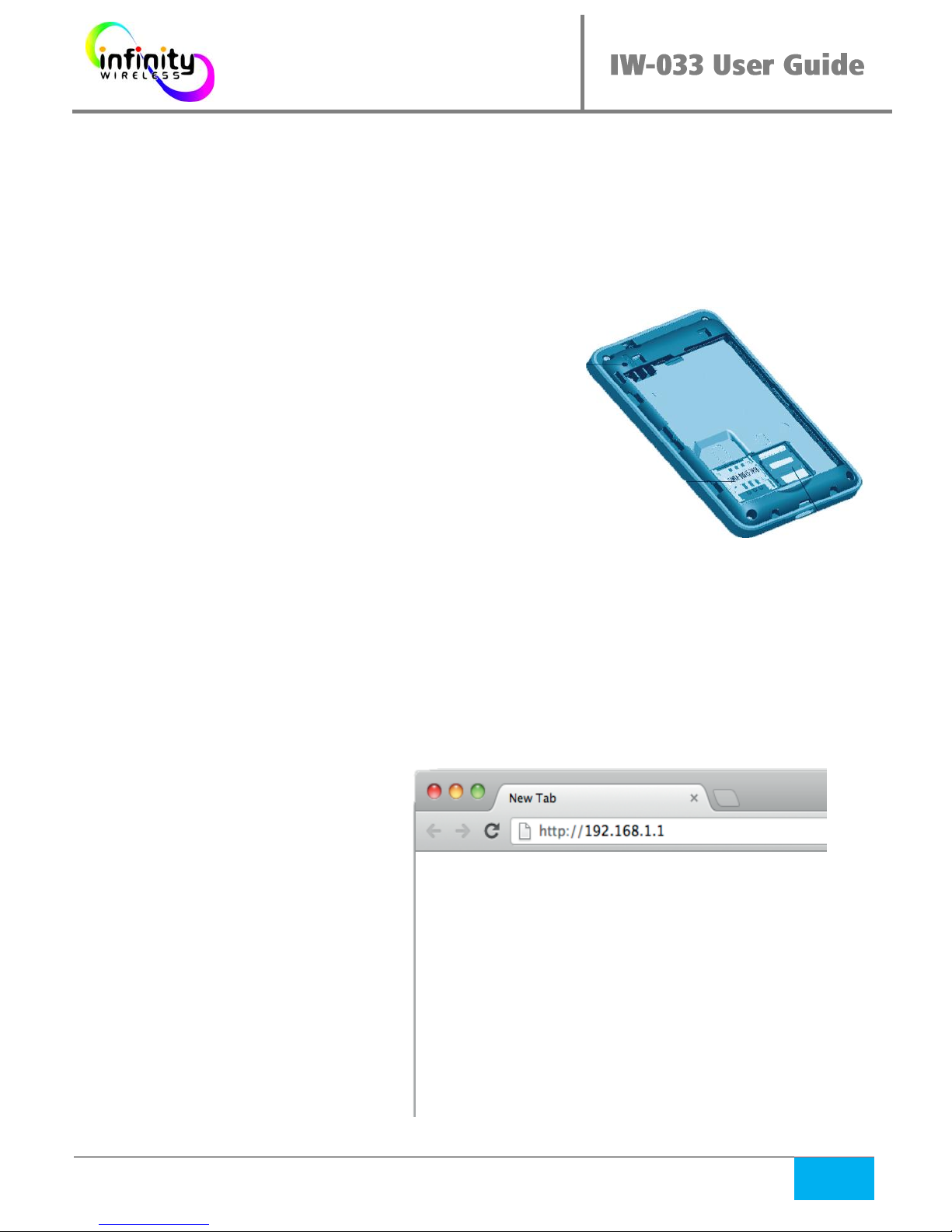
Connect to the Device Configuration Website
To access the configuration website, you need
to connect to the router wirelessly.
Network name (SSID): IW033
Password: XXXXXXXX (8 digits)
XXXXXXXX represents 8 characters in uppercase specific
to your device, you can find the password, when
removing the battery of the device.
Accessing the interface using your Web Browser
Use your preferred web browser and point to the following address:
http://192.168.1.1
Username: admin
Password: admin
If you are well connected to
the Wi-Fi but you are not able
to access this page, you may
need to correct your computer
network settings.
Please see our Appendix A
Page 10
Infinity Wireless – Mobile Broadband Devices Page
9
Device Configuration website
The main configuration page
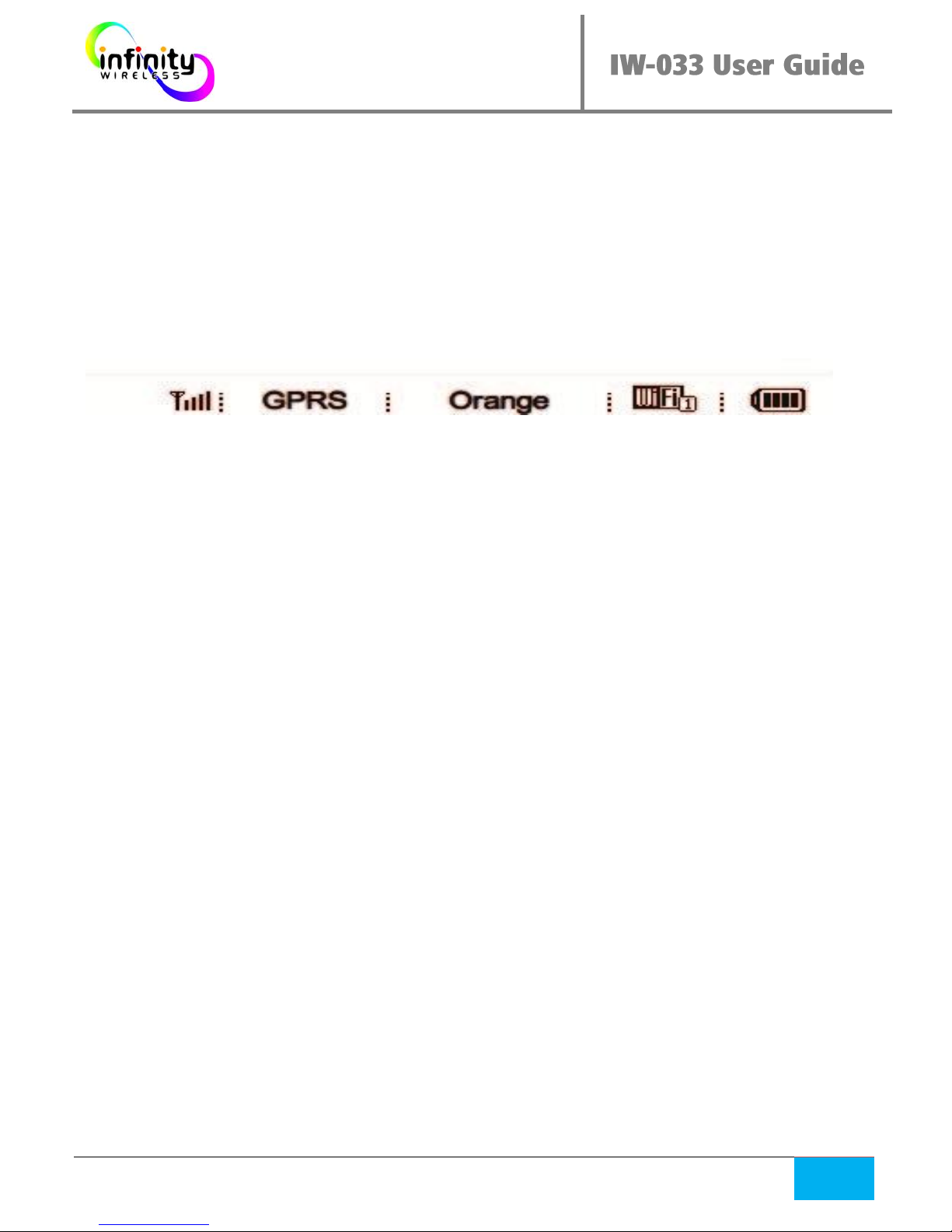
Quick Status
The quick status bar is located on the top right of the screen.
Signal Connection Current Wi-Fi Battery
Strength Mode Network Status Status
Signal strength
If the antenna is red, you are not connected to any network.
Connection mode
GPRS/EDGE indicate a 2G connection speed, UTMS means a 3G
connection.
Wi-Fi status
Indicate the number of connected device (in the lower right of the icon)
Connection page
The connection page shows the current parameter of the device. The most
important Information is: “Connection Status”.
Connected Means you are connected to the Internet
Disconnected Means you are not connected to the Internet
Page 11
Infinity Wireless – Mobile Broadband Devices Page
10
Device Configuration website
The “Basic Status“ page
From the “Basic Status” page you can see advanced device information.
WAN Status
The WAN Status provides information about the internet connection of the
device. You will also find a counter of transmitted data and the total
connection time.
You can reset the counter by clicking the “Counter clear” button.
WLAN Status
The WLAN Status provides information about the Wi-Fi network created by
the router. From the advanced section you can find detailed information
about who is connected to the router.
Device Information
The Device Information section provides the network settings of the router.
Page 12
Infinity Wireless – Mobile Broadband Devices Page
11
Device Configuration website
The “Settings“page
From the “Settings” page you can configure advanced device features.
3G Settings
Provide advanced configurations for the Internet connections.
WLAN Settings
Provide advanced configurations on the Wi-Fi network
Firewall Settings
Provide advanced configurations for the built-in.
System Settings
Provide advanced configurations for the built-in.
This section is for advanced users only. By changing
the default settings you may block the access to the
router.
We do not provide support for advanced
configuration.
Use at your own risk.
For supported configuration settings, please check
our “How To” section in our Appendix B.
Page 13
Infinity Wireless – Mobile Broadband Devices Page
12
Device Configuration website
The “Phone Book“ and “SMS Box” pages
We are not offering SMS Service within the device. For sending and
receiving SMS, please use our SMS Service from your IW-033 portal.
The SMS Section allows our support team post you with technical
information to the device. (ie. Bad username password, device
configuration information, network rates, ...)
When receiving a message from the support center, you will be noticed
from the Quick Status bar (on the top right of the screen).
You can’t reply to received SMS.
Page 14
Infinity Wireless – Mobile Broadband Devices Page
13
Appendix A
Advanced network configuration
If you have difficulties connecting to the router, you may have incorrect
network settings set on your device. This section shows the normal setting
for a Windows PC Systems. The provided information can be used to
configure any other device. Please refer to your device documentation for
specific details.
Go to your Wireless Network connection panel
Using Windows:
- Select Start > Control Panel > Network Connections > Wireless Network
Connection.
- Right-click the Network Connection icon and select Properties.
- Select Internet Protocol (TCP/IP), and then click Properties
In the Internet Protocol (TCP/IP) Properties dialog box, select Obtain an IP
address automatically and Obtain DNS server address automatically, and then
click Ok
Make sure that the WI-FI is enabled on the Device
Using Windows:
- Select Start > Control Panel > Network Connections > Wireless Network
Connection.
- Click View available wireless networks to display a list of wireless networks
available.
If you are not able to list available wireless network, this mean your Wi-Fi adapter is not
enable. Please refer to your device documentation for more details.
Find out the SSID named as “IW033”. Select “IW033” and Click the
“Connect” button, type your Wi-Fi password when asked if it’s the first time
you are connecting to the device.
Page 15
Infinity Wireless – Mobile Broadband Devices Page
14
Appendix B
How to
The how to guide allows you to make specific configuration from the “Device
Configuration Website”., In order to access this web page , please refer to the related
section.
Changing the “Device Configuration Website” password
Go to the “Settings” page, select System Settings, then “Modify Password”
Type your actual password in the “Current password field”. (The default password is
“admin”) Then type and confirm your new password and click “Modify” to apply the
changes.
Selecting manually a specific mobile network
Go to the “Settings” page, select 3G Settings, then “Searching Network”
From the “Mode” option box select “Manual” and click “Apply”.
The router will scan for available network.
Select from the option box the desired network and click apply.
Connect using a specific username and password
Go to the “Settings” page, select 3G Settings, then “Profile Settings”
Type in the “Username” field your account username and your account password in the
“Password” field, then click save.
Set the connection mode to Automatic or Manual
Go to the “Settings” page, select 3G Settings, then “Connection Settings”
From the connection mode select Auto for Automatic Connection or Manual for
manual connection. When the Manual mode is enable, you will need to open the “Device
connection website”, log in, and click the connect or disconnect button each time you
want to connect or disconnect from the Internet.
Changing the Wi-Fi password
Go to the “Settings” page, select WLAN Settings, then WLAN Security Settings”
Select WPA2-PSK from the IEEE802.11 Authentication option list (recommended), then
select AES from the WPA option list. Type your wanted password in the WPA Pre-Shared
key field. Click Apply.
 Loading...