

Page 1
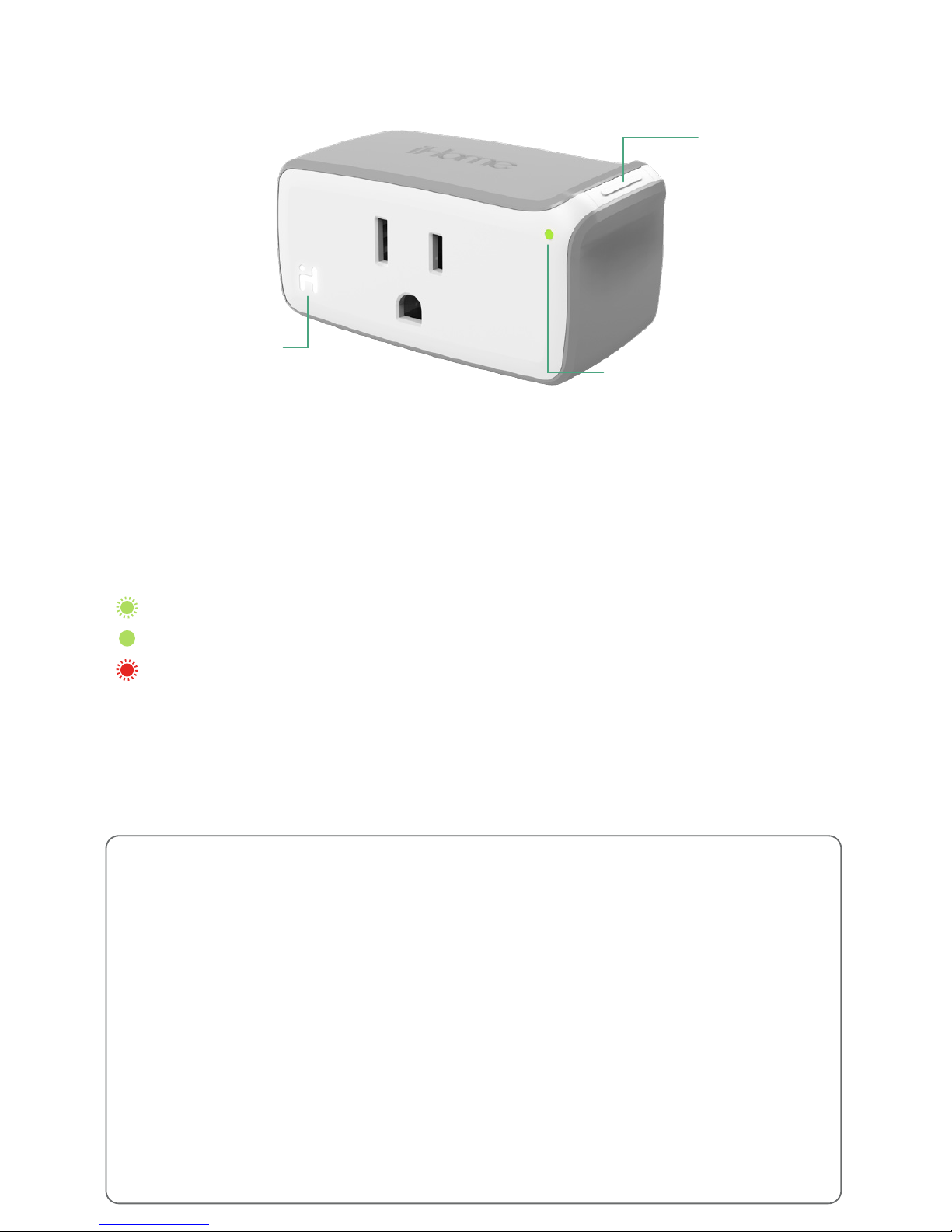
Button
• Press once to manually control the switch (Turning plug “On” or “Off”)
• Press and hold for 10 seconds to reset the software
(LED will flash red and green and SmartPlug will reset upon release.
Use app to reconfigure network settings)
Wi-Fi Status Indicator
Flashing Green: SmartPlug is searching for a Wi-Fi network
Solid Green: SmartPlug is connected to a Wi-Fi network
Flashing Red: SmartPlug is disconnected from a Wi-Fi network
Power On/Off Status Indicator
• Lights up when SmartPlug is “On” and electricity is flowing through
• Power indicator will blink once when firmware is successfully installed
Electrical Ratings
120V Volts AC, 60Hz
15A
1800W
Safety Warnings
• Plug directly into electric outlet (not into extension cord)
• For indoor use only
• Remove Smartplug from outlet before cleaning
• DO NOT clean with liquid
• DO NOT remove ground pin (middle pin)
• DO NOT use in wet or damp areas
• Keep children away from SmartPlug and outlet
• DO NOT exceed the recommended electrical ratings
• DO NOT use in precision timing applications where inaccurate timing could
be dangerous (sunlamps, saunas, etc.)
• DO NOT use with devices that should not be operated unattended
Recommendations
• Test device locally for safe operation before attempting to control it remotely
• DO NOT use with an oulet controlled by a wall switch as the switch may be off
PLUG OVERVIEW:
Button
Wi-Fi Status Indicator
Power Indicator
Page 2
SMARTPLUG
QUICK START GUIDE
1. Make sure your mobile device is connected to your preferred
Wi-Fi network.
2. Download and open the free iHome Control app from the
App Store or Google Play.
(Apple: iOS 8.1 or later; Android: Jelly Bean 4.2 or later)
3. Log in or Sign Up for an iHome account.
4. Plug the SmartPlug into a desired outlet. The Green LED will
start blinking to indicate it is ready for setup.
5. Tap ‘’Search for Devices” and follow the on-screen directions
to complete setup.
6. When prompted, enter the Accessory Setup Code below to
complete setup.
Note: To add more plugs (or repeat the plug setup process),
tap the “Devices” icon and then tap “Add Device.”
7. For troubleshooting visit www.iHome.com/support/smartplug
iSP5
PIN LABEL
 Loading...