

Page 1

iGo™ Stowaway®
Bluetooth
Owner’s Manual
Pocket PC 2003/Windows Mobile
Apple Macintosh OS X
Microsoft
Mouse/Keyboard Driver:
Stowaway 4.51
www.igo.com
®
Mouse
for
™
5
®
Windows XP
Stowaway Bluetooth Mouse Owner’s Manual
Page 1
Page 2

Installing the Mouse with Macintosh OS X....................3
Before You Begin....................................................................................3
Creating a Paired Connection with your Macintosh............................3
Installing the Mouse for Use with Windows XP............4
Before You Begin....................................................................................4
Creating a Paired Connection with your PC.........................................4
Setting up the Mouse with Pocket PC ...........................5
Before You Begin....................................................................................5
Installing the Software............................................................................5
Configuring the Mouse to Your Device .........................6
Reconnecting the Stowaway Mouse............................12
Bluetooth Accessibility ........................................................................13
Customizing Mouse Functions.....................................14
Input Method Toolbar ...........................................................................14
Mouse Control Panel ............................................................................15
Disabling the Stowaway Mouse...........................................................16
Mouse Discoverable Mode...................................................................16
Device Pairing Overview ......................................................................16
Using the Stowaway Mouse..........................................17
Moving the Pointer/Highlighting Text .................................................17
On-Screen Buttons and Application Launching ................................17
Menu and Toolbar Navigation..............................................................18
Frequently Asked Questions........................................19
Legal Notices..................................................................21
Trademarks............................................................................................21
Warranty ................................................................................................22
Important Battery Information .............................................................24
Important notes about Bluetooth devices..........................................25
Regulatory Notices...............................................................................25
Features and Specifications Summary........................32
Stowaway Bluetooth Mouse Owner’s Manual
Page 2
Page 3

Installing the Mouse with Macintosh OS X
Before You Begin
¾ Determine that your Macintosh is Bluetooth-enabled with either a built-in
Bluetooth component, or via an external hardware adaptor (Dongle).
¾ Ensure that the accompanying Bluetooth software (Stack) is installed.
¾ It is not necessary to disable or remove your existing mouse
software. (Refer to the User’s Guide included with your Macintosh with
any questions on your current mouse.)
¾ Insert the 2 AAA batteries (included) beneath the battery cover of the
Stowaway Mouse.
Creating a Paired Connection with your Macintosh
1. Install the Bluetooth Dongle, if necessary, and launch the accompanying
Bluetooth Setup Assistant on your Macintosh.
2. Refer to the instructions included with the Bluetooth Setup Assistant on
the process for Pairing Devices.
3. Power on the Stowaway Mouse by switching the Power switch to ON and
press the Discoverable button to make it detectable by the Bluetooth
software on your Macintosh.
4. Begin device detection for the mouse with the Bluetooth Setup Assistant,
and locate the Stowaway Mouse among any found devices.
5. Select the Bluetooth mouse in the list of discovered devices to create a
link to your Macintosh.
6. After the mouse is successfully linked with your Macintosh, the mouse
pointer will immediately begin responding to movement and button
presses, similar to your standard mouse. Refer to the User Guide for your
Macintosh to modify mouse functionality within the Macintosh Operating
System.
Stowaway Bluetooth Mouse Owner’s Manual
Page 3
Page 4

Installing the Mouse for Use with Windows XP
Before You Begin
¾ Determine that your PC is Bluetooth-enabled with either a built-in
Bluetooth component, or via an external hardware adaptor (Dongle).
¾ Ensure that the accompanying Bluetooth software (Stack) is installed.
¾ It is not necessary to disable or remove your existing mouse
software. (Refer to the User’s Guide included with your PC with any
questions on your current mouse.)
¾ Insert the 2 AAA batteries (included) beneath the battery cover of the
Stowaway Bluetooth mouse.
Creating a Paired Connection with your PC
1. Install the Bluetooth Dongle, if necessary, and launch the accompanying
Bluetooth software on your PC.
2. Refer to the instructions included with your Bluetooth software on the
process for Pairing Devices.
3. Power on the Stowaway Mouse by switching the Power switch to ON and
press the Discoverable button to make it detectable by the Bluetooth
software on your PC.
4. Begin device detection, and locate the Stowaway Mouse among any found
devices.
5. Establish a link between the computer and the Stowaway Mouse. (Refer
to the User Guide included with your Bluetooth software for instructions
on how to do this.)
6. After the mouse is successfully linked with your PC, the mouse pointer
will immediately begin responding to movement and button presses,
similar to your standard mouse. Refer to the User Guide for your PC on
the Windows Control Panel Mouse applet to modify mouse functionality
within Windows.
NOTE: The remainder of this document primarily addresses the Stowaway
Mouse for use with Pocket PC / Windows Mobile2003-enabled PDAs.
Stowaway Bluetooth Mouse Owner’s Manual
Page 4
Page 5

Setting up the Mouse with Pocket PC
Before You Begin
Before you install the Stowaway keyboard and mouse software for Pocket PC
2003/Windows Mobile 5.0 PDAs:
¾ ActiveSync 4.0 or greater is required to install the keyboard driver
application.
¾ Disable or uninstall any other keyboard or mouse applications
that you have previously installed on your mobile device.
¾ Ensure there is at least 250 KB of memory on your mobile device. To
check the available memory, tap Start¼Settings¼System¼Memory.
¾ Insert the 2 AAA batteries (included) beneath the
battery cover of the Stowaway Mouse and switch
to ON.
Installing the Software
1. Connect your mobile device to a computer using the docking cradle or
sync cable.
2. Establish a connection between the computer and your mobile device
using ActiveSync® 4.0 or later.
3. Insert the Stowaway CD-ROM into the CD-ROM drive on your PC.
4. Double-click the product, OS and language preferred to start the
installation process. Follow the on-screen instructions to successfully
install the software.
NOTE: The driver must be installed in Main Memory on your device
(default location) to function properly.
5. When prompted to reset your device, tap the on-screen OK button to
complete the installation.
6. After the driver is successfully installed and the mobile device is reset,
the keyboard driver and mouse icons will appear in the Programs
window.
NOTE: The Bluetooth connection between the mobile device and
mouse must be set up through the Stowaway keyboard/mouse
driver.
Stowaway Bluetooth Mouse Owner’s Manual
Page 5
Page 6

Configuring the Mouse to Your Device
1. After the driver installation completes, the
Stowaway Settings screen will display and
you will be prompted to Choose device to
setup. Select the Stowaway Bluetooth
Mouse and tap Setup.
2. The Select mouse pointer mode screen will
display for selecting Enhanced or Safe pointer
mode:
a. Enhanced mode – Works for most PDAs.
Try Enhanced mode first.
b. Safe mode – In the event that display
issues arise with Enhanced mode, select
Safe mode. It works for all PDAs, but
may leave pointer traces on display.
3. Select Yes at the next screen to reset the PDA
and apply the pointer mode.
Stowaway Bluetooth Mouse Owner’s Manual
Page 6
Page 7

4. Once the PDA resets, the Confirm mouse
pointer mode screen will display. If the PDA
display is working properly, accept Enhanced
mode by selecting Enhanced again, and
tapping OK. Otherwise, select Safe and tap
OK.
5. On Pocket PC devices with Windows Mobile 5.0
you may see a screen warning that the
Stowaway Mouse driver will not work with the
built-in Bluetooth Keyboard driver. You must
tap Disable built-in HID driver in order for
the mouse to work correctly.
6. The Bluetooth mouse status screen will
open, stating that Connection is not set up.
You may also open this page by selecting the
Connection tab of the Stowaway Mouse
application. You can begin a connection to the
mouse and view the status of a connection
from this screen. Make sure the mouse is
Discoverable. To do this, press the
Discoverable button on the underside of the
mouse (Please refer to your Getting Started
Guide for detailed instruction).
NOTE: After the initial installation, the Mouse
settings screen is opened automatically.
Stowaway Bluetooth Mouse Owner’s Manual
Page 7
Page 8

7. Then tap the Connect button on the screen.
The status will read Scanning for a mouse.
8. The status will change to Initializing
connection. During the initialization stage, the
application starts the Pocket PC Bluetooth
system software, known as the Bluetooth
Stack.
9. Once a mouse is detected, the application will
begin Verifying connection by prompting you
to move the mouse and click in the red box
provided. This will verify that the correct mouse
is being connected to your PDA. If you cannot
use the mouse to click in the red box, tap
Disable with the stylus and begin the
connection again.
Stowaway Bluetooth Mouse Owner’s Manual
Page 8
Page 9

10. If the connection process is successful, the
Mouse connection enabled message will
display on the Pocket PC device. This is the
normal mode for wireless communication
between the Stowaway Mouse and the Pocket
PC device during use.
11. In the event that several Stowaway
Bluetooth mice (or BT keyboards) happen to be
nearby and in Discoverable mode, the scan
will display all of these devices in the list.
Compare the ID (Bluetooth address) of the
device you’re using and select it from the list.
12. If the Bluetooth scan or connection fails,
ensure the mouse is Discoverable and tap
Connect again. If the connection still fails:
a. Power cycle the mouse (turn off and on),
make it Discoverable, and tap Connect.
b. Or, reset the PDA, make the mouse
discoverable, and tap Connect.
c. If neither step works, check/replace the
mouse batteries, and/or charge the PDA
battery.
Stowaway Bluetooth Mouse Owner’s Manual
Page 9
Page 10

13. If the mouse has previously been connected
with your Pocket PC but you have pressed the
Discoverable mode button during normal use,
the mouse will lose its bond with your
handheld device. Tap Connect to reestablish
the bond.
14. On the Advanced page, there are buttons
provided to select Power efficient mode
and Mouse Pointer mode.
a. Power efficient mode – Allows you to
enable the Stowaway Mouse application
to Auto-detect the proper power setting
for your device combination
(keyboard/mouse/PDA, etc.), or to turn
On or Off Power efficient mode.
b. Mouse pointer mode – Most PDA
displays work well with Enhanced mode.
Some will require Safe mode for effective
mouse pointer tracking and use.
15. The Mouse Status Page displays the
mouse battery status. The three states of
the battery are Normal, Low and Critical:
a. Normal – This is the most common state
of the battery.
b. Low – This is a warning that the
batteries have reached a threshold where
they should be replaced soon.
c. Critical – This means the batteries are in
imminent danger of reaching a point
where they will no longer function.
Stowaway Bluetooth Mouse Owner’s Manual
Page 10
Page 11

15. When the mouse batteries reach Low or
Critical, a warning message will also be
displayed on the Today screen.
16. If the mouse driver fails to detect a
supported Bluetooth stack during the initial
setup or at a later time (e.g. after power
on), it will display the Bluetooth system
not detected message on the Connection
page. This should not happen on Pocket PC
devices with a built-in Widcomm stack
version 1.4.x or later or Microsoft stack,
since it is always present and is supported
by the mouse software. However, if the
device has an incompatible version of the
stack, this message may be displayed or the
software may function improperly. In this case
the mouse software must be replaced with an
updated version.
Stowaway Bluetooth Mouse Owner’s Manual
Page 11
Page 12

Reconnecting the Stowaway Mouse
Despite a high degree of reliability, the Bluetooth connection could break for
many reasons:
¾ When the mouse is powered off, the mouse
circuit will be powered off, and the Bluetooth
connection will be lost.
¾ As a power saving feature, the mouse will be
automatically powered down after an idle
period (when there is no activity for
approximately 5 minutes).
¾ When the Pocket PC device is turned off, the
established Bluetooth connection will be lost.
¾ When the Pocket PC device and the mouse are
moved away from each other beyond the
wireless range (~10m), the previously
established connection is lost.
When any of these conditions occurs, the connection will be lost and the
software will switch to waiting mode. To restore the connection, make sure
the mouse and Pocket PC device are powered on and in range, then press a
mouse button. See Bluetooth Accessibility for further details. The connection
should be reestablished within 2-3 seconds but this may be delayed if the
Bluetooth system on the Pocket PC device is busy. For example, after the
Pocket PC device is powered on, it may take 10 or more seconds for the
Bluetooth system to re-initialize.
NOTE: Do not press the Discoverable button. This will break the bond
between the keyboard and the Pocket PC device. If this happens, you will
have to establish a new connection as described above.
Even when disconnected, the Pocket PC device and the mouse remain
bonded. The mouse will only reconnect to the bonded Pocket PC device and
the Pocket PC device will only listen to the bonded mouse. To break the
bond, press the Discoverable button. Normally the bond will not need to be
broken unless the mouse will be used with another Pocket PC device or
another mouse will be used with the Pocket PC device. Therefore, please
avoid pressing the Discoverable button during normal operation. If this has
happened, you will have to establish a new connection as described in the
Configuring the Mouse to Your Device section above.
Stowaway Bluetooth Mouse Owner’s Manual
Page 12
Page 13
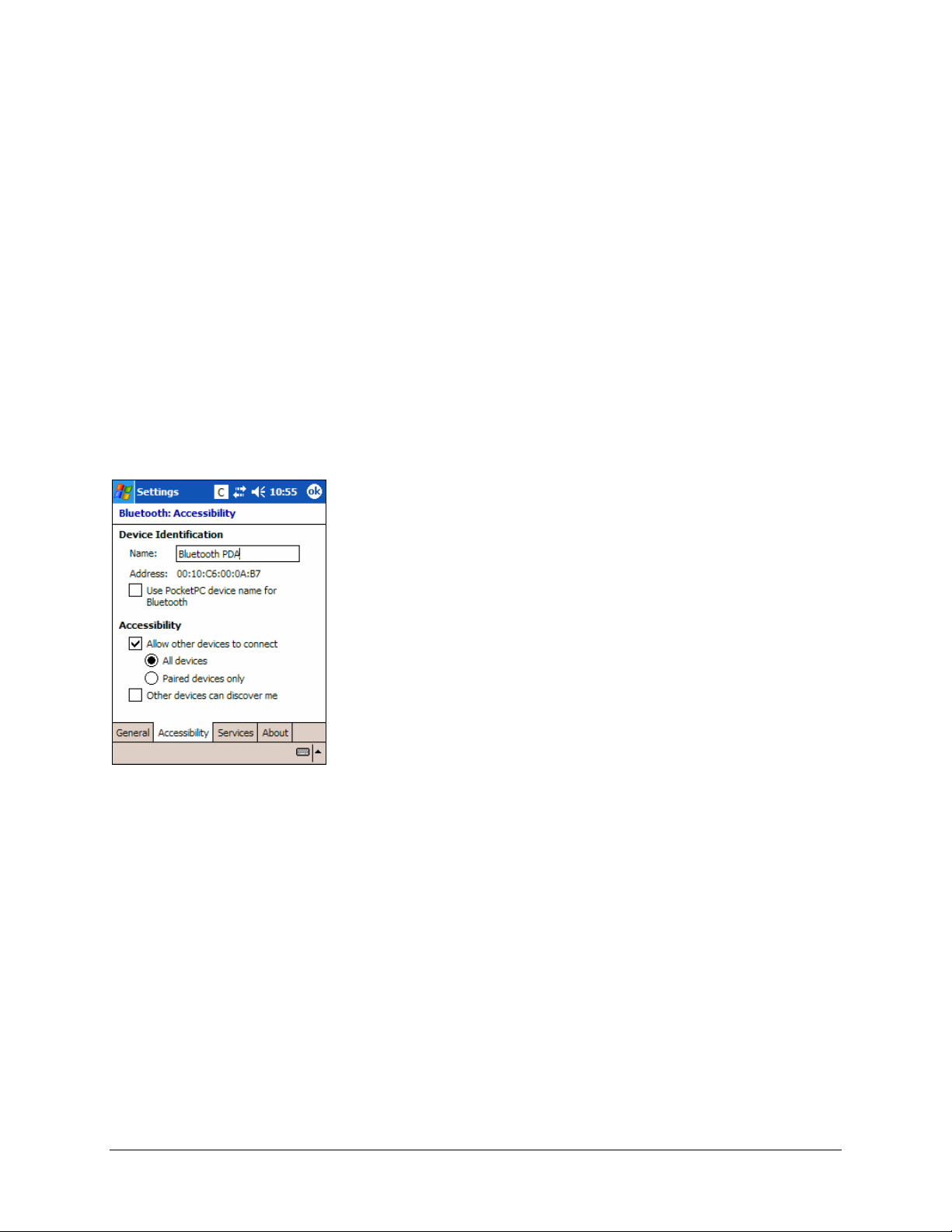
Bluetooth Accessibility
For those using Windows Mobile 2003 or a non-Microsoft Bluetooth stack,
there are two Bluetooth settings that affect how the mouse and the mobile
device connect. If your Stowaway Mouse software returns to waiting mode,
and pressing a mouse button will not trigger reconnection with the PDA, this
may be because the Bluetooth stack is awaiting a signal only from a
previously paired device, (such as if you had been using a Secured
keyboard connection). If you want the convenience of not placing the mouse
in Discoverable mode before every use, you will need to select All
devices in the Bluetooth Settings applet. This will permit your Pocket PC to
receive Bluetooth signals from unpaired devices, like the mouse.
NOTE: Your Bluetooth screen may vary.
Each manufacturer’s Bluetooth configuration
screens differ, but generally you will find the All
devices and Paired devices only options within the
Bluetooth Settings under the Accessibility tab.
This set of screens may be available directly via a
Bluetooth icon on the Today screen, or from the
Start MenuÖSettingsÖConnections tab.
Stowaway Bluetooth Mouse Owner’s Manual
Page 13
Page 14
Customizing Mouse Functions
Once the mouse software is installed on the Pocket PC device, you may
customize the options. A mouse icon will display in the lower right
corner of the screen while using Calendar, Contacts, or other applications.
¾ Tap the mouse icon on the bottom toolbar to display the Mouse Control
Panel.
¾ Tap the keyboard icon at the Mouse Control Panel to display the Input
Method Toolbar.
Input Method Toolbar
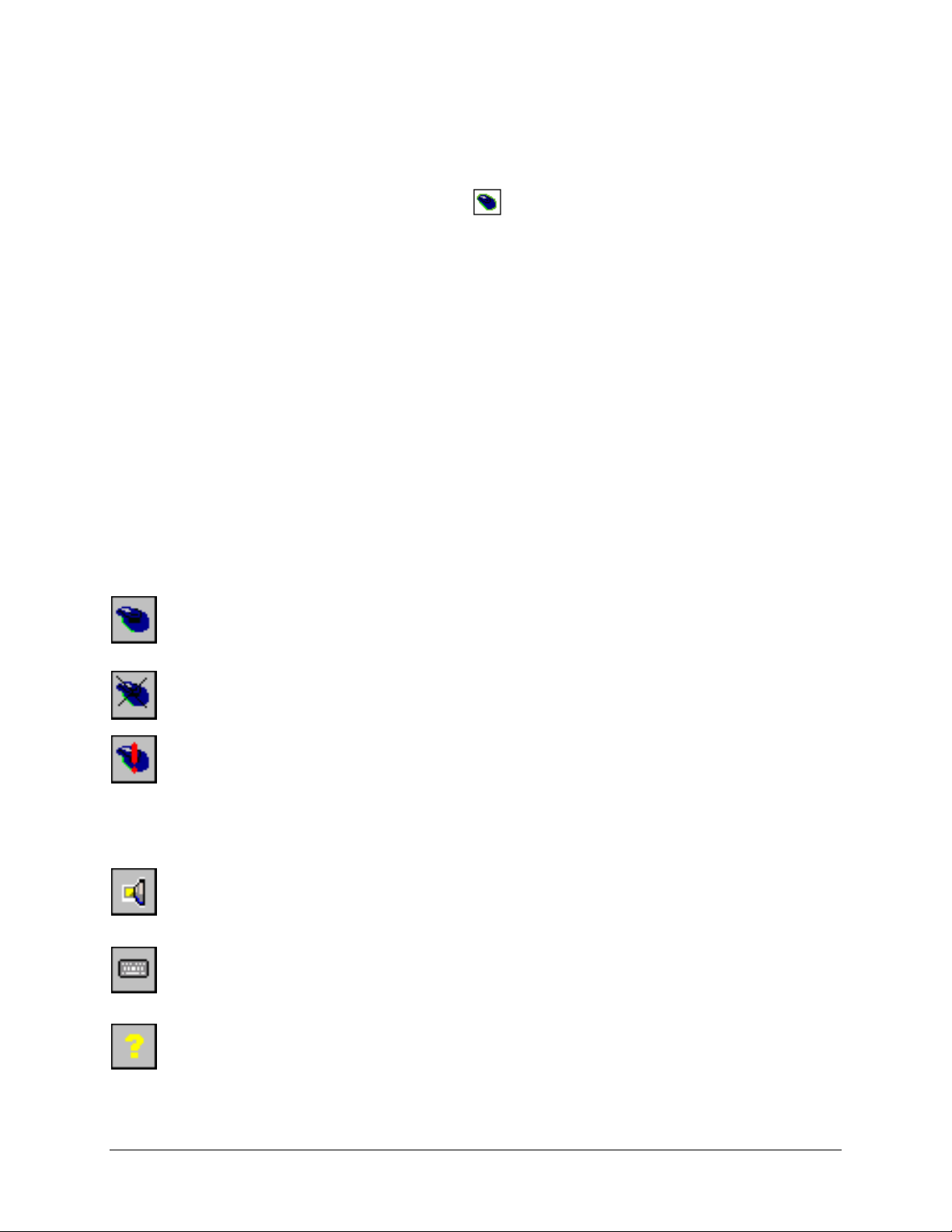
There are four icons that appear on the Input Method Toolbar. This assumes
that the Stowaway Keyboard input method is selected from the Input
Methods menu (tap the up arrow to the right of the keyboard icon in the
lower right corner of the display). The leftmost icon shows the state of the
Stowaway Mouse connection; there are three different states that can be
indicated. A tap and hold on this icon will display a text message describing
the state.
¾ This shows that the mouse connection is enabled.
¾ This shows that the connection is disabled or is waiting to
reconnect.
¾ This shows that the connection failed or no mice were found.
The other three icons relate to other features of the keyboard/mouse driver.
¾ Tap this speaker icon to turn the keyboard clicking sounds on or off
(for use, if a Stowaway keyboard is installed).
¾ Tap this keyboard icon to access the Keyboard Control Panel. This
second keyboard icon appears above the keyboard icon that is
visible in the lower right corner of the screen.
¾ Tap this help icon to access keyboard and mouse help topics and
troubleshooting tips.
Stowaway Bluetooth Mouse Owner’s Manual
Page 14
Page 15

Mouse Control Panel
On the Mouse tab:
¾ Tap Enable to choose which device to enable
(the next screen will allow you to select the
Stowaway Mouse). Tap Disable to turn off
access to the mouse.
¾ To select Button Assignments for custom
applications to launch, or functions to perform
with each of the mouse buttons, tap the downarrows following the Left, Middle and/or Right
drop down lists.
¾ To increase mouse pointer speed, drag the
Mouse Speed slider to the right.
¾ To decrease key repeat speed, drag the
Mouse Speed slider to the left.
¾ To select whether or not the mouse icon will
appear in the lower right corner of the Today
screen, check or uncheck the Show Icon on
Today screen option.
On the Connection tab:
The Bluetooth mouse status screen lists the mouse status, firmware
version and mouse battery status. There are three buttons available from
this screen:
¾ To start a Stowaway Mouse connection, tap Connect.
¾ To disable an existing connection, tap or mouse click on Disable.
¾ To set Power efficient mode and Mouse pointer mode, tap or click on
Advanced. This will open another screen where you can choose from
Auto, On, or Off Power efficient mode, and Enhanced or Safe Mouse
pointer mode. Help on these options is also available from the
Advanced screen.
On the About tab:
¾ The About tab indicates the keyboard/mouse software version installed
on your Pocket PC device.
Stowaway Bluetooth Mouse Owner’s Manual
Page 15
Page 16

Disabling the Stowaway Mouse
When the Stowaway Mouse is no longer needed, you can disable it by
tapping the Disable button, on the Connection or Mouse page. The
Connection is not set up message will then be displayed on the
Connection page.
NOTE: Disabling the Stowaway Mouse will not automatically turn off the
Bluetooth radio. Conversely, turning the Bluetooth radio off while the
Stowaway BT keyboard driver is still enabled will not work. Because of the
behavior of the Bluetooth stack, the Bluetooth radio will automatically turn
back on after a few seconds.
To re-enable the connection, tap the Connect button on the Connection
page or tap Enable on the Mouse page. See Configuring the Mouse to Your
Device for complete instructions.
Mouse Discoverable Mode
Discoverable mode is the state that allows the mouse to be detected by
the Pocket PC device.
¾ To place the mouse in Discoverable mode, press the Discoverable button
underneath the mouse. A green LED will light underneath the mouse to
indicate it is Discoverable.
Device Pairing Overview
The Pocket PC and the Stowaway Mouse share a virtual cable. This means
there is a 1:1 relationship between the Pocket PC device and the mouse.
During connection, the Pocket PC device searches the Bluetooth radio band
until it finds the mouse. Once completed, each time the Pocket PC device
and mouse are powered on within range of each other, the devices will be
reconnected with a simple mouse click. Once connected, the mouse leaves
Discoverable mode, and will not be detected by other devices. The Pocket PC
device on the other hand will retain the ability to create new pairings with
other devices, such as a Bluetooth keyboard.
Stowaway Bluetooth Mouse Owner’s Manual
Page 16
Page 17

Using the Stowaway Mouse
Moving the Pointer/Highlighting Text
Using default mouse functions: Mouse movements and Mouse button clicks,
you can easily navigate, position the cursor, and select text for subsequent
editing functions. You may also customize mouse functionality with the Left,
Middle and Right Button Assignment options via the Mouse tab:
To Perform/Navigate Press
Mouse Click Left mouse button (default)
Launch Mouse Settings Middle mouse button (default)
Context Menu Right mouse button (default)
Place text insertion point in text Single Mouse Click
Select (highlight) Current Word Double Mouse Click
Select (highlight) Current Paragraph Triple Mouse Click
Select (highlight) any amount of text Mouse Click, drag and release
Edit Text via Context Menu Right Mouse Click, Mouse Click option
Scroll Up, Down, Left, or Right Customize a button on Mouse tab
On-Screen Buttons and Application Launching
By customizing mouse button activities in the Stowaway Mouse application,
you can activate on-screen buttons such as (OK) or (X) and launch
applications using the Left, Middle or Right mouse buttons.
Note: Retain one mouse button for the Mouse Click, and customize the
remaining two buttons via the Mouse tab.
Following are a few of the tasks you can customize to mouse buttons:
On-Screen Button and Application Launching
OK/Close Window or Application
Open Start Menu
Launch Today Screen
Toggle Input Method Toolbar On/Off
Launch Mouse Settings
Launch Keyboard Settings
Launch Calendar
Launch Contacts
Launch Inbox
Launch Tasks
Launch Notes
Launch Word
Launch Excel
Launch Internet Explorer
Choose Data File (opens any file you choose)
Stowaway Bluetooth Mouse Owner’s Manual
Page 17
Page 18

Menu and Toolbar Navigation
You can access program menus, submenus, and toolbars with the Stowaway
Mouse using the following activities.
Action
To activate a program’s menu bar at the bottom of the Pocket PC device screen and
select a main menu item:
• Mouse click on the menu title, then move the mouse and click on the menu
item, or submenu you want to activate.
To access a program’s toolbar at the top or bottom of the Pocket PC device screen:
• Mouse click on the desired tool on the toolbar.
Stowaway Bluetooth Mouse Owner’s Manual
Page 18
Page 19

Frequently Asked Questions
Q: My mouse and handheld are in-range and powered on, why won’t
they reconnect after a mouse button press?
If Bluetooth Accessibility is set to Paired devices only, the mouse may not
automatically reconnect. To allow the mouse to reconnect with a button
press, change the default settings within the Bluetooth accessibility settings,
see Bluetooth Accessibility.
Q: What should I do when I try to use the mouse and nothing
happens?
• Verify that the Pocket PC has an adequate battery charge.
• Verify that the Stowaway Mouse batteries do not need replaced.
• Check to make sure that the keyboard/mouse software is installed
properly according to the instructions.
• Check the Connection tab of the Mouse Control Panel to make sure
the Stowaway Bluetooth Mouse is enabled.
• Check the Mouse tab of the Mouse Control Panel to make sure
you’ve selected the appropriate device type. After tapping Enable,
you should select Stowaway Bluetooth Mouse.
• Use the Mouse Help icon to launch the help.
Q: I tried to turn off the Bluetooth radio and it automatically turned
back on, what should I do?
The Stowaway Mouse must be disabled before the Bluetooth radio can be
turned off. See the
information.
Q: What is the Keyboard Control Panel for?
If you ever install a Bluetooth wireless keyboard, Connected serial
keyboard or Infrared wireless keyboard via the Config tab of the
Keyboard Control Panel, you will see a BT, Serial and/or IR tab added to
the Keyboard Control Panel and corresponding icons added to the Input
Method Toolbar. Even if you disable the keyboard(s) and only use the
Stowaway Bluetooth Mouse, the BT, Serial and/or IR tab and icons will
remain. If you do not plan to need these options, you may choose to
reinstall the driver and not enable them again so they will not display.
Disabling the Stowaway Mouse section for more
Stowaway Bluetooth Mouse Owner’s Manual
Page 19
Page 20

Q: I received an error message saying the keyboard/mouse driver
cannot find a supported Bluetooth component, what should I do?
The current version of the keyboard/mouse driver supports Widcomm
Bluetooth for Windows CE (BTW-CE) version 1.4.1 or later, and Microsoft
stack version TBD. If you have a different version, you may need to check
for upgrades for either the Bluetooth stack or for the mouse driver. (To
determine the version of the Bluetooth stack installed on your Pocket PC
device, locate the Bluetooth icon and tap it with the stylus to open the
application. Find the Bluetooth About tab and tap to open the associated
page. There you will find the version and build for the installed Bluetooth
stack.)
Should the mouse driver find more than one Bluetooth component on your
Pocket PC device (for example if you have Bluetooth built-in and a
removable Bluetooth card), then a dialog box will be displayed with a choice
of available components. You will need to choose the Bluetooth component
that you wish to be used with the Bluetooth mouse and tap OK.
NOTE: Some Bluetooth components may not work with the mouse. If you
are not able to connect to the mouse, you may have to return to the Mouse
page, tap Enable again, select Stowaway Bluetooth Mouse, tap Setup,
and then select another Bluetooth component.
Q: My mouse was connected and input to Pocket PC device worked
fine, but after a certain idle period, it seems that the connection was
lost.
Refer to the
Q: How do I uninstall the keyboard and mouse driver?
Select Start Ö Settings Ö System Tab Ö Remove Programs. Select
Stowaway Keyboard and Mouse Driver from the list of applications then
tap the Remove button.
Reconnecting the Stowaway Mouse section.
Stowaway Bluetooth Mouse Owner’s Manual
Page 20
Page 21

Legal Notices
Mobility California, Inc. and its affiliates shall not be liable for technical or
editorial errors or omissions contained herein or for special, indirect,
incidental or consequential damages whatsoever in connection with the
furnishing, performance, or use of this material. The information in this
document is provided “as is” without express or implied warranty of any
kind, including, but not limited to, the implied warranties of merchantability
and fitness for a particular purpose, and is subject to change without notice.
The warranties for Mobility California products are set forth in the express
limited warranty statements accompanying such products. Nothing herein
should be construed as constituting an additional warranty. Mobility
California assumes no responsibility for any loss or claims by third parties,
which may arise through the use of this software. Mobility California does
not warrant that the software will be error-free, nor that the software will
run uninterrupted. Mobility California assumes no responsibility for any
damage or loss caused by deletion of data as a result of malfunction, dead
battery, or repairs. Be sure to make backup copies of all important data on
other media to protect against data loss. Information in this document is
subject to change without notice.
©2006 Mobility California, Inc. All rights reserved.
Reproduction of this document in any manner whatsoever without the
written permission of Mobility California, Inc. is strictly forbidden.
Trademarks
Think Outside and Stowaway are registered trademarks of Mobility
California, Inc. Broadcom is a registered trademark of Broadcom
Corporation. Bluetooth and the Bluetooth logos are trademarks owned by
Bluetooth SIG, Inc., U.S.A. and licensed to Broadcom Corporation.
ActiveSync, Windows Mobile, Windows and Outlook are registered
trademarks of Microsoft Corporation. Other trademarks and trade names
may used in this document to refer to either the entities claiming the marks
and names or their products. No proprietary interest in other trademarks
and trade names is claimed.
Stowaway Bluetooth Mouse Owner’s Manual
Page 21
Page 22

Warranty
Mobility California warrants this product against defects in materials and
workmanship under normal use for a period of one (1) year from the date of
original retail purchase. Mobility California’s and its suppliers’ entire liability,
and your exclusive remedy, if you discover a defect and return the product
with proof of purchase to Mobility California during the warranty period, is
that Mobility California will, at its option, repair, replace, or refund the
purchase price of the product to you at no charge. This limited warranty is
void if the defect results from accident, alteration, abuse, improper use, or
exposure to water or extreme temperature. TO THE MAXIMUM EXTENT
PERMITTED BY LAW, THIS LIMITED WARRANTY IS EXCLUSIVE AND
MOBILITY CALIFORNIA DISCLAIMS ALL OTHER WARRANTIES, EXPRESS OR
IMPLIED, INCLUDING WARRANTIES OF MERCHANTABILITY, FITNESS FOR A
PARTICULAR PURPOSE, TITLE AND NON-INFRINGEMENT. MOBILITY
CALIFORNIA IS NOT RESPONSIBLE FOR SPECIAL, INCIDENTAL, INDIRECT
OR CONSEQUENTIAL DAMAGES (INCLUDING WITHOUT LIMITATION,
DAMAGES FOR LOST PROFITS, LOST SAVINGS, OR OTHER DAMAGES)
ARISING OUT OF THE USE OR INABILITY TO USE THE PRODUCT OR THE
BREACH OF ANY EXPRESS OR IMPLIED WARRANTY, EVEN IF MOBILITY
CALIFORNIA HAS BEEN ADVISED OF THE POSSIBILITY OF THOSE
DAMAGES. Because some jurisdictions do not permit the exclusion or
limitations set forth above, they may not apply in all cases. This warranty is
governed by the laws of the State of California.
Stowaway Bluetooth Mouse Owner’s Manual
Page 22
Page 23

Obtaining Warranty Service
Customer must contact Mobility California within the applicable warranty
period to obtain warranty service authorization. Dated proof of original
purchase will be required for warranty service, repair, or replacement.
Products or parts shipped by Customer to Mobility California must be sent
postage-paid and packaged appropriately for safe shipment. Mobility
California is not responsible for Customer products received without a
warranty service authorization and may be rejected. Repaired or
replacement products will be shipped to Customer at Mobility California’s
expense. All products or parts that are replaced become the property of
Mobility California. The repair and replacement process for products or parts
in locations outside of the United States will vary depending on Customer’s
location.
Mobility California
10 South Third Street
Fifth Floor
San Jose, California 95113
United States of America
www.igo.com
Registering Your Product
To register your Stowaway keyboard product, please visit
www.thinkoutside.com/registration/registration.html and complete the
online form.
Stowaway Bluetooth Mouse Owner’s Manual
Page 23
Page 24

Important Battery Information
• Keep batteries away from children.
• Do not mix batteries of different types or old and new batteries.
• Always replace old, weak or worn-out batteries promptly and recycle
or dispose of them properly. Before inserting new batteries, the
battery compartment should be cleaned. If fluid from the battery
comes into contact with skin or clothes, flush with water immediately.
• Remove the batteries if the device will be inactive longer than a
month.
• Do not open, puncture or otherwise damage the batteries.
• Do not use fire to dispose of batteries.
Released battery electrolyte is corrosive and can cause damage to the eyes
and skin and may be toxic if swallowed.
Comfortable Mouse Use
Research suggests that physical discomfort and injury to nerves, tendons,
and muscles may be related to repetitive motion, an improperly set up work
area, incorrect body posture, and poor work habits.
To reduce the risk of injury, follow these precautions:
• Stand, stretch, and move around several times every hour.
• Every once in a while, work on a different task with your hands. Avoid
repetitive motions. Use shortcut buttons to move efficiently and avoid
repetitive, awkward movement.
• Relax your shoulders and keep your elbows at your sides. Adjust your
work area so that you don’t have to stretch to reach the mouse.
• Adjust your position so that you can avoid placing your wrists on a
sharp edge.
If you feel discomfort of numbness in your hands, wrists, arms, shoulders,
neck or back while typing, get the advice of a qualified medical professional.
Stowaway Bluetooth Mouse Owner’s Manual
Page 24
Page 25

Important notes about Bluetooth devices
The Stowaway Bluetooth mouse can emit radio frequency (RF) energy
whenever the batteries are installed and the power switch is turned on..
Care should be taken when used around medical devices or equipment. For
specific information, consult with the product manufacturer or your physician
before use. To stop interference, power off the mouse or remove its
batteries.
The Stowaway Bluetooth Mouse should not be used on any aircraft.
Before boarding an aircraft, power off the mouse to ensure there is
no RF transmission.
Regulatory Notices
Electromagnetic Interference (EMI) is any signal or emission, radiated In
free space or conducted along power or signal leads, that endangers the
functioning of radio navigation or other safety service or seriously degrades,
obstructs, or repeatedly interrupts a licensed radio communication service.
Radio communications services include but are not limited to AM/FM
commercial broadcast, television, cellular services, radar, air-traffic control,
pager, and Personal Communication Services (PCS). These licensed services,
along with unintentional radiators such as digital devices, including
computers, contribute to the electromagnetic environment.
Electromagnetic Compatibility is the ability of items of electronic equipment
to function properly together in the electronic environment. While this
mouse has been designed and determined to be compliant with regulatory
agency limits for EMI, there is no guarantee that interference will not occur
in a particular installation. If this equipment does cause interference with
radio communications services, which can be determined by turning the
equipment off and on, you are encouraged to try to correct the interference
by one or more of the following measures:
• Reorient the receiving antenna.
• Relocate the mouse with respect to the receiver.
• Move the mouse away from the receiver.
If necessary, consult a Technical Support representative or an experienced
radio/television technician for additional suggestions.
Stowaway Bluetooth Mouse Owner’s Manual
Page 25
Page 26

Wireless Regulatory Information
The Stowaway device must be used in strict accordance with the
manufacturer's instructions as described in the user documentation that
comes with the product. For country-specific approvals, see Radio approvals.
Mobility California, Inc. is not responsible for any radio or television
interference caused by unauthorized modification of the device, or the
substitution or attachment of connecting cables and equipment other than
that specified by Mobility California, Inc. The correction of interference
caused by such unauthorized modification, substitution or attachment is the
responsibility of the user. Mobility California, Inc. and its authorized resellers
or distributors are not liable for any damage or violation of government
regulations that may arise from the user failing to comply with these
guidelines.
Stowaway Bluetooth Mouse Owner’s Manual
Page 26
Page 27

FCC Notices
This equipment has been tested and found to comply with the limits for a
Class B digital device pursuant to Part 15 of the FCC Rules. These limits are
designed to provide reasonable protection against harmful interference in a
residential installation. This equipment generates, uses, and can radiate
radio frequency energy and, if not installed and used in accordance with the
manufacturer’s instruction manual, may case interference with radio
communications. However, there is no guarantee that interference will not
occur in a particular installation. If this equipment does cause harmful
interference to radio or television reception, which can be determined by
turning the equipment off and on, you are encouraged to try to correct the
interference by one or more of the following measures:
• Reorient or relocate the receiving antenna.
• Increase the separation between the equipment and the receiver.
• Consult the dealer or an experienced radio/television technician for
help.
This device complies with Part 15 of the FCC Rules. Operation is subject to
the following two conditions: (1) This device may not cause harmful
interference, and (2) this device must accept any interference received,
including interference that may cause undesired operation.
Any changes or modifications not expressly approved by the party
responsible for compliance could void the user's authority to operate this
equipment.
FCC Radiation Exposure Statement
This equipment complies with FCC radiation exposure limits set forth for an
uncontrolled environment. End users must follow the specific operating
instruction for satisfying RF exposure compliance. This transmitter must not
be co-located or operating in conjunction with any other antenna or
transmitter.
Stowaway Bluetooth Mouse Owner’s Manual
Page 27
Page 28

FCC Identification Information
The following information is provided on the device or devices covered in this
document in compliance with FCC regulations:
• Model number(s):
MSBT01
• Company name:
Mobility Electronics, Inc.
9918 Via Pasar
San Diego, California 92126
United States of America
1.858.880.2225
IC Notice
This Class B digital apparatus complies with Canadian ICES -003.
Cet appareil numérique de la classe B est conforme à la norme NMB-003 du
Canada.
IC Radiation Exposure Statement
This equipment complies with IC radiation exposure limits set forth for an
uncontrolled environment. End users must follow the specific operating
instruction for satisfying RF exposure compliance. This transmitter must not
be co-located or operating in conjunction with any other antenna or
transmitter.
Stowaway Bluetooth Mouse Owner’s Manual
Page 28
Page 29

Europe – CE Declaration of Conformity
EN 301 489-1 (2004), EN 301 489-17 (2002), EN 300 328-1 (2001), EN 300
328-2 (2001), EN 60950 (2001)
English Hereby, Mobility California, Inc. declares that this MSBT01 is
in compliance with the essential requirements and other
relevant provisions of Directive 1999/5/EC.
French Par la présente Mobility California, Inc. déclare que
l’appareil MSBT01 est conforme aux exigences essentielles
et aux autres dispositions pertinentes de la directive
1999/5/CE.
German Hiermit erkärt Mobility California, Inc., dass sich
dieser/diese/dieses MSBT01 in Übereinstimmung mit den
grundlegenden Anforderungen und den anderen relevanten
Vorschriften der Richtlinie 1999/5/EG befindet. (BMWi)
Hiermit erkärt Mobility California, Inc. die Übereinstimmung
des Gerätes Tastatur mit den grundlegenden Anforderungen
und den anderen relevanten Festlegungen der Richtlinie
1999/5/EG. (Wien)
Italian Con la presente Mobility California, Inc. dichiara che questo
MSBT01 è conforme ai requisiti essenziali ed alle altre
disposizioni perteinenti stabilite dalla direttiva 1999/5/CE.
Spanish Por medio de la presente Mobility California, Inc. declara
que el MSBT01 cumple con los requisotas esenciales y
cualesquiera otras disposiciones aplicables o exigibles de la
Directiva 1999/5/CE.
Portuguese Mobility California, Inc. declara que este MSBT01 está
conforme com os requistos essenciais e outra disposições da
Directiva 1999/5/EC.
Finnish Mobility California, Inc. vakuuttaa täten että MSBT01
tyyppinen laite on direcktiivin 1999/5/EY oleellisten
vaatimusten ja sitä koskevien directiiven muiden ehtojen
mukainen.
Dutch Hierbij verklaart Mobility California, Inc. dat het toestel
MSBT01 in overeenstemming is met de essentiële eisen en
de andere relevante bepalingen van richtlijn 1999/5/EG.
Stowaway Bluetooth Mouse Owner’s Manual
Page 29
Page 30

Swedish Härmed intygar Mobility California, Inc. att denna MSBT01
står I överensstämmelse med de väsentliga egenskapskrav
och övriga relevanta bestämmelser som framgår av direktiv
1999/5/EG.
Danish Undertengnede Mo bility Califor nia, Inc. erklærer herved, at
følgende udstyr MSBT01 overholder de væsentlige krav og
øvrige relevante krav i direktiv 1999/5/EF.
Greek ΜΕ ΤΗΝ ΠΑΡΟΥΣΑ Mobility California, Inc. ΔΗΛΩΝΕΙ ΟΤΙ
MSBT01 ΣΥΜΜΟΡΦΩΝΕΤΑΙ ΠΡΟΕ ΤΙΣ ΟΥΣΙΩΔΕΙΣ
ΑΠΑΙΤΗΣΕΙΣ ΚΑΙ ΤΙΣ ΛΟΙΠΕΣ ΣΧΕΤΙΚΕΣ ΔΙΑΤΑΞΕΙΣ ΤΗΣ
ΟΔΗΓΙΑΣ 1999/5/E.
Malti Hawnhekk, Mobility California, Inc. jiddikjara li dan MSBT01
jikkonforma mal- ħtiġijiet essenzjali u ma provvedimenti
oħrajn relevanti li hemm fid-Dirrettiva 1999/5/EC.
Estonian Käesolevaga kinnitab Mobility California, Inc. seadme
MSBT01 vastavust direktiivi 1999/5/EÜ põhinõuetele ja
nimetatud direktiivist tulenevatele teistele asjakohastele
sätetele.
Hungarian Alulírott, Mobility California, Inc. nyilatkozom, hogy a
MSBT01 megfelel a vonatkozó alapvetõ követelményeknek
és az 1999/5/EC irányelv ebyéb elõírásainak.
Slovak Mobility California, Inc. týmto vyhlasuje, že MSBT01 spĺňa
základné pozáiadavky a všetky príslušné ustanovenia
Smernice 1999/5/ES.
Czech Mobility California, Inc. tímto prohlašuje, že tento MSBT01
je ve shodě se základními požadavky a dalšími příslušnými
ustanoveními směrnice 1999/5/ES.
Slovene Šiuo Mobility California, Inc. deklaruoja, kad šis MSBT01
atitinka esminius reikalavimus ir kitas 1999/5/EB Direktyvos
nuostatas.
Lithuanian Šiuo Mobility California, Inc. deklaruoja, kad šis MSBT01
atitinka esminius reikalavimus ir kitas 1999/5/EB Direktyvos
nuostatas.
Latvian Ar šo Mobility California, Inc. deklarē, ka MSBT01 atbilst
Direktīvas 1999/5/EK būtiskajām prasībām un citiem ar to
saistītajiem noteikumiem.
Stowaway Bluetooth Mouse Owner’s Manual
Page 30
Page 31

France
Some areas of France have a restricted frequency band. The worst case
maximum authorized power indoors is:
10 mW for the entire 2.4 GHz band (2400 MHz–2483.5 MHz).
100 mW for frequencies between 2446.5 MHz and 2483.5 MHz (NOTE—
Channels 10
through 13 inclusive operate in the band 2446.6 MHz to 2483.5 MHz).
There are few possibilities for outdoor use: On private property or on the
private property of public persons, use is subject to a preliminary
authorization procedure by the Ministry of Defence, with maximum
authorized power of 100 mW in the 2446.5–2483.5 MHz band. Use outdoors
on public property is not permitted.
In the departments listed below, for the entire 2.4 GHz band:
Maximum authorized power indoors is 100 mW.
Maximum authorized power outdoors is 10 mW.
Stowaway Bluetooth Mouse Owner’s Manual
Page 31
Page 32

Features and Specifications Summary
• Small, palm-sized design makes it easy to put in your pocket or briefcase.
• Simple connection compatibility with your Pocket PC device via Bluetooth.
• Large, accessible mouse buttons and rubberized scroll wheel.
• User-programmable button shortcuts for faster access to applications.
• On-screen menu and toolbar navigation via mouse
• Does not draw power from your Pocket PC device.
• Easy glide pads underneath the mouse for ease of movement.
• Included travel pouch and two AAA batteries.
Dimensions: 3.74”L x 2.17”W x 1.38”H
(95mm x 55mm x 35mm)
Weight (including batteries): 3 ounces
(75 grams)
Operating Temperature Range: 32° to 122°F
(0° to 50°C)
Typical Battery Life:
Continuous Operation: ~30 hours
Typical usage: ~3 weeks
Standby: ~2500 hours
RF Technical specifications
RF output power: Class 2. Maximum output power is 2.5mW (4 dBm).
Protocol: Bluetooth specification v. 1.1 compliant. Bluetooth
HID Profile v. 1.0 compliant.
Frequency range: 2.4 – 2.4835GHz
Type of Modulation: GFSK (Gaussian Frequency Shift Keying).
Signal Type: FHSS (Frequency Hopping Spread Spectrum)
©2005 Mobility California, Inc. P/N: 101934E
Stowaway Bluetooth Mouse Owner’s Manual
Page 32
 Loading...