

Page 1
INSTRUCTION MANUAL
WIRELESS ACCESS POINT
AP-90M
[IEEE802.11ac] standard
[IEEE802.11n] standard
[IEEE802.11a/b/g] standard
Dual band communications
[IEEE802.3af] PoE standard
INTRODUCTION
1 BEFORE USING THE AP-90M
2 INSTALLATION GUIDE
3 CONNECTING WIRELESS LAN [BASIC]
4
CONNECTING WIRELESS LAN [ADVANCED]
5 OTHER FUNCTIONS
6 MAINTENANCE
7 INFORMATION
Page 2

INTRODUCTION
Thank you for choosing this Icom product. The AP-90M w i r e l e s s a c c e s s p o i n t is designed and built with Icom’s
IP network technology. We hope you agree with Icom’s philosophy of “technology first.” Many hours of research
and development went into the design of your AP-90M.
The AP-90M complies with the IEEE802.11ac/n/a/b/g standards and enables you to communicate in dual
bands.
The ➥ wireless LAN unit for the internal and external antenna is built into the AP-90M.
The IEEE802.11ac standard can only be used when 5 GHz is selected for the external antenna.
If you set the same frequency band to the internal antenna and the external antenna, the wireless system will ➥
not work properly.
ALL RIGHTS RESERVED. This document contains material protected under International and Domestic Copyright Laws
and Treaties. Any unauthorized reprint or use of this material is prohibited. No part of this document may be reproduced or
transmitted in any form or by any means, electronic or mechanical, including photocopying, recording, or by any information
storage and retrieval system without express written permission from Icom Incorporated.
All stated specifications and design are subject to change without notice or obligation.
Adobe and Reader are registered trademarks of Adobe Systems Incorporated in the United States and/or other countries.
Microsoft and Windows are registered trademarks of Microsoft Corporation in the United States and/or other countries.
Icom, Icom Inc. and the Icom logo are registered trademarks of Icom Incorporated (Japan) in Japan, the United States, the
United Kingdom, Germany, France, Spain, Russia, and/or other countries.
All other products or brands are registered trademarks or trademarks of their respective holders.
i
Page 3

INTRODUCTION
About the wireless LAN standards
The AP-90M’s wireless LAN standards and the maximum communication rates are shown in the table
below.
Frequency band Wireless LAN standard Bandwidth*
5 GHz IEEE802.11ac 80 MHz 867 Mbps
IEEE802.11n 40 MHz 300 Mbps
IEEE802.11a 54 Mbps
2.4 GHz IEEE802.11n 40 MHz 300 Mbps
IEEE802.11g 54 Mbps
IEEE802.11b 11 Mbps
* The bandwidth that can be used differs, depending on the country.
40 MHz 400 Mbps
20 MHz 173 Mbps
20 MHz 144 Mbps
20 MHz
Maximum communication rate
(theory)
144 Mbps
About the Wireless LAN information
• The maximum communication rate is written based on the maximum theoretical rate of the IEEE802.11 wireless LAN standard, and is not the actual data communication rate.
• The actual data communication rate differs, depending on the condition in which the AP-90M is used, such as
distance, obstacles, PC specifications, network vacancy, and so on.
The AP-90M’s wireless LAN standards and the maximum communication distance is shown in the table
below.
The wireless communication distance differs, depending on the installed location or the frequencies used.
Refer to the table below as a reference.
Frequency band Wireless LAN standard Indoor Outdoor*
5 GHz IEEE802.11ac
IEEE802.11n
IEEE802.11a
2.4 GHz IEEE802.11n
IEEE802.11g
IEEE802.11b
* Use this product outdoors according to your local regulations.
Approximately
30 m; 32 yd
Approximately
30 m; 32 yd
Approximately
100 m; 109 yd
Approximately
100 m; 109 yd
ii
Page 4
INTRODUCTION
About the wireless LAN standards (Continued)
Bandwidth and Channel
Wireless LAN unit for both the internal and external antennas are built into the AP-90M.
As the default setting, Wireless 1 (internal antenna) is set to 2.4 GHz, and Wireless 2 (external antenna) is set
to 5 GHz.
Set the desired “Frequency Band” or “Bandwidth.”
• The channels written in the table below are the channels used in the world.
However, the channels and bandwidth that can be used differ, depending on the country, or the local regulations.
When setting multiple access points with the 80 MHz bandwidth on 5 GHz, or 20/40 MHz bandwidth on 2.4 GHz, set the
channels away from each other, to prevent signal interference.
Frequency band Bandwidth Channel
2
5 GHz 80 MHz*
40 MHz*
20 MHz 36, 40, 44, 48, 52, 56, 60, 64, 100, 104, 108, 112, 116, 120, 124, 128, 132, 136, 140,
2.4 GHz 40 MHz 1, 2 ,3 ,4, 5, 6, 7, 8, 9
20 MHz 1, 2, 3, 4, 5, 6, 7, 8, 9, 10, 11, 12, 13, Automatic
36, 40, 44, 48, 52, 56, 60, 64, 100, 104, 108, 112, 116, 120, 124, 128, 132, 136, 140,
144, 149, 153, 157, 161
3
36, 44, 52, 60, 100, 108, 116, 124, 132, 140, 149, 157
144, 149, 153, 157, 161, 165, Automatic
*1 Wireless 1 and 2’s frequency bands cannot be used when both of them are set to 2.4 GHz or 5 GHz.
*2 80 MHz bandwidth can only be used in Wireless 2.
(80 MHz bandwidth cannot be used, depending on the country.)
*3 For Wireless 1, when 5 GHz is selected for “Frequency Band,” and 40 MHz is selected for “Bandwidth,” the
DFS function channels cannot be used.
iii
Page 5

INTRODUCTION
Features
A communication can be made on the maximum rate 867 Mbps (theory) based on the [IEEE802.11ac] and ➥
the [IEEE802.11n] standards.
• The [IEEE802.11ac] standard can only be used when 5 GHz is selected for the external antenna.
• The [IEEE802.11ac] and the [IEEE802.11n] standards are enabled when “None” or “AES” are set for “Encryption.”
Dual band communications using the 5 GHz and 2.4 GHz bands can be made, based on the [IEEE802.11a] ➥
and the [IEEE802.11b/g] standards.
For using multiple wireless devices that are based on different wireless LAN standards at the same time, a ➥
protection system is built into the AP-90M, for the communication rate maintenance.
The DFS function automatically avoids radio-frequency interference to Weather radars. The DFS conditions ➥
differ, depending on your location.
The authentication system supports “Open System,” “Shared Key,” “IEEE802.1X,” “WPA,” “WPA2,” “WPA-PSK,” ➥
and “WPA2-PSK.”
If “IEEE802.1X,” “WPA” or “WPA2” is selected, the RADIUS authentication server can be used. ➥
Web authentication function, which authorizes wireless LAN stations is built into the AP-90M. ➥
The AP-90M complies with the PoE (Power over Ethernet) power reception function based on the [IEEE802.3af] ➥
standard. Therefore, power can be received using a HUB (user supplied) that supports the [IEE802.3af] standard.
With the function that the “Wi-Fi Alliance” proposes, SSID and Security (WPA-PSK/WPA2-PSK) can automati- ➥
cally be set to the AP-90M (virtual AP) and the wireless LAN station that supports the WPS (Wi-Fi Protected
Setup) function.
• This device is not certied by the Wi-Fi alliance. (As of December 2014)
Supports the 10BASE-T/100BASE-TX/1000BASE-T automatic switching function. ➥
Auto MDI/MDI-X system for the port polarity. ➥
Settings can be automatically backed-up at power ON, using a USB flash drive. ➥
Also, the firmware can be updated or settings can be restored, using a flash drive.
• To use these functions, a setting le or a rmware le with a proper le name is required.
Set the “USB Authentication Key” function to avoid data theft or accidental setting changes, using other than ➥
the USB flash drive set to this function.
Supports the SNMP system for the network management. ➥
No license nor certificate needed to use this product. ➥
iv
Page 6

INTRODUCTION
About default settings
Menu Setting screen Setting Title Default setting
Network Settings IP Address IP Address IP Address 192.168.0.1
Subnet Mask 255.255.255.0
DHCP Server DHCP Server DHCP Server Disable
Wireless Settings Wireless LAN Wireless LAN Frequency Band 2.4 GHz (Wireless 1)
5 GHz (Wireless 2)
Bandwidth 20 MHz
Virtual AP Virtual AP Interface ath0 (Wireless 1)
ath4 (Wireless 2)
SSID WIRELESSLAN-0
Security Authentication Open System/Shared Key
Encryption None
Management Administrator Administrator Password Username admin (Cannot be changed)
Current Password admin (Lower case letters)
*The wireless LAN unit for Wireless 1 (internal antenna) and Wireless 2 (external antenna).
Wireless 1 and 2’s frequency bands cannot be used when both of them are set to 2.4 GHz or 5 GHz.
The “IEEE802.11ac” standard can only be used when 5 GHz is selected in Wireless 2 (external antenna).
*
*
To prevent unauthorized access
You must carefully chose your password, and change it occasionally.
• Choose one that is not easy to guess.
• Use numbers, characters and letters (both lower and upper case).
v
Page 7

INTRODUCTION
Setting procedures
Follow the procedures below to set up the AP-90M.
1 Main functions
2 Wireless communication settings
3 Wireless LAN settings
4
Date, time and other settings
5 Settings backup/restore
6 Resetting to defaults
p.1-5 to p.1-12
+
p.2-2 to p.2-7
+
p.3-2 to p.3-19
+
p.5-2 to p.5-12
+
p.6-2 to p.6-3
+
p.6-4 to p.6-5
+
7 Troubleshooting
p.7-2 to p.7-3
+
vi
Page 8

INTRODUCTION
Index
INTRODUCTION .........................................................i
About the wireless LAN standards ..........................ii
Features ..................................................................iv
About default settings..............................................v
Setting procedures ..................................................vi
Index .......................................................................vii
1. BEFORE USING THE AP-90M ...............................1-1
1. Panel description .................................................1-2
2. Main functions .....................................................1-5
2. INSTALLATION GUIDE ...........................................2-1
1. About the PC to use ............................................2-2
2. Setting the static IP address to a PC ..................2-3
3. Connecting to the PC ..........................................2-4
4. Accessing the setting screen ..............................2-7
5. Changing the IP address .....................................2-8
6. Manually entering the SSID
and Encryption ...................................................2-9
7. Assigning the automatic SSID and PSK
in the WPS function .............................................2-11
3. CONNECTING WIRELESS LAN [BASIC] ..............3-1
1. Disabling the wireless communication ................3-2
2. [IEEE802.11ac] standard (5 GHz band)
communication ....................................................3-3
3. Setting the “WEP RC4” encryption ......................3-4
4. Automatically setting the SSID and
Shared Key ..........................................................3-8
5. Setting the Virtual AP ..........................................3-9
6. Setting the Wireless Bridging function.................3-11
7. Setting the MAC Address Filtering ......................3-19
1. Checking and saving the settings ........................6-2
2. Uploading the saved settings ..............................6-3
3. Restoring the factory defaults .............................6-4
4. Firmware Update .................................................6-6
5. Automatic setting using a USB flash drive ..........6-9
6. Automatically restoring from a
USB flash drive ...................................................6-13
7. Firmware update using a USB flash drive ...........6-16
8. Setting the USB Authentication Key ....................6-18
7. INFORMATION ........................................................7-1
1. Troubleshooting ...................................................7-2
2. Connecting using Telnet ......................................7-4
3. About the setting screen .....................................7-5
4. Feature functions .................................................7-7
5. About the characters ...........................................7-8
6. Specifications ......................................................7-9
4. CONNECTING WIRELESS LAN [ADVANCED] .....4-1
1. Automatically setting the channels ......................4-2
2. Setting the Accounting server .............................4-4
3. Setting the MAC Authentication
Server (RADIUS) .................................................4-6
4. Setting the RADIUS ............................................4-8
5. OTHER FUNCTIONS ..............................................5-1
1. Controlling the setting screen access .................5-2
2. Setting the internal clock .....................................5-3
3. Using the DHCP Server ......................................5-4
4. Using the Packet Filter ........................................5-5
5. Setting Web Authentication .................................5-10
6. Disabled HTTP/HTTPS .......................................5-12
7. About the PIN code .............................................5-13
8. About SYSLOG ...................................................5-14
6. MAINTENANCE ......................................................6-1
vii
Page 9

BEFORE USING THE AP-90M
1. Panel description .....................................................................................................................................1-2
Top panel ...............................................................................................................................................1-2
Rear panel/Back side .............................................................................................................................1-3
Antenna attachment ...............................................................................................................................1-4
2. Main functions ......................................................................................................................................... 1-5
Access point function .............................................................................................................................1-5
Wireless LAN (SSID) .............................................................................................................................1-5
Maximum Number of Stations ...............................................................................................................1-5
‘IEEE802.11ac’ standard ........................................................................................................................1-5
‘IEEE802.11n’ standard .........................................................................................................................1-5
Wireless LAN (SSID) .............................................................................................................................1-6
Roaming function ...................................................................................................................................1-7
Wireless bridging function ......................................................................................................................1-8
Wireless bridging function (Continued) ..................................................................................................1-9
Virtual AP function .................................................................................................................................1-10
DFS function and automatic channel setting .........................................................................................1-11
WPS function .........................................................................................................................................1-12
1
1-1
Page 10

BEFORE USING THE AP-90M
q w e r
1
1. Panel description
Top panel
q
POWER …………………
Indicates the status. It also lights when the [MODE] button is pushed.
Lights green: Power is ON.
Lights red: “Accessing the USB flash drive” error.
Blinks red: “Duplicated IP address” error.
(Detected only when booting)
Lights orange: Accessing the USB flash drive.
A firmware update is ready (Online update).
Blinks orange: Booting.
When [MODE] is operated.
No light: Power is OFF.
LAN …………………… Indicates the LAN status.
w
Lights green: LAN is connected (1000BASE-T)
Blinks green: LAN is communicating (1000BASE-T)
orange: LAN is connected (10BASE-T/100BASE-TX)
Lights
Blinks orange: LAN is communicating (10BASE-T/100BASE-TX)
No light: Not connected.
WIRELESS 1 ………… Indicates the WIRELESS 1 (internal antenna) status.
e
Lights green: More than 1 connection/WPS succeeded*
Blinks green: WPS is running.
Blinks red: WPS failed.
Lights orange: Internal antenna enabled.
(Wireless station is not connected)
Blinks orange: Wireless operation is waiting for DFS.
No light: Internal antenna disabled*
WIRELESS 2 ………… Indicates the WIRELESS 2 (external antenna) status.
r
Lights green: More than 1 connection/WPS succeeded*
2
Blinks green: WPS is running.
Blinks red: WPS failed.
Lights orange: Internal antenna enabled.
(Wireless station is not connected)
Blinks orange: Wireless operation is waiting by for DFS.
No light: External antenna disabled*
2
1
.
1
.
*1 When there is no wireless LAN station to connect with the AP-90M, or no wireless communication is
made while “Wireless Unit” is enabled, the LED lights orange. The time when the LED turns orange differs, depending on the communication status.
*2 The LED also turns OFF when the same “Frequency Band” is set to both the internal antenna and the
external antenna.
• When the “LED OFF Mode” is set to “Enable,” the POWER indicator is dimmed, and when set to “Enable (Completely),”
the all indicators are turned OFF. (Default: Disable)
1-2
Page 11
BEFORE USING THE AP-90M
DC GND
LANUSB
WPS
q
w
e
r
t
y
u
Back side
1
1. Panel description (Continued)
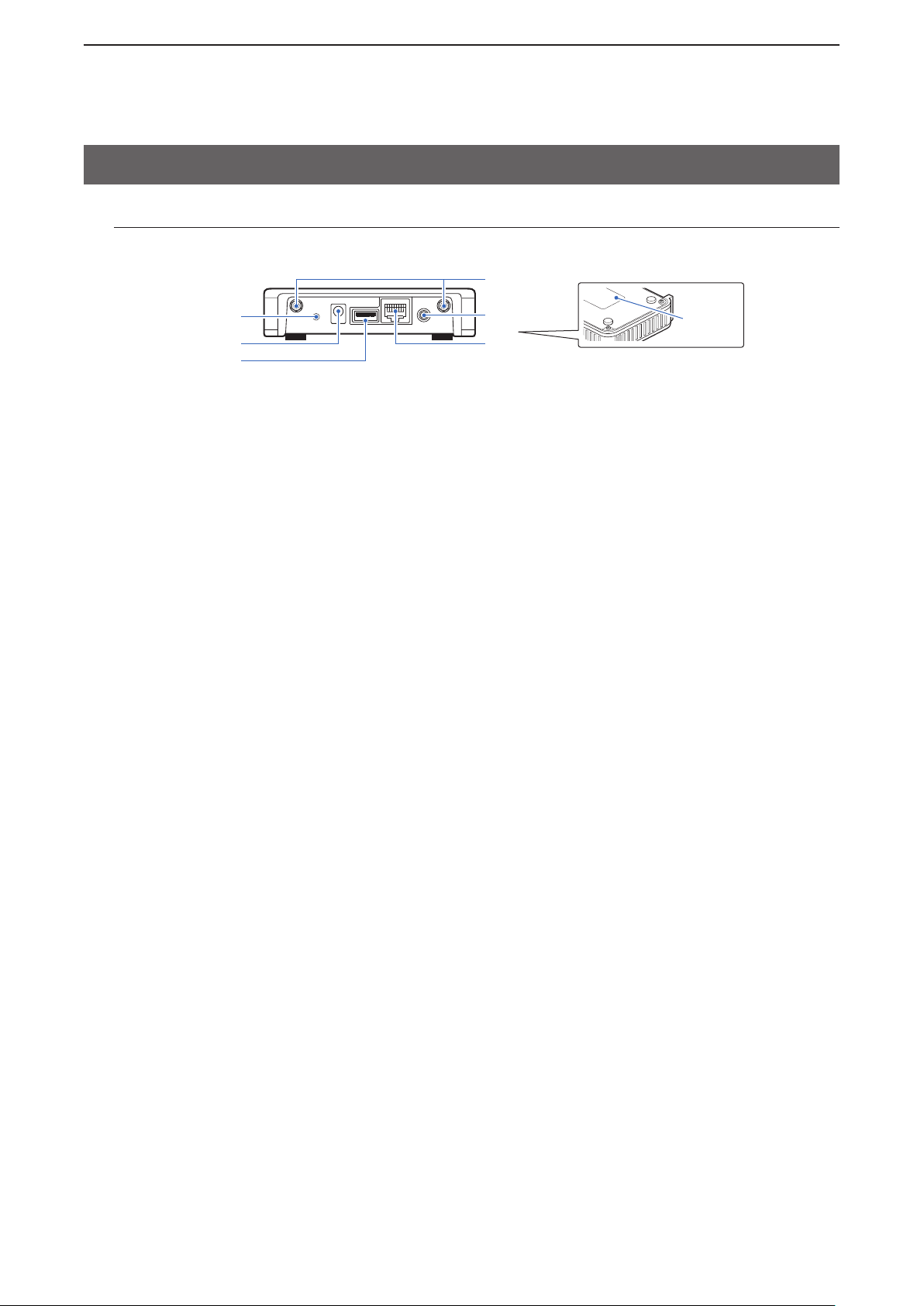
Rear panel/Back side
[WPS] ……………………
q
DC jack …………………
w
[USB] port
e
(USB2.0/1.1) ……………
Push to start the “Automatic setting by WPS.”
• When the AP-90M is set to the factory defaults, first set the WPS “Interface” to
use in the “WPS” settings. (
Connect to the supplied or optional power adapter.
• When you use the power from the Ethernet cable (PoE), you do not need a
separate power adapter.
Insert a USB flash drive (user supplied) to backup the configurations or to
update the firmware.
• Disconnect the power adapter, and then securely insert the USB flash drive.
• Icom is not responsible for the USB flash drives used with the AP-90M.
• DO NOT insert a USB device other than the USB flash drive
See page 6-9 for the flash drive requirements.
[LAN] port (RJ-45 type)
r
Ground terminal ………
t
Antenna connector ……
y
[MODE] button …………
u
…
Connect to network devices such as a HUB.
Connect to the ground wire. (User supplied)
Connect to the supplied external antennas. (
• Connect both of the external antennas for the best performance.
Used to reset the AP-90M to its default settings. (
• We recommend that you use a pen to hold down this button.
+p.2-11)
+
p.1-4)
+
p.6-4)
1-3
Page 12
BEFORE USING THE AP-90M
AP-90M
WIRELESS ACCESS POINT
Antenna x2
(Supplied)
Rotate to
the right
0˚
AP-90M
45˚
90˚
1
1. Panel description (Continued)
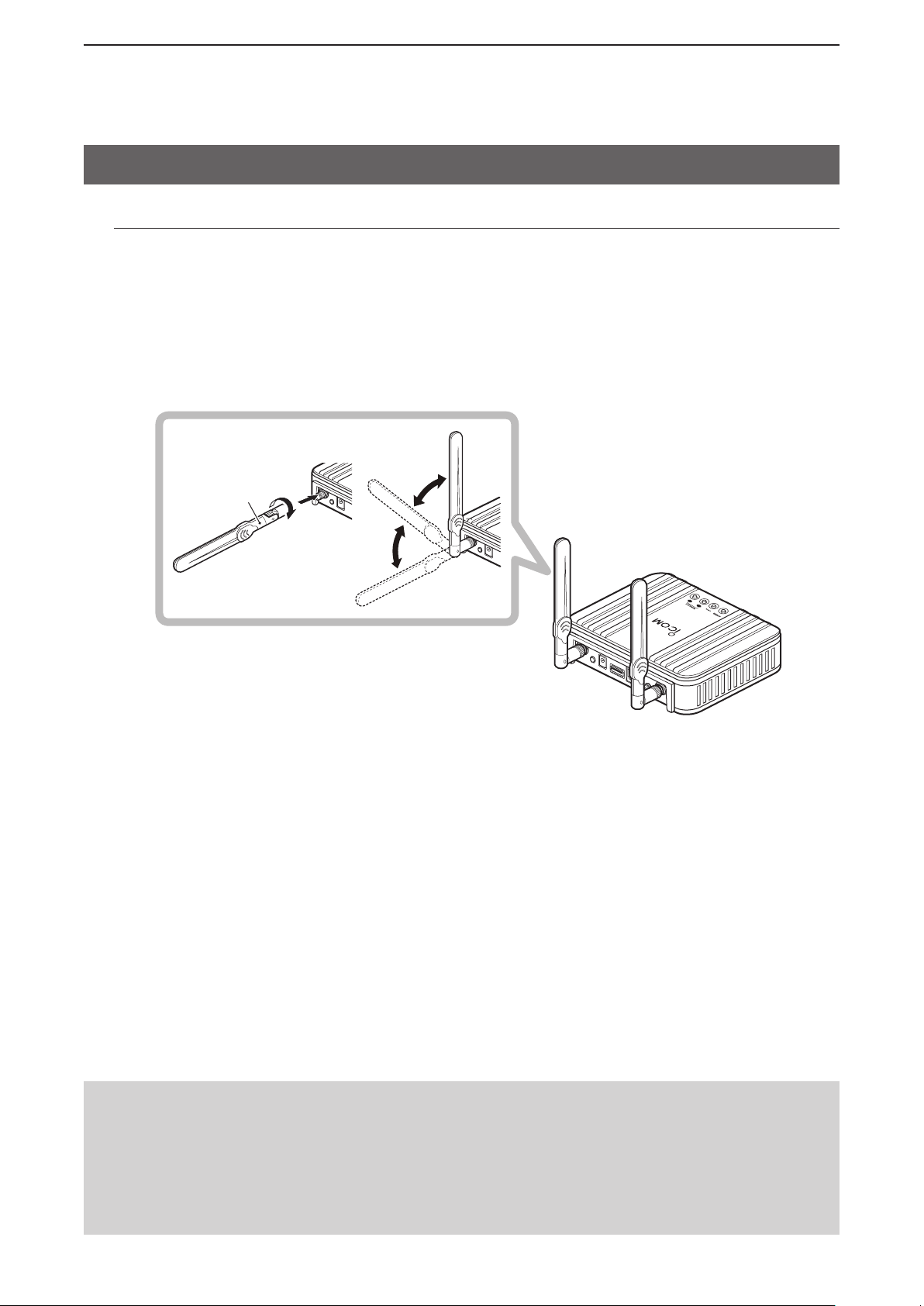
Antenna attachment
The two antennas have diversity scheme and MIMO (Multiple-Input and Multiple-Output) systems that are
resistant to multi-path propagation and enable you to communicate in stable signal status.
Securely attach the antennas.
The antennas can be pointed in 3 different directions. (0/45/90 degrees)
Also, they can be rotated to the left or right.
To detach the antennas, hold the base of the antennas and rotate counterclockwise.
• For the best performance, attach both antennas.
• In case you nd difculties receiving signals, change the antenna’s direction.
RWARNING!
DO NOT swing the AP-90M by holding the antennas.
This may cause injury and/or damage to the AP-90M.
NOTE
The AP-90M complies with the certification of conformance to technical standards.
Do not use other than the supplied antennas.
1-4
Page 13
BEFORE USING THE AP-90M
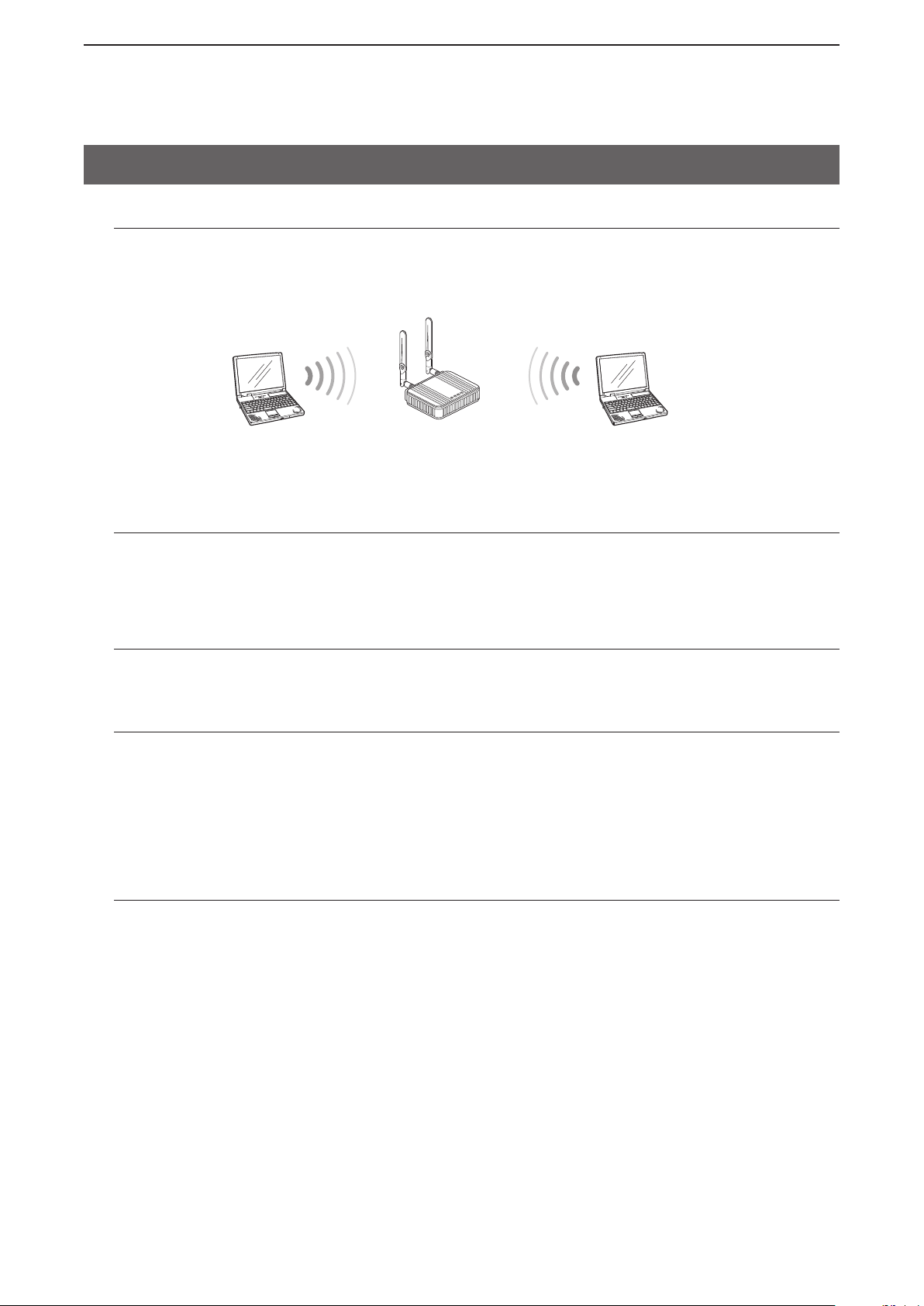
192.168.0.10192.168.0.1192.168.0.11
PC
PC
1
2. Main functions
Access point function
The AP-90M is a wireless access point that complies with the “IEEE802.11ac” and “IEEE802.11n” standards. It is designed for dual band communications in the 2.4 GHz and 5 GHz bands.
• Communication with wireless LAN stations that comply with “IEEE802.11 (14CH)” cannot be made.
AP-90M
5 GHz band
2.4 GHz band
Wireless LAN (SSID)
An SSID (or ESS ID) is preset in the AP-90M and the wireless LAN to separate the connecting destination.
(+p.2-9)
• The AP-90M is equipped with a wireless LAN unit using internal and external antenna.
To use multiple virtual APs, the same SSIDs cannot be set in one unit.
Maximum Number of Stations
This function limits the number of wireless LAN stations that can be connected at a time to each virtual AP.
This prevents the communication traffic speed from being reducing.
‘IEEE802.11ac’ standard
With data communication using a quadruple frequency bandwidth (channel) and multiple antennas, communication with a maximum speed of 867 Mbps* (theoretical value) can be made.
* The ‘IEEE802.11ac’ standard can be used only when Encryption is set to “None” or “AES.”
The maximum speed of 867 Mbps (theoretical value) can only be used on the external antenna (Wireless 2) and when
the Frequency Band is set to “5 GHz.”
In addition, the Bandwidth must be set to “80 MHz” to use the maximum 867 Mbps. (+p.3-3)
• The ‘IEEE802.11ac’ is compatible with the ‘IEEE802.11n/a’ standard.
‘IEEE802.11n’ standard
With data communication using a double frequency bandwidth (channel) and multiple antennas, communication with a maximum speed of 300 Mbps* (theoretical value) can be made.
* The ‘IEEE802.11n’ standard can be used only when Encryption is set to “None” or “AES.”
In addition, the Bandwidth must be set to “40 MHz” to use the maximum of 300 Mbps. (+p.3-3)
• The ‘IEEE802.11n’ is compatible with the ‘IEEE802.11a/b/g’ standard.
1-5
Page 14

BEFORE USING THE AP-90M
1
2. Main functions (Continued)
Wireless LAN (SSID)
The AP-90M is equipped with the following security systems that are required for wireless LAN communication.
MAC Address Filtering ➥
This security system is used to permit or to prohibit access to only the wireless LAN stations with the
MAC address preset to the AP-90M’s Virtual AP (ath0 to ath7).
WEP RC4* ➥
This is an old and weak encryption method that has been used in the radio communications. This is used
when connecting to an old wireless LAN station.
TKIP* ➥
This is a weak encryption method based on “WEP RC4” and used when connecting to an old wireless
LAN station.
AES* ➥
This is a strong encryption method that is regularly used for wireless LAN communications.
WPA/WPA2 ➥
This is used to authorize “IEEE 802.1X” on a RADIUS server.
WPA-PSK/WPA2-PSK ➥
This is a simple authentication method that uses a Shared Key instead of a RADIUS server .
IEEE802.1X* ➥
This system sets authentication on accessing from wireless LAN stations using a RADIUS server.
MAC Authentication ➥
This system authorizes wireless LAN station’s MAC addresses using a RADIUS server.
1
2
2
3
*1 If the encryption method or key settings do not match those of the communication partner, communication cannot
be made.
The “WEP RC4 152 (128)” method cannot be connected to the AP-90M using a Windows’ standard wireless
network.
2
*
“IEEE802.11n” and “IEEE802.11ac” standards can be used only when the Encryption is set to “None” or “AES.”
The Encryption for Wireless Bridging on Wireless 1 (internal antenna) is set to “AES.” (+p.3-13)
3
*
Must be set to WEP RC4.
Authentication and encryption
None
WEP RC4
TKIP
AES
Open System
Shared
Key
Open System/
Shared Key
WPA/WPA2 WPA-PSK/WPA2-PSK IEEE802.1X
To prevent unauthorized access
You must carefully chose your WEP Key and PSK (Pre-Shared Key) to set to the AP-90M.
Use numbers, characters and letters (both lower and upper case), and change it occasionally.
1-6
Page 15
BEFORE USING THE AP-90M
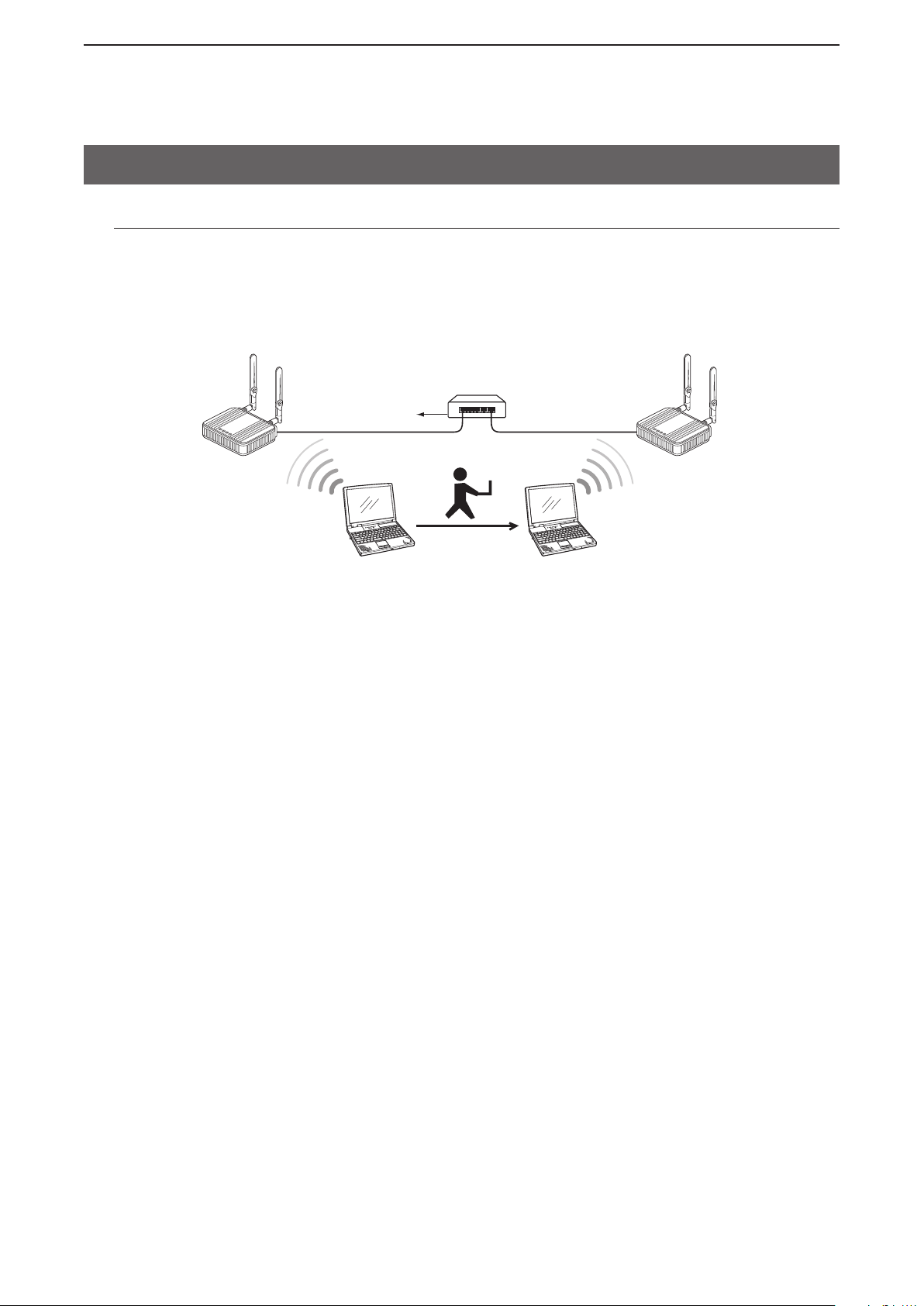
To cabled LAN
HUB
192.168.0.100
SSID: WIRELESSLAN-0
192.168.0.2 192.168.0.1
“IEEE802.11g” standard
SSID: WIRELESSLAN-0
Channel: 001CH (2412 MHz)
Wireless LAN
device
Moving
Automatically
switches when moved
“IEEE802.11g” standard
SSID: WIRELESSLAN-0
Channel: 006CH (2437 MHz)
The setting values in this diagram are examples.
1
2. Main functions (Continued)
Roaming function
Even if you moved a wireless LAN station, this function will automatically switch to the access point (AP90M) with the best signal. This enables you to use the wireless LAN station in larger areas.
Using the roaming function
• Set the identical SSID, encryption and so on to both the AP-90M and wireless LAN station.
• When using this function with multiple wireless LAN stations and wireless LAN standard stations all
mixed, set a channel where there is no interference, or set “Automatic” for “Channel” in the Wireless LAN
screen.
In the wireless LAN standard (IEEE802.11g) used in the example above, set more than 4 channels be-
tween access points.
Set the roaming threshold value on the wireless LAN station according to the equipment used. ➥
1-7
Page 16
BEFORE USING THE AP-90M
* Values are set as example
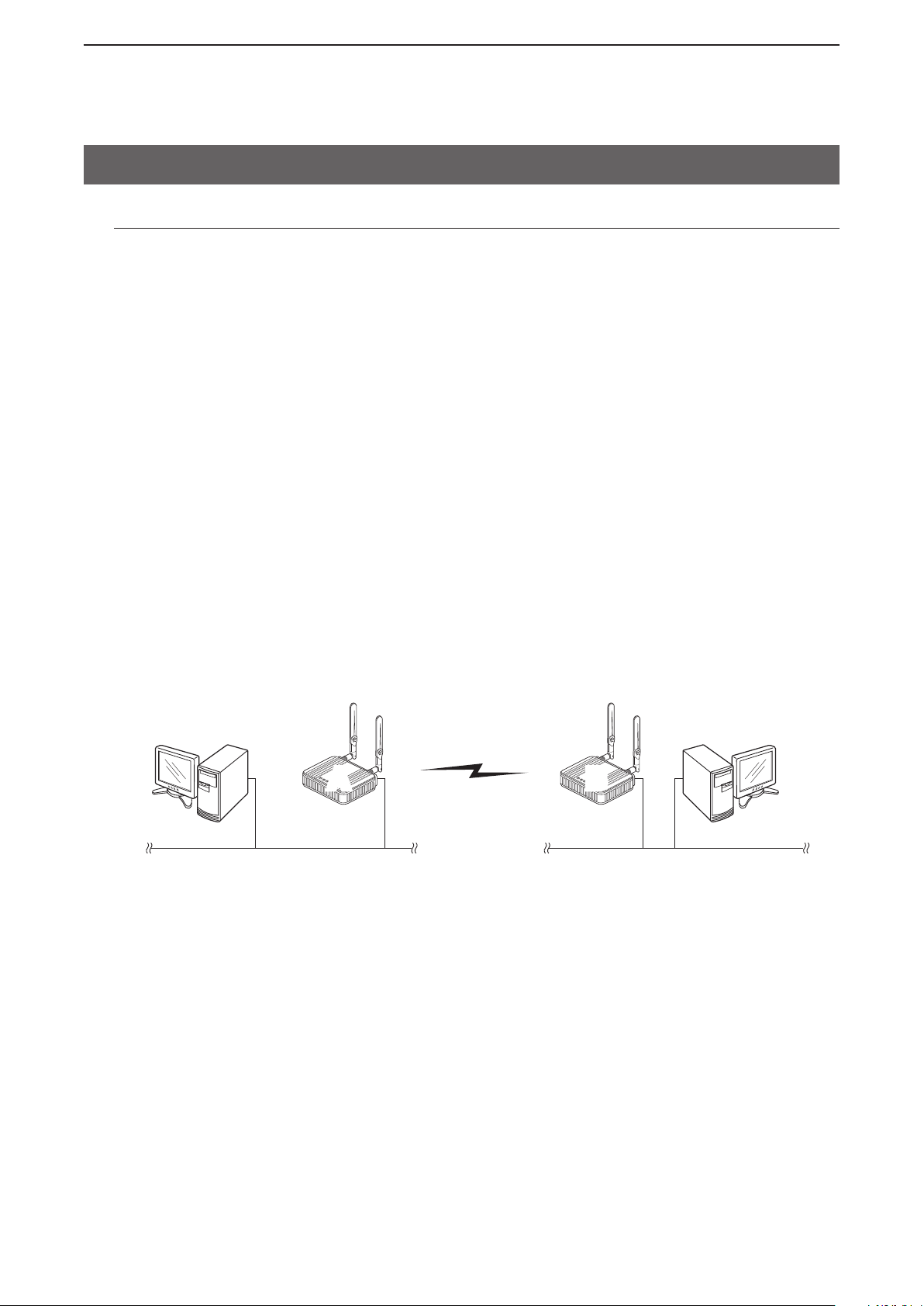
Wireless bridging
connecting
AA BB
Cable LAN Cable LAN
“A” (BSSID: 00-90-C7-00-00-01)
PSK: wirelessmaster
Channel: 001CH (2412MHz)
192.168.0.1 192.168.0.2
“B” (BSSID: 00-90-C7-00-00-02)
PSK: wirelessmaster
Channel: 001CH (2412MHz)
1
2. Main functions (Continued)
Wireless bridging function
The wireless bridging function enables you to connect Icom’s wireless access points together.
• See pages 3-12 through 3-18 of this manual for wireless bridging setting examples.
Wireless bridging on Wireless 1 (internal antenna) (+p.3-12)
If “Automatic” is set, ( ➥ +p.4-3) or when channels where the DFS function can be used are selected, the
wireless bridging function cannot be used.
“BSSID* ➥
A maximum of 8 peers can be set, and you can communicate with up to 8 peers at a time. ➥
1
*
In the example in the illustration below, B’s BSSID is entered into “A,” and A’s BSSID is entered into “B.”
BSSID can be easily set because it automatically detects the AP-90Ms that operate on the same channel.
In order to communicate using the wireless bridging function, you need to set the same channel and PSK ➥
(Pre-Shared Key)*2,*3 with the peer.
2
*
3
*
Set only the peer ➥ ’s BSSID.
Setting multiple BSSIDs that are unnecessary may lower the speed.
With or without VLAN ID, all packets can use the wireless bridging communication. ➥
1
” must be set to each built-in wireless LAN unit.
“BSSID” can be checked on the “Wireless Bridging (WDS)” screen of the AP-90M software. (+p.3-12)
Set the “AES” encryption’s PSK on the “Wireless Bridging (WDS)” screen. (+p.3-13)
Settings for the virtual AP (ath0 to ath3)’s SSID or encryption are used only for connecting your AP-90M and
wireless LAN stations. Therefore, the wireless bridging communication can be made regardless of the peer’s settings.
AP-90M
AP-90M
1-8
Page 17
BEFORE USING THE AP-90M
*The values are set as examples.
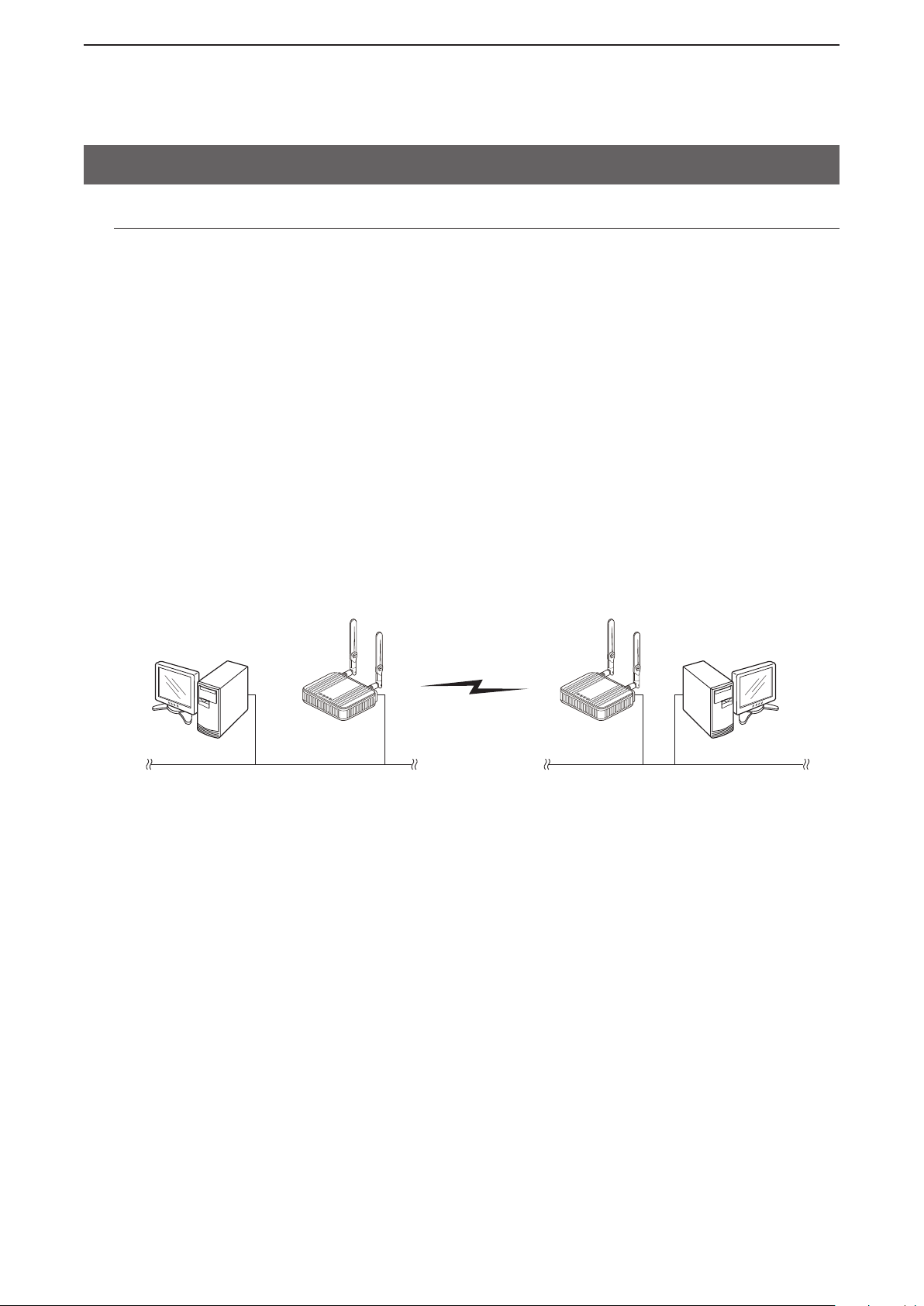
Wireless bridging
Master
Client
Cable LAN Cable LAN
Master settings
Channel:
036 CH (5180 MHz)
Virtual AP: ath4
SSID: WIRELESSLAN-0
Authentication: WPA2-PSK
Encryption:
AES
PSK: wirelessmaster
BSSID: 00-90-C7-00-00-02
(Client BSSID)
Client settings
SSID: WIRELESSLAN-0
Authentication: WPA2-PSK
Encryption:
AES
PSK: wirelessmaster
19 2.16 8. 0.1
19 2.16 8. 0.2
1
2. Main functions
Wireless bridging function (Continued)
Wireless bridging on Wireless 2 (external antenna) (+p.3-14)
If “Automatic” is set ( ➥ +p.4-3) or when channels where the DFS function can be used is selected, the
wireless bridging function cannot be used.
Set the virtual AP (ath4) and the client on the master side, and then build a star-shaped network. ➥
• Multiple clients can be connected to the master.
• A client can only be connected to one master.
Check the client’s “BSSID” on the “Wireless Bridging (WDS)” screen, and then enter in the “Peer BSSID” ➥
field.
• A maximum of 8 clients can be registered to the master.
• The master’s SSID (ath4) and encryption can be set on the “Virtual AP” screen.
The client scans the matching SSID and encryption. ➥
• Set the master’s SSID and encryption on the client’s “Wireless Bridging” screen.
• The client side automatically changes to master channels.
• When the AP-90M operates as a client, the channel and WMM Advanced settings are invalid.
• If there are multiple masters, the master to connect will depend on the radio signal strength.
• Roaming will not be performed unless the signal is cut off, even if the signal strength is changed.
1-9
Page 18
BEFORE USING THE AP-90M
SSID: WIRELESSLAN-0
VLAN ID: 0 (No tag)
Security: WPA-PSK AES
LAN without
VLAN tag
SSID: WIRELESSLAN-2
VLAN ID: 20
Security: WPA-PSK TKIP
SSID: WIRELES SL AN-1
VLAN ID: 10
Security: WPA-PSK AES
VLAN ID: 10
VLAN ID: 20
ath0
ath2
ath1
Management
ID: 0 (No tag)
Wireless LAN station group Cable LAN station group
VLAN
switch
1
2. Main functions (Continued)
Virtual AP function
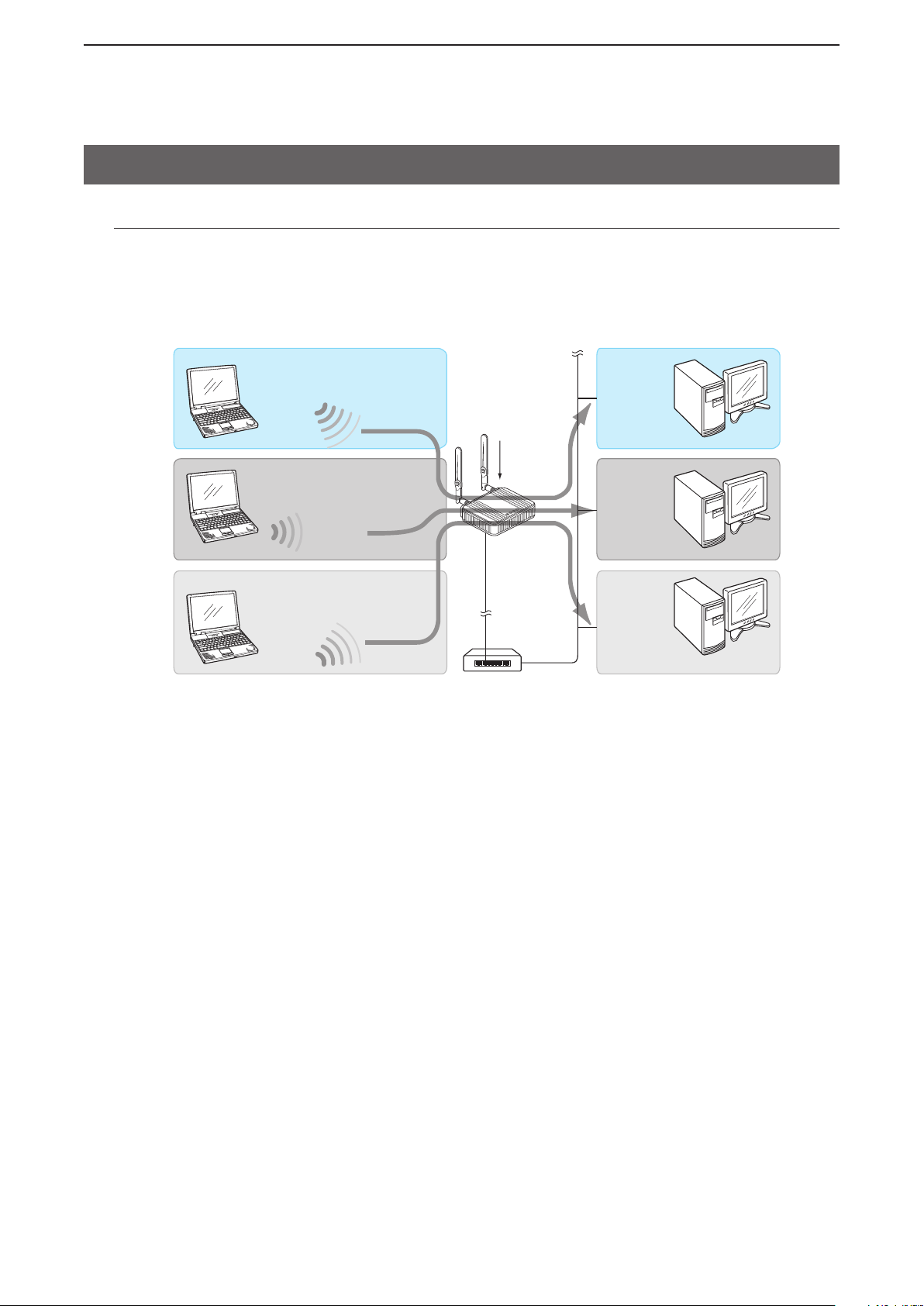
With an AP-90M, you can make multiple wireless station groups by their settings (SSID/Security/VLAN ID).
• The illustration below is an example of using “ath0” to “ath2” for different wireless station groups’ virtual AP.
See pages 3-9 to 3-10 of this instruction manual for the setting examples.
AP-90M
Using the Virtual AP function
Using the Virtual AP (ath0 to ath7)*, you can create a wireless network of up to 8 groups. ➥
* If you want to create an [IEEE802.11ac] standard wireless network, set the Virtual AP (ath4 to ath7) on
the “Virtual AP” screen of Wireless 2 (External antenna).
When using multiple virtual AP functions, the same [SSID] cannot be set to a unit. ➥
You can set VLAN IDs (0 to 4094) to the virtual AP (ath0 to ath7)’s wireless station groups. ➥
[Management VLAN ID] is set to “0” as default. Therefore, you cannot access the setting screen from the ➥
network with the VLAN ID set.
1-10
Page 19

BEFORE USING THE AP-90M
5180 5200 5220 5240 5260 5280 5300 5320 5500 5520 5540 5560 5580 5600 5620 5640 5660 5680 5700
5490−5730 MHz
5250−5330 MHz 5170−5250 MHz
5720 5745 5765 5785 5805
5825
5735–5835 MHz
036
20 MHz
40 MHz
80 MHz
040 044 048 052 056 060 064 100 104 108 112 116 120 124 128 132 136 140
144 149 153
157
161
165
1
2. Main functions (Continued)
DFS function and automatic channel setting
The DFS (Dynamic Frequency Selection) function can be used when a 5 GHz band channel is set and
automatically avoids radio interference to weather radars.
NOTE:
• Use the DFS function, or select the channels according to the local regulations.
• The usable channels and bandwidth differ, depending on the country.
• The DFS required channels differ, depending on the country.
• If the DFS function is required on the selected channel, the wireless bridging function cannot be used.
See page 4-3 for more details on automatic channel setting.
After selecting a DFS required channel on the setting screen and then restarting the AP-90M, the func- ➥
tion will check for the weather radar for approximately 1* minute after power ON.
While searching for signals, [WIRELESS](1/2) blinks orange and shuts out all access to the AP-90M.
When the AP-90M power is turned ON, or when a signal from a weather radar is detected while operating, the function automatically changes to a different channel to avoid interference.
* The checking time differs, depending on the local regulations.
If radar is detected on a DFS required channel and moves to a DFS non required channel, the DFS func- ➥
tion is cancelled.
When radar is detected and there is no channel that can be used, [WIRELESS](1/2) blinks orange ➥
and “Current Channel: Scanning” will be displayed on the “Wireless LAN” screen at the same time. Also,
wireless communication cannot be made.
In such case, do not operate the device for approximately 30 minutes while the channel list that detected
the radar is cleared, and enabled to use.
The radar detecting channel list needs to be reset if:
• you turned OFF the power before channel list resets.
• you restarted the device to save setting changes.
Note: After restarting, you cannot communicate for approximately another 30 minutes. In such case, you
may be able to use other band channels.
The bandwidth mode that can be used while the DFS function is used may differ, depending on the wire- ➥
less LAN unit built into the AP-90M.
Wireless 1 (internal antenna): Only the 20 MHz bandwidth mode
Wireless 2 (external antenna): 20/40/80 MHz bandwidth modes
• In the 40/80 MHz bandwidth mode, all channels with a radar signal detected, cannot be used for 30 minutes.
When a radar signal is detected, 2 channels on the 40 MHz bandwidth mode, and 4 channels on the 80 MHz can-
not be used for 30 minutes.
( Example: While operating on the 80 MHz bandwidth mode and a radar is detected on 100 CH, four channels (100
CH, 104 CH, 108 CH and 112 CH) cannot be used for 30 minutes.)
• The detection results are shared in both Wireless 1 and 2’s Wireless LAN units.
If you set the channel on the AP-90M screen to “Automatic,” it automatically changes to a different chan- ➥
nel with less interference.
• “Automatic” can be set in only the 20 MHz bandwidth mode.
• If a channel with the DFS function disabled is selected when starting the AP-90M, the channel will not be changed
and the radar will not be detected. However, if a channel with the DFS function enabled is selected, the channel will
change if a radar signal is detected.
1-11
,
Page 20
BEFORE USING THE AP-90M
q
Push [WPS]
Wireless LAN station
DC GND
LANUSB
WPS
w
Push [WPS]
Using the WPS function
Wireless
LAN station
q
Connect the cabled LAN station.
w
Access the setting screen.
e
Set the SSID and Shared Key.
r
Start the connection software.
t
Select the “SSID” of the virtual AP.
y
Select the encryption.
Not using the WPS function
1
2. Main functions (Continued)
WPS function
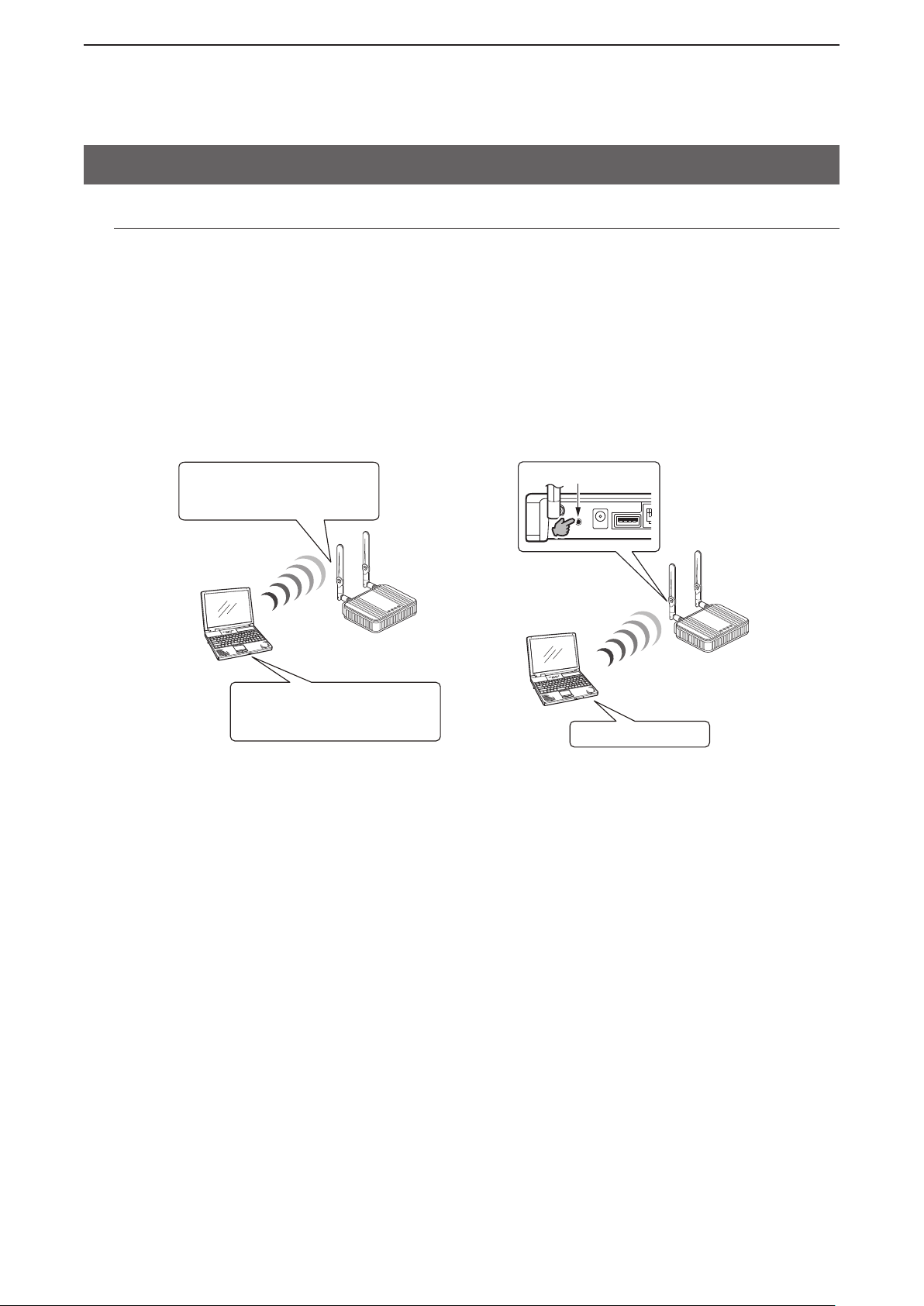
With the function that the “Wi-Fi Alliance” proposed, SSID and Security (WPA-PSK/WPA2-PSK) can automatically be set to the AP-90M and the wireless LAN station that supports the WPS (Wi-Fi Protected Setup) function.
• To automatically set it and start the WPS function, you can select either of the following methods.
Using the [WPS] button ( ➥
(Push Button)
Setting the communicator’s PIN code. ➥
(PIN (Personal Identification Number))
• See Section 2 (+p.2-11) for examples on setting the SSID and Shared Key to the wireless LAN station
using the WPS function.
• See Section 3 (+p.3-8) for an example on automatically setting with the WPS function.
+p.1-3) that is located on the back of the AP-90M.
Using the WPS function
Use a wireless LAN station that supports the WPS function. ➥
If your wireless LAN station has no [WPS] button, use the application that supports WPS, or a regular ➥
wireless network connection using Windows (Windows 7 or later).
Enable the virtual AP and select the “Interface (ath0 to ath7)” to automatically set the virtual AP using the ➥
WPS function. (+p.2-11)
If you select an invalid virtual AP for “Interface,” the [WPS] button cannot be used. (+p.1-3)
AP-90M
AP-90M
1-12
Page 21

INSTALLATION GUIDE
1. About the PC to use ................................................................................................................................ 2-2
Setting by connecting the cable LAN station .........................................................................................2-2
Setting by connecting the wireless LAN station .....................................................................................2-2
2. Setting the static IP address to a PC .....................................................................................................2-3
3. Connecting to the PC ..............................................................................................................................2-4
Using a cable LAN station .....................................................................................................................2-4
Using a wireless LAN station .................................................................................................................2-5
4. Accessing the setting screen ................................................................................................................. 2-7
5. Changing the IP address .........................................................................................................................2-8
6. Manually entering the SSID and Encryption .........................................................................................2-9
Manually entering the SSID ...................................................................................................................2-9
Manually entering the Encryption ..........................................................................................................2-10
7. Assigning the automatic SSID and PSK in the WPS function .............................................................2-11
Enabling the WPS function ....................................................................................................................2-11
Automatically setting the wireless LAN by using the WPS function .......................................................2-12
2
2-1
Page 22
INSTALLATION GUIDE
[LAN] port
[LAN] port
2
1. About the PC to use
The AP-90M’s IP address is set to “192.168.0.1,” and the DHCP server to “Disable” as the default.
To access the AP-90M’s setting screen, a static IP address needs to be set to your PC. (+p.2-3)
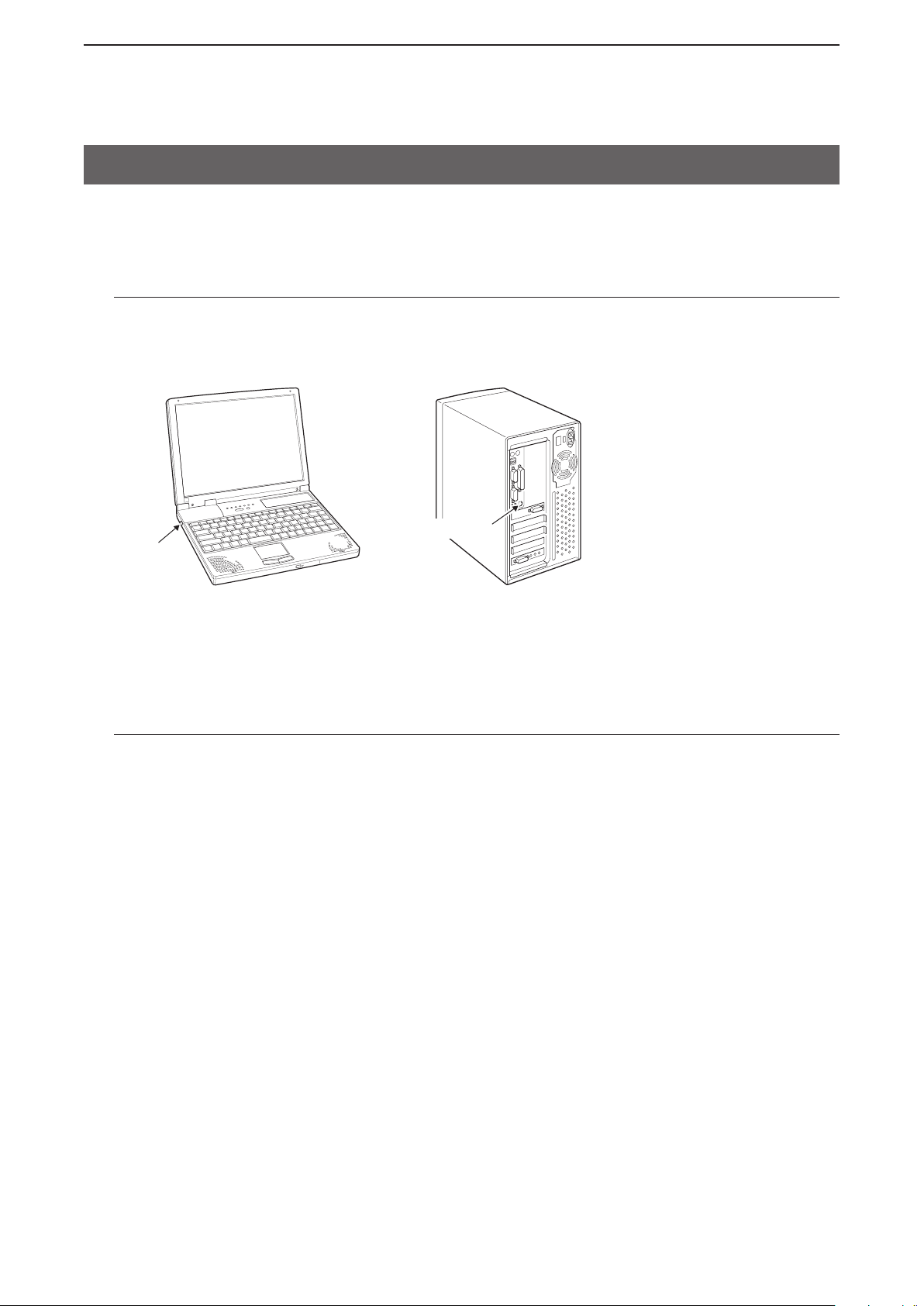
Setting by connecting the cable LAN station
To set the AP-90M, a PC that can connect a LAN cable is required.
Laptop PC Desktop PC
The location of the [LAN] port depends on each PC. See the PC’s instruction manual for connecting the
LAN cable.
Setting by connecting the wireless LAN station
A PC with a built-in wireless LAN function is required.
The AP-90M complies with the [IEEE802.11ac/n/a/b/g] standards.
2-2
Page 23
INSTALLATION GUIDE
2
2. Setting the static IP address to a PC
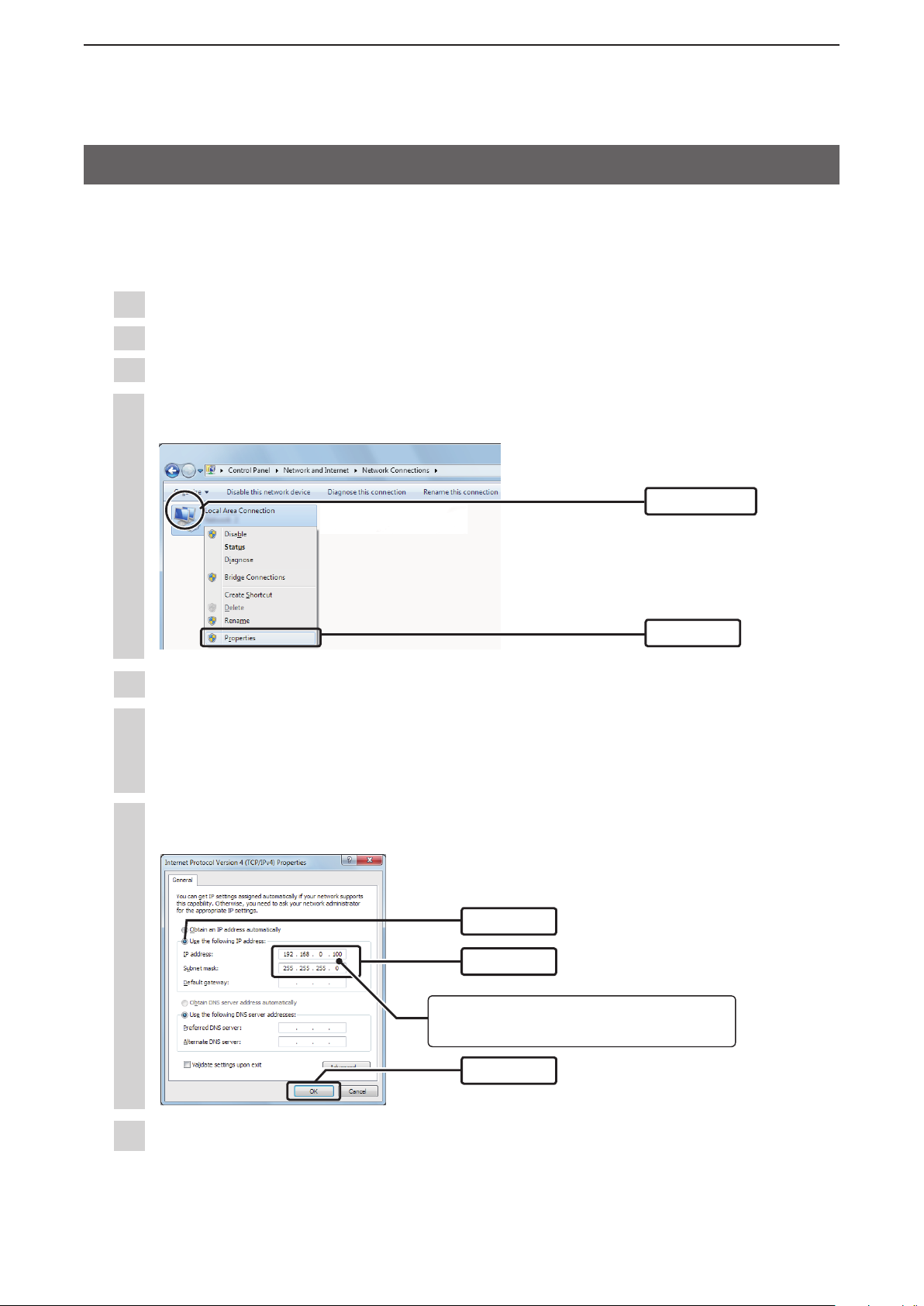
The following procedures describe how to set the a static IP address (example: 192.168.0.100), based on
Microsoft Windows 7.
The AP-90M’s IP address is set to “192.168.0.1,” and the DHCP server to “Disable” as the default.
Click [Start] (Windows logo) and then click [Control Panel].
1
In the [Control Panel] window, click [Network and Internet] and then click [Network and Sharing Center].
2
Click [Change adapter settings].
3
Right-click [Local Area Connection] (cable LAN station) or [Wireless Network Connection] (wireless
4
LAN station), and then click [Properties] in the displayed menu list.
q Right-click
w Click
If the [User Account Control] message appears, click [Yes] to continue.
5
In the [Local Area Connection Properties] (for a cable LAN station) or the [Wireless Network Connec-
6
tion Properties] (for a wireless LAN station) screen, select “Internet Protocol Version 4 (TCP/IPv4),”
and then click [Properties].
The “Internet Protocol Version 4 (TCP/IPv4) Properties” screen is displayed.
Select “Use the following IP address” and enter the IP address (example: 192.168.0.100) and the
7
Subnet mask (example: 255.255.255.0), and then click [OK].
q Select
w Enter
If necessary, change the PC’s IP address
after setting up the AP-90M.
e Click
Close the window.
8
2-3
Page 24
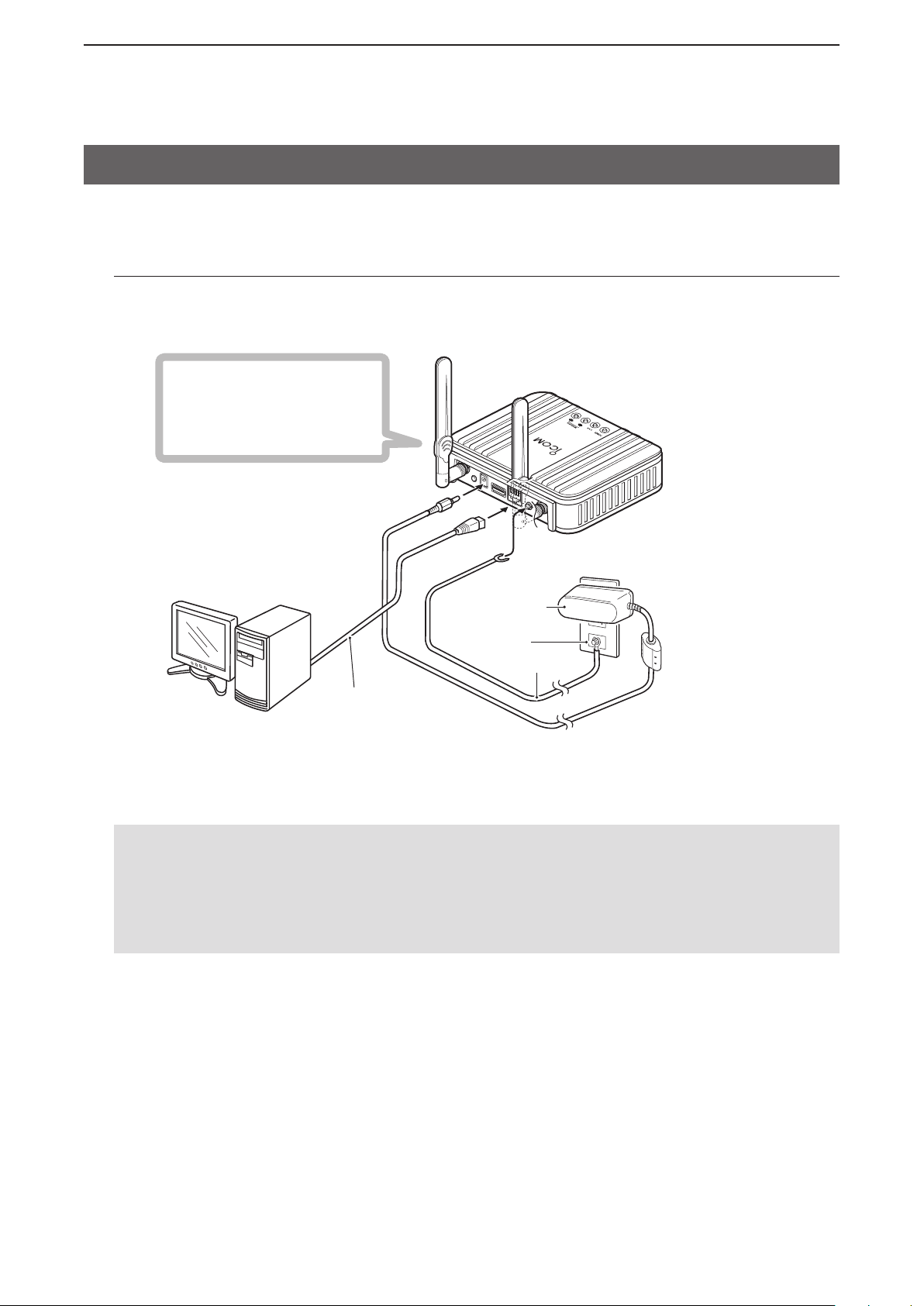
INSTALLATION GUIDE
AP-90M
WIRELESS ACCESS POINT
Ground wire
(User supplied)
Ground terminal
Power adapter
(User supplied)
AC outlet
AP-90M
PC
To the ground terminal
To the DC jack
To the [LAN] port
LAN cable
(User supplied
:Category 5e or higher)
(Example: 192.168.0.100)
(Default: 192.168.0.1)
Indication check
[POWER]: Green
[LAN]: Green/Orange*
[WIRELESS1]: Orange
[WIRELESS2]: Orange
*Indication differs, depending on the status
2
3. Connecting to the PC
If you are connecting the AP-90M using its default settings, disconnect the network from your PC.
Using a cable LAN station
Turn ON the AP-90M and the PC (cable LAN).
Make sure the devices are turned OFF when you connect them to together.
WARNING!
R
To prevent electrical shock, television interference (TVI), broadcast interference (BCI) and other problems, ground the AP-90M through the ground terminal.
NEVER connect the ground terminal to a gas or electric pipe. This may result in an electrical shock or
cause a fire or explosion.
2-4
(+Continued on the next page)
Page 25
INSTALLATION GUIDE
AP-90M
WIRELESS ACCESS POINT
Ground wire
(User supplied)
Ground terminal
Power adapter
(User supplied)
AC outlet
AP-90M
Wireless LAN PC
To the ground terminal
To the DC jack
(Default: 192.168.0.1)
Indication check
[POWER]: Green
[LAN]: OFF
[WIRELESS1]: Orange
[WIRELESS2]: Orange
2
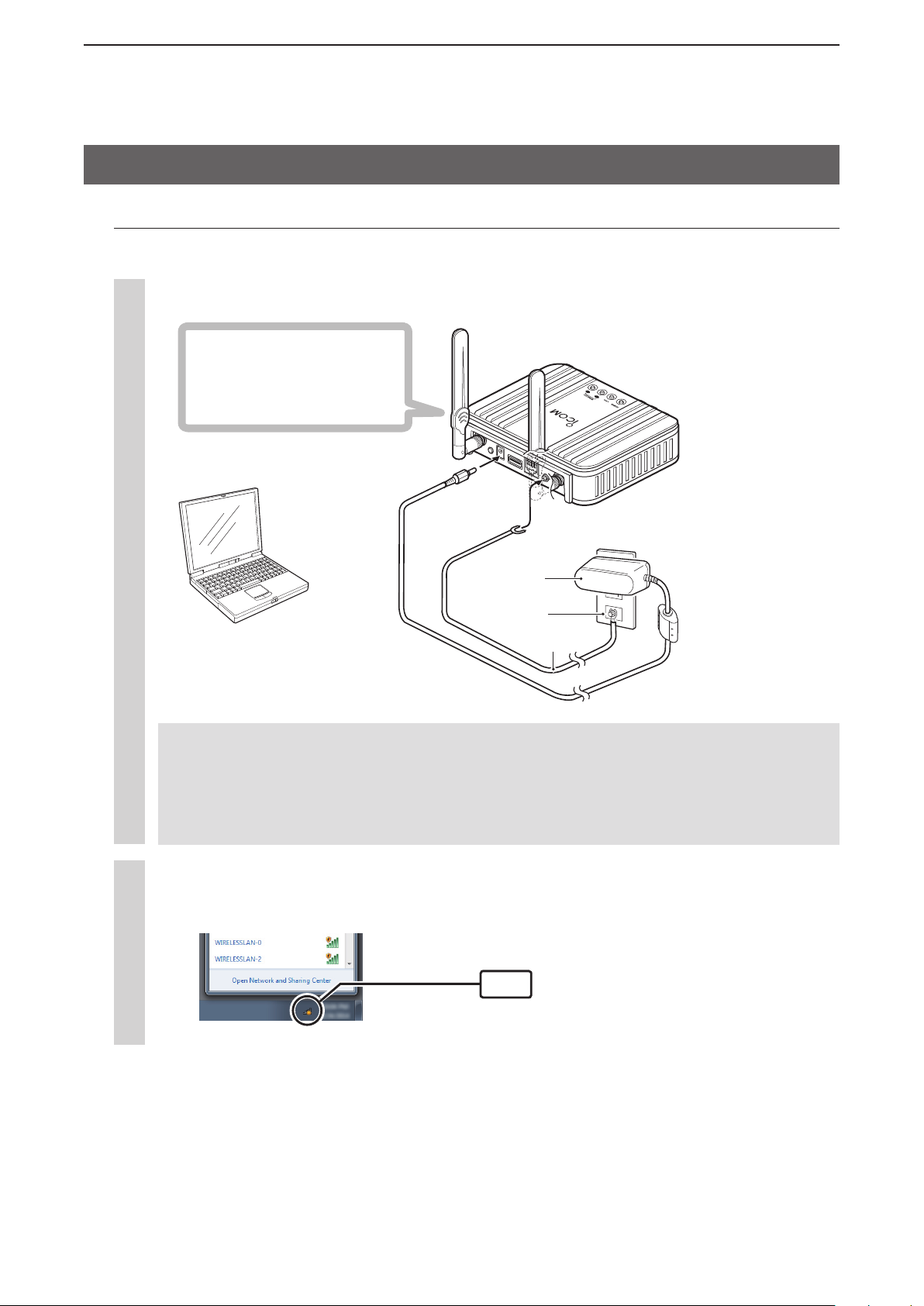
3. Connecting to the PC (Continued)
Using a wireless LAN station
Turn ON the AP-90M and the PC (cable LAN).
Turn the ON the AP-90M’s power and then start a PC (wireless LAN) that is equipped with a wireless
1
LAN system.
2
Click the wireless network connection icon.
• It may take a few minutes until the icon appears.
WARNING!
R
To prevent electrical shock, television interference (TVI), broadcast interference (BCI) and other
problems, ground the AP-90M through the ground terminal.
NEVER connect the ground terminal to a gas or electric pipe. This may result in an electrical
shock or cause a fire or explosion.
Click
(+Continued on the next page)
2-5
Page 26
INSTALLATION GUIDE
AP-90M
WIRELESS ACCESS POINT
Indication check
[POWER]: Green
[LAN]: OFF
[WIRELESS1]: Green/Orange*
[WIRELESS2]: Green/Orange*
*If more than 1 wireless LAN station is
connected, the indicator lights green.
AP-90M
Wireless LAN PC
(Default: 192.168.0.1)
2
3. Connecting to the PC
Using a wireless LAN station (Continued)
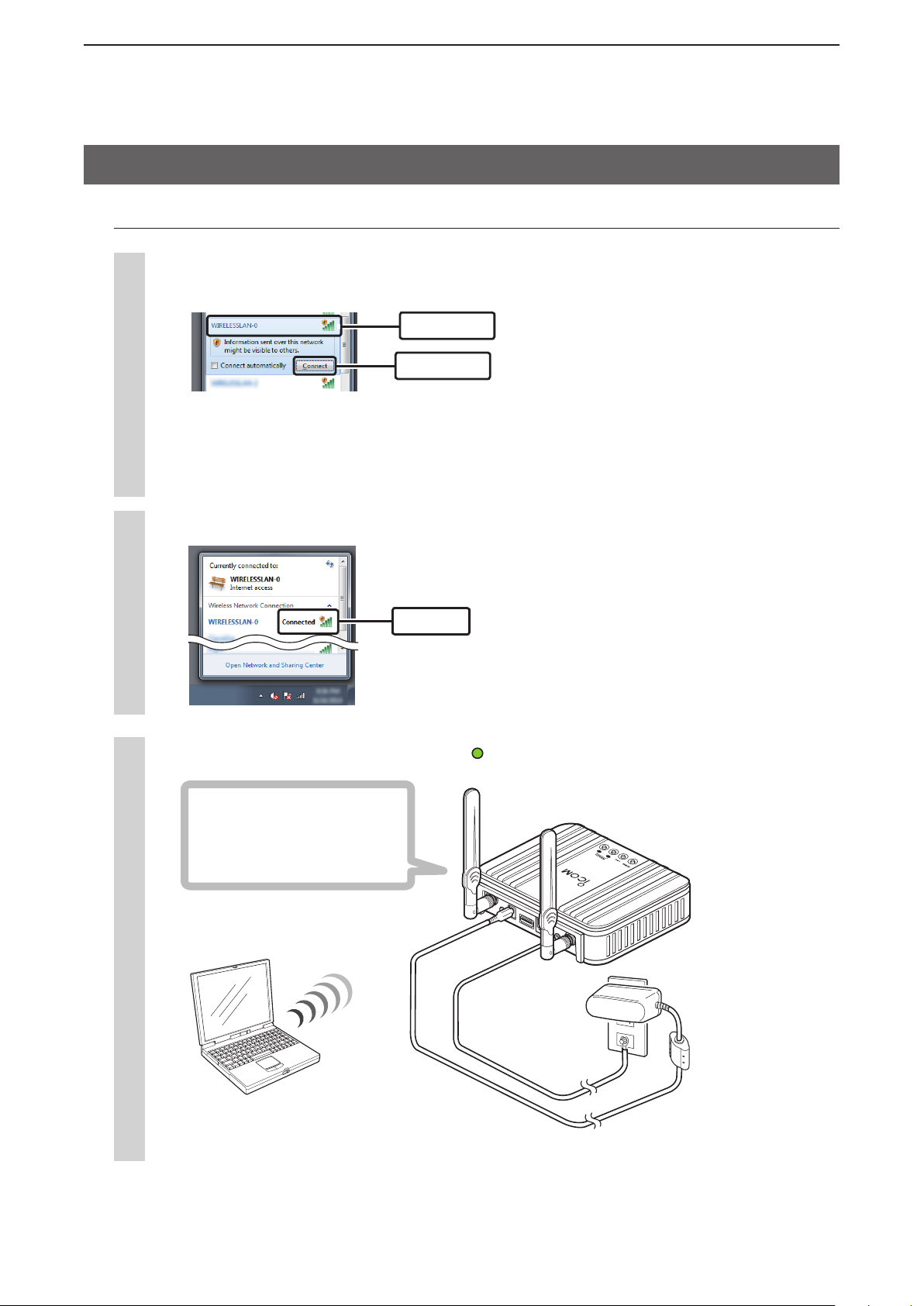
Select the “SSID” set to the AP-90M and click [Connect], and then follow the steps as instructed.
3
• The SSID is set to “WIRELESSLAN-0” by default.
• If you have set the shared key to the AP-90M, the “Connecting to network” screen appears. Follow the dis-
played screen to enter the Shared Key.
• To prevent unauthorized access, make sure to set the authentication. The WEP Key and Pre-Shared Key must
be very unique to prevent unauthorized access.
• Use numbers, characters and letters (both lower and upper case) and change them occasionally.
q Select
w Click
Confirm that “Connected” is displayed.
4
Confirm
5
Make sure that [WIRELESS](1/2) lights green .
2-6
Page 27
INSTALLATION GUIDE
2
4. Accessing the setting screen
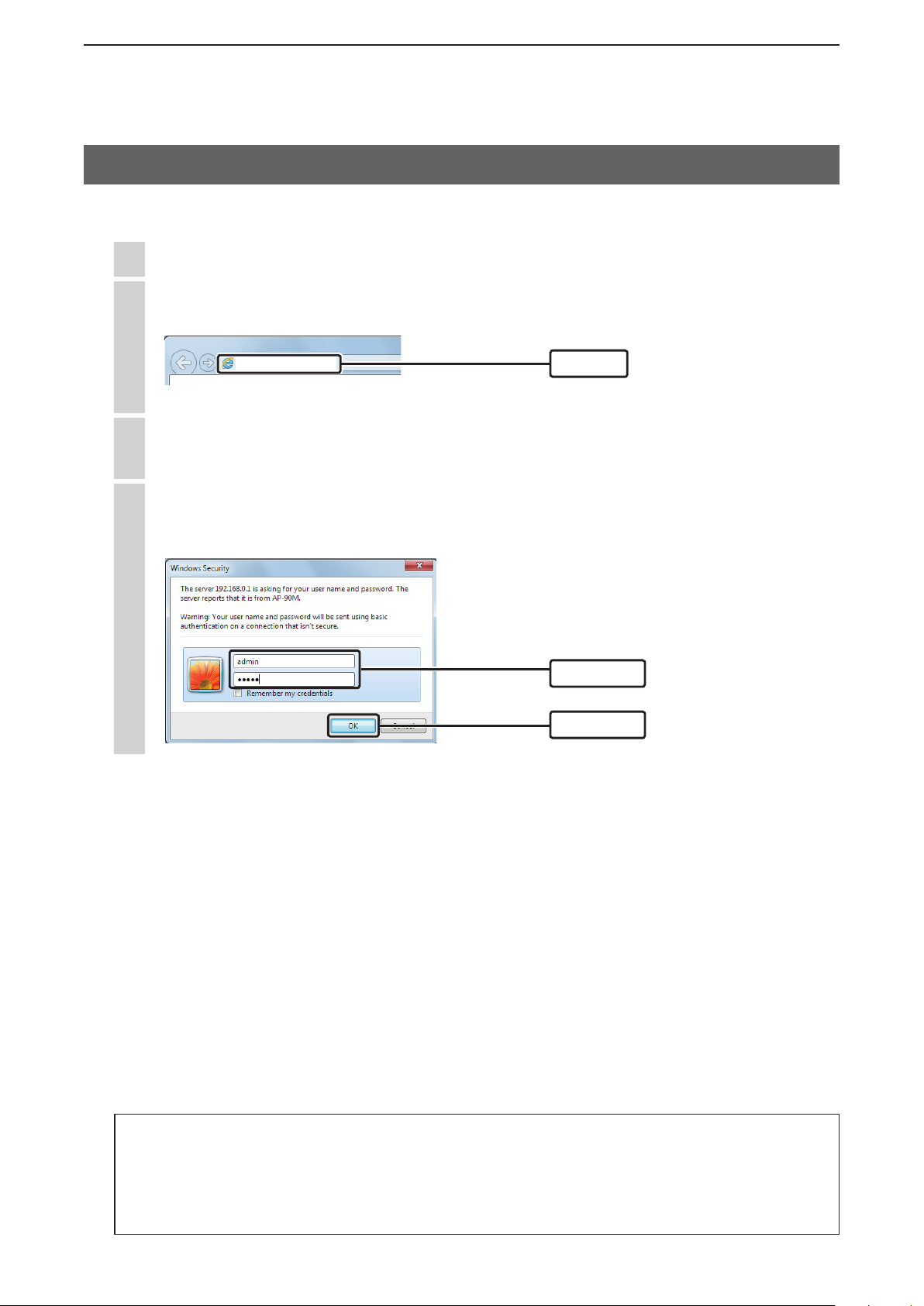
The following procedures describe how to access the AP-90M setting screen using a web browser.
1
Open your web browser.
2
Enter the IP address of the AP-90M into the address bar.
• The default IP address is “192.168.0.1.” (http://192.168.0.1/)
http://192.168.0.1/
3
Push [Enter].
• The Login Authentication screen will appear.
4
Enter “admin” (fixed username) and “admin” (default password) in their respective input fields in the
Login Authentication window, and then click [OK].
Enter
q Enter
w Click
About web browsers
We recommend using Microsoft Internet Explorer 11 or later with the AP-90M.
Enable JavaScript
screen.
If other browsers are used, the screen may not be correctly displayed.
®
and set to allow Cookies on your web browser to correctly display the setting
2-7
Page 28
INSTALLATION GUIDE
2
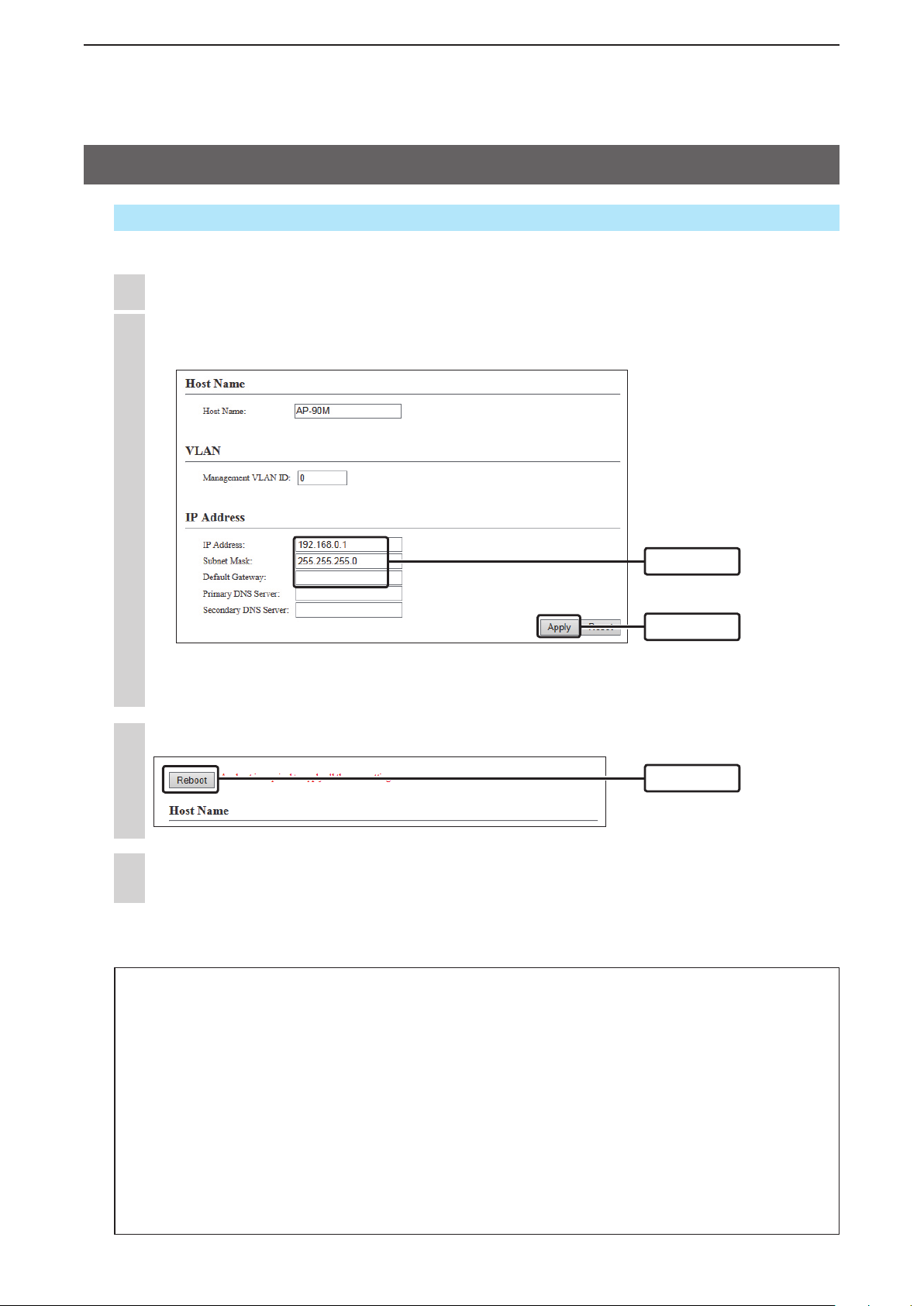
5. Changing the IP address
Network Settings > IP Address > IP Address
Make sure the AP-90M’s IP address is not the same as the other equipment’s address.
1
Click [Network Settings], and then click [IP Address].
2
In the “IP Address” screen, change the “IP Address” settings and then click [Apply].
• The changes are saved.
q Enter
w Click
• If you have changed the “Network (example: 192.168.0)” digits on the AP-90M’s IP address, also change the
PC’s network digits on the IP address with the same value.
Click [Reboot].
3
Click
4
After the reboot is complete, click [Back].
• The Username and Password screen is displayed. (+p.2-7)
IP Address assigning
An IP Address consists of two parts, the “Network” and “Host.”
For example, in the AP-90M’s IP address “192.168.0.1” (Class C), the digits “192.168.0” are the network
digits and the “1” at the end is the host digit.
Network devices with the same network numbers are recognized to belong in the same network.
Furthermore, the network devices in the network are identified by the host part.
Assign the IP Address as described in following points.
• Set the identical network digits for all the devices that you want to add into the network.
• Do not set the same host digit to devices in the same network.
• Do not set the network address (the rst digit of the host part or “0”).
• Do not set the broadcast address (the last digit of the host part or “255”).
2-8
Page 29
INSTALLATION GUIDE
2
6. Manually entering the SSID and Encryption
Wireless Settings > Wireless 1/Wireless 2 > Virtual AP
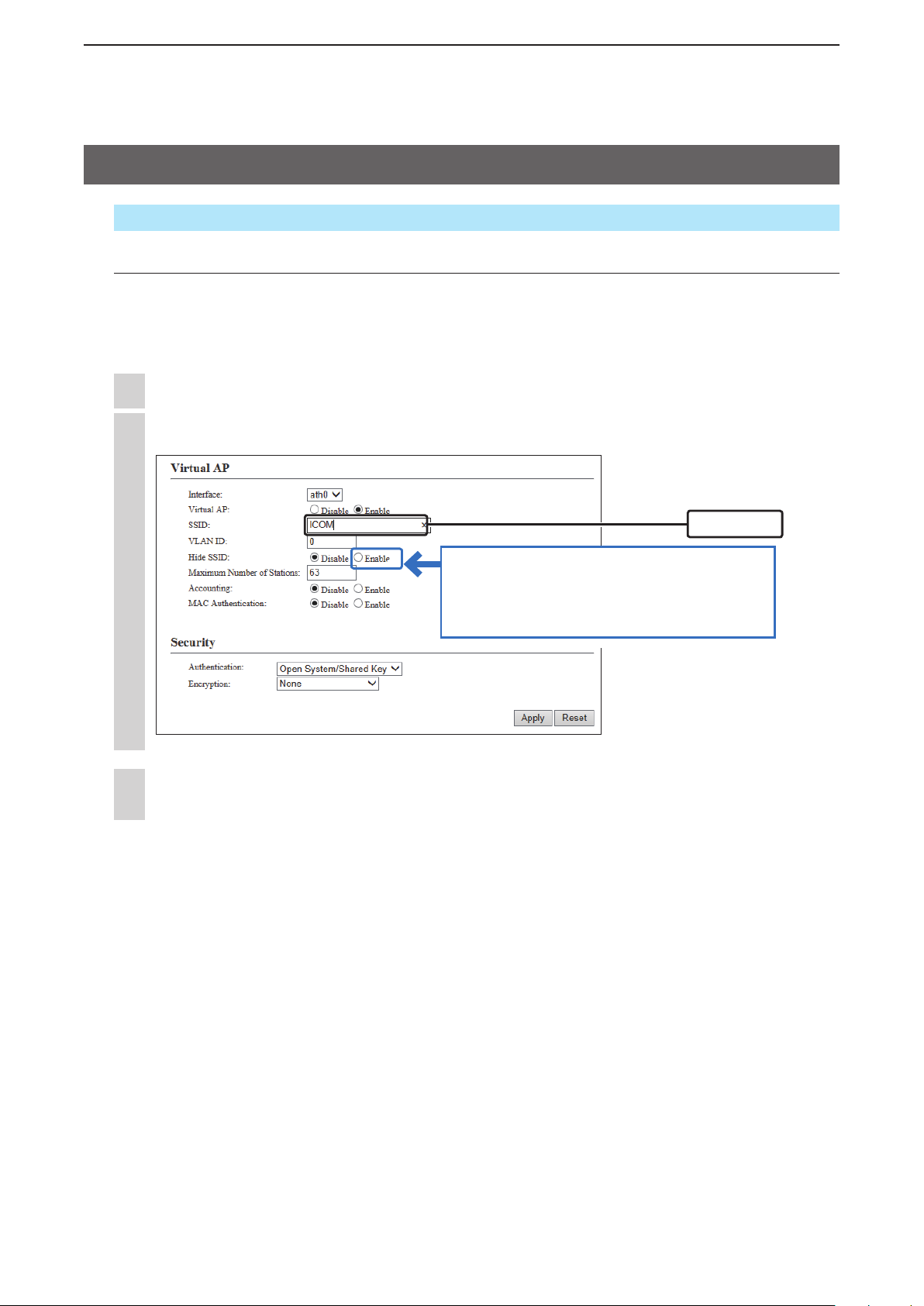
Manually entering the SSID
Entering the SSID is required in order for a wireless LAN station to be identified.
• Communicating with Wireless 1 (internal antenna) “ath0” is used as an example.
(Factory defaults: WIRELESSLAN-0)
• If you are automatically setting the SSID and the Encryption, see page 3-8.
1
Click [Wireless 1] in the “Wireless Settings” menu, and then click [Virtual AP].
2
In the “Virtual AP” menu, enter the desired SSID of up to 32 characters. (Example: ICOM)
Select “Enable” to hide the SSID to prevent ANY
connections. (Default: Disable)
• The Hide SSID function and the WPS function
cannot be used at the same time.
3
Click [Apply].
• The “A reboot is required to apply all the new settings” message appears.
Enter
2-9
(+Continued on the next page)
Page 30
INSTALLATION GUIDE
2
6. Manually setting the SSID and Encryption (Continued)
Wireless Settings > Wireless 1/Wireless 2 > Virtual AP
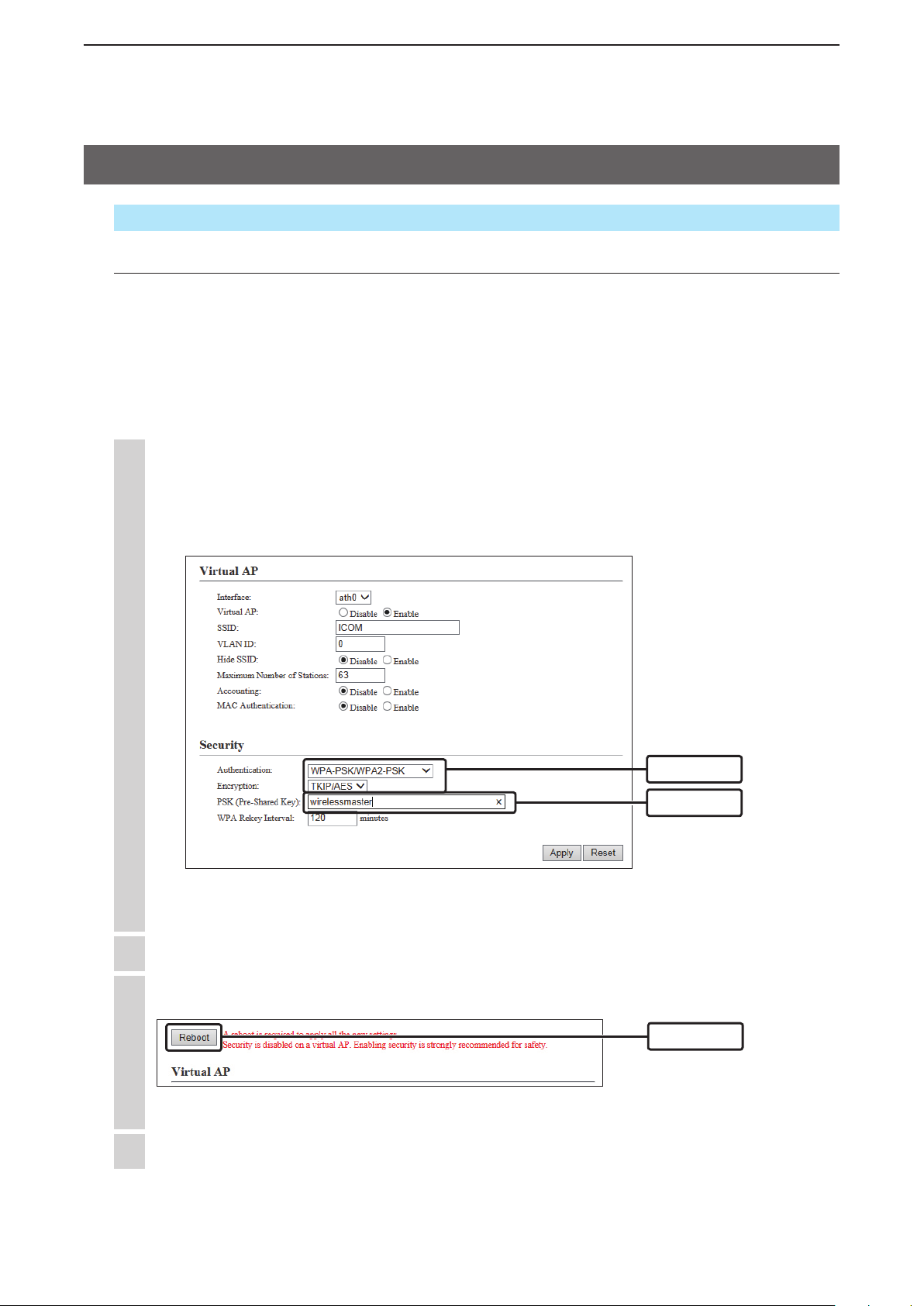
Manually entering the Encryption
Enter the same encryption to the wireless LAN station.
• Communicating with Wireless 1 (internal antenna) “ath0” is as an example.
Authentication: WPA-PSK/WPA2-PSK
Encryption: TKIP/AES
PSK (Pre-Shared Key): wirelessmaster
(See pages 3-4 to 3-7 for details on the encryptions that are not mentioned in this instruction.)
1
Select “WPA-PSK/WPA2-PSK” for Authentication and “TKIP/AES” for Encryption, and then enter “wirelessmaster” in the PSK (Pre-Shared Key) field.
• The entry mode (hexadecimal digits/ASCII characters) is automatically differentiated according to the
number of digits or characters entered to the “PSK (Pre-Shared Key)” field.
2
Click [Apply].
3
Click [Reboot].
• Follow the instructions to reboot the AP-90M.
4
After the reboot is complete, click [Back].
q Select
w Enter
Click
2-10
Page 31

INSTALLATION GUIDE
2
7. Assigning the automatic SSID and PSK in the WPS function
This topic explains how to assign the automatic SSID and PSK (Pre-Shared Key) set to the Virtual AP for
the WPS (Wi-Fi Protected Setup) function on a wireless LAN station.
• See page 2-9 for the SSID and encryption setting details.
• The Authentications that can be used for the WPS function are “WPA-PSK” and “WPA2-PSK.”
Wireless Settings > WPS
Enabling the WPS function
“Push Button” is used in this example. (+p.1-12)
• The [WPS] button on the AP-90M’s back panel is disabled when the WPS function is enabled.
1
Click [Wireless Settings], and then click [WPS].
2
Select “Interface” (example: ath0) to use the WPS function, and then click [Apply]. (Default: None)
3
Click [Reboot].
• Follow the instructions to reboot the AP-90M.
4
After the reboot is complete, click [Back].
5
Check “WPS Status.”
q Select
w Select
e Click
Click
To reset the se lecte d
interface, Select “None”
and click [Apply].
2-11
Check
The set Virtual AP settings
are displayed.
(+Continued on the next page)
Page 32

INSTALLATION GUIDE
2
7. Assigning the automatic SSID and PSK in the WPS function (Continued)
This page describes how to assign the automatic set by using the [WPS] button.
(Automatically setting the SSID and PSK (Pre-Shared Key) contents to the wireless LAN station.)
Wireless Settings > WPS
Automatically setting the wireless LAN by using the WPS function
A Windows 7’s regular network connection is used as an example to describe how to automatically set the
wireless LAN station using the WPS function.
• See the wireless station’s instruction manual for more details.
• If [WIRELESS] (1/2) blinks red and settings cannot be made, set “None” for “Interface” (
it manually.
+p.2-11) to set
1
Click the wireless network connection icon on the PC.
• It may take a few minutes until the icon appears.
Click
2
Select the SSID assigned to the AP-90M (example: WIRELESSLAN-0) and click [Connect].
• “Connect to a Network” is displayed.
q Select
w Click
“Security key” does not need to be entered.
• If the connection fails, enter the PSK and
click [OK].
3
Push [WPS] on the AP-90M.
[WIRELESS] (1/2) slowly blinks green .
4
The setting is completed when [WIRELESS] (1/2)
stops blinking and lights green .
• The indication differs, depending on the Virtual AP (example: ath0) setting.
2-12
Wireless 1
(ath0 to ath3)
Wireless 2
(ath4 to ath7)
Page 33

CONNECTING TO A WIRELESS LAN
3
(BASIC)
1. Disabling the wireless communication ..................................................................................................3-2
Disabling the Wireless Unit .....................................................................................................................3-2
2. [IEEE802.11ac] standard (5 GHz band) communication .......................................................................3-3
Communicating in the 80 MHz bandwidth ..............................................................................................3-3
3. Setting the “WEP RC4” encryption ..........................................................................................................3-4
About the WEP Key ................................................................................................................................3-4
ASCII characters and hexadecimal digits ...............................................................................................3-4
Entering the WEP Key with hexadecimal digits ......................................................................................3-5
Entering the WEP Key with ASCII characters .........................................................................................3-6
Generating the WEP Key ........................................................................................................................3-7
4. Automatically setting the SSID and Shared Key ....................................................................................3-8
Enabling the WPS function .....................................................................................................................3-8
5. Setting the Virtual AP ...............................................................................................................................3-9
6. Setting the Wireless Bridging function ...................................................................................................3-11
Using Wireless 1 (internal antenna) ........................................................................................................3-12
Using Wireless 2 (External antenna) ......................................................................................................3-14
Setting the Master unit ............................................................................................................................3-15
Setting the wireless bridging function to the AP-90M for the RS-AP3 management ..............................3-18
7. Setting the MAC Address Filtering..........................................................................................................3-19
3-1
Page 34

CONNECTING TO A WIRELESS LAN (BASIC)
3
1. Disabling the wireless communication
As the default setting, “2.4 GHz” is set to Wireless 1 and “5 GHz” is set to Wireless 2.
• You cannot set the same Frequency Band to both the Wireless 1 and 2.
Wireless Settings > Wireless 1/Wireless 2 > Wireless LAN
Disabling the Wireless Unit
Disabling the wireless communication with the Wireless 2 is used as an example.
1
Click [Wireless Settings] and [Wireless 2], and then click [Wireless LAN].
2
For “Wireless Unit,” select “Disable.” (Default: Enable)
3
Click [Apply].
4
Click [Reboot].
• Follow the instructions to reboot the AP-90M.
5
After the reboot is complete, click [Back].
Select
Click
3-2
Page 35

CONNECTING TO A WIRELESS LAN (BASIC)
3
2. [IEEE802.11ac] standard (5 GHz band) communication
The [IEEE802.11ac] standard can be used when “5 GHz” is selected for Wireless 2 and “None” or “AES” is
selected as “Encryption” on the “Virtual AP” screen.
• If “Encryption” is set to “WEP RC4” or “TKIP,” the communication is made in the [IEEE802.11a/b/g] standard, according
to the set Frequency Band.
Wireless Settings > Wireless 2 > Wireless LAN
Communicating in the 80 MHz bandwidth
Follow the steps below to set the bandwidth.
1
Click [Wireless Settings] and [Wireless 2], and then click [Wireless LAN].
2
Select “80 MHz” for the Bandwidth. (Default: 20 MHz)
3
Click [Apply].
4
Click [Reboot].
• Follow the instructions to reboot the AP-90M.
5
After the reboot is complete, click [Back].
Select
Click
40 MHz/80 MHz bandwidth communication
When you are using the 40 MHz or 80 MHz bandwidth mode on the wireless LAN, first check the radio ➥
wave environment around in order to not to interfere other radio stations.
In case you have harmfully interfered a radio station using this device, set the “Bandwidth” to “20 MHz ➥
(default).”
3-3
Page 36

CONNECTING TO A WIRELESS LAN (BASIC)
3
3. Setting the “WEP RC4” encryption
There are three ways to configure the “WEP RC4” encryption.
Directly entering the hexadecimal encryption keys. ( ➥ +p.3-5)
Directly entering the ASCII lettered encryption keys. ( ➥ +p.3-6)
Generating the encryption keys according to the entered “Key Generator” character strings. ➥ (+p.3-7)
• “Encryption” is not set as a default.
• If you cannot set “WEP RC4,” the WPS function may be set to the Virtual AP (ath0 to ath7) used. (+p.2-11)
• See page 2-11 for the “WPA-PSK (TKIP)/(AES)” setting examples.
About the WEP Key
Depending on the “Encryption” setting and the bit number in the parenthesis, the number of digits or characters that can be entered differs.
The entry mode (hexadecimal digits/ASCII characters) is automatically selected according to the number
of entered digits or characters.
Authentication
Open System Shared Key Hexadecimal ASCII
✓
✓ ✓
✓ ✓
✓ ✓
Encryption
None (Default) — —
WEP RC4 64 (40) 10 digits 5 characters
WEP RC4 (128) 26 digits 13 characters
WEP RC4 152 (128) 32 digits 16 characters
Entry mode
ASCII characters and hexadecimal digits
If “Encryption” cannot be set for the communicator’s entry mode, enter characters, according to the following table.
For example, “4153434949” (10 hexadecimal digits) in the hexadecimal code will be “ASCII” (5 numbers and
letters) in the ASCII characters.
ASCII
Hexadecimal
ASCII
Hexadecimal
ASCII
Hexadecimal
ASCII
Hexadecimal
ASCII
Hexadecimal
ASCII
Hexadecimal
! ” # $ % & ’ ( ) * + , - . /
20 21 22 23 24 25 26 27 28 29 2a 2b 2c 2d 2e 2f
0 1 2 3 4 5 6 7 8 9 : ; < = > ?
30 31 32 33 34 35 36 37 38 39 3a 3b 3c 3d 3e 3f
@ A B C D E F G H I J K L M N O
40 41 42 43 44 45 46 47 48 49 4a 4b 4c 4d 4e 4f
P Q R S T U V W X Y Z [ \ ] ^ _
50 51 52 53 54 55 56 57 58 59 5a 5b 5c 5d 5e 5f
` a b c d e f g h i j k l m n o
60 61 62 63 64 65 66 67 68 69 6a 6b 6c 6d 6e 6f
p q r s t u v w x y z { | } ~
70 71 72 73 74 75 76 77 78 79 7a 7b 7c 7d 7e
To prevent unauthorized access
You must carefully chose the WEP Key, and change it occasionally. Choose one that is not easy to
guess and use numbers, characters and letters (both lower and upper case).
3-4
Page 37

CONNECTING TO A WIRELESS LAN (BASIC)
3
3. Setting the “WEP RC4” encryption (Continued)
Wireless Settings > Wireless 1/Wireless 2 > Virtual AP
Entering the WEP Key with hexadecimal digits
The following example is when Wireless 1 is set to “ath0.”
Authentication: Open System/Shared Key (default)
Encryption: WEP RC4 128 (104)
WEP Key: 26 digits and characters (0 to 9, a to f or A to F)
1
Click [Wireless Settings] and [Wireless 1], and then click [Virtual AP].
2
Select [WEP RC4 128 (104)] for “Encryption” and enter the 26 digit or character WEP Key.
3
Click [Apply].
4
Click [Reboot].
• Follow the instructions to reboot the AP-90M.
5
After the reboot is complete, click [Back].
Make sure “Open System/Shared Key” is selected.
q Select
w Enter
Click
3-5
Page 38

CONNECTING TO A WIRELESS LAN (BASIC)
3
3. Setting the “WEP RC4” encryption (Continued)
Wireless Settings > Wireless 1/Wireless 2 > Virtual AP
Entering the WEP Key with ASCII characters
The following example is when the Wireless 1 (internal antenna) is set to “ath0.”
Authentication: Open System/Shared Key (default)
Encryption: WEP RC4 128 (104)
WEP Key: 13 characters (example: RETSAMEVAWNAL)
1
Click [Wireless Settings] and [Wireless 1], and then click [Virtual AP].
2
Select [WEP RC4 128 (104)] for “Encryption” and enter the 13 character WEP Key.
3
Click [Apply].
4
Click [Reboot].
• Follow the instructions to reboot the AP-90M.
5
After the reboot is complete, click [Back].
Make sure “Open System/Shared Key” is selected.
q Select
w Enter
Click
3-6
Page 39

CONNECTING TO A WIRELESS LAN (BASIC)
3
3. Setting the “WEP RC4” encryption (Continued)
Wireless Settings > Wireless 1/Wireless 2 > Virtual AP
Generating the WEP Key
The following example is when Wireless 1 is set to “ath0.”
Authentication: Open System/Shared Key (default)
Encryption: WEP RC4 128 (104)
Key Generator: Desired character string of up to 31 characters (example: ICOM)
1
Click [Wireless Settings] and [Wireless 1], and then click [Virtual AP].
2
Select [WEP RC4 128 (104)] for “Encryption” and enter the desired character string of up to 31
characters into “Key Generator.”
The generated WEP Key is displayed.
3
Click [Apply].
4
Click [Reboot].
• Follow the instructions to reboot the AP-90M.
5
After the reboot is complete, click [Back].
Make sure “Open System/Shared Key” is selected.
q Select
w Enter
Click
About the Key Generator
The Key Generator is not compatible with other than Icom products. ➥
Enter the desired characters to automatically generate the WEP key into the text box. ➥
The generated digits or characters differ, depending on the “Encryption” setting. ➥
3-7
Page 40

CONNECTING TO A WIRELESS LAN (BASIC)
3
4. Automatically setting the SSID and Shared Key
Using the WPS (Wi-Fi Protected Setup) function, you can use the SSID and Shared Key that are automatically generated in the AP-90M and the PC (WPS compatible).
• To manually set the SSID and Security without using the WPS function, see page 2-9.
Wireless Settings > WPS
Enabling the WPS function
The “Push Button” method is used an example. (+
• If you enable the WPS function, the [WPS] button on the AP-90M’s back panel is enabled.
Changing “SSID” and “Security” on the “Virtual AP” screen (example: ath0) will be disabled.
1
Click [Wireless Settings], and then click [WPS].
2
Select the Virtual AP to use the WPS function. (Example: ath0) (default: None)
p.1-12)
Select
3
Select [Automatic Setting by WPS] for “SSID and Security” and then click [Apply].
“A reboot is required to apply all the new settings.” is displayed.
• To use the SSID and Shared Key that are manually set to the AP-90M, select “Use the Virtual AP settings.” (default)
q Select
4
Click [Reboot].
Click
w Click
• Follow the instructions to reboot the AP-90M.
5
After the reboot is complete, click [Back].
3-8
Page 41

CONNECTING TO A WIRELESS LAN (BASIC)
SSID: WIRELESSLAN-0
VLAN ID: 0 (No tag)
Security: WPA-PSK AES
LAN without
VLAN tag
SSID: WIRELES SL AN-1
VLAN ID: 10
Security: WPA-PSK AES
VLAN ID: 10
ath0
ath1
Management ID: 0
(No tag)
Wireless LAN station group Cable LAN station group
VLAN switch
AP-90M
3
5. Setting the Virtual AP
Wireless Settings > Wireless 1/Wireless 2 > Virtual AP
Setting the wireless LAN station (ath1) illustrated in light blue is used as an example.
[Virtual AP] Interface: ath1
Virtual AP: Enable
SSID: WIRELESSLAN-1 (Default)
VLAN ID: 10
[Security] Authentication: WPA-PSK/WPA2-PSK
Encryption: AES
PSK (Pre-Shared Key): RETSAMEVAWNAL
• The PC group’s SSID needs to be set to “WIRELESSLAN-0” before you can make this setting.
• See “Virtual AP function” for more details. (+p.1-10)
1
Click [Wireless Settings] and [Wireless 1], and then click [Virtual AP].
2
Select “ath1” for “Interface,” and then set the other settings as the examples described above.
q Select
w Click
Make sure “WIRELESSLAN-1” is entered.
e Enter
r Select
t Enter
3-9
y Click
(+Continued on the next page)
Page 42

CONNECTING TO A WIRELESS LAN (BASIC)
3
5. Setting the Virtual AP (Continued)
Wireless Settings > Wireless 1/Wireless 2 > Virtual AP
3
Click [Reboot].
• Follow the instructions to reboot the AP-90M.
4
After the reboot is complete, click [Back].
Click
3-10
Page 43

CONNECTING TO A WIRELESS LAN (BASIC)
3
6. Setting the Wireless Bridging function
Using Wireless 1 (internal antenna) (+p.3-12)
• You need to set the AP’s “BSSID” to each access point.
• You need to set the same channel and the special Shared Key for the Wireless Bridging function to each access
point.
Using the Wireless 2 (external antenna) (+p.3-14)
• Check the client’s “BSSID,” which is displayed on the “Wireless Bridging (WBR)” screen, and then set the BBSID to
the master’s “Peer BSSID.”
• You must set “SSID,” which is set to the master’s virtual AP (ath4) and “Encryption,” to the client.
Management using the RS-AP3 (+p.3-18)
When you manage the AP-90M settings using the RS-AP3 a c c e s s p o i n t m a n a g e m e n t t o o l , set the “Wireless
Bridging” function on the AP-90M’s setting screen (Wireless 1/Wireless 2) to be able to communicate.
3-11
Page 44

CONNECTING TO A WIRELESS LAN (BASIC)
00-90-C7-00-00-02
Wireless bridging
connecting
AA BB
Cable LAN Cable LAN
“A” (BSSID: 00-90-C7-00-00-01)
PSK: wirelessmaster
Channel: 001CH (2412MHz)
192.168.0.1 192.168.0.2
“B” (BSSID: 00-90-C7-00-00-02)
PSK: wirelessmaster
Channel: 001CH (2412MHz)
3
6. Setting the Wireless Bridging function (Continued)
Wireless Settings > Wireless 1 > Wireless Bridging (WDS)
Using Wireless 1 (internal antenna)
Setting two AP-90Ms (illustration: A and B) with the following settings are used as an example.
• Refer to “Wireless bridging function” for the function requirements. (+p.1-8)
• First, set the same channel (example: 001CH (2412 MHz)) as the channel set to the access point you want to com-
municate with.
• Select a channel that does not require the DFS function, and deselect “Automatic.” Otherwise the Wireless Bridge
function will not work.
• The IP address which was set in “Changing the IP address” (+p.2-8) is used as an example.
[Wireless Bridging] Interface: wds0
Peer BSSID: “00-90-C7-00-00-02” to A
“00-90-C7-00-00-01” to B
PSK (Pre-Shared Key): wirelessmaster (set the same shared key to A and B)
1
Click [Wireless Settings] and [Wireless 1], and then click [Wireless Bridging (WDS)].
2
Set the BSSID that is automatically detected to “Peer BSSID” as follows.
• Set the BSSID on B (example: 00-90-C7-00-00-02) to A, and set the BSSID on A (example: 00-90-C7-
00-00-01) to B.
• If the BSSID is not detected, directly enter the peer BSSID into “Peer BSSID.”
AP-90M AP-90M
BSSID to set to the peer side
r Check
q Check
w Click
e Select
(+Continued on the next page)
3-12
Page 45

CONNECTING TO A WIRELESS LAN (BASIC)
3
6. Setting the Wireless Bridging function (Continued)
Wireless Settings > Wireless 1 > Wireless Bridging (WDS)
Using Wireless 1 (internal antenna) (Continued)
3
Enter the shared key for the wireless bridging function in the “PSK (Pre-Shared Key)” field.
• Enter the same shared key in both devices.
q Enter
w Click
4
Click [Reboot].
• Follow the instructions to reboot the AP-90M.
5
After the reboot is complete, click [Back].
e Check
Click
3-13
Page 46

CONNECTING TO A WIRELESS LAN (BASIC)
Wireless Bridging
connection
Cable LAN Cable LAN
The settings above are just examples.
Master settings
Channel: 036 CH (5180 MHz)
Virtual AP: ath4
SSID: WIRELESSLAN-0
Authentication: WPA2-PSK
Encryption: AES
PSK: wirelessmaster
BSSID: 00-90-C7-00-00-02 (Client BSSID)
192.168.0.1 192.168.0.2
Client settings
SSID: WIRELESSLAN-0
Authentication: WPA2-PSK
Encryption: AES
PSK: wirelessmaster
Master
Client
3
6. Setting the Wireless Bridging function (Continued)
Wireless Settings > Wireless 2 > Wireless Bridging (WBR)
Using Wireless 2 (External antenna)
Setting two AP-90Ms (illustration: master (ath4) and client) with the following settings are used as an example.
• Refer to “Wireless Bridging function” for conditions to use the function. (+p.1-9)
• The client unit channel automatically changes to the master unit channel.
The channel “036 CH (5180 MHz)” (Wireless 2) is set as default and it is used as the example for this description.
• The client virtual AP (ath7) cannot be used when the wireless bridging function is set.
• The IP address which was set in “Changing the IP address” (+p.2-8) is used as an example.
Master (+p.3-19)
[Wireless LAN] Channel: 036 CH (5180 MHz) (default)
[Virtual AP] Interface: ath4
Virtual AP: Enable (default)
SSID: WIRELESSLAN-0 (default)
[Security] Authentication: WPA2-PSK
Encryption: AES
PSK (Pre-Shared Key): wirelessmaster
[Wireless Bridging] Wireless Bridging: Enable
Operating Mode: Master
Interface: wbr8
Client BSSID: 00-90-C7-00-00-02 (Client BSSID)
• Check the Client BSSID by enabling the Wireless Bridging on the
client’s “Wireless Bridging (WBR)” screen.
Client (+p.3-21)
[Wireless Bridging] Wireless Bridging: Enable
Operating Mode: Client
[Client Settings] SSID: WIRELESSLAN-0 (default)
Authentication: WPA2-PSK
Encryption: AES
PSK (Pre-Shared Key): wirelessmaster
• The client’s “Interface” cannot be changed from “wbr17.”
3-14
(+Continued on the next page)
Page 47

CONNECTING TO A WIRELESS LAN (BASIC)
3
6. Setting the Wireless Bridging function (Continued)
Wireless Settings > Wireless 2 > Wireless Bridging (WBR)
Setting the Master unit
Follow the steps below to set the master unit to use with the wireless bridging function.
1
Click [Wireless Settings] and [Wireless 2], and then click [Virtual AP].
2
Set “ath4” for the interface, and then enable the virtual AP.
The Master unit's virtual AP
for the wireless bridging.
Make sure “WIRELESSLAN-0” is entered.
3
Click [Wireless Settings] and [Wireless 2], and then click [Wireless Bridging (WBR)].
4
Set the wireless bridging settings for the master unit.
Set the client BSSID
for the master unit.
q Select
w Enter
e Click
q Click
w Select
e Check
r Enter
t Click
3-15
(+Continued on the next page)
Page 48

CONNECTING TO A WIRELESS LAN (BASIC)
3
6. Setting the Wireless Bridging function
Wireless Settings > Wireless 2 > Wireless Bridging (WBR)
Setting the Master unit (Continued)
Click [OK].
5
• For the Wireless 2, the wireless bridging is made using the SSID and Security settings set to the virtual AP
(ath4) on the master unit.
Click
6
Check the “List of Wireless Bridges.”
7
Click [Reboot].
• Reboot the AP-90M as instructed.
8
After the reboot is complete, click [Back].
Check
Click
3-16
Page 49

CONNECTING TO A WIRELESS LAN (BASIC)
3
6. Setting the Wireless Bridging function (Continued)
Wireless Settings > Wireless 2 > Wireless Bridging (WBR)
Setting the Client unit
Follow the steps below to set the client unit to use with the wireless bridging function.
• For the Wireless 2, the wireless bridging is made using the SSID and Security settings set to the virtual AP (ath4) on
the master unit.
• The client unit scans the master unit that has the matching SSID and security settings.
• During a scan with the client unit, the wireless LAN station cannot be connected to the other virtual APs (ath4 to ath6)
in Wireless 2 (external antenna).
• The client’s virtual AP (ath7) cannot be used when the wireless bridging function is set.
1
Click [Wireless Settings] and [Wireless 2], and then click [Wireless Bridging (WBR)].
2
Set the client’s security settings.
3
q Click
w Select
BSSID to set for the Master unit
e Check
r Select
t Enter
y Click
Click [OK].
Click
4
Click [Reboot].
• Reboot the AP-90M as instructed.
5
After the reboot is complete, click [Back].
Click
3-17
Page 50

CONNECTING TO A WIRELESS LAN (BASIC)
3
6. Setting the Wireless Bridging function (Continued)
Wireless Settings > Wireless 1 > Wireless Bridging (WDS)
Wireless Settings > Wireless 2 > Wireless Bridging (WBR)
Management > Management Tools
Setting the wireless bridging function to the AP-90M for the RS-AP3 management
q Set the wireless bridging function on the AP-90M setting screen (Wireless 1 or Wireless 2) to enable the
communication.
Enable “Management Tools” on the setting screen.
w
Before start the access point management using the RS-AP3, set the AP-90M setting values on the “In-
e
dividual Configurations” screen* of the RS-AP3.
* If you want to use the wireless bridging function in Wireless 2, configure the master unit’s SSID and
security settings on the “Common Configuration” screen.
Wireless 2:
Master settings on the “Common Configuration” screen.
Wireless 2:
“Common Configuration” screen.
Wireless 2:
Client settings on the “Individual Configurations” screen.
3-18
Page 51

CONNECTING TO A WIRELESS LAN (BASIC)
3
7. Setting the MAC Address Filtering
Wireless Settings > Wireless 1/Wireless 2 > MAC Address Filtering
You can set the AP-90M to allow or deny the access from wireless LAN stations, for each virtual AP (ath0
to ath7).
• The following steps describe how to set to allow or deny access, using the Wireless 1’s (internal antenna) virtual AP
as an example.
1
Click [Wireless Settings] and [Wireless 1], and then click [MAC Address Filtering].
2
Select [Enable] for “MAC Address Filtering” and then click [Apply].
q Select
w Click
3
Enter the MAC address of the wireless LAN station that you want to allow access, and then click
[Add].
q Enter
w Click
Kq
e Check
q Status .......................Displays the wireless communication status.
[Connected]: While communicating with the AP-90M, the [Connected]
button is displayed.
• If you click [Connected], the communication status and wireless
LAN stations are displayed.
[Disallowed]: Displayed when the communication is denied by the AP-
90M.
[On the List]: Displayed if the MAC address is registered but not con-
nected.
Kw
w [Add]/[Delete] ........... Adds a MAC address of the displayed wireless LAN station to the list, or
deletes an address from the list.
3-19
Page 52

CONNECTING WIRELESS LAN
4
(ADVANCED)
1. Automatically setting the channels.......................................................................................................... 4-2
Automatically setting the channels in the 2.4 GHz band.......................................................................... 4-2
Automatically setting the channels in the 5 GHz band............................................................................. 4-3
2. Setting the Accounting server ................................................................................................................. 4-4
Setting the Virtual APs individually .......................................................................................................... 4-4
Setting the Virtual APs together ............................................................................................................... 4-5
3. Setting the MAC Authentication Server (RADIUS) .................................................................................. 4-6
Setting the Virtual APs individually .......................................................................................................... 4-6
Setting the Virtual APs together ............................................................................................................... 4-7
4. Setting the RADIUS ................................................................................................................................... 4-8
Setting the Virtual APs individually .......................................................................................................... 4-8
Setting the Virtual APs together ............................................................................................................... 4-9
4-1
Page 53

CONNECTING WIRELESS LAN (ADVANCED)
4
1. Automatically setting the channels
If you select “Automatic” for the “Channel” item on the setting screen, the AP-90M automatically selects the
channel with less radio frequency interferences.
• “Automatic” can only be selected in the 20 MHz bandwidth.
• If the DFS function is disabled for the channel, the channel will not be changed afterwards, while operating.
However, if the DFS function is enabled, the channel may be changed when a radar wave is detected, even while
operating.
• The automatic channel setting function and the RS-AP3 cannot be used at the same time.
Wireless Settings > Wireless 1/Wireless 2 > Wireless LAN
Automatically setting the channels in the 2.4 GHz band
Setting the Wireless 1 (internal antenna) is used as an example.
1
Click [Wireless Settings] and [Wireless 1], and then click [Wireless LAN].
2
Select [Automatic] for “Channel” and then click [Apply]. (Default: 001 CH (2412 MHz))
Make sure “2.4 GHz” is selected.
q Select
w Click
3
Click [Reboot].
Click
This button is used to change the channels for using
outdoors or ruling out from the automatic setting.
• Follow the instructions to reboot the AP-90M.
4
After the reboot is complete, click [Back].
4-2
Page 54

CONNECTING WIRELESS LAN (ADVANCED)
4
1. Automatically setting the channels (Continued)
Wireless Settings > Wireless 1/Wireless 2 > Wireless LAN
Automatically setting the channels in the 5 GHz band
Setting the Wireless 2 (external antenna) is used as an example.
1
Click [Wireless Settings] and [Wireless 2], and then click [Wireless LAN].
2
Select [Automatic] for “Channel” and then click [Apply].
Make sure “5 GHz” is selected.
3
Click [OK].
4
Click [Reboot].
(Default: 036CH (5180 MHz))
q Select
w Click
Click
This button is used to limit the channels for the
automatic channel setting.
• Follow the instructions to reboot the AP-90M.
5
After the reboot is complete, click [Back].
Precautions on using the AP-90M outdoors
Use the AP-90M outdoors according to your local law.
4-3
Click
Page 55

CONNECTING WIRELESS LAN (ADVANCED)
4
2. Setting the Accounting server
Setting “Accounting” is required for compiling the network status information (connection, disconnection,
MAC address and so on) of the wireless LAN station that you want to communicate with, and then sending
it to the accounting server.
• To use this function, you must set an accounting server.
• You can select to either set the virtual APs individually or all together, on the “Virtual AP” screen.
• If you select to set all virtual APs together, set the accounting server on the “Authentication Server” screen.
Wireless Settings > Wireless 1/Wireless 2 > Virtual AP
Setting the Virtual APs individually
Individually setting the virtual AP (ath0) on the Wireless 1 is used as an example.
1
Click [Wireless Settings] and [Wireless1], and then click [Virtual AP].
2
Select [Enable] for “Accounting.” (Default: Disable)
3
Select “Enable” for “Use per Virtual AP Settings,” and then enter the accounting server data.
• Depending on the system you use, the port number may differ from the default settings.
• Set the same password for the AP-90M in “Secret” for the primary and secondary accounting servers.
q Select
w Enter
e Click
4
Click [Reboot].
Click
Select
• Follow the instructions to reboot the AP-90M.
5
After the reboot is complete, click [Back].
4-4
Page 56

CONNECTING WIRELESS LAN (ADVANCED)
4
2. Setting the Accounting server (Continued)
Wireless Settings > Wireless 1/Wireless 2 > Virtual AP
Wireless Settings > Wireless 1/Wireless 2 > Authentication Server
Setting the Virtual APs together
Setting all the virtual APs together on the Wireless 1 is used as an example.
1
Click [Wireless Settings] and [Wireless1], and then click [Virtual AP].
2
Select [Enable] for “Accounting.” (Default: Disable)
q Select
w Click
3
Click [Wireless Settings] and [Wireless1], and then click [Authentication Server].
4
Enter the accounting server data.
• Depending on the system you use, the port number may differ from the default settings.
• Set the same password for the AP-90M in “Secret” for the primary and secondary accounting servers.
q Enter
w Click
5
Click [Reboot].
• Follow the instructions to reboot the AP-90M.
6
After the reboot is complete, click [Back].
Click
4-5
Page 57

CONNECTING WIRELESS LAN (ADVANCED)
4
3. Setting the MAC Authentication Server (RADIUS)
Set the MAC Authentication Server to authorize wireless station’s Mac address on the RADIUS server.
• To use this server, you must set the RADIUS server.
• You can select to either set the virtual APs individually or all together, on the “Virtual AP” screen.
• If you select to set all virtual APs together, set the RADIUS server on the “Authentication Server” screen.
• With the MAC authentication function, you can use the both “Authentication” and “Encryption” combined of your
choice.
• The wireless LAN station’s MAC address needs to be registered to the RADIUS server beforehand.
If the MAC address is “00-AB-12-CD-34-EF,” the Username/Password is “00ab12cd34ef.”
Wireless Settings > Wireless 1/Wireless 2 > Virtual AP
Setting the Virtual APs individually
Individually setting the virtual AP (ath0) on the Wireless 1 is used as an example.
1
Click [Wireless Settings] and [Wireless1], and then click [Virtual AP].
2
Select [Enable] for “MAC Authentication.” (Default: Disable)
Select
3
Select “Enable” for “Use per Virtual AP Settings,” and then enter the RADIUS server data.
• Depending on the system you use, the port number may differ from the default settings.
• Set the same password for the AP-90M in “Secret” for the primary and secondary RADIUS servers.
q Select
w Enter
4
Click [Reboot].
• Follow the instructions to reboot the AP-90M.
5
After the reboot is complete, click [Back].
e Click
Click
4-6
Page 58

CONNECTING WIRELESS LAN (ADVANCED)
4
3. Setting the MAC Authentication Server (RADIUS) (Continued)
Wireless Settings > Wireless 1/Wireless 2 > Virtual AP
Wireless Settings > Wireless 1/Wireless 2 > Authentication Server
Setting the Virtual APs together
Setting all the virtual APs together on the Wireless 1 is used as an example.
1
Click [Wireless Settings] and [Wireless1], and then click [Virtual AP].
2
Select [Enable] for “MAC Authentication.” (Default: Disable)
q Select
w Click
3
Click [Wireless Settings] and [Wireless1], and then click [Authentication Server].
4
Enter the RADIUS server data.
• Depending on the system you use, the port number may differ from the default settings.
• Set the same password for the AP-90M in “Secret” for the primary and secondary RADIUS servers.
q Enter
w Click
5
Click [Reboot].
• Follow the instructions to reboot the AP-90M.
6
After the reboot is complete, click [Back].
Click
4-7
Page 59

CONNECTING WIRELESS LAN (ADVANCED)
4
4. Setting the RADIUS
Set the RADIUS for authorizing the WPA, WPA2, or IEEE802.1X.
• To use this server, you must set the RADIUS server.
• You can select to either set the virtual APs individually or all together, on the “Virtual AP” screen.
• If you select to set all virtual APs together, set the RADIUS server on the “Authentication Server” screen.
Wireless Settings > Wireless 1/Wireless 2 > Virtual AP
Setting the Virtual APs individually
Individually setting the virtual AP (ath0) on the Wireless 1 is used as an example.
1
Click [Wireless Settings] and [Wireless1], and then click [Virtual AP].
2
Set the “Authentication” and “Encryption.” (Authentication example: IEEE802.1X)
Select
3
Select “Enable” for “Use per Virtual AP Settings,” and then enter the RADIUS server data.
• Depending on the system you use, the port number may differ from the default settings.
• Set the same password for the AP-90M in “Secret” for the primary and secondary RADIUS servers.
q Select
w Enter
e Click
4
Click [Reboot].
Click
• Follow the instructions to reboot the AP-90M.
5
After the reboot is complete, click [Back].
4-8
Page 60

CONNECTING WIRELESS LAN (ADVANCED)
4
4. Setting the RADIUS (Continued)
Wireless Settings > Wireless 1/Wireless 2 > Virtual AP
Wireless Settings > Wireless 1/Wireless 2 > Authentication Server
Setting the Virtual APs together
Setting all the virtual APs together on the Wireless 1 is used as an example.
1
Click [Wireless Settings] and [Wireless1], and then click [Virtual AP].
2
Set the “Authentication” and “Encryption,” and then click [Apply]. (Authentication example: IEEE802.1X)
q Select
w Click
3
Click [Wireless Settings] and [Wireless1], and then click [Authentication Server].
4
Enter the RADIUS server data.
• Depending on the system you use, the port number may differ from the default settings.
• Set the same password for the AP-90M in “Secret” for the primary and secondary RADIUS servers.
q Enter
w Click
5
Click [Reboot].
• Follow the instructions to reboot the AP-90M.
6
After the reboot is complete, click [Back].
Click
4-9
Page 61

OTHER FUNCTIONS
1. Controlling the setting screen access ................................................................................................... 5-2
2. Setting the internal clock ........................................................................................................................ 5-3
3. Using the DHCP Server ........................................................................................................................... 5-4
4. Using the Packet Filter ............................................................................................................................ 5-5
q Inhibiting the communication between wireless LAN stations in the Virtual AP .................................... 5-6
w Inhibiting the communication between Virtual APs ............................................................................... 5-7
e Limiting the AP-90M setting screen access to only the administrator’s PC .......................................... 5-8
r Enabling the internet access from a virtual AP and disabling the access to the local network ............. 5-9
5. Setting Web Authentication .................................................................................................................... 5-10
Setting the Web Authentication screens ................................................................................................ 5-10
Creating a custom page ......................................................................................................................... 5-11
6. Disabled HTTP/HTTPS ............................................................................................................................. 5-12
If you cannot access the setting screen ................................................................................................. 5-12
7. About the PIN code.................................................................................................................................. 5-13
Checking the PIN code .......................................................................................................................... 5-13
8. About SYSLOG ........................................................................................................................................ 5-14
5
5-1
Page 62

OTHER FUNCTIONS
5
1. Controlling the setting screen access
As the default, you can access the setting screen with the User ID “admin” and Password “admin.”
You can prevent unauthorized access and setting modification by setting a password.
Management > Administrator
1
Click [Management] and then click [Administrator].
• The “Administrator” screen is displayed.
2
Carefully enter the “Current Password,” and the desired password in “New Password,” and “New
Password (confirm)” of up to 31 characters. Use both lower and upper case letters.
• The passwords are displayed in dots or asterisks.
Click [Apply].
3
Enter the administrator’s user ID and the new password from now on.
Enter
To prevent unauthorized access
You must carefully chose your password, and change it occasionally. See “Changing the administrator’s
password” on page 4 of the connection guide for password setting details.
• Choose one that is not easy to guess.
• Use numbers, characters and both lower and upper case letters.
NOTE:
If you have forgotten your password, you cannot access the AP-90M’s setting screen.
If you forget your password:
Hold down the [MODE] button by following the instructions described in the precautions guide.
The AP-90M will have to be reset to its default values.
5-2
Page 63

OTHER FUNCTIONS
5
2. Setting the internal clock
We recommend that you use this menu to correctly display the date and time.
• This page also describes how to use the automatic clock synchronize function.
Management > Date and Time
1
Click [Management] and then click [Date and Time].
• The “Date and Time” screen is displayed.
2
Make sure that your PC time is displayed in “Manually Set Time,” and then click [Set].
The set time will be displayed as “Current Time.”
• If the time displayed in “Manually Set Time” differs from the PC time, reload the “Date and Time” screen to set
it correctly.
• Time cannot be set by clicking [Apply] on the “Date and Time” screen.
q Check
w Click
When “Enable” is selected and the
PC is connected t o the network,
access the NTP server below and
automatically set the time.
The NTP server set as the default is by Internet Multifeed Co.
http://www.mfeed.ad.jp/english/index.html
3
Select your “Time Zone” and select whether to enable the “Use Daylight Savings Time.”
• The “Administrator” screen is displayed.
NOTE:
The Automatic clock synchronize function synchronizes the internal clock with the time management
server (NTP), and you need to set the “Static Routing” menu to the NTP server.
If you have not set the “Routing Table,” the automatic clock synchronize function cannot be used.
Enter “Static Routing” to set the “Routing Table” in one of the following menus.
• Network Settings > IP Address > IP Address > Default Gateway
• Network Settings > Static Routing > Static Routing
5-3
Page 64

OTHER FUNCTIONS
5
3. Using the DHCP Server
To use the AP-90M’s DHCP Server function, follow the steps below to set “DHCP Server” and “IP Pool Start
Address.”
• If you use the server while another is already in the network that you are connecting the AP-90M to, there may be
conflicts between IP addresses and may cause interference.
Network Settings > DHCP Server
1
Click [Network Settings] and then click [DHCP Server].
• The “DHCP Server” screen is displayed.
2
In the “DHCP Server” menu, select “Enable” for “DHCP Server,” and then enter the “IP Pool Start Address” if needed.
• “DHCP Server” is set to “Disable” as the default.
Set the IP Pool Start Address in the
same network with the AP-90M.
(Network part example: 192.168.0.0)
3
Click [Reboot].
• Follow the instructions to reboot the AP-90M.
q Select
w Change
e Click
Click
Pool Size
From 0 to 128 IP addresses can be registered to the IP Pool.
If “IP Pool Start Address” and “Subnet Mask” are set as defaults, theoretically up to 253 IP addresses can
be registered. However, you must manually register the addresses to the client after 128.
5-4
Page 65

OTHER FUNCTIONS
InternetInternet
Modem
Broadband
router
AP-90M
File server
Administrator PC
Setting screen
e
Virtual AP (ath0)
q
w
r
Virtual AP (ath1)
A
B
Virtual AP (ath0)
Gateway (DHCP Server)
AP-90M
5
4. Using the Packet Filter
Network Settings > Packet Filter
Steps q to r and the illustrations are examples for using the “Packet Filter” function.
Inhibiting the communication between wireless LAN stations in the Virtual AP. (+p.5-6)
q
Inhibiting the communication between Virtual APs. (+p.5-7)
w
Limiting the AP-90M setting screen access to only the administrator’s PC. (+p.5-8)
e
Enabling the internet access from a virtual AP and disabling the access to the local network. (+p.5-9)
r
5-5
Page 66

OTHER FUNCTIONS
AP-90M
Virtual AP (ath0)
q
A
5
4. Using the Packet Filter (Continued)
Network Settings > Packet Filter
Inhibiting the communication between wireless LAN stations in the Virtual AP
q
Setting “ath0” to both “Source Interface” and “Destination Interface” inhibits the communication between the
wireless stations connected to “ath0.”
Also, if no MAC address is selected, all the wireless stations connected to “ath0” are inhibited.
The number set on the “Packet
Filter” screen is displayed.
5-6
Page 67

OTHER FUNCTIONS
AP-90M
Virtual AP (ath0)
w
Virtual AP (ath1)
A
5
4. Using the Packet Filter (Continued)
Network Settings > Packet Filter
Inhibiting the communication between Virtual APs
w
You must register filters q and w.
q Communication from
Virtual AP (ath0) to
Virtual AP (ath1) is
inhibited.
w Communication from
Virtual AP (ath1) to
Virtual AP (ath0) is
inhibited.
The number set on the
“Packet Filter” screen is
displayed.
Displays other than the
number set to the filter
above.
5-7
Page 68

OTHER FUNCTIONS
AP-90M
Administrator PC
Setting Screen
e
Virtual AP (ath0)
Virtual AP (ath1)
A
5
4. Using the Packet Filter (Continued)
Network Settings > Packet Filter
Limiting the AP-90M setting screen access to only the administrator’s PC
e
You must register filters q and w.
• The VLAN ID is set to “0” as an example.
• To prevent to disturb the access to the web screen from the setting station, carefully add or delete the entries.
To add an entry, enter “Pass” to filter 1, and then “Block” to filter 2.
To delete an entry, delete “Block” and then “Pass.”
The number set on the
“Packet Filter” screen is
displayed.
q Enables the AP
management PC to
access the AP-90M
setting screen.
w Disables other than
the AP management
PC to access the
AP-90 setting
screen.
The IP address set to
the administrator’s PC.
Set a higher number than
the number set to the filter
above.
5-8
Page 69

OTHER FUNCTIONS
InternetInternet
Modem
Broadband
router
AP-90M
File server
Administrator PC
Setting screen
Virtual AP (ath0)
r
Virtual AP (ath1)
A
B
Virtual AP (ath0)
Gateway (DHCP Server)
AP-90M
5
4. Using the Packet Filter (Continued)
Network Settings > Packet Filter
Enabling internet access from a virtual AP and disabling the access to the local network
r
You must register filters q and w.
• To use a DHCP server other than the broadband router, add an “entry.”
The number set on the
“Packet Filter” screen is
displayed.
q Enabling the
communication from
broadband router to
Virtual AP (ath1)
The broadband router’s MAC
address set on the “Packet
Filter” screen is displayed.
w Disabling the
communication from
other than broadband
router to Virtual AP
(ath1)
A number higher than the number
set in the filter above is displayed.
Communication with the
other connected station
(example: AP-90MB)
will also be disabled.
5-9
Page 70

OTHER FUNCTIONS
5
5. Setting Web Authentication
Set the Web Authentication function to connect a PC to the AP-90M, and to display the authentication page
when you access a web browser.
Enter the user name and password to enable the PC to access the network.
• Set both “Basic” and “Advanced” screens.
Network Settings > Web Authentication > Basic
Network Settings > Web Authentication > Advanced
Setting the Web Authentication screens
Follow the steps below to enable the “Web Authentication,” and then set the “Web Authentication” and “Authentication Method.” (Example: RADIUS First)
• Wireless 1’s Virtual AP (ath0) is used as an example.
1
Click [Network Settings] and [Web Authentication], and then click [Basic].
2
Select [Enable] in the “Web Authentication” menu, and then set the authentication settings.
q Select
3
Click [Web Authentication] and then click [Advanced].
4
Select the virtual AP’s “Authentication Method,” and then enter the RADIUS server settings.
• Default settings and port numbers may differ, depending on your system.
• Enter the same “Secret” value as set in the “RADIUS” menu on the “Authentication Server” screen.
w Set
e Click
q Select
5-10
w Set
e Click
(+Continued on the next page)
Page 71

OTHER FUNCTIONS
5
5. Setting Web Authentication
Network Settings > Web Authentication > Basic
Network Settings > Web Authentication > Advanced
Setting the Web Authentication screens (Continued)
5
Enter a user name and password of up to 128 characters to use the local list, and then click
[Add].
• Up to 32 users can be entered in the local list.
q Select
w Click
6
Click [Reboot].
Click
• Follow the instructions to reboot the AP-90M.
7
After the reboot is complete, click [Back].
Network Settings > Web Authentication > Basic
Creating a custom page
If you want to change the displayed web authentication page from the defaults, create a custom page and
register. (format: fmt)
• You cannot place images or links on other web sites.
5-11
Page 72

OTHER FUNCTIONS
5
6. Disabled HTTP/HTTPS
Management > Management Tools
HTTP and HTTPS are protocols to access the setting screen using internet browsers.
• If “Disable” is selected for both “HTTP” and “HTTPS,” the AP-90M’s setting screen cannot be accessed.
If you cannot access the setting screen
Access the AP-90M using Telnet (Teletype network) (example: 192.168.0.1). (+p.7-4)
After entering “AP-90M #,” enter the letters written in bold as follows, and then push [Enter].
Enter “AP-90M # network http on,” and push [Enter].
q
Enter “AP-90M # save,” and push [Enter].
w
Enter “AP-90M # restart,” and push [Enter].
e
After the rebooted is complete, check if you can access the setting screen.
r
5-12
Page 73

OTHER FUNCTIONS
5
7. About the PIN code
Wireless Settings > WPS
The AP-90M’s PIN code (8 digits) is required to automatically set the “SSID” and “Security” generated by
the WPS compatible PC to the AP-90M, using the PIN method.
Checking the PIN code
Set the AP-90M’s virtual AP to use the WPS function and access the setting screen using Telnet (example:
192.168.0.1). Enter “AP-90M # wireless wps enrollee start_pin,” and then click [Enter]. (+p.7-4)
Check
5-13
Page 74

OTHER FUNCTIONS
5
8. About SYSLOG
Information > SYSLOG
You can check the AP-90M’s SYSLOG on the “SYSLOG” screen in the “Information” menu.
• On this screen, only the log information severity (DEBUG/INFO/NOTICE) that is set to “enable” on the
“SYSLOG” screen in the “Management” menu is displayed.
Kq
q Severity ..........................Click to remove the check mark to not be displayed.
(Default: DEBUG/INFO/NOTICE)
• The check box status settings will not be saved.
The settings are reset as the defaults each time you access the setting
screen.
w Refresh ...........................
• A maximum of 512 log entries can be memorized.
When the entry amount exceeds 512, the logs entries will be sequentially
e Clear ...............................
• Turning OFF the AP-90M or rebooting the AP-90M will also clear the log infor-
r Save ................................
• You can save the log entries in the text format by following the instructions
Click to update the SYSLOG information of the check box status set in q.
deleted starting from the oldest.
Click to clear the displayed log information.
mation.
Click to save all the latest log entries in the AP-90M.
displayed on the screen after clicking [Save]. (Format: txt)
Kw Ke
Kr
5-14
Page 75

MAINTENANCE
1. Checking and saving the settings .......................................................................................................... 6-2
2. Uploading the saved settings ................................................................................................................. 6-3
3. Restoring the factory defaults ................................................................................................................ 6-4
A Pushing [MODE] ................................................................................................................................... 6-4
B Using the setting screen ....................................................................................................................... 6-5
4. Firmware Update ..................................................................................................................................... 6-6
About the firmware ................................................................................................................................. 6-6
Firmware update note ............................................................................................................................ 6-6
A Manually updating the firmware ............................................................................................................ 6-7
B Firmware update online ........................................................................................................................ 6-8
5. Automatic setting using a USB flash drive ...........................................................................................6-9
USB flash drive note .............................................................................................................................. 6-10
Supported USB flash drive specification ............................................................................................... 6-10
Naming the automatic setting files ......................................................................................................... 6-11
Automatic setting backups ..................................................................................................................... 6-11
Managing multiple setting files on one USB flash drive ......................................................................... 6-12
6. Automatically restoring from a USB flash drive ................................................................................... 6-13
Saving and restoring the setting file ....................................................................................................... 6-13
7. Firmware update using a USB flash drive ............................................................................................. 6-16
Updating the firmware ............................................................................................................................ 6-16
8. Setting the USB Authentication Key ...................................................................................................... 6-18
Entering the USB authentication key ..................................................................................................... 6-18
6
6-1
Page 76

MAINTENANCE
6
1. Checking and saving the settings
Management > Settings Backup/Restore
You can check the settings changed on the setting screen, and then save them as a setting file (format: sav)
on your PC or a USB flash drive*.
You can use the saved file as a backup if the settings are lost or damaged.
• Settings les saved on a USB ash drive* can be uploaded to the AP-90M. (+p.6-13)
*User supplied
1
Click [Management], and then click [Settings Backup/Restore].
• The “Settings Backup/Restore” screen is displayed.
2
In the “Settings Backup” menu, click [Backup].
• The le conrmation screen is displayed.
No display of the factory defaults.
Only the changed settings are
displayed.
3
Click [ ] by the [Save] button, and then select [Save as].
• The “Save as” window appears.
Product name, version and saving
date are displayed as the file name.
Click
q Click
w Select
Select the location to save and click [Save].
4
• The setting le is saved in the selected location.
6-2
Page 77

MAINTENANCE
6
2. Uploading the saved settings
Management > Settings Backup/Restore
This page explains how to upload a setting file saved on your PC to the AP-90M. (+p.6-2)
• The settings les saved on a USB ash drive* can be uploaded to the AP-90M.
*User supplied
1
Click [Management], and then click [Settings Backup/Restore].
• The “Settings Backup/Restore” screen is displayed.
2
To select the setting file, click [Browse].
• The “Choose File to Upload” window appears.
Click
3
In the “Choose File to Upload” window, select the setting file (format: sav), and then click [Open].
• The setting le to upload will be displayed in the “Load Settings File” text box.
4
Click [Restore].
• The AP-90M restarts to restore the settings.
The setting file to upload is displayed.
Click
6-3
Page 78

MAINTENANCE
Attach
Release
Hold down
Light (orange)
Lights (Green)
Blinks (orange)
All light (orange)
Blinks (orange)
Lights (Green)
Light (orange)
AP-90M
WIRELESS ACCESS POINT
: No light
[Indicator status]
Indicator transition while resetting
: light
: Blink
6
3. Restoring the factory defaults
If you want to reset or change the network system, you can clear and restore all the settings by resetting to
the factory defaults.
There are two ways to reset:
A Pushing [MODE].
When the setting screen cannot be accessed because the IP address or the password set to the AP-90M
is unknown.
B Using the setting screen (+p.6-5)
A Pushing [MODE]
1
Disconnect all the connected devices from the
AP-90M, and then turn ON the power.
• Make sure the [POWER] and [WIRELESS] (1/2) indicators are lit, and then go to step 2.
• Except for [POWER], the indicator status may differ,
depending on the environment.
• If the AP-90M is mounted on a wall using the supplied
mounting bracket set, the [MODE] button cannot be
pushed.
See MB-102 instruction manual for mounting informa-
tion.
2
Hold down [MODE] until all indicators light orange
, and then release it when all indicators are lit
orange . The resetting is complete.
NOTE:
After resetting, the IP address is reset as the default. (http://192.168.0.1/)
If you cannot access the AP-90M, change the PC’s IP address.
6-4
Page 79

MAINTENANCE
6
3. Restoring the factory defaults (Continued)
Management > Factory Defaults
If you can access the setting screen with the IP address and the administrator’s password, you can restore
all the default settings from the setting screen.
If the IP address and the password are unknown, see page 6-4.
B Using the setting screen
1
Click [Management], and then click [Factory Defaults].
• The “Factory Defaults” screen is displayed.
2
Select the restore button, and then click [Restore]. (Default: Restore All Settings)
q Select
3
Click [OK].
• The AP-90M restarts to restore the default settings.
4
After the restart is complete, click [Back].
w Click
Click
NOTE about “Factory Defaults”:
Restore All Settings ➥
Restores all the set values to their defaults, including the IP address. (http://192.168.0.1/)
If you cannot access the AP-90M, change the PC’s IP address.
Restore Wireless Settings ➥
Restores only the settings set on the “Wireless Settings” screen to their default values.
After the restoring is complete, “SSID” is set to “WIRELESSLAN-0,” and “Encryption” is set to “None.”
If the SSID or encryption set by restoring the factory defaults differ from those set in the AP-90M, you
will not be able to access the setting screen. In such a case, change the settings in the “Wireless Settings” menu and the wireless LAN station settings.
6-5
Page 80

MAINTENANCE
6
4. Firmware Update
The AP-90M’s firmware can be updated on the setting screen.
A Manually updating the firmware:
If you cannot update the firmware online, select the firmware downloaded from the Icom website, and
then manually update.
B Firmware update online (+p.6-8):
The firmware can be updated to the latest version using the internet.
• You can also update by saving the rmware le on a USB ash drive*, and then update from the drive.
(+p.6-16)
*User supplied
TOP
About the firmware
Firmware is a system programmed into the flash memory to make the AP-90M operate.
This system can be updated to a newer version in order to have more functions, or to improve the firmware.
Before updating, access the setting screen and check the firmware version information on the “TOP”
screen.
Firmware version
information
Firmware update note
Never turn OFF the AP-90M during a firmware update. ➥
This will cause the data to be lost or corrupted.
If you have the Firewall security system enabled, and the firmware cannot be updated, disable the sys- ➥
tem.
• The updating the rmware is your responsibility.
Read the following information carefully, and then access the Icom website (http://www.icom.co.jp/world/) to download
the AP-90M’s firmware update file.
Icom is not responsible on the consequences of updating the firmware.
6-6
Page 81

MAINTENANCE
6
4. Firmware Update (Continued)
Management > Firmware Update
A Manually updating the firmware
We recommend that you save all the settings before updating the firmware. (+p.6-2)
• There are rmware les that reset the defaults. Therefore, check the rmware update information on the Icom web site
before downloading the firmware file.
• You can limit the setting screen access in order for the other than the administrator to not to update the rmware.
1
Click [Management], and then click “Firmware Update.”
• The “Firmware Update” screen is displayed.
2
Select the saving location for the firmware file that you downloaded and decompressed from the Icom
web site, as described below.
Check the firmware file’s location.
(Format: dat)
q Click
w Click
3
After the restart is complete, click [Back] to return to the setting screen.
If the setting screen does not return, the firmware is still updating. In such a case, wait a while and
click again.
(Do not turn OFF the AP-90M or the PC during the update.)
Click
NOTE:
After resetting, the IP address is reset to the default. (http://192.168.0.1/)
If you cannot access the AP-90M, change the PC’s IP address.
6-7
Page 82

MAINTENANCE
6
4. Firmware Update (Continued)
Management > Firmware Update
B Firmware update online
When the [POWER] indicator lights orange
firmware can be updated online.
• To check for a rmware update, an internet connection, DNS settings to the AP-90M, and the default gateway settings
are required.
• Before updating the rmware, we recommend that you save the settings. (+p.6-2)
1
Click [Management], and then click [Firmware Update].
• The “Firmware Update” screen is displayed.
2
Check for the firmware update information by clicking [Check] for “Check for Updates.”
• If “Firmware already up-to-date.” is displayed and [POWER] lights green , there is no firmware update available.
, check the firmware update as described below. The AP-90M’s
q Click
w Check
3
Click [Firmware Update].
• Starts to access the Icom’s update management server.
• There are rmware les that reset the defaults when updated. Therefore, check the rmware update informa-
tion on the setting screen before downloading the file.
4
Wait a couple of minutes until the update is complete.
If you connect to Icom’s update management server, the AP-90M automatically restarts when the
update is complete.
6-8
Page 83

MAINTENANCE
6
5. Automatic setting using a USB flash drive
If you insert a USB flash drive to the AP-90M’s USB port and turn ON the power, you can automatically write
the firmware files or setting files (AP-90M setting files) saved in the flash drive into the AP-90M.
Also, you can backup the settings or update multiple firmware by creating a folder with the AP-90M’s MAC
address as the name of the folder.
• See pages 6-13 to 6-19 for more details.
For your information
While “USB Flash Drive” is enabled on the “Management Tools” screen, if you turn ON the AP-90M with
the USB flash drive inserted, the AP-90M automatically starts to access the flash drive’s data.
Firmware Update
After saving the firmware file (format: dat) on the USB flash drive, insert the flash drive to start the firmware update.
Settings Backup/Restore
After saving the setting files onto a USB flash drive, insert the flash drive to automatically restore the
settings.
(The setting values are set as the defaults)
6-9
(+Continued on the next page)
Page 84

MAINTENANCE
6
5. Automatic setting using a USB flash drive (Continued)
USB flash drive note
• A USB ash drive such as one with biometric authentication, or one with password protection is not supported.
• Before using a USB flash drive, backup the flash drive’s data.
• Turn OFF the AP-90M’s power before inserting or removing the USB ash drive, to prevent data loss or
corruption.
NEVER remove the flash drive while transferring data (the [POWER] indicator lights orange
cause data loss or corruption, or may damage the USB flash drive.
• Securely insert the USB ash drive.
• The [POWER] indicator lights orange while accessing the flash drive data.
The [POWER] indicator lights green when the “Settings Backup/Restore” operation is complete.
All indicators light orange while updating the firmware.
• When “USB Authentication Key” is set (+p.6-19), if the flash drive’s key does not match the set authentication
key, the automatic setting function cannot be used.
• When restoring setting data, the original setting data is automatically saved as “bakdata.sav” on the USB
flash drive, as a backup.
• If the setting le or the rmware le saved in the ash drive is the same as the ones in the AP-90M, is
damaged, or the flash drive is for other than the AP-90M, the automatic setting or firmware update cannot
be used.
If the version does not match the AP-90M, the automatic setting function starts.
• If both the setting le and the rmware le are saved on the ash drive, the automatic setting starts by
restoring, and then updating the firmware.
). This may
Supported USB flash drive specification
Interface: USB 2.0/1.1
Device: USB flash drive (USB Mass Storage Class)
Format: FAT16/FAT32 (exFAT and NTFS are not supported)
6-10
(+Continued on the next page)
Page 85

MAINTENANCE
6
5. Automatic setting using a USB flash drive (Continued)
Naming the automatic setting files
Name the setting file “savedata” (format: sav) on the USB flash drive.
• You can only use the setting le saved in the “Save to File” setting on the “Setting Backup/Restore” screen
in the “Management” menu. (+p.6-2)
Name the firmware file “firmware” (format: dat) on the USB flash drive.
• Download the rmware le to use for the automatic rmware update from the Icom website and decompress the file. Then name the file “firmware.”
Automatic setting backups
A total of 10 latest setting data files can be automatically backed up in the following naming manner.
The latest setting backup data file is automatically named “bakdata.sav.”
Example: The second latest is named “bakdata_1.sav.”
The third latest is named “bakdata_2.sav.”
• If the number of backups exceeds 10, the oldest setting backup le (bakdata_10.sav) is deleted, and each number
shifts to one higher number. (Example: “bakdata_9.sav” shifts to “bakdata_10.sav”)
• Firmware les are not backed up.
• The setting le (bakdata.sav) is automatically backed up when you change a setting in the AP-90M.
6-11
(+Continued on the next page)
Page 86

MAINTENANCE
6
5. Automatic setting using a USB flash drive (Continued)
Managing multiple setting files on one USB flash drive
To restore settings or to update the firmware using a USB flash drive:
a. You must have a folder created with the LAN MAC address as it’s name. (
b. The folder must be displayed on the “TOP” screen.
c. The setting file and firmware file must be saved in the folder..
When there is no folder in the root directory
A setting backup file is created on the USB
flash drive’s root directory because there is no
matching MAC address found.
+p.6-6)
Reads the setting file or firmware file saved
in the root directory because there is no
matching MAC address found.
When there is a matching MAC address folder (Example: 0090C7000001)
Creates a setting backup file on the previously
created folder.
Reads the setting file or firmware file saved in
the previously created folder.
When there is no matching MAC address folder (Example: 0090C7000002)
Reads the setting file or firmware file saved
in the root directory because there is no
matching MAC address found.
6-12
Setting backup file is created in the USB flash
drive’s root directory because there is no
matching MAC address found.
(+Continued on the next page)
Page 87

MAINTENANCE
6
6. Automatically restoring from a USB flash drive
Management > Setting Backup/Restore
This topic describes how to automatically restore the AP-90M settings to another AP-90M that is set with
different settings by inserting a USB flash drive (user supplied).
• See “Automatic setting using a USB ash drive” on page 6-11 for setting requirements.
Saving and restoring the setting file
1
Insert a USB flash drive into your PC.
2
Access the setting screen. (+p.2-7)
Click [Management], and then click [Settings Backup/Restore].
3
4
Click [Backup] in the “Settings Backup” menu.
A confirmation dialog appears.
Click
5
Click [
• The “Save as” window appears.
6
In the “Save As” window, select the USB flash drive’s root directory as the saving location and save
as “savedata.sav,” and then click [Save].
• You must change the le name to “savedata.sav.”
A file with another name cannot be used to restore using a flash drive.
] by the [Save] button, and then select [Save as].
q Click
w Select
Product name, version and saving
date are displayed as the file name.
6-13
q Select the root directory
w Change to “savedata.sav”
w Click
(+Continued on the next page)
Page 88

MAINTENANCE
AP-90M
WIRELESS ACCESS POINT
q
w
Insert the USB flash drive
Power ON
AP-90M
WIRELESS ACCESS POINT
Check indicators
6
6. Automatically restoring from a USB flash drive
Management > Setting Backup/Restore
Saving and restoring the setting file (Continued)
7
Remove the USB flash drive from the PC.
• Refer to the ash drive’s or PC’s manual for details on how to safely remove the ash drive.
8
Prepare the AP-90M that you want to restore.
9
If the power is turned ON, turn it OFF.
10
Insert the USB flash drive that has the “savedata.sav”
file saved in it, and then turn the power ON.
11
10 seconds after the [POWER] indicator lights green
, the flash drive starts reading.
While restoring the settings, all indicators light orange .
NOTE:
NEVER remove the USB flash drive or turn the AP-
90M OFF until the restoring is complete. This may
cause data loss or cause the data to be corrupted.
DO NOT access the setting screen until the restoring
is complete.
(+Continued on the next page)
6-14
Page 89

MAINTENANCE
AP-90M
WIRELESS ACCESS POINT
w
q
Remove the USB flash drive
Power OFF
6
6. Automatically restoring from a USB flash drive
Management > Setting Backup/Restore
Saving and restoring the setting file (Continued)
12
All the indicators turn OFF, and then the AP-90M
restarts.
While restarting, make sure the [POWER] indicator
lights green after blinking orange , and then
turn the AP-90M OFF.
Finally, remove the flash drive.
• The setting le with the setting le contents before re-
storing is automatically saved as “bakdata.sav.”
NOTE:
To make sure the data is secure, turn the AP-90M
OFF before removing the USB flash drive.
For your information
While “USB Flash Drive” is set to “Enable” on the “Management Tools” screen (+p.6-9), if you turn the
AP-90M ON with a USB flash drive inserted, the reading starts.
6-15
Page 90

MAINTENANCE
AP-90M
WIRELESS ACCESS POINT
Check indicators
AP-90M
WIRELESS ACCESS POINT
q
w
Insert the USB flash drive
Power ON
6
7. Firmware update using a USB flash drive
This topic explains how to save the AP-90M’s firmware file (format: dat) downloaded from the Icom web site
onto a USB flash drive (user supplied), and then to update the firmware.
• Refer to “Automatic setting using a USB ash drive” on page 6-11 for requirements.
• Before updating the rmware, refer to “Firmware update note” on page 6-6.
Updating the firmware
1
Download the firmware file from the Icom web site on to the drive, and then decompress it.
2
Change the file name to “firmware.dat.”
• The le name must be “rmware.dat.”
A file other than “firmware.dat” cannot be used for the firmware update using a USB flash drive.
3
Insert the USB flash drive into the PC’s USB port.
4
Save “firmware.dat” in the flash drive’s root directory.
5
Remove the flash drive from the PC.
• Refer to the ash drive’s or PC’s manual for details on how to safely remove the ash drive.
6
Use the AP-90M that you want to update its firmware.
7
Turn the AP-90M OFF, and then disconnect all devices from it.
8
Insert the flash drive in which “firmware.dat” is saved,
into the AP-90M’s [USB] port, and then turn ON the
power.
9
10 seconds after the [POWER] indicator lights green
, the flash drive starts reading. While reading, the
[POWER] indicator lights orange .
• All indicators light orange while updating the firm-
ware.
NOTE:
NEVER remove the USB flash drive or turn the AP-
90M OFF until the restoring is complete. This may
cause data loss or cause the data to be corrupted.
DO NOT access the setting screen until the update
is complete.
6-16
(+Continued on the next page)
Page 91

MAINTENANCE
AP-90M
WIRELESS ACCESS POINT
w
q
Remove the USB flash drive
Power OFF
6
7. Firmware update using a USB flash drive
Updating the firmware (Continued)
10
All the indicators turn OFF, and then the AP-90M
restarts.
While restarting, make sure the [POWER] indicator
lights green after blinking orange , and then
turn the AP-90M OFF.
Finally, remove the flash drive.
NOTE:
To make sure the data is secure, turn the AP-90M
OFF before removing the USB flash drive.
After a firmware update, access the administrator’s setting screen to check the firmware version.
If the setting file or firmware file saved on the USB flash drive is corrupted, or it matches the ones in the AP90M, or it is for other than the AP-90M, the automatic setting or firmware update cannot be performed.
6-17
Page 92

MAINTENANCE
AP-90M
WIRELESS ACCESS POINT
q
w
Insert the USB flash drive
Power ON
6
8. Setting the USB Authentication Key
Management > Management Tools
Entering the authentication key function to the USB flash drive enables you to allow only the authorized
flash drive to perform a setting backup, setting restore and a firmware update when inserted.
Entering the USB authentication key
1
Turn the AP-90M OFF.
2
Insert the USB flash drive in which you want to save
the USB Authentication Key setting to the AP-90M’s
[USB] port, and then turn ON the AP-90M.
• Even when you change the USB Authentication Key (le
name: usbkey.dat) that is already saved in a flash drive,
insert the flash drive.
3
Access the setting screen. (+p.2-7)
4
Click [Management], and then click [Management Tools].
• The “Management Tools” screen is displayed.
5
In the “USB Authentication Key” field, enter the desired authentication key of up to 64 characters, and
then click [Apply].
• To change the authentication key, clear the text box, and then enter a new key.
q Enter
w Click
6
Click [Write].
Click
(+Continued on the next page)
6-18
Page 93

MAINTENANCE
AP-90M
WIRELESS ACCESS POINT
w
q
Remove the USB flash drive
Power OFF
6
8. Setting the USB Authentication Key
Management > Management Tools
Entering the USB authentication key (Continued)
7
When the “Write USB Authentication Key” window is displayed, click [Next].
• To cancel the entry, click [Close].
Click
If you have inserted a flash drive in which an authentication key is already
saved, “An authentication key already exists on the USB flash drive. If you want
to overwrite the key, click the “Next” button.” is displayed.
8
When “The authentication key has been written to the USB flash drive.” is displayed, click [Close].
Click
9
Turn OFF the AP-90M and remove the USB flash
drive.
NOTE:
To make sure the data is secure, turn the AP-90M
OFF before removing the USB flash drive.
6-19
Page 94

INFORMATION
1. Troubleshooting .........................................................................................................................................7-2
2. Connecting using Telnet ...........................................................................................................................7-4
M For Windows 7 ........................................................................................................................................7-4
M About the Telnet commands ...................................................................................................................7-4
3. About the setting screen...........................................................................................................................7-5
4. Feature functions.......................................................................................................................................7-7
M Wireless LAN system ..............................................................................................................................7-7
M Network Management system ................................................................................................................7-7
M Other features .........................................................................................................................................7-7
5. About the characters .................................................................................................................................7-8
M Network Settings .....................................................................................................................................7-8
M Wireless Settings ....................................................................................................................................7-8
M Management ...........................................................................................................................................7-8
6. Specifications ............................................................................................................................................7-9
M General ...................................................................................................................................................7-9
M Cable LAN ...............................................................................................................................................7-9
M Wireless LAN ..........................................................................................................................................7-9
7
Page 95

INFORMATION
7
1. Troubleshooting
The following conditions are not due to malfunctioning. Check before sending a request for repair.
The [POWER] indicator does not light
The power adapter is not connected. ➥
- Check the adapter or DC jack connection.
The power adapter is connected to the power outlet interlocked with a PC. ➥
- Connect the power adapter to a different power outlet.
The [LAN] indicator does not light
The Ethernet cable is not properly connected to the AP-90M. ➥
- Make sure the Ethernet cable is securely connected.
The HUB or PC is turned OFF. ➥
- Turn ON the HUB or PC.
The [WIRELESS] (1/2) indicator does not light green
The PC is not working properly. ➥
- Refer to the instruction manual of the PC or the wireless LAN adapter.
The wireless LAN standards do not match between the wireless LAN station and the AP-90M. ➥
- Check the wireless LAN station’s wireless LAN standards.
The wireless LAN function is disabled. ➥
- Enable the AP-90M’s wireless LAN function.
The same frequency band is set to Wireless 1 and Wireless 2. ➥
- Set different frequency bands to Wireless 1 and Wireless 2.
No radio communication is made for more than 4 minutes after the last communication. ➥
- Access the AP-90M again, and then make sure the indicators light.
The AP-90M power was turned ON after turning ON the PC. ➥
- Restart the PC with the AP-90M power turned ON.
The wireless LAN station’s communication mode is set to “Ad hoc.” ➥
- Set to “Infrastructure.”
SSID is set incorrectly . ➥
- Check the SSID on both the AP-90M and wireless LAN station.
The security mode is set incorrectly. ➥
- Set the same authentication mode to both the AP-90M and wireless LAN station.
MAC address filtering is used. ➥
- Register the wireless LAN station’s MAC address to the AP-90M.
The “Hide SSID” setting is enabled. ➥
- Disable the “Hide SSID” settings.
The [WIRELESS] (1/2) indicator lights green but cannot communicate
The encryption security is set incorrectly. ➥
- Check the encryption security settings for both the AP-90M and wireless LAN station.
The [WPS] button does not work (wireless LAN does not set automatically)
The WPS is set to “None.” ➥
- The WPS interface (ath0 to ath7) is not set or the interface number is set incorrectly. (+p.2-11)
The automatic setting with other wireless LAN station is in process. ➥
- Wait until the automatic setting is complete.
The automatic setting would not start after trying several times. ➥
- Disable the WPS function and set it manually.
7-2
Page 96

INFORMATION
7
1. Troubleshooting (Continued)
Cannot communicate with the [IEEE802.11n] or [IEEE802.11ac] standard
The wireless LAN station does not comply with the [IEEE802.11n] or [IEEE802.11ac] standard. ➥
- Use a wireless LAN station that complies with the standards.
Encryption is not set to “AES.” ➥
- When communicating with the [IEEE802.11n] or [IEE802.11ac] standards, set the encryption to “AES” or disable
the encryption.
The setting screen does not open properly
The JavaScript or Cookie functions are turned OFF. ➥
- Turn the functions ON.
Your Microsoft Internet Explorer version is 8 or earlier, or your browser is other than Internet Explorer. ➥
- Use Microsoft Internet Explorer 9 or later.
Cannot access the AP-90M’s setting screen
The IP address is not set. ➥
- Set the PC’s IP address as a static IP address when accessing for the first time or after a reset. (+p.2-3)
The wireless LAN settings for the PC and the AP-90M are different. ➥
- Set the same “Authentication” and “Encryption” to both the PC and the AP-90M.
A proxy server is used for the web browser setting. ➥
- Set the web browser’s proxy server setting to OFF.
Click the “Tools” in the web browser menu, and then click “Internet option.”
Click the “Connections” tab, and click [LAN settings], and then confirm there is no check mark in “Automatically de-
tect settings” and “Use a proxy server for your LAN (These settings will not apply to dial-up on VPN connection).
Cannot change the settings on the AP-90M’s setting screen
The “Management Tools” is enabled, and the RS-AP3 is used. ➥
- Change the settings in the RS-AP3.
- Complete the RS-AP3 settings, and then change the settings on the AP-90M.
Cannot operate the AP-90M using the RS-AP3
The “Management Tools” is disabled. ➥
- Select “Enable” for the “Management Tools.”
The AP-90M’s IP address is not set to the RS-AP3 correctly. ➥
- Check the IP address, and set it correctly.
The LAN cable is not connected properly. ➥
- Check the [LAN] port or the LAN cable connections.
Cannot use the wireless bridging function in Wireless 1 (internal antenna)
A DFS function channel or “Automatic” is selected for “Channel.” ➥
- Check the channel.
The Shared Key “PSK: Pre-Shared Key” differs from the key set to the peer unit. ➥
- Check the shared key set to the peer unit.
The peer unit’s BSSID is not registered correctly for the wireless bridging function. ➥
- Check the BSSID registered to the peer unit.
Cannot use the wireless bridging function in Wireless 2 (external antenna)
A DFS function channel is selected for the AP-90M (master unit), or a DFS function required channel is se- ➥
lected on an “Automatic” channel.
- Check the channel used.
The client’s encryption setting differs from the master unit’s Virtual AP (ath4). ➥
- Check the master unit’s encryption setting.
The client’s SSID differs from the master unit’s Virtual AP (ath4). ➥
- Check the master unit’s SSID.
The client’s BSSID is not correctly registered to the master unit. ➥
- Check the client’s BSSID.
7-3
Page 97

INFORMATION
7
2. Connecting using Telnet
This topic explains how to connect using Telnet.
M For Windows 7
To use Telnet, access [Control Panel], [Programs], [Turn Windows features on or off] and enable [Telnet client], and then follow the steps below.
How to set
1. Start up Windows.
2. Click the [Start] button, and then select [Search programs and files].
Type-in “telnet.exe” and push [Enter].
3. When the telnet screen appears, enter as follows.
Microsoft Telnet> “open” and IP address. (Example: open 192.168.0.1)
4. Enter as follows, and then push [Enter] to log in.
login: admin
password: admin
• “admin” is set as default.
• Enter the administrator’s password set on the setting screen.
5. If Telnet can access the AP-90M, “AP-90M #” is displayed on the Telnet screen.
M About the Telnet commands
The following commands can be used for the Telnet function.
Command list: Push the [Tab] key to display the telnet command list.
After typing a telnet command, push the [Tab] key to display the sub command
list.
Command help: After typing “help,” enter a command to display the command description.
(Example) “help save” (“save” command description is displayed.)
Automatic complement: After typing first few characters of the command, push the [Tab] key. The rest of
the characters for the command are automatically entered.
(Example) “n” + [Tab] -> network
Suggested commands are displayed.
(Example) “res” + [Tab] -> reset restart
7-4
Page 98

INFORMATION
7
3. About the setting screen
The following items are displayed on the setting screen, when all items are set.
Menu Setting screen Setting
TOP TOP System Status
Network Status
Information Network Status Interface List
Ethernet Port Connection Status
Wireless LAN
DHCP Lease Status
SYSLOG SYSLOG
Wireless Status — Wireless 1 AP Status
List of Virtual APs
Wireless Status — Wireless 2 AP Status
List of Virtual APs
Wireless Stations Station Status
Wireless Bridge Status
Statistics Memory Usage
Traffic Statistics
Network Settings IP Address Host Name
VLAN
IP Address
DHCP Server DHCP Server
Static DHCP
List of Static DHCP Settings
Static Routing Routing Table
Static Routing
List of Static Routing Entries
Packet Filter Packet Filter
List of Packet Filter Entries
Web Authentication — Basic Web Authentication
Custom Page
Web Authentication — Advanced Web Authentication Method
RADIUS
Wireless Settings Wireless 1 — Wireless LAN Wireless LAN
Wireless 1 — Virtual AP Virtual AP
Security
Wireless 1 — Authentication Server RADIUS
Accounting
Wireless 1 — MAC Address Filtering MAC Address Filtering
Station MAC Address List
List of MAC Address Filtering Entries
Wireless 1 — Network Monitoring Network Monitoring
Wireless 1 — Wireless Bridging (WDS) Wireless Bridging
List of Wireless Bridges
Wireless 1 — WMM Advanced WMM Advanced
WMM Power Save
CAC
7-5
(+Continued on the next page)
Page 99

INFORMATION
7
3. About the setting screen (Continued)
Menu Setting screen Setting
Wireless Settings Wireless 1 — Rate Rate Settings
Wireless 1 — ARP Caching ARP Caching
ARP Caching Status
Wireless 1 — IP Advanced Radio System Area Settings
Wireless 2 — Wireless LAN Wireless LAN
Wireless 2 — Virtual AP Virtual AP
Security
Wireless 2 — Authentication Server RADIUS
Accounting
Wireless 2 — MAC Address Filtering MAC Address Filtering
Station MAC Address List
List of MAC Address Filtering Entries
Wireless 2 — Network Monitoring Network Monitoring
Wireless 2 — Wireless Bridging (WBR) Wireless Bridging
Wireless 2 — WMM Advanced WMM Advanced
WMM Power Save
CAC
Wireless 2 — Rate Rate Settings
Wireless 2 — ARP Caching ARP Caching
ARP Caching Status
Wireless 2 — IP Advanced Radio System Area Settings
WPS WPS
Starting WPS
WPS Status
Management Administrator Administrator Password
Management Tools Access Point Management Tools
USB
HTTP/HTTPS
Telnet/SSH
Date and Time Date and Time
Time Zone
NTP
SYSLOG SYSLOG
SNMP SNMP
LED LED OFF Mode
Network Test Ping Test
Traceroute Test
Reboot Reboot
Settings Backup/Restore Settings Backup
Settings Restore
Online Settings
List of Settings
Factory Defaults Factory Defaults
Firmware Update Firmware Status
Online Update
Automatic Update
Manual Update
7-6
Page 100

INFORMATION
7
4. Feature functions
M Wireless LAN system
• [IEEE802.11ac] standard*
• [IEEE802.11n] standard*
1
1
• [IEEE802.11a/b/g] standard
• Security (WEP RC4, TKIP, AES)
• Authentication
( Open System, Shared Key, IEEE802.1X, WPA,
WPA2, WPA-PSK, WPA2-PSK)
• MAC Authentication (RADIUS)
• SSID (Service Set IDentier)
• Access point
• Roaming
• Hide SSID (Rejects ANY connection)
• Virtual AP
• MAC address filtering
• Protection
• Power level adjustment
• Limit of station connection
• WMM*
• WPS*
2
(Wi-Fi Multimedia)
2
• ARP caching
• WMM power save
• Wireless Bridging
• Authentication server (RADIUS/Accounting)
• Network monitoring
• Automatic channel
M Network Management system
• SYSLOG
• SNMP (MIB-II)
• RS-AP3
M Other features
• DHCP server
• Static DHCP server
• VLAN tagging system
• Packet lter
• Limit of administrators
(Administrator Password/Password)
• Built-in clock settings
• Web authentication (RADIUS/Local List)
• PoE
• Firmware updates
• Browser maintenance (HTTP/HTTPS)
• Telnet maintenance (Telnet/SSH)
1
*
The [IEEE802.11ac] and [IEEE802.11n] standards can be used when “None” or “AES” are selected for
the “Encryption” setting.
*2 This device is not certified by the Wi-Fi alliance. (As of December 2014)
7-7
 Loading...