

Page 1
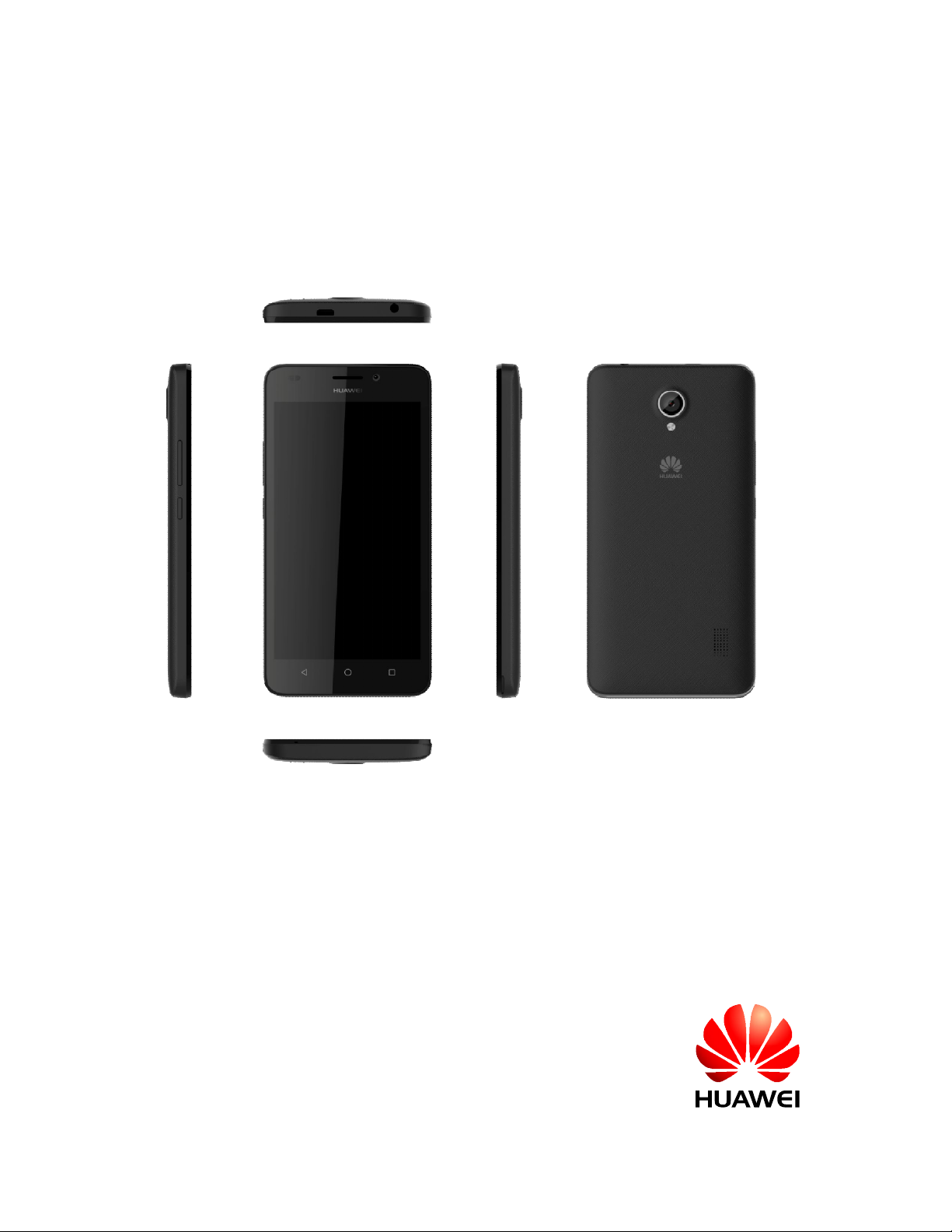
HUAWEI Y635-L01&L02&L03&L21
Smartphone FAQs
Issue 01
Date 2015-3-12
HUAWEI TECHNOLOGIES CO., LTD.
Page 2

Version Changed Section Change Description Date Author
Finished the hotline FAQs for the
01 N/A
Y635-L01/L02/L03/L21 general
version.
2015-03-12
i / 63
Page 3

HUAWEI Y635-LXX Smartphone FAQs Contents
Contents
1 Basics .......................................................................................................................................... 1
1.1 Can I use 4G networks with my phone? ................................................................................................................. 1
1.2 Color schemes ....................................................................................................................................................... 1
1.3 Selling points ........................................................................................................................................................ 2
1.4 Your phone at a glance ........................................................................................................................................... 3
1.5 Installation ............................................................................................................................................................ 3
1.5.1 Can I remove the battery cover? .......................................................................................................................... 3
1.5.2 How do I install a micro-SIM card?..................................................................................................................... 4
1.6 Home screens ........................................................................................................................................................ 6
1.6.1 How do I add or delete a home screen? ............................................................................................................... 6
1.6.2 How does my phone's main menu look like? ....................................................................................................... 7
1.6.3 How do I edit the main menu?............................................................................................................................. 8
1.6.4 How do I switch between 2D and 3D home screens? ........................................................................................... 8
1.6.5 How do I add a shortcut for an application to a home screen? .............................................................................. 8
1.7 Contacts ................................................................................................................................................................ 8
1.7.1 How do I create a contact or assign a photo to a contact? ..................................................................................... 8
1.7.2 How do I import or export contacts? ..................................................................................................................10
1.7.3 How many contacts can my phone save? ............................................................................................................10
1.7.4 How do I add a contact to a contact group? ........................................................................................................10
1.8 Text messaging .....................................................................................................................................................10
1.8.1 How do I change the input method when editing a text message? ........................................................................10
1.8.2 How do I lock a text message in a conversation? How do I delete one or more conversions and text messages? ... 11
1.8.3 How do I forward a text message or send a text message to multiple recipients?.................................................. 11
1.8.4 How many Chinese and English characters can be contained in a text message? .................................................12
1.8.5 How many text messages can be saved on my phone? ........................................................................................12
1.8.6 How do I set the SMS center number? ................................................................................................................12
1.9 Calls .....................................................................................................................................................................12
1.9.1 Can I record a call? Where is the recording saved? .............................................................................................12
1.9.2 How do I switch between calls or merge two calls to have a conference call? ......................................................12
1.9.3 What will my phone display when one card is being used for a call and the other receives a call? ........................13
1.10 Multimedia messaging ........................................................................................................................................14
1.10.1 How do I send a multimedia message? .............................................................................................................14
1.10.2 What can I do if I can't send or receive multimedia messages? ..........................................................................14
ii / 63
Page 4

HUAWEI Y635-LXX Smartphone FAQs Contents
1.10.3 Is there any restriction on the size, format, or resolution of the file to be attached to a multimedia message? ......15
1.10.4 Where are the multimedia message attachments saved? ....................................................................................15
1.11 Music .................................................................................................................................................................15
1.11.1 How are my songs sorted? ................................................................................................................................15
1.11.2 How do I create a playlist? ...............................................................................................................................15
1.11.3 What playback modes does my phone support? ................................................................................................15
1.11.4 How do I play songs in the background, exit Music, and view the lyrics when a song is playing? ......................15
1.12 Camera ...............................................................................................................................................................16
1.12.1 If my phone has no microSD card installed, can I take photos or videos? ..........................................................16
1.12.2 Why can't I open some photos or videos on my phone? .....................................................................................16
1.12.3 Where are my photos and videos saved by default? Can I change the save location?..........................................16
1.12.4 How do I edit a photo or video or add a photo frame? .......................................................................................16
1.12.5 Does my phone support HD videos? .................................................................................................................17
1.12.6 Can I disable the shutter sound? .......................................................................................................................17
1.12.7 How do I toggle between the front and rear cameras? .......................................................................................17
1.12.8 What is the format of the recorded video clips? What are the video clip sizes? ..................................................17
1.12.9 What photo formats and sizes does Camera support? ........................................................................................17
1.13 Streaming media .................................................................................................................................................17
1.13.1 Does my phone support flashlight? ...................................................................................................................17
1.13.2 Will my phone stop playing streaming media when a call comes in? If yes, will it resume playing when the call
ends? .........................................................................................................................................................................17
1.13.3 Why can't my phone play some streaming media? ............................................................................................17
1.13.4 What might cause poor quality of online streaming media played on my phone? ...............................................18
1.13.5 Will simultaneously playing and downloading online streaming media take up my phone's storage space? ........18
1.14 Bluetooth............................................................................................................................................................18
1.14.1 Does my phone support Bluetooth headsets? ....................................................................................................18
1.14.2 Can I connect my phone to a Bluetooth USB keyboard or mouse? ....................................................................18
1.14.3 What files can be transmitted using Bluetooth? .................................................................................................18
1.14.4 How do I send a file using Bluetooth? ..............................................................................................................18
1.14.5 Why can't my phone be discovered by other Bluetooth devices? .......................................................................20
1.14.6 What is Bluetooth's working range? .................................................................................................................21
1.14.7 Why can't I pair my phone with other Bluetooth devices? .................................................................................22
1.14.8 Can my computer use my phone's data connection through Bluetooth? .............................................................22
1.15 GPS navigation ...................................................................................................................................................22
1.15.1 Does my phone support offline navigation? If yes, do I need to install an offline navigation application to the
phone? .......................................................................................................................................................................22
1.15.2 Does my phone support Google Maps? ............................................................................................................22
1.15.3 What navigation application does my phone come with? ..................................................................................22
1.15.4 What can I do if the navigation application on my phone cannot receive signals from GPS satellites? ................22
1.16 Does my phone support FM radio? If yes, how do I save my favorite channels? ...................................................23
1.17 Can I download themes to my phone? Does my phone support live wallpapers? ..................................................23
1.18 Does my phone support video calls or video chats? .............................................................................................23
iii / 63
Page 5

HUAWEI Y635-LXX Smartphone FAQs Contents
1.19 How do I take a screenshot? ................................................................................................................................23
1.20 Does my phone support flash playback? If no, can I install a third-party flash player for flash playback?..............24
1.21 Does my phone come with a headset? What line order does my phone support? ...................................................24
1.22 Preinstalled applications and versions .................................................................................................................24
1.23 List of microSD card compatibility tests ..............................................................................................................24
1.24 Basic functions ...................................................................................................................................................24
1.25 Communication FAQ ..........................................................................................................................................24
2 Common settings .................................................................................................................... 26
2.1 Email ...................................................................................................................................................................26
2.1.1 How do I configure email settings? ....................................................................................................................26
2.1.2 Can I view emails when no Internet connection is available on my phone? .........................................................27
2.1.3 How do I log in to my Gmail account? ...............................................................................................................27
2.1.4 How do I synchronize contacts and calendar events? ..........................................................................................27
2.2 Wi-Fi settings .......................................................................................................................................................27
2.2.1 How do I connect my phone to a Wi-Fi network? ...............................................................................................27
2.2.2 What Wi-Fi protocols does my phone support? ...................................................................................................29
2.2.3 Sometimes I cannot open web pages over a Wi-Fi connection. Why? ..................................................................29
2.2.4 I have turned on Wi-Fi on my phone, but it cannot detect signals from Wi-Fi hotspots. What can I do?................29
2.2.5 How do I know whether my phone is using its mobile data connection or a Wi-Fi connection to access the Internet?
..................................................................................................................................................................................30
2.2.6 I cannot connect to a Wi-Fi hotspot. Why? .........................................................................................................30
2.2.7 My phone's Wi-Fi connection automatically disconnects after the screen times out. What can I do?.....................30
2.3 Can I use my phone as a mobile Wi-Fi hotspot and access the Internet from another device using my phone's data
connection? ................................................................................................................................................................30
2.4 How do I connect my phone to a Wi-Fi hotspot with a static IP address to access the Internet? ...............................32
2.5 How do I set my phone to work as a modem and provide Internet access for computers? .......................................33
2.6 Tone settings ........................................................................................................................................................34
2.6.1 How do I set the phone ringtone? .......................................................................................................................34
2.6.2 How do I turn on or off vibration for incoming calls and messages? ....................................................................34
2.6.3 How do I set a song as a ringtone for incoming calls or new messages? ..............................................................34
2.6.4 Can I set a ringtone for a contact group?.............................................................................................................34
2.6.5 How do I disable touch sounds? .........................................................................................................................34
2.7 Languages and keyboards .....................................................................................................................................34
2.7.1 How do I change the system language? ..............................................................................................................34
2.7.2 What can I do if I can't use a newly installed text input method? .........................................................................34
2.7.3 How do I change the system font size? ...............................................................................................................34
2.7.4 Can I change the system font style? Does WeChat support font style changing? ..................................................35
2.7.5 What text input methods does my phone come with? ..........................................................................................35
2.7.6 How do I switch to the stroke input method? ......................................................................................................35
2.7.7 How do I disable key press vibration? ................................................................................................................35
2.8 Internet access ......................................................................................................................................................35
2.8.1 How do I set a SIM card as the primary SIM card and the other as the secondary one? ........................................35
iv / 63
Page 6

HUAWEI Y635-LXX Smartphone FAQs Contents
2.8.2 How do I clear my browser's cache and browsing history? ..................................................................................35
2.8.3 How do I view a web page in full screen or save a web page to bookmarks? .......................................................35
2.8.4 Can I log in to my email account using the browser on my phone?......................................................................36
2.8.5 Can I log in to my online bank account from my phone?.....................................................................................36
2.8.6 How do I save an image from a web page? .........................................................................................................36
2.8.7 How do I set the home page? .............................................................................................................................36
2.8.8 How do I save a web page? ................................................................................................................................36
2.8.9 What can I do if my phone fails to access the Internet? .......................................................................................36
2.8.10 How do I turn on or off the mobile network? ....................................................................................................36
2.8.11 How do I view my phone's data service status or disable the data service? .........................................................37
2.8.12 Are there any restrictions on the data service?...................................................................................................37
2.8.13 How do I switch between 4G, 3G, and 2G networks? .......................................................................................37
2.9 Screen lock ...........................................................................................................................................................37
2.9.1 How do I set a screen unlock PIN? .....................................................................................................................37
2.9.2 How do I set the face unlock function? ...............................................................................................................38
2.9.3 How do I set a screen unlock pattern? ................................................................................................................38
2.9.4 How many times can I try the screen unlock pattern before my phone becomes permanently locked? Can I unlock
the phone by sending an email from my Gmail? ..........................................................................................................38
2.9.5 How do I lock and unlock the screen? ................................................................................................................38
2.10 Alarm .................................................................................................................................................................38
2.10.1 How do I add and remove an alarm? ................................................................................................................38
2.10.2 Will the alarms go off when my phone is powered off? .....................................................................................39
2.11 Applications........................................................................................................................................................39
2.11.1 What application formats does my phone support? Is JAVA supported? .............................................................39
2.11.2 How do I download third-party applications?....................................................................................................39
2.11.3 Can I change the default installation location for applications? ..........................................................................39
2.11.4 How do I install, manage, and uninstall applications? .......................................................................................39
2.11.5 What can I do if I can't install an application? ...................................................................................................40
2.12 Third-party applications ......................................................................................................................................40
2.12.1 Does my phone support Instant Message run in background such as QQ and QQ videos? Can I send images and
download chat records? How can I clear the chat records of a certain QQ account? .....................................................40
2.12.2 Can I install third-party applications to a microSD card? If so, will running these third-party applications take up
my phone's storage? ...................................................................................................................................................40
2.12.3 Does my phone support online banking transactions? .......................................................................................40
2.13 Backup and restoration .......................................................................................................................................40
2.13.1 How do I back up and restore contacts? ............................................................................................................40
2.13.2 Can I back up my contact groups? ....................................................................................................................41
2.13.3 What data can be backed up on my phone? .......................................................................................................41
2.13.4 What data can be restored on my phone? ..........................................................................................................41
2.13.5 Does my phone support cloud services? ...........................................................................................................41
2.13.6 Does my phone support cloud backup and restoration? .....................................................................................41
2.14 Manage apps ......................................................................................................................................................41
v / 63
Page 7

HUAWEI Y635-LXX Smartphone FAQs Contents
2.14.1 What can Manage apps do? ..............................................................................................................................41
2.14.2 How do I access Manage apps? ........................................................................................................................41
2.14.3 What does the Manage apps screen look like? ..................................................................................................41
2.14.4 How do I manage a specific application using Manage apps? ............................................................................42
2.15 Does my phone come with Security Guard? ........................................................................................................43
2.16 Does my phone support the blacklist function of Security Guard? ........................................................................43
2.17 How do I configure the weather settings? ............................................................................................................43
2.18 What are the developer options?..........................................................................................................................44
2.19 Can I synchronize my phone's date and time with the network? ...........................................................................44
2.20 How do I use my phone as a USB flash drive? ....................................................................................................44
2.21 How do I free up internal storage space? .............................................................................................................45
2.22 How do I adjust the screen brightness? ................................................................................................................45
2.23 Does my phone have key backlight?....................................................................................................................45
2.24 How do I turn on or off airplane mode? ...............................................................................................................45
2.25 How do I restore my phone to its factory settings? ...............................................................................................45
2.26 How does my phone enter or exit safe mode? ......................................................................................................45
2.27 Doe my phone support HiSuite? ..........................................................................................................................46
2.28 Does my phone support HDMI? ..........................................................................................................................46
2.29 Does my phone support TV-out? .........................................................................................................................46
2.30 Does my phone support OTG? ............................................................................................................................46
2.31 Is my phone provided with a status indicator? .....................................................................................................46
2.32 Can I use other power adapters than the provided one to charge my phone? .........................................................46
3 Others....................................................................................................................................... 47
3.1 Does my phone support the quick calling function when the screen is turned off? ..................................................47
3.2 Does my phone support multi-screen interaction? ..................................................................................................47
3.3 Does my phone support scheduled power-on or power-off? ...................................................................................47
3.4 Does the GPU support mainstream games? ...........................................................................................................47
3.5 How do I save battery power? ...............................................................................................................................47
3.6 How long does the battery stand if I keep using a certain function? ........................................................................48
3.7 Can I use the USB cable and computer to charge my phone? .................................................................................48
3.8 How do I reduce my mobile data usage? ...............................................................................................................48
3.9 What can I do if my phone runs slowly? ................................................................................................................48
3.10 Can I set my customized wallpaper not to stretch? ...............................................................................................48
3.11 How do I enter recovery mode and restore my phone to its factory settings? ........................................................49
3.12 Can I scan a QR code using my phone? ...............................................................................................................49
3.13 Does my phone support 3D acceleration? ............................................................................................................49
3.14 How do I know whether my phone has been rooted? ...........................................................................................49
3.15 Can I remove the battery? Will configuring my phone to automatically set the date and time generate data traffic?
..................................................................................................................................................................................49
3.16 Can I use my phone for recording? ......................................................................................................................50
3.17 Does my phone come with a protective film? ......................................................................................................50
3.18 Does my phone support mobile TV? ...................................................................................................................50
vi / 63
Page 8

HUAWEI Y635-LXX Smartphone FAQs Contents
3.19 Can I browse or edit Word, Excel, PowerPoint, and PDF files on my phone? .......................................................50
3.20 What is the default installation location for applications? Can I change this location?...........................................50
3.21 Does my phone support App2SD? How do I move an installed application to the microSD card? .........................50
3.22 How are my phone ROM and RAM allocated? ....................................................................................................50
3.23 How do I check the available space in my phone storage and microSD card? .......................................................52
3.24 My phone can stand by normally, but the screen cannot be turned on. What can I do? ..........................................53
3.25 Why isn't the backlight on? .................................................................................................................................53
3.26 "Trial use" is found on my phone's network access license. Does this mean that my phone does not have the China
national network access tag? .......................................................................................................................................53
3.27 Why does my phone receive no signal after I activated the function of enabling only 4G data service? .................53
3.28 When I am playing music using the player that comes with my phone, my phone's signal status changes to no
service. What can I do?...............................................................................................................................................53
3.29 My phone's speaker, receiver, and headset cannot function properly. What can I do? ............................................53
3.30 I can't use my phone's data service to access the Internet. What can I do? .............................................................54
3.31 My screen does not respond to touches when I am using the camera? What can I do?...........................................54
3.32 The photos are blue or green if I take them with flash turned on. What can I do? ..................................................54
3.33 After I insert and remove the headset, my phone's screen will freeze (cannot be unlocked when I swipe on the
screen or cannot be turned on when I press the power button) for 2 to 3 minutes until my phone detects the headset's
status. What can I do? .................................................................................................................................................54
3.34 After I turn off 4G, my phone cannot send or receive multimedia messages or send or receive multimedia messages
slowly. What can I do? ...............................................................................................................................................54
3.35 After I inserted a 4G card into my phone, enabled data service, and took my phone from an area with no signal to
an area with strong signal, my phone's network connection falls from 4G to 3G and I can't make phone calls. What can I
do? .............................................................................................................................................................................55
vii / 63
Page 9
HUAWEI Y635-LXX Smartphone FAQs 1 Basics
1 Basics
1.1 Can I use 4G networks with my phone?
Yes. Your phone is a 4G phone and you can use it for 4G data services.
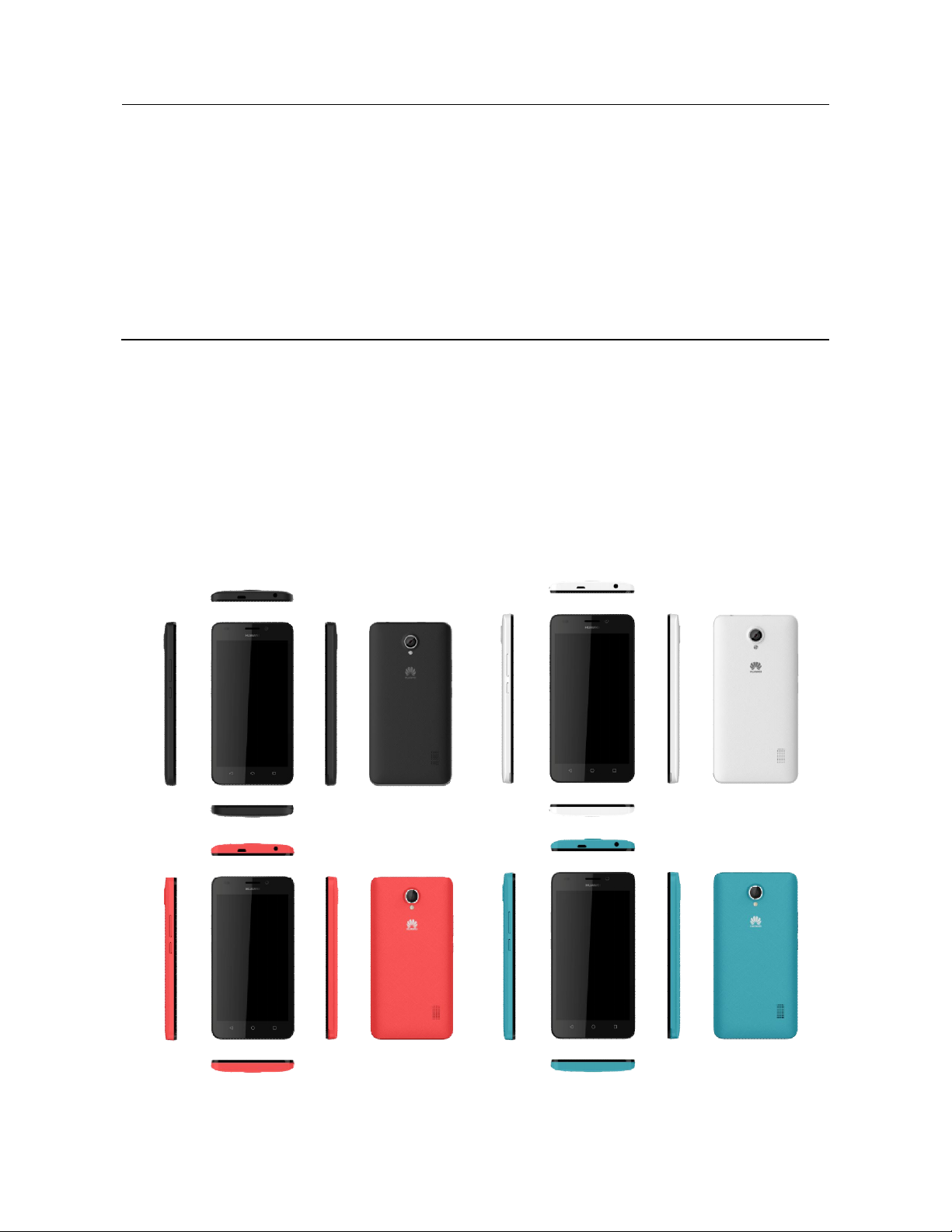
1.2 Color schemes
Phone colors (vary only in battery cover): black, white, red, and blue
Page 10
HUAWEI Y635-LXX Smartphone FAQs 1 Basics
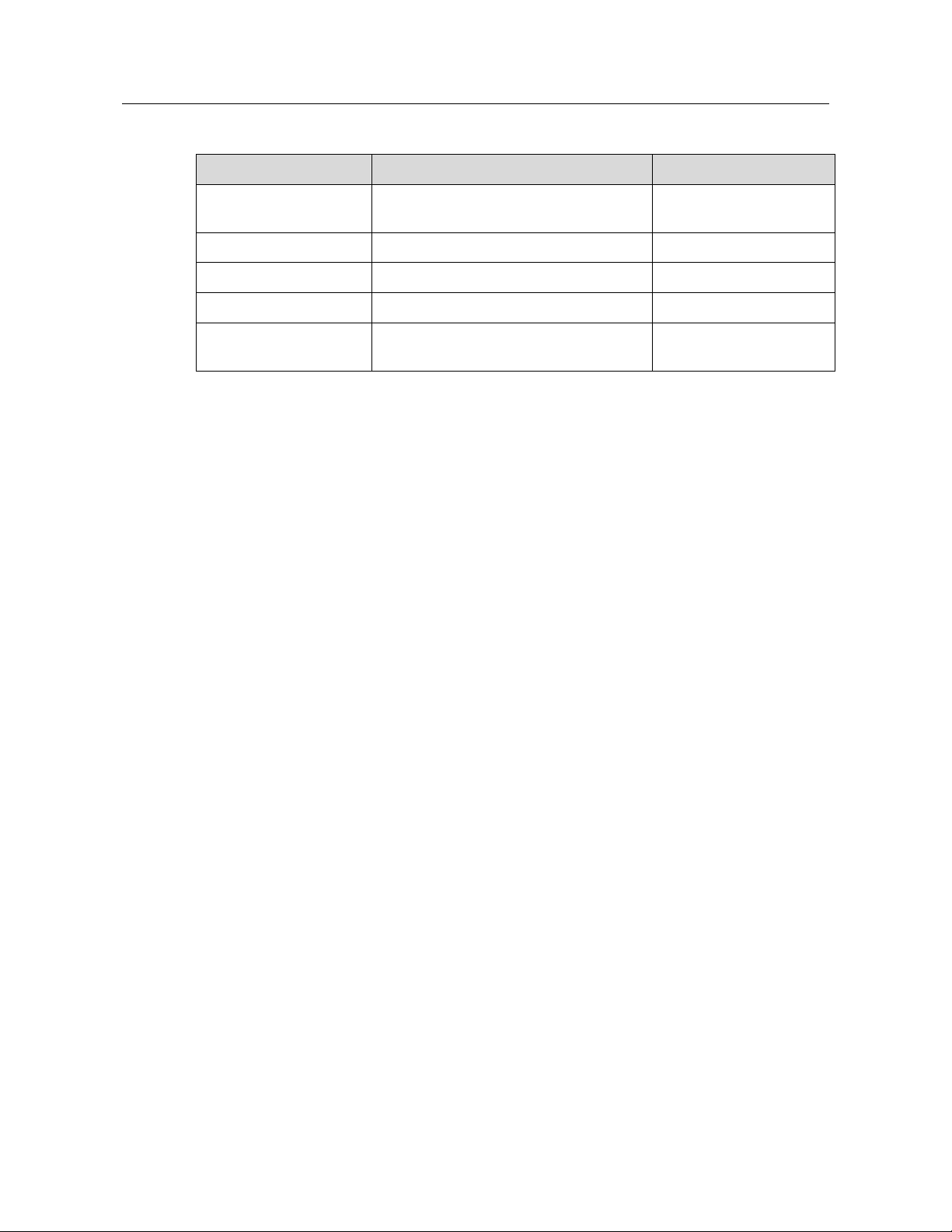
External model HUAWEI Y635-L01/ L02/L03 HUAWEI Y635-L21
Version name
Version classification
Phone colors
RAM/ROM
Single SIM card or
Dual SIM cards
1.3 Selling points
The HUAWEI Y635-LXX is an entry-level smartphone developed by Huawei based on
EMUI 3.0 (Android 4.4 supported) and highlights the following:
1. 5-inch IPS touchscreen
2. FDD LTE Cat4 high-speed data transmission
3. 64-bit A53 quad-core high-performance processor
4. New camera features, more cool, more personalized show
5. Android 4.4 (KitKat)
6. EMUI 3.0
7. 2000 mAh battery with smart power saving technology
8. GPS/A-GPS/Glonass
9. 802.11 b/g/n and Bluetooth 4.0
European version/ Australian and Zelanian
version/Latin American version
Standard Standard
Black/white/red/ blue Black/white/red/ blue
1 GB/8 GB 1 GB/8 GB
Single SIM card dual SIM cards
European dual SIM card
version
2 / 63
Page 11
HUAWEI Y635-LXX Smartphone FAQs 1 Basics
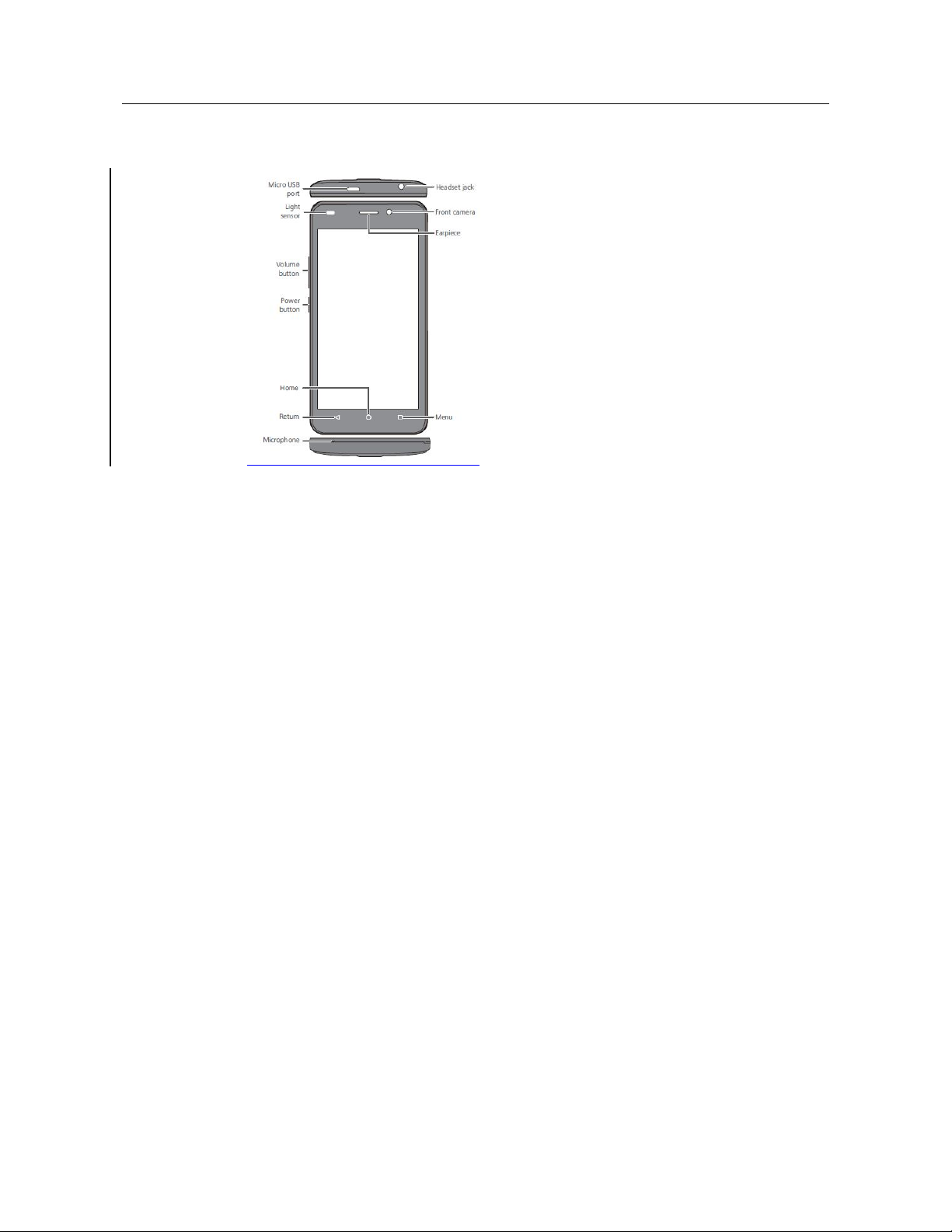
1.4 Your phone at a glance
1.5 Installation
1.5.1 Can I remove the battery cover?
Yes.
3 / 63
Page 12
HUAWEI Y635-LXX Smartphone FAQs 1 Basics
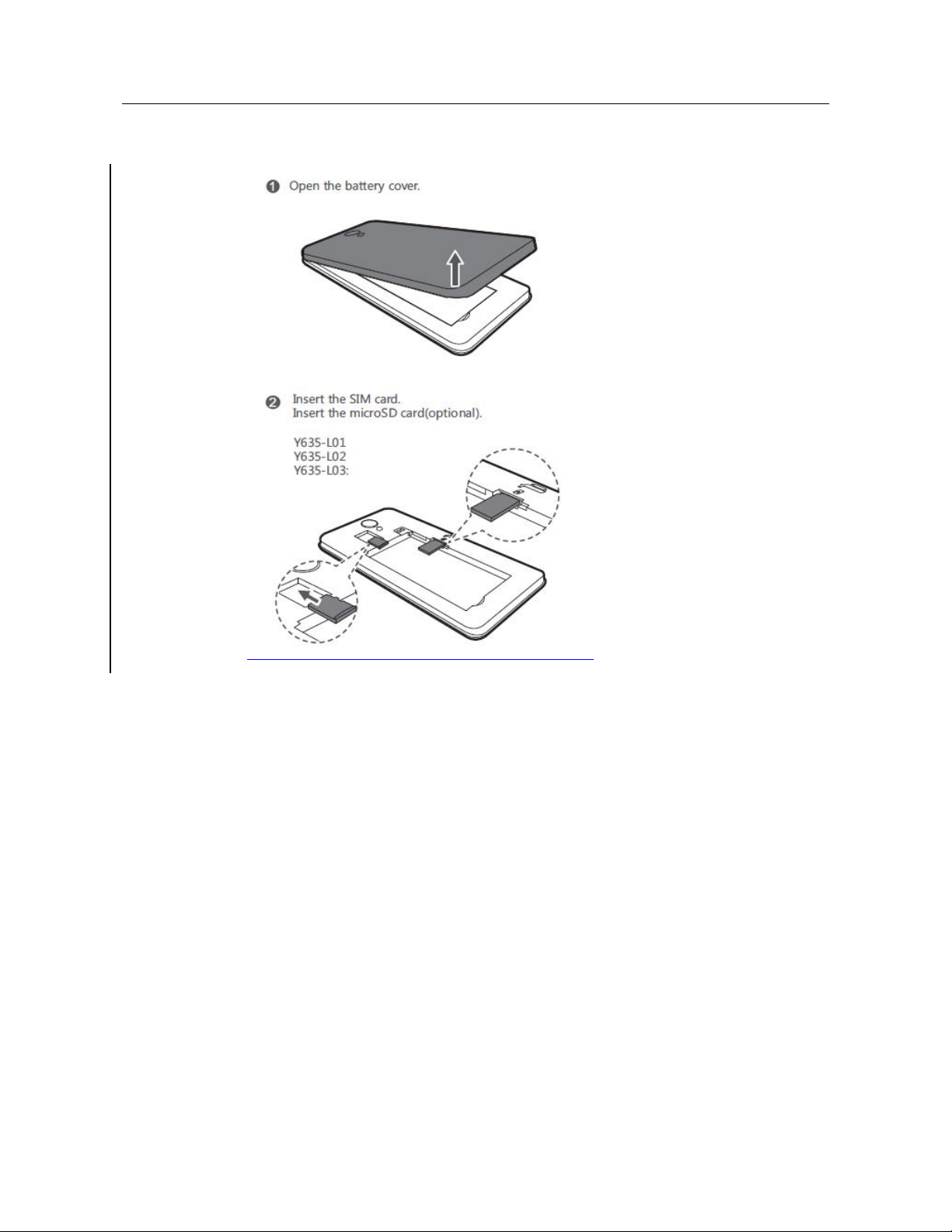
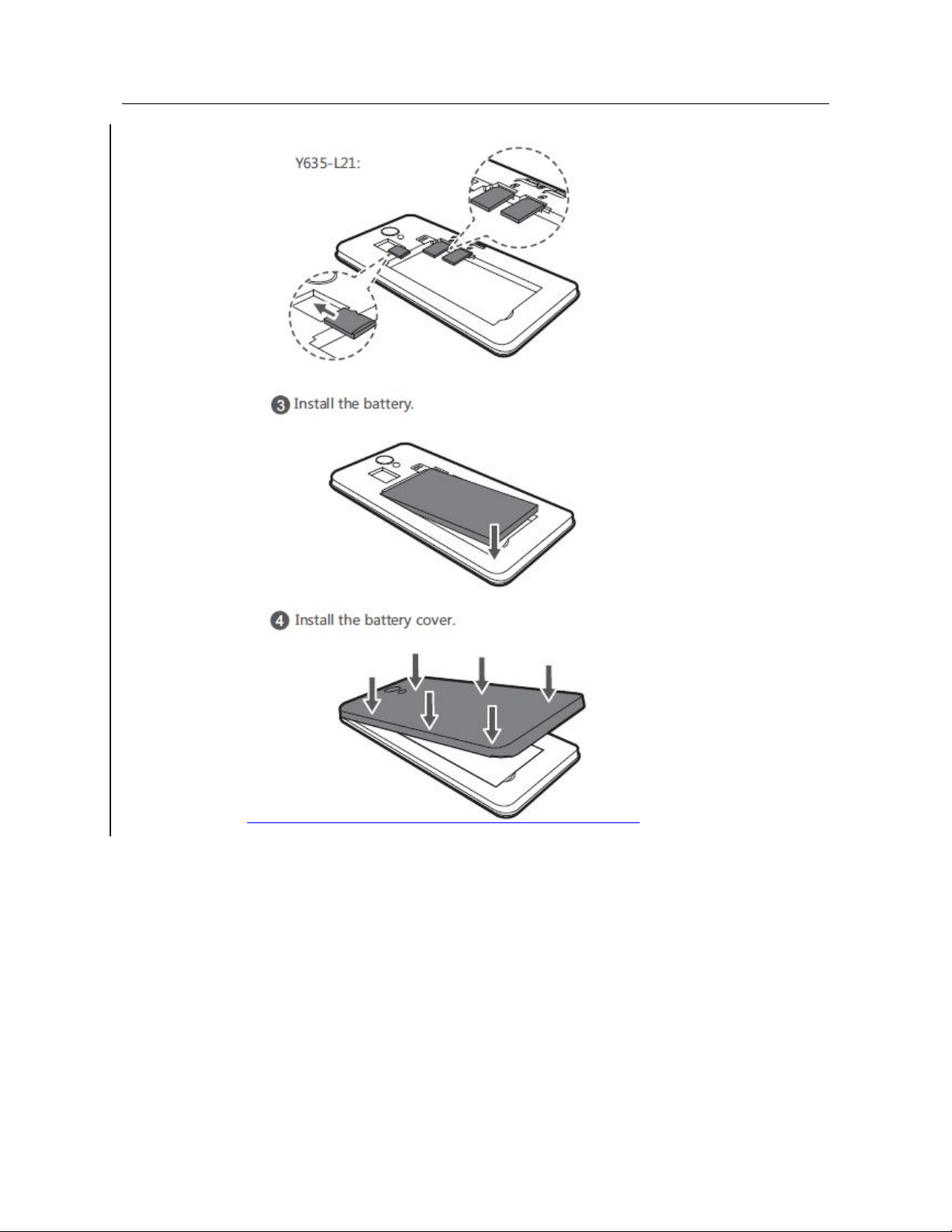
1.5.2 How do I install a micro-SIM card?
4 / 63
Page 13
HUAWEI Y635-LXX Smartphone FAQs 1 Basics
5 / 63
Page 14
HUAWEI Y635-LXX Smartphone FAQs 1 Basics
1.6 Home screens
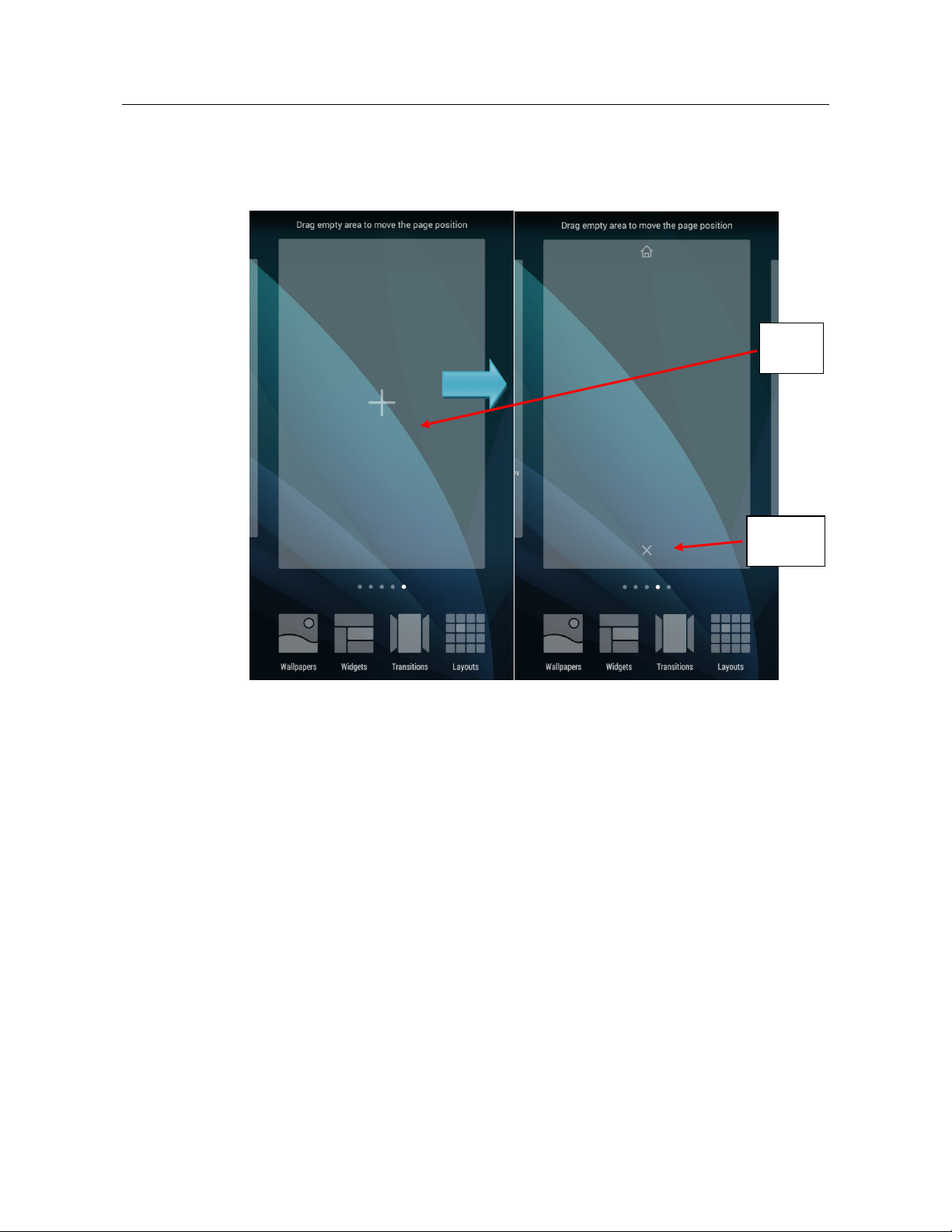
1.6.1 How do I add or delete a home screen?
Add
Delete
Page 15
HUAWEI Y635-LXX Smartphone FAQs 1 Basics
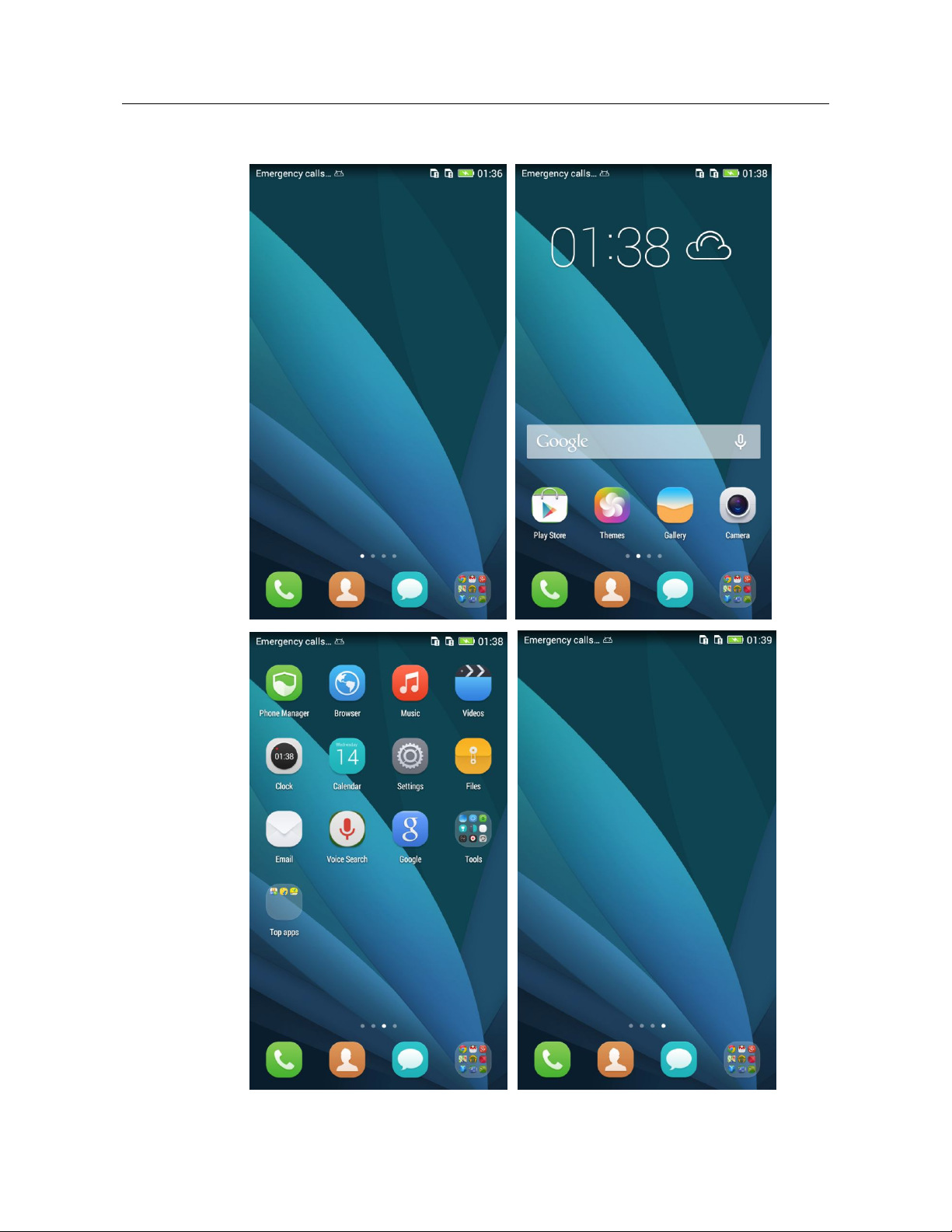
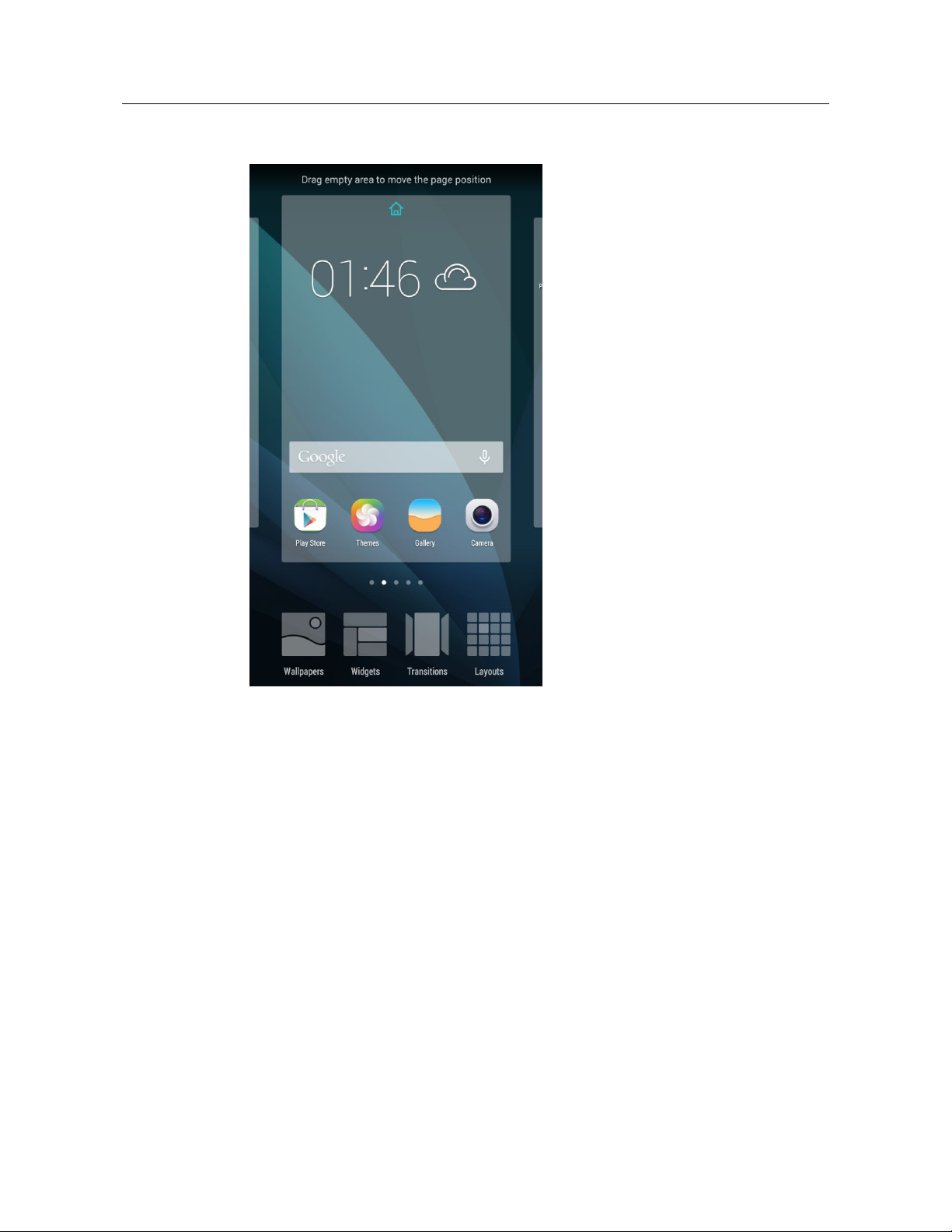
1.6.2 How does my phone's main menu look like?
7 / 63
Page 16
HUAWEI Y635-LXX Smartphone FAQs 1 Basics
1.6.3 How do I edit the main menu?
1.6.4 How do I switch between 2D and 3D home screens?
Your phone does not support 3D home screens.
1.6.5 How do I add a shortcut for an application to a home screen?
In Files, press and hold a file folder or file and touch Desktop shortcuts from the displayed
option menu.
1.7 Contacts
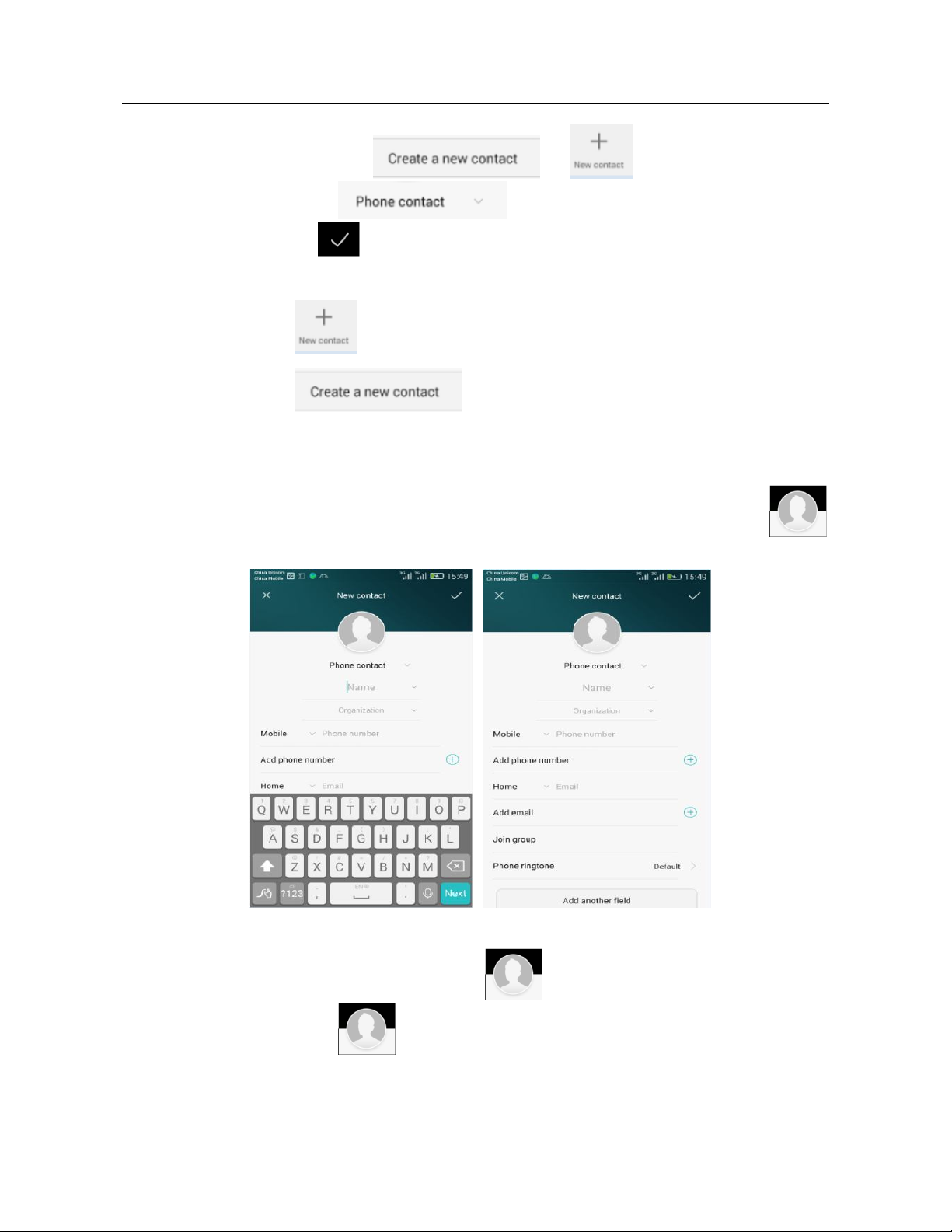
1.7.1 How do I create a contact or assign a photo to a contact?
1. Creating a contact
8 / 63
Page 17
HUAWEI Y635-LXX Smartphone FAQs 1 Basics
In Contacts, touch or to display the contact editing
screen, touch to select a save mode, enter the contact details,
and touch to save the contact.
Note:
Touch when the contact is already in your contacts list.
Touch when the contact is not in your contacts list.
2. Assigning a photo to a contact
Note: You cannot assign a photo to a contact saved to the SIM card.
Method 1: Go to Contacts and touch a contact. On the contact details screen, touch
to take a photo or choose a photo from the gallery.
Method 2: Go to Contacts and touch next to a contact. On the contact details
screen, touch to take a photo or choose a photo from the gallery.
9 / 63
Page 18
HUAWEI Y635-LXX Smartphone FAQs 1 Basics
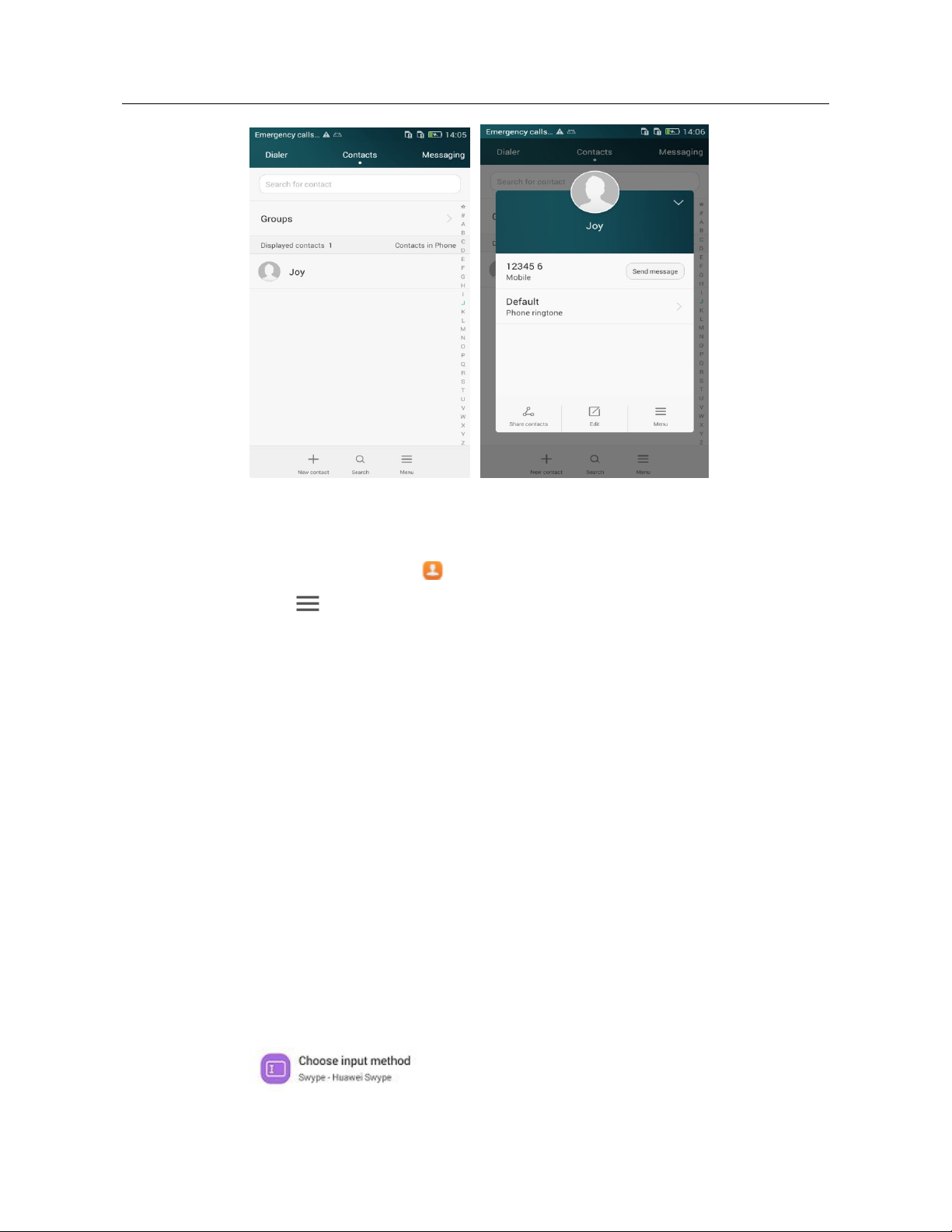
1.7.2 How do I import or export contacts?
On the home screen, touch .
Touch then Import/Export and choose an import or export mode.
1.7.3 How many contacts can my phone save?
You can save 2000 or more contacts in your phone's internal storage. How many contacts can
the SIM card save depends on the SIM card.
1.7.4 How do I add a contact to a contact group?
Use either of the following methods:
Method 1: On the contact editing screen, touch Join group and select a group.
Method 2: In Contacts, touch Group, choose a group, and touch + at the bottom of the screen
to add the contact.
1.8 Text messaging
1.8.1 How do I change the input method when editing a text
message?
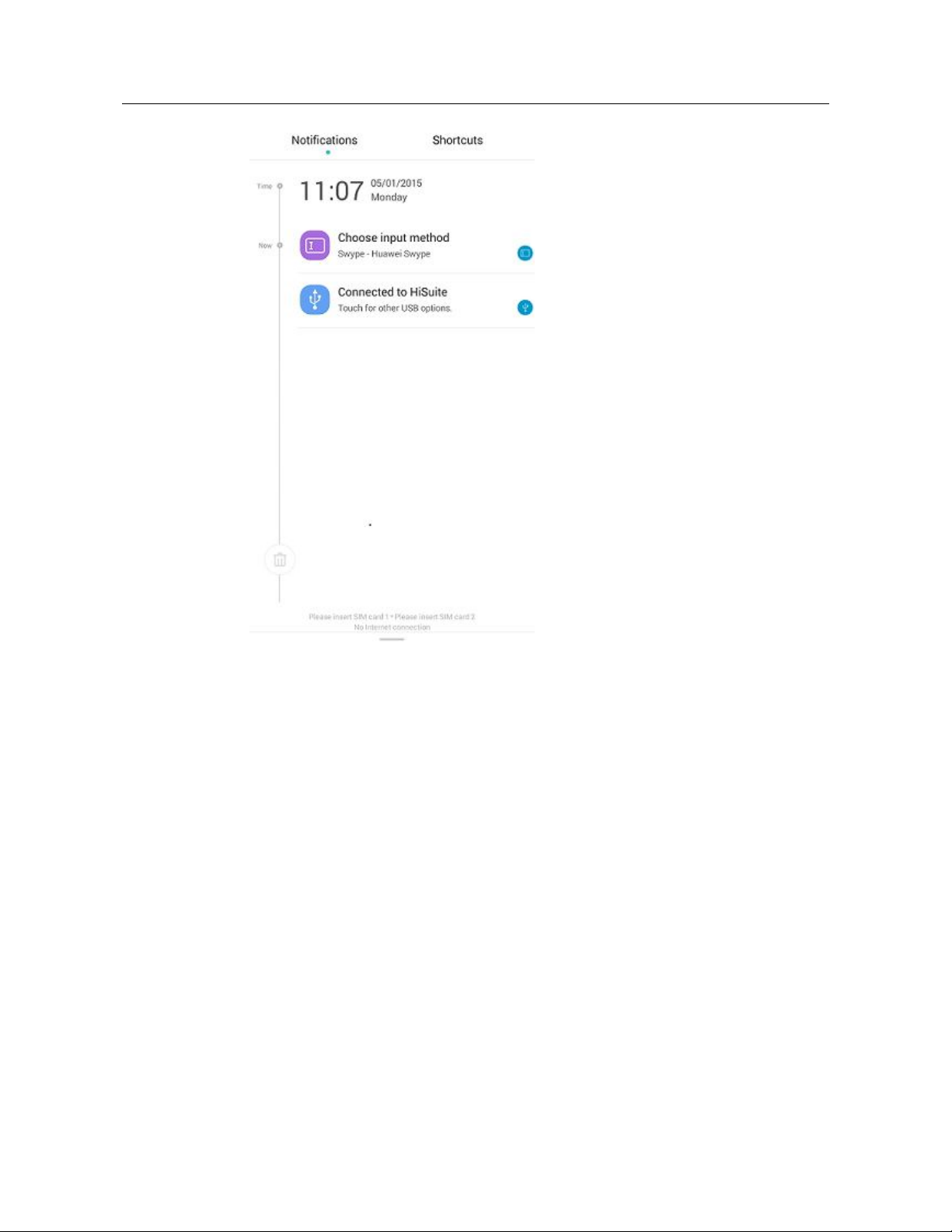
Create a text message and touch the text field to bring up the onscreen keyboard. The default
input method is Huawei Swype. Swipe down on the screen to open the status bar, touch
, and select an input method.
10 / 63
Page 19
HUAWEI Y635-LXX Smartphone FAQs 1 Basics
1.8.2 How do I lock a text message in a conversation? How do I
delete one or more conversions and text messages?
In Messaging, touch a conversation to display all messages in the conversation. Touch and
hold the message you want to lock. Choose Menu. From the displayed option menu, choose
Lock.
To delete one or more conversations: In Messaging, touch and hold the conversation you
want to delete. Select more conversations to delete and touch Delete.
To delete one or more text messages from a conversation: In Messaging, touch a conversation
to display all the text messages in that conversation. Touch and hold the text message you
want to delete, select more text messages to delete, and touch Delete.
1.8.3 How do I forward a text message or send a text message to
multiple recipients?
To forward a text message:
Touch and hold the text message, choose Forward, enter a recipient, and send the message.
11 / 63
Page 20
HUAWEI Y635-LXX Smartphone FAQs 1 Basics
To send a text message to multiple recipients:
Create a text message, touch , select the desired recipients, and touch in the
upper right corner. You can send a text message to up to 100 recipients at a time.
1.8.4 How many English and Chinese characters can be contained
in a text message?
A text message can contain up to 10 pages with a maximum of 670 Chinese characters or
1530 English characters.
1.8.5 How many text messages can be saved on my phone?
How many text messages can be saved to your phone depends on your phone's available
storage space.
If Delete old messages is turned on, your phone stores a maximum of 200 text messages or
20 multimedia messages per conversation by default. You can change these upper limits,
whose values range from 10 to 5,000.
1.8.6 How do I set the SMS center number?
On the Messaging screen, touch Menu and choose Settings from the displayed option menu.
Choose Advanced > SMS center number, enter the SMS center number, and touch
in the upper right corner.
1.9 Calls
1.9.1 Can I record a call? Where is the recording saved?
You phone does not support call recording.
1.9.2 How do I switch between calls or merge two calls to have a
conference call?
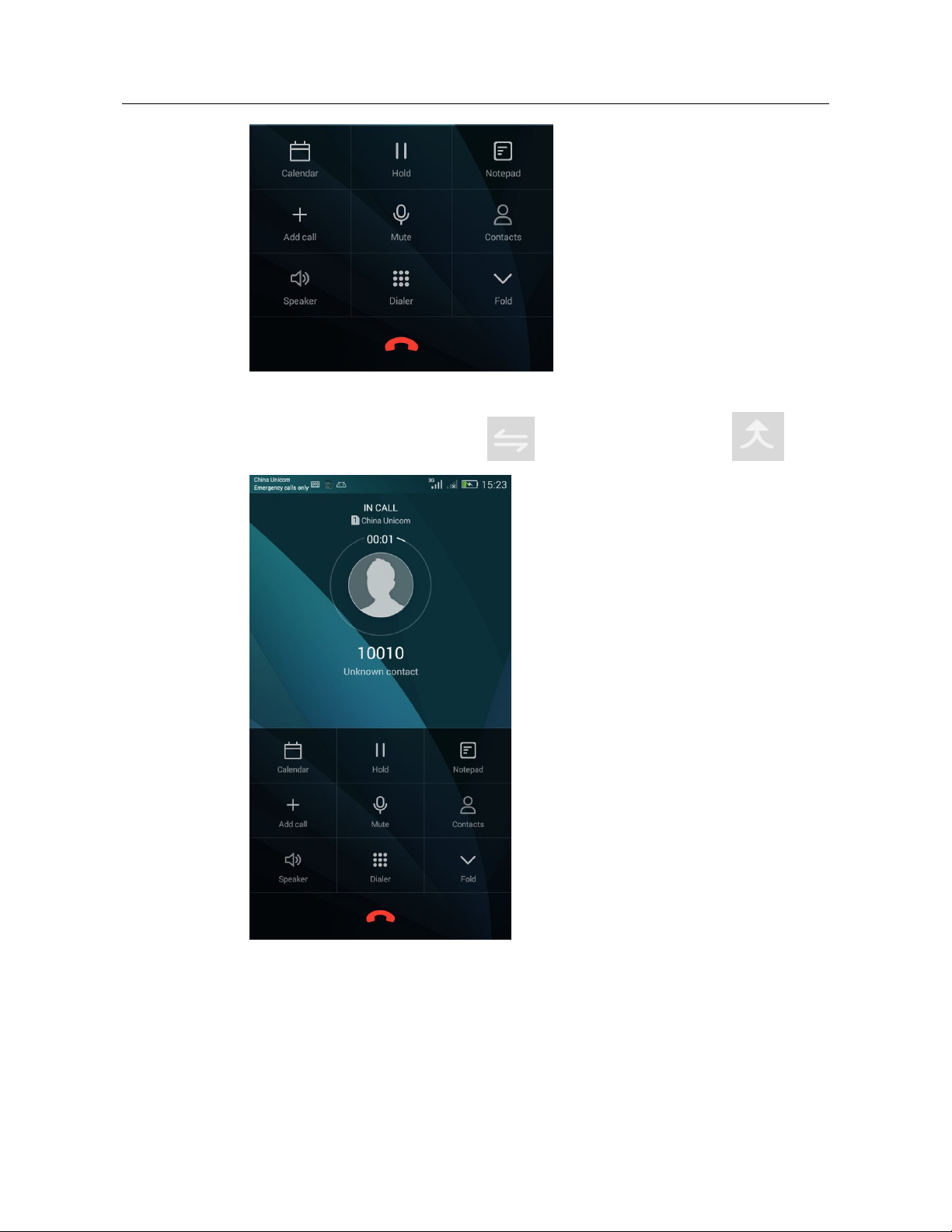
If you are taking two calls simultaneously on your phone, you have the options shown in the
following figure.
12 / 63
Page 21
HUAWEI Y635-LXX Smartphone FAQs 1 Basics
To switch between the two calls, touch . To merge the two calls, touch .
1.9.3 What will my phone display when one card is being used for
a call and the other receives a call?
The Y635-L21 is a dual card single pass mobile phone. So when one card is being used for a
call and the other receives a call, a voice notification will be displayed telling the calling party
that your phone cannot be reached for the moment.
13 / 63
Page 22
HUAWEI Y635-LXX Smartphone FAQs 1 Basics
The Y635-L01, Y635-L02, and Y635-L03 are single card mobile phones.
1.10 Multimedia messaging
1.10.1 How do I send a multimedia message?
1. In Messaging, touch .
2. Enter the recipient and write the message.
3. Touch on the left of the text field, then Subject. The message is then converted
into a multimedia message.
4. Touch and attach images, audio clips, or videos to the message.
5. Touch Send.
1.10.2 What can I do if I can't send or receive multimedia
messages?
Scenario 1: You may not be able to send a multimedia message when the network is
experiencing difficulties or the signal reception is poor.
Solution: You can try sending it again later.
Scenario 2: The message is denied by the network (MMS center).
Cause 1: You may not be able to send a multimedia message when the network is busy.
Solution 1: You can try sending it again later.
Cause 2: The recipient number is invalid.
Solution 2: Check whether the recipient number is correct and try again.
Cause 3: The multimedia message exceeds the maximum size (300 KB) allowed by your
service provider.
Solution 3: Delete some content from the multimedia message to make sure it does not
exceed 300 KB, and try again.
Scenario 3: Your account balance is insufficient.
Cause: You may not be able to send a multimedia message when your account balance is
insufficient.
Solution: Top up your account and try again.
Scenario 4: Your phone is running out of available storage space.
Cause: You may not be able to send a multimedia message when your phone is running
out of available storage space.
Solution: Free up your phone's storage space and make sure the available storage space
is at least 300 KB.
14 / 63
Page 23

HUAWEI Y635-LXX Smartphone FAQs 1 Basics
1.10.3 Is there any restriction on the size, format, or resolution of
the file to be attached to a multimedia message?
If an audio or video file exceeds the maximum size (generally 300 KB) allowed by your
service provider, it cannot be attached to a multimedia message. If an image is too large, it
will be automatically compressed before being attached to the message. As a result, the
resolution of the image attached to the message decreases.
1.10.4 Where are the multimedia message attachments saved?
By default, after you receive a multimedia message, the attachment is automatically saved to
the /data folder, which is hidden from users.
You can save the attachment to the Download folder in the phone storage or the microSD
card.
1.11 Music
1.11.1 How are my songs sorted?
Albums: Songs are sorted by album.
Artists: Songs are sorted by artist.
All songs: Songs are sorted by name.
Playlists: You can add songs to the playlists you have created.
1.11.2 How do I create a playlist?
1. In Music, touch Playlists then Create new playlist.
2. Name the playlist and touch Save.
3. In the displayed dialog box, touch Add. Select the desired songs and touch the check iron
in the upper right corner.
1.11.3 What playback modes does my phone support?
Play in order (by default): All audio files in a playlist are played in sequence and stopped
after all the files have been played.
Shuffle: All audio files in a playlist are played in a random order and stopped when all
the files have been played.
Repeat list: All audio files in a playlist are played in sequence and played in sequence
again when all the files have been played.
Repeat current song: The current audio file is played repeatedly.
1.11.4 How do I play songs in the background, exit Music, and
view the lyrics when a song is playing?
1. To play songs in the background, touch the back or home button when playing a song.
15 / 63
Page 24

HUAWEI Y635-LXX Smartphone FAQs 1 Basics
2. To view the lyrics when a song is playing:
If the lyrics of a song are saved in the same folder as the song, your phone automatically
displays the lyrics while the song is playing.
If the lyrics of a song are not saved in the same folder as the song, on the playback screen,
slide your finger to display the lyrics.
1.12 Camera
1.12.1 If my phone has no microSD card installed, can I take
photos or videos?
Yes.
1.12.2 Why can't I open some photos or videos on my phone?
1. The phone does not support the file format.
2. The phone memory is insufficient.
3. The file is damaged.
4. The file is copyright-protected (for example, a .dcf file).
5. The phone does not have sufficient resources. Close some running third-party applications
and try again.
6. An unknown error occurred in the camera or the phone's OS. Restart the phone and try
again.
1.12.3 Where are my photos and videos saved by default? Can I
change the save location?
On the viewfinder, touch in the upper right corner of the screen, then to
display the settings menu. Touch Preferred save location. Then select the microSD card
or phone's internal storage as the preferred save location.
When the save location is your phone's internal storage, you can touch Files > Local >
Internal storage > DCIM > Camera to view your photos and videos.
When the save location is the microSD card, you can touch Files > Local > SD card >
DCIM > Camera to view your photos and videos.
1.12.4 How do I edit a photo or video or add a photo frame?
To edit a photo: In gallery, touch a photo to view it. Touch the edit icon below the photo,
and you can rotate or cut the photo.
You cannot edit videos.
You cannot add photo frames.
16 / 63
Page 25

HUAWEI Y635-LXX Smartphone FAQs 1 Basics
1.12.5 Does my phone support HD videos?
Yes. Your phone can play 1080p HD videos at 30 FPS.
1.12.6 Can I disable the shutter sound?
Yes.
1.12.7 How do I toggle between the front and rear cameras?
On the viewfinder, touch on the top of the screen to toggle between the front and rear
cameras.
1.12.8 What is the format of the recorded video clips? What are the
video clip sizes?
Your phone supports the MPEG-4 format. The size of a recorded video depends on the
available storage space in your phone.
1.12.9 What photo formats and sizes does Camera support?
The image format of your phone is JPG by default. The size of an image depends on the
current image resolution and shooting mode.
1.13 Streaming media
1.13.1 Does my phone support flashlight?
Yes.
1.13.2 Will my phone stop playing streaming media when a call
comes in? If yes, will it resume playing when the call ends?
Your phone stops playing streaming media when you have an incoming call.
Your phone resumes playing the streaming media after the call ends.
1.13.3 Why can't my phone play some streaming media?
The file format is not supported.
Your phone supports the following audiovisual encoding formats and file formats:
Video encoding: MPEG-4, H.263, and H.264
Audio encoding: AAC, AMR-NB, ACC+, and MIDI
The version L01 and L21 might also support AMR-WB. (Whether your phone is
supported depends on the phone's customization requirements)
File formats: 3GP and MPEG-4
The network connection is unstable.
Your phone does not have sufficient storage.
17 / 63
Page 26

HUAWEI Y635-LXX Smartphone FAQs 1 Basics
1.13.4 What might cause poor quality of online streaming media
played on my phone?
The source streaming media is of poor quality.
The network connection is poor.
Your phone's hardware may be faulty, for example, the display is damaged. To check
whether your phone's hardware is faulty, play a local video for comparison.
Your phone's available memory is insufficient.
The CPU usage is high.
Too many applications are running.
The power saving mode is not set to normal.
1.13.5 Will simultaneously playing and downloading online
streaming media take up my phone's storage space?
No. When playing and downloading online streaming media, your phone uses its RAM rather
than its internal storage.
1.14 Bluetooth
1.14.1 Does my phone support Bluetooth headsets?
Yes.
1.14.2 Can I connect my phone to a Bluetooth USB keyboard or
mouse?
No.
1.14.3 What files can be transmitted using Bluetooth?
Photos, audio clips, videos, web pages, and contacts can be transmitted using Bluetooth.
1.14.4 How do I send a file using Bluetooth?
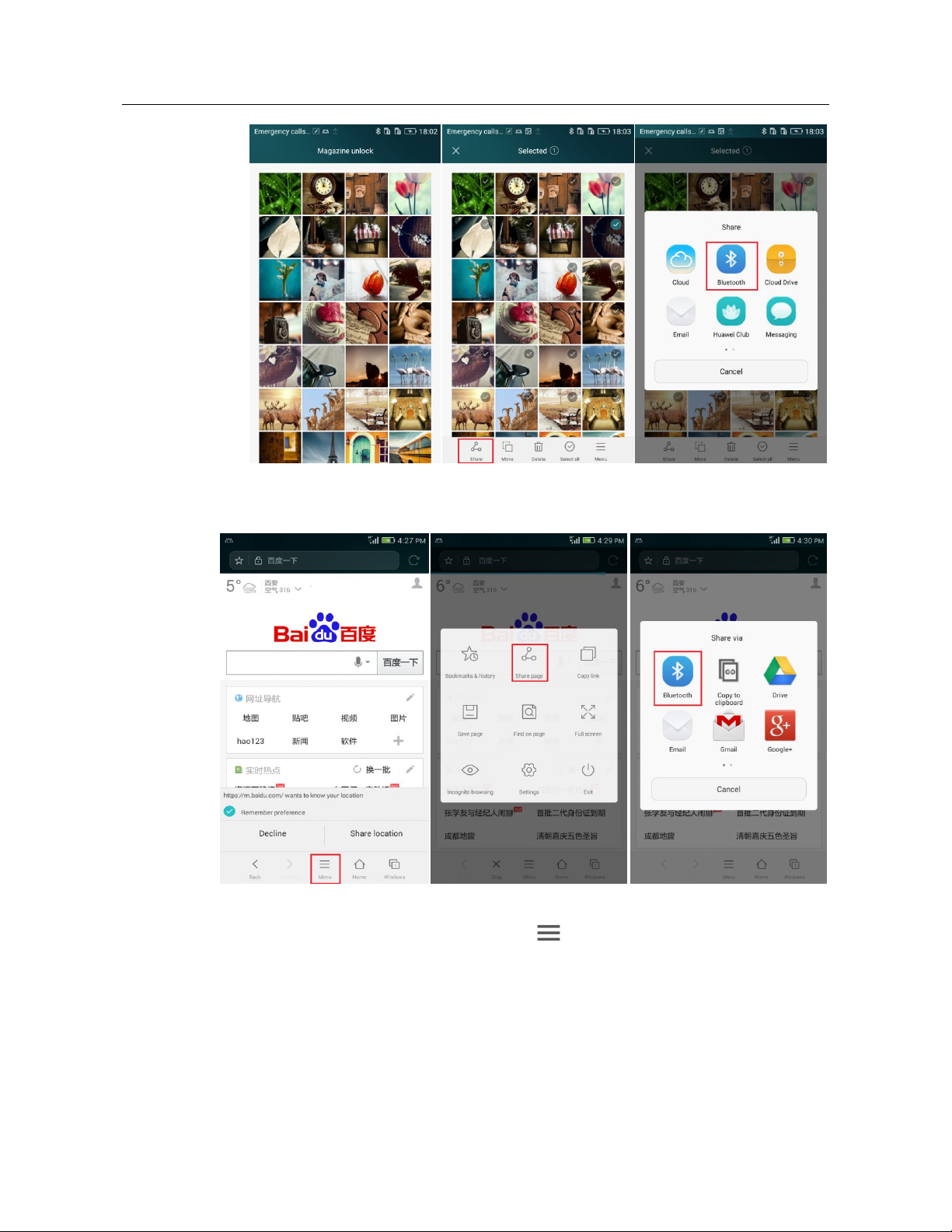
To share a file, go to Gallery, touch and hold the file. On the displayed option menu, touch
Share then Bluetooth to send the file.
18 / 63
Page 27
HUAWEI Y635-LXX Smartphone FAQs 1 Basics
To share a web page, open it and touch Menu > Share page > Bluetooth.
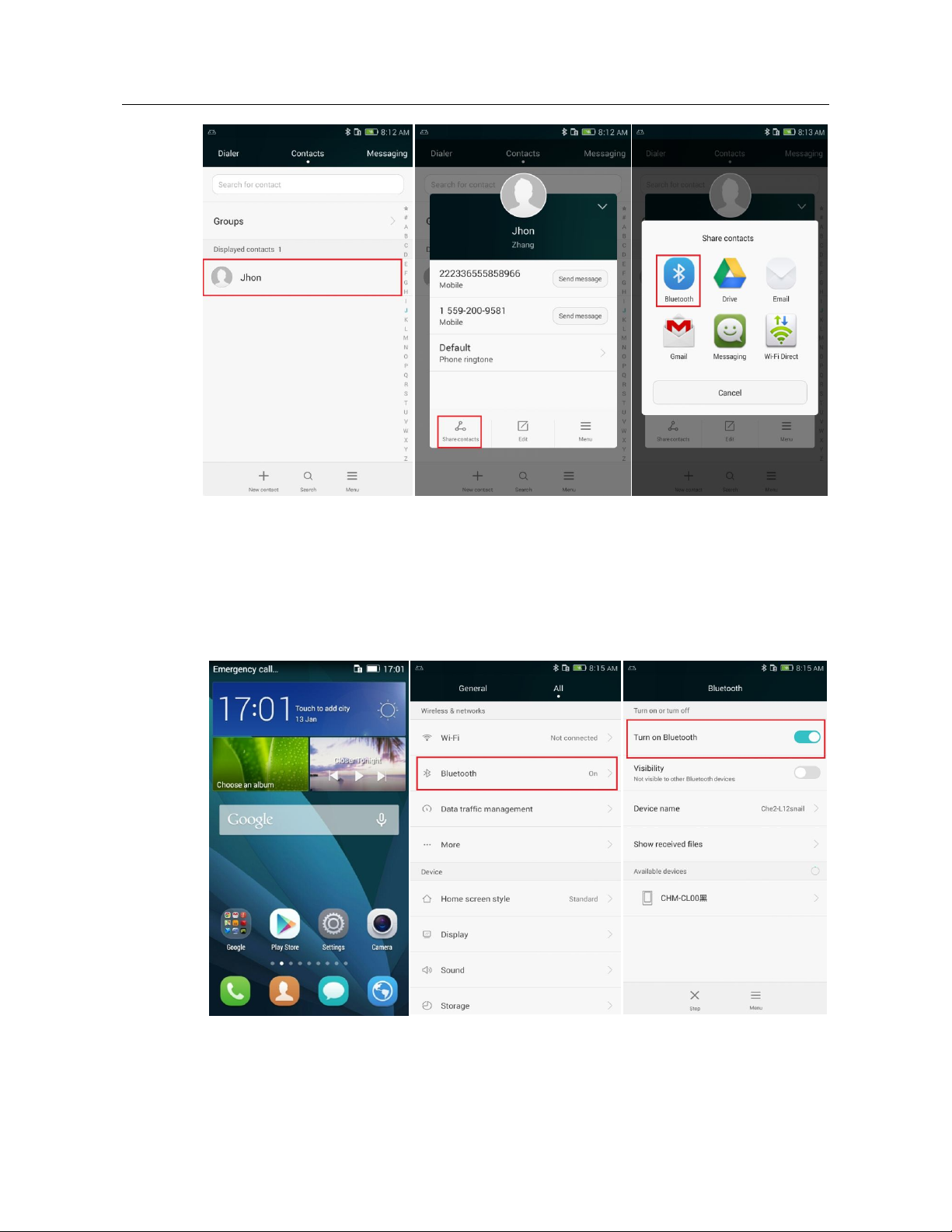
To share a contact, go to Contacts, and touch . From the displayed option menu, choose
Import/Export. Then touch Share contacts > Bluetooth.
Page 28
HUAWEI Y635-LXX Smartphone FAQs 1 Basics
1.14.5 Why can't my phone be discovered by other Bluetooth
devices?
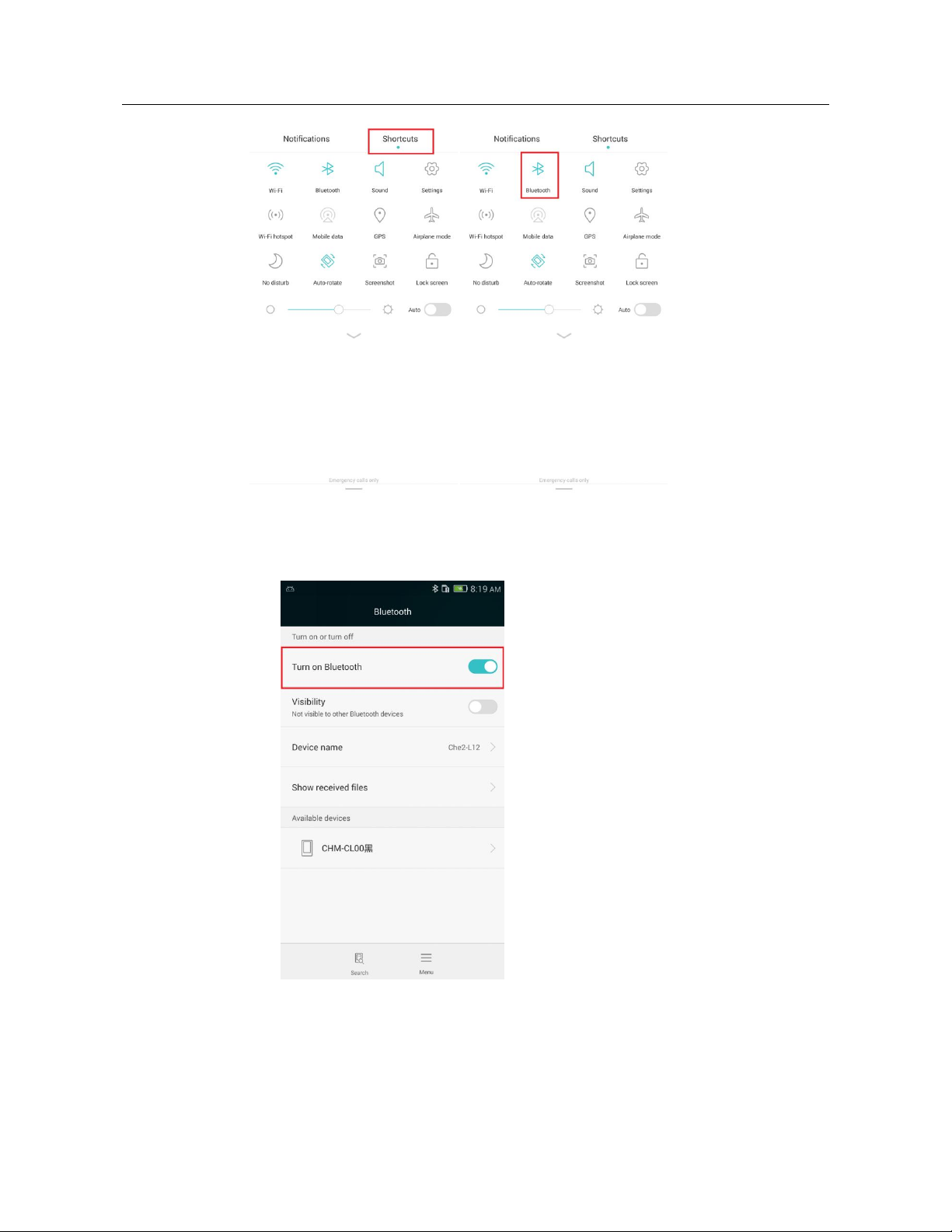
Bluetooth has been turned off on your phone.
Solution: Go to Settings and turn on Bluetooth.
You can also go to the notification panel to turn on Bluetooth.
Page 29
HUAWEI Y635-LXX Smartphone FAQs 1 Basics
Bluetooth is turned on, but your phone is not set to be visible to other devices.
Solution: Go to Settings and touch Bluetooth > Visibility.
1.14.6 What is Bluetooth's working range?
The working range is approximately 10 meters.
Page 30

HUAWEI Y635-LXX Smartphone FAQs 1 Basics
1.14.7 Why can't I pair my phone with other Bluetooth devices?
Your phone supports various profiles, such as A2DP, HSP, HFP, PAN, HIDH, OPP, and PBAP.
If the pairing device also supports these profiles but fails to be paired with, see the following
solutions:
Your phone cannot detect other phones.
Solution: Check that your phone has Bluetooth turned on and is set to be visible.
Your phone cannot detect a Bluetooth headset.
Solution: Check that the headset is set to be visible. For details about how to configure
the headset, see the headset's user guide.
Your phone cannot send files to another phone.
Solution: Check that the phone to be connected to can receive files and supports the
format of the file to be sent.
1.14.8 Can my computer use my phone's data connection through
Bluetooth?
Yes. You can set up a connection between your computer and phone using Bluetooth. The
computer can then use your phone's data connection to access the Internet. You can also
connect your phone to other Bluetooth-capable devices and play games together.
Your phone supports Bluetooth games. The method for using this function varies depending
on third-party games. The following is for general reference:
1. Open the game and search for other Bluetooth-capable devices.
2. Pair your phone with another device.
3. Start the game.
1.15 GPS navigation
1.15.1 Does my phone support offline navigation? If yes, do I
need to install an offline navigation application to the phone?
Yes. Your phone supports offline navigation and you need to install an offline navigation
application to your phone.
1.15.2 Does my phone support Google Maps?
Yes.
1.15.3 What navigation application does my phone come with?
Your phone comes with Google Maps.
1.15.4 What can I do if the navigation application on my phone
cannot receive signals from GPS satellites?
If you are using the phone indoors, take the phone outdoors.
22 / 63
Page 31
HUAWEI Y635-LXX Smartphone FAQs 1 Basics
If you are using the phone outdoors, ensure that you are not in a built-up area as high
buildings may be blocking the satellite signals.
1.16 Does my phone support FM radio? If yes, how do I
save my favorite channels?
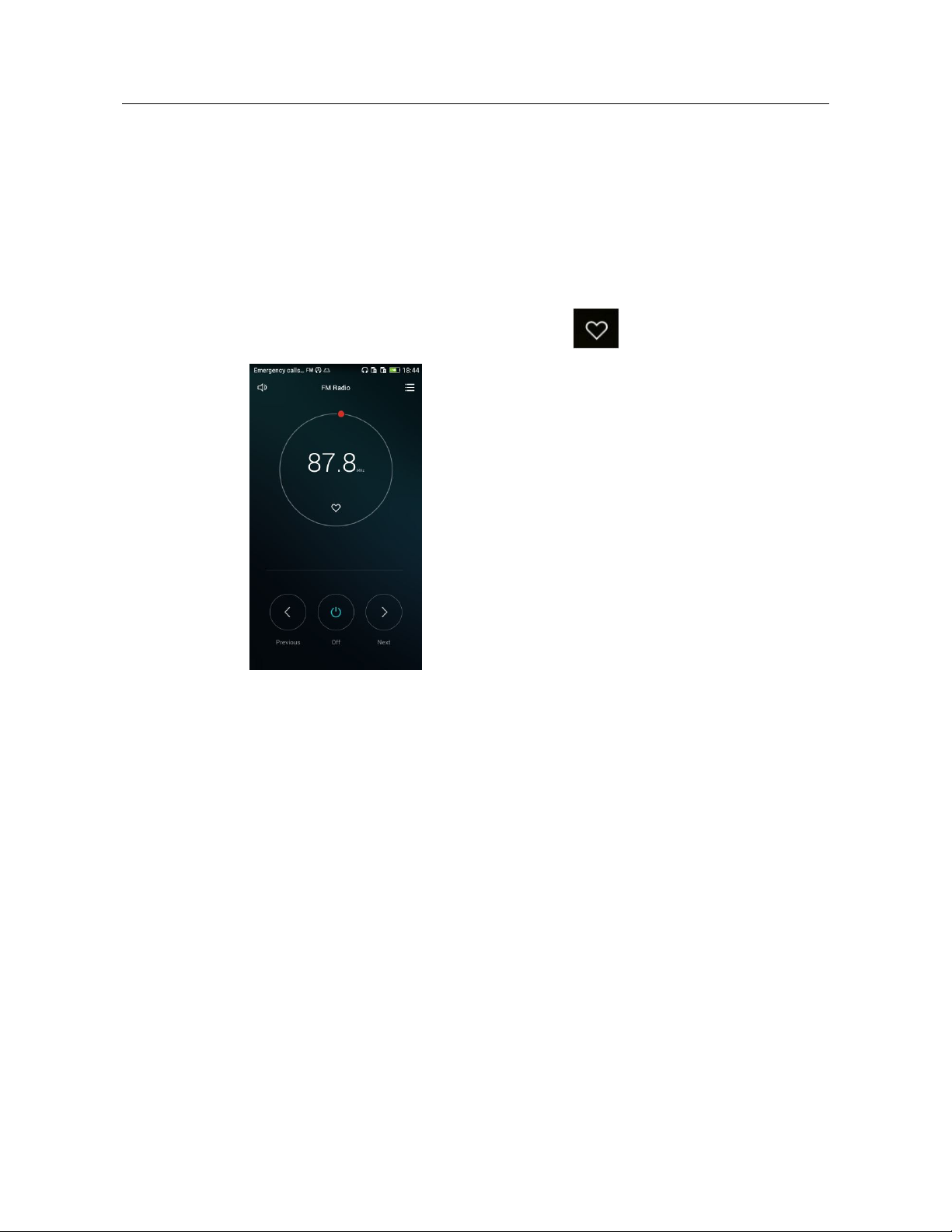
Yes, your phone supports FM radio.
To save a manually found channel, turn it on, touch below the current frequency.
1.17 Can I download themes to my phone? Does my phone
support live wallpapers?
Yes. You can download themes to your phone, and your phone supports live wallpapers.
1.18 Does my phone support video calls or video chats?
Your phone does not support video calls, but it comes with a front camera, and you can install
third-party applications for video chats.
1.19 How do I take a screenshot?
When the screen is not locked, simultaneously press the power and volume down buttons for
2 seconds.
23 / 63
Page 32

HUAWEI Y635-LXX Smartphone FAQs 1 Basics
Y635-L-B120-apk
microSD card compatibility tests report 2014.10.27.xls
primary spec&functions - 20150312.xlsx
Communication FAQ.xlsx
1.20 Does my phone support flash playback? If no, can I
install a third-party flash player for flash playback?
Your phone is not preinstalled with any flash players.
To download a flash player, go to App Center or any video websites that require support from
flash players.
1.21 Does my phone come with a headset? What line order
does my phone support?
Your phone's headset adopts the American line order, which is the mainstream line order in
the industry.
The headset comes with the hook button for you to answer or end a call as well as to start or
stop playing music. It cannot be used to adjust the volume.
1.22 Preinstalled applications and versions
list.xlsx
1.23 List of microSD card compatibility tests
Y635 Product
1.24 Basic functions
Y635-Lxx
1.25 Communication FAQ
Y635
24 / 63
Page 33

HUAWEI Y635-LXX Smartphone FAQs 1 Basics
25 / 63
Page 34

HUAWEI Y635-LXX Smartphone FAQs 2 Common settings
2 Common settings
2.1 Email
2.1.1 How do I configure email settings?
Adding an email account
On the home screen, touch Email > Account setup. An email account can be configured
automatically or manually.
Manual setup:
1. On the Account setup screen, enter your email account name and password.
2. Touch Manual setup.
3. Touch POP3 to display the incoming server settings screen.
4. Touch Next to configure the outgoing server settings.
5. Touch Next and configure the email receiving settings, such as the inbox refresh
frequency.
6. Touch Next to name the account and enter your name.
7. Touch Done to log in to your email and then access the inbox of the email account.
Auto setup:
You can automatically set up your email account for certain email service providers only when
the email settings have been preconfigured on your phone. To automatically set up an email
account, do as follows:
1. On the Account setup screen, enter your email account name and password.
2. Touch Next and configure the email receiving settings, such as the inbox refresh
frequency.
3. Touch Next to name the account and enter your name.
4. Touch Done to log in to your email and then access the inbox of the email account.
For details about email account settings, contact your email service provider.
Sending an email
On the Inbox screen, touch the write email icon in the lower left corner, enter the recipient,
subject, and email content, and touch the icon in the upper right corner to send the email.
26 / 63
Page 35

HUAWEI Y635-LXX Smartphone FAQs 2 Common settings
On the Inbox screen, touch an email to view it, or touch to delete it.
Deleting an email account
On the Inbox screen, touch the menu button. From the displayed option menu, choose
Settings. Touch the email account you want to delete. Flick down to the bottom and touch
Remove account.
2.1.2 Can I view emails when no Internet connection is available
on my phone?
Yes but only if the emails have been downloaded to your phone.
2.1.3 How do I log in to my Gmail account?
Go to Gmail. Enter your Gmail address and password and touch Next to log in.
2.1.4 How do I synchronize contacts and calendar events?
To synchronize contacts, you must log in to at least one Exchange account.
On the Account setup screen, touch Exchange. Get the email server's settings from your email
service provider's website, configure the settings on your phone, and log in to your Exchange
account.
Go to Settings and select the account that you want to synchronize. Set the synchronization
cycle to Automatic (push).
If the contacts synchronization fails, check that your phone has Internet access and that the
email server supports contacts synchronization.
2.2 Wi-Fi settings
2.2.1 How do I connect my phone to a Wi-Fi network?
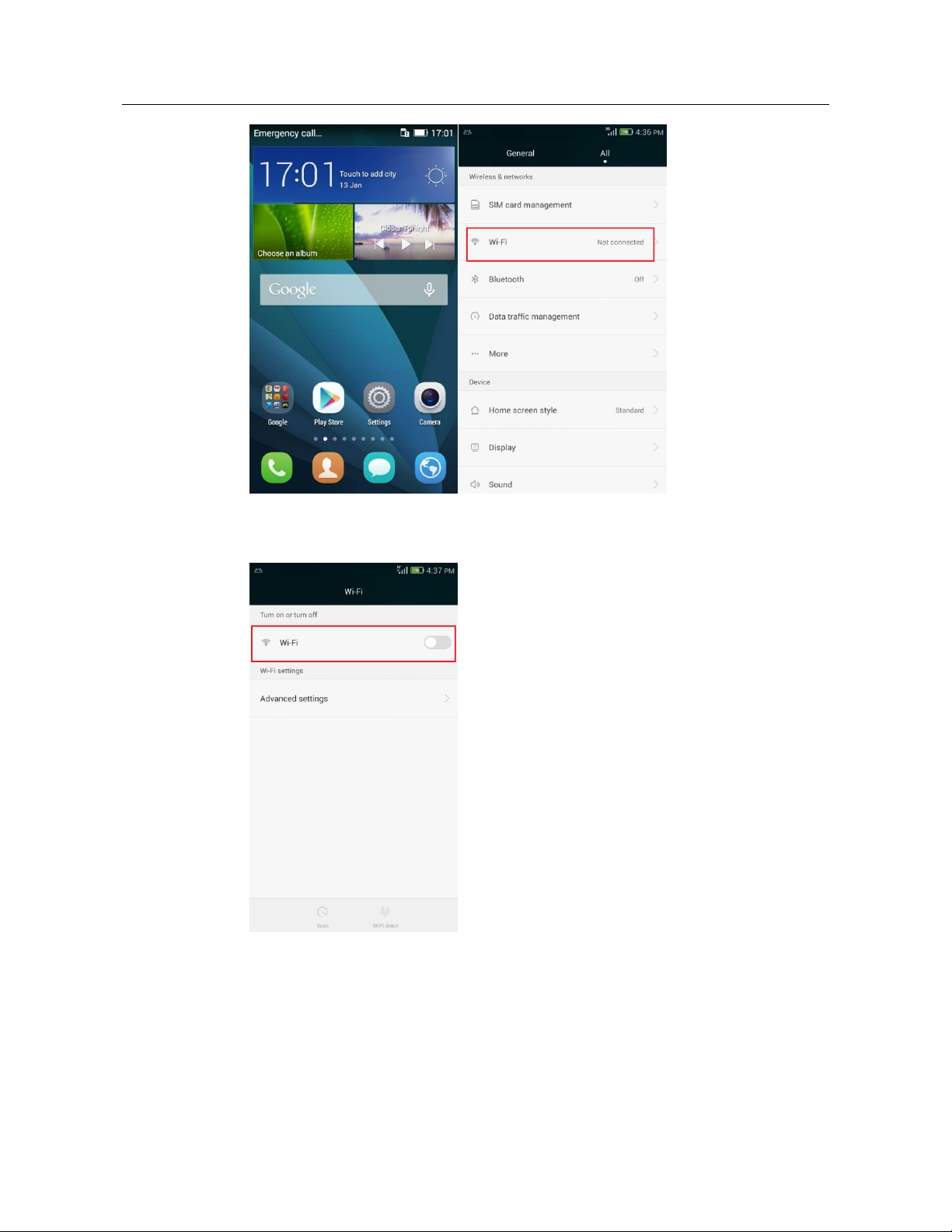
1. Go to Settings. Under Wireless & networks, touch Wi-Fi.
27 / 63
Page 36
HUAWEI Y635-LXX Smartphone FAQs 2 Common settings
2. Turn on Wi-Fi to search for Wi-Fi networks in range.
3. If Wi-Fi is turned on, your phone automatically searches for available Wi-Fi networks.
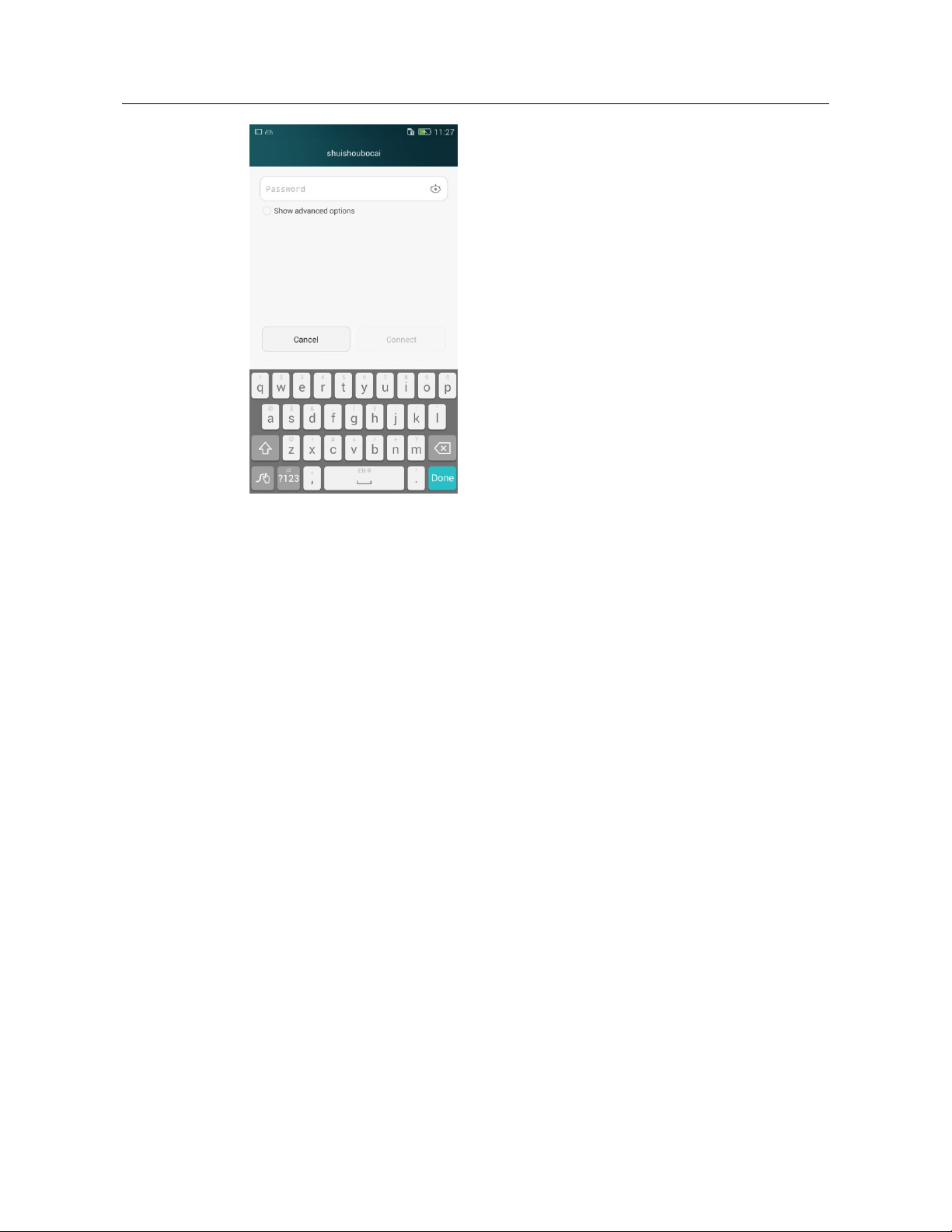
Touch the desired network. In the displayed dialog box, enter the password for the Wi-Fi
network, and touch Connect. When the connection is set up, you will be able to use the
Wi-Fi network to access the Internet.
Page 37
HUAWEI Y635-LXX Smartphone FAQs 2 Common settings
2.2.2 What Wi-Fi protocols does my phone support?
Your phone supports 802.11b/g/n.
2.2.3 Sometimes I cannot open web pages over a Wi-Fi connection.
Why?
Possible causes are as follows:
The x digital subscriber line (xDSL) connection failed. If the hotspot (such as a wireless
router) your phone connects to accesses the Internet through xDSL but the xDSL
connection fails, the Internet connection is unavailable. Check that the xDSL connection is
working properly and try again.
A Domain Name Service (DNS) problem occurred. For example, if you cannot open web
pages but can access App Center, the DNS is not working properly. In this case, on the
screen where a static IP address can be set, modify the DNS settings.
The websites that the Wi-Fi hotspot can access are restricted. In this case, your phone
cannot be used to browse web pages at those websites.
2.2.4 I have turned on Wi-Fi on my phone, but it cannot detect
signals from Wi-Fi hotspots. What can I do?
On a device other than your phone, turn on Wi-Fi. If the device also cannot detect any Wi-Fi
signals, verify that your router is functioning correctly. If the device can detect Wi-Fi signals,
do as follows:
Check that the wireless router's service set identifier (SSID) is not hidden.
Restart the Wi-Fi function on your phone.
Restart your phone.
29 / 63
Page 38

HUAWEI Y635-LXX Smartphone FAQs 2 Common settings
2.2.5 How do I know whether my phone is using its mobile data
connection or a Wi-Fi connection to access the Internet?
The Wi-Fi connection is always used first whenever it is successfully set up. If is
displayed in the upper right corner of the screen, that means you are using a Wi-Fi connection
to access the Internet.
2.2.6 I cannot connect to a Wi-Fi hotspot. Why?
The password you entered is incorrect. Note that the password is case-sensitive.
The Wi-Fi reception is poor.
2.2.7 My phone's Wi-Fi connection automatically disconnects after
the screen times out. What can I do?
Change the Wi-Fi sleep policy as follows:
Touch Settings > Wireless & networks > Wi-Fi. Then touch Advanced settings > Keep
Wi-Fi on during sleep, and select Always.
Note: By default, Always is selected for Keep Wi-Fi on during sleep. If the settings are
modified, your phone disconnects from the Wi-Fi network when its screen turns off. The
following describes the three options of Keep Wi-Fi on during sleep:
Always: Never disconnect a Wi-Fi connection.
Only when plugged in: The Wi-Fi connection never disconnects when your phone is charging.
If your phone is not charging, it disconnects a Wi-Fi connection when it has been idle for 3
minutes.
Never (increase data usage): The Wi-Fi connection disconnects when your phone has been
idle for 3 minutes.
2.3 Can I use my phone as a mobile Wi-Fi hotspot and
access the Internet from another device using my phone's
data connection?
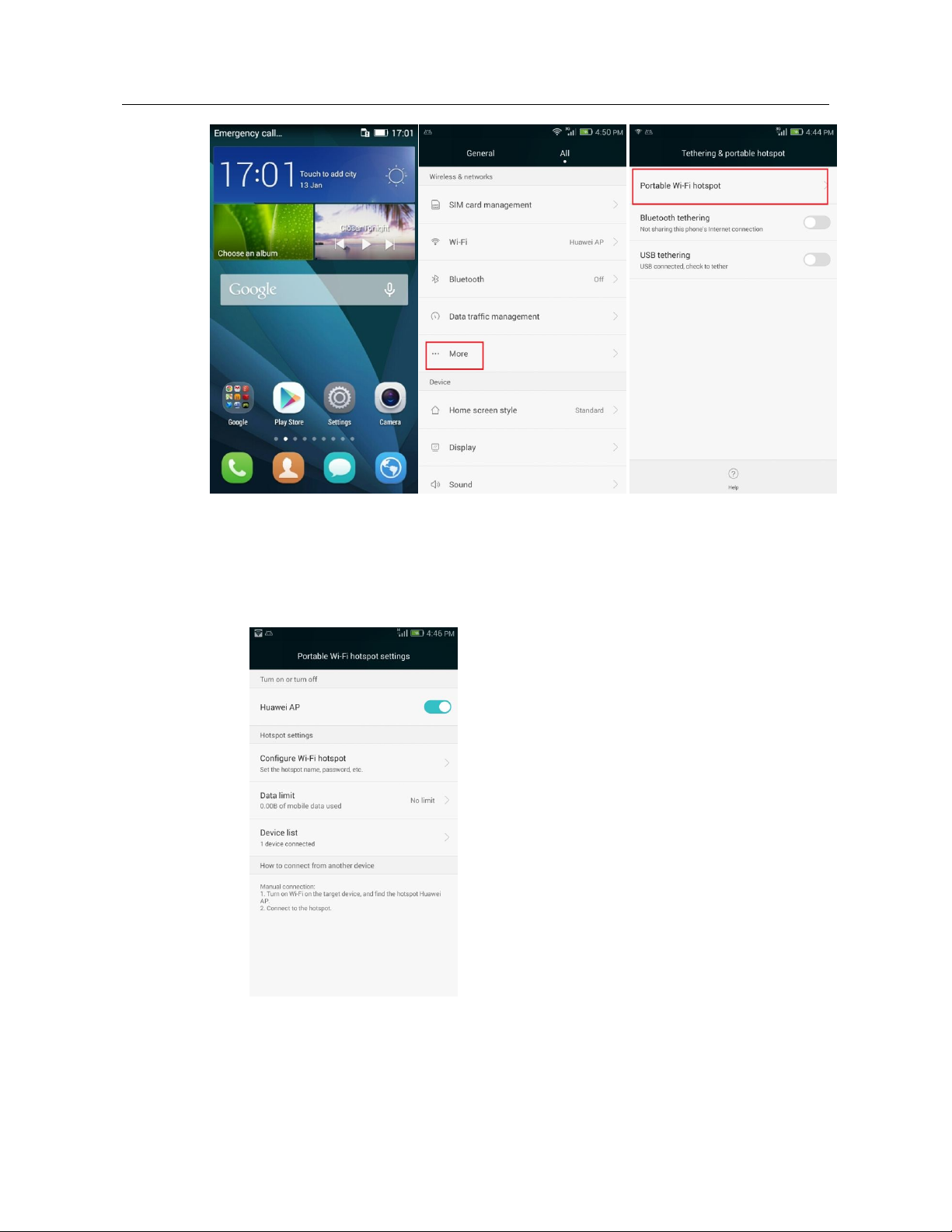
Yes. To activate this, turn on the Wi-Fi hotspot on your phone as follows:
Choose Settings > Wireless & networks > More > Tethering & portable hotspot > Portable
Wi-Fi hotspot.
30 / 63
Page 39
HUAWEI Y635-LXX Smartphone FAQs 2 Common settings
After a device connects to your phone over Wi-Fi, you can access the Internet from that device
using your phone's mobile data connection.
To set the hotspot name and encryption mode, choose Settings > Wireless & networks >
More > Tethering & portable hotspot > Portable Wi-Fi hotspot settings.
Page 40
HUAWEI Y635-LXX Smartphone FAQs 2 Common settings
2.4 How do I connect my phone to a Wi-Fi hotspot with a
static IP address to access the Internet?
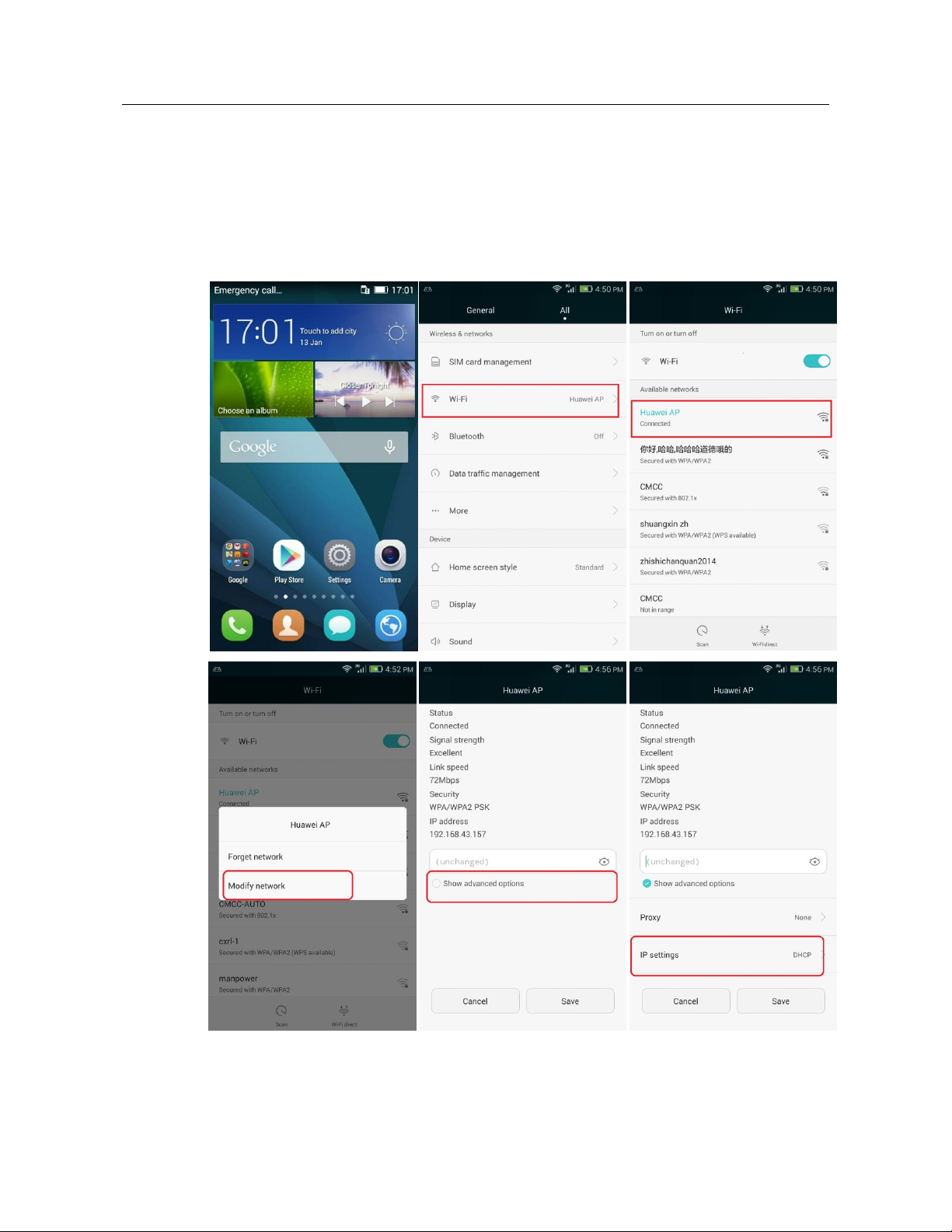
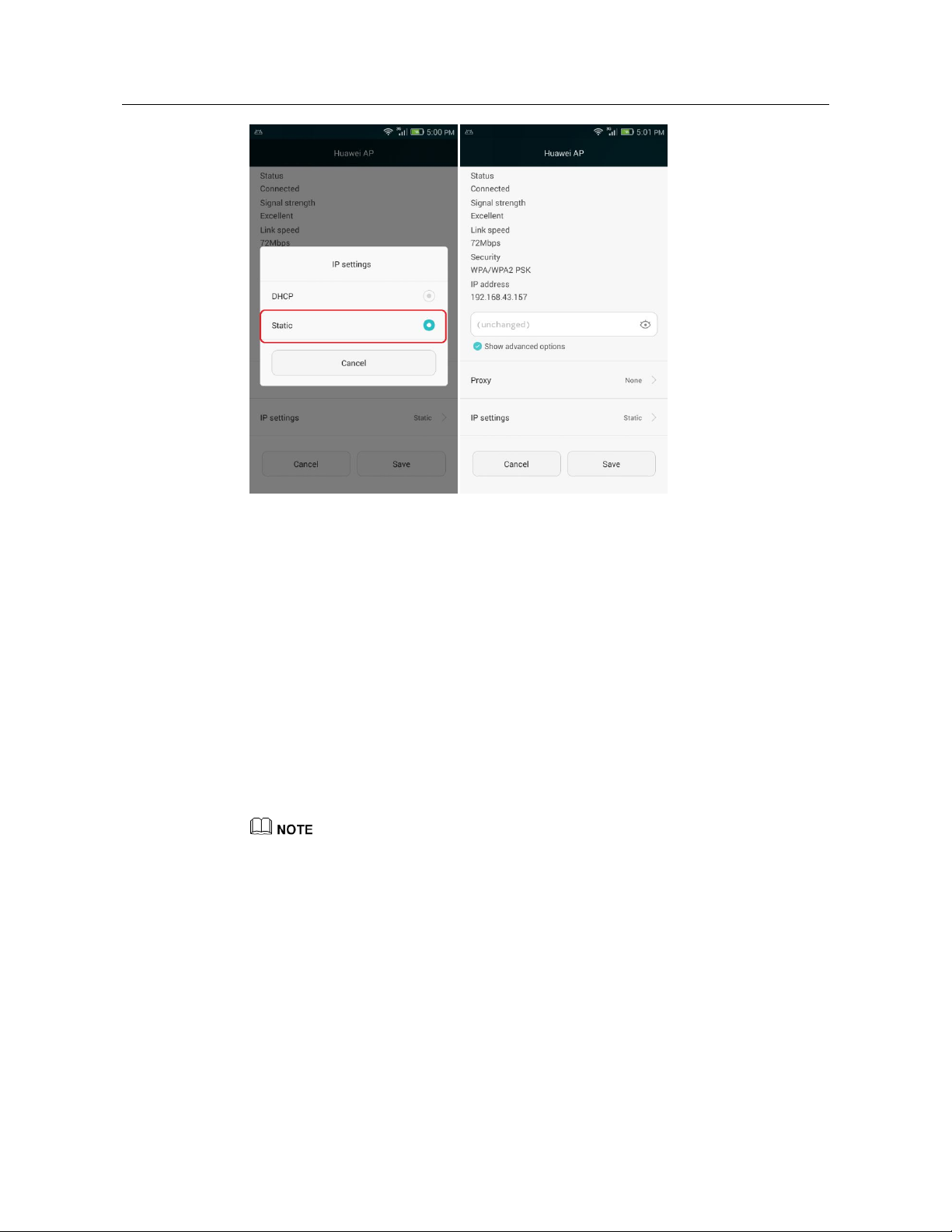
Touch Settings > Wireless & networks > Wi-Fi. On the Wi-Fi screen, touch a hotspot. In the
displayed dialog box, select Show advanced options. Touch IP settings and select Static.
Enter the IP address (mostly 192.168.1.xxx), gateway address (mostly 192.168.1.1), network
prefix length (24), and domain name (DNS address).
Page 41
HUAWEI Y635-LXX Smartphone FAQs 2 Common settings
When your phone uses DHCP to access the Internet over Wi-Fi, it must wait for the router to
assign it a dynamic IP address, which takes time. By specifying a static IP address for your
phone, this issue is resolved.
2.5 How do I set my phone to work as a modem and
provide Internet access for computers?
1. On the home screen, touch Settings.
2. Under Wireless & networks, touch More > Tethering & portable hotspot.
3. Touch USB tethering.
4. On a computer, use HiSuite to install the USB driver for your phone. Right-click My
Computer and choose Manage.
When using USB tethering, your phone's mobile data connection must be turned on. Otherwise, your
phone cannot provide Internet access for computers.
If a computer provides a wireless network adapter, you can turn on Portable Wi-Fi hotspot as
follows: Go to Settings. Under Wireless & networks, touch More > Tethering & portable
hotspot > Portable Wi-Fi hotspot. The computer can then connect to your phone over Wi-Fi
to access the Internet. Currently, this function is available to computers running Windows.
Page 42

HUAWEI Y635-LXX Smartphone FAQs 2 Common settings
2.6 Tone settings
2.6.1 How do I set the phone ringtone?
Go to Settings. Touch Sound > Card 1 phone ringtone/Card 2 phone ringtone. Select the
desired ringtone and touch the check icon in the upper right corner.
2.6.2 How do I turn on or off vibration for incoming calls and
messages?
To set vibration for incoming calls: Go to Settings. Touch Sound then Vibrate when ringing
or Vibrate in silent mode.
To set vibration for messages: Go to Messaging and touch Menu. From the displayed option
menu, choose Settings. On the displayed General screen, touch Vibrate.
2.6.3 How do I set a song as a ringtone for incoming calls or new
messages?
Go to Files. Touch and hold an audio file and touch Set as > Card 1 phone ringtone, Card 2
phone ringtone, or Notification ringtone.
2.6.4 Can I set a ringtone for a contact group?
No.
2.6.5 How do I disable touch sounds?
Go to Settings. Touch Sound and turn off Touch sounds.
2.7 Languages and keyboards
2.7.1 How do I change the system language?
On the home screen, go to Settings. On the All screen, touch Language & input. Under
System language, touch Language and select a language.
2.7.2 What can I do if I can't use a newly installed text input
method?
After installing an input method, you must select the input method as follows: On the home
screen, go to Settings. On the All screen, touch Language & input. Select the input method
and touch Default keyboard, and select the newly installed input method.
2.7.3 How do I change the system font size?
On the home screen, go to Settings. Touch Display > Font size. Then, select a font size.
34 / 63
Page 43

HUAWEI Y635-LXX Smartphone FAQs 2 Common settings
2.7.4 Can I change the system font style? Does WeChat support
font style changing?
No.
2.7.5 What text input methods does my phone come with?
Your phone comes with Google keyboard and Huawei Swype.
2.7.6 How do I switch to the stroke input method?
On the message editing screen, touch the text field to bring up the onscreen keyboard. Select
Huawei Swype. Touch and select a desired handwriting mode.
2.7.7 How do I disable key press vibration?
You can turn off key press vibration only if your phone's Vibrate on touch has been turned on.
To turn off key press vibration, do as follows:
On the home screen, go to Settings. Touch Sound > Vibrate on touch.
Go back to Settings. Touch Language & input, then on the right of Huawei Swype.
From the displayed option menu, choose settings and turn off Vibrate on keypress.
2.8 Internet access
2.8.1 How do I set a SIM card as the primary SIM card and the
other as the secondary one?
Y635-L21: SIM card 1 is the primary card and SIM card 2 is the secondary card. You cannot set
the primary and secondary cards yourself.
This question is not applicable to Y635-L01/L02/L03 which support single SIM card.
2.8.2 How do I clear my browser's cache and browsing history?
Open your browser and touch Menu. From the displayed option menu, choose Settings. Touch
Privacy & security then Clear cache or Clear history to clear the cache or web browsing
history.
2.8.3 How do I view a web page in full screen or save a web page to
bookmarks?
To view a web page in full screen, on the browser screen, touch Menu then Full screen.
To save a web page to bookmarks, on the browser screen, touch on the left of the
address box, and touch .
35 / 63
Page 44

HUAWEI Y635-LXX Smartphone FAQs 2 Common settings
2.8.4 Can I log in to my email account using the browser on my
phone?
Yes. Open the browser and enter the email account website in the address box.
2.8.5 Can I log in to my online bank account from my phone?
Yes. It is recommended that you install the online bank client on your phone Logging in to your
online bank account using the browser on your phone may fail as some banks' login plug-ins
can only run in Microsoft Internet Explorer.
2.8.6 How do I save an image from a web page?
Touch and hold the image and choose Save image from the displayed option menu.
2.8.7 How do I set the home page?
Open the browser and touch Menu. From the displayed option menu, choose Settings >
General > Set homepage.
2.8.8 How do I save a web page?
Open a web page and touch Menu. From the displayed option menu, choose Save page.
2.8.9 What can I do if my phone fails to access the Internet?
Insert a SIM card into your phone. The phone then automatically configures APN settings.
To view the APN settings, go to Settings > Wireless & networks > More > Mobile networks >
Access Point Names.
If the parameter settings are incorrect, touch . From the displayed option menu, choose
Reset to default.
2.8.10 How do I turn on or off the mobile network?
Use either of the following methods:
Go to Settings > Wireless & networks > More > Mobile networks, and turn on or off
Data enabled.
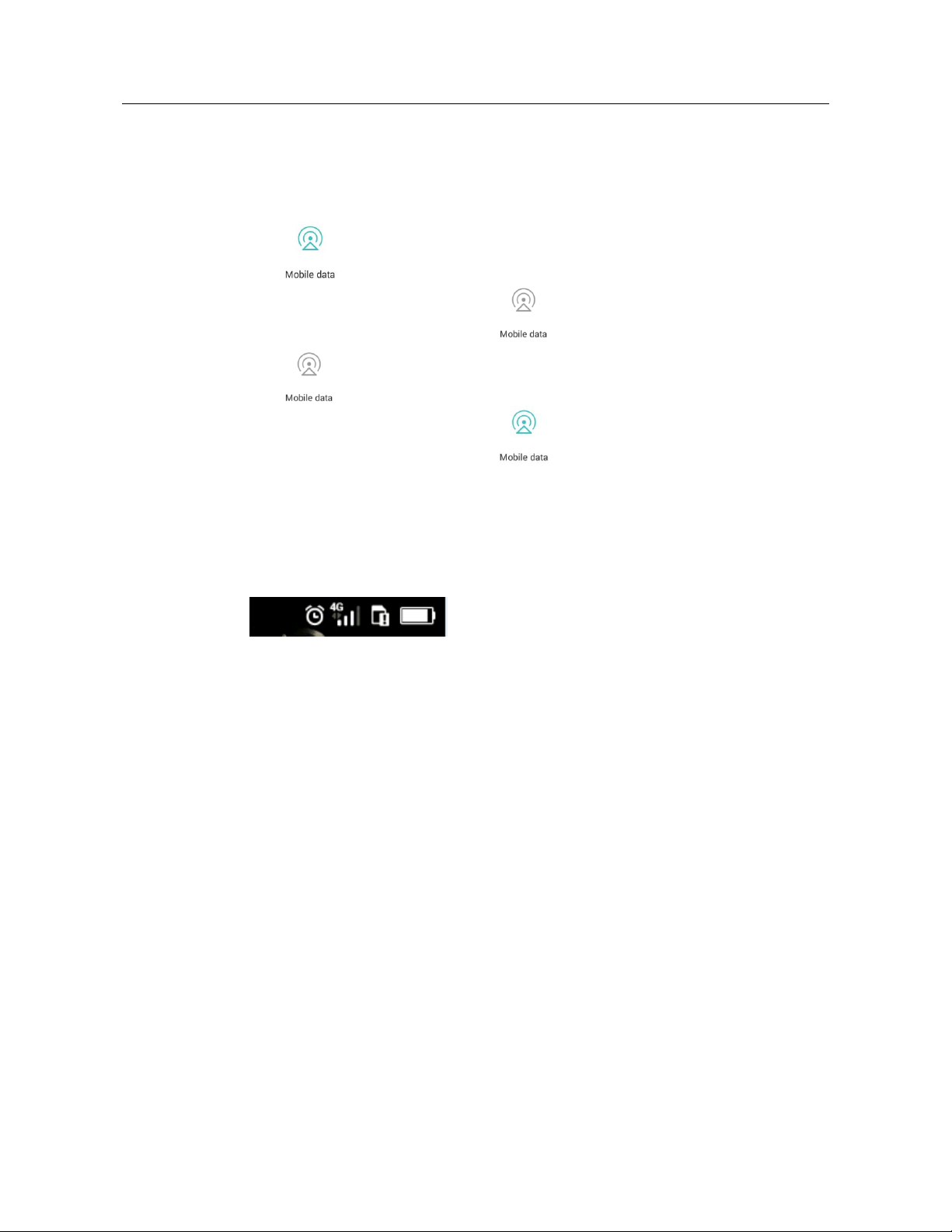
In the notification panel, touch to turn on the mobile network. When the mobile
network is turned on, changes to . To turn off the mobile network,
touch .
Page 45
HUAWEI Y635-LXX Smartphone FAQs 2 Common settings
2.8.11 How do I view my phone's data service status or disable the
data service?
Flick down from the status bar to open the notification panel.
touch this icon to make it become .
touch this icon to make it become .
indicates that the mobile network is turned on. To turn off the mobile network,
indicates that the mobile network is turned off. To turn on the mobile network,
2.8.12 Are there any restrictions on the data service?
Currently your phone does not support CDMA2000. Your phone supports GSM, WCDMA, and
LTE.
The data service icon is displayed as follows.
2.8.13 How do I switch between 4G, 3G, and 2G networks?
It takes about 10s (depending on local network conditions) to recover the data service when you
switch from a 4G network to a 2G network, or from a 3G network to a 2G network. During the
switch, both the data service and voice service are affected.
2.9 Screen lock
2.9.1 How do I set a screen unlock PIN?
1. Choose Settings > Privacy & security > Security > Screen security > Screen lock and
touch PIN.
2. Under Input your PIN, enter a PIN.
3. Enter the PIN again and touch OK.
When you power on the phone or press the power button to turn on the screen, the unlock
screen is displayed. You can then enter the PIN to unlock the screen.
37 / 63
Page 46

HUAWEI Y635-LXX Smartphone FAQs 2 Common settings
2.9.2 How do I set the face unlock function?
1. Go to Settings and touch Privacy & security > Security > Screen security > Screen
lock > Face Unlock.
2. Follow the onscreen instructions, touch Set it up then Continue. Wait for your phone to
identify your face and touch Continue.
3. On the displayed Choose backup lock mode screen, touch another screen unlock method
and set the method. When you are done, touch OK.
2.9.3 How do I set a screen unlock pattern?
1. Go to Settings and touch Privacy & security > Security > Screen security > Screen
lock > Pattern.
2. On the Draw an unlock pattern screen, swipe your finger across the screen to connect
four or more dots together in a pattern and touch Continue.
3. Draw the pattern again and touch Confirm.
4. Enter your backup PIN and touch Continue.
5. Enter your backup PIN again and touch OK.
6. When you power on your phone or press the power button to turn on the screen, the unlock
screen is displayed by default. You can then draw the pattern to unlock the screen.
2.9.4 How many times can I try the screen unlock pattern before
my phone becomes permanently locked? Can I unlock the phone
by sending an email from my Gmail?
Your phone will not be locked even if you incorrectly draw the unlock pattern several
consecutive times, but you will have to wait for a while until you can try again.
If you forget your unlock pattern, touch the backup password button on the screen and enter
your backup password to unlock the screen.
If you forget your unlock pattern, please send your phone to the local customer service center or
update your phone. Your phone cannot be unlocked using an email from Gmail.
2.9.5 How do I lock and unlock the screen?
To lock the screen, press the power button.
To unlock the screen, press the power button to turn on the screen and use a screen unlock
method, such as entering the PIN or drawing the unlock pattern.
2.10 Alarm
2.10.1 How do I add and remove an alarm?
On the home screen, go to Clock.
38 / 63
Page 47

HUAWEI Y635-LXX Smartphone FAQs 2 Common settings
Touch in the lower left corner.
To set the alarm time, touch Time.
To set the alarm to repeat on certain days, select the desired intervals under Repeat.
To set a ringtone for the alarm, touch Ringtone and select a tone.
To set your phone to vibrate when the alarm goes off, turn on Vibrate.
To name the alarm, touch Label.
Touch the check icon in the upper right corner.
On the alarm screen, you can find the list of all alarms. Use the slider to turn on or off an alarm.
Touch and hold an alarm. In the displayed option menu, touch the delete icon (red) to delete the
alarm.
2.10.2 Will the alarms go off when my phone is powered off?
Yes.
2.11 Applications
2.11.1 What application formats does my phone support? Is JAVA
supported?
Your phone supports applications developed using JAVA. To install .jar or .jad applications, you
must install a JAVA simulator, such as Jbed.apk or GZL-signed-Jbed.apk.
2.11.2 How do I download third-party applications?
You can download third-party applications using Google's Play Store or the browser.
2.11.3 Can I change the default installation location for
applications?
Yes. On the home screen, go to Settings. Touch All > Storage > Default location. Then select
a default storage location. The installation location for Android applications is determined by
android:installLocation attribute of the application. It does not change with the default
installation location.
2.11.4 How do I install, manage, and uninstall applications?
Installing applications
1. Touch the application you want to install, and follow the onscreen instructions to install it.
2. In Files, touch Categories > Applications. Select the application you want to install and
touch Install.
39 / 63
Page 48

HUAWEI Y635-LXX Smartphone FAQs 2 Common settings
Managing and uninstalling applications
1. On the home screen, touch and hold the icon of the application you want to uninstall, drag
it to the trash can icon on the top of the screen, release your finger, and follow the
onscreen instructions to uninstall the application.
2. On the home screen, go to Settings. Touch All. Then touch Manage apps under Apps.
2.11.5 What can I do if I can't install an application?
Cause 1: Your phone's storage space is insufficient. If this happens, uninstall some applications
that you no longer use or delete some files from Files.
Cause 2: The application may not be compatible with your phone system version. The
application is designed for Android 2.3 while your phone is running Android 4.4. In this case,
install the application of the required version.
2.12 Third-party applications
2.12.1 Does my phone support Instant Message run in background
such as QQ and QQ videos? Can I send images and download chat
records? How can I clear the chat records of a certain QQ account?
Your phone supports background QQ and QQ videos.
The latest QQ version supports sending images and downloading chat records.
For example, in QQ 5.0, to delete all the chat records, on the chat screen, swipe right and
touch Settings > Chat records > Clear all records.
2.12.2 Can I install third-party applications to a microSD card? If
so, will running these third-party applications take up my phone's
storage?
Yes, you can install third-party applications to a microSD card. Some temporary data will be
saved to your phone's memory when these applications run, which is normal.
2.12.3 Does my phone support online banking transactions?
Yes, but only if you have downloaded the client for your online bank.
2.13 Backup and restoration
2.13.1 How do I back up and restore contacts?
Backup
On the home screen, touch Tools > Backup. In the upper section of the screen, touch New
backup. Select Contacts and touch Back up.
40 / 63
Page 49

HUAWEI Y635-LXX Smartphone FAQs 2 Common settings
If your phone has an external microSD card, the backup data is stored in the
Huaweibackup folder in the microSD card's root directory. If your phone has no external
microSD card installed, the backup data is stored in the Huaweibackup folder in the root
directory of your phone's internal storage.
Restoration
On the home screen, touch Tools > Backup. On the displayed screen, touch Backup
record. Select Contacts and touch Restore.
Make sure you have backed up contacts before you restore them.
2.13.2 Can I back up my contact groups?
Yes.
2.13.3 What data can be backed up on my phone?
You can back up your contacts, messages, calendar events, and applications.
2.13.4 What data can be restored on my phone?
You can restore your contacts, messages, calendar events, and applications.
2.13.5 Does my phone support cloud services?
No.
2.13.6 Does my phone support cloud backup and restoration?
No.
2.14 Manage apps
2.14.1 What can Manage apps do?
Manage apps enables you to view and manage downloaded, running, or all applications, as well
as clear cache.
2.14.2 How do I access Manage apps?
On the home screen, touch Settings and touch Manage apps.
2.14.3 What does the Manage apps screen look like?
In the upper part, you can switch between the following three tabs: All, Running, and
Downloaded.
In the middle part, you can see a list of applications.
In the lower part, you can see Default app settings and Menu.
41 / 63
Page 50
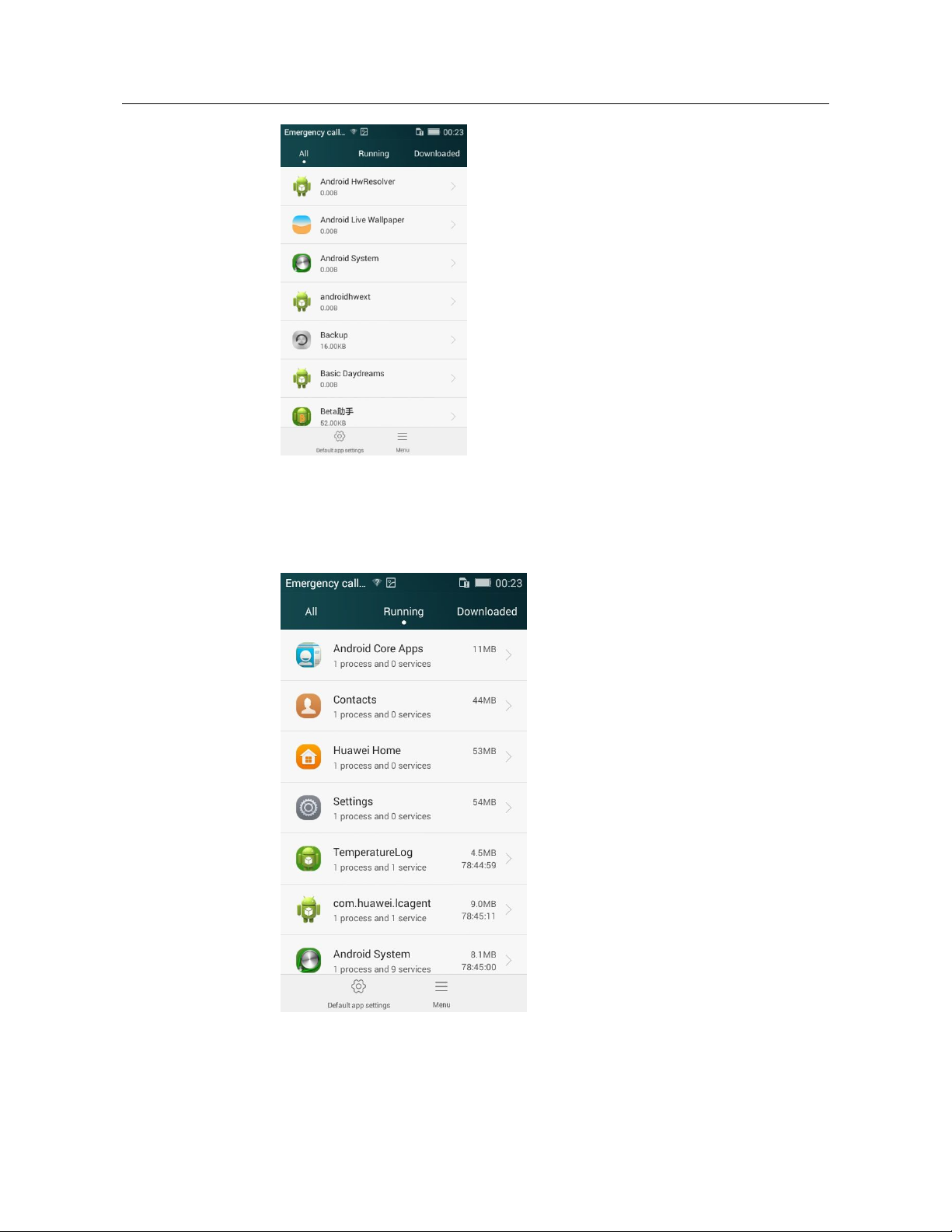
HUAWEI Y635-LXX Smartphone FAQs 2 Common settings
2.14.4 How do I manage a specific application using Manage apps?
In the upper part, you can switch to the desired tab (application list): All, Running, and
Downloaded.
Touch an application, on the displayed screen, you can perform operations on the
application, including Force stop, Disable, Clear data, and Clear cache.
42 / 63
Page 51
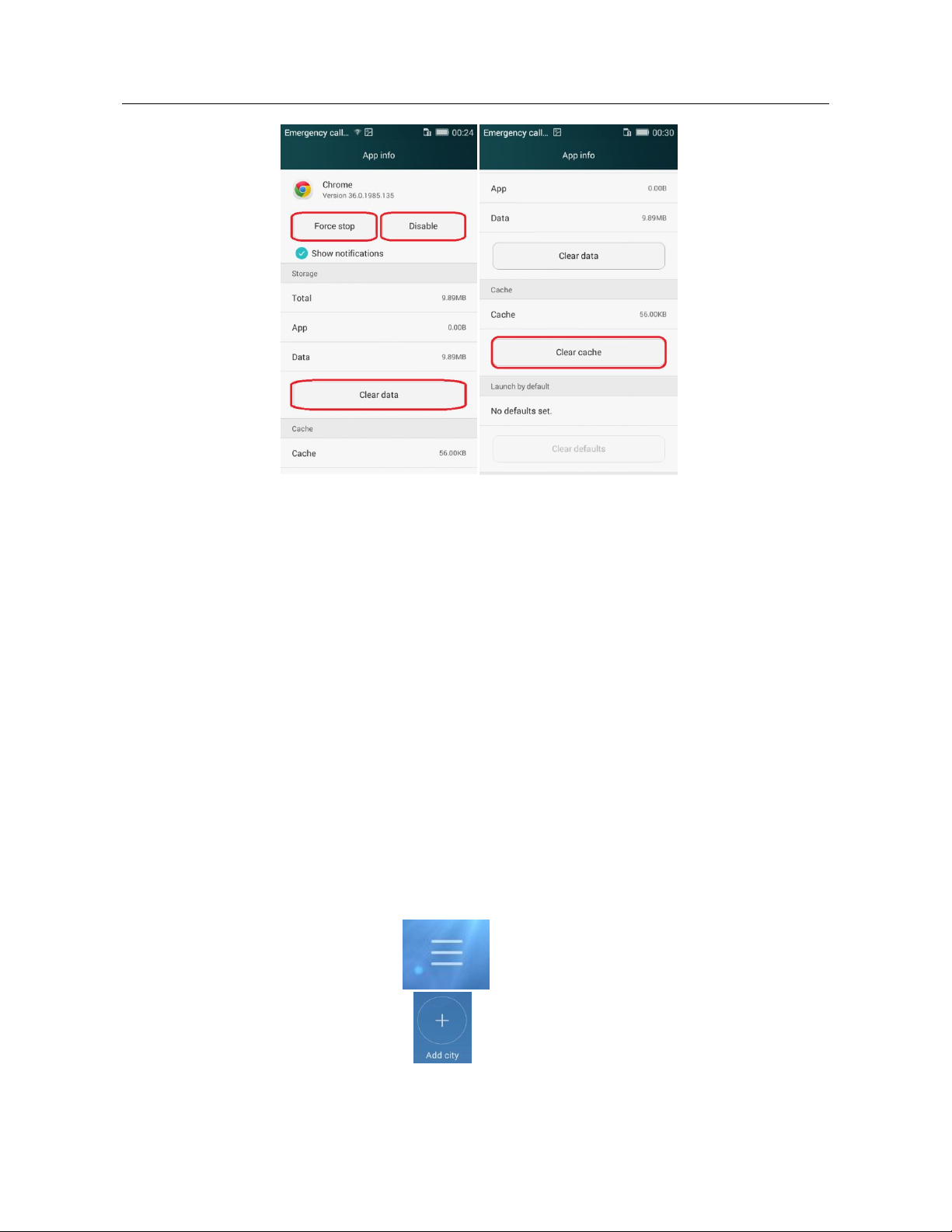
HUAWEI Y635-LXX Smartphone FAQs 2 Common settings
2.15 Does my phone come with Security Guard?
No.
2.16 Does my phone support the blacklist function of
Security Guard?
No, and your phone does not come with Security Guard.
2.17 How do I configure the weather settings?
On the home screen, go to Weather.
On the displayed screen, flick your finger left or right to view the weather of different cities.
To refresh the weather information, drag down on the screen.
To manage cities, touch in the upper right corner. You can then touch and hold
a city to delete it or touch to add a city.
43 / 63
Page 52

HUAWEI Y635-LXX Smartphone FAQs 2 Common settings
To configure other weather settings, touch Settings at the bottom of the same screen. You can
then set the current location, temperature unit, whether tones are displayed, auto update, and
update interval.
2.18 What are the developer options?
To view the developer options, go to Settings, touch All > About phone and touch the build
number seven times in rapid succession.
USB debugging: Enable USB debug mode that allows the operator to use the adb command to
debug the phone.
Stay awake: The screen will never turn off when your phone is charging.
Allow mock locations: Allow the phone to use the mock locations function.
Desktop backup password: Set the backup password.
Pointer location: Display information about the currently selected item.
Show touches: Show visual feedback for touches.
Show CPU usage: Show current CPU usage.
Force GPU rendering: Use 2D hardware acceleration in applications.
Animation scale: Control the animation scale.
Background process limit: Limit the number of background processes.
Show all ANRs: Show the "App Not Responding" dialog box for background applications.
2.19 Can I synchronize my phone's date and time with the
network?
Yes.
To do so: On the home screen, go to Settings. Touch All > Date & time. Turn on Automatic
date & time and Automatic time zone.
2.20 How do I use my phone as a USB flash drive?
Yes. You can connect your phone to a computer using a USB cable to view content in the
microSD card but not your phone's internal storage.
The following USB connection methods are available:
Device file manager (MTP): MTP stands for Media Transfer Protocol. In this mode, you can
synchronize media files between your phone and a computer that supports MTP.
USB flash drive mode: If a microSD card is inserted into your phone, you can use your phone
as a USB flash drive and transfer files between your microSD card and computer.
PC Suite (HiSuite): In this mode, you can use HiSuite on your computer to manage the photos,
songs, messages, contacts, and applications on your phone.
44 / 63
Page 53

HUAWEI Y635-LXX Smartphone FAQs 2 Common settings
Charge only: In this mode, you can use a computer to charge your phone.
Note: When your phone is connected to a Mac, you can manage files on your phone using MTP,
but the dial-up connection function on the Mac is currently unavailable.
2.21 How do I free up internal storage space?
Delete unwanted files as follows:
On the home screen, go to Files. Touch and hold the file or folder you want to delete and
choose Delete from the displayed option menu.
2.22 How do I adjust the screen brightness?
On the home screen, go to Settings. Touch All. Under Device, touch Display. Under Screen,
touch Brightness. Select Automatic brightness or manually drag the brightness slider.
In the notification panel, drag the brightness slider or turn on or off Automatic brightness.
2.23 Does my phone have key backlight?
No.
2.24 How do I turn on or off airplane mode?
1. On the home screen, go to Settings. Under Wireless & networks, touch More. Then turn
on or off Airplane mode. In airplane mode, your mobile network will be unavailable.
2. Go to the notification panel and turn on or off Airplane mode.
3. Press and hold the power button and choose Airplane mode from the displayed option
menu.
2.25 How do I restore my phone to its factory settings?
1. On the home screen, go to Settings. Under Privacy & security, touch Backup & reset.
On the displayed screen, touch Factory data reset under Personal data.
2. Touch Reset phone.
2.26 How does my phone enter or exit safe mode?
Enabling safe mode:
When your phone is powered on and the screen in turned on, press and hold the power button
until the option menu is displayed. Touch and hold Power off until the Reboot to safe mode
dialog box is displayed. Touch OK.
45 / 63
Page 54

HUAWEI Y635-LXX Smartphone FAQs 2 Common settings
Exiting safe mode:
Restart your phone.
2.27 Doe my phone support HiSuite?
Yes. To use HiSuite, you need download it online.
2.28 Does my phone support HDMI?
No.
2.29 Does my phone support TV-out?
No.
2.30 Does my phone support OTG?
No.
2.31 Is my phone provided with a status indicator?
No.
2.32 Can I use other power adapters than the provided one
to charge my phone?
Yes. Your phone has a charging protection circuit. Nevertheless, it is recommended that you use
the power adapter provided with your phone, because non-standard power adapters may
generate excessive current that shortens your battery's life span or insufficient current that
prolongs the charging time.
46 / 63
Page 55

HUAWEI Y635-LXX Smartphone FAQs 3 Others
3 Others
3.1 Does my phone support the quick calling function
when the screen is turned off?
No.
3.2 Does my phone support multi-screen interaction?
No.
3.3 Does my phone support scheduled power-on or
power-off?
No.
3.4 Does the GPU support mainstream games?
Yes.
3.5 How do I save battery power?
When you are not using the phone, press the power button to turn off the screen.
Set the screen timeout period to a smaller value under Settings > Display > Sleep.
Lower the screen brightness under Settings > Display > Brightness.
Turn off Wi-Fi and Bluetooth when you do not need to use them under Settings >
Wireless & networks > Wi-Fi or Bluetooth.
Turn off data synchronization by turning off Accounts & sync for your account under
Settings > Accounts.
47 / 63
Page 56

HUAWEI Y635-LXX Smartphone FAQs 3 Others
Turn off the mobile network by disabling Mobile data always on under Settings >
More > Mobile networks.
Turn off GPS by disabling Access my location under Settings > Location access.
3.6 How long does the battery stand if I keep using a
certain function?
The time length that your battery can stand if you use your phone for only one function is
related to the actual network conditions and the operations. Based on the lab tests, the battery
can stand for 8 hours for video playback, 40 hours for music playback, and 5 hours for
Internet surfing.
3.7 Can I use the USB cable and computer to charge my
phone?
Yes.
3.8 How do I reduce my mobile data usage?
Turn off the mobile network when you do not need it.
Turn off the mobile network if you have a Wi-Fi connection.
Access Wireless Access Protocol (WAP) sites instead of World Wide Web (WWW)
websites.
Turn off the mobile network by clearing Data enabled under Settings > More > Mobile
networks.
Drag the status bar down to display the notification panel. Turn off data synchronization.
3.9 What can I do if my phone runs slowly?
Close background applications you do not need. On the home screen, go to Settings.
Under Apps, touch Manage apps. On the Running tab, touch the application you want
to close, and touch Force stop.
Uninstall unwanted applications to free up your phone's storage space. When available
storage is insufficient, the phone runs slowly.
If the CPU usage is high and multiple background processes are running, restart your
phone to close unwanted processes and applications.
3.10 Can I set my customized wallpaper not to stretch?
No, but you can install third-party applications that support this function.
48 / 63
Page 57
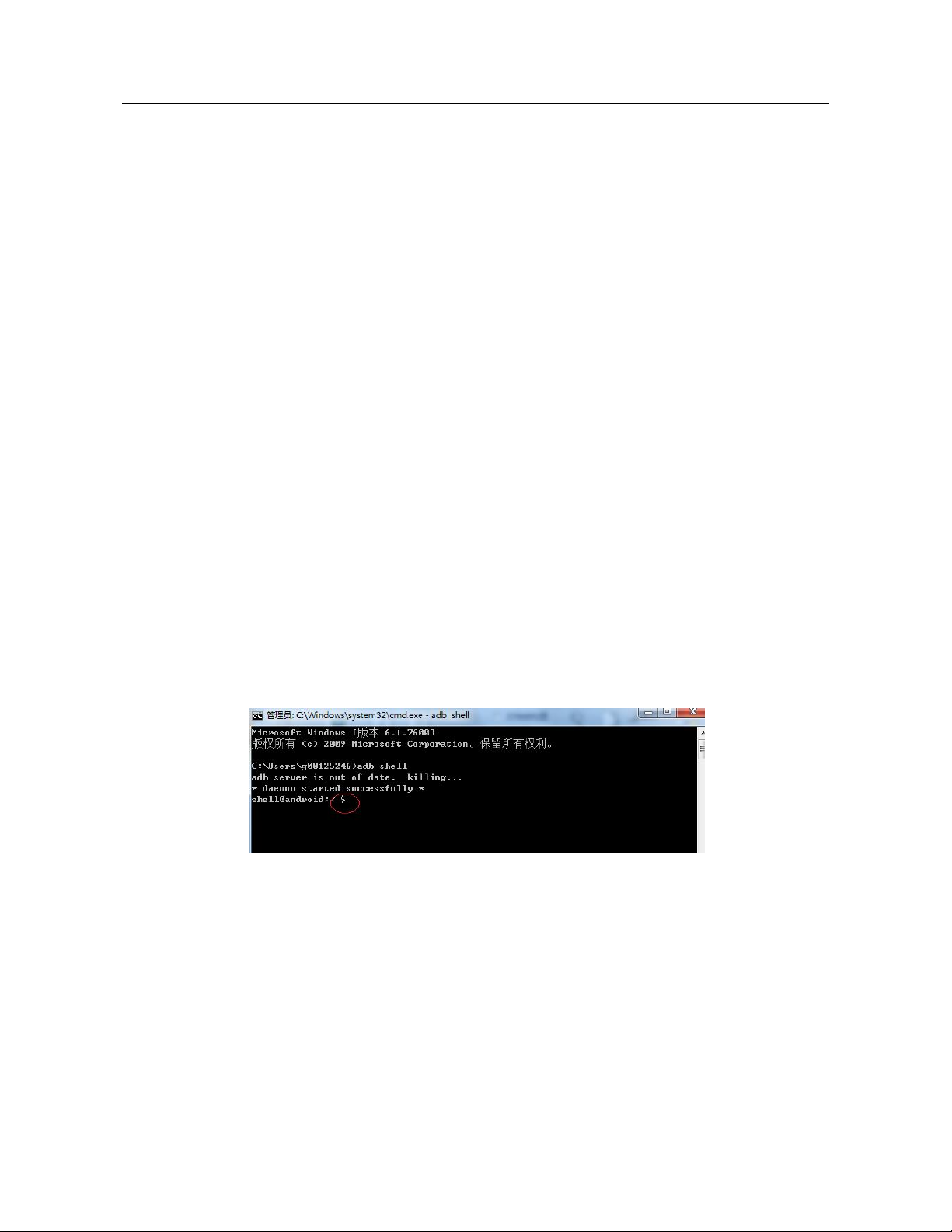
HUAWEI Y635-LXX Smartphone FAQs 3 Others
3.11 How do I enter recovery mode and restore my phone
to its factory settings?
When an update package is available on your microSD card or an online update package is
downloaded, power off your phone, simultaneously press and hold the power and volume up
buttons to enter recovery mode. In recovery mode, press the volume up and volume down
buttons to scroll through the options, and press the power button to select an option.
To restore your phone to its factory settings, go to Settings and touch Backup & reset >
Factory data reset > Reset phone.
3.12 Can I scan a QR code using my phone?
Yes, but you need to download a QR code application first.
3.13 Does my phone support 3D acceleration?
Yes.
3.14 How do I know whether my phone has been rooted?
To check whether your phone has been rooted, it is recommended that you take your phone to
Huawei's service center where professional tools are provided.
Connect your phone to a computer. On the computer, run adb shell. If $ is displayed, your
phone has not been rooted. If # is displayed, your phone has been rooted.
3.15 Can I remove the battery? Will configuring my phone
to automatically set the date and time generate data
traffic?
If your phone obtains the date and time from your operator's network when it powers on and
registers with the network, it does not use an Internet connection to synchronize date and time,
and no data traffic will be generated.
49 / 63
Page 58

HUAWEI Y635-LXX Smartphone FAQs 3 Others
If your phone fails to obtain the date and time from your service provider's network when it
powers on and if you have enabled the automatic time update function, your phone
synchronizes the date and time with the network, which will generate minor data traffic.
3.16 Can I use my phone for recording?
Yes.
3.17 Does my phone come with a protective film?
No.
3.18 Does my phone support mobile TV?
No.
3.19 Can I browse or edit Word, Excel, PowerPoint, and
PDF files on my phone?
Yes. Your phone comes with WPS (Kingsoft) Office.
3.20 What is the default installation location for
applications? Can I change this location?
The default installation location for applications is your phone's internal storage space, and
that location cannot be changed.
3.21 Does my phone support App2SD? How do I move an
installed application to the microSD card?
No, your phone does not support App2SD.
3.22 How are my phone ROM and RAM allocated?
The ROM and RAM sizes displayed on your phone may be smaller than the values in the
phone specifications, because the system occupies a part. Your phone has an 8 GB ROM and
1 GB RAM. Except for the part that is occupied by the system, you have an available RAM of
at least 425 MB.
50 / 63
Page 59
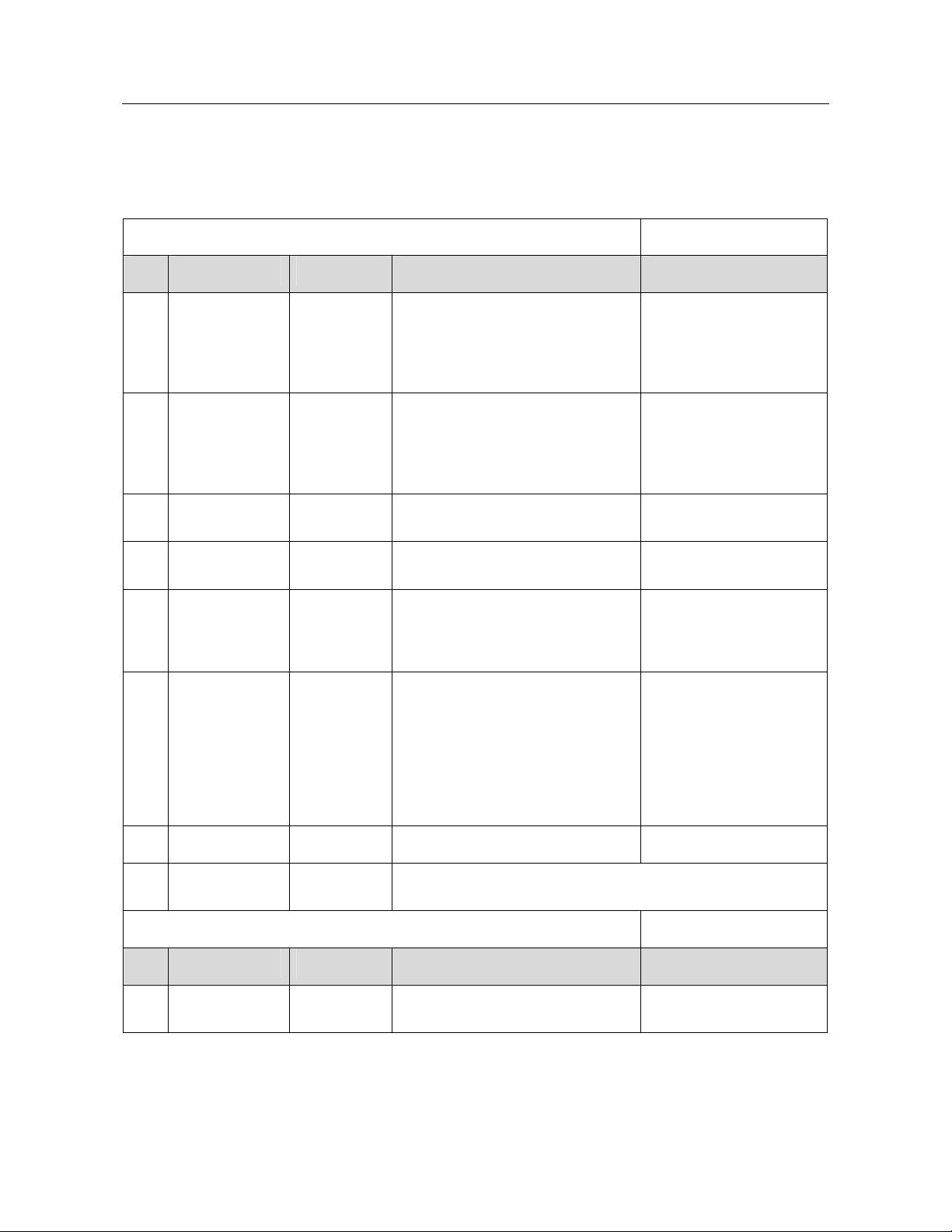
HUAWEI Y635-LXX Smartphone FAQs 3 Others
8 GB ROM
The ROM contains system applications, files, and databases, which takes up about 1.5 GB.
The ROM space available to users is 4.05 GB. You can use this space to store any types of
files.
ROM partitions (a phone ROM is similar to a hard disk on a computer) 8 GB
Partition Size Description Query method
Boot and
operating system
data backup
partition
About 500
MB
This partition stores the boot and
operating system backup data.
The data in this partition is used
when you restore your phone to its
factory settings.
Partition
reserved for
HOTA updates
About 256
MB
This partition is reserved for HOTA
updates.
The device provider or the carrier
pushes update patches using this
partition.
System partition About 1.8 GB This partition is used for the Android
operating system.
Cust partition About 800
MB
Data partition About 4.05
GB
This partition stores customization
information.
This partition is used for running the
operating system or applications.
This partition also stores the files for
applications you install.
Others About 600
MB
This partition includes:
Space occupied by file partition
tables
Space occupied by log partition
Space occupied by flag tables of flash
material bad blocks
Space occupied by firmware
Space lost due to formatting
Cannot be queried
Cannot be queried
Cannot be queried
Cannot be queried
Can be queried using a
third-party application
Cannot be queried
Total 8 GB
These partitions are for your reference only. Partition sizes vary
according to the product customized version.
RAM partitions (a phone RAM is similar to the RAM of a computer)
Partition Size Description Query method
Bottom partition About 300
MB
This partition saves the display cache
and bottom wireless protocol stacks.
Cannot be queried
51 / 63
Page 60
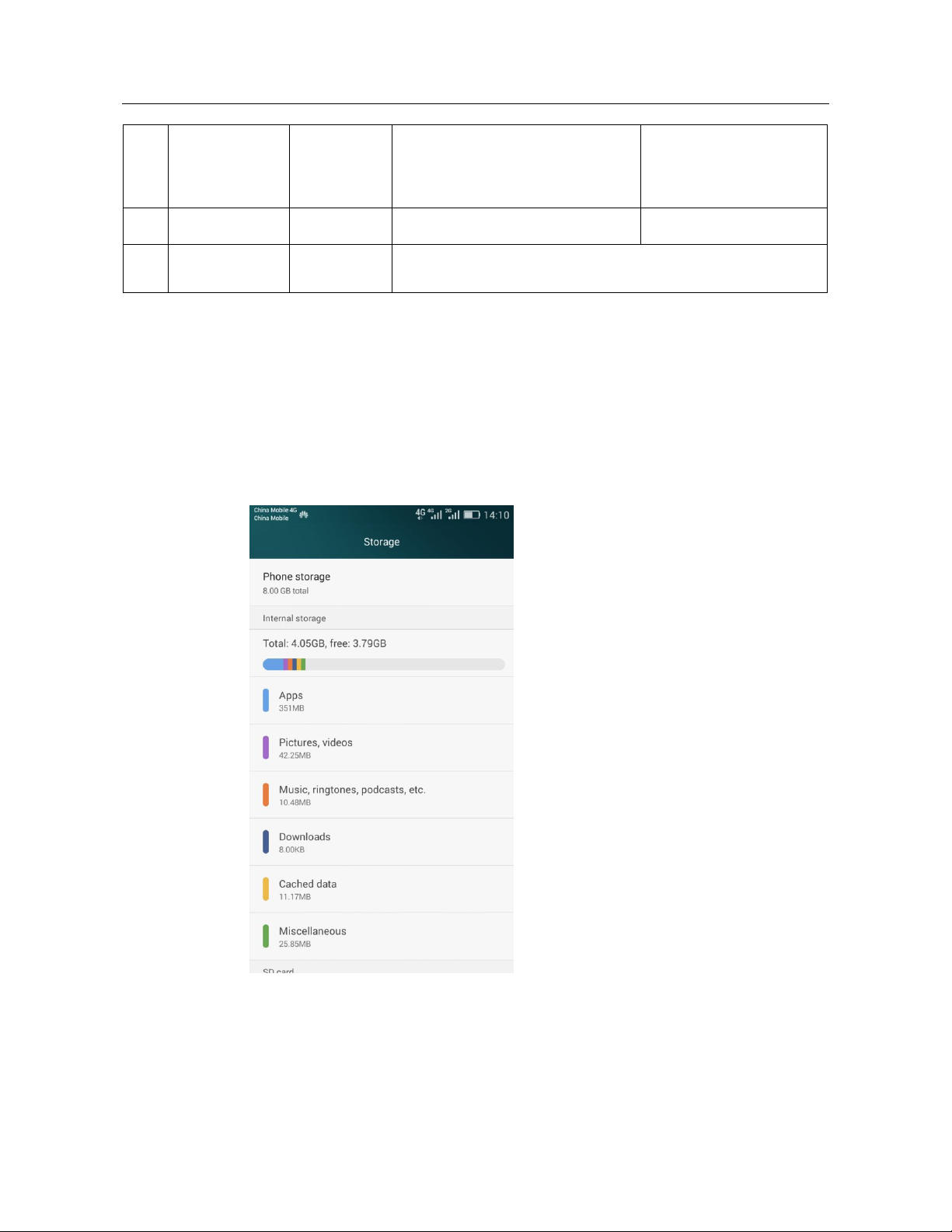
HUAWEI Y635-LXX Smartphone FAQs 3 Others
Operating
system and user
partition
Total 1 GB
These partitions are for your reference only. Partition sizes vary
About 450
MB
This partition is used by the Android
operating system and applications.
according to the product customized version.
Can be queried using a
third-party application but
the value may differ by
application
3.23 How do I check the available space in my phone
storage and microSD card?
Go to Settings and touch Storage. Touch Phone storage to check the total and available
space in the phone storage. Touch SD card to check the total and available space in your
microSD card.
52 / 63
Page 61

HUAWEI Y635-LXX Smartphone FAQs 3 Others
3.24 My phone can stand by normally, but the screen
cannot be turned on. What can I do?
Press and hold the power button (for less than 30s) until your phone vibrates or displays a low
battery level icon. If you press and hold the power button for more than 30s and your phone
has no response, connect your phone to a charger and try again.
3.25 Why isn't the backlight on?
Your phone does not come with the backlight of the virtual key.
3.26 "Trial use" is found on my phone's network access
license. Does this mean that my phone does not have the
China national network access tag?
This issue is not applicable to Y635-Lxx versions outside China.
3.27 Why does my phone receive no signal after I activated
the function of enabling only 4G data service?
This issue is not applicable to Y635-Lxx versions outside China. This issue is found in the
China Telecom version only.
3.28 When I am playing music using the player that comes
with my phone, my phone's signal status changes to no
service. What can I do?
Update your phone to the latest version. This is a network compatibility issue caused by the
Qualcomm software baseline.
3.29 My phone's speaker, receiver, and headset cannot
function properly. What can I do?
Update your phone to the latest version. This is a compatibility issue on the Qualcomm 8916
platform of the Qualcomm software baseline.
53 / 63
Page 62

HUAWEI Y635-LXX Smartphone FAQs 3 Others
3.30 I can't use my phone's data service to access the
Internet. What can I do?
Update your phone to the latest version. This is a compatibility issue on the Qualcomm 8916
platform of the Qualcomm software baseline.
3.31 My screen does not respond to touches when I am
using the camera? What can I do?
Update your phone to the latest version. This is a compatibility issue on the Qualcomm 8916
platform of the Qualcomm software baseline.
3.32 The photos are blue or green if I take them with flash
turned on. What can I do?
Update your phone to the latest version. This is a compatibility issue on the Qualcomm 8916
platform of the Qualcomm software baseline.
3.33 After I insert and remove the headset, my phone's
screen will freeze (cannot be unlocked when I swipe on
the screen or cannot be turned on when I press the power
button) for 2 to 3 minutes until my phone detects the
headset's status. What can I do?
Update your phone to the latest version. This is a compatibility issue on the Qualcomm 8916
platform of the Qualcomm software baseline.
3.34 After I turn off 4G, my phone cannot send or receive
multimedia messages or send or receive multimedia
messages slowly. What can I do?
Update your phone to the latest version. This is a compatibility issue on the Qualcomm 8916
platform of the Qualcomm software baseline.
54 / 63
Page 63

HUAWEI Y635-LXX Smartphone FAQs 3 Others
3.35 After I inserted a 4G card into my phone, enabled
data service, and took my phone from an area with no
signal to an area with strong signal, my phone's network
connection falls from 4G to 3G and I can't make phone
calls. What can I do?
Update your phone to the latest version. This is a compatibility issue on the Qualcomm 8916
platform of the Qualcomm software baseline.
55 / 63
 Loading...