

Page 1
13
User Guide
Page 2

Contents
About this guide
Getting to know your computer
Charging your computer
Powering your computer on and off
Function keys
Touchpad
About Windows 10
Using the power adapter 4
Safety information 4
Battery status information 4
Using the Start menu
Action center 12
Connecting to Wi-Fi
®
Eye protection mode
Restoring your computer to Huawei factory settings *
HUAWEI MateDock 2
Getting to know your HUAWEI MateDock 2
Connecting to a TV, monitor, or projector 17
Connecting a USB mouse, printer, or other peripheral device 18
Appendix
Safety information
Personal Information and Data Security 26
Legal Notice 27
ENERGY STAR® model information
12
13
16
19
29
i
Page 3
About this guide
This guide was written for computers that run Windows 10. It explains how to use basic features on
your computer. For more information about Windows 10 features, visit http://www.microsoft.com or
click > on your computer's desktop.
Optional accessories and software mentioned in this guide may not be provided with or installed on
your computer. The system environment described in this guide may differ from your actual system
environment, and the interface on your computer may differ from the screenshots in this guide.
Functions marked with asterisk (*) may not by supported in certain regions.
Symbols and denitions
Note
Important
Warning Warns of potential hazards that could cause serious injury.
Highlights important information and tips to help you perform the steps
described in this guide.
Indicates potential problems, such as device damage or data loss, that may
arise if proper care or attention is not given.
1
Page 4
Getting to know your computer
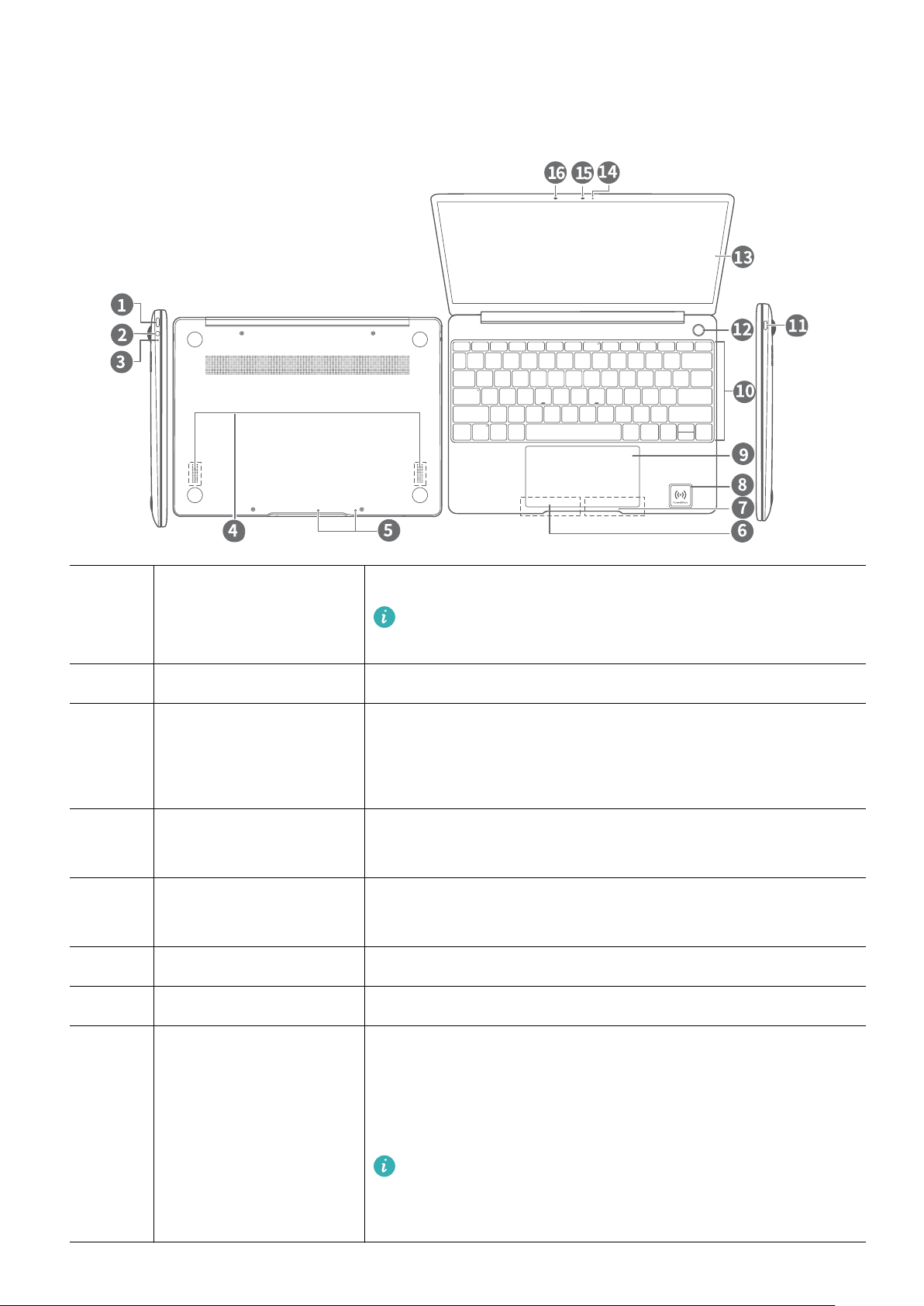
1 Charging port Connect the power adapter to charge your computer.
The charging port cannot be used to connect external
display devices(such as projectors and monitors).
2 Headphone jack Connects to a headphone.
3 Charging indicator Indicates the charging status.
l Flashing white: Less than 90% charged
l Constant white: At least 90% charged
4 Speakers Play sound through speakers when headphone is not
connected.
5 Microphone Use the microphone to make video or voice calls, or record
sound.
6 Left button Left mouse click.
7 Right button Right mouse click.
8 Huawei Share icon * Transfer images between your Huawei or Honor phone and
your computer by simply tapping the NFC detection area on
the back of your Huawei or Honor phone to the Huawei Share
icon on your computer.
Do not tear or damage the Huawei Share icon on the
MateBook 13, otherwise, Huawei Share OneHop will not
work properly.
2
Page 5
Getting to know your computer
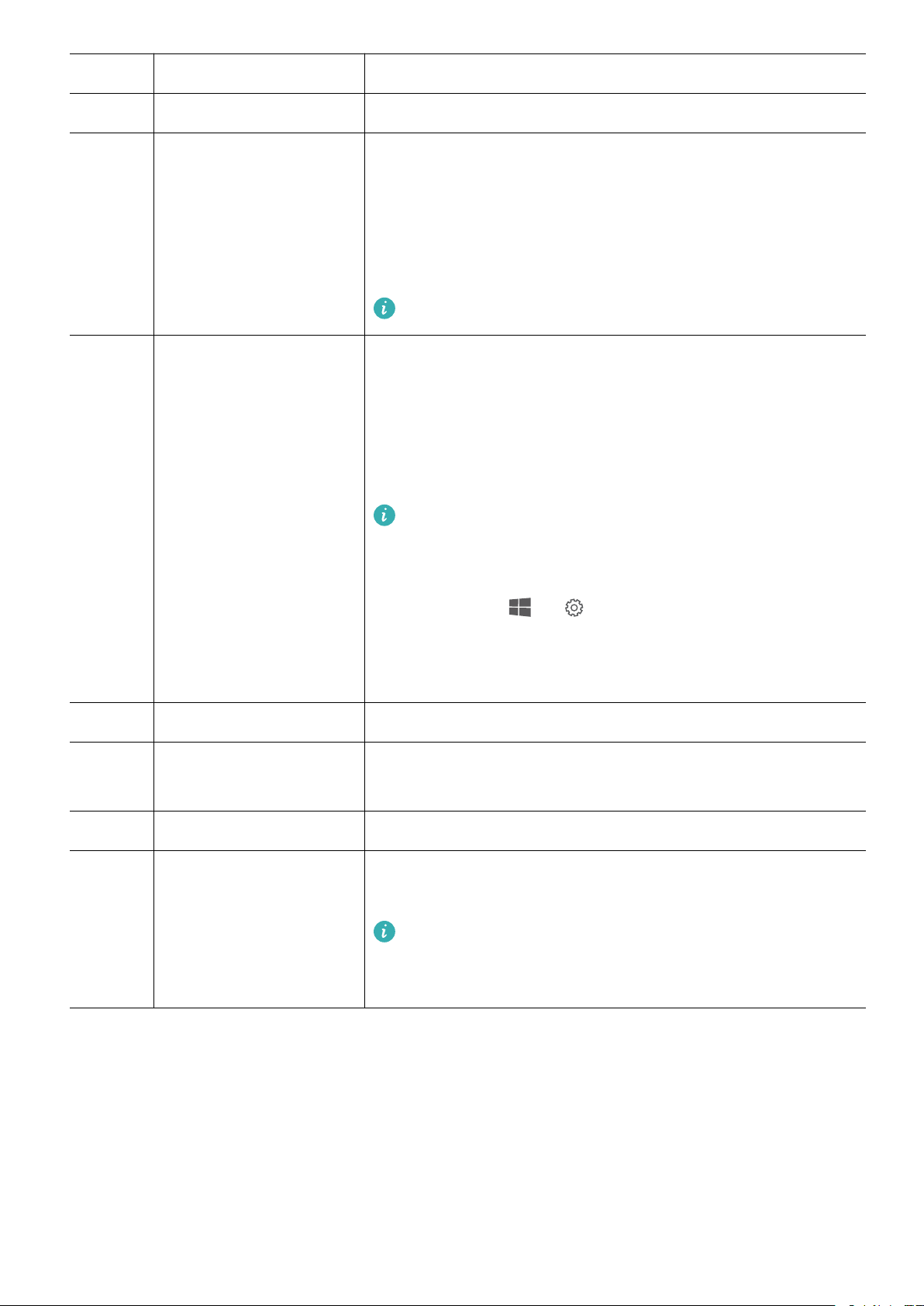
9 Touchpad Functions like a computer mouse.
10 Keyboard Enter letters, numbers, and symbols.
11 USB-C port l To connect external devices such as a phone or a USB ash
drive to transfer data, use a MateDock or a USB-C to USB-A
adapter.
l You can use a MateDock to connect external displays such
as monitors or projectors.
This USB-C port cannot be used to charge your computer.
12 Fingerprint sensor
power button
After enrolling a ngerprint, press the power button with the
corresponding nger to power on your computer and log in
automatically.
l Press to wake the screen.
l Press to unlock the screen.
l When you power on your computer for the rst time,
follow the on-screen instructions in the setup wizard to
enroll a ngerprint. You can also enroll a ngerprint by
touching > on the desktop and going to the
account login settings.
l You can add up to 10 ngerprints for each account.
13 Display Displays onscreen content.
14 Camera indicator Indicates the camera status. Steady light when the camera is
on.
15 Camera Front camera for taking photos or making video calls.
16 Ambient light sensor
(hidden)
Detects the ambient light level and automatically adjusts the
screen brightness.
Do not cover the ambient light sensor. Do not cover the
ambient light sensor even when choosing a screen
protector for the screen.
* Some models support Huawei Share OneHop.
3
Page 6
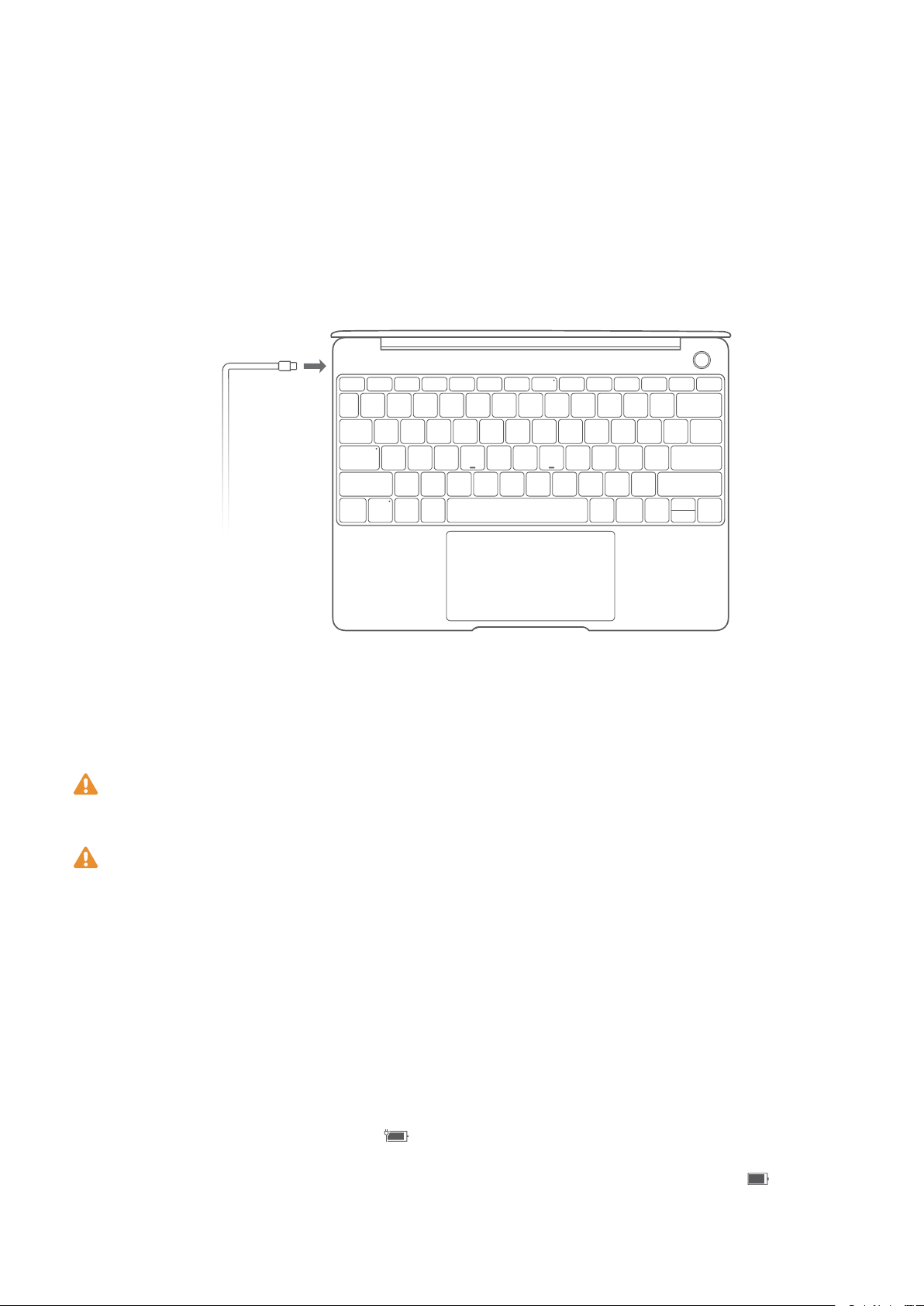
Charging your computer
Using the power adapter
Your computer features a built-in rechargeable battery. When you connect the power adapter and
USB Type-C cable provided to a power supply, the charging indicator will turn on to indicate that the
battery is charging. The battery charges faster when your computer is powered off or in sleep mode.
Safety information
Always use the power adapter that came with your computer for charging.
Third-party accessories may present a potential safety hazard and impair performance.
Charge your computer at room temperature in a well-ventilated area.
l Exposing your computer to high ambient temperatures during charging may damage the
internal components.
l Charging duration may vary depending on the ambient temperature and the battery usage.
l Your computer may become warm after prolonged use or charging. If it becomes hot to the
touch, disable non-essential features and disconnect the charger.
Battery status information
The battery status is indicated by the battery icon in the status bar.
l When your computer is charging, the
icon will indicate that a charger is connected.
l To view the remaining battery percentage and battery life, move the cursor over the icon.
4
Page 7

Charging your computer
All batteries have a limited lifespan. If you notice a signicant deterioration in battery life, contact
your nearest Huawei service center for a replacement. Do not attempt to replace the battery
yourself.
5
Page 8

Powering your computer on and off
When using your computer for the rst time, connect the power adapter and USB-C cable to charge
the battery.
Press the power button until the keyboard lights up to turn on or wake up your computer.
Click > to power off, restart, or enter sleep mode.
To force your computer to power off, hold down the power button for 10 seconds. All unsaved
data will be lost.
6
Page 9
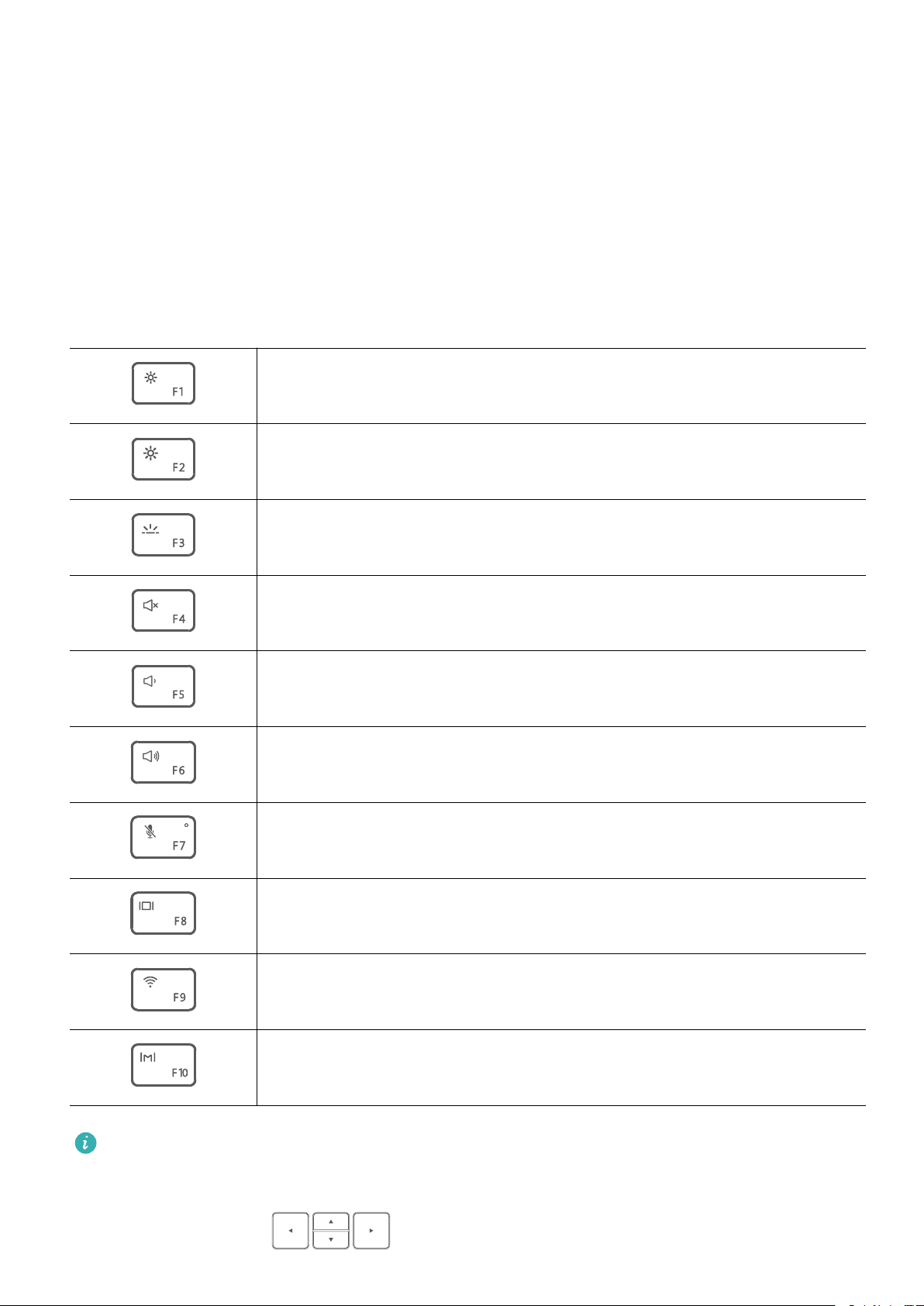
Function keys
Use the hot keys to perform specic tasks.
You can use F1, F2, and the other function keys in two ways:
l To enable alternate command of function keys, hold down the Fn key until its indicator lights up,
and then press the corresponding key. Press the Fn key again to switch back to standard command.
l Go to PC Manager and select Function key priority. After that, the F1, F2, and other F keys will be
set as function keys by default.
Standard command for function keys:
Decrease the screen brightness
Increase the screen brightness
Enable or disable the keyboard backlight, and adjust the backlight brightness
Mute or unmute
Decrease the volume
Increase the volume
Enable or disable the microphone.
Switch to screen projection mode.
Enable or disable Wi-Fi.
Open PC Manager.
The keyboard layout may vary depending on your country or region.
To use the Home, Page up, Page down, and End functions, hold down the Fn key and press the
corresponding arrow key
.
7
Page 10

Shortcut keys Function
Fn key + Left arrow Home
Fn key + Up arrow Page up
Fn key + Down arrow Page down
Fn key + Right arrow End
Function keys
8
Page 11
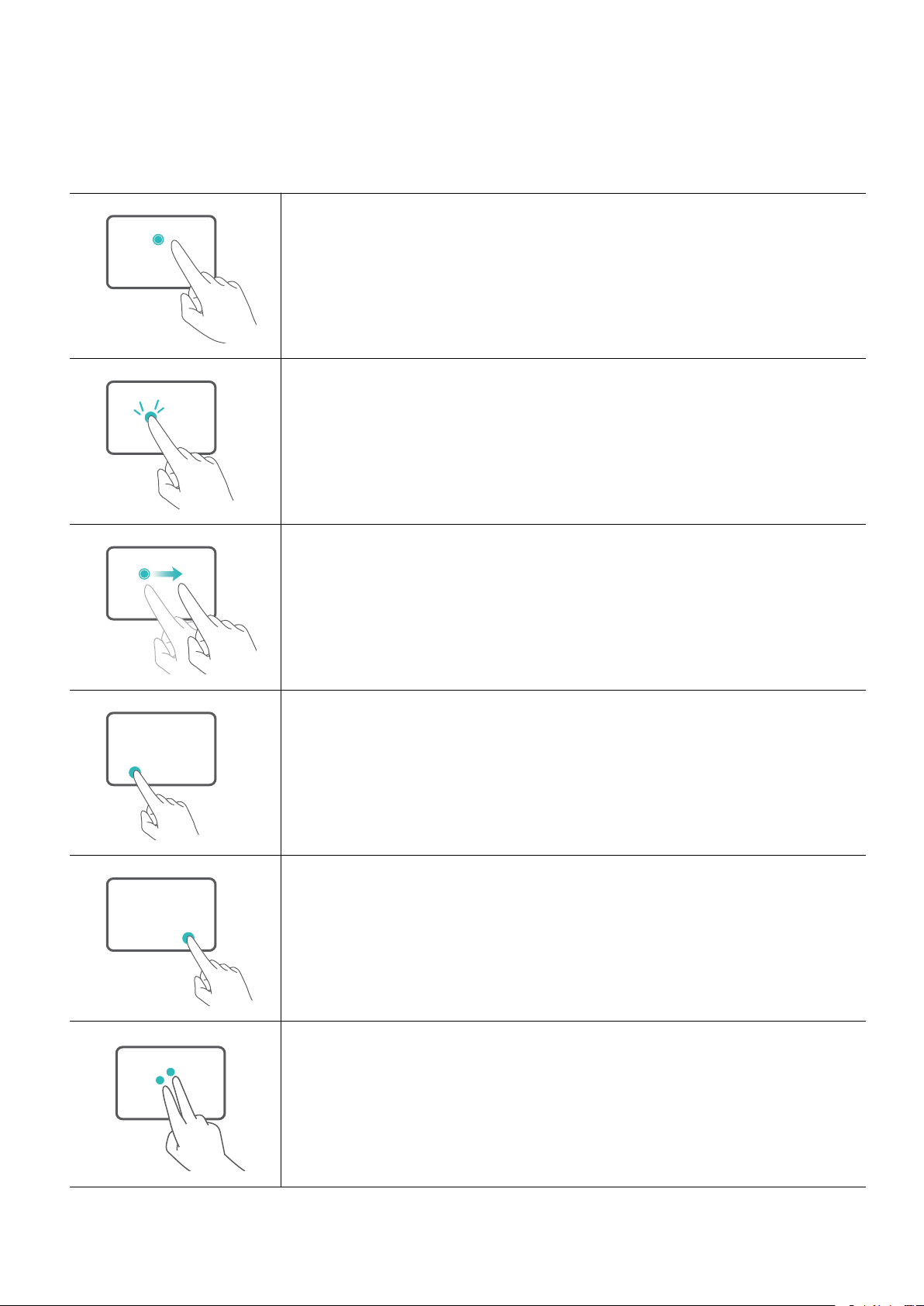
Touchpad
The Touchpad functions like a computer mouse.
The touchpad supports the following gestures:
Touch with one nger: Left mouse click.
Touch twice with one nger: Double mouse click.
Swipe with one nger: Move the cursor across the screen.
Left button: Left mouse click.
Right button: Right mouse click.
Touch with two ngers: Right mouse click.
9
Page 12
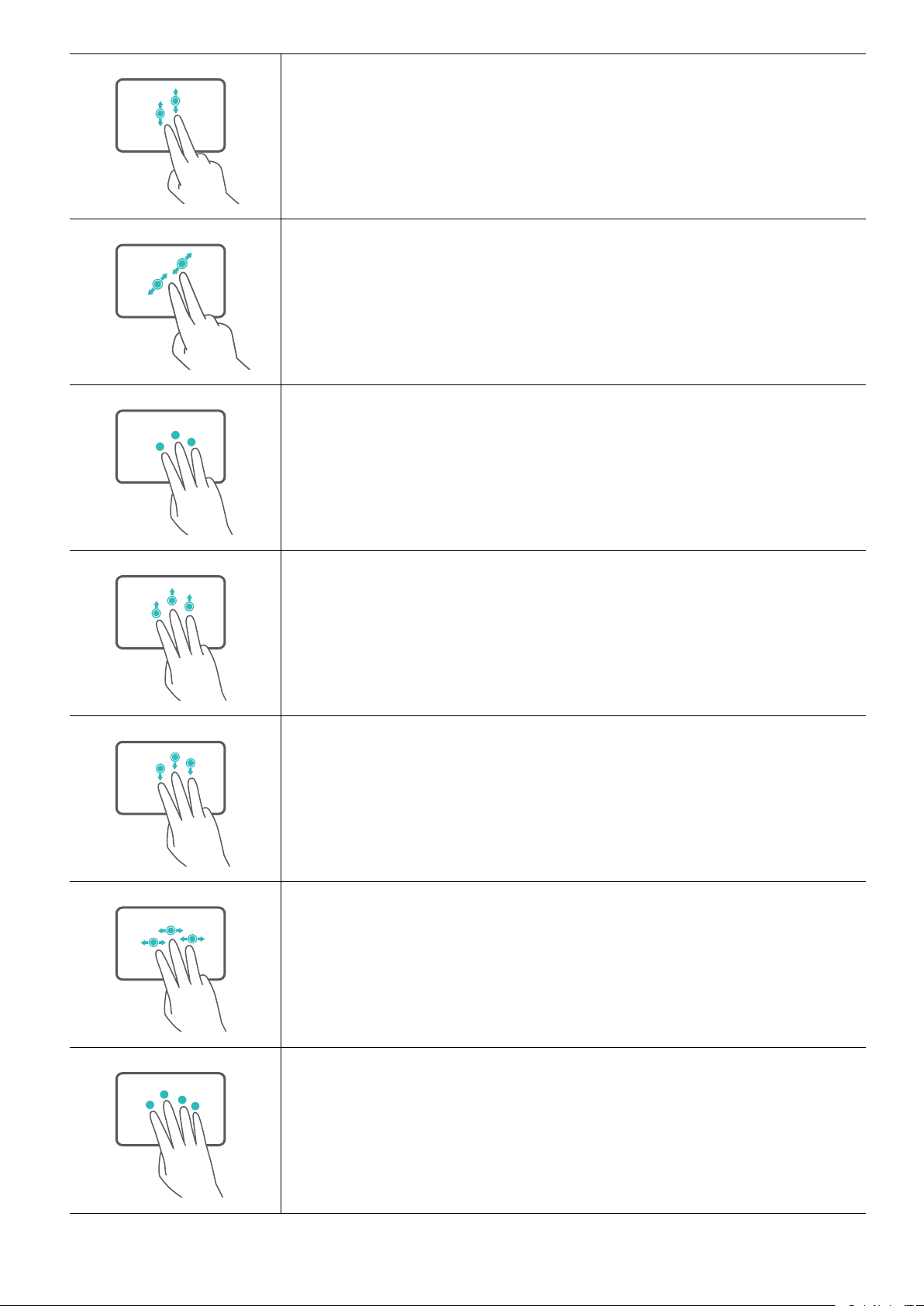
Swipe up or down with two ngers: Scroll up or down.
Spread or pinch two ngers: Zoom in or out.
Touch with three ngers: Search with Cortana.
Touchpad
Swipe up with three ngers: Multitasking view.
Swipe down with three ngers: Show desktop.
Swipe left or right with three ngers: Switch apps.
Touch with four ngers: Open the action center.
You can customize the touchpad settings to suit your personal preferences.
10
Page 13

1 Click > to open the settings menu.
Touchpad
2 Click
l Enable or disable the touchpad.
l Choose to enable or disable the touchpad when a mouse is connected.
l Change the touchpad scroll direction.
l Congure touchpad gestures.
and navigate to the touchpad settings. From there, you can:
11
Page 14
About Windows 10
"QQMJTU
1JOOFEUJMFT
$PSUBOBTFBSDICBS
Using the Start menu
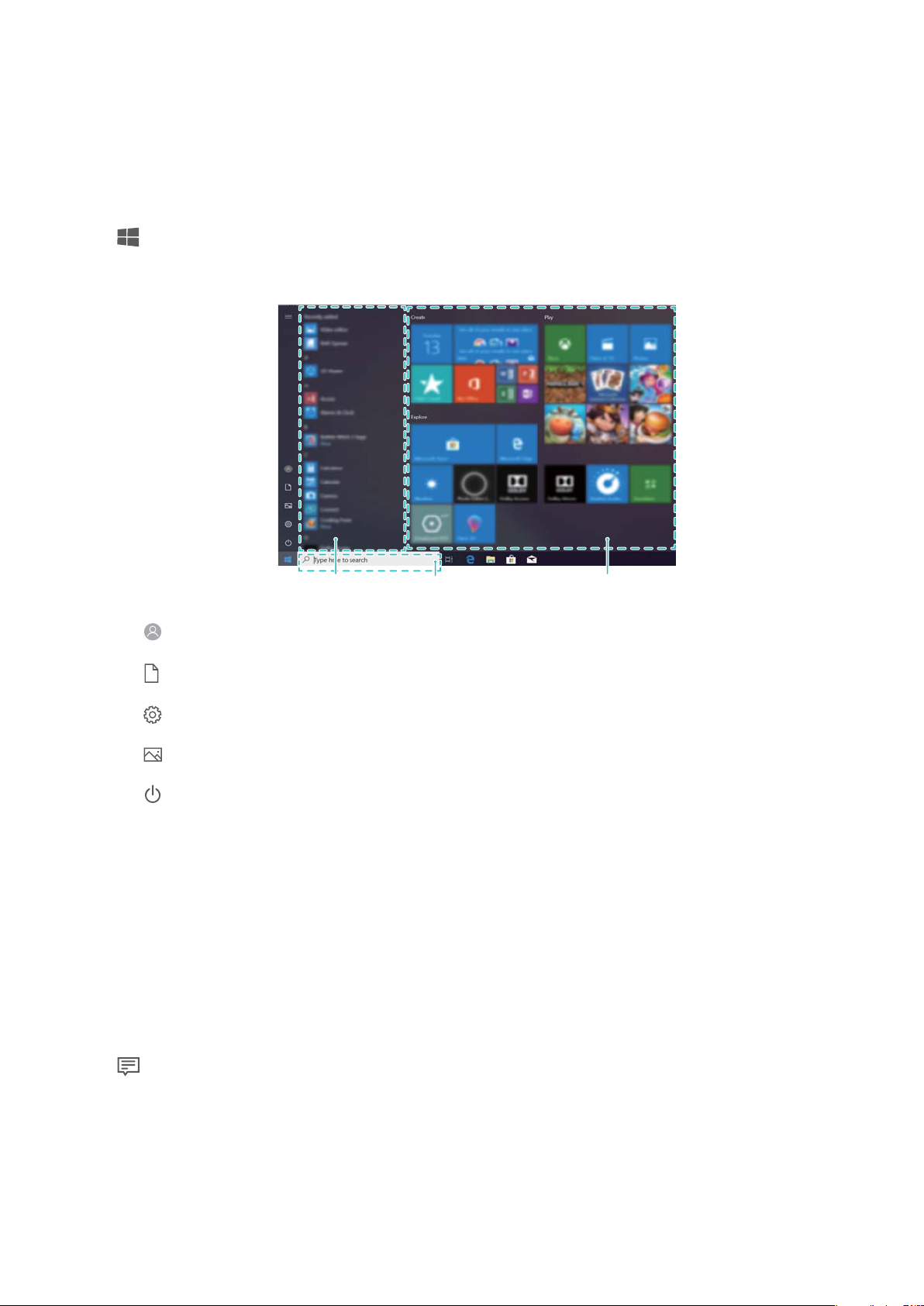
Use the Start menu to access apps, settings, and les on your computer.
Click in the bottom-left corner of the screen to open the Start menu.
l Select to change, lock, or sign out of the current user account.
l Select to access the document folder.
l Select to access the system settings.
l Select
l Select
l App list: Swipe up or down on the screen to scroll through the app list.
l Pinned tiles: Pin your favorite apps or websites to the Start menu and organize them into groups.
l Cortana search bar: Enter the information you would like to search for.
to access the picture folder.
to shut down or restart your computer, or enter sleep mode.
Action center
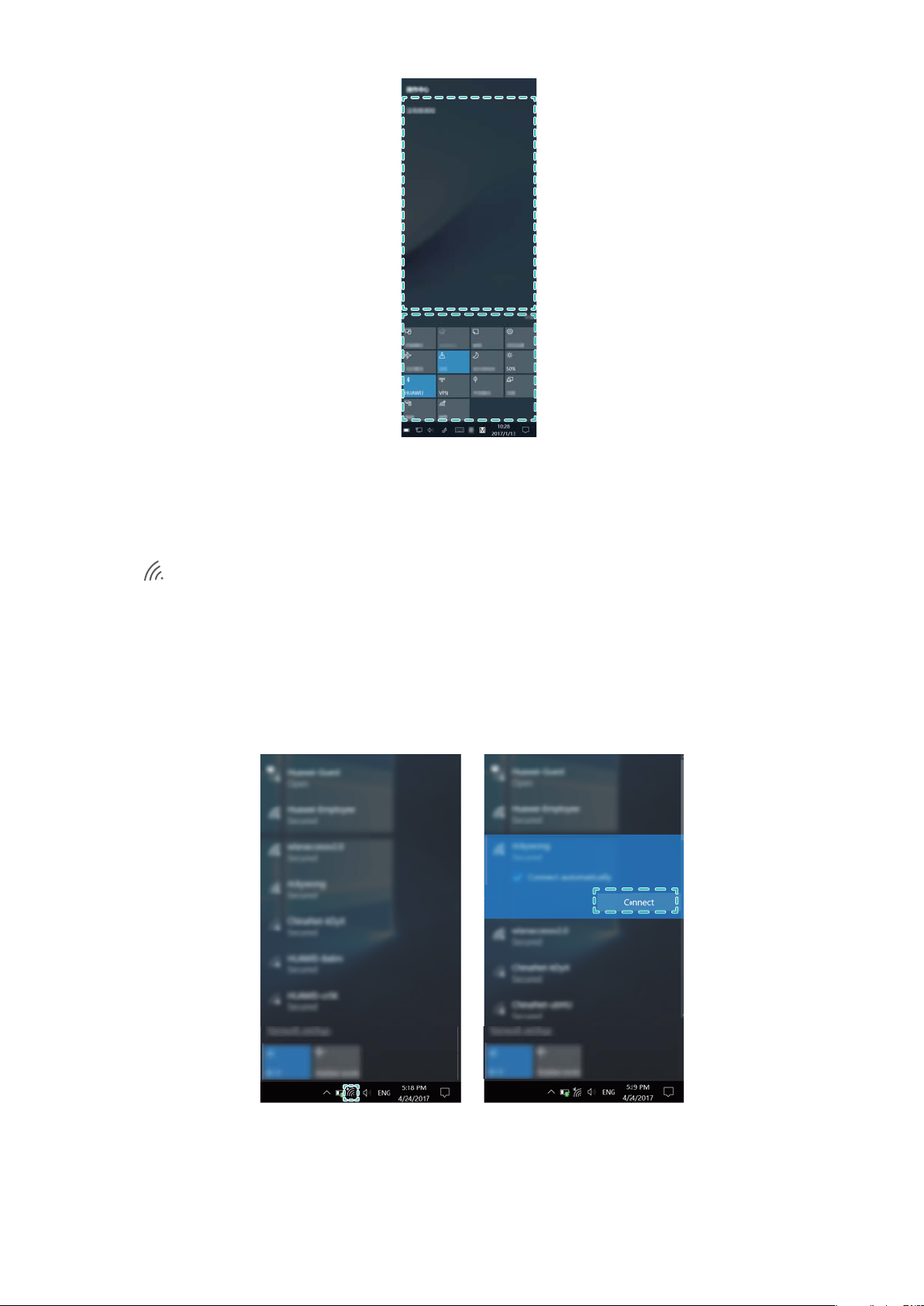
Action center displays system updates and other system notications. It also provides quick access to
enable or disable specic functions and congure the functions.
Click
in the lower-right corner of the screen, to launch the action center. You can:
l Quickly access the settings, VPN, and projector screens.
l Quickly access frequently-used settings, such as the power saving mode, airplane mode, and screen
brightness.
12
Page 15
About Windows 10
Connecting to Wi-Fi
1 Click
in the lower-right corner of the screen to open the Wi-Fi settings screen.
®
2 Switch on the Wi-Fi. Your computer will automatically search for available Wi-Fi networks.
3 Select the network that you want to connect to and follow the on-screen instructions to proceed.
Some Wi-Fi networks require a security key or password to connect. You can
router settings, or obtain it from your Internet Service Provider (ISP) or network administrator.
nd this in your
13
Page 16
Eye protection mode
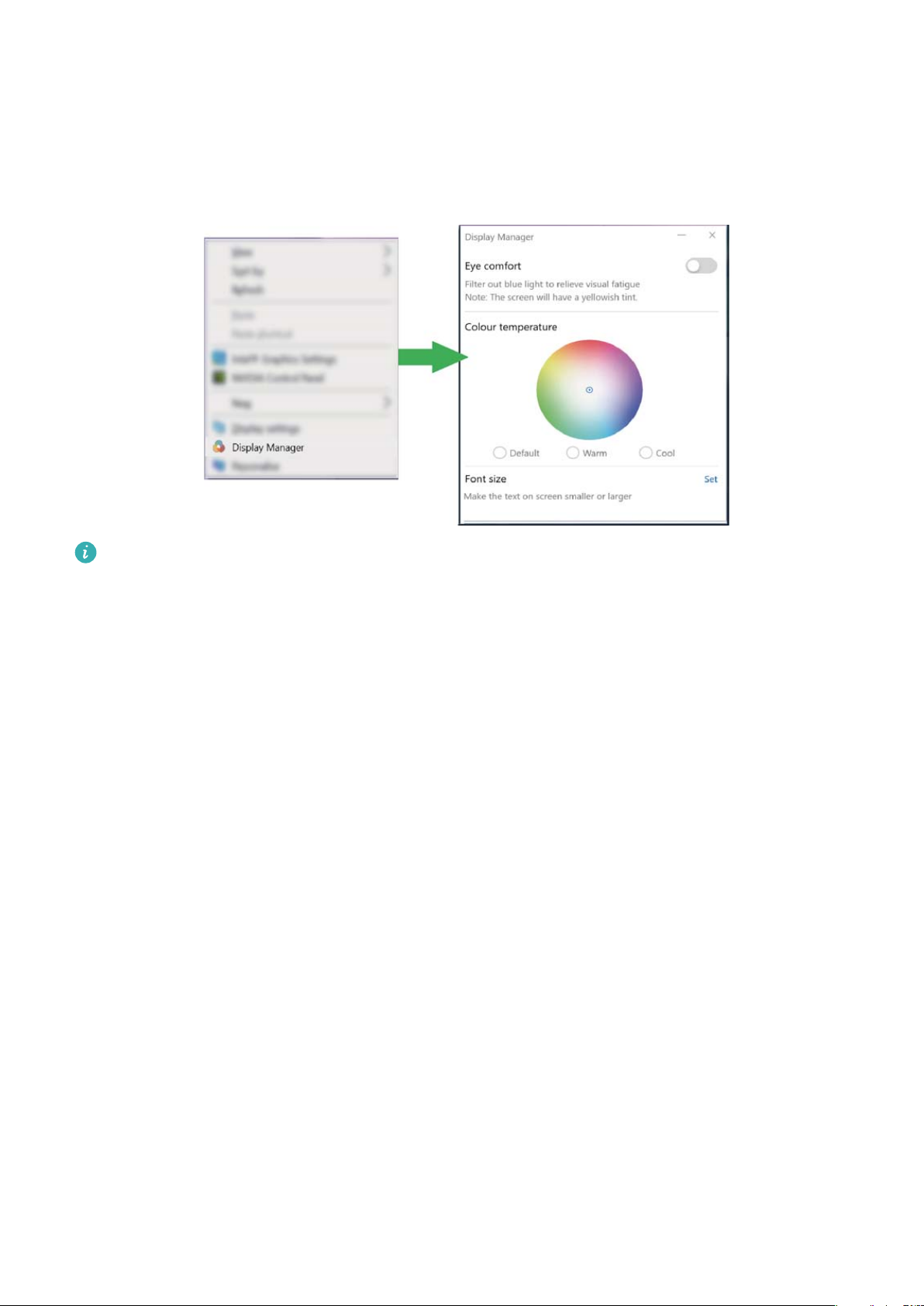
For long time reading, enabling eye protection mode will effectively reduce the blue ray radiation.
Right click on a blank part of the desktop to open the display management screen, and enable eye
protection mode.
Eye protection mode reduces the amount of blue light emitted from the screen, which may give
the screen a slightly yellow hue.
14
Page 17

Restoring your computer to Huawei factory
settings *
You can use the system recovery screen to quickly restore your computer to Huawei factory settings.
Before restoring to factory settings, connect your computer to the power supply and back up the
data in Disk C. You can also rst access the backup and restore screen and follow the onscreen
instructions to back up the data in Disk C.
1 Hold down the F10 button when powering on your computer to access the factory settings
screen.
2 Follow the onscreen instructions to restore your computer to the factory settings.
Functions marked with asterisk (*) may not by supported in certain regions.
15
Page 18
HUAWEI MateDock 2
HDMI
USB
USB-C
USB-C
VGA
Getting to know your HUAWEI MateDock 2
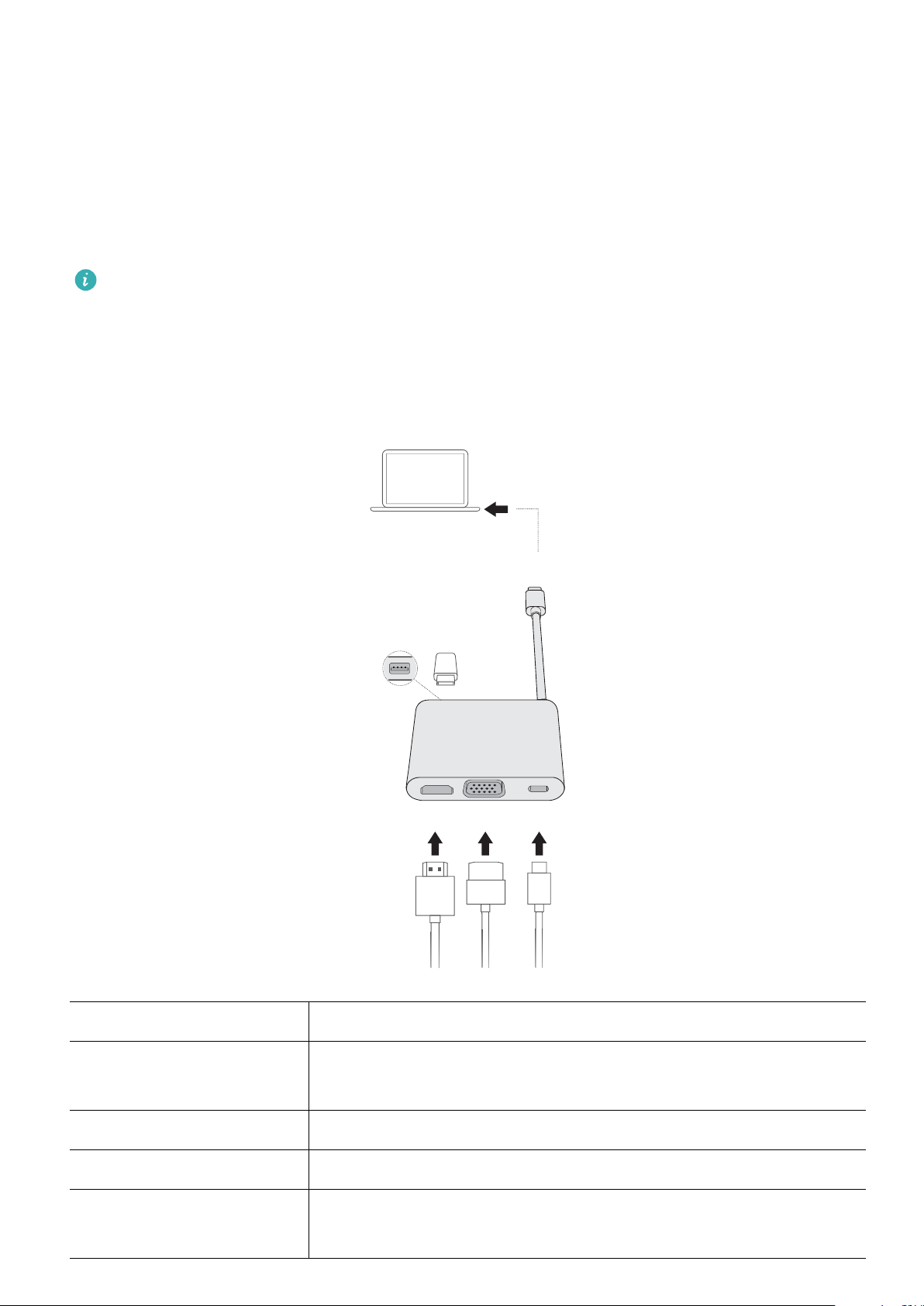
Use the MateDock 2 to connect your computer to various external devices, including projectors, TVs,
and USB ash drives.
l The MateDock 2 is an optional accessory and is sold separately.
l The terms HDMI and HDMI High-Denition Multimedia Interface, and the HDMI Logo are
trademarks or registered trademarks of HDMI Licensing Administrator, Inc. in the United States
and other countries.
USB-C plug
USB port Connect USB peripherals, such as a USB mouse, keyboard, storage
HDMI port Connect an HDMI display device, such as a TV.
VGA port Connect a VGA display device, such as a monitor.
USB Type-C port Connect the power adapter to charge your computer.
Insert the cable into the USB Type-C port on your computer.
device, or network adapter.
Connect USB Type-C peripherals.
16
Page 19
HDMI USB-C
USB-C
VGA
HUAWEI MateDock 2
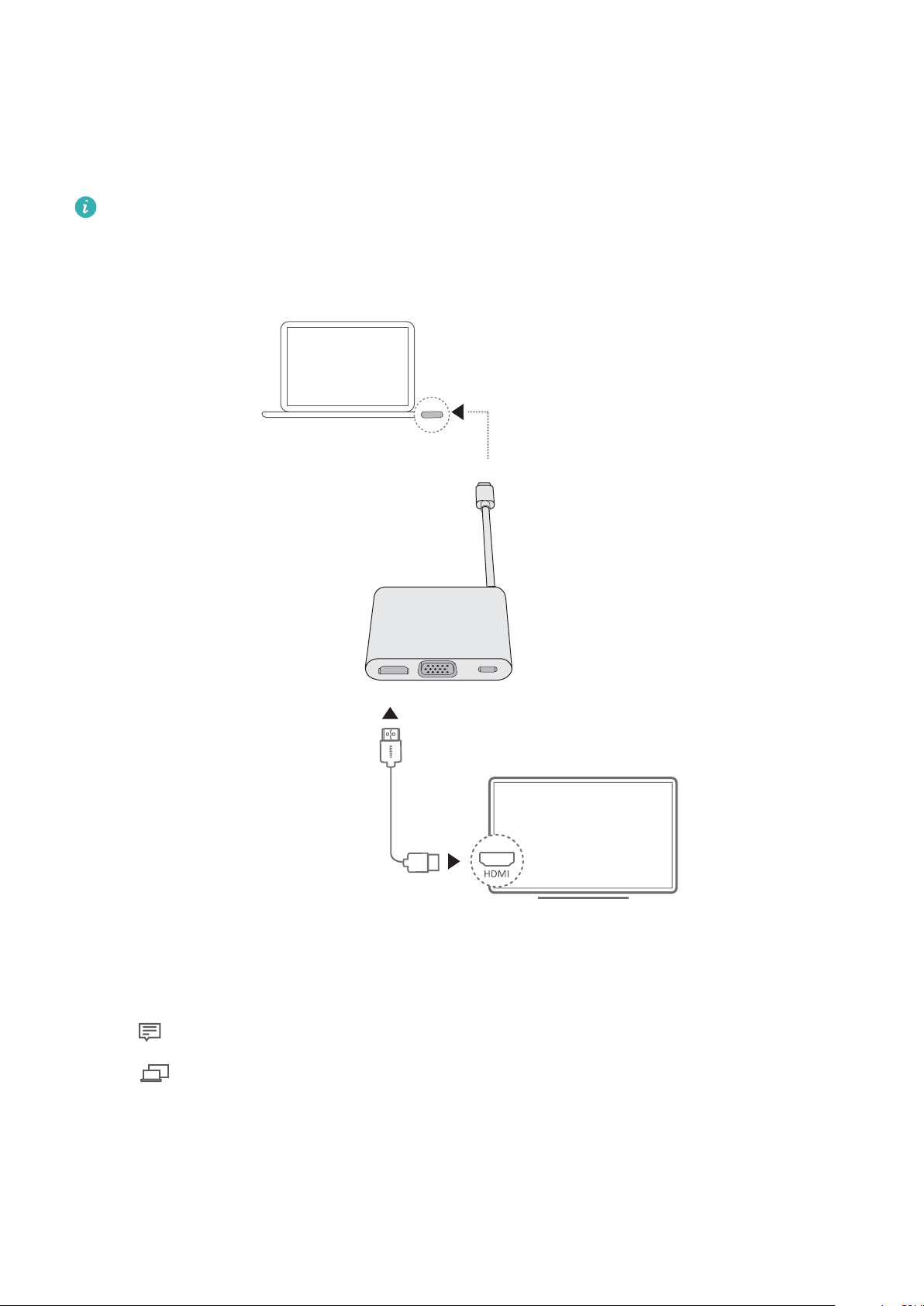
Connecting to a TV, monitor, or projector
When watching movies or giving a presentation, connect your computer to an external display device
such as a TV, monitor, or projector for a better viewing experience.
You will need an HDMI or VGA cable (not included) to connect your MateDock 2 to an external
display device. Check the device to see which video interface it supports.
1 Follow the gures to connect the MateDock 2 to an external display device.
2 Connect your external display device to a power supply and turn it on.
3 Click in the lower-right corner of the screen, to launch the action center.
4 Click to select a projection mothod.
l Extend: Splits the desktop between your computer and the external display device. You can
move windows between the two screens.
l Duplicate: Simultaneously displays the desktop on your computer and the external display
device.
17
Page 20

HUAWEI MateDock 2
l PC screen only: The desktop is displayed only on your computer screen, no content is displayed
on the external device's screen.
l Second screen only: The desktop is displayed only on the external display, no content is
displayed on your computer screen.
Connecting a USB mouse, printer, or other peripheral
device
Use the USB-C port on your computer to connect a USB mouse, printer, scanner, smartphone, hard
drive, or other peripheral device.
Connecting a USB device
1 Plug the USB cable into the USB-C port on your MateDock 2.
2 If the USB device requires a power supply, plug it in before powering it on.
3 The
Viewing connected devices on your computer
rst time you connect a new USB device, your computer will automatically install any drivers
that are required.
1 Click in the lower-left corner of the screen to open the Start menu.
2 Click > .You can view connected USB devices under connected devices.
18
Page 21

Appendix
Safety information
This section contains important information about the operation of your device. It also contains
information about how to use the device safely. Read this information carefully before using your
device.
Electronic device
Do not use your device if using the device is prohibited. Do not use the device if doing so causes
danger or interference with other electronic devices.
Interference with medical equipment
l Follow rules and regulations set forth by hospitals and health care facilities. Do not use your device
where prohibited.
l Some wireless devices may affect the performance of hearing aids or pacemakers. Consult your
service provider for more information.
l Pacemaker manufacturers recommend that a minimum distance of 15 cm be maintained between a
device and a pacemaker to prevent potential interference with the pacemaker. If using a pacemaker,
hold the device on the side opposite the pacemaker and do not carry the device in your front
pocket.
Protecting your hearing when using a headset
l To prevent possible hearing damage, do not listen at high volume levels for long periods.
l Using a headset at high volumes may damage your hearing. To reduce this risk, lower the headset
volume to a safe and comfortable level.
Exposure to high volumes while driving may cause distraction and increase your risk of an accident.
l
Areas with ammables and explosives
l Do not use the device where ammables or explosives are stored (in a gas station, oil depot, or
chemical plant, for example). Using your device in these environments increases the risk of explosion
or re. In addition, follow the instructions indicated in text or symbols.
l Do not store or transport the device in containers with ammable liquids, gases, or explosives.
Trafc security
l Observe local laws and regulations while using the device. To reduce the risk of accidents, do not
use your wireless device while driving.
l Concentrate on driving. Your rst responsibility is to drive safely.
l RF signals may affect the electronic systems of motor vehicles. For more information, consult the
vehicle manufacturer.
19
Page 22

Appendix
l Do not place the device over the air bag or in the air bag deployment area in a motor vehicle. Doing
so may hurt you because of the strong force when the air bag inates.
l Wireless devices may interfere with the airplane's ight system. Do not use your device where
wireless devices are not allowed according to the airplane company's regulations.
Operating environment
l Avoid dusty, damp, or dirty environments. Avoid magnetic elds. Using the device in these
environments may result in circuit malfunctions.
l Do not use your device during thunderstorms to protect your device against any danger caused by
lightning.
l Ideal operating temperatures are 0 °C to 35 °C. Ideal storage temperatures are –10 °C to +45 °C.
Extreme heat or cold may damage your device or accessories.
l Do not expose your device to direct sunlight (such as on a car dashboard) for prolonged periods.
l To protect your device or accessories from re or electrical shock hazards, avoid rain and moisture.
l Keep the device away from sources of heat and
re, such as a heater, microwave oven, stove, water
heater, radiator, or candle.
l Do not place sharp metal objects, such as pins, near the earpiece or speaker. The earpiece may
attract these objects and result in injury.
l Stop using your device or applications for a while if the device is overheated. If skin is exposed to an
overheated device for an extended period, low temperature burn symptoms, such as red spots and
darker pigmentation, may occur.
l Do not touch the device's antenna. Otherwise, communication quality may be reduced.
l Do not allow children or pets to bite or suck the device or accessories. Doing so may result in
damage or explosion.
l Observe local laws and regulations, and respect the privacy and legal rights of others.
Child's safety
l Comply with all precautions with regard to child's safety. Letting children play with the device or its
accessories may be dangerous. The device includes detachable parts that may present a choking
hazard. Keep away from children.
l The device and its accessories are not intended for use by children. Children should only use the
device with adult supervision.
Accessories
l Using an unapproved or incompatible power adapter, charger or battery may cause re, explosion
or other hazards.
l Choose only accessories approved for use with this model by the device manufacturer. The use of
any other types of accessories may void the warranty, may violate local regulations and laws, and
may be dangerous. Please contact your retailer for information about the availability of approved
accessories in your area.
20
Page 23

Appendix
Charger safety
l For pluggable devices, the socket-outlet shall be installed near the devices and shall be easily
accessible.
l Unplug the charger from electrical outlets and the device when not in use.
l Do not drop or cause an impact to the charger.
l If the power cable is damaged (for example, the cord is exposed or broken), or the plug loosens,
stop using it at once. Continued use may lead to electric shocks, short circuits, or re.
l Do not touch the power cord with wet hands or pull the power cord to disconnect the charger.
l Do not touch the device or the charger with wet hands. Doing so may lead to short circuits,
malfunctions, or electric shocks.
l If your charger has been exposed to water, other liquids, or excessive moisture, take it to an
authorized service center for inspection.
l Ensure that the charger meets the requirements of Clause 2.5 in IEC60950-1/EN60950-1/UL60950-1
and has been tested and approved according to national or local standards.
l Connect the device only to products with the USB-IF logo or with USB-IF compliance program
completion.
Battery safety
l Do not connect battery poles with conductors, such as keys, jewelry, or other metal materials. Doing
so may short-circuit the battery and cause injuries or burns.
l Keep the battery away from excessive heat and direct sunlight. Do not place it on or in heating
devices, such as microwave ovens, stoves, or radiators. Batteries may explode if overheated.
l Do not attempt to modify or remanufacture the battery, insert foreign objects into it, or immerse or
expose it to water or other liquids. Doing so may lead to re, explosion, or other hazards.
l If the battery leaks, ensure that the electrolyte does not make direct contact with your skins or eyes.
If the electrolyte touches your skins or splashes into your eyes, immediately ush with clean water
and consult a doctor.
l In case of battery deformation, color change, or overheating while charging or storing, immediately
stop using the device and remove the battery. Continued use may lead to battery leakage, re, or
explosion.
l Do not put batteries in re as they may explode. Damaged batteries may also explode.
l Dispose of used batteries in accordance with local regulations. Improper battery use may lead to
re, explosion, or other hazards.
l Do not allow children or pets to bite or suck the battery. Doing so may result in damage or
explosion.
l Do not smash or pierce the battery, or expose it to high external pressure. Doing so may lead to a
short circuit or overheating.
l Do not drop the device or battery. If the device or battery is dropped, especially on a hard surface, it
may be damaged.
l If the device standby time shortens signicantly, replace the battery.
21
Page 24

Appendix
l This device contains a built-in battery. Do not attempt to replace the battery by yourself. Otherwise,
the device may not run properly or it may damage the battery. For your personal safety and to
ensure that your device runs properly, you are strongly advised to contact a Huawei authorized
service center for a replacement.
l Use the battery only with a charging system that is IEEE-Std-1725 standard qualied. The use of an
unqualied battery or charger may lead to re, explosion, leakage, or other hazards.
l Replace the battery only with an IEEE-Std-1725 standard qualied battery. The use of an unqualied
battery may lead to re, explosion, leakage, or other hazards.
l Do not disassemble or open, crush, bend or deform, puncture or shred the battery. Otherwise, it
may lead to electrolyte leakage, overheating, re, or explosion.
l Do not solder battery poles or dismantle the battery. Doing so may lead to electrolyte leakage,
excessive heat, re, or explosion.
Cleaning and maintenance
l Keep the device and accessories dry. Do not attempt to dry it with an external heat source, such as a
microwave oven or hair dryer.
l Do not expose your device or accessories to extreme heat or cold. These environments may interfere
with proper function and may lead to re or explosion.
l Avoid collision, which may lead to device malfunctions, overheating, re, or explosion.
l Before you clean or maintain the device, stop using it, stop all applications, and disconnect all cables
connected to it.
l Do not use any chemical detergent, powder, or other chemical agents (such as alcohol and
benzene) to clean the device or accessories. These substances may cause damage to parts or
present a re hazard. Use a clean, soft, and dry cloth to clean the device and accessories.
l Do not place magnetic stripe cards, such as credit cards and phone cards, near the device for
extended periods of time. Otherwise the magnetic stripe cards may be damaged.
l Do not dismantle or remanufacture the device and its accessories. This voids the warranty and
releases the manufacturer from liability for damage. In case of damage, contact a Huawei
authorized service center for assistance or repair.
l If the device screen is broken in a collision, immediately stop using the device. Do not touch or
attempt to remove the broken parts. Promptly contact a Huawei authorized service center.
Environmental protection
l The device and its accessories (if included), such as the power adapter, headset, and battery should
not be disposed of with household garbage.
l Disposal of the device and its accessories is subject to local regulations. Support proper collection
and recycling.
Disposal and recycling information
22
Page 25

Appendix
The crossed-out wheeled-bin symbol on your product, battery, literature or packaging reminds you
that all electronic products and batteries must be taken to separate waste collection points at the end
of their working lives; they must not be disposed of in the normal waste stream with household
garbage. It is the responsibility of the user to dispose of the equipment using a designated collection
point or service for separate recycling of waste electrical and electronic equipment (WEEE) and
batteries according to local laws.
Proper collection and recycling of your equipment helps ensure electrical and electronic equipment
(EEE) waste is recycled in a manner that conserves valuable materials and protects human health and
the environment, improper handling, accidental breakage, damage, and/or improper recycling at the
end of its life may be harmful for health and environment. For more information about where and
how to drop off your EEE waste, please contact your local authorities, retailer or household waste
disposal service or visit the website http://consumer.huawei.com/en/.
Reduction of hazardous substances
This device and its electrical accessories are compliant with local applicable rules on the restriction of
the use of certain hazardous substances in electrical and electronic equipment, such as EU REACH,
RoHS and Batteries (where included) regulations. For declarations of conformity about REACH and
RoHS, please visit our web site http://consumer.huawei.com/certication.
EU regulatory conformance
Body worn operation
The device complies with RF specications when used at a distance of 0.0 cm from your body. Ensure
that the device accessories, such as a device case and device holster, are not composed of metal
components. Keep the device away from your body to meet the distance requirement.
Certication information (SAR)
This device meets guidelines for exposure to radio waves.
Your device is a low-power radio transmitter and receiver. As recommended by international
guidelines, the device is designed not to exceed the limits for exposure to radio waves. These
guidelines were developed by the International Commission on Non-Ionizing Radiation Protection
(ICNIRP), an independent scientic organization, and include safety measures designed to ensure the
safety of all users, regardless of age and health.
The Specic Absorption Rate (SAR) is the unit of measurement for the amount of radio frequency
energy absorbed by the body when using a device. The SAR value is determined at the highest
certied power level in laboratory conditions, but the actual SAR level during operation can be well
below the value. This is because the device is designed to use the minimum power required to reach
the network.
The SAR limit adopted by Europe is 2.0 W/kg averaged over 10 grams of tissue, and the highest SAR
value for this device complies with this limit.
The highest SAR value reported for this device type when tested in portable exposure conditions is
0.45 W/kg.
23
Page 26

Appendix
Statement
Hereby, Huawei Technologies Co., Ltd. declares that this device WRT-W19/WRT-W29 is in compliance
with the essential requirements and other relevant provisions of Directive 2014/53/EU.
The most recent and valid version of the DoC (Declaration of Conformity) can be viewed at http://
consumer.huawei.com/certication.
This device may be operated in all member states of the EU.
Observe national and local regulations where the device is used.
This device may be restricted for use, depending on the local network.
Restrictions in the 2.4 GHz band:
Norway: This subsection does not apply for the geographical area within a radius of 20 km from the
centre of Ny-Ålesund.
Restrictions in the 5 GHz band:
According to Article 10 (10) of Directive 2014/53/EU, the packaging shows that this radio equipment
will be subject to some restrictions when placed on the market in Belgium (BE), Bulgaria (BG), the
Czech Republic (CZ), Denmark (DK), Germany (DE), Estonia (EE), Ireland (IE), Greece (EL), Spain (ES),
France (FR), Croatia (HR), Italy (IT), Cyprus (CY), Latvia (LV), Lithuania (LT), Luxembourg (LU), Hungary
(HU), Malta (MT), Netherlands (NL), Austria (AT), Poland (PL), Portugal (PT), Romania (RO), Slovenia
(SI), Slovakia (SK), Finland (FI), Sweden (SE), the United Kingdom (UK), Turkey (TR), Norway (NO),
Switzerland (CH), Iceland (IS), and Liechtenstein (LI).
The WLAN function for this device is restricted to indoor use only when operating in the 5150 to
5350 MHz frequency range.
Frequency Bands and Power
(a) Frequency bands in which the radio equipment operates: Some bands may not be available in all
countries or all areas. Please contact the local carrier for more details.
(b) Maximum radio-frequency power transmitted in the frequency bands in which the radio
equipment operates: The maximum power for all bands is less than the highest limit value specied in
the related Harmonized Standard.
The frequency bands and transmitting power (radiated and/or conducted) nominal limits applicable to
this radio equipment are as follows: Wi-Fi 2.4G:20 dBm, Bluetooth:20 dBm, Wi-Fi 5G:5150-5350
MHz:23 dBm, 5470-5725 MHz:23 dBm, 5725-5850 MHz:14 dBm.
Accessories and Software Information
Some accessories are optional in certain countries or regions. Optional accessories can be purchased
from a licensed vendor as required. The following accessories are recommended:
Adapters: HW-200325XP0 (X represents the different plug types used, which can be either C, U, J, E,
B, A, I, R, Z or K, depending on your region)
Batteries: HB4593J6ECW
24
Page 27

Appendix
The product software version is 1.4.0.11 (C001). Software updates will be released by the
manufacturer to x bugs or enhance functions after the product has been released. All software
versions released by the manufacturer have been veried and are still compliant with the related rules.
All RF parameters (for example, frequency range and output power) are not accessible to the user, and
cannot be changed by the user.
For the most recent information about accessories and software, please see the DoC (Declaration of
Conformity) at http://consumer.huawei.com/certication.
ErP Product Information
Huawei Technologies Co., Ltd. hereby declares that its products conform to the Energy-related
Products Directive (ErP) 2009/125/EC. For detailed ErP information and the user manuals required by
Commission Regulation, please visit: http://consumer.huawei.com/en/certication.
The HUAWEI MateBook has an independent USB-C adapter input interface. Connecting the MateDock
between the power adapter and the MateBook charging port is not recommended because
MateDock is not a necessary part of the power network supply system.
FCC Regulatory Compliance
Body worn operation
The device complies with RF specications when used at a distance of 0.0 cm from your body. Ensure
that the device accessories, such as a device case and device holster, are not composed of metal
components. Keep the device away from your body to meet the distance requirement.
Certication information (SAR)
This device is also designed to meet the requirements for exposure to radio waves established by the
Federal Communications Commission (USA).
The SAR limit adopted by the USA is 1.6 W/kg averaged over one gram of tissue. The highest SAR
value reported to the FCC for this device type complies with this limit.
The highest SAR value reported to the FCC for this device type when using in portable exposure conditions is 0.50 W/kg.
FCC statement
This equipment has been tested and found to comply with the limits for a Class B digital device,
pursuant to Part 15 of the FCC Rules. These limits are designed to provide reasonable protection
against harmful interference in a residential installation. This equipment generates, uses and can
radiate radio frequency energy and, if not installed and used in accordance with the instructions, may
cause harmful interference to radio communications. However, there is no guarantee that interference
will not occur in a particular installation. If this equipment does cause harmful interference to radio or
television reception, which can be determined by turning the equipment off and on, the user is
encouraged to try to correct the interference by one or more of the following measures:
--Reorient or relocate the receiving antenna.
--Increase the separation between the equipment and receiver.
25
Page 28

Appendix
--Connect the equipment into an outlet on a circuit different from that to which the receiver is
connected.
--Consult the dealer or an experienced radio/TV technician for help.
This device complies with Part 15 of the FCC Rules. Operation is subject to the following two
conditions: (1) this device may not cause harmful interference, and (2) this device must accept any
interference received, including interference that may cause undesired operation.
Caution: Any changes or modications to this device not expressly approved by Huawei Technologies
Co., Ltd. for compliance could void the user's authority to operate the equipment.
Restrictions in the 5 GHz band:
Within the 5.15 to 5.25 GHz band, UNII devices will be restricted to indoor operations to reduce any
potential for harmful interference to co-channel Mobile Satellite System (MSS) operations.
Personal Information and Data Security
The use of some functions or third-party applications on your device could result in your personal
information and data being lost or becoming accessible to others. Use the following measures to help
you protect your personal information:
l Put your device in a safe place to prevent unauthorized use.
l Set your device screen to lock and set a password or unlock pattern.
l Periodically back up personal information stored on your memory card, or your device memory. If
you change to a different device, be sure to move or delete any personal information on your old
device.
l Do not open messages or emails from strangers to prevent your device from becoming infected
with a virus.
l When using your device to browse the Internet, do not visit websites that might pose a security risk
to avoid your personal information from being stolen.
l If you use services such as the portable Wi-Fi hotspot or Bluetooth, set passwords for these services
to prevent unauthorized access. Turn these services off when they are not in use.
l Install device security software and regularly scan for viruses.
l Be sure to obtain third-party applications from a legitimate source. Downloaded third-party
applications should be scanned for viruses.
l Install security software or patches released by Huawei or authorized third-party application
providers.
l Using unauthorized third-party software to update your device may damage your device or put your
personal information at risk. It is recommended that you update through your device's online
update feature or download
l Some applications require and transmit location information. As a result, a third-party may be able
ofcial update packages for your device model from Huawei.
to share your location information.
26
Page 29

Appendix
l Some third-party application providers may collect detection and diagnostic information on your
device to improve their products and services.
Legal Notice
Copyright © Huawei Technologies Co., Ltd. 2019
No part of this manual may be reproduced or transmitted in any form or by any means without prior
written consent of Huawei Technologies Co., Ltd. and its afliates ("Huawei").
The product described in this manual may include copyrighted software of Huawei and possible
licensors. Customers shall not in any manner reproduce, distribute, modify, decompile, disassemble,
decrypt, extract, reverse engineer, lease, assign, or sublicense the said software, unless such
restrictions are prohibited by applicable laws or such actions are approved by respective copyright
holders.
Trademarks and Permissions
, , and are trademarks or registered trademarks of Huawei Technologies Co., Ltd.
Manufactur
trademarks of Dolby Laboratories.
The Bluetooth® word mark and logos are registered trademarks owned by Bluetooth SIG, Inc. and any
use of such marks by Huawei Technologies Co., Ltd. is under license.
ed under license from Dolby Laboratories. Dolby and the double-D symbol are registered
. All rights reserved.
Wi-Fi®, the Wi-Fi CERTIFIED logo, and the Wi-Fi logo are trademarks of Wi-Fi Alliance.
Microsoft and Window are trademarks of the Microsoft group of companies.
The N-Mark is a trademark or registered trademark of NFC Forum, Inc. in the United States and
in other countries.
ENERGY S
For information related to ENERGY STAR®, please visit the website www.energystar.gov.
Other trademarks, product, service and company names mentioned may be the property of their
respective owners.
Notice
Some features of the product and its accessories described herein rely on the software installed,
capacities and settings of local network, and therefore may not be activated or may be limited by
local network operators or network service providers.
Thus, the descriptions herein may not exactly match the product or its accessories which you
TAR® MARK
purchase.
Huawei reserves the right to change or modify any information or specications contained in this
manual without prior notice and without any liability
.
27
Page 30

Appendix
Third-Party Software Statement
Huawei does not own the intellectual property of the third-party software and applications that are
delivered with this product. Therefore, Huawei will not provide any warranty of any kind for third
party software and applications. Neither will Huawei provide support to customers who use thirdparty software and applications, nor be responsible or liable for the functions or performance of thirdparty software and applications.
Third-party software and applications services may be interrupted or terminated at any time, and
Huawei does not guarantee the availability of any content or service. Third-party service providers
provide content and services through network or transmission tools outside of the control of Huawei.
To the greatest extent permitted by applicable law, it is explicitly stated that Huawei shall not
compensate or be liable for services provided by third-party service providers, or the interruption or
termination of third-party contents or services.
Huawei shall not be responsible for the legality, quality, or any other aspects of any software installed
on this product, or for any uploaded or downloaded third-party works in any form, including but not
limited to texts, images, videos, or software etc. Customers shall bear the risk for any and all effects,
including incompatibility between the software and this product, which result from installing software
or uploading or downloading the third-party works.
DISCLAIMER
ALL CONTENTS OF THIS MANUAL ARE PROVIDED "AS IS". EXCEPT AS REQUIRED BY APPLICABLE
LAWS, NO WARRANTIES OF ANY KIND, EITHER EXPRESS OR IMPLIED, INCLUDING BUT NOT LIMITED
TO, THE IMPLIED WARRANTIES OF MERCHANTABILITY AND FITNESS FOR A PARTICULAR PURPOSE,
ARE MADE IN RELATION TO THE ACCURACY, RELIABILITY OR CONTENTS OF THIS MANUAL.
TO THE MAXIMUM EXTENT PERMITTED BY APPLICABLE LAW, IN NO EVENT SHALL HUAWEI BE
LIABLE FOR ANY SPECIAL, INCIDENTAL, INDIRECT, OR CONSEQUENTIAL DAMAGES, OR LOSS OF
PROFITS, BUSINESS, REVENUE, DATA, GOODWILL SAVINGS OR ANTICIPATED SAVINGS REGARDLESS
OF WHETHER SUCH LOSSES ARE FORSEEABLE OR NOT.
THE MAXIMUM LIABILITY (THIS LIMITATION SHALL NOT APPLY TO LIABILITY FOR PERSONAL INJURY
TO THE EXTENT APPLICABLE LAW PROHIBITS SUCH A LIMITATION) OF HUAWEI ARISING FROM THE
USE OF THE PRODUCT DESCRIBED IN THIS MANUAL SHALL BE LIMITED TO THE AMOUNT PAID BY
CUSTOMERS FOR THE PURCHASE OF THIS PRODUCT.
Import and Export Regulations
Customers shall comply with all applicable export or import laws and regulations and be responsible
to obtain all necessary governmental permits and licenses in order to export, re-export or import the
product mentioned in this manual including the software and technical data therein.
Privacy Policy
To better understand how we protect your personal information, please see the privacy policy at
http://consumer.huawei.com/privacy-policy.
28
Page 31

Appendix
ENERGY STAR® model information
ENERGY STAR is a U.S. Environmental Protection Agency voluntary program that helps
businesses and individuals save money and protect our climate through superior energy efciency. For
information related to ENERGY STAR, please visit the website www.energystar.gov.
The following machine types have been designed and tested to conform to the ENERGY STAR
program requirement for computers at the time of manufacture.
Model: WRT-W19, WRT-W29
Huawei has preset the following power-management features to take effect when your device has
been inactive for a specied duration:
List of power management settings
Power plan
Balanced (When plugged in):
l Turn off display: After 10 minutes
l Put the computer to sleep: After 30 minutes
Advanced power settings (When plugged in):
l Turn off hard disk drives: After 20 minutes
l Hibernate: After 180 minutes
To awaken your computer device from sleep mode, press any key on the keyboard.
To change power settings, follow these steps:
1 Right-click on Start to open Power Options.
2 Follow the on-screen instructions.
29
Page 32

This guide is for reference only. The actual product, including but not limited to the color,
size, and screen layout, may vary. All statements, information, and recommendations in this
guide do not constitute a warranty of any kind, express or implied.
903818_03
 Loading...