

Huawei ViewPoint 9000, ViewPoint 9039, ViewPoint 9036, ViewPoint 9033, ViewPoint 9035 User Manual
Page 1

HUAWEI 9000 HD Video Terminal
User Guide
HUAWEI TECHNOLOGIES CO., LTD.
Page 2

HUAWEI 9000 HD Video Terminal
V100R007
User Guide
Issue
Date
Part Number
05
2009-11-12
7110002
Huawei Proprietary and Confidential
Copyright © Huawei Technologies Co., Ltd.
Page 3

Huawei Technologies Co., Ltd. provides customers with comprehensive technical support and service. For
any assistance, please contact our local office or company headquarters.
Huawei Technologies Co., Ltd.
Address: Huawei Industrial Base
Bantian, Longgang
Shenzhen 518129
People's Republic of China
Website:
http://www.huawei.com
Copyright © Huawei Technologies Co., Ltd. 2009. All rights reserved.
No part of this document may be reproduced or transmitted in any form or by any means without prior
written consent of Huawei Technologies Co., Ltd.
The product described in this manual may include copyrighted software of Huawei Technologies Co., Ltd
and possible licensors. Customers shall not in any manner reproduce, distribute, modify, decompile,
disassemble, decrypt, extract, reverse engineer, lease, assign, or sublicense the said software, unless
such restrictions are prohibited by applicable laws or such actions are approved by respective copyright
holders under licenses.
Trademarks and Permissions
, , and
Other trademarks, product, service and company names mentioned are the property of their respective
owners.
are trademarks or registered trademarks of Huawei Technologies Co., Ltd.
Notice
Some features of the product and its accessories described herein rely on the software installed, capacities
and settings of local network, and may not be activated or may be limited by local network operators or
network service providers. Thus the descriptions herein may not exactly match the product or its
accessories you purchase.
Huawei Technologies Co., Ltd reserves the right to change or modify any information or specifications
contained in this manual without prior notice or obligation.
NO WARRANTY
THE CONTENTS OF THIS MANUAL ARE PROVIDED “AS IS”. EXCEPT AS REQUIRED BY
APPLICABLE LAWS, NO WARRANTIES OF ANY KIND, EITHER EXPRESS OR IMPLIED, INCLUDING
BUT NOT LIMITED TO, THE IMPLIED WARRANTIES OF MERCHANTABILITY AND FITNESS FOR A
PARTICULAR PURPOSE, ARE MADE IN RELATION TO THE ACCURACY, RELIABILITY OR
CONTENTS OF THIS MANUAL.
TO THE MAXIMUM EXTENT PERMITTED BY APPLICABLE LAW, IN NO CASE SHALL HUAWEI
TECHNOLOGIES CO., LTD BE LIABLE FOR ANY SPECIAL, INCIDENTAL, INDIRECT, OR
CONSEQUENTIAL DAMAGES, OR LOST PROFITS, BUSINESS, REVENUE, DATA, GOODWILL OR
ANTICIPATED SAVINGS.
Import and Export Regulations
Customers shall comply with all applicable export or import laws and regulations and will obtain all
necessary governmental permits and licenses in order to export, re-export or import the product mentioned
in this manual including the software and technical data therein.
Huawei Proprietary and Confidential
Copyright © Huawei Technologies Co., Ltd.
Page 4

HUAWEI 9000
User Guide Contents
Contents
1 Basic Information.......................................................................................................................1-1
1.1 Basic Components.........................................................................................................................................1-1
1.2 Entering Text.................................................................................................................................................1-2
1.3 Powering on ..................................................................................................................................................1-2
1.4 Basic Settings................................................................................................................................................1-3
2 Making and Answering a Call.................................................................................................2-1
2.1 Available Call Types......................................................................................................................................2-1
2.2 Making a Call Through the Call Screen........................................................................................................2-1
2.3 Making a Call Through Call Records............................................................................................................2-1
2.4 Making a Call Through the Directory ...........................................................................................................2-2
2.5 Answering a Call...........................................................................................................................................2-2
2.6 Ending a Call.................................................................................................................................................2-3
3 Holding a Conference ...............................................................................................................3-1
3.1 Configuring the Video Source and the Monitor ............................................................................................3-1
3.2 Holding a Multipoint Conference..................................................................................................................3-1
3.3 Holding a Multipoint Conference Using the MiniMCU ...............................................................................3-3
3.3.1 Defining and Holding a Conference on a Terminal with the Mini MCU Function.............................. 3-3
3.3.2 Making Site-by-Site Calls....................................................................................................................3-3
3.4 Transmitting the H.239 Content....................................................................................................................3-4
3.5 Controlling a Multipoint Conference ............................................................................................................3-4
3.6 Editing Captions of the Conference ..............................................................................................................3-5
4 Controlling the Video and Audio...........................................................................................4-1
4.1 Selecting a Video Source...............................................................................................................................4-1
4.2 Controlling the Cameras................................................................................................................................4-2
4.2.1 Selecting a Camera ..............................................................................................................................4-2
4.2.2 Presetting Camera Positions.................................................................................................................4-2
4.3 Managing Video Output ................................................................................................................................4-3
4.4 Adjusting Video Quality ................................................................................................................................4-5
4.5 Adjusting Volume and Audio Effects ............................................................................................................4-5
4.6 Switching the Screen Layout.........................................................................................................................4-5
Issue 05 (2009-11-12) Huawei Proprietary and Confidential
Copyright © Huawei Technologies Co., Ltd.
i
Page 5
HUAWEI 9000
User Guide Safety Precautions
Safety Precautions
Before you install and use the device, read the following safety precautions carefully to avoid
human injury, device damage, data loss, decrease of the device performance, and other
unexpected damages.
Place the device on a stable surface.
Place the device in a well-ventilated place and on a stable surface. Do not expose the device to direct
sunlight.
Disconnect the power supply when plugging or unplugging cables.
Before plugging or unplugging any cable, shut down the device and disconnect the power supply.
In case of any abnormal situations, disconnect the power supply.
If the device produces any abnormal sound, or if foul smell is emitted from the device, stop using the device
immediately, disconnect the power supply, unplug the power supply and other cables, and remove the
batteries. Contact the authorized maintenance center for repair.
During lightning, disconnect the power supply.
During lightning, disconnect the device from the power supply and unplug all the cables connected to the
device, such as the power cable.
If the device is not going to be used for a long time, remove the batteries of the remote
control.
If the device is not going to be used for a long time, remove the batteries of the remote control.
Make sure that the device does not get wet.
Make sure that the device does not get wet. If water gets into the device, disconnect the power supply
immediately and unplug all the cables connected to the device, such as the power cable, and then contact the
authorized maintenance center. Make sure that no object (such as metal shavings) enters the device through
the heat dissipation vent.
Huawei Proprietary and Confidential
Copyright © Huawei Technologies Co., Ltd.
Page 6
HUAWEI 9000
User Guide 1 Basic Information
1 Basic Information
The HUAWEI 9000 HD Video Terminal (hereinafter referred to as the terminal) is a newgeneration high definition video terminal launched by Huawei Technologies Co., Ltd.
(hereinaft
of Huawei videoconferencing products, such as SiteCall, H.239 dual stream, conference
control, and Continuous Presence (CP). It also adds the high definition (HD) video processing
ability to enhance the on
services.
er referred to as Huawei). The HUAWEI 9000 incorporates the traditional features
-spot experience of users and provides quick videoconferencing
1.1 Basic Components
T ideoconferencing
he basic v components are listed in the following table.
Name Description
Main set It includes the audio and video processing
Remote control It is used to control the terminal.
Power module/power
cable
DVI-SXGA cable
DVI-HDMI cable
DVI-YPrPb
unit, audio interface,
video interface, control interface, and netw
It wer socket. is used to connect to the po
z
Connect to the DVIinterface of the projector.
z
Connect to the DVI-I input interface a
interface of the PC.
z
Connect the DVI output interface of
input interface of the display device.
z
Connect the HDMI output interface of the vid
DVI input interface of the terminal.
z
Connect the DVI-I output interface of the ter
HDMI input interface of the display device.
z
Connect the DVI-I input interface of the terminal to the Y
output interface of the video output device.
I output interface and the VGA input
ork interface.
nd the VGA output
the terminal to the HDMI
eo player to the
minal to the
PrPb
Issue 05 (2009-11-12) Huawei Proprietary and Confidential
Copyright © Huawei Technologies Co., Ltd.
1-1
Page 7
1 Basic Information
Name Description
Audio and video cable Connect the AUDIO OUT MAIN interface to the audio input
Network cable It is used to connect to the LAN.
1.2 Entering Text
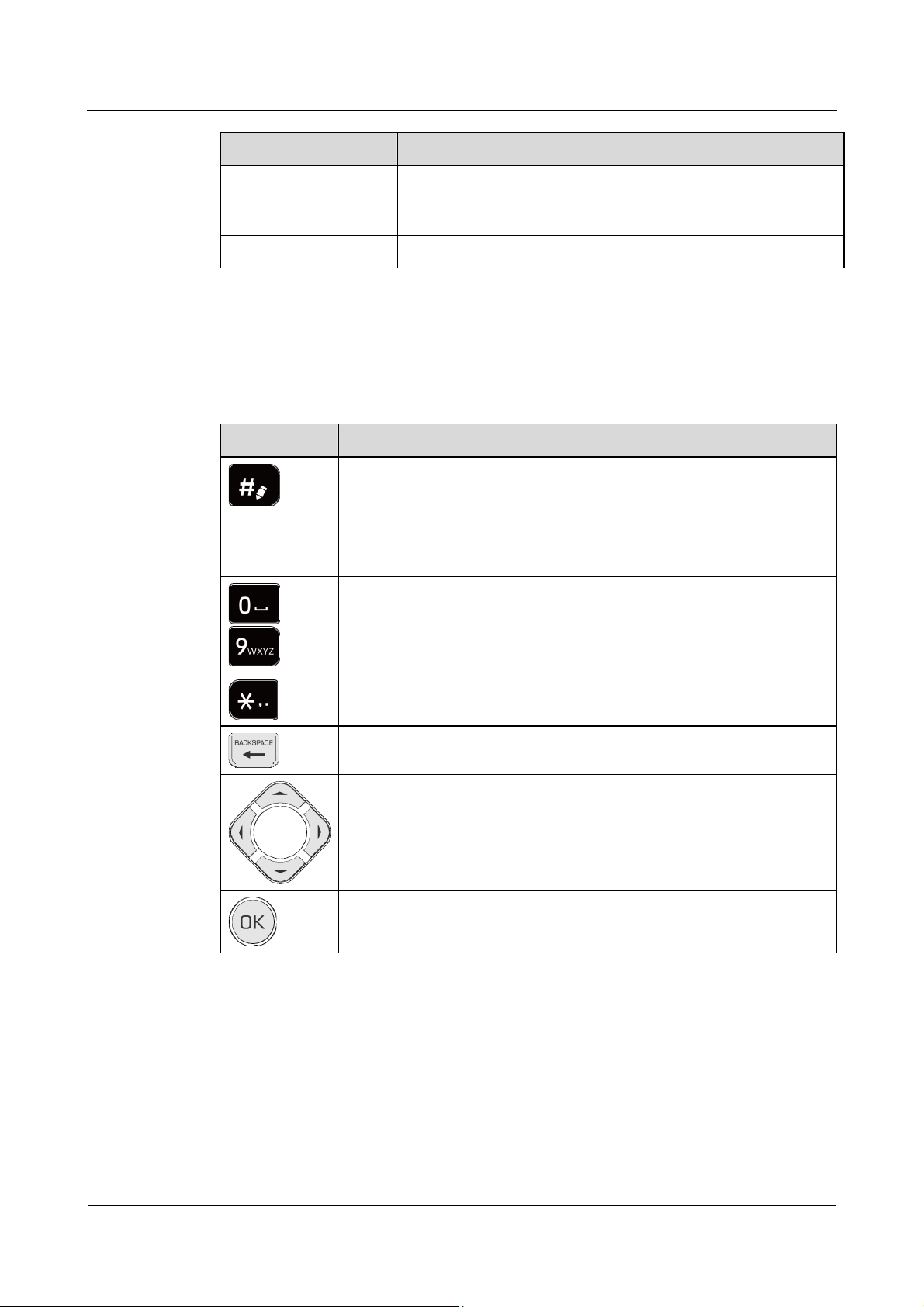
The following table lists the keys that are commonly used during the entering process.
Key Function
HUAWEI 9000
User Guide
interface of the HD television. Ensure that the color of the
interface is the same as that of the connector.
It is used to switch between text input modes.
he seque
T nce of text input modes is as follows: digits –> lowercase
letters –> uppercase letters –> pinyin –> digits.
The indications displayed on the screen in
sequence are as follows: (no
display) –> abc –> ABC –> PinYin –> (no display)
z
It is used to enter digits, character, and pinyin.
–
z
It is used to select a Chinese character from the displayed candidate
letters.
It is used to enter symbols, such as * , .
It is used to delete the character before the cursor.
z
It is used to select an item from the displayed items.
z
It is used to adjust the positions of the camera.
It is used to confirm your selection.
1.3 Poweri gn on
Check whether the power cable and the power module are connected to the corresponding
devices properly.
Ensure that:
1-2 Huawei Proprietary and Confidential
Copyright © Huawei Technologies Co., Ltd.
Issue 05 (2009-11-12)
Page 8
HUAWEI 9000
User Guide 1 Basic Information
z
The power voltage is between 100 V and 240 V AC.
z
The live line (L), the neutral line (N), and protection grounding line (PE) conform
s to the
related international standards. The PE is grounded firmly.
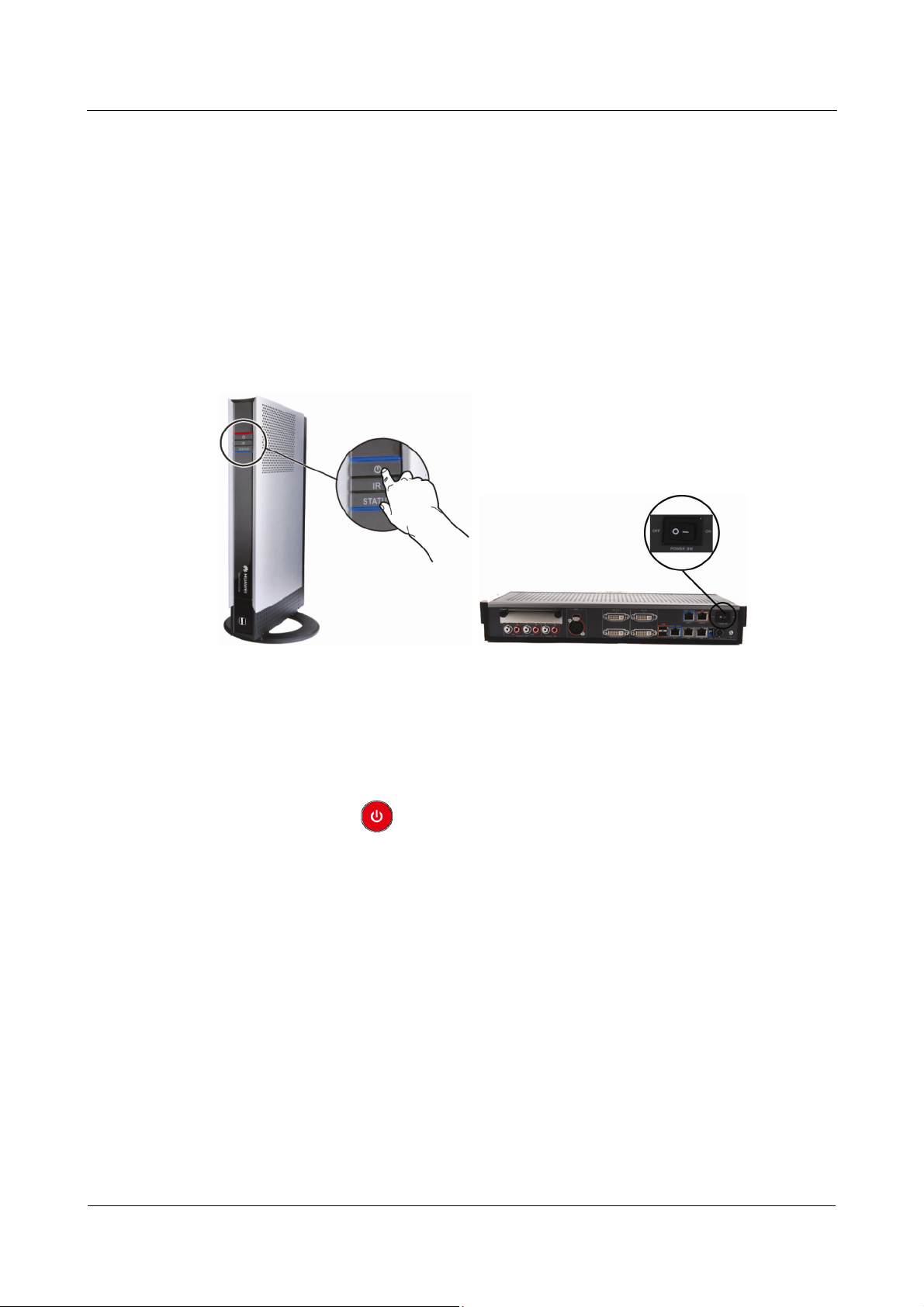
The power-on and power-off procedures of the ViewPoint 9039, ViewPoint 9036, ViewPoint
9035, and ViewPoint 9033 are the same. The power-on and power-off procedures of the
ViewPoint 9030, the ViewPoint 9039S, HUAWEI VP9039A, and HUAWEI VP903
5A are the
same.
The following section takes the power Point 9039
and the ViewPoint 9030 as examples,
corresponding procedures of the View 9.
The positions of the power buttons on t 30 as follows:
-on and power-off procedures of the View
and describes the differences between the
Point 9030 and those of the ViewPoint 903
he ViewPoint 9039 and the ViewPoint 90
ViewPoint 9039
ViewPoint 9030
When the power cable is connected to the terminal and the green indicator o
adapter is on, it indicates that the terminal is connected to the
power supply.
f the power
To power on the ViewPoint 9039, do as follows:
z
Press POW on the remote control.
z
Press the power button on the front panel of the terminal.
To power on the View
ER
Point 9030, choose either of the following methods:
Press the power button on the rear panel to the ON position.
1.4 Basic Settings
When you use the terminal for the first time or yo
screen is displayed.
No ally, the network parameters and camera parameters are set by the administrator when
rm
ystem is installed. You do not need to set these parameters when you use the
the s
conferencing system. If you need to change the settin
video gs, you are recommended to use
W rd.
iza
Issue 05 (2009-11-12) Huawei Proprietary and Confidential
Copyright © Huawei Technologies Co., Ltd.
u restore the default settings, the Wizard
1-3
Page 9

1 Basic Information
HUAWEI 9000
User Guide
On the Wizard screen, you can set the network parameters, camera parameters, and basic
information such as the site name and language.
To di spla y the Wizard screen, do as follows:
z
Select System Settings form the shortcut icons on the home screen, and then choose
Wizard from the displayed menu.
z
Choose Main Menu > System Settings > Wizard.
1-4 Huawei Proprietary and Confidential
Copyright © Huawei Technologies Co., Ltd.
Issue 05 (2009-11-12)
Page 10

HUAWEI 9000
User Guide 2 Making and Answering a Call
2 Making and Answering a Call
You can use the terminal to make point-to-point calls and answer incoming calls.
2.1 Available Call Types
2.2 Makin
Step 1 Press Call
Step 2 Enter the nam
Step 3 ll type to H.323, set the call rate, and then select Enable H.239.
Step 4 ll.
Based on your system configurations, the available call types are
E1, and 4E1.
: H323, H323 PHONE, SIP,
g a Call Through the Call Screen
Take makin .323 point-to-point call as ag an H
To make an H.323 point-to-point call through the Call screen, do as follows:
to display the Call screen.
e, number, or IP address of the remote site to be called in the corresponding
drop-down co
Set the ca
Select Ca
nd
----E
z
mbo box.
You can access the Call screen by pressing any number key on the remote control. Then you can
a call.
make
n example.
z
On the Call screen, you can select to display the Directory screen or select to display the
Call Record screen. On the Directory or Call Record scree
call.
2.3 Making a Call Through Call Records
To make a call through call records, do as follows:
Issue 05 (2009-11-12) Huawei Proprietary and Confidential
Copyright © Huawei Technologies Co., Ltd.
n, you can select a site, and then make a
2-1
Page 11

2 Making and Answering a Call
Step 1 Press C all to display the Call screen.
HUAWEI 9000
User Guide
Step 2 Select
Step 3
Step 4 ll.
2.4 Makin
Step 1 Press DIRECTORY
Step 2 Select the site to be called.
Step 3
, select Outgoing Calls, Ans
to be called.
Select Call to display the Call screen.
The informat
Select Ca
----End
ion of the site to be called appears in the corresponding drop-down combo box.
wered Calls, or Missed Calls, and then select the site
g a Call Through the Directory
The directory includes the list of the remote sites sto
To make a call through ectory, do as follows: the dir
on the remote control to display the Contacts screen.
Select Call to display the Call screen.
The informat
ion of the site to be called appears in the corresponding drop-down combo box.
red on the local end.
Step 4 ll.
2.5 Answe
Step 1 > General.
Step 2 S t t
Step 3 ve.
Select Ca
----End
ring a Call
e
Th terminal can answer a call in either of the following methods:
z
Answering the call manually according to the on-screen messages
z
Answering the call automatically
To set the methods for answering a call, do as follows:
Choose Main Menu > System Settings
e he parameters for Answer mode.
z
Auto: When the local end is not in the conference, the terminal answers all the incomin
calls automatically.
z
Manual: When there is an incoming call from the remote en
message.
z
Do not d
Select Sa
You can select whether to answer the call.
isturb: The terminal rejects all the incoming calls.
d, the local end displays a
g
----End
2-2 Huawei Proprietary and Confidential
Copyright © Huawei Technologies Co., Ltd.
Issue 05 (2009-11-12)
Page 12

HUAWEI 9000
User Guide 2 Making and Answering a Call
2.6 Ending a Call
Press , and then press OK to confirm your operation.
Issue 05 (2009-11-12) Huawei Proprietary and Confidential
Copyright © Huawei Technologies Co., Ltd.
2-3
Page 13

HUAWEI 9000
User Guide 3 Holding a Conference
3 Holding a Conference
You can use the terminal to initiate a multipoint conference. The conference can be a dualstream conference.
An H.239 dual-stream conference means that both the main stream and the H.239 Content can
be transmitted in the conference. You can transmit two channels of video source
end or view two channels of videos of the remote end at the same time.
s of the local
3.1 Configuring the Video Source and the Monitor
The terminal has e nput interfaces. When external video devices are connected to the
terminal, you can tween the video sources and set one channel of the vi
the local main stream and the other channel as the local H.239 Content.
Step 1 CE
Step 2 AY
3.2 Holdin a
Press SOUR
Press DISPL
----End
g Multipoint Conference
Before you hold a multipoint conference by using the terminal, ensure that:
z
If you need to hold a dual-stream conference, configure the H.239 Content source when configuring
the video sources.
z
During a conference, you can select the video sources
dynamically.
xternal i
select be deo sources as
, On the Main screen, select the desired main video.
, to select the output content for the connected monitor.
of the main stream and the H.239 Content
z
The videoconferencing system that is accessed by the
function.
z
The number of join does not exceed the capacity of the videoconferencined sites
z
The terminal is registered with the GK successfully.
Issue 05 (2009-11-12) Huawei Proprietary and Confidential
Copyright © Huawei Technologies Co., Ltd.
terminal supports the SiteCall
g system.
3-1
Page 14
3 Holding a Conference
Step 1 Press CONFERENCE on the remote control to display the SiteCall screen.
HUAWEI 9000
User Guide
Step 2 Ente
Step 3 Add t
r a conference name in the corresponding drop-down combo box.
he sites to be called.
z
Enter the name (You need to predefine this site in the directory), number, or IP addre
the site to be called in the corresponding text box. If multiple sites are to be called, us
comm
as to separate the names, numbers, or IP addresses of the sites.
z
To add sites from the directory, select Add from Directory.
Step 4 Set the conference rate, and then specify whether to enable the H.239 Cont
If the site ra
Step 5 S e, a
elect Advanc nd then set the conference parameters for the SiteCall.
te is nference rate, the corresponding site cannot join the conference.
lower than the co
Parameter Description
H.239 mode To hold a dual-stream conference, you can set this parameter to
Presentation or Live.
Continuous
presence
It is used to specify the maximum number of site videos that can be
viewed by the joined sites.
After the continuous presence is broadcasted, the joined sites can view the
videos of multiple sites at the same time.
If this parameter is set to OFF, the conference does not support the
continuous presence.
ss of
e
ent function.
Conference
Password
IP/PSTN
anonymous
sites
H.235 security
conference
T e. This parameter provides two
he password used to access the conferenc
functions:
z
Conference control password: After a conference i
s successfully held,
the joined IP sites must enter this password to obtain the right to control
this conference when requesting Chair.
z
Authentication conference password: Anonymous sites must enter t
his
password to join in an authentication conference.
The number of IP/PSTN anonymous sites that are allowed to join in the
conference.
z
If this parameter is set to 5, five such kind of anonymous sites are
allowed to join in the conference.
z
If this parameter is set to 0, no anonymous sites are allowed to join in
the conference.
It is used to set whether to use the H.235 security protocol to enc
m
edia streams and call signaling.
z
Non-security: If this option is selected, all kinds of information in
rypt the
a
conference are not encrypted.
z
Media security: If this option is selected, the media stre
am is
encrypted.
3-2 Huawei Proprietary and Confidential
Copyright © Huawei Technologies Co., Ltd.
Issue 05 (2009-11-12)
Page 15

HUAWEI 9000
User Guide 3 Holding a Conference
Parameter Description
Payment side It is used to determine the payment party of the current conference.
z
Local: The current conference is paid by the local site.
z
Other account: The current conference is paid by another account. You
need to enter Account and Password.
Step 6 Confirm
----E
the settings and return to the SiteCall screen. Then select SiteCall.
nd
3.3 Holding a Multipoint Conference Using the MiniMCU
You can use eithe
function:
z
Define the conference on a terminal with the mini MCU function and then hold the
conference.
z
Use a terminal with ini MCU function to make site-by-site calls to hold the
conference.
3.3.1 Defining and H ence on a Terminal with the
Mini MCU Function
To enable the mini MCU function of a terminal, and then define and hold a conference on th
terminal, do as follows:
Step 1 Press CONFERENCE on the remote control to display the SiteCall screen.
r of the following methods to hold a conference by using the mini MCU
the m
olding a Confer
e
Step 2 to display the Conference Parameters screen.
Select Advance
Step 3 .
Step 4 Select OK to display the SiteCall s
Step 5 ecify whether to enable
Step 6 Select SiteCall.
3.3.2 M
Issue 05 (2009-11-12) Huawei Proprietary and Confidential
aking Site-by-Site Calls
Step 1 Make a point-to-point call to another site on the terminal with the mini MCU function.
Select Enable MiniMCU
The built-in mini MCU processes conference data like the MCU on a videoconferencing
network. If a tick (√) is displayed i
Add the sites to join the conference, set the conference rate, and sp
H.239.
----End
To hold
a conference by making site-by-site calls, do as follows:
Copyright © Huawei Technologies Co., Ltd.
n the check box, it indicates that the option is selected.
creen.
3-3
Page 16
3 Holding a Conference
Step 2 econd point-to-point call to the second site on the terminal with the mini MCU
Step 3 Repeat Step 2 to make point-to-point calls to the other sites.
Make a s
tion.
func
A multipoint conference that contains three sites is held.
----End
If a site to be called is defined in the directory of a terminal with the mini MCU function, you can also
call this site through the site number or the site name on the terminal.
3.4 Transmitting the H.239 Content
HUAWEI 9000
User Guide
Choose Main Menu > System Settings > Conference. Set H. ode to Live. Then, s
H.239 sending mode.
z
Auto: When transmitting the main stream, the terminal transmits the H.239 Content also
at the same time. The H.239 role is valid when it is set
z
Manual: You can transmit the H.239 Content by pressi
menu.
You can send the H.239 Content by pressing the CONTENT
transmitting or resend the H.239 Content by pressing the key.
3.5 Controlling a Multipoint Conference
W old a multi l the video and audio of the sites by
hen you h
u nference C
sing the Co
You can access the con NFERENCE
T g table de
he followin scribes the conference control functions.
Use… To…
point conference, you can contro
ontrol function.
ference control screen by pressing CO
239 m
to video.
ng the key or by selecting the
key. You can stop
.
et
View Site View the video of another site.
Request Floor Obtain the floor. Use this function if you want to speak while a site is
being broadcasted by the chair site.
Broadcast is being broadcasted.All the other sites view the video of the site that
Stop Broadcasting Stop broadcasting a site or multiple sites.
Request Chair es the
Release Chair Release the chair token.
3-4 Huawei Proprietary and Confidential
Copyright © Huawei Technologies Co., Ltd.
Request the chair token to become the chair. After a site becom
chair, the site can control th
e entire conference.
Issue 05 (2009-11-12)
Page 17

HUAWEI 9000
User Guide 3 Holding a Conference
Use… To…
Roll Call Let one of the sites take the floor. The microphones of other sites are
muted. Other sites can view the roll called site.
Request Floor List Display all the sites that are requesting floor.
Free Talk Cancel operations such as broad
cast site, mute speaker, mute
microphone, and roll call.
Call Site Add a new site to the conference or allow a site to join the
conference.
Call All Sites Call the absent sites in the site list.
Hang up Disconnect a present site so that it is removed from the conference.
Extend Conference . Extend a conference
End Conference End the current conference.
Voice Activation Broadcast the video of a site whose volume is the highest among all
the sites in the discussion.
Mute Speaker ou cannot hear any sound from Close the audio output of the site. Y
other sites.
Mute Mic Close the audio input of the site. Other sites cannot hear any sound
from the local site.
Set CP me time. Show Continuous Presence to view multiple sites at the sa
Release H.239
Token
During a H.239 dual-stream conference in Presentation mode, the
chair site releases the H.239 token. Without the H.239 token, the site
stops sending the H
.239 Content.
H.239 Lock Limit the rights for sending the H.239 Content to a site or restrict the
rights for sending the H.239 Content during a conference.
Deprive Chair ion is available only when you hold Become the chair site. This funct
a multipoint conference by sitecall and you are pay party.
Enable Chair After the Enable Chair operation is performed on the terminal with
the mini MCU function, all the sites in the conference can request for
the chair token.
Disable Chair After the Disable Chair operation is performed, no chair site exists
in the conference. If a chair site exists, after this operation is
performed on the terminal with the mini MCU function, the site is
deprived of the chair token.
Note: When a conference is held by using the mini MCU function, the Enable Chair and Disable Chair
operations can be performed only on a terminal with the mini MCU function
3.6 Editing Captions of the Conference
You can edit caption during a conference, and then overla ption on the main video
by the local site.
y the ca
.
sent
Issue 05 (2009-11-12) Huawei Proprietary and Confidential
Copyright © Huawei Technologies Co., Ltd.
3-5
Page 18
3 Holding a Conference
To make a caption, do as follows:
Step 1 Select Main Menu > Application > Send Caption.
On the Send Caption screen, the left pane lists the names of th ng captions. e existi
HUAWEI 9000
User Guide
Step 2 Selec
Step 3 Set t
Step 4 Select Edit to ent contents of the caption. Press # to
t New, Edi ect a caption and then press OK t, or sel
erties scree diting a caption.
Prop n for e
he name of the c .
and display effect aption
er the text switch between text
to display the Captio
n
input modes.
Press OK
to move the cursor from one line to another. Press PAGE UP
, PAGE DOWN , Up or Down to switch the caption
between the top, middle, and bottom position.
Step 5
Press RETURN
to exit the content editing mode.
Step 6 Select Preview to check the effect of the caption. Press any key to exit the preview mode.
Step 7 Select Save to save the current caption.
----End
When you complete editing a caption, you can select Send to send the caption immediately.
To stop sending the caption, select Stop Sending.
3-6 Huawei Proprietary and Confidential
Copyright © Huawei Technologies Co., Ltd.
Issue 05 (2009-11-12)
Page 19

HUAWEI 9000
User Guide 4 Controlling the Video and Audio
4 Controlling the Video and Audio
4.1 Selecting a Video Source
Selecting Mai
n Video Source
Hiding Picture
Selecting Loca
You may connect the video input interfaces idto the v
main video source and H.239 Content source from video source devices.
To select a video source, press SOURCE
In the Main screen, select a video input interface as the main video source.
V
GA indicates that the HD IN 3 interface can output the desktop of a PC or other SXGA
input. The terminal can recognize the input mode automatically.
During a conference, if you do no
picture. Choose Main Menu > Conference Service > Hide Picture to hide your video.
t want to be seen by the remote site, you can hide your
eo source devices. You need to select the
.
l H.239 Content Source
In the H.239 Content screen, select a video input interface as the H.239 Content source.
VGA indicates that the H
input. The terminal can recognize the input mode automatically.
D IN 3 interface can output the desktop of a PC or other SXGA
Selecting Rem
Issue 05 (2009-11-12) Huawei Proprietary and Confidential
ote Video Source
You can select a remote video source to view at the loca
video input interface as the remote video source.
The camera icon for each channel is
connected to the remote terminal is
Copyright © Huawei Technologies Co., Ltd.
only for your reference. In some cases, the device
not a camera at all.
l site. In the Remote screen, select a
4-1
Page 20

4 Controlling the Video and Audio
HUAWEI 9000
User Guide
4.2 Contro in
4.2.1 Selecti
ll g the Cameras
You can control a local or remote camera by performing the p that is, the
pann
Select the
following operations:
z
To access the Adjust Camera screen, you can press ZOOM or , or press OK
when the main menu
z
z
z
ng a Camera
To control a camera, you need to select it. When controlling a camera, you a ntrolling the
main video of the local site or a remote site by defa
To select
PTZ o erations,
ing, tilting, and zooming operations.
Main Menu > Conference Service > Camera Control, and then you can perform
Adjust Camera: You can control
is hidden.
Preset position: For details about how to preset a camera position, see section 4.2.2
"Presetting Camera Positions."
Focus: You can adjust the focus.
Return: You can exit the Camera Control screen.
a camera to be controlled, do as follows:
a camera by performing the PTZ operations.
re co
ult.
Step 1 Ensure that the camera you want to control is a
selected for outputting the video.
Step 2
On the Camera Control screen, select Adjust Camera, and then press F1
between the local camera and the remote camera.
----End
4.2.2 Presetting Camera Positions
The procedure for ng the positions of a remote camera is si presetti
the positions o cal camera. The following section takes the local camera as an example
and describes h preset the positions of the local camera.
You can adjust the camera positio
position. To preset a position for the lo
Step 1
Step 2 Press MENU to display the navigation pane of the home screen.
Step 3 Select th era ico
Press DISPLAY
Adjust Camera screen appears.
The
f the lo
ow to
n by pressing the corresponding keys, and then save this
to switch to the video of the local end.
e Adjust Cam n.
lready connected and that an output interface is
to switch
milar to that of presetting
cal camera, do as follows:
z
Sel perform the following op ns:
ect Adjust Camera. Then y n
4-2 Huawei Proprietary and Confidential
Copyright © Huawei Technologies Co., Ltd.
ou ca eratio
Issue 05 (2009-11-12)
Page 21
HUAWEI 9000
User Guide 4 Controlling the Video and Audio
− Move the camera towards any of the four directions by pressing the corr ing
espond
arrow key on
− Adjust the c era to zoom in on scene by pressing ZOOM am or zoom out on
scene by p nressi
z
Selec , and
t Focus, select Long focus, Auto focus, or Short focus by pressing
ess OK
then pr
Step 4
Press PRESETS
Step 5 Specify the number of the
remote control, and
.
g ZOOM
.
to adjust the focus.
.
preset position by pressing the corresponding number key on the
press and hold the number key to save the settings of the preset
then
position.
----End
To delete a preset position, do as follows:
Step 1 ESETS
Press PR .
Step 2 Select the preset position to be deleted by pressing the corresponding number on the remote
control, and then press BACKSPACE
To delete all the preset
positions, press
----End
To move
the camera to a preset position, do as follows:
Step 1 Press DISPLAY to switch
Step 2 Press PRESETS
Step 3
Select the preset position by pressing the corresponding number key on the remote control.
.
----End
4.3 Managing Video Output
If you connect monitors to multiple video output interfaces, you can allocate each of these
interfaces to output one or more specified channels of videos.
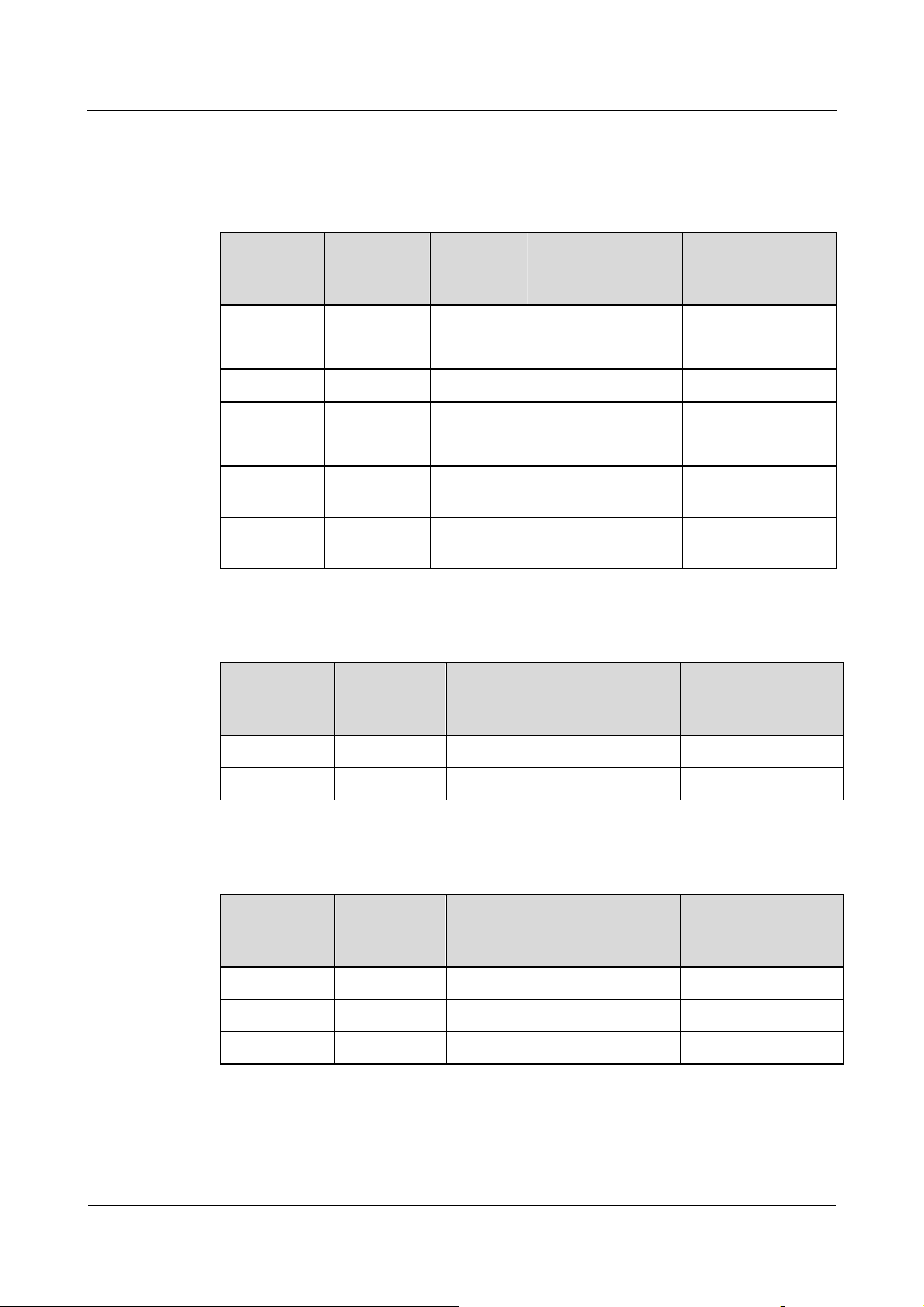
The following table lists the videos that can be output through each video output interface.
.
.
to the video of the camera to be controlled.
Issue 05 (2009-11-12) Huawei Proprietary and Confidential
Copyright © Huawei Technologies Co., Ltd.
4-3
Page 22
4 Controlling the Video and Audio
T ple, ① e lo m e loca
o be sim
stands for the rem eam r Cont
he followin
T g table lists the available contents t hrough the video output
nterfaces of t iewPoint 9039, ViewP 6, V ViewPoint
i he V oint 903 iewPoint 9033, and 9035.
stands for th
ote main str
cal main strea
; ④ stands fo
; ② stands for th
the remote H.239
hat are output t
HUAWEI 9000
User Guide
l H.239 Content; ③
ent.
Video
Output
Interface
Available
Videos
Combined
Picture
Default Video
Before
Conference
Default Video in
Conference
HD OUT 1 ①②③④ Show ① ③
HD OUT 2 ①②③④ Hide ① ④
HD OUT 3 ①② Hide ① ①
HD OUT 4 Blue screen Hide Blue screen Blue screen
HD OUT 5 een Hide Blue screen Blue screen Blue scr
SD OUT 1 Same as HD
Show Same as HD OUT 1 Same as HD OUT 1
OUT 1
SD OUT 2 Same as HD
Hide Same as HD OUT 2 Same as HD OUT 2
OUT 2
T g table lists the available contents tha ough the video output
he followin t are output thr
erfaces of t ewPoint 9030.
int he Vi
Video Available Combined Default Video Default Video in
Output
Interface
Videos Picture Before Conference
Conference
HD OUT 1 ①②③④ Show ① ③
HD OUT 2 ①②③④ Hide ② ④
T g table lists the available contents tha ough the video output
he followin t are output thr
i he Vi 39S a AWEI VP9039A.
nterfaces of t ewPoint 90 nd HU
Video
Output
Interface
Available
Videos
Combined
Picture
Default Video
Before
Conference
Default Video in
Conference
HD OUT 1 ①②③④ Show ① ③
HD OUT 2 ①②③④ Show ② ④
SDI OUT ①②③④ Show ① ③
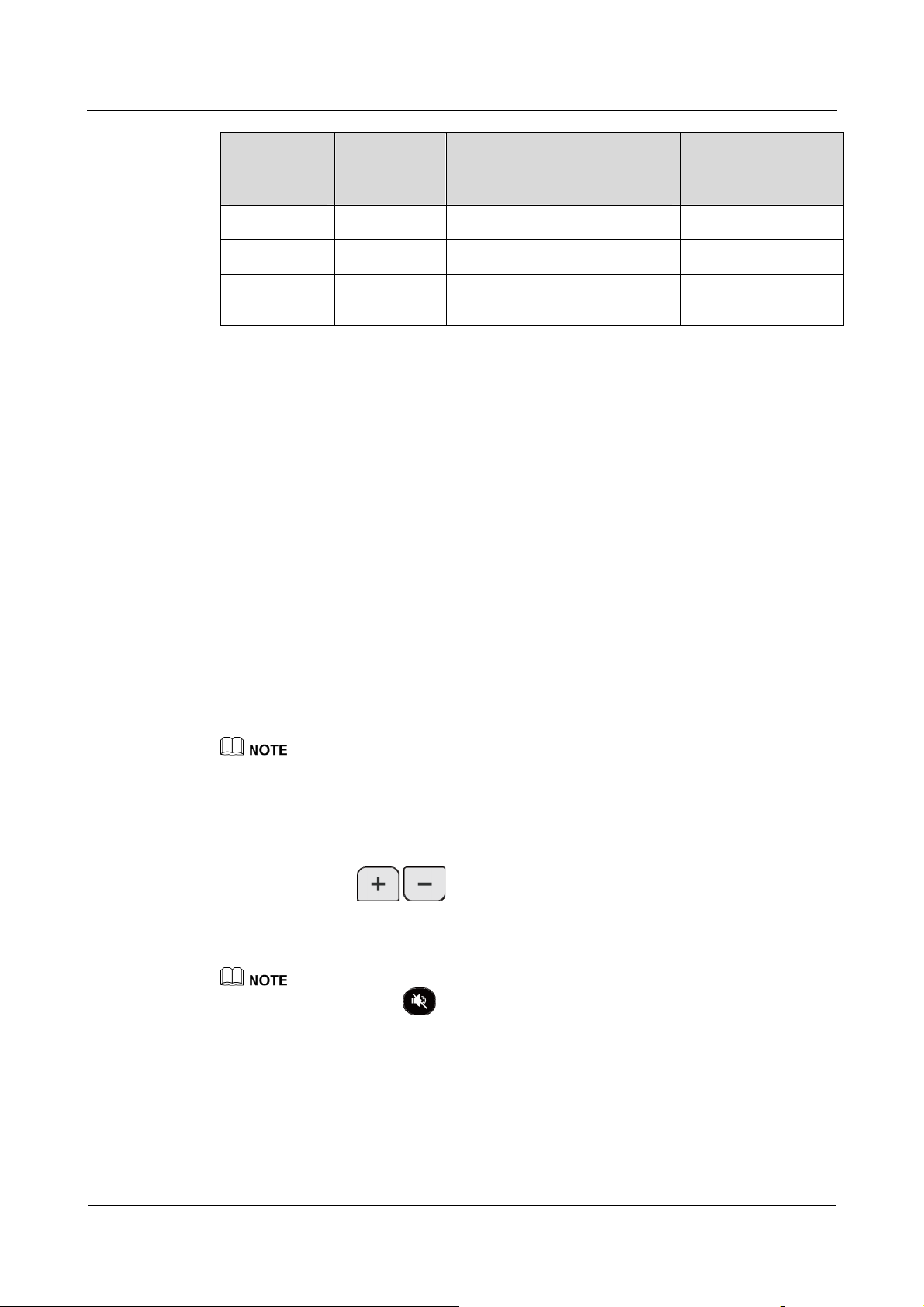
he followin t are output thr
T g table lists the available contents tha ough the video output
nterfaces of t P A.
i he HUAWEI V 9035
4-4 Huawei Proprietary and Confidential
Copyright © Huawei Technologies Co., Ltd.
Issue 05 (2009-11-12)
Page 23
HUAWEI 9000
User Guide 4 Controlling the Video and Audio
Video Available Combined Default Video Default Video in
Output
Interface
Videos Picture Before Conference
Conference
HD OUT 1
HD OUT 2
SD OUT 1 Same as HD
According to the above table and your requirements, you can select which video to be output
through HD OUT 1, HD OUT 2, HD
Menu > Conference Service > Manage Video Output. Then select available video to be
output through the three interfaces.
To show the desktop of a computer, e
are supported by the terminal. You can set these parameters by choosing Main Menu >
System Settings > Video Output.
4.4 Adjust g
in Video Quality
z
z
z
①②③④
①②③④
OUT 1
To adjust the video effects, such as the brightness, choose Main Menu > Preference >
Video Effect.
Choose Main Menu > Preference > Picture Offset and use the right or left arrow key
to move the slider rightwards or leftwards gradually.
Choose
left arrow
Main Menu > Preference > Sampling Phase Adjustment and use the right or
key to move the slider rightwards or leftwards gradually.
Show
Show
Show Same as HD OUT 1 Same as HD OUT 1
OUT 3, and SDI OUT respectively. Choosing Main
nsure that the resolution and refresh rate of the computer
① ③
② ④
After you adjust the video effects, the adjustment is applicable to only the local SD main-stream video.
4.5 Adjusting Volume and Audio Effects
You can press VOL / to increase or decrease the volume you hear at the local
end.
4.6 Switch
Choose Ma
You can press SPEAKER
ing the Screen Layout
You can change the layout
Alternatively, you can switch the layout by choosing the menus. Both methods can be used in
turn to change the layout.
in Menu > System Settings > Audio to adjust the audio output effects.
to mute or unmute the speaker.
of the screen by pressing the dedicated keys on the remote control.
Issue 05 (2009-11-12) Huawei Proprietary and Confidential
Copyright © Huawei Technologies Co., Ltd.
4-5
Page 24

4 Controlling the Video and Audio
z
To switch screen layout, press LAYOUT consecutively.
z
If you are viewing PIP, bi-screen, or tri-screen, you can change the positions of pictures
HUAWEI 9000
User Guide
by pressing SWAP
z
If the screen is in PIP mode, you can change the video positions by pressing RESIZE
.
.
For details about the configuration, troubleshooting, and precautions, see the HUAWEI 9000
HD Video Terminal Administrator Guide.
4-6 Huawei Proprietary and Confidential
Copyright © Huawei Technologies Co., Ltd.
Issue 05 (2009-11-12)
Page 25

HUAWEI TECHNOLOGIES CO., LTD.
Huawei Industrial Base
Bantian, Longgang
Shenzhen 518129
People's Republic of China
www.huawei.com
Part Number: 7110002
 Loading...