

Page 1

What is in Your Box
• Mobile phone
• Charger
• USB cable
• Battery
For more information about how to use your phone, please read the
user guide.
To find the user guide, do as follows:
1.
Connect your phone to a PC.
2.
Choose
Start
>
document
3.
Open
My Computer
.
User Guide more languages
• Headset
• Quick Start Guide
• Safety Information
. Double-click
Mobile Partner
.
1
and
Page 2

Phone at a Glance
Headset
jack
Earpiece
Camera
Volume
key
■ Note:
If you apply protective film on the phone, please use the protective
film with good transmittance.
Charge/Data port
Key Functions at Your Fingertips
• Press to power on your mobile phone.
• Press and hold to open the
• Press to lock the screen when your mobile phone is
active.
• Touch to return to the previous screen.
• Touch to exit any application you are running.
• Touch to hide the keyboard.
Phone options
2
menu.
Page 3
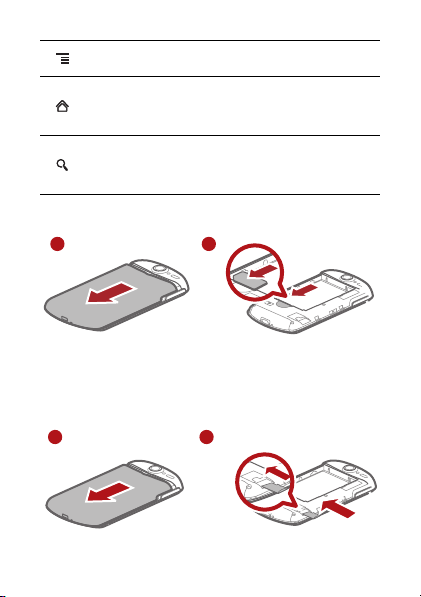
Touch to open the menu on an active screen.
• Touch to return to the Home screen.
• Touch and hold to show the most recently used
applications.
• Touch to open Google search for searching your mobile
phone and the web.
• Touch and hold to open Google search by voice.
Installing the SIM Card
1 2
Installing the microSD Card (Optional)
Your mobile phone is already equipped with a large-volume built-in
eMMC card. If you want to expand your phone memory, you can also
insert a microSD card.
1 2
3
Page 4
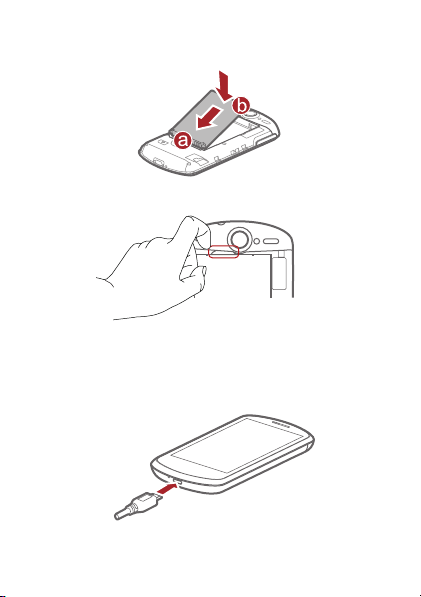
Installing the Battery
Removing the Battery
■ Note:
Do not use a sharply pointed object to remove the battery
as this could puncture the battery and allow the release of toxic
battery fluid.
Charging the Battery
4
Page 5
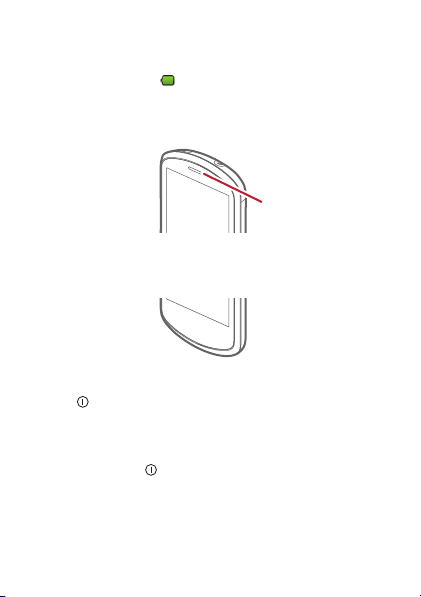
If your mobile phone is charged when it is powered on, the battery
icon on the Notification bar shows the charging status. When the
battery icon changes to , it indicates that your mobile phone is
fully charged.
Status Indicator
Status Indicator
Green: Fully charged (when connected to charger).
Orange: Charging in progress (when connected to charger).
Red: Battery low.
Powering On Your Mobile Phone
Press . The first time you power on your phone, you will be
asked to sign in to your account and set up your mobile phone.
Powering Off Your Mobile Phone
1. Press and hold to open the
2. Touch
Power off
3. Touch OK.
.
Phone options
5
menu.
Page 6
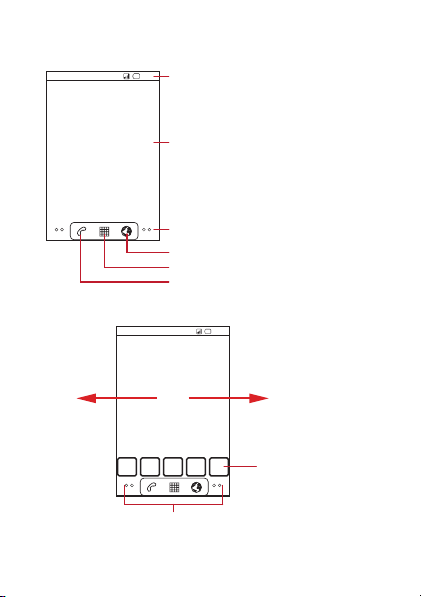
Home Screen
10:23
Notifications bar:
Displays the reminders and status icons of
your phone. Flick down to open the
notifications panel.
Display area:
Shows the operation and display areas of
your phone.
Screen switching dots:
Indicate the number of the screens on the
left or right. Touch the left or right dots to
switch between the screen.
Touch to open the Browser.
Touch to view all your applications.
Touch to open the Phone application.
Viewing Other Parts of the Home Screen
10:23
Flick your finger left or
right across the Home
screen.
Touch a thumbnail to
open the Home screen
or its extensions.
Touch and hold the small dots to view thumbnails
of the Home screen and its extensions.
6
Page 7

Adding a New Screen Item
1. Touch and hold a blank area on the Home screen until the
to Home screen
2. Select an item to add it to the Home screen.
menu is displayed.
Add
Changing the Wallpaper
1. On the Home screen, touch >
2. Do any of the following:
• Touch
Live wallpapers
wallpaper.
• Touch
Gallery
• Touch
wallpaper.
to select a picture and set it as the wallpaper.
Wallpapers
to select a picture and set it as the
Wallpaper
.
to select a picture and set it as the
Locking the Screen
• When your mobile phone is on, press to lock the screen.
When the screen is locked, you can still receive messages and
calls.
• If your mobile is idle for a while, the screen will lock
automatically.
Unlocking the Screen
1. Press to wake up the screen.
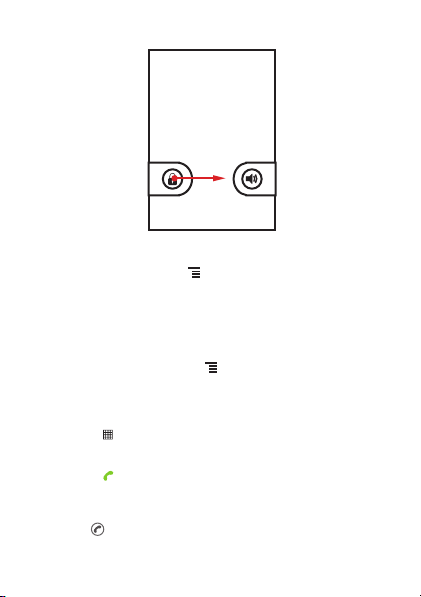
2. Drag the lock icon from left to right to unlock the screen.
7
Page 8
Importing Contacts from a SIM Card
1. In the contact list, touch >
2. Touch
Import from SIM card
3. If you have more than one account on your phone, touch the
account into which you want to import the contacts.
4. Wait for the SIM card contents to be loaded. Select the contacts
you want to import or touch >
contacts.
Import/Export
.
Import all
.
to import all
Making a Call with the Phone Application
1. Touch >
2. Touch the appropriate numeric keys to enter the phone number.
3. Touch to initiate the call.
Phone
to display the dialer.
Answering an Incoming Call
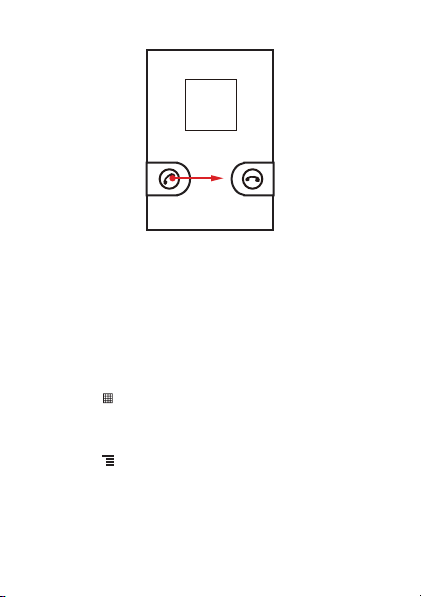
Drag the to the right to answer the call.
8
Page 9
Choosing an Input Method
1. Touch and hold the space where you enter your text until the
Edit text
2. Touch
3. Select the input method.
The keyboard panel will be displayed automatically.
menu is displayed.
Input method
.
Creating and Sending a Multimedia Message
1. Touch >
2. Enter a phone number in the To field.
3. Touch the composition text box to start entering your message.
4. Touch to display the options panel.
• Touch
• Touch
5. When the message is ready to be sent, touch
Messaging
>
New message
Add subject
phone is now in multimedia message mode.
Attach
to add the message subject. Your mobile
to add a picture, music, or video file.
.
9
Send
.
Page 10

Turning on the Data Service
1. Touch >
2. Touch
3. Select the
connection.
Settings
Wireless & networks
Data enabled
.
check box to turn on the data
>
Mobile networks
.
Turning On Wi-Fi
1. Touch >
2. Touch
box to turn on Wi-Fi.
Settings
Wireless & networks
.
, and then select the
Wi-Fi
check
Sharing Your Phone’s Data Connection via USB
To use USB tethering in different operating systems, you may need
to prepare your computer to establish a network connection via USB.
■ Note:
You can not share your mobile phone’s data connection and SD card
via USB at the same time.
1. Touch >
2. Touch
3. Select the
connection.
Settings
Wireless & networks
USB tethering
.
check box to share your data
>
Tethering & portable hotspot
Sharing Your Phone’s Data Connection as a Portable Wi-Fi Hotspot
1. Touch >
2. Touch
Settings
Wireless & networks
.
>
Tethering & portable hotspot
10
.
.
Page 11
3. Select the
Portable Wi-Fi hotspot
connection.
check box to share your data
Opening Your Camera
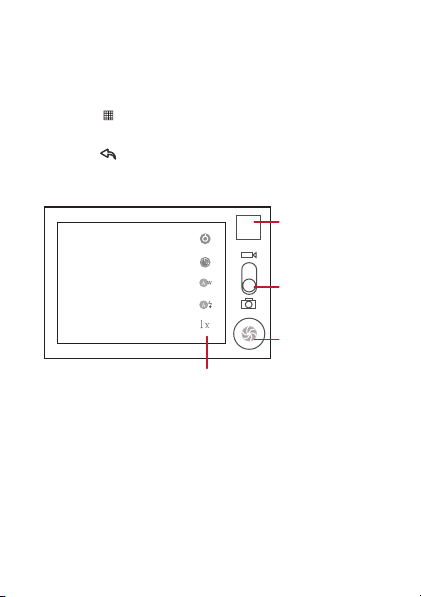
• Touch >
in landscape mode, ready to take a picture or record a video.
• Touch to close the camera.
Capture Screen
Touch to customize the camera settings.
Camera
to open the camera. The camera opens
Thumbnail of last
photo. Touch to
preview the photos
or videos.
Drag up to record
videos, drag down
to take photos.
Touch to take a
photo.
3
5
Using the microSD Card as USB Mass Storage
1. Connect your mobile phone to your PC with the USB cable. Your
PC will detect the microSD card as a removable disk.
2. Open the notification bar, and then touch
3. Touch
Turn on USB storage
confirm that you want to transfer files.
11
USB connected
in the dialog box that opens to
.
Page 12

You can now transfer files from your PC to your mobile phone’s
microSD card.
Warnings and Precautions
Operating Environment
• The device complies with the RF specifications when the device
is used near your ear or at a distance of 1.5 cm from your body.
Ensure that the device accessories such as a device case and a
device holster are not composed of metal components. Keep
your device 1.5 cm away from your body to meet the requirement
earlier mentioned.
• Keep the ambient temperature between -10°C and 45°C while
the device is being charged. Keep the ambient temperature
between -10°C to 55°C for using the device powered by a battery.
Certification Information (SAR)
This device meets guidelines for exposure to radio waves.
Your device is a low-power radio transmitter and receiver. As
recommended by international guidelines, the device is designed not
to exceed the limits for exposure to radio waves. These guidelines
were developed by the independent scientific organization
International Commission on Non-Ionizing Radiation Protection
(ICNIRP) and include safety measures designed to ensure safety for
all users, regardless of age and health.
The Specific Absorption Rate (SAR) is the unit of measurement for
the amount of radio frequency energy absorbed by the body when
using a device. The SAR value is determined at the highest certified
power level in laboratory conditions, but the actual SAR level of the
device when being operated can be well below the value. This is
because the device is designed to use the minimum power required
to reach the network.
12
Page 13

The SAR limit adopted by USA and Canada is 1.6 watts/kilogram (W/
kg) averaged over one gram of tissue. The highest SAR value
reported to the FCC and IC for U8800 when tested for use at the ear
is 0.329 W/kg, and when properly worn on the body is 0.773 W/kg.
The highest SAR value reported to the FCC and IC for U8800H when
tested for use at the ear is 0.34 W/kg, and when properly worn on the
body is 0.79 W/kg.
The SAR limit also adopted by Europe is 2.0 W/kg averaged over 10
grams of tissue. The highest SAR value for U8800 when tested at the
ear is 0.372 W/kg, and when properly worn on the body is 0.562 W/
kg. The highest SAR value for U8800H when tested at the ear is
0.342 W/kg, and when properly worn on the body is 0.536 W/kg.
FCC Statement
This equipment has been tested and found to comply with the limits
for a Class B digital device, pursuant to Part 15 of the FCC Rules.
These limits are designed to provide reasonable protection against
harmful interference in a residential installation. This equipment
generates, uses and can radiate radio frequency energy and, if not
installed and used in accordance with the instructions, may cause
harmful interference to radio communications. However,there is no
guarantee that interference will not occur in a particular installation.If
this equipment does cause harmful interference to radio or television
reception,which can be determined by turning the equipment off and
on, the user is encouraged to try to correct the interference by one or
more of the following measures:
--Reorient or relocate the receiving antenna.
--Increase the separation between the equipment and receiver.
--Connect the equipment into an outlet on a circuit different from that
to which the receiver is connected.
--Consult the dealer or an experienced radio/TV technician for help.
13
Page 14
This device complies with Part 15 of the FCC Rules. Operation is
subject to the following two conditions: (1) this device may not cause
harmful interference, and (2) this device must accept any
interference received, including interference that may cause
undesired operation.
Caution
Changes or modifications made to this device not expressly
approved by Huawei Technologies Co., Ltd. may void the FCC
authorization to operate this device.
Disposal and Recycling Information
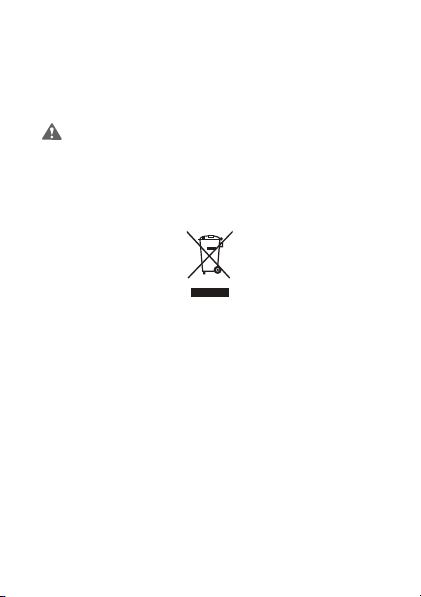
This symbol on the device (and any included batteries) indicates that
they should not be disposed of as normal household garbage. Do not
dispose of your device or batteries as unsorted municipal waste. The
device (and any batteries) should be handed over to a certified
collection point for recycling or proper disposal at the end of their life.
For more detailed information about the recycling of the device or
batteries, contact your local city office, the household waste disposal
service, or the retail store where you purchased this device.
The disposal of this device is subject to the Waste from Electrical and
Electronic Equipment (WEEE) directive of the European Union. The
reason for separating WEEE and batteries from other waste is to
minimize the potential environmental impacts on human health of
any hazardous substances that may be present.
14
Page 15
Reduction of Hazardous Substances
This device is compliant with the EU Registration, Evaluation,
Authorisation and Restriction of Chemicals (REACH) Regulation
(Regulation No 1907/2006/EC of the European Parliament and of
the Council) and the EU Restriction of Hazardous Substances
(RoHS) Directive (Directive 2002/95/EC of the European Parliament
and of the Council). For more information about the REACH
compliance of the device, visit the Web site
www.huaweidevice.com/certification
visit the Web site regularly for up-to-date information.
EU Regulatory Conformance
Hereby, Huawei Technologies Co., Ltd. declares that this device is in
compliance with the essential requirements and other relevant
provisions of Directive 1999/5/EC.
For the declaration of conformity, visit the Web site
www.huaweidevice.com/certification
■ Note:
Observe the national local regulations in the location where the
device is to be used. This device may be restricted for use in some
or all member states of the European Union (EU).
■ Note:
This device may be operated in all member states of the EU.
France
: Outdoor use limited to 10 mW e.i.r.p. within the band 2454-
2483.5 MHz.
. You are recommended to
.
15
Page 16
Italy
: For private use, a general authorisation is required if WAS/
RLAN’s are used outside own premises. For public use, a general
authorisation is required.
Luxembourg
service supply.
Norway
within a radius of 20 km from the centre of Ny-Ålesund.
WOW HD, SRS and the symbol are trademarks of SRS Labs,
Inc. WOW HD technology is incorporated under license from SRS
Labs, Inc.
WOW HD™ significantly improves the playback quality of audio,
delivering a dynamic 3D entertainment experience with deep, rich
bass and high frequency clarity for crisp detail.
: General authorisation required for network and
: This subsection does not apply for the geographical area
FAQ
How do I prevent automatic switching of orientation when
rotating phone?
Touch >
the function.
How do I set the unlock pattern?
Touch >
>
How can I change the keyboard mode?
Touch and hold the area where you write text and then select the
input method you prefer.
Pattern
.
Settings
Settings
>
Display
>
Auto-rotate screen
>
Location & security
16
to disable
>
Set up screen lock
Page 17

How do I stop the song playing in the background?
Touch the notification bar, flick downwards to open the notifications
panel, and then touch the music playing notification to go to the
music playing screen.
How do I return to the calling screen?
While on a call, if you’re on another screen, you can touch the
notification bar, and drag downwards to open the notifications panel.
Then touch the current call notification to return to the calling screen.
How do I create an application shortcut on the Home
screen?
Touch and hold an application icon on the main menu screen until
the Home screen is displayed. Then drag the icon where you want it
to go and release your finger.
How do I hide the keyboard?
Touch to hide the keyboard.
Notice
Copyright © Huawei Technologies Co., Ltd. 2011. All rights
reserved.
THIS DOCUMENT IS FOR INFORMATION P URPOSE ONLY, AND
DOES NOT CONSTITUTE ANY KIND OF WARRANTIES.
All the pictures in this guide are for your reference only. The actual
appearance and display features depend on the mobile phone you
purchase.
17
 Loading...