

Page 1

Let’s
connect
you.
The Telkom Easy Guide to set up your
Huawei Wi-Fi Extender.
Page 2
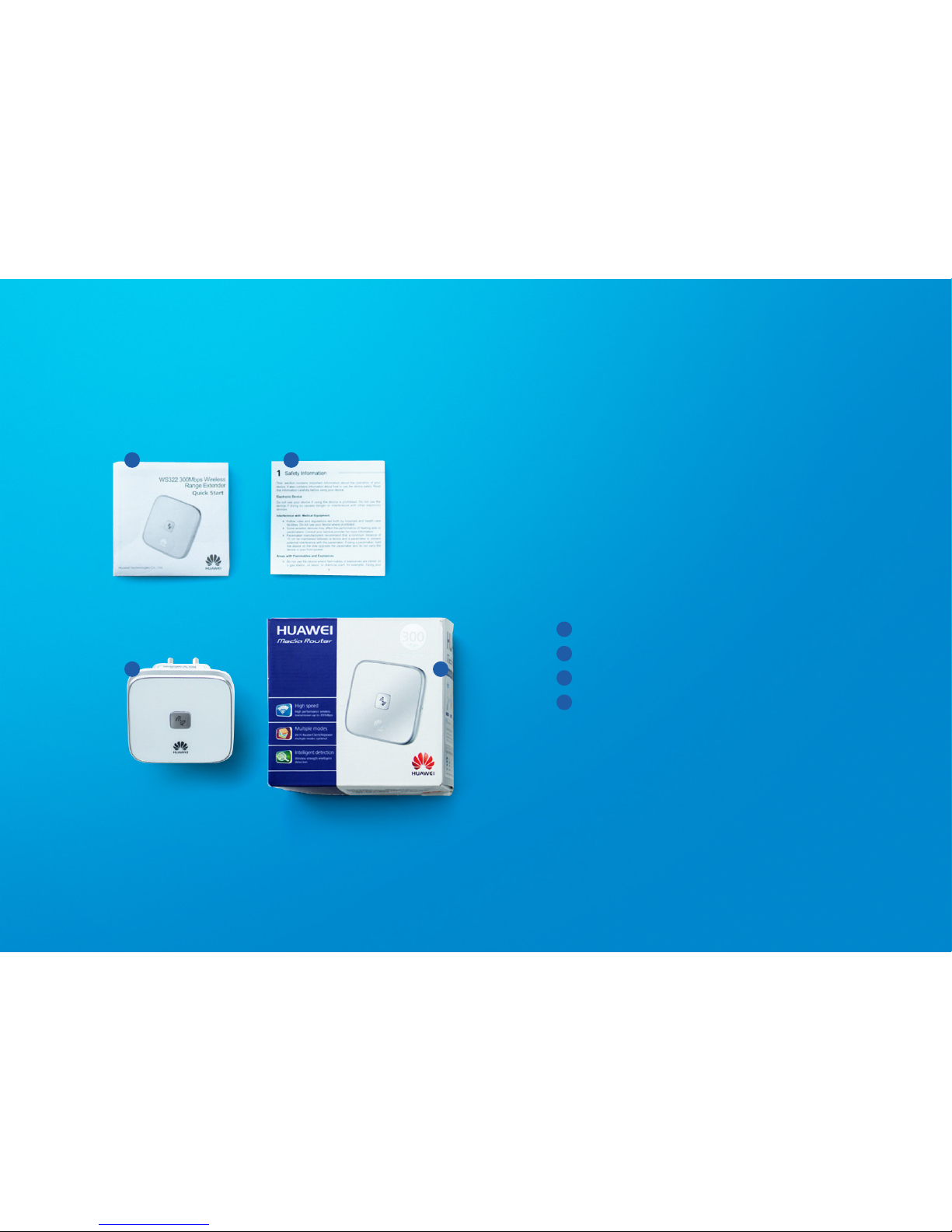
First, unpack
your new
router.
The quick reference guide
Safety information
Your Huawei Wireless Range Extender
The box it came in
1
2
3
4
1 2
3 4
Page 3
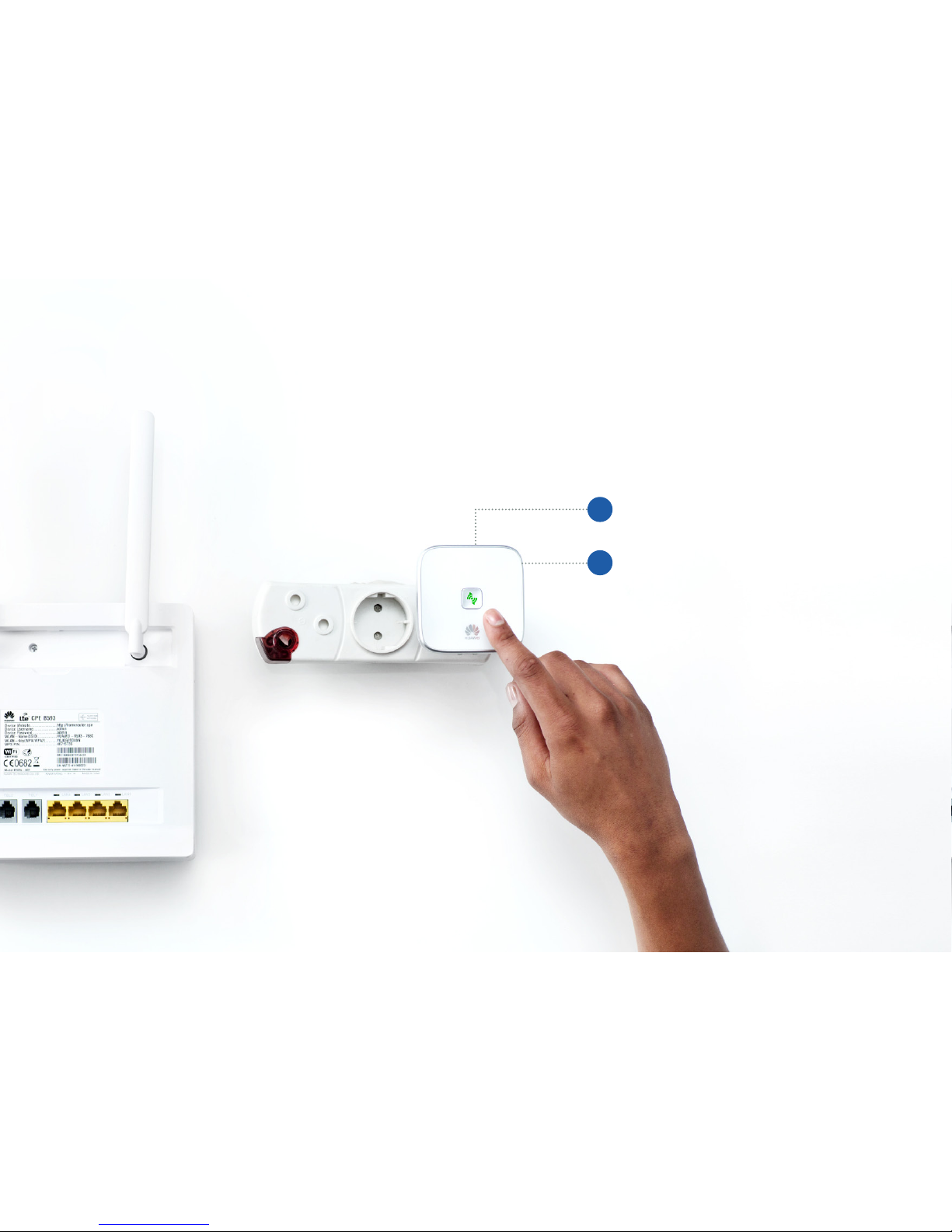
Let’s get
started.
Plug the Wi-Fi Extender into a power
socket. Make sure that this is close to
your WiFi router for easy set up.
Centre LED button shows green
light when you are ready to
install the software.
1
2
Page 4
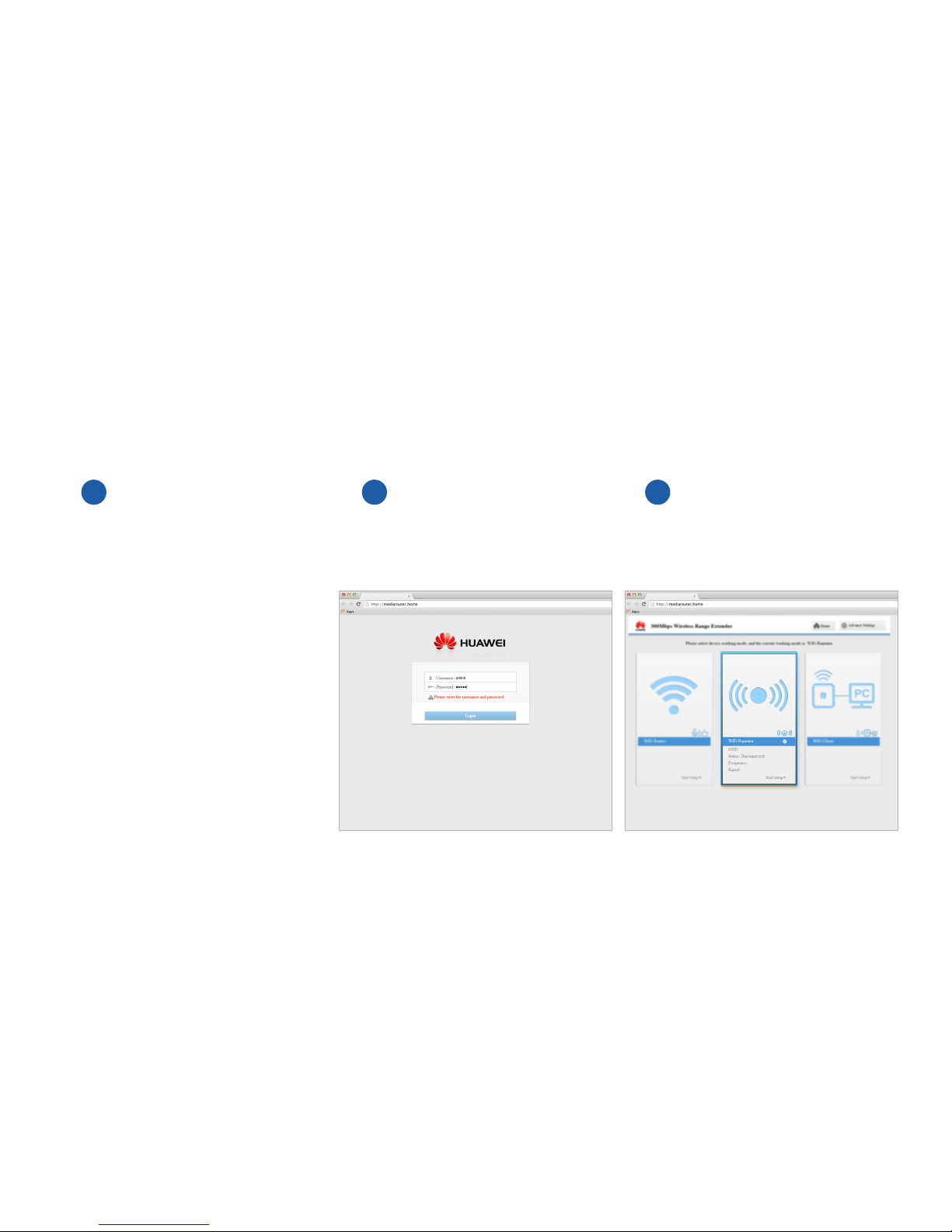
Connect your computer to the
Extender via Wi-Fi.
Make sure that you have switched on
your Wi-Fi, on your computer. Click on the
Wi-Fi icon in the system tray and select
Wi-Fi Network HUAWEI-DRGNWF.
Type in the Wi-Fi password that
you will find on the belly label of the
Wi-Fi Extender.
Open your internet browser and go to
http//mediarouter.home (or 192.168.33.1). Type in
admin for both the username and password.
Select the middle tab for Wi-Fi Repeater.
1 2 3
Install it on
your computer.
Page 5
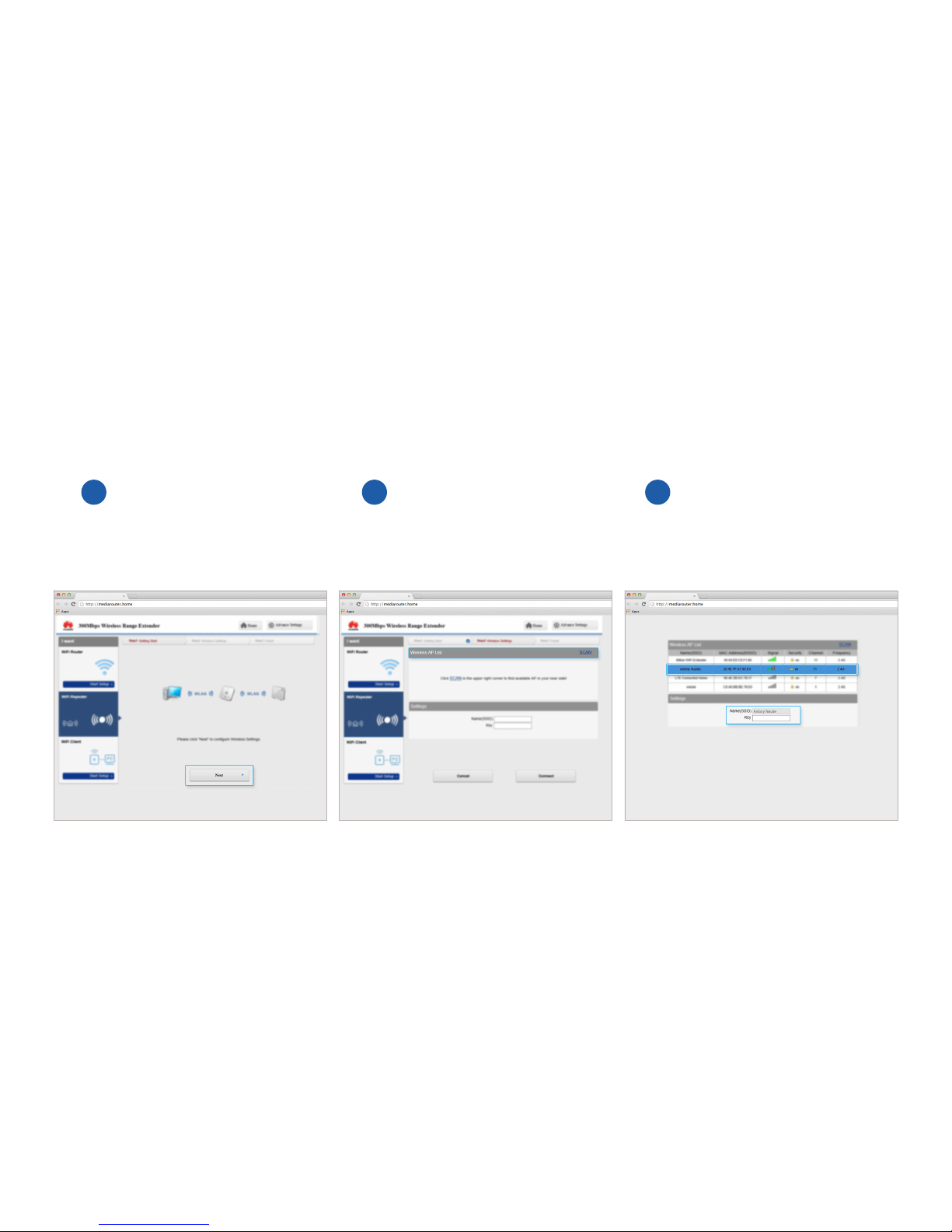
Click Next to confirm your selection. Click Scan, and the Extender will search
for the Wi-Fi router.
Select the Wi-Fi signal that you want to connect to,
and type your password into the Key field.
4 5 6
Almost
there...
Page 6
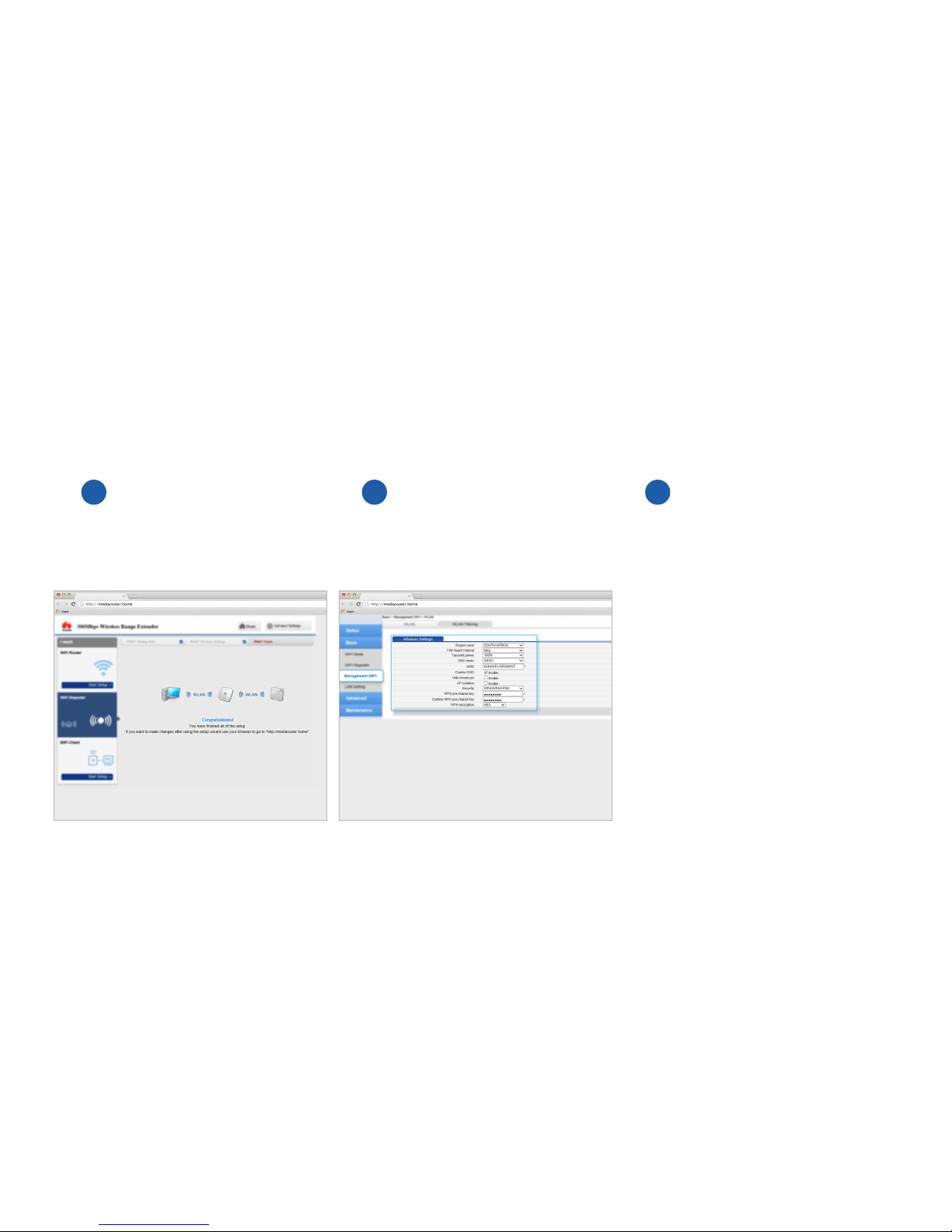
The extender and router will
now connect. You will see a
Congratulations message once this
has happened.
Click Advanced Settings, then select Basic and then
Management Wi-Fi. Change the SSID (Wi-Fi name)
to a name of your choice. Change the WPA preshared
Key (or password) to a password of your choice.
Click Submit to save your changes.
7 8
Last
few steps.
Click Logout.
Plug the Extender into the general area
that you wish to extend the signal. Make
sure there are at least 2 arcs showing on
the front of the device otherwise the signal
strength is too weak.
9
Page 7

Done.
You’re connected.
If you still need help
call us on 10210.
 Loading...