

Page 1

1
Thank you for purchasing the Mobile WiFi. This Mobile
WiFi brings you a high speed wireless network connection.
This document will help you understand your Mobile WiFi so you can start using it right away.
Please read this document carefully before using your Mobile WiFi.
For detailed information about the functions and configurations of the Mobile WiFi, refer to
the online help on the web management page that comes with the Mobile WiFi.
For detailed instructions for logging in to the web management page, refer to "Logging In to
the Web Management Page" on page 15.
Page 2

2
Getting to Know Your Mobile WiFi
Note:
The Mobile WiFi function descriptions and illustrations in this document are for your
reference only. The product you have purchased may vary.
Application Scenarios
Wi-Fi devices (such as smartphones, tablet computers, and game consoles) or computers can
all access the Internet through the Mobile WiFi. The specific connection procedure depends on
the operating system of the Wi-Fi device or computer. Establish a connection according to your
device's specific instructions.
To access the Internet through a USB port connection, install the driver according to the
instructions.
Page 3

3
Scenario 1: Connecting multiple devices
through Wi-Fi
Scenario 2: Connecting a single device through
USB
Page 4

4
Scenario 3: Connecting multiple devices through Wi-Fi and USB simultaneously
Page 5

5
Appearance
Lanyard hole
Signal indicator
Wi-Fi indicator
Battery indicator
Messages indicator
Power button
External antenna port (TS-9)
Micro USB port
2 3 4 5 6
7
1
8
Page 6

6
Indicators
Indicator Status Description
Signal
Green Strong signal
Orange Weak signal
Red No signal
Wi-Fi
Green Wi-Fi turned on
Battery
Green Sufficient battery
Blinking green Charging the battery
Red Low battery
Messages
Green New message
Blinking green Inbox full
Page 7

7
SSID and Wireless Network Encryption Key
When a Wi-Fi device establishes a connection to the Mobile WiFi for the first time, you may
need to enter the default Service Set Identifier (SSID) and wireless network encryption key.
These are printed on the Mobile WiFi label.
Page 8

8
Getting Started
Installing a SIM Card
Caution:
Use a standard SIM card compatible with the Mobile WiFi,
otherwise you will damage your Mobile WiFi.
Install the SIM card according to the illustration.
2
1
Page 9
9
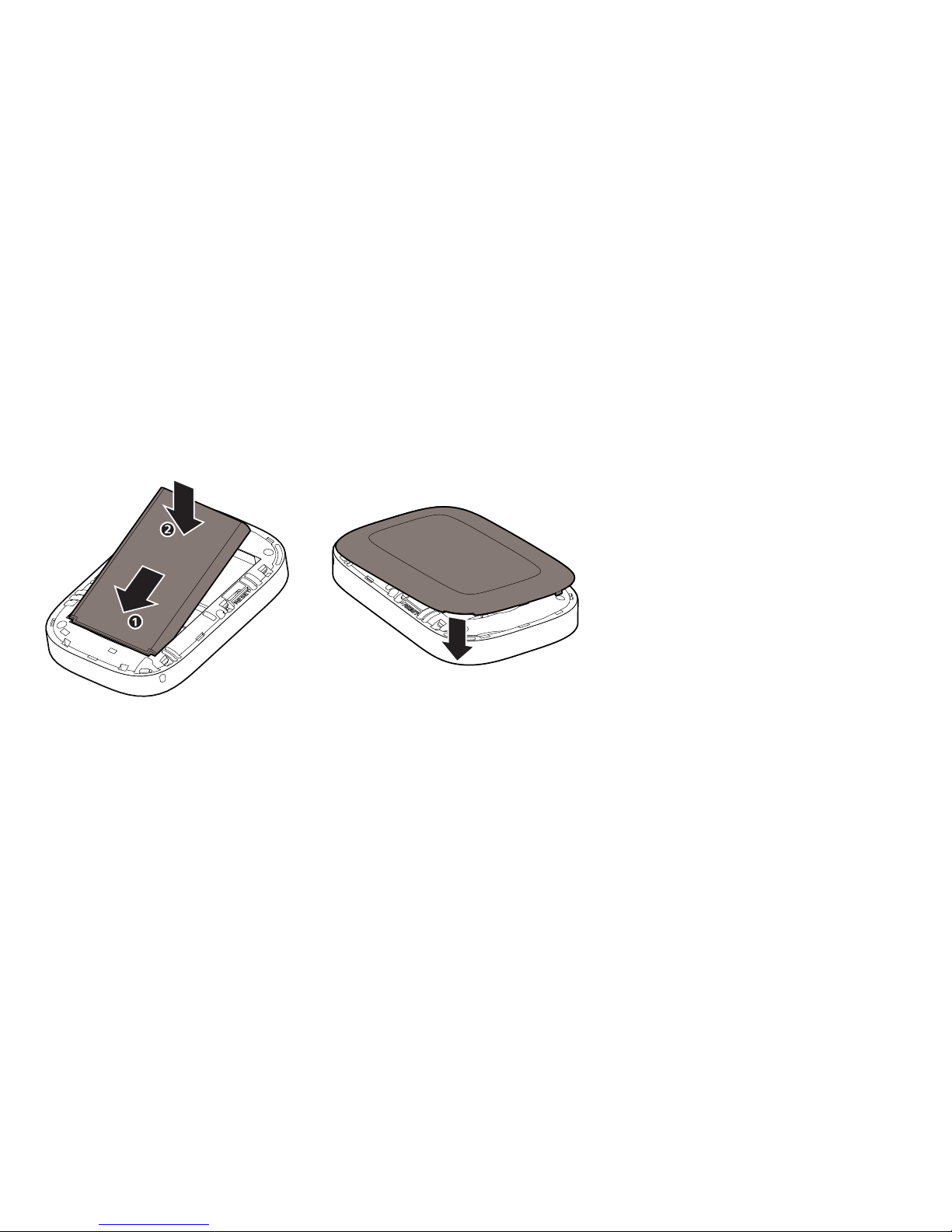
Installing the Battery
Install the battery according to the illustration.
21
Page 10
10
Charging the Battery
If the Mobile WiFi has not been used for a long time or if the battery is fully depleted, the
Mobile WiFi may not power on immediately after the charger is plugged in. Please charge the
battery for a while before attempting to power on the Mobile WiFi.
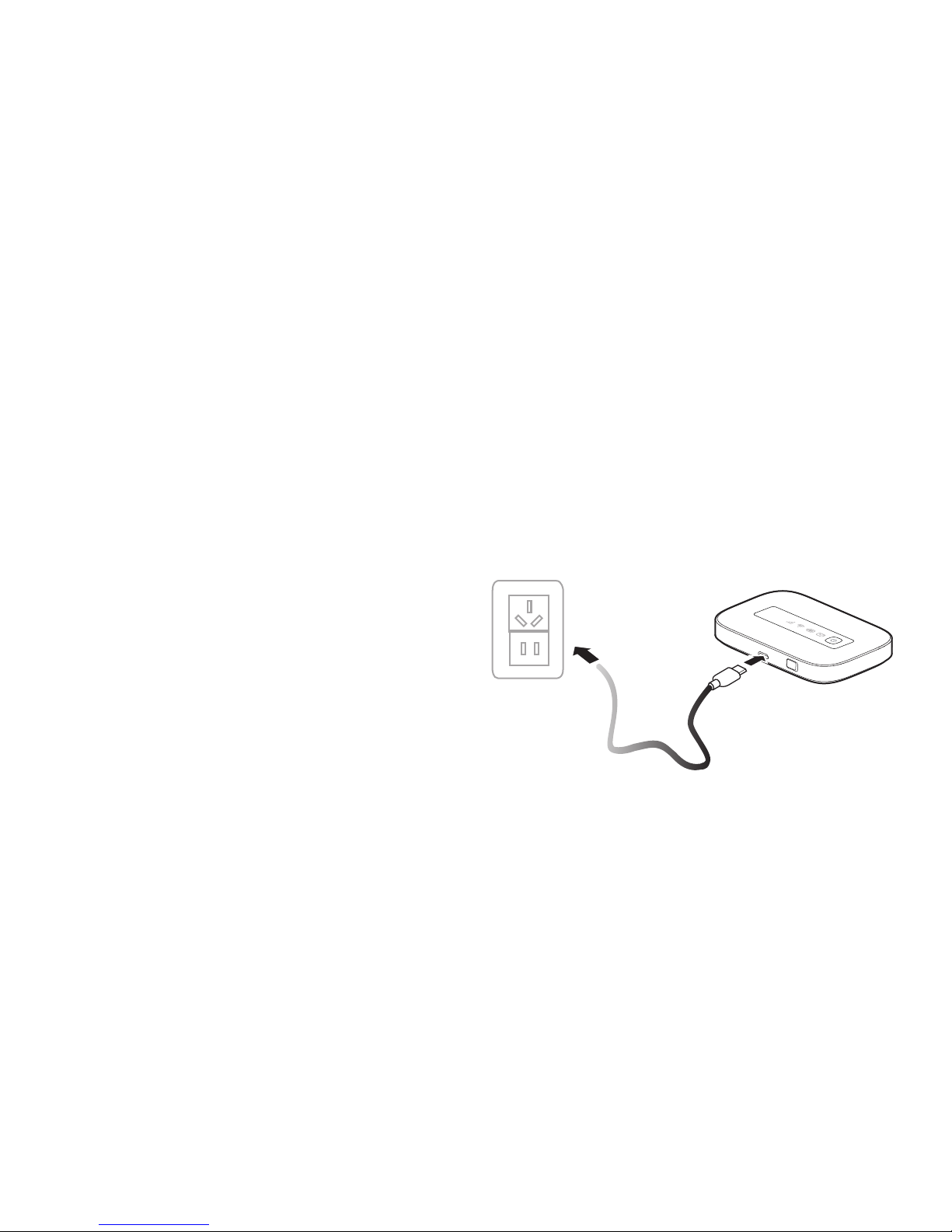
Method 1: Use the power adapter to charge the device
Note:
Only use power adapters compatible
with the Mobile WiFi and provided by
a designated manufacturer. Use of an
incompatible power adapter or one
from an unknown manufacturer may
cause the Mobile WiFi to malfunction,
fail, or could even cause a fire. Such
use voids all warranties, whether
expressed or implied, on the product.
The power adapter is an optional accessory. If it is not included in the package, you
may contact an authorized dealer to buy an adapter compatible with the Mobile WiFi.
Page 11
11
The Mobile WiFi’s power adapter model is HW-050100X1W. X represents U, E, B, A, or
J, depending on your region. For details about the specific adapter model, contact an
authorized dealer.
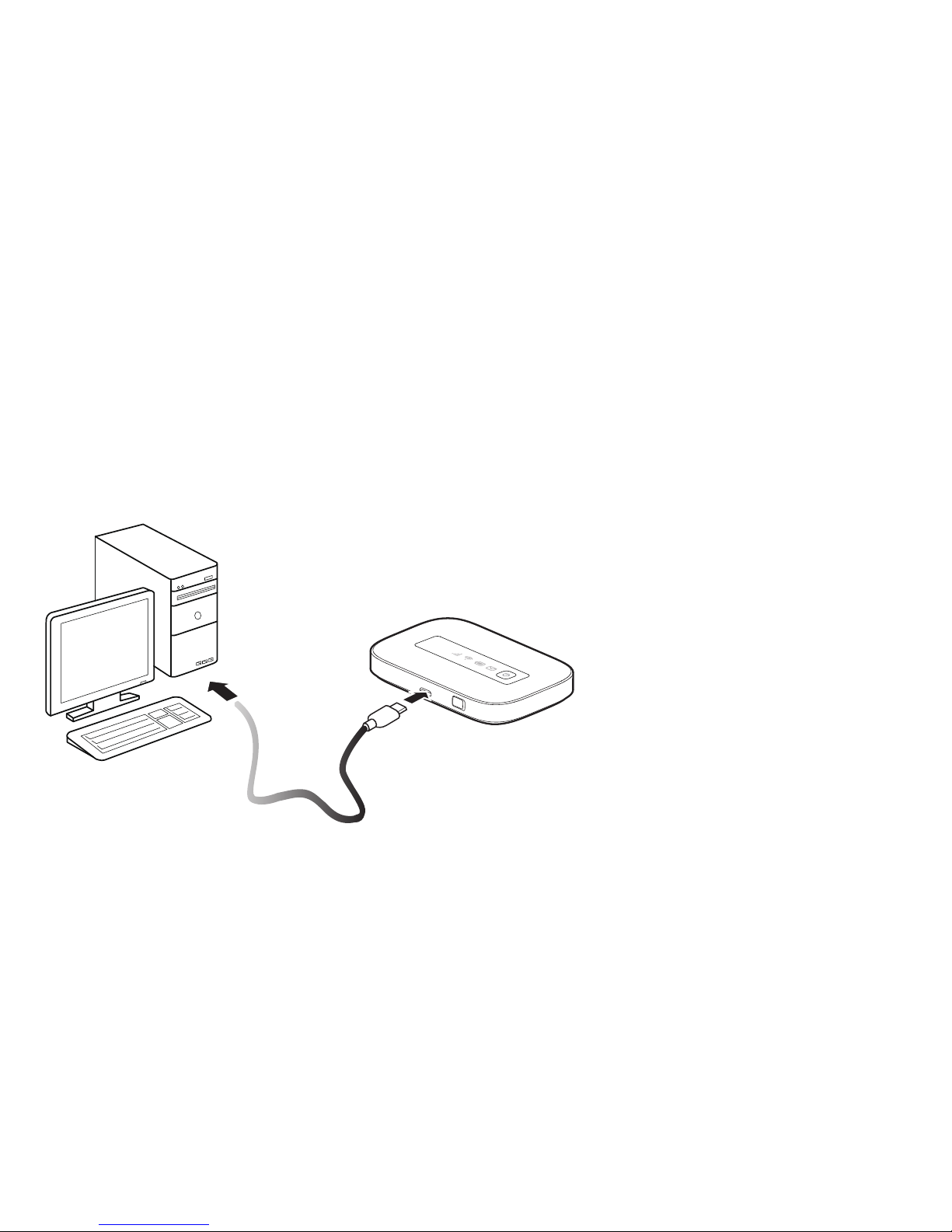
Method 2: Charge the device through a computer connection
Use the data cable provided with your device to connect the Mobile WiFi to the computer.
Page 12
12
Connecting to the Internet via Wi-Fi
The Mobile WiFi's management parameters
have been preset according to your operator's
requirements. You can quickly connect to the
Internet by following these steps:
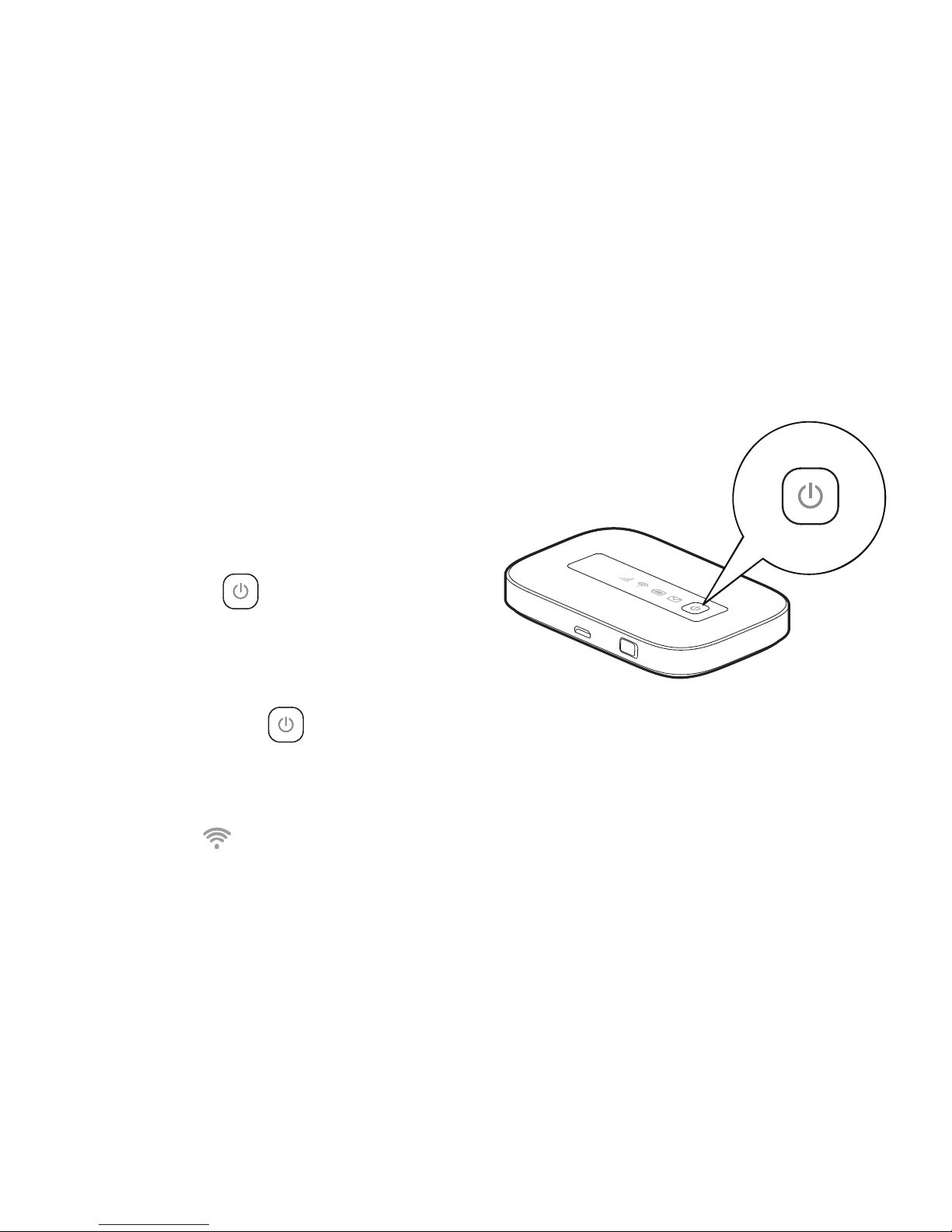
Step 1: Turn on the Mobile WiFi
Press and hold the button until the
indicator lights up, indicating that the Mobile
WiFi is turned on.
Note:
Press and hold the
button to turn off the Mobile WiFi.
Step 2. Establish a Wi-Fi connection (using a computer running the
Windows XP operating system as an example)
1. Ensure that is displayed in green.
Page 13

13
2. Select Start > Control Panel > Network Connections > Wireless Network Connection.
Note:
Before establishing a Wi-Fi connection, ensure that the computer is equipped with a
wireless network adapter. If the computer indicates a wireless network connection, the
wireless network adapter can be used. Otherwise, verify that your wireless network
adapter is working properly.
3. Click View available wireless networks to view a list of available wireless networks.
4. Select the wireless network connection with the Mobile WiFi's SSID and click Connect.
Note:
If the wireless network connection is encrypted, enter the correct wireless network
encryption key.
The default SSID and encryption key are printed on the Mobile WiFi's label.
5. Wait a moment for the wireless network connection icon to appear in the system tray in
the lower right corner of the computer screen. The wireless network connection is then
established.
Page 14

14
Step 3: Connect to the Internet
After successfully establishing a Wi-Fi connection, you can connect to the Internet using the
following methods.
Note:
Select an appropriate Internet connection mode according to your billing method. For
instance, if your network service calculates your bill by network connection time, it is
recommended that you select manual connection mode. For detailed information about
your network fees, please contact your operator.
Mode Operations
Automatic
If data is transmitted, the Mobile WiFi will automatically connect to the
Internet. If data is not transmitted for a period of time, the Mobile WiFi
will automatically disconnect from the network connection.
Manual
After logging in to the web management page, connect to or disconnect
from the network according to the instructions.
Page 15

15
Note:
You can log in to the web management page and select an Internet connection mode.
You can enable or disable the automatic dialing while roaming function. If this function
is turned off, when the Mobile WiFi enters a roaming network, it will automatically
disconnect from the Internet connection that has already been established. You will
need to manually establish this network connection again.
Logging In to the Web Management Page
1. Make sure the connection between the Mobile WiFi and the Wi-Fi device or computer is
working normally.
2. Open the browser, and enter http://192.168.1.1 in the address box.
3. Enter the password to log in to the web management page.
Note:
The default password is admin.
Page 16

16
Daily Use
Battery Saving Mode
If the Mobile WiFi has been inactive for some time, the Mobile WiFi enters the standby mode,
in which the battery indicator ( ) blinks slowly and the other indicators are off. Pressing the
power button causes the indicator to light up.
When the Mobile WiFi is being powered only by the battery, you can choose to enable or
disable the automatic Wi-Fi turnoff function. If this function is enabled and if no Wi-Fi devices
access the Mobile WiFi for a period of time, the Wi-Fi turns off automatically. You can press the
power button to turn the Wi-Fi on again.
Verifying the PIN
If the PIN verification function is enabled, log in to the web management page and enter the
correct PIN according to the instructions. PIN/PUK codes are supplied by your operator along
with the SIM card. For details, please consult your operator.
Page 17
17
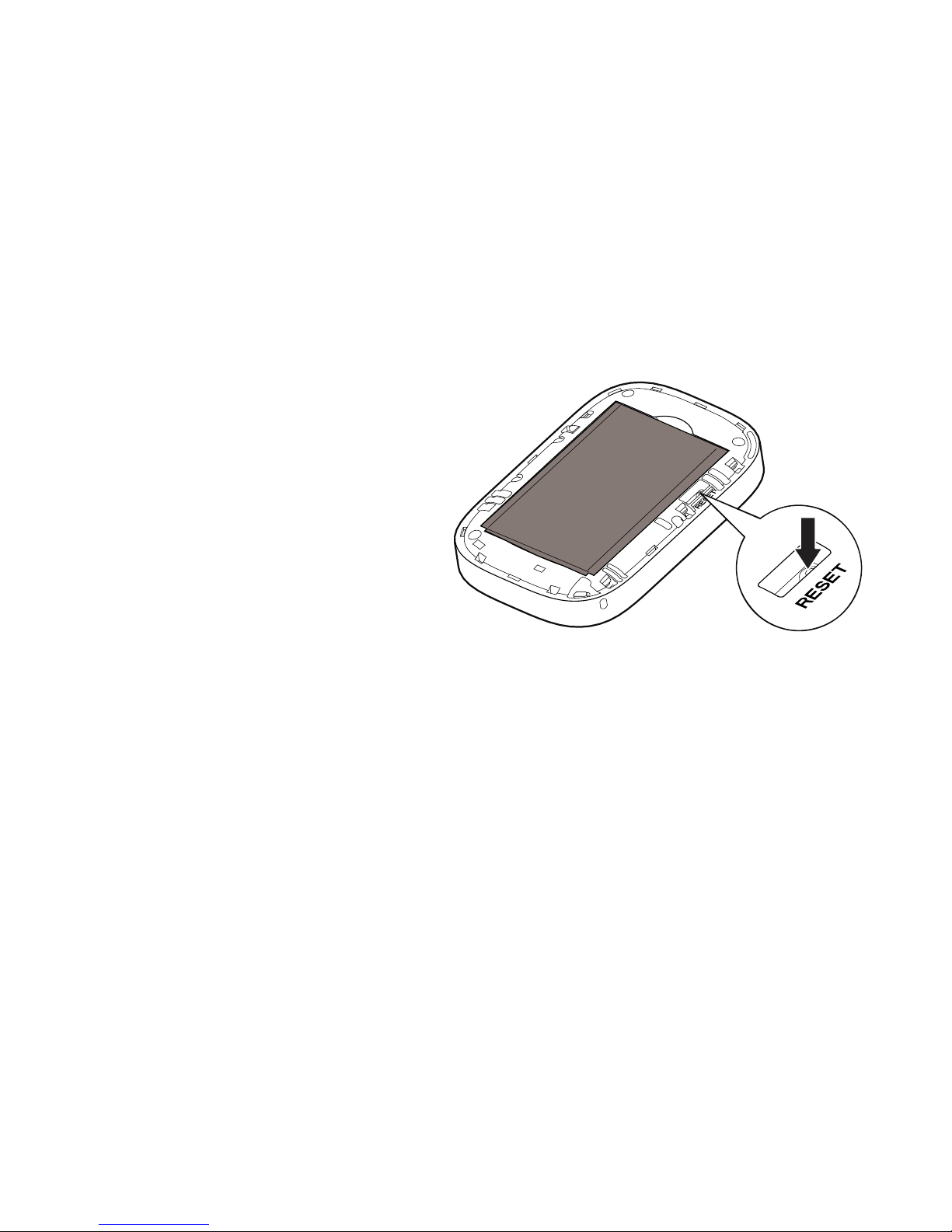
Restoring to Factory Settings
If you forget some configuration
parameters, you can restore the Mobile
WiFi to its factory settings and then
configure the Mobile WiFi again.
Press and hold the RESET button until the
indicators turn off. The Mobile WiFi is
then restored to its factory settings.
Note:
After you carry out this operation, the Mobile WiFi's personal configuration parameters
will all be deleted. All configurations on the web management page will be restored to
the factory settings.
Page 18

18
Example 1: Connecting to a Game Console (for example, PSP)
through Wi-Fi
1. On the PSP, turn on the WLAN.
2. Choose Settings > Network Settings.
3. Select Infrastructure Mode.
4. Select New Connection, and enter the
connection name.
5. Select Scan to search for wireless
networks. A list of access points will be
displayed on the screen.
6. Select the access point with the Mobile
WiFi's SSID, and press the ► button on
the PSP. Confirm the SSID, and enter the
correct wireless network encryption key.
7. Press the ► button to proceed to the
next step, and then press the X button to
save settings.
Page 19

19
8. Select Test Connection to test whether
the network connection is successful.
9. You can now open the browser and
access the network.
Page 20
20
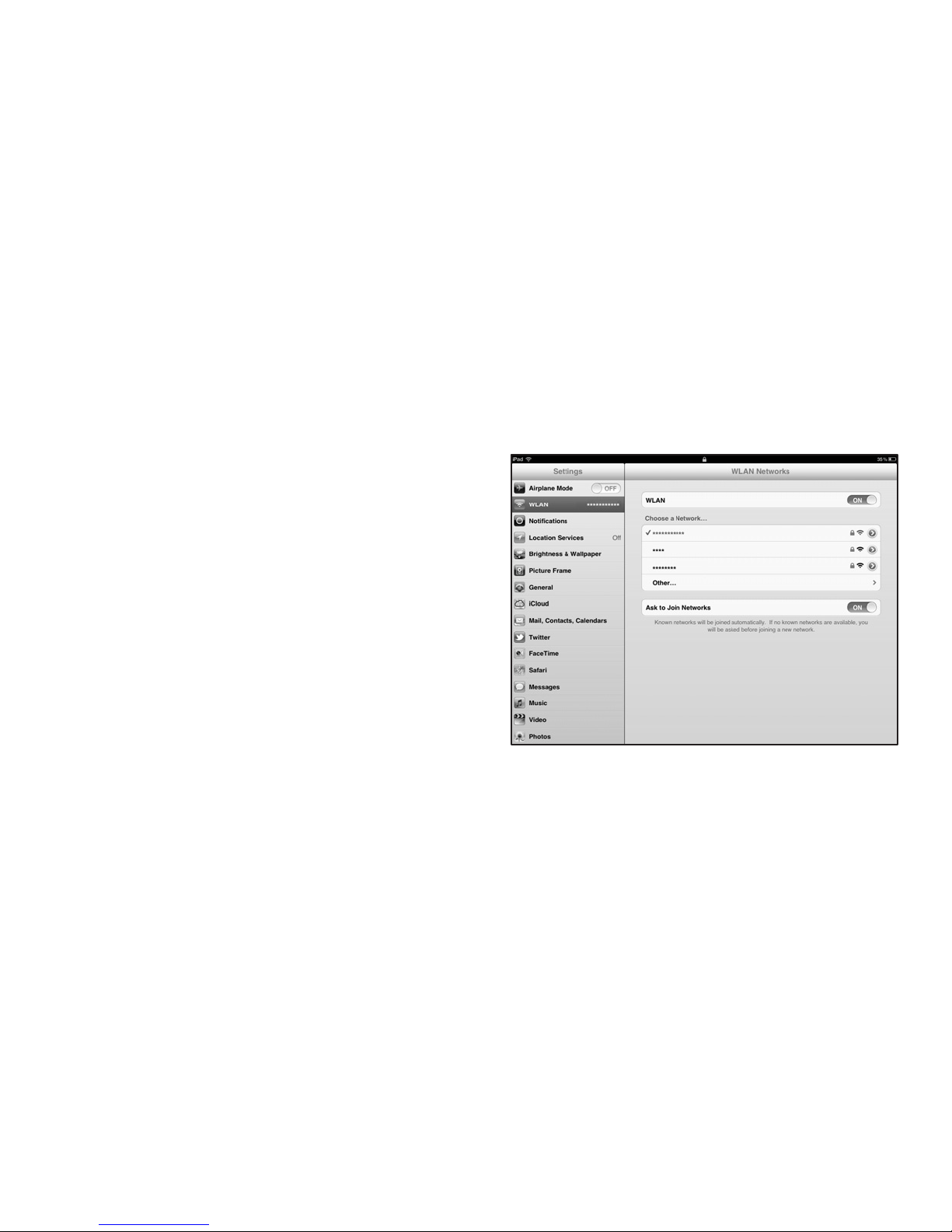
Example 2: Connecting to a Tablet Computer (for example, iPad)
through Wi-Fi
1. Touch Settings > WLAN to turn on WLAN.
2. The tablet computer automatically
searches for wireless connections and
displays a list of access points.
3. Select the access point with the Mobile
WiFi's SSID.
4. If required, enter the correct wireless
network encryption key, and tap Join.
(The lock icon indicates that the encryption
key is required to connect to this wireless
network.)
Note:
Wi-Fi devices, such as an iPhone, iPod touch, PS3 and NDSi, can all access the Internet
through the Mobile WiFi. For specific operations, refer to the Wi-Fi device's user manual.
Page 21

21
Tips
When the Mobile WiFi is in use for an extended period of time, it will become warm and may
overheat. Should this happen, the Mobile WiFi will automatically close the network connection
and turn off to protect itself from damage. If this occurs, place the Mobile WiFi in a well
ventilated space to allow the heat to dissipate, then turn it on and continue to use it as normal.
If you are unable to use the Mobile WiFi as normal, try the following:
Consult the online help on the web management page.
Restart the Mobile WiFi.
Restore the Mobile WiFi to the factory settings.
Consult your operator.
Version: V100R001_02 Part Number: 31010KDW
 Loading...