

Page 1
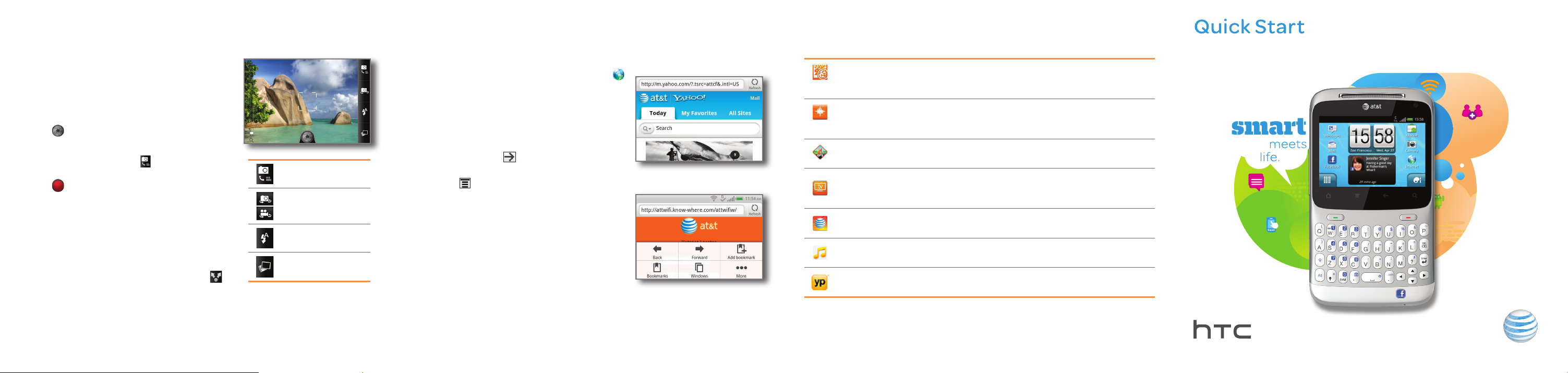
Camera
Take a Picture
From the main Home screen, tap Camera.
To zoom in and out, slide your finger up or
down on the zoom bar.
The Camera will auto focus at the center
or picture, or tap the area where you want
to focus.
Tap
Record a Video
Within the Camera, tap to switch to video
Tap to start and stop recording video.
Slide your finger up or down on the zoom bar
Send a Picture or Video
After taking a picture or capturing a video,
To send the photo or video by email, tap
Note: The first time you open the camera, you are prompted to set up Auto
Upload. When Auto Upload is on, all photos take are automatically uploaded
to Facebook or Flickr.
to take the picture.
mode.
to zoom in and out while recording.
press the flashing Facebook share button to
share on Facebook.
.
Photo/Video
mode
Front/Main
camera
Flash mode
Gallery
Internet
Browse the web with ease with the PC-like web browser.
Browse the Web
From the main Home screen, tap Internet .
Scroll up and down the screen to navigate
and tap links to open them. Double-tap on
the screen to zoom in; double-tap again to
zoom out.
To visit another website, tap the web
address bar at the top of the page, type an
address, and tap
Internet Options
Tap Menu to view options:
Back – Go back to previous webpage.
•
Forward – Go forward to most recent
•
webpage.
Add Bookmark – Create bookmark for
•
current webpage.
Bookmarks – View and add bookmarks,
•
see your browsing history and mostvisited sites list.
Windows – Show all open windows.
•
More – View other options.
•
.
AT&T Services
Make your phone do more for you with useful apps from AT&T.
AT&T Code Scanner: Get easy access to mobile web sites, coupons
or info about your favorite products by scanning barcodes in
magazines, stores, and online.
AT&T FamilyMap: Use this service to easily locate a family member’s
wireless phone on a map from your device. To sign up for this
service, visit att.com/familymap.
AT&T Navigator®: Get voice-guided, turn-by-turn driving directions,
maps, and traffic right on your phone.
Live TV: Watch LIVE, on-demand & downloadable mobile TV,
including LIVE sports on ESPN Mobile TV, breaking news on MSNBC
and FOX News, the most popular children’s programming and more.
myAT&T: Access billing, usage, and feature information and manage
your account from the palm of your hand.
Shop Music: Feed your music impulse. Purchase ringtones and full
track songs from your favorite artists right on your phone.
YPmobile: Use text or voice search to find businesses and events
near your location.
Note: For more AT&T apps, visit the AT&T tab in Android Market. Data usage
and subscriptions charges may apply. For more information about how to
use these services on your phone, visit att.com/Tutorials.
HTC Status™
Page 2
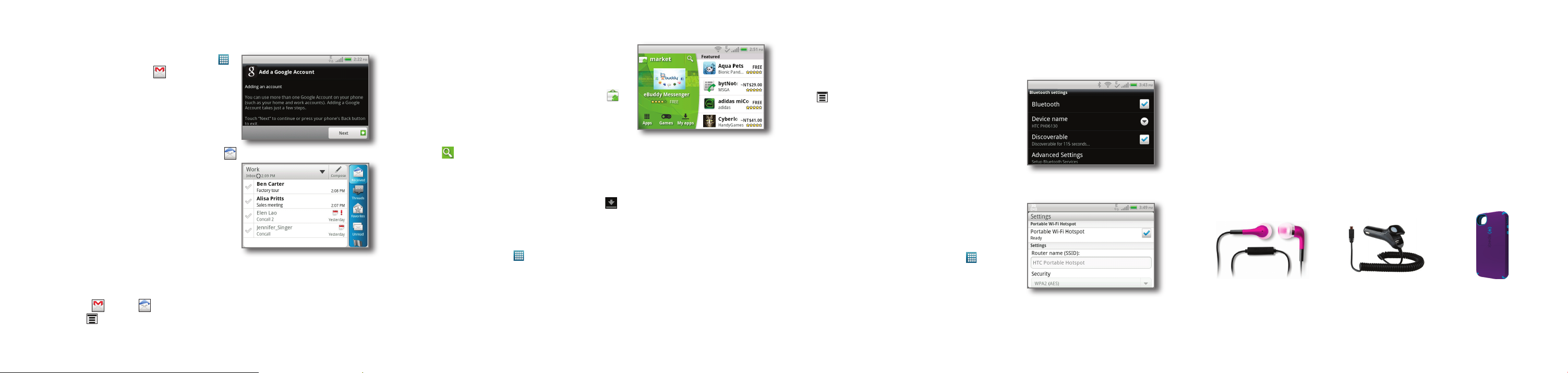
Email
Set Up Gmail
From the main Home screen, tap All Apps .
Scroll down and tap Gmail .
Touch
Enter your username and password and
Touch
Set Up Other Accounts
From the main Home screen, touch Email .
Touch
Enter your email address and password
Follow additional instructions. When
Send an Email
Touch
Press Menu , and select Compose.
Complete your message and touch
Next > Sign in.
touch
Sign in.
Finish setup to view your inbox.
Other (POP/IMAP) for personal
accounts and Microsoft Exchange
ActiveSync for corporate accounts.
Contact your IT administrator to help set
up your corporate MS Exchange account.
and touch
complete, touch
inbox. You can view and manage multiple
accounts in this application.
Next.
Finish to view your
Gmail or Mail
.
Send.
Android Market
With thousands of apps to choose from,
you’re sure to find just what you’re looking for
in Android Market.
Download Apps
From the main Home screen, tap Market .
Read the Terms of Service and tap Accept.
You can select from featured apps or
an app category, or you can search for a
specific app.
Tap
to enter a search term, and tap a heading to see results.
Tap an app to view details. Tap
download and install the app.
Read the application’s access requirements and tap
When downloading, you will see an icon
information in the Notification Bar.
Open Downloaded Apps
Once the app has been downloaded and installed, it will appear in your All
Apps list. Tap All Apps from the main Home screen to access apps.
Note: A Google Checkout payment method is required to purchase a paid app.
Install (free apps) or Buy (paid apps) to
OK.
and download progress
Connectivity
Pair with a Bluetooth® device, connect to a Wi-Fi network or create your own
portable Wi-Fi hotspot, all on your phone.
Use Bluetooth
From the main Home screen, tap Menu
> Settings > Wireless & networks. Tap
Bluetooth to turn on the Bluetooth setting.
Tap Bluetooth settings > Scan for devices.
Tap the name of the device you wish to pair
with, and then tap Pair to pair and connect.
Connect to Wi-Fi
See insert in box for detailed connection
instructions.
Mobile Hotspot*
You can also use your smartphone to allow
mobile broadband for up to 8 other devices.
Create a hotspot and share your connection.
To enable a portable hotspot, from the
main Home screen, tap All Apps and
scroll to Wi-Fi hotspot.
Tap Portable Wi-Fi Hotspot to turn on. Set
a password upon first use.
*Requires a DataPro 4 GB plan. Devices connected to your mobile hotspot use data from
your DataPro 4 GB plan. Overage charges apply if the included monthly data allowance is
exceeded. The number of devices you can connect depends on your device. Performance may
vary depending on the number of devices connected and other factors. If you do not use a
password, others will be able to use your mobile hotspot connection.
Find More Information
On the Web
Interactive web tutorials are available at att.com/Tutorials.
•
Select Manufacturer: HTC and Model: Status from the drop down menus.
Detailed support information including device specifications, user guide,
•
troubleshooting, user forums and knowledgebase articles are available at
att.com/DeviceSupport.
For information about your wireless account, service plan or network, visit
•
att.com/Wireless.
On the Phone
Call AT&T Customer Care at 1-800-331-0500 or dial 611 from any AT&T mobile
phone for assistance with your service or device.
Find Accessories
Accessories for your smartphone are available at att.com/WirelessAccessories
or visit your local AT&T store.
Fitted CasesVehicle ChargerStereo and Bluetooth Headsets
Service provided by AT&T Mobility. ©2011 AT&T Intellectual Property. All rights reserved. AT&T,
the AT&T logo, and all other AT&T marks contained herein are trademarks of AT&T Intellectual
Property. All other marks contained herein are property of their respective owners.
Accessories sold separately.
Printed in Taiwan
Page 3

Setting up Your Phone
Insert SIM Card and Battery
With your thumbs, push the
bottom cover up to remove it.
Brace by placing index fingers
above keyboard on back.
Insert SIM
card with gold
contacts facing
down and its
cut-out corner
facing in.
Insert battery
with exposed
copper
contacts facing
inside the
phone first.
Replace the
back cover.
Charge the Battery
Connect the phone to the
included AC adapter using the
USB sync cable.
Plug in the AC adapter into an
electrical outlet to start charging.
Initial Phone Setup
At first start up, you will be prompted
to perform configuration steps so
that your phone will work optimally
from first use, including Facebook
and Gmail login, Wi-Fi setup etc.
Once complete, it may take a few
minutes to complete initial account
syncing.
Getting to Know your Phone Calling, Voicemail, & People
Headphone
Jack
Signal
indicators
Notification bar
Menu
Volume control
All Apps
Send
Charger /
USB port
Numeric
Keypad
For more information, visit att.com/DeviceSupport
Earpiece
Power/Lock
Notification
LED
Front
camera
Personalize
SearchHome
End
Arrow keys
Facebook® share
button
Microphone
Back
Quickly call family and friends and check voicemail with just a few touches.
Make a Phone Call
Press .
Dial the number you want to call or start
spelling the name of the desired contact.
You will see a list of contact options to
choose.
Tap the desired contact to place the call.
Access Voicemail
On the keyboard, press and hold the 1 key.
Follow voice prompts to listen to messages.
View People
People is your phone’s combined Address
Book. When you login to Facebook, Gmail,
Exchange Active Sync etc, these contacts
are combined in the People application.
From the main Home screen, tap
> People .
Tap
to search for specific contacts.
Tap a name to open a contact card. Using
the right option bar, view contact details,
messages and emails from that contact,
Facebook updates, events & photo albums
and Call History.
All Apps
Text Messaging
When you need to communicate privately and quickly, use text messaging to
send text messages to other wireless phones.
Send a Text Message
From the main Home screen, tap Messages
.
Tap
Enter a number or touch
Type message text using the keyboard.
When message is complete, tap Send.
Insert a Picture or Video
While composing a message, tap .
Tap
Tap
Tap
Please don’t text and drive.
Compose.
People to browse
your Address Book. Tap contact name(s) to
address the message. When complete, tap
Done.
Use
to enter capital letters
Press
to enter numbers and secondary
symbols
Press to open full symbol menus.
Picture, Video, or other attachment
option
Gallery to choose a picture or video
from an album. Tap the item to attach it.
Send.
Page 4

Touch Screen & Navigation
Your phone features a touch screen that makes navigation as quick and easy
as a simple tap or swipe of the finger.
Navigation Tips
Use your fingertip to lightly tap the screen and select options.
•
Use quick flicks of your finger to scroll up/down and left/right.
•
All Apps Key: Opens the All Apps screen,
•
where you can find all of your applications.
Home Key: Return to the main Home screen.
•
Menu Key: Opens a menu with more options
•
for the current screen.
Back Key: Return to previous screen.
•
Search Key: Opens Google Search or allows
•
you to search open application.
The Notification Bar gives you timely
•
information, like new message and Facebook
notifications, missed calls, and calendar
reminders. Touch the bar and slide it down with
your finger to see full details. Press the
key to close the bar.
Right Options bar: In some applications,
•
such as People, Email & Gallery, you will see
folder options on the right side of the screen.
Tap these options or use arrow keys to move
through these options.
Back
Personalization
Make your phone reflect your style with wallpapers, widgets, app shortcuts
and ringtones. From the main Home screen, tap to access customization
options. From the Personalize window, tap down arrow to expand options.
Personalize Display
Here you can change your Scene, Wallpaper
and Lock screen shortcuts.
Add Items to Home
Here you can add widgets, apps, shortcuts or
folders to your Home screens.
What is a widget? A widget is an updating
element that can be added to a Home screen
and allows you to see information without
opening the full application.
Personalize Sound
Here you can change ringtones, notification
and alarm sounds, and shortcuts.
Manage Home Screens
You have up to 7 Home screens to which you
can add widgets and shortcuts. These Home
screens are added when you need them and
removed when you don’t. Tap to add a Home
screen. To move or remove widgets & shortcuts,
press and hold and then drag as needed.
Sharing on Facebook
Built with Facebook fans in mind, your HTC Status will help you maintain your
online social standing.
Use the Facebook Share button
The Facebook Share button helps you share your
world faster. It is contextual – so it helps you share
what you are doing, when you are doing it.
Share what’s on your mind: Update your status
•
quickly from the main Home screen.
Share where you are: Press and hold from the
•
main Home screen to check-in to Places.
Share photos and videos: Press right after
•
you take a picture or video to upload to a
Facebook album, or from Gallery, press to
select one or more items to upload. Tag,
label, and choose upload location.
Share what you are listening to: Press
•
from the Music Player to share song
information with your friends.
Share the latest news: Press the button
•
in your browser or the HTC News app to
publish what you’re reading.
Facebook Everywhere
Keep up with your Facebook friends, wherever you are.
Facebook in HTC Sense
You will find Facebook information integrated all over your phone.
•
See your friend’s latest Facebook status in their
People Contact Card and dialer. Be reminded
of upcoming birthdays when they call.
See Facebook birthdays and add and view
•
Facebook events in
See your friend’s Facebook photos in
•
See your news feed in the
•
widget and app.
Chat with Facebook friends on the go with the
•
HTC Facebook Chat app and widget.
And much more.
The Facebook App
Use the Facebook app to view your profile, friends’
walls, friend requests etc. Get notifications of
new Facebook activity in the Notification Bar that
link you right to the right place in the application
to see what’s up. To open the app from the main
Home screen:
Tap
Tap the “facebook” header to view application
Facebook.
main menu.
Calendar.
Gallery.
HTC Friendstream
 Loading...