

Page 1
Your HTC One S
User guide
For Certification
HTC Confidential
For Certification
HTC Confidential
Page 2

2 Contents
Contents
Unboxing
HTC One S 8
SIM card 9
Charging the battery 10
Switching the power on or off 10
Setting up HTC One S for the first time 11
Want some quick guidance on using your phone? 11
Your first week with your new phone
Features you'll enjoy on HTC One S 12
Home screen 13
Finger gestures 14
Sleep mode 15
Getting contacts into HTC One S 17
Making your first call 17
Sending your first text message 18
Getting photos, videos, and music on or off HTC One S 18
Copying and sharing text 19
Capturing the HTC One S screen 20
Switching between recently opened apps 20
Notifications 20
Getting to know your settings 22
Getting the battery to last longer 22
Updating the HTC One S software 22
For Certification
Syncing your media and data with HTC Sync Manager 23
Camera
Camera basics 24
Taking a photo 25
HTC Confidential
Recording video 25
Taking continuous camera shots 26
Camera scenes 26
Improving portrait shots 26
Taking a group shot 27
Taking a panoramic photo 27
Using HDR 27
Shooting in low light 28
Recording videos in slow motion 28
Improving video stability 28
Changing camera and video settings 29
For Certification
HTC Confidential
Page 3

3 Contents
Personalizing
Making HTC One S truly yours 30
Personalizing HTC One S with scenes 30
Changing your wallpaper 31
Applying a new skin 32
Personalizing your Home screen with widgets 32
Adding apps and other shortcuts on your Home screen 33
Rearranging or removing widgets and icons on your Home screen 34
Personalizing the launch bar 35
Grouping apps into a folder 35
Rearranging the Home screen 36
Personalizing with sound sets 37
Rearranging application tabs 38
Customizing the lock screen style 39
Securing HTC One S with a personal touch 39
Phone calls
Making a call with Smart dial 40
Using Speed dial 40
Calling a phone number in a text message 41
Calling a phone number in an email 41
Calling a phone number in a Calendar event 41
Making an emergency call 41
Receiving calls 41
What can I do during a call? 43
Setting up a conference call 45
Internet calls 45
Call history 46
Home dialing 47
Call services 47
Messages
About the Messages app 48
Sending a text message (SMS) 48
For Certification
HTC Confidential
Sending a multimedia message (MMS) 48
Resuming a draft message 50
Checking your messages 50
Replying to a message 51
Forwarding a message 51
WAP push messages 52
Managing message conversations 52
Backing up your text messages 53
Setting message options 54
Search and Web browser
Searching HTC One S and the Web 55
Browsing the Web 55
Private browsing 57
Adding and managing your bookmarks 57
Saving web content for later 58
Viewing your browsing history 58
For Certification
HTC Confidential
Page 4

4 Contents
Downloading files and apps 59
Setting browser options 60
Photos, videos, and music
Gallery 61
Music 68
Movie Editor 72
Wireless Display 73
Accounts and sync
Adding your social networks, email accounts, and more 74
Adding one or more Google Accounts 74
Managing your online accounts 75
People
About the People app 76
Your contacts list 76
Setting up your profile 77
Adding a new contact 78
Importing or copying contacts 78
Merging contact information 79
Contact information and conversations 80
Contact groups 81
Adding People widgets 82
Sending contact information 83
Backing up your contacts 83
Social
Facebook for HTC Sense 85
Twitter for HTC Sense 85
About Friend Stream 85
Updating your status in Friend Stream 86
Enjoying Facebook in Friend Stream 86
For Certification
HTC Confidential
Tweeting in Friend Stream 87
Chatting in Google Talk 88
Using Google+ 88
Email
Gmail 89
Mail 90
Calendar
About Calendar 97
Creating an event 97
Viewing the Calendar 97
Managing Calendar events 98
Accepting or declining a meeting invitation 99
Setting reminders for your events 100
Dismissing or snoozing event reminders 100
For Certification
HTC Confidential
Page 5

5 Contents
Showing or hiding calendars 100
Changing Calendar settings 100
Online storage and services
Dropbox 101
SkyDrive 105
HTC Watch 107
HTC Car
On the road with HTC Car 111
Playing music in HTC Car 111
Finding your way with HTC Car 112
Staying connected to your contacts 113
Changing HTC Car settings 113
Travel and maps
Location settings 114
Locations 114
Google Maps 123
Essential apps
Using the Clock 127
Checking Weather 129
Viewing a PDF 130
Working on documents 130
Taking notes 132
Completing tasks 135
Keeping track of your stocks 138
Google Play and other apps
Getting apps from Google Play 139
Watching videos on YouTube 140
For Certification
HTC Confidential
Listening to FM Radio 141
Recording voice clips 141
Sharing games and apps 142
Your phone and computer
Where apps, data, and files are stored 143
Connecting your phone to a computer 143
Copying files to or from the phone storage 144
HTC Sync Manager basics 144
Playing music in HTC Sync Manager 148
Viewing photos and videos in HTC Sync Manager 149
Setting up HTC Sync Manager to recognize HTC One S 150
Setting up HTC One S to sync with your computer 150
Syncing HTC One S and your computer 154
Ripping music from a CD with HTC Sync Manager 154
Sharing your mobile data connection by USB tethering 155
Connecting to the Internet through a computer 155
For Certification
HTC Confidential
Page 6

6 Contents
Internet connections
Data connection 156
Wi-Fi 157
Connecting to a virtual private network (VPN) 158
Using HTC One S as a wireless router 159
Bluetooth
Bluetooth basics 161
Connecting a Bluetooth headset or car kit 161
Disconnecting or unpairing from a Bluetooth device 162
Sending information using Bluetooth 163
Receiving information using Bluetooth 164
Settings and security
Turning Airplane mode on or off 166
Changing display settings 166
Changing sound settings 167
Changing the display language 168
More ways to extend battery life 169
Backing up settings to Google 169
Accessibility settings 169
Protecting your SIM card with a PIN 170
Protecting HTC One S with a screen lock 170
Encrypting data on HTC One S 171
Checking information about HTC One S 172
Managing memory 172
Other essentials
Status icons 174
Printing 175
Using the onscreen keyboard 176
Entering words with predictive text 177
Entering text by speaking 179
For Certification
HTC Confidential
Entering text by tracing 179
Restarting HTC One S 180
Resetting HTC One S 180
Trademarks and copyrights
Index
For Certification
HTC Confidential
Page 7
7 Conventions used in this guide
Conventions used in this guide
In this user guide, we use the following symbols to indicate useful and important
information:
This is a note. A note often gives additional information, such as what happens
when you choose to do or not to do a certain action. A note also provides
information that may only be applicable to some situations.
This is a tip. A tip gives you an alternative way to do a particular step or procedure,
or lets you know of an option that you may find helpful.
This indicates important information that you need in order to accomplish a certain
task or to get a feature to work properly.
This provides safety precaution information, that is, information that you need to be
careful about to prevent potential problems.
For Certification
HTC Confidential
For Certification
HTC Confidential
Page 8
8 Unboxing
Unboxing
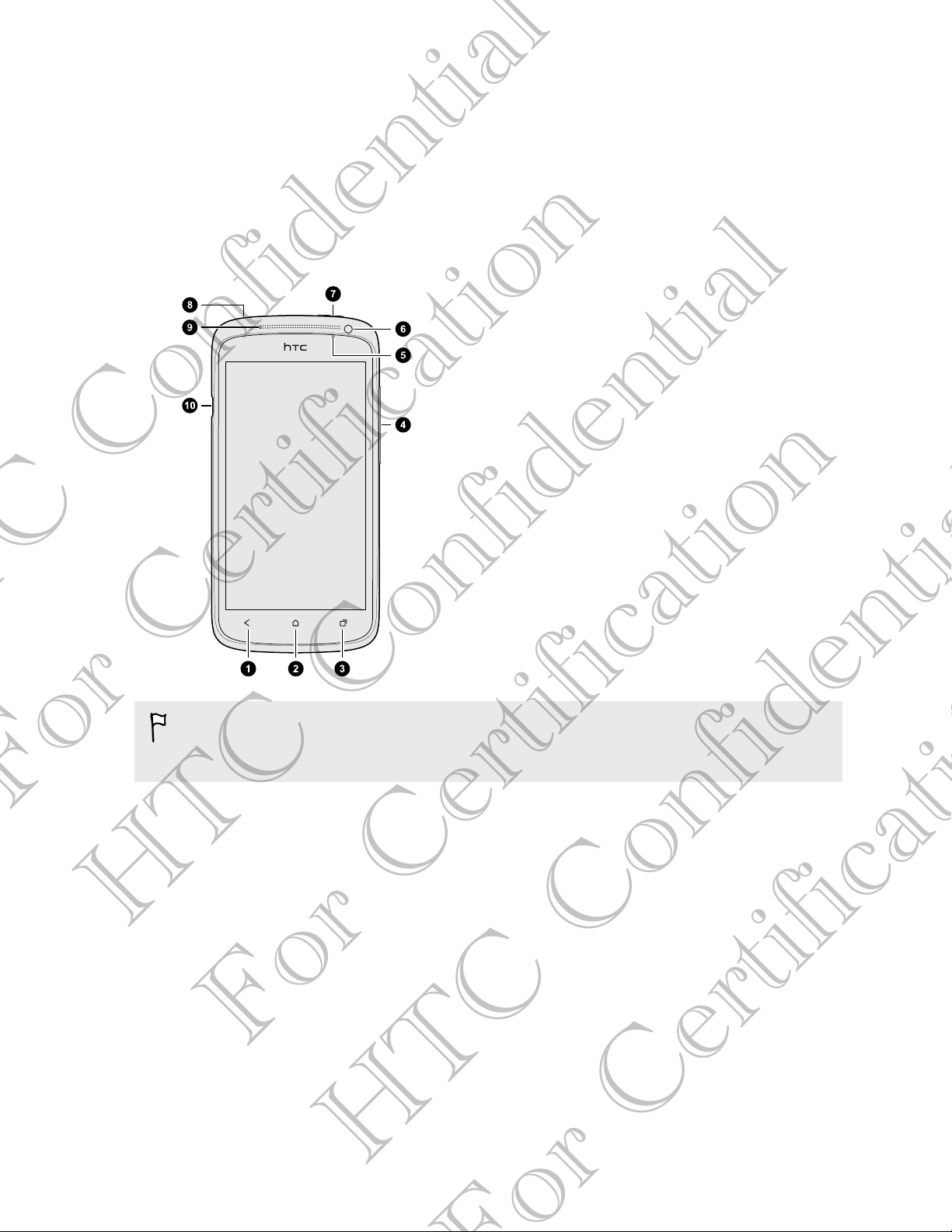
HTC One S
1. BACK
2. HOME
3. RECENT APPS
4. VOLUME
5. Proximity sensor
6. Front camera
7. POWER
8. 3.5mm headset jack
9. Notification LED
10. USB connector
If you want to use a screen protector, please don't cover and block the proximity
sensor. You can purchase the dedicated screen protector for HTC One S that
already has a small opening for the sensor.
For Certification
HTC Confidential
For Certification
HTC Confidential
Page 9

9 Unboxing
SIM card
HTC One S uses a microSIM card. The microSIM card contains your phone number,
service details, and memory for storing phonebook contacts and/or text messages.
Inserting the SIM card
1. Open the top cover from the small opening near the POWER button.
2. Insert the SIM card.
Removing the SIM card
Make sure to switch off HTC One S before removing your SIM card.
For Certification
1. Open the top cover from the small opening near the POWER button.
2. Push the SIM card in to eject it from its slot.
3. Slide the SIM card out with your thumb or finger.
HTC Confidential
For Certification
HTC Confidential
Page 10
10 Unboxing
Charging the battery
Before you turn on and start using HTC One S, it is recommended that you charge the
battery.
Only the power adapter and USB cable provided in the box must be used to charge
the battery.
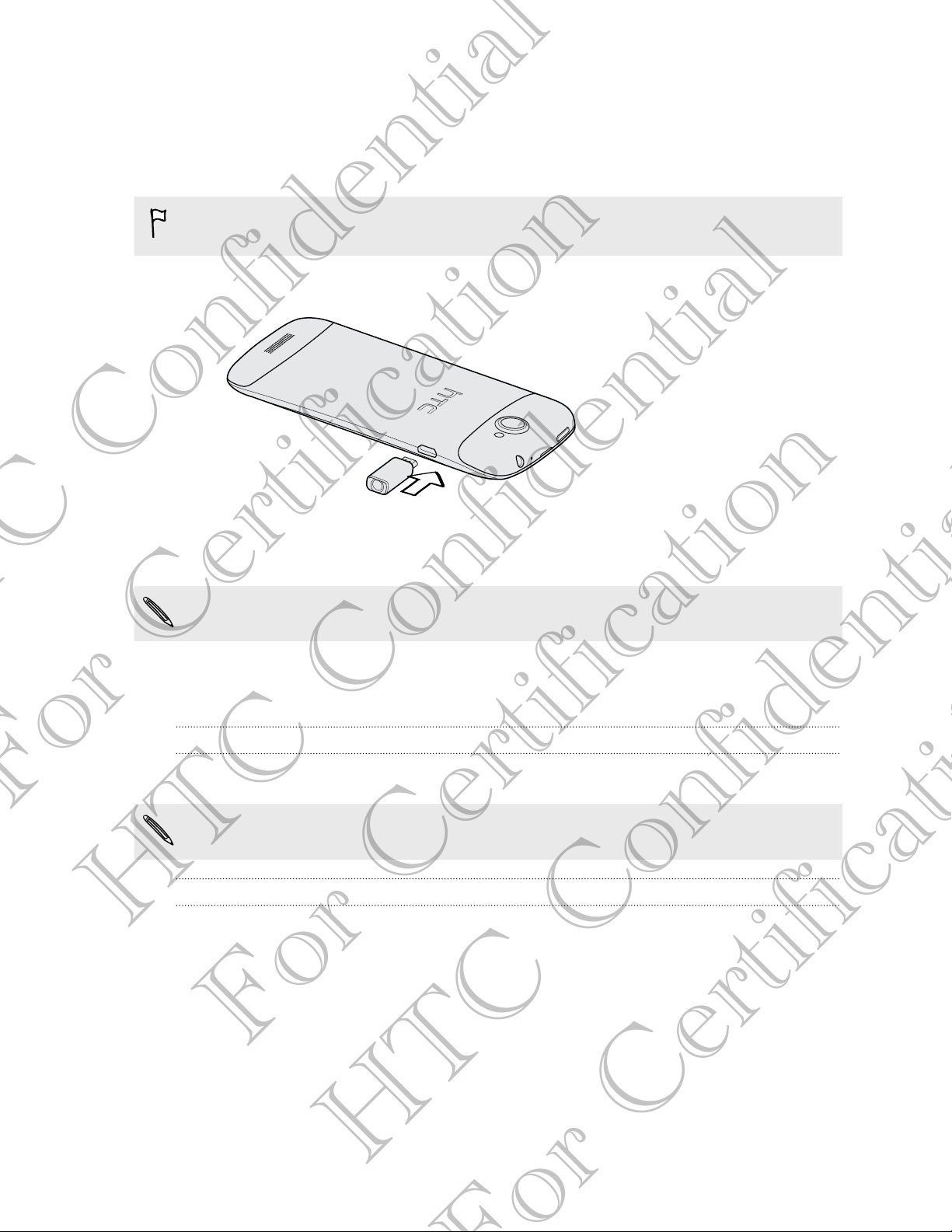
1. Insert the small end of the USB cable into the USB connector.
2. Insert the other end of the USB cable into the power adapter.
3. Plug in the power adapter to an electrical outlet to start charging the battery.
As a safety precaution, the battery stops charging if it overheats.
Switching the power on or off
Switching the power on
Press the POWER button. Easy.
For Certification
When you turn on HTC One S for the first time, you’ll need to set it up.
Switching the power off
HTC Confidential
1. If the display is off, press the POWER button to turn it back on, then unlock the
screen.
2. Press and hold the POWER button for a few seconds.
3. Tap Power off on the options menu.
For Certification
HTC Confidential
Page 11

11 Unboxing
Setting up HTC One S for the first time
When you switch on HTC One S for the first time, you’ll be asked to set it up.
Just follow the onscreen instructions and you’ll be up and running in no time.
Some features that need to connect to the Internet such as location-based services
and auto-sync of your online accounts may incur extra data fees. Don’t worry. You
can enable or disable them in settings later on.
When HTC One S has started, you'll see Quick Tips on some screens (such as the
Home screen) that will guide you in using HTC One S. The tips for a screen won't
display again after you've closed them.
To view the Quick Tips again, slide the Notifications panel open, and then tap >
About > Help > Show all quick tips.
Want some quick guidance on using your phone?
Show Me helps you get the most out of HTC One S in seconds.
§ Need to know how to do something right away? Just type in some keywords
and get clear, up-to-date answers right on HTC One S.
§ Ever have the feeling that you're not getting the most out of your phone?
Browse through the friendly walkthroughs on Show Me to learn how. The topics
range from intro to advanced and the Show Me widget even recommends
topics that you might like.
To open Show Me from the Home screen, tap > Show Me.
If you haven't downloaded Show Me content yet, or if there's updated content
available, just tap the download link to get it.
For Certification
Searching Show Me
1. In Show Me, tap , and then enter the words you want to search for.
2. Tap a search result to jump straight to that item.
HTC Confidential
For Certification
HTC Confidential
Page 12

12 Your first week with your new phone
Your first week with your new phone
Features you'll enjoy on HTC One S
HTC One S gives you an amazing camera, great sound experience, and more.
Capture every moment as it happens
Launch the camera from the lock screen and take your shots instantly with no delay.
Here are some of the great camera features you can use:
§ With Video Pic, you can snap a picture while you're shooting video. See Taking
a photo while recording a video on page 26.
You can also capture a photo from a previously recorded video. See Taking a
photo while watching a video on page 62.
§ With a single press of the shutter button, take three shots of your subject at
different exposures and combine them into a nice, evenly exposed photo. See
Using HDR on page 27.
§ Use Continuous shooting mode to capture 20 consecutive shots or more. See
Taking continuous camera shots on page 26.
Beats By Dr. Dre Audio™
Beats Audio™ integration gives you a rich, authentic sound experience, whether you’re
listening to music, watching a YouTube® video, or playing a game. To find out more,
see Making your music sound better on page 69.
For Certification
Dropbox integration with HTC Sense
Always have access to your photos, videos, and documents anywhere by storing them
in Dropbox. When you set up your Dropbox account from HTC One S, you can even
get an additional 23 GB of free Dropbox storage for two years. To find out how, see
HTC Confidential
Using Dropbox on HTC One S on page 101.
HTC Car
With the HTC Car app, keep yourself entertained while finding your way on the road.
You can use turn-by-turn navigation, browse maps, take calls, and listen to music or
Internet radio. To find out more, see HTC Car on page 111.
For Certification
HTC Confidential
Page 13

13 Your first week with your new phone
Rich and seamless browsing experience
Enjoy HTML5 and Flash® content on the go. And no more panning left and right. The
web browser's text reflow automatically adjusts text to the width of your screen. To
find out more about using the web browser, see Browsing the Web on page 55.
You can also keep a copy of what you're browsing so you can read it later even
without an Internet connection. See Saving web content for later on page 58.
Smart dial
The phone dialer’s Smart dial feature makes it quick and easy for you to place a call.
Just enter the phone number or first few letters of the contact name. See Making a
call with Smart dial on page 40.
Home screen
Your Home screen is where you make HTC One S your own. You can add your
favorite applications, shortcuts, folders and widgets so they’re always just a tap away.
To find out how, see Personalizing on page 30.
Extended Home screen
As you start to do more things with HTC One S, you might find that one Home screen
is not enough. No problem.
Slide your finger horizontally to the left or right on the screen and you’ll discover more
space for adding icons, widgets, and more.
Press to return to the main Home screen.
For Certification
HTC Confidential
For Certification
HTC Confidential
Page 14

14 Your first week with your new phone
Using Leap view
§ To jump straight to the screen that you want, press or pinch the screen to
show the Leap view. It reveals all Home screens as thumbnails. Just tap the one
you want and you’ll leap right there.
§ In Leap view, if there's space to add a new screen, you can tap Add panel to do
so. An empty Home screen appears and you can start customizing from there.
Finger gestures
Tap When you want to type using the keyboard, select items onscreen
such as application and settings icons, or press onscreen buttons,
simply tap them with your finger.
For Certification
Press and
hold
Swipe or
slide
Drag Press and hold your finger with some pressure before you start to
HTC Confidential
Flick Flicking the screen is similar to swiping, except that you need to swipe
Rotate For most screens, you can automatically change the screen
To open the available options for an item (for example, a contact or
link in a webpage), simply press and hold the item.
To swipe or slide means to quickly drag your finger vertically or
horizontally across the screen.
drag. While dragging, do not release your finger until you have
reached the target position.
your finger in light, quicker strokes, such as when flicking the contacts
or message list.
For Certification
orientation from portrait to landscape by turning HTC One S sideways.
When entering text, you can turn HTC One S sideways to bring up a
bigger keyboard.
HTC Confidential
Page 15
15 Your first week with your new phone
Pinch In some apps, like Gallery or the web browser, you can “pinch” the
screen using two fingers (for example, thumb and index finger) to
zoom in or zoom out when viewing a picture or a webpage.
Two-finger
scrolling
Press and
flick
Sleep mode
Sleep mode saves battery power by putting HTC One S into a low power state while
the display is off. It also stops accidental button presses when HTC One S is in your
bag. You’ll still receive messages and calls though, and missed calls and messages
appear on the lock screen.
To prevent missed calls or messages from appearing on the lock screen, slide the
Notifications panel open, and then tap > Privacy.
In some apps that have sorting, like Mail or People, you can use two
fingers to scroll the screen. The screen displays the sorting order, and
you can easily scroll to the information you want.
On the Home screen, you can easily move a widget or icon from one
screen to another. Press and hold the widget or icon with one finger,
and flick the screen to the new location with another finger.
Switching to Sleep mode
Briefly press the POWER button to turn off the display and switch to Sleep mode.
HTC One S also automatically goes into Sleep mode when it’s idle for a while.
Waking up from Sleep mode
To wake HTC One S up manually, press the POWER button. You’ll need to unlock the
screen.
HTC One S automatically wakes up when you have an incoming call.
For Certification
HTC Confidential
For Certification
HTC Confidential
Page 16
16 Your first week with your new phone
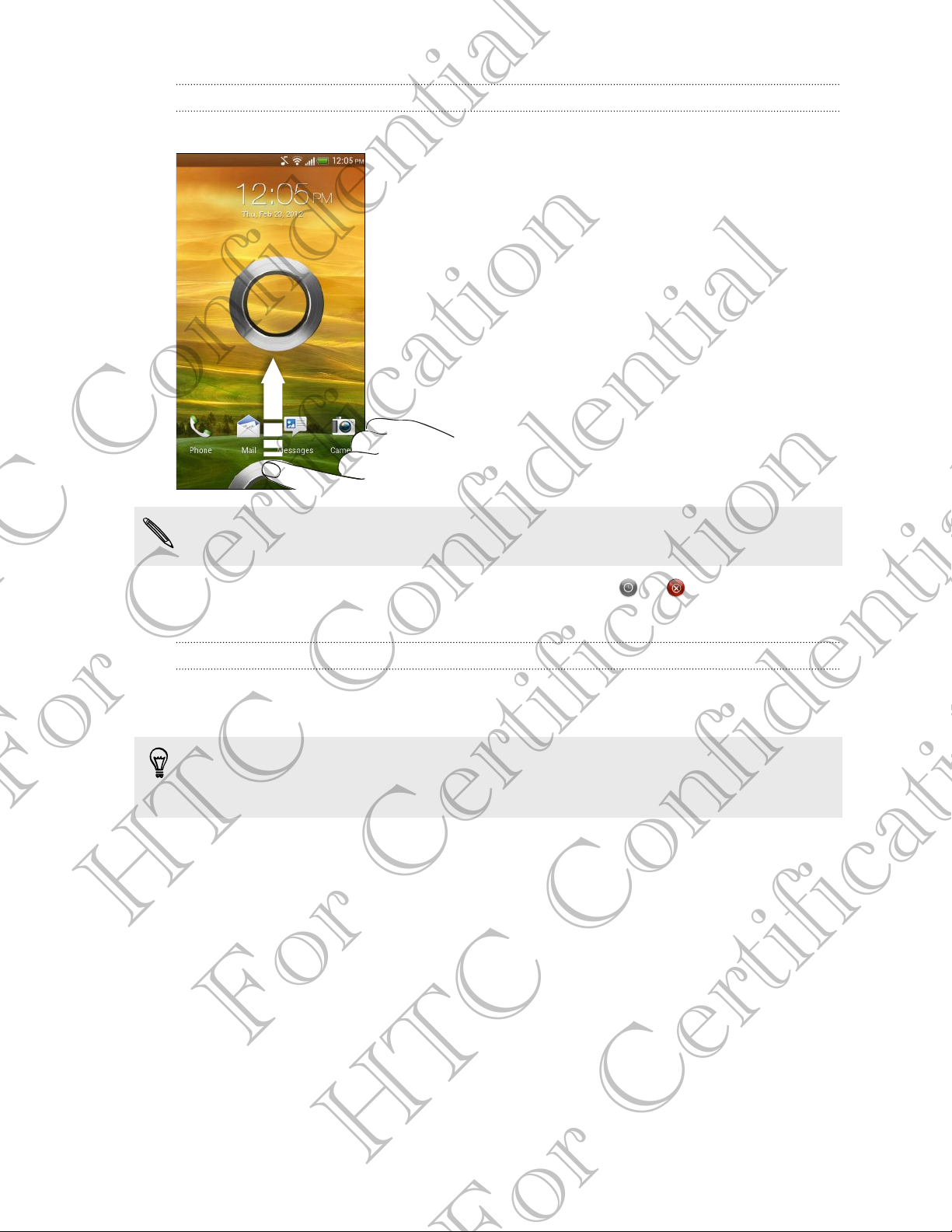
Unlocking the screen
Pull the ring up to unlock the screen.
If you have set up a screen unlock pattern, pin, or password, you will be asked to
draw the pattern on the screen or enter the PIN or password before it unlocks.
If you've set an event reminder or an alarm, you can drag
snooze or dismiss the event or alarm.
Opening an app or folder from the lock screen
§ On the lock screen, drag an app or folder icon to the ring to unlock the screen
and directly go to the app or folder.
The shortcuts on the lock screen are the same ones on your Home screen's launch
bar. To change the lock screen shortcuts, replace the apps or folders on the launch
For Certification
bar.
§ When there's a notification or info shown on the lock screen such as a missed
call or new message, you can drag it to the ring to directly go to its app.
or to the ring to
HTC Confidential
For Certification
HTC Confidential
Page 17

17 Your first week with your new phone
Getting contacts into HTC One S
There are several ways you can add contacts to HTC One S. You can sync HTC One S
with contacts from your Google® Account, computer, Facebook®, and more.
Sync with your
computer
™
Gmail
Social network
accounts
Phone contacts You can choose to create and store contacts directly in
SIM card Copy all your SIM contacts to HTC One S.
Microsoft
Exchange
ActiveSync
Transfer Use the Transfer app to transfer not only your contacts, but also
®
Sync the contacts from your old phone to your computer, and
then use HTC Sync or HTC Sync Manager to sync HTC One S
with your computer's Microsoft® Outlook®, Outlook Express or
Windows® Contacts.
Google contacts are imported to HTC One S after you sign in to
your Google Account. You can also create more Google
contacts right from HTC One S.
Log in to your favorite social networks to import contact
information from them.
HTC One S or transfer existing ones from your old phone.
HTC One S syncs your work contacts from the Microsoft
Exchange ActiveSync Server in your workplace.
calendar events and text messages from your old phone to
HTC One S.
Transferring contacts from your old phone
Easily transfer contacts from your old phone to HTC One S through Bluetooth®.
Depending on your old phone’s model, you may also transfer other types of data such
as calendar events and text messages to HTC One S.
1. From the Home screen, tap > Transfer.
For Certification
2. Tap Next to begin.
3. Choose your old phone's name and model.
4. On your old phone, turn Bluetooth on, set it to discoverable mode, and then
follow the instructions on the screen.
HTC Confidential
Making your first call
1. On the Home screen, tap .
2. Enter the phone number or first few letters of the contact’s name.
3. From the list, tap a contact to call.
4. To hang up, tap End Call.
For Certification
HTC Confidential
Page 18

18 Your first week with your new phone
Sending your first text message
1. From the Home screen, tap > Messages.
2. Tap .
3. Tap , and then select the contacts you want to send the message to.
4. Tap the box that says Add text, and then enter your message.
5. Tap to insert a smiley or add quick text.
6. Tap Send.
Getting photos, videos, and music on or off HTC One S
There are two ways you can transfer your media.
§ Connect HTC One S to your computer, and select the Disk drive mode. Your
computer will recognize it just like any removable USB drive, and you can copy
your media between them.
§ Download and use our HTC Sync Manager software. You can easily set it up to
sync folders containing media and playlists on your computer with HTC One S.
HTC Sync Manager can also automatically get photos and videos off HTC One S
to your computer.
Download and install HTC Sync Manager, when available, from our website. Or in
the meantime, download and use the latest version of HTC Sync to sync your
media and data.
For Certification
HTC Confidential
For Certification
HTC Confidential
Page 19
19 Your first week with your new phone
Copying and sharing text
In apps such as the web browser and Mail, you can select and copy text, and then
paste or share it.
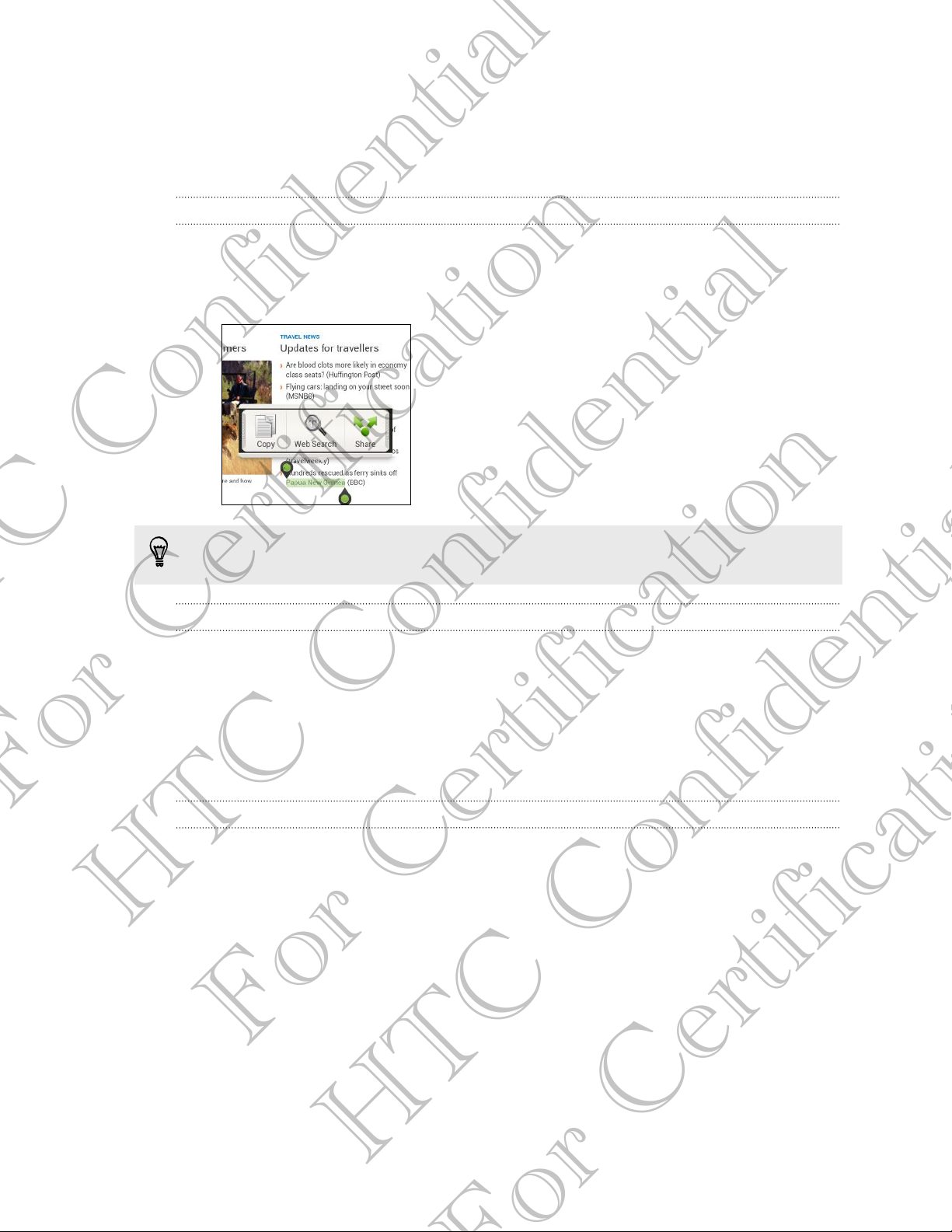
Selecting text
1. Press and hold on a word.
2. Drag the start and end markers to highlight the surrounding text you want to
select.
To copy the address of a linked webpage, press and hold the link, and then tap
Copy link URL.
Copying and pasting text
1. After you have selected the text you want to copy, tap Copy.
The selected text is then copied to the clipboard.
2. In a text entry field (for example while composing an email), press and hold at
the point where you want to paste the text.
3. Tap Paste.
For Certification
Sharing text
1. After you have selected the text you want to share, tap Share.
2. Choose where to paste and share the selected text, such as in an email message
or social network status update.
HTC Confidential
For Certification
HTC Confidential
Page 20
20 Your first week with your new phone
Capturing the HTC One S screen
Want to show off your high game score, write a blog post about HTC One S features,
or post a status update about a song you're playing? It's easy to take a picture of the
screen and share it from Gallery.
Press and hold POWER and then press . The screen is saved in the Camera shots
album in Gallery.
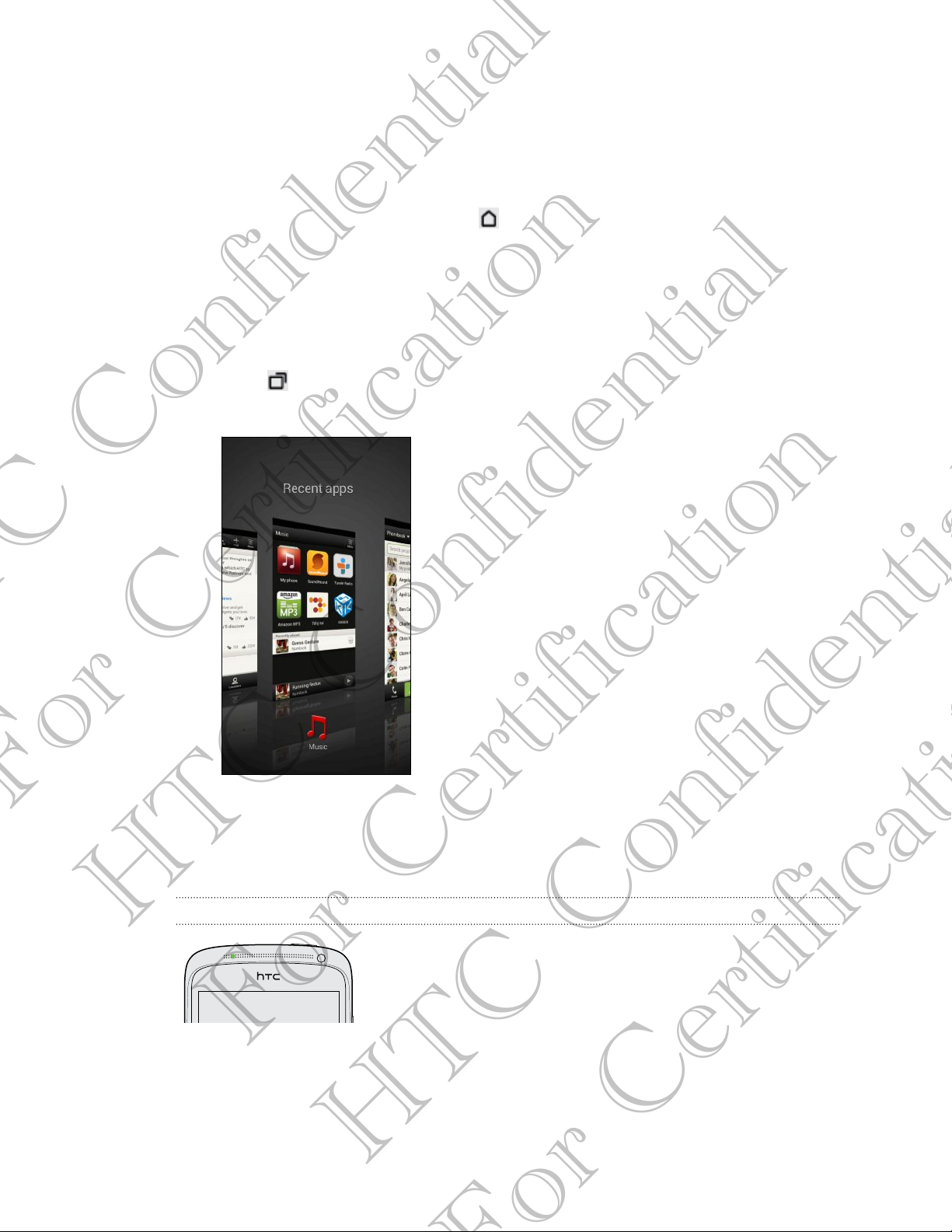
Switching between recently opened apps
You can easily access apps you've just recently opened.
1. Press .
2. Slide your finger left or right to see recently-opened apps.
For Certification
HTC Confidential
3. Tap an app to open it.
Notifications
Notification LED
The notification LED shows a:
For Certification
§ Solid green light when HTC One S is connected to the power adapter or a
computer and the battery is fully charged.
§ Flashing green light when you have a pending notification.
HTC Confidential
Page 21
21 Your first week with your new phone
§ Solid orange light when the battery is being charged.
§ Flashing orange light when the battery level reaches very low.
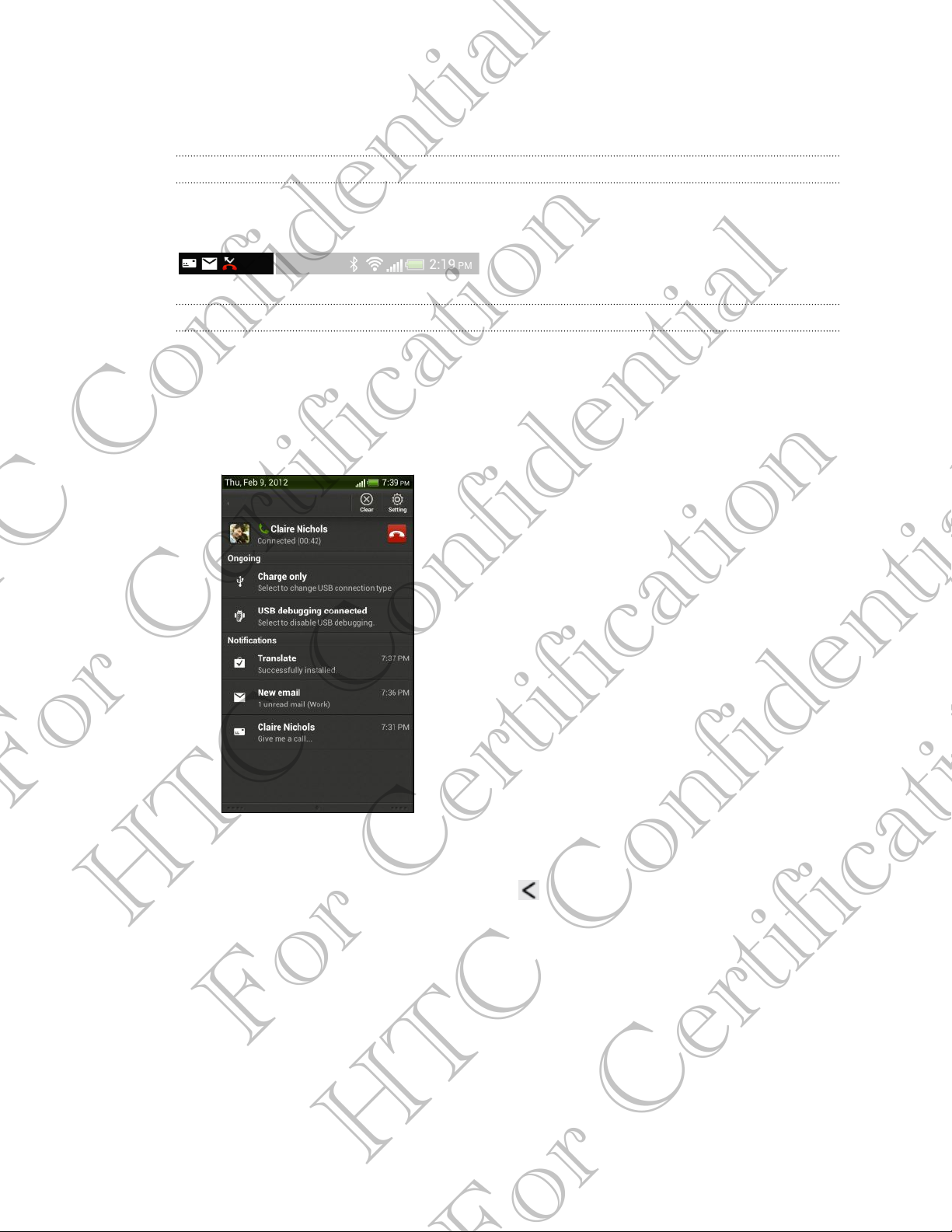
Notification icons
Notification icons on the status bar make it easy for you to keep on top of your
messages, calendar events, and alarms.
Notifications panel
When you get a new notification, you can open the Notifications panel to see what
event notification or new information you've received. The Notifications panel also lets
you quickly access settings.
1. To open the Notifications panel, press and hold the status bar, then slide your
finger downward.
For Certification
If you have several notifications, scroll down the screen to see them all.
2. To close the Notifications panel, press and hold the bottom bar of the panel,
then slide your finger up. Or just press .
HTC Confidential
For Certification
HTC Confidential
Page 22

22 Your first week with your new phone
Getting to know your settings
Want to change the ringtone, set up a Wi-Fi® connection or make the screen brighter?
Do this and more in Settings.
Slide the Notifications panel open, and then tap . Here are some of the basic
settings you can change:
§ Tap the On/Off switch next to an item such as Wi-Fi to turn it on or off. Tap the
item itself to configure its settings.
§ Tap Sound to set a ringtone, choose a sound profile, and configure incoming call
sound settings.
§ Tap Display (or Display & gestures) to change the screen brightness or set how
long the screen is off before going to sleep.
§ Tap Security to set a screen or SIM card lock.
Getting the battery to last longer
How long the battery can last before it needs recharging depends on how you use
HTC One S. The features and accessories you use can affect battery life.
You can get the battery to last longer by following a few simple tips:
§ Turn off the display when you're not using it
§ Lower the volume
§ Close battery-intensive programs, such as the Camera, when you're done using
them
§ Make sure apps are closed and not continuously running in the background
§ Use the power adapter whenever possible
For Certification
HTC Confidential
Updating the HTC One S software
HTC One S can check and notify you if there’s a new software update available. You
can then download and install the software update using the Wi-Fi or data
connection. You can also manually check if there's an available software update.
Depending on the type of update, the update may erase all your personal data and
customized settings, and also remove any applications you’ve installed. Make sure that
you’ve backed up the information and files you want to keep.
You might want to use Wi-Fi to download software updates to avoid extra data
fees.
For Certification
HTC Confidential
Page 23

23 Your first week with your new phone
Installing an update
When the Internet connection is on and there's a new update available, the system
update dialog box appears and guides you through the process. If you don't see the
dialog box, check for the update notification icon in the status bar.
1. Slide open the Notifications panel, and then tap the update notification.
2. In the system update dialog box, choose what type of connection to use for
downloading the update.
3. Follow the onscreen prompts to start the download.
4. After the download is complete, tap Install now and then tap OK in the Install
system software update dialog box.
Wait for the update to finish. HTC One S will then restart automatically.
Checking for updates manually
1. Slide the Notifications panel open, and then tap .
2. Tap About > Software updates > Check now.
Syncing your media and data with HTC Sync Manager
With HTC Sync Manager, enjoy the same rich media whether you're at your computer
or on the move. Use it also to store your same contacts, important documents, and
other data on both HTC One S and your computer.
HTC Sync Manager is the replacement for HTC Sync, and it provides a lot more
features. You can:
§ Play music and videos using the built-in player. You can also play iTunes® and
For Certification
HTC Confidential
Windows Media® Player playlists.
§ Manage your library of music, photos, and videos on your computer.
§ Get music from your CDs to your computer.
§ Sync photos, videos, music, playlists, and albums between HTC One S and your
computer.
§ Sync information such as contacts, calendar, documents, and web bookmarks
between HTC One S and your computer.
This software works on both Windows and Mac®. To find out how to install and use
this software, see HTC Sync Manager basics on page 144.
For Certification
Download and install HTC Sync Manager, when available, from our website. Or in
the meantime, download and use the latest version of HTC Sync to sync your
media and data.
HTC Confidential
Page 24
24 Camera
Camera
Camera basics
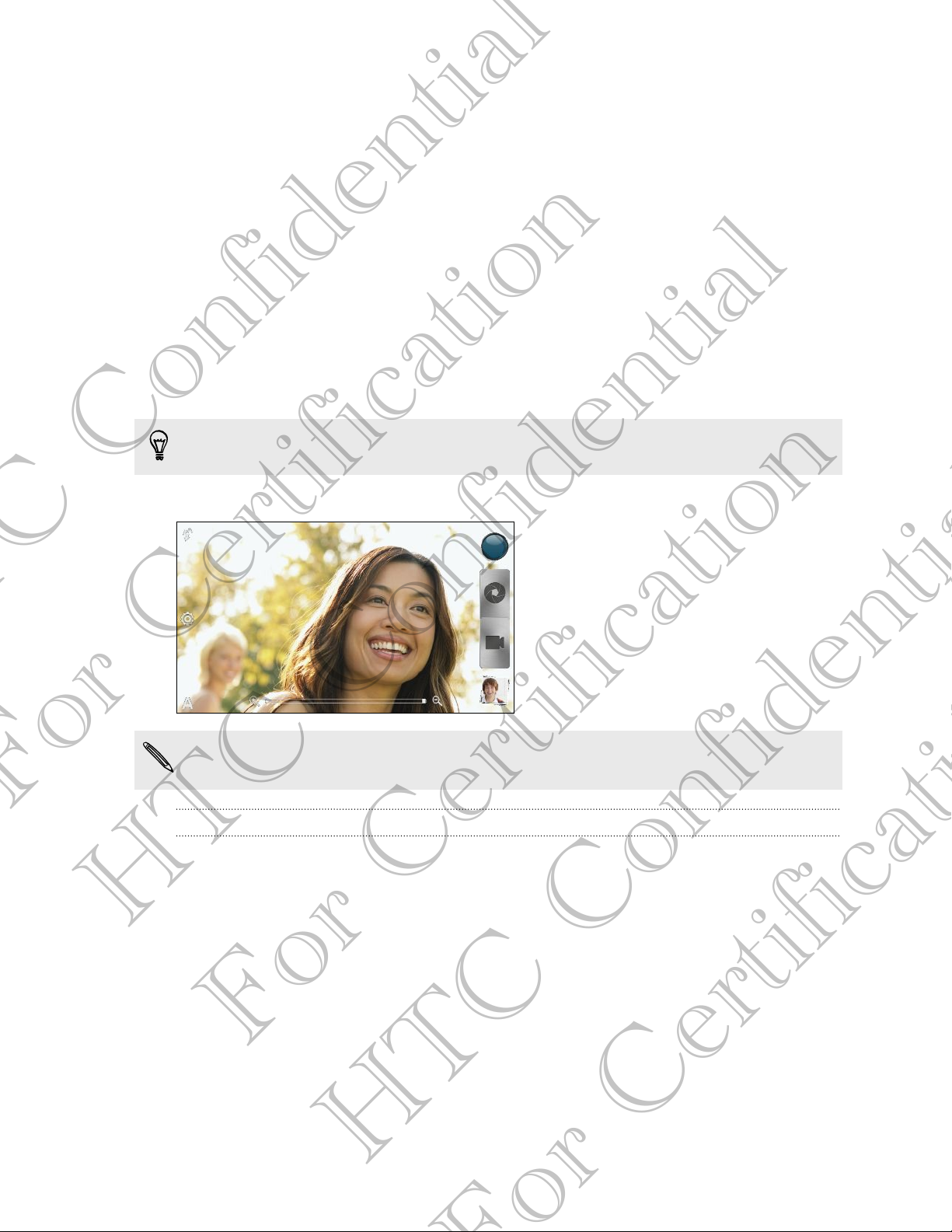
Capture photos instantly, with no delay. Just directly launch the camera from the lock
screen, even if HTC One S is password protected.
1. When your display is off, press POWER.
2. Drag the Camera icon to the lock screen ring so you can start taking photos and
videos right away.
From the Home screen, you can also tap Camera to launch it.
Use the controls on the Viewfinder screen to add effects, zoom in or out, and more.
After using Camera (or if you temporarily leave the Viewfinder screen), you still
need to unlock HTC One S if you have a screen lock.
For Certification
Zooming
§ Before taking a photo or video, slide your finger on the zoom bar to zoom in or
out.
HTC Confidential
§ When you're recording video, the zoom bar is always onscreen. You can freely
zoom in or out while recording.
For Certification
HTC Confidential
Page 25
25 Camera
Switching between the front and main camera
1. On the Viewfinder screen, tap .
2. Tap Camera.
3. Tap either Front or Main.
Some camera features are not available when you’re using the front camera, such
as zooming and face detection.
Choosing an effect
Use the available camera effects to make your photos look like they’ve been taken
through special lenses or filters. You can also apply certain effects to videos.
1. Tap .
2. Scroll through the available effects and tap one that you like.
Setting the resolution
1. On the Viewfinder screen, tap .
2. Tap Image resolution or Video quality, and then choose a resolution.
Choosing a flash mode
Tap the flash icon to choose a flash mode.
When using Flash on or Auto flash mode, the camera intelligently sets the best flash
brightness for your photo.
Taking a photo
For Certification
1. Open Camera from the lock screen or Home screen.
2. Just point the camera on what you want to capture. The camera adjusts the
focus automatically, and continuously refocuses as you move it.
3. When you're ready to take the photo, tap .
HTC Confidential
Recording video
1. Open Camera from the lock screen or Home screen.
2. When you're ready to start recording, tap .
For Certification
HTC Confidential
Page 26
26 Camera
3. While recording, you can:
§ Freely zoom in or out.
§ Change focus to a different subject or area by just tapping it on the
Viewfinder screen.
§ Tap the flash icon to turn the flash on or off.
4. To stop recording, tap .
Taking a photo while recording a video
While you're recording video using the main camera, tap to capture a still shot of
your subject.
Taking continuous camera shots
Do you want to take photos of moving subjects? Whether it’s your kid's football game
or a car race, you can capture the action.
Make sure that you're in Auto scene to use this feature.
1. On the Viewfinder screen, just press and hold . The camera takes up to 20
consecutive shots of your subject.
Want to capture a lot more shots? Tap > Continuous shooting, and then clear
the Limit to 20 frames option.
2. After taking the shots, select the photo that you like the most, and then tap Best
shot. To save more photos from the batch, just delete the photos you don’t
want to keep.
For Certification
Camera scenes
Scenes provide an easy way to override your camera’s normal settings to suit your
current lighting and environment. Use Auto and let the camera automatically
determine optimal settings, or choose from a wide selection of scenes before you
start taking photos.
HTC Confidential
Improving portrait shots
If you'd like your family or friends to look their best in your photos, make sure to use
the portrait scene. It smoothens the skin in your shots.
1. On the Viewfinder screen, tap
2. Tap Portrait.
3. When you're ready to take the photo, tap .
For Certification
.
HTC Confidential
Page 27

27 Camera
Taking a group shot
Finding it difficult to make everyone smile and have them look at the camera at the
same time? With HTC One S, you get perfect group portraits with the most smiles and
the fewest blinks.
1. On the Viewfinder screen, tap .
2. Tap Group portrait.
3. When you're ready to take the photo, tap . The camera takes several shots
and merges them into the best possible group photo.
Taking a panoramic photo
Whether it’s the Golden Gate Bridge or the Eiffel Tower, you can capture anything
wide or tall in a single photo.
1. On the Viewfinder screen, tap .
2. Tap Panorama.
Zoom and flash are disabled when you're in this mode.
3. When you're ready to take the first shot, tap . Directional arrows appear,
prompting you to pan left or right in landscape view (or pan up or down in
portrait view).
4. As you pan, a guide appears onscreen. Use this to frame the first portion of the
scene you want to capture.
5. Continue moving HTC One S as smoothly as you can. The camera automatically
captures five consecutive frames.
6. Tap to stop capturing anytime.
For Certification
The camera stitches the shots into a single photo.
Using HDR
HTC Confidential
When shooting portraits against a bright background, use HDR to capture your
subjects clearly. HDR brings out the details of both the highlights and shadows, even
in high contrast lighting.
1. On the Viewfinder screen, tap .
2. Tap HDR.
For Certification
3. When you're ready to take the photo, tap .
The camera takes three shots at different exposure levels and combines them into one
enhanced photo.
HTC Confidential
Page 28

28 Camera
Shooting in low light
Capture stunning images even in dim light.
1. On the Viewfinder screen, tap .
2. Tap Low light.
Flash is disabled when you're in this mode.
3. When you're ready to take the photo, tap .
§ To avoid getting blurry photos, maintain a steady grip on HTC One S.
§ Improve your photo after taking the shot by applying special effects like auto
enhance and high contrast.
Recording videos in slow motion
Relive high speed action bit by bit and add a touch of suspense to your videos.
1. On the Viewfinder screen, tap .
2. Tap Slow motion video.
3. Frame your subject on the Viewfinder screen.
4. Tap to start recording.
Improving video stability
Lessen shakes and blurs in your video, especially when you're following a moving
For Certification
subject.
1. On the Viewfinder screen, tap .
2. Tap Video options > Video stabilization.
HTC Confidential
For Certification
HTC Confidential
Page 29

29 Camera
Changing camera and video settings
1. On the Viewfinder screen, tap .
2. As well as changing basic camera and video settings, you can also:
§ Change the review duration to set how long a captured photo or video will
be displayed on the Review screen before the camera changes back to the
Viewfinder screen.
§ Automatically take a shot when your subject smiles (photo mode only).
§ Geo-tag photos to store GPS location in your captured photos (photo
mode only).
§ Set the ISO level. Higher ISO numbers are better for taking pictures in low
light conditions (photo mode only).
§ Automatically upload photos to a social network (photo mode only). You
can set the upload frequency, select the album to upload to, and set the
privacy level.
For Certification
HTC Confidential
For Certification
HTC Confidential
Page 30

30 Personalizing
Personalizing
Making HTC One S truly yours
Make HTC One S look and sound just the way you want it. Personalize it with a
different wallpaper, skin, ringtone, and notification sound for events such as incoming
text, email, and calendar reminders.
Personalizing HTC One S with scenes
HTC One S becomes multiple phones in one when you use scenes. Scenes are
personalized Home screen layouts that you can quickly apply. By switching between
scenes, you instantly turn HTC One S into your perfect weekend phone, travel phone,
work phone, or pure play phone.
Everytime you add or modify something on the Home screen, HTC One S
automatically saves your changes to the current scene selected.
Using a preset scene
HTC One S features preset scenes, each preconfigured with a different wallpaper and
collection of widgets that reflect different moments in your life. You can choose a
scene that is suitable for work, play, travel, or your social life.
1. Slide the Notifications panel open, and then tap > Personalize.
2. On the Display tab, tap Scene.
3. Slide your finger on the screen from right to left to select the scene you want.
For Certification
4. Tap Apply.
Creating a new scene
You’ll start with an empty Home screen when you create a new scene.
HTC Confidential
1. Slide the Notifications panel open, and then tap > Personalize.
2. On the Display tab, tap Scene.
3. Tap > New.
For Certification
HTC Confidential
Page 31

31 Personalizing
4. Enter a new scene name, and then tap Done.
5. Personalize the scene by adding widgets and apps, changing the wallpaper, and
more. All of your changes will be automatically saved to this scene.
Renaming a scene
1. Slide the Notifications panel open, and then tap > Personalize.
2. On the Display tab, tap Scene.
3. Slide your finger on the screen from right to left to select the scene you want to
rename.
4. Press and hold a scene thumbnail, and then tap Rename.
5. Enter a new scene name.
6. Tap Done.
Deleting scenes
1. Slide the Notifications panel open, and then tap > Personalize.
2. On the Display tab, tap Scene.
3. Tap > Delete.
4. Slide your finger on the screen from right to left to browse through scenes, then
tap one or more scenes you want to delete.
5. Tap Delete.
Changing your wallpaper
Pick your favorite photo as your Home wallpaper. Choose from the available
wallpapers, or use any photo you've taken with the camera.
For Certification
HTC Confidential
1. Slide the Notifications panel open, and then tap > Personalize.
2. On the Display tab, tap Wallpaper.
3. Tap one of the following:
Gallery Choose an existing photo and crop it.
HTC wallpapers Choose a preset wallpaper, and then tap Preview.
Live wallpapers Choose a preset animated wallpaper, and then tap Preview. If
the animated wallpaper you chose can be customized, tap
Settings.
For Certification
4. Tap Save or Apply.
HTC Confidential
Page 32

32 Personalizing
Applying a new skin
Personalize beyond the Home screen by applying a new skin. Skins give a different
look and feel to most onscreen buttons, application screens, option menus, and other
items.
1. Slide the Notifications panel open, and then tap > Personalize.
2. On the Display tab, tap Skin.
3. Slide your finger on the screen from right to left to select the skin you want.
4. Tap Apply.
Personalizing your Home screen with widgets
Widgets put at-a-glance important information and media content up front on your
Home screen. Some widgets are already added to your Home screen for your
convenience. You can add more from the available selections of widgets.
Adding a widget to your Home screen
1. Press and hold on an empty space on your Home screen.
2. On the Widgets tab, you can:
§ Slide left or right to browse through the complete set of widgets.
§ Tap to search for specific widgets.
§ Tap All Widgets to choose from a selection menu.
Some widgets are available in different styles and sizes.
3. Drag a widget to a home screen thumbnail where you want to add it.
For Certification
You can also add widgets that allow you to quickly switch on or off certain settings
such as Wi-Fi and Bluetooth. Tap All Widgets > Settings, and then tap the widget that
you want.
HTC Confidential
For Certification
HTC Confidential
Page 33
33 Personalizing
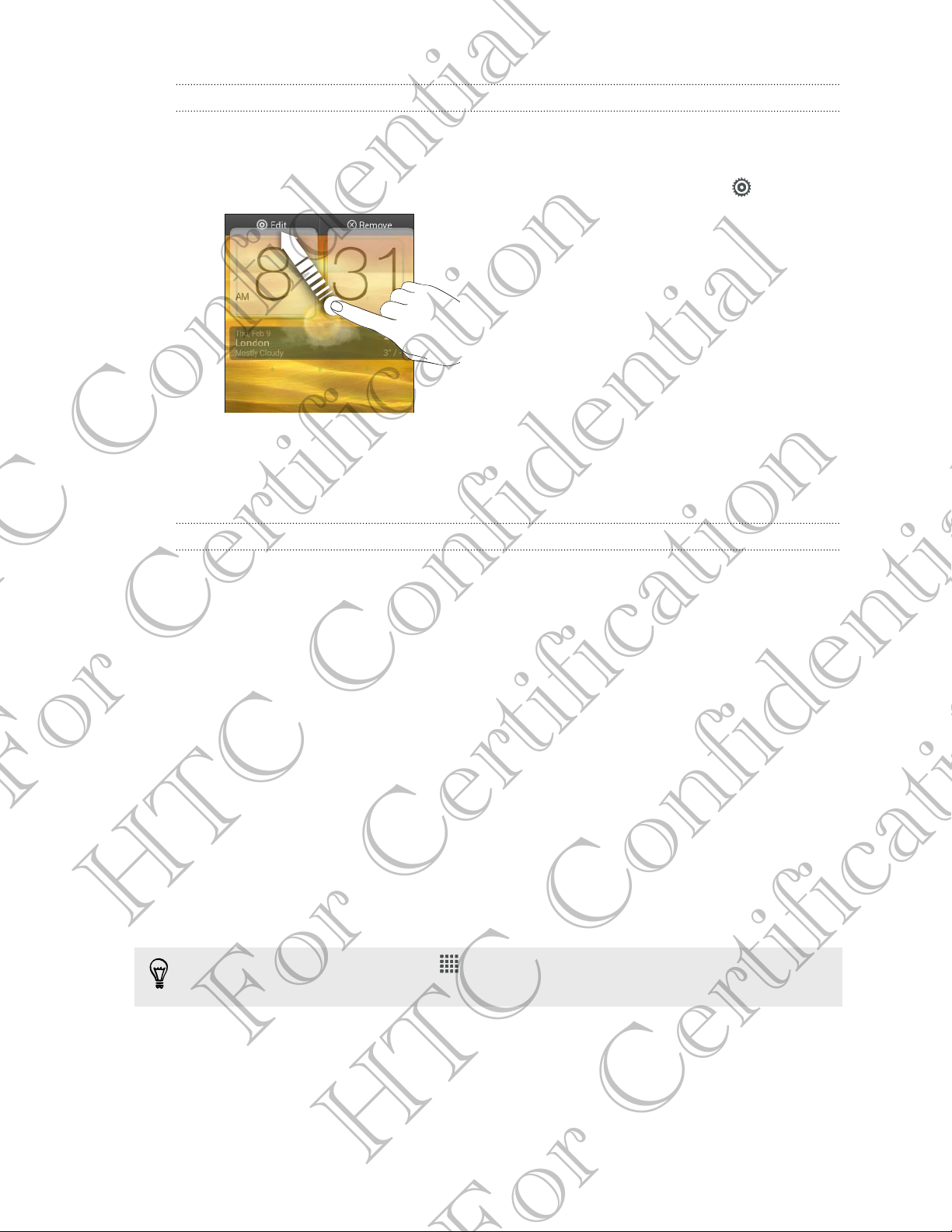
Changing the settings of a widget
You can modify basic settings of some widgets (for example, the People and Mail
widgets) from the Home screen.
1. Press and hold a widget on your Home screen, and then drag it to .
The relevant screen where you can change some settings for this widget then
opens.
2. Customize the widget settings.
Resizing a widget
Some widgets can be resized after you've added them to your Home screen.
1. Press and hold a widget on the Home screen, and then release your finger. If
you see directional arrow buttons appear on the widget, that means the widget
is resizable.
2. Drag an arrow button to enlarge or shrink the widget size.
Adding apps and other shortcuts on your Home screen
For Certification
Place apps you often use on your Home screen. You can also add shortcuts to
frequently used settings, bookmarked webpages, and more.
1. Press and hold on an empty space on your Home screen.
HTC Confidential
2. On the Apps or Shortcuts tab, choose whether to add an app or a shortcut.
To add an app, you can also tap , press and hold an app, and then drag it to an
empty area on your Home screen.
For Certification
HTC Confidential
Page 34

34 Personalizing
Rearranging or removing widgets and icons on your Home screen
Moving a widget or icon
You can easily move a widget or icon from one Home screen panel to another.
1. Press and hold the widget or icon with one finger.
2. With another finger, flick left or right to rotate the screen to another Home
screen panel.
3. Release the widget or icon.
4. To move the widget or icon to another position on the panel, just press and hold
and then drag it.
For Certification
Removing a widget or icon
1. Press and hold the widget or icon you want to remove, and then drag it to .
2. When the widget or icon turns red, lift your finger.
HTC Confidential
For Certification
HTC Confidential
Page 35
35 Personalizing
Personalizing the launch bar
The launch bar on your Home screen gives you one-touch access to commonly used
apps. You can replace the apps on the launch bar with other apps you often use.
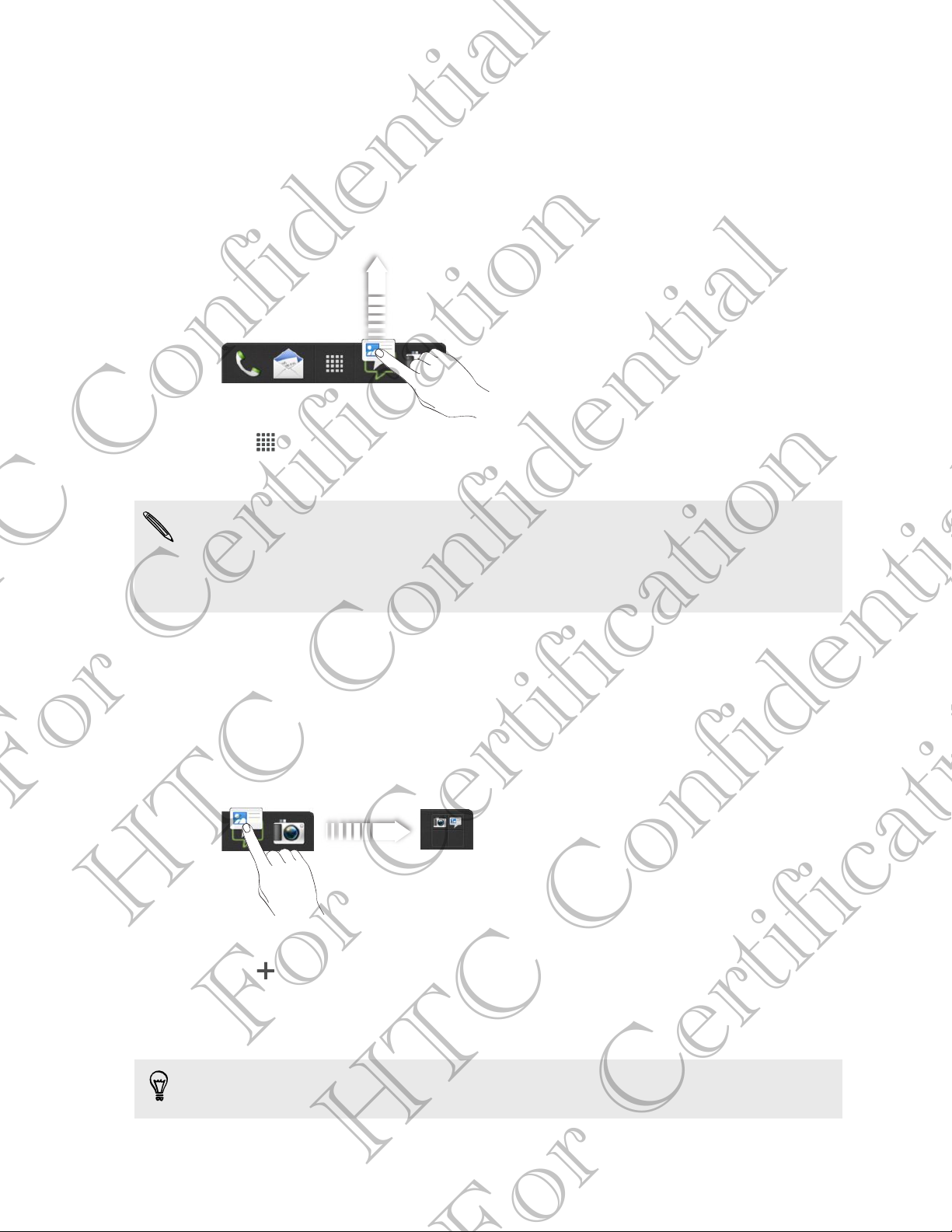
1. Press and hold the app you want to replace, and then drag it out of the launch
bar.
2. Tap to go to the All apps screen.
3. Press and hold an app, and then drag it to the empty slot on the launch bar.
§ You can also place shortcuts to settings or information on the launch bar. Add a
shortcut first to the Home screen, and then drag it to the launch bar.
§ The apps or shortcuts you see on the lock screen are the same as the ones on the
launch bar.
Grouping apps into a folder
Use folders to group apps on the launch bar or your Home screen to free up space so
you can add more apps.
1. Press and hold an app, and then drag it over to another app to automatically
create a folder.
For Certification
HTC Confidential
2. Tap the folder to open it.
3. Tap .
4. Select one or more apps that you want to add to the folder.
5. Tap Add.
You can also add shortcuts to settings or information. Add a shortcut first to the
Home screen, and then drag it over to the folder.
For Certification
HTC Confidential
Page 36

36 Personalizing
Renaming a folder
1. Tap the folder to open it.
2. Tap the folder window’s title bar.
3. Enter a new folder name.
4. Tap outside the folder to close it.
Removing items from a folder
1. Tap the folder to open it.
2. Press and hold an app or shortcut, and then drag it to the Home screen, or drag
it out to to remove. Repeat this process to remove more items from the
folder.
If there's only one item left in the folder, the folder ungroups the last item and
removes itself automatically.
Rearranging the Home screen
Reorder your Home screen panels in any way that fits how you use them. For
example, move the panels with frequently-used widgets, shortcuts, and folders closer
to the main Home screen.
1. Pinch the Home screen to show the Leap view.
2. Press and hold the thumbnail of the home screen you want to move. HTC One S
then vibrates. Don’t lift your finger just yet.
3. Drag the thumbnail to its new position, and then lift your finger.
For Certification
HTC Confidential
For Certification
HTC Confidential
Page 37

37 Personalizing
Removing a Home screen panel
If you feel you need fewer Home screens, you can remove some.
1. On the Home screen, pinch the touch screen or press to go to Leap view.
2. Press and hold the panel you want to remove. Don't lift your finger just yet.
3. Drag the panel to .
Adding back a Home screen panel
Add back a Home screen if you have more widgets, apps, and shortcuts that you want
to access right away.
1. On the Home screen, pinch the touch screen or press to go to Leap view.
2. Tap . A new Home screen appears. You can start adding widgets, apps, and
shortcuts.
Personalizing with sound sets
Each sound set gives you a different combination of sounds for your ringtone and
notifications such as incoming messages, email, calendar event reminders, and more.
By switching between sound sets, you can instantly make HTC One S ring or alert you
with fun sounds when you're out with friends or change to subtle sounds while you're
at work.
Creating a sound set
1. Slide the Notifications panel open, and then tap > Personalize.
2. On the Sound tab, tap Sound set.
3. On the Sound sets screen, tap .
For Certification
4. Enter a new sound set name, and then tap Done.
The newly created sound set is then added to the list of sound sets. You can assign
different tones to the sound set to your preference.
Changing your ringtone, notifications, and sounds
HTC Confidential
1. Slide the Notifications panel open, and then tap > Personalize.
2. On the Sound tab, tap Sound set.
3. Choose a sound set you want to customize, or create a new one, and then tap
Apply.
4. Change the ringtone, notification sound, and alarm from the Personalize screen.
HTC One S automatically saves your choices to the current sound set.
For Certification
HTC Confidential
Page 38
38 Personalizing
Deleting sound sets
1. Slide the Notifications panel open, and then tap > Personalize.
2. On the Sound tab, tap Sound set.
3. Tap .
4. Select one or more sound sets you want to delete.
5. Tap Delete.
Rearranging application tabs
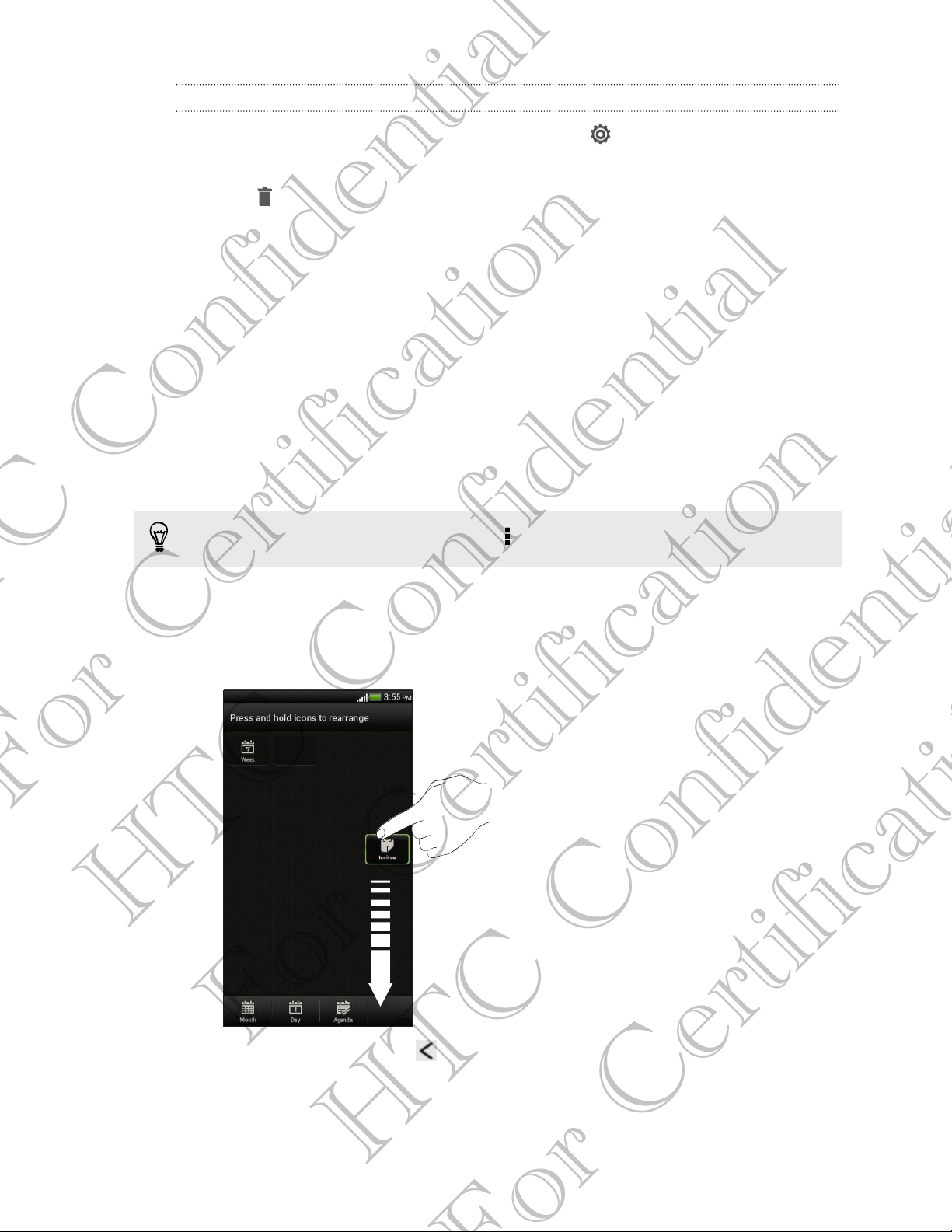
You can rearrange the tabs at the bottom of some apps to prioritize the types of
information you frequently use. You can also add or remove tabs.
1. Open an app that has the usual tabs at the bottom of its screen.
2. Press and hold the current tab until the screen changes and shows a message
about rearranging tabs.
If you don't see any tabs on the app, tap > Edit tabs.
3. You can:
§ Change the order of the tabs. Press and hold a tab, and then drag it to its
new position.
§ Drag a tab into or out of the bottom row to add or remove it.
For Certification
HTC Confidential
4. When you’re done, press .
For Certification
HTC Confidential
Page 39

39 Personalizing
Customizing the lock screen style
Choose from our selection of lock screens. Some lock screens are customizable.
1. Slide the Notifications panel open, and then tap > Personalize.
2. On the Display tab, tap Lock screen style.
3. Slide your finger left or right to choose a lock screen style.
4. Tap the lock screen style to see a preview. If you want to further customize it,
tap Settings.
5. Tap Apply.
The shortcuts on the lock screen are the same apps as the ones on your Home
screen's launch bar. To change them, you'll have to replace the apps on the launch
bar.
Securing HTC One S with a personal touch
Make unlocking your phone as easy as looking at it. Protect your personal information
and prevent others from using HTC One S without your permission by setting up face
unlock.
1. Slide the Notifications panel open, and then tap > Security.
2. Tap Screen lock > Face Unlock
3. Tap Continue and follow the onscreen instructions.
4. Choose a backup lock to use in case the phone doesn't recognize you.
5. Tap Lock phone after, then specify the idle time before the screen is locked.
You can also tap Improve face matching in the Security screen to train HTC One S
For Certification
to recognize your face in different situations, such as when you're wearing glasses
or sporting a beard.
You'll be asked to unlock the screen every time HTC One S is turned on or when it’s
idle for a certain period of time.
HTC Confidential
For Certification
HTC Confidential
Page 40
40 Phone calls
Phone calls
Making a call with Smart dial
You can either dial a number directly, or use Smart dial to quickly place a call. Smart
dial searches and calls a stored/synced contact or a number from your call history.
1. On the Home screen, tap .
2. Enter the phone number or first few letters of the contact’s name.
3. From the list, tap a contact to call.
To check other phone numbers associated with the contact, tap beside the
contact name.
4. To hang up, tap End Call.
Using Speed dial
Use Speed dial to call a phone number with a single tap. For example, if you assign a
contact’s number to the number 2 key, you can just press and hold 2 to dial the
number.
The number 1 key is generally reserved for your voicemail. Press and hold this key
to call voicemail and retrieve your voicemail messages.
Assigning a speed dial key
For Certification
HTC Confidential
1. On the Home screen, tap .
2. Tap > Speed dial.
3. Tap , and then select a contact from the list.
4. On the Speed dial screen, choose the phone number of the contact to use, and a
speed dial key to assign.
5. Tap Save.
For Certification
HTC Confidential
Page 41
41 Phone calls
Calling a phone number in a text message
1. Tap the phone number within the message.
2. Tap Call.
To call the message sender, tap the received message, and then tap Call on the
options menu.
Calling a phone number in an email
1. Tap the phone number in the email body.
2. Tap Call.
Calling a phone number in a Calendar event
1. Open an event in Calendar.
2. On the Event details screen, tap the phone number.
3. Tap Call.
4. When the call is received, tap to see event details such as the conference
call ID or meeting PIN code on the Phone dialer screen.
Making an emergency call
In some regions, you can make emergency calls from HTC One S even if you don’t
have a SIM card installed or your SIM card has been blocked.
1. On the Home screen, tap .
For Certification
HTC Confidential
2. Dial the emergency number for your locale, and then tap Call.
Receiving calls
When you receive a phone call from a contact, the Incoming call screen appears.
You can use the polite ringer and pocket mode features for receiving calls.
Answering a call
For Certification
Do one of the following:
§ If the display is locked when you get a call, drag to the Lock screen ring.
§ If the display is on when you get a call, tap Answer.
HTC Confidential
Page 42

42 Phone calls
Rejecting a call
Do one of the following:
§ If the display is locked when you get a call, drag to the Lock screen ring. Then
drag to the ring the Remind me icon to create a task or the Send message icon
to send a text message to the caller.
§ If the display is on when you get a call, tap Decline.
§ Press the POWER button twice to reject a call.
Muting the ringing sound without rejecting the call
Do one of the following:
§ Press the VOLUME DOWN or VOLUME UP button.
§ Press the POWER button.
§ Place HTC One S face down on a level surface.
If HTC One S is already facing down, it will still ring when there are subsequent
incoming calls.
For Certification
HTC Confidential
For Certification
HTC Confidential
Page 43

43 Phone calls
Look who's calling
Every time you make a call or your friend gives you a ring, you get to see your friend’s
latest social network status update right on the call screen. You’ll also see a birthday
reminder, if your friend’s birthday will happen within one week.
Viewing a task reminder while on a call
Did you promise to babysit for a friend this weekend? If you associate a task to a
contact, you'll see a task reminder on the call screen when you're on a call with that
friend.
What can I do during a call?
For Certification
When a call is in progress, you can turn the speakerphone on, place the call on hold,
and more.
Putting a call on hold
HTC Confidential
To put the call on hold, tap > Hold. The status bar then displays the hold call icon
.
To resume the call, tap > Unhold.
For Certification
HTC Confidential
Page 44
44 Phone calls
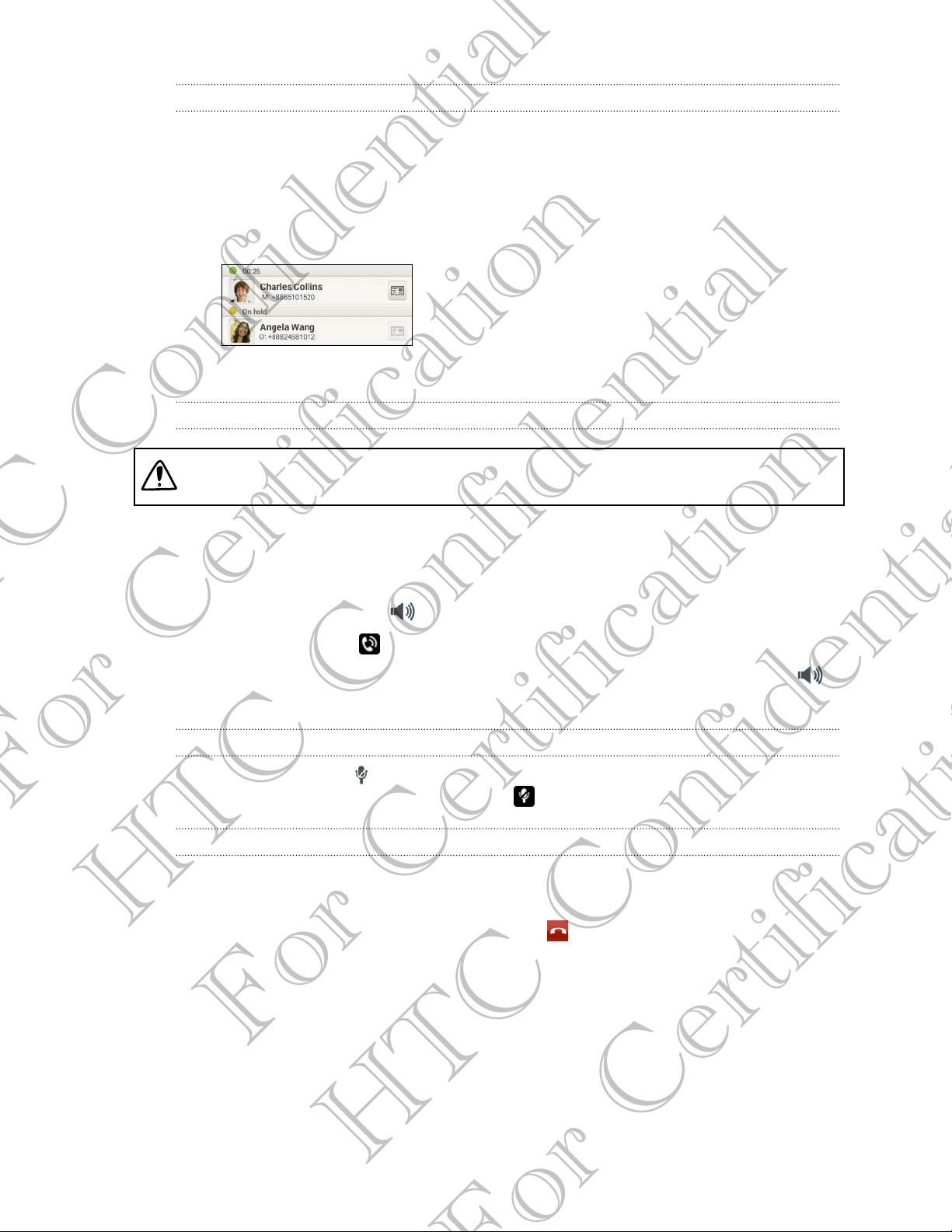
Switching between calls
If you’re already in a call and you accept another call, you can switch between the two
calls.
1. When you receive another call, tap Answer to accept the second call and put
the first call on hold.
2. To switch between the calls, tap the person you want to talk to on the screen.
3. To end the current call and return to the other call, tap End Call.
Turning the speakerphone on during a call
To decrease potential damage to your hearing, do not hold HTC One S to your ear
when the speakerphone is on.
Do one of the following:
§ Flip HTC One S over during a call (be sure that Flip for speaker is selected in
Sound settings).
§ On the call screen, tap .
The speakerphone icon appears in the status bar when the speakerphone is on.
To turn the speakerphone off, just flip HTC One S over again, facing it up. Or tap
again.
Muting the microphone during a call
On the call screen, tap to toggle between turning the microphone on or off. When
For Certification
HTC Confidential
the microphone is turned off, the mute icon appears in the status bar.
Ending a call
Do one of the following to end the call:
§ On the call screen, tap End Call.
§ Slide open the Notifications panel, then tap .
If the phone number of the person who called is not in your contacts list, you can
choose to save the number to your contacts list after you hang up.
For Certification
HTC Confidential
Page 45

45 Phone calls
Setting up a conference call
Conference calling with your friends, family, or co-workers is easy. Make the first call
(or accept a call), and then simply dial each subsequent call to add it to the
conference.
Make sure your SIM card is enabled with conference calling service. Contact your
mobile operator for details.
1. Make a call to the first conference call participant.
2. When connected, tap > Add call, and then dial the number of the second
participant. The first participant is put on hold.
3. When connected to the second participant, tap .
4. To add another participant, tap , and then dial the number of the contact.
5. When connected, tap to add the participant to the conference call.
6. To talk to a person in the conference call in private, tap and then select
Private call.
To end the call with a participant, tap and then tap Finish this call.
To end the conference call, tap End Call.
Internet calls
When you're connected to a Wi-Fi network, you can make and receive calls through
an Internet calling account.
Before you add an Internet calling account, make sure that you've registered with
an Internet calling service that supports voice calls over Session Initiation Protocol
(SIP). Internet calls to phone numbers may incur additional fees.
For Certification
Adding an Internet calling account
1. Slide the Notifications panel open, and then tap > Call.
2. Under Internet call settings, tap Accounts.
HTC Confidential
3. Tap Add account.
4. Enter your account details.
5. Tap > Save.
6. To set HTC One S to receive Internet calls on your added account, tap the
For Certification
Receive incoming calls check button.
HTC Confidential
Page 46
46 Phone calls
Making an Internet call
Make an Internet call to either your contact's Internet calling account or phone
number.
Call any of the following:
Internet
calling
account
Phone
number
§ In People, tap a contact who has an Internet calling account, and
then tap Internet call.
§ In Call History, tap an Internet call log.
First, enable Internet calling for your outgoing calls. Slide the
Notifications panel open, and then tap > Call. Tap Use Internet
calling, and then select either For all calls when data network is
available or Ask for each call.
Call history
Use Call History to check missed calls, your dialed numbers, and received calls.
Returning a missed call
You'll see the missed call icon in the status bar when you miss a call.
1. Slide open the Notifications panel to check who the caller is.
2. To return the call, tap the missed call notification.
3. Tap the caller’s name or number on the Call History screen.
Checking calls in the Call History
1. On the Home screen, tap .
2. Tap the Call History tab.
For Certification
3. On the Call History screen, you can:
§ Tap a name or number in the list to call.
§ Press and hold a name or number in the list to display the options menu.
§ Tap to check only the call history of a particular contact.
HTC Confidential
Adding a new phone number to your contacts from Call History
§ Tap > View to display just a particular type of calls such as missed calls or
outgoing calls.
1. On the Call History screen, press and hold the phone number, and then tap Save
2. Choose whether to create a new contact or save the number to an existing
For Certification
to People.
contact.
HTC Confidential
Page 47

47 Phone calls
Clearing the Call History list
On the Call History screen, do one of the following:
Remove one name or
number
Clear the entire list Tap > Remove call history > Select all > Delete.
Home dialing
When you're on a trip abroad, it's easy to dial friends and family from home.
Your home country code is automatically added when you call your contacts while
roaming. But when manually entering a phone number to call, you need to enter a plus
(+) sign and country code before the number.
Changing the default country code for Home dialing
1. Slide the Notifications panel open, and then tap > Call.
2. Tap Home dialing settings.
3. Select a country, and then tap OK.
Turning off Home dialing
Press and hold the name or number, and then tap Delete
from call history.
If you prefer to manually enter complete phone numbers to call while roaming, you
can turn off Home dialing.
1. Slide the Notifications panel open, and then tap > Call.
2. Under Other settings, clear the Home dialing check button.
For Certification
HTC Confidential
Call services
You can change the settings of various phone services. Call services may include call
forwarding, call waiting, voicemail, and more. Contact your mobile operator to find out
about the availability of call services.
Slide the Notifications panel open, and then tap > Call.
For Certification
HTC Confidential
Page 48
48 Messages
Messages
About the Messages app
Keep in touch with important people in your life. Use the Messages app to compose
and send text and multimedia messages. On the All messages screen, your sent and
received messages are neatly grouped into conversations, by contact name or phone
number.
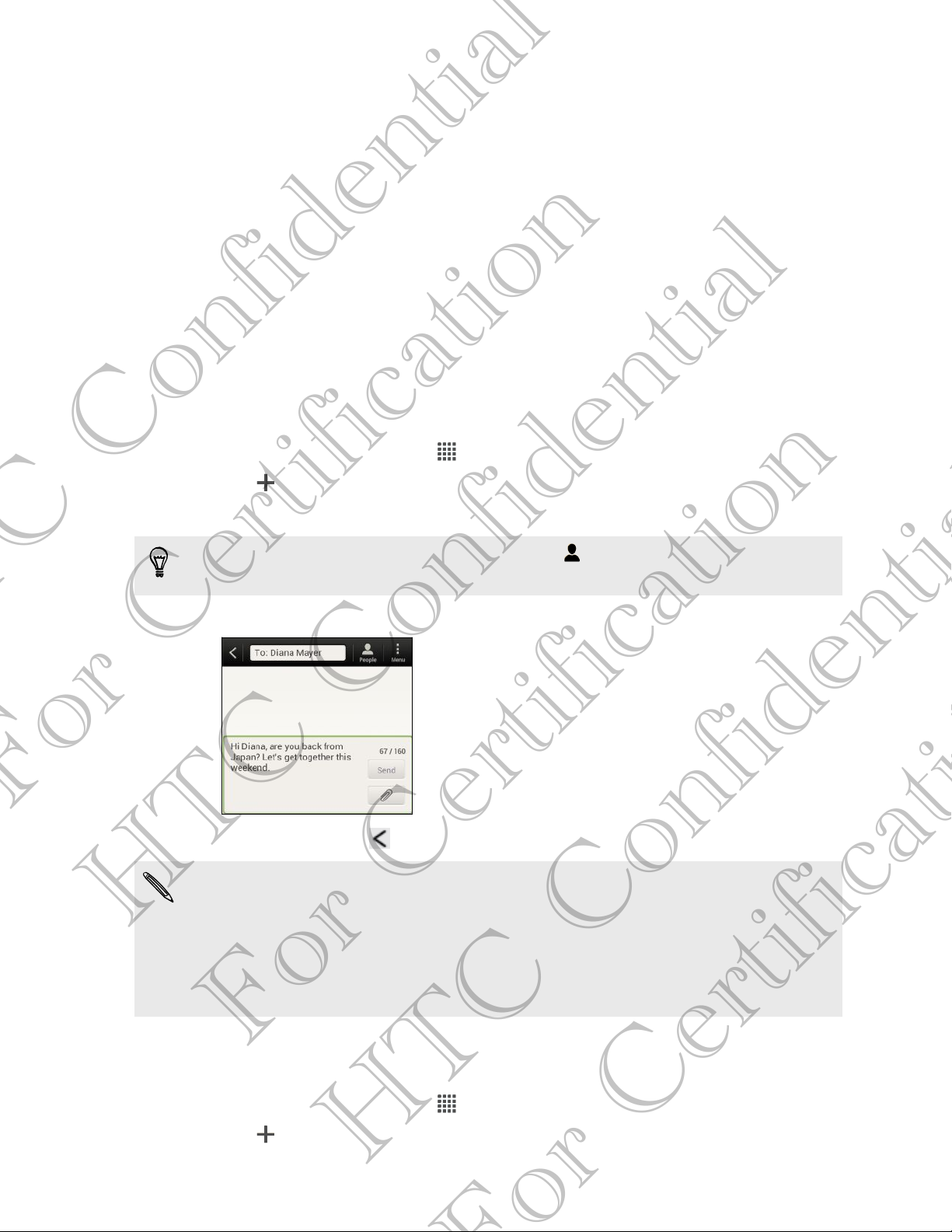
Sending a text message (SMS)
1. From the Home screen, tap > Messages.
2. Tap .
3. Enter a contact name or mobile number in the To field.
Sending the message to a group of friends? Tap , and then select the contacts to
whom you want to send the message.
4. Tap the box that says Add text, and then enter your message.
For Certification
5. Tap Send, or press to save the message as a draft.
§ There is a limit on the number of characters for a single text message (displayed
above the Send button). If you exceed the limit, your text message will be
HTC Confidential
delivered as one but will be billed as more than one message.
§ Your text message automatically becomes a multimedia message if you enter an
email address as the recipient, add a message subject, attach an item, or compose
a very long message.
For Certification
Sending a multimedia message (MMS)
1. From the Home screen, tap > Messages.
2. Tap .
HTC Confidential
Page 49

49 Messages
3. Enter a contact name, mobile number, or email address in the To field.
Sending the message to a group of friends? Tap , and then select the contacts to
whom you want to send the message.
4. To add a subject line, tap > Add subject.
5. Tap the box that says Add text, and then enter your message.
6. Tap , and then choose an attachment type.
7. Select or browse for the item to attach.
8. After adding an attachment, tap to see options for replacing, viewing or
removing your attachment.
9. Tap Send, or press to save the message as a draft.
Creating a slideshow
1. After you've added either a photo, video, or audio in the multimedia message
you’re composing, tap > Slide.
2. Choose where you want to insert the next slide.
3. Right after adding a slide, do one of the following:
§ Tap , and then choose to add a photo or a video.
§ Tap > Audio to add music or a voice recording to a slide.
§ Tap Add text, and then enter your caption.
§ Tap to see options for replacing, viewing or removing your attachment.
4. Tap > Preview. Tap once on the preview screen to see playback controls.
If you don't see Preview, scroll down the menu.
5. When finished, tap Send, or press to save the message as a draft.
For Certification
Can't find your contacts' email addresses in Messages?
1. If only phone numbers are showing up when you're entering a contact
name, tap .
HTC Confidential
2. Tap > Show Email.
To always show email addresses, tap on the All messages screen, and then
tap Settings > General > Show email address.
For Certification
HTC Confidential
Page 50

50 Messages
Resuming a draft message
1. On the All messages screen, tap > Drafts.
2. Tap the message and then resume editing it.
3. Tap Send.
Checking your messages
Depending on your notification settings, HTC One S plays a sound, vibrates, or
displays the message briefly in the status bar when you receive a new message. A
new message icon is also displayed in the status bar.
To open and read the message, you can:
§ Open the Notifications panel, and then tap the new message notification.
§ Go to the Messages app and open the message.
Viewing and saving an attachment from a multimedia message
§ If there’s a media attachment such as a photo or video in a received message,
tap it to view the content.
§ To save the attachment, tap the multimedia message, and then choose to save
from the options menu.
§ If the attachment is a contact (vCard), tap it to view the contact information,
then tap Save to add to your contacts.
§ If the attachment is an appointment or event (vCalendar), tap it to choose the
calendar where to save it, and then tap Import.
If you are concerned about the size of your data downloads, you can choose to
check the size and subject first before you download a multimedia message. On the
For Certification
All messages screen, tap > Settings > Multimedia messages (MMS). Clear the
Auto-retrieve option.
Saving a text message in the Tasks app
Save a text message in your Tasks list so you can remind yourself when to reply.
HTC Confidential
1. On the All messages screen, tap a contact (or phone number) to display the
exchange of messages with that contact.
2. Tap the message you want to save, and then tap Save as task.
3. Enter a task title and other details.
4. Tap Save.
For Certification
HTC Confidential
Page 51
51 Messages
Replying to a message
1. On the All messages screen, tap a contact (or phone number) to display the
exchange of messages with that contact.
2. Tap the box that says Add text, and then enter your message.
3. Tap Send.
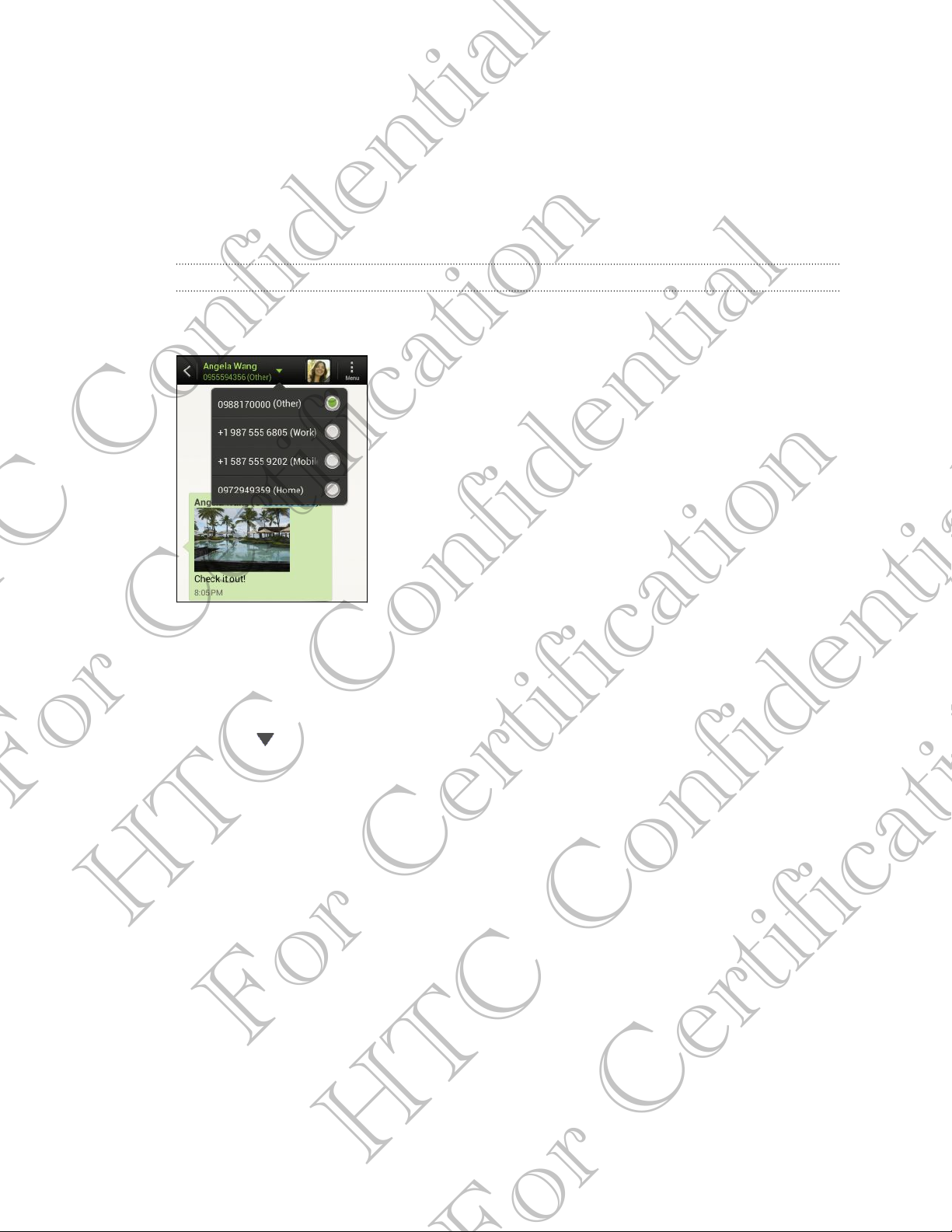
Replying to another phone number of the contact
When a contact has multiple phone numbers stored on HTC One S, you’ll see the
particular phone number used below the contact's name.
Keep in mind that your response will be sent to the phone number of the latest
message you’ve received from this contact.
1. On the All messages screen, tap a contact (or phone number) to display the
exchange of messages with that contact.
2. Tap , and then select another phone number of this contact.
3. Tap the box that says Add text, then enter your reply message.
For Certification
HTC Confidential
4. Tap Send.
Forwarding a message
1. On the All messages screen, tap a contact (or phone number) to view the
exchange of messages with that contact.
2. Tap a message, and then tap Forward.
3. In the To field, fill in one or more recipients.
4. Tap Send.
For Certification
HTC Confidential
Page 52

52 Messages
WAP push messages
WAP push messages contain a web link. Often, the link will be to download a file that
you have requested from a service provider.
When you receive a WAP push message, a notification icon is displayed in the
status bar.
Opening and reading a new WAP push message
1. Open the Notifications panel, and then tap the push message notification.
2. Tap Visit website.
Viewing all your WAP push messages
1. From the Home screen, tap > Messages.
2. Tap > Push messages.
You can only see this option if you've previously received WAP push messages.
Managing message conversations
Locking a message
You can lock a message so that it will not be deleted even if you delete the other
messages in the conversation.
1. On the All messages screen, tap a contact (or phone number) to display the
exchange of messages with that contact.
2. Tap the message that you want to lock.
For Certification
HTC Confidential
3. Tap Lock message on the options menu. A lock icon is displayed.
Copying a text message to your SIM card
1. On the All messages screen, tap a contact (or phone number) to display the
exchange of messages with that contact.
2. Tap the message, and then tap Copy to SIM. A SIM card icon is displayed.
Deleting a single message
1. On the All messages screen, tap a contact (or phone number) to display the
For Certification
exchange of messages with that contact.
2. Tap the message that you want to delete.
HTC Confidential
Page 53

53 Messages
3. If the message is locked, tap Unlock message on the options menu, and then tap
the message to display the options menu again.
4. Tap Delete message, and then tap OK.
Deleting several messages within a conversation
1. On the All messages screen, tap a contact (or phone number) to display the
exchange of messages with that contact.
2. Tap > Delete.
3. Tap Delete by selection or Delete by phone number (if the contact used
multiple phone numbers throughout the conversation).
4. Select the messages you want to delete, and then tap Delete.
In the Messages settings, tap General > Delete old messages to auto delete old
messages per conversation.
Deleting a conversation
1. On the All messages screen, press and hold a contact (or phone number) whose
messages you want to delete, and then tap Delete.
2. Tap OK to delete the entire thread.
Any locked messages in the conversation thread will not be deleted unless you
select the Delete locked messages check box.
Deleting several conversations
1. On the All messages screen, tap > Delete.
2. Select the conversation threads you want to delete.
3. Tap Delete. Any locked messages will not be deleted.
For Certification
Backing up your text messages
1. From the Home screen, tap > Messages.
HTC Confidential
2. Tap > Back up SMS > Back up SMS.
3. Enter a name for your backup file, and then tap OK.
For Certification
HTC Confidential
Page 54
54 Messages
Backing up text messages via mail
You need to set up your email account in Mail.
1. On the All messages screen, tap > Back up SMS.
2. Tap Back up SMS via mail.
The Mail app's compose screen opens, with the backup file attached.
3. Enter your email address.
4. Compose your email message, and then tap Send.
To restore your text messages on HTC One S, open the email message with the
backup file attachment from the Mail app. Tap the attachment to open the Restore
SMS, screen and then tap the backup file to restore your text messages.
Restoring text messages
You can only restore text messages that were exported using the Back up SMS
feature.
1. From the Home screen, tap > Messages.
2. Tap > Back up SMS > Restore SMS.
3. Tap the backup file to import.
4. Tap OK.
Setting message options
Access and change the settings of the Messages app. You can add a signature to your
messages, edit messaging options, and more.
For Certification
On the All messages screen, tap > Settings.
HTC Confidential
For Certification
HTC Confidential
Page 55

55 Search and Web browser
Search and Web browser
Searching HTC One S and the Web
You can search for information on HTC One S and on the Web by using Search. Some
apps, such as People or Mail, have their own search function, which you can use to
search only within those apps.
Setting search options
1. From the Home screen, tap .
2. Tap > Settings.
3. Tap Google Search, and then customize your search settings.
4. When done, press .
5. Tap Searchable items, and then select the items you want included when doing
a search.
Performing searches on the Web and HTC One S
1. From the Home screen, tap .
2. In the search box, enter the words you want to search for. As you type,
matching items on HTC One S and suggestions from Google web search are
shown as a list.
3. If what you’re searching for is in the list of suggestions, tap the item to open it in
its compatible app.
For Certification
HTC Confidential
Tap to enter it in the search box. New suggestions appear and you can enter
more text or tap beside a subsequent suggestion to quickly refine your search.
Browsing the Web
1. From the Home screen, tap > Internet.
2. Tap the URL box on top of the screen.
3. Enter your search keywords or a webpage address.
4. On the webpage, you can:
For Certification
§ Tap a link to open it, or press and hold a link to see more options.
§ Tap an email address to send a message to the email address.
§ Flick down the screen to quickly show the URL box and other options.
HTC Confidential
Page 56
56 Search and Web browser
Switching to Reading mode
Want to read an article or blog without distractions? Reading mode removes menus,
banners, and backgrounds from a webpage.
While viewing an article, tap (when it's available) to switch reading mode on or
off.
Viewing the full version of a website
While viewing a webpage, tap > View desktop site.
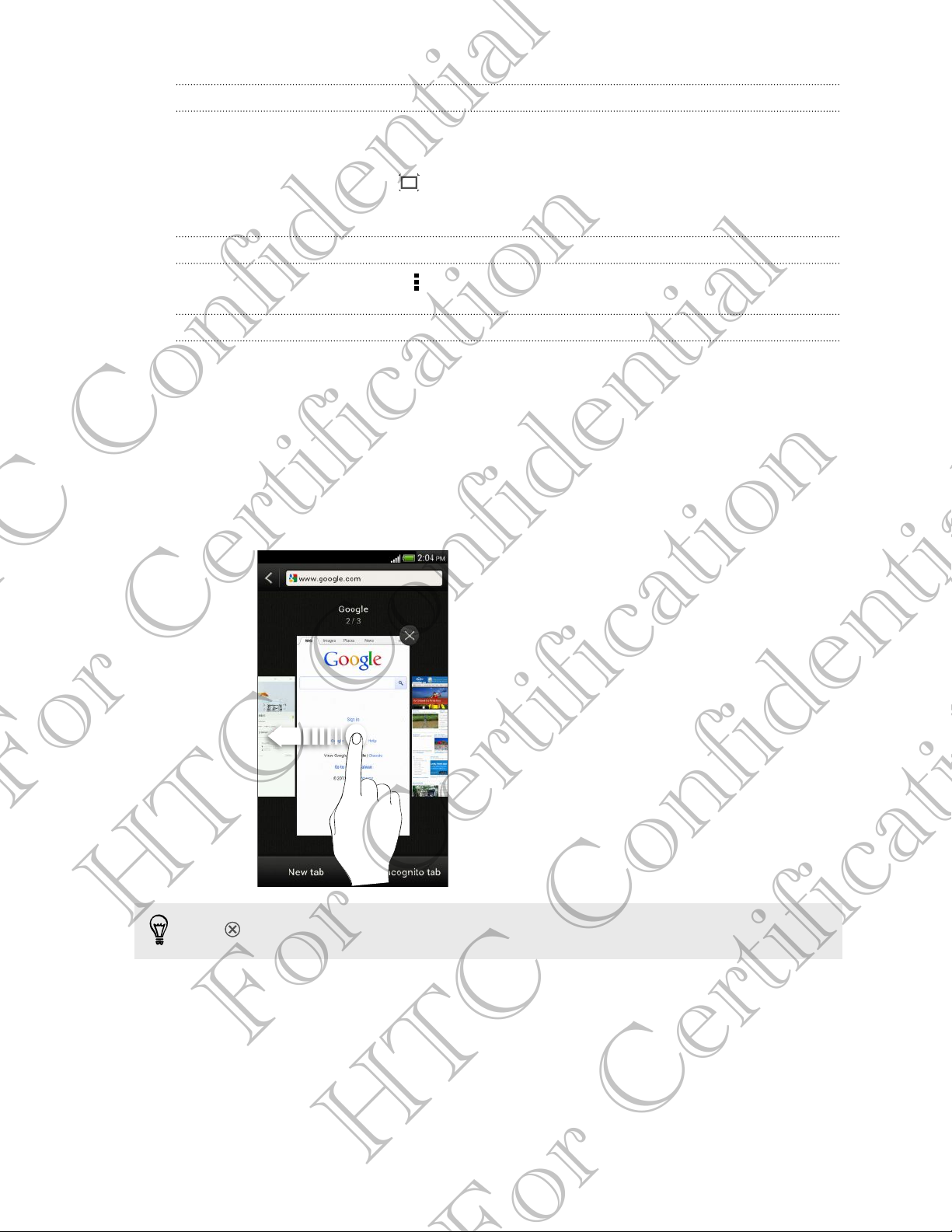
Opening or switching between browser tabs
Open multiple browser tabs to make it easier for you to switch from one website to
another.
1. While viewing a webpage, tap Tabs.
2. Do one of the following:
§ To open a new tab, tap New tab.
§ To switch to another browser tab, slide your finger until the webpage you
want to view appears. Tap a webpage to display it in full screen.
For Certification
HTC Confidential
Tap to close a webpage.
For Certification
HTC Confidential
Page 57

57 Search and Web browser
Private browsing
You can use incognito tabs to browse the Web with more privacy. Browser cookies
are not shared and deleted when you close all incognito tabs. Pages you view in
incognito also won't appear in your browser history except for files you download.
From the browser screen, tap Tabs > New incognito tab.
Adding and managing your bookmarks
Bookmarking a webpage
Bookmark a webpage in a normal browser screen (not when you're using an
incognito tab).
1. While viewing a webpage, tap Add to.
2. Tap Bookmarks.
3. Edit the bookmark name if needed.
4. To save the bookmark to a new folder, tap Bookmarks.
5. On the Add to screen, tap > New folder.
6. Tap Done.
Opening a bookmark
1. While viewing a webpage, tap Bookmarks.
2. On the Bookmarks tab, navigate to the bookmark you want to open, and then
tap it.
If you have set up Google Chrome™ sync on your Google Account, tap on the
For Certification
HTC Confidential
Bookmarks screen, and then select the Google Account to view for your synced
bookmarks.
Editing a bookmark
1. While viewing a webpage, tap Bookmarks.
2. On the Bookmarks tab, tap > Edit.
3. Tap at the right of the bookmark you want to edit.
4. Enter your changes, and then tap Done.
For Certification
HTC Confidential
Page 58
58 Search and Web browser
Syncing your bookmarks with Google Chrome
Create bookmarks from your computer's Google Chrome browser and sync them on
HTC One S. For more information about Google Chrome, visit http://
support.google.com/chrome.
§ Using your Google Chrome desktop browser, you need to sign in to your Google
Account and set up Google Chrome sync.
§ Be sure that you are logged in to your Google Account every time you save
Google Chrome bookmarks on your computer.
1. Slide the Notifications panel open, and then tap > Accounts & sync.
2. Tap your Google Account.
3. Select the Sync Internet option.
Saving web content for later
Save webpages to read later, even without an Internet connection. Some video clips in
webpages can also be added to the Watch list so you can quickly find and watch
them during your free time.
Only webpages will be stored on HTC One S. You need to connect to the Internet
when opening linked pages and video clips.
1. While viewing a webpage, tap Add to.
2. Tap Reading list or Watch list.
Viewing items in your Reading list or Watch list
For Certification
HTC Confidential
1. While viewing a webpage, tap Saved.
2. On the Saved tab, do any of the following:
§ Under Reading list, tap a thumbnail of the webpage you want to open.
§ Under Watch list, tap a thumbnail of the video clip you want to open.
§ Tap to see more options.
Viewing your browsing history
1. While viewing a webpage, tap > History.
2. On the History tab, tap a time period to see a list of webpages you've visited.
For Certification
You can also press and hold .
HTC Confidential
Page 59

59 Search and Web browser
Clearing your browsing history
1. While viewing a webpage, tap > History.
2. On the History tab, tap > Clear all.
Viewing a page that you often visit
1. While viewing a webpage, tap > History.
2. On the Most visited tab, navigate to the page you want to view, and then tap
the page.
Clearing the list of most visited pages
1. While viewing a webpage, tap > History.
2. On the Most visited tab, tap > Clear all.
Downloading files and apps
You can download file and apps directly from your favorite websites.
Files and apps downloaded from the Web can be from unknown sources. To
protect HTC One S and your personal data, we strongly recommend that you
download and open only the files you trust.
1. Open your web browser, then go to the website where you can download the
file you want.
2. Do any of the following:
§ Follow the website's download instructions for apps.
§ Press and hold an image or a web link, and then tap Save link.
For Certification
Before you can install the downloaded app, you need to set HTC One S to allow
installation of third-party apps in Settings > Security > Unknown sources.
Viewing your downloads
1. From the Home screen, tap > Downloads.
HTC Confidential
2. Tap the file to open it.
For Certification
HTC Confidential
Page 60

60 Search and Web browser
Setting browser options
Customize the web browser to suit your browsing style. Set display, privacy, and
security options when using the web browser.
From the browser screen, tap > Settings.
Setting your homepage
1. From the browser screen, tap > Settings.
2. Tap General > Set homepage.
3. Select the homepage you want to use.
Choosing when to show content compatible with Adobe Flash
Choose which Adobe® Flash content you want to see on a webpage, and when you
want to view it.
1. From the browser screen, tap > Settings.
2. Tap Advanced > Enable Flash and plug-ins > On demand.
After selecting On demand, you can show the Adobe Flash content by tapping on
the webpage.
For Certification
HTC Confidential
For Certification
HTC Confidential
Page 61

61 Photos, videos, and music
Photos, videos, and music
Gallery
About the Gallery app
Reminisce on good times. Use Gallery to view all your photos and videos that are on
HTC One S or your online albums.
You can even:
§ Add photo frames and apply effects.
§ Trim your videos.
§ Share to your social networks, photo sharing sites, and more.
§ View your photos and videos on a big screen TV.
Viewing photos and videos
1. From the Home screen, tap > Gallery.
2. Tap a photo or video album.
3. Tap a photo or video to view it in full screen.
While viewing a photo in full screen, tap anywhere on the screen, and then tap
More > Show on map to see the location where you took the photo. (Show on map
is available when you've enabled Geo-tag photos in Camera.)
Starting a photo slideshow
For Certification
1. Tap a photo album.
2. Tap Play.
During the slideshow, tap the screen to show the controls. Tap to set slideshow
preferences.
HTC Confidential
For Certification
HTC Confidential
Page 62
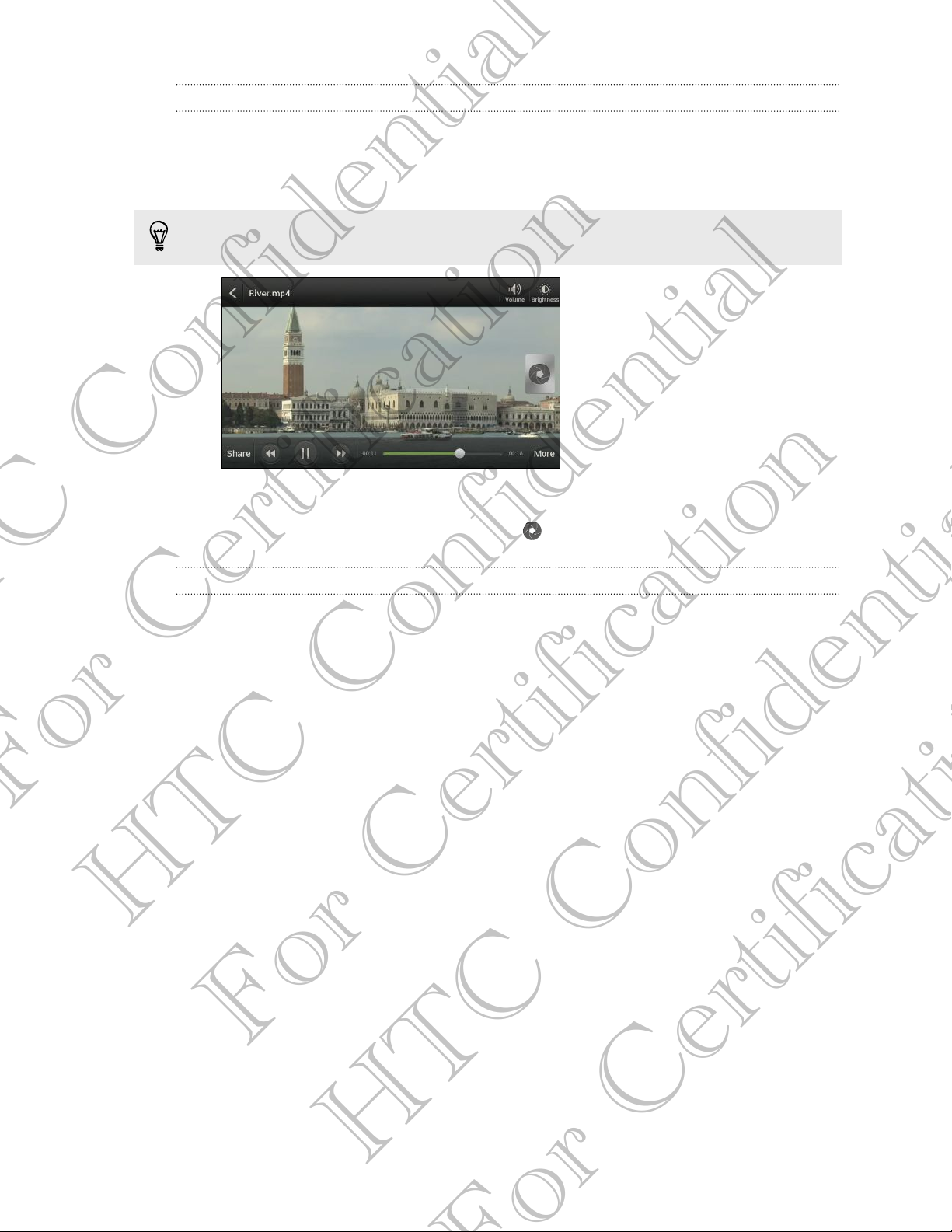
62 Photos, videos, and music
Watching a video
1. Tap a video album and then tap a video.
2. Tap the onscreen controls to control the video playback, adjust the volume,
capture an image during playback, and more.
Tap More > Select player to share the video on your home network.
Taking a photo while watching a video
While you're watching a video in Gallery, tap to capture a still shot.
Editing your photos and videos
Rotating a photo
1. On the Gallery app’s Albums screen, tap an album.
2. Press and hold a photo, and then tap Edit > Rotate left or Rotate right
For Certification
HTC Confidential
For Certification
HTC Confidential
Page 63
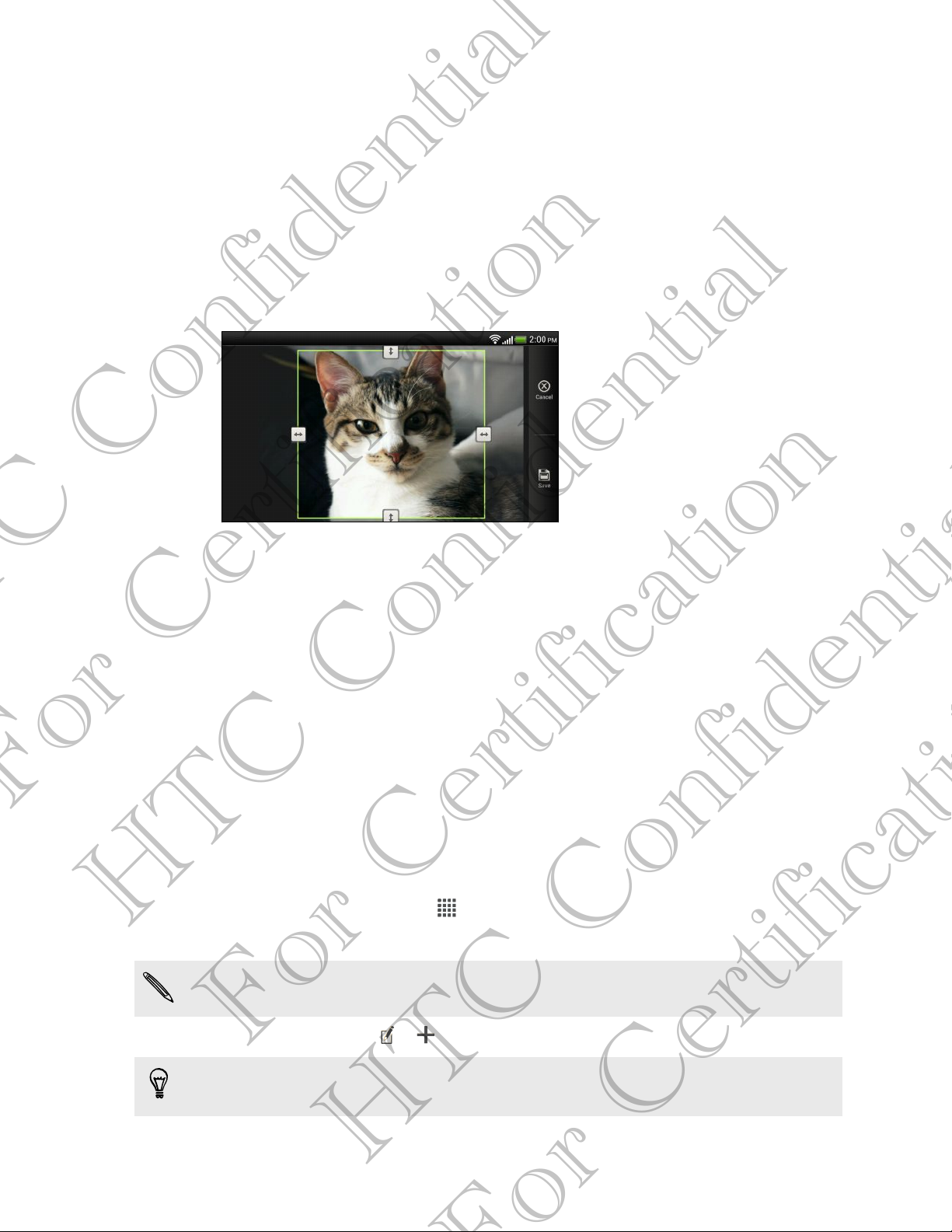
63 Photos, videos, and music
Cropping a photo
1. On the Gallery app’s Albums screen, tap an album.
2. Press and hold a photo, and then tap Edit > Crop. You’ll see a crop box around
the photo.
3. You can:
§ Drag the crop box over the part of the photo you want to crop.
§ Press and hold the edge of the crop box. When directional arrows appear,
drag your finger inward or outward to resize the crop box.
4. Tap Save.
The cropped photo is saved as a copy. The original photo remains unedited.
Adding photo effects
1. On the Gallery app’s Albums screen, tap an album.
2. Press and hold on a photo, and then tap Edit > Effects.
3. Tap an effect to apply to the photo.
4. Tap Save.
The enhanced photo is saved as a copy. The original photo remains unedited.
For Certification
Adding custom photo effects
Are the existing photo effects not exactly what you are looking for? You can make
your own photo effects in Gallery.
1. From the Home screen, tap
> Gallery.
HTC Confidential
2. Find the picture you want to add effects to.
You can only add effects to photos that are stored in your phone.
3. Tap Edit > Effects > > .
If you do not see any buttons on the screen, tap the screen once to show the
buttons.
4. Tap a filter.
For Certification
HTC Confidential
Page 64

64 Photos, videos, and music
5. Drag the slider to get the effect you want.
You can do the following with filters while creating the custom effect:
§ Add more than one filter to create a complex effect.
§ Rearrange filters to modify the effect. Press and hold the filter you want to move.
Then drag it to a new position.
§ Remove filters. Press and hold the filter you want to remove. Then drag it to
Remove.
6. Tap to add a frame to your photo.
7. Tap Done to apply the effects to your photo.
To save your custom effects for future use, tap Save Preset.
8. Tap Save to save your photo as a new photo.
Trimming a video
Remove unwanted scenes from a video you recorded on HTC One S.
1. On the Gallery app’s Albums screen, tap an album.
2. Press and hold the video you want to edit, and then tap Trim.
3. Drag the two trim sliders to the part where you want the video to begin and
end.
For Certification
As you drag a slider, you'll see time markers and video frames. The one in the
middle is your start or end frame.
HTC Confidential
4. Tap to preview your video.
5. Tap Done.
The trimmed video is saved as a new file. The original video remains unedited.
For Certification
HTC Confidential
Page 65

65 Photos, videos, and music
Viewing photos in your social networks
Right in the Gallery app, check what you and your friends have uploaded to your
social networks or photo sharing sites.
Log on to your accounts before you start viewing online photos.
1. From the Home screen, tap > Gallery.
2. On the top bar, tap , and then tap a social network or photo sharing site.
3. Tap an account to start viewing photos in that account.
To comment on a photo, press and hold a photo thumbnail and then tap Add
comment.
Sending your photos and videos
Send photos and videos to your computer or to another device via email, MMS, or
Bluetooth.
Sending photos or videos by email
You can send several photos, videos, or both in an email message. They are added as
file attachments in your email.
1. From the Home screen, tap > Gallery.
2. Tap the album that has the photos or videos you want to share.
3. Tap Share, and then tap Gmail or Mail.
4. Select the photos or videos you want to share and then tap Next.
5. Compose your message and then tap (Gmail) or Send (Mail).
For Certification
HTC Confidential
If you selected Mail and you have multiple email accounts, the default email
account will be used.
Sending a photo or video by MMS
1. From the Home screen, tap > Gallery.
2. Tap the album that has the photos or videos you want to share.
3. Tap Share > Messages.
4. Tap the photo or video you want to send. The photo or video is automatically
added into the MMS message.
5. To add another photo or video to your slideshow attachment, tap and then
6. Compose your message and then tap Send.
For Certification
tap Picture or Video.
HTC Confidential
Page 66

66 Photos, videos, and music
Sending photos or videos using Bluetooth
Use Bluetooth to send photos and videos to another device or to your computer.
1. From the Home screen, tap > Gallery.
2. Tap the album that has the photos or videos you want to share.
3. Tap Share > Bluetooth.
4. Select the photos or videos you want to share and then tap Next.
You’ll be asked to turn on Bluetooth and connect to the receiving Bluetooth device so
the files can be sent.
Sharing your photos and videos on the Web
Use the Gallery app to share photos and videos straight to your social networks. And
you can post videos on YouTube.
You can also share a photo or video right after you’ve captured it.
Sharing photos or videos on Facebook
Log in to your Facebook account before you upload photos or videos.
1. From the Home screen, tap > Gallery.
2. Tap the album that has the photos or videos you want to share.
3. Tap Share > Facebook for HTC Sense.
4. Select the photos or videos you want to share and then tap Next.
5. Select which album to upload to and set privacy settings for the uploaded
For Certification
HTC Confidential
photos or videos.
Tap Add tag and description to enter a caption on each photo or video or tag
friends on your photos. If you're sharing several photos or videos, slide to the left to
go to the next one. Remember to tap Save after you're done.
6. Tap Done.
Sharing photos and videos on Flickr
Log in to your Flickr® account before you upload photos or videos.
For Certification
1. From the Home screen, tap > Gallery.
2. Tap the album that has the photos or videos you want to share.
3. Tap Share > Flickr.
HTC Confidential
Page 67
67 Photos, videos, and music
4. Select the photos or videos you want to share and then tap Next.
5. Select which album to upload to and set privacy settings for the uploaded
photos or videos.
Tap Add tag and description to enter a caption on each photo or video or tag
friends on your photos. If you're sharing several photos or videos, slide to the left to
go to the next one. Remember to tap Save after you're done.
6. Tap Done.
Sharing photos on Picasa
Sign in to your Google Account before you upload photos to Picasa™.
1. From the Home screen, tap > Gallery.
2. Tap the album that has the photos you want to share.
3. Tap Share > Picasa.
4. Select the photos you want to share and then tap Next.
5. Enter a caption for the photos you're uploading.
6. Select the online album where you want to upload the photos, or tap to
create a new album.
7. Tap Upload.
Sharing videos on YouTube
Upload your videos to YouTube and become an instant sensation.
1. From the Home screen, tap > Gallery.
2. Tap a video album, and then tap Share > YouTube.
For Certification
HTC Confidential
3. Select the videos you want to share and then tap Next.
4. Tap the Google Account that you want to use, accept the Terms of Service, and
then select which data connection to use to upload the videos.
5. Enter a title and description for the videos you're uploading.
6. Select a privacy option for the videos or tag them for easy searching.
7. Tap Upload.
For Certification
HTC Confidential
Page 68
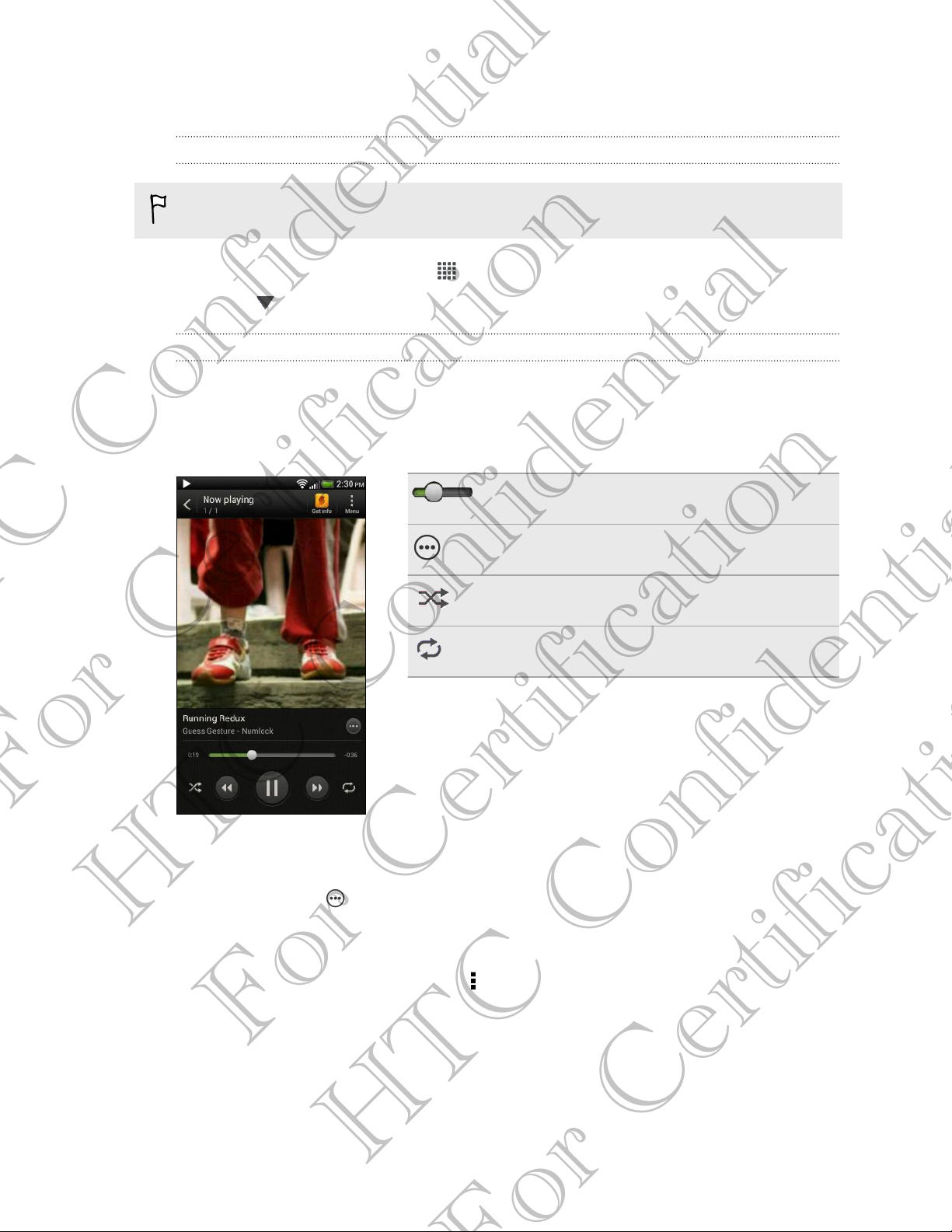
68 Photos, videos, and music
Music
Browsing music in the library
You need to copy music files to HTC One S first to use the Music app to play music.
1. From the Home screen, tap > Music > My phone.
2. Tap to browse a category, such as Artists or Albums.
Listening to music
Enjoy your favorite songs on HTC One S using the Music app.
1. While browsing your music collection, tap a song to play it.
2. Tap the onscreen icons to control music playback, repeat songs, and more.
Press and drag your finger across the
progress bar to jump to any part of the song.
Show options for adding the song to a
playlist, sharing the song, and more.
Turn shuffle on or off. (Shuffle is off when
button is gray.)
Cycle through the repeat modes: repeat all
songs, repeat current song, and don’t repeat.
For Certification
Finding music videos on YouTube
It's easy to find music videos of the song you’re listening to on YouTube. On the Now
playing screen, tap > Search > YouTube.
HTC Confidential
Updating album covers
1. On the Now playing screen, tap > Update album art.
2. Choose whether to automatically or manually update all album covers or update
just the current song on the Now playing screen.
For Certification
HTC Confidential
Page 69
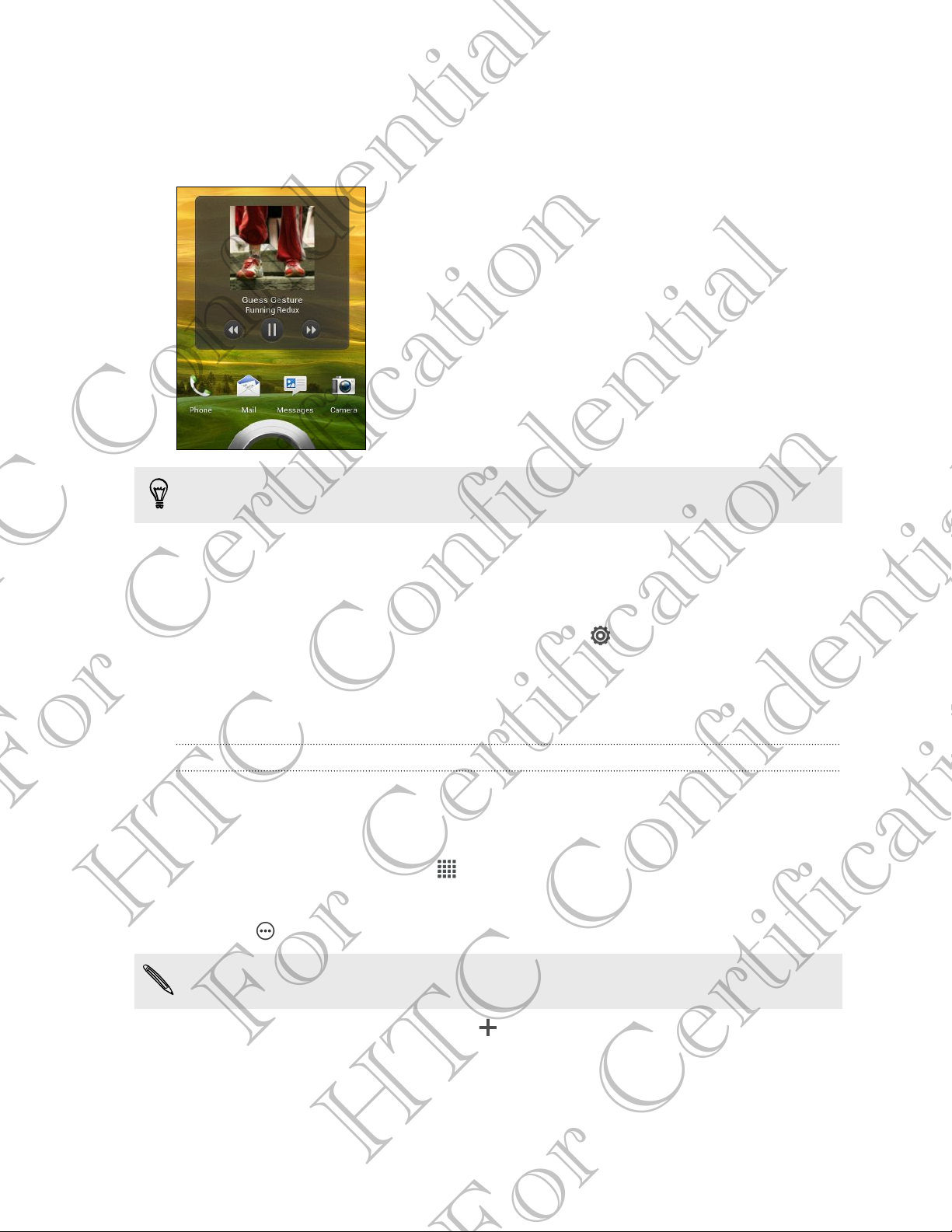
69 Photos, videos, and music
Playing music from the Lock screen
When you’re listening to music and the screen turns off, press POWER to turn the
screen back on and control the music playback directly on the Lock screen.
You can also pause music playback right from the Notifications panel.
Making your music sound better
When you plug in your headset, you can choose to enjoy your music with a variety of
enhanced sound profiles.
1. Slide the Notifications panel open, and then tap .
2. Tap Sound > Sound enhancer.
3. Choose a sound profile. The sound profile will be immediately applied.
Creating a playlist
For Certification
HTC Confidential
Personalize your music experience by creating music playlists. Make a playlist
containing just your favorite songs or create one to match your mood for the day.
You can make as many playlists as you like.
1. From the Home screen, tap > Music > My phone.
2. Start playing a song that you want to add to a new playlist.
3. Tap > Add to playlist.
If there are no existing playlists, you will be prompted to enter a new playlist name.
4. On the Select playlist screen, tap .
For Certification
HTC Confidential
Page 70

70 Photos, videos, and music
5. Enter a playlist name.
6. Tap Save.
You can also add additional songs while creating a new playlist. Tap > Add songs
to add more songs.
Playing the songs in a playlist
1. From the Home screen, tap > Music > My phone.
2. Tap > Playlists.
3. Tap a playlist, and then tap the song you want to play first.
When you tap a song in the list to play it, the Now playing screen is updated with the
songs from your playlist.
Managing playlists
After creating a playlist, you can add more songs to it, rearrange their order, and
more.
1. From the Home screen, tap > Music > My phone.
2. Tap > Playlists, and then tap the playlist you want to edit.
3. Tap > Edit playlist.
Add songs 1. Tap > Add songs.
2. Tap to choose a category, and then browse for songs.
3. Select the songs you want to add to the playlist, and then
tap Add.
Rearrange songs Press and hold next to the song title you want to move,
and then drag it to its new position.
Delete songs Select the songs you want to remove from the playlist.
For Certification
HTC Confidential
Deleting playlists
Change playlist
name
4. Tap Save.
1. From the Home screen, tap > Music > My phone.
Type the new name of the playlist in the title text box.
2. Tap > Playlists.
3. You can:
For Certification
§ Press and hold the playlist you want to delete, and then tap Delete playlist.
§ Tap > Delete playlists to remove several playlists.
HTC Confidential
Page 71
71 Photos, videos, and music
Setting a song as a ringtone
Pick a song from your Music library and set it as your ringtone or as ringtone for a
favorite contact.
1. From the Home screen, tap > Music > My phone.
2. Find the song that you want to set as a ringtone.
3. Tap > Set as ringtone.
4. Tap Phone ringtone or Contact ringtone. If you select Contact ringtone, choose
the contacts you want to associate the ringtone with.
Trimming an MP3 ringtone
Use the Music app's ringtone trimmer if you want to set only a part of the song as
ringtone.
1. When you find the song that you want, tap > Set as ringtone > Trim the
ringtone.
2. Drag the trim sliders to the part where you want the ringtone to begin
and end.
For a more precise trimming, tap the left or right arrow buttons. Time markers
indicate where you are on the song.
3. When you're done trimming, tap Set as.
4. Choose whether to set your trimmed song as your Phone ringtone or Contact
ringtone.
You can see your new ringtone in the phone settings. Slide open the Notifications
panel, and then tap Settings > Sound > Phone ringtone.
Sharing music using Bluetooth
For Certification
HTC Confidential
Choose a song from the Music app’s library and use Bluetooth to send it to another
device or your computer.
1. From the Home screen, tap > Music > My phone.
2. Find the song you want to send.
3. Tap > Share > Share file > Bluetooth.
You’ll be asked to turn on Bluetooth on HTC One S and connect to the receiving
Bluetooth device so the music can be sent.
For Certification
HTC Confidential
Page 72
72 Photos, videos, and music
Movie Editor
Creating a new slideshow with Movie Editor
Want a novel way to share your photos and videos? Movie Editor lets you make short
theme-based slideshow movies complete with transitions and background music.
1. From the Home screen, tap > Movie Editor > .
2. Enter a title for your slideshow.
3. Tap Select a theme. Themes include slide transitions, the default theme music,
and the wallpaper.
4. Tap to add photos and videos from Gallery.
You can also insert photos and videos in front of an existing item. Just tap the
photo or video you want to insert in front of and tap Insert.
5. Edit your slideshow:
Reordering photos and
videos
Removing photos and
videos
Changing the theme Tap the theme name to choose another theme.
Previewing the slideshow Tap to start viewing your slideshow.
Movie Editor automatically saves your movies so you don't have to worry about losing
any changes you make.
Changing the soundtrack
1. In the slideshow, tap > .
For Certification
HTC Confidential
2. Tap Choose music track to choose a song stored on your phone.
If you have videos in your slideshow, you can balance the volume levels of the audio in
the videos with the soundtrack. Simply drag the volume slider to the level you want.
Sharing your slideshow from Gallery
1. In Movie Editor, find the slideshow you want to share from Gallery and tap it.
Press and hold a photo or video and drag it to a
new position.
Tap the photo or video you want to remove and
tap Remove.
2. Tap > .
3. Choose a resolution.
4. Choose where you want to save the slideshow.
For Certification
5. Tap OK.
6. In Gallery, tap the Movie Editor album, and then tap Share.
7. Choose how you want to share your slideshow.
HTC Confidential
Page 73
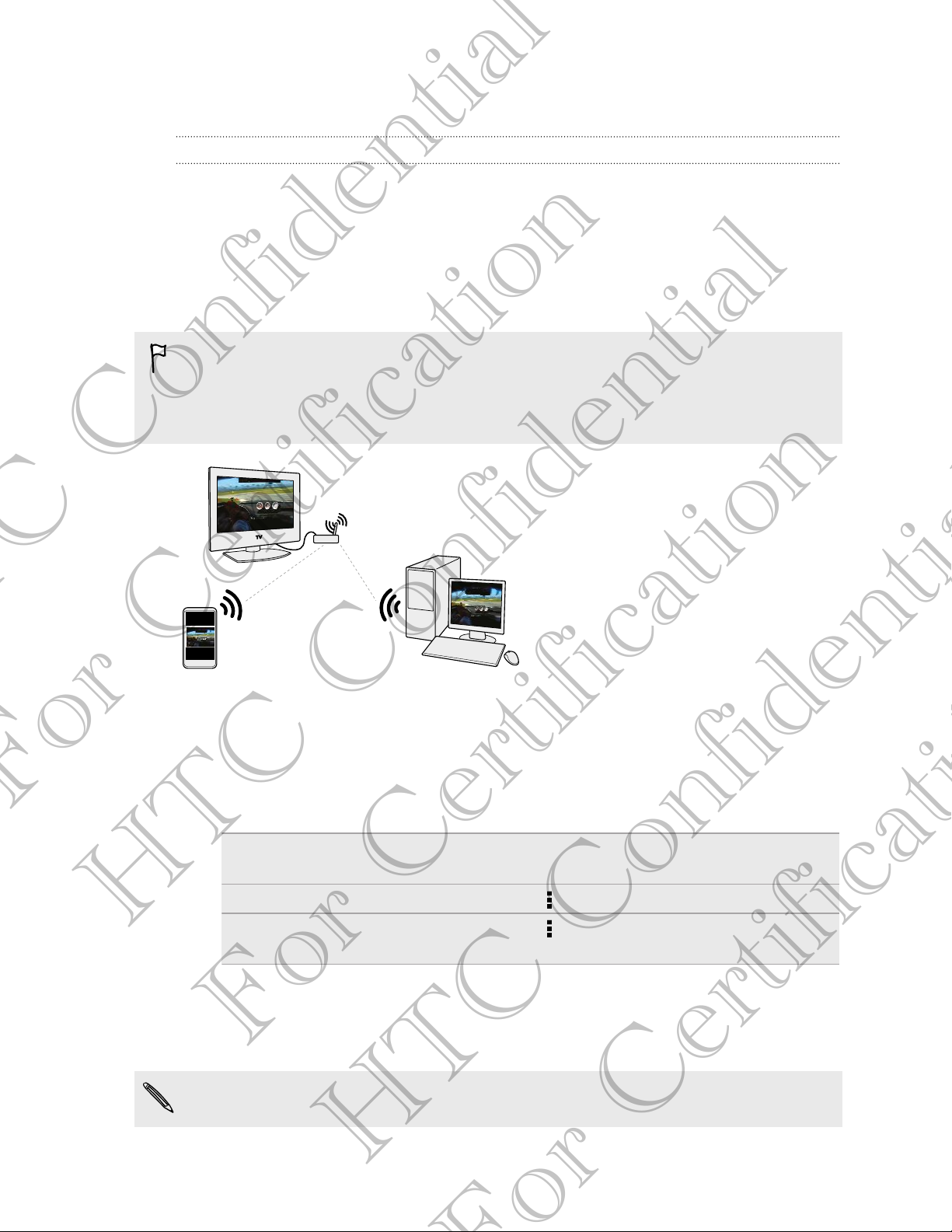
73 Photos, videos, and music
Wireless Display
Sharing your media on a big screen
Share photos, videos, and movies with your friends on a big screen. Simply connect
HTC One S to your home network and instantly share your photos, videos, movies,
and music on your DLNA® compliant devices.
Don't have a DLNA setup at home? Don't worry. You can purchase HTC Media Link
HD and hook it up to an HDMI display. Refer to the documentation that comes with
Media Link HD to find out how to set it up and use it with HTC One S.
§ If you'll be using a DLNA compliant TV or audio system, refer to its documentation
on how to connect it to your home network.
§ You'll need to use Media Link HD with HTC Watch™ to display movies and trailers
on a big screen TV.
1. Connect HTC One S to your home network via Wi-Fi.
2. Open the Gallery, HTC Watch, or Music app.
3. Locate the media that you want to share, and then tap it.
For Certification
HTC Confidential
4. Do one of the following:
While viewing photos or videos in
Gallery
While playing music in Music Tap > Select player.
While playing a movie in HTC
Watch
5. Choose the device on your network where you want to play the media.
6. Once connected to the other device, tap the onscreen controls to control
For Certification
playback, adjust the volume, and more.
For more information about DLNA, visit www.dlna.org.
Tap the screen to show the controls, and
then tap More > Select player.
Tap > TV.
HTC Confidential
Page 74

74 Accounts and sync
Accounts and sync
Adding your social networks, email accounts, and more
1. Slide the Notifications panel open, and then tap > Accounts & sync.
2. Tap .
3. Tap the account type you want to add.
4. Follow the onscreen instructions to enter your account information.
Adding one or more Google Accounts
Sign in to your Google Account to see your Gmail, contacts, and calendars, and to use
Google apps on HTC One S.
1. Slide the Notifications panel open, and then tap > Accounts & sync.
2. Tap .
3. Tap Google.
4. Follow the onscreen instructions to sign in to an account or create a new
account.
§ If you added more than one Google Account, apps such as Gmail can allow you to
switch between your accounts.
§ HTC One S can only back up settings (such as bookmarks and your
Wi-Fipassword) to the first Google Account that you added.
For Certification
Forgot your Google Account password?
If you have forgotten your Google Account password, you can try to recover it
HTC Confidential
by going to the Google website.
1. On HTC One S or on your computer, open your web browser
2. Go to www.google.com/accounts/recovery.
3. Enter the email address or username that you use to sign in to your
Google Account.
For Certification
4. Click Submit.
5. Follow the instructions on the screen to reset your password.
HTC Confidential
Page 75

75 Accounts and sync
Managing your online accounts
Syncing all your accounts automatically
1. Slide the Notifications panel open, and then tap > Accounts & sync.
2. Tap the Auto-sync On/Off switch to turn automatic sync on or off.
Syncing an account manually
1. Slide the Notifications panel open, and then tap > Accounts & sync.
2. Tap the account you want to sync.
3. Tap .
Changing the synced data or settings for an account
1. Slide the Notifications panel open, and then tap > Accounts & sync.
2. Tap the account that you want to update.
3. Tap the item you want to sync or edit.
Removing an account
You can remove an account to delete all information associated with it from
HTC One S. Removing an account does not delete information from the online service
itself.
1. Slide the Notifications panel open, and then tap > Accounts & sync.
2. Tap the account that you want to remove.
3. Tap .
For Certification
HTC Confidential
For Certification
HTC Confidential
Page 76
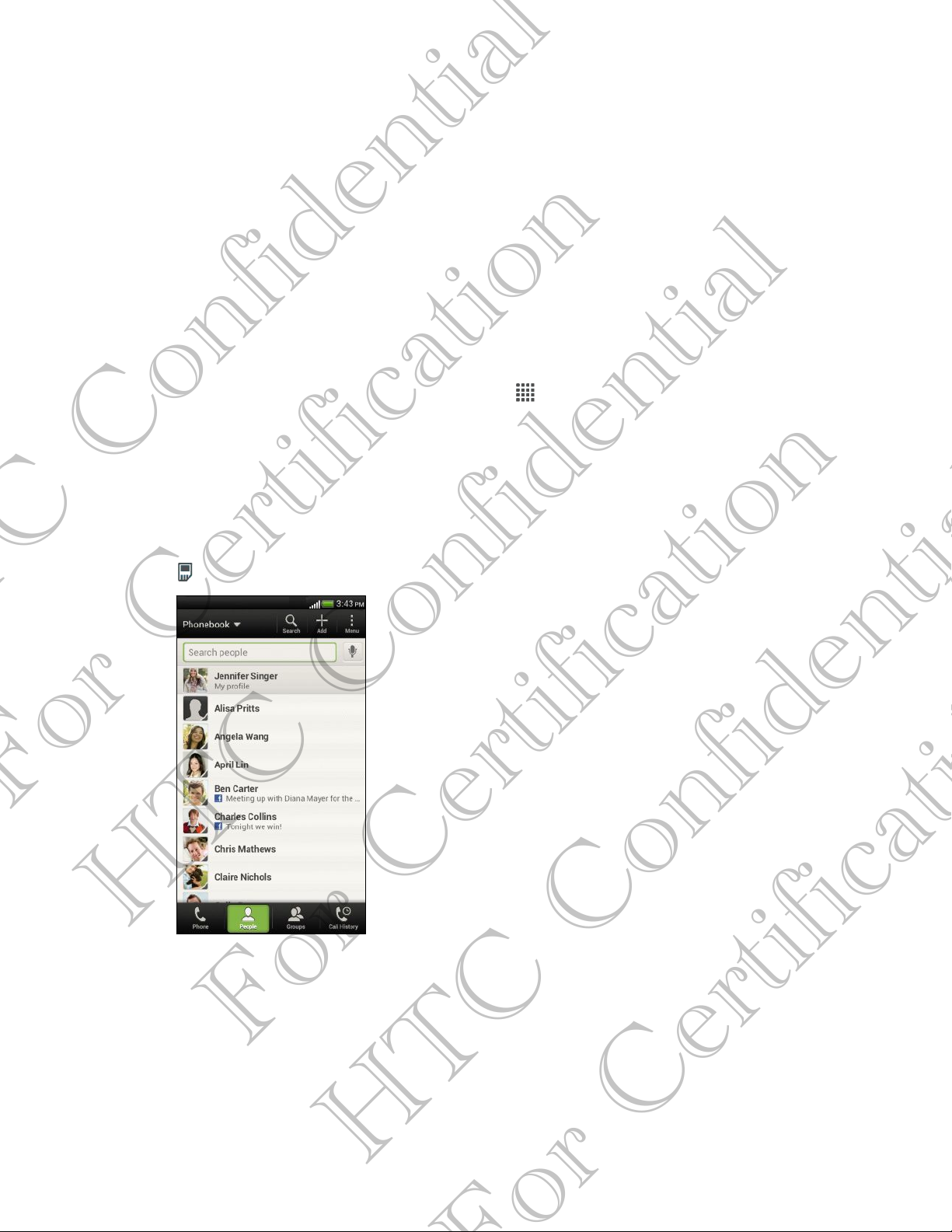
76 People
People
About the People app
With the People app, easily manage your communications with your contacts via
phone, messaging, email, and social networks.
And, if you have the same contacts from different sources, you can merge their
contact information so you won't have duplicate entries.
To open People, from the Home screen, tap > People.
Your contacts list
The People app lists all contacts stored on HTC One S and from the online accounts
you're logged in to.
Your contacts list also displays the contacts stored on your SIM card (marked with
).
You can:
§ View your profile and edit your contact
information.
§ Create, edit, or find contacts.
§ See status updates.
§ Tap a name to see that contact's stored
information.
For Certification
HTC Confidential
§ See a notification icon when a contact has sent
you new messages or when it's the contact's
birthday.
§ Check out who's online in Google Talk™. Online
status icons are displayed if you’re signed in to
Google Talk.
For Certification
HTC Confidential
Page 77

77 People
Filtering your contacts list
Choose which account contacts to show.
1. On the People tab, tap on the top bar.
2. Choose the online accounts that contain the contacts you want to display.
3. Press .
To set your contact sorting options, tap > Settings.
Setting contact search options
In addition to searching contacts by name, you can also search by other criteria such
as by their group name or company.
1. On the People tab, tap > Settings.
2. Tap Search contacts by, and then choose the types of criteria to search for.
Setting up your profile
Store your personal contact information to easily send it to other people.
1. On the People tab, tap My profile.
2. Tap Edit my contact card.
3. Enter or edit your name and contact details.
4. Tap (or the current photo) to change your contact photo.
5. Tap Save.
What you can see on your profile
For Certification
When you tap My profile, you'll see the following tabs:
Details
Shows your contact details. You'll also see your most recent posts in social
HTC Confidential
networks (if you're signed in to social networks.) You can also edit your profile
or share it with others.
Updates
Shows the updates that you've posted in your social networks.
Gallery
For Certification
Shows your social network albums and photos.
HTC Confidential
Page 78

78 People
Adding a new contact
1. On the People tab, tap .
2. Tap the Name field, and then enter the contact name.
Tap if you want to separately enter the contact's first, middle, and last name.
Depending on the contact type, you may also be able to add a name prefix (such as
Dr.) or a name suffix (such as Ph.D).
3. Select the Contact type. This determines which account the contact will sync
with.
Some fields may not be available when you’re adding contacts to your SIM card.
4. Enter the contact information in the fields provided.
5. Tap Save.
Finding people you know on social networks
HTC One S automatically searches for your phone contacts on different social
networks you're signed into. Based on matching email addresses and contact details,
you can send requests to your contacts to join your social network.
To turn this feature on or off, tap > Settings on the People tab, and then select or
clear the Find people you know option.
To manually refresh the list of people suggestions, tap > Manage contacts >
Linked contacts. On the Notifications tab, tap > Refresh.
Sending social network requests to your contacts
1. Tap the People you know notification (when it's available on the People tab).
For Certification
2. Choose the people to follow or send friend requests using the social networks
you're signed into.
Importing or copying contacts
HTC Confidential
Importing contacts from your SIM card
1. On the People tab, tap > Manage contacts.
2. Tap Import/Export contacts > Import from SIM card.
3. If you have a Google or Exchange ActiveSync account, tap the type for the
4. Select the contacts you want to import.
5. Tap Save.
For Certification
imported contacts.
HTC Confidential
Page 79

79 People
Importing a contact from an Exchange ActiveSync account
1. On the People tab, enter the contact's name or email address in the search box.
2. Tap Search contacts in your Company Directory.
3. Tap the name of the contact you want copied to HTC One S.
4. Tap to save the contact to your Exchange ActiveSync account.
Copying contacts from one account to another
1. On the People tab, tap > Manage contacts.
2. Tap Copy contacts, and then choose a contact type or online account to copy
from.
Contacts from your social network accounts may not be copied.
3. Select a contact type or account you want to save to.
Merging contact information
Avoid duplicate entries by merging contact information from different sources, such
as your social network accounts, into one contact.
Accepting contact link suggestions
When HTC One S finds contacts that can be merged, you’ll see a link notification when
you open the People app.
1. On the People tab, tap the Link suggestion notification when available. You'll see
a list of suggested contacts to merge.
2. Choose the contacts you want to merge.
For Certification
If you don't want to receive contact link suggestions, on the People tab, tap >
Settings. Clear the Suggest contact link option.
Manually merging contact information
HTC Confidential
1. On the People tab, tap the name of the contact (not the icon or photo) you
want to link.
2. Tap .
3. You can:
For Certification
§ Under Suggest links, tap to link the contact to an account.
§ Under Add contact, tap one of the options to link to another contact.
HTC Confidential
Page 80

80 People
Breaking the link
1. On the People tab, tap the name of the contact (not the icon or photo) whose
link you want to break.
2. Tap .
3. Under the Linked contacts section, tap beside an account to break the
link.
Contact information and conversations
When you tap a contact on the People screen, the contact details screen opens.
The contact details screen has the following tabs:
Details
Shows the information you've stored for the contact. Get in touch with the
contact by tapping an option.
Thread
Shows SMS messages and emails you've received from the contact. It also lists
all your incoming, outgoing, and missed calls to and from the contact.
Updates
Shows the contact’s updates and events from social network accounts.
If you see a notification of the contact’s birthday under the Events section,
you can tap the notification and choose how you want to greet your contact.
Gallery
Shows the linked contact’s albums and photos.
For Certification
HTC Confidential
Editing a contact’s information
Social network contacts cannot be edited.
1. On the People tab, press and hold the contact, and then tap Edit contact.
2. Enter the new information.
3. Tap Save.
Deleting contacts
For Certification
1. On the People tab, tap > Delete contacts.
2. Select the contacts you want to remove.
3. Tap Delete.
HTC Confidential
Page 81

81 People
Contact groups
Assign contacts to groups so you can easily send a message or email to a whole
group. You can also sync groups on HTC One S with the groups in your Google
Account, accessible via your computer’s web browser. We’ve also added the Frequent
group as a special group type that automatically stores the contacts you dial or get
calls from the most.
Creating a group
1. On the Groups tab, tap .
2. Enter a name for the group.
3. Tap to select a photo for the group.
4. Tap > Add contact to group.
5. Select the contacts you want to add, and then tap Save.
6. When your group is complete, tap Save.
Editing a contact group
1. On the Groups tab, press and hold the group, and then tap Edit group.
2. You can:
§ Tap the group name to change the name. You can only change the name
for groups that you have created.
§ Tap the icon next to the group name to change or remove the group
photo.
§ Tap > Add contact to group to add more members.
§ To rearrange the group members, press and hold at the end of the
contact’s name, and then drag it to its new position.
§ Tap beside a contact to remove it from the group.
For Certification
HTC Confidential
3. Tap Save.
Sending a message or email to a group
You will be charged for each text message sent. For example, if you send a
message to a group of five people, you will be charged for five messages.
1. On the Groups tab, tap the group you want to send a message or email to.
2. Go to the Group action tab.
3. Choose if you want to send a text message or email.
For Certification
HTC Confidential
Page 82

82 People
Rearranging your contact groups
1. On the Groups tab, tap > Edit groups.
2. Press and hold at the end of the group to move, and then drag it to its new
position.
3. Tap Save.
Deleting groups
You can only delete groups that you have created.
On the Groups tab, you can:
§ Press and hold a group you want to delete, and then tap Delete group.
§ Tap > Edit groups to choose several contact groups to remove.
Adding People widgets
Stay close with the people that matter by adding a people widget for each of your
groups.
1. Press and hold on an empty space on your Home screen.
2. On the Widgets tab, tap All Widgets > People.
3. Choose the widget style, and then drag it to a home screen thumbnail where
you want to add it.
4. Select the group you want to add as a widget.
5. Repeat the above steps to add another People widget.
Setting the default communication method
For Certification
HTC Confidential
Choose the communication action (for example, call or send a message) when you tap
a contact's photo on the People widget.
1. On the Home screen, go to the People widget.
2. Tap a contact's photo on the widget.
3. Tap the communication method you want for the contact.
If you need to change the default communication method, tap the contact's name
(not the photo), and then tap Set default action.
For Certification
HTC Confidential
Page 83

83 People
Getting in touch with a contact
1. On the Home screen, go to the People widget.
2. Tap a contact's photo (not the name) on the widget. The default
communication method you've set for this contact will be performed.
Sending contact information
1. On the People tab, do one of the following:
To send Do this
Someone's contact
information
Your contact
information
2. Choose how you want to send the vCard.
3. Select the type of information you want to send.
4. Tap Send.
Sending multiple contact cards
1. On the People tab, tap > Send contacts.
2. Select the contacts whose contact information you want to share
3. Tap Send.
4. Choose how you want to send the contact cards.
For Certification
Backing up your contacts
Press and hold the name of the contact (not the icon
or photo), and then tap Send contact as vCard.
Press and hold My profile, and then tap Send my
profile.
1. On the People tab, tap > Manage contacts.
2. Tap Import/Export contacts > Export to phone storage.
HTC Confidential
3. Select an account or type of contacts to export, then tap OK.
For Certification
HTC Confidential
Page 84

84 People
Restoring contacts
You can only restore contacts that were backed up using the Export to phone storage
feature.
1. On the People tab, tap > Manage contacts.
2. Tap Import/Export contacts > Import from phone storage.
3. If you have more than one account set up, tap the type for the imported
contacts.
For Certification
HTC Confidential
For Certification
HTC Confidential
Page 85

85 Social
Social
Facebook for HTC Sense
Signing in to your Facebook account from the Accounts & sync settings or the
Facebook app (preinstalled or downloaded) automatically signs you in to Facebook
for HTC Sense. Also, you may need to authorize Facebook for HTC Sense to connect
to your Facebook account.
With Facebook for HTC Sense, you can:
§ See your Facebook contacts and their status updates in People.
§ See Facebook photos in Gallery.
§ Check your friends’ Facebook status updates in Friend Stream™.
§ View Facebook events and friends’ birthdays in Calendar.
Twitter for HTC Sense
When you're signed in to Twitter™ for HTC Sense, you can:
§ See your Twitter contacts and their latest tweets in People.
§ Send tweets and check your friends’ tweets in Friend Stream.
If you have the Twitter app (preinstalled or downloaded), signing in to Twitter for
HTC Sense does not sign you in to the Twitter app and vice versa. If you want to
use the same Twitter account for both, you’ll have to sign in to both using the same
login info.
For Certification
About Friend Stream
With Friend Stream, you can share and get updates from friends in popular social
HTC Confidential
networks in a single feed.
From the Home screen, tap > Friend Stream.
When you tap someone’s status update, you can:
§ Write a comment.
For Certification
§ Like someone’s Facebook posts.
§ Look at someone’s album photos.
§ View the tweet. If there's a web link shared, you'll also see the posted webpage
right below the tweet.
HTC Confidential
Page 86

86 Social
When you tap someone’s photo or name, you can:
§ Check the person’s profile details.
§ Look at the person’s Facebook wall.
§ Check the person’s posted tweets.
Tap
Slide to the other tabs to see more options. You can tap > Edit tabs to customize
the Friend Stream tabs.
to display posts from a particular social network.
Updating your status in Friend Stream
1. On the All tab, tap .
2. Enter your status update.
3. If you do not want to send the status update to all your social network
accounts, tap , and then clear the social networks to exclude.
4. Tap Done.
5. Tap .
6. Choose what you want to attach to your tweet or status update.
7. Tap Post.
Enjoying Facebook in Friend Stream
Post your status updates, write messages on walls, or check in to a place.
Posting a message on a friend's Facebook wall
1. In Friend Stream, tap > Facebook.
For Certification
HTC Confidential
2. Tap > My wall.
3. Tap a friend from the list.
4. Enter your message.
5. Tap to attach a photo.
6. Tap Post.
Commenting on and liking Facebook posts
Tap someone’s status update on the All tab, and do any of the following:
§ Tap a photo or the album name shown in the status update to view and comment
§ Tap Like to like the person’s status update.
§ Tap the text box, and then enter what you think about the person’s status
For Certification
on the album photos using the Gallery app.
update.
HTC Confidential
Page 87
87 Social
Checking in to a place
Let your Facebook friends know where you are by checking in to a place.
In order to find your location, you need to enable location sources in Settings >
Location.
1. Go to the Locations tab, and then tap .
2. Tap a place from the list.
3. Tap Check in.
4. Add your status message and even tag the friends you're with.
5. Tap Check in.
Tweeting in Friend Stream
1. In Friend Stream, tap > Twitter for HTC Sense.
2. Tap .
3. Enter your tweet.
4. Tap or to add a picture or your current location to your tweet.
5. Tap Post.
Searching for Twitter users to follow
1. On any of the tabs, tap .
2. Type a Twitter name in the search box.
3. Tap .
For Certification
4. In the search results, tap the Twitter user you want to follow.
5. Tap > Follow.
Unfollowing a Twitter user
1. On the All tweets tab, tap the Twitter user you want to stop following.
HTC Confidential
2. Tap > Unfollow.
Sending a direct message
You can only send a direct message (DM) to someone who is following you.
For Certification
HTC Confidential
Page 88

88 Social
1. On the DMs tab, tap .
2. Enter the name of a Twitter user in the To field.
3. Enter your message, and then tap Post.
You can also send a direct message when you press and hold a tweet of the person
you want to send the direct message to, and then tap Send direct message on the
options menu.
Replying to or retweeting a tweet
1. On the All tweets tab, tap the tweet you want to reply to or retweet.
2. Tap Reply or Retweet.
3. Enter your reply or add a personal note to the tweet.
4. Tap Post.
Chatting in Google Talk
Google Talk is Google’s instant messaging program. It lets you communicate with
other people that also use Google Talk.
To open Google Talk, on the Home screen tap > Talk.
To learn what you can do and get help in Google Talk, tap > Help.
Using Google+
With Google+, you can check your friends' updates, post updates of your own, and
chat with friends in your Google+ circles.
For Certification
To open Google+, on the Home screen, tap > Google+
To learn what you can do and get help in Google+, tap > Help.
HTC Confidential
For Certification
HTC Confidential
Page 89

89 Email
Gmail
Viewing your Gmail Inbox
All your received email messages are delivered to your Inbox.
From the Home screen, tap > Gmail.
Archive, delete or
label multiple
conversations
Display drafts, sent
messages, and
other labels
Switch to your
other Gmail
account
Sending an email message in Gmail
For Certification
1. In the inbox of the Gmail account you want to use, tap .
2. Fill in one or more recipients.
Tap the check box before the
email message or conversation.
Then tap the onscreen buttons at
the bottom to choose what to do
with the selected messages or
conversations.
Tap Inbox at the top bar and then
tap another label (such as Sent,
Drafts, or your created label) to
view its messages and
conversations.
Tap Inbox at the top bar, and
then tap the account you want to
switch to.
Want to loop in more recipients in a carbon copy (Cc) or blind carbon copy (Bcc)
of the email message? Tap > Add Cc/Bcc.
HTC Confidential
3. Enter the email subject, and then compose your message.
4. If you want to attach a photo or video, tap > Attach file.
5. Tap to send.
Replying to or forwarding email messages in Gmail
1. In the Gmail inbox, tap the email message or conversation.
2. To reply to the sender, tap . Or, tap and choose whether to Reply all or
For Certification
Forward.
HTC Confidential
Page 90

90 Email
3. Do one of the following:
§ If you're replying to the sender or you selected Reply all, enter your reply
message.
§ If you selected Forward, specify the message recipients.
Tap Respond inline if you want to interleave your new message with the received
email. But this removes any attachments or formatting in the original email
message.
4. Tap to send.
Getting help
To find out more about using Gmail, in the Gmail inbox, tap > Help.
Adding a POP3/IMAP email account
1. From the Home screen, tap > Mail.
2. Do one of the following:
§ If this is the first email account you're adding in Mail, tap Other (POP3/
IMAP) on the Choose a mail provider screen.
§ If you’ve already added an email account in Mail, tap > New account >
Other (POP3/IMAP).
3. Enter the email address and password for your email account and then tap
Next.
If you’re asked to enter more email settings, ask your email service provider for
assistance.
For Certification
HTC Confidential
4. Enter the account name and your name and then tap Finish setup.
Adding a Microsoft Exchange ActiveSync account
You can sync with Microsoft Exchange Server 2003 Service Pack 2 (SP2) or later.
Add up to 15 Exchange ActiveSync accounts on HTC One S.
1. From the Home screen, tap > Mail.
2. Do one of the following:
For Certification
§ If this is the first email account you're adding in Mail, tap Microsoft
Exchange ActiveSync on the Choose a mail provider screen.
§ If you’ve already added an email account in Mail, tap > New account >
Microsoft Exchange ActiveSync.
HTC Confidential
Page 91
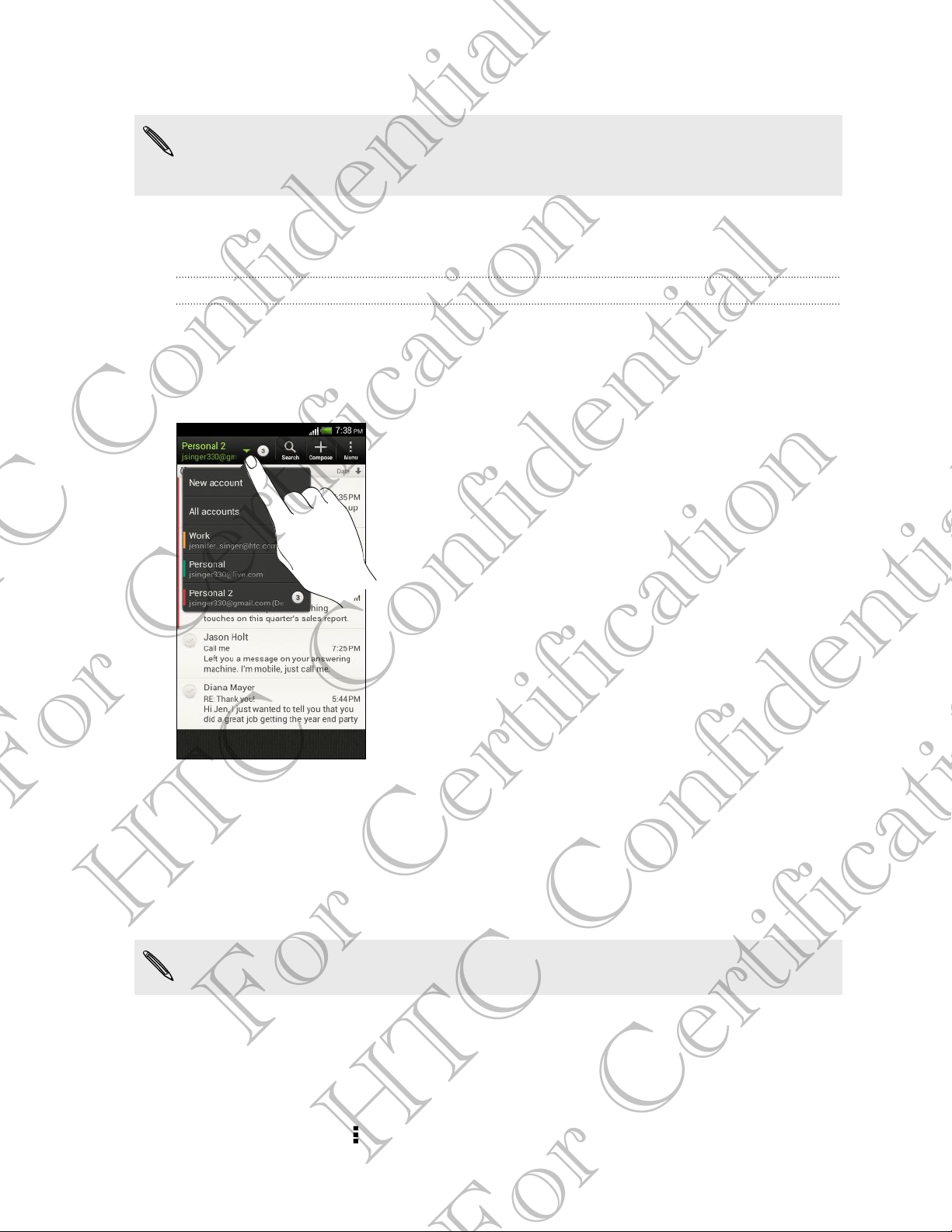
91 Email
3. Enter the Exchange ActiveSync account details, and then tap Next.
If your corporate Exchange Server does not support auto-detect, you’ll need to
enter your Exchange Server settings. Ask your Exchange Server administrator for
details.
4. Choose the sync options that you want, then tap Next.
5. Enter the account name, then tap Finish setup.
Checking your Mail inbox
When you open the Mail app, it displays the inbox of one of your email accounts that
you’ve set up on HTC One S.
To switch between email accounts, tap the bar that shows the current email account,
and then tap another account.
For Certification
Viewing the unified inbox of all your email accounts
You can view email messages from all your accounts just in one place without having
to switch to different accounts.
Just tap the bar that shows the current email account, and then tap All accounts.
Email messages are color coded so you can easily distinguish which email accounts
HTC Confidential
they belong to.
Up to 15 email accounts can be shown in the unified inbox.
Organizing email messages
Do you have a big pile of email messages in your inbox? Organize your email
messages into tabs and quickly find the messages you want.
1. Switch to the email account that you want to use.
2. In the inbox, tap > Edit tabs.
For Certification
HTC Confidential
Page 92

92 Email
3. Press and hold a tab, and then drag it to the bottom row to add.
4. Press and then slide to the added tab.
Manually refreshing an email account
Whatever your sync settings are, you can also sync your sent and received email
messages manually at any time.
§ While viewing an email account, tap > Refresh.
§ If you have several email accounts, you can refresh them all at the same time.
Go to the All accounts inbox first. Then tap > Refresh.
Sorting email messages
You can sort email messages by date received, priority, subject, sender, or size.
In an email account inbox, tap > Sort, and select from the sorting options.
To quickly scroll through the message list based on the sorting option you've
selected, press and hold two fingers on any email message, and then drag upward
or downward.
Sending an email message
1. From the Home screen, tap > Mail.
2. Switch to the email account that you want to use.
3. Tap .
4. Fill in one or more recipients.
Want to loop in more recipients in a carbon copy (Cc) or blind carbon copy (Bcc)
of the email message? Tap > Show Cc/Bcc.
5. Enter the subject, and then compose your message.
For Certification
HTC Confidential
6. Do any of the following:
§ Add an attachment. Tap Attach and then choose what you want.
§ Set the priority for an important message. Tap > Set priority.
7. Tap Send, or to send it later, tap Save.
Resuming a draft email message
1. In an email account inbox, tap > Folder > Drafts.
2. Tap the message.
3. When you finish editing the message, tap Send.
For Certification
HTC Confidential
Page 93
93 Email
Reading and replying to an email message
1. From the Home screen, tap > Mail.
2. Switch to the email account you want to use.
3. In the email account inbox, tap the email message or conversation you want to
read.
If you want to read a particular message inside an email conversation, tap to
expand the conversation, and then tap the email message.
4. Tap Reply or Reply All.
Tap for more actions for the email.
Where are my unread email messages?
Unread email messages display in bold in your inbox. If you're viewing the
unified inbox of all your email accounts, color bars also appear next to unread
email messages. The color bars also indicate the email account from where the
email message is received.
To group all unread email messages, add the Unread tab to your inbox.
1. Switch to the email account you want to use.
2. In the inbox, tap > Edit tabs.
3. Press and hold Unread, and then drag it to the bottom row to add.
4. Press , and then tap the Unread tab.
For Certification
Saving an email message in the Tasks app
Save an email message in your Tasks list so you can remind yourself when to reply.
1. In an email account inbox, press and hold the email message, and then tap Save
as task.
HTC Confidential
2. On the New task screen, enter the task details, and then tap Save.
For Certification
HTC Confidential
Page 94
94 Email
Searching email messages
1. Tap .
2. If you want to refine or filter your search, tap , check the search options, and
then tap OK. For example, you can focus the search on a part of an email or
filter email messages that have attachments or tagged as high priority.
3. In the search box, enter the words you want to search for.
Tap a result to open the email message.
Searching for emails from a contact
Do you remember the sender, but can't find a particular email from him or her?
1. Switch to the email account you want to use.
2. Press and hold an email message from a contact.
3. Tap Search the mail from the sender. A list of email messages from that contact
appears.
Working with Exchange ActiveSync email
Flagging an email
1. Switch to your Exchange ActiveSync account.
2. While viewing the inbox, tap the flag icon that appears beside an email message
or conversation.
To flag an email message inside a conversation, tap to expand the conversation,
and then tap the flag icon of the email message.
Setting your Out of the office status
1. Switch to your Exchange ActiveSync account.
For Certification
2. Tap > Out of the office.
3. Tap your current office status, and then select Out of the office.
4. Set the dates and times.
HTC Confidential
5. Enter the auto-reply message.
6. If you want a different auto-reply message for recipients outside your
organization, tap the Send auto reply message to external recipient option, and
then enter the auto-reply message in the box that appears.
7. Tap Save.
For Certification
Sending a meeting request
1. Switch to your Exchange ActiveSync account.
2. Tap > New meeting invitation.
HTC Confidential
Page 95

95 Email
3. Enter the meeting details.
4. Tap Save.
Managing email messages
Moving email messages to another folder
1. Switch to the email account you want to use.
2. Select the email messages you want to move.
To select all, select one email message first, and then tap > Select all.
3. Tap Move to, and then select a folder.
Deleting email messages
1. Switch to the email account you want to use.
2. Tap the check buttons of email messages you want to delete.
To select all, select one email message first, and then tap > Select all.
3. Tap Delete.
Switching to other mail folders
1. In an email account inbox, tap > Folder.
2. Tap the mail folder that contains the messages you want to view.
Changing email account settings
You can change your email notification settings, add an email signature, delete an
For Certification
HTC Confidential
account and more.
1. Switch to the email account whose settings you want to change.
2. Tap > Settings.
Syncing email less frequently
When you don't need to sync email frequently, such as when you're watching video or
driving, use Smart Sync to automatically extend the time before HTC One S syncs
your email account. Smart Sync helps you save battery power.
1. Switch to the email account where you want to use Smart Sync.
For Certification
2. Tap > Settings > Sync, Send & Receive.
3. Tap Peak time sync > Smart Sync.
HTC Confidential
Page 96

96 Email
4. Tap Off-peak sync > Smart Sync.
5. Press .
Smart Sync then extends the email synchronization time after each auto sync time
passes and you don't open the Mail app. To sync your email at any time, open the Mail
app and check your inbox.
For Certification
HTC Confidential
For Certification
HTC Confidential
Page 97
97 Calendar
Calendar
About Calendar
Never miss an important date again. Use the Calendar app to schedule your events,
meetings, and appointments.
You can set up HTC One S to stay in sync with calendars such as Google Calendar,
Outlook Calendar, and Microsoft Exchange ActiveSync Calendar.
If you've signed into your social network accounts, related calendar events will appear
in Calendar.
Creating an event
You can create events that sync with your Google or Exchange ActiveSync calendars,
as well as events on HTC One S.
1. From the Home screen, tap > Calendar.
2. On any Calendar view, tap .
3. Tap the calendar name to select the calendar to which you will add the event.
4. To invite people, tap and choose who you want to invite.
5. Enter and set the event details.
6. Tap Save.
For Certification
HTC Confidential
Viewing the Calendar
1. Tap a Calendar tab.
2. Do any of the following:
§ In any Calendar view, return to the current date by tapping Today.
§ Events in day, week, and agenda views are color coded to indicate which
account or type of calendar they belong to. To find out what each color
represents, tap .
If you don't see a Calendar tab, tap > Edit tabs, press and hold a Calendar tab,
and then drag it to the bottom row.
For Certification
HTC Confidential
Page 98

98 Calendar
Month view
In month view, you will see markers on days that have events.
Do any of the following in month view:
§ Tap a day to view the events for that day.
§ Press and hold a day to open an options menu from which you can also choose
to create an event or switch to either day or agenda view.
§ Slide your finger up or down the screen to view earlier or later months.
Day and agenda views
Day view shows your events per day, whereas agenda view displays all your events in
chronological order.
§ If the event is a birthday or anniversary of your Facebook contact, tap it to send
a greeting.
§ When in day view:
§ Press and hold on a time slot to create a new event at that time.
§ Slide left or right across the screen to view earlier or later days.
§ If you see the day's weather shown, tap the weather to change it to display
another city.
§ See the event time in another time zone. Tap > Dual time zone > Choose
location, and then enter the second location.
Week view
Week view displays a chart of the events of one week.
When in week view, you can:
§ Press and hold on a time slot to create a new event at that time.
§ Tap an event (shown as colored blocks) to view its details.
§ Slide left or right across the screen to view earlier or later weeks.
For Certification
Managing Calendar events
HTC Confidential
Editing an event
You can only edit events that you have created.
1. While viewing an event, tap .
If you're editing an event that repeats, you'll be asked whether you want to edit just
that occurrence or all occurrences of that event.
2. Make your changes to the event.
For Certification
3. Tap Save. Or tap Send update if you've invited people to the event.
HTC Confidential
Page 99

99 Calendar
Deleting an event
Do any of the following:
§ While viewing an event, tap > Delete event.
§ In day, agenda or week view, press and hold an event and then tap Delete or
Delete event.
If the event repeats, you’ll be asked whether you want to delete just that occurrence
or all occurrences from Calendar.
Sharing an event
You can share a calendar event as a vCalendar using Bluetooth or by sending it as a
file attachment with your email or message.
1. Do one of the following:
§ While viewing an event, tap > Forward.
§ In day, agenda or week view, press and hold an event and then tap
Forward.
2. Choose how you want to send the event.
Accepting or declining a meeting invitation
Go to the Invites tab to see meeting invitations which you have not yet accepted or
declined.
§ You must set up an Exchange ActiveSync account to receive meeting invitations in
Calendar.
§ If you don't see the Invites tab, tap > Edit tabs, press and hold Invites and then
drag it to the bottom row.
For Certification
1. Tap the Invites tab and then tap a meeting invitation.
2. Accept, decline, or tentatively accept the invitation, or propose a new time.
Tap to choose from more options, such as moving the invitation to a folder.
HTC Confidential
For Certification
HTC Confidential
Page 100

100 Calendar
Setting reminders for your events
Have an important event that you must remember? Calendar makes it easy to remind
yourself of important events.
1. While viewing a calendar event, tap Reminder.
2. Choose how far in advance you want to be reminded of the event.
You can set the default reminder time or choose an event reminder tone in the
Calendar settings.
Dismissing or snoozing event reminders
If you have set at least one reminder for an event, the upcoming event icon will
appear in the notifications area of the status bar to remind you.
1. Open the Notifications panel.
2. Tap the event reminder notification.
3. Do one of the following:
§ Choose to snooze or dismiss all event reminders.
§ Press to keep the reminders pending in the notifications area of the
status bar.
Showing or hiding calendars
1. In any Calendar view, tap .
2. Select or clear the calendar you wish to show or hide, and then press .
§ Calendars are kept synchronized on HTC One S, even if they are hidden.
For Certification
§ You can also show or hide tasks that you've created on HTC One S.
Changing Calendar settings
HTC Confidential
You can change Calendar settings to specify how it displays events and how it notifies
you of upcoming events.
In any Calendar view, tap > Settings.
For Certification
HTC Confidential
 Loading...