

Page 1

HP ProLiant Accelerated iSCSI for Windows User Guide
Part Number 410538-00K
May 2008 (Eleventh Edition)
Page 2

© Copyright 2006, 2008 Hewlett-Packard Development Company, L.P.
The information contained herein is subject to change without notice. The only warranties for HP products and services are set forth in the express
warranty statements accompanying such products and services. Nothing herein should be construed as constituting an additional warranty. HP
shall not be liable for technical or editorial errors or omissions contained herein.
Confidential computer software. Valid license from HP required for possession, use or copying. Consistent with FAR 12.211 and 12.212,
Commercial Computer Software, Computer Software Documentation, and Technical Data for Commercial Items are licensed to the U.S.
Government under vendor’s standard commercial license.
Microsoft, Windows, and Windows Server are U.S. registered trademarks of Microsoft Corporation. Intel, Pentium, and Itanium are trademarks
or registered trademarks of Intel Corporation or its subsidiaries in the United States and other countries. UNIX is a registered trademark of The
Open Group.
Intended audience
This document is for the person who installs, administers, and troubleshoots servers and storage systems.
HP assumes you are qualified in the servicing of computer equipment and trained in recognizing hazards
in products with hazardous energy levels.
Page 3

Contents
Overview..................................................................................................................................... 4
iSCSI protocol........................................................................................................................................... 4
HP Accelerated iSCSI capability.................................................................................................................. 4
iSCSI supported operating systems .............................................................................................................. 4
Supported iSCSI targets .............................................................................................................................4
Download latest drivers, firmware, and documentation .................................................................................. 5
Configuring an iSCSI device .......................................................................................................... 6
iSCSI configuration through the NCU........................................................................................................... 6
Install the Network Configuration Utility software .................................................................................6
iSCSI Settings tab...................................................................................................................................... 6
iSCSI Devices tab...................................................................................................................................... 9
iSCSI VLAN tab ........................................................................................................................................9
iSCSI Information tab............................................................................................................................... 11
iSCSI Statistics tab................................................................................................................................... 13
iSCSI Diagnostics tab............................................................................................................................... 14
Acronyms and abbreviations........................................................................................................ 15
Index......................................................................................................................................... 16
Contents 3
Page 4

Overview
iSCSI protocol
The HP iSCSI protocol transports block-level storage requests over TCP connections. Using the iSCSI
protocol, systems can connect to remote storage and use it as a physical disk although the remote storage
provider or target may actually be providing virtual physical disks. HP Accelerated iSCSI supports all
targets that are certified and supported by Microsoft iSCSI Software Initiator.
HP Multifunction Server Adapters can be enabled as iSCSI devices or virtual iSCSI host bus adapters
(HBAs). iSCSI HBAs provide the capability to run iSCSI protocol over offloaded TCP connections. By
offloading the TCP connection processing to an HP Multifunction Server Adapter, CPU utilization is
reduced allowing additional processing capacity for applications.
HP Accelerated iSCSI capability
The HP Accelerated iSCSI capability is available as a standard feature with standup and mezzanine HP
Multifunction Server Adapters and HP Multifunction Server Adapters for HP BladeSystem servers. It is
available as a licensable option, through the purchase of an HP ProLiant Accelerated iSCSI license, for
embedded HP Multifunction Server Adapters.
iSCSI supported operating systems
iSCSI capabilities are available on the following operating systems:
• Windows Server 2008 Enterprise
• Windows Server 2008 x64 Enterprise
• Windows Server 2003
• Windows Server 2003 x64
To enable iSCSI on adapters running Windows Server 2003 and Windows Server 2003 x64 systems,
the Microsoft® iSCSI Software Initiator version 2.0 or later software must be installed. This software is
required to configure the iSCSI protocol, including discovery portals, iSCSI targets, authentication, and so
on.
For systems running Windows Server 2003 (SP1) or Windows Server 2003 x64 (SP1), you must upgrade
to Service Pack 2 or later.
Accelerated iSCSI is not supported on HP NC-Series 10 GbE adapters in this release.
Supported iSCSI targets
HP Accelerated iSCSI supports all targets that are certified and supported by Microsoft iSCSI Software
Initiator.
Overview 4
Page 5

Among HP branded targets supporting iSCSI are the AiO family
(http://h18006.www1.hp.com/storage/aiostorage.html
(http://h18006.www1.hp.com/storage/disk_storage/msa_diskarrays/index.html
with the mpx 100b iSCSI Connectivity Kit
(http://h18006.www1.hp.com/storage/disk_storage/eva_diskarrays/eva_arrays/index.html
iSCSI Solutions (http://h71028.www7.hp.com/enterprise/cache/550328-0-0-0-121.html
information about iSCSI storage solutions from HP.
), the MSA SAN Storage Array product line
Download latest drivers, firmware, and documentation
HP updates networking software frequently to include new functionality and features. For the latest driver,
firmware, and documentation updates go to the HP website
(http://h18004.www1.hp.com/products/servers/networking/index.html
).
), and the EVA4400
). See
) for more
Overview 5
Page 6

Configuring an iSCSI device
iSCSI configuration through the NCU
Complete the steps in the following sections to enable and configure an iSCSI device or to view iSCSI
Install the Network Configuration Utility software
information through the NCU.
If you do not have HP NCU software installed on your server, complete the following steps to install the
NCU for Windows operating systems:
1. Go to the HP website (http://www.hp.com).
2. Click Software & Driver Downloads from the left menu bar.
3. Type the product name in the For product box and press Enter. For example, type NC373T.
4. Select an operating system.
5. Click HP Network Configuration Utility.
6. Click download and save the HP SoftPaq (sp#####.exe) file to a directory on your hard drive. The
SoftPaq file is a self-extracting executable with a file name based on the SoftPaq number.
7. Click the SoftPaq file to extract the files and then open the cmponent.htm file.
iSCSI Settings tab
To enable iSCSI:
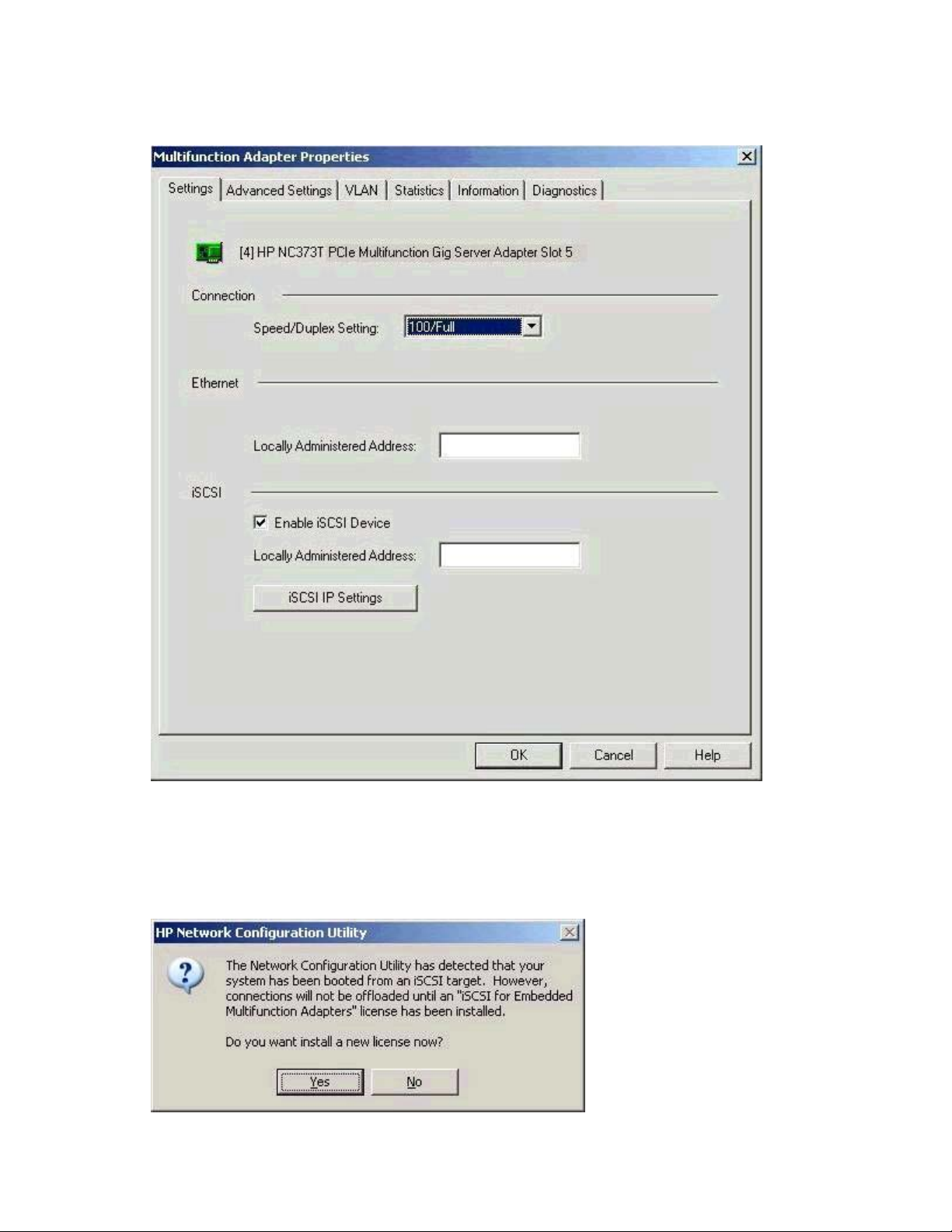
1. Select an HP Multifunction Adapter in the NCU Main window and click Properties to display the
Multifunction Adapter Properties Settings tab. Alternatively, hold down the Alt key and enter p to
display the Settings tab.
Configuring an iSCSI device 6
Page 7
2.
Select Enable iSCSI Device to enable iSCSI on the multifunction adapter. iSCSI cannot be enabled on
the device if the adapter is in an Automatic, 802.3ad Dynamic with Fault Tolerance, or SwitchAssisted Load Balancing with Fault Tolerance (SLB) team.
This control is not available for iSCSI booted systems. In an iSCSI Booted system, the interfaces
containing iSCSI option ROM are shown under "iSCSI Devices" without selecting Enable iSCSI
Device under the Settings tab. The Enable iSCSI Device option for an iSCSI Booted interface is grayed
out and is not available. If the NCU detects that the system was booted over iSCSI, the following
message prompts you to install an Accelerated iSCSI Pack for Embedded Multifunction Gigabit
Server Adapters license if one is not detected.
Configuring an iSCSI device 7
Page 8
3.
(Optional steps). Type a user-defined MAC address for the iSCSI device in the Locally Administered
Address box. The default MAC address is used if an address is not entered. This control is not
available for iSCSI booted systems.
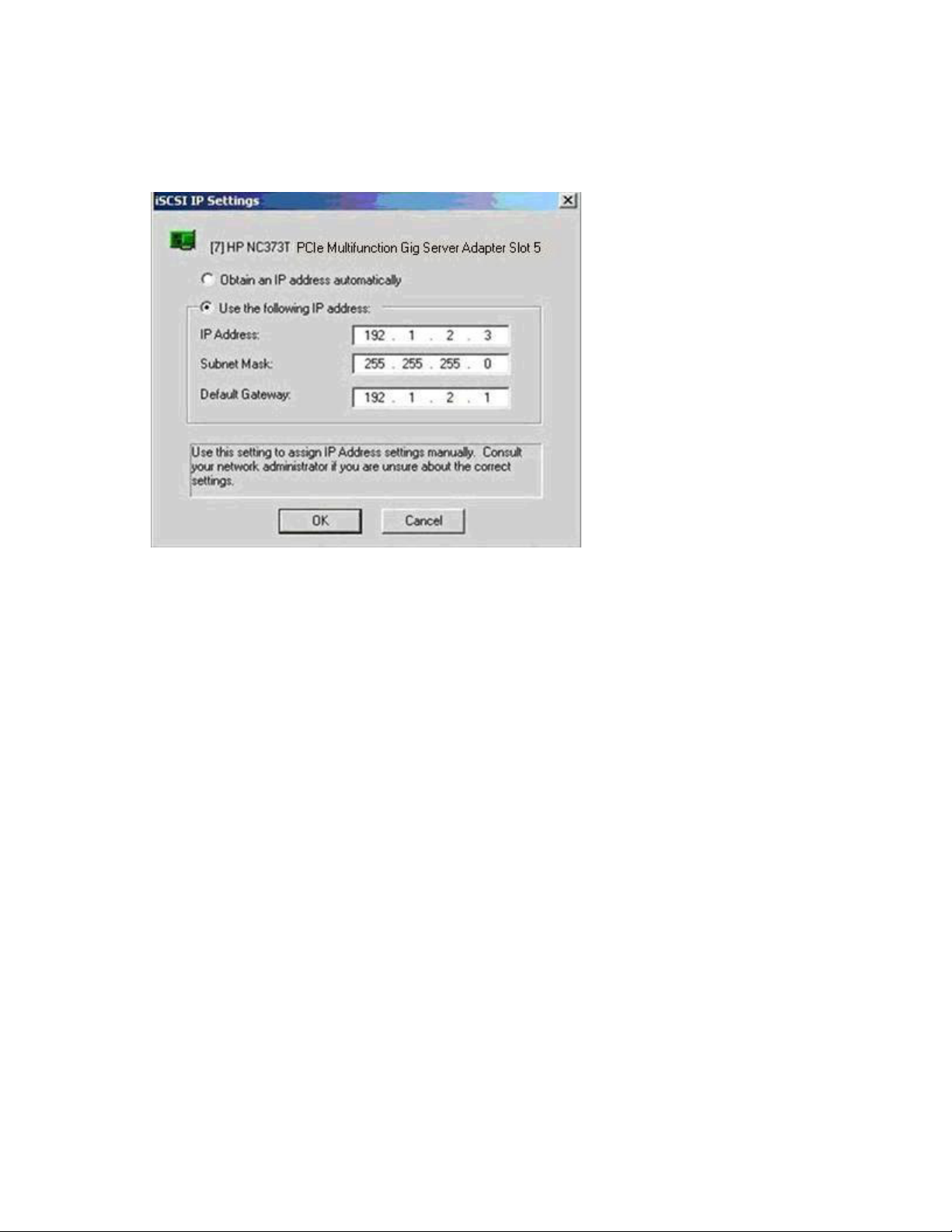
4. Click iSCSI IP Settings. The iSCSI IP Settings window appears so that you can specify how the IP
Address is obtained. This control is not available for iSCSI booted systems.
5. On the iSCSI IP Settings window, select one of the following:
a. Obtain an IP Address automatically. This is the default. If this option is selected, DHCP is used to
acquire an IP configuration for the iSCSI device.
b. Use the following IP address. This option allows you to specify the IP configuration for the iSCSI
device. The IP address MUST be different from IP addresses that are assigned to other iSCSI
devices and Ethernet adapters.
— IP Address. Enter the IPv4 address (dotted decimal).
— Subnet Mask. Enter the network subnet mask (dotted decimal).
— Default Gateway. Enter the default route.
6. Click OK to save all changes and return to the Multifunction Adapter Properties Settings tab.
After a Multifunction Server Adapter is enabled as an iSCSI device, it becomes a virtual iSCSI HBA. These
devices are displayed on the iSCSI Devices tab on the NCU Main window.
Configuring an iSCSI device 8
Page 9
iSCSI Devices tab
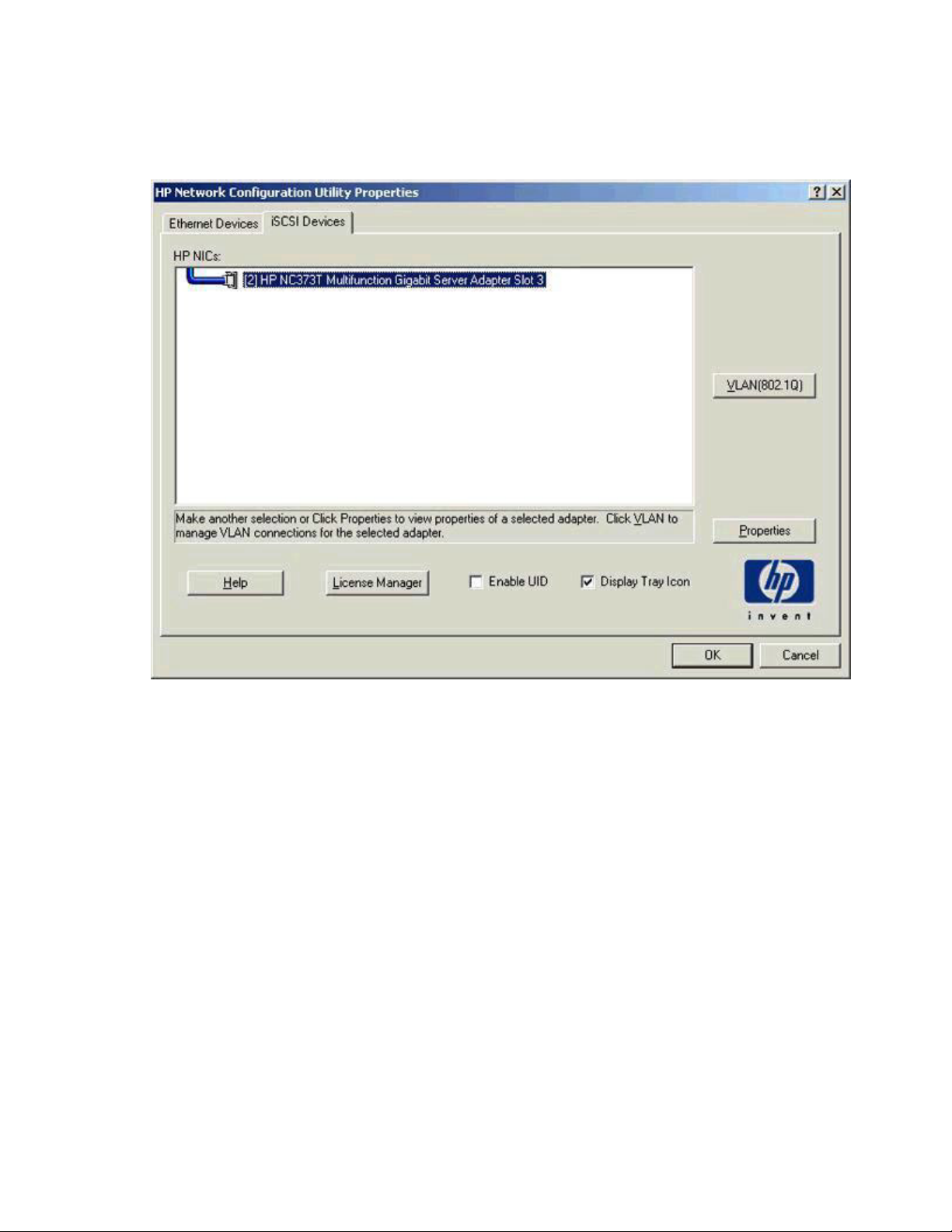
The iSCSI Devices tab lists all HP ProLiant Gigabit Ethernet Multifunction server adapters that are iSCSI
enabled. A sample iSCSI Devices tab for Windows Server 2003 is shown below.
If you upgrade the Network Configuration Utility (NCU) to version 8.20 or later, the following team types
are converted to the Transmit Load Balancing (TLB) team type if they include an iSCSI-enabled adapter.
• Automatic
• 802.3ad Dynamic with Fault Tolerance
• Switch-assisted Load Balancing with Fault Tolerance (SLB)
iSCSI VLAN tab
To create an iSCSI VLAN device for an iSCSI-enabled adapter:
Configuring an iSCSI device 9
Page 10
1.
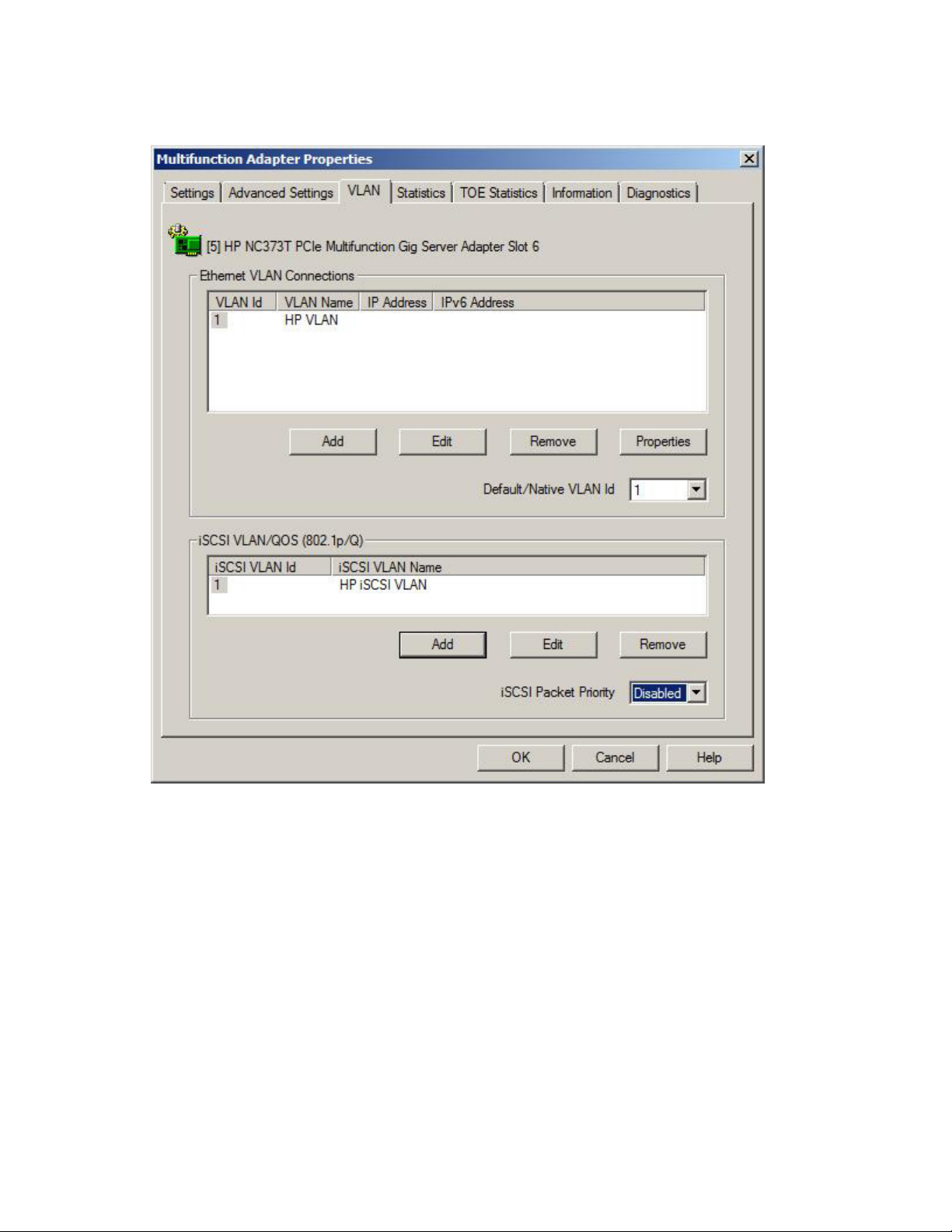
Select an HP Multifunction Adapter in the NCU Main window or the iSCSI Devices tab and click
VLAN (802.1Q) to display the VLAN tab. Alternatively, hold down the Alt key and enter v to display
the VLAN tab.
The iSCSI VLAN/QOS (802.1p/Q) window displays the following information:
o iSCSI VLAN Id. Shows the identifier value used for the iSCSI VLAN device.
o iSCSI VLAN Name. Shows the descriptive name for the VLAN ID.
2. To create an iSCSI VLAN, click Add to open the VLAN Properties dialog box. Only one VLAN can
be created per iSCSI device.
Configuring an iSCSI device 10
Page 11
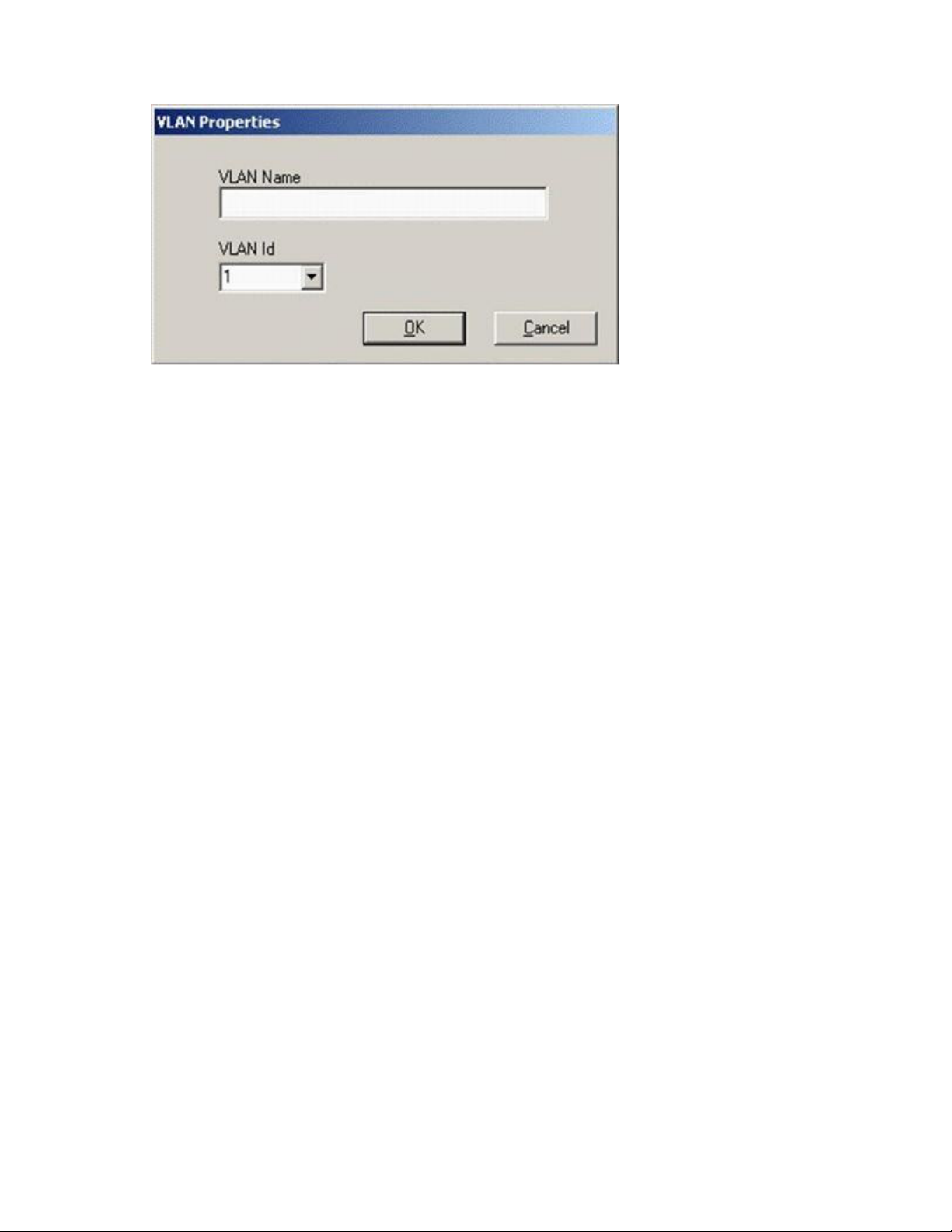
iSCSI VLANs cannot be added, edited, or removed for an iSCSI-booted device.
a. In the VLAN Name box, type a descriptive name.
b. Click VLAN Id and select an identifier value.
c. Click OK.
3. To modify an existing iSCSI VLAN, select the VLAN Id or Name and click Edit to open the VLAN
Properties dialog box.
4. To delete an existing iSCSI VLAN, select the VLAN Id or Name and click Remove.
5. Click OK to save all changes.
iSCSI Information tab
To view detailed iSCSI information:
1. Select an HP Multifunction Adapter in the NCU Main window and click Properties to display the
Multifunction Adapter Properties Settings tab. Alternatively, hold down the Alt key and enter p to
display the Settings tab.
Configuring an iSCSI device 11
Page 12
2.
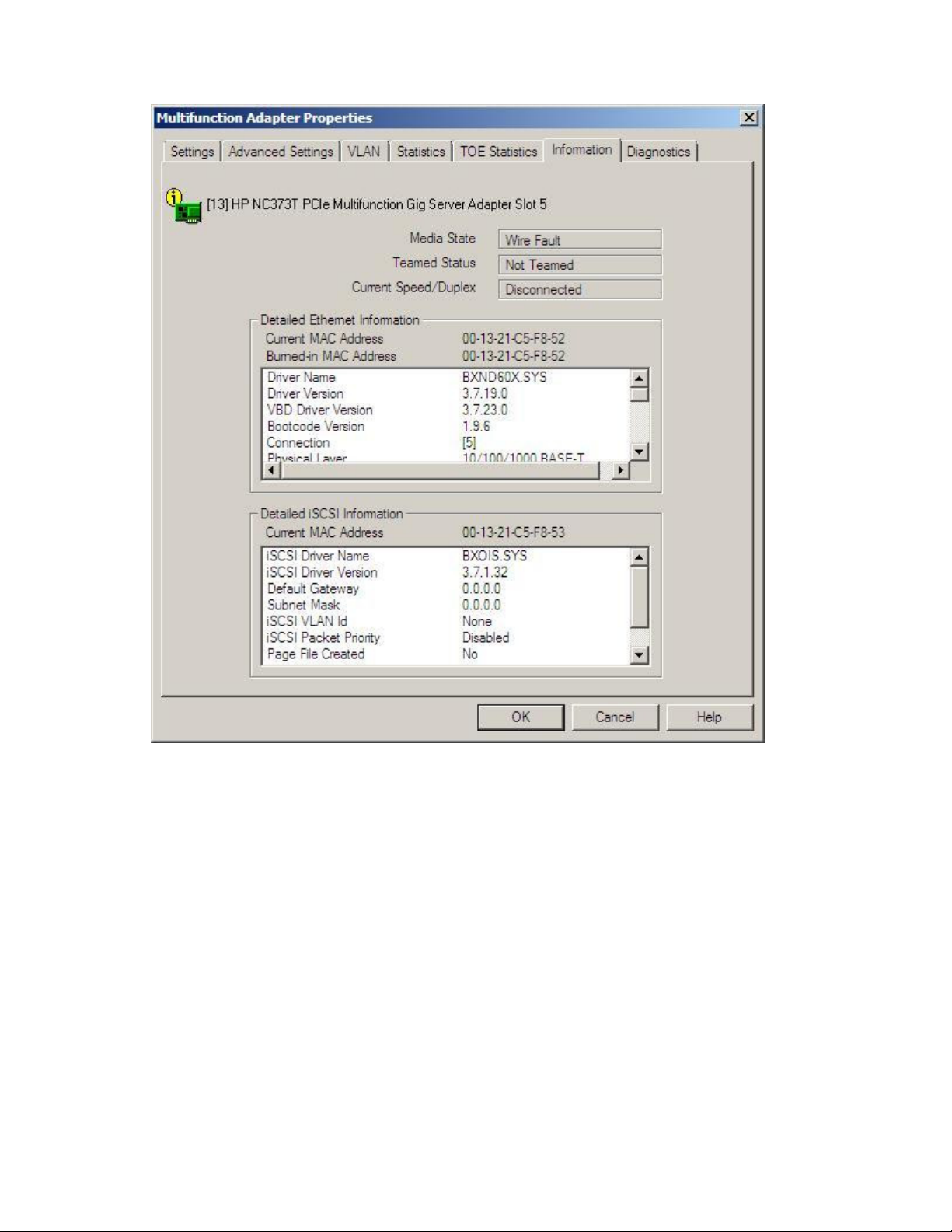
Select the Information tab to display the Multifunction Adapter Properties Information window.
The Detailed iSCSI Information window displays the following:
• Current MAC Address. The current MAC address for the iSCSI device.
• iSCSI Driver Name. The name of the driver for the iSCSI device.
• iSCSI Driver Version. The version of the driver for the iSCSI device.
• Default Gateway. The default route for the iSCSI device.
• Subnet Mask. The subnet mask (dotted decimal) for the iSCSI device.
• iSCSI VLAN Id. The identification number (if any) for the virtual iSCSI VLAN device.
• iSCSI Packet Priority. The packet priority for the iSCSI device.
• Page File Created. Indicates if the Windows page file was created on an iSCSI drive that is attached
to the adapter. The values are Yes and No.
• DHCP (Dynamic Host Configuration Protocol). Enabled indicates that DHCP is used to acquire IP
configuration; Disabled indicates that the statically configured IP configuration is used.
• IP Address. The Internet Protocol address (dotted decimal) for the iSCSI device.
Configuring an iSCSI device 12
Page 13
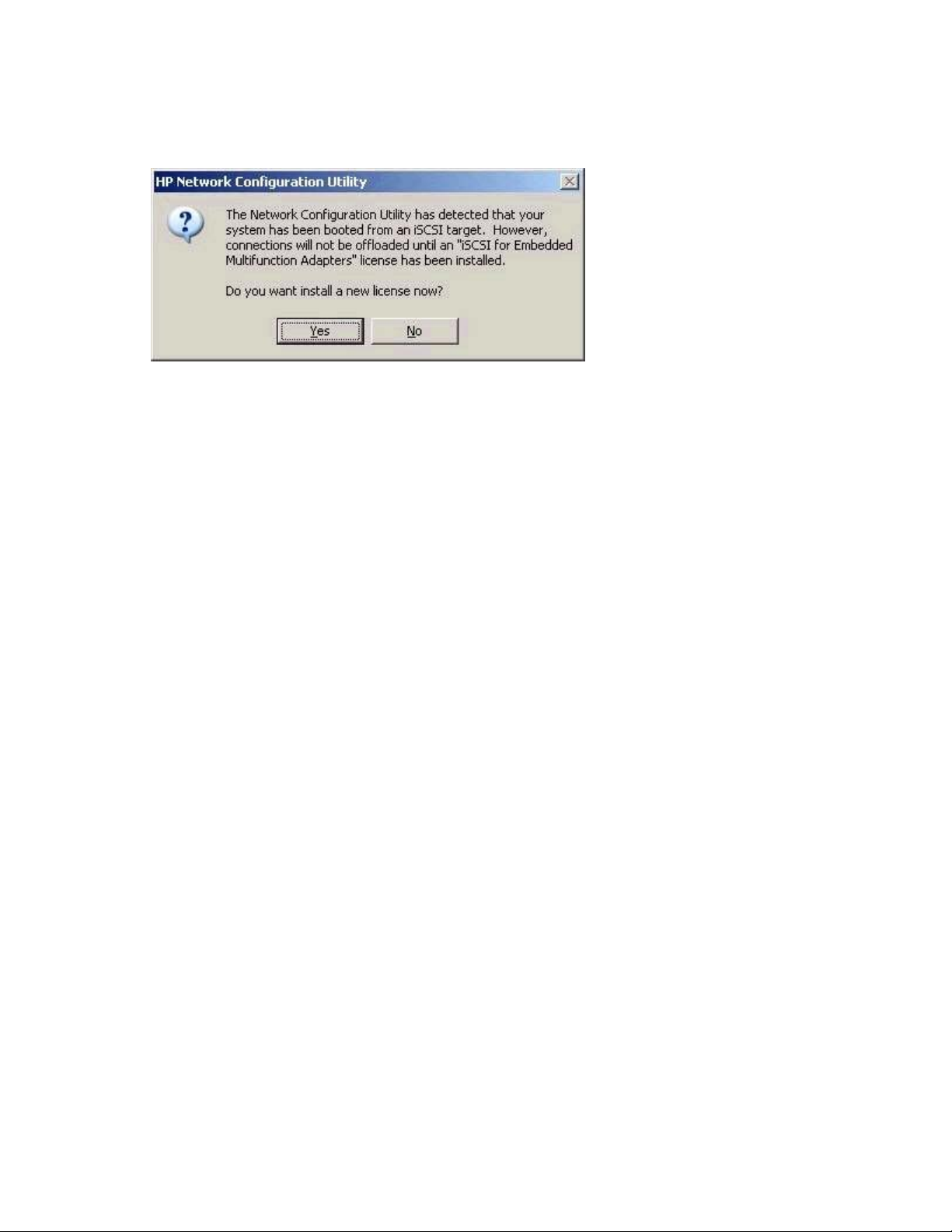
• iSCSI Boot Device. Indicates if the system was booted over iSCSI from a target device. If the NCU
detects that the system was booted over iSCSI, the following message prompts you to install an
Accelerated iSCSI Pack for Embedded Multifunction Gigabit Server Adapters license if one is not
detected. Feature is currently not supported on HP NC-Series 10 GbE adapters.
iSCSI Statistics tab
To view the iSCSI statistics for the selected adapter:
1. Select an HP Multifunction Adapter in the NCU Main window and click Properties to display the
Multifunction Adapter Properties Settings tab. Alternatively, hold down the Alt key and enter p to
display the Settings tab.
Configuring an iSCSI device 13
Page 14
2.
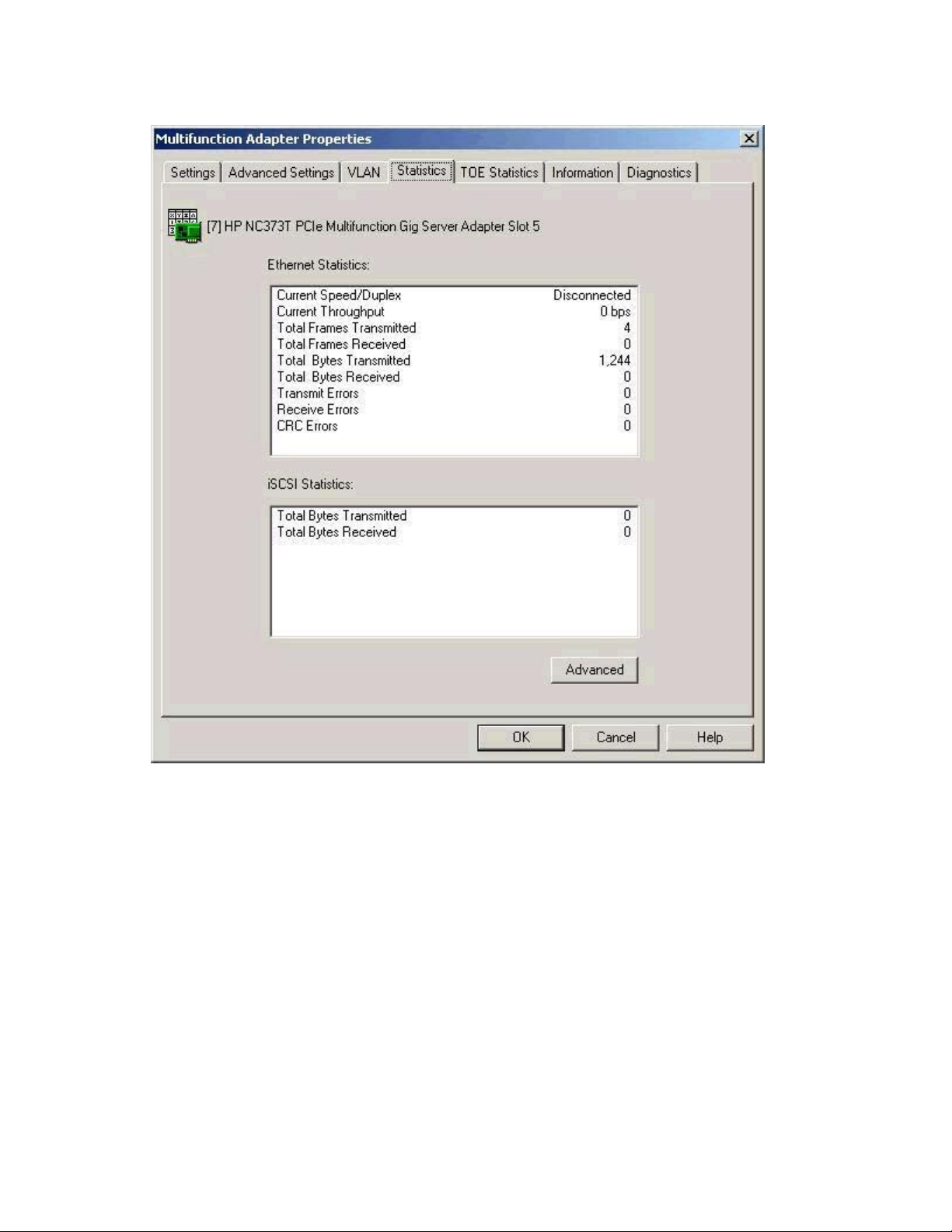
Select the Statistics tab. The Multifunction Adapter Properties Statistics tab appears showing activity
on the iSCSI device since it was last initialized.
The following read-only statistics are available:
o Total Bytes Transmitted. Displays the total bytes sent in iSCSI headers and payload.
o Total Bytes Received. Displays the total bytes received in iSCSI headers and payload.
3. Click OK to close the Multifunction Adapter Properties Statistics window.
iSCSI Diagnostics tab
The Diagnostics tab is not supported for iSCSI-enabled adapters.
Configuring an iSCSI device 14
Page 15

Acronyms and abbreviations
HBA
host bus adapter
iSCSI
Internet Small Computer System Interface
RSS
Receive-Side Scaling
TOE
TCP/IP Offload Engine
VLAN
virtual local-area network
Acronyms and abbreviations 15
Page 16

Index
D
Devices tab 9
diagnostics 14
drivers 5
I
Information tab 11
installation, NCU 6
IP address assignment 9
iSCSI configuration 6
iSCSI devices 9
iSCSI Information tab 11
iSCSI IP settings window 9
iSCSI Settings tab 4, 6
iSCSI Statistics tab 13
iSCSI VLAN tab 9
N
Network Configuration Utility 6
S
Settings tab 6
statistics tab, adapter 13
Index 16
 Loading...