

Page 1

HP DeskJet 890C Series Printers MS Windows Printing
MS Windows Printing
Supported Operating Systems
Note
HP DeskJet 890C series printer drivers support the following operating
systems:
Note
Only a printer driver designated “890C” should be used with
HP DeskJet 890C Series printers in MS Windows applications.
Other HP DeskJet printer drivers should not be used.
MS Windows 3.1x
MS Windows 95
MS Windows NT 4.0 (described in “Windows NT Printing” which
follows)
MS-DOS - Drivers are available for MS-DOS printing (described in
“DOS Printing” which follows). Additionally, DOS printing is
supported through MS Windows 3.1x and MS Windows 95.
The remainder of this section applies to Windows 3.1x, and
Windows 95.
Printer Driver Contents
The HP DeskJet 890C series printer driver includes:
HP DeskJet 890C series printer driver
HP DeskJet 890C Toolbox
How do I? (on-screen procedures to help the user operate and
maintain their printer)
Troubleshooting
Printer Services (Maintenance and Status)
Release Notes
Page 2

HP DeskJet 890C Series Printers MS Windows Printing
Printer Driver Features
HP DeskJet 890C Series printer drivers for MS Windows provide access to
all the capabilities of the HP DeskJet 890C printer. The following options are
available from the printer driver:
Automatic or Manual printing
Color or Grayscale printing (Automatic or Manual)
Best, Normal, or EconoFast print quality
Paper Type (including HP’s special papers)
Paper Size
Two-sided printing
Number of Copies
Ordered printing
Print iron-on transfers or flip a document
Portrait or Landscape print orientation
Connect printer to a network
ICM - Image Color Matching
For detailed help, click the
dialog box.
Help
button in the HP DeskJet print settings
Page 3

HP DeskJet 890C Series Printers MS Windows Printing
Installing the Printer Driver
The minimum system requirements to run the HP Printing System for
Windows 3.1x and Windows 95 are:
Windows version 3.1x or Windows 95
80386 (or better) processor
4 MB of RAM
20 MB free hard disk space
The recommended system is:
Windows version 3.1x or Windows 95
80486 (or better) processor
8 MB of RAM
20 MB free hard disk space
Before installing the printer driver:
1. Make sure your computer is fully operational.
2.Check that the printer is properly set up and ready to print.
3.Make sure the printer is directly connected to the computer (remove any
switch boxes or other devices using the same port). Check that all cable
connections are firm.
4. Make sure the computer and printer are turned on.
5. Using the operating system specific list below, close any screen savers,
virus protection programs or other software programs that are running on
your computer.
Closing programs in Windows 3.1
a. On the keyboard, press Ctrl + Esc to retrieve the task list.
b. Highlight any program in the task list except Program Manager
and choose End Task.
c. Repeat steps a and b until all programs except the Program
Manager are closed.
d. Once the Task List shows only Program Manager, choose
Cancel to close the Task List.
Page 4

HP DeskJet 890C Series Printers MS Windows Printing
Closing programs in Windows 95
a. On the keyboard, press Ctrl + Alt + Del to retrieve the Close
Program window.
b. Highlight any program in the list except Explorer and Systray
and choose End Task.
c. Repeat steps a and b until all programs except Explorer and
Systray are closed.
d. Once the Close Program window shows only Explorer and
Systray, choose cancel to close the Close Programs window.
Printer Driver Installation Procedure (MS Windows 3.1x):
1.Insert the CD-ROM disk into your computer’s CD-ROM drive.
2.In the Program Manager, click
File
, and then click
Run
.
3.Type the letter of the computer’s CD ROM drive followed by a colon
(usually D:), type
SETUP
, and click OK.
4. Follow the directions on the computer screen.
If you are not sure how to answer a question that appears on the screen,
just press ENTER to accept the most common settings.
5. During the installation, you are required to restart Windows. When the
installation is complete, take the disk out of the computer’s disk drive.
6.Store the disk in a cool dry place.
Page 5

HP DeskJet 890C Series Printers MS Windows Printing
Printer Driver Installation Procedure (Windows 95):
Note
If a message comes up before or during installation that says
“New Hardware Found,“ choose “Do not install a driver
(Windows will not prompt you again)” and click OK.
1.Insert the CD-ROM disk into your computer’s CD-ROM drive.
The installation program will start automatically. Follow the instructions on
screen.
2.If the program does not start automatically, click
then click
Run
.
Start
on the task bar and
3.Type the letter of the computer’s CD ROM drive followed by a colon
(usually D:), type
SETUP
, and click OK.
4. Follow the directions on computer screen
If you are not sure how to answer a question that appears on the screen,
just press
ENTER
to accept the most common settings.
5.At the end of the installation, you are required to restart Windows. When
the installation is complete, take the disk out of the computer’s disk drive.
6.Store the disk in a cool dry place.
Page 6

HP DeskJet 890C Series Printers MS Windows Printing
Accessing the Printer Driver
There are two ways to access the printer driver in Windows:
1. Directly through the printer folder.
2. Indirectly through the Print menu in the application software (keep in mind
that not all printer driver options may be available this way).
Although the printer folder provides access to various printer settings, like
paper type and page orientation, these settings may be overridden by
settings made from the application. It is recommended to make documentspecific changes through the application rather than through the printer
driver’s control panel.
Accessing the Print menu through the application allows you to:
Select the default printer from the list of available printers
Set various printer options
The printer folder’s settings are normally used when an application does not
specify certain defaults.
To access the print properties dialog box from applications
(recommended):
Setup
File, Print
Setup
button.
Main
in the Program Manager window.
Control Panel
Printers
HP DeskJet 890C
button.
1. Choose “
application.)
2.Click the
To access the print properties dialog box from the Printers folder:
From Windows 3.1x:
1. Double-click
2. Double-click
3. Double-click
4. Select the
the
File, Print Setup
” or “
.
.
printer in the Installed Printers list and click
” (this varies with the
Page 7
HP DeskJet 890C Series Printers MS Windows Printing
From Windows 95:
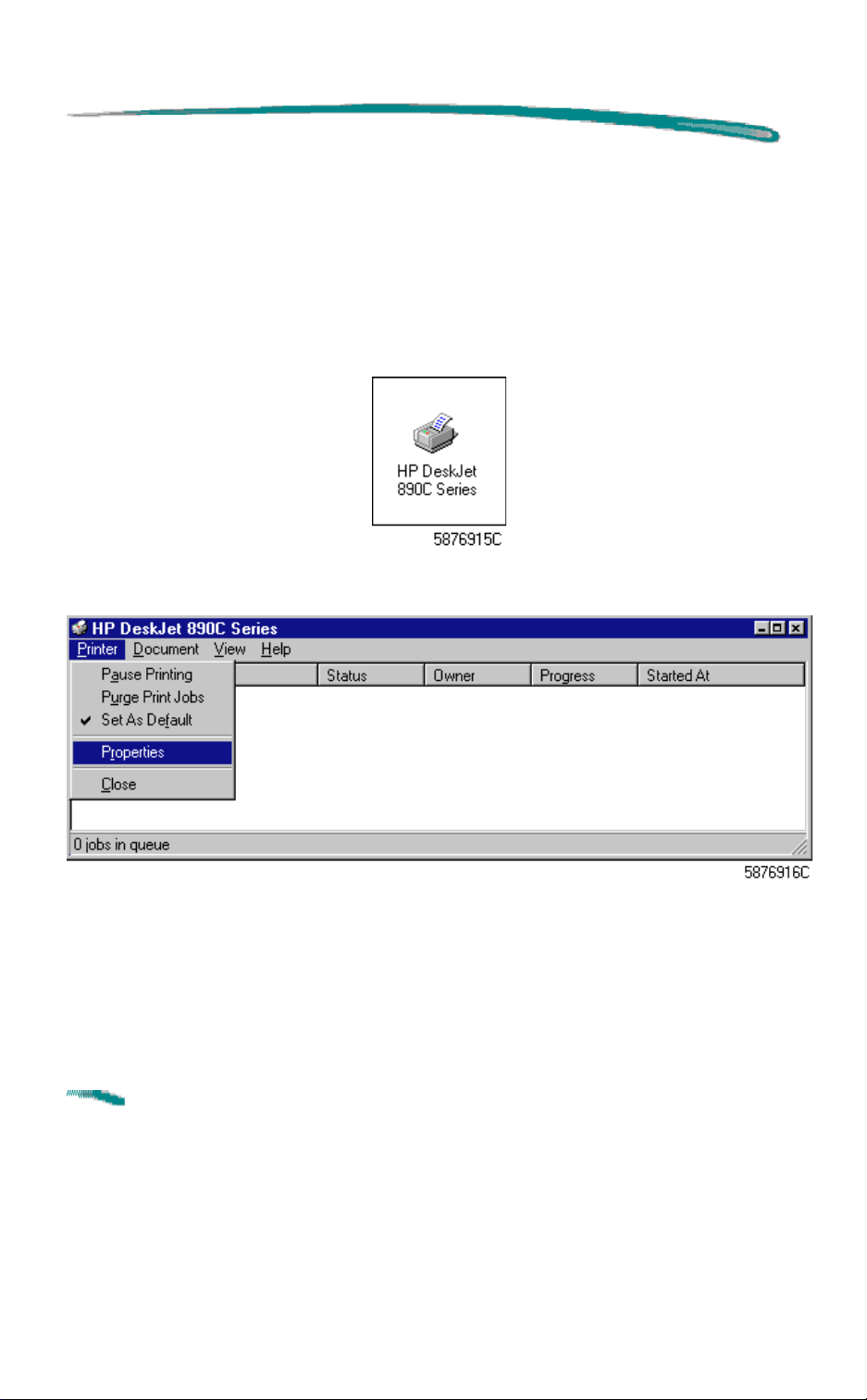
1. From the
2. Select
3. Right-click on the
Start
Printers
button on the task bar, select
.
HP DeskJet 890C Series
open the control panel, or, double-click the
as shown:
4.Select
Printer
from the HP DeskJet 890C Series printer dialog box.
Settings
icon and select
.
Properties
HP DeskJet 890C Series
to
icon
5. Select
Properties
to reveal the dialog box shown below.
The dialog box generally has six tabs; General, Details, Setup, Features,
Color, and Services which are described below. The General and Details
tabs are provided by MS Windows. The Setup, Features, Color, and
Services tabs are provided by the HP DeskJet 890C Series printer driver.
Note
Windows 95 has a seventh tab “Sharing” which will appear in
the control panel among the six described above if you have
“File and Printer Sharing for Microsoft Networks” enabled
through your Network Neighborhood. The Sharing tab will be
described at the end of this section.
Page 8
HP DeskJet 890C Series Printers MS Windows Printing
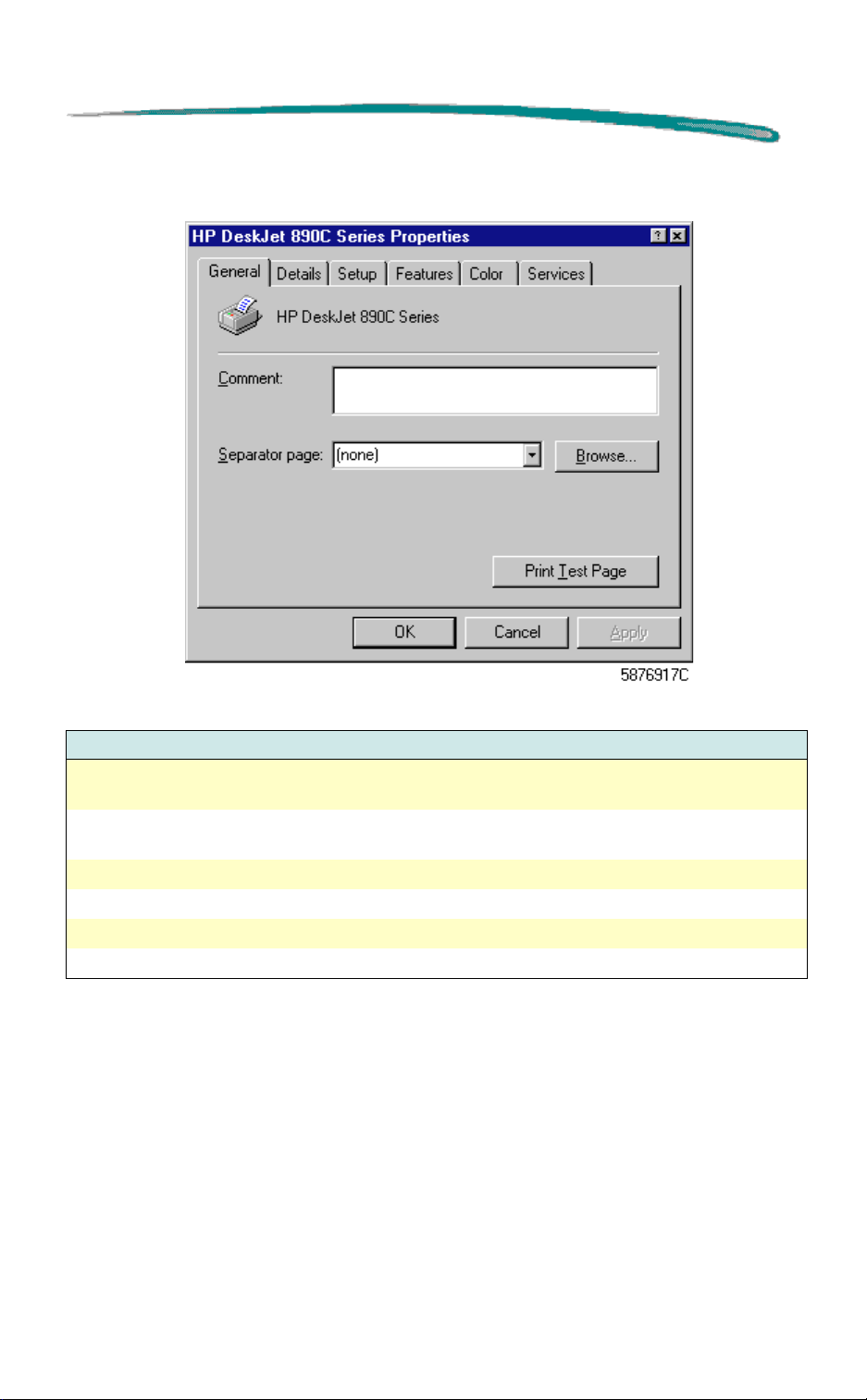
General Property Page (MS Windows)
General Property Page Options (MS Windows)
Option Description
Comment Allows you to include special printing instructions, etc. Next time you
print the document, these instructions will be found in this box.
Separator page Allows you to insert a separator page file between print jobs. Browse
allows you to locate and specify the separator page to be printed.
Print Test Page Prints a test page.
OK Closes this dialog box and saves any changes made.
Cancel Closes this dialog box and cancels any changes made.
Apply Changes the default settings without closing the window.
Page 9
HP DeskJet 890C Series Printers MS Windows Printing
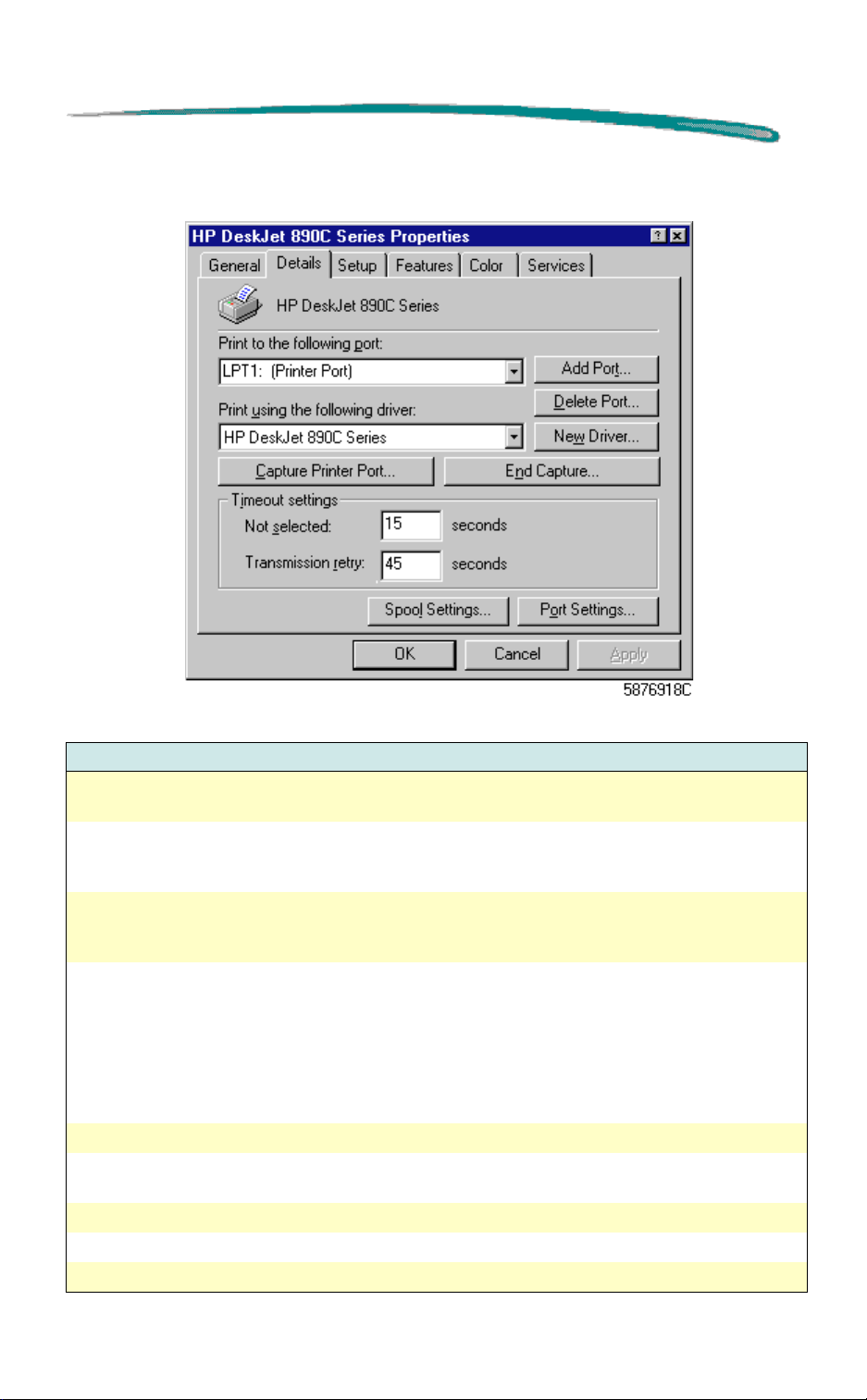
Details Property Page (MS Windows)
Details Property Page Options (MS Windows)
Option Description
Print to the
following port:
Print using the
following driver:
Capture Printer
Port and End
Capture
Time-out Settings Not Selected: sets the time Windows waits before sending an error
Spool Settings... Allows you to spool documents or print directly to the printer.
Port Settings... Allows spooling of MS-DOS print jobs. You may also elect to have the
OK Closes this dialog box and saves any changes made.
Cancel Closes this dialog box and cancels any changes made.
Apply Changes the default settings without closing the window.
The pull-down menu allows selection of printer ports. Buttons provide
options to add or delete printer ports, or print to file.
The pull-down menu allows you to change printer drivers or install
updated ones. This printer driver does
an updated driver, use the Setup.exe on the CD-ROM.
Permits you to capture, or terminate the capture of, a network printer. A
selection allows you to reconnect to a network printer each time at logon.
message that your printer is off or off line after you send a print job.
Transmission Retry: sets the time Windows waits for your printer if your
printer is on line but engaged. (If your printer is setup on a busy network,
and/or if you send large graphics files, your printer might display an error
message before your files have had a chance to print. To prevent this,
increase this setting somewhat.)
driver check the port state before printing.
not
support this feature. To install
Page 10
HP DeskJet 890C Series Printers MS Windows Printing
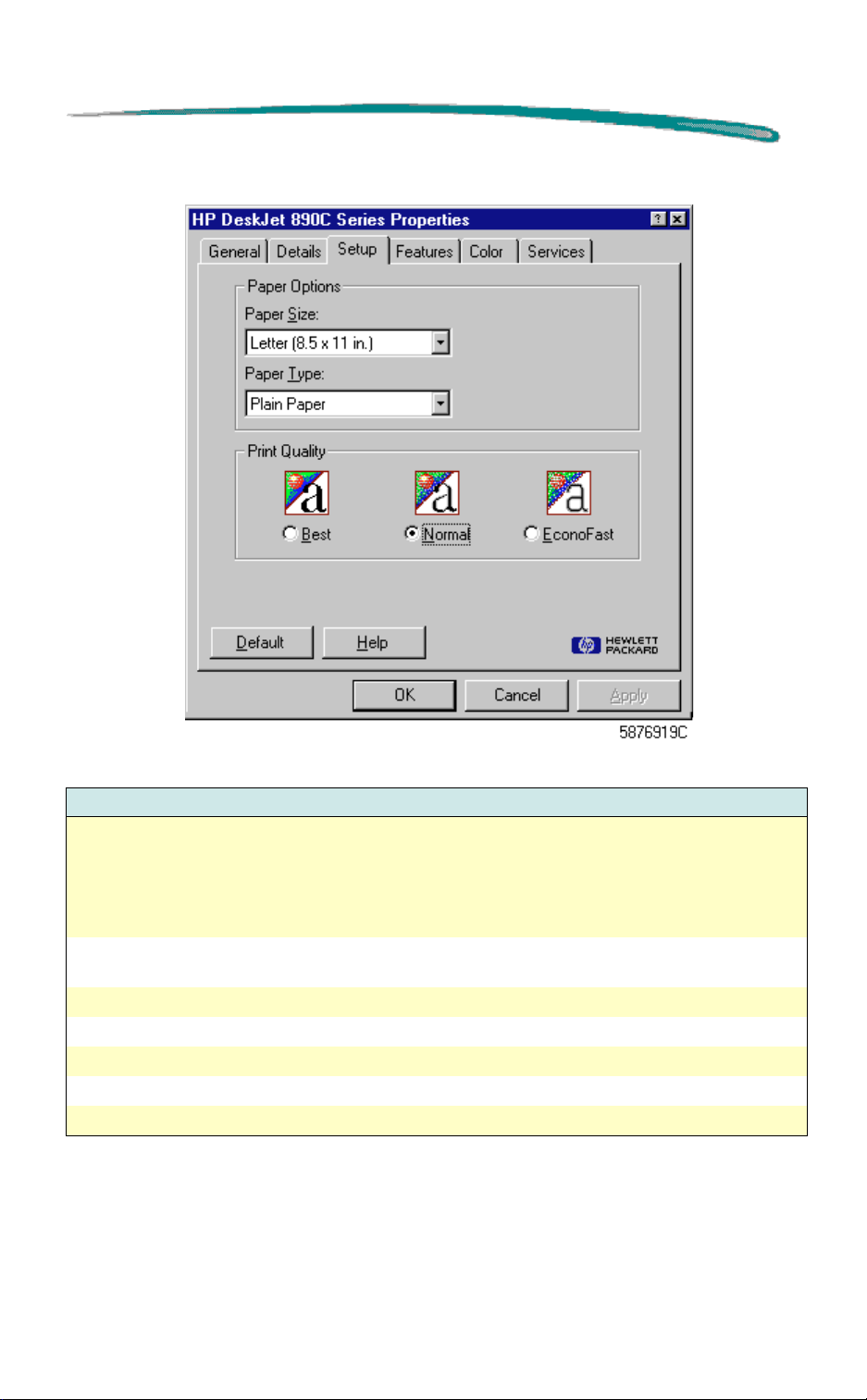
Setup Property Page
Setup Property Page Options
Option Description
Paper Options Paper Size: Allows selection from numerous paper sizes. To use a paper
size not listed, select Custom.
Paper Type: Allows you to specify the type of media upon which you
intend to print. (Lets the printer decide which settings to use to give you
the best results.)
Print Quality Best (presentation quality), Normal (letter quality), or EconoFast (draft
quality).
Default Revert to the default settings for the printer.
Help Opens the on-line help.
OK Closes this dialog box and saves any changes made.
Cancel Closes this dialog box and cancels any changes made.
Apply Changes the default settings without closing the window.
Page 11
HP DeskJet 890C Series Printers MS Windows Printing
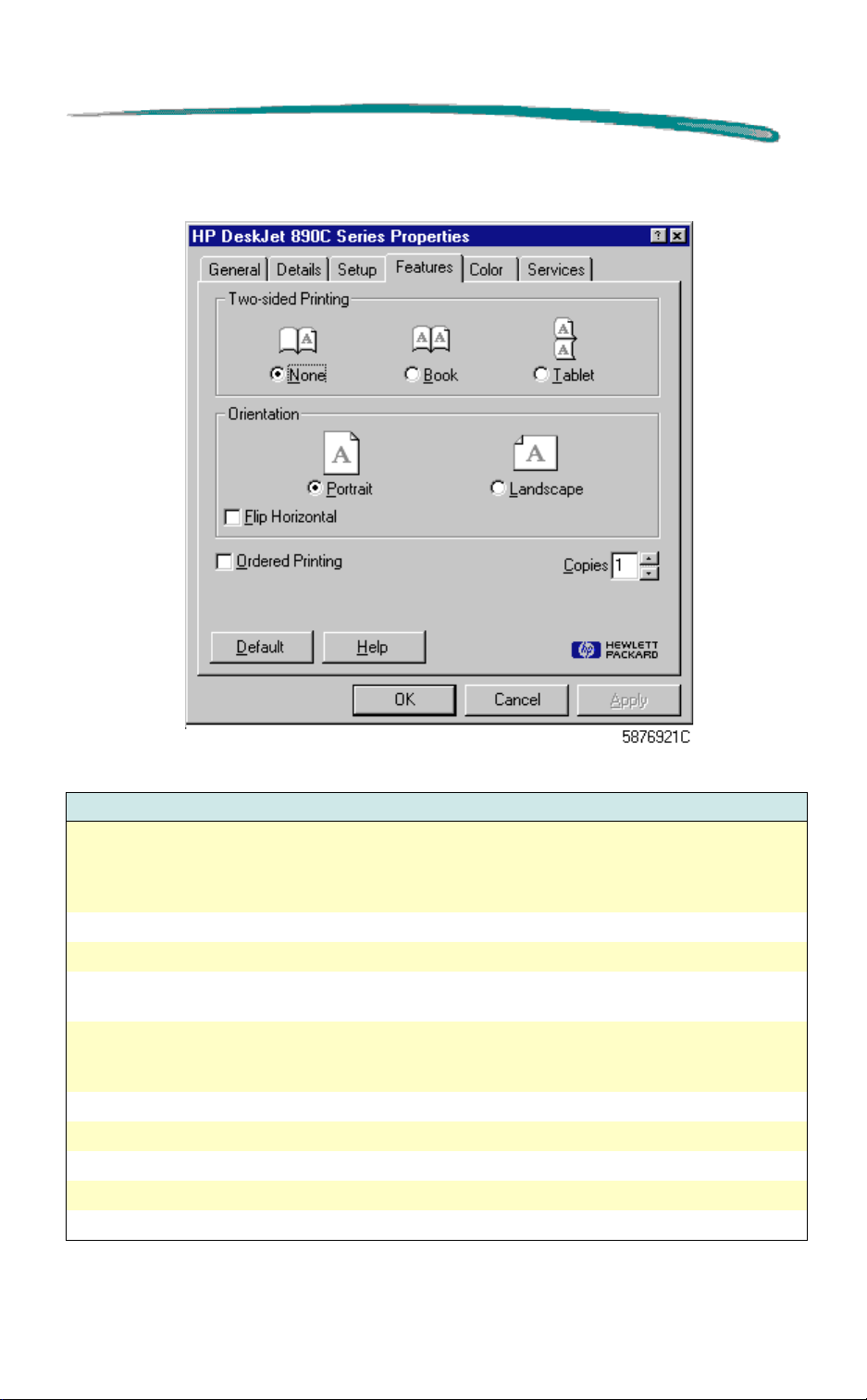
Features Property Page
Features Property Page Options
Option Description
Two-Sided (Manual
Duplex) Printing
Orientation Choose portrait or landscape.
Flip Horizontal Allows you to reverse the printout horizontally.
Ordered Printing Prints in reverse order (last page first). Collates pages when printing
Copies Allows selection of multiple copies. (Do not change this setting unless
Default Reverts to the default settings for the printer.
Help Opens the on-line help.
OK Closes this dialog box and saves any changes made.
Cancel Closes this dialog box and cancels any changes made.
Apply Changes the default settings without closing the window.
Allows you to manually print both sides of plain paper to economize and
help conserve resources. Allows you to select the two-sided mode you
prefer: None, Book or Tablet. For more information about two-sided
printing, see below.
multiple copies.
you want multiple copies all the time. Generally, specify the number of
copies required from within your application.)
Page 12

HP DeskJet 890C Series Printers MS Windows Printing
Two-Sided Printing (Manual Duplex)
The printer driver can be set to print both sides of plain paper to print books
or tablets (or economize and help conserve resources).
Note
Two-Sided Printing Procedure:
1. Select
2. Select either
3. Make sure that the IN tray contains enough paper to print the
4. Start printing your document by clicking
5. After the printer finishes printing the odd-numbered pages,
6. Restart the printer by clicking the
Two-sided printing is available for all sizes of paper. However,
you cannot use two-sided printing on envelopes,
transparencies, labels, photo paper or premium paper.
Two-Sided Printing
Book
document and remove any paper from the OUT tray.
odd-numbered pages print first. Do not remove any pages until
instructed to do so.
instructions for printing the even-numbered pages appear on screen.
Follow the instructions on the screen.
message. Observe that the even-numbered pages begin printing on
the back of the previously printed odd-numbered pages.
or
Tablet
from the Features tab.
and then click OK.
Print
. Observe that the
Continue
button on the computer
Note
7. After you have finished, be sure to change the Two-sided Printing
Do not click the
odd-numbered pages in the IN tray.
option back to
Continue
None
in HP’s print settings dialog box.
button until you have positioned the
Page 13

HP DeskJet 890C Series Printers MS Windows Printing
Flip Horizontal (Mirror Image) Printing
Use this feature to print a laterally inverted image of the page.
Note
Flip Horizontal Printing Procedure
1. In the HP print settings box, click the
2. Insert the paper you want to use (iron-on transfer paper, HP
3. Print your document.
4. Reset the HP print settings dialog box when finished.
If transparencies are to be written on during presentations, use
this feature. The print side will be facing down when the
transparency is projected. The top side of the transparency
can be written on and cleaned off without damaging the printed
side.
Features
Horizontal
Transparency Film, etc.) into the printer with the side to be printed
facing down.
check box, and then click OK.
tab, click the
Flip
Page 14
HP DeskJet 890C Series Printers MS Windows Printing
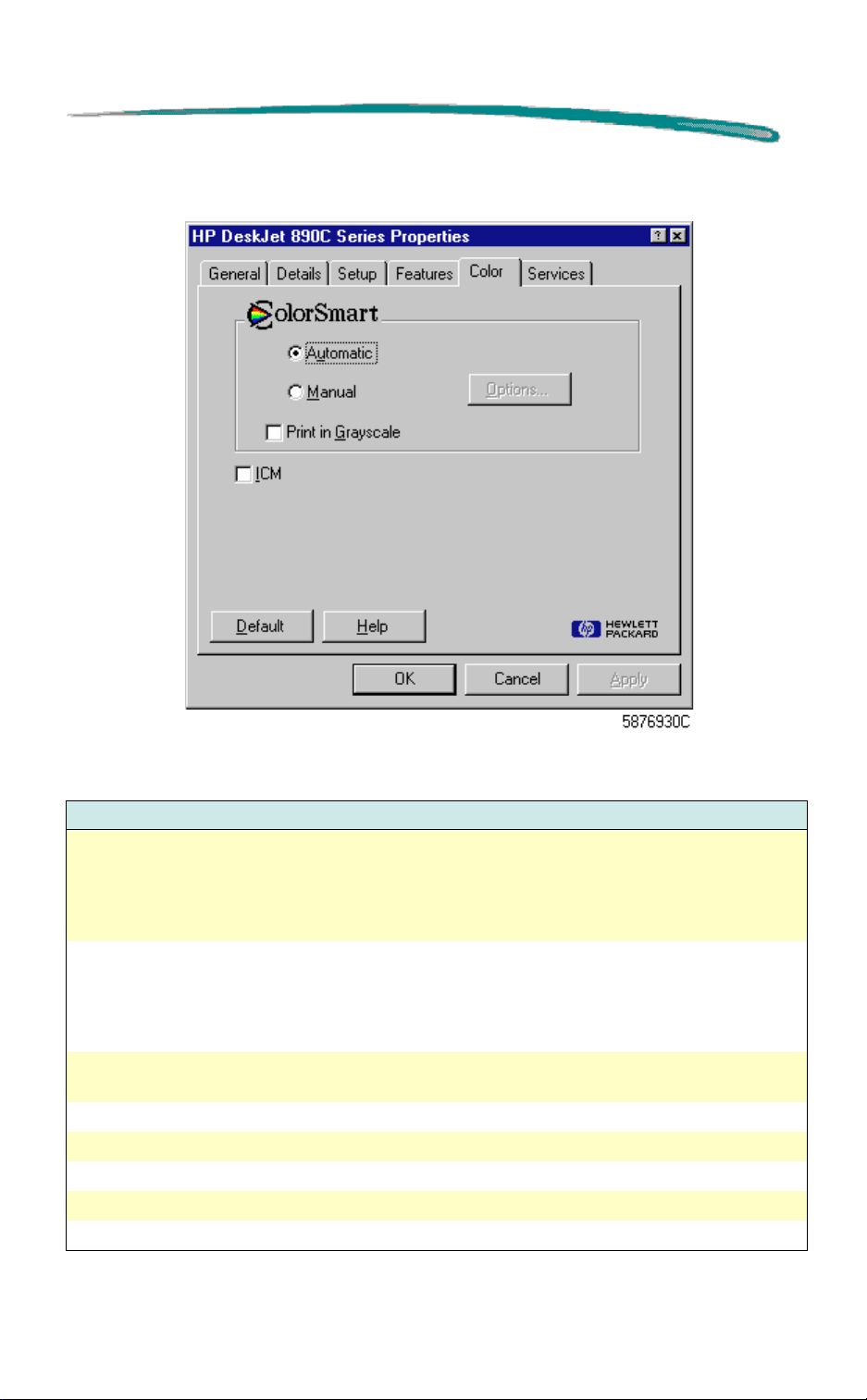
Color Property Page
Color Property Page Options
Option Description
ColorSmart (see
ColorSmart:
Automatic vs.
Manual Printing
below)
Print In Grayscale
(see Grayscale
Printing which
follows)
ICM (Image Color
Matching)
Default Reverts to the default settings for the printer.
Help Opens the on-line help.
OK Closes this dialog box and saves any changes made.
Cancel Closes this dialog box and cancels any changes made.
Apply Changes the default settings without closing the window.
Permits selection of Automatic or Manual screen-to-printer color
mapping. Automatic (recommended) selects the best Halftoning,
Intensity and Color Control settings for all areas of your document.
Selecting Manual permits opening the Options dialog box which provides
adjustments for Intensity and Halftoning.
Allows printing different colors as shades of gray in Automatic
(recommended) or Manual modes. Selecting Manual permits opening
the Options dialog box to adjust for Intensity and Halftoning. The
Grayscale mode may be used to produce photocopying documents or to
save the color cartridge when printing draft copies.
Improves consistency between the printer and other color devices
connected to your system.
Page 15
HP DeskJet 890C Series Printers MS Windows Printing
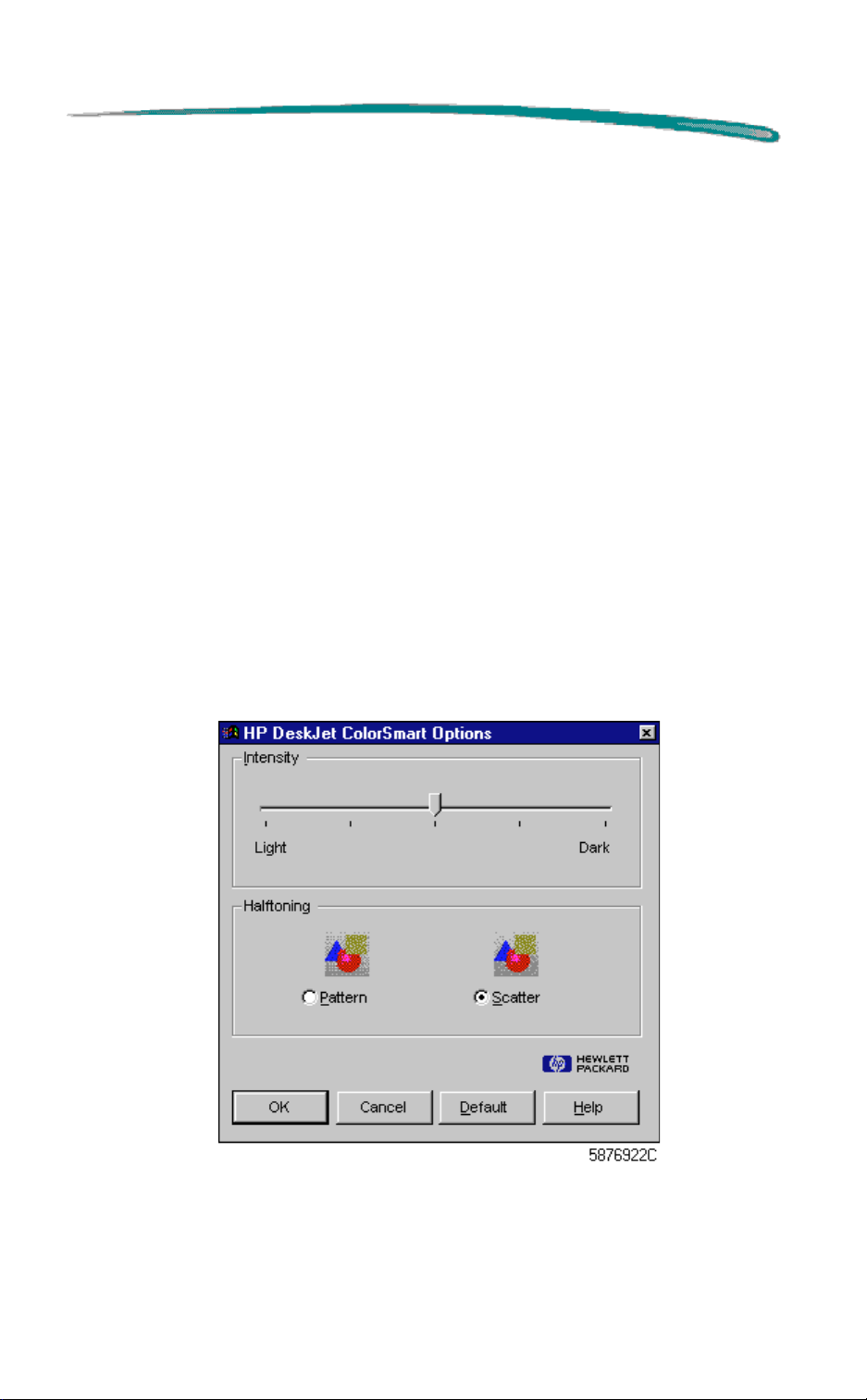
ColorSmart: Automatic vs. Manual Printing
In most cases the best print output is obtained by choosing Automatic
printing. In Automatic mode, the printer driver analyzes each element in a
document to provide the best color output.
If the color output obtained using the Automatic option is not satisfactory,
use the Manual option. The Manual ColorSmart Options dialog box provides
control over Intensity and Halftoning.
The Intensity slider bar adjusts the amount of ink applied to the media. Dark
means more ink and Light means less ink.
Halftoning describes how the driver places individual drops of ink on the
page to reproduce different shades of the same color. Scatter halftoning is
slower than pattern halftoning, but gives the best results in complex color
documents and photos. Pattern halftoning applies different patterns of dots
for different color shades and is best used for solid areas of color such as
bar charts.
ColorSmart Options Property Page
Page 16
HP DeskJet 890C Series Printers MS Windows Printing
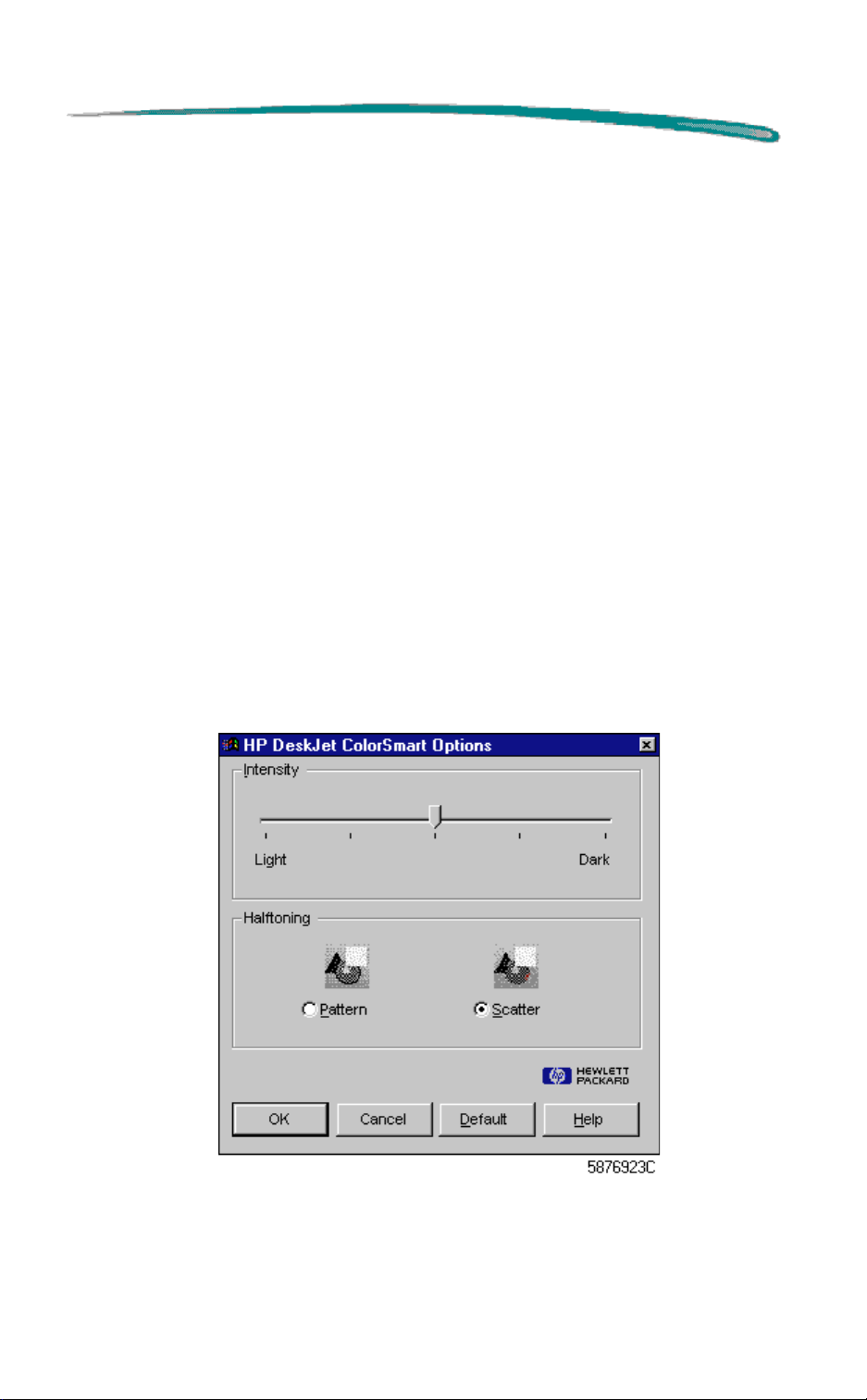
Grayscale Printing
ColorSmart also allows printing color documents in monochrome with
discernible shades of gray. Pages with grayscale images can be
photocopied or faxed on a monochrome device and retain their full meaning
and impact.
Grayscale printing saves color ink and is ideal for printing draft copies.
To print in grayscale, select the
dialog box.
The Intensity slider bar adjusts the amount of ink applied to the media. Dark
means more ink and Light means less ink.
Halftoning describes how the driver places individual drops of ink on the
page to reproduce different shades. Scatter halftoning is slower than pattern
halftoning, but gives the best results in complex documents and photos.
Pattern halftoning applies different patterns of dots for different shades and
is best used for solid areas such as bar charts.
Grayscale Options Property Page
Print in Grayscale
option in the ColorSmart
Page 17
HP DeskJet 890C Series Printers MS Windows Printing
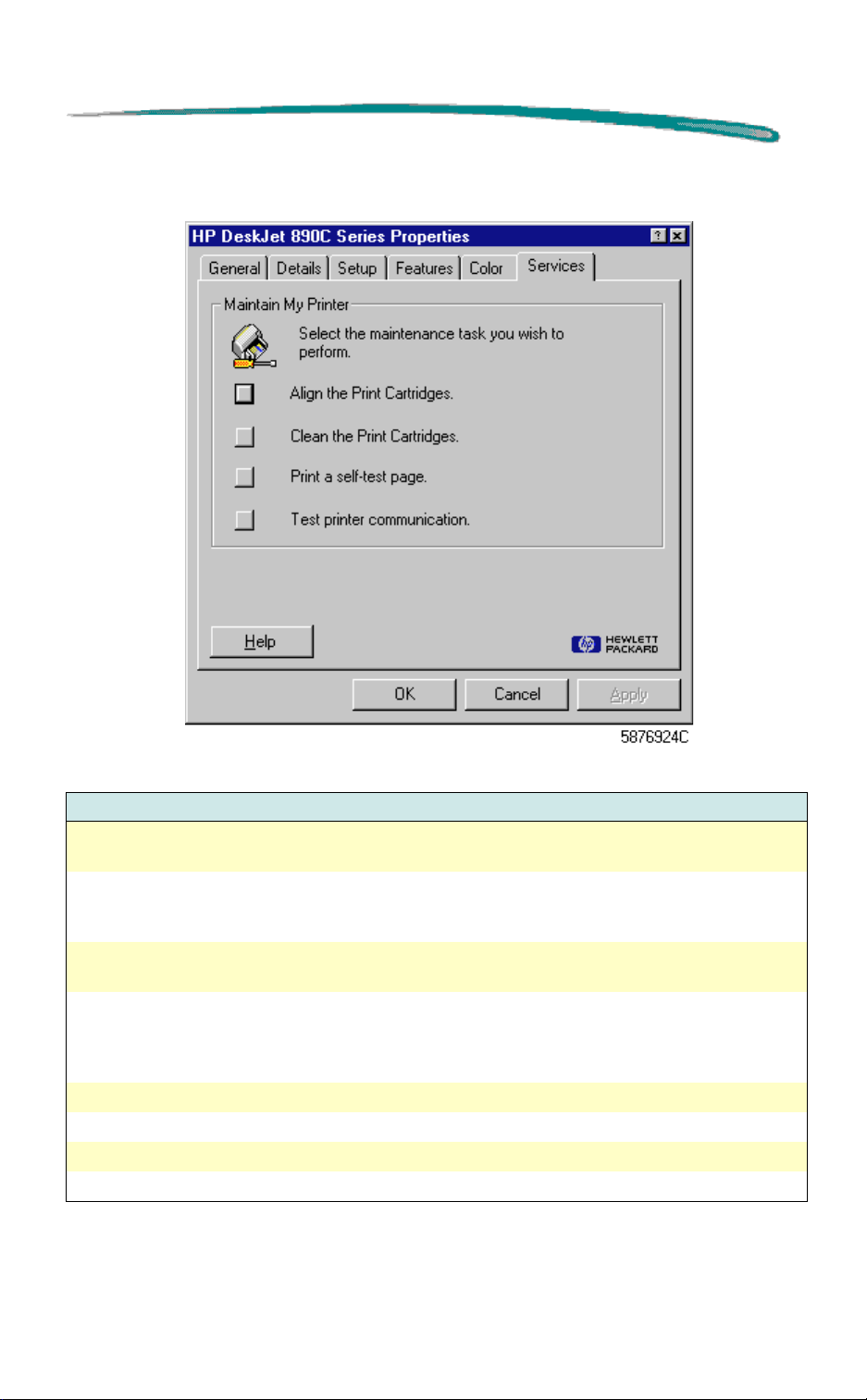
Services Page
Services Page Options
Option Description
Align the Print
Cartridges
Clean the Print
Cartridges
Print a self-test
page
Test printer
communication
Help Opens the on-line help.
OK Closes this dialog box and saves any changes made.
Cancel Closes this dialog box and cancels any changes made.
Apply Changes the default settings without closing the window.
Initializes the routine that aligns the print cartridges. Follow the on-screen
instructions.
Initializes the routine that cleans the print cartridges. Use only if print
cartridges are not functioning correctly. This routine uses a great deal of
ink. Follow the on-screen instructions.
Initializes the routine that prints a test page. Use this function to verify
the connection between your computer and the printer.
This procedure test the communication between the computer and the
printer. Verify the printer is on, and the printer cable is connected before
beginning the test. This test takes up to 3 minutes. An on-screen
message appears giving status information. No printout is involved.
Page 18
HP DeskJet 890C Series Printers MS Windows Printing
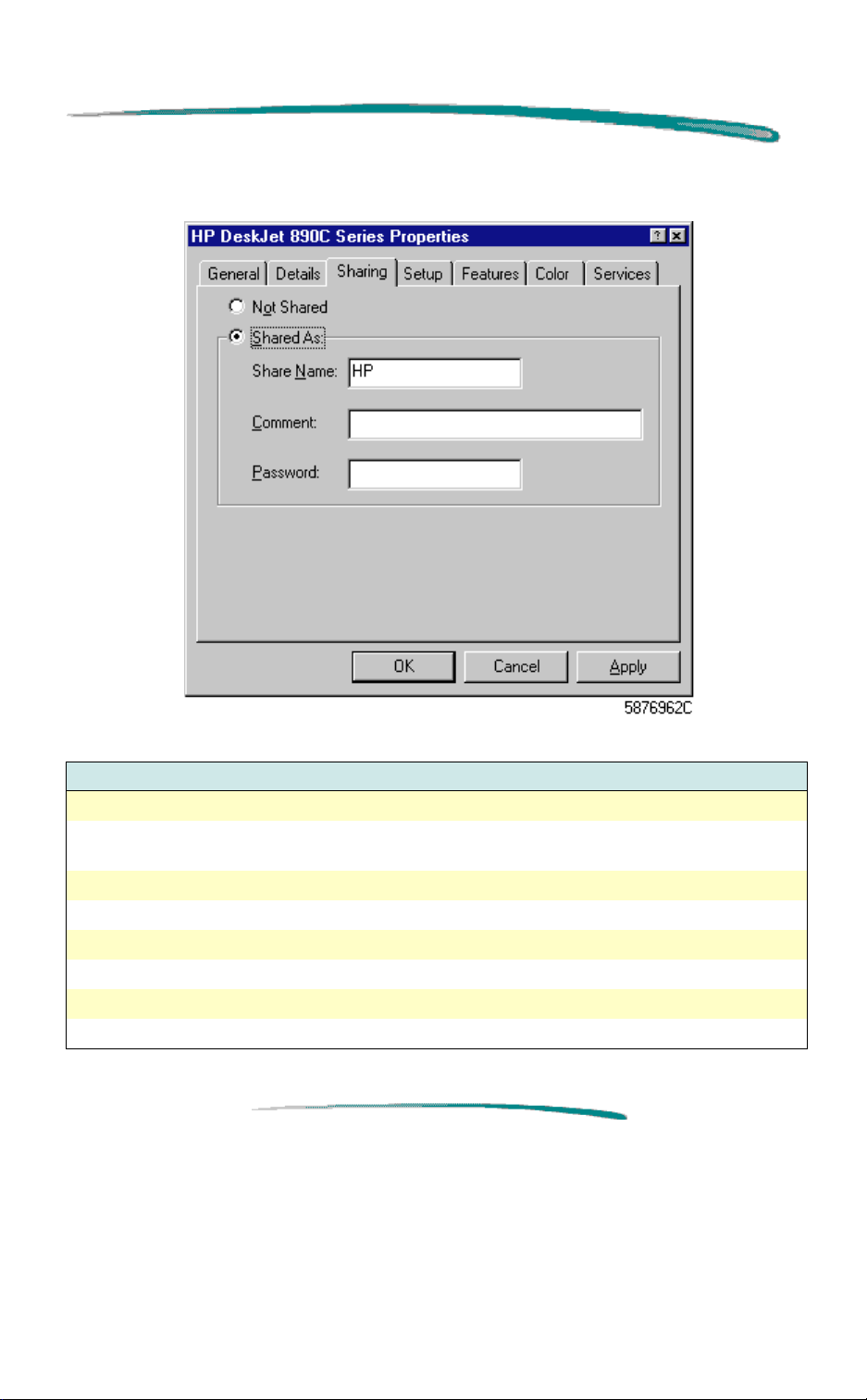
Sharing Page
Sharing Page Options
Option Description
Not Shared Disables printer sharing
Shared As: Enables printer sharing and allows access to Share Name, Comment,
and Password fields.
Share Name: Contains the shared printer’s name
Comment: User’s comment field.
Password: Shows password if password protection has been enabled.
OK Closes this dialog box and saves any changes made.
Cancel Closes this dialog box and cancels any changes made.
Apply Changes the default settings without closing the window.
Page 19

HP DeskJet 890C Series Printers MS Windows NT Printing
MS Windows NT Printing
Printer Driver Contents
HP DeskJet 890C Series printer driver for MS Windows NT 4.0
HP DeskJet 890C Toolbox
How do I? (on-screen procedures to help user’s use and
maintain their printers)
Troubleshooting
Printer Services (Maintenance and Status)
TrueType Fonts
Release Notes
Additional information about the HP DeskJet 890C Series Toolbox is found
at the end of this section.
Printer Driver Features
HP DeskJet 890C series printer drivers provide access to all the capabilities
of the HP DeskJet 890C printer. The following options are available from the
printer driver:
Automatic or Manual printing
Color or Grayscale printing (Automatic or Manual)
Best, Normal, or EconoFast print quality
Paper Type (including HP’s special papers)
Paper Size
Number of Copies
Portrait or Landscape print orientation
Connect the printer to a network
Page 20

HP DeskJet 890C Series Printers MS Windows NT Printing
Printer Driver Installation
Before installing the printer driver:
1. Make sure your computer is fully operational.
2.Check that the printer is properly set up and ready to print.
3.Make sure the printer is directly connected to the computer (remove any
switch boxes or other devices using the same port). Check that all cable
connections are firm.
4. Make sure the computer and printer are turned on.
5.Using the instructions below, close any screen savers, virus protection
programs or other software programs that are running on your computer.
Closing programs in Windows NT 4.0
Caution
a. On the Keyboard press Ctrl + Alt + Del
b. Press Task Manager (verify you are on the Applications tab)
c. Highlight any program in the list and choose End Task.
d. Repeat steps a and b until all programs are closed.
e. Once the Task Manager is empty, close the Task Manager.
Depending upon the configuration of your computer, items
other than application items may be in the Task Manager and
not
may
to shut down actually belong to the types of applications
mentioned above.
need to be shut down. Verify that the items you plan
Page 21

HP DeskJet 890C Series Printers MS Windows NT Printing
Printer Driver Installation Procedure:
Note
If a message comes up before or during installation that says
“New Hardware Found,“ choose “Do not install a driver
(Windows will not prompt you again)” and click OK.
1.Insert the CD-ROM disk into your computer’s CD-ROM drive.
The installation program will start automatically. Follow the instructions on
screen.
2.If the program does not start automatically, click
then click
Run
.
Start
on the task bar and
3.Type the letter of the computer’s CD ROM drive followed by a colon
(usually D:), type
SETUP
, and click OK.
4. Follow the directions on computer screen
If you are not sure how to answer a question that appears on the screen,
just press
ENTER
to accept the default settings.
5.During the installation, you are required to restart Windows. When the
installation is complete, take the CD-ROM disk out of the computer’s CDROM drive.
6.Put the CD in its case and store in a cool dry place.
Page 22

HP DeskJet 890C Series Printers MS Windows NT Printing
Configuring the Printer Driver
Note
The steps required to access the print menu for configuring vary with the
application. Generally, the printer driver is accessed from the “File, Print” or
”File, Print Setup” in the software program.
Accessing the printer driver through the application allows you to:
Although the Printers folder provides access to various printer settings, like
paper type and page orientation, these settings may be overridden by
settings made from the print menu in the application. The Printers folder
settings are normally used when an application does not specify certain
settings.
Only a printer driver designated “890C” should be used with
HP DeskJet 890C Series printers in MS Windows NT
applications. Other HP DeskJet printer drivers should not be
used.
Select the default printer from the list of available printer drivers
Set various printer options
Page 23
HP DeskJet 890C Series Printers MS Windows NT Printing
The HP DeskJet 890C Series Default and Properties
Dialog Boxes
The HP Printer Default
tabs: Setup, Features, Color, and Services which are described below.
Settings made in the Default dialog box change the settings for the current
document and all subsequent documents.
Settings made in the Properties dialog box change the settings for the
current document only.
Note
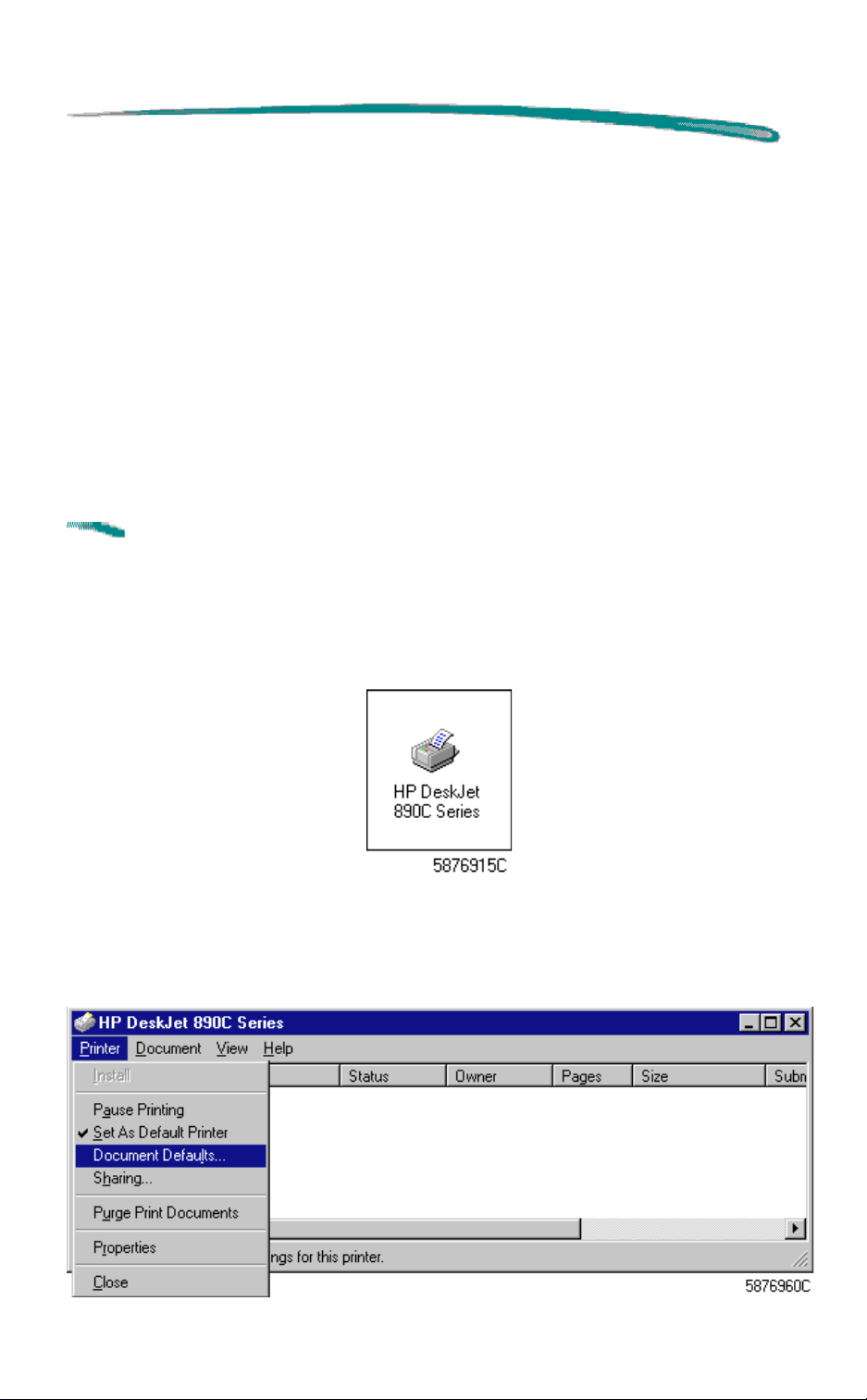
To open the HP DeskJet 890C Series Default dialog box:
1. From the
2. Double-click the
Do not confuse Printer Properties described in this section with
NT Properties described in the following section.
Start
button on the task bar, select
and
Properties dialog boxes have the same four
Settings
HP DeskJet 890C Series Printer
Printers.
, then
icon as shown:
3.From the HP DeskJet 890C Series dialog box, select
Document Defaults
DeskJet 890C Series Default.
. The header bar for the dialog box will read HP
Printer
, then
Page 24

HP DeskJet 890C Series Printers MS Windows NT Printing
To open the HP DeskJet 890C Series Properties dialog box:
1. From within the application, choose “Print” or “Print Setup” (varies with the
application)
2. When the Print menu opens, click the Properties button. The header bar
for the dialog box will read HP DeskJet 890C Series Properties.
Note
The header bars in the next few screens read:
890C Series Default/Properties
and their descriptions apply to
to illustrate that the menus
both
the Default and the
HP DeskJet
Properties dialog boxes. The header bars do not appear this
way normally.
Page 25
HP DeskJet 890C Series Printers MS Windows NT Printing
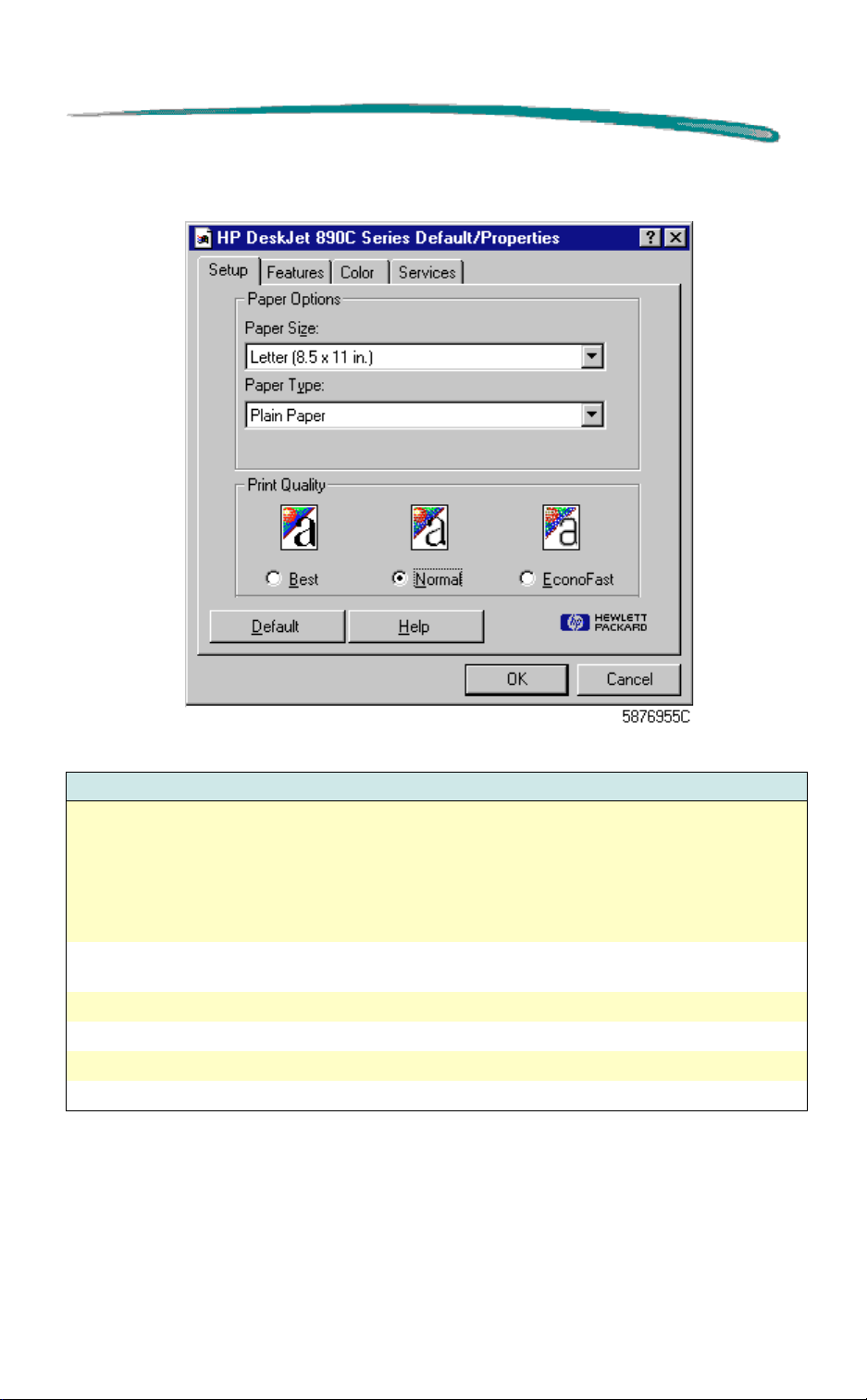
Setup Property Page
Setup Property Page Options
Option Description
Paper Options Paper Size: Allows selection from numerous paper sizes. To use a paper
size not listed, select Custom.
Paper Type: Allows you to specify the type of paper upon which you
intend to print. (Lets the printer decide which print quality settings to use
to give you the best results…although these settings can be manually
overridden.)
Print Quality Best (presentation quality), Normal (letter quality), or EconoFast (draft
quality).
Default Reverts to the default settings for the printer.
Help Opens the on-line help.
OK Closes this dialog box and saves any changes made.
Cancel Closes this dialog box and cancels any changes made.
Page 26
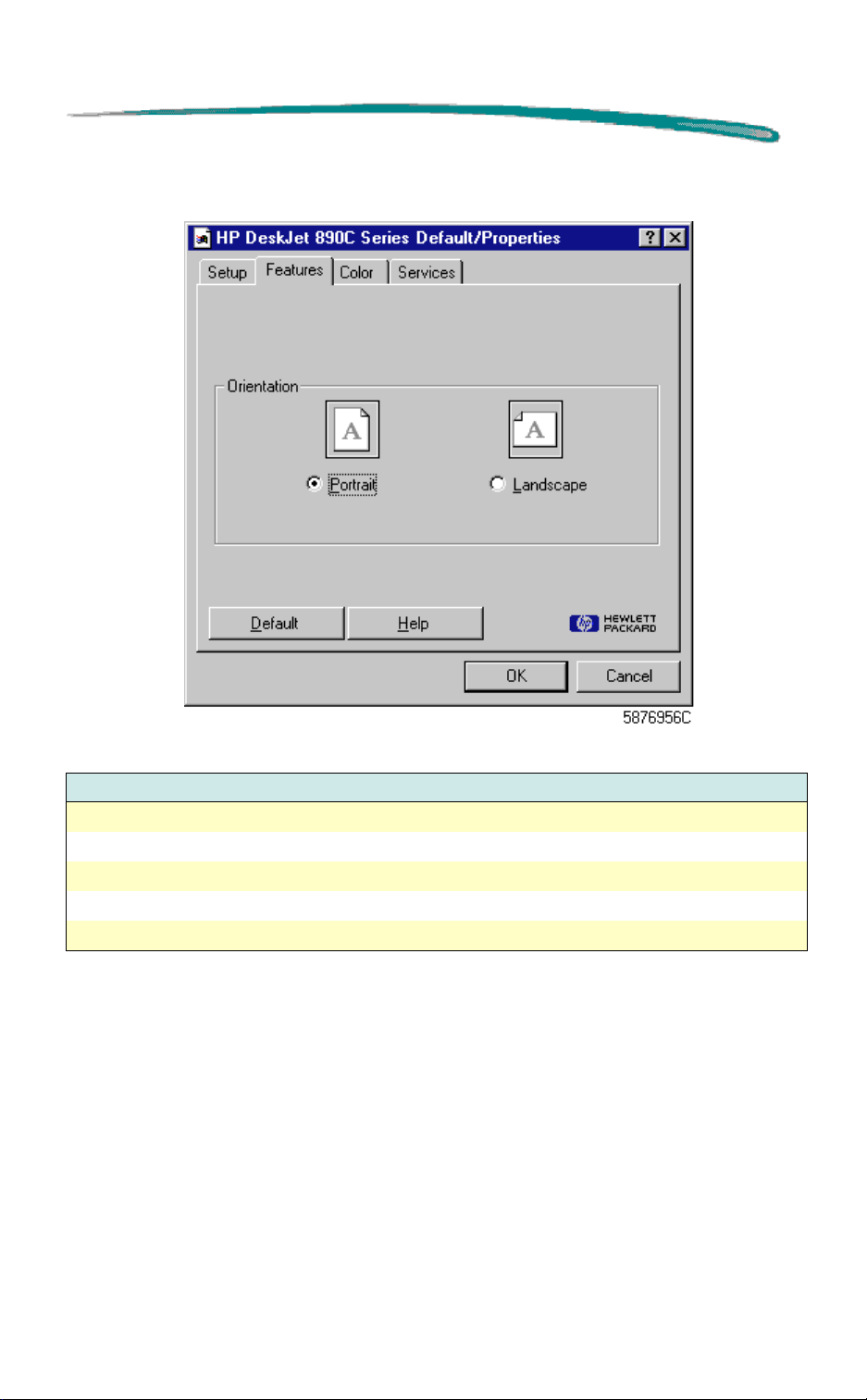
HP DeskJet 890C Series Printers MS Windows NT Printing
Features Property Page
Features Property Page Options
Option Description
Orientation Choose portrait or landscape.
Default Reverts to the default settings for the printer.
Help Opens the on-line HP DeskJet 820 Help.
OK Closes this dialog box and saves any changes made.
Cancel Closes this dialog box and cancels any changes made.
Page 27
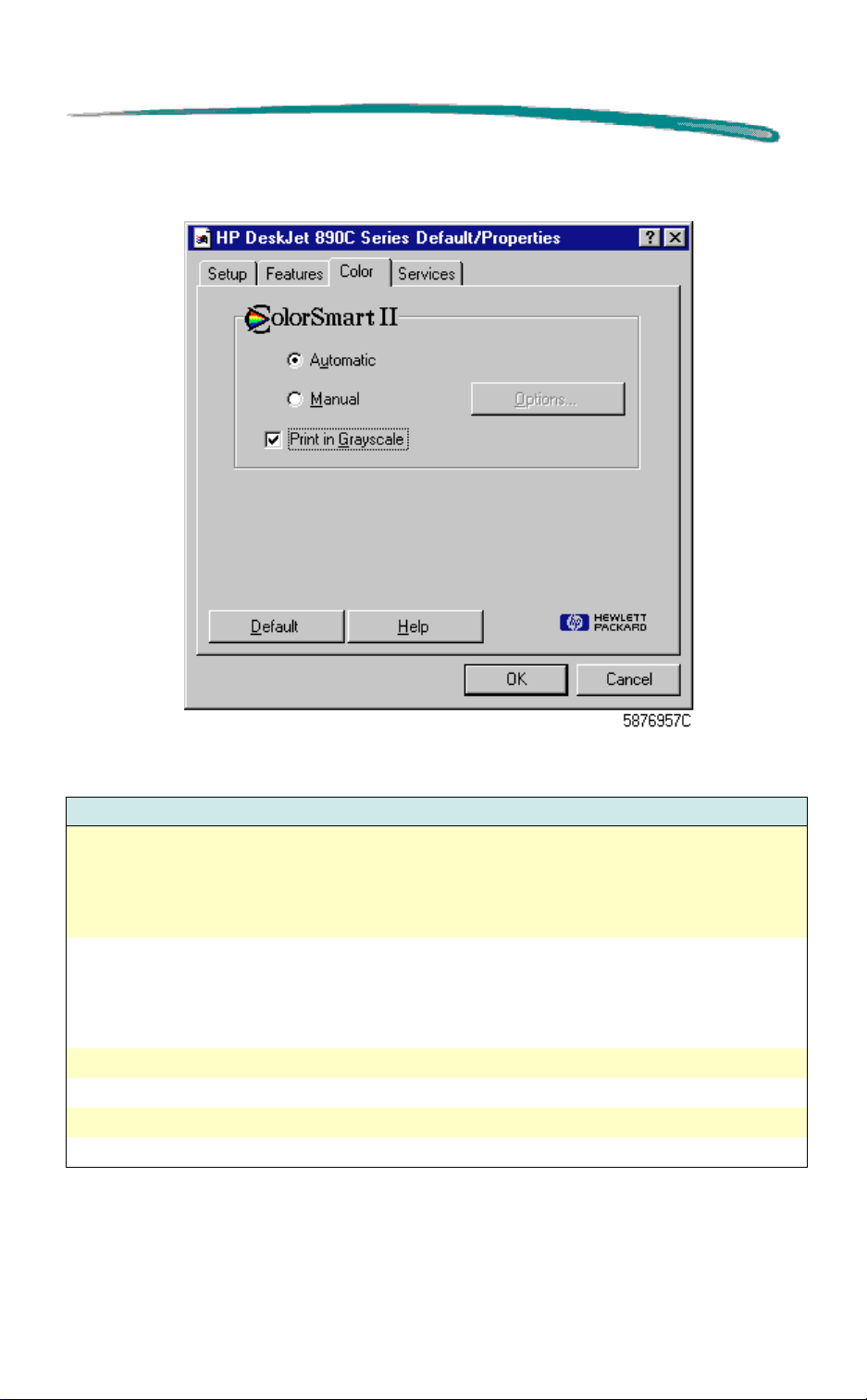
HP DeskJet 890C Series Printers MS Windows NT Printing
Color Property Page
Color Property Page Options
Option Description
ColorSmart (see
ColorSmart:
Automatic vs.
Manual Printing
below)
Print In Grayscale
(see Grayscale
Printing which
follows)
Default Reverts to the default settings for the printer.
Help Opens the on-line help.
OK Closes this dialog box and saves any changes made.
Cancel Closes this dialog box and cancels any changes made.
Permits selection of Automatic or Manual screen-to-printer color
mapping. Automatic (recommended) selects the best Halftoning,
Intensity and Color Control settings for all areas of your document.
Selecting Manual permits opening the Options dialog box which provides
Intensity adjustments.
Allows printing different colors as shades of gray in Automatic
(recommended) or Manual modes. Selecting Manual permits opening the
Options dialog box to adjust Intensity. The Grayscale mode may be used
to produce photocopying documents or to save the color cartridge when
printing draft copies.
Page 28
HP DeskJet 890C Series Printers MS Windows NT Printing
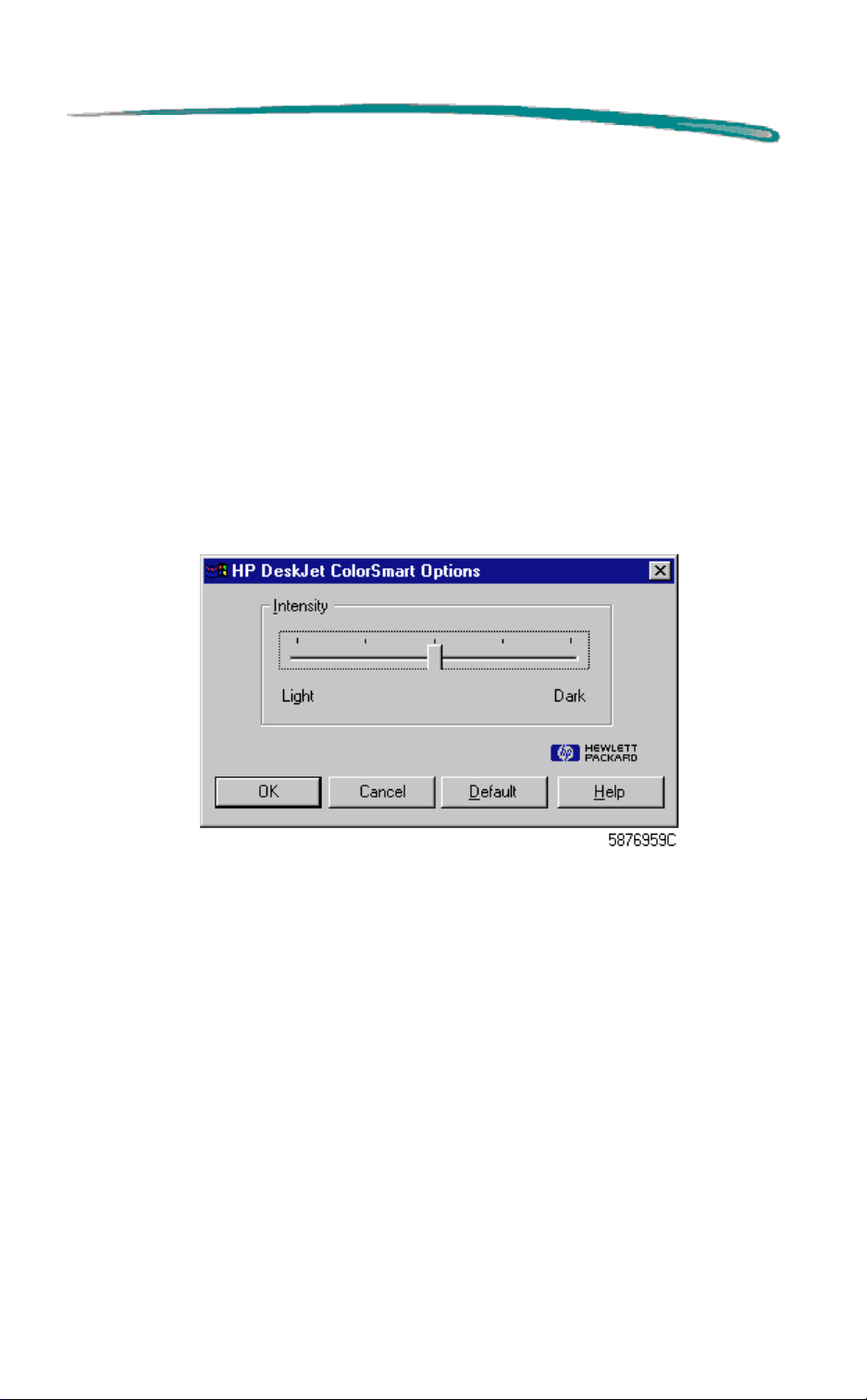
ColorSmart: Automatic vs. Manual Printing
In most cases the best print output is obtained by choosing Automatic
printing. In Automatic mode, the printer driver analyzes each element in a
document to provide the best color output.
If the color output obtained using the Automatic option is not satisfactory,
use the Manual option. The Manual ColorSmart Options dialog box provides
control over Intensity.
The Intensity slider bar adjusts the amount of ink applied to the media. Dark
means more ink and Light means less ink.
ColorSmart Options Property Page
Page 29
HP DeskJet 890C Series Printers MS Windows NT Printing
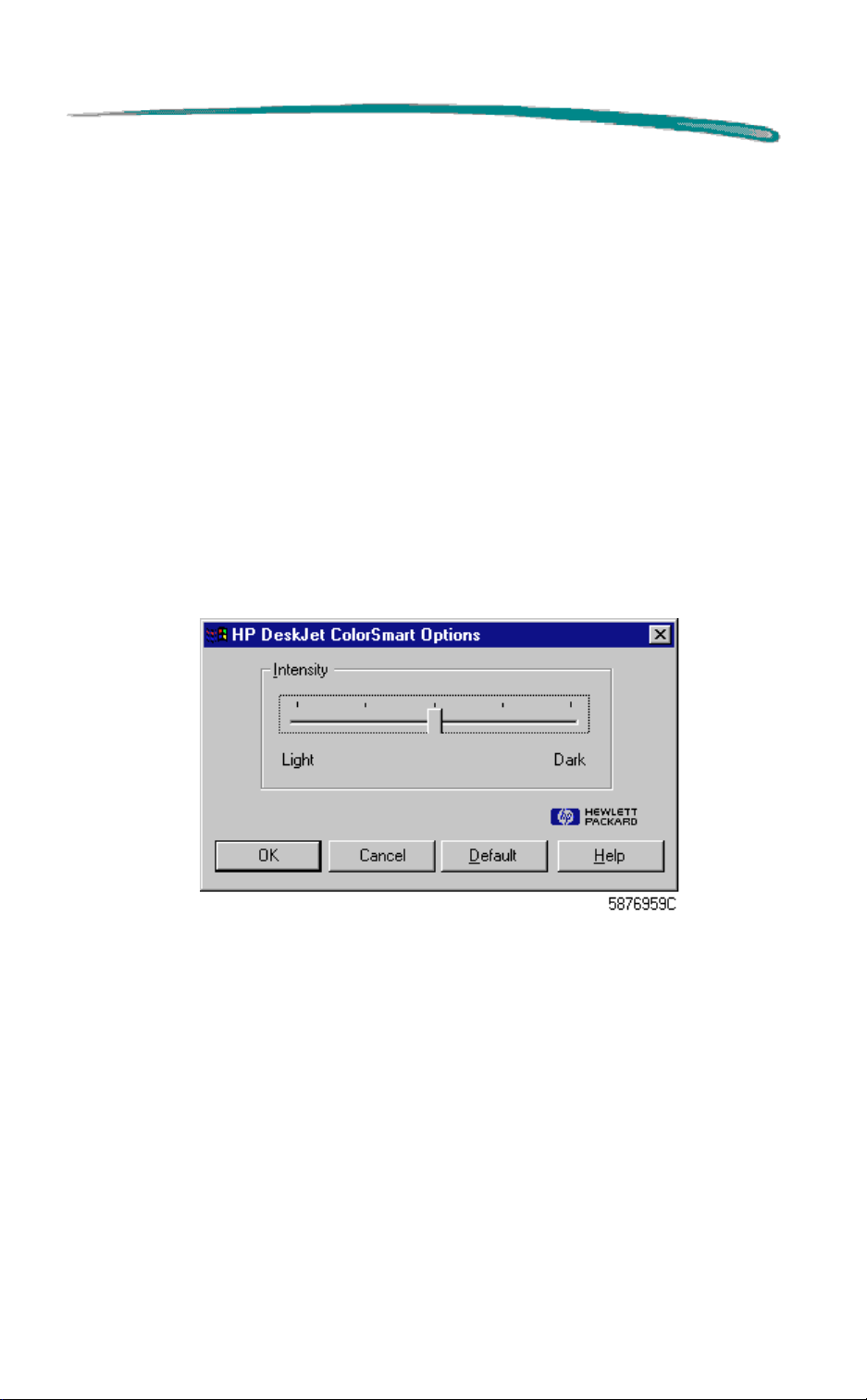
Grayscale Printing
ColorSmart also allows printing color documents in monochrome with
discernible shades of gray. Pages with grayscale images can be
photocopied or faxed on a monochrome device and retain their full meaning
and impact.
Grayscale printing may be faster than color printing and is ideal for printing
draft copies.
To print in grayscale, select the
dialog box.
The Intensity slider bar adjusts the amount of ink applied to the media. Dark
means more ink and Light means less ink.
Grayscale Options Property Page
Print in Grayscale
option in the ColorSmart
Page 30
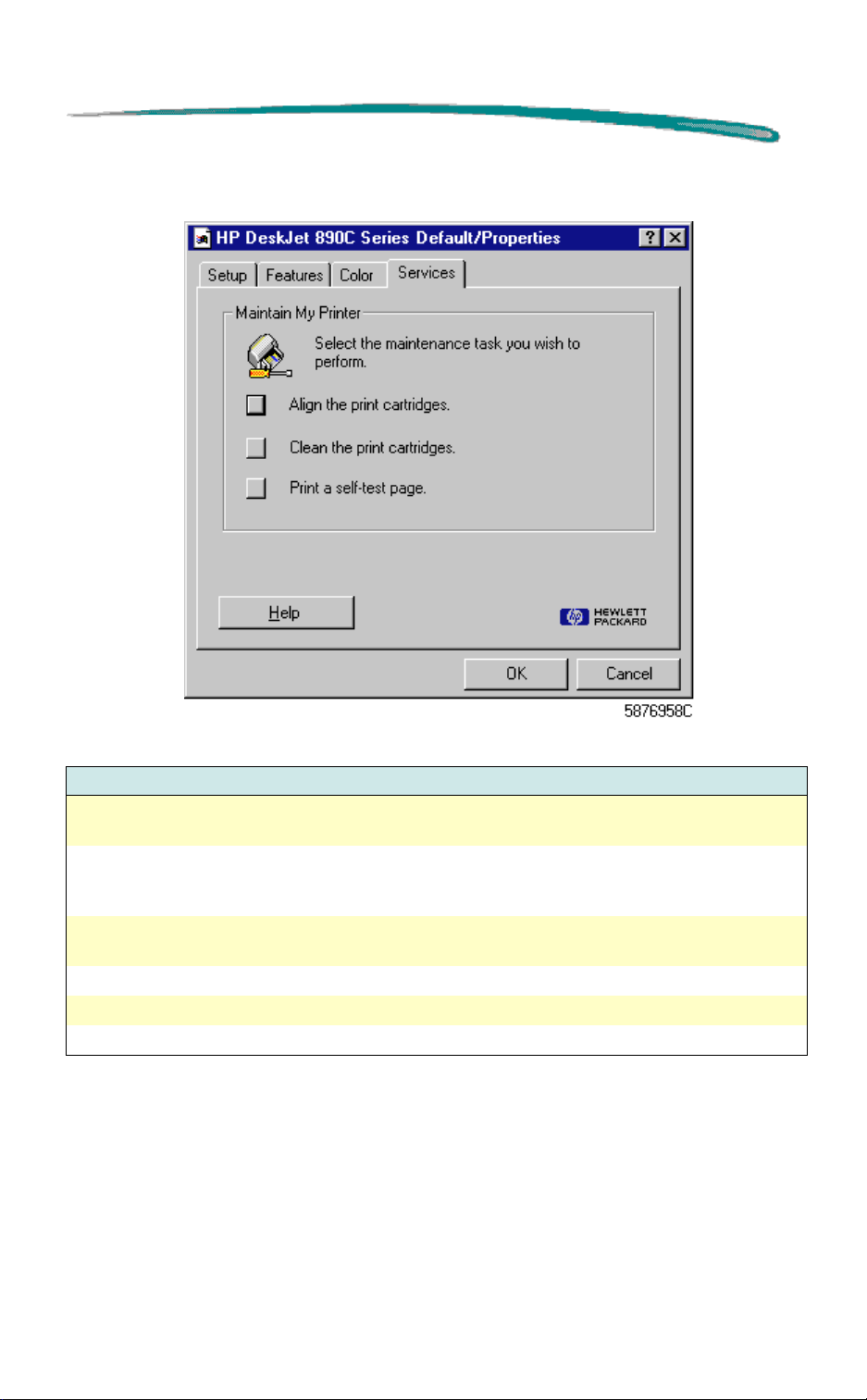
HP DeskJet 890C Series Printers MS Windows NT Printing
Services Page
Services Page Options
Option Description
Align the Print
Cartridges
Clean the Print
Cartridges
Print a self-test
page
Help Opens the on-line help.
OK Closes this dialog box and saves any changes made.
Cancel Closes this dialog box and cancels any changes made.
Initializes the routine that aligns the print cartridges. Follow the on-screen
instructions.
Initializes the routine that cleans the print cartridges. Use only if print
cartridges are not functioning correctly. This routine uses a great deal of
ink. Follow the on-screen instructions.
Initializes the routine that prints a test page. Use this function to verify
the connection between your computer and the printer.
Page 31
HP DeskJet 890C Series Printers MS Windows NT Printing
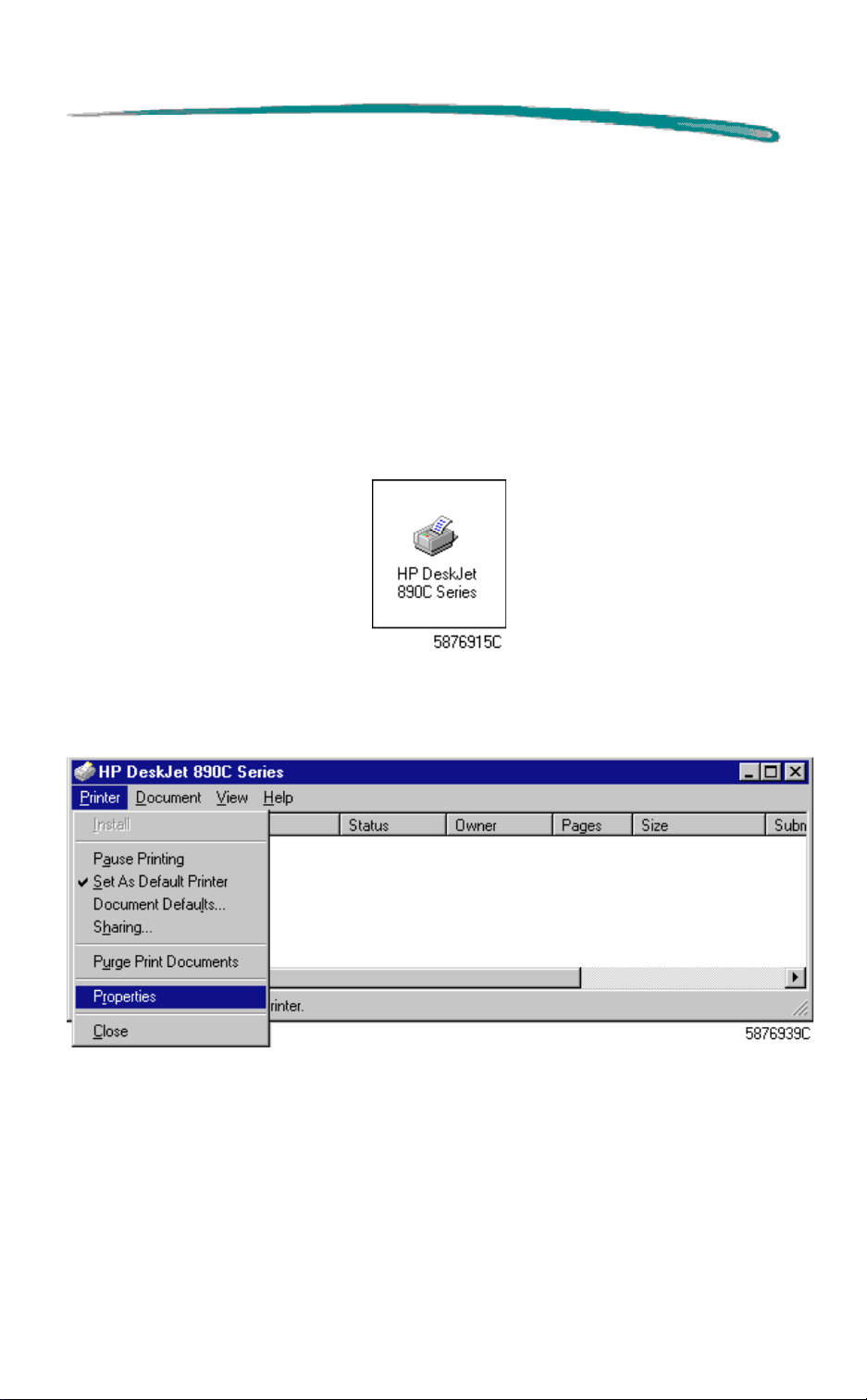
Windows NT Properties Dialog Box
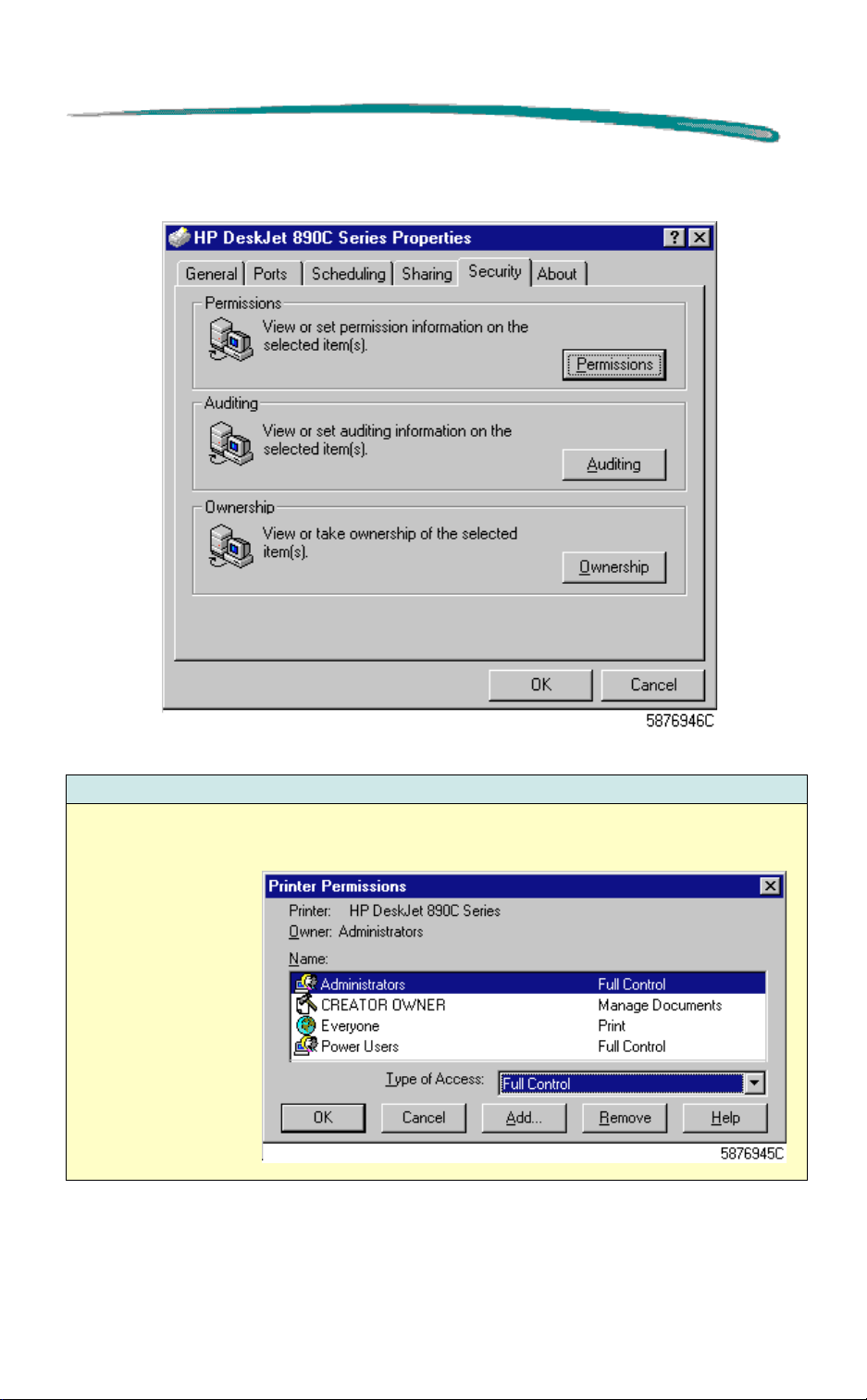
The Windows NT Properties dialog box has six tabs: General, Ports,
Scheduling, Sharing, Security, and About which are described below.
To open the Windows NT Properties Dialog Box:
1. From the
Printers
Start
.
button on the task bar, select
2. Double-click the
HP DeskJet 890C Series Printer
Settings
, then select
icon as shown.
4. From the HP DeskJet 890C Series Select dialog box, select
then select
Properties
.
Printer
,
5. Selecting
below.
Properties
reveals the Windows NT Properties dialog box shown
Page 32
HP DeskJet 890C Series Printers MS Windows NT Printing
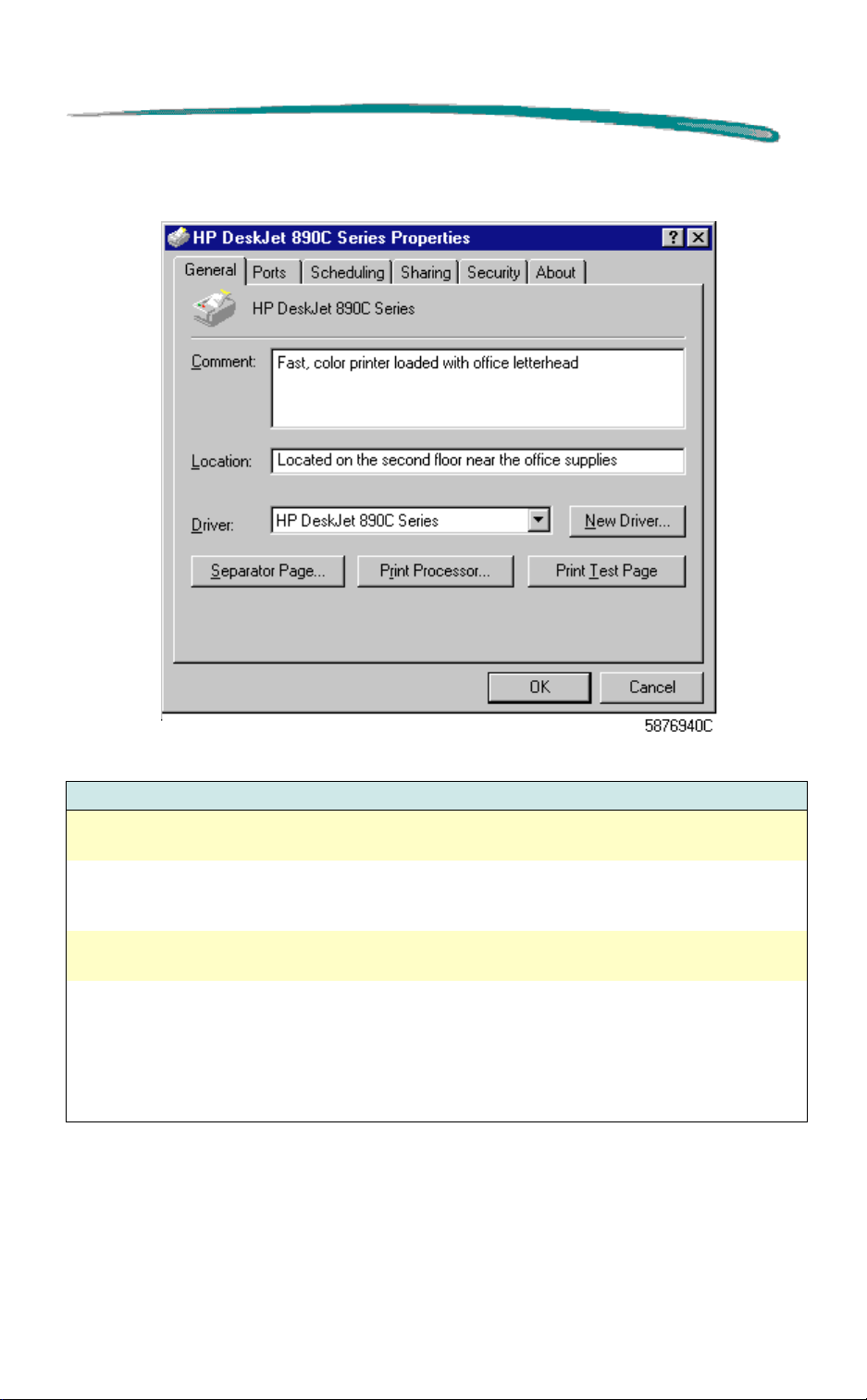
General Property Page
General Property Page Options
Option Description
Comment A user accessible field intended to contain the description of a shared
printer. For example: “Fast, color printer loaded with office letterhead.”
Location A second user-accessible field similar to the Comment field above.
Allows the user to specify the location of a shared printer. For example:
“Located on the second floor near the office supplies.”
Driver Shows the printer driver in use. Also allows selection of additional
printers if already installed.
New Driver
Continued on next page
Not
supported by this printer driver.
Allows the user to add or update printer drivers under certain
circumstances. This selection leads to Microsoft's Add Printer feature,
however, Add Printer is
and updated drivers is done by running setup.exe from the CD-ROM disk
instead.
not
supported by this driver. Installation of new
Page 33
HP DeskJet 890C Series Printers MS Windows NT Printing
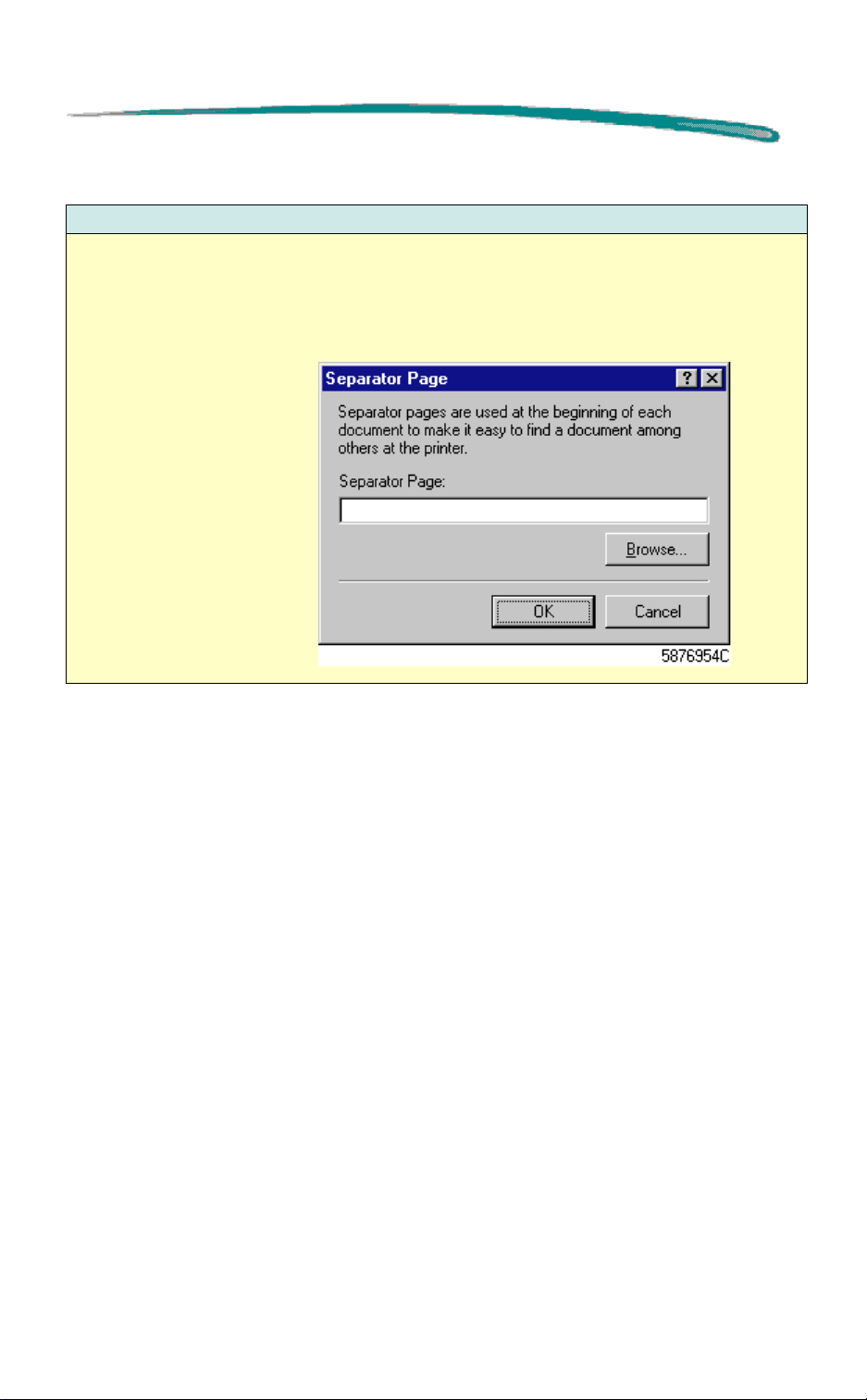
General Property Page Options (Cont.)
Option Description
Separator Page… Allows you to insert a separator page file between print jobs. You can
use a separator page to help users find a document among others at a
printer and switch between PostScript and PCL printing (PostScript is not
supported by this printer). Browse allows you to locate and specify the
separator page to be printed.
Continued on next page
Page 34
HP DeskJet 890C Series Printers MS Windows NT Printing
General Property Page Options (Cont.)
Option Description
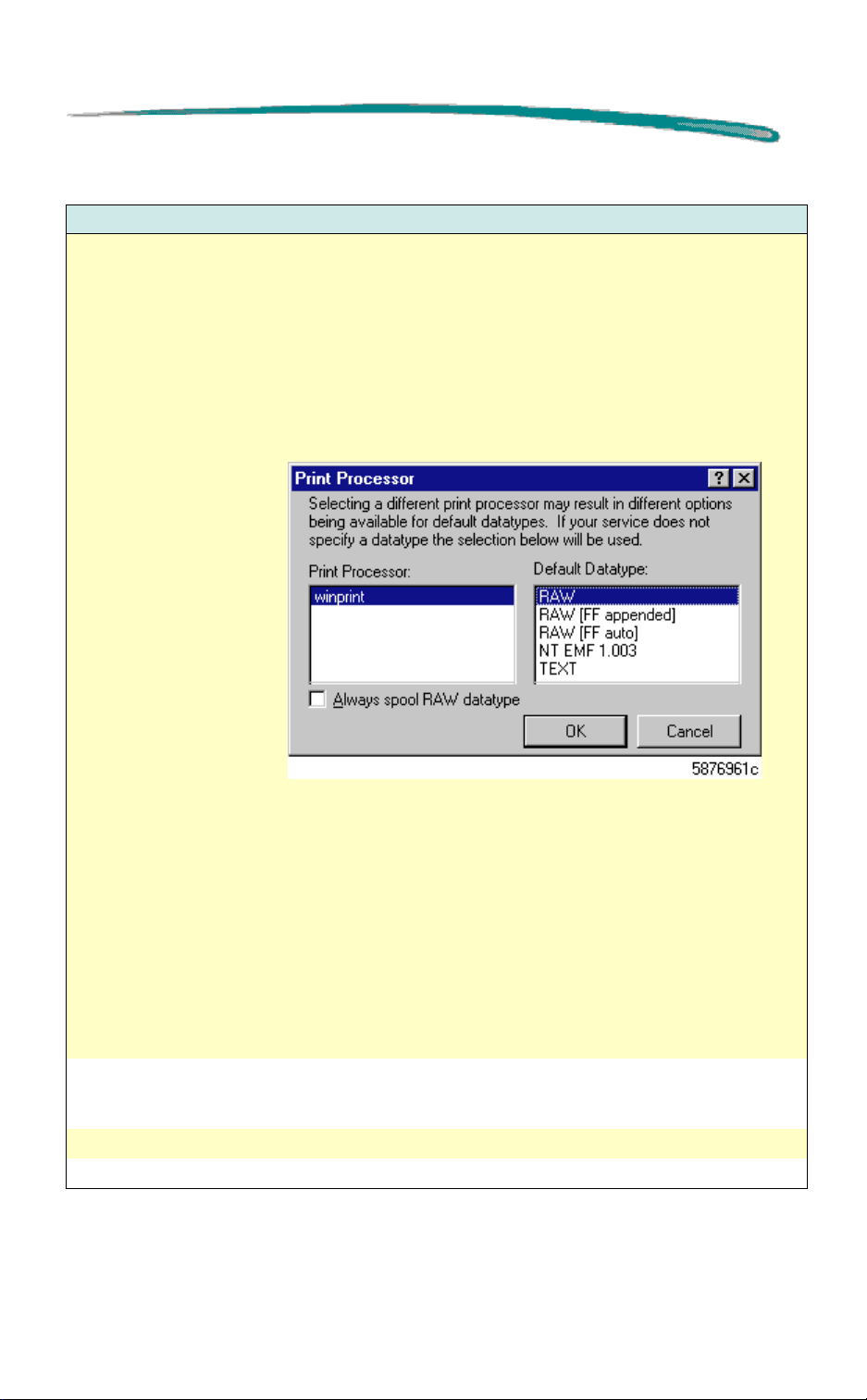
Print Processor… The Print Processor default datatype specifies how to interpret/process
the spool file if the spool file datatype is not specified. It does not specify
what type of spool file to create. In general, the user should
either the default print processor or the data type.
Important: The default for “Always spool RAW datatype” should
be checked.
If the user has attained an NT-to-NT configuration that allows rendering
on the server, the user should definitely
datatype," as it may turn off printing.
NOT
check "Always spool RAW
not
change
not
The standard NT print processors are used by this driver. Changing the
default datatype changes the type of data in the spool file. If the type of
data is RAW, the data is rendered before it is spooled, and the spool file
thus consists of a set of PCL or SCP commands. If the datatype is set to
EMF, the spool file consists of a set of drawing commands. The data is
not rendered until it is un-spooled.
The spooling time may increase when spool file is set to RAW because
the print job is passed to the printer driver to do the rendering, image
processing, and data encapsulation before writing to the spool file.
Generating an EMF spool file may be faster because GDI writes drawing
commands to file and the printer driver processing of the drawing
commands is deferred.
Print Test Page… Prints the Windows NT Printer Test Page. The test page briefly
demonstrates the ability of the printer to print graphics and text, as well
as providing technical information about the printer driver.
OK Closes this dialog box and saves any changes made.
Cancel Closes this dialog box and cancels any changes made.
Page 35
HP DeskJet 890C Series Printers MS Windows NT Printing
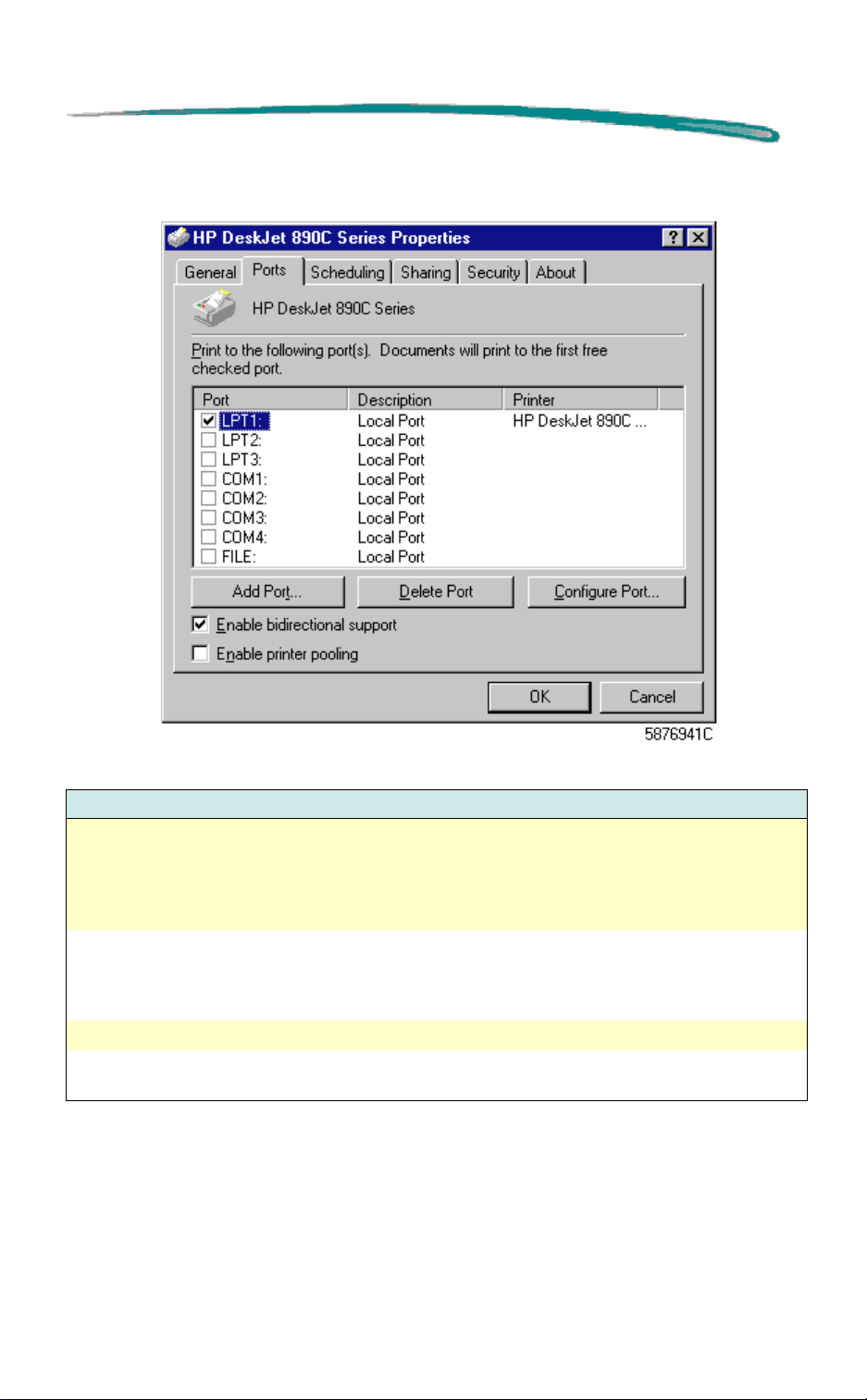
Ports Property Page
Ports Property Page Options
Option Description
Print to the
following port(s).
Document will print
to the first free
checked port.
Add Port… Allows the user to add printer ports if more than one printer is installed.
Delete Port… Allows the user to delete printer ports if more than one printer is installed.
Configure Port… Allows you to set the interval during which the driver will keep trying to
Continued on next page
The menu allows selection of printer ports. Multiple printer ports may be
assigned if your system supports this configuration, and the Enable
printer pooling box is checked..
To use, select
the name of the server followed by the name of the printer, such as
\\ComputerName\\PrinterName.
print to a specified port before trying the next specified port.
Add Port
, highlight
Local Port
, select
New Port
and type
Page 36

HP DeskJet 890C Series Printers MS Windows NT Printing
Ports Property Page Options (Cont.)
Option Description
Enable bidirectional support
Enable printer
pooling
OK Closes this dialog box and saves any changes made.
Cancel Closes this dialog box and cancels any changes made.
Important: The default "Enable Bidirectional Support” is to be
clicked on. HP strongly suggests that the user
This selection toggles between the HP I/O stack and the Microsoft io
stack. It does
the HP I/O stack. (It is unfortunate that the term bi-directional is used for
both…they are different issues.)
When this box is checked, the spooler sends the print job to the HP
language monitor/port monitor module. Whether or not bi-directional
communication is achieved depends upon other factors. When this box is
un-checked, the spooler sends the print job to the standard Microsoft
supplied port monitor and the Microsoft I/O kernel driver.
THIS WILL CAUSE TROUBLE
The Microsoft I/O kernel driver does not support bi-directional
communication at all, so there will be no status messages returned. In
addition, opening the printer cover during printing may cause printing to
cease, etc.
Enables more than one printer to be connected to the same host
computer (LPT1, LPT2, LPT3, etc.) and pooled.
Pooling means that a print job sent to the host computer will print on the
next available printer. If the printers are loaded with different media
types, for example, turning off the pooling feature enables print jobs to be
directed to the printer with the appropriate media type.
not
toggle between unidirectional and bi-directional within
not
turn this off.
Page 37
HP DeskJet 890C Series Printers MS Windows NT Printing
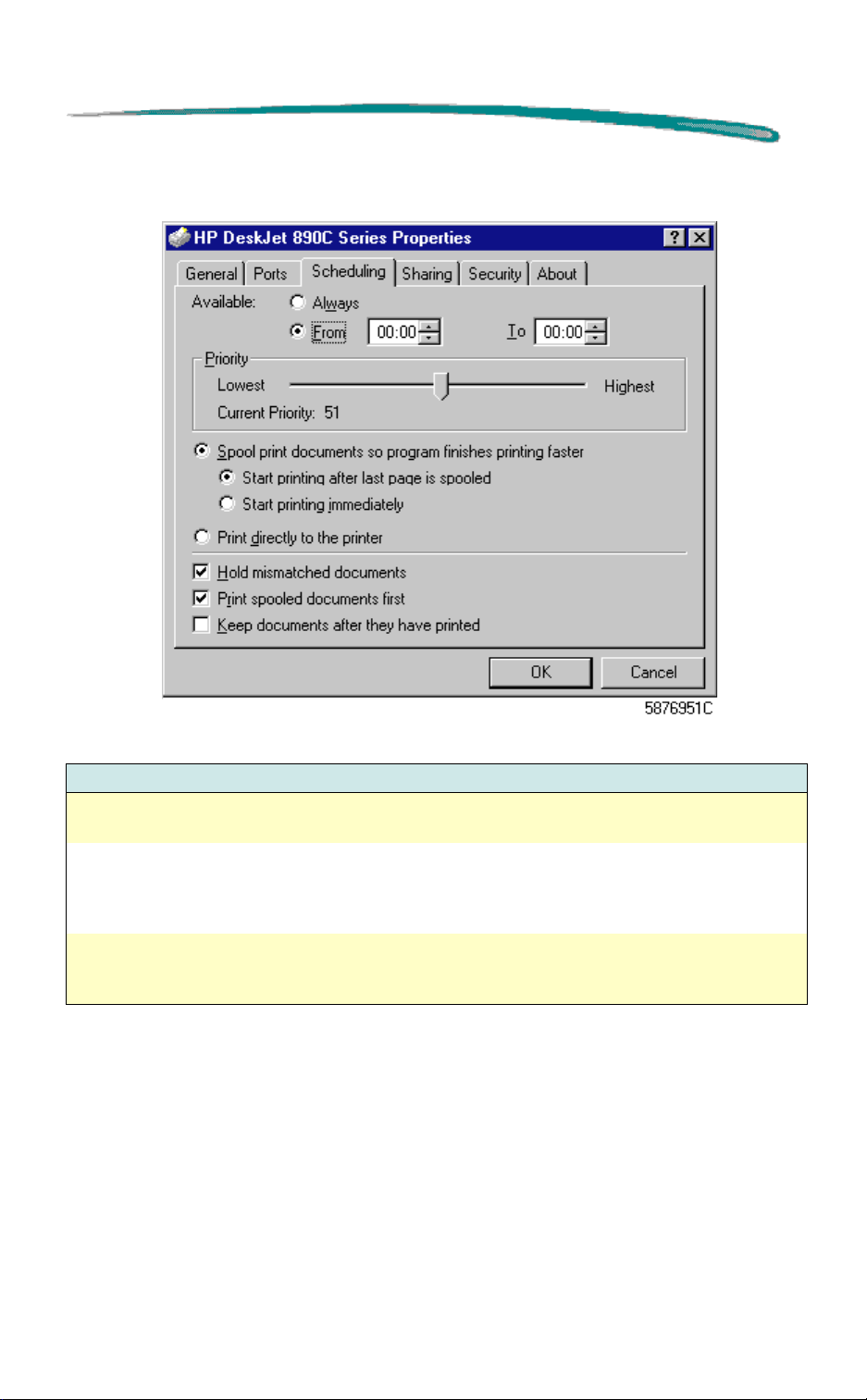
Scheduling Property Page
Scheduling Property Page Options
Option Description
Available - Always The printer is available at all times. If the printer is busy, the print job will
remain queued until the printer is available.
Available - From/To Configures the printer for selected availability. This is typically used in a
printer pool (two or more printers associated with one logical printer) to
hold certain documents until such time that the printer is less busy (for
example 10 PM to 6 AM).
Priority Specifies the default document priority. Higher priority documents will
print before lower priority documents. Numerically, 1 to 99 (Current
Priority setting in the above illustration, 51).
Continued on next page.
Page 38

HP DeskJet 890C Series Printers MS Windows NT Printing
Scheduling Property Page Options (Cont.)
Option Description
Spool print
document so
program finishes
printing faster
Print directly to
printer
Hold mismatched
documents
Print spooled
documents first
Keep documents
after they have
printed.
OK Closes this dialog box and saves any changes made.
Cancel Closes this dialog box and cancels any changes made.
Specifies that the document should be spooled before being printed. Two
options are available: Start printing after last page is spooled, and Start
printing immediately.
Important: HP recommends setting “Spool print documents so
program finishes printing faster” and “Start printing after last page
is spooled.” This allows EMF spooling and a faster return to the
application.
HP recommends that you do
or “Print directly to the printer.”
error messages i.e. “Error writing to \\machinename\sharename\ for
application name - document name. Access denied.”
(Spooling is the process of first storing the document on the hard disk
and then sending the document to the printer. The user can then
continue working with the application as soon as the document is stored
on the disk.
This setting supersedes the setting above.
HP recommends that you do
Directs the spooler to check the printer setup and match it to the
document setup before sending the document to the printer. If the
information does not match, the document is held in the queue. A
mismatched document in the queue will not prevent correctly matched
documents from printing.
Directs the spooler to select documents that have completed spooling
when deciding which document to print next, even if the completed
documents are lower priority than documents that are still spooling. If
there are no documents that have completed spooling, the spooler will
favor larger spooling documents over smaller ones. Selecting this option
maximizes printing efficiency. When this option is disabled, the spooler
picks documents based solely on priority.
Directs that the spooler should not delete documents after they have
printed. This allows a document to be re-submitted to the printer from the
printer queue instead of from the application.
NOT
use "Start printing immediately,"
since both these setting may result in
NOT
use “Print directly to the printer.”
Page 39
HP DeskJet 890C Series Printers MS Windows NT Printing
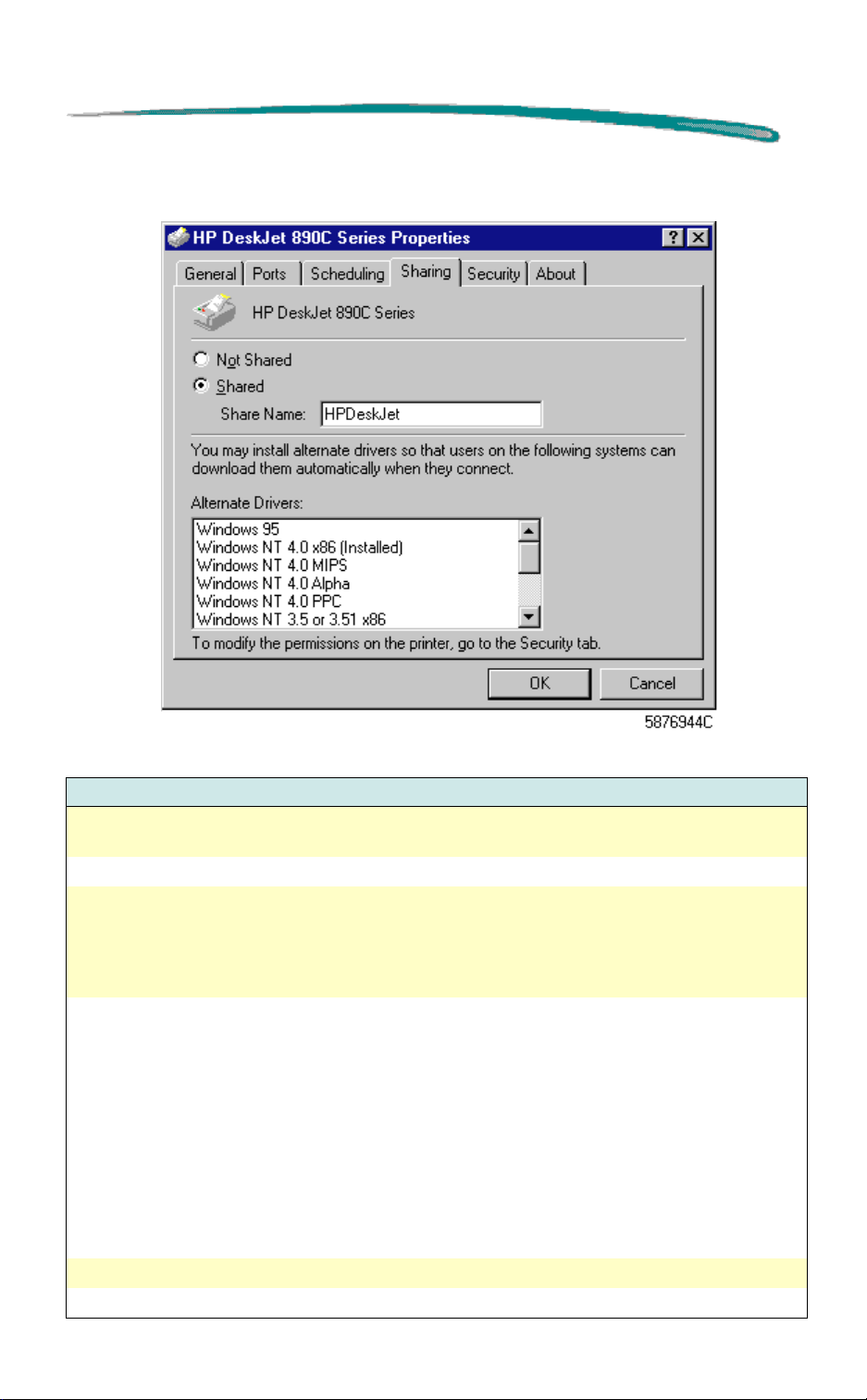
Sharing Property Page
Sharing Property Page Options
Option Description
Not Shared Configures the printer for private use. Only the user logged on to the
computer will be able to use the printer.
Shared Makes the printer available for network users also.
Share Name Allows the name of the printer to be entered thereby allowing documents to
be directed to it from network users. For example, if a network user has
different printers in a printer pool, assigning the Share Name “HPDeskJet”
to the document would assure that the document would be delivered to the
correct printer.
Alternate Drivers
OK Closes this dialog box and saves any changes made.
Cancel Closes this dialog box and cancels any changes made.
This feature is not supported.
Lists alternate printer drivers for computers running Windows 95 and
Alpha, MIPS, and PowerPC computers running Windows NT.
Alpha, Power PC, MIPS, and x86-based computers require different printer
drivers.
For example, to use a printer driver created in an x86-based Windows NT
computer, a RISC-based client running Windows NT requires the
appropriate RISC printer driver for that printer. The Windows NT print
server determines whether incoming print requests are Alpha, Power PC,
MIPS, or x86-based and automatically uses the appropriate driver if it is
present. To modify the permissions on the printer go to the Security tab.
Page 40
HP DeskJet 890C Series Printers MS Windows NT Printing
Security Property Page
Security Property Page Options
Option Description
Permissions Limits access to the printer. Selecting Permission reveals the following
menu.
Continued on next page
Page 41
HP DeskJet 890C Series Printers MS Windows NT Printing
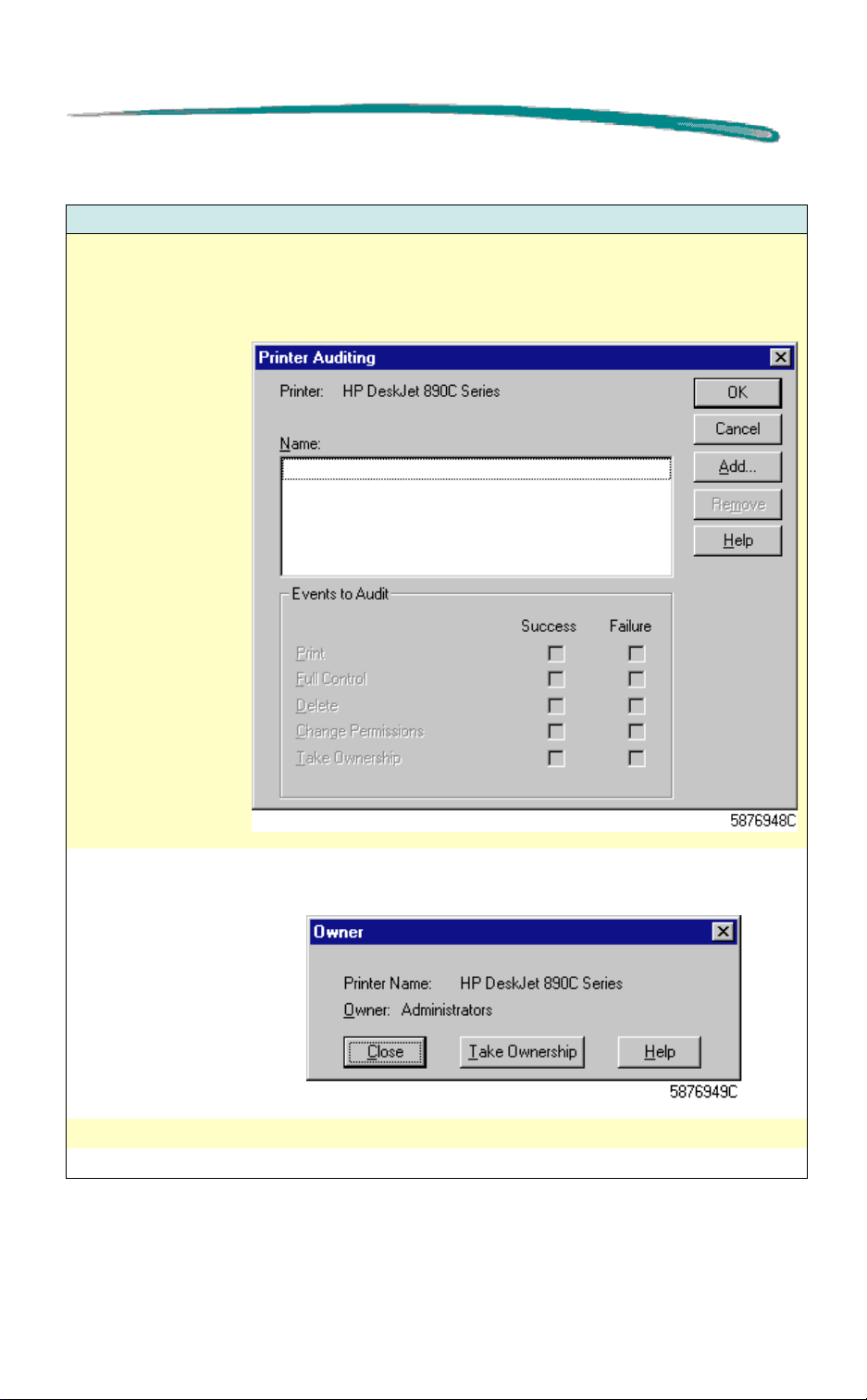
Security Property Page Options (Cont.)
Option Description
Auditing Allows the user to track who is using the printer and how. Before
enabling auditing, you must first set
Manager
following menu.
Audit Policy
dialog box. Selecting Printer Auditing reveals the
File and Object Access
in the User
Ownership Allows the user to see who owns a printer or has taken ownership of it.
Selecting Ownership reveals the following menu.
OK Closes this dialog box and saves any changes made.
Cancel Closes this dialog box and cancels any changes made.
Page 42
HP DeskJet 890C Series Printers MS Windows NT Printing
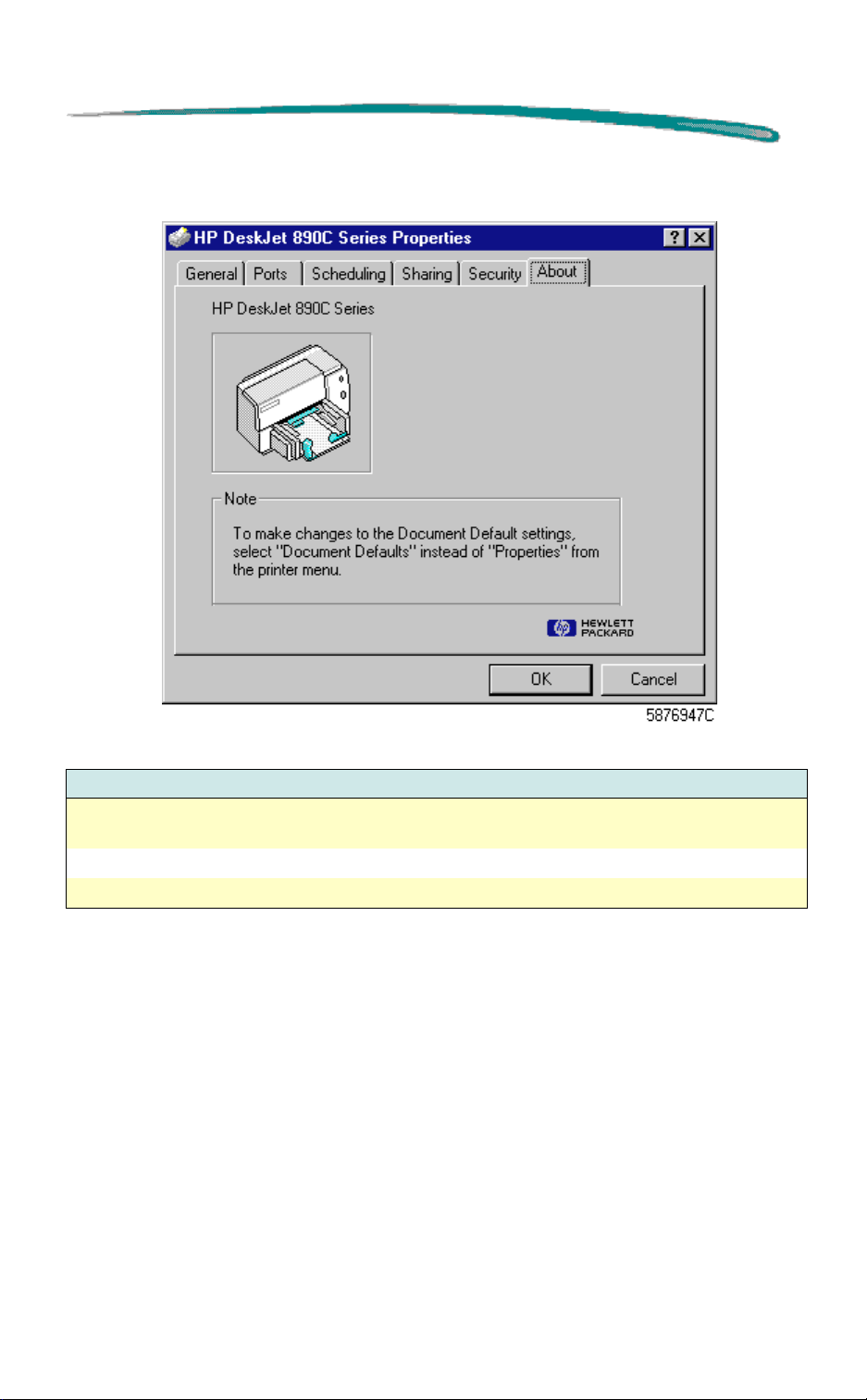
About Property Page
About Property Page Options
Option Description
HP DeskJet 890C
Series
OK Closes this dialog box and saves any changes made.
Cancel Closes this dialog box and cancels any changes made.
Note: To make changes to the Document Default settings, select
“Document Defaults” instead of “Properties” from the printer menu.
Page 43

HP DeskJet 890C Series Printers DOS Printing
DOS Printing
Printer Drivers Available
Since DOS applications are developed independently under different
standards, each DOS application requires its own printer driver. Current
software drivers for most HP DeskJet printers are available from the
individual software manufacturers. A list of DOS software manufacturers is
in the DOS Printing Guide, part of the User’s Guide Kit. Information on
installing a DOS printer driver for a particular DOS application is supplied by
the software manufacturer.
If there is no driver available for your HP DeskJet 890C printer, use a driver
for a different HP DeskJet printer. In some cases, the substitute driver will
not provide access to all of the HP DeskJet 890C printer’s capabilities.
The following table outlines usable drivers and their capabilities when used
with HP DeskJet 890C printer.
Substituting Printer Drivers
Printer Driver Supported Features
HP DeskJet 870C Color Printing
HP DeskJet 855C Color Printing
HP DeskJet 660C Color Printing
HP DeskJet 560C Color Printing
HP DeskJet 540 Color Printing
HP DeskJet 500C Color Printing
HP DeskJet 320 Color Printing
HP DeskJet 310 Color Printing
HP DeskJet 520 Monochrome Printing Only
HP DeskJet 510 Monochrome Printing Only
HP DeskJet 500 Monochrome Printing Only
HP DeskJet PLUS Monochrome Printing Only
HP DeskJet Monochrome Printing Only
Page 44

HP DeskJet 890C Series Printers DOS Printing
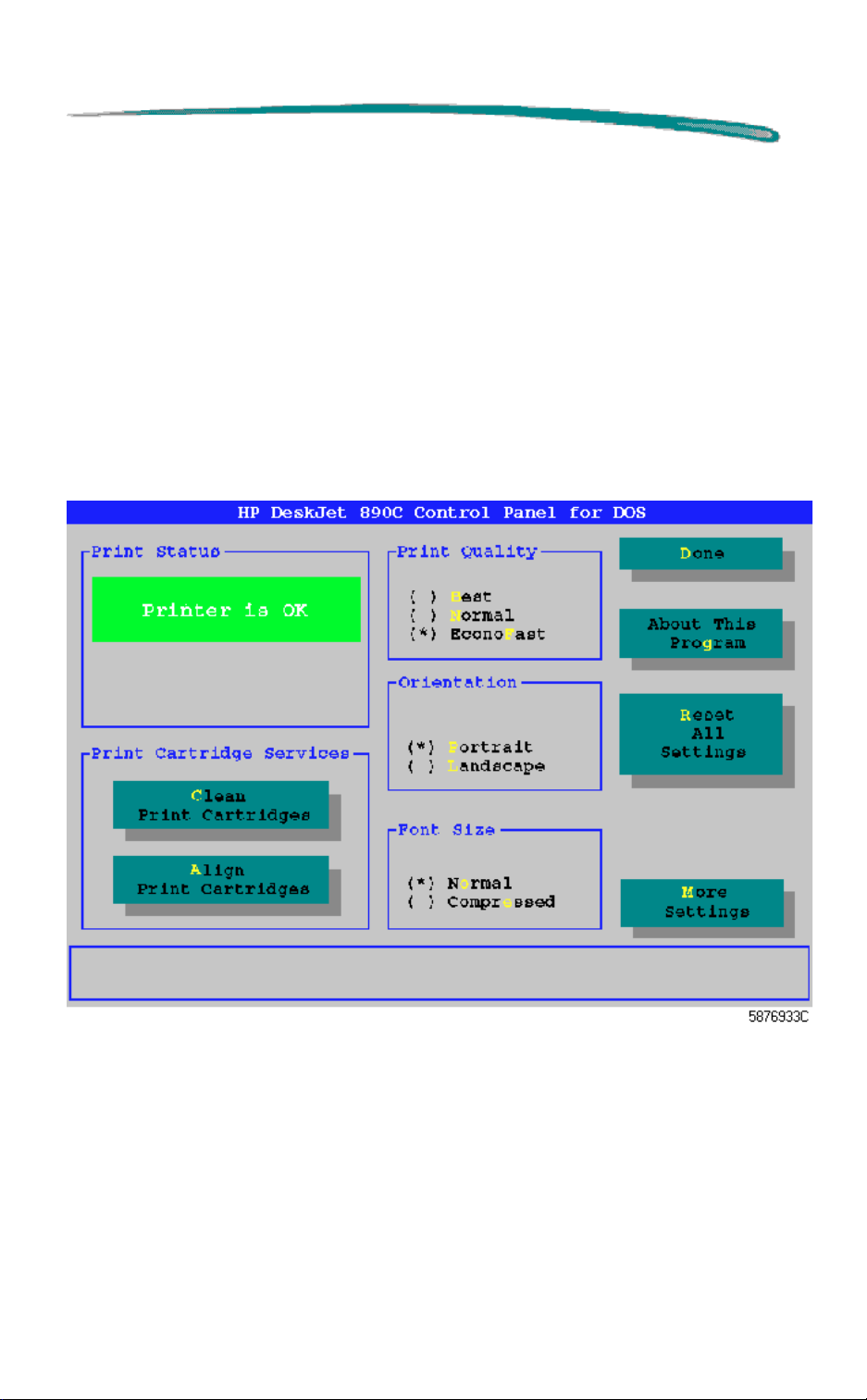
HP DeskJet 890C Control Panel for DOS
The HP DeskJet 890C Control Panel for DOS is software that replaces the
front panel switches found on older printers. The Control Panel for DOS
does not replace printer drivers; it must be used along with DOS software
printer drivers. When there is no specific HP DeskJet 890C printer driver
available for an application, the HP Control Panel for DOS gives the user
access to print settings and features not available through the DOS
application. If settings are available in the DOS application printer driver and
the DOS Control Panel, the settings made in the DOS application usually
override those made in the HP Control Panel for DOS.
The HP Control Panel for DOS lets the user monitor the printer’s status, and
clean and align the print cartridges.
Minimum System Requirements
DOS version 3.3 (or newer)
An 80286 (or better) processor
2 MB of RAM to print in black or 4 MB of RAM to print in color
Installation
Before you install the HP Control Panel for DOS:
1. Unpack the printer and set it up.
2. Make sure the computer and the printer are both turned on and
connected with the proper cable.
To install the Control Panel for DOS:
1. Insert the disk containing the control panel software into the disk
drive.
2. At the DOS prompt, type
floppy drive configuration) and press Enter.
3. Follow the on-screen instructions.
A:\Install
B:\Install
(or
depending on the
After installing the software, the print cartridges need to be aligned before
beginning any print jobs.
Page 45
HP DeskJet 890C Series Printers DOS Printing
To align the print cartridges:
1. Type
Control Panel.
2. Select Align Print Cartridges and follow the on-screen instructions.
DJCP
at the DOS prompt to open the stand-alone DOS
Two Ways to Use the HP Control Panel for DOS
The DOS Control Panel can run either as a stand-alone application or as a
memory resident application. To run the DOS Control Panel as a standalone application type:
DJCP
at the DOS prompt.
The DOS Control Panel must be loaded into memory at start-up to work as
a memory resident application.
Page 46

HP DeskJet 890C Series Printers DOS Printing
To set up the HP Control Panel for DOS as a memory resident
application:
1. Type
DJCP
at the DOS prompt to open the stand-alone DOS
Control Panel.
2. Select
3. Select
4. Select
5. Select
More Settings
.
Memory Resident Functions
Make Memory Resident
Done
and reboot the computer.
.
.
To open the memory resident DOS Control Panel: type the DOS Control
Panel hot key.
The memory resident DOS Control Panel is a subset of the stand-alone
application due to memory considerations.
Page 47

HP DeskJet 890C Series Printers DOS Printing
Memory Resident DOS Control Panel
Whether stand-alone or memory resident, the DOS Control Panel allows the
user to control or view the following:
Pen Services (clean, prime, and align the pens)
Print Quality
Page Orientation
Font Width (normal or compressed)
Status Reports (limited in the resident Control Panel for DOS)
Context-Sensitive Help
In addition to these, the stand-alone DOS Control Panel provides
access to:
Paper Size
Media Type (paper or transparencies)
Character Set
Lines per Page
Line Termination
Reset All Settings
Memory Resident Controls
Page 48

HP DeskJet 890C Series Printers DOS Printing
Troubleshooting
Problems with the DOS Control Panel
Problem Cause Solution
Installation was unsuccessful Disk error Reinstall Control Panel
Bad floppy disk Contact authorized HP dealer
Page 49

HP DeskJet 890C Series Printers Network Installation
Network Installation
HP DeskJet 890C series printers are supported in network environments.
The networked printer can either be connected to a personal computer
(locally shared), or attached directly to the network via an external print
server (network connect).
Locally Shared
In the locally shared configuration, the printer is connected directly to the
parallel port of a selected computer on the network. The printer can then be
shared by other users on the network through a Windows network printer
connection.
The advantages of a locally shared printer are relatively easy installation and
low cost since no additional hardware or software is required.
The disadvantages of a locally shared printer involve reduced performance
of the PC to which the printer is attached, lack of printer status information
at all network computers, and location of the printer. Depending on priority
settings and number of users on the network, the host computer may slow
down while handling print jobs and print jobs may be delayed for other users.
Additionally, only the user of the host computer can receive media and pen
status messages. Locally shared printers must also be situated near the
host computer which may not be convenient for all users on the network.
Finally, if the host computer is turned off or rebooted, print jobs may be lost
or not printed.
Page 50
HP DeskJet 890C Series Printers Network Installation
Network Connect
In the network connect configuration, the printer connects to the network via
direct attachment to an external print server such as HP JetDirect EX Plus,
150X or EX Plus3. This configuration provides increased performance,
location flexibility and better status information.
As shown in the table below, newer versions of HP JetDirect EX Plus, 150X,
and EX Plus3 print servers provide optimum printer-related status
messages. If using an older print server, you may wish to upgrade the
firmware (flash memory). To determine the firmware version and upgrade
information for your HP JetDirect EX Plus, EX Plus3 print server, refer to
your HP JetDirect Software Installation guide. The HP JetDirect 150X was
not designed to provide this upgrade capability.
Firmware Version Comparison
Status
Information
Limited Yes
Complete Yes
Note
Both locally shared and network connect configurations require
the installation of the HP DeskJet 890C series printer driver on
each
computer that will be printing to the HP DeskJet 890C
series printer.
JetDirect EX Plus
(J2591A)
(Firmware prior to
E.05.00)
(Firmware E.05.00
or later)
JetDirect 150X
(J2592A)
- Yes
Yes Yes
JetDirect EX Plus3
(J2593A, J2594A))
(Firmware prior to
D.05.00)
(Firmware D.05.00 or
later)
Page 51

HP DeskJet 890C Series Printers Network Installation
Printer Installation in Network Environments
MS Windows 3.1 - Locally Shared
Not Supported in Windows 3.1 by the Operating System
MS Windows 3.1 - Network Connect
Setup the printer and make the cable connections to the printer server and
network.
1. Install the driver by executing
Software CD,” “Installation Disk 1,” or where the network
administrator has installed it.
2. When prompted for the printer name and port, choose “
890C Printer
you wish to redirect to the printer. Click OK.
3. Continue installation until complete, then restart Windows.
4. Select
DeskJet 890C
5. Choose the port to which the printer is connected (for example
LPT1)
6. Click
setup the printer as a permanent network printer on the system,
click the
Printers
Network…
” and either “
from the Windows Control Panel, click on the
icon, then click
then select the network path for the printer. To
Permanent
box, and click
setup.exe
None
Connect
either on the “Printer
” or the Port (
.
Connect
LPT1:
.
HP DeskJet
) for the port that
HP
Page 52

HP DeskJet 890C Series Printers Network Installation
MS Windows for WorkGroups 3.11 - Locally Shared
As the server (where the printer is directly connected to the computer)
Setup the printer, make the cable connections to the computer, and follow
the procedures for installing the printer software as outlined in the Setup
Card.
1. Launch “
2. Click on the HP DeskJet 890C printer, choose
this printer as…
3. Follow the on-screen instructions to complete the sharing of the
printer.
Print Manager
” found in the “
Main
” program group.
Printer
, and
Share
As the client (who wants to connect to the shared printer)
Follow the same steps as shown for Windows 3.1 - Network Connect.
MS Windows for WorkGroups 3.11 - Network Connect
Follow the steps shown for MS Windows 3.1 - Network Connect.
Page 53

HP DeskJet 890C Series Printers Network Installation
MS Windows 95 - Locally Shared
As the server (where the printer is directly connected to the computer)
Setup the printer, make the cable connections to the computer, and
follow the procedures for installing the printer software as outlined in
the Setup Card.
Share the printer. For more information on sharing the printer, refer
to “Sharing your printer with other people) in MS Windows 95 Help.
As the client (who wants to connect to the shared printer)
Begin installing the printer software at the client computer with one of these
methods:
Install the driver by executing
Software CD,” “Installation Disk 1,” (or where the network
administrator has installed it).
Use the
Browse
install the printer software.
Drag a document onto a network printer icon.
Drag a network printer icon onto the
Double-click a network printer icon.
Right-click a network printer icon and select
Add Printer
to find the Shared Printer and then select
wizard, select
setup.exe
MS Windows 95 - Network Connect
Setup the printer and make the cable connections to the print server
and network.
Begin installing the printer software at the client computer with one
of the methods outlined above in Locally Shared, but browse to find
DeskJet 890C
the
JetDirect print server.
that is configured and connected for an HP
either on the “Printer
Network Printer
Have Disk…
Printers Folder
Install
.
, choose
to
.
MS Windows NT 4.0
To install the printer software onto an MS Windows NT 4.0 system, the user
must
have Administrator privileges on the computer being installed.
Page 54

HP DeskJet 890C Series Printers Network Installation
MS Windows NT 4.0 - Locally Shared
As the server (where the printer is directly connected to the computer)
Setup the printer, make the cable connections to your computer,
and follow the procedures for installing the printer software as
outlined in the Setup Card.
Share the printer. For more information on sharing the printer, refer
to “Sharing printers” and “To share your printer with other people” in
MS Windows NT Help.
As the client (who wants to connect to the shared printer)
1. Install the printer software at the client computer as if for direct
connect. The printer software must exist on each client PC in order
for network printing to succeed. Select the
any LPT port when installing.
HP DeskJet 890C
and
2. Follow one of these methods to select the printer at the “server”:
Select the
the mouse and select
Add Port
name of the server followed by the name of the printer, such as
\\ComputerName\\PrinterName.
Or, from the
server, and when the folder shows up on the computer, drag the
printer icon into the
DeskJet 890C printer icon in your Printers Folder, however, you
will be able to use the printer at the server.
The connection of printers and the installation of printer drivers in network
configurations supported by the above mentioned operating systems are
described in “Setting up your Printer on a Network” In the User’s Guide.
HP DeskJet 890C
Properties
, highlight
Start
Local Port
menu, select
Printers Folder
in the
Printers Folder
. Go to the
, select
Run…
New Port
, type in the name of the
. This creates
, right click
Ports
tab, select
and type the
another
HP
Page 55

HP DeskJet 890C Series Printers Network Installation
MS Windows NT 4.0 - Network Connect
As the NT 4.0 server (where the print jobs will be spooled)
Setup the printer and make the cable connections to your computer as
outlined in the Setup Card. Follow the procedures to install the printer
software for a LPTx port.
Select the
mouse and select
Port
, and configure the type of Port Monitor you wish to use for this
network printer, such as LPR Port or HP JetDirect Port.
Be sure to setup this printer so that it is “shared.”
HP DeskJet 890C
Properties
in the
. Go to the
Printers Folder
Ports
tab, select
As the client (who wants to connect to the shared printer)
Follow the same steps as shown for Locally Shared at the client.
, right click the
Add
Page 56

HP DeskJet 890C Series Printers The Toolbox
The Toolbox
Note The information given here is applicable to all supported
operating systems. If feature differences exist between the
operating systems, these will be identified.
The HP DeskJet 890C Series Toolbox allows you to:
View step-by-step tutorials for common printer tasks
Diagnose and solve common printer problems
Monitor a current print job
Monitor the printer’s status at any time
Align the print cartridges
Clean the print cartridges
Print a self-test page
Test printer communication
Accessing the Toolbox
To access the Toolbox, double click the HP DeskJet 890C Series Toolbox
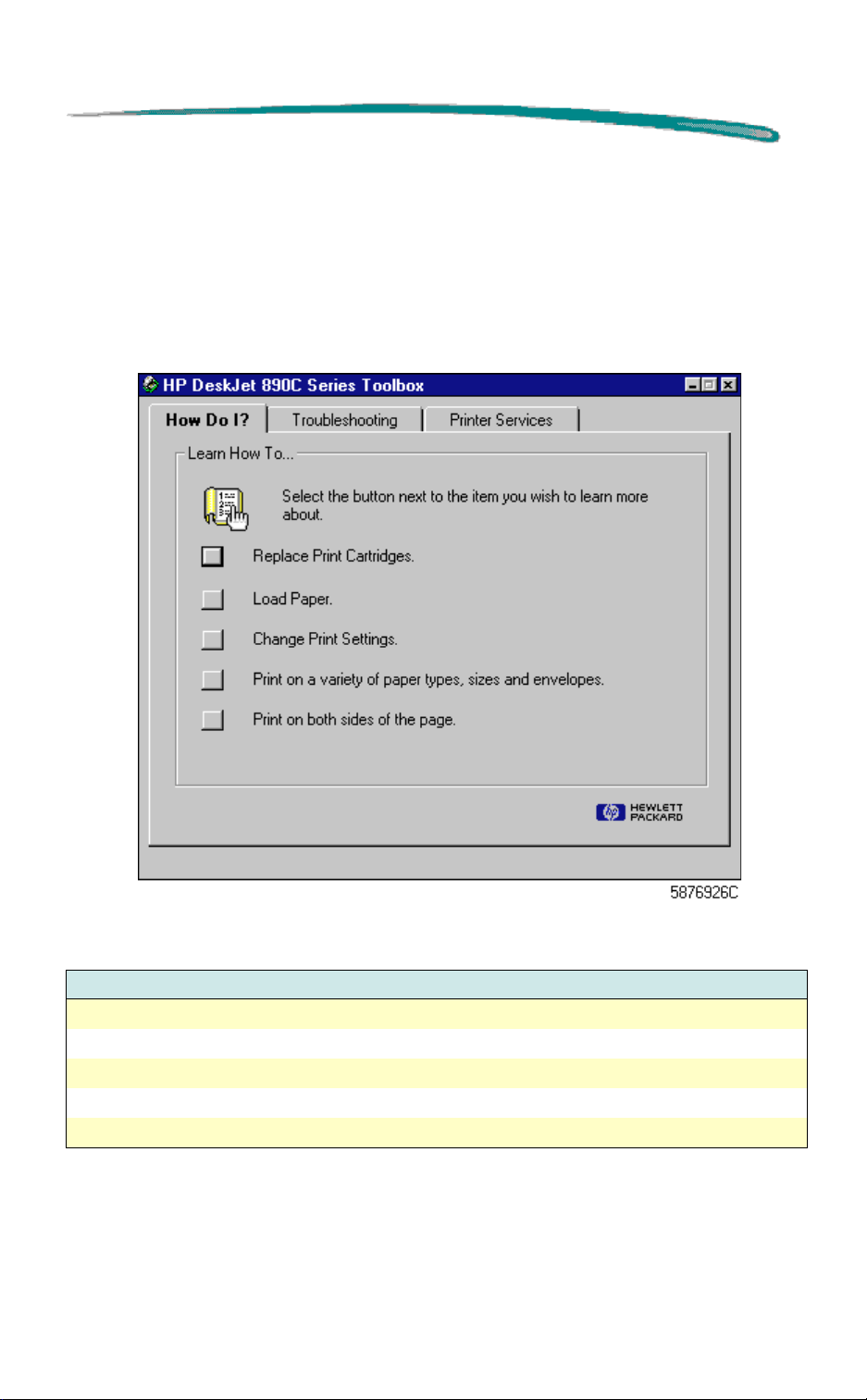
icon (see above) installed on the desktop to reveal the three-tab menu
shown below.
Page 57
HP DeskJet 890C Series Printers The Toolbox
How Do I?
The selections below provide tutorial information about common printing
functions.
How Do I? Properties Page
How Do I? Properties Page Options
Option
Replace Print Cartridges
Load Paper
Change Print Settings
Print on a variety of media types, sizes and envelopes
Print on both sides of the page (Not available in MS Windows NT)
Page 58
HP DeskJet 890C Series Printers The Toolbox
Troubleshooting
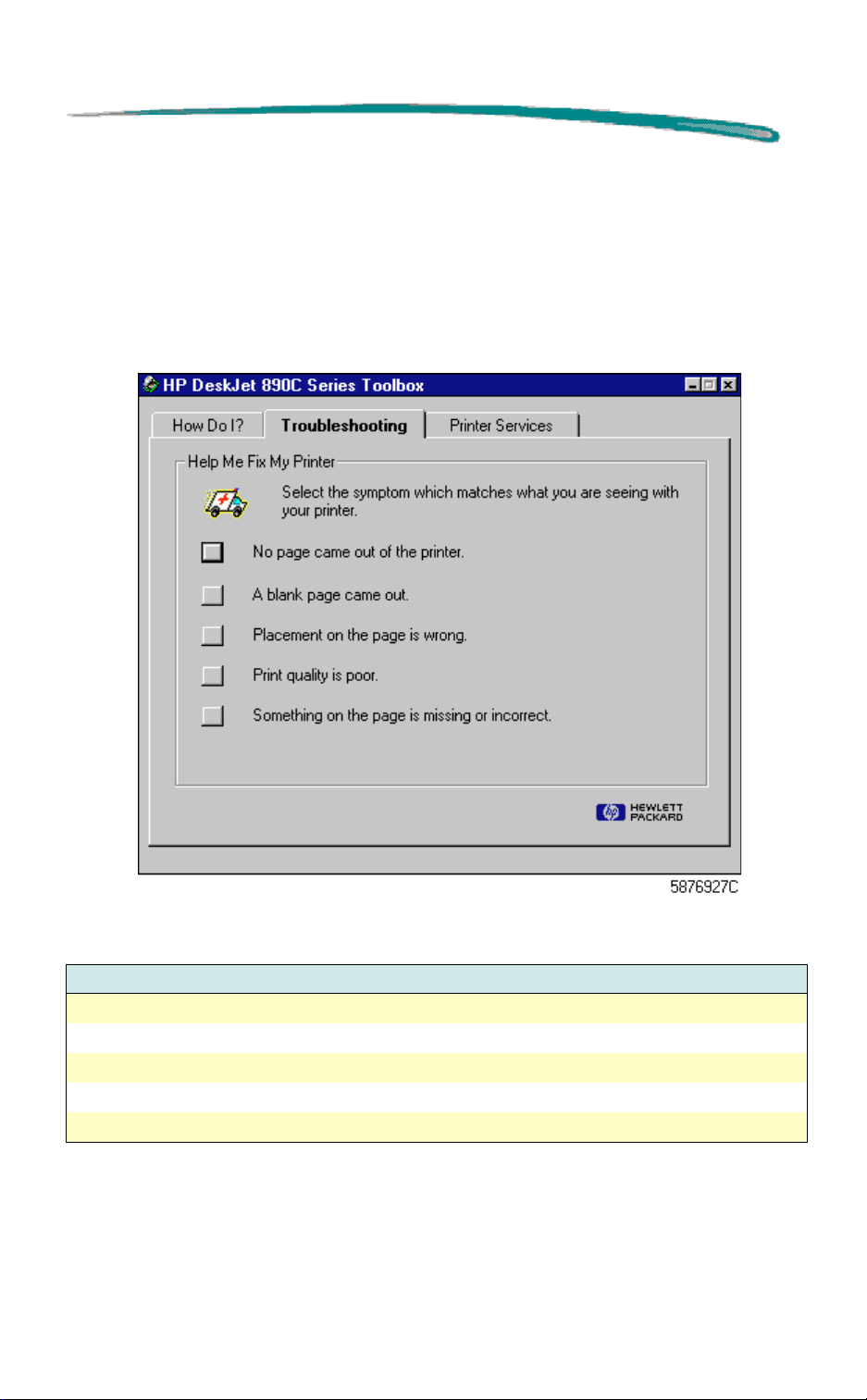
The five buttons on the menu below reveal help screens which can solve
many common printing problems.
Troubleshooting Property Page
Troubleshooting Property Page Options
Selection
No page came out of the printer
A blank page came out
Placement on the page is wrong
Print quality is poor
Something on the page is missing or incorrect.
Page 59
HP DeskJet 890C Series Printers The Toolbox
Printer Services
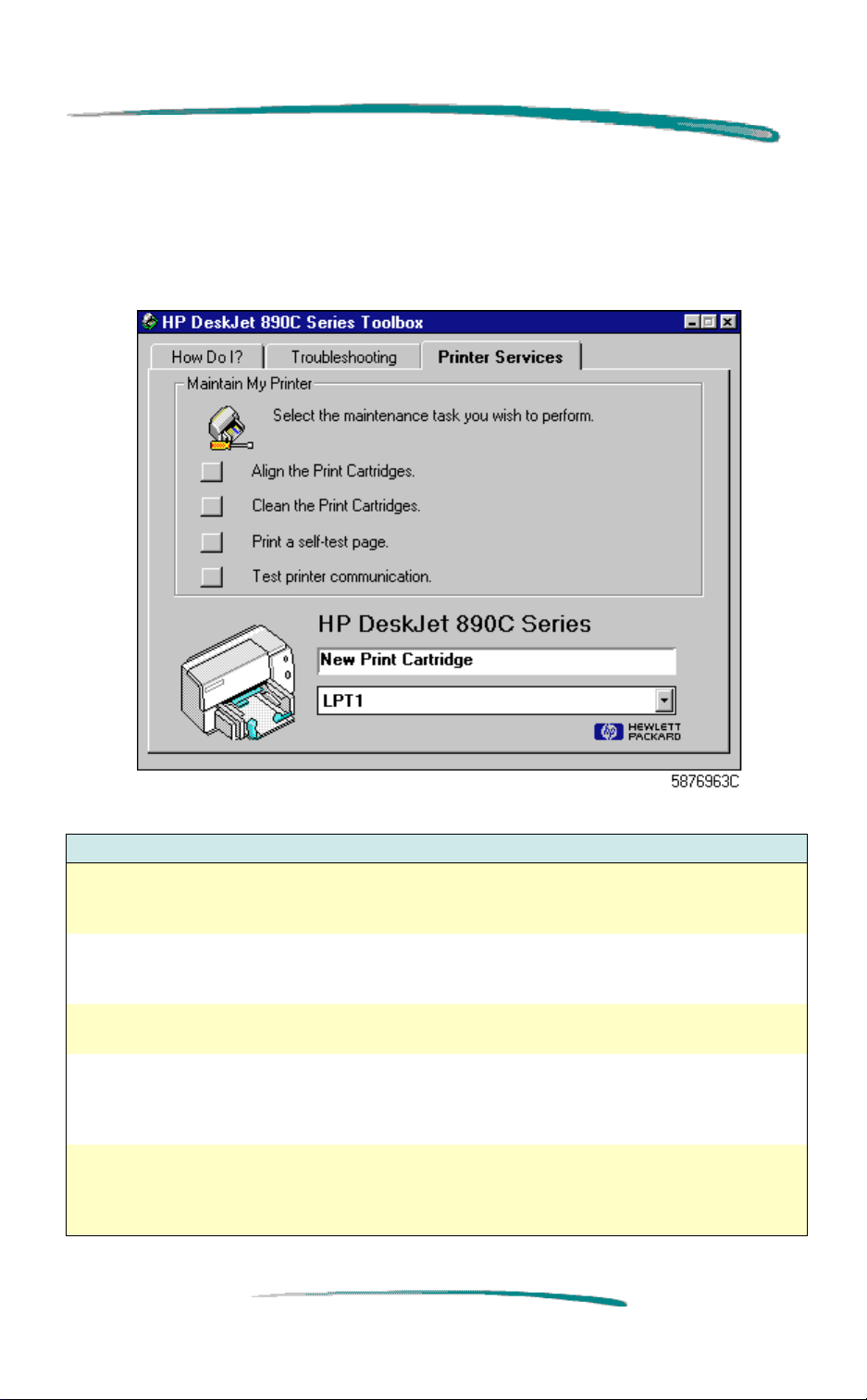
Printer Services Property Page
Printer Services Property Page Options
Option Description
Align the print
cartridges
Clean the print
cartridges
Print a self-test
page
Test printer
communication
HP DeskJet 890C
Series
Starts a routine to align the print cartridges. You will also need to perform
this procedure after installing the printer driver, or after installing new
print cartridges. Follow the on-screen instructions.
Starts the routine that cleans the print cartridges. Use only if print
cartridges are not functioning correctly. This routine may use a great deal
of ink. Follow the on-screen instructions.
Starts the routine that prints a test page. Use this function to verify the
connection between your computer and the printer.
This procedure tests the communication between the computer and the
printer. Verify the printer is on and the printer cable is connected before
beginning the test. Follow the on-screen instructions. The test can take
up to 3 minutes. (Not available in MS Windows NT.)
This window provides printer status information about the current print
job and provides instructions such as Align the Print Cartridges. When
Sharing is selected, a pull-down menu appears below the printer status
information to display available printer ports.
Page 60

HP DeskJet 890C Series Printers Optimizing Perfor mance
Optimizing Performance
The print speed and overall performance of the HP DeskJet 890C printer
can be affected by several things:
The amount of RAM can determine how fast documents are sent to
the printer. Increasing RAM can speed up this process as well as
make the computer work more efficiently at other things beside
printing.
The size and complexity of the documents printed can make a
difference in the printer's performance. Graphics are usually more
complex (especially color graphics) and print more slowly than text.
The processing speed of the computer will determine how fast a
document is sent to the printer. For example, a computer with a 486
processor runs faster than a computer with a 386 processor.
Running numerous software programs at one time slows down
printing; each open program uses RAM. Therefore, limit the number
of programs or documents open at one time.
Using On-line Help
On-line help provides information about the printer driver and its status.
Printer Software Help
Type of help: Provides: How to access/where to find:
HP DeskJet Toolbox Tutorials and
troubleshooting for common
print tasks and problems
Error Message Help Comprehensive context
sensitive information
designed for error recovery.
Print Settings Help Information to help you
make print settings choices.
Release Notes Up-to-date information for
specific conflicts.
Click on the icon on the desktop, or in
the Program group.
Button available on most pop-up error
messages.
Click the help button for any tab in the
HP print settings dialog box.
From the Program Utilities: select HP
DeskJet 890C Release Notes.
 Loading...