

Page 1
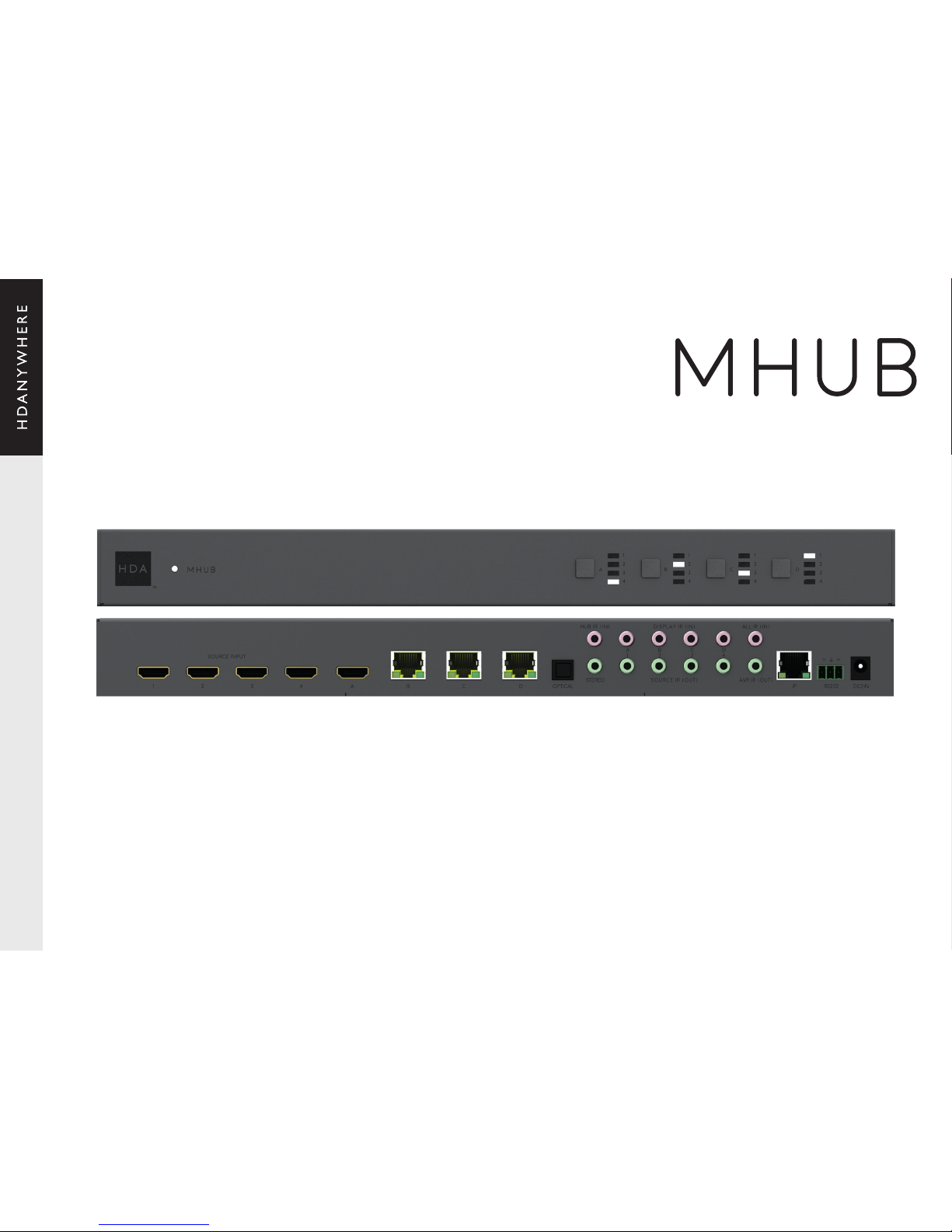
PRODUCT CODE: MHUB431U
MHUB
HD CONNECTIVITY LTD, trading as HDANYWHERE registered in England and Wales. Company No: 06046737 Registered ofce: Unit 23 Link Business Centre, Link Way, Malvern, Worcestershire, WR14 1UQ. Contact: [email protected] Tel: 00441684575324
VCP-05122017
Page 2
2
MHUB
HD CONNECTIVITY LTD, trading as HDANYWHERE registered in England and Wales. Company No: 06046737 Registered ofce: Unit 23 Link Business Centre, Link Way, Malvern, Worcestershire, WR14 1UQ. Contact: [email protected] Tel: 00441684575324
CONTENTS SYSTEM: MHUB
SYSTEM FEATURES
IN THE BOX
1x MHUB (4x3+1) matrix hub
6x MHUB display receivers
1x MHUB infra-red (IR) remote control
1x IEC power lead
5x IR RX
8x IR TX
2x Flat-to-the-wall mounting brackets
19”/1U Rack mount kit sold separately
Cloud-monitorable 4x3+1 HDMI / HDBT+HDMI matrix system with a 40m UHD 4K or 70m 1080p
transmission range. An integrated IP>IR control processor enables property-wide control off all
the connected sources and displays via the free uControl universal remote App or Alexa voice
commands.
Multichannel audio or stereo extraction can be selected to occur matched to any of the display
zone output. Remote cloud monitoring is also possible, designed to reduce the necessity for
callouts and site visits.
Please fully read and adhere to the setup information and operational instructions
contained within this installation manual.
HDMI® 2.0 features supported up to 10.2Gbps
All display receivers powered via PoH
Web GUI for easy cong and setup (MHUB-OS)
Remote system monitoring (HDA Cloud)
Advanced EDID management
Supports HDCP 2.2 Ultra HD 4K 24/30Hz 4:2:2 (HDR10) or 60Hz 4:2:0 (HDR 8bit) + support for
Dolby Vision and HLG.
Supports all current audio formats up to and including Dolby Atmos® and DTS:X®
Multichannel audio or stereo extraction via digi coax, or via 3.5mm stereo jack
4K>1080 down/up-scaling receiver option available
2/3-year guarantee (Cloud registration required)
Box contents and system introduction 2
System features 2
Matrix hub rear connections 3
Matrix hub front and display receiver connections 4
Wiring diagram 5
Setup 6-10
- Cables & wiring 6
- Setting up IR control 7
- Testing your IR set up 7
- Gaining IR control of sources 8
- MHUB-OS First Boot Process 9-10
Operation 11
Support remotely via HDA Cloud 12
Specications 13
Page 3
3
MHUB
HD CONNECTIVITY LTD, trading as HDANYWHERE registered in England and Wales. Company No: 06046737 Registered ofce: Unit 23 Link Business Centre, Link Way, Malvern, Worcestershire, WR14 1UQ. Contact: [email protected] Tel: 00441684575324
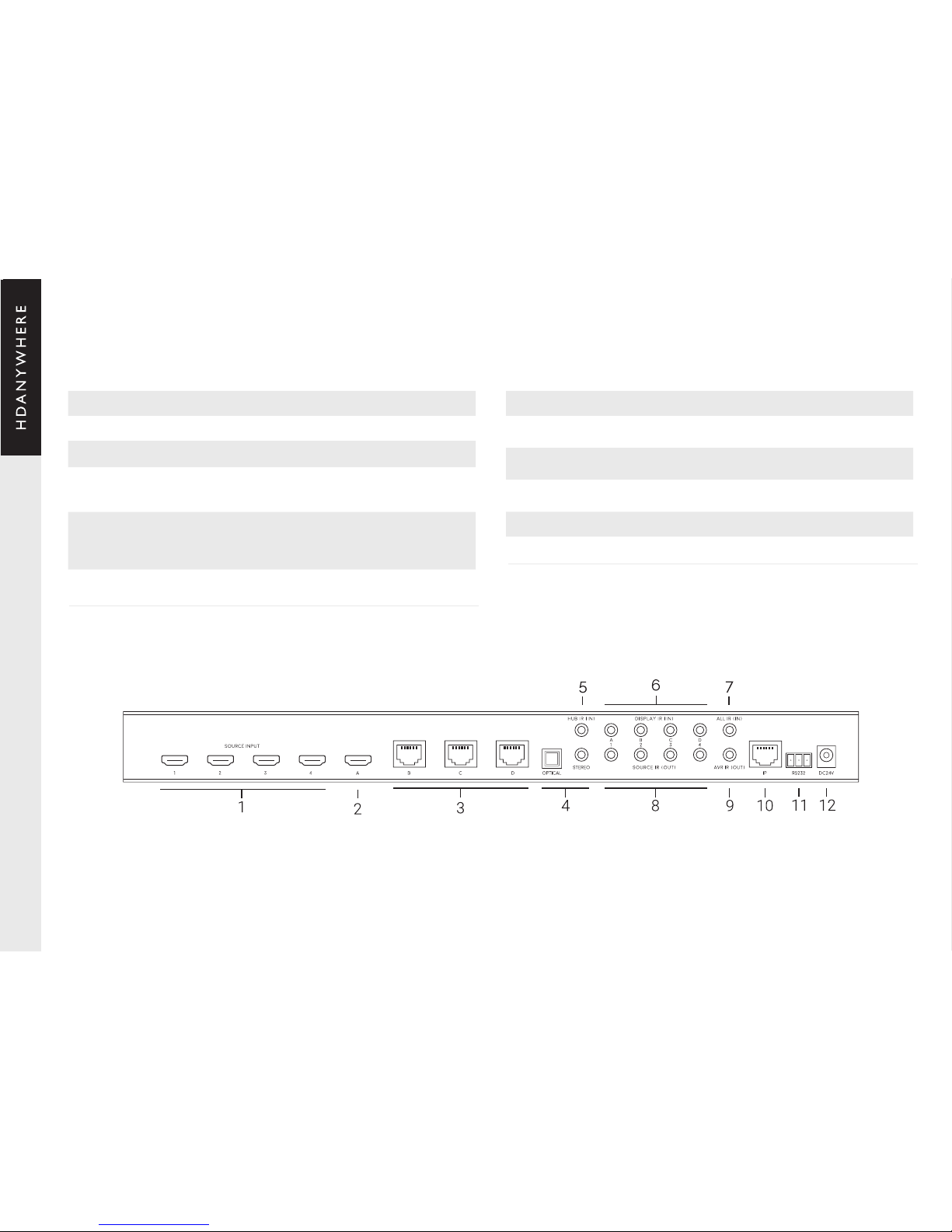
MHUB (4x3+1) REAR CONNECTIONS
1. “SOURCE INPUT” [1-4]: Use to connect HDMI source devices to the MHUB
2. HDMI Output [A]: Connect a display to this port via a HDMI cable
3. HDBaseT Outputs [B-D]: Connect your MHUB receivers to these ports via a CAT cable
4. Audio Extraction Ports:
a. “OPTICAL” Audio: Use this port to extract multi-channel audio via an optical cable
b. “STEREO” Audio: Use this port to extract stereo audio via a 3.5mm jack cable
5. “HUB IR (IN)”: Connect an IR RX to this port to control your MHUB with the included IR remote
control (or other learning remote) whilst in line-of-sight of the IR RX.
Or control the MHUB with a third party controller via direct IR, using the optional add-on
accessory called the ‘MHUB IR integration cable’. (1.55.911.001.1)
6. “DISPLAY IR (IN)” [A-D]: Connect IR RXs to these ports to control your displays via IR with a
third party control system
7. “ALL IR (IN)”: Connect an IR RX to this port to send commands to all displays simultaneously
8. “SOURCE IR (OUT)” [1-4]: Connect IR TXs to these ports to control your source devices via IR.
The “SOURCE IR” port number corresponds with the source input number
9. “AVR IR (OUT)”: If you have an AVR in your system, connect an IR TX to this port and place
it on the IR window of your AVR
10. “HUB CONTROL IP” Port: Connect the MHUB system to your router via this port to enable
controllability via TCP/IP commands, web GUI access and system control via the uControl App.
11. “HUB CONTROL RS232” Port: Use to integrate your MHUB with a control system via RS232
12. DC 24V: Plug the 24V DC power supply into the unit.
Page 4
4
MHUB
HD CONNECTIVITY LTD, trading as HDANYWHERE registered in England and Wales. Company No: 06046737 Registered ofce: Unit 23 Link Business Centre, Link Way, Malvern, Worcestershire, WR14 1UQ. Contact: [email protected] Tel: 00441684575324
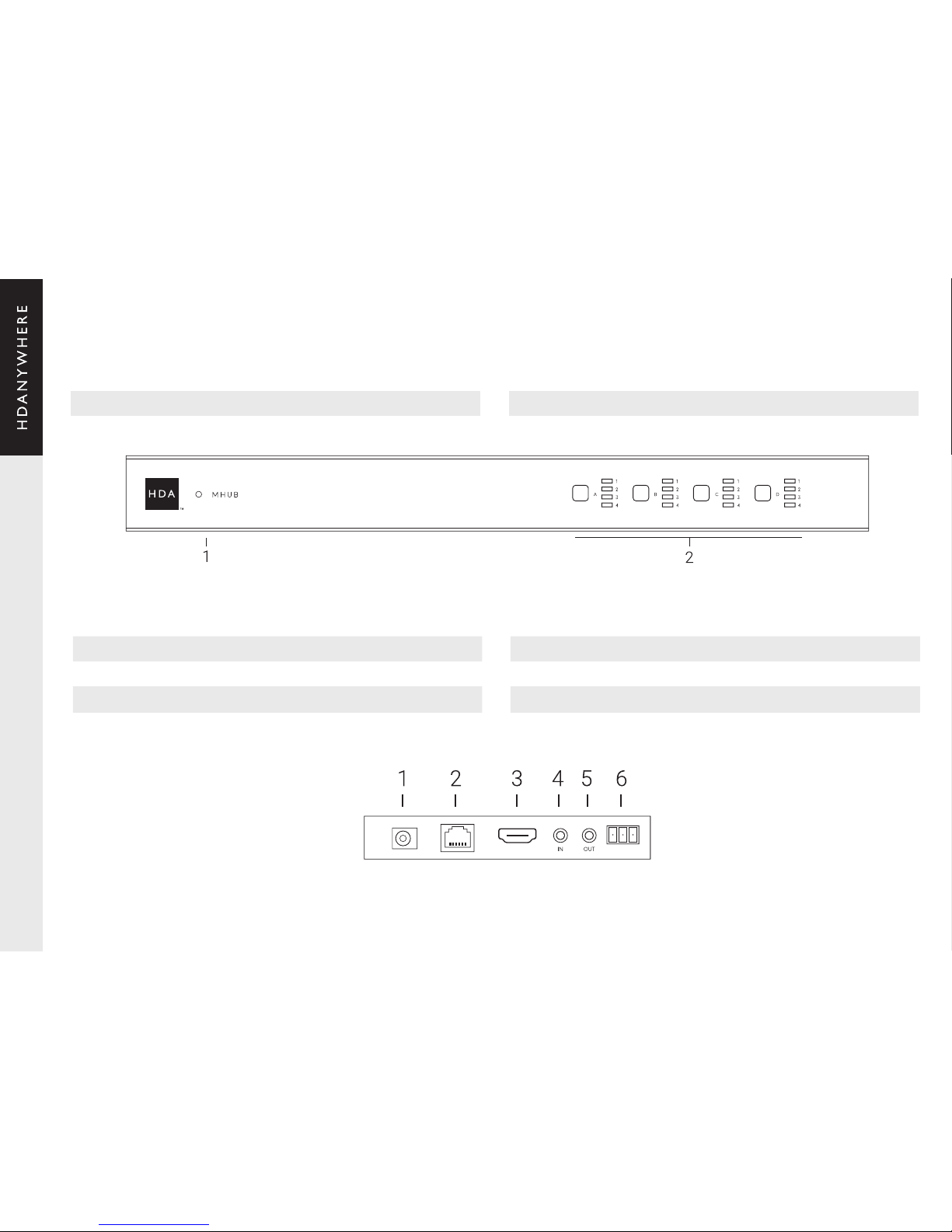
MHUB (4x3+1) FRONT PANEL
DISPLAY RECEIVERS
1. Power LED: If this is lit up your matrix is receiving power 2. Source Selector [1-4]: Select which source you want to switch to via the button
1. Optional DC input: Plug a 24V / 1A DC power supply into the unit if you are not using PoH
2. HDBASET: connects back to the HDBASET output on the MHUB chassis
3. “HDMI OUT”: Connect this to your local display using a HDMI cable
4. “IR IN”: Connect an IR RX to the ‘IR (IN)” port to send IR commands back to the MHUB chassis
5. “IR OUT”: Connect an IR TX to enable control of your display
6. Service Port
Page 5
5
MHUB
HD CONNECTIVITY LTD, trading as HDANYWHERE registered in England and Wales. Company No: 06046737 Registered ofce: Unit 23 Link Business Centre, Link Way, Malvern, Worcestershire, WR14 1UQ. Contact: [email protected] Tel: 00441684575324
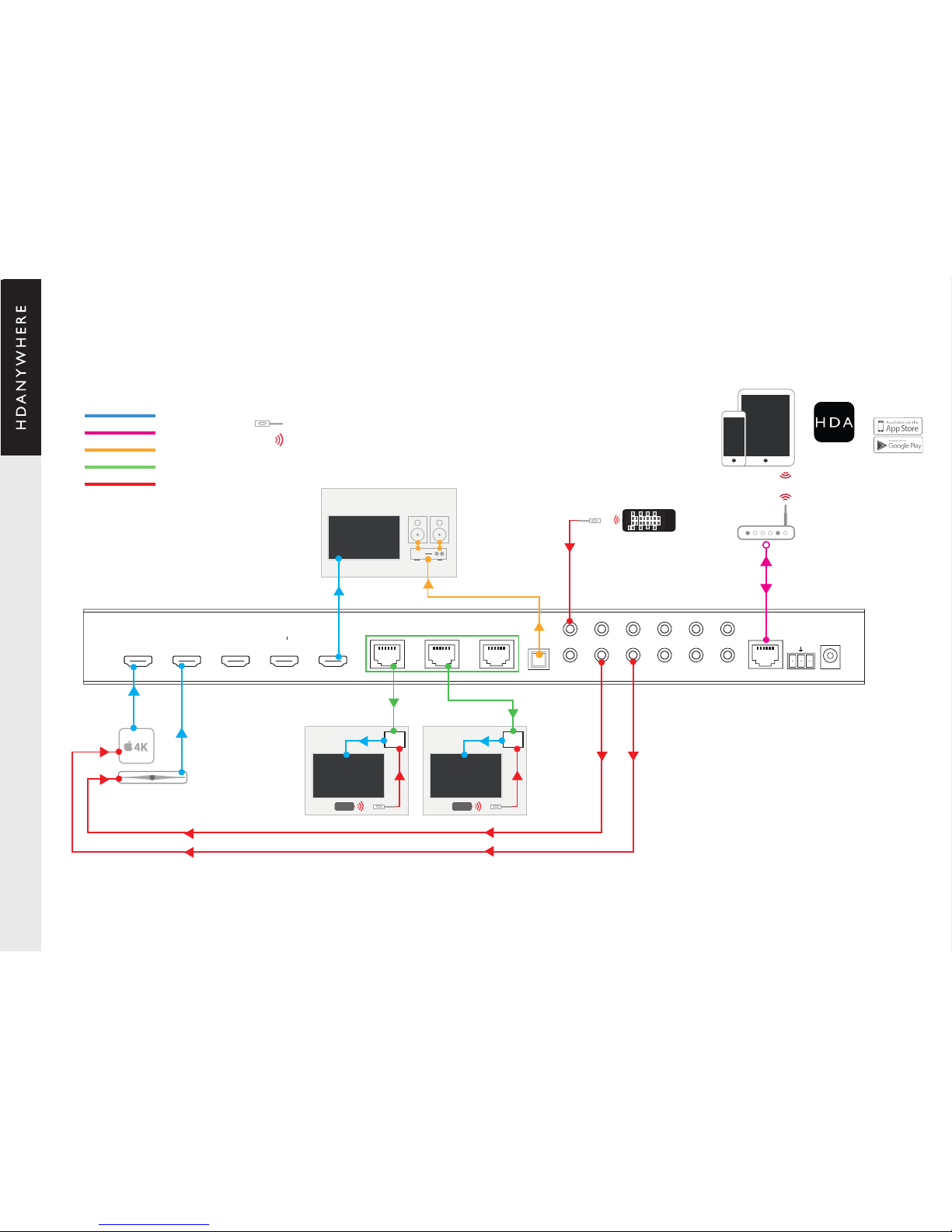
WIRING DIAGRAM
HDMI Cable
Ethernet Cable
Digi-Coax Cable
HDBaseT
IR Receiver
IR Receiver
IR Signal
uControl
Zone A
Zone B Zone C
MHUB-OS
MHUB-OS
RX RX
TX RX
1 2 3 4
A B C D
display ir (in) ALL IR (in)HUB ir (in)
source ir (out) AVR IR (OUT)
1 4 A B C D OPTICAL
STEREO
SOURCE INPUT
IP RS232 dc24v
2 3
A
B
C
D
HDANYWHERE
Page 6
6
MHUB
HD CONNECTIVITY LTD, trading as HDANYWHERE registered in England and Wales. Company No: 06046737 Registered ofce: Unit 23 Link Business Centre, Link Way, Malvern, Worcestershire, WR14 1UQ. Contact: [email protected] Tel: 00441684575324
CABLES & WIRING
Notes on your network cabling
Notes on your HDMI cabling
Optimum performance
Shielded cables
Patch panels and wall plates
Currently you can use Cat5e, Cat6, Cat6e, Cat6a, Cat7 or Cat7a with HDA products.
DO NOT USE COPPER CLAD ALUMINIUM (CCA) Cat 5/6/7 CABLE.
The baseline cable standard for HDanywhere systems is Cat5e. Greater distances and reliability
can be achieved by using Cat6, or slightly better still with the Cat7, which have thicker copper
cores and shielding for easier signal transfer.
HDANYWHERE recommends using suitably robust, good quality HDMI cables. It is not advised to
use passive HDMI cables over 5 metres in length either on the inputs or the outputs of the matrix
hub or display receivers.
In circumstances where HDMI cables longer than 5 metres are required, HDA recommends
utilising an Active HDMI cable option, optical-bre or similar.
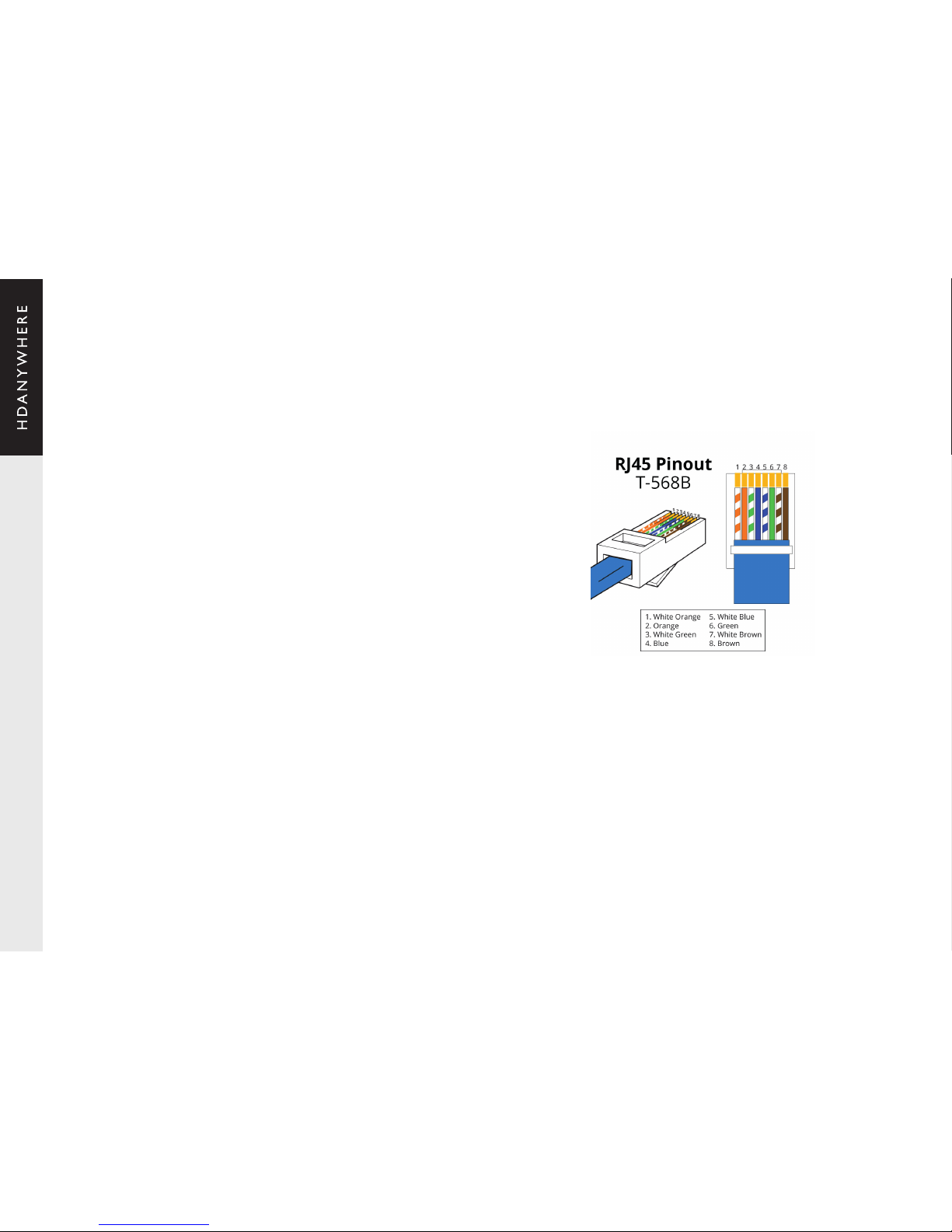
Terminate the cabling using RJ45 connectors to the 568B wiring standard (shown below).
Whichever network cable type you choose, ensure that the main wiring architecture is ‘solid core’,
not stranded ‘patch’ cabling. Patch cabling can be used for the last few metres of a run (say from
a wallplate) but should be avoided over the longer runs as signal transfer over stranded cores is
heavily reduced. The use of pre-made leads is not recommended unless you can be absolutely
sure of their construction credentials (i.e. solid core 568B). For absolute optimum performance,
use a single piece of Cat cable terminated directly at the transmitter and the receiver ends. Make
sure to use the correct connector types i.e. RJ45 solid core crimp connectors.
Unlike other systems, shielded FTP cable is not a stipulation. If however you preferred this type of
cable please ensure compatible shielded accessories are used. Failure to terminate cable screen
at all points can induce interference rather than eliminating it.
If the patch panels are terminated correctly, there is minimal loss of distance, however the use
of wallplates and patch panels has the potential to cause increased resistance on the cable,
introducing pinch points for signal transmission, and could reduce advertised transmission
lengths.
TIP – instead of using RJ45 wallplates, use brush plates instead to maintain the neat nish.
A search for “brush plates” will yield many results.
Connection termination
Page 7
7
MHUB
HD CONNECTIVITY LTD, trading as HDANYWHERE registered in England and Wales. Company No: 06046737 Registered ofce: Unit 23 Link Business Centre, Link Way, Malvern, Worcestershire, WR14 1UQ. Contact: [email protected] Tel: 00441684575324
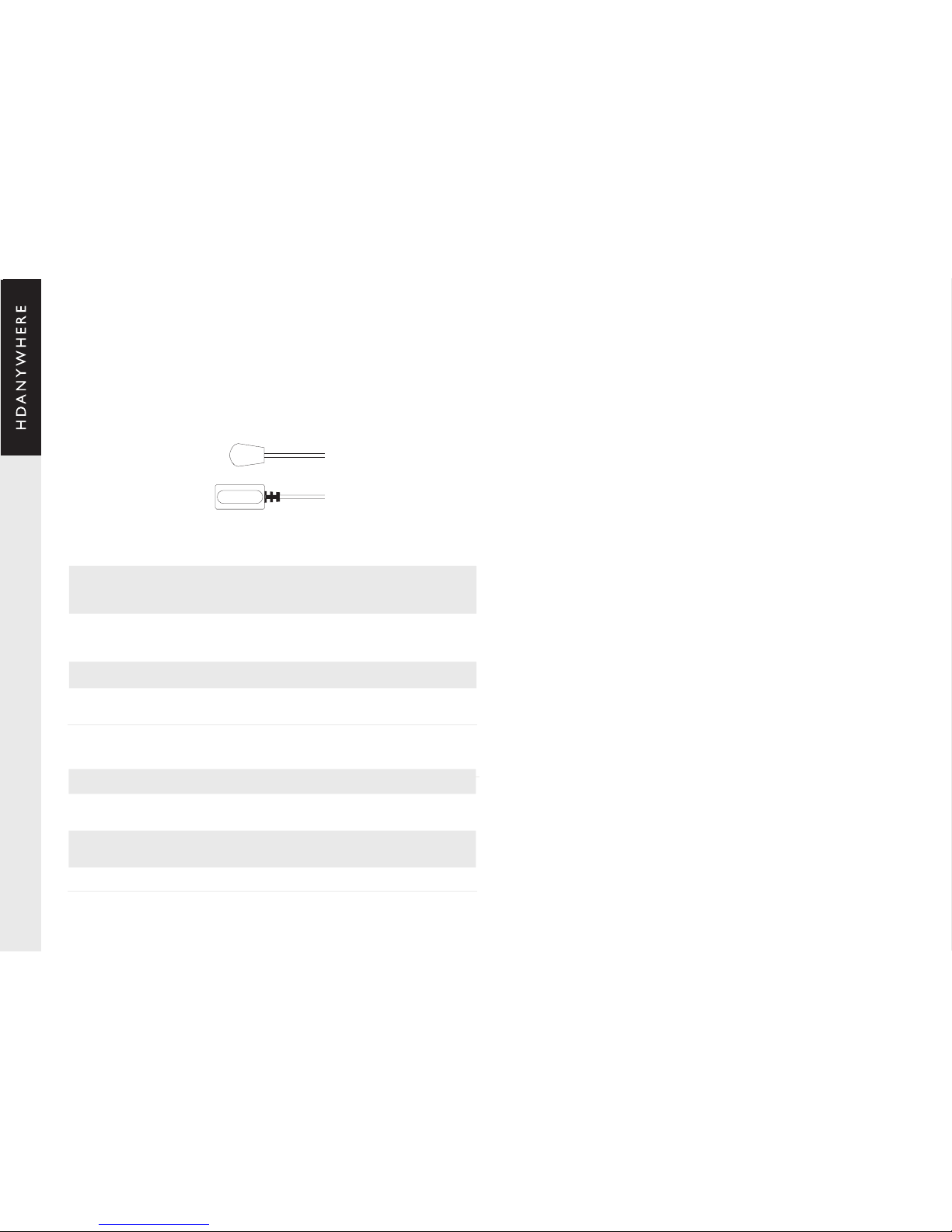
1. Plug IR Transmitter TX into the numbered 3.5mm jack port labelled SOURCE IR (OUT) on
the MHUB. Make sure the number corresponds with the HDMI input the source device is
connected to
2. Place IR Transmitter TX bud (small tear drop part) in front of the IR eye of the source (where
you would normally point the remote to control the HDMI source device). Repeat these steps
for each source device
3. Plug IR Receiver RX into the 3.5mm jack port labelled IR IN on the display receiver
4. Place IR Receiver at or near the display (position it close to where you would usually point
your remote to turn your TV on or off)
1. Plug IR Transmitter TX into the 3.5mm jack port labelled IR OUT on the display Receiver
2. Place IR Transmitter TX in front of the IR eye of the display (position it where you would
usually point your remote to turn on or off your TV)
3. Plug IR Receiver RX into the numbered 3.5mm jack port labelled DISPLAY IR on the central
hub. Make sure the number corresponds with the display you want to control
4. Place IR Receiver in a visible uncovered position where it is able to receive remote signals
SETTING UP IR CONTROL
This will enable backwards IR control (the most common form of IR control) where IR signals
from a remote in any one of your rooms is sent back to the central hub and sent to your source
device to make it appear as though it is in the same room as you.
Source control via IR (backwards IR)
Display control via IR (forwards IR)
IR RX
IR TX
Forward IR ports
Test basic operation (backwards IR)
TESTING YOUR IR SET UP
The easiest way to verify your IR setup is to go to your display device connected to output b (or
your rst connected output) of the central hub. Use the matrix remote to select source input 1
and then use the remote control for your chosen source 1 to verify control. Do this for each of the
other sources connected to the matrix. If you wish, you can then repeat the process at each of
the display locations you have connected to the system.
MHUB has forward IR ports on the rear of the matrix. These allow IR signals to be sent from the
central hub to the individual TV receivers. This feature is for use when integrating with third party
control systems. In normal use these ports are not used or required. For example, a third party
smart home system such as Control4, Crestron, AMX or RTI can send IR commands to control
devices at the TV receiver location from the location of the central hub.
Working with identical source devices
MHUB has discrete IR, so it is possible to have two or more identical source devices without IR
clashes that result in the operation of all identical devices. When using two or more identical
source devices, please take measures to avoid IR transmission leaks that could cause the other
identical source devices to respond. You can take measures to shield source devices from the
IR being emitted by other source device IR TX emitters by locating them on different shelves, for
example.
Page 8
8
MHUB
HD CONNECTIVITY LTD, trading as HDANYWHERE registered in England and Wales. Company No: 06046737 Registered ofce: Unit 23 Link Business Centre, Link Way, Malvern, Worcestershire, WR14 1UQ. Contact: [email protected] Tel: 00441684575324
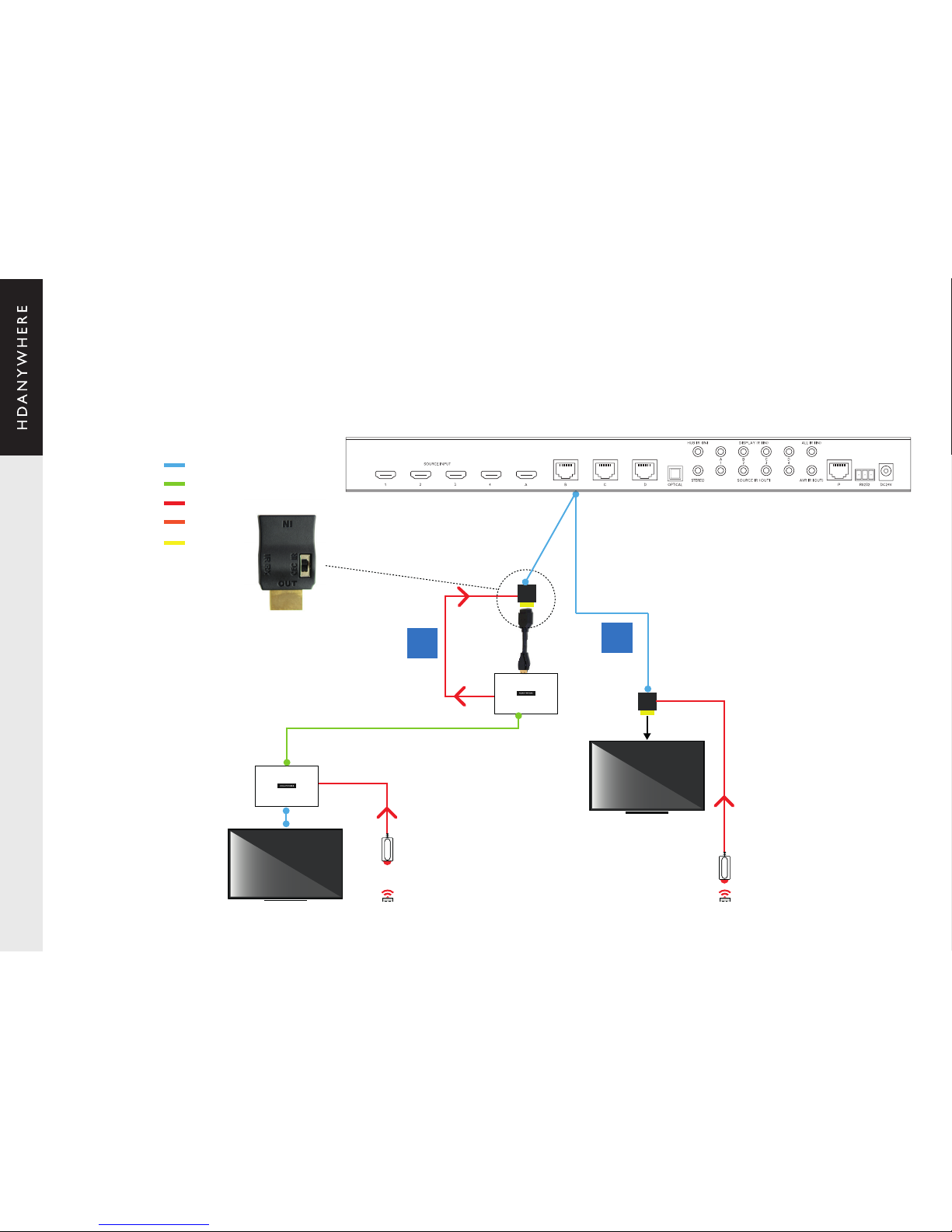
Gaining IR control of sources using when using a direct HDMI connected
display, or and XTND extender set with MHUB.
A. The HDMI IR dongle is included with MHUB as part of the boxed package.
B. The ‘MHUB+XTND Integration Kit’ is available as an optional extra accessory. (2.50.792)
HDMI CABLE
CAT6 CABLE
INFRARED (IR) CABLE
3.5mm JACK CABLE
POWER
DONGLE CONNECTS
DIRECTLY TO DISPLAY
XTND HDMI
EXTENDER TRANSMITTER
XTND HDMI
EXTENDER RECEIVER
SET SWITCH TO “IR”
IN BOTH METHODS
M to F adapter
A
B
Page 9
9
MHUB
HD CONNECTIVITY LTD, trading as HDANYWHERE registered in England and Wales. Company No: 06046737 Registered ofce: Unit 23 Link Business Centre, Link Way, Malvern, Worcestershire, WR14 1UQ. Contact: [email protected] Tel: 00441684575324
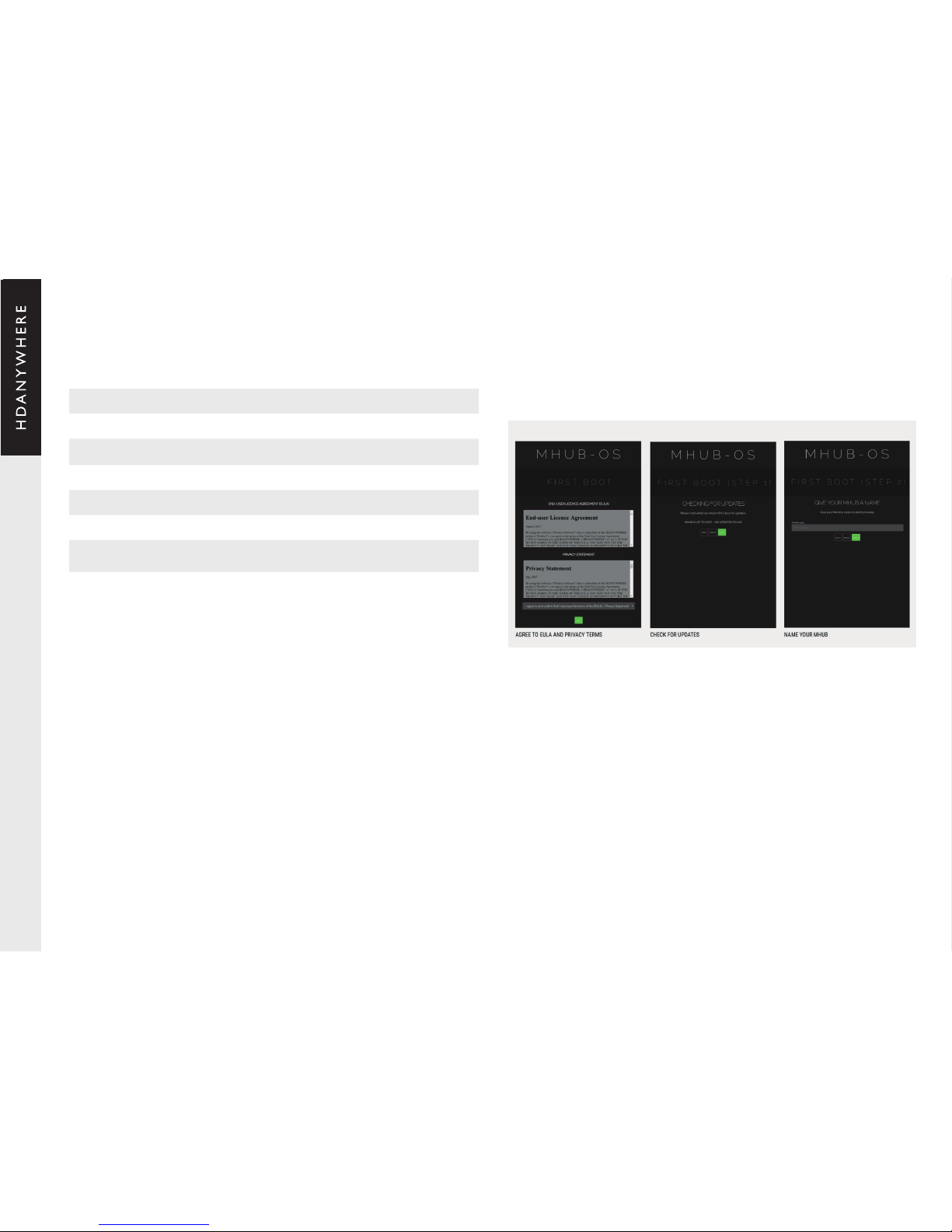
BEFORE STARTING: Read and agree to the End User Licence Agreement (EULA) and Privacy
Statement
First Boot Step 1 – Check for MOS updates
This is where your MHUB requests available updates from HDA cloud so your unit will update to
the latest version. This is done before proceeding.
First Boot Step 2 – Name your MHUB
Here you can give your MHUB a personal name, this can also be used to differentiate multiple
installations by HDA Pro’s
First Boot Step 3 – Name your sources/inputs
On this page you can label your input devices, such as Sky, Apple or Tivo. These labels are used
in the uControl app and with voice control.
SETUP CONTINUED...
1. Power off all displays and all HDMI source devices.
2. Connect the unpowered HDMI sources to the HDMI inputs on the matrix hub.
3. Connect each display receiver’s Cat cable to the HDBaseT ports on the matrix hub.
4. Connect any direct devices such as AVRs or displays to the HDMI ports on the matrix hub.
5. Plug in the power for the matrix hub.
6. Power on each HDMI source device followed by each display.
7. At this point the four displays should show the video and audio of the HDMI source devices
connected to the matrix.
MHUB-OS FIRST BOOT PROCESS
Make sure MHUB is connected up correctly before starting the rst boot process on MHUB-OS
HDANYWHERE(HDA) recommends that every MHUB install goes through its rst boot process
to ensure that the MHUB is setup correctly. Please follow the quick start guide (inside MHUB
packaging) to make sure your MHUB is connected correctly to your source devices, displays and
has an active network connection before proceeding.
I don’t use MHUB-OS or go through the rst boot process, will it still work like a normal matrix?
Yes. You do not need to access MHUB-OS if you don’t want to. MHUB will work distributing video
as normal and will be controllable using the included remote controls. Please note that you will not
be able to access advanced features such as voice control, the uControl app or build Sequences.
Accessing MHUB-OS (MOS)
There are two ways to access MOS:
1. Download our app, uControl, from the iOS or Google Play Store and let it nd MHUB (and run
you through the rst boot) for you.
2. Use a network scanner such as https://www.ng.io/ to discover the devices connected to the
network. Find MHUB in the list of devices and the IP address associated to it from there. Make a
note of it then put that address into any web browser on the same network. You will be forwarded
to your MHUB-OS and prompted to complete the rst boot process.
Page 10
10
MHUB
HD CONNECTIVITY LTD, trading as HDANYWHERE registered in England and Wales. Company No: 06046737 Registered ofce: Unit 23 Link Business Centre, Link Way, Malvern, Worcestershire, WR14 1UQ. Contact: [email protected] Tel: 00441684575324
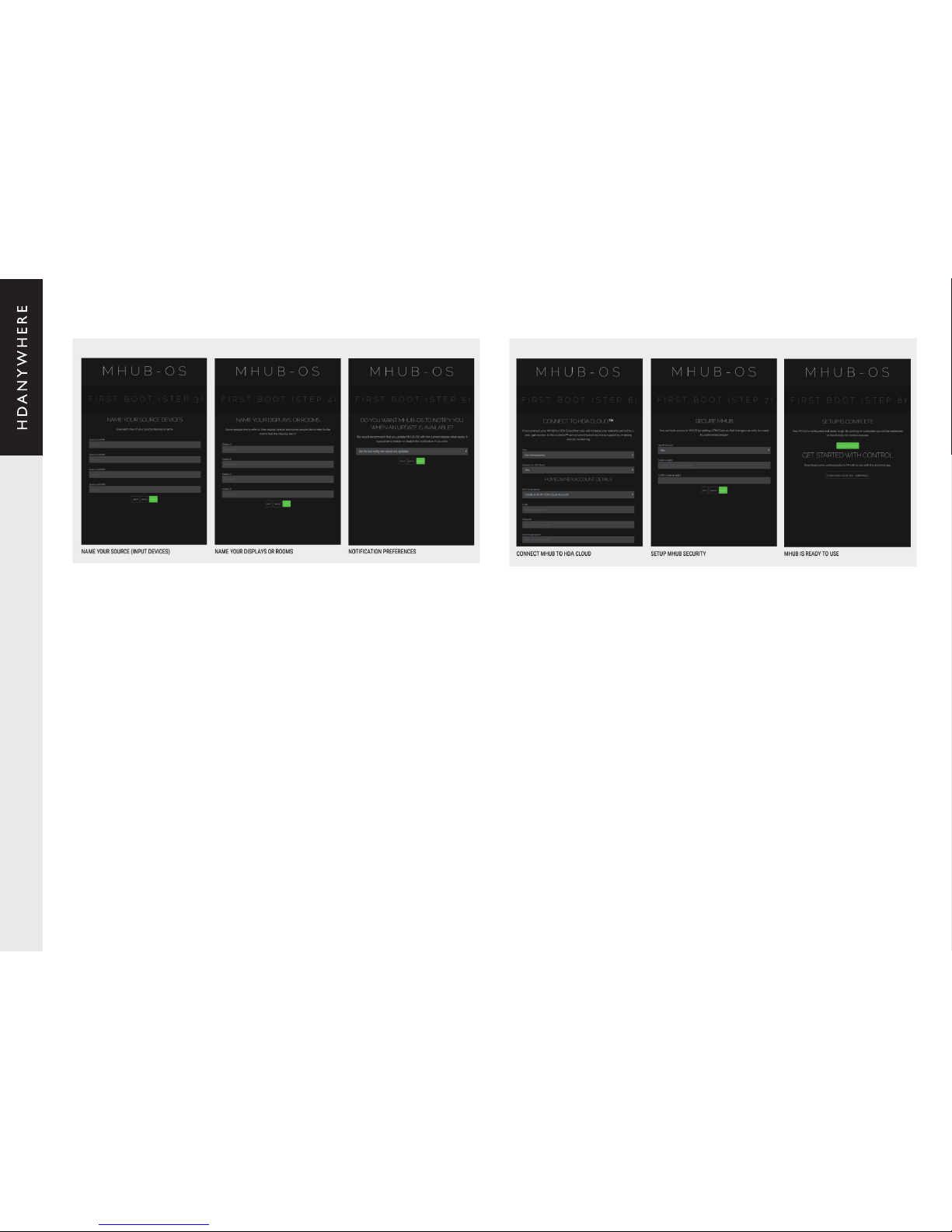
First Boot Step 4 – Name your Displays/Rooms/outputs
This page is similar to the previous step. You can choose to label them as display manufacturers
or room names. Again please follow best practice guidelines available here – [Best Practices]
First Boot Step 5 – Turn update notications On/Off
MOS updates are released periodically, here you can choose to be notied when an update is
available.
First Boot Step 6 – Create or link your MHUB to a HDA cloud account, read and agree to our
Terms and Conditions
MHUB 4K and MHUB 4K PRO units can be linked to a cloud based account. When registering
as a homeowner this enables a couple of things. Firstly when you register, your warranty period
is extended by 1 year, in addition to that cloud access is required when using the uControl IR
engine feature allowing you to control source and display devices. Cloud access is also required
for voice integration. For a HDA PRO the cloud account allows you to manage your MHUB
installations remotely, getting system information as well as a host of other features.
First Boot Step 7 – Secure MHUB with a PIN number
If you wish you can lock local access to MOS stopping any unwanted conguration changes
from being made.
First Boot Step 8 – Complete First Boot Setup
Once you have completed the rst boot process you can either ‘COMPLETE SETUP’ and go to
the MOS DASHBOARD page, or go to the uControl page to start adding device/source control.
Page 11
11
MHUB
HD CONNECTIVITY LTD, trading as HDANYWHERE registered in England and Wales. Company No: 06046737 Registered ofce: Unit 23 Link Business Centre, Link Way, Malvern, Worcestershire, WR14 1UQ. Contact: [email protected] Tel: 00441684575324
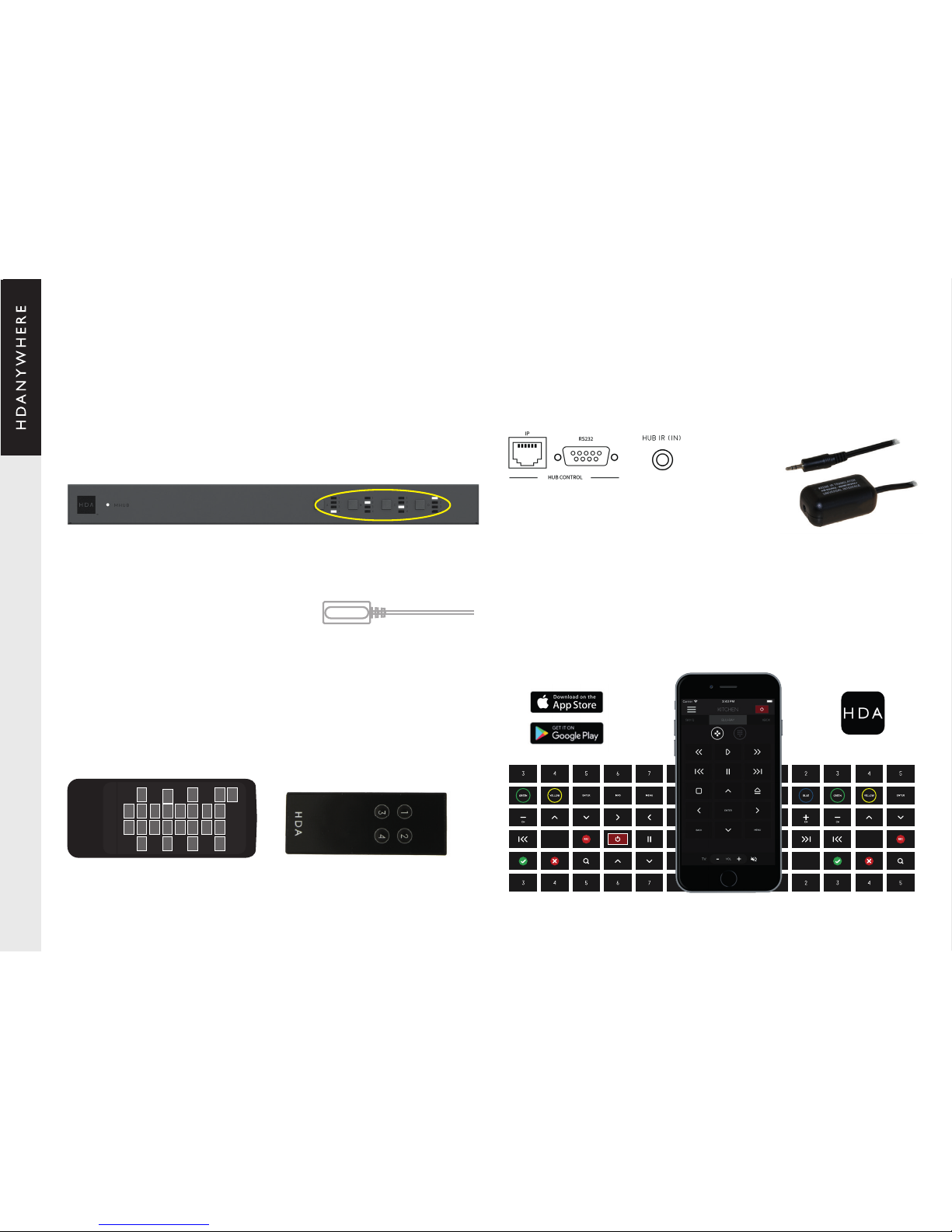
To control MHUB using the master remote, connect the included IR RX cable to the 3.5mm jack
port labelled ‘HUB IR’
Contextual IR and Room Remotes
MHUB receives infrared (IR) commands from display receivers ‘contextually’, with the unit
determining which zone output the IR command originated from. Contextual IR enables the
ability to use simplied remotes with less buttons compared the Master Remote, which HDA call
‘Room Remotes’. Contextual IR gives the ability to roam a property from zone-to-zone with the
same Room Remote, and when you use it, the MHUB knows exactly which zone you are requiring
control at.
OPERATION
Integrating and operating MHUB with a third party
control system
Via the front panel
The HDANYWHERE uControl App
It is highly recommended that you learn more about uControl at HDANYWHERE.com or visit the
dedicated uControl support pages at http://support.hdanywhere.com/ucontrol/
Using the Master or Room Remote
You can switch between connected HDMI sources (1, 2, 3 and 4) at displays (A, B, C and D)
manually by using the buttons on the front of the matrix hub. Pressing the button next to the
corresponding output will cycle through the available source devices.
The MHUB can be integrated with a third party control system via IP or RS232. Drivers for the
most popular brands can be found on the MHUB MAX product page on our online support site.
http://support.hdanywhere.com/products/multiroom-hd/mhubmax/
Download the free HDANYWHERE uControl App to your phone or tablet. With uControl and the
MHUB MAX you can control which source is being routed to what display.
BACK
PAGE PAGE
BACK
HELP
uControl
A
B
C
D
HDANYWHERE
It is possible to control MHUB with a third party controller via
direct IR, using the optional add-on accessory called the ‘IR
integration cable’ (1.55.911.001.1)
1x included, additional room remotes
sold separately (1.65.904.004.1)
Page 12
12
MHUB
HD CONNECTIVITY LTD, trading as HDANYWHERE registered in England and Wales. Company No: 06046737 Registered ofce: Unit 23 Link Business Centre, Link Way, Malvern, Worcestershire, WR14 1UQ. Contact: [email protected] Tel: 00441684575324
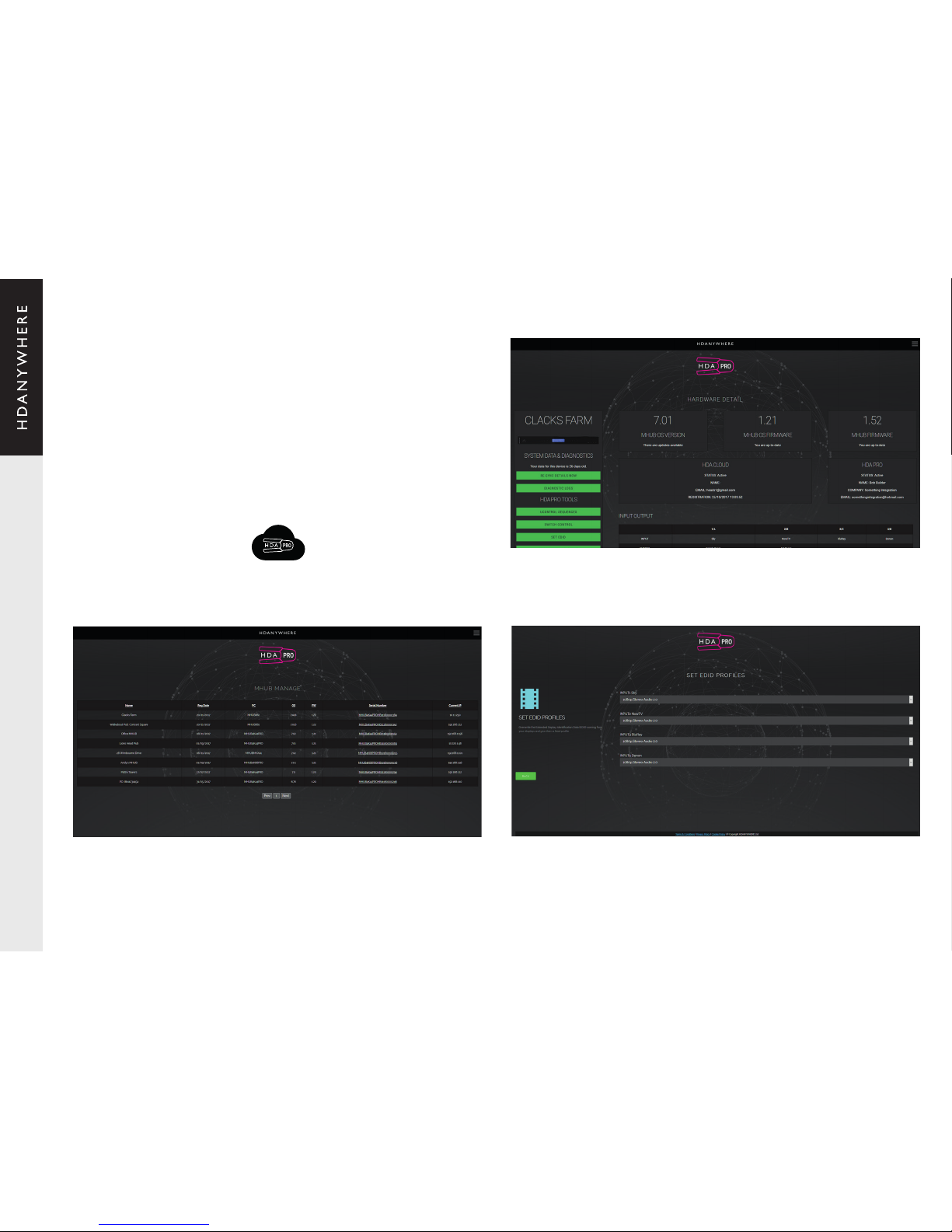
REMOTE MANAGEMENT
MHUB MAX features remote management software, designed to reduce the necessity for
callouts and site visits. Whether at the ofce, roadside service station or working from home,
the HDA PRO Cloud dashboard offers a secure portal to remotely monitor and manage networkconnected MHUB installations across multiple client sites. Power-cycling, software rebooting,
diagnostics, EDID changes and uControl conguration changes can all be performed without ever
having to visit the unit in person.
REMOTELY
MONITORABLE
Projects list Advanced EDID management
MHUB system dashboard
cloud.hdanywhere.com
Page 13
13
MHUB
HD CONNECTIVITY LTD, trading as HDANYWHERE registered in England and Wales. Company No: 06046737 Registered ofce: Unit 23 Link Business Centre, Link Way, Malvern, Worcestershire, WR14 1UQ. Contact: [email protected] Tel: 00441684575324
SPECIFICATIONS
These specications may change or be improved without notice. HDANYWHERE may not be held
responsible for discrepancies.
Terms and Policies, including General Data Protection
Regulation (GDPR) and other Data Protection Laws.
During the setup process of this device, the HDA Pro (Installer) and End-User are required to agree
to a set of terms, conditions, rules, policies and license agreements, including the HDANYWHERE
Privacy Policy. These terms, notices and policies are, collectively, the “Agreements”. By installing
or using this MHUB, you agree to be bound by the Agreements.
EU Conformity
Hereby, HDANYWHERE declares that this HDMI connectivity device is in compliance with the
essential requirements and other relevant provisions of the following Directives: 2006/95/EC
(LVD Directive); 2004/108/EC (EMC Directive); 1999/5/EC (R&TTE Directive). The full text of the
EU declaration of conformity is available in the compliance section at HDANYWHERE.com/legals
Recycling your device properly
In some areas, the disposal of certain electronic devices is regulated. Make sure you dispose of
or recycle your device in accordance with your local laws and regulations.
IMPORTANT INFORMATION
Form factor
19”/1U aluminum rack-mountable unit with
optional kit
Inputs x outputs 4 HDMI x 3 RJ45 HDBaseT + 1 HDMI
Transmission tech. HDBaseT Class B and HDMI
Video bandwidth 340MHz clock / 10.2Gbps data
ESD protection
± 8kV (air-gap discharge)
± 4kV (contact discharge)
Hub control Web GUI, IR, TCP/IP, RS232, App, Alexa
App control
Full control over sources, matrix hub & display
functions.
Device weight 950g
Package weight 2800g
Dimensions (W/D/H)
Hub 372 / 167 / 36 mm (without feet)
RX 163 / 94 / 18 mm
Power Internal 110-240v IEC connection
Guarantee 2/3-year guarantee (Cloud registration required)
Operating temperature 32°F to 104°F (0°C to 40°C)
Storage temperature -4°F to 140°F (-20°C to 60°C)
Relative humidity 20~90 % RH (non-condensing)
Power consumption 30W (max) 0.5W (standby)
Page 14
14
MHUB
HD CONNECTIVITY LTD, trading as HDANYWHERE registered in England and Wales. Company No: 06046737 Registered ofce: Unit 23 Link Business Centre, Link Way, Malvern, Worcestershire, WR14 1UQ. Contact: [email protected] Tel: 00441684575324
HDANYWHERE LIMITED PRODUCT
(2/3 YEAR) GUARANTEE
WHO WE ARE
1. We are HD CONNECTIVITY LTD trading as HDANYWHERE (“HDA”), a limited company registered under number
06046737 in England and Wales with its registered ofces at Unit 23 Link Business Centre, Link Way, Malvern,
Worcestershire, WR14 1UQ.
OUR GUARANTEE TO YOU
2. We, HDANYWHERE warrant to you, the end user [MG1] of the HDA hardware (the “Products”) that on the date of
delivery of the Products to you, and for a period of 3 years from that date of delivery, the Products shall:
(a) match any description that has been provided to you;
(b) be free from any signicant defects in their design, the materials used to make them, and the way they are
made;
(c) be of satisfactory quality (within the meaning of the Consumer Rights Act 2015); and
(d) be t for any purpose held out by us.
This 2 year period, or, if the period has been extending to 3 years in accordance with paragraph 3, will be the
“Guarantee Period”. We offer this guarantee to all our customers who are resident and have an address in Great
Britain and Northern Ireland. [MG2]
EXTENDING YOUR GUARANTEE
3. On registering your Products with the HDA Cloud, the guarantee offered in paragraph 2 by us will automatically
extend for a period of one year, provided that your registration takes place within 30 days from the date of delivery.
The one year guarantee extension starts automatically from the date that the original 2 year guarantee ends.
HOW TO CLAIM ON YOUR GUARANTEE AND YOUR REMEDIES
4. Subject to paragraphs 5 and 6 of this guarantee, Your sole remedies under Our guarantee to You are as follows:
(i)Up to 30 days: we will repair or replace your Products or provide you with a full refund of the price of the defective
Products at your option.
(ii) Up to 6 Months: we will repair or replace your Products. If we are unable to repair or replace your Products we
will provide you with a full refund of the price of the defective Products.
(iii) Up to 2 (3) Years: we will repair or replace your Products. If we are unable to repair or replace your Products
we will provide you with a partial refund of the price of the defective Products based upon the devaluation of the
Products since the time of purchase.
5. In order to claim under the guarantee given to you in paragraph 2 you will need to:
(a) give us notice in writing of your intention to claim under the guarantee during the Guarantee Period, and do
so within a reasonable time after nding that some or all of the Products do not comply with the guarantee set out
in paragraph 2;
(b) show that the Products that you claim are defective, have been examined by a HDA Pro or other authorised or
suitably qualied installer, and that they have[MG3] conrmed in writing that the suspected defect in the Products
stems solely from a fault in the HDA hardware;
(c) give us a reasonable opportunity to examine the Products in question;
(d) provide us with an order number and a dated sales or delivery receipt from an HDA Distributor, HDA Pro or other
authorised dealer, reseller or installer of the Products.
(e) obtain from us in advance of returning the Products a return merchandise authorisation and/or case
number[MG4] ; and
(f) (if asked to do so by us) return such Products to our place of business at our cost.
CIRCUMSTANCES WHERE YOUR GUARANTEE DOESN’T APPLY
6. We shall not be liable for the Products’ failure to comply with the guarantee set out in paragraph 2 in any of the
following events:
(a) If you make any further use of the Products after giving us notice of an issue in accordance with paragraph 5;
(b) the defect arises because you failed to follow our oral or written instructions as to the storage, installation[MG5]
, use and maintenance of the Products;
(c) the defect arises as a result of your use of the Products with any other software or hardware that is not
compatible with the Products;
(d) the products are used by you for any commercial purpose, including rental or demonstrative purposes;
(e) you alter or repair the Products without the written consent of HDA;
(f) the defect arises as a result of an act of god, fair wear and tear, or your misuse, abuse, unreasonable use, wilful
damage, negligence, or abnormal storage of the Products or by any other causes unrelated to defective hardware
or manufacturing;
(g) where the serial number has been altered, defaced or removed;
(h) where the warranty seal on the system has been altered, defaced or removed; or
(i) where the Products differ from their description as a result of changes made to ensure they comply with
applicable statutory or regulatory requirements.
TRANSFERRING YOUR GUARANTEE TO SOMEONE ELSE
7. [HDA will not accept any liability under such guarantee unless you are the original customer or can produce a
letter or chain of letters from the original customer and subsequent customers (where appropriate) transferring the
benet of the guarantee to you.]
PRODUCTS THAT ARE NOT COVERED BY THIS GUARANTEE
8. This guarantee does not cover products sold and clearly marked “as is”, “B-grade”, or with faults. This guarantee
does not apply to any system software that is preinstalled in the HDA hardware, or is subsequently provided via
update or upgrade releases. Any and all HDA software is licensed to you under the terms of a separate end user
licence agreement found here: [EULA Link]
HOW THIS GUARANTEE WORKS WITH OUR EULA
9. We may void this guarantee if we reasonably believe that the HDA system has been used in a manner that violates
terms of our separate End User Licence Agreement (EULA) for the HDA software. You assume all-risk and liabilities
associated with the use of third party products in conjunction with the Products.
YOUR STATUTORY RIGHTS
10. This guarantees is in addition to your statutory rights (including under the Consumer Rights Act) which are not
affected by this guarantee
GENERAL TERMS OF THIS GUARANTEE
11. Except as provided in this guarantee, we shall have no liability to you in respect of the Products’ failure to comply
with the guarantee set out in paragraph 2.
12. We reserve the right to amend or withdraw this guarantee at any time although for the avoidance of doubt any
guarantees that are in existence at such a time will be honoured.
13. These Conditions shall apply to any repaired or replacement Product supplied by us.
GUARANTEE CONTACT INFORMATION
To contact ([email protected]) or call HDANYWHERE Technical Support (call charges will depend on your
telephone provider. Please check with your operator for exact charges).
The team is available 9am - 5pm weekdays.
To help us handle your query promptly, please have your invoice number and model SKU and serial ready.
Page 15
15
MHUB
HD CONNECTIVITY LTD, trading as HDANYWHERE registered in England and Wales. Company No: 06046737 Registered ofce: Unit 23 Link Business Centre, Link Way, Malvern, Worcestershire, WR14 1UQ. Contact: [email protected] Tel: 00441684575324
Please give us your feedback
We love to hear ideas for how we might improve our products and your experiences using them. If we can make something better,
we will, at the earliest opportunity. Whether that be a software or hardware change. So don’t keep it to yourself,
let us know. And if your idea gets used - we will credit you publicly and send you a nice gift to say thanks!
Use the uControl App to send us feedback,
or go to HDANYWHERE.com/feedback
©2017 HD Connectivity Ltd, trading as HDANYWHERE® or its afliates. All rights reserved.
HDANYWHERE and MHUB 4K + logos are trademarks of HDANYWHERE® or its afliates.
 Loading...