

Page 1

Digta W/LAN-Adapter
Instruction manual
This operating manual contains important instructions for safe and efficient
handling of the Grundig Business Systems Digta W/LAN-Adapter (hereinafter
referred to as “device”). This operating manual is part of the device and must be
kept accessible in the immediate vicinity of the device for persons working on and
with the device. Carefully read and make sure you understand this operating manual
and all product safety labels prior to starting any work with the device. The basic
prerequisite for safe work is compliance with all specified safety and handling
instructions. In addition, all local accident prevention guidelines and general safety
regulations effective at the implementation site of the device apply. Illustrations in
this operating manual are provided for basic understanding and can vary from the
actual model of the device. No claims can be derived from the illustrations in this
operating manual.
Disclaimer
All information and instructions in this operating manual have been provided under
due consideration of applicable guidelines and regulations, the current and known
state of the art, as well as our many years of in-house experience. The
manufacturer assumes no liability for damages due to:
Failure to comply with the instructions in this operating manual
Improper use / misuse
Wilful operation by non-authorized persons
Unauthorized conversions or non-approved technical modifications
Use of non-approved spare parts
The originator is solely liable to the full extent for damages caused by such conduct.
The agreed upon obligations in the delivery contract, the general terms and
conditions, the manufacturer’s delivery conditions, and the statutory regulations
valid at the time the contract was concluded, apply.
1
Page 2

Copyright
This operating manual is protected by copyright.
No part of this operating manual may be reproduced in any form or incorporated into
any information retrieval system without written permission of
Grundig Business Systems GmbH (“the manufacturer”).
Delivery of the operating manual to third parties, duplication in any form - including
excerpts - as well as exploitation and/or communication of the content, are not
permitted without a written declaration of release from the manufacturer.
Actions to the contrary make damage compensation mandatory.
We reserve the right to enforce additional claims.
The manufacturer
© Grundig Business Systems GmbH
Weiherstraße 10
D-95448 Bayreuth
holds the copyright.
2
Page 3

Contents
General ......................................................................................................................5
Explanation of signal words and symbols ...............................................................5
Warnings ................................................................................................ ................ 5
Safety information ......................................................................................................6
Intended use ...........................................................................................................6
Special hazards ......................................................................................................6
Electrical voltage ....................................................................................................6
Connecting Digta W/LAN-Adapter ..........................................................................6
Particular groups of persons ...................................................................................7
Obstacle ................................................................................................................. 7
Electronic components ...........................................................................................8
Operating Digta W/LAN-Adapter ............................................................................8
Cleaning ................................................................................................................. 9
CE note ..................................................................................................................9
Scope of delivery ................................ ................................ ....................................9
Introduction .............................................................................................................. 10
Preparation .............................................................................................................. 10
Display, LEDs .......................................................................................................... 10
Basic configuration .................................................................................................. 10
Setup ....................................................................................................................... 14
Info ....................................................................................................................... 15
Language ............................................................................................................. 15
Digta W/LAN ......................................................................................................... 15
Configuration ........................................................................................................ 15
LAN .......................................................................................................................... 16
WLAN (optional) ...................................................................................................... 17
IP address ................................................................ ............................................ 19
Settings ................................................................................................................ 19
Transfer ................................................................................................................... 20
SMTP ....................................................................................................................... 21
E-mail server ........................................................................................................ 22
E-mail recipient ..................................................................................................... 22
Test e-mail/Settings .............................................................................................. 22
FTP .......................................................................................................................... 23
FTP server ............................................................................................................ 24
Test FTP connection/Settings .............................................................................. 24
Event Log................................................................................................................. 25
Transfer of dictations ............................................................................................... 27
3
Page 4

Troubleshooting ....................................................................................................... 28
Technical data ......................................................................................................... 29
4
Page 5

DANGER
WARNING
CAUTION
NOTICE
d TIP
General
Explanation of signal words and symbols
Warnings
Warnings are indicated by symbols. In addition they are introduced with signal
words that express the scope of the hazard.
All instructions must be strictly complied with!
When working always act cautiously to prevent accidents, personal injury,
or property damage!
DANGER indicates a hazardous situation which, if not avoided, will result in death or
serious injury.
WARNING indicates a hazardous situation which, if not avoided, could result in
death or serious injury.
CAUTION, used with the safety alert symbol indicates a hazardous situation which,
if not avoided, could result in minor or moderate injury.
NOTICE is used to address practices not related to personal injury. It indicates
specific actions which prevent from damage to the device and from loss of
dictations.
Indicates useful tips and recommendations as well as information for efficient and
trouble-free operation.
5
Page 6

DANGER
WARNING
Safety information
Intended use
The Digta W/LAN-Adapter is for exclusive use with a Digta docking station and a
Digta dictation machine to transfer stored dictations via LAN (local area network) or
WLAN (wireless LAN, WIFI) without a PC.
Special hazards
Electrical voltage
Danger of electric shock!
Do not touch the power supply with wet hands.
Do not insert metal objects or the like into the power supply.
Never open the power supply or modify the plug or cable.
Do not use the power supply if the housing or connection cable is damaged
or the power supply does not function properly.
If the power supply is dropped, have it checked by an authorized dealer to
ensure that it functions correctly and safely.
Disregarding these precautions means risking a fatal electric shock.
Connecting Digta W/LAN-Adapter
Danger of fire, explosion and overheating!
Use the power supply only with the line voltage specified on the rating
label.
Use the power supply only with its original connection cable or adapter
(European, UK and USA version).
Never use other connection cables or adapters with different plugs.
Do not place heavy objects on the power supply or connection cable, and
do not cover the power supply.
Use the power supply only in a dry indoor environment.
Protect the power supply from moisture in the form of water and high
humidity.
Do not bend the connection cable of the power supply.
6
Page 7

CAUTION
CAUTION
Do not operate or store the power supply near heaters or direct sunlight.
Ensure adequate ventilation. The permitted temperature range is:
-4°F (-20°C) to 158°F (70°C) for storage
23°F (-5°C) to 95°F (35°C) for operation
Grundig Business Systems power supplies are only to be used with
Grundig Business Systems office equipment.
Pull the power supply out of the socket to separate the device from the
power grid.
Unplug the power supply before cleaning it.
Clean the power supply only with a soft, dry cloth. Do not use chemical
cleaning agents such as alcohol, thinner, gasoline or the like.
Disregarding these precautions means risking fire, explosion or overheating.
Particular groups of persons
Risk of injury!
Do not leave the device unattended and use it with extreme caution if
children or persons who cannot assess the dangers are nearby.
Keep the device away from persons (including children) who are unable to
use it safely due to their physical, sensory or mental limitations, lack of
experience or lack of knowledge.
Disregarding these precautions means risking injury.
Obstacle
Stumbling hazard!
Ensure that the power supply is always in a safe position and that neither
the power supply nor any cables connected to the device or to the docking
station constitute obstacles.
Disregarding these precautions may lead to a stumbling hazard.
7
Page 8

NOTICE
NOTICE
WARNING
Electronic components
Risk of damage and void warranty!
Protect the device from moisture (such as rain or water spray).
Do not place the device near a heater nor in direct sunlight.
The permitted temperature range is:
-4°F (-20°C) to 158°F (70°C) for storage
23°F (-5°C) to 95°F (35°C) for operation
Do not open the device under any circumstances.
Do not modify the device.
Disregarding these points can cause the device to be damaged and the warranty to
become void.
Operating Digta W/LAN-Adapter
Loss of data!
If you are electrostatically charged and touch a device which is switched on, the
device may switch off automatically to protect against damage. Due to technical
failures within networks or devices during data transmission loss of data can occur.
Please check your recording to ensure that it is complete and repeat it if
necessary.
Please ensure that the transmission was successfull.
Disregarding these precautions means risking the loss of data.
Installation and configuration!
The installation and configuration of the Digta W/LAN-Adapter needs to be done by
a system administrator.
8
Page 9

NOTICE
Cleaning
Risk of damage!
Clean the device only on the outside with a dry, soft cloth.
Do not use chemical cleaning agents.
Disregarding these instructions can cause the device to be damaged.
CE note
The CE mark confirms that the device corresponds to the relevant
guidelines of the European Union.
Scope of delivery
Digta W/LAN-Adapter
Power supply unit
RJ45 network cable CAT-5
WIFI antenna
9
Page 10
d
TIP
The Digta W/LAN-Adapter may also be connected directly to the network
card of a PC for configuration. In this case a "crossed" cable is required
(not included in the scope of supply).
d
TIP
Configuration is only possible via an Ethernet cable connection!
Even if an optional WLAN connection is present, it is not suitable for
configuration!
Introduction
The Digta W/LAN-Adapter is used in combination with a Digta dictating machine and
a Digta Station for the transfer of dictations directly over the LAN (wireless LAN
optional). This means that a Digta Station with the Digta W/LAN-Adapter can also
be used in places where no PC is available.
Preparation
In order to set up the Digta W/LAN-Adapter a PC with Microsoft Windows® operating
system (Windows XP and above) is required, together with an Ethernet network with
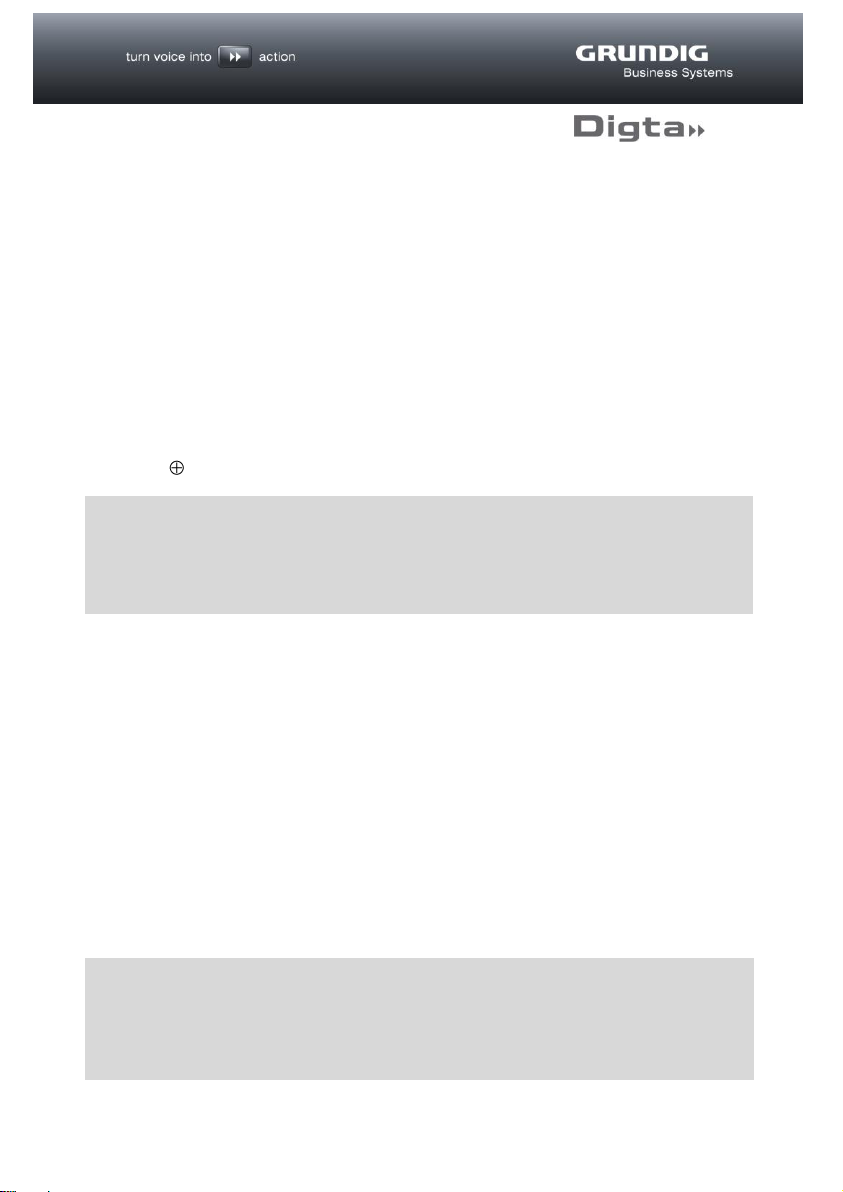
RJ45 connection. Connect the RJ45 connector of the Ethernet cable to the
“ETHERNET” socket and your network, and the connector of the power supply to
the ”–o– ” socket.
Display, LEDs
ETHERNET: jittering = data transfer
INTERNET: without function
WLAN: on = wireless LAN connection
off = LAN connection
Basic configuration
For configuration purposes it is necessary to assign an IP address to the
Digta W/LAN-Adapter and incorporate it into the existing network.
To do this, run the configuration tool “DigtaLANConfig.exe” on your PC.
10
Page 11
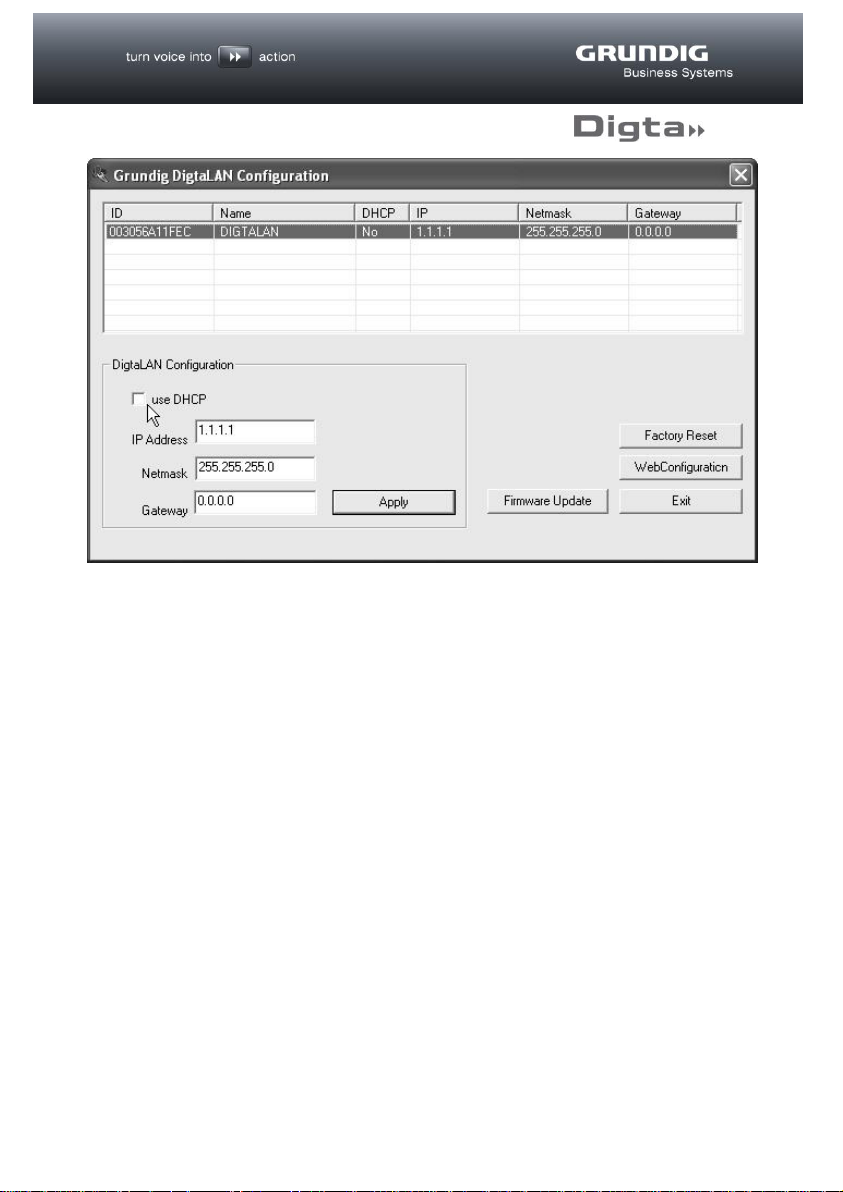
Using this tool all stations in the LAN can be displayed and configured with an IP
address. If there is a DHCP server in your network environment, highlight the station
to be configured in the list and activate the “use DHCP” option. The fixed allocation
of an IP address through the DHCP server (recommended), requires the MAC
address shown in the “ID” column.
You will find information on this in the documentation of your DHCP server.
Alternatively, a fixed IP address may also be allocated to each station. Enter the
relevant data for this in the “DigtaLAN Configuration” field.
Finally, activate the settings by clicking on the “Apply” button. The settings are then
transferred to the Digta W/LAN-Adapter and activated.
The new IP address for the configured station should now appear in the list.
Following successful basic configuration, the Digta W/LAN-Adapter is available in
the LAN and all further settings may now be made via web browser.
11
Page 12
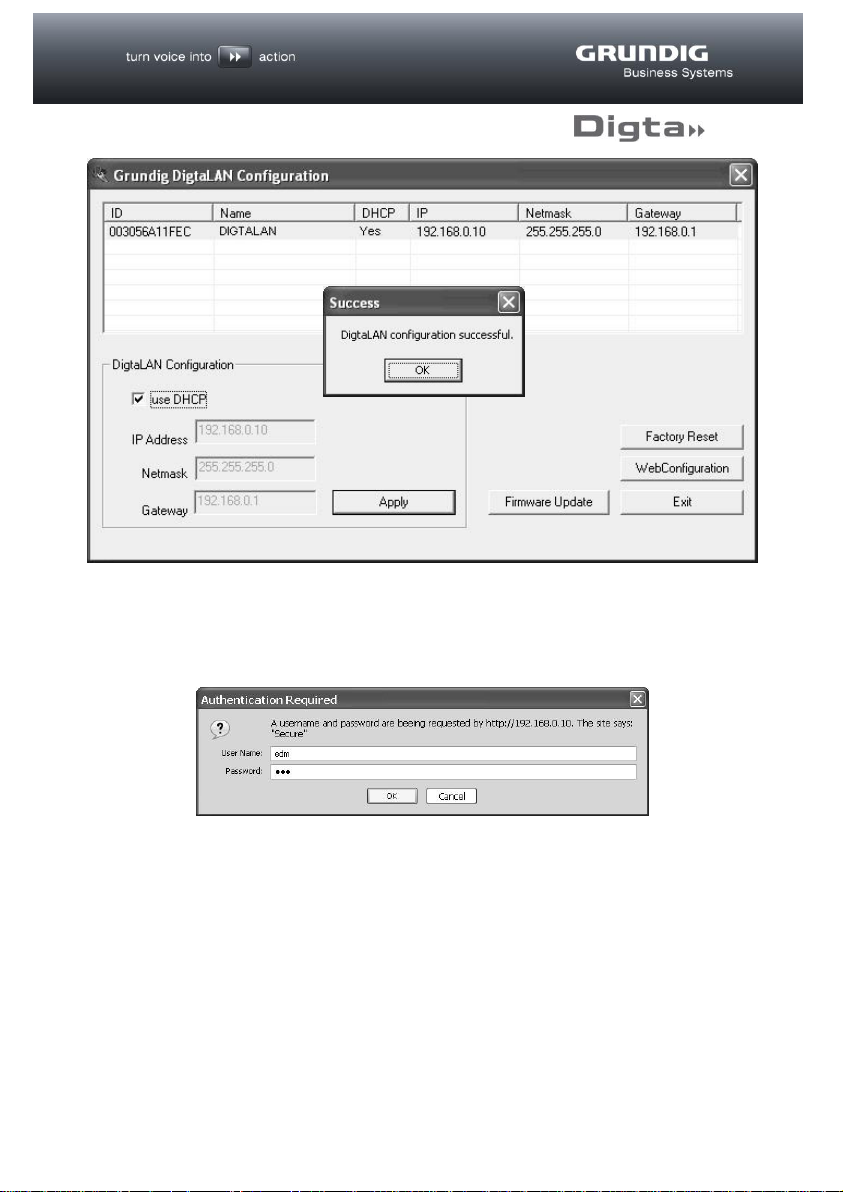
To do this, highlight the station to be configured in the list.
Pressing the “WebConfiguration” button should open your web browser and a
window will appear asking for “User Name” and “Password”.
The factory settings for the user name and password are both “edm” and can be
changed individually in the following stages of the procedure via the web
configuration.
Enter “edm” in the “Name” field and again in the “Password” field and confirm with
the “OK” button.
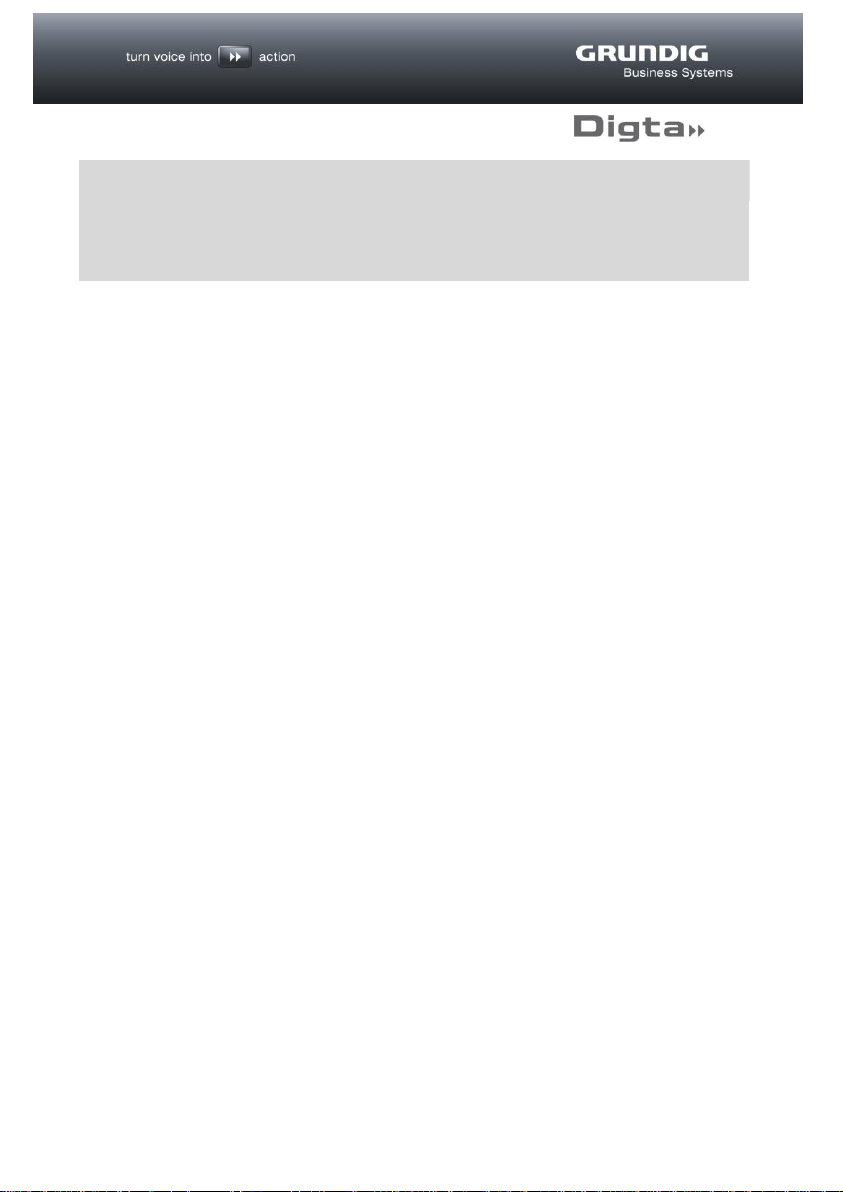
The following web interface then appears for further configuration.
12
Page 13
d
TIP
Alternatively you can also launch your web browser and enter the IP
address configured for the Digta W/LAN-Adapter in the address column
(e.g. http://192.168.0.10).
13
Page 14
NOTICE
Setup
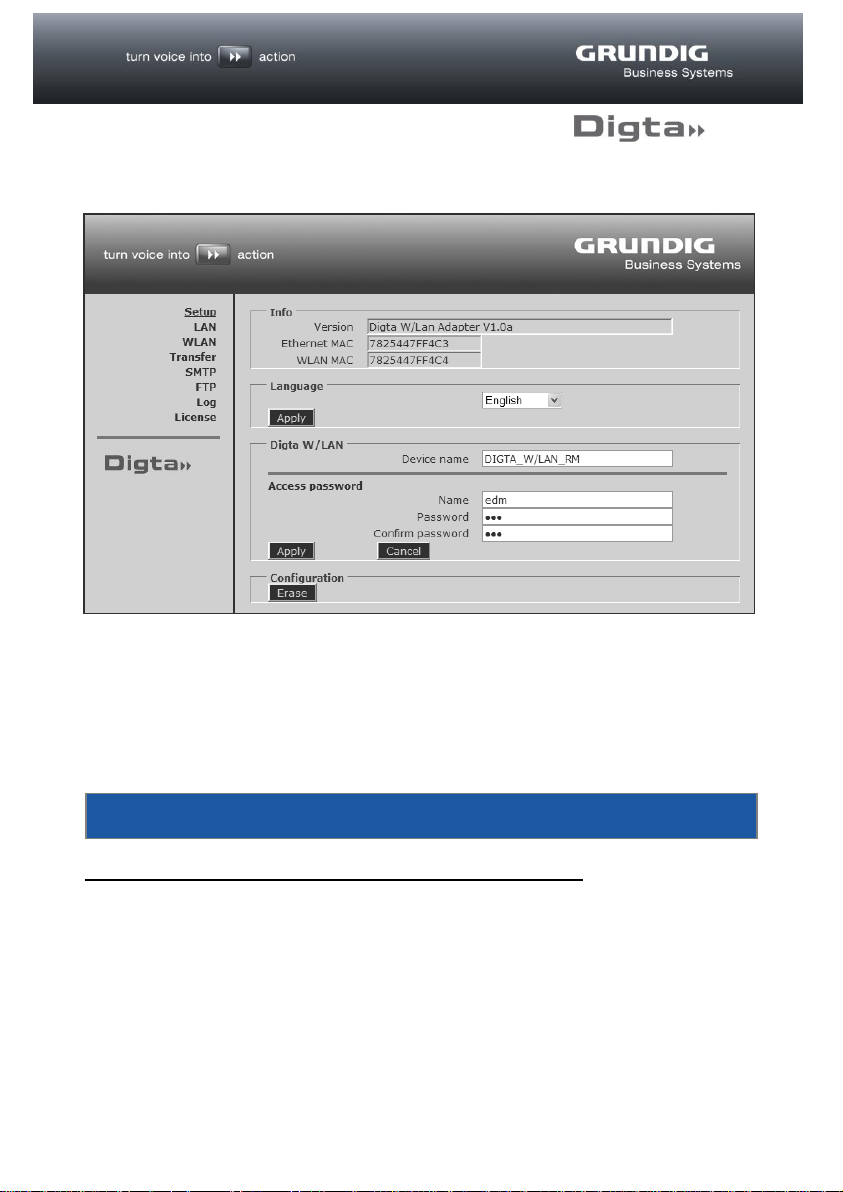
The individual menu items can be seen in the left-hand section of the web interface,
with the associated options in the right-hand section. The active menu is shown
underlined. The factory setting for the language is “English”.
To display the interface in another language, select the desired language in the
Language field and click on “Apply”.
Javascript must be enabled to ensure correct functioning!
14
Page 15
Info
The “Info” field shows information on the hardware and firmware.
Version: Shows the DSS Mover version and the firmware version
Ethernet MAC: Shows the MAC address of the LAN interface
WLAN MAC: Shows the MAC address of the wireless LAN interface
(optional).
In the case of an existing module, this is not displayed until
configuration is complete and a wireless LAN connection has
been successfully established
Language
Various languages for the interface are listed here for selection.
Digta W/LAN
An individual name for the Digta W/LAN-Adapter can be entered in the “
W/LAN” field. If several devices are used in the LAN, this enables you to
differentiate between them and, where appropriate, specify the location. This name
is also shown in the DigtaLAN Configuration tool.
In the “Access password” field you may change the name and password for
access to configuration as you wish.
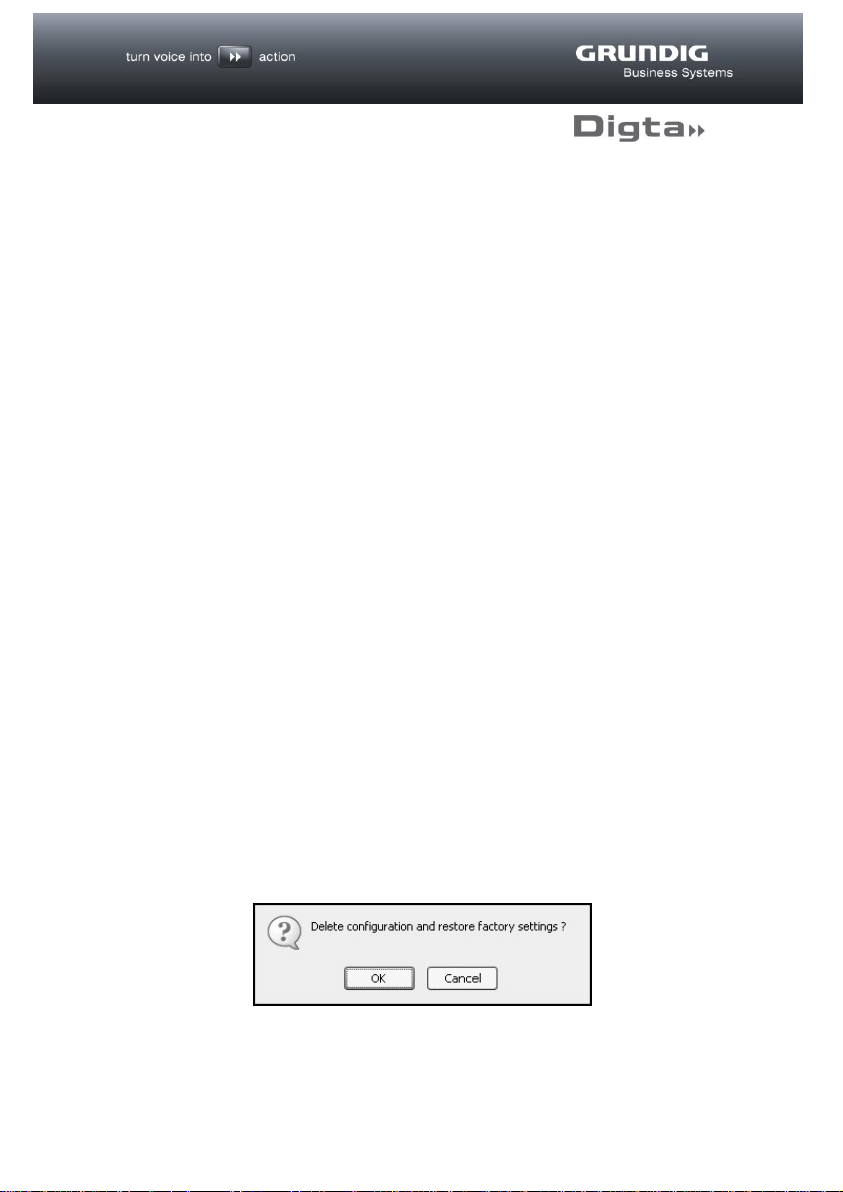
Configuration
The “Erase” button in the “Configuration” field can be used to erase all the
Digta W/LAN-Adapter settings and restore the factory settings.
Digta
A security confirmation question appears before the configuration is deleted.
15
Page 16
d
TIP
If an error is made during input, incorrect data is entered or a test is
unsuccessful, the input fields in question are indicated by a red symbol .
Successful completion of the tests described below is indicated by a green
symbol .
Changing the IP address will interrupt the connection to the web interface!
If necessary, restart the configuration process by entering the new IP
address in your web browser.
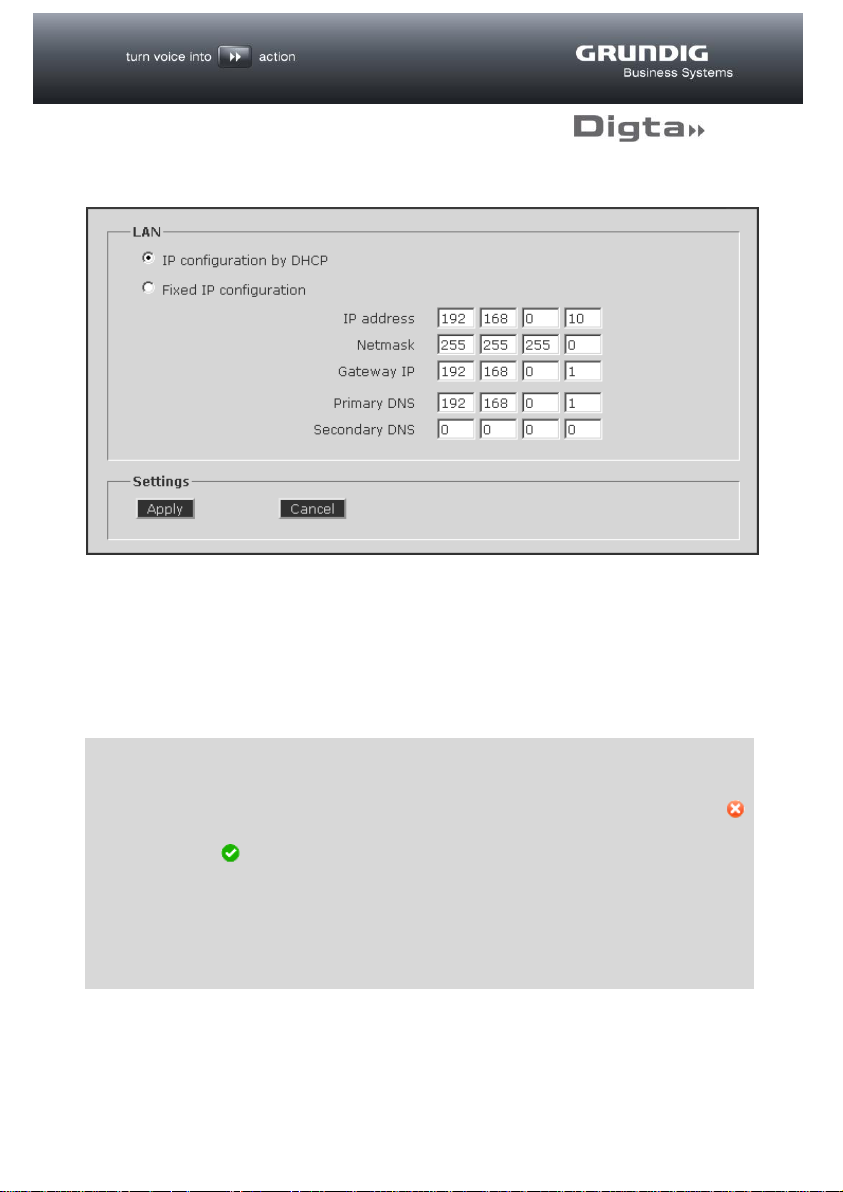
LAN
The “LAN” page shows the IP address set for the LAN interface, already selected
with the DigtaLAN Configuration tool. Changes can be made here, e.g. to the
Gateway IP.
By clicking on the “Apply” button, these settings are adopted and enabled in the
Digta W/LAN-Adapter configuration.
16
Page 17
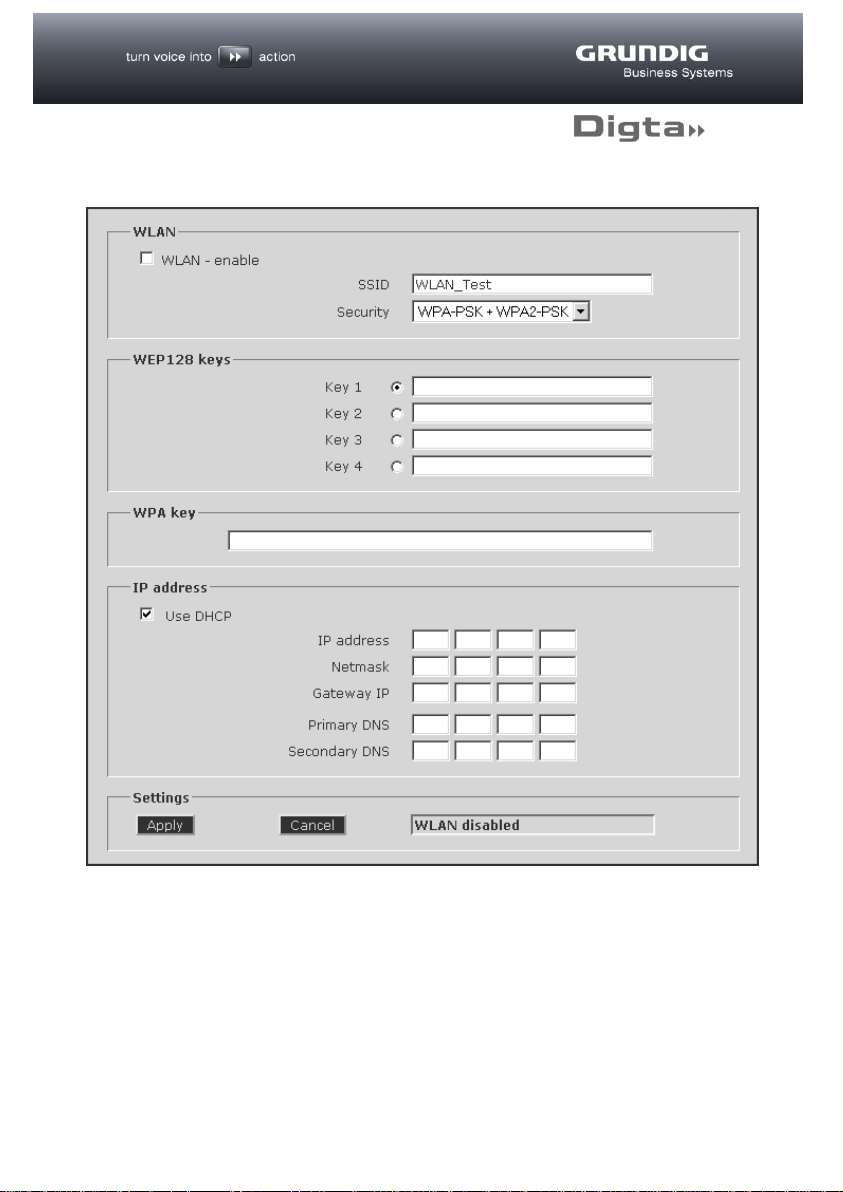
WLAN (optional)
The Digta W/LAN-Adapter may optionally be fitted with a WIFI antenna and can be
configured in the “WLAN” field.
The Digta W/LAN-Adapter supports WIFI 802.11b/g/n.
Activate the “WLAN - Enable” option to activate wireless LAN.
17
Page 18
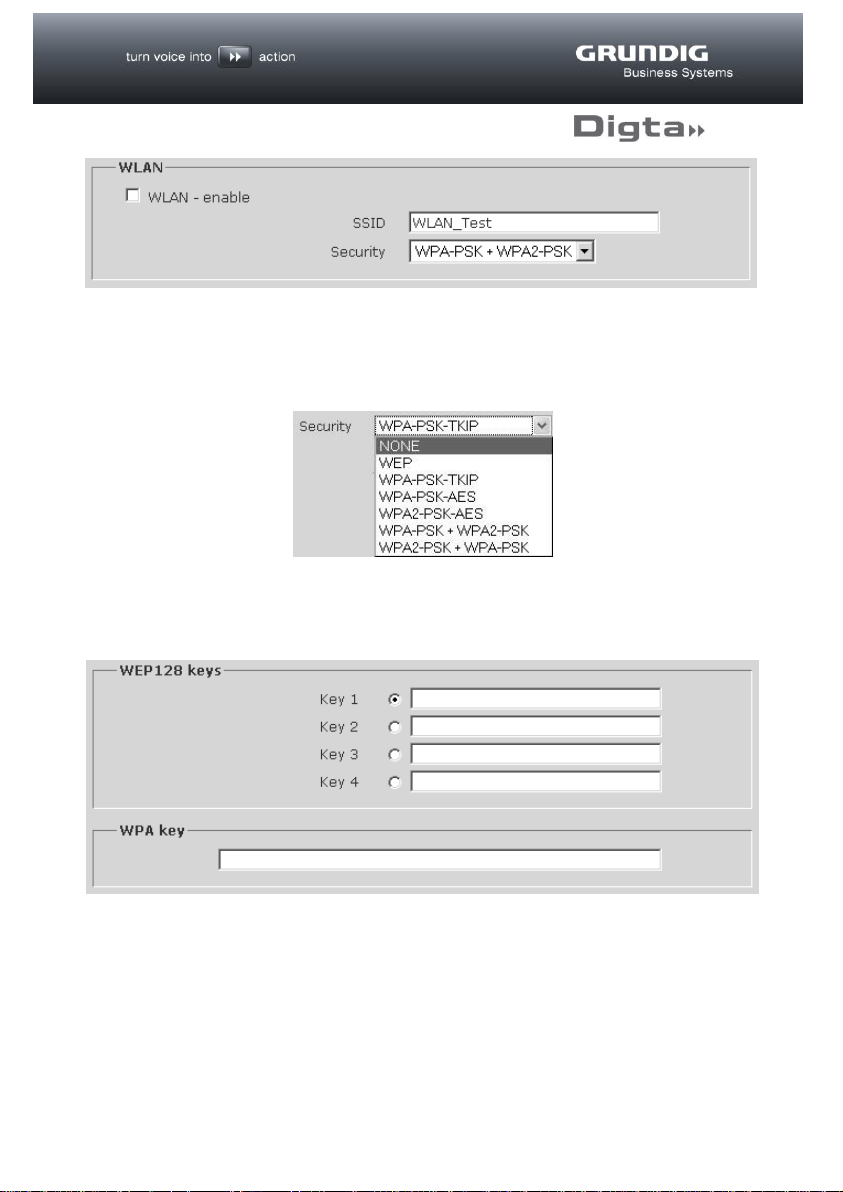
In the “SSID” field enter the name of your wireless network and in “Security” select
the encryption type used by your wireless network.
It is necessary to enter the key(s) in the relevant field for each encryption type
(WEP128 key or WPA key).
18
Page 19
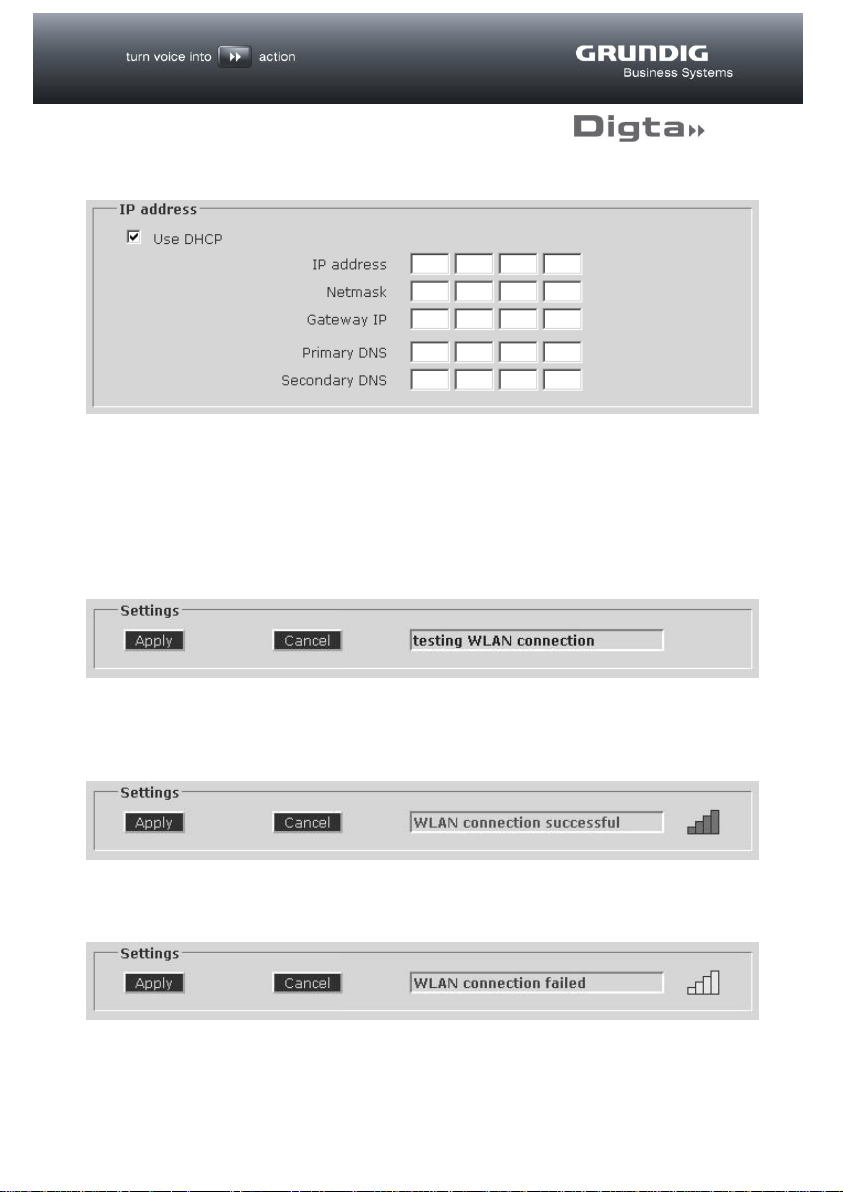
IP address
If there is a DHCP server in the wireless LAN environment that will automatically
assign the address, activate the “use DHCP” option. Alternatively, a fixed IP
address for wireless LAN can be entered here.
Settings
In order to make the settings effective, click on the “Apply” button.
This will initiate a connection test and the status field shows the flashing display
“testing WLAN connection”. This test takes approx. 15-20 seconds.
If the connection can be established, “WLAN connection successful” appears.
There is also a symbol to show the connection strength.
If the connection cannot be established, “WLAN connection failed” appears.
19
Page 20
d
TIP
The fixed allocation of a WLAN IP address through the DHCP server
(recommended) requires the MAC address of the DigtaW/LAN-Adapter.
On successful completion of the connection test this will be displayed in
the Info field of the Setup page.
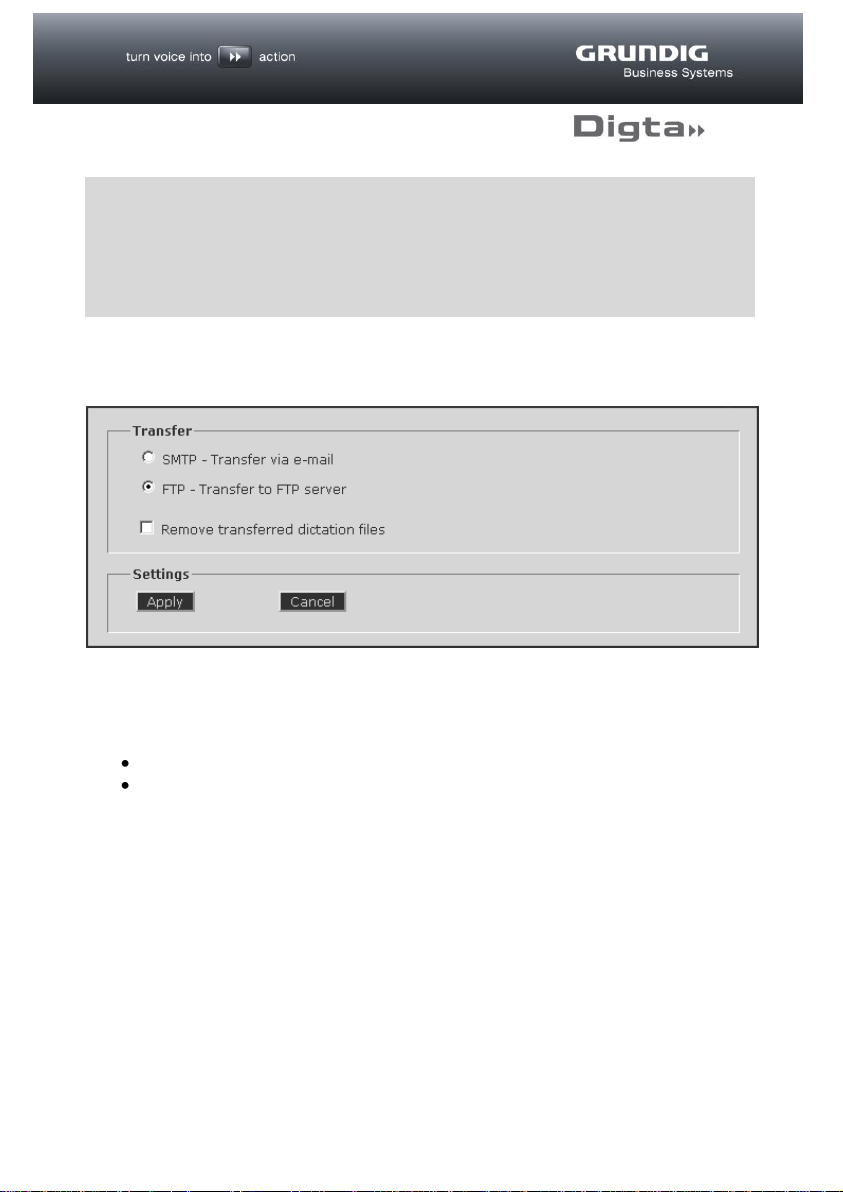
Transfer
On the “Transfer” page a selection can be made between two dictation transfer
types:
SMTP - Transfer of dictations via e-mail
FTP - Transfer of dictations to an FTP server
If the “Remove transferred dictation files” option is checked, successfully
transferred dictations will be deleted from the Digta, thus preventing multiple
transfers. It also means that the full recording capacity of the Digta will be restored
on completion of the transfer.
To save the settings click on the “Apply” button.
20
Page 21
d
TIP
When the Digta is plugged into the Digta Station, the Digta W/LAN-Adapter
makes a single transfer of all dictations on the mobile device. Any
dictations remaining on the mobile device will be transferred again the next
time the Digta is plugged in. A protection mechanism prevents dictations
with the same name from being overwritten in the target folder by
automatically adding #0, #1 etc. to the file name (e.g. DICT0001#0.dss).
SMTP
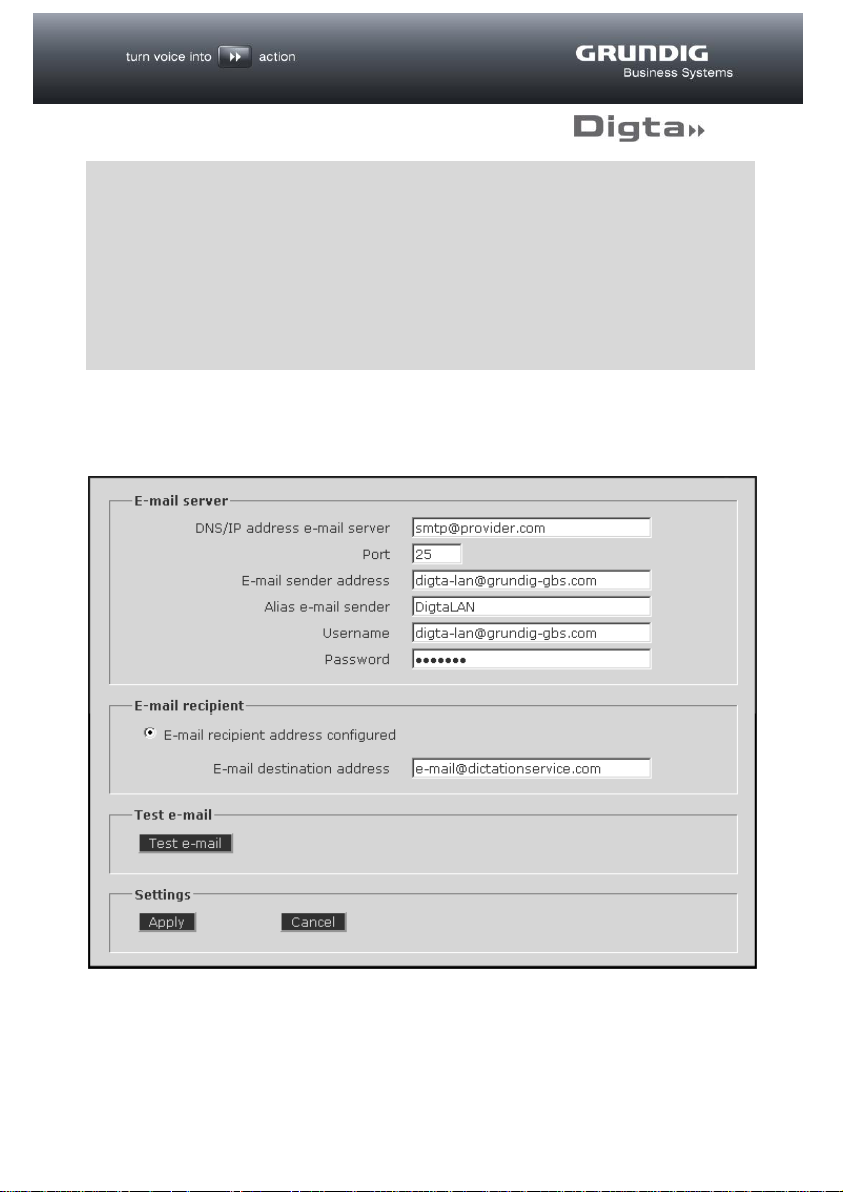
If dictations are to be sent by e-mail, the SMTP connection needs to be configured.
If you have activated “FTP transfer” on the “Transfer” page no changes can be
made on this page.
21
Page 22
E-mail server
In the e-mail Server section, enter the access data for your e-mail account.
By convention, SMTP servers have received requests through port 25. However, in
order to reduce spam, newer servers can also use port 587 for the receipt of e-mails
addressed to authenticated users that are to be submitted to other mail servers.
An alias name can be given to the Digta W/LAN-Adapter, which will be displayed as
the Sender name when the e-mail is sent.
E-mail recipient
If dictations are to be sent to a fixed address, activate
“E-mail recipient address configured” and enter the e-mail destination address in
the field.
Test e-mail/Settings
The “Test e-mail” button is used to carry out a connection test using the settings
made before they are saved. A symbol near the button shows whether this test has
been successful (green) or not (red).
During this test an e-mail containing the IP address, interface and MAC address of
the Digta W/LAN-Adapter is sent to the configured recipient.
To save the settings permanently, click on the “Apply” button.
22
Page 23
FTP
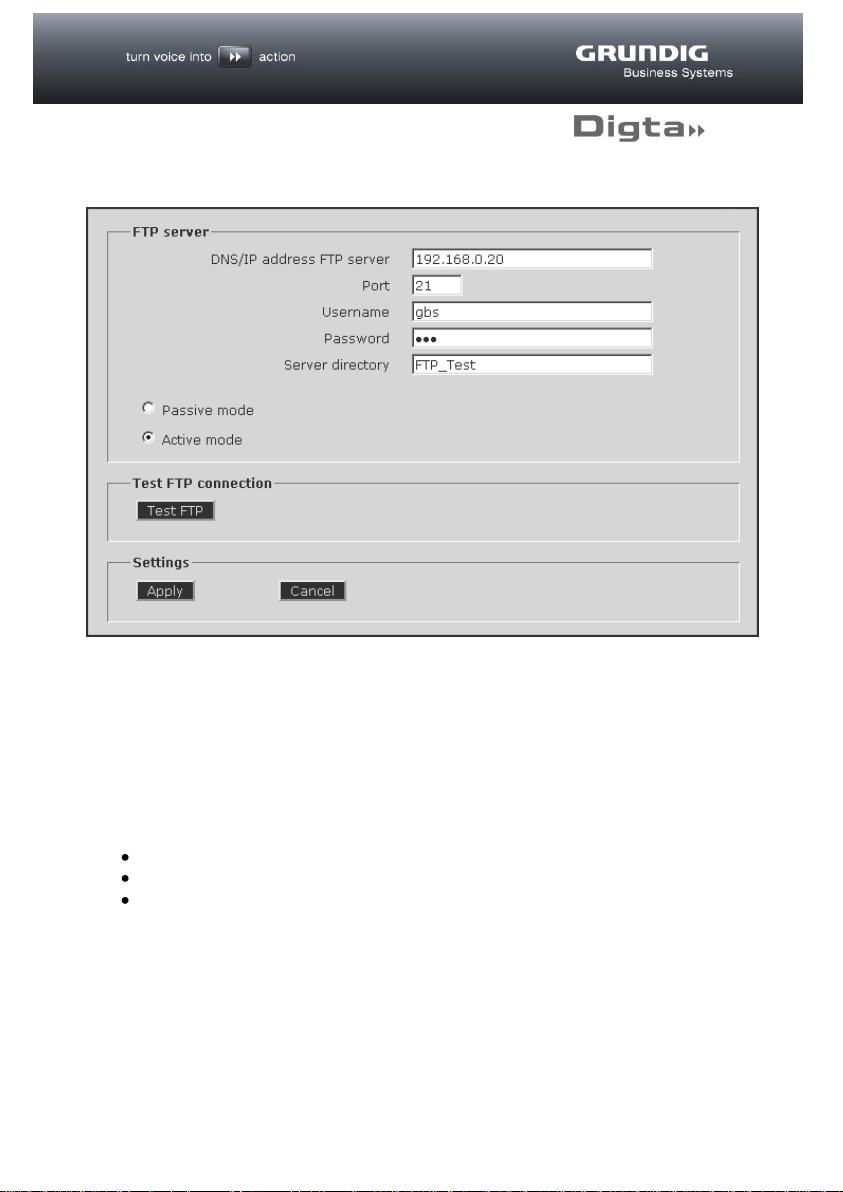
If you have activated “FTP transfer” on the “Transfer” page, the necessary access
data must be entered on this page.
If “SMTP transfer” has been activated on the “Transfer” page no changes can be
made on this page.
Set up a user account on your FTP page to which the dictations are to be
transferred. This account must have the following access authorisations:
Reading and writing files
Listing directories
Creating subfolders
23
Page 24
FTP server
Enter the IP address or DNS name of the FTP server, and the FTP port in the “Port”
field (standard = Port 21).
Enter the Username for access to the FTP user account, the password and the path
of the server directory.
Select whether the transfer is to be in “Passive mode” or “Active mode”.
In “Active mode”, the client opens a random port and gives the server the port
number and its own IP address. In this mode, it is possible for the server and client
to communicate with each other during the data transfer process.
In “Passive mode”, the client sends a command, and the server opens a port and
sends the client the port number and the IP address. This technique is used when
the server fails to achieve a connection with the client.
Test FTP connection/Settings
Pressing the “Test FTP” button initiates a connection test. A symbol near the button
shows whether this test has been successful (green) or not (red). During the test a
test file is sent to the FTP server; this will be deleted following successful transfer.
To save the settings permanently, click on the “Apply” button.
24
Page 25
Event Log
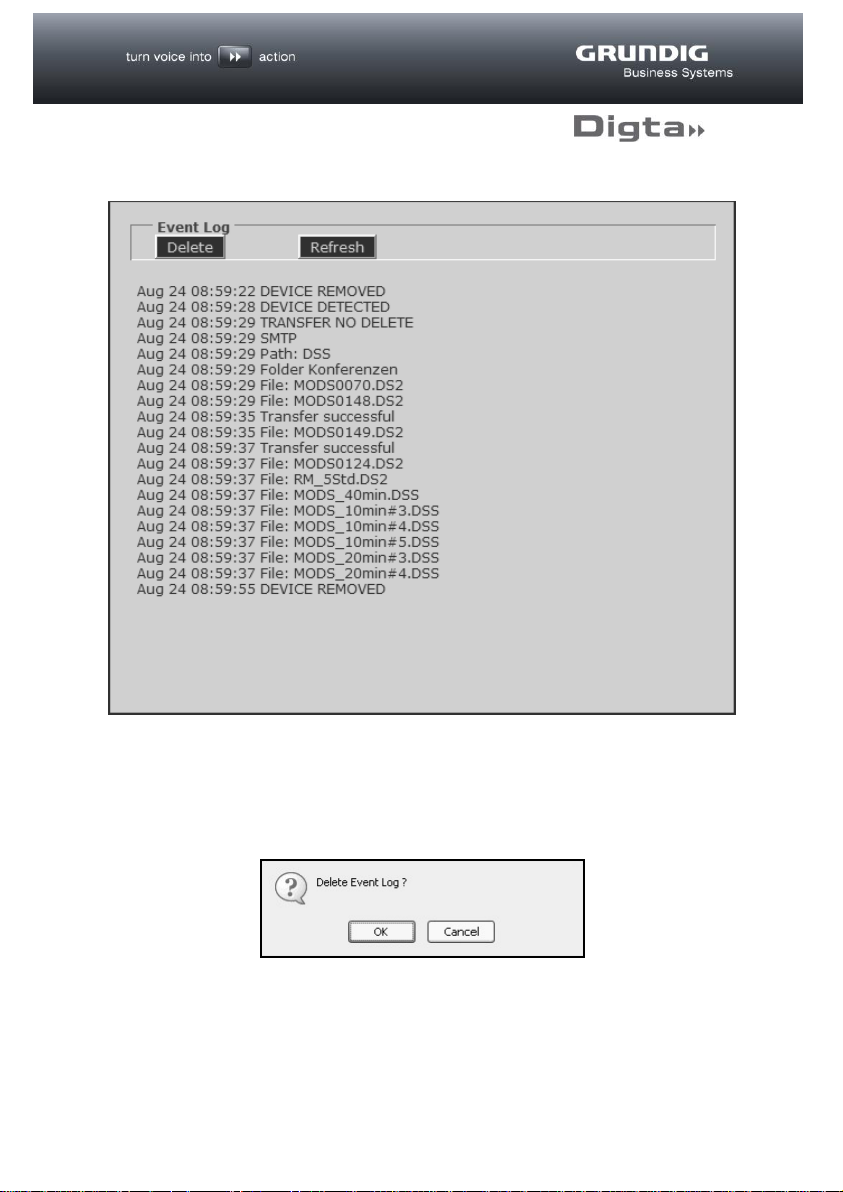
The Event Log records all the activities of the Digta W/LAN-Adapter. This makes it
possible, for example, to trace successful and failed configurations, or the transfer of
dictations.
The Event Log can be deleted by clicking on the “Delete” button
A security confirmation question appears before the Event Log is deleted.
25
Page 26
NOTICE
The Event Log is also deleted if the power supply is interrupted or if the
Digta W/LAN-Adapter is restarted, e.g. if the device name is changed.
Date and time are automatically updated in the Event Log as long as the network is
connected to the internet.
26
Page 27
d
TIP
Only dictations made directly using a Digta can be transferred in the
DSS/DSS Pro, WAV and MP3 format.
Transfer of dictations
Dictate in your usual way with the Digta. To transfer dictations from the device,
connect the Digta, while switched on, to the docking station. Depending on the
configuration of the Digta, the USB file transfer mode starts immediately or must be
activated manually (consult your Digta´s user guide). All dictations from all folders,
except files with “Postponed” status, are now transferred.
The dictation device beeps once to indicate the end of the transfer. Only then should
the Digta be removed from the docking station or USB cable. Two beeps indicate
that there has been an error in transfer.
If there is a LAN connection this will be used as a priority for the transfer. If no LAN
connection can be established, the wireless LAN connection is activated and used
for the transfer (if configured, see chapter “WLAN (optional)”).
27
Page 28
Troubleshooting
The “DigtaLANConfiguration” does not show a station.
Are all connections to the Digta W/LAN-Adapter correctly in place?
Is the power supply on?
Dictations are not transferred to the configured FTP server.
Ensure that the FTP server is started up.
Check the FTP server settings for user name, password and authorisations of the user
account.
Is there a firewall preventing access (Standard Port 21)?
Has "
FTP - Transfer to FTP server
Digta W/LAN-Adapter?
Dictations are not transferred.
Have the dictations on the Digta been marked as “
Is the network connection interrupted?
Ensure that the Digta is in USB file transfer mode.
Dictations from the Digta’s main folder have been transferred, but dictations from
the subfolders have not.
Check the FTP server to see whether authorisation for the creation of subfolders has
been set.
There are dictations with the same file names and an additional #0 (#1, #2, etc.) on
the FTP server.
Dictations remaining on the device are resent during the subsequent transfer process
In order to prevent overwriting, existing files are saved with the addition of a # and a
consecutive number.
Check the configuration of the Digta W/LAN-Adapter for the status of the “
transferred dictation files
” option.
" been selected in the configuration of the
Postponed
”?
Remove
28
Page 29
Compatible devices
Digta 422, Digta 7, Digta Station 446, Digta Station 447
Supported
Transmission protocols
SMTP - transfer via e-mail
FTP - transfer to an FTP server (active/passive mode)
Configuration
Static or dynamic IP address assignment by
DHCP Configuration via web browser
Administration of multiple Digta W/LAN-Adapters via
separate configuration tool
Wireless LAN, WIFI
802.11b/g/n
Connections
LAN RJ45 Ethernet socket
Power supply 5V
USB host port
WIFI antenna
Display (green LEDs)
LED “ETHERNET”: jittering = data transfer
LED “INTERNET”: without function
LED “WLAN”: blinking = boot up
on = wireless LAN connection
off = LAN connection
Dimensions
L x W x H without antenna and plugs:
approx. 2.95 x 2.44 x 0.91 inch, 75 x 62 x 23 mm
Weight: approx. 2.77 oz., 78.5 g
System requirements
10/100 Mbit/s LAN with RJ45 connections
FTP server (DHCP server recommended) or
SMTP server (for e-mail transfer)
Technical data
Grundig Business Systems GmbH
Weiherstraße 10
D-95448 Bayreuth
www.grundig-gbs.com
BDA 00 09/2012
29
 Loading...