

Page 1
USER MANUAL
_____________________________________________________________________________________________________________________________________________________________________________________________________________________________________________________ _________ ___________________________
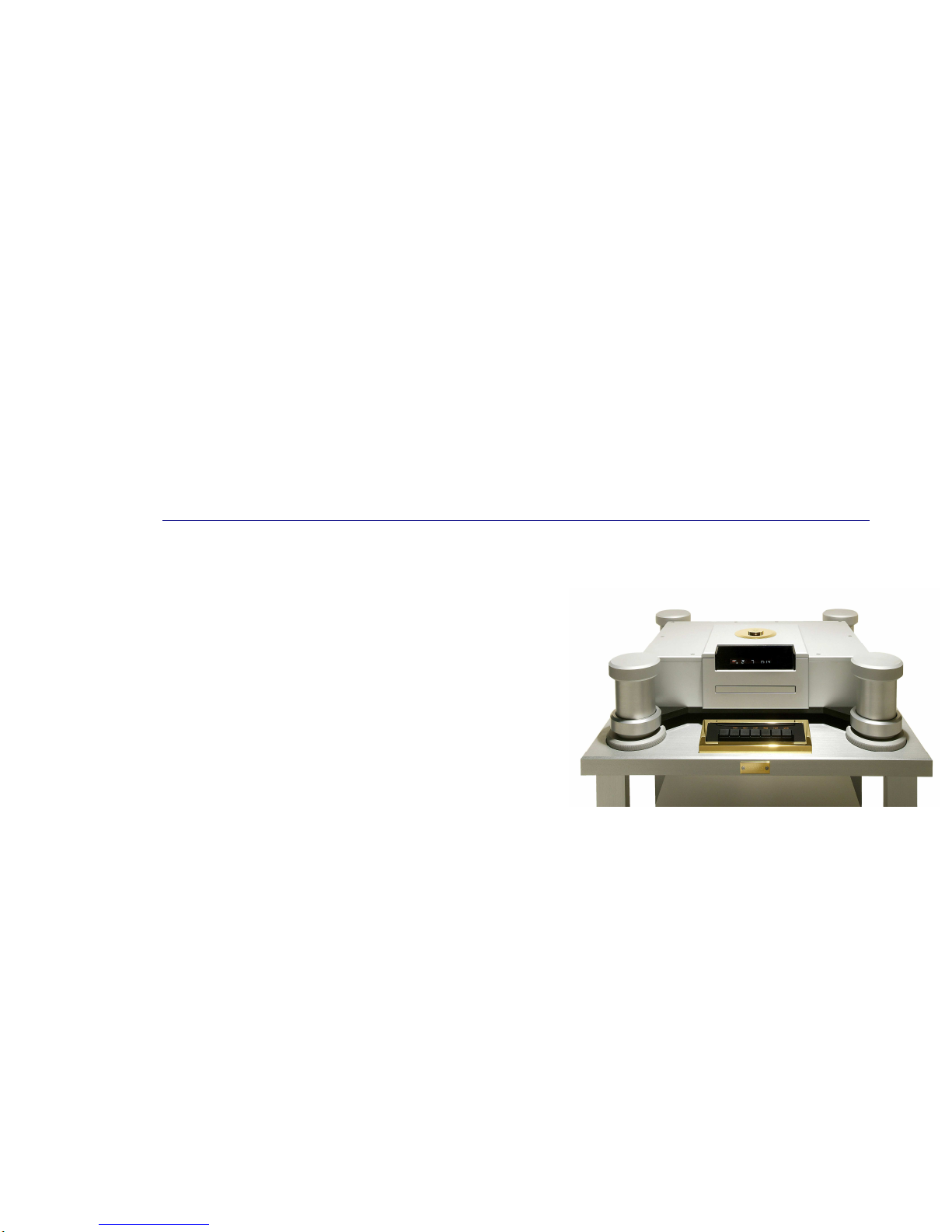
GOLDMUND EIDOS REFERENCE
UNIVERSAL PLAYER
Page 2

Page 3

3
Table of Contents
1. FEATURES AND COMPATIBILITY ..................................................................................................................................................................................................5
2. UNPACKING ........................................................................................................................................................................................................................................5
3. POWER SUPPLY VOLTAGE SELECTION........................................................................................................................................................................................6
4. CHOICE OF PLAYER LOCATION .....................................................................................................................................................................................................6
5. POWER CONNECTION.......................................................................................................................................................................................................................6
6. BACK PANEL CABLE CONNECTIONS............................................................................................................................................................................................7
7. KEYBOARD CONTROLS....................................................................................................................................................................................................................8
8. REMOTE CONTROL FUNCTIONS ..................................................................................................................................................................................................11
9. SETTING THE DISPLAY SYSTEM ..................................................................................................................................................................................................17
10. SWITCHING ON...............................................................................................................................................................................................................................18
11. FIRST CONNECTION ......................................................................................................................................................................................................................19
12. PLAYING DISCS..............................................................................................................................................................................................................................24
13. THE AUDIO SETTINGS MENU......................................................................................................................................................................................................34
14. THE VIDEO SETTINGS MENU......................................................................................................................................................................................................36
15. THE INTIAL SETTINGS MENU .....................................................................................................................................................................................................38
16. CLEANING........................................................................................................................................................................................................................................49
17. MAINTENANCE...............................................................................................................................................................................................................................49
Page 4

4
IMPORTANT !
This high quality universal player possesses technical features which
are necessary for accurate tracking of today's best DVDs and CDs.
Only careful use can provide all the satisfaction you are expecting.
All handling must be performed according to the following
instructions to avoid to damaging the player. Nevertheless, if the
instructions are perfectly carried out, you will notice that using the
Goldmund Eidos Reference Player is quite simple and convenient.
WARNING!: PLEASE DO NOT CONNECT WIRES OR MOVE
PARTS BEFORE READING AND UNDERSTANDING
THE FOLLOWING INSTRUCTIONS.
Page 5

5
1. FEATURES AND COMPATIBILITY
Compatibility
Please note that the Goldmund EIDOS REFERENCE is compatible with the following formats:
- DVD Video 12 and 8 cm size, one or two layers, single-sided or double-sided.
- VIDEO CD 12 and 8 cm size, single-sided.
- Audio CD 12 and 8 cm size, single-sided.
- CD-R/RW
- DVD-R/RW
- DVD – Audio
- Super VCD
- SACD
- MP3 CD
Associated Equipment
For technicians, musicians, or users who demands the very best in sound transcription, you may decide the use of one of
our separate D/A converter, such as the Goldmund Mimesis 20M. The D/A converters built into the EIDOS REFERENCE,
however, are a high quality standard and are provided for use in most systems and especially for formats requesting them
such as SACD.
2. UNPACKING
You will find in the packaging (see note):
- The Universal player itself,
- The power cord.
- This user manual.
Page 6

6
ATTENTION!:
If you need to return the player to the factory or to your local representative for a warranty repair, please note that
it must be repackaged in the original packing. This packaging has been designed specifically to protect the
EIDOS REFERENCE. Use of alternative packaging is likely to result in damage, invalidating warranty.
3. POWER SUPPLY VOLTAGE SELECTION
The power supply of your unit has been adjusted to operate with the AC voltage of your area. Check on the back panel of the unit if in
any doubt. If you move after purchasing the Universal player to an area using different mains voltage, do not forget to switch the back
panel selector to the new voltage of your area. The unit can operate at 50 or 60 Hz mains.
4. CHOICE OF PLAYER LOCATION
Due to the specific quality of its Goldmund "Mechanical Grounding" construction, the Goldmund EIDOS REFERENCE Player is less
critical than other designs in placement selection. Feedback is mostly so low that no special precaution is required. Nevertheless,
position the player as far as you can from the speakers if you want to totally avoid the air coupling between the speakers and the
player.
Locate the Player to provide the most rigid possible connection to the building construction. Solid coupling is essential and the
support used (Rack, Table, Shelf) must be as rigid and solid as possible.
5. POWER CONNECTION
Plug the AC power cord to the back of the EIDOS REFERENCE and in a wall socket. Switch the back power switch to ON. The front
display will light up as soon as you press any key or when pressing the remote control STANDBY button, meaning the unit is now
powered on.
Page 7

7
6. BACK PANEL CABLE CONNECTIONS
Video Connections
The EIDOS REFERENCE offers 4 different types of Video signal outputs:
o S-Video Output connector.
o 3 x 75 Ohms RCA coaxial Component Video Output connectors.
o 5 x 75 Ohms BNC RGB progressive Output
o DVI Digital Video Output
Always use high quality cables for getting the best picture. The best results will be achieved by using high quality coaxial cable on
Component Video Output connectors or high-quality S-Video cable on the S-Video Output connector. Both may be of equivalent
quality if the associated equipment is properly tuned (especially for color and hue). On some types of projectors or screens, the
component video may be found to be of higher quality. On some doublers or quadruplers, the S-Video may provide better results.
Always experiment to find the best selection, readjusting the color and hue accordingly.
If you use Progressive Output, move the top left switch on the rear panel to Analog Video.
If you use DVI Digital Video Output, move the top left switch on the rear panel to Digital Video.
Audio Connections
The EIDOS REFERENCE is equipped with the following stereo output connectors to connect your player to a D/A converter or digital
preamplifier:
o 75 Ohms RCA coaxial SPDIF connector.
o TOSLINK optical cable output.
Goldmund recommends that the greatest care is taken when selecting the cable linking the player to the D/A converter or digital
preamplifier. The very accurate signal provided by the EIDOS REFERENCE can easily be ruined by an imperfect connection. Use a
"Goldmund Lineal" cable from the coaxial output if you want to achieve the most accurate jitter-free connection for CD playback.
Additionally, there are the following Analog Audio Outputs:
o 2 x RCA (Left/Right) coaxial stereo analogue outputs.
o 6 x RCA 6 channel coaxial analogue outputs (needed for multi-channel DVD-Audio and SACD connection.
Page 8

8
7. KEYBOARD CONTROLS
Keyboard Keys
- STANDBY : Turns On or Off the unit.
- OPEN : Located near the disc drawer opening, this button opens the tray to load the CD or DVD. The same button closes the
tray when it is open. When loading a disc, place discs in the disc tray with the label side facing up.
- PLAY : This key is used to start or resume Playback. It also cancels the "Pause" function.
- PAUSE : Key used for the pause function. When the "Pause" function is switched off by pressing the "Start" key, the selection
will start back at the exact location where it was interrupted.
- STOP : Press to stop playback. Pressing once enables playback to resume from a point shortly before the location where it
stopped. Pressing twice causes the disc to return to the beginning of the disc if playback starts again.
- >> : Press to advance to chapters/tracks. Press and hold to perform fast-forward scanning.
- << : Press to go back to previous chapters/tracks. Press and hold to perform reverse playback scanning.
These functions, accessible from the keyboard can also be achieved by the remote-control transmitter (see below for all Remote
Control functions)
Page 9
9
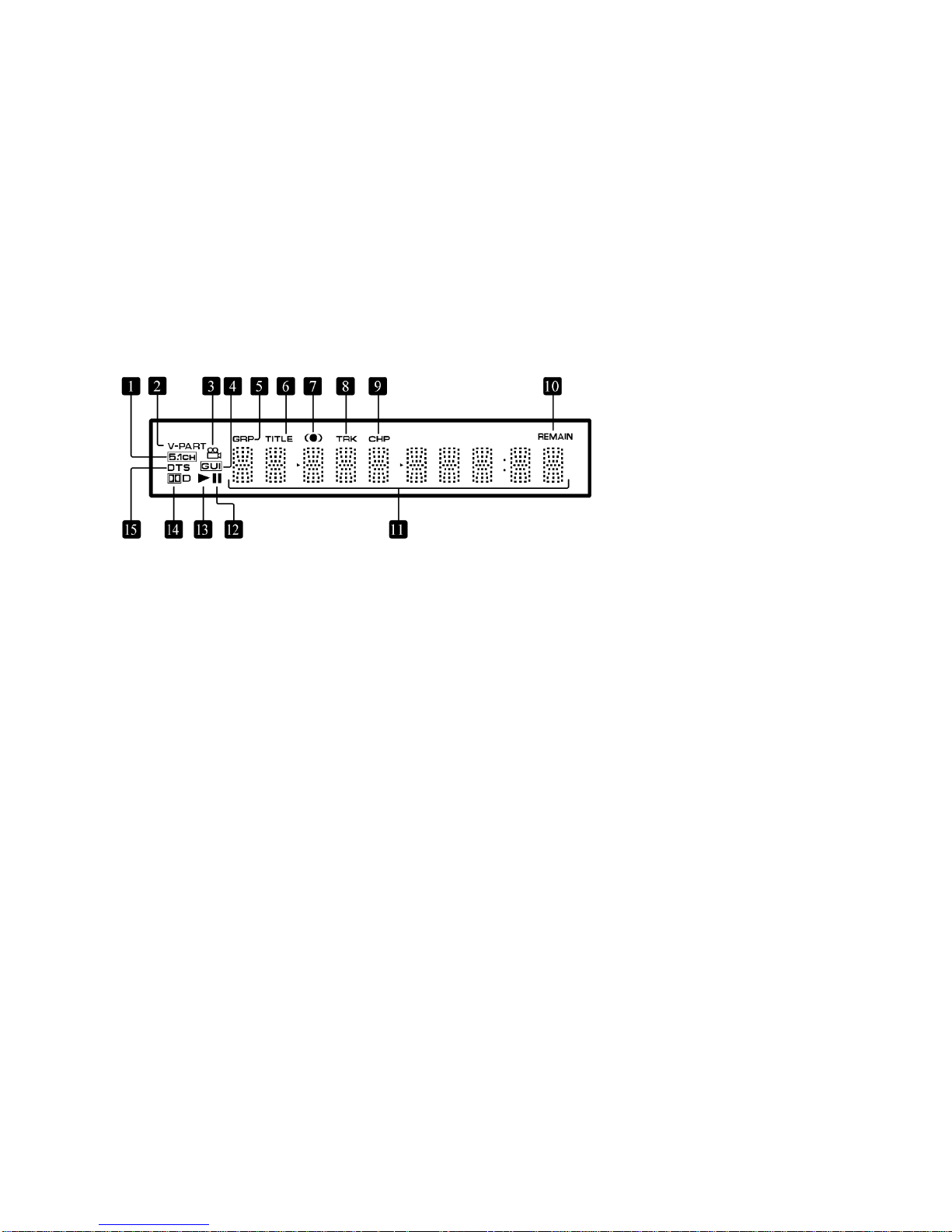
Front Panel Display
1 5.1CH
Lights when analog 5.1 channel output is selected (see below)
2 V-PART
Lights when playing a video part of a DVD disc
3 (camera)
Lights during multi-angle scenes on a DVD disc (see below)
4 GUI (Graphical User Interface)
Lights when a menu is displayed on-screen
5 GRP
Indicates that the character display is showing a DVD-Audio group number
6 TITLE
Indicates that the character display is showing a DVD-Video title number
7 (●)
Lights when Dolby V/TruSurround is active (see below)
Page 10

10
8 TRK
Indicates that the character display is showing a track number
9 CHP
Indicates that the character display is showing a DVD chapter number
10 REMAIN
Lights when the character display is showing the time or number of tracks/titles/chapters remaining
11 Character display
12 Pause
Lights when a disc is paused
13 Play
Lights when a disc is playing
14 Dolby Digital
Lights when a Dolby Digital soundtrack is playing
15 DTS
Lights when a DTS soundtrack is playing
Page 11
11
8. REMOTE CONTROL FUNCTIONS
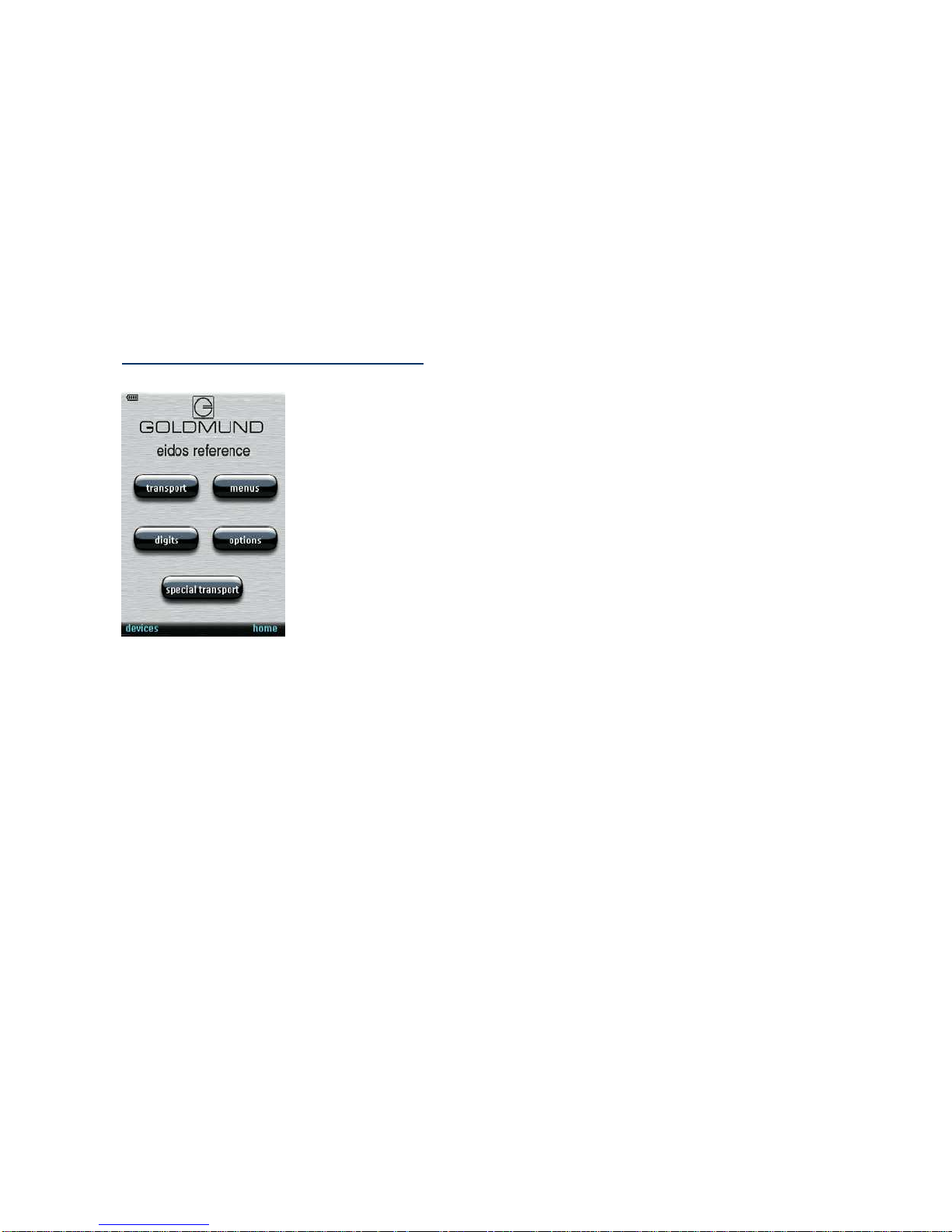
The main menu
Transport
Will take you to the basic play functions.
Menus
Will take you to the menu functions.
Digits
Will take you to the number buttons.
Options
Will take you to options screen.
Special transport
Will take you to the advanced play functions.
Page 12
12
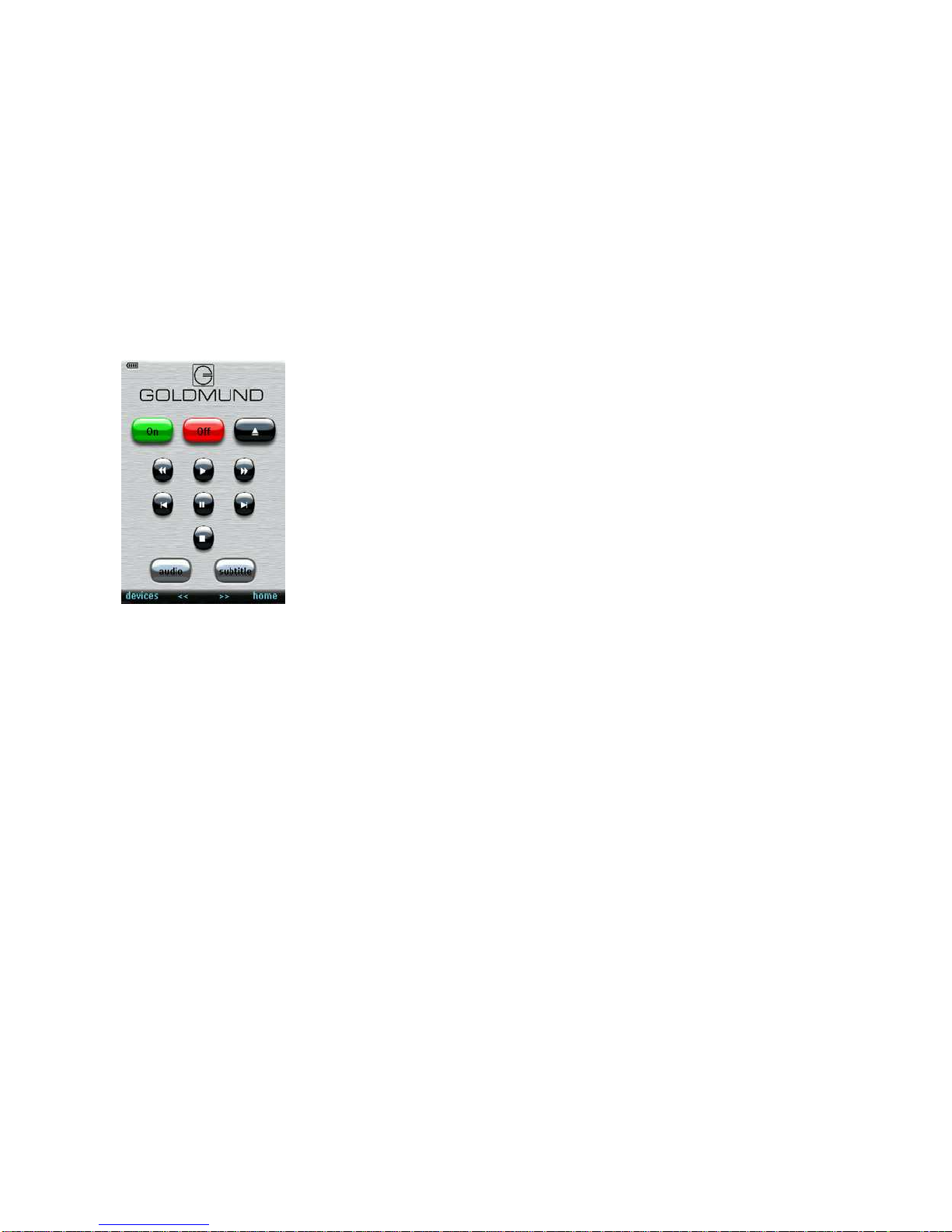
The Transport screen
ON
Press to switch the player on or into standby.
OFF
Press to switch the player off.
AUDIO
Press to select the audio channel or language (see below).
SUBTITLE
Press to select a subtitle display (see below).
OPEN/CLOSE
Press to open or close the disc tray.
PLAY
Press to start or resume playback.
PAUSE
Press to pause playback; press again to restart.
Page 13
13
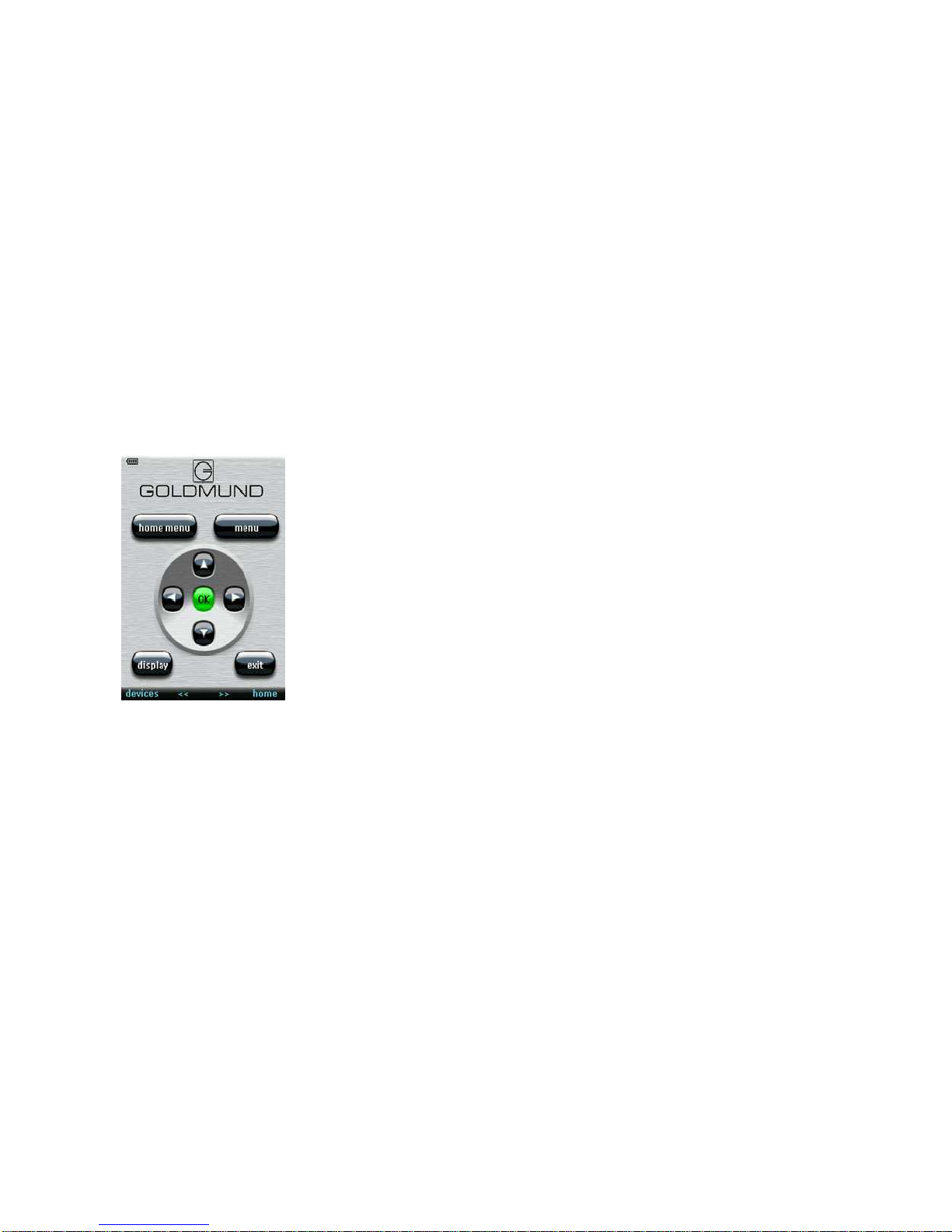
BACK/FORWARD
Press to jump to the start of the previous/next chapter/track.
STOP
Press to stop the disc (you can resume playback by pressing play).
FAST FORWARD/REVERSE
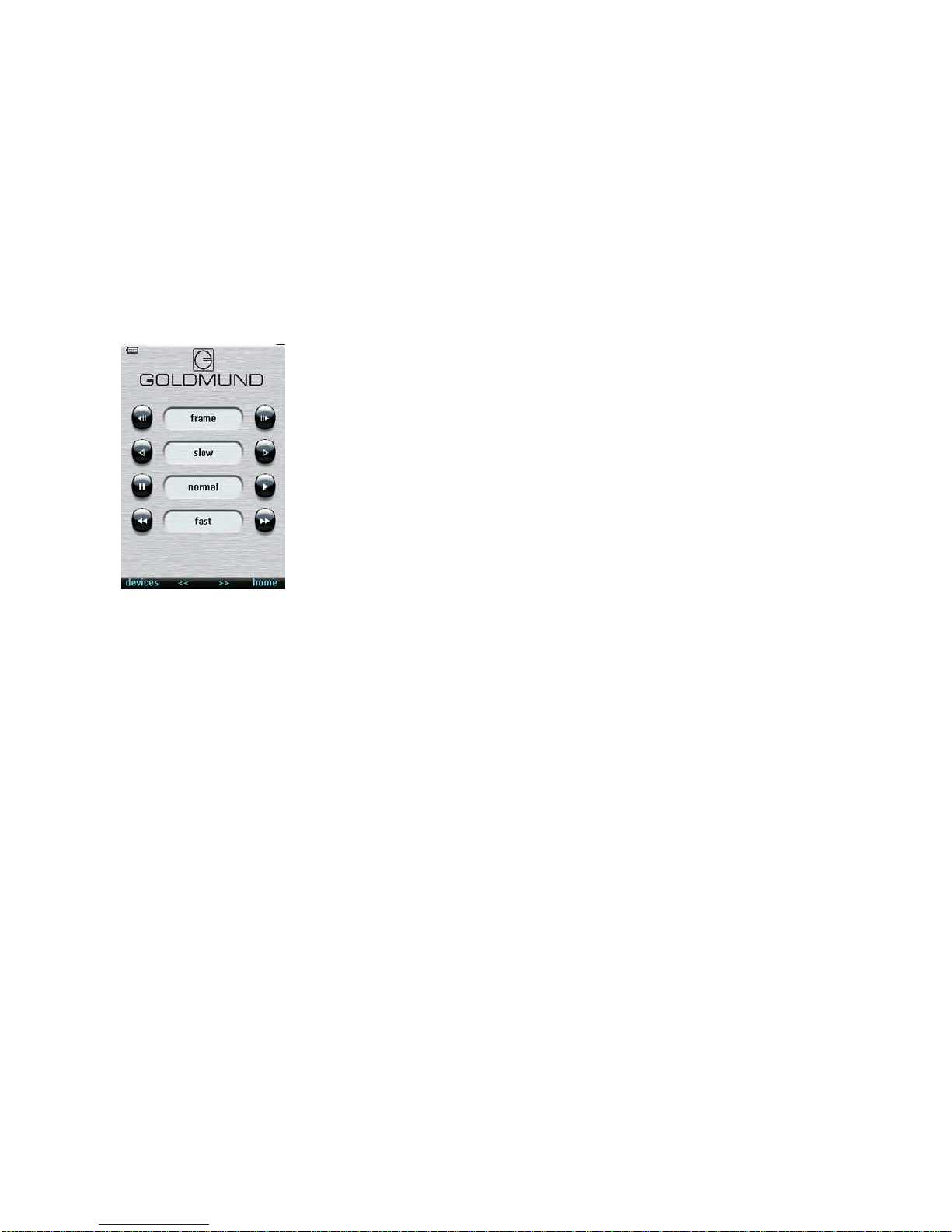
Use for reverse/forward slow motion playback, frame reverse/advance and reverse/forward scanning (see below).
HOME MENU
Press to display the top menu of a DVD disc.
ENTER & cursor control buttons
Use to navigate on-screen displays and menus. Press ENTER to select an option or execute a command.
MENU
Press to display a DVD disc menu, or the Disc Navigator if a DVD-RW, CD, Video CD or MP3 disc is loaded.
DISPLAY
Press to display information about the disc playing (see below).
Page 14
14
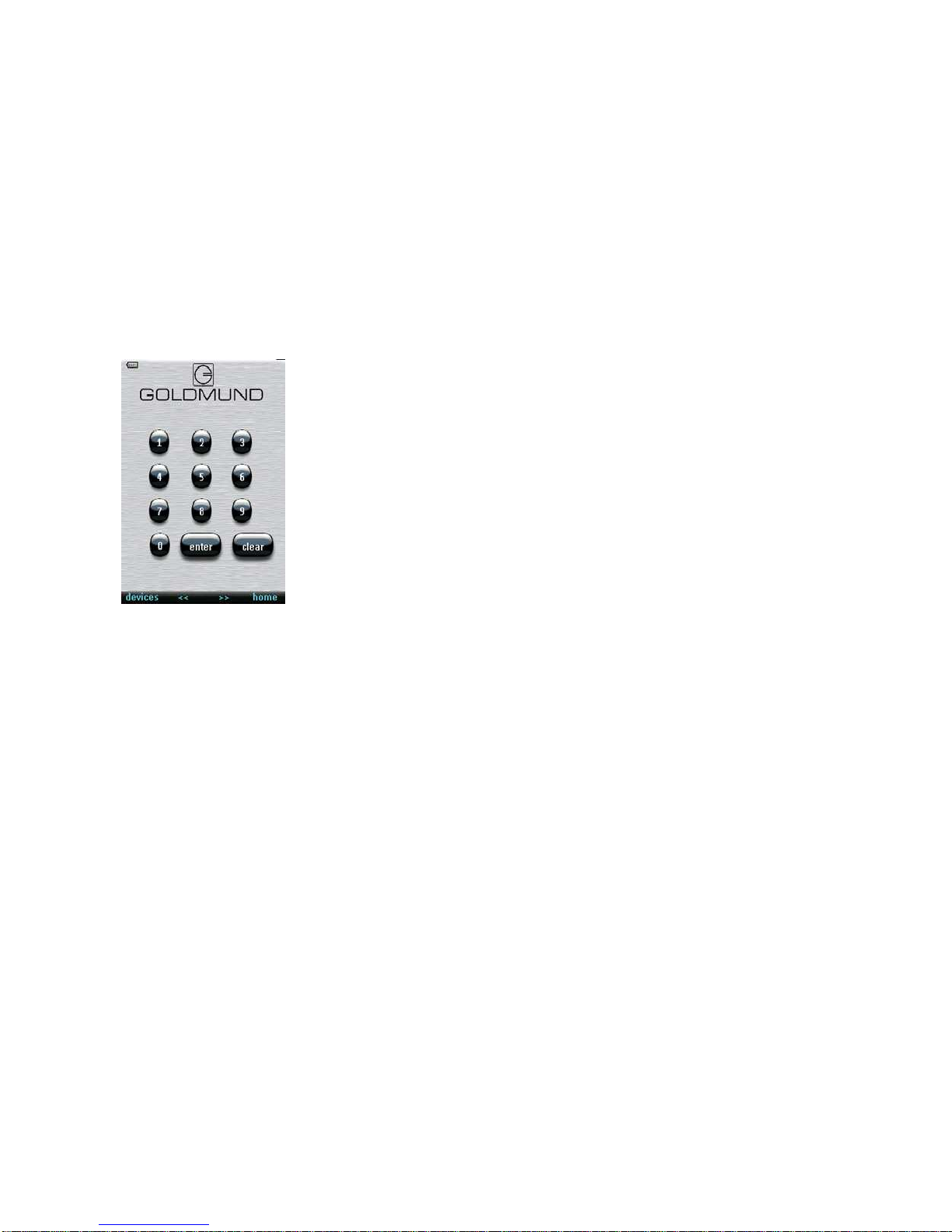
NUMBER BUTTONS
CLEAR
Press to clear a numeric entry.
ENTER
Use to select menu options or command.
Page 15
15
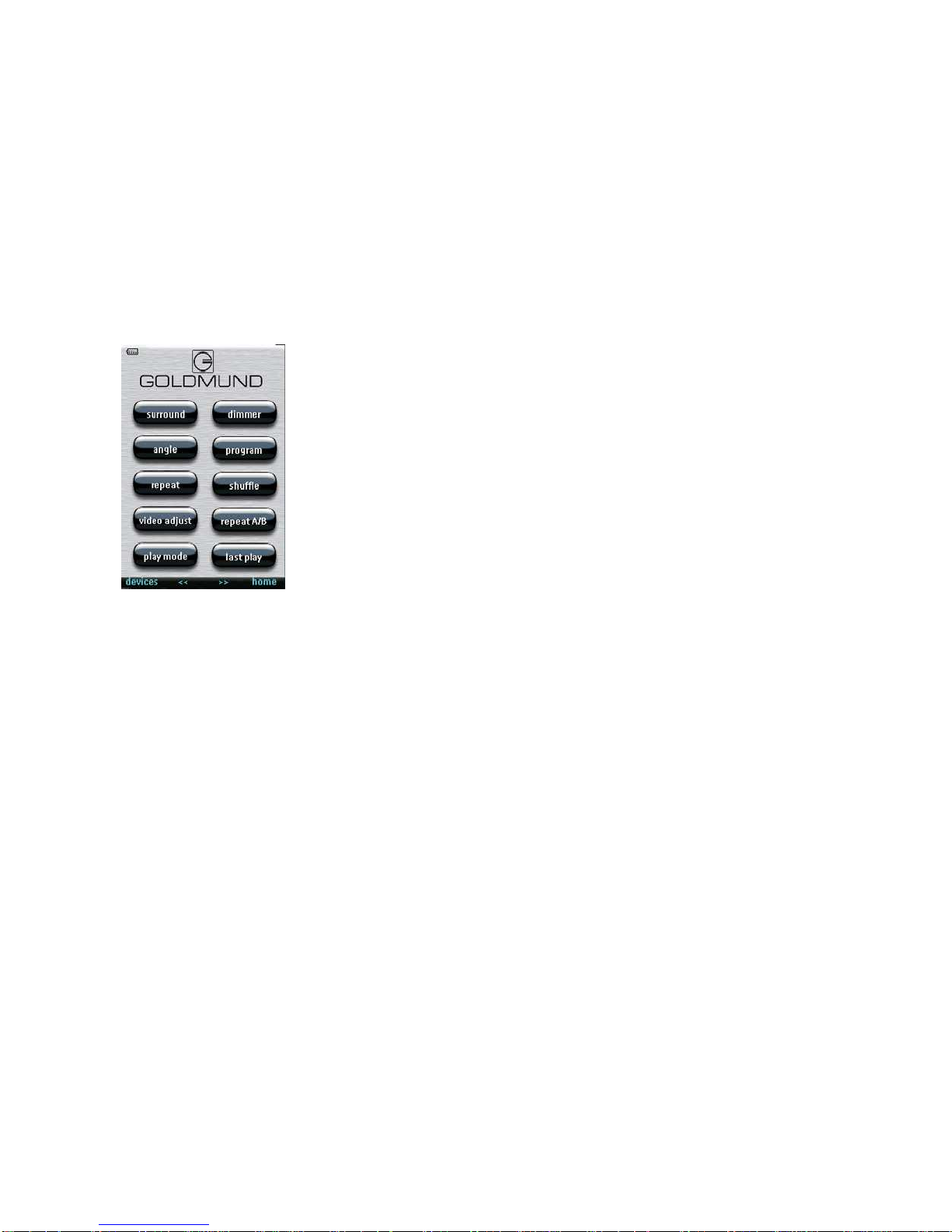
SURROUND
Press to activate/switch off Dolby V/TruSurround.
DIMMER
Press to change the display brightness.
ANGLE
Press to change the camera angle during DVD multi-angle scene playback (see below).
VIDEO ADJUST
Press to display the Video Adjust menu.
PLAY MODE
Press to display the Play Mode menu (see below) (You can also get to the Play Mode menu by pressing SETUP and selecting
Play Mode).
Page 16
16
Page 17

17
9. SETTING THE DISPLAY SYSTEM
The default setting of this player is AUTO, and unless you notice that the picture is distorted when playing some discs, you
should leave it set to AUTO. If you experience picture distortion with some discs, set the TV/Display/Projection system to match
your country or region’s system. Doing this, however, may restrict the kinds of disc you can watch. The table below shows what
kinds of disc are compatible with each setting (AUTO, PAL and NTSC).
1 - If the player is not plugged in, plug it in now, but leave it on standby.
2 - Using the front panel controls, hold down “Forward” then press STANDBY to switch the TV system.
The TV system changes as follows:
AUTO => NTSC
NTSC => PAL
PAL => AUTO
The player’s display shows the new setting.
Note: You have to switch the player into standby (press STANDBY) before each change.
Disc Player setting
Type Format
DVD NTSC
PAL
NTSC PAL AUTO
NTSC MOD.PAL NTSC
PAL PAL PAL
Video CD NTSC
PAL
NTSC MOD.PAL NTSC
NTSC PAL PAL
CD / no disc
NTSC PAL NTSC or PAL
Watching NTSC on a PAL TV/Display
Most models of the countdown PAL TV system detect 50 Hz
(PAL)/60 Hz (NTSC) and automatically switch vertical amplitude, resulting in a display without vertical shrinkage.
If your PAL TV does not have a V-Hold control, you may not be able to watch NTSC discs because of picture roll. If the TV has
a V-Hold control, adjust it until the picture stops rolling.
On some TVs, the picture may shrink vertically, leaving black bands at the top and bottom of the screen. This is not a
malfunction; it is caused by the NTSC to PAL conversion.
Page 18

18
10. SWITCHING ON
After making sure that everything is connected properly and that the player is plugged in, press STANDBY on the remote control or
any key on the keyboard of the EIDOS REFERENCE to switch the player on.
Also, switch on your TV, Display or Projection system and make sure that it is set to the input you connected the EIDOS
REFERENCE player to.
You can also use the OPEN/CLOSE button to switch on the player and open the disc tray at the same time.
This player features a screen saver. If the player is stopped or paused and no button is pressed for five minutes, the screen saver
starts.
Page 19

19
11. FIRST CONNECTION
When you switch on the player for the first time, you should see a welcome screen displayed on your TV. From here you can set up
language preference and TV format, then either use the Setup Navigator to make more settings, or jump in and start playing discs.
Before continuing, make sure that you’ve loaded the batteries in the remote control.
ENTER
1 - Use the (cursor up/down) buttons to choose a language, then press ENTER.
2 - Press ENTER to move on to the next screen.
3 - Use the (cursor left/right) buttons to select either ‘Wide screen (16:9)’ or ‘Standard size screen (4:3)’ according to the
kind of TV you have, then press ENTER.
4 - Press ENTER again to finish setting up.
Select Back then press ENTER if you want to go back and change the setting you just made.
Using the on-screen displays
For ease of use, this player makes extensive use of graphical on-screen displays (OSDs). You should get used to the way these
work as you’ll need to use them when setting up the player, using some of the playback features, such as program play, and when
making more advanced settings for audio and video. All the screens are navigated in basically the same way, using the cursor
buttons to change the highlighted item and pressing ENTER to select it.
Note: Throughout this manual, ‘Select’ means use the cursor buttons to highlight an item on-screen, then press ENTER.
ENTER
Button What it does
SETUP Display/exit the on-screen display
Navigation Arrows Changes the highlighted menu item
ENTER Selects the highlighted menu item (both ENTER buttons work in exactly the same way)
RETURN Returns to the previous menu without saving changes
Note: Tip Information at the bottom of every OSD screen explains the currently selected menu item and shows which buttons can be
used for that screen.
Page 20

20
Setting up with the Setup Navigator
Using the Setup Navigator you can make a number of other initial settings for this player. We recommend using the Setup
Navigator, especially if you connected this player to an processor for playing surround sound. To answer some of the questions
about digital audio formats you may need to look at the instructions that came with your processor.
1 - If a disc is playing, press (stop).
Also turn on your TV or Display and make sure that it is set to the correct video input.
2 - Press HOME MENU.
The on-screen display (OSD) appears.
3 - Select ‘Setup Navigator’.
4 - Select a DVD language.
Some DVD discs feature on-screen menus, soundtracks and subtitles in several languages. Set your preferred language here.
Note that the language you choose here may not be available on all discs. If you want to select a language other than those
listed, select Other Language.
5 Is your TV/monitor compatible with progressive-scan video?
Select Compatible, Not Compatible or Don’t know.
6 - Did you connect this player to an AV receiver?
Note: If you selected Not Connected here, that completes the setup. Press ENTER to leave the Setup Navigator.
7 - Did you connect the 5.1 channel analog audio outputs to your Audio Processor?
Select Connected or Not Connected.
8 - Did you connect a digital output to your AV receiver or Processor?
Select Connected or Not Connected.
Note: If you selected Not Connected in both steps 6 and 7, this completes the setup.
Press ENTER to leave the Setup Navigator.
Page 21

21
If you selected Connected in step 6, then answer the following questions about the speakers in your system, otherwise jump to
step 11.
9 - Do you have a center speaker connected to your AV Receiver / Processor?
Select Connected or Not Connected.
10 - Do you have surround speakers connected to your AV receiver / Processor?
Select Connected or Not Connected.
11 - Do you have a sub-woofer connected to your AV receiver / Processor?
Select Connected or Not Connected.
Note: If you selected Not Connected in step 7, that completes the setup. Press ENTER to leave the Setup Navigator.
Questions 11 through 14 are concerned with the digital decoding capabilities of your AV receiver or Multi-channel processor.
12 - Is your AV receiver / Processor Dolby Digital compatible?
Select Compatible, Not Compatible or Don’t Know.
13 - Is your AV receiver / Processor DTS compatible?
Select Compatible, Not Compatible or Don’t Know.
14 - Is your AV receiver / Processor compatible with 96kHz Linear PCM audio?
Select Compatible, Not Compatible or Don’t Know.
15 - Is your AV receiver / Processor MPEG compatible?
Select Compatible, Not Compatible or Don’t Know.
16 - Press ENTER to complete the setup, or press SETUP to quit the Setup Navigator without making any changes.
Congratulations, setup is complete!
Page 22

22
Playing discs
The basic playback controls for playing DVD, CD, SACD, Video CD/Super VCD and MP3 discs are covered here. Further functions
are detailed in the next chapter.
Throughout this manual, the term ‘DVD’ means DVD-Video, DVD-Audio and DVD-R/RW. If a function is specific to a particular kind
of DVD disc, it is specified.
1 - If the player isn’t already on, press STANDBY/ON on remote to switch it on.
If you’re playing a DVD or Video CD, also turn on your TV or Video display and make sure that it is set to the correct video input.
2 - Press OPEN/CLOSE to open the disc tray.
3 - Load a disc.
Load a disc with the label side facing up, using the disc tray guide to align the disc. Never load more than one disc at a time.
4 - Press (play) to start playback.
If you’re playing a DVD or Video CD, a menu may appear. See below for how to navigate these.
If you’re playing an MP3 disc, it may take a few seconds before playback starts, depending on the complexity of the disc file
structure.
Basic playback controls
The controls on the remote for playing discs are listed below. The following chapter covers playback features in more detail.
PLAY: Starts playback. DVD and Video CD: if the display shows RESUME, playback starts from the resume point.
PAUSE: Pauses a disc that’s playing, or restarts a paused disc.
STOP: Stops playback. DVD and Video CD: Display shows RESUME. Press (stop) again to cancel the resume
function. (The resume function is also cancelled when you eject the disc tray.)
FAST REVERSE: Press to start fast reverse scanning. Press (play) to resume normal playback.
FAST FORWARD: Press to start fast forward scanning. Press (play) to resume normal playback.
PREVIOUS: Skips to the start of the current track or chapter, then to previous tracks/chapters.
NEXT: Skips to the next track or chapter.
Numbers: Use to enter a title/group/track number. Press ENTER to select (or wait a few seconds).
Note: If the disc is stopped, playback starts from the selected title/group (for DVD) or track number (for CD/SACD/Video CD/MP3).
If the disc is playing, playback jumps to the start of the selected chapter or track (within the current group for DVD-Audio).
Page 23

23
Front panel controls
The (play), (stop), and (pause) buttons on the front panel work in exactly the same way as their remote control equivalents. The
combined scan/skip buttons on the front panel work slightly differently from the remote buttons.
Press and hold for fast scan; press for track/chapter skip.
Note: You may find with some DVDs that some playback controls don’t work in certain parts of the disc. This is not a malfunction.
DVD disc menus
Many DVD-Video and DVD-Audio discs contain to select what you want to watch or listen to. They may give access to
additional features, such as subtitle and audio language selection, or special features such as slideshows. See disc packaging
for details.
Sometimes menus are displayed automatically on playback; others only appear when you press MENU or TOP MENU.
Note: Some DVD-Audio discs feature a ‘bonus group’. To access this group you have to input a password, which you can find
on the disc’s packaging. See below for more information.
TOP MENU: Displays the ‘top menu’ of a disc—this varies with the disc.
MENU: Displays a disc menu. This varies with the disc and may be the same as the ‘top menu’.
Arrow Cursors: Moves the cursor around the screen.
ENTER: Selects the current menu option.
RETURN: Returns to the previously displayed menu screen. On some DVD-Audio discs featuring browsable pictures,
press to display the browser screen.
Numbers: Highlights a numbered menu option (some discs only). Press ENTER to select (or wait a few seconds).
Video CD PBC menus
Some Video CD/Super VCDs have menus to select what you want to watch. These are called PBC (Playback control) menus.
You can play a PBC Video CD without having to navigate the PBC menu by starting playback using a number button or track skip
button to select a track, rather than the (play) button.
RETURN: Displays the PBC menu.
Numbers: Use to enter a numbered menu option. Press ENTER to select (or wait a few seconds).
PREVIOUS: Displays the previous menu page (if there is one).
NEXT: Displays the next menu page (if there is one).
Page 24

24
12. PLAYING DISCS
Introduction
Most of the features described in this chapter make use of on-screen displays. For an explanation of how to navigate these, see
Using the on-screen displays above.
Many of the functions covered in this chapter apply to DVD and SACD discs, Video CD/Super VCDs, CDs and MP3 discs, although
the exact operation of some varies slightly with the kind of disc loaded.
Some DVD discs restrict the use of some functions (random or repeat, for example). This is not a malfunction.
When playing Video CDs, some of the functions are not available during PBC playback. If you want to use them, start the disc
playing using a number button to select a track.
Using the Disc Navigator to browse the contents of a disc
Use the Disc Navigator to browse through the contents of a disc to find the part you want to play. You can use the Disc Navigator
when a disc is playing or stopped.
Note: It’s not possible to use the Disc Navigator hen playing a Video CD in PBC mode, or when a DVD disc menu is displayed.
1 - Press HOME MENU and select ‘Disc Navigator’ from the on-screen display.
Alternatively, if a DVD-RW, CD, Video CD or MP3 disc is loaded, you can press MENU, which takes you straight to the Disc
Navigator
2 - Select what you want to play.
Depending on the type of disc you have loaded, the Disc Navigator looks slightly different.
- For DVD-Video discs select a title, or a chapter within a title.
- For DVD-Audio discs select a group, or a track within a group.
- For MP3 discs select a folder, or a track within a folder. (Note that if a folder or track name contains accented or non-roman
characters, they may show up with generic names – F_033, T_035, etc.).
- For SACD discs select a track within the current playback area.
- For VR mode DVD-RW disc select between the Playlist and Original areas of the disc, or a title. Press (cursor right) to preview
titles.
Notes: It’s not possible to switch between Original and Playlist during playback. Not all DVD-RW discs have a Playlist.
- For CDs and Video CD/Super VCDs select a track.
Page 25

25
Playback starts after you press ENTER.
Note: The Disc Navigator is not available unless there is a disc loaded.
Another way to find a particular place on a disc is to use one of the search modes. See Searching a disc below.
Scanning discs
You can fast-scan discs forward or backward at various different speeds using the remote.
1 - During playback, press Forward or Reverse to start scanning.
2 - Press repeatedly to increase the scanning speed.
Note: MP3s can only be scanned at one speed. The scanning speed is shown on-screen.
3 - To resume normal playback, press (play).
Note: Sound can be heard while scanning audio CDs, and MP3 discs.
There is no sound while scanning DVD Videos and Video CD/Super VCDs, and no subtitles while scanning DVD-Video.
Depending on the disc, normal playback may automatically resume when a new chapter is reached on a DVD-Video disc.
Playing in slow motion
You can play DVD-Videos, DVD-R/RW and Video CD/Super VCDs at four different forward slow motion speeds, and DVD-Videos,
DVD-R/RW also at two reverse speeds.
1 - During playback, press (pause).
2 - Press and hold Reverse or Forward button until slow motion playback starts.
Note: The slow motion speed is shown onscreen.
- There is no sound during slow motion playback.
3 - Press repeatedly to change the slow motion speed.
Note: The slow motion speed is displayed onscreen.
4 - To resume normal playback, press (play).
Notes: Video CD only supports forward slow motion playback.
- The picture quality during slow motion playback is not as good as during normal playback.
Page 26

26
- Depending on the disc, normal playback may automatically resume when a new chapter is reached.
- For DVD-Audio discs featuring browsable pictures (see below), press Reverse/Forward to view the previous/next picture.
Frame advance/frame reverse
You can advance or back up DVD-Video or DVD-RW discs frame-by-frame. With Video CD/Super VCDs, you can only use frame
advance.
1 - During playback, press (pause).
2 - Press Reverse or Forward buttons to reverse or advance a frame at a time.
3 - To resume normal playback, press (play).
Notes: The picture quality when using frame reverse is not as good as frame advance.
- Depending on the disc, normal playback may automatically resume when a new chapter is reached.
- When changing direction of a DVD Video disc, the picture may ‘move’ in an unexpected way. This is not a malfunction.
- For DVD-Audio discs featuring browsable pictures (see below), press Reverse/Forward view the previous/next picture.
Looping a section of a disc
The A-B Repeat function allows you to specify two points (A and B) within a track (DVD-Audio, CD and Video CD) or title (DVDVideo
and DVD-RW) that form a loop which is played over and over.
Note: A-B Repeat is not available with SACDs, MP3s, Super VCDs, Video CD in PBC mode, or while a DVD disc menu is displayed.
1 - During playback, press PLAY MODE and select ‘A-B Repeat’ from the list of functions on the left.
2 - Press ENTER on ‘A(Start Point)’ to set the loop start point.
3 - Press ENTER on ‘B(End Point)’ to set the loop end point.
After pressing ENTER, playback jumps back to the start point and plays the loop.
4 - To resume normal playback, press CLEAR or select ‘Off’ from the menu.
Page 27
27
Using repeat play
There are various repeat play options, depending on the kind of disc loaded. It’s also possible to use repeat play together with
program play to repeat the tracks/chapters in the program list (see ‘Creating a program list’ below).
Note: Repeat play is not available with Video CD/Super VCDs in PBC mode, or while a DVD disc menu is being displayed.
1 - During playback, press PLAY MODE and select ‘Repeat’ from the list of functions on the left.
2 - Select a repeat play option.
The repeat play options available depend on the type of disc loaded. They are:
DVD-Video and DVD-RW discs
• Title Repeat
• Chapter Repeat
• Repeat Off
DVD-Audio discs
• Group Repeat
• Track Repeat
• Repeat Off
SACD, CD and Video CD/Super VCD discs
• Disc Repeat
• Track Repeat
• Repeat Off
• Disc Repeat
MP3 discs
• Folder Repeat
• Track Repeat
• Repeat Off
Notes: If you’ve made a program list, the Program Repeat option also appears as a repeat option.
- To stop the disc and cancel repeat play, press (stop).
- You can also cancel repeat play without stopping playback by pressing CLEAR. The disc will play to the end, then stop.
- You can’t use repeat and random play at the same time.
- If you switch camera angle during repeat play, repeat play is canceled.
Page 28

28
Using random play
Use the random play function to play titles or chapters (DVD-Video ), groups or tracks (DVD-Audio), or tracks (CD, Video CD/Super
VCD and MP3 discs) in a random order.
You can set the random play option when a disc is playing or stopped.
Note: You can’t use random play with SACDs, DVD-RWs, Video CD/Super VCDs playing in PBC mode, or while a DVD disc menu
is being displayed.
1 - Press PLAY MODE and select ‘Random’ from the list of functions on the left.
2 - Select a random play option.
The random play options available depend on the type of disc loaded. The screen below appears when a DVD-Video disc is loaded.
DVD-Video
• Random Title
• Random
Chapter
• Random Off
DVD-Audio discs
• Random Group
• Random Track
• Random Off
MP3 discs and Video CD/Super VCD discs
• On
• Off
Notes: To stop the disc and cancel random playback, press (stop).
- You can also cancel random playback without stopping the disc by pressing CLEAR. The disc will play to the end, then stop.
- During random play, the “Previous” and “Next” buttons function a little differently to normal: 4 returns to the beginning of the current
track/chapter. You can't go back further than this. “Next” selects another track/chapter at random from those remaining.
- You can't use random play together with program or repeat play.
Page 29

29
Creating a program list
This feature lets you program the play order of titles/group/chapters/folders/tracks on a disc.
Note: Program play is not available with DVDRWs, Video CD/Super VCDs playing in PBC mode, or while a DVD disc menu is being
displayed.
1 - Press PLAY MODE and select ‘Program’ from the list of functions on the left.
2 - Select ‘Create/Edit’ from the list of program options.
The Program edit screen that appears depends on the kind of disc loaded.
On the left side is the program list, then to the right is a list of titles (if a DVD-Video disc is loaded), groups (for DVD-Audio), tracks
(for SACDs, CDs and Video CD/Super VCDs), or folder names (for MP3 discs). On the far right is a list of chapters (for DVD-Video)
or tracks (for DVD-Audio and MP3).
3 - Select a title, chapter, group, folder or track for the current step in the program list.
For a DVD-Video disc, you can add a whole title, or a chapter within a title to the program list.
- To add a title, select the title.
- To add a chapter, first highlight the title, then move the cursor right and select a chapter from the list.
For a DVD-Audio disc, you can add a whole group, or a track within a group to the program list.
- To add a group, select the group.
- To add a track, first highlight the group, then move the cursor right and select a track from the list.
For SACD, CD or Video CD, select a track to add to the program list.
For an MP3 disc, you can add a whole folder, or a track within a folder to the program list.
- To add a folder, select the folder.
- To add a track, first find the folder, then move the cursor right and select a track name from the list.
After pressing ENTER to select the title/group/chapter/folder/track, the step number automatically moves down one.
4 - Repeat step 3 to build up a program list.
A program list can contain up to 24 titles/chapters/groups/folders/tracks.
5 - To play the program list, press (play).
Program play remains active until you turn off program play (see below), erase the program list (see below), eject the disc or switch
off the player.
Page 30

30
Notes: To exit the program edit screen without starting playback, press PLAY MODE or HOME MENU. (Don’t press RETURN, your
program list will be lost.)
- During program play, press “Next” to skip to the next program step.
Press CLEAR during playback (though not if the program list OSD is displayed) to switch off program play. Press while stopped to
erase the program list.
Editing a program list
After creating a program list, you can add, delete and change steps.
1 - Press PLAY MODE and select ‘Program’ from the list of functions on the left.
2 - Select ‘Create/Edit’ from the list of program options.
3 - To clear a step, highlight the step number and press CLEAR.
4 - To insert a step in the middle of the program list, highlight the step where you want the new step to appear then select a
title/group/chapter/folder/track to add.
After pressing ENTER, the new step is inserted into the list.
5 - To add a step to the end of the program list, highlight the next free step then select a title/group/chapter/folder/ track to
add.
Notes: To exit the program edit screen without starting playback, press PLAY MODE or SETUP.
- If you want to exit the program edit screen without saving the changes you made, press RETURN.
Other functions available from the program menu
As well as creating and editing a program list, you can start and stop program play, erase the program list, and memorize a DVD
program list from the Program menu.
1 - Press PLAY MODE and select ‘Program’ from the list of functions on the left.
2 - Select a program play function.
• Create/Edit – See ‘Creating a program list’ below.
• Playback Start – Starts playback of the program list.
Page 31

31
• Playback Stop – Turns off program play, but does not erase the program list.
• Program Delete – Erases the program list and turns off program play.
• Program Memory (DVD-Video only)
Select On to save the program list for the disc loaded. (Select Off to cancel the program memory for the disc loaded).
Notes: After saving a program list using the Program Memory feature, whenever you load that disc, the program list is automatically
recalled and program play switched on.
- You can save program lists for up to 24 discs. After that, the oldest one is replaced with the new one saved.
Searching a disc
Using the search mode function from the Play Mode menu you can quickly jump to a particular part of the disc that you’re watching
or listening to.
1 - Press PLAY MODE and select ‘Search Mode’ from the list of functions on the left.
The search options that appear depend on the kind of disc loaded. The screen below shows the DVD-Video search options.
2 - Select a search mode.
3 - Use the number buttons to enter a title, group, chapter, page, folder or track number, or a time.
Notes: For a time search, enter the number of minutes and seconds into the currently playing title (DVD-Video/DVD-RW) or track
(Video CD) you want playback to resume from. For example, press 4, 5, 0, 0 to have playback start from 45 minutes into the
title/track. For 1 hour, 20 minutes and 30 seconds, press 8, 0, 3, 0.
- Some DVD-Audio discs feature pages of browsable pictures. Enter the page number you want.
4 - Press ENTER to start playback.
Notes: You can only use time search with DVD-Video and Video CD discs.
- The disc must be playing in order to use time search.
- Search functions are not available with Video CDs in PBC mode (start non-PBC playback by stopping playback, then pressing
“Next”, then “Play”).
- You can often select what you want to watch from a DVD disc menu.
Page 32

32
Switching subtitles
Some DVD-Video discs have subtitles in one or more languages; the disc box will usually tell you which subtitle languages are
available. You can switch subtitle language during playback.
1 - Press SUBTITLE repeatedly to select a subtitle option.
Notes: While the above display is showing, you can also use the / (cursor up/down) buttons and ENTER to select a subtitle
language from a drop-down menu.
- Some discs only allow you to change subtitle language from the disc menu.
Press TOP MENU to access.
- To set subtitle preferences, see Subtitle Language.
Switching DVD-Video audio language
When playing a DVD-Video disc recorded with dialog in two or more languages, you can switch audio language during playback.
1 - Press AUDIO repeatedly to select an audio language option.
Notes: With some discs, while the display is showing, you can also use the (cursor up/down) buttons and ENTER to select an audio
language from a drop-down menu.
- Some discs only allow you to change audio language from the disc menu.
Press TOP MENU to access.
- To set audio language preferences, see Audio Language.
Switching DVD-RW audio channel
When playing a DVD-RW disc recorded with dual-mono audio, you can switch between the main, sub, and mixed channels during
playback.
1 - Press AUDIO repeatedly to select an audio channel option.
Page 33

33
Switching DVD-Audio audio channel
Depending on the disc, you may be able to switch channels when playing DVD-Audio discs. See the disc box for details.
1 - Press AUDIO repeatedly to select an audio channel option.
When you change the audio channel, playback restarts from the beginning of the current track.
Note: Some discs only allow you to change audio channel from the disc menu.
Press TOP MENU to access.
Switching CD/MP3/Video CD/Super VCD audio channel
You can switch between stereo, just the left channel or just the right channel of a CD/MP3/Video CD/Super VCD. (To change the
audio channel of a CD it must be playing).
1 - Press AUDIO repeatedly to select an audio channel option.
Switching camera angles
Some DVD-Video discs feature scenes shot from two or more angles. Check the disc box for details.
When a multi-angle scene is playing, a icon appears on screen to let you know that other angles are available (this can be switched
off if you prefer)
During playback press ANGLE to switch angle.
Displaying disc information
Various track, chapter and title information, as well as the video transmission rate for DVD discs, can be displayed on-screen.
1 - During playback, press DISPLAY to show/switch the information displayed.
Keep pressing DISPLAY to change the displayed information.
Note: You can see disc information (number of titles/chapters, groups, tracks, folders and so on) from the Disc Navigator screen.
See Using the Disc Navigator to browse the contents of a disc)
Page 34

34
13. THE AUDIO SETTINGS MENU
Audio DRC
• Default setting: Off
When watching Dolby Digital DVDs at low volume, it’s easy to lose the quieter sounds completely, including some of the dialog.
Switching Audio DRC (Dynamic Range Control) to On can help by bringing up the quieter sounds, while controlling loud peaks.
How much of a difference you hear depends on the material you’re listening to. If the material doesn’t have wide variations in
volume, you may not notice much change.
1 - Press SETUP and select ‘Audio Settings’ from the on-screen display.
2 - Highlight Audio DRC, then use the cursor left/right to change to ‘On’ or ‘Off’, as required.
3 - Press ENTER to make the setting and exit the Audio Settings screen.
Notes: Audio DRC is only effective with Dolby Digital audio sources.
- Audio DRC is only effective through digital output when Digital Out is set On, and Dolby Digital Out is set to Dolby Digital >
PCM.
- The effect of Audio DRC depends on your speakers and AV receiver settings.
Virtual Surround
• Default setting: Off
Switch on Virtual surround to enjoy surround sound effects from just two speakers.
When you play a Dolby Digital soundtrack, Virtual Dolby Digital, which uses
TruSurround technology from SRS, produces a 3D Soundspace from a pair of stereo speakers.
1 - Press HOME MENU and select ‘Audio Settings’ from the on-screen display.
2 - Highlight Virtual Surround, then use the cursor left/right to change to ‘V/TruSurround’ or ‘Off’, as required.
3 - Press ENTER to make the setting and exit the Audio Settings screen.
Page 35

35
Notes: You can also use the SURROUND button on the remote control to switch Virtual Surround on (V/TruSurround)/Off.
- Virtual Surround does not work with CD, MP3, DVD-Audio or SACD discs, or - The Virtual Surround effect is output only through
the 2 channel Analog Output
- Make sure that Audio Output Mode is set to 2 Channel.
- How good the surround effect is varies with the disc.
Channel Level
• Default setting: Fix
This setting allows you to set the level of each channel sent to the 6 channel analog outputs.
1 - Press HOME MENU and select ‘Audio Settings’ from the on-screen display.
2 - Highlight Channel Level, then use the cursor left/right to change to ‘Fix’ or ‘Variable’, as required.
• Fix – Channel levels are fixed
• Variable – You can specify variable channel levels as well as speaker distance
3 - If you chose Variable, press (cursor down) to proceed to the next screen.
4 - Variable setting only: Set the channel levels for each speaker.
• Use the cursor up/down to select a speaker.
• Use the cursor left/right to adjust the channel level for that speaker.
Channel levels can be set from –6 dB to +6 dB. in 0.5 dB increments.
5 - Press ENTER to make the settings and exit the audio settings screen.
Notes: You can’t adjust the channel level for any speakers that are set to Off in the Speaker Installation menu screen.
- The Fix setting is equivalent to setting all the channel levels to +6 dB. Therefore, the Variable setting will usually sound quieter
than the Fix setting.
Page 36

36
14. THE VIDEO SETTINGS MENU
Video Adjust
• Default setting: Professional
From the Video Adjust screen you can select the standard video presentation or define presets of your own.
1 - Press HOME MENU and select ‘Video Adjust’ from the on-screen display.
You can also access these settings by pressing V.ADJ
2 - Use the cursor left/right to select a preset.
• TV (CRT) – Optimized display for a regular CRT TV
• PDP – Optimized display for a plasma display screen
• Professional – Optimized for a professional video monitor
• Memory 1–3 – Use for making your own presets (see below)
3 - Press ENTER to make the setting and exit the Video Adjust screen.
Note: Depending on the disc and the TV/monitor, you may not see the effect clearly.
Creating your own presets
1 - Select one of the Memory presets (see above).
2 - Press (cursor down) to select ‘Detailed Settings’ then press ENTER.
3 - Adjust the picture quality settings.
• Use the cursor up/down to select a setting.
• Use the cursor left/right to adjust the current setting.
• Press DISPLAY to switch between full and single view.
• You can change the preset number from the Recall Settings menu item.
Page 37

37
You can adjust any or all of the following picture quality settings:
• Prog.Motion – Adjusts the motion and still picture quality when the player is set to progressive video output. This has no
effect when set to On.
• PureCinema – When watching DVD movies, PureCinema optimizes the picture quality. The default setting is Auto1, but if the
picture appears unnatural, then set to Auto2, On or Off as appropriate.
• YNR – Adjusts the amount of noise reduction in the Y (brightness) part of the video signal.
• CNR – Adjusts the amount of noise reduction in the C (Color) part of the video signal.
• Sharpness High – Adjusts the sharpness of the high-frequency (detailed) elements of the picture.
• Sharpness Mid – Adjusts the sharpness of the mid-frequency (less detailed) elements of the picture.
• Detail – Adjusts the sharpness of edges in the picture.
• White Level – Adjusts the intensity of white.
• Black Level – Adjusts the intensity of black.
• Black Setup – Setup to correct the floating black color for better 3-dimentional realism.
• Gamma – Adjusts the brightness of darker images.
• Hue – Adjusts the overall color balance between red and green. (This is only effective when the player is connected
using the S-VIDEO OUT connector.)
• Chroma Level – Adjusts how saturated colors appear.
• Chroma Delay – Adjusts to correct the gap between the Y and C components in the video signal. (This setting only affects
progressive video output.)
4 - Press ENTER to save the preset and exit the Video Adjust screen.
Note:
Video on a DVD disc may be either video material (originally shot on video) or film material (originally shot on film). Video material
has a frame rate of 30 frames/sec. (NTSC), compared with 24 frames/sec. for film. This player converts film material to 60
frames/sec (in progressive scan mode). PureCinema adjusts the picture so that it matches more closely the picture quality of a
cinema screen. You can see whether video on a DVD disc is film or video material by displaying the video transmission rate (see
Displaying disc information). If a hash mark (#) appears next to the transmission rate display, it is film material.
Page 38

38
15. THE INTIAL SETTINGS MENU
Using the Initial Settings menu
The Initial Settings menu gives you complete control in setting up your Universal Player, including audio, and video output settings,
audience limitation settings among others.
If a menu option is grayed out it means that it cannot be changed at the current time. This is usually because a disc is playing. Stop
the disc then change the setting.
1 - Press HOME MENU and select ‘Initial Settings’ from the on-screen display.
2 - Select the setup category from the list on the left then select an item from the menu list to the right.
3 - Make the setting you want.
Digital Audio Out settings
Digital Out
• Default setting: On
You only need to make this setting if you connected this system to a processor using one of the digital outputs.
If at any time you need to switch off the digital audio output, set this to Off, otherwise leave it On.
Notes: You can’t switch on/off the optical and coaxial outputs individually.
- There is no digital output when playing SACDs and some DVD-Audio discs regardless of this setting.
Dolby Digital Out
• Default setting: Dolby Digital
You only need to make this setting if you connected this system to a processor using one of the digital outputs.
If your processor is Dolby Digital compatible, set to Dolby Digital, otherwise set to Dolby Digital > PCM.
DTS Out
• Default setting: DTS
You only need to make this setting if you connected this system to a processor using one of the digital outputs.
Page 39

39
If your processor has a built-in DTS decoder, set this to DTS, otherwise set to DTS > PCM (DTS audio is converted to more
compatible PCM audio). Check the manual that came with the other component if you are unsure whether it is DTS compatible.
Notes: If you set to DTS with a non-DTS compatible amplifier, noise will be output when you play a DTS disc.
- This setting applies only to DTS audio on DVDs. DTS-CD always output DTS digital audio as-is regardless of this setting.
Linear PCM Out
• Default setting: Down Sample On
You only need to make this setting if you connected this system to a processor using one of the digital outputs.
50
If your processor is compatible with high sampling rates (96 kHz), set this to Down Sample Off, otherwise set it to Down Sample
On (96 kHz audio is converted to a more compatible 48 kHz). Check the manual that came with the other component if you’re
unsure whether it is 96 kHz compatible.
Notes: Even when set to Down Sample Off, some discs will still output down sampled audio through the digital outputs (you only
get full sampling rate audio through the analog outputs).
- High sampling rate DVD-Audio discs (192kHz or 176.2kHz) automatically output down-sampled audio through the digital outputs.
MPEG Out
• Default setting: MPEG > PCM
You only need to make this setting if you connected this system to a processor using one of the digital outputs.
If your processor is compatible with MPEG audio, set this to MPEG, otherwise set it to MPEG >PCM (MPEG audio is converted to
more compatible PCM audio). Check the manual that came with the other component if you’re unsure whether it is MPEG audio
compatible.
Video Output settings
TV Screen
• Default setting: 16:9 (Wide)
If you have a widescreen TV, select the 16:9 (Wide) setting—widescreen DVD software is then shown using the full screen area.
When playing software recorded in conventional (4:3) format, the settings on your TV will determine how the material is presented—
see the manual that came with your TV for details on what options are available.
Page 40

40
If you have a conventional TV, select either 4:3 (Letter Box) or 4:3 (Pan & Scan). In Letter Box mode, widescreen software is
shown with black bars at the top and bottom of the screen. Pan & Scan chops the sides off widescreen material to make it fit the 4:3
screen (so even though the image looks larger on the screen, you’re actually seeing less of the picture).
Component Out
• Default setting: Interlace
You only need to make this setting if you connected this player to your TV using the component video outputs.
If you have a progressive-scan compatible TV, set this to Progressive for flicker-free video output. If your TV is not compatible with
progressive-scan video, set to Interlace. Check the operating instructions that came with your TV if you are unsure about this
compatibility.
Note:
- This player is compatible with both PAL and NTSC progressive scan formats. However, your TV must also be progressive scan
compatible to take advantage of this feature.
- The RGB setting in AV Connector Out below will automatically be switched off when the component video outputs are set to output
progressive-scan video.
S-video Out
• Default setting: S2
You only need to make this setting if you connected this player to your TV using an S-video cord.
If you find that the picture is stretched or distorted on the default S2 setting, try changing it to S1.
Still Picture
• Default setting: Auto
This player uses one of two processes when displaying a still frame from a DVD disc. The default Auto setting automatically
chooses the best setting each time.
• Field – produces a stable, generally shake-free image.
• Frame – produces a sharper image, but more prone to shake than field stills.
Page 41

41
Language settings
Audio Language
• Default setting: English
This setting is your preferred audio language for DVD-Video discs. If the language you specify here is recorded on a disc, the
system automatically plays the disc in that language.
The DVD-Video format recognizes 136 different languages. Select Other Language if you want to specify a language other than
those listed. See also ‘Selecting languages using the language code list’ chapter.
Notes: You can switch between languages recorded on a DVD disc during playback using the AUDIO button.
- Some DVD discs set the audio language automatically when loaded overriding the audio language you set in the Initial Settings menu.
- Discs with two or more audio languages usually allow selection of audio language from the disc menu. Press TOP MENU for access.
Subtitle Language
• Default setting: English
This setting is your preferred subtitle language for DVD-Video discs. If the language you specify here is recorded on a disc, the
system automatically plays the disc with those subtitles.
The DVD-Video format recognizes 136 different languages. Select Other Language if you want to specify a language other than
those listed. See also ‘Selecting languages using the language code list’ chapter.
Notes: You can change or switch off the subtitles on a DVD disc during playback using the SUBTITLE button. (Does not affect this setting)
- Some DVD discs set the subtitle language automatically when loaded, overriding the subtitle language you set in the Initial Settings
menu.
- Discs with two or more subtitle languages usually allow selection of subtitle language from the disc menu. Press TOP MENU for access.
Auto Language
• Default setting: On
When set to On, the player always selects the default audio language on a DVD-Video disc (French dialog for a French movie, for
example), and displays subtitles in your preferred subtitle language only if that is set to something different. In other words, movies
in your native language won’t have any subtitles, while foreign language movies will be shown with subtitles.
Set to Off to have the player play discs strictly according to your Audio Language and Subtitle Language settings.
For Auto Language to work, the Audio Language and Subtitle Language settings must be the same.
Note: You can still switch audio and subtitle language on playback using the AUDIO and SUBTITLE buttons.
Page 42

42
DVD Menu Language
• Default setting: w/Subtitle Lang.
Some multilingual discs have disc menus in several languages. This setting specifies in which language the disc menus should
appear. Leave on the default setting for menus to appear in the same language as your Subtitle Language.
The DVD-Video format recognizes 136 different languages. Select Other Language if you want to specify a language other than
those listed. See also Selecting languages using the language code list chapter.
Subtitle Display
• Default setting: On
When set to On, the player displays subtitles according to the Subtitle Language and Auto Language settings. Set to Assist
Subtitle to have the player display the extra assistive subtitles recorded on to some DVD discs. Set to Off to switch subtitles off
altogether.
Display settings
OSD Language
• Default setting: English
This sets the language of this player’s onscreen displays.
On Screen Display
• Default setting: On
This sets whether operation displays are shown on-screen (Play, Resume, Scan and so on).
Angle Indicator
• Default setting: On
If you prefer not to see the camera icon onscreen during multi-angle scenes on DVD discs, change this setting to Off.
Background
• Default setting: Goldmund Logo
This specifies what is displayed on-screen when the player is stopped.
Page 43

43
Screen Saver
• Default setting: On
If a constant image is displayed on a conventional CRT-type TV, it can ‘burn in’ leaving a ghost image on the screen. Switch to On to
make sure that a constant image is not displayed for a dangerously long time.
Options
Parental Lock
• Default level: Off
• Default password: none
• Default country code: US (2119)
Some DVD Video discs feature a Parental Lock level. If your player is set to a lower level than the disc, the disc won’t play. This
gives you some control about what your children watch on your DVD player.
Some discs also support the country code feature. The player does not play certain scenes on these discs, depending on the
country code you set.
Before you can set the Parental Lock level or the country code you must register a password. As the password owner, you can
change the Parental Lock level or country code whenever you like. You can also change the password.
Notes: Not all discs that you may consider inappropriate for your children use the Parental Lock feature. These discs will always
play without requiring the password first.
- If you forget your password, you’ll need to reset the player to its factory settings then register a new password.
Registering a new password
You must register a password before you can change the Parental Lock level or enter a country code.
1 - Select ‘Password’.
2 - Use the number buttons to enter a 4- digit password.
The numbers you enter show up as asterisks (*) on-screen.
3 - Press ENTER to register the password and return to the Options menu screen.
If you forget your password, you can reset the system then register a new one.
Changing your password
To change your password, confirm your existing password then enter a new one.
Page 44

44
1 Select ‘Password Change’.
2 - Use the number buttons to enter your existing password, then press ENTER.
• The numbers appear as asterisks as you enter them.
3 - Enter a new password.
4 - Press ENTER to register the new password and return to the Options menu screen.
Setting/changing the Parental Lock level
1 - Select ‘Level Change’.
2 - Use number buttons to enter your password, then press ENTER.
3 - Select a new level.
Press (cursor left) repeatedly to lock more levels (more discs will require the password); press (cursor right) to unlock levels. You
can’t lock level 1.
4 - Press ENTER to set the new level and return to the Options menu screen.
Setting/changing the country code
1 - Select ‘Country Code’.
2 - Use number buttons to enter your password, then press ENTER.
3 - Select a country code.
There are two ways you can do this.
• Select by code letter: Use cursor up/down to change the country code.
• Select by code number: Press (cursor right) then use the number buttons to enter the 4-digit country code.
4 - Press ENTER to set the new country code and return to the Options menu screen.
Notes: Changing the country code does not take effect until the next disc is loaded (or the current disc is reloaded).
Page 45

45
Bonus Group
Some DVD-Audio discs have an extra ‘bonus’ group that requires a 4-digit key number to access. See the disc packaging for details
and the key number.
When you play a DVD-Audio disc that has a bonus group, the key number input screen appears automatically. Select Bonus Group
to access the same screen.
Note: If you eject the disc, switch the power off, or unplug the player, you will need to re-enter the key number.
Auto Disc Menu
• Default setting: On
This specifies whether the menu (Top menu) is automatically displayed after loading a disc. Set to On if you want the menu
displayed automatically, or Off if you don’t want it displayed.
Note: Some DVD discs display a menu automatically regardless of this setting. If you press 3 while a disc is loading, this setting is
ignored
.
Group Playback
• Default setting: Single
DVD-Audio discs can have up to 9 groups of tracks. When set to Single, the selected group plays, then the disc stops, or returns to
the menu screen. Use Group Search to select the group to play. You cannot use the track skip or scan buttons in this mode.
Set to All if you want to play all the groups on a disc consecutively.
Note: Even if the player is set to All but you select a group to play from the disc menu, only that group will play. If you stop playback,
all groups will play again when you restart playback.
DVD Playback Mode
• Default setting: DVD-Audio
Some DVD-Audio discs contain DVD-Video content in addition to the DVD-Audio. Set to DVD-Video to play a DVD-Audio disc as if it
were a DVD-Video disc. Note that in this case only the DVD-Video part of the disc will play.
Note: This setting reverts to DVD-Audio (default) when the disc tray is opened, or the power is switched into standby.
SACD Playback
• Default setting: 2ch Area
SACD discs can be divided up into several different areas: stereo audio (2ch Area), multi-channel audio (Multi-ch Area) and, for
hybrid SACDs, standard CD audio (CD Area). Select which you want to listen to.
Page 46

46
Note: If you select an area that isn’t on the disc loaded, a different area will play. For example, if you choose standard CD audio but
the disc loaded is not a hybrid SACD, the stereo SACD area will play.
CD Playback
• Default setting: PCM Playback
When set to PCM Playback, playback is optimized for standard audio CDs. You can also play DTS CDs, however you may notice
some noise when a DTS CD starts playing. This is not a malfunction.
When set to DTS CD Playback, playback is optimized for DTS CDs. In this mode you cannot play standard audio CDs through the
analog outputs. Change the setting back to PCM Playback to play standard CDs.
DTS Downmix
• Default setting: Stereo
If you have selected DTS > PCM in DTS Out, or 2 Channel in Audio Output Mode below, you can choose the way the DTS signal is
downmixed to PCM audio. Stereo downmixes the signal to 2-channel signal compatible with Dolby surround matrix decoders. (This
allows you to hear surround sound if your processor or amplifier has Dolby Pro Logic capability.)
Note: If you have selected DTS > PCM in DTS Out and 5.1 Channel in Audio Output Mode below, DTS Downmix setting will
automatically be set to Stereo.
Speakers
Audio Output Mode
• Set in Setup Navigator (Default: 2 Channel)
If you connected this player to a processor using the 6 channel analog outputs, set this to 5.1 Channel; this will enable you to enjoy
multichannel sound.
If you connected only the stereo analog outputs, set to 2 Channel. On this setting multichannel audio is downmixed to 2 channels for
stereo analog output.
Notes: Even if you set Audio Output Mode to 5.1 Channel, you’ll only get sound from all speakers when playing a multichannel
DVD-Audio disc, SACD, or Dolby Digital or DTS encoded DVD disc.
- When set to 5.1 Channel, only the front left/right channels are output from the AUDIO OUT (2ch) jacks. Change to 2 Channel if
you want to listen to downmixed stereo audio (for example, because you are listening through the TV’s built-in speakers).
- When set to 5.1 Channel there is no digital output when playing DVD-Audio.
Page 47

47
- If you set to 2 Channel, Dolby Digital, DTS and MPEG audio is mixed down to two channels so you still hear all the audio recorded
on the disc.
- Some DVD-Audio discs don’t allow down-mixing of audio. These discs always output multi-channel audio regardless of the setting
made here.
Speaker Installation
• Set in Setup Navigator (default: L/R: Large | C: Large | LS/RS: Large| SW: On )
You only need to make this setting if you connected this player to your amplifier using the 5.1 channel analog outputs.
This setting does not affect digital audio output.
Use the Speaker Installation screen to tell the player what kinds of speakers you have connected.
1 - Use the cursor up/down buttons to select a speaker
Note: The L and R, and RS and LS speakers are paired; you can’t set them differently.
2 - Press (cursor right) to modify the selected speaker.
3 - Use the cursor up/down buttons to change the current setting.
Notes: You can see the effect of your changes in the room graphic on the right of the screen.
- Except for the subwoofer, you can set speaker size to Large or Small. If the main speaker cone in the speaker is 12cm or more,
set to Large, otherwise set to Small (or Off if you don’t have that speaker).
- Setting the front L and R speakers to Small, automatically sets center and surround speakers are to Small and subwoofer to On.
- The subwoofer can only be set to On or Off.
4 - Press (cursor left) to go back to the speaker list if you want to modify another speaker, or press ENTER to exit the
Speaker Installation screen.
Speaker Distance
• Default setting: all speakers 3m
You only need to make this setting if you connected this player to your amplifier using the 6 channel analog outputs.
To get the best surround sound from your system, you should set up the speaker distances from your listening position.
1 Move the cursor up/down to select a speaker
- The L and R speakers are paired; you cannot set them differently
Page 48

48
2 Move the cursor right to change the speaker distance for the highlighted speaker.
3 Move the cursor (up/down) to change the distance
- When you change the distance settings of the front left or front right speakers, all the other speaker distances change relative to it.
- Front left/right speaker distances can the set from 30cm to 9m in 10cm increments.
- The centre speaker and subwoofer can be set from -2m to +2m relative to the front left/right speakers.
- Surround left/right speakers can be set from -6m to +2m relative to the front left/right speakers.
4 Move the cursor left to go back to the speaker list if you want to modify another speaker, or press ENTER to exit the
Speaker Distance screen.
Channel Level
• Default setting: Fix
You only need to make this setting if you connected this player to your amplifier using the 6 channel analog outputs.
This setting does not affect digital audio output.
When set to Fix, the level of each of the 6 channel analog outputs is fixed. Choose Variable if you want to adjust the relative levels
to balance the surround sound better for your listening room.
You can set the individual channel levels between –6dB and +6dB using the test tone output as a guide to set the correct levels.
Adjust the levels until the output level from all channels sounds the same from your usual listening position.
Automatic: Select Auto to start the test tone output.
As the test tone plays through each speaker in turn, it is highlighted on-screen. Use the cursor up/down buttons to adjust the
channel output level of the current speaker.
Note that the test tone is not output from the subwoofer. Press (cursor left) to exit the test tone sequence, or ENTER to save the
settings and exit the channel level setting screen.
Manual: Use the cursor up/down buttons to select a speaker. Press (cursor right) then use the cursor up/down buttons to set the
channel output level.
To turn the test tone on/off for an individual speaker, press (cursor right). The test tone continues playing even when you select a
different speaker.
Press ENTER to save the settings and exit the channel level setting screen.
Page 49

49
16. CLEANING
Always disconnect the power cord from the wall socket before cleaning your universal player.
To clean the front panel metal parts, always use a very soft clean damp cloth to avoid scratching the surface.
17. MAINTENANCE
The Goldmund EIDOS REFERENCE universal player does not require any specific maintenance.
 Loading...