

Page 1

GATEKEEPER USER MANUAL VER. 1.0 JULY 2014 1
GateKeeper
Gatekeeper User Manual Ver. 1.0
Table of Contents
I.
.......................................................................................................................................................................
T
able of Contents.......................................................................................................... 1
II.
......................................................................................................................................................................
G
ateKeeper System....................................................................................................... 2
Keyfob.............................................................................................................................................. 2
USB Lock......................................................................................................................................... 2
Package Contents.............................................................................................................................. 2
III.
....................................................................................................................................................................
P
roduct Overview......................................................................................................... 3
Description........................................................................................................................................3
GateKeeper Key Fob........................................................................................................................ 3
GateKeeper USB Lock..................................................................................................................... 3
GateKeeper Software........................................................................................................................ 3
GateKeeper App............................................................................................................................... 3
IV.
.....................................................................................................................................................................
F
CC Statement..............................................................................................................3
V.
......................................................................................................................................................................
I
nstallation and Setup..................................................................................................4
Download Software.......................................................................................................................... 4
Install GateKeeper software..............................................................................................................4
5000 College Ave, Suite 2103
College Park MD, 20740
301.405.3363 [email protected]
coolcadelectronics.com
Page 2

GATEKEEPER USER MANUAL VER. 1.0 JULY 2014 2
Running the software........................................................................................................................ 4
Key enrollment................................................................................................................................. 4
Enabling Log on/off functionality.................................................................................................... 4
Adjusting the lock/unlock range....................................................................................................... 4
Deleting a key................................................................................................................................... 4
Feedback........................................................................................................................................... 4
Software is ready to use.................................................................................................................... 4
VI.
.....................................................................................................................................................................
G
ateKeeper Smartphone App......................................................................................5
Requirements:................................................................................................................................... 5
Installation........................................................................................................................................ 5
Adding a Key.................................................................................................................................... 5
Deleting a Key.................................................................................................................................. 5
Renaming a Key................................................................................................................................5
Locate Function................................................................................................................................ 6
Alert Mode........................................................................................................................................ 6
Battery Level Indicator..................................................................................................................... 6
VII.
...................................................................................................................................................................
R
eplacing the Battery....................................................................................................6
VIII.
..................................................................................................................................................................
T
roubleshooting.............................................................................................................6
Page 3

GATEKEEPER USER MANUAL VER. 1.0 JULY 2014 3
GateKeeper System
Keyfob
USB Lock
Package Contents
GateKeeper Key Fob
GateKeeper USB Lock
Extra CR2032 Battery
Key ring
Product Overview
Description
The GateKeeper is a lock and key system for your computer. Using the GateKeeper software and
associated hardware, the user can automatically lock or unlock his/her computer based on the proximity
of the Key fob and the USB Lock.
Page 4

GATEKEEPER USER MANUAL VER. 1.0 JULY 2014 4
GateKeeper Key Fob
Size: 45 mm x 25 mm x 6.5 mm
Operating voltage of 2.5V to 3.6V
Operating temperature of -40 to +85 C
CR2032 battery (replaceable)
Expected battery life – 3 months to 6 months
RF Connection range: Up to 30 feet
GateKeeper USB Lock
Size: 22 mm x 15 mm x 4.5 mm
Operating voltage of 4.5V to 5.5V
Operating temperature of -40 to +85 C
Compatible with USB 2.0 and USB 3.0
GateKeeper Software
Windows 7, 8 and 8.1
Mac OS X
GateKeeper App
Android 4.3 or higher
iOS 7 or higher
Bluetooth 4.0 enabled smartphones
Android devices include - Samsung Galaxy S3, Samsung Galaxy S4, Samsung Galaxy S5, HTC
One, Nexus 4, Nexus 5
iPhones include – iPhone 4s, iPhone 5c, iPhone 5s
FCC Statement
This device complies with Part 15 of the FCC Rules. Operation is subject to the following two
conditions: (1) this device may not cause harmful interference, and (2) this device must accept any
interference received, including interference that may cause undesired operation.
Page 5
GATEKEEPER USER MANUAL VER. 1.0 JULY 2014 5
Installation and Setup
Download Software
Download the GateKeeper software from www.gkchain.com/download
Install GateKeeper software
Run the downloaded file Setup.exe
Follow the on-screen instructions for installing the
GateKeeper software.
Accept any driver installation requests that appear –
these drivers are for communicating with the dongle
component
Running the software
Once the installer finishes, plug the USB dongle into one of your computer’s USB ports. It will
be recognized as a Texas Instruments communication device.
Now you can start the GateKeeper software from the Start menu
Key enrollment
Currently the GateKeeper software supports one key at a time.
If no keys are currently enrolled, GateKeeper will display the Key Enrollment Wizard when the
software is started.
Follow the on-screen instructions for setting up your
key.
Enabling Log on/ off functionality
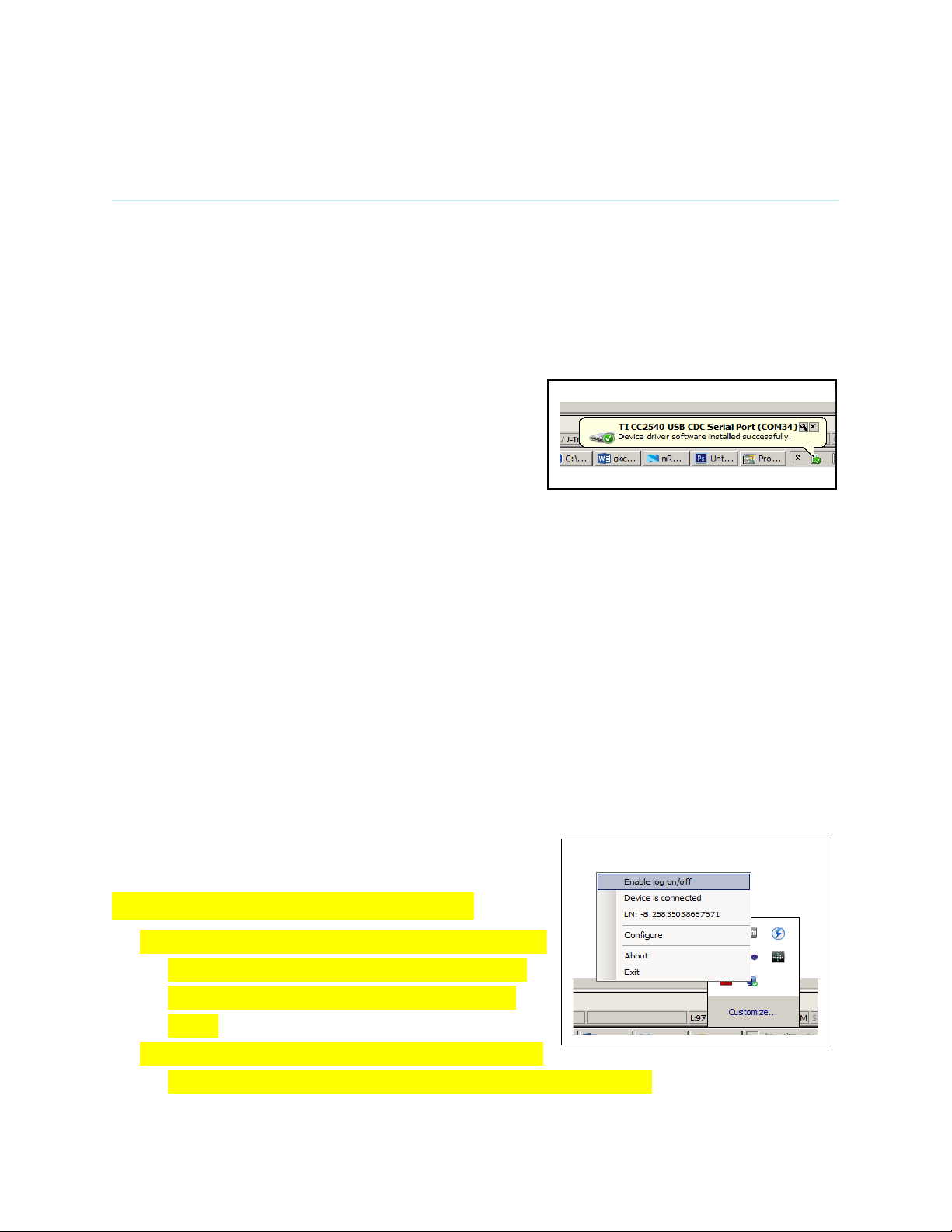
When the GateKeeper software is running, an icon will
be present in the taskbar. Right click this icon every
time the program is started and select “Enable log
on/off”
The text will change to “Disable log on/off”. Clicking
it will enable or disable the automatic log on and log off functionality.
Page 6

GATEKEEPER USER MANUAL VER. 1.0 JULY 2014 6
Adjusting the lock/ unlock range
Deleting a key
Feedback
Software is ready to use
Your GateKeeper is now set up and ready to use
When you walk enough distance away from the computer, the computer will lock. When you
walk back to it, the computer will unlock.
GateKeeper Smartphone App
The Key locator feature of GateKeeper enables the user to find the GateKeeper Key using his/her
smartphone.
Requirements:
Android 4.3 or higher
Bluetooth 4.0 Enabled Smartphone
Installation
Download the app from the Google Play store for your Android device or from the Apple App
Store for your iPhone.
Install the app on your smartphone
Adding a Key
Press the + button to add a GateKeeper Key fob to the app
Place the Key fob very close to the phone
A list of available Keys will be displayed
Select the one with the smallest number written to its right.
Once selected, the Key fob will beep for a few times.
Confirm that the correct Key Fob was selected on the app.
Type in the name of the Key and hit “OK”
This will add the Key to your list
Page 7

GATEKEEPER USER MANUAL VER. 1.0 JULY 2014 7
A key can also be added by clicking the “Switch Keys” button at the bottom and then touching
the “+” sign.
Deleting a Key
Select the key to be deleted from the “Switch Keys” menu
Hit the “Delete” icon [PUT ICON HERE]
Confirm that you want to delete the key by choosing OK on the dialog box
Renaming a Key
Select the key to be edited from the “Switch Keys” menu
Hit the “Edit” icon [PUT ICON HERE]
Insert a new name of the Key and hit OK
Locate Function
Select the Key to be located from the “Switch Keys” menu
Hit the “Locate” button
If the Key is in range, the app will show how far the Key is with the signal strength bar graph.
The buzzer on the Key will also start beeping.
Once the Key is close to the phone, the app will cause the phone to beep.
Exit the Locate menu by touching anywhere on the phone
Alert Mode
Select the key to be put in alert mode from the “Switch Keys” menu
Enable the Alert mode by turning on the “Alert” switch
If the key is in range, the “Alert” mode will be enabled
The phone will beep and display a message whenever the key goes out of range
The Alert mode can be disabled by turning off the “Alert” switch
Battery Level I ndicator
Select a key from the “Switch Keys” menu
The capacity of the key’s battery will be indicated in the top right corner
 Loading...