

Page 1

StreetPilot® 2730
owner’s manual
Page 2

© Copyright 2005 Garmin Ltd. or its subsidiaries
Garmin International, Inc.
1200 East 151st Street,
Olathe, Kansas 66062, U.S.A.
Tel. 913/397.8200 or 800/800.1020
Fax 913/397.8282
Garmin (Europe) Ltd.
Unit 5, The Quadrangle,
Abbey Park Industrial Estate,
Romsey, SO51 9DL, U.K.
Tel. 44/0870.8501241
Garmin Corporation
No. 68, Jangshu 2nd Road,
Shijr, Taipei County, Taiwan
Tel. 886/2.2642.9199
Fax 886/2.2642.9099
Fax 44/0870.8501251
All rights reserved. Except as expressly provided herein, no part of this manual may be reproduced, copied, transmitted, disseminated,
downloaded or stored in any storage medium, for any purpose without the express prior written consent of Garmin. Garmin hereby grants
permission to download a single copy of this manual onto a hard drive or other electronic storage medium to be viewed and to print one
copy of this manual or of any revision hereto, provided that such electronic or printed copy of this manual must contain the complete text
of this copyright notice and provided further that any unauthorized commercial distribution of this manual or any revision hereto is strictly
prohibited.
Information in this document is subject to change without notice. Garmin reserves the right to change or improve its products and to make
changes in the content without obligation to notify any person or organization of such changes or improvements. Visit the Garmin Web site
(www.garmin.com) for current updates and supplemental information concerning the use and operation of this and other Garmin products.
Garmin®, StreetPilot®, and MapSource® are registered trademarks and City Navigator
and may not be used without the express permission of Garmin. XM WX Weather
™
is a trademark of Garmin Ltd. or its subsidiaries
™
and XM Radio™ are trademarks of XM
Satellite Radio Inc
October 2005 Part Number 190-00476-00 Rev. A Printed in Taiwan
Page 3

PREFACE
PREFACE
Congratulations on purchasing the Garmin
2730.
Quick Tips
• To find an address, see page 3.
• To learn about the map, see
page 8.
• To adjust the backlight brightness, see
• To clean and store your StreetPilot, see
• To turn off the GPS receiver to use indoors, see
10.
Manual Conventions
®
StreetPilot®
page 16.
page 24.
page
Serial Number
Record the serial number (8-digit number located on the
back of the unit, under the Auto Mount bracket) in case
your StreetPilot 2730 needs service or you want to buy
additional maps.
Serial Number: ___ ___ ___ ___ ___ ___ ___ ___
Contact Garmin
If you encounter any difficulty while using your
StreetPilot 2730, or if you have any questions, in
the U.S.A. contact Garmin Product Support by phone at
913/397.8200 or 800/800.1020, Monday–Friday,
8 AM–5 PM Central Time; or by e-mail at
[email protected]. In Europe, contact Garmin (Europe)
Ltd. at 44/0870.8501241.
The unit has no user-serviceable parts. If you ever have a problem with
your unit, take it to an authorized Garmin dealer for repairs.
The unit is fastened shut with screws. Any attempt to open the case to
change or modify the unit in any way voids your warranty and may result
in permanent damage to the equipment.
StreetPilot 2730 Owner’s Manual i
Page 4

TABLE OF CONTENTS
TABLE OF CONTENTS
Preface .......................................i
Quick Tips ..........................................i
Manual Conventions ..........................i
Serial Number ....................................i
Contact Garmin ..................................i
Caring for Your StreetPilot 2730 ...... vi
Find It and Go! ..........................1
Finding a Restaurant .........................1
Following Your Route ........................
2
Where To? ................................3
Finding an Address ...........................3
Finding a Place Using the Map .........4
Finding Recently Found Places ........4
Changing Your Search Area ..............5
Narrowing Your Search .....................
5
My Locations .............................6
Saving Places You Find ....................6
Finding Saved Places .......................6
ii StreetPilot 2730 Owner’s Manual
Editing Saved Places ........................6
Deleting a Saved Place .....................7
Setting a Home Location ...................8
Going Home ......................................8
Viewing the Map and Other
Pages .......................................9
Viewing the Map Page ......................9
Trip Computer .................................10
Turn
List ..........................................10
GPS Info .........................................11
Creating and Editing Routes .12
Creating a New Route .....................12
Editing a Saved Route ....................13
Saving the Active Route ..................13
Navigating a Saved Route ..............13
Recalculating the Route ..................13
Adding a Detour to a Route ............13
Stopping Your Route .......................
13
Adding Avoidances ..........................14
Using The Logs .......................15
Adjusting the Track Log ..................15
Using the Mileage Logs ..................15
Listening to XM Radio ............16
XM Radio ID ....................................20
Listening to Music Over the
Vehicle’s Speakers ...............
21
Customizing the StreetPilot 2730
22
Customizing the General Settings ..22
Changing the Map Settings .............25
Changing the Navigation Settings ...26
Adjusting the Traffic Settings ..........
Changing the Screen Settings ........26
Viewing
Restoring the Settings .....................27
Unit Information (About) ....27
26
Page 5

TABLE OF CONTENTS
Adjusting the Volume ......................27
XM Traffic ................................28
Appendices .............................30
Using the Remote Control ...............30
Installing the StreetPilot in Your Vehicle ..
31
Connecting the GXM 30 ..................32
Custom POIs (Points of Interest) ....33
Technical Specifications ..................
Changing the Fuse ..........................34
Not waterproof? ..............................34
Using a Remote Antenna ................35
Updating the Software and Map Data .
35
Software License Agreement ..........35
Weather Data Warranty ..................
XM Satellite Radio Service Agreement ...
37
FCC Compliance .............................38
34
36
DoC Here .................................39
Index ........................................40
StreetPilot 2730 Owner’s Manual iii
Page 6
PREFACE
Warning
This manual uses the term Warning to indicate a potentially hazardous situation, which, if not avoided, could result in death or serious injury.
Failure to avoid the following potentially hazardous situations
could result in an accident or collision resulting in death or
serious injury.
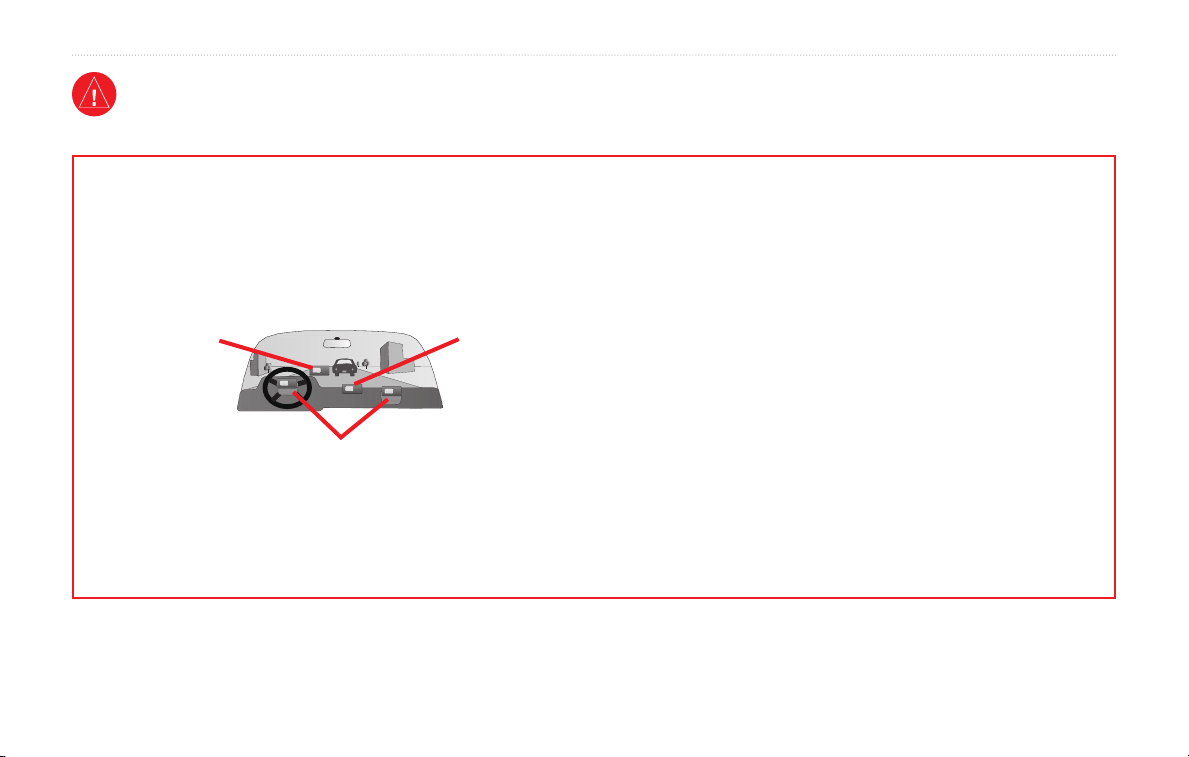
When installing the unit in a vehicle, place the unit securely
so that it does not interfere with vehicle operating controls or
obstruct the driver’s view of the road (see diagram).
Do not mount
where driver’s
field of vision is
blocked.
Do not mount in front of an airbag field of deployment.
Do not place
unsecured on
the vehicle
dash.
When navigating, carefully compare information displayed on the
unit to all available navigation sources, including information from
street signs, visual sightings, and maps. For safety, always resolve
any discrepancies or questions before continuing navigation.
Always operate the vehicle in a safe manner. Do not become
distracted by the unit while driving, and always be fully aware
of all driving conditions. Minimize the amount of time spent
viewing the screen of the unit while driving and use voice
prompts when possible.
Do not enter destinations, change settings, or access any functions
requiring prolonged use of the unit’s controls while driving.
Pull over in a safe and legal manner before attempting such
operations.
The unit contains a non-user-replaceable, rechargeable lithiumion battery. The battery may present a risk of fire or chemical
burn if mistreated.
• Do not remove from the unit, heat unit above 158°F (70°C), or
incinerate.
• Dispose of unit properly. Contact your local waste disposal
department for information on properly disposing of lithiumion batteries.
WARNING: This product, its packaging, and its components contain chemicals known to the State of California to cause cancer, birth
defects, or reproductive harm. This Notice is being provided in accordance with California’s Proposition 65. If you have any questions or
would like additional information, refer to our Web site at
iv StreetPilot 2730 Owner’s Manual
http://www.garmin.com/prop65.
Page 7

PREFACE
Caution
This manual uses the term Caution to indicate a potentially hazardous situation, which, if not avoided, may result in minor injury or
property damage. It may also be used without the symbol to alert you to avoid unsafe practices.
Failure to avoid the following potentially hazardous situations
may result in injury or property damage.
The unit is designed to provide you with route suggestions.
It does not reflect road closures or road conditions, traffic
congestion, weather conditions, or other factors that may affect
safety or timing while driving.
Use the unit only as a navigational aid. Do not attempt to use the
unit for any purpose requiring precise measurement of direction,
distance, location, or topography. This product should not be used
to determine ground proximity for aircraft navigation.
The Global Positioning System (GPS) is operated by the United
States government, which is solely responsible for its accuracy
and maintenance. The government’s system is subject to changes
which could affect the accuracy and performance of all GPS
equipment, including the unit. Although the unit is a precision
navigation device, any navigation device can be misused or
misinterpreted and, therefore, become unsafe.
Important Information
MAP DATA INFORMATION: One of the goals of Garmin is to provide customers with the most complete and accurate cartography
that is available to us at a reasonable cost. We use a combination of governmental and private data sources, which we identify in product
literature and copyright messages displayed to the consumer. Virtually all data sources contain inaccurate or incomplete data to some
extent. This is particularly true outside the United States, where complete and accurate digital data is either not available or prohibitively
expensive.
StreetPilot 2730 Owner’s Manual v
Page 8

PREFACE
Caring for Your StreetPilot 2730
The StreetPilot 2730 is constructed of high quality
materials and does not require user maintenance other
than cleaning.
Cleaning the Unit
Clean the unit’s outer casing using a cloth dampened
with a mild detergent solution and then wipe dry. Avoid
chemical cleaners and solvents that can damage plastic
components.
Clean the touch screen using a soft, clean, lint-free
cloth. Use water, isopropyl alcohol, or eyeglass cleaner
if needed. If these are used, apply the liquid to the cloth
and then gently wipe the touch screen.
Protecting Your StreetPilot 2730
• Do not store the unit where prolonged exposure to
extreme temperatures can occur (such as in the trunk
of a car), as permanent damage may result.
• Do not leave your unit in plain sight when you leave
your vehicle to avoid theft.
Caring for the Touch Screen
The touch screen is intended to be operated with a finger.
Never use a hard or sharp object to operate the touch
screen or damage may result. Though a PDA stylus can
also be used to operate the touch screen, never attempt
• Do not store alkaline batteries in the
for extended periods. To reduce the chance for battery
leakage in the battery compartment, remove the
batteries when storing the remote control for more
than six months.
this while operating a vehicle.
remote control
vi StreetPilot 2730 Owner’s Manual
Page 9
FIND IT AND GO!
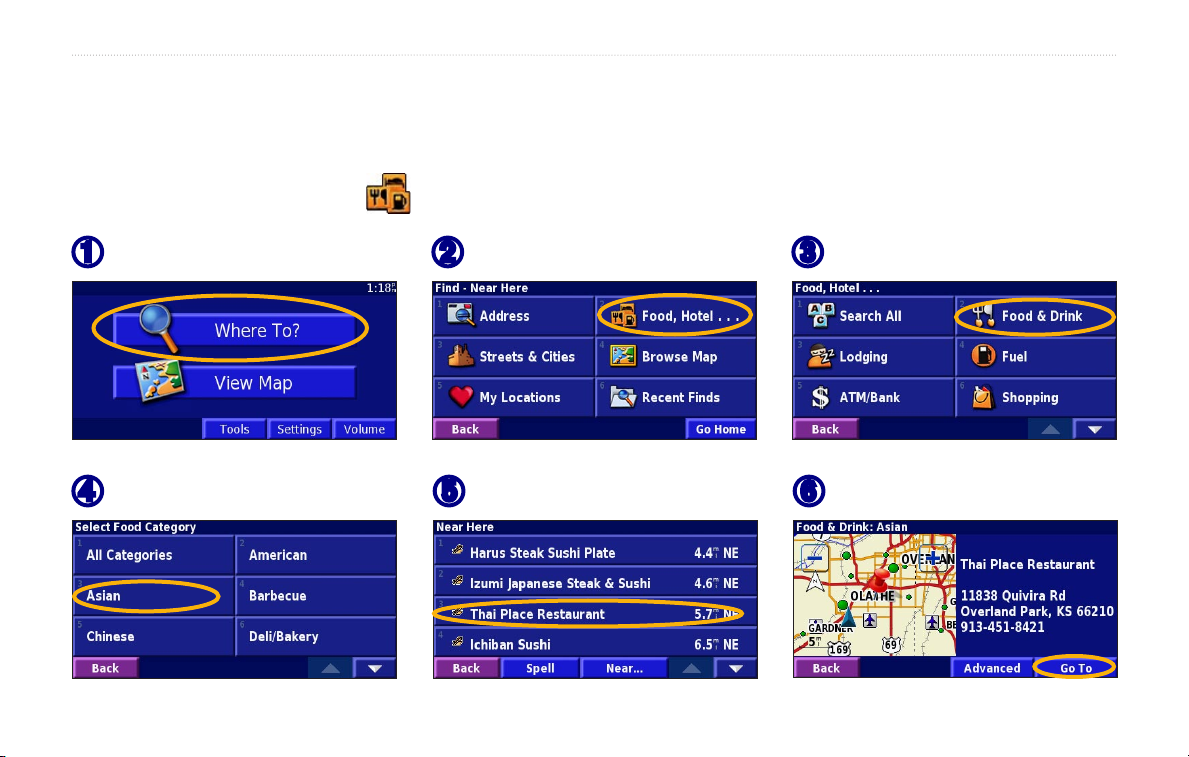
Use the Garmin® StreetPilot® 2730 to find your destination and go to it.
Finding a Restaurant
FIND IT AND GO!
Touch Where To?
➊
Touch a food category.
➍
StreetPilot 2730 Owner’s Manual 1
Touch Food, Hotel….
➋
Touch the place.
➎
Touch Food & Drink.
➌
Touch Go To.
➏
Page 10
FIND IT AND GO!
Following Your Route
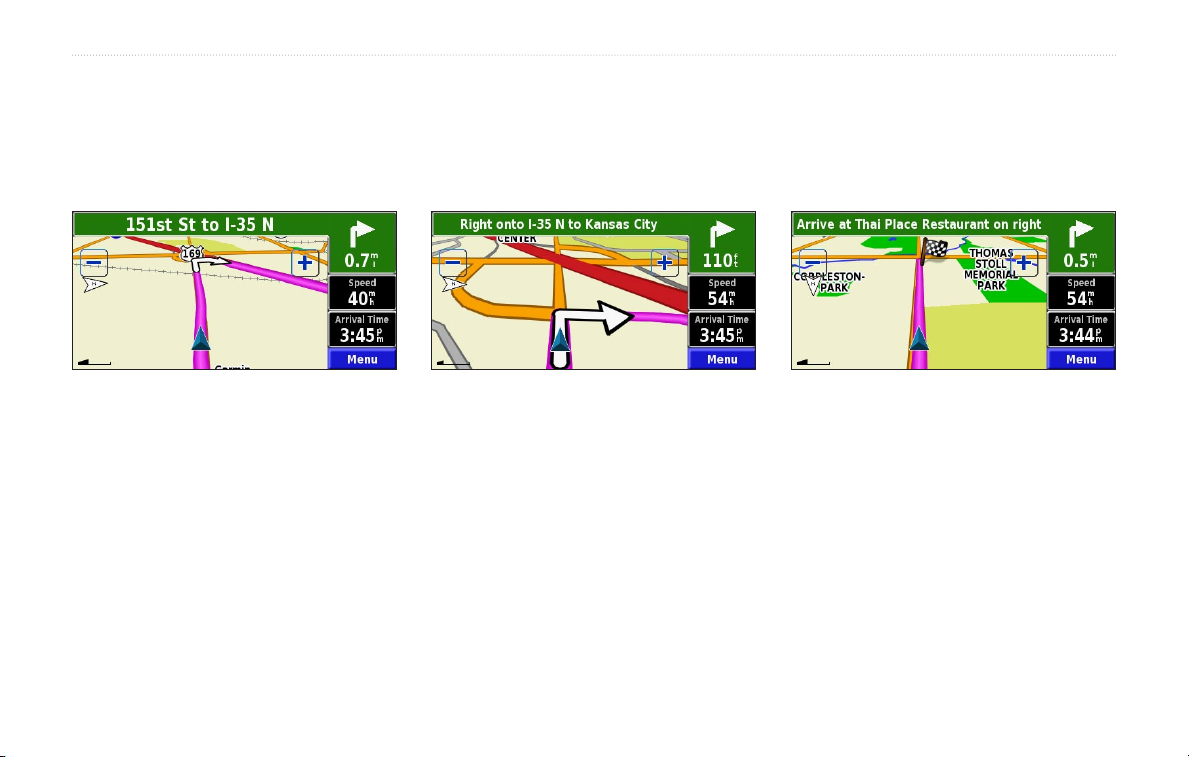
Follow the route to your destination using the map. As you travel, your StreetPilot guides you to your destination with
voice prompts, arrows, and directions along the top of the map. If you depart from the original route, your StreetPilot
recalculates the route and provides new route instructions.
Your route is marked
with a magenta line.
Follow the arrows. A checkered flag marks
your destination.
For more information about using the map, see pages 8–10.
2 StreetPilot 2730 Owner’s Manual
Page 11
Finding an Address
WHERE TO?
WHERE TO?
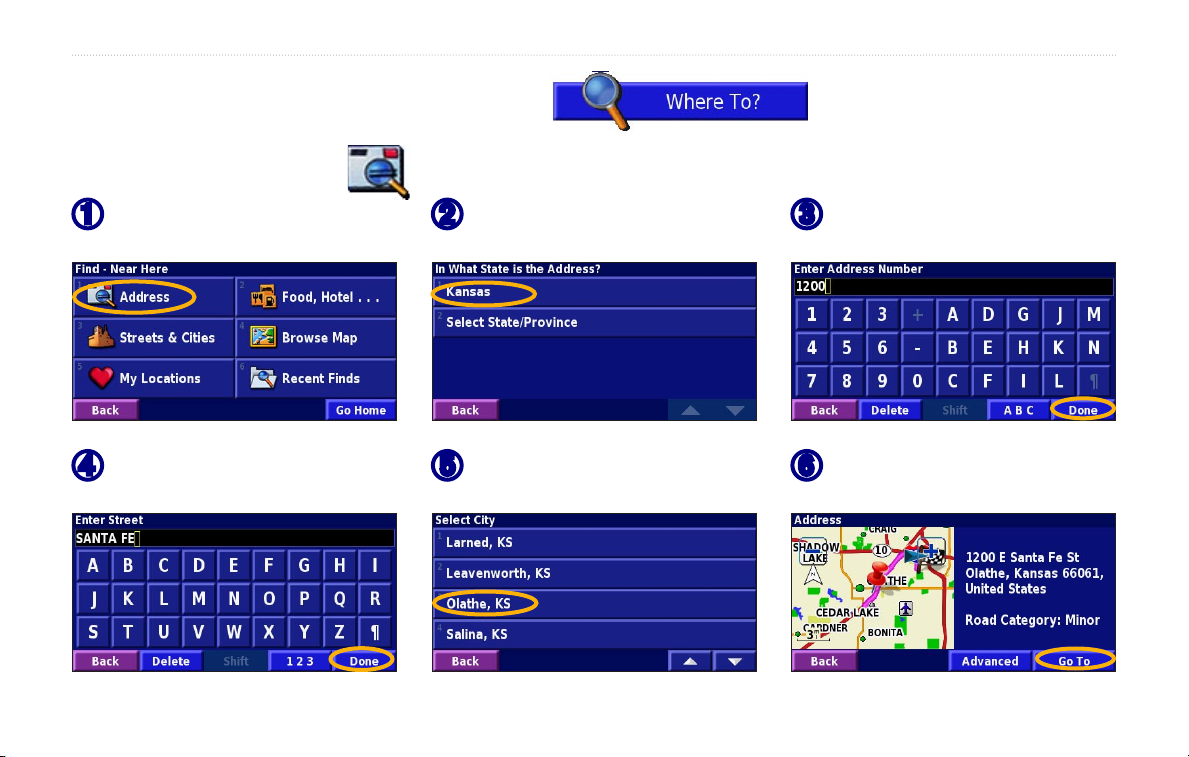
From the Menu page, touch
➊
Where To?. Touch Address.
Enter the street name and
➍
touch Done.
StreetPilot 2730 Owner’s Manual 3
Touch a state.
➋
Select the street and then
➎
select the city.
Enter the address number
➌
and touch Done.
Select the address, if
➏
necessary. Touch Go To.
Page 12
WHERE TO?
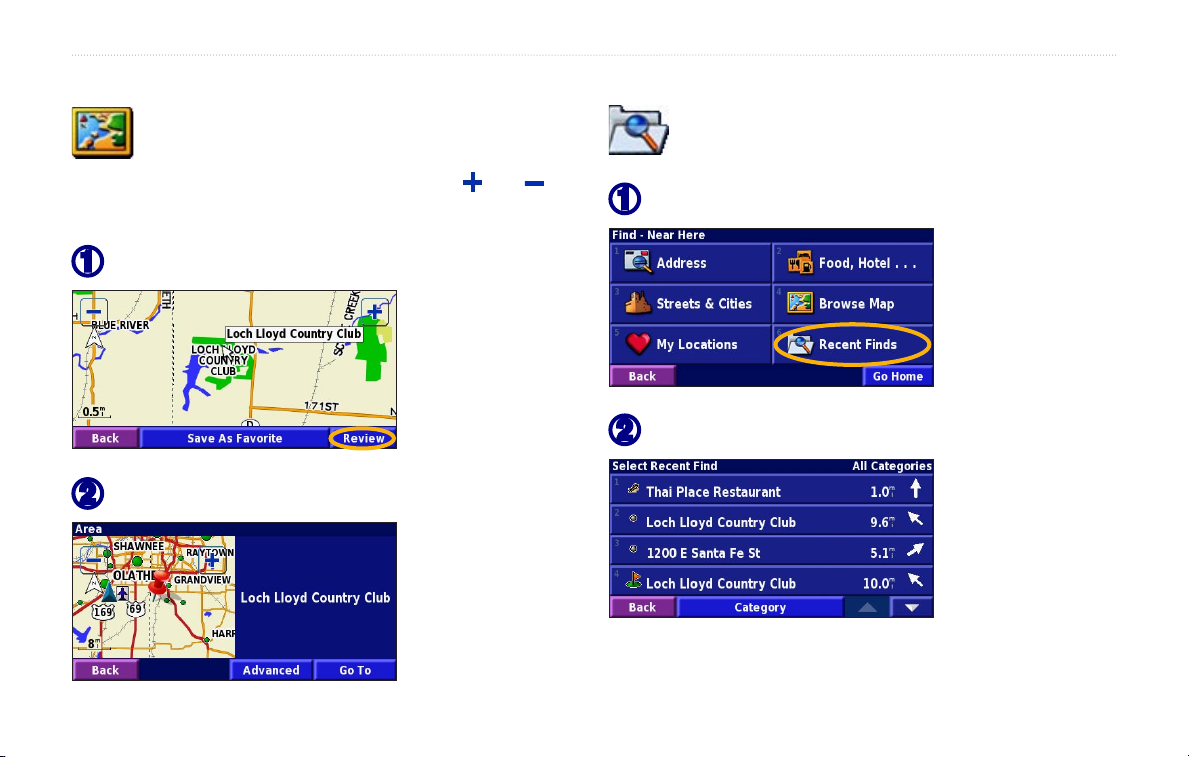
Finding a Place Using the Map
From the Menu page, touch Where To? >
Browse Map to find a place on the map. Touch
and drag the map to move it. Touch and to
zoom in and out.
Touch any object on the map. Touch Review.
➊
Touch Go To or Advanced.
➋
4 StreetPilot 2730 Owner’s Manual
Finding Recently Found Places
Your StreetPilot stores the last 50 places you
have found in Recent Finds.
Touch Where To? > Recent Finds.
➊
Select an item from the list.
➋
Touch Category to display recent finds of a certain
category, such as Food, Hotel….
Page 13
Changing Your Search Area
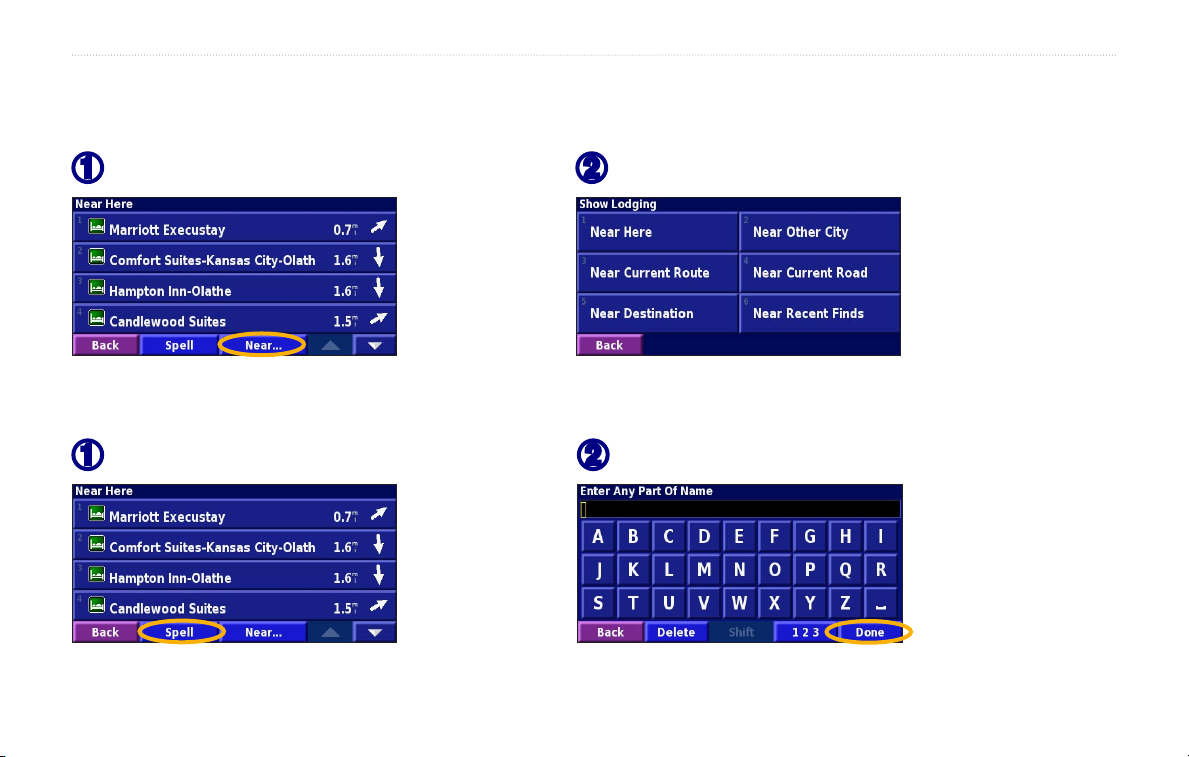
You can change the search parameters to find places in a different area.
WHERE TO?
From the search results list, touch Near….
➊
Select one of the search options.
➋
Narrowing Your Search
From the search results list, touch Spell.
➊
StreetPilot 2730 Owner’s Manual 5
Enter part of the name and touch Done.
➋
Page 14
MY LOCATIONS
MY LOCATIONS
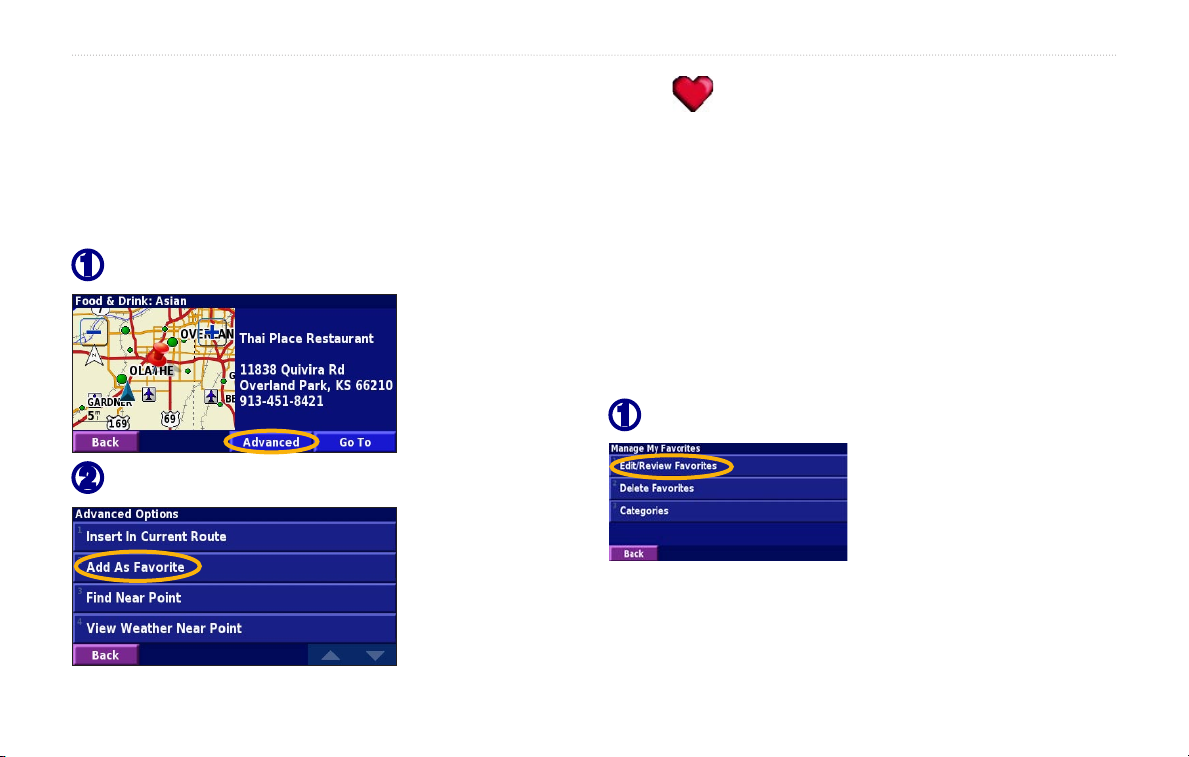
Saving Places You Find
After you have found a place you want to save, select it
on the results list. The information page opens.
From the information page, touch Advanced.
➊
Finding Saved Places
Your saved places are stored in the Favorites category
in My Locations. From the Find Menu, touch My
Locations > Favorites.
Editing Saved Places
From the Menu page, touch Tools > My Data >
Favorites.
Touch Edit/Review Favorites
➊
Touch Add As Favorite.
➋
6 StreetPilot 2730 Owner’s Manual
Page 15
MY LOCATIONS
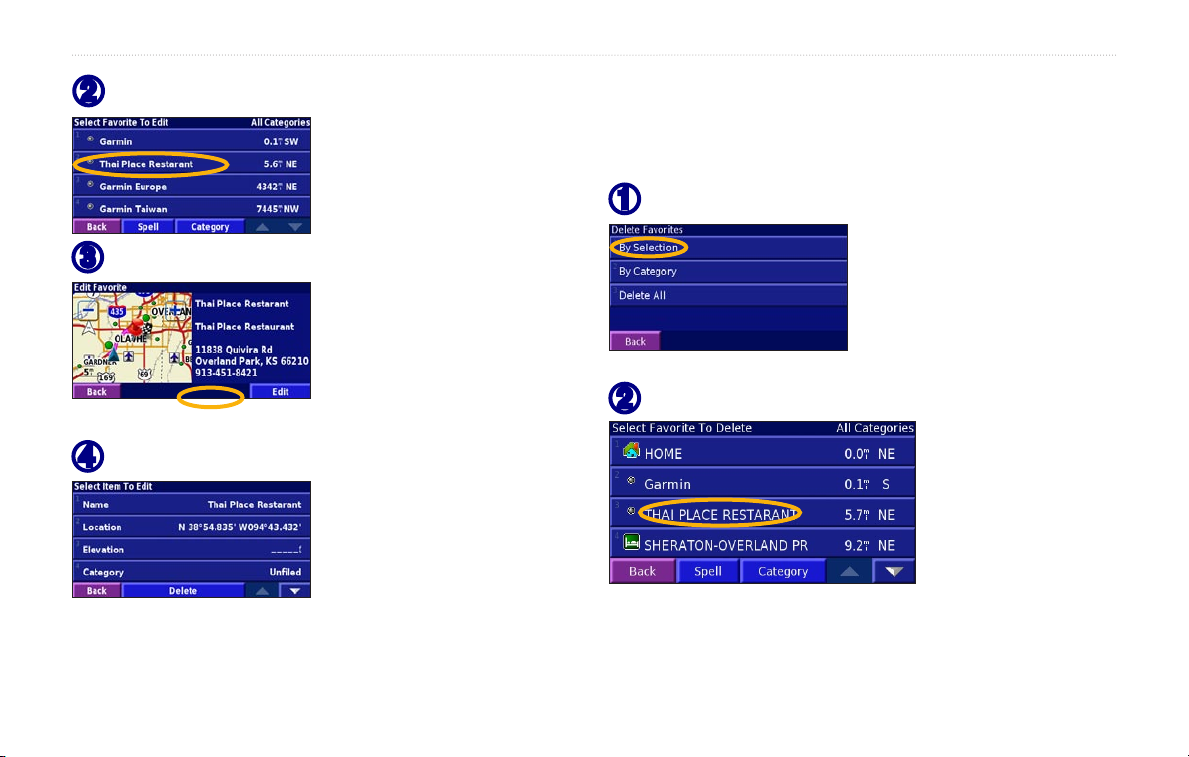
Touch the location to edit.
➋
Touch Edit.
➌
Touch an item to edit it.
➍
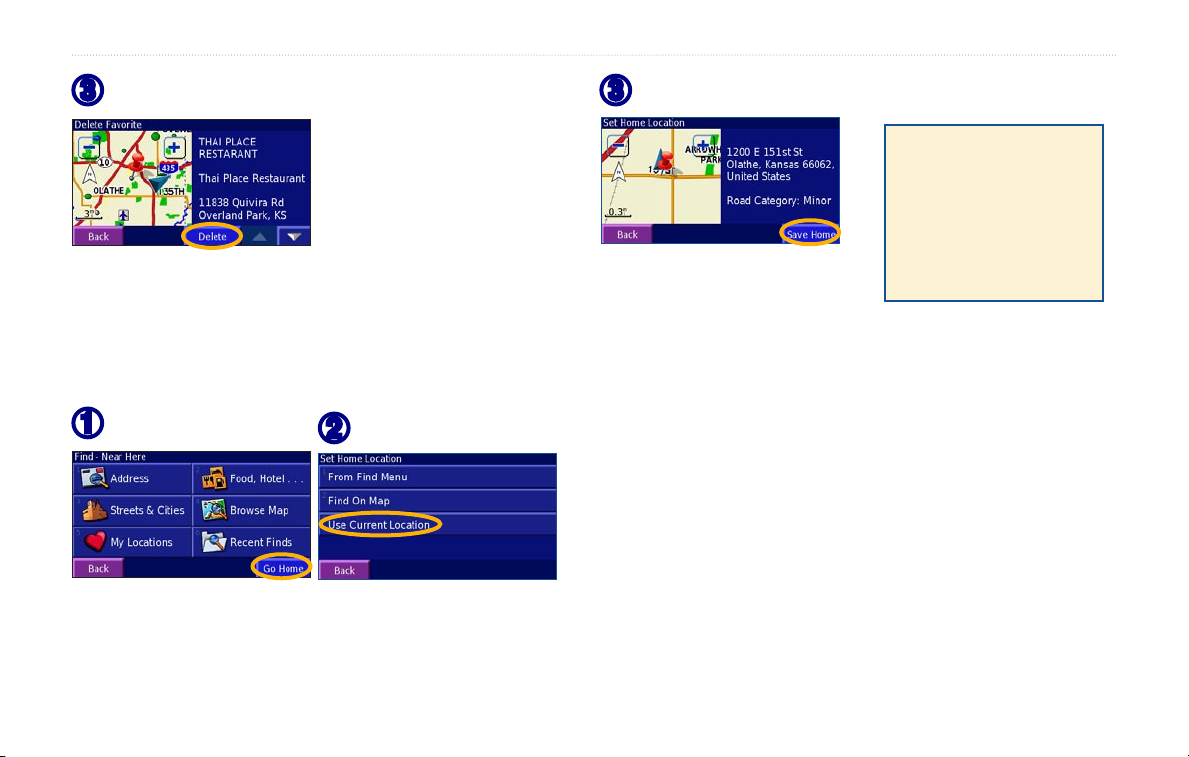
Deleting a Saved Place
From the Menu page, touch Tools > My Data >
Favorites > Delete Favorites.
Touch By Selection.
➊
Touch a saved location.
➋
StreetPilot 2730 Owner’s Manual 7
Page 16
MY LOCATIONS
Touch Delete.
➌
Touch Save Home.
➌
Setting a Home Location
You can set a Home Location for the place you return to
most often. Open the Find Menu.
Touch Go Home.
➊
Select an option.
➋
Going Home
After you set your
Home Location, open
the Find Menu and
touch Go Home.
8 StreetPilot 2730 Owner’s Manual
Page 17
VIEWING THE MAP AND OTHER PAGES
VIEWING THE MAP AND OTHER PAGES
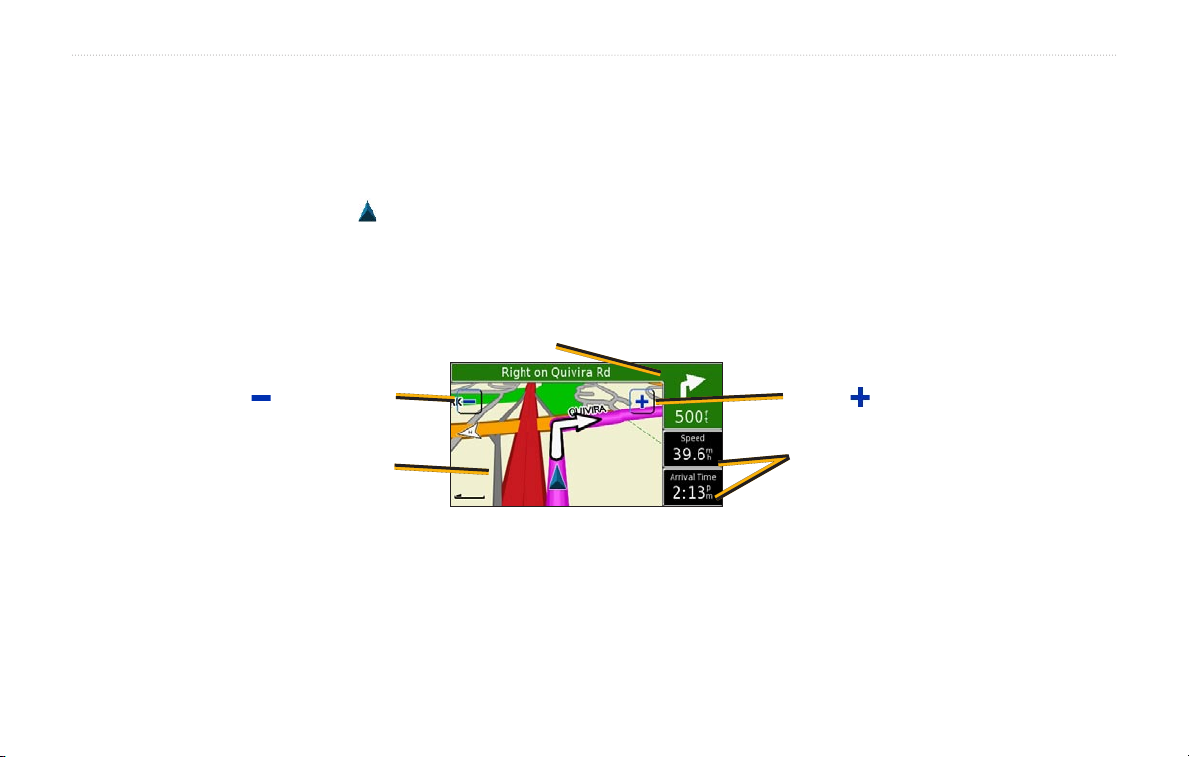
Viewing the Map Page
From the Menu page, touch View Map to open the map. Touch an area of the map to see additional information, as
shown below. The position icon shows your current location.
While navigating a route, touch the green
text bar to open the Turn List. See page 9.
Touch to zoom out. Touch to zoom in.
Touch the map to view
and browse a 2-D map.
Map Page while Navigating a Route
StreetPilot 2730 Owner’s Manual 9
Touch the Speed or Arrival data
field to open the Trip Computer.
See page 9.
Page 18
VIEWING THE MAP AND OTHER PAGES
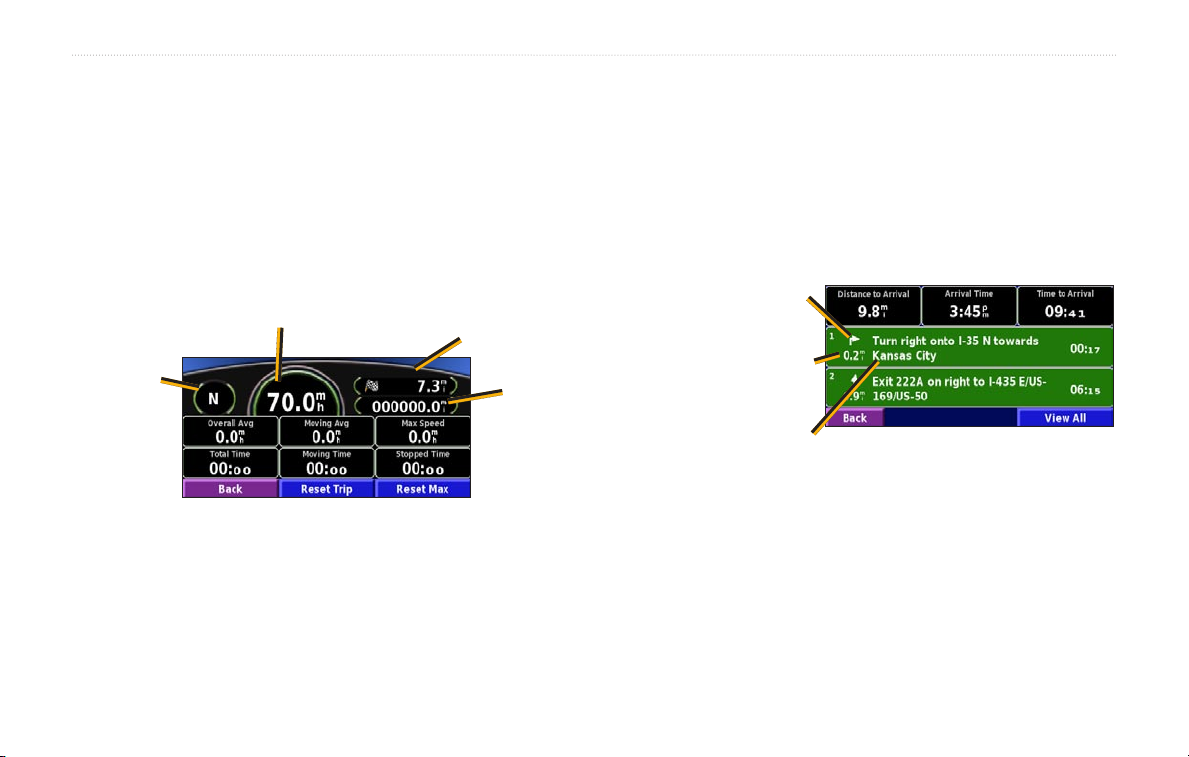
Trip Computer
The Trip Computer indicates your current speed and
provides helpful statistics about your trip.
To view the Trip Computer, select Speed or Arrival on
the map. Or, from the Menu page, touch Tools > Trip
Computer.
Current speed
Current
direction
of travel
Touch Reset Trip to reset all information on the Trip
Computer. To reset the Maximum Speed, touch Reset
Max.
Distance to your final
destination
Total
distance
traveled
(odometer)
Turn List
The Turn List displays a list of turn-by-turn instructions
for your entire route as well as arrival information.
While navigating a route, touch the green text bar to
open the Turn List. Or, from the Menu page, touch Tools
> Turn List.
Direction of this turn
Distance to this turn
Turn directions
Touch a turn to see the turn on a map (the Next Turn
page).
10 StreetPilot 2730 Owner’s Manual
Page 19
VIEWING THE MAP AND OTHER PAGES
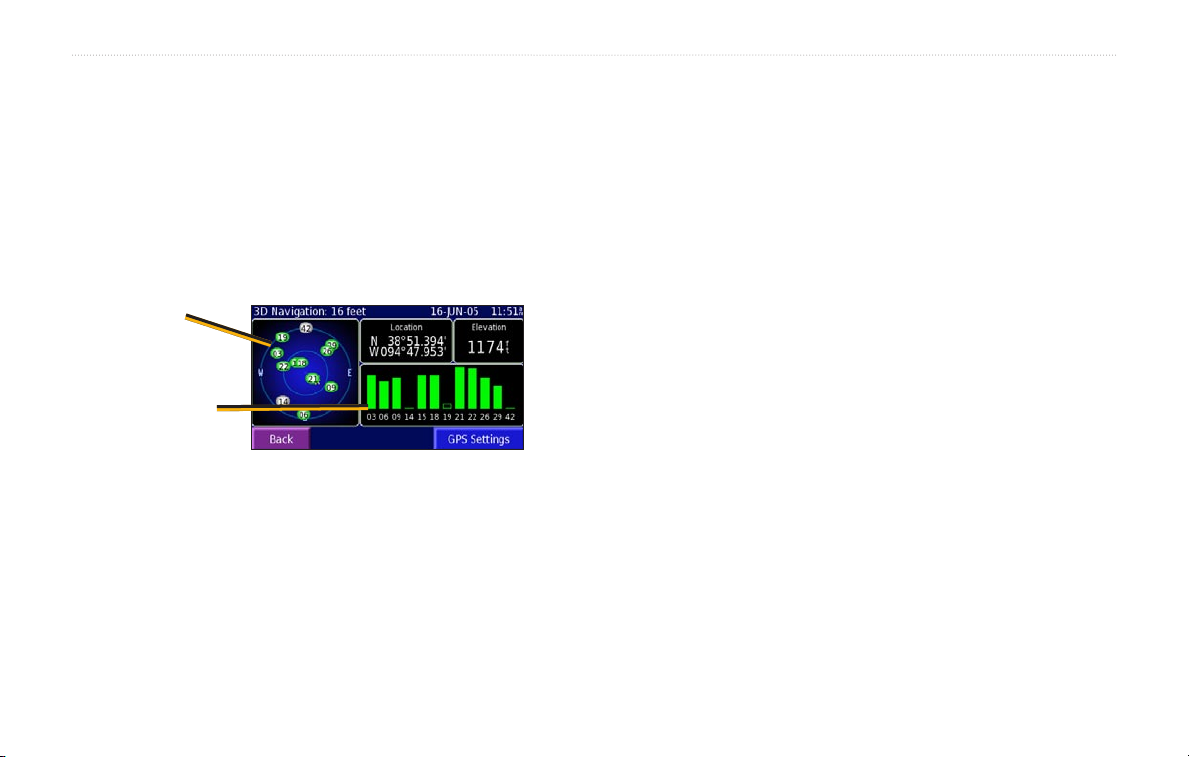
GPS Info
The GPS Info page displays the GPS receiver status,
including current satellite coverage, receiver status, and
position accuracy. To access this page, open the Menu
page and touch Tools > GPS Info. From the map, you
can touch the signal strength bars while the receiver is
establishing a fix to view the GPS Info page.
Sky view
A signal strength bar appears for each satellite in view.
A hollow bar indicates the GPS receiver has found the
satellite and is collecting data. A solid bar indicates the
GPS receiver has collected the necessary data, and the
satellite is ready for use.
GPS Settings
From the Menu page, touch Tools > GPS Info > GPS
Settings. You can also access the GPS Settings by
touching the GPS Settings button on the GPS Info page.
Use Indoors—touch Yes to turn the GPS receiver off
Satellite signal
strength bars
and use the unit indoors.
Set Position—if the GPS receiver has not established a
The sky view provides an overhead view of each satellite
position relative to your unit’s last known location. The
outer circle represents the horizon. The inner circle
fix on your location, you can enter your current location.
From the GPS Settings page, touch Set Position. Select
your location using the map and touch OK.
represents an elevation of 45° above the horizon. Any
satellite depicted near the center is directly overhead.
WAAS/EGNOS—disable and enable WAAS/EGNOS.
To learn about WAAS, visit
http://www.garmin.com/
aboutGPS/waas.html.
StreetPilot 2730 Owner’s Manual 11
Page 20
CREATING AND EDITING ROUTES
CREATING AND EDITING ROUTES
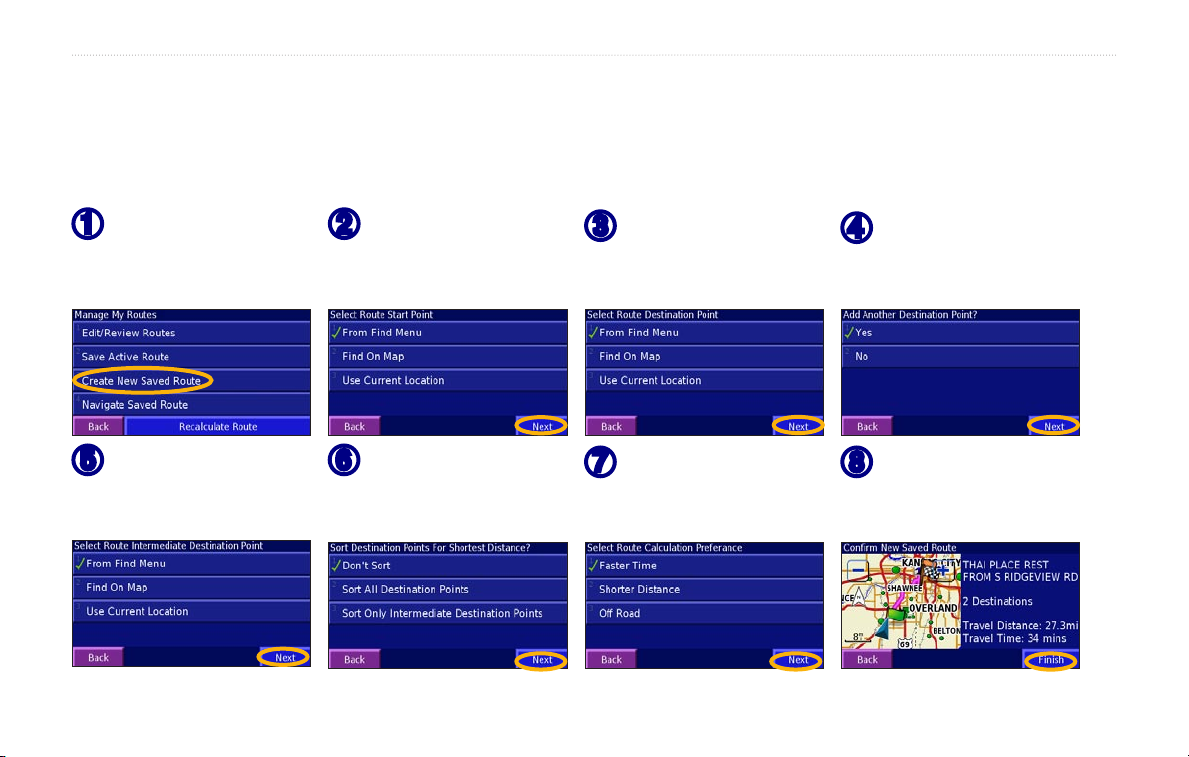
Creating a New Route
From the Menu page, touch Tools > My Data > Routes.
Touch Create New
➊
Saved Route.
Select a midpoint
➎
and touch Next.
12 StreetPilot 2730 Owner’s Manual
Select a starting
➋
point
and touch Next.
Select an option
➏
and touch Next.
Select an ending
➌
point
and touch Next.
Select your
➐
preference
and touch Next.
To add a point,
➍
select
Yes and touch Next.
Touch Finish.
➑
Page 21
CREATING AND EDITING ROUTES
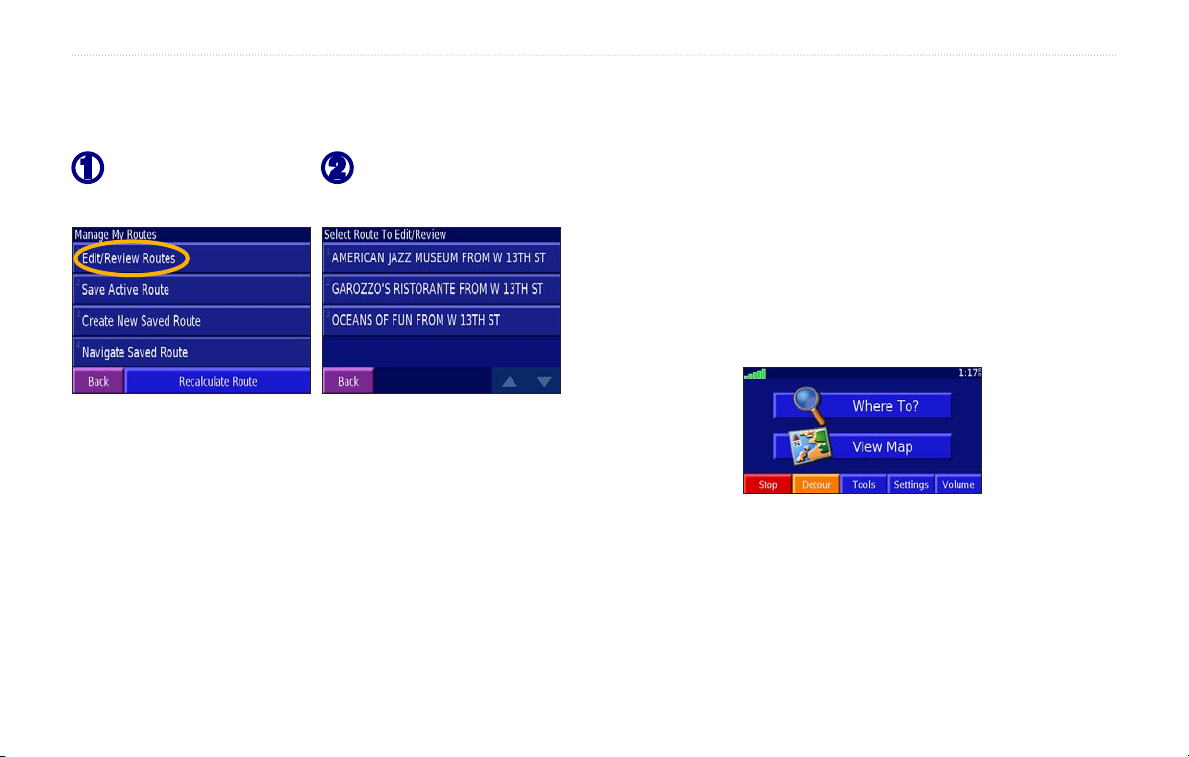
Editing a Saved Route
From the Menu page, touch Tools > My Data > Routes,
Touch Edit/Review
➊
Routes.
Touch the route you
➋
want to edit.
Recalculating the Route
From the Menu page, touch Tools > My Data > Routes
> Recalculate Route.
Adding a Detour to a Route
If you need to take a detour from your current route,
open the Menu page and touch Detour. Select a detour
distance or a road to detour around. The unit calculates a
new route.
Saving the Active Route
From the Menu page, touch Tools > My Data > Routes
> Save Active Route.
Stopping Your Route
Navigating a Saved Route
From the Menu page, touch Tools > My Data > Routes
> Navigate Saved Route. Touch the route you want to
navigate.
StreetPilot 2730 Owner’s Manual 13
From the Menu page, touch Stop.
Page 22
CREATING AND EDITING ROUTES
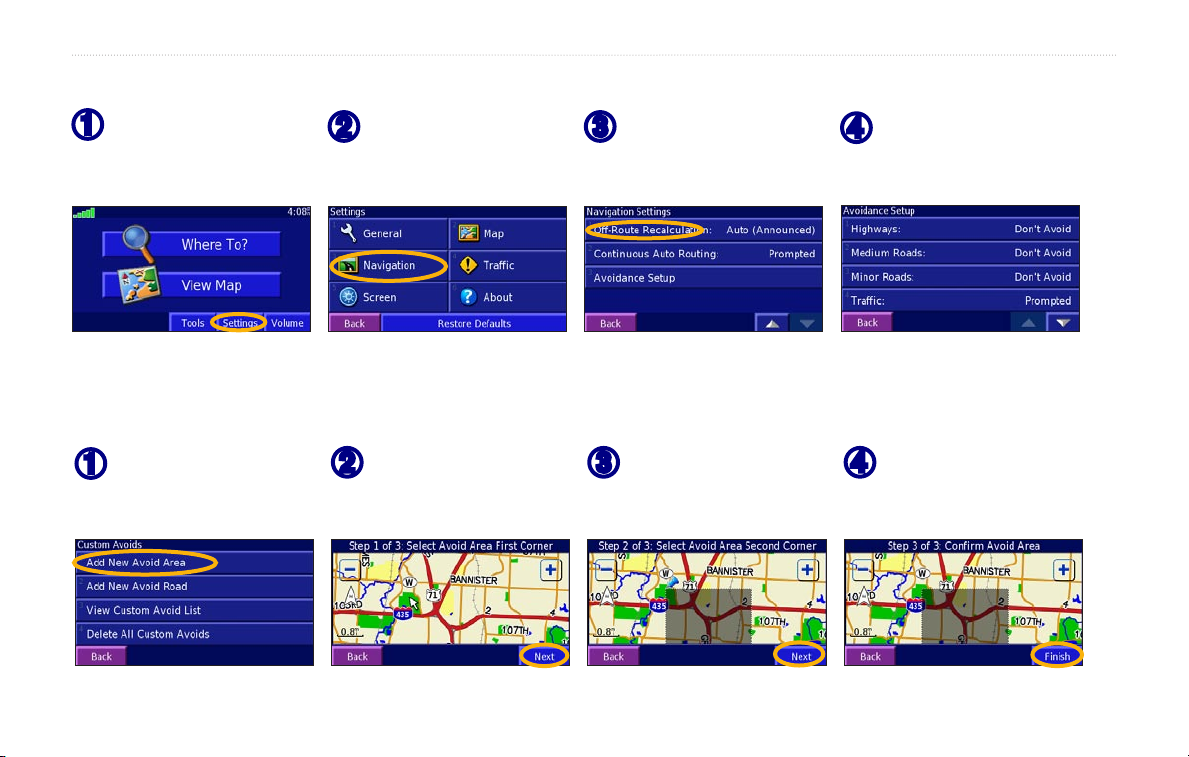
Adding Avoidances
From the Menu
➊
page, touch
Settings.
Creating Custom Avoids
You can specify areas and roads to avoid in your routes. From the Avoidance Setup menu, touch Custom Avoids.
Touch Add New
➊
Avoid Area.
14 StreetPilot 2730 Owner’s Manual
Touch Navigation.
➋
Touch the first
➋
corner and touch
Next.
Touch the down
➌
arrow and touch
Avoidance Setup.
Touch the second
➌
corner and touch
Next.
Select the road
➍
types you want to
avoid.
Touch Finish.
➍
Page 23
USING THE LOGS
USING THE LOGS
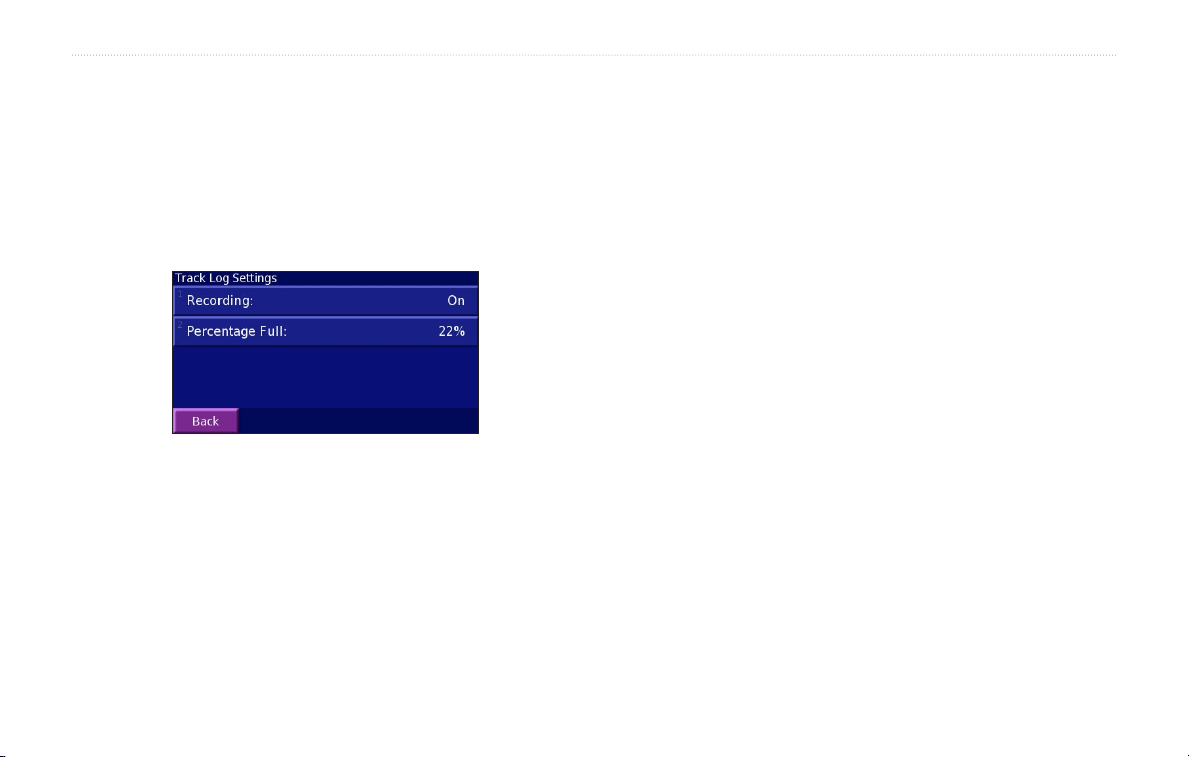
Adjusting the Track Log
As you travel, the StreetPilot creates a bread crumb trail
(track log) of your movement. From the Menu page,
touch Tools > My Data > Track Log.
Recording—turn off or on the track log recorder.
Percentage Full
capacity of the track log. To clear the track log, touch
Percentage Full > Yes > OK.
StreetPilot 2730 Owner’s Manual 15
—displays the current percentage
Using the Mileage Logs
Page 24
LISTENING TO MUSIC
LISTENING TO XM RADIO
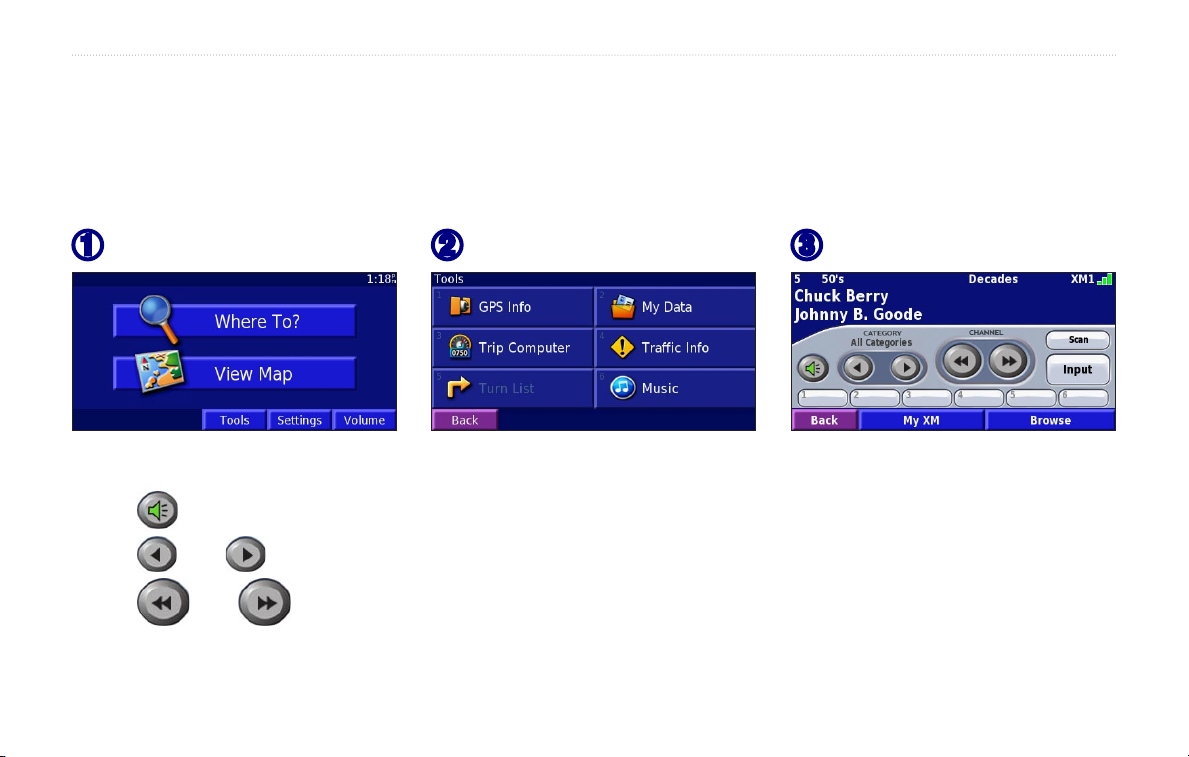
The GXM™ 30 Smart Antenna allows the 2730 to receive XM signals. You must connect a GXM 30 to your 2730 and
activate the service to listen to XM radio. See page 18 for information about connecting your GXM 30 and activating
service.
Touch Tools.
➊
If necessary, touch
Touch
Touch
Touch
Touch
16 StreetPilot 2730 Owner’s Manual
to adjust the volume.
and to change Categories. The Category name is listed above the buttons.
and to change the Channel within the Category.
Browse to select a Category and then a Channel.
Input to put the unit in XM mode.
Touch Music.
➋
Listen to music!
➌
Page 25
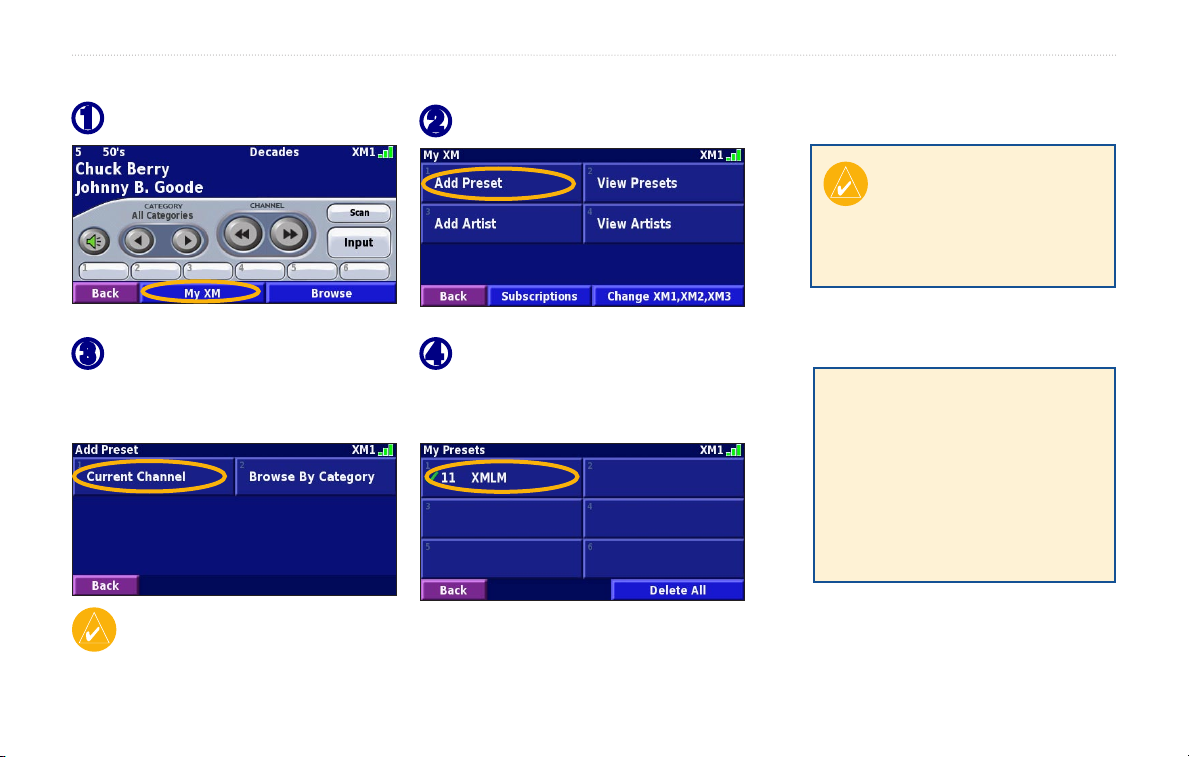
Saving Your Favorite Channels as Presets
Touch My XM.
➊
➋
Touch Add Preset.
LISTENING TO MUSIC
TIP: To quickly save
the current channel as a
preset, press and hold a
preset button.
Touch Current Channel
➌
to add the channel you are
listening to.
TIP: Touch Browse by Category to select a different channel.
StreetPilot 2730 Owner’s Manual 17
Touch the preset you want to
➍
assign to this channel.
Playing a Preset
To play a preset channel,
touch a preset button along the
bottom of the XM Radio page.
Also, you can touch Browse >
Presets.
Page 26
LISTENING TO MUSIC
XM1, XM2, and XM3
Three sets of presets, XM1, XM2, and XM3, are
provided. Within each set of presets, you can save six
favorite channels and unlimited artists. For example,
Mom can save her favorites on XM1, and Dad can save
his favorites on XM2.
To switch between XM1, XM2, and XM3, touch My
XM. Touch Change XM1, XM2, XM3. Then touch the
set of presets you want to change to.
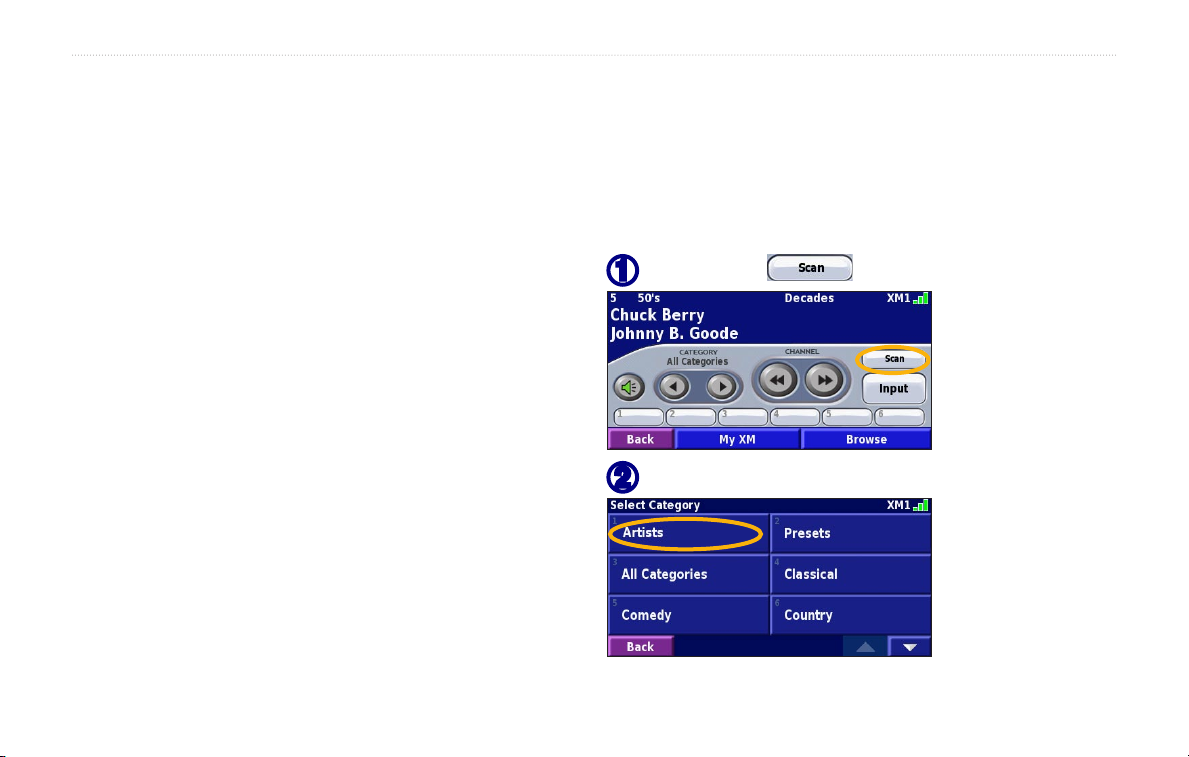
Scanning for Artists
After you have saved several artists, touch Scan to scan
the XM Radio for those artists. Your 2730 automatically
plays a song by an artist in your list. When that song is
over, it searches for another saved artist.
Touch Scan .
➊
Saving Your Favorite Artists
1. From the XM Radio page, touch My XM.
2. Touch Add Artist.
➋
3. Touch the
are listening to. You can also touch Browse by
Category to select a different artist.
Current Artist to save the artist you
Touch Artists.
18 StreetPilot 2730 Owner’s Manual
Page 27
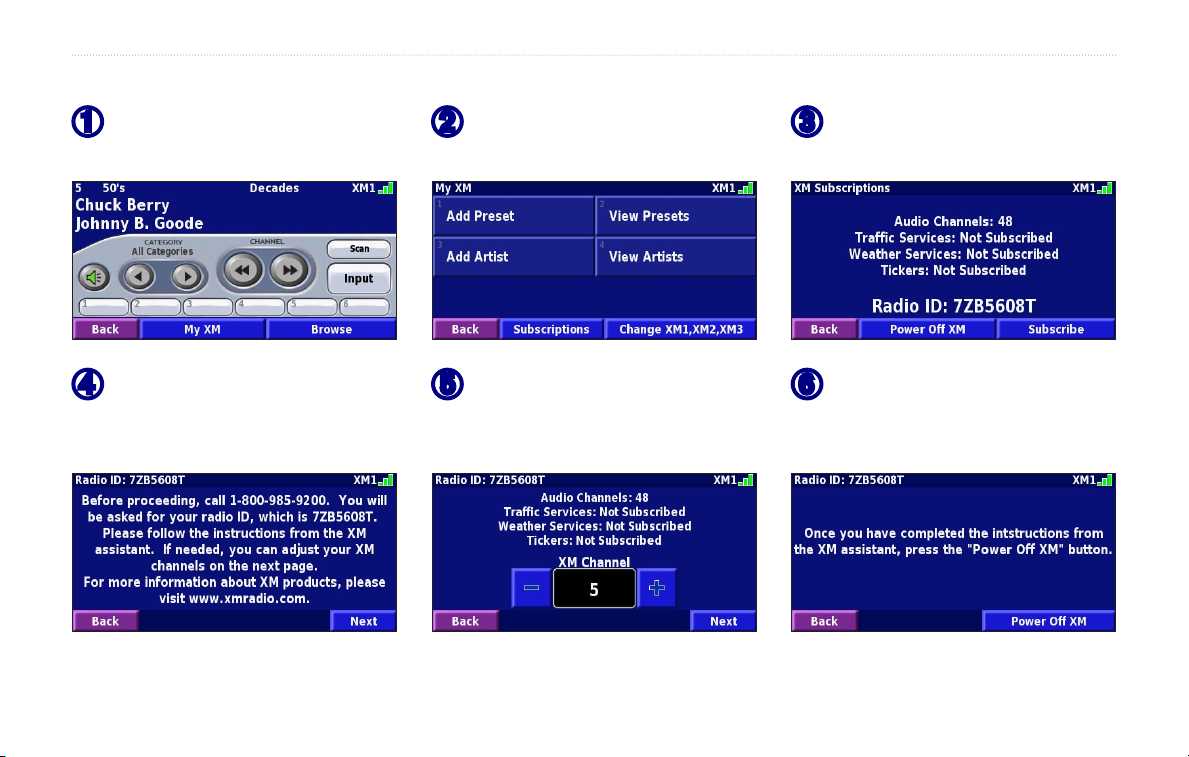
Activating Your Subscription
LISTENING TO MUSIC
From the XM Radio page,
➊
touch My XM.
➍
Call XM and touch Next.
Follow the XM customer care
representative’s instructions.
Touch Subscriptions.
➋
➎
Use the + and - to change
the channel, if necessary.
Touch Next when finished.
Touch Subscribe.
➌
Touch Power Off XM.
➏
StreetPilot 2730 Owner’s Manual 19
Page 28
LISTENING TO MUSIC
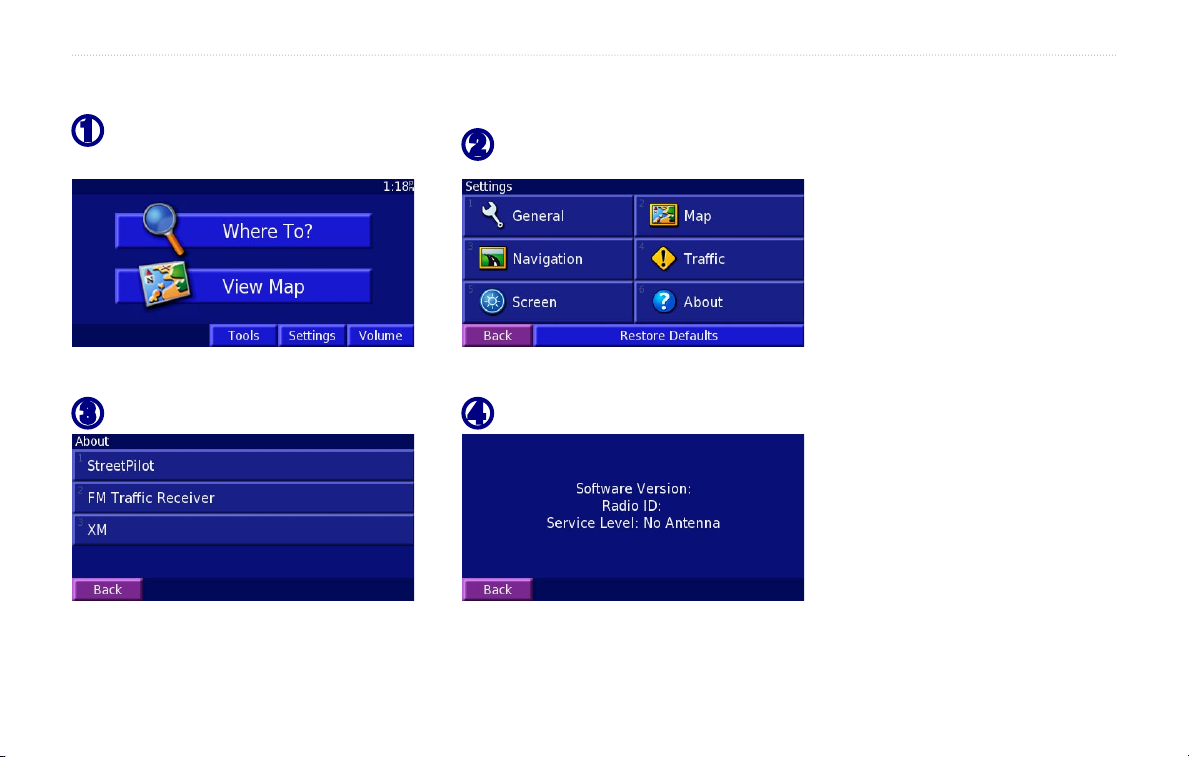
XM Radio ID
From the Menu page,
➊
touch Settings.
Touch About.
➋
Touch XM.
➌
20 StreetPilot 2730 Owner’s Manual
Touch Back to exit.
➍
Page 29
LISTENING TO MUSIC
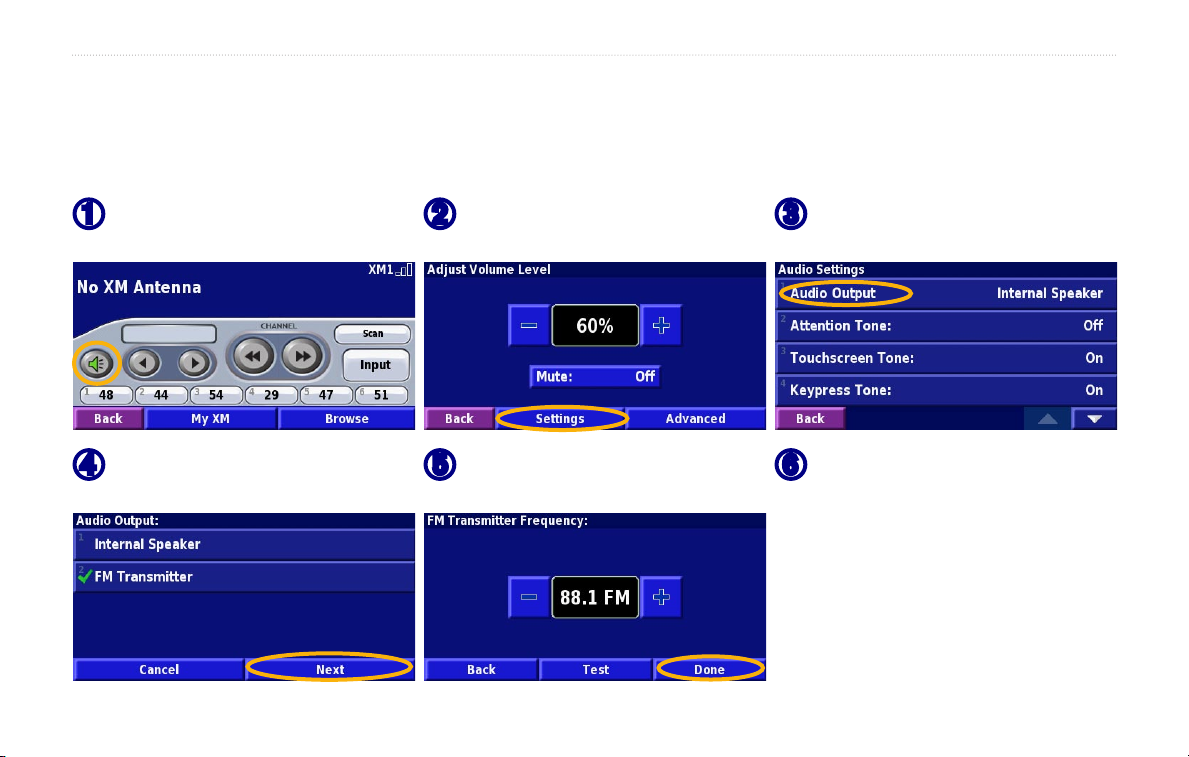
LISTENING TO MUSIC OVER THE VEHICLE’S SPEAKERS
(Only available on North American models.) You can listen to the music played by the 2730 over your vehicle’s
speakers! Plug in the 12-Volt adapter to an outlet in your vehicle and find an unused station on your radio.
From the Music page, touch
➊
the volume button.
Touch FM Transmitter
➍
and then Next.
StreetPilot 2730 Owner’s Manual 21
Touch Settings.
➋
Use the + and - to select a
➎
frequency and touch Done.
Touch Audio Output.
➌
Turn on your vehicle’s radio
➏
and tune it to the frequency
you selected in the previous
step. The 2730’s audio
output is broadcast over your
vehicle’s speakers.
Page 30
CUSTOMIZING THE STREETPILOT 7200
CUSTOMIZING THE STREETPILOT 2730
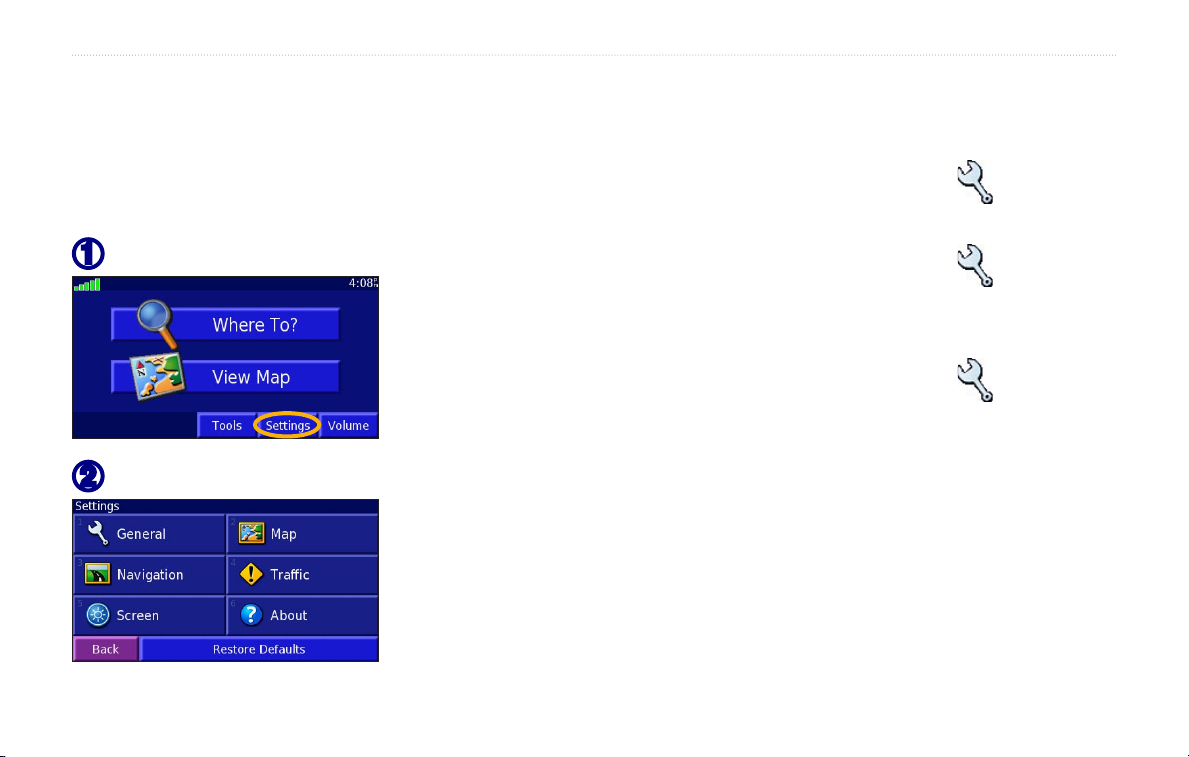
To change StreetPilot settings, open the Menu page
and touch Settings. See the following pages for more
information.
Customizing the General Settings
From the Menu page, touch Settings > General.
GPS
Touch Settings.
➊
From the Menu page, touch Settings > General >
GPS. See page 10.
Language
From the Menu page, touch Settings > General >
Language
Voice Language
Touch the setting.
➋
22 StreetPilot 2730 Owner’s Manual
prompts and messages. Your c340 contains two different
types of voice languages: pre-recorded and text-tospeech.
The pre-recorded voices are noted with a person’s
name beside them: for example, American EnglishJill is a pre-recorded voice. The pre-recorded
—change the language for all voice
Page 31
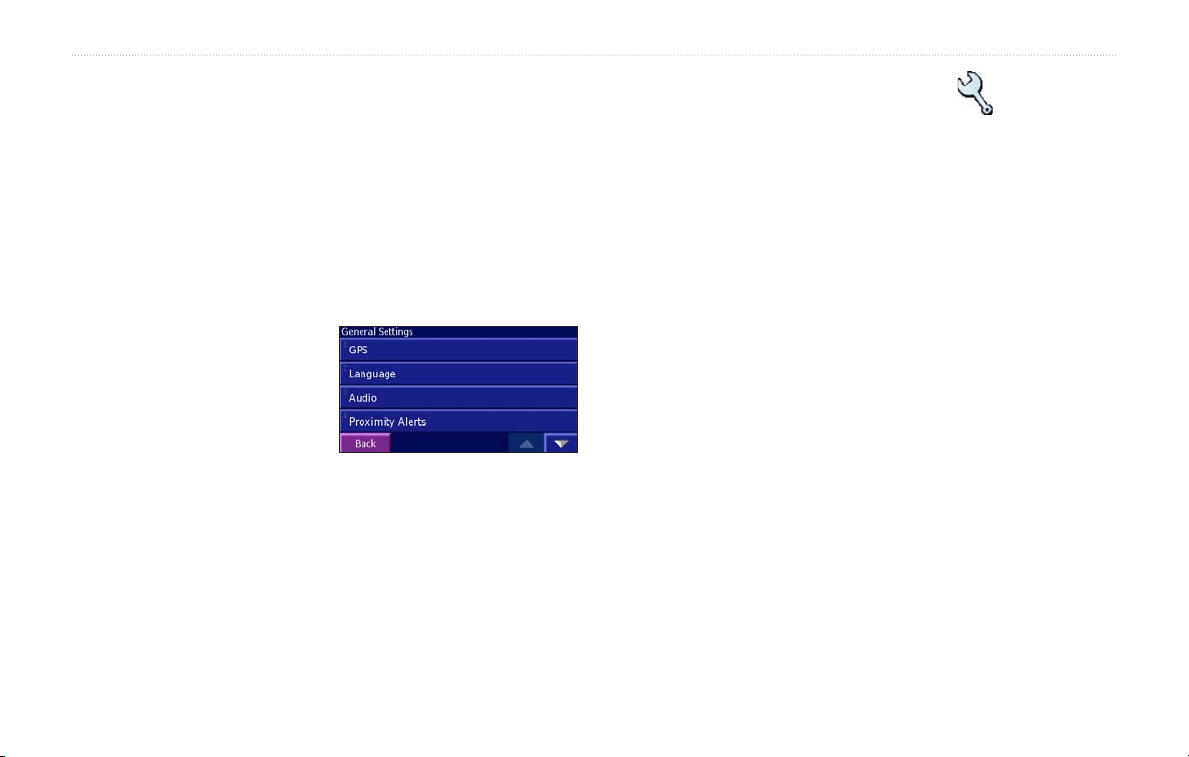
CUSTOMIZING THE STREETPILOT 7200
voices have a limited vocabulary and do not speak
names of locations or streets.
The text-to-speech voices “read” and “speak” the
same words that are displayed on the c340. The
voices have an extensive vocabulary, and they
pronounce the street names as you approach turns.
Text Language—change the on-screen text to the
selected language. Changing
From the Menu page, touch Settings > General >
Audio
Audio Output—select Internal Speaker or FM
Transmitter. For more information about broadcasting
the 2730 Audio over your vehicle’s stereo using the FM
Transmitter, see page XX.
Attention Tone—turn on or off the attention tone
sounded before voice prompts.
the Text Language does not
change the language of map
data or user-entered data.
Speech Rate—select the
rate at which prompts are spoken.
Phonetics—turn off and on the phonetics feature, which
allows the vocal prompts to more correctly pronounce
Touch screen Tone—turn off or on the tone sounded
each time you touch of the screen.
Keypress Tone—???? No keys
Speed-Adjusted Volume—Wally?
Audio Notification
Visual Notification
words.
Continuous Notification
Audio
StreetPilot 2730 Owner’s Manual 23
Page 32

CUSTOMIZING THE STREETPILOT 7200
Video Input?
From the Menu page, touch Settings > General >
Video
Input Type—select the video input type: DVD/video or
Backup Camera.
Reverse Response—select how the 2730 handles
reversing the automobile when a Backup Camera is used.
Volume
XX for more information.
—opens the volume adjustment screen. See page
Proximity Alerts
From the Menu page, touch Settings > General
> Proximity Alerts. This adjust the visual and audio
notifications for custom POIs you have loaded on the
2730. See page 23 for more information.
Units
From the Menu page, touch Settings > General
> Units. Change units of measure to Metric or Statute,
Custom.
Time Zone
From the Menu page, touch Settings > General >
time Zone. Select a time zone or city.
Time Format
From the Menu page, touch Settings > General >
Time Format. Choose a 12- or 24-hour time format or
UTC.
Daylight Saving
From the Menu page, touch Settings > General >
Daylight Saving. Select on or off, or Auto.
Safe Mode
From the Menu page, touch Settings > General
> Safe Mode. Turn on or off the Safe Mode, which
24 StreetPilot 2730 Owner’s Manual
Page 33

CUSTOMIZING THE STREETPILOT 7200
disables all unit functions that require significant
operator attention and could become a distraction while
driving.
D) with your direction of travel at the top.
• 3D Track Up—display the map in 3 dimensions
(3-D), Track Up orientation. This is the default map
view.
Changing the Map Settings
From the Menu page, touch Settings > Map.
Color Mode
Select Night for a black background. Select Auto to
automatically switch between the two.
Auto Zoom—disable or enable automatic zooming on
the map for optimal viewing.
Route Color—select the color of the route line.
Map Detail—adjust the amount of detail shown on the
map. Displaying more detail causes the map to redraw
slowly.
Orientation—change the perspective of the map.
• 2D North Up—display the map in 2 dimensions (2D) with North at the top.
• 2D Track Up—display the map in 2 dimensions (2-
Dim Roads—dim roads that are not on your route.
Map Data Fields—adjust the width of the data fields
displayed on the map page. To select the type of
information displayed in the fields, select Wide or Thin
and touch Next.
Text Size
Zoom Level Detail—adjust the zoom level at which
—choose Day for a bright background.
—adjust the display size of text on the map.
StreetPilot 2730 Owner’s Manual 25
Page 34
CUSTOMIZING THE STREETPILOT 7200
map items are shown.
Detail Maps—enable and disable the detailed maps
loaded in your 2730.
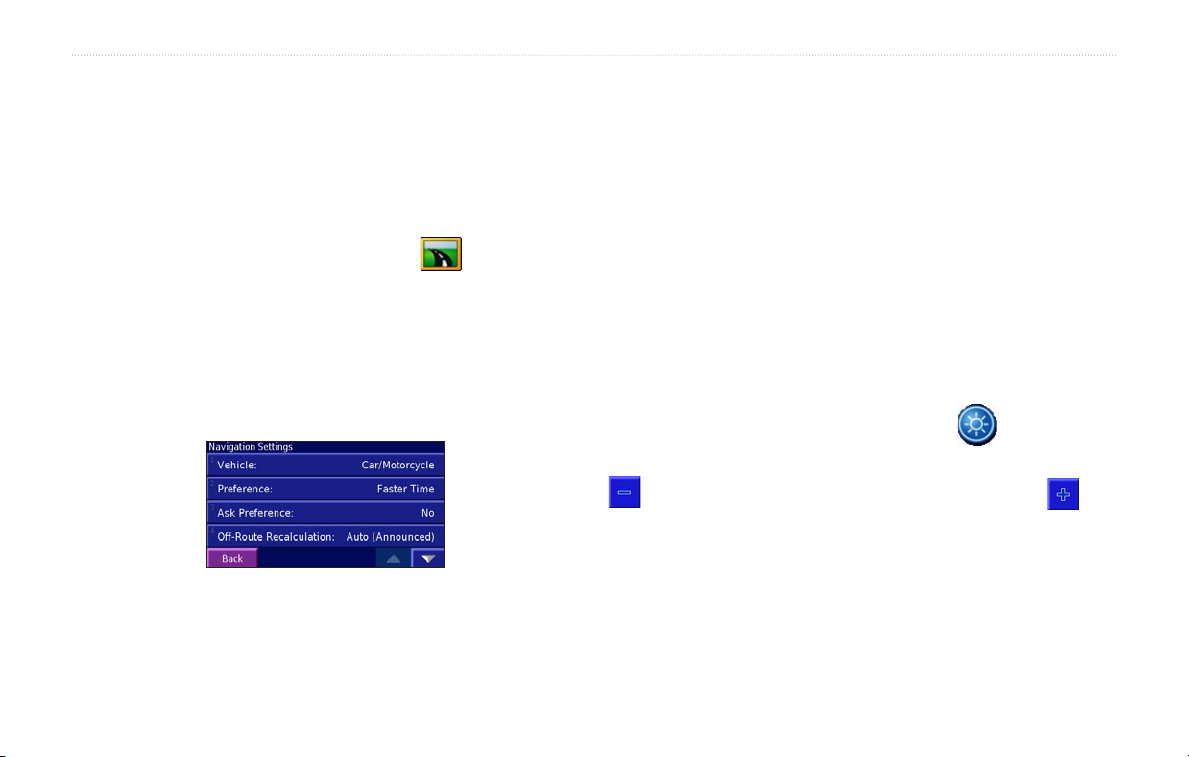
Changing the Navigation Settings
From the Menu page, touch Settings > Navigation.
Vehicle—specify your vehicle type to optimize routes.
Preference
Ask Preference
preference each time it calculates a route.
Next Turn Pop-up—select when the Next Turn pop-up
window appears.
—select a preference for route calculations.
—select whether the unit asks for your
Off-Route Recalculation—set the way the unit
recalculates the route. You can silence the “Off-Route,
recalculating” message here.
Continuous Auto Routing
Avoidance Setup—see page 13.
Adjusting the Traffic Settings
See page 21.
Changing the Screen Settings
From the Menu page, touch Settings > Screen.
Brightness—select Manual Brightness and then touch
to increase it. Select Auto for automatic brightness
adjustment.
Calibrate Touch Screen—if you think the touch screen
is not responding properly, you can calibrate the screen.
—Hmmm
to decrease the brightness of the backlight or
26 StreetPilot 2730 Owner’s Manual
Page 35
CUSTOMIZING THE STREETPILOT 7200
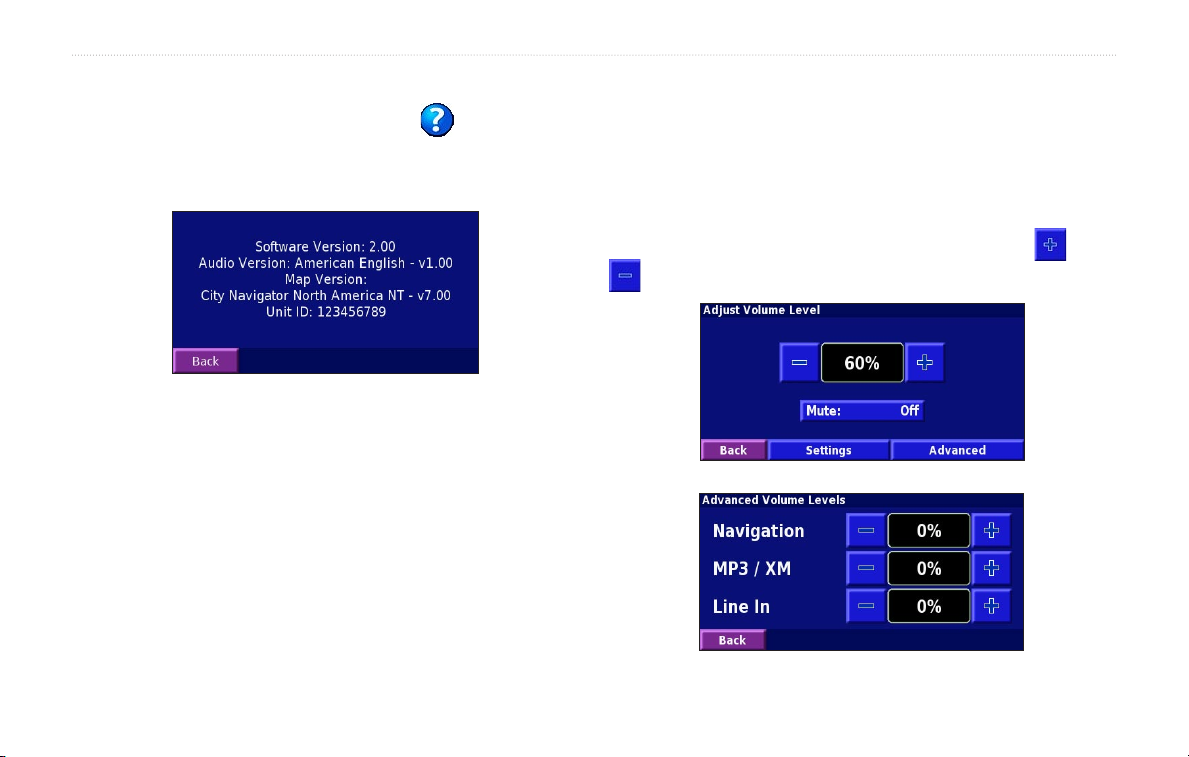
Viewing Unit Information (About)
From the Menu page, touch Settings > About >
StreetPilot. The unit’s software version, audio version,
and unit ID are listed.
Restoring the Settings
To restore the unit to its original settings, open the Menu
page and touch Settings > Restore Defaults > Yes.
Adjusting the Volume
From the Menu page, touch Volume. Touch the and
XM Radio ID
If you have an XM Smart Antenna, you can view the
XM Antenna’s Radio ID through the 2730. Connect the
GXM 30 to the 2730 using the USB cable. From the
Menu page, touch Settings > About > XM.
to adjust the volume of the speaker.
StreetPilot 2730 Owner’s Manual 27
Page 36

TRAFFIC
Insert XM Traffic section here.
XM TRAFFIC
28 StreetPilot 2730 Owner’s Manual
Page 37

TRAFFIC
StreetPilot 2730 Owner’s Manual 29
Page 38

APPENDICES
MENU MAP
BACK SPEAK
IN OUT
PAGE
ZOOM
1
ABC
2
DEF
3
GHI
4
JKL5MNO
6
PQRS
7
TUV
8
WXYZ
9
0
VOL
APPENDICES
Using the Remote Control
The remote control operates using two AAA batteries.
To use the remote, aim it toward the IR
window on the StreetPilot.
The MENU, Map, and SPEAK keys have
the same function as the keys on the unit.
(ZOOM) IN—zooms into the map.
(ZOOM) OUT—zooms out of the map.
BACK—returns to the previous page and
cancels data entry.
Thumb Stick—highlights options and
moves the map pointer. Press in to make a selection.
Page ▲ and ▼—scrolls through lists.
Alphanumeric Keys—enters numbers and letters. To
enter letters or numbers, press the key repeatedly until
the correct character appears.
30 StreetPilot 2730 Owner’s Manual
Page 39
APPENDICES
Installing the StreetPilot in Your Vehicle
You can use the permanent or temporary adhesive disks
or the non-skid friction mount to mount the StreetPilot in
your vehicle.
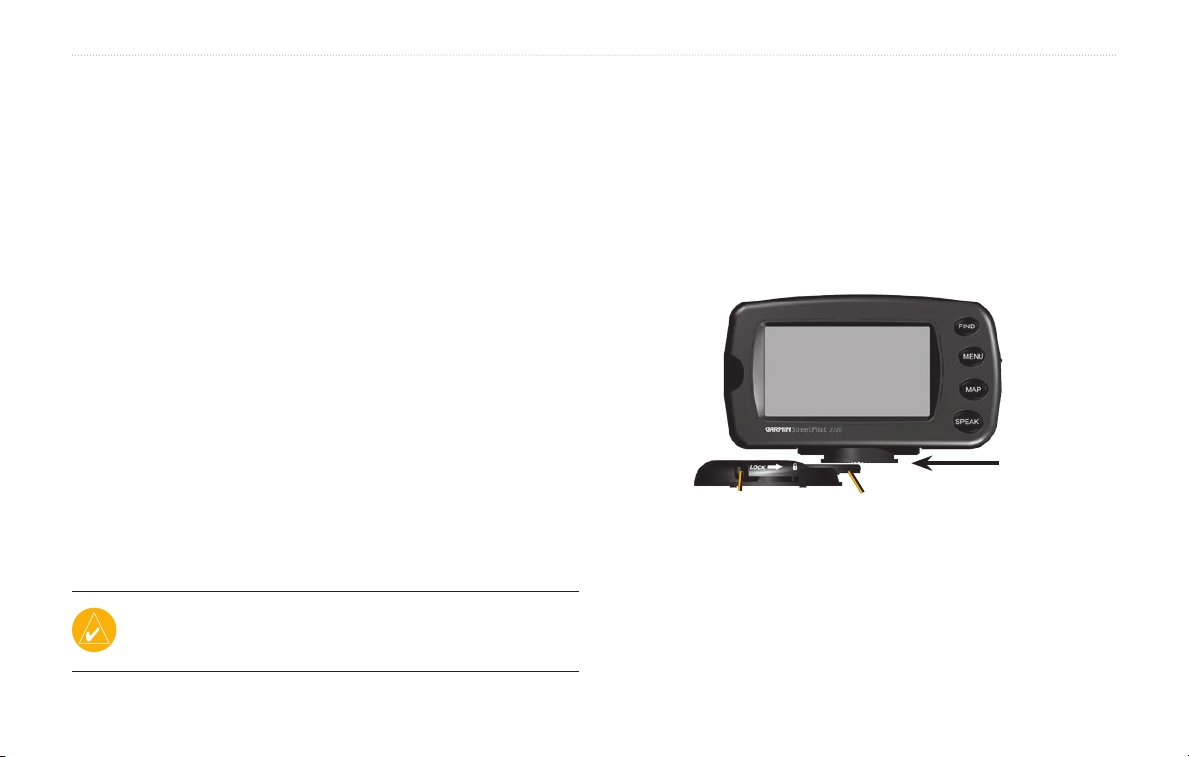
Attaching the StreetPilot to the Base
1. Slide the locking lever on the mounting base to
the left (unlocked position).
2. Slide the bottom of the StreetPilot into the
mounting base until it clicks into place.
3. Slide the locking lever to the right.
Installing the Adhesive Disks
1. Clean and dry the area of the dashboard where
you will install the base.
2. Remove one side of the backing from the
adhesive and place the adhesive on the bottom
of the mounting base.
3. Orient the mounting base so the locking lever
is facing you and then position the base on the
cleaned area. Apply pressure to adhere the base
to the dashboard.
NOTE: The permanent adhesive disk is extremely difficult
to remove. Only install if you are sure you want to leave the
mount in that location.
Locking lever Release tab
StreetPilot 2730 Owner’s Manual 31
Page 40

APPENDICES
Connecting the GXM 30
Position the antenna where it has a clear view of the
sky. This can be on the outside of the vehicle or behind
the windscreen. Plug the GXM 30 cable into the USB
connector on the side of the unit.
Activating XM Radio
You must activate your service before you can listen to
XM Radio. See the GXM 30 Owner’s Manual for more
information about activating your service. See page 21
for information about finding your GXM 30’s Radio ID.
32 StreetPilot 2730 Owner’s Manual
Page 41
APPENDICES
Custom POIs (Points of Interest)
Your StreetPilot 2730 will accept custom points
of interest (POI) databases, available from various
Adjusting the Proximity Alerts
To turn on or off the proximity alerts, open the Menu
page and touch Settings > General > Proximity Alerts.
companies on the Internet. Some custom POI databases
contain alert information for points such as safety
cameras and school zones. Your 2730 can notify you
when you approach one of these points.
After downloading your POI database, use the Garmin
POI Loader to install the POIs into your unit. The POI
Loader is available at http://www.garmin.com/products/
sp2730. Select Updates and Downloads. Refer to the
POI Loader Help File for more information; press F1 to
open the help file.
CAUTION: Garmin is not responsible for the
consequences of using a custom POI database or the
accuracy of the safety camera or other custom POI
database.
StreetPilot 2730 Owner’s Manual 33
Page 42

APPENDICES
Technical Specifications
Size: 5.6” W x 3.2” H x 2.0” D (14.3 x 8.0 x 5.0 cm)
Weight
Unit Case: Rugged; fully gasketed; IPX-7 waterproof*
Display: Sunlight-readable, 17:9 WQVGA automotive
color TFT display with touch screen and auto dimming;
454 pixels by 240 pixels,
Map Storage: Pre-programmed internal memory
Temperature: 5° to 158°F (-15° to 70°C)
: 0.93 lbs (420 g)
spec.html.
Contact your local waste disposal department for
information on properly disposing of the unit.
* The Remote Control is not waterproof.
Changing the Fuse
A 3AG 2.5 Amp fast blow fuse is located at the tip of the
vehicle adapter. Periodically, you may need to change
the fuse. Simply unscrew the black, round end piece and
replace the fuse.
Power Supply
Source: 12 VDC
Not waterproof?
Usage: 12 watts maximum @ 13.8 VDC
Fuse: AGC/3AG - 1.0 Amp
Remote Control: Two AAA alkaline batteries (not
included)
For a complete list of specifications, visit the Garmin
Web site at http://www.garmin.com/products/sp2730/
Unscrew
34 StreetPilot 2730 Owner’s Manual
Page 43

APPENDICES
Using a Remote Antenna
Use an optional external remote antenna (Garmin GA
27C) when using the unit in a vehicle with a coated
windshield or an in-screen heating system, which can
block GPS signals. Connect the antenna to the connector
located on the back of the unit. To purchase, go to the
Garmin Web site at http://www.garmin.com/products/
sp2730 and select Accessories.
Updating the Software and Map Data
If you register your unit, you will receive notification of
software and map updates. Software updates for your
2730 are located at http://www.garmin.com/products/
sp2730. Select Updates and Downloads. Check
http://www.garmin.com/unlock/update.jsp to see if an
update for your map software is available. See page 17
for instructions on how to find your current software
version.
Software License Agreement
BY USING THE STREETPILOT 2730, YOU AGREE TO
BE BOUND BY THE TERMS AND CONDITIONS OF THE
FOLLOWING SOFTWARE LICENSE AGREEMENT. PLEASE
READ THIS AGREEMENT CAREFULLY.
Garmin grants you a limited license to use the software embedded
in this device (the “Software”) in binary executable form in the
normal operation of the product. Title, ownership rights, and
intellectual property rights in and to the Software remain in
Garmin.
You acknowledge that the Software is the property of Garmin and
is protected under the United States of America copyright laws
and international copyright treaties. You further acknowledge
that the structure, organization, and code of the Software are
valuable trade secrets of Garmin and that the Software in source
code form remains a valuable trade secret of Garmin. You agree
not to decompile, disassemble, modify, reverse assemble, reverse
engineer, or reduce to human readable form the Software or any
part thereof or create any derivative works based on the Software.
You agree not to export or re-export the Software to any country
in violation of the export control laws of the United States of
America.
StreetPilot 2730 Owner’s Manual 35
Page 44

APPENDICES
Weather Data Warranty
THE WEATHER DATA SOFTWARE PRODUCT IS PROVIDED
“AS IS.” ALL OTHER WARRANTIES, EXPRESSED
OR IMPLIED, INCLUDING ANY WARRANTY OF
MERCHANTABILITY OR FITNESS FOR A PARTICULAR
PURPOSE OR OF NON-INFRINGEMENT ARE HEREBY
EXCLUDED.
User Safety
If you use XM Services it is your responsibility to exercise prudent
discretion and observe all safety measures required by law and
your own common sense. You assume the entire risk related to your
use of the Services. XM and Garmin assume no responsibility for
accidents resulting from or associated with use of the Services.
Your Radio Service includes traffic and weather information, and
you acknowledge that such information is not for “safety for life”,
but is merely supplemental and advisory in nature, and therefore
cannot be relied upon as safety-critical in connection with any
aircraft, sea craft or automobile usage. This information is provided
“as is” and XM and Garmin disclaim any and all warranties,
express and implied, with respect thereto or the transmission or
reception thereof. XM and Garmin further do not warrant the
accuracy, reliability, completeness or timeliness of the traffic and
weather information disclosed on the Radio Service. In no event
will XM and Garmin, their data suppliers, service providers,
marketing/distribution, software or Internet partners or hardware
manufacturers be liable to you or to any third party for any direct,
indirect, incidental, consequential, special, exemplary or punitive
damages or lost profits resulting from use of or interruptions in the
transmission or reception of the Services.
Limits On Our Responsibility
a) DISCLAIMERS.
EXCEPT AS EXPRESSLY PROVIDED HEREIN, WE MAKE
NO WARRANTY OR REPRESENTATION, EITHER EXPRESS
OR IMPLIED, REGARDING THE RADIO SERVICE. YOUR
USE OF THE SERVICE IS AT YOUR SOLE RISK. THE
CONTENT AND FUNCTIONALITY OF THE SERVICE IS
PROVIDED “AS IS” WITHOUT ANY WARRANTY OF ANY
KIND, EXPRESS OR IMPLIED. ALL SUCH WARRANTIES OR
REPRESENTATIONS (INCLUDING, WITHOUT LIMITATION,
THE IMPLIED WARRANTIES OF MERCHANTABILITY,
FITNESS FOR A PARTICULAR PURPOSE, TITLE AND NONINFRINGEMENT) ARE HEREBY DISCLAIMED.
b) LIMITATIONS OF LIABILITY.
WE ARE NOT RESPONSIBLE FOR ANY SPECIAL,
INCIDENTAL, OR CONSEQUENTIAL DAMAGES OR
LOSSES RELATING TO THE USE OF THE RADIO SERVICE,
WHETHER BASED ON NEGLIGENCE OR OTHERWISE. OUR
36 StreetPilot 2730 Owner’s Manual
Page 45

APPENDICES
TOTAL LIABILITY TO YOU AND ANY OTHER PERSONS
RECEIVING OUR SERVICES, REGARDLESS OF THE
CAUSE, WILL IN NO EVENT EXCEED THE AMOUNTS
THAT YOU HAVE PAID TO US FOR THE SERVICE THAT
YOU RECEIVED DURING THE SIX (6) MONTH PERIOD
IMMEDIATELY PRIOR TO THE SPECIFIC EVENT THAT
GAVE RISE TO THE APPLICABLE DAMAGE OR LOSS. THIS
ALLOCATION OF RISK IS REFLECTED IN OUR PRICES.
YOU MAY HAVE GREATER RIGHTS THAN DESCRIBED
ABOVE UNDER YOUR STATE’S LAWS
This product was developed using DAFIF
National Geospatial-Intelligence Agency.
This product has not been endorsed or otherwise approved by the
National Geospatial-Intelligence Agency, or the United States
Department of Defense (10 U.S.C. 425).
a. Under 10 U.S.C. 456, no civil action may be brought against
the United States on the basis of the content of a navigational aid
prepared or disseminated by either the former Defense Mapping
Agency (DMA), National Imagery and Mapping Agency (NIMA),
or the National Geospatial-Intelligence Agency (NGA).
b. The DAFIF product is provided “as is,” and no warranty, express
or implied, including, but not limited to the implied warranties
of merchantability and fitness for particular purpose or arising by
statute or otherwise in law or from a course of dealing or usage in
™
, a product of the
trade, is made by NGA as to the accuracy and functioning of the
product.
c. Neither NGA nor its personnel will be liable for any claims,
losses, or damages arising from or connected with the use of
this product. The user agrees to hold harmless the United States
National Geospatial-Intelligence Agency. The user’s sole and
exclusive remedy is to stop using the DAFIF product.
XM Satellite Radio Service Agreement
XM Satellite Radio Inc.
Hardware and required monthly subscription sold separately.
Subscription fee is consumer only. Other fees and taxes, including
a one-time activation fee may apply. All programming fees and
weather data subject to change. XM WX weather data displays
and individual product availability vary by hardware equipment.
Reception of the XM signal may vary depending on location.
Subscriptions subject to Customer Agreement included with the
XM Welcome Kit and available at xmradio.com. Available only in
the 48 contiguous United States. XM WX is a trademark of XM
Satellite Radio Inc.
StreetPilot 2730 Owner’s Manual 37
Page 46

APPENDICES
FCC Compliance
The unit complies with Part 15 of the FCC interference limits for
Class B digital devices FOR HOME OR OFFICE USE. These
limits are designed to provide more reasonable protection against
harmful interference in a residential installation, and are more
stringent than “outdoor” requirements.
Operation of this device is subject to the following conditions: (1)
This device may not cause harmful interference, and (2) this device
must accept any interference received, including interference that
may cause undesired operation.
This equipment generates, uses, and can radiate radio frequency
energy and, if not installed and used in accordance with
the instructions, may cause harmful interference to radio
communications. However, there is no guarantee that interference
will not occur in a particular installation. If this equipment does
cause harmful interference to radio or television reception, which
can be determined by turning the equipment off and on, you
are encouraged to try to correct the interference by one of the
following measures:
• Reorient or relocate the receiving antenna.
• Increase the separation between the equipment and the
• Connect the equipment into an outlet on a circuit different
• Consult an experienced radio/TV technician for help.
The unit does not contain any user-serviceable parts. Repairs
should only be made by an authorized Garmin service center.
Unauthorized repairs or modifications could result in permanent
damage to the equipment, and void your warranty and your
authority to operated this device under Part 15 regulations.
receiver.
from that to which the receiver is connected.
38 StreetPilot 2730 Owner’s Manual
Page 47

DOC HERE
APPENDICES
StreetPilot 2730 Owner’s Manual 39
Page 48

INDEX
INDEX
Symbols
2 Dimensional 25
3 Dimensional 25
A
Audio version 27
Avoidances 14
B
Brightness of the screen 26
Browse Map page 4
C
Caring for your 2720 vi
Cleaning vi
Color mode 25
Contact Garmin i
Customizing the 2720 22–27
general settings 22
map settings 25
navigation settings 26
restoring the settings 27
screen settings 26
volume 27
Custom avoids 14
Custom POIs 33
D
Data field 9
Daylight saving 24
Defaults 27
Delete
favorites 7
Deleting a saved place 7
Detour, adding 13
Driving directions 10
E
Expanding your search 5
F
FCC compliance 38–39
Finding places 3–5
address 3
item on the map 4
recent finds 4
restaurant 1
saved places 6
spell the name 3
Following your route 2
Fuse 34
G
General settings 22
GPS 35
GPS info page 11
GXM™ 30 Smart Antenna 16
H
Home location 8
go home 8
set home 8
I
Installing the StreetPilot 31
Items to avoid 26
L
Language 22
License agreement 35
M
Map 9
browse 4
customize 25
orientation 25
update maps 35
zoom 9
Metric units 24
My Locations 6–8
Go Home 8
My Favorites 6
Recent Finds 4
N
Narrowing your search 5
Navigating a saved route 13
Navigation settings 26
Near button 5
North Up 25
O
Odometer 10
Off-Route voice 26
40 StreetPilot 2730 Owner’s Manual
Page 49

INDEX
P
Places
finding 3–5
saving 6
Position icon 9
Proximity alert 33
R
Radio ID 32
Recalculating the Route 13
Recently found places 4
Remote control vi, 30
Reset max. speed 10
Reset trip computer 10
Restoring the settings 27
Routes 12–14
create new 12
detour 13
edit a saved route 13
navigate a saved route 13
save the active route 13
stop 13
Routing preferences 26
S
Safe Mode 24
Satellite signals 11
Saved Places
deleting 7
finding 6
Saving places you find 6
Saving the active route 13
Scanning XM Radio 18
Screen settings 26
Serial number i
Set position 11
Silence 26
Software license agreement 35
Software version 27
Speaker volume 27
Speed (Speedometer) 10
Stop navigation 13
Storing the unit vi
T
Technical specs 34
Text language 23
Theft, avoiding vi
Time 24
Touch screen
calibrating 26
cleaning vi
Track Log 15
Track Up 25
Traffic information 28–29
Trip Computer 10
Turn List 10
U
Units, metric or statute 24
Unit ID
2720 27
Use Indoors 11
V
Vehicle type 26
Viewing the map 9
Volume 27
W
Weather Data Warranty 36
Where To? 3–5
X
XM1 19
XM Radio 32
scanning 18
XM Traffic 28
Z
Zoom 4, 9
StreetPilot 2730 Owner’s Manual 41
Page 50

Limited Warranty
This Garmin product is warranted to be free from defects in materials or
workmanship for one year from the date of purchase. Within this period,
Garmin will at its sole option repair or replace any components that fail
in normal use. Such repairs or replacement will be made at no charge
to the customer for parts or labor, provided that the customer shall be
responsible for any transportation cost. This warranty does not cover
failures due to abuse, misuse, accident, or unauthorized alteration or
repairs.
THE WARRANTIES AND REMEDIES CONTAINED HEREIN
ARE EXCLUSIVE AND IN LIEU OF ALL OTHER WARRANTIES
EXPRESS OR IMPLIED OR STATUTORY, INCLUDING
ANY LIABILITY ARISING UNDER ANY WARRANTY OF
MERCHANTABILITY OR FITNESS FOR A PARTICULAR PURPOSE,
STATUTORY OR OTHERWISE. THIS WARRANTY GIVES YOU
SPECIFIC LEGAL RIGHTS, WHICH MAY VARY FROM STATE TO
STATE.
IN NO EVENT SHALL GARMIN BE LIABLE FOR ANY
INCIDENTAL, SPECIAL, INDIRECT, OR CONSEQUENTIAL
DAMAGES, WHETHER RESULTING FROM THE USE, MISUSE,
OR INABILITY TO USE THIS PRODUCT OR FROM DEFECTS IN
THE PRODUCT. Some states do not allow the exclusion of incidental or
consequential damages, so the above limitations may not apply to you.
Garmin retains the exclusive right to repair or replace the unit or software
or offer a full refund of the purchase price at its sole discretion. SUCH
REMEDY SHALL BE YOUR SOLE AND EXCLUSIVE REMEDY FOR
ANY BREACH OF WARRANTY.
To obtain warranty service, contact your local Garmin authorized dealer
or call Garmin Product Support for shipping instructions and an RMA
tracking number. The unit should be securely packed with the tracking
number clearly written on the outside of the package. The unit should then
be sent, freight charges prepaid, to any Garmin warranty service station.
A copy of the original sales receipt is required as the proof of purchase for
warranty repairs.
Garmin International, Inc. Tel. 913/397.8200 Fax. 913/397.8282
Garmin (Europe) Ltd. Tel. 44/0870.8501241 Fax 44/0870.8501251
Online Auction Purchases: Products sold through online auctions
are not eligible for rebates or other special offers from Garmin. Online
auction confirmations are not accepted for warranty verification. To obtain
warranty service, an original or copy of the sales receipt from the original
retailer is required. Garmin will not replace missing components from any
package purchased through an online auction.
International Purchases: A separate warranty is provided by
international distributors for units purchased outside the United States.
This warranty is provided by the local in-country distributor and this
distributor provides local service for your unit. Distributor warranties
are only valid in the area of intended distribution. Units purchased in the
United States or Canada must be returned to the Garmin service center in
the United Kingdom, the United States, Canada, or Taiwan for service.
Page 51

For the latest free software updates (excluding map data) throughout the life of your
Garmin products, visit the Garmin Web site at www.garmin.com.
© Copyright 2005 Garmin Ltd. or its subsidiaries
Garmin International, Inc.
1200 East 151st Street, Olathe, Kansas 66062, U.S.A.
Garmin (Europe) Ltd.
Unit 5, The Quadrangle, Abbey Park Industrial Estate, Romsey, SO51 9DL, U.K.
Garmin Corporation
No. 68, Jangshu 2nd Road, Shijr, Taipei County, Taiwan
www.garmin.com
Part Number 190-00476-00 Rev. A
 Loading...