

Page 1

Electronic Publishers
Cartridge
Dictionary
& Thesaurus
User’s Guide
MWS-2018
™
Page 2

License Agreement
READ THIS LICENSE AGREEMENT BEFORE USING ANY BOOKMAN
CARTRIDGE.
YOUR USE OF THE BOOKMAN CARTRIDGE DEEMS THAT YOU ACCEPT
THE TERMS OF THIS LICENSE. IF YOU DO NOT AGREE WITH THESE
TERMS, YOU MAY RETURN THIS PACKAGE WITH PURCHASE RECEIPT
TO THE DEALER FROM WHICH YOU PURCHASED THE BOOKMAN CARTRIDGE AND YOUR PURCHASE PRICE WILL BE REFUNDED. BOOKMAN
CARTRIDGE means the software product and documentation found in this
package and FRANKLIN means Franklin Electronic Publishers, Inc.
LIMITED USE LICENSE
All rights in the BOOKMAN CARTRIDGE remain the property of FRANKLIN.
Through your purchase, FRANKLIN grants you a personal and nonexclusive
license to use the BOOKMAN CARTRIDGE on a single FRANKLIN BOOKMAN at a time. You may not make any copies of the BOOKMAN CAR TRIDGE
or of the data stored therein, whether in electronic or print format. Such copying would be in violation of applicable copyright laws. Further, you may not
modify , adapt, disassemble, decompile, translate, create derivative works of,
or in any way reverse engineer the BOOKMAN CARTRIDGE. You may not
export or reexport, directly or indirectly, the BOOKMAN CARTRIDGE without compliance with appropriate governmental regulations. The BOOKMAN
CARTRIDGE contains Franklin’ s confidential and propriety information which
you agree to take adequate steps to protect from unauthorized disclosure or
use. This license is effective until terminated. This license terminates immediately without notice from FRANKLIN if you fail to comply with any provision of this license.
1
Page 3

Contents
Welcome to the world of BOOKMAN!
BOOKMAN is a powerful, portable electronic reference with a built-in book and
a slot in the back for more books. With
this
Dictionary & Thesaurus
and hear over 83,000 dictionary entries,
you can find
and 41,000 thesaurus entries with
496,000 synonyms. You can also correct misspellings, save words to your
User list, and play three fun, educational
word games. To lear n how to use other
books, read their User’s Guides.
Installing Cartridges and Selecting Books..................... 4
Using the Color Keys .....................................................5
Changing Settings ......................................................... 6
Viewing a Demonstration .............................................. 6
Finding Definitions and Finding Words in Definitions .... 7
Correcting Misspellings................................................. 8
Finding Synonyms ......................................................... 8
Finding Spellings ........................................................... 9
Highlighting Words ........................................................10
Finding Confusables™ ................................................... 10
Hearing and Reviewing Words .......................................11
Using the User List ........................................................ 12
Sending Words .............................................................. 13
Changing Game Settings ............................................... 14
Playing the Games ......................................................... 14
2
Page 4
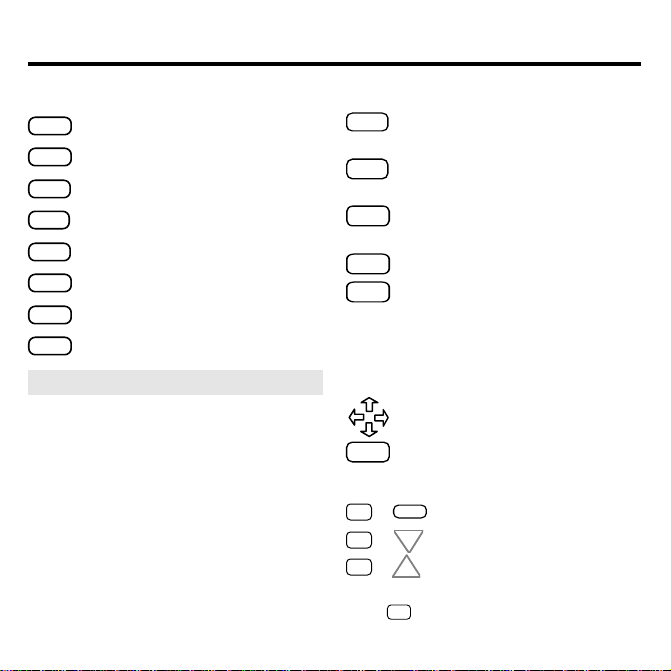
Key Guide
Function Keys
CLEAR
Clears to
MENU
Shows the main menus.
THES
(red) Shows a thesaurus entry.
SAY
(green) Says a word.
GAMES
(yellow) Shows the games list.
LIST
(blue) Shows the User list menu.
CARD
Exits the selected book.
ON/OFF
Turns BOOKMAN on or off.
Enter your word
.
➤ Understanding the Color Keys
The color keys (red, green, yellow,
and blue) perform the functions
listed above only for the book
described in this User’s Guide.
Other BOOKMAN books have their
own color key functions, which are
labelled on their cartridges and listed
in their User’s Guides. For more
information, read “Using the Color
Keys.”
Other Keys
BACK
Backs up, erases letters, or
stops a highlight.
CAP
Shifts keys to type punctua-
tion.
ENTER
Enters a search, selects a
menu item, or starts a highlight.
HELP
Shows help messages.
✱
Types a ? to stand for an
?
unknown letter in a word;
shows Confusables
shifted, types an
™
in text;
✻
to stand
for a series of unknown letters.
Direction Keys
Move in indicated direction.
SPACE
Types a space or pages down.
Star Key Combinations*
CARD
✩ +
✩
+ Shows next entry or match.
✩ +
Sends a word between books.
DN
UP
Shows previous entry or match.
* Hold ✩ while pressing the other key.
3
Page 5
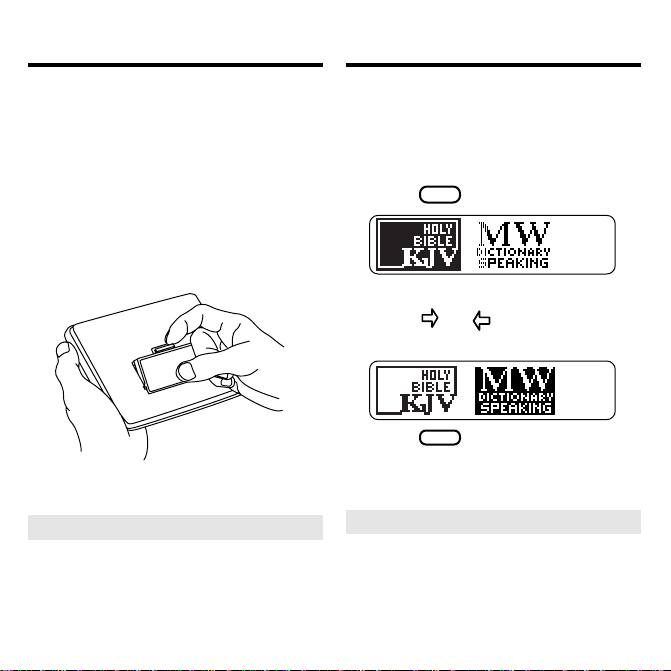
Installing Cartridges
Selecting Books
Warning: Never install or remove a
cartridge when BOOKMAN is on. If
you do, information that you entered
in its built-in book, and in an installed
cartridge, will be erased.
1. Turn BOOKMAN off.
2. Turn BOOKMAN over.
3. Align the tabs on the cartridge with the notches in
the slot.
4. Press the cartridge down
until it snaps into place.
➤ Removing Cartridges
Warning: When you remove a
cartridge to install another, information that you entered in the
removed cartridge will be erased.
Once you have installed a cartridge in
your BOOKMAN, you must select
which book you want to use.
1. Turn BOOKMAN on.
2. Press
CARD
.
These are sample books.
3. Press or to highlight the
book you want to use.
4. Press
➤ Resuming Where You Left Of f
ENTER
to select it.
You can turn off BOOKMAN at
any screen. When you turn
BOOKMAN on again, the screen
that you last viewed appears.
4
Page 6
Using the Color Keys
Optional Features
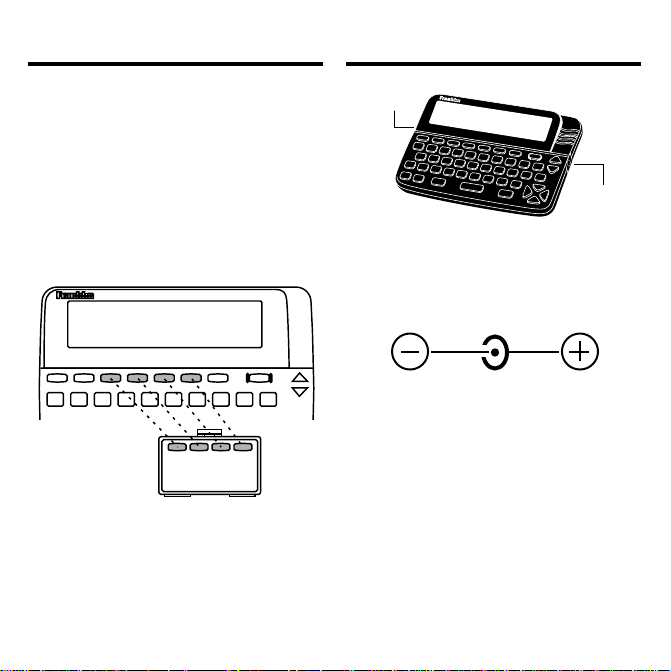
The red, green, yellow, and blue keys on
your BOOKMAN change functions according to which book is selected.
When the built-in book is selected, the
color keys function as labelled on the
BOOKMAN keyboard. When a cartridge book is selected, the color keys
function as labelled on that cartridge.
Remember, the color keys for BOOKMAN books in cartridges function as
labelled on their cartridges, not as on
the keyboard.
AC adaptor
jack
Headphone
AC adaptor jack: Your BOOKMAN
may be equipped with a standard 3.5
mm jack for use with a 9-volt, 200-300
milliamp AC/DC adaptor .
This symbol indicates that the inner
core of the plug of an AC adaptor is
negative and that the outer part of the
plug is positive. If your AC/DC adaptor does not have this symbol, confirm its compatibility at its place or purchase.
Headphone jack: Your BOOKMAN
may also have a 3.5 mm stereo headphone jack for use with a standard impedance 8 Ohm headset.
5
jack
Page 7
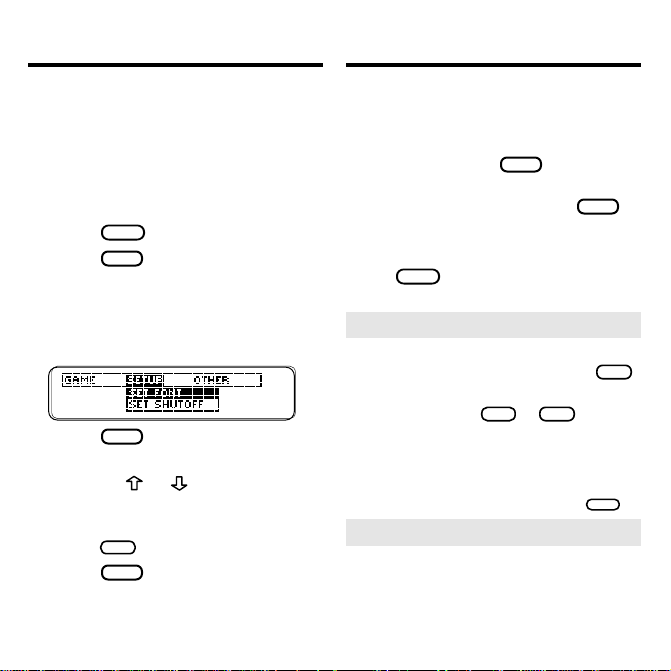
Changing Settings
Viewing a Demonstration
You can adjust the font size, shutoff
time, and screen contrast. Font size
changes the number of lines of text
that appear on screen. The shutoff
time is how long BOOKMAN stays on
if you forget to turn it off.
1. Press
2. Press
CLEAR
MENU
.
.
3. Press the arrow keys to
highlight the Setup menu.
4. Highlight Set Font, Set
Shutoff, or Set Contrast.
5. Press
ENTER
.
6. Highlight a setting.
Or press or if you selected
Set Contrast
.
To exit without changing settings,
BACK
press
7. Press
.
ENTER
to select it.
Before you start using this book, you can
view a demonstration of what it can do.
Once you have installed and selected
the cartridge, press
arrow keys to highlight
the Setup menu. Then press
MENU
and then the
View Demo
ENTER
view the demonstration.
If you want to stop the demonstration,
CLEAR
press
.
➤ Help is Always at Hand
You can view a help message at virtually any screen by pressing
Press the direction keys to read it. To
BACK
exit help, press
or
HELP
.
If you want to read an overview of
this product and the key functions, highlight
Other menu and then press
Tutorial
on the
ENTER
➤ Follow the Arrows
The flashing arrows on the right of
the screen show which arrow
keys you can press to move
around menus or view more text.
6
HELP
on
to
.
.
Page 8
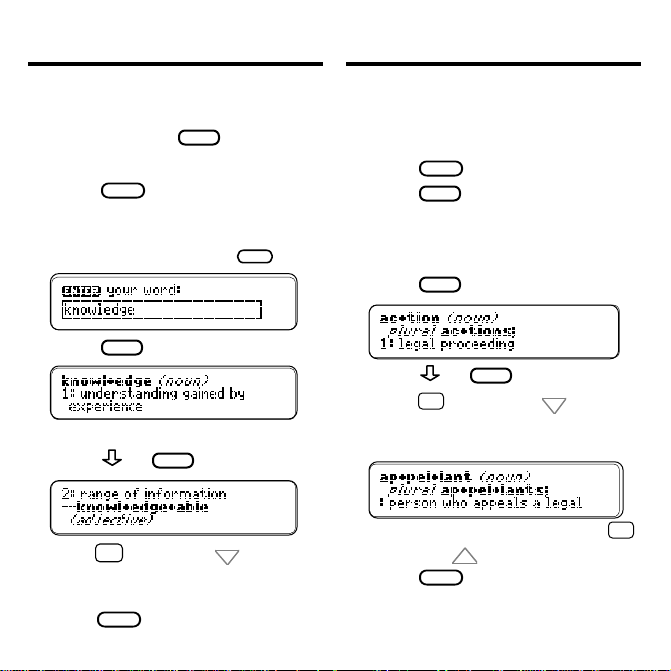
Finding Definitions
Finding Words in Definitions
It’s easy to look up a word in the dictionary. Simply type it at the Entry
screen and press
ENTER
. Try this ex-
ample.
1. Press
CLEAR
.
2. Type a word (e.g., knowl-
edge).
To erase a letter, press
3. Press
ENTER
.
BACK
.
This is a dictionary entry.
4. Press or
SPACE
to read.
5. Hold ✩ and press DN to
browse the next dictionary
entry.
6. Press
CLEAR
when done.
Search for a Word
lets you find all of
the definitions in which a specific word
appears.
1. Press
2. Press
CLEAR
MENU
.
.
3. Select Search for a word from
the Other menu.
4. Type a word (e.g., legal).
5. Press
6. Press or
7. Hold
ENTER
.
SPACE
to read.
✩
and press DN to view
the next definition with your
word in it.
To see the previous one, hold
and press UP.
8. Press
CLEAR
when done.
7
✩
Page 9
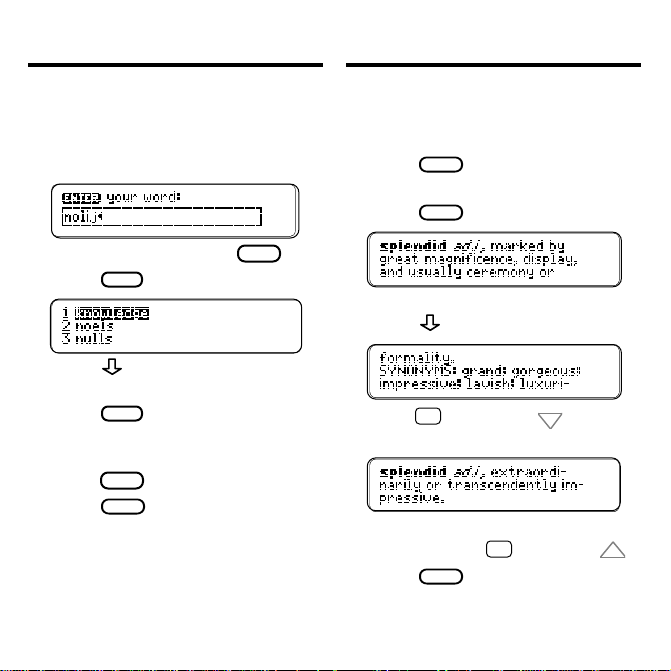
Correcting Misspellings
Finding Synonyms
If you misspell a word, don’t worry. It
will be corrected automatically .
1. Type a misspelled word (e.g.,
nolij).
To erase a letter, press
2. Press
ENTER
.
BACK
.
3. Press to highlight a
correction, if needed.
4. Press
ENTER
to view its dictio-
nary entry.
To go back to the correction list,
BACK
press
5. Press
.
CLEAR
when done.
When you see THES flash once in the
upper right of the screen, that word
has a thesaurus entry.
1. Press
CLEAR
.
2. Type a word (e.g., splendid).
THES
3. Press
(red).
This is the first thesaurus entry.
4. Press to view synonyms.
5. Hold ✩ and press DN to view
more thesaurus entries.
To retur n to the previous thesau-
✩
rus entry, hold
6. Press
CLEAR
and press UP.
when done.
8
Page 10
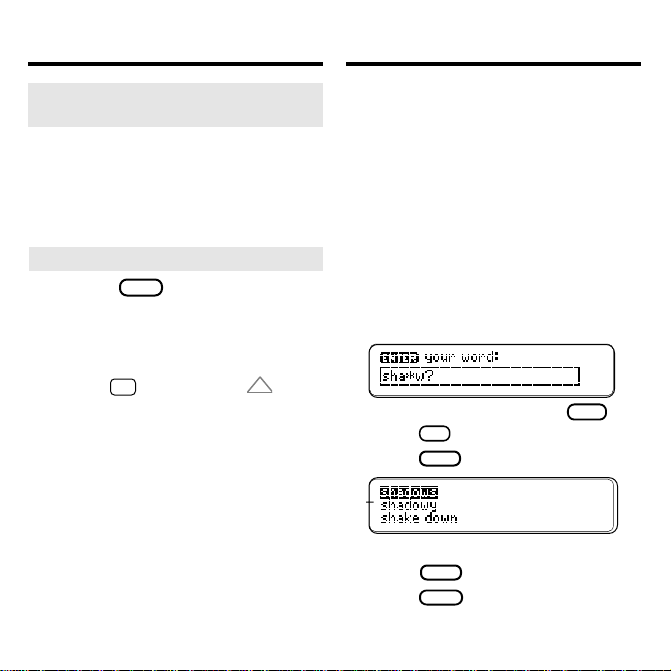
Finding Synonyms
Finding Spellings
➤ Understanding Thesaurus
Entries
Thesaurus entries consist of
thesaurus meanings and a
synonym list. A thesaurus meaning
is a definition shared by a list of
synonyms.
➤ Two Ways to Back Up
Pressing
BACK
takes you back to
the previous screen you viewed.
You can continue to back up until
you get to
Holding
Enter your word
and pressing UP takes
✩
.
you to the previous screen of
similar information. For example, if
you were viewing a dictionary
definition, you would go to the
previous definition.
If you are uncertain about how to spell
a word, type a question mark (
place of each unknown letter.
To find prefixes, suffixes, and other
parts of words, type an asterisk (
a word. Each asterisk stands for a series of letters or spaces.
NOTE: If you type an asterisk at the
beginning of a word, it may take awhile
to find the matching words.
1. Type a word with ?’s or an ✽.
To type an asterisk, hold
press
2. Press
✻
?
ENTER
.
.
CAP
3. Highlight a match.
ENTER
4. Press
5. Press
to define it.
CLEAR
when done.
9
?
) in
✽
) in
and
Page 11
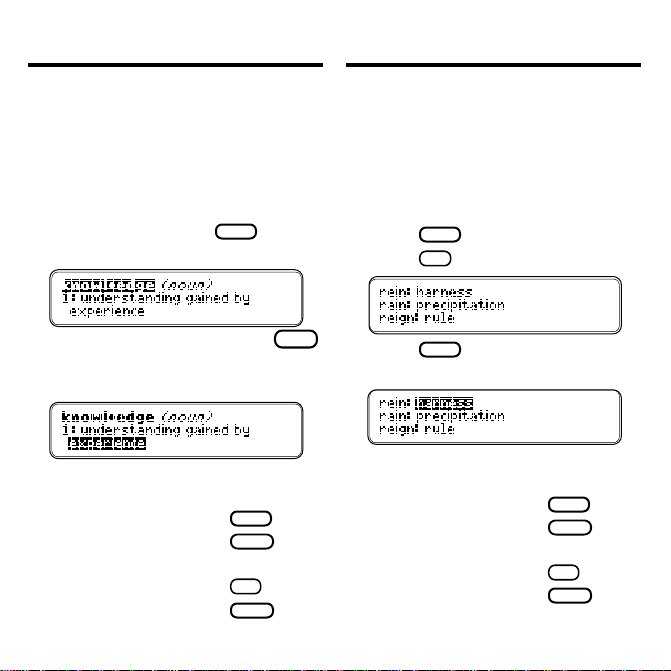
Highlighting Wor ds
Finding Confusables
™
Another way to look up words is by
highlighting them in dictionary definitions, thesaurus entries, or word lists.
Then you can find their definitions, thesaurus entries, Confusables, or add
them to your User list.
1. At any text, press
ENTER
to
start the highlight.
T o turn the highlight off, press
BACK
2. Press the arrow keys to
highlight a word.
3. Do one of the following:
T o... Press...
define the word
view a thesaurus
ENTER
THES
(red)
entry
view Confusables
add word to User list
✻
?
LIST
(blue)
Confusables are words that sound
alike, but are spelled differently. If a
word has Confusables, a question
mark will flash once in the upper right
of the screen.
1. Type a word (e.g., rein).
ENTER
.
✻
.
?
ENTER
and then highlight
.
2. Press
3. Press
4. Press
a word.
5. Do one of the following:
T o... Press...
define the word
view a thesaurus
ENTER
THES
entry
view Confusables
add word to User list
?
LIST
10
(red)
✻
(blue)
Page 12
Hearing Words
Reviewing Words
You can hear a word pronounced at
the Entry screen, in text, or in a list.
NOTE: You can only hear wor ds if you
have a speaking BOOKMAN unit.
At the Entry screen
▼▼▼
1. T ype a word at the Entry screen.
2. Press
SAY
(green).
In Text
1. Go to a definition.
SAY
2. Press
(green).
The headword is pronounced.
3. Press
ENTER
to start the
highlight.
Press the arrow keys to highlight
4.
a word you want to hear .
You can highlight most words.
5. Press
SAY
(green).
In a List
1. Go to your User’s or Path list.
2. Press
word on the list.
3. Press
word.
or to highlight a
SAY
(green) to hear the
The Path list lets you review the last
15 words you looked up. Your Path
list is automatically saved between
sessions until the batteries lose
power.
1. Select View path list from the
Other menu.
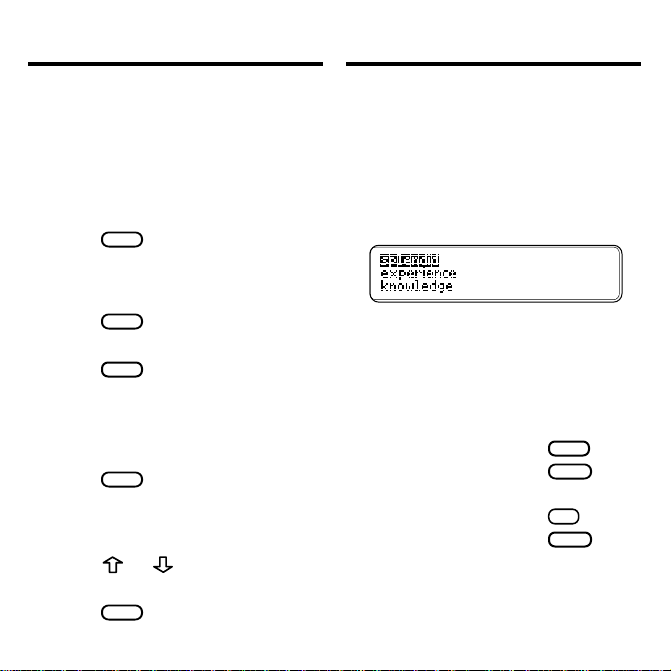
This is a sample Path list. If you
haven’t looked up any words, you
see:
Path is empty
.
2. Highlight a word.
3. Do one of the following:
T o... Press...
define the word
view a thesaurus
ENTER
THES
entry
view Confusables
add word to User list
✻
?
LIST
11
(red)
(blue)
Page 13
Using the User List
Using the User List
You can create a User list of up to 40
words. Y ou can even add words to your
User list that are not in this dictionary.
Here’s how to add and to view a wor d.
1. Press
LIST
(blue) to view the
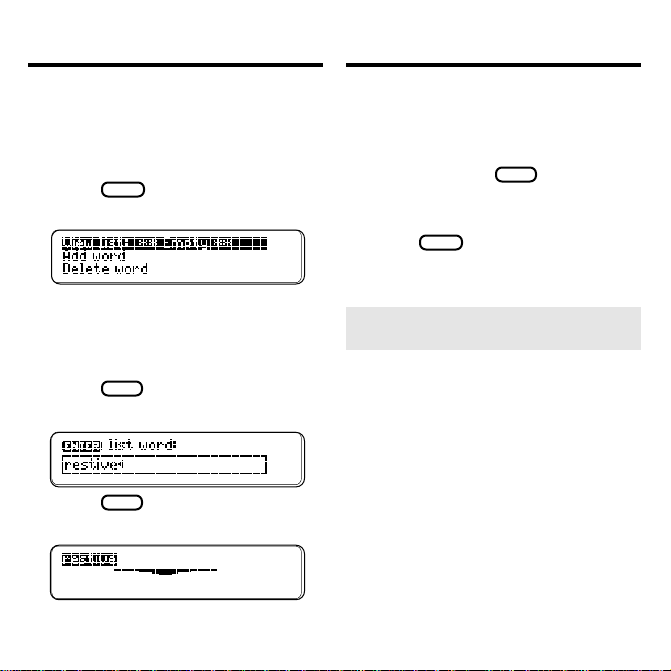
User list menu.
If you haven’t added any words
to your User list,
✽✽Empty✽✽
View list:
appears.
2. Highlight Add word.
ENTER
3. Press
.
4. Type a word (e.g., restive).
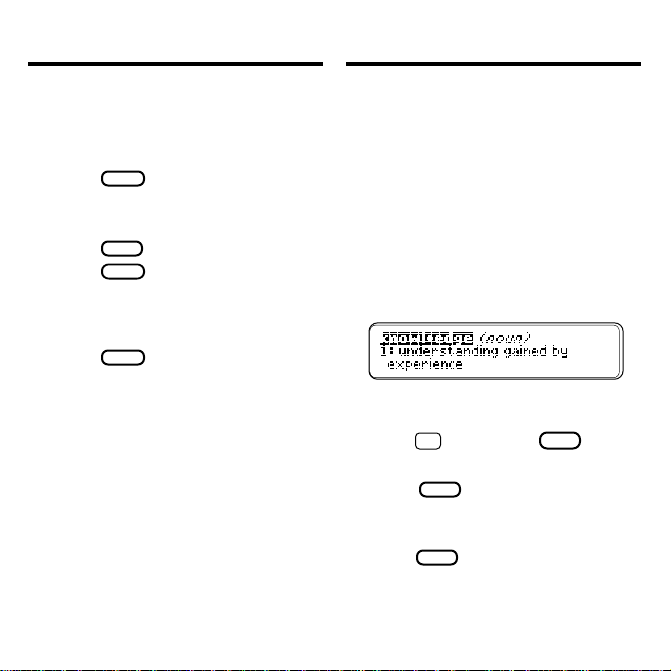
5. Press
ENTER
to add the word.
6. Select View list.
This is a User list of one word.
Adding Highlighted Words
▼
At any text, you can highlight a word
and add it to your User list.
1. At text, press
ENTER
to start
the highlight.
2. Highlight a word.
LIST
3. Press
(blue).
4. Select Add “your word”.
➤ Adding Words Not Found in
This Dictionary
When you add a word not in this
dictionary, you’re given three
options:
Correction list
Cancel, Add anyway
. Select an option.
Caution: Adding words not in
this dictionary uses considerably
more memory than adding words
that are. If you add only words that
are not in the dictionary , your User
list may hold as few as 10 words.
12
, or
Page 14
Using the User List
Sending Words
You can delete one or all the wor ds in
your User list. Here’ s how.
Deleting One Word
▼▼
1. Press
LIST
(blue).
2. Select Delete word.
3. Highlight a word on the list.
ENTER
4. Press
5. Press
to delete it.
CLEAR
when done.
Erasing Your User List
1. Press
2. Select Erase list.
3. Press Y to erase the entire
list. Or press N to cancel.
LIST
(blue).
This BOOKMAN dictionary can send
words to and receive words from certain other BOOKMAN books.
To send a word, you must first install
this cartridge in a BOOKMAN, and that
BOOKMAN must also be able to send
or receive words.
To learn if a BOOKMAN can send or
receive words, read its User’s Guide.
1. Highlight a wor d in this book.
To highlight a wor d in a list, see
“Highlighting Words.”
2. Hold ✩ and press
CARD
.
3. Highlight the other book.
ENTER
4. Press
.
The word that you highlighted
appears in the other book.
5. Press
ENTER
to look up the word.
13
Page 15
Changing Game Settings
Playing the Games
You can change the game settings at
any time. Each setting applies to all the
games.
Word list
lets you pick which words
you’ll play the games with. If you select
Type Them in
, you’ll need to type
in words after you select a game. Select
SAT test words
to practice for the
Scholastic Aptitude Test.
Word length
lets you pick how many
letters will be in the words (3-13).
Skill level
lets you select the level of
difficulty. Ther e are five levels.
1. Press
2. Press
MENU
.
to highlight the
Game menu.
3. Highlight a setting.
ENTER
4. Press
to select it.
Now that you have the games set, let’ s
play.
1. Press
2. Press
GAMES
(yellow).
or to highlight a
game.
3. Press
ENTER
to start it.
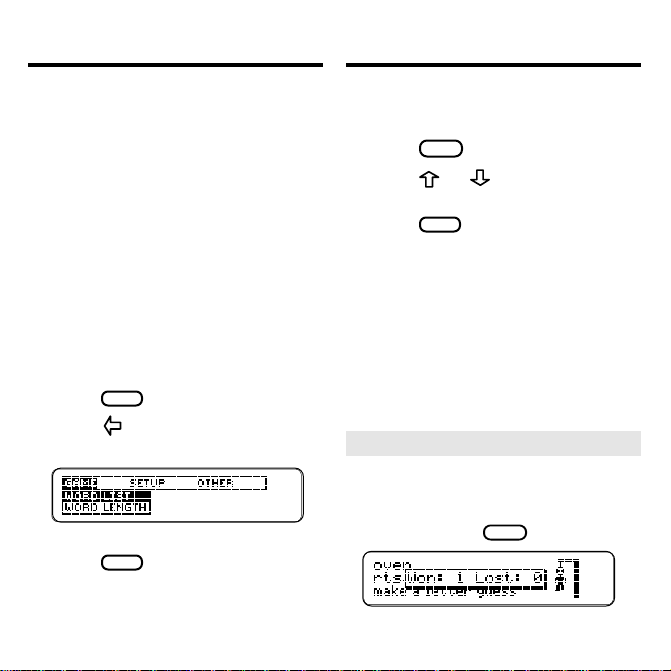
➤ Keeping Score
In Hangman and Word Train, your
score briefly appears after each
round until you choose a new
game or press
CLEAR
.
14
Page 16
Playing the Games Playing the Games
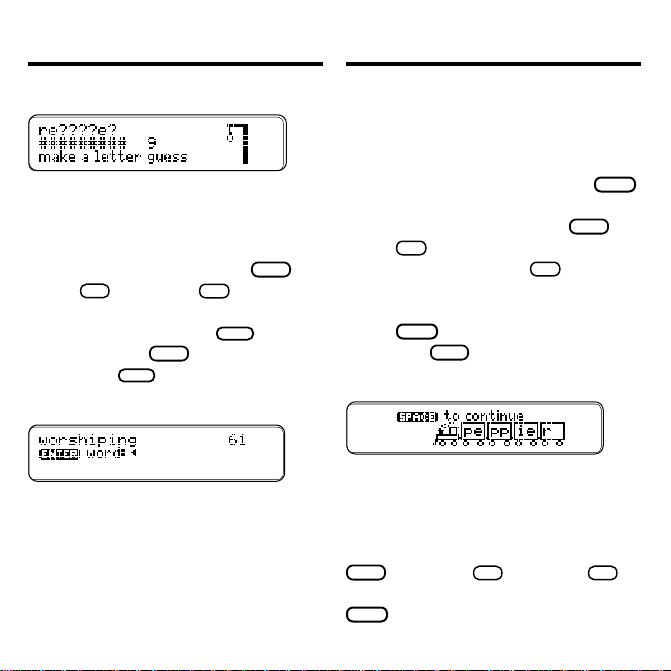
Hangman
Hangman challenges you to guess a
mystery word, indicated by ?’s, one
letter at a time. The number of wrong
guesses you can make appears to the
right of the #’s. For a hint hold
press
✻
Or press
?
✻
to end the
?
CAP
and
round. NOTE: If you ask for a hint, you
will lose the round. Press
the word. Press
man. Press
BACK
SPACE
to start a new round.
ENTER
to define
to return to Hang-
Anagrams
Anagrams challenges you to find all of
the words that can occur within a selected word. Each letter can only be
used as many times as it appears in
the selected word. Each anagram must
be a specified minimum length. This
will flash on the screen before each
game. The number of possible anagrams is shown on the right side of
the screen.
Type an anagram and then press
Use the arrows to view anagrams
✻
to end a
?
CAP
you’ve already entered. Hold
press
✻
to shuffle the letters in the
?
selected word. Press
round and reveal the remaining anagrams. Highlight a word, and then
ENTER
press
tion. Press
Word Train
to see its dictionary defini-
BACK
to return to Anagrams.
™
All aboard the Word Train spelling
game! You and the train take turns typing letters to form a word. Whoever
types the last letter wins. To view the
letters you can type at your turn, hold
CAP
and press
✻
. Or press
?
end a round and reveal the word. Press
ENTER
to dictionary define the word.
15
ENTER
?
and
✻
to
.
Page 17
Cartridge Care
ON/OFF
ON/OFF
Resetting BOOKMAN
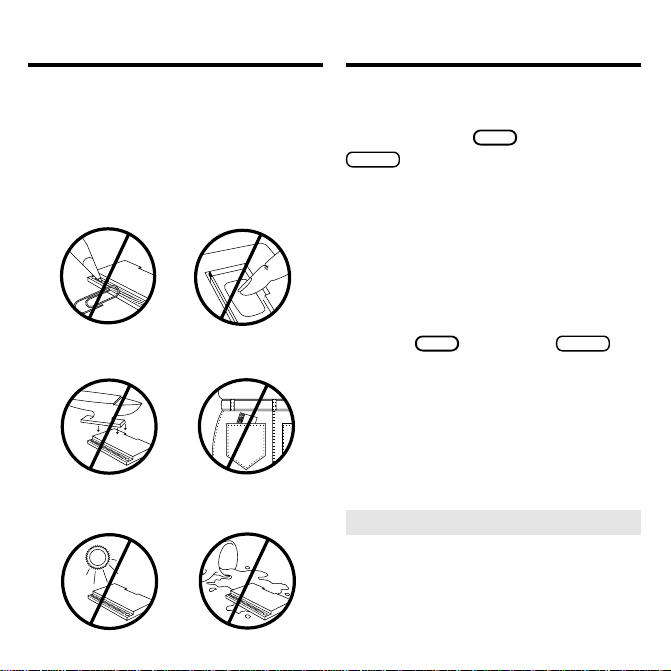
• Do not touch the metal
contacts on the cartridges.
Caution: Touching these electrical
contacts with statically charged objects, including your fingers, could
erase information entered in a cartridge or built-in book.
• Do not put excessive pressure
on the cartridges.
LBS.
• Do not expose the cartridges
to heat, cold, or liquids.
If the BOOKMAN keyboard fails to respond, or if its screen performs erratically, first press
CLEAR
and then press
twice. If nothing happens, follow
the steps below to reset it.
Warning: Pressing the reset button
with more then very light pressure may
permanently disable your BOOKMAN.
In addition, resetting BOOKMAN erases
settings and information entered into its
built-in book, and in an installed cartridge.
1. Hold
CLEAR
and press
If nothing happens, try Step 2.
2. Use a paperclip to gently press
BOOKMAN’ s reset button.
The reset button is recessed in a pinsized hole on the back of BOOKMAN. Look for it on the battery
cover or near the cartridge slot.
➤ Troubleshooting BOOKMAN
• Make sure your cartridge, if any ,
is installed correctly .
• Check that the cartridge’s metal
contacts are dirt-and dust-free.
16
.
Page 18

Copyrights & PatentsLimited Warranty (US only)18Index
FRANKLIN warrants to you that the BOOKMAN PRODUCT will be free
from defects in materials and workmanship for one year from
purchase. In the case of such a defect in your BOOKMAN PRODUCT,
FRANKLIN will repair or replace it without charge on return, with
purchase receipt, to the dealer from which you made your purchase
or Franklin Electronic Publishers, Inc., 122 Burrs Road, Mt. Holly, NJ
08060, within one year of purchase. Alternatively, FRANKLIN may, at
its option, refund your purchase price.
Data contained in the BOOKMAN PRODUCT may be provided under
license to FRANKLIN. FRANKLIN makes no warranty with respect to
the accuracy of data in the BOOKMAN PRODUCT. No warranty is made
that the BOOKMAN PRODUCT will run uninterrupted or error free.
You assume all risk of any damage or loss from your use of the
BOOKMAN PRODUCT.
This warranty does not apply if, in the sole discretion of FRANKLIN,
the BOOKMAN PRODUCT has been tampered with, damaged by
accident, abused, misused, or misapplication, or as a result of service
or modification by any party, including any dealer, other than
FRANKLIN. This warranty applies only to products manufactured by
or for FRANKLIN. Batteries, corrosion, or battery contacts and any
damage caused by batteries are not covered by this warranty. NO
FRANKLIN DEALER, AGENT, OR EMPLOYEE IS AUTHORIZED TO
MAKE ANY ADDITIONAL W ARRANTY IN THIS REGARD OR TO MAKE
ANY MODIFICATION OR EXTENSION OF THIS EXPRESS WARRANTY .
THE FOREGOING W ARRANTY IS EXCLUSIVE AND IS IN LIEU OF ALL
OTHER EXPRESS OR IMPLIED WARRANTIES, WRITTEN OR ORAL,
INCLUDING, BUT NOT LIMITED TO, WARRANTIES OF
MERCHANTABILITY OR FITNESS FOR A PARTICULAR PURPOSE.
YOUR SOLE AND EXCLUSIVE REMEDY SHALL BE FRANKLIN’S
OBLIGATION TO REPLACE OR REFUND AS SET FORTH ABOVE IN
THIS WARRANTY. Some States do not allow the exclusion of implied
warranties, or limitations on how long a warranty lasts. This warranty
gives you specific rights; you may also have additional rights which
vary from State to State. This warranty shall not be applicable to the
extent that enforcement of any provision may be prohibited by
applicable law.
FRANKLIN SHALL IN NO EVENT BE LIABLE TO YOU OR TO ANY
OTHER PERSON FOR ANY SPECIAL, INCIDENTAL, OR
CONSEQUENTIAL DAMAGES, OR ANY OTHER INDIRECT LOSS OR
DAMAGE, ARISING OUT OF YOUR PURCHASE, THE MANUFACTURE
OR SALE OF THE BOOKMAN PRODUCT, THIS LICENSE, OR ANY
OBLIGATION RESULTING THEREFROM OR THE USE OR
PERFORMANCE OF THE BOOKMAN PRODUCT UNDER ANY LEGAL
THEORY, WHETHER BREACH OF CONTRACT, TORT, STRICT
LIABILITY OR ANY OTHER CAUSE OF ACTION OR PROCEEDING,
WHICH DAMAGES SHALL INCLUDE, BUT NOT BE LIMITED TO, LOST
PROFITS, DAMAGES TO PROPERTY, OR PERSONAL INJURY (BUT
ONLY TO THE EXTENT PERMITTED BY LAW). FRANKLIN’S ENTIRE
LIABILITY FOR ANY CLAIM OR LOSS, DAMAGE, OR EXPENSE FROM
ANY SUCH CAUSE SHALL IN NO EVENT EXCEED THE PRICE PAID
FOR THE BOOKMAN PRODUCT. THIS CLAUSE SHALL SURVIVE
FAILURE OF AN EXCLUSIVE REMEDY. This license and warranty is
governed by the laws of the United States and the State of New Jersey.
Model: MWS-2018
• size: 5.9 x 4.2 x 0.6 cm
• weight: .4 oz. (without batteries)
© 1987-1995 Franklin Electronic
Publisher, Inc., Mt. Holly, NJ 08060
USA. All rights reserved.
© 1989 Merriam-Webster, Inc.
All rights reserved.
BOOKMAN is a trademark of Sherwin
M. Borsuk. Used under license.
1993 First Byte. All rights reserved.
FCC Notice: Complies with the limits
for a Class B computing device pursuant to Subpart B of part 15 of FCC Rules.
Operation is subject to the following two
conditions: (1) This device may not cause
harmful interference; and (2) This device
must accept any interference received,
including interference that may cause undesired operation.
U.S. Patents 4,490,811; 4,830,618;
4,891,775; 5,007,019; 5,113,340;
5,203,705; 5,218,536; 5,249,965;
4,406,626; 5,229,936; 5,333,313;
European Patent 0 136 379.
Pat. Pend. ISBN 1-56712-168-3
17
Page 19

?* key 3, 9, 15
Anagrams game 15
Asterisk key 3, 15
Asterisks 9
Auto-resume feature 4
Backing up 9
Changing Bookman's settings 6
Color keys
understanding 3
using 5
Confusables, finding 10
Correcting misspellings 8
Demonstration 6
Erasing a letter 7
Flashing messages
? 10
THES 8
Games
changing settings 14
playing 14
Hangman game 15
Hearing a word 11
Help, finding 6
Highlighting words 10
Misspellings, correcting 8
Path list 11
Question mark key 9
Resetting BOOKMAN 16
Reviewing words 11
Searching for words 7
Shutoff
changing 6
setting 6
STAR key
combinations 3
with CARD 13
with DN 7
with UP 7
Thesaurus entries 9
User List
adding words not in dictionary 12
viewing list 12
User list
deleting a word 13
erasing your list 13
Warranty 17
Word Train game 15
FRB-28017-00 Printed in USA
P/N 7201192 Rev A
 Loading...