

Page 1

Electronic Publishers
For Use with the Franklin
Digital Book System
IC-167
DIGITAL BOOK
®
PDR
1997
PHYSICIANS
DESK
REFERENCE
F
’
User’s Manual
Page 2

License Agreement
READ THIS LICENSE AGREEMENT BEFORE USING THE DIGITAL BOOK. YOUR USE OF THE DIGITAL BOOK DEEMS THAT
YOU ACCEPT THE TERMS OF THIS LICENSE. IF YOU DO NOT
AGREE WITH THESE TERMS, YOU MAY RETURN THIS PACKAGE WITH PURCHASE RECEIPT TO THE DEALER FROM
WHICH YOU PURCHASED THE DIGITAL BOOK AND YOUR
PURCHASE PRICE WILL BE REFUNDED. DIGITAL BOOK means
the software product and documentation found in this package.
FRANKLIN means Franklin Electronic Publishers, Inc., and Medical
Economics Company means the publisher of Pocket PDR®, Medical Economics Company, Inc.
LIMITED USE LICENSE
All rights in the DIGITAL BOOK remain the property of FRANKLIN
or Medical Economics Company. Through your purchase, Medical
Economics Company or FRANKLIN grants you a personal and
nonexclusive license to use the DIGITAL BOOK on a single FRANKLIN Digital Book System at a time. You may not make any copies
of the DIGITAL BOOK or of the data stored therein, whether in
electronic or print format. Such copying would be in violation of
applicable copyright laws. Further, you may not modify, adapt,
disassemble, decompile, translate, create derivative works of, or in
any way reverse engineer the DIGITAL BOOK. You may not export
or re-export, directly or indirectly, the DIGITAL BOOK without
compliance with appropriate governmental regulations. The DIGITAL BOOK contains Medical Economics Company’s or Franklin’s
confidential and proprietary information which you agree to take
adequate steps to protect from unauthorized disclosure or use. This
license is effective for a period of one year from the date you receive
the digital book. Upon termination of this license, you must return the
digital book to Medical Economics Company or FRANKLIN, or
destroy the same at the direction of Medical Economics Company
or FRANKLIN. This license terminates immediately without notice
from Medical Economics Company or FRANKLIN if you fail to
comply with any provision of this license.
This digital book was developed for use by medical professionals.
No other use of this digital book can substitute for consultation with
your physician.
1
Page 3

Contents
Key Guide...................................................... 4
Installing the Pocket PDR®............................. 6
Viewing a Demonstration ............................... 7
Changing Settings.......................................... 8
Finding Drug Information................................ 9
Reading Monographs..................................... 11
Finding Therapeutic Classes .......................... 12
Using the SPEC Key ...................................... 13
Finding Equivalents........................................ 14
Searching for Words ...................................... 15
Highlighting Search Words ............................. 17
Footnotes, References & Tables..................... 18
Using Notes ................................................... 19
Looking Up Words in Other Books ................. 21
Using the Digital Book System®...................... 22
Product Specifications.................................... 24
Limited Warranty............................................ 25
Index.............................................................. 26
✓ About the Screen Illustrations
Some screen illustrations in this User’s Manual
may vary slightly from what you see on screen.
These variations do not mean that this digital book
or your Digital Book System is malfunctioning.
2
Page 4

Publishers’ Note
This Pocket PDR® contains excerpts of product information
provided by drug manufacturers covering indications and usage,
contraindications, warnings, adverse reactions, dosage and administration, and how supplied. Ophthalmology drugs are included in
this 1997 Pocket PDR®. Precautionary material, information on
clinical pharmacology, and certain other items are not included. Be
sure to consult the printed edition of PDR®, PDR® Supplements, and
PDR for Ophthalmology in the event of questions.
Product information published in Pocket PDR® has been prepared
by the manufacturers of the drugs. The function of the publisher is
solely the compilation, organization, and distribution of this information. Drugs listed in Pocket PDR® are available only by prescription.
Patients should consult a physician before using any of the medications.
In making manufacturers’ information available, it should be
understood that the publisher is not advocating the use of any
product or dosage described. And, while every effort has been
made to assure that this electronic version conforms with the drug
manufacturers’ originals, neither the publisher, Medical Economics
Company, Inc., nor the producer of the unit, Franklin Electronic
Publishers, Inc., warrant that the information is accurate, that the unit
will perform without interruption or free of errors, or that the
information contained therein satisfies government regulations
requiring drug product information disclosure, nor shall they be
liable for any claim arising out of or relating to use of Pocket PDR®.
For additional information on limitations of liability and warranty
disclaimers, consult the License Agreement and Limited Warranty
printed in this User’s Manual. All use of this product is subject to the
terms and conditions of the User License. Information in this Digital
Book is current through the 1997 editions of PDR® and PDR for
Ophthalmology. For later revisions, always check the latest PDR®,
PDR® supplement, or PDR for Ophthalmology.
Pocket PDR®. Copyright © 1997 Medical Economics Company,
Inc. PDR® is a registered trademark used herein under license.
Copyright © 1997 Franklin Electronic Publishers, Inc. All rights
reserved, worldwide.
3
Page 5
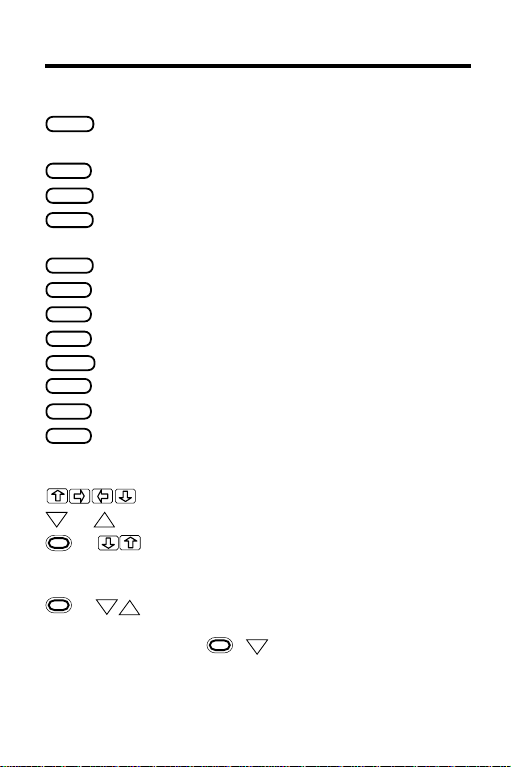
Key Guide
Function Keys
BACK
CARD
CLEAR
ENTER
HELP
LIST
MENU
MORE
ON/OFF
SHIFT
SPACE
SPEC
DN
4
Backs up (e.g., erases a typed character, displays the previous screen, or stops a highlight).
Exits the digital book you are reading.
Clears to the default state.
Selects a menu item, enters a text
search, or starts the highlight in text.
Displays a contextual help message.
Displays your note list from text.
Displays the main menus.
Finds more text search matches.
Turns the Digital Book System on or off.
Shifts the keys to types capitals or punctuation.
Types a space or pages down.
Displays the nearest Outline level from the text.
Direction Keys
Scroll or move in the indicated direction.
or
* + At menus, zooms to the bottom or top;
* +
*
The gold key at the bottom left of the keyboard.
Pages down or up.
UP
at text, go to next or previous
monograph topic or table row heading.
DN
At the Drugs and Class menus, displays
UP
the next item matching the letters you’ve
typed (
+DN only). At text, go to the
next or previous paragraph, table row
subheading, or text search match.
Page 6
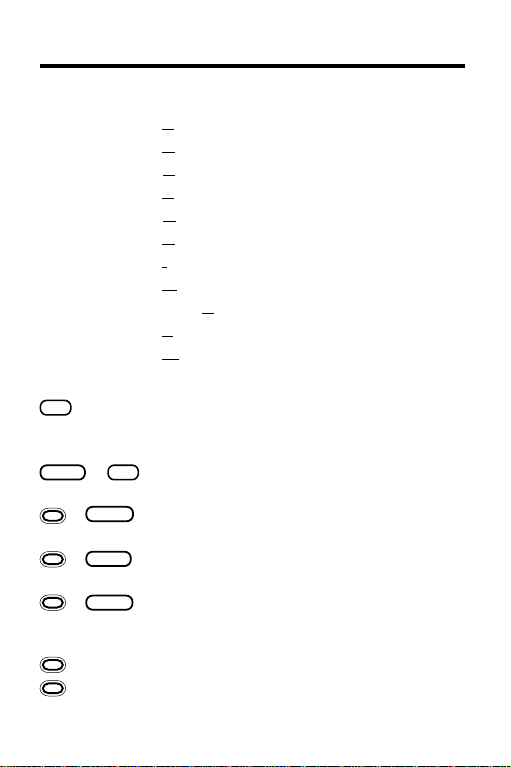
Key Guide
Quick Keys*
A Goes to
C Goes to
D Goes to
E Goes to
G Goes to
H Goes to
I Goes to
M Goes to
S Goes to
T Goes to
W Goes to
Adverse Reactions
Contraindications
topic.
topic.
Dosage and Administration
Equivalents
Generic Name
How Supplied
Indications and Usage
Manufacturer
How Supplied
Therapeutic Class
Warnings
list.
topic.
topic.
topic.
topic.
topic.
list.
topic.
topic.
Other Keys
✻
?
SHIFT
+
+
+
+ N Places a note in a monograph or table.
+ Q-P On the DBS-1 or DBS-2, types numbers.
You can use the Quick Keys only when a drug
*
monograph is in view.
At the menus, displays the full name of a
menu item; at the text, shows the current
Outline location.
✻
+
Types an asterisk to stand for unknown
?
letters in a search word.
BACK
Goes to the top level of the Drugs or
menu from a lower level.
Class
Transfers a word to or from certain in-
CARD
stalled digital books.
At any level of the Drugs menu, goes to
ENTER
text. At text, highlight the next icon appearing on the screen.
5
Page 7
Installing the Pocket PDR
®
You must install the digital book in your Digital Book
System before you can use the Pocket PDR®.
WARNING: Never install a digital book when the Digital Book System is on. If you do, information that you
entered in any other installed digital book may be
erased.
1. Turn off the Digital Book System.
2. Install the Pocket PDR
®
digital book into a slot
on the back.
3. Press
ON/OFF
.
4. If needed, turn the wheel on the side of the Digital Book System to adjust the screen contrast.
If the screen is still blank, check the batteries.
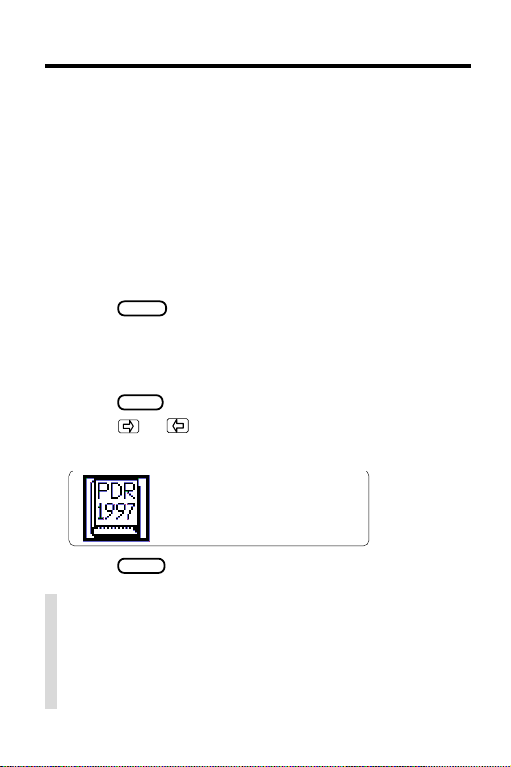
CARD
5. Press
6. Press or to highlight the Pocket PDR
.
®
symbol, if needed.
7. Press
ENTER
to select it.
✓ Resuming Where You Left Off
Should you forget to turn off the unit while using the
Pocket PDR®, the unit will automatically shut itself
off after a few minutes. When you turn the unit on
again, the screen that you last viewed appears.
6
Page 8
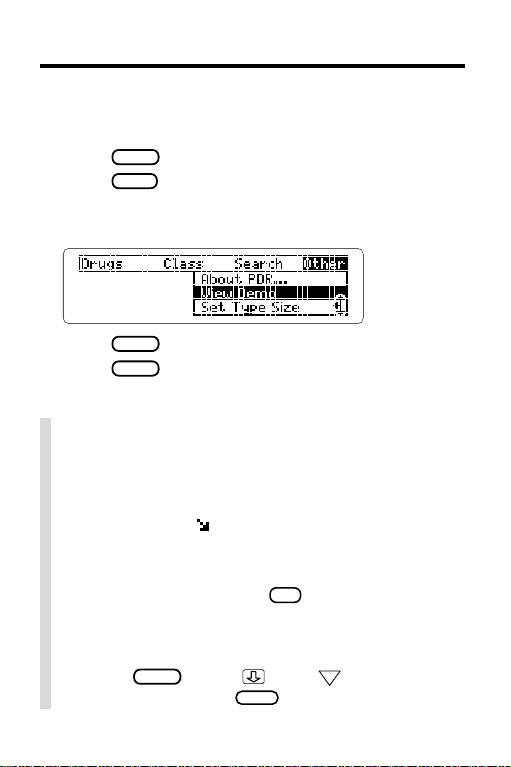
Viewing a Demonstration
Before you start using the Pocket PDR®, you may want
to view a demonstration of what it can do.
1. Press
2. Press
3. Press the arrow keys to highlight
CLEAR
.
MENU
.
the Other menu.
View Demo
on
4. Press
5. Press
ENTER
to start the demonstration.
CLEAR
to stop the demonstration.
✓ Using the Main Menus
The flashing arrows on the right side of the screen
show which arrow keys you can press to move
around in the menus or text.
A slanted arrow ( ) to the right of a menu item
indicates that submenus exist.
To see the full text of a menu item highlight the
✻
menu item and then press
.
?
✓ Help is Always at Hand
Y ou can view a help message at most screens by
pressing
message. Then press
HELP
. Press or the DN key to read the
BACK
to exit it.
7
Page 9
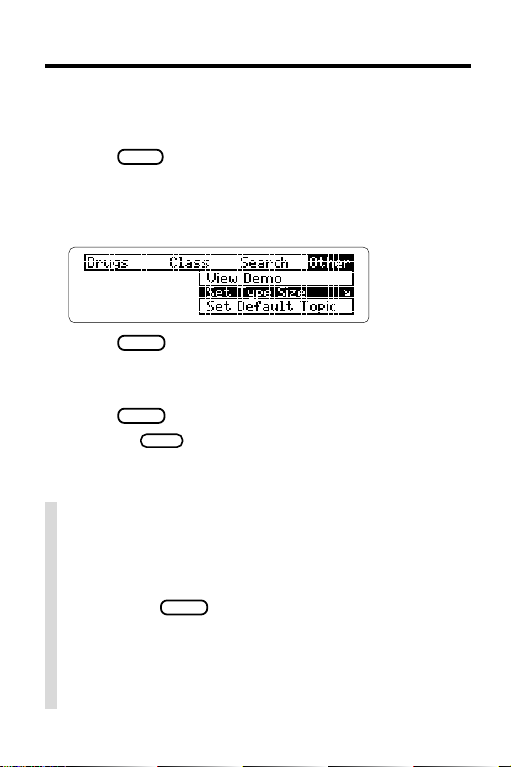
Changing Settings
You can change the Type Size, Default Topic, Default
State, and Shutoff T ime of the Pocket PDR®.
MENU
1. Press
2. Highlight the Other menu.
3. Highlight
Set Default State
if needed.
Set Type Size, Set Default Topic
, or
Set Shutoff
.
,
4. Press
ENTER
to select it.
A check marks the current setting.
5. Highlight a setting.
ENTER
6. Press
Or press
to select it.
BACK
to keep the current setting.
✓ Understanding the Settings
• The
Default Topic
when you view a drug monograph.
• The
Default State
you press
default state, the search screen appears. If you
select
Drug Info
• The
Shutoff Time
System stays on if you forget to turn it off.
8
is the topic that appears first
is the screen that appears when
CLEAR
. If you select
Text Search
, the Drugs menu appears.
is how long the Digital Book
as the
Page 10
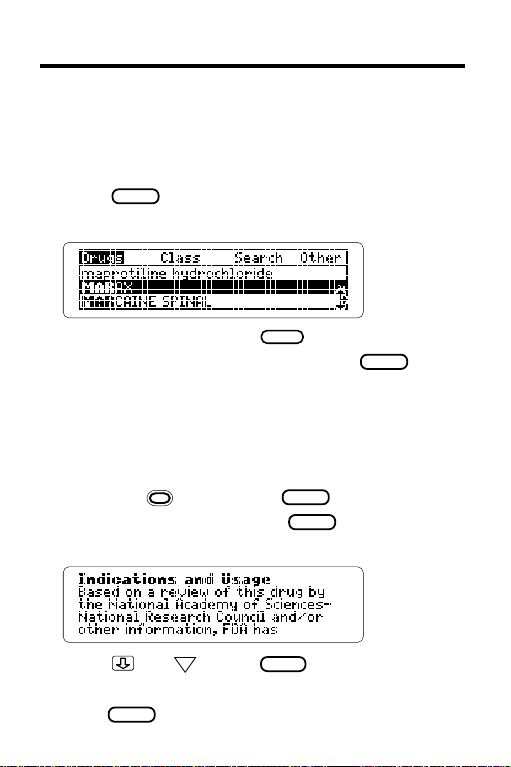
Finding Drug Information
The simplest way to find drug information is to type a
brand or generic drug name at the Drugs menu. Brand
names are capitalized on the Drugs menu, but you do
not need to type capitals.
1. Press
2. Type a drug name (e.g.,
CLEAR
.
MARAX
).
To back up a letter, press
3. When the drug is highlighted, press
BACK
.
ENTER
If you entered a generic name, select one of the
brand name drugs that contain the selected drug.
If you entered a brand name, the monograph’s topics appear. NOTE: You can go directly from the
Drugs menu to the default topic of the monograph
by holding
and pressing
4. Highlight a topic and press
ENTER
ENTER
.
to view the
drug monograph
5. Press , the DN key , or
SPACE
to scroll down.
T o learn more, see “Reading Monographs.”
6. Press
CLEAR
when done.
.
9
Page 11
Finding Drug Information
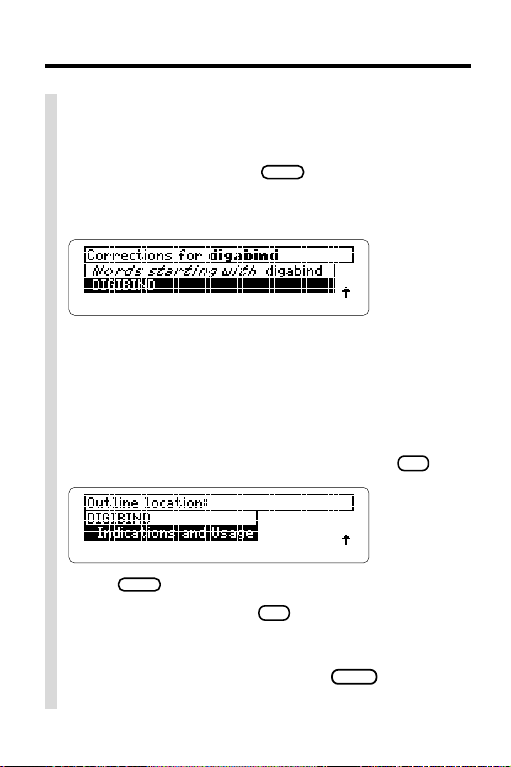
✓ If You Misspell a Drug Name
When you type letters that do not match a drug on
the Drugs menu, the correction mode entry screen
appears. You can press
Or you can enter the misspelled drug name to view
corrections.
BACK
repeatedly to exit it.
Y ou can select
Words starting with. . .
to view
completions, if any, or select a drug on the corrections list to view its monograph.
✓ What Drug Are You Reading About?
When a drug monograph or a table is in view, you can
check its current Outline location by pressing
BACK
Press
NOTE: When you press
Drugs menu itself but to a snapshot of your current
location in the Drugs menu, or Outline. To go from
the text to the Drugs menu, press
menu appears.
10
to go back to the text.
✻
, you do not go to the
?
SPEC
until the
✻
.
?
Page 12
Reading Monographs
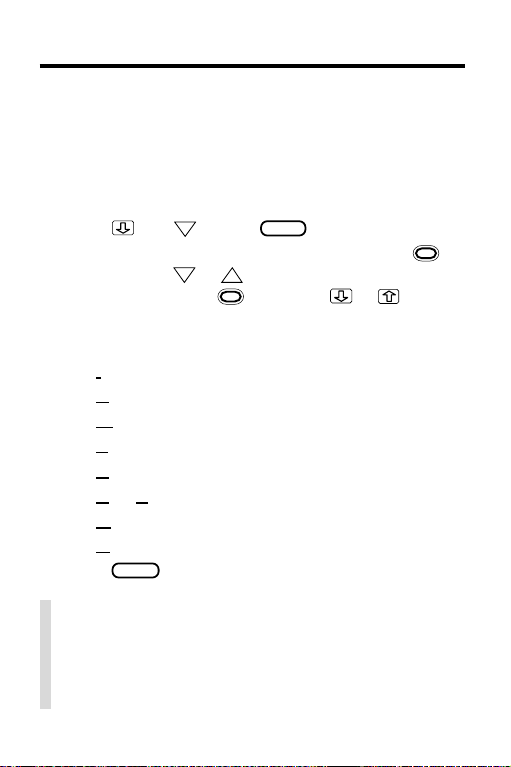
Once a drug monograph is in view, you can read it in a
number of ways. In particular, you can move quickly between its main sections, or topics, using the Quick Keys.
1. Go to a drug monograph (e.g.,
See “Finding Drug Information” for directions.
2. Press , the DN key , or
To go to the next or previous paragraph, hold
and press the DN or UP key . To go to the next or
previous topic, hold
3. Use these Quick Keys:
T o Go to. . . Press. . .
and press or .
Indications and Usage
Contraindications
Warnings
Adverse Reactions
Dosage and Administration
How Supplied
Manufacturer
Generic Name
4. Press
CLEAR
when done.
✓ Setting the Default Topic
You can set which topic appears first (i.e., the default topic) when you view a monograph by selecting
Set Default Topic
selecting a topic.
from the Other menu and then
ILOSONE
SPACE
to move down.
I
C
W
A
D
H or S
M
G
).
11
Page 13
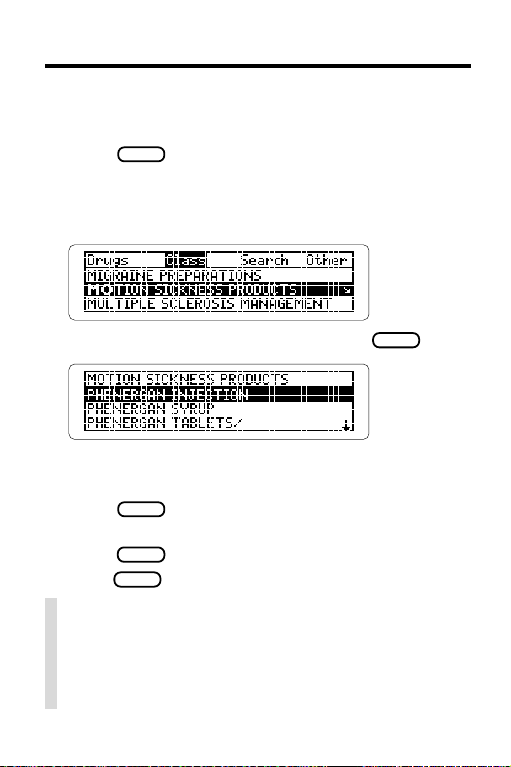
Finding Therapeutic Classes
Every drug in the Pocket PDR® is classified by its therapeutic class. Here is how to find the drugs in a class.
1. Press
2. Highlight the Class menu.
3. Type a therapeutic class
CLEAR
.
(e.g.,
MOTION SICKNESS PRODUCTS
).
4. When the class is highlighted, press
5. Highlight a drug (e.g.,
PHENERGAN SYRUP
ENTER
Type its first few letters or scroll to it.
ENTER
6. Press
to view its monograph.
7. To go back to select other drugs in the class,
BACK
CLEAR
.
when done.
press
8. Press
✓ A Quick Way to Find Therapeutic Classes
When reading a drug monograph, you can quickly
view the list of therapeutic classes for the drug by
pressing T. If a drug has only one therapeutic class,
then the drugs for that one class are shown.
12
.
).
Page 14
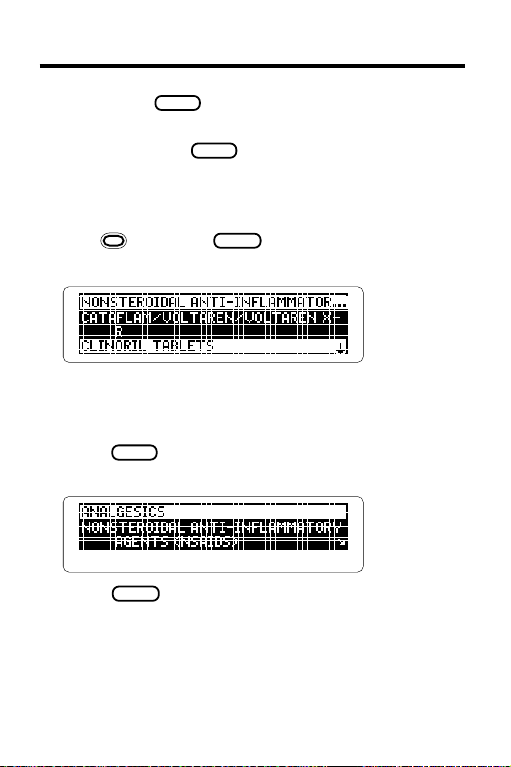
Using the SPEC Key
You can press
SPEC
to back up through the Drugs
menu from a drug monograph or a table.
Y ou can also press
SPEC
to back up through the
Class menu after pressing the T key when a monograph or table is in view. T ry this example.
1. Highlight
2. Hold
NAPRELAN
and press
on the Drugs menu.
ENTER
to view its monograph.
3. Press the T key.
These drugs are in the same therapeutic class and
subclass as Naprelan. You could select a drug to
view its monograph.
4. Press
SPEC
repeatedly to back up through
the Class menu.
5. Press
CLEAR
when done.
13
Page 15
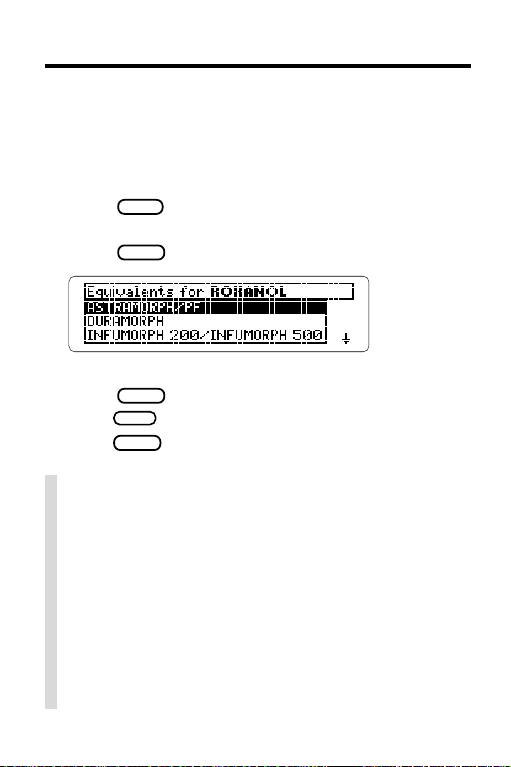
Finding Equivalents
For any drug you select, it’s easy to find other brands
containing the same generic ingredients.
1. Go to a drug monograph (e.g.,
See “Finding Drug Information” for directions.
MENU
2. Press
3. Highlight
4. Press
.
Equivalents
ENTER
.
from the Search menu.
5. Highlight an equivalent.
6. Press
7. Press
8. Press
ENTER
to view its monograph.
BACK
to go back to the equivalents.
CLEAR
when done.
✓ A Quick Way to Find Equivalents
When reading the drug monograph, you can quickly
see its equivalents by pressing E. Select an equivalent to display its monograph.
✓ Finding Generic Names in Monographs
The last topic in a drug monograph lists the names
of the drug’s generic ingredients. Once at a monograph, you can go directly to
pressing G. Then you can highlight an ingredient
and search for it (see “Highlighting Search Words”).
ROXANOL
Generic Name
).
by
14
Page 16
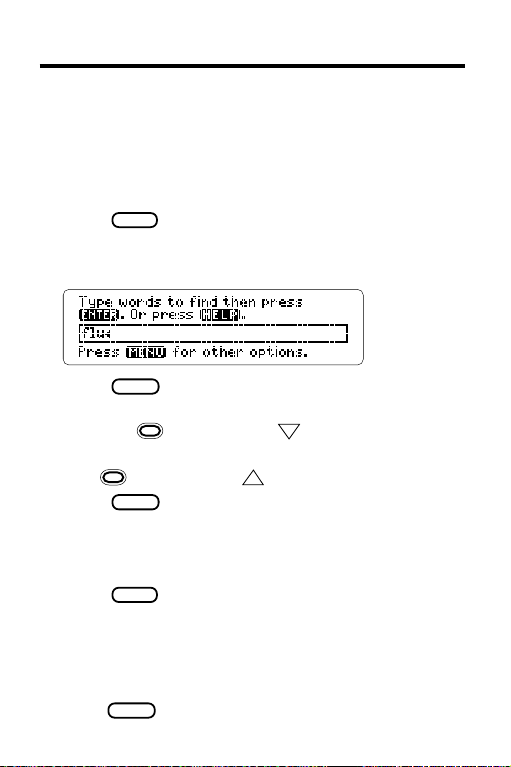
Searching for Words
Y ou can search for the occurrences, or matches, of up
to six words appearing in drug monographs, tables,
and therapeutic classes. After searching, only drugs
and classes containing matches of your search
word(s) are listed on the Drugs and Class menus.
1. Press
2. Select
3. Type one or more words (e.g.,
MENU
.
Text Search
from the Search menu.
flu
).
4. Press
ENTER
to view the first Outline location.
5. To view the next Outline location of a match, if
any, hold
and press the DN key.
To view the previous match location,
hold
6. Press
and press the UP key.
ENTER
to view a match in text.
The matching words are boxed. If you entered more
than one search word, you may have to scroll down to
see the second matching word in the section of text.
MENU
7. Press
to view all the matches listed on the
menus, including therapeutic classes.
The numbers on the menus indicate the number of
matches, not the number of menu items.
8. Select a drug or a therapeutic class.
9. Press
CLEAR
to clear your search when done.
15
Page 17
Searching for Words
✓ If You Misspell a Search Word
Don’t worry. A list of corrections automatically appears after you enter the word. Highlight a correc-
ENTER
tion and press
to search for it.
✓ Finding More Matches
After searching for words, you can find additional
matches by pressing
No more
appears). Each time that you press
the previous matches are discarded and new
matches of synonyms and similar words are found.
MORE
up to five times (or until
MORE
✓ Changing Your Searches
After searching for words, you can also change
your search by selecting
from the Search menu.
Change Search Query
✓ Searching for Search Words
If you are not sure which form of a search word to use,
type an asterisk at the text search screen in place of
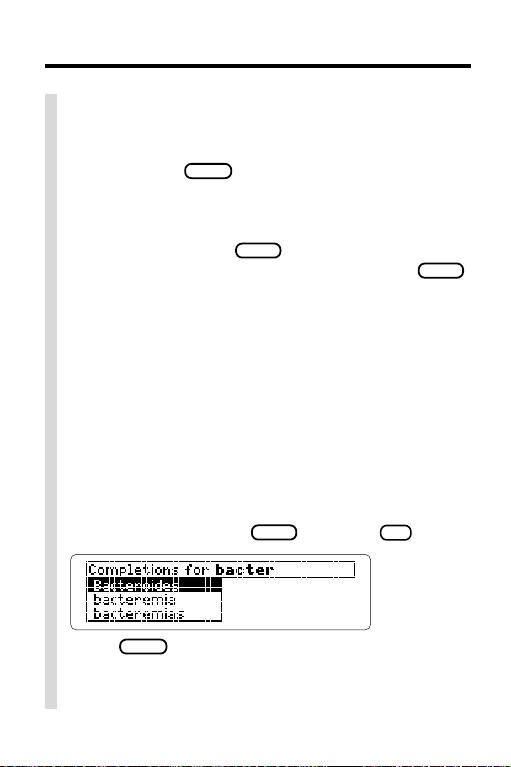
bacter
✻
the letters that you’re not sure about (e.g.,
To type an asterisk, hold
SHIFT
and press
).
✻
.
?
,
ENTER
Press
to see possible completions. Then
select a word to search for its matches.
Y ou can also type asterisks at the correction mode
screen to find matches.
16
Page 18
Highlighting Search Words
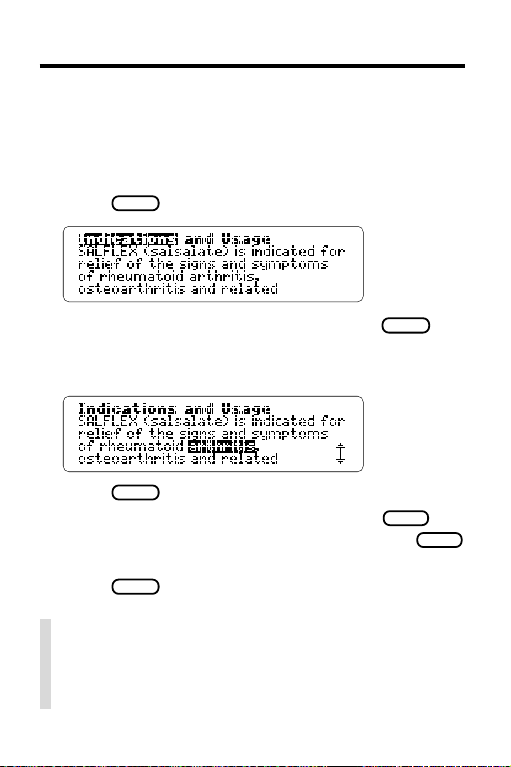
You can also search for words by highlighting them in
drug monographs and tables.
1. Go to a drug monograph (e.g.,
See “Finding Drug Information” for directions.
ENTER
2. Press
to start the highlight.
SALFLEX
).
You can turn off the highlight by pressing
BACK
3. Press the arrow keys to highlight a word
(e.g.,
arthritis
4. Press
You can expand your search by pressing
).
ENTER
to search for it.
MORE
now (see “Expanding Your Searches”). Press
to view all the matches listed on the menus.
CLEAR
5. Press
when done.
✓ Words Too Common to Search
Some short words such as articles (a, the, etc.) and
prepositions (to, in, etc.) occur too often to search
for, either by entering them or by highlighting.
.
MENU
17
Page 19
Footnotes, References & Tables
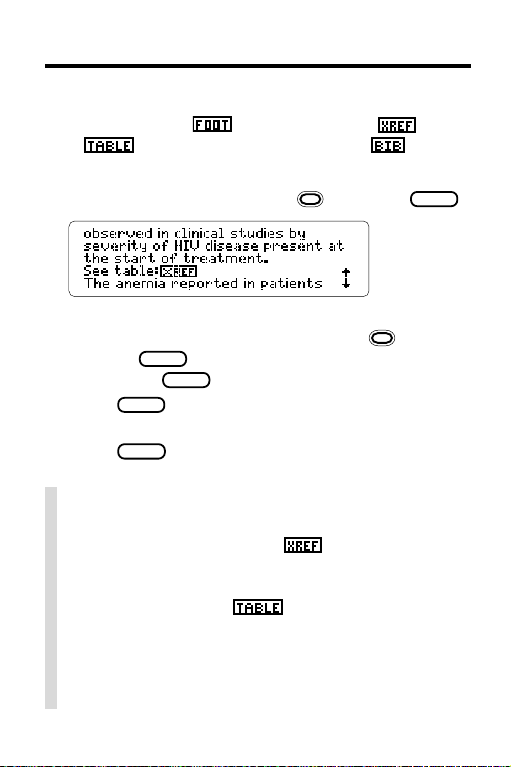
Throughout the text of the Pocket PDR®, you will see
icons for footnotes , cross-references , tables
how to view their text.
1. When an icon is in view, hold and press
The icon is highlighted. You can highlight subsequent icons that are in view by holding
pressing
by pressing
2. Press
3. Use the direction keys to read it.
4. Press
✓ Using and Understanding Tables
When highlighted and selected as shown above,
most cross-reference icons take you to a
table. Once the table is in view, you can usually return to its cross-reference by highlighting and selecting the table icon
Tables are formatted as bulleted lists. Row headings are generally flush left and in boldface. Row
subheadings and column headings are indented
and followed by the information of a table cell.
, and bibliographic references . Here is
ENTER
and
ENTER
again. You can also highlight icons
ENTER
and then the arrow keys.
ENTER
to view the item.
to go back to the highlighted icon.
BACK
.
.
18
Page 20
Using Notes
▲
Placing Notes
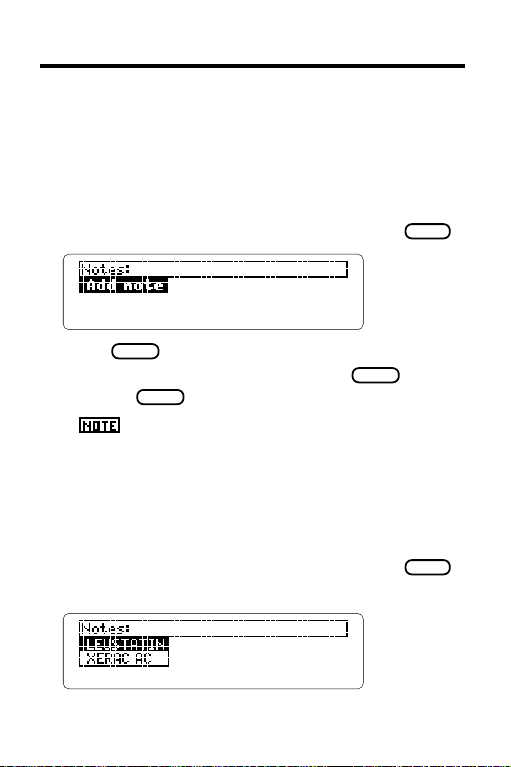
You can place notes in drug monographs and tables.
The number of notes you can place depends upon
their lengths, but you can place only one note in each
paragraph of text or section of a table.
1. With a monograph or table in view, press
LIST
.
2. Press
3. Type a note of your own and press
Or press
ENTER
to select
ENTER
to add the pre-entered note.
marks the note’s placement.
A
Add note
.
ENTER
.
▲
Finding and Removing Notes
Once notes have been placed, you can use them as
bookmarks to quickly find information. To remove a
note, you must first find it in a monograph or table.
1. With a monograph or table in view, press
2. Highlight a note.
Type its first few letters or scroll to it.
LIST
.
19
Page 21
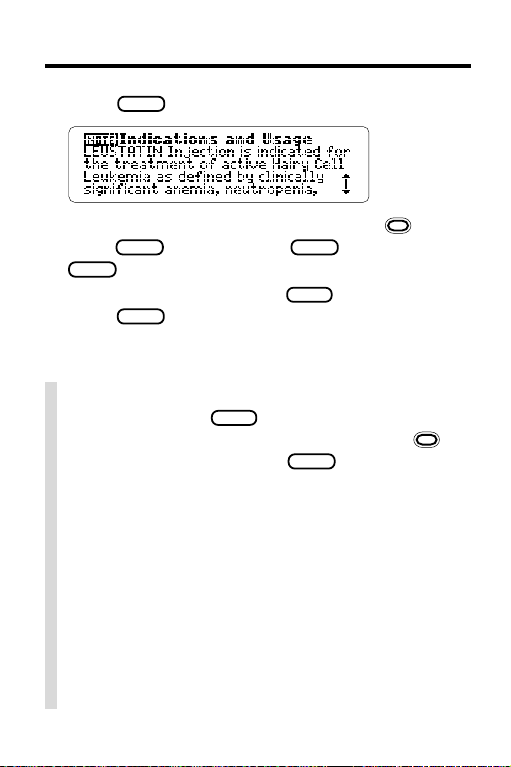
Using Notes
3. Press
ENTER
to go to the note’s placement.
To view the content of the note, first hold and
ENTER
press
BACK
and then press
.
4. To remove the note, press
ENTER
press
to select
ENTER
. Then press
LIST
and then
Remove note
.
✓ A Quick Way to Place Notes
Rather than using
note in a monograph or table by first holding
and pressing N. Then press
entered note or enter your own note.
LIST
, you can quickly place a
ENTER
to place the pre-
✓ Removing All Your Notes
You can remove all your notes at one time by resetting the Digital Book System when the Pocket
®
PDR
is installed. To learn how to reset the Digital
Book System, see “Using the Digital Book System.”
WARNING: Resetting the Digital Book System
erases information that you entered in an installed
digital book. So remove other digital books before
resetting your Digital Book System.
20
Page 22
Looking Up Words in Other Books
You can send words between the Pocket PDR® and
certain other digital books in order to look them up. For
example, you might see a drug in
digital book that you want to learn more about in the
Pocket PDR
®
.
To send words between digital books, both books must
be able to send or receive words. To learn if they can,
read their User’s Manuals.
1. Install both books in your Digital Book System.
2. Press
CARD
and select the sending digital book.
3. Highlight a word in the sending digital book.
To learn how, read the appropriate section of its
User’s Manual.
4. Hold and press
CARD
5. Select the receiving digital book.
The word that you highlighted appears in the
initial screen of the receiving digital book.
6. Press
ENTER
to search for the word.
If a match is found for the word, you can view text
by using the Direction keys.
7. To return to the sending digital book,
CARD
press
and then select its icon.
The Merck Manual
.
21
Page 23

Using the Digital Book System
®
▲
Resetting the Digital Book System
CLEAR
CLEAR
while
and then
To reset the Digital Book System, hold
pressing
ON/OFF
. Or press the recessed reset button on
the back of the Digital Book System. (Read its Basic
Operating Guide for details.)
WARNING: Resetting the Digital Book System may
permanently erase information, such as notes, that
you have entered in the installed digital books.
NOTE: If the keyboard fails to respond or if the screen
performs erratically, you can press
ON/OFF
press
rather than resetting the Digital Book
System. If nothing happens, then reset.
▲
Protecting and Cleaning
• Do not bring statically charged objects in touch with
the metal contacts on the back of digital books or the
rubber contacts on the Digital Book System. Statically charged objects may erase information that you
entered in the digital books.
• Do not put excessive weight on digital books or the
Digital Book System or expose them to extreme or
prolonged heat, cold, or other adverse conditions.
• To clean digital books, apply isopropyl alcohol with a
cotton swab. To clean the Digital Book System,
apply a mild household cleaner with a soft cloth.
CAUTION: Spraying liquids on digital books or the
Digital Book System may damage them.
22
Page 24

Using the Digital Book System
▲
Replacing the Batteries
The DBS-1 and DBS-2 use four 3-volt, CR2032 lithium
batteries. The DBS-2D uses four 1.5-volt, AA batteries.
1. Have new batteries ready.
2. Turn the Digital Book System off.
3. Slide the battery cover off the back.
4. Remove all the old batteries.
5. Place new batteries in the cavities,
with their pluses oriented correctly.
In the DBS-1 and DBS-2 the pluses should face you.
6. Replace the battery cover.
✓ Battery Precautions
When you replace batteries, follow these precautions to avoid erasing information in any installed
digital books.
• Replace the batteries before they lose all power.
• Never remove the batteries while the Digital Book
System is on.
• Once the batteries have been removed,
install new ones within two minutes.
• Never mix old and new batteries.
23
Page 25

Product Specifications
IC-167: 1997 Physicians’ Desk Reference
• Size: 2-1/4” x 1-1/4” x 1/4”
• Weight: 0.3 oz.
®
Customer Service
If you have a problem with this digital book, refer to the
limited warranty information. If you purchased this digital book outside the United States, contact the place of
purchase to obtain warranty or repair information.
Copyrights, Trademarks, Patents, ISBN
© 1997 Franklin Electronic Publishers, Inc.
Burlington, N.J. 08016-4907 U.S.A. All rights reserved.
© 1997 Medical Economics Company, Inc.
All rights reserved.
Digital Book System is a registered trademark of
Franklin.
Pocket PDR
®
is a registered trademark of Medical
Economics Company, Inc.
PDR® is a registered trademark used herein under license.
Patents: 4,490,811; 4,830,618; 5,113,340; 5,218,536;
5,497,474; 5,396,606. DES 348,439; DES 349,281;
Euro. Pat. 0 136 379. Patents Pending.
ISBN 1-56712-353-8
24
Page 26

Limited Warranty (U.S. only)
FRANKLIN warrants to you that the DIGITAL BOOK will be free from defects in materials
and workmanship for one year from purchase. In the case of such a defect in your DIGITAL
BOOK, FRANKLIN will repair or replace it without charge on return, with purchase receipt,
to the dealer from which you made your purchase or Franklin Electronic Publishers, Inc.,
One Franklin Plaza, Burlington, NJ 08016-4907, within one year of purchase. Alternatively,
FRANKLIN may, at its option, refund your purchase price.
Data contained in the DIGITAL BOOK may be provided under license to FRANKLIN.
FRANKLIN makes no warranty with respect to the accuracy of data in the DIGITAL
BOOK. No warranty is made that the DIGITAL BOOK will run uninterrupted or error
free. You assume all risk of any damage or loss from your use of the DIGITAL BOOK.
This warranty does not apply if, in the sole discretion of FRANKLIN, the DIGITAL
BOOK has been tampered with, damaged by accident, abuse, misuse, or misapplication,
or as a result of service or modification by any party, including any dealer, other than
FRANKLIN. This warranty applies only to products manufactured by or for FRANKLIN.
Batteries, corrosion or battery contacts and any damage caused by batteries are not
covered by this warranty. NO FRANKLIN DEALER, AGENT, OR EMPLOYEE IS
AUTHORIZED TO MAKE ANY ADDITIONAL WARRANTY IN THIS REGARD OR TO
MAKE ANY MODIFICATION OR EXTENSION OF THIS EXPRESS WARRANTY.
THE FOREGOING WARRANTY IS EXCLUSIVE AND IS IN LIEU OF ALL OTHER
EXPRESS OR IMPLIED WARRANTIES, WRITTEN OR ORAL, INCLUDING, BUT
NOT LIMITED TO, WARRANTIES OF MERCHANTABILITY OR FITNESS FOR A
PARTICULAR PURPOSE. YOUR SOLE AND EXCLUSIVE REMEDY SHALL BE
FRANKLIN’S OBLIGATION TO REPLACE OR REFUND AS SET FORTH ABOVE IN
THIS WARRANTY. Some States do not allow the exclusion of implied warranties, or
limitations on how long a warranty lasts. This warranty gives you specific rights; you
may also have additional rights which vary from State to State. This warranty shall not
be applicable to the extent that enforcement of any provision may be prohibited by
applicable law.
FRANKLIN SHALL IN NO EVENT BE LIABLE TO YOU OR TO ANY OTHER
PERSON FOR ANY SPECIAL, INCIDENTAL, OR CONSEQUENTIAL DAMAGES,
OR ANY OTHER INDIRECT LOSS OR DAMAGE, ARISING OUT OF YOUR
PURCHASE, THE MANUFACTURE OR SALE OF THE DIGITAL BOOK, THIS
LICENSE, OR ANY OBLIGATION RESULTING THEREFROM OR THE USE OR
PERFORMANCE OF THE DIGITAL BOOK UNDER ANY LEGAL THEORY,
WHETHER BREACH OF CONTRACT, TORT, STRICT LIABILITY OR ANY OTHER
CAUSE OF ACTION OR PROCEEDING, WHICH DAMAGES SHALL INCLUDE, BUT
NOT BE LIMITED TO, LOST PROFITS, DAMAGES TO PROPERTY, OR PERSONAL
INJURY (BUT ONLY TO THE EXTENT PERMITTED BY LAW). FRANKLIN’S
ENTIRE LIABILITY FOR ANY CLAIM OR LOSS, DAMAGE, OR EXPENSE FROM
ANY SUCH CAUSE SHALL IN NO EVENT EXCEED THE PRICE PAID FOR THE
DIGITAL BOOK. THIS CLAUSE SHALL SURVIVE FAILURE OF AN EXCLUSIVE
REMEDY.
This license and warranty is governed by the laws of the United States and the State
of New Jersey.
25
Page 27

Index
Add Note 19
Adverse Reactions topic 11
Arrows
flashing 7
slanted in menus 7
Auto-resume feature 6
Batteries
precautions 23
replacing 23
Change Search Query menu
item 16
Changing
settings 8
text searches 16
Contraindications topic 11
Copyrights 24
Correcting misspellings 10
Cross-references 18
Customer service 24
Default topic
defined 8
setting 11
Demonstration, viewing 7
Digital Book System
cleaning 22
protecting 22
resetting 22
Direction keys 4
Dosage and Administration
topic 11
Drug Info 8
Drug names
brand 9
correcting misspellings 10
equivalents 14
generic 9, 11, 14
highlighting in menus 9
viewing from monographs 10
Drugs menu 8, 9
Equivalents 14
Finding
drug information 9
drug monographs 9
equivalents
using GOLD + E 14
using menus 14
monograph topics 11
notes 19
therapeutic classes
using GOLD + T 12
using menus 12
words in monographs and
tables 15
Footnotes 18
Function keys 4
Generic Name topic 11, 14
Help messages 7
viewing 7
Highlighting
digital book symbols 6
drug names in menus 9
menus and menu items 7
words in monographs and
tables 17
How Supplied topic 11
26
Page 28

Index
Indications and Usage
topic 11
Key Guide 4, 5
Manufacturer topic 11
Matches (of text
searches) 15, 17
Menus
highlighting items 7
main menus
Class 12
Drugs 8, 9
Other 7, 8
Search 14, 15
using 7
viewing 7
Misspellings, correcting 10
Monographs
finding 9
finding words in 15
highlighting words in 17
reading 11
setting default topic 11
topics See individual
topics
viewing drug names of 10
11
Notes
finding 19
placing
using GOLD + N 20
using LIST 19
removing
all at once 20
individually 19
Other keys 5
Other menu 7, 8
Outline location
explained 10
of drug monographs 10
of search matches 15
Patents 24
Placing notes
using GOLD + N 20
using LIST 19
Pocket PDR®
description of 3
highlighting its symbol 6
installing the digital book 6
resuming use of 6
Quick keys 5, 11
Removing notes
all at once 20
individually 19
Resetting the Digital Book
System 22
Resuming 6
Search menu 14
Set Default State 8
Set Default Topic 8, 11
Set Shutoff 8
Set Type Size 8
Settings
changing 8
understanding 8
Shutoff time 8
Spelling correction 10
Submenus 7
27
Page 29

Tables
finding 18
highlighting words in 17
searching for words in 15
understanding formatting
of 18
Text Search 8, 15
Text searches
between digital books 21
changing 16
for parts of words 16
performing 15
too common words 17
Therapeutic classes 12
Trademarks 24
View Demo 7
Viewing
cross-references 18
demonstration 7
footnotes 18
help messages 7
main menus 7
Outline location of drug
monographs 10
tables 18
Warranty 25
Index
FCR-28507-00
P/N 7201748 Rev A.
28
Page 30

Electronic Publishers
 Loading...