

Page 1
Quick Install Guide
Fibre to the Premises
Before you start, make sure your nbn™
equipment has been installed and you’ve
received your broadband activation text
or email. Otherwise you can’t connect.
Page 2
B
C
D
2.4GHz WiFi Name (SSID) best for range
5.0GHz WiFi Name (SSID) best for streaming
WiFi password
Use this info to connect your WiFi.
Keep it secret. Keep it safe.
E
A
POWER
OPTICAL
ALARM
UNI–D1
UNI–D2
UNI–D3
UNI–D4
UNI–V1/2
UPDATE
UNI–D1UNI–V1UNI–V 2 UNI–D2 UNI–D3 UNI–D4
3
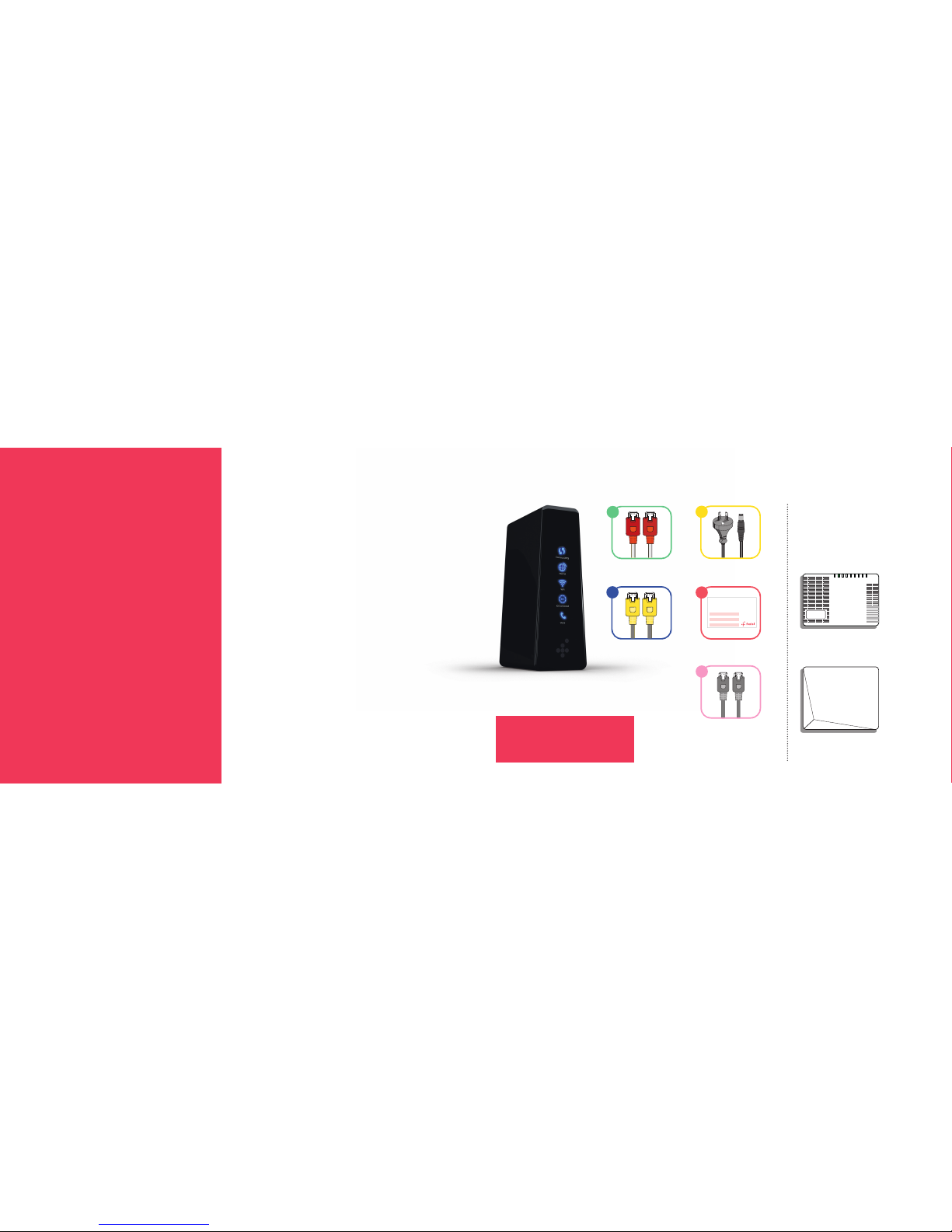
What’s in the box?
Check your nbn™ equipment
To get started, you’ll need yo ur nbn™
Fibre Connect ion Box installed –
either with or w ithout a cover.
nbn™ Fibre Connect ion Box
(without cover)
OR
nbn™ Fibre Connect ion Box
(with cover)
What you will need from nb n:™
Red Tipped
Ethernet Cable
Yellow Tipped
Ethernet Cable
Grey Telephone
Handset Cable
WiFi Keep Me Card
Power Pack Cable
Top tip
Before you star t, make sure nbn™ has installed
your equipment, and you’ve received your
Foxtel Broadband activation text or email.
Get ready for great
entertainment
Exciting times. You’re minutes away from a world
of unparalleled entertainment. This guide will take
you through the steps to get your modem, up and
running in no time.
Contents
What’s in the box? 3
Connection overview 4
How to connect 6
What do the lights mean? 10
Stay connected with Foxtel Home Phone 11
Troubleshooting 12
Need assistance? 14
WiFi Modem
Page 3
EthernetOpticalCoaxial HDMI
Telephone Line 240V - 50Hz
USBS - Video Out
Composite
Video Out
Audio Out
(Fixed Audio)
VCR Scart
(Fixed Audio)
TV Scart
Digital Audio
Out (Fixed Audio)
Cable Input
HD Component
Video Out
Y L RPb Pr
2
B
Gigabit
WAN
Power
DC
10/100
USB
DSL
Phone 1
Phone 2
Cable Input
Digital Audio Out
Optical HDMI Ethernet
12V DC
5A max
USB
5V DC 500mA
Coaxial
2.4GHz WiFi Name (SSID) best for range
5.0GHz WiFi Name (SSID) best for streaming
WiFi password
Use this info to connect your WiFi.
Keep it secret. Keep it safe.
4
D
3
C
1 2 1 2 3 4
RESET POWER
POWER
OPTICAL
ALARM
UNI–D1
UNI–D2
UNI–D3
UNI–D4
UNI–V1/2
UPDATE
UNI–D1UNI–V1 UNI–V2 UNI–D2 UNI–D3 UNI–D4
1
5
E
A
4 5
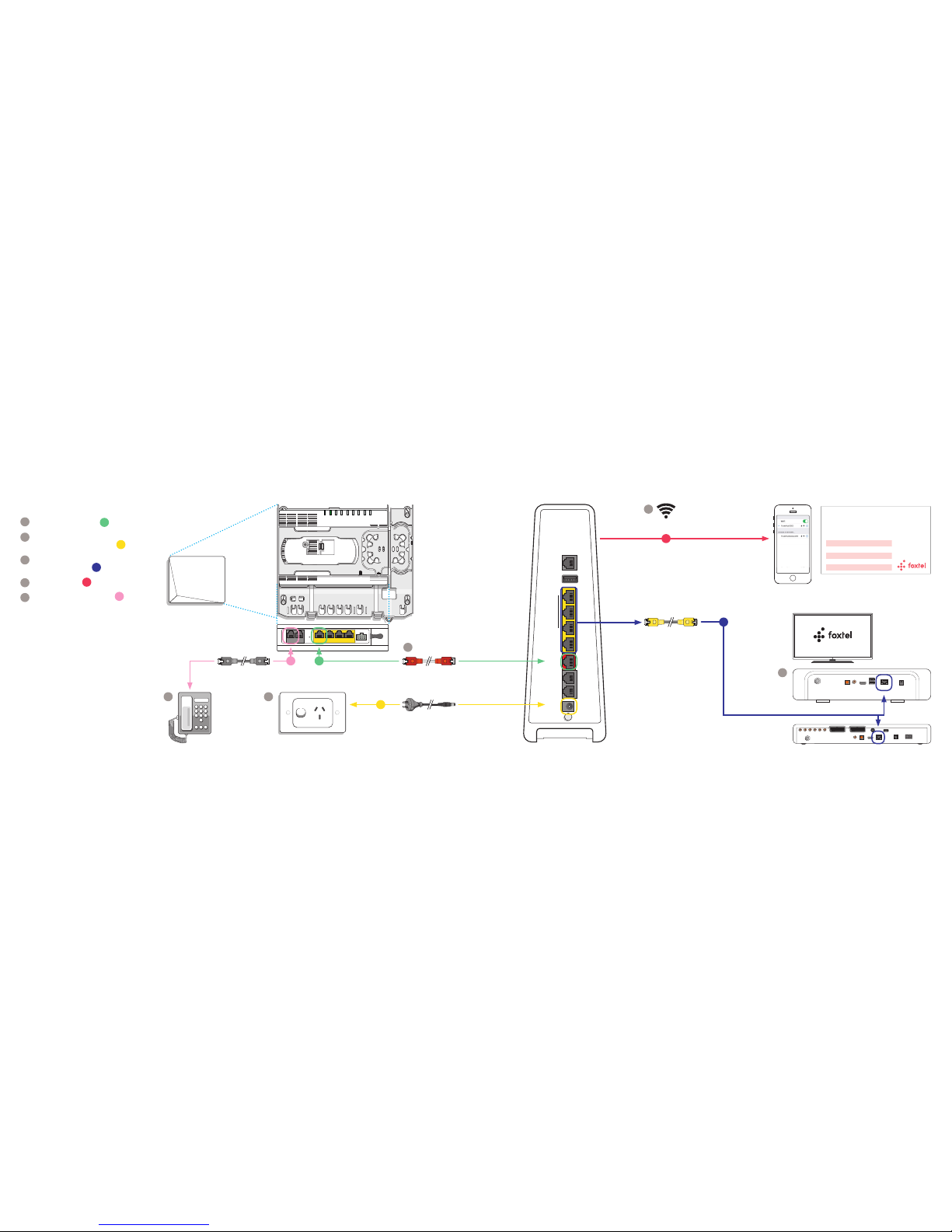
How everything plugs together
1
Connect your modem A
2
Plug in the Power Pack Cable
and press the power bu tton
B
3
Connect your iQ Box
via Ethernet or Wi Fi
C
4
Connect to WiFi
D
5
Connect your home phone
E
Once you have plugged eve rything in,
the modem will take up to 1 0 minutes to
connect – just wa it until the Internet LE D
is solid blue. You shouldn’t need to do
anything – your m odem will automatica lly
configure its elf to connect to the inter net.
Now your Foxtel Broadband is ready.
Power Pack Cable
Power Point
Connection overview
WiFi connection
WiFi Keep Me Card
Yellow Tipped
Ethernet Cable
iQ2
iQ3
WiFi Modem
nbn™ Fibre
Connection Box
Existing Telephone
Handset
Red Tipped
Ethernet Cable
Grey Telephone
Handset Cable
Page 4
Cable Input
Digital Audio Out
Optical HDMI Ethernet
12V DC
5A max
USB
5V DC 500mA
Coaxial
1 2 1 2 3 4
RESET POWER
Gigabit
WAN
Power
DC
10/100
USB
DSL
Phone 1
Phone 2
B
A
EthernetOpticalCoaxial HDMI
Telephone Line 240V - 50Hz
USBS - Video O ut
Composite
Video Out
Audio Out
(Fixed Audio)
VCR Scart
(Fixed Audio)
TV Scart
Digital Audio
Out (Fixed Audio)
Cable Input
HD Component
Video Out
Y L RPb Pr
C
2
1
3
6 7
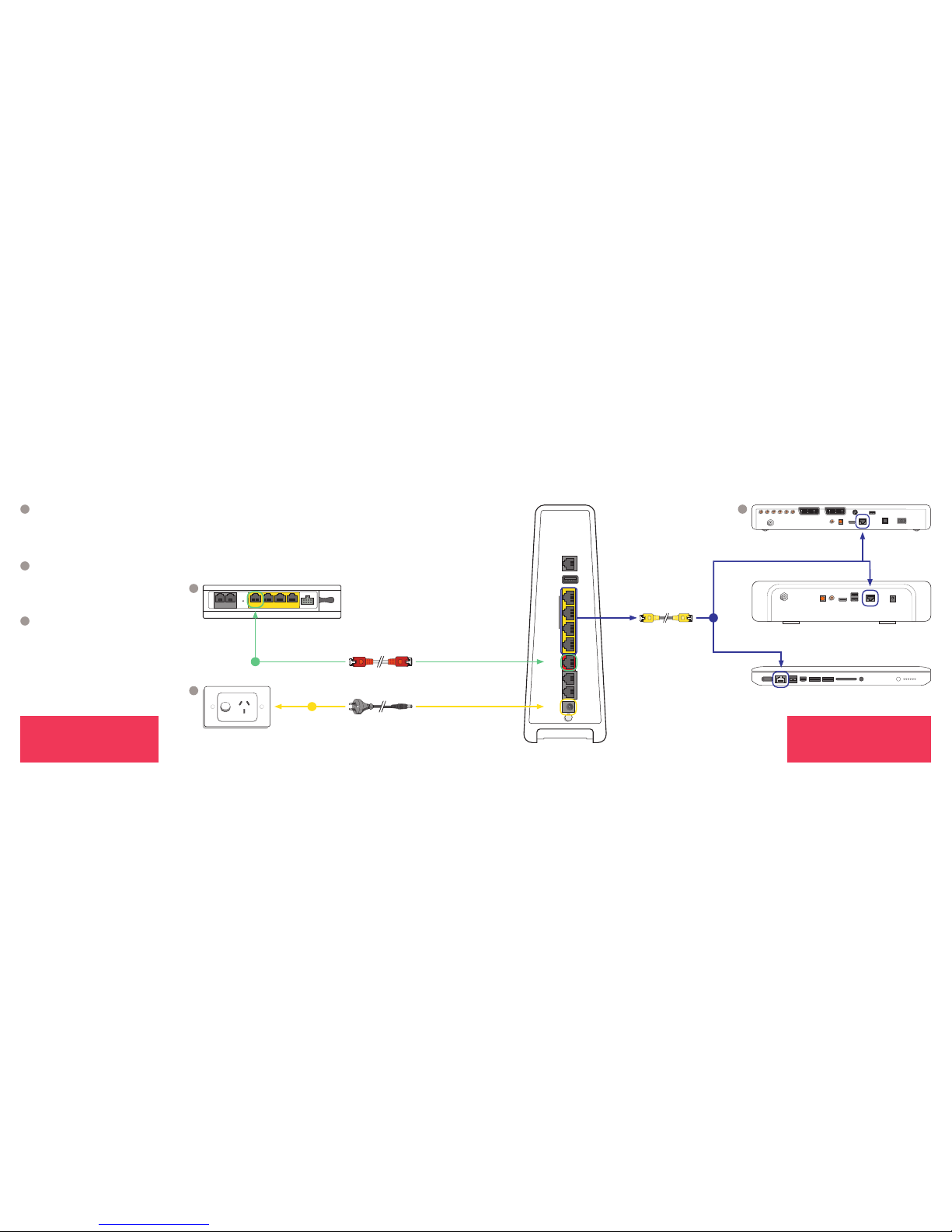
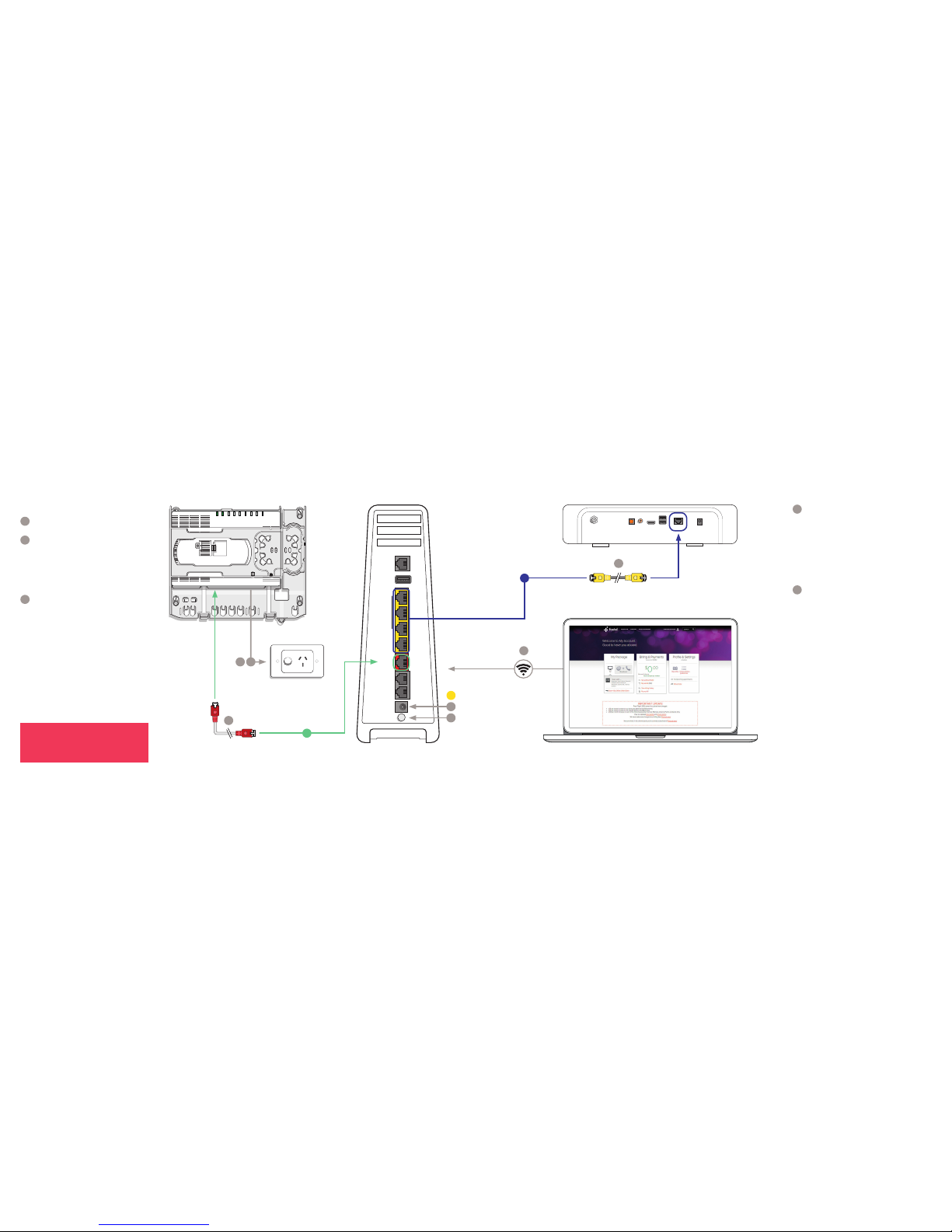
1
Connect to your nbn™
Fibre Connection Box
Connect the Red Tipped Ethe rnet Cable from
the UNI-D port on the nbn™ Fibre Co nnection
Box to the WAN po rt on the modem .
2
Connect the power
Connect the Power Pack Cable fro m the
DC port on the mod em to a Power Point.
Turn on the power switch on the m odem
and the Power Point.
3
Connect devices via Ethernet
The modem has four Ethe rnet ports to
connect your favourite devices, like your
iQ box, laptop or game con sole. Just connect
the Yellow Tipped Ethernet Cable from a n
Ethernet Port on the modem to the Et hernet
Port on your device.
How to connect
Top tip
Use the fourt h port, lab elled ‘Gigabit ’, to connect
to your favourite d evice, such as your F oxtel Set
Top Box, for best stre aming experien ce.
Top tip
You’ll find the correc t port ID num ber in your
Foxtel Broadband activation text or email.
Have this ready b efore you begin.
Power Point
Power Pack Cable
Red Tipped Ethe rnet Cable
Yellow Tipped
Ethernet Cable
WiFi Modem
nbn™ Fibre
Connection Box
Laptop
iQ3
iQ2
Page 5
2.4GHz WiFi Name (SSID) best for range
5.0GHz WiFi Name (SSID) best for streaming
WiFi password
Use this info to connect your WiFi.
Keep it secret. Keep it safe.
D
Gigabit
WAN
Reset
Power
DC
10/100
USB
DSL
1 2 1 2 3 4
RESET POWER
E
8 9
4
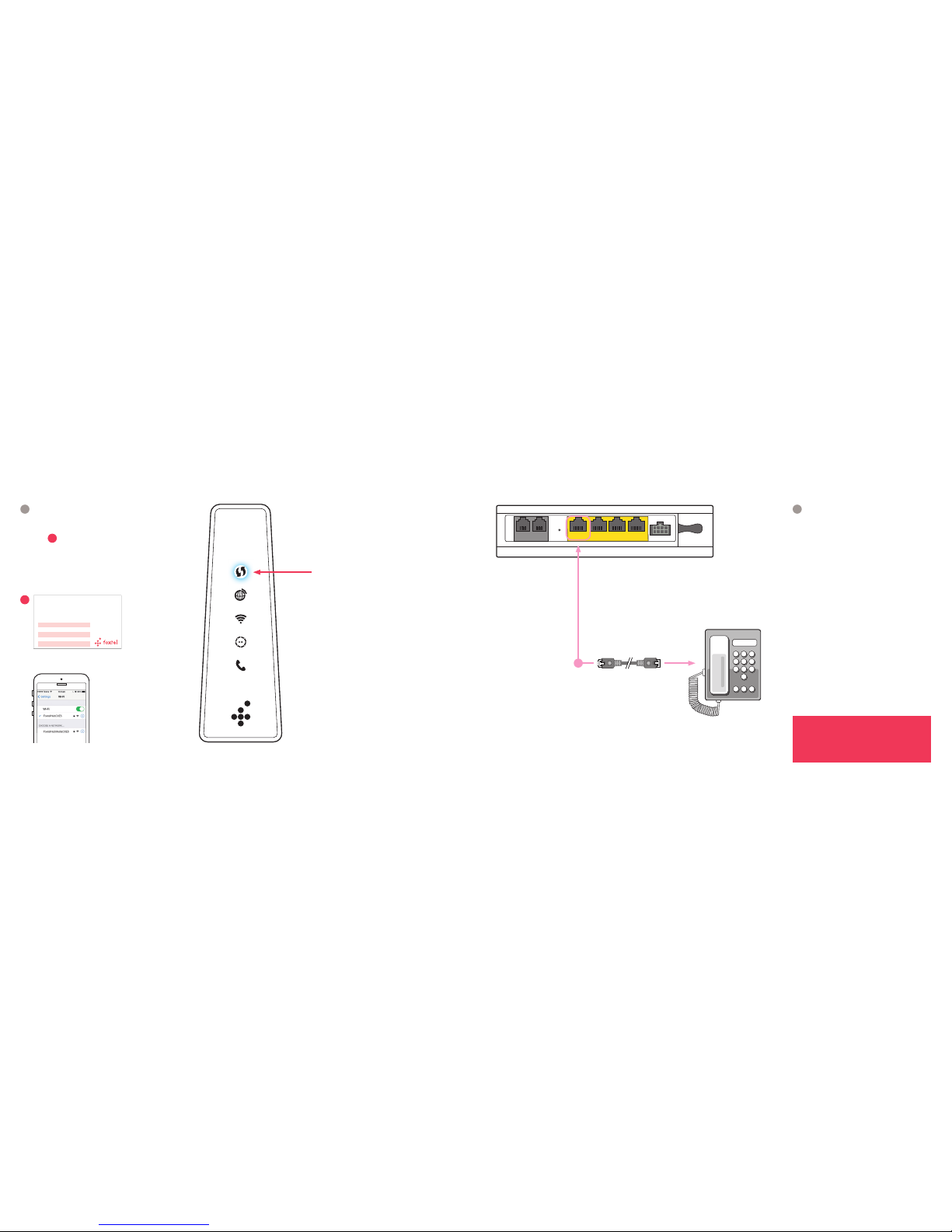
Connect via WiFi
Go to WiFi Sett ings on your device and sele ct
the modem network (found on your WiFi Kee p
Me Card
D
or the back of your modem).
If you stream a lot of vi deo through that device,
we suggest you selec t the FoxtelHub Media
network, if available. Then enter your WiFi
password shown on you r WiFi Keep Me Card.
If your device suppor ts WPS connec tion,
you can simply press t he Connect (WPS )
button on your mod em until it flashes b lue
and then activate WPS mode on your chosen
device (as shown in your dev ice’s manual).
The modem and your device should
automatically d iscover and connect to
each other.
WiFi Keep Me Card
WiFi-enabled device
5
Connect your home phone
Use the Grey Telephone Handset Cable to
connect your Existing Telephone Handset
to the UNI -V port on the nbn™ F ibre
Connection Box.
Existing Telephone
Handset
WiFi Modem
Top tip
You’ll find the correc t port ID num ber in your
Foxtel Home Ph one activa tion text or emai l.
Have this ready b efore you begin.
How to connect
Grey Telephone
Handset Cable
nbn™ Fibre
Connection Box
Connect (WPS)
Internet
WiFi
iQ Connected
Voice
Page 6
1110
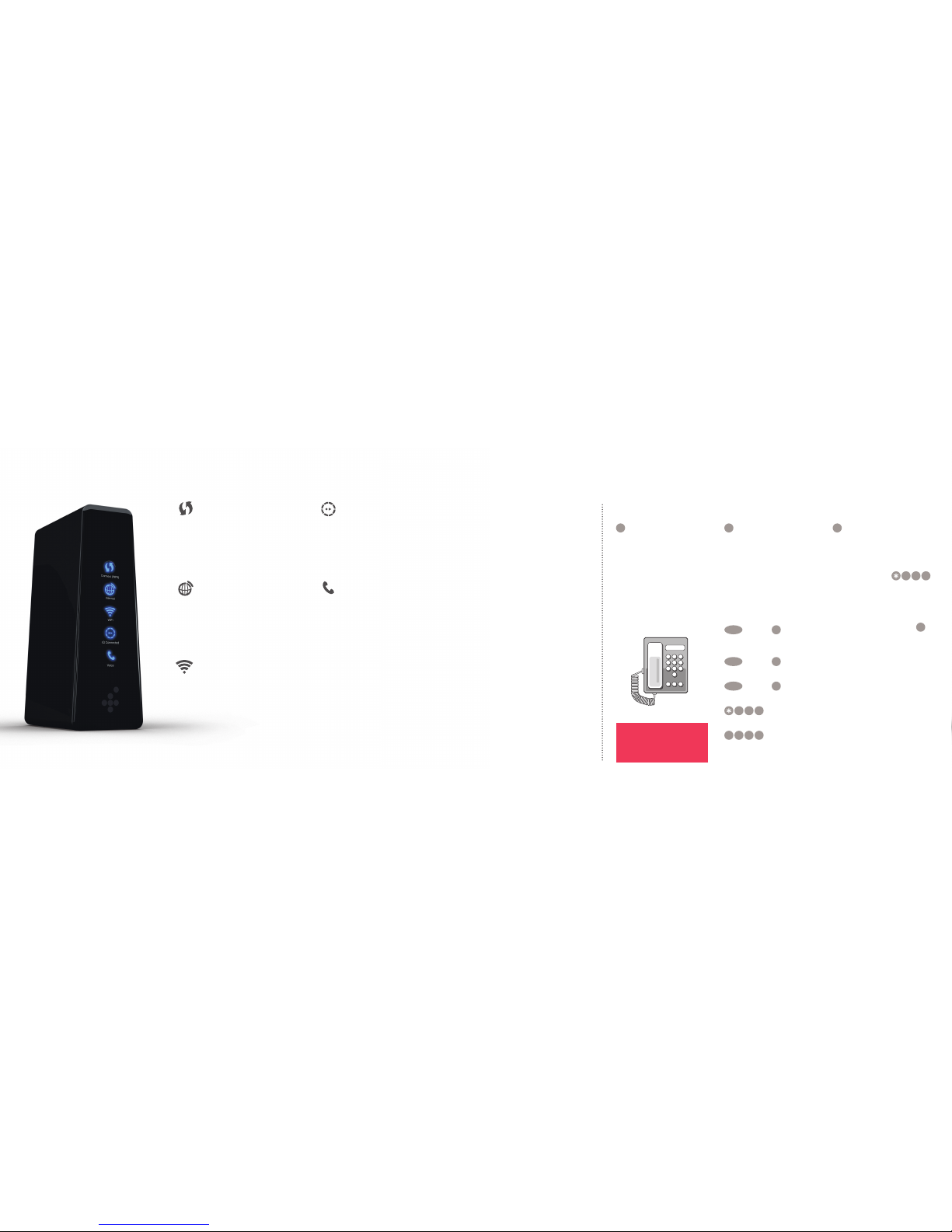
What do the lights mean?
Connect WPS
Use for quick WiFi setu p of WPSsupported dev ices. It will be solid
blue when it’s ready to p ress. When
pressed, the ligh t will flash blue for
two minutes to indic ate it’s ready to
connect a device.
Voice
This LED is not applic able to
customers on an nbn™ FTTP
connection and w ill remain off.
Internet
The light will be solid blue when your
modem is connected to the internet,
flashing red when establishing a
connection and solid red when not
connected to the internet.
WiFi
Solid blue means it ’s available to
connect to WiFi-enabled devices.
Flashing red means your modem
is powering up. No light means that
the WiFi function has been disabled
on the modem.
Stay connected with Foxtel Home Phone
How to use common home phone features
1
Voicemail
The first ti me you call your
voicemail service, voice prompts
will guide you through recording
your personal greeting and
setting up a PIN . You’ll need to
enter your PIN when ca lling from
another landline or mobile phone.
Accessing your voicemail
Call 125 101
2
Call Waiting
When you’re on a call, Call
Waiting will let you kn ow
someone is tr ying to ring you,
by playing two bee ps every
five seconds. You can put yo ur
current call on hold an d take
the second call, t hen switch
between callers.
To answer an incoming call
or switch between c alls
RECALL
Dial to ne
2
To hang up one call
and return to the othe r
RECALL
Dial to ne
1
To reject an incoming call
RECALL
Dial to ne
0
Turn ON Call Waiting
4 3 # Announcement
Turn OFF Call Waiting
# 4 3 #
Announcement
3
Call Return
Missed a call? Ca ll Return lets
you retrieve the number of your
last unanswered call.
For 35c per call plu s standard call
charges, simply dia l
1 0 #
and the last unanswered caller’s
phone number wit hin the last 48
hours will be announced
(excludes blocked numbers).
You’ll then be given the option
to return the call by press ing
1
.
iQ Connected
When solid blue, your i Q Set Top
Box is connected to your m odem.
No light means it’s not connected.
Top tip
Your default PIN is th e last six
digits of your phone number.
If you have a home phone ser vice
with your Foxtel Broadband
bundle, then the following
features are included; unlimited
standard local calls, voicemail
and call waiting.
Like to get more from your home
phone? Stay in touch with fa mily
and friends wit h our National &
Mobile Calls Pack and/or
international Calling Pack.
To find out more, including ca ll
charges and handy ex tras, go to
foxtel.com.au/homephonehelp
WiFi Modem
Page 7
POWER
OPTICAL
ALARM
UNI–D1
UNI–D2
UNI–D3
UNI–D4
UNI–V1/2
UPDATE
UNI–D1UNI–V1 UNI–V2 UNI–D2 UNI–D3 UNI–D4
Gigabit
WAN
Power
DC
10/100
USB
DSL
Phone 1
Phone 2
2
1
Cable Input
Digital Audio Out
Optical HDMI Ethernet
12V DC
5A max
USB
5V DC 500mA
Coaxial
1
1
1
5.0GHz WiFi Network N ame
2.4GHz WiFi Networ k Name
WiFi Password
C
B
A
12 13
Power Point
Internet stopped working?
1
Check all your cables are plugged
in securely.
2
Press the power but ton on the back
of the modem to turn it of f. Wait 60
seconds then press t he power button
again, to turn it back on . It may take up
to 10 minutes to reboot , but your
modem will automatically configure
itself to connec t to the Internet.
3
Turn off the power point, then unplug
the power cable from t he nbn™ Fibre
Connection Box, wait 30 seconds,
then plug it back in . Give it two minutes
to reconnect to the inte rnet. If you have
an optional Bat tery Backup or PSU
installed, you w ill have to unplug the
power cable connec ted to the nbn™
Fibre Connect ion Box instead, to cut
the back-up power coming from the
Battery Backup/PSU.
Troubleshooting
Yellow Tipped
Ethernet Cable
iQ3
My Account
Top tip
Remember: neve r press the RESE T button
on the nbn™ Fibre Conn ection Box.
WiFi Modem
3
Lost or forgotten
your WiFi password?
If you’ve lost your WiFi Keep Me Card, you
can find your set ting details on the bac k of
the modem. If you’ve changed your WiFi
details, you can set t hem back to the default
– just press the reset b utton underneath y our
modem for 10 seconds.
4
Foxtel Broadband
running slow?
If you’ve got a plan wit h data limits, fir st visit
My Account at foxtel .com.au/myaccount
to check you haven’t used all yo ur included
data. There are no excess dat a usage
charges, however broadband speeds are
slowed to 256kbps if your in cluded monthly
data allowance is exceede d.
Got an unlimited pla n, or still have data
allowance on your capped plan? Then try
moving your device cl oser to the modem
to see if there’s an improvement .
Obstacles, walls and interference from
devices can affec t WiFi speeds, so t ry to
avoid these where you can.
WiFi
4
Red Tipped
Ethernet Cable
3
Page 8

14
Minions (PG)
© 2015 Univer sal Studi os.
All Rights Reserved.
Need assistance?
If your broadband won’t connect, check
you’ve received a text or emai l confirming
your service has bee n activated. Please
also check that you are pl ugged into the
first Telephone Wall Soc ket to receive your
Foxtel Broadband service.
You’re not alone on your Foxtel Broadband
journey. If you come across any bumps in
the road, we’re here to help.
Check out our FAQs at
foxtel.com.au/broadbandhelp
If you’re really stuck, we’ve go t people
on standby to give you a ha nd. Just call
131 999 and quote ‘Broadband’.
From time to time we need to u pdate
the network to keep t he service running
smoothly for you. To find ou t if any
outages are scheduled in your area,
visit foxtel.com.au/support/outage
Page 9

FOX093 1 FTTP 05/ 17
 Loading...