

Page 1

PC Adapter Quickstart Guide
MANU0281-03 - Rev. A - November, 1999
Software Version 5.0.2/4.1.6
This q uickstart installation guide is for system administrators with experience installing network adapters. You should also be familiar with ATM Forum LAN Emulation
or Classical IP and your operating system.
For complete procedures, refer to the on-line manual included on the ForeRunner® software CD. See page 16 for informationabout viewing the on-linemanual.
If Your FORE PC Adapter isn’t Described in This Quickstart
If your adapter isn’t one of those shown on page 2, you must get the latest drivers and
documentation from FORE’s Technical Assistance Center (TAC). This can be done
TACTics Online, as described on page 17.
(If you are using a UNIX adapter, please refer to the UNIX Adapter Quickstart Guide
included with the adapter.)
For the Latest ForeThought Driver Software
Due to frequent enhancements and upgrades to the ForeThought drivers, the software
CD included with your adapter may not have the latest versions. To make sure you
have the latest drivers and documentation, visit FORE’s Technical Assistance Center
(TAC)website, as described on page 17.
PC Adapter Quickstart Guide
Page 2
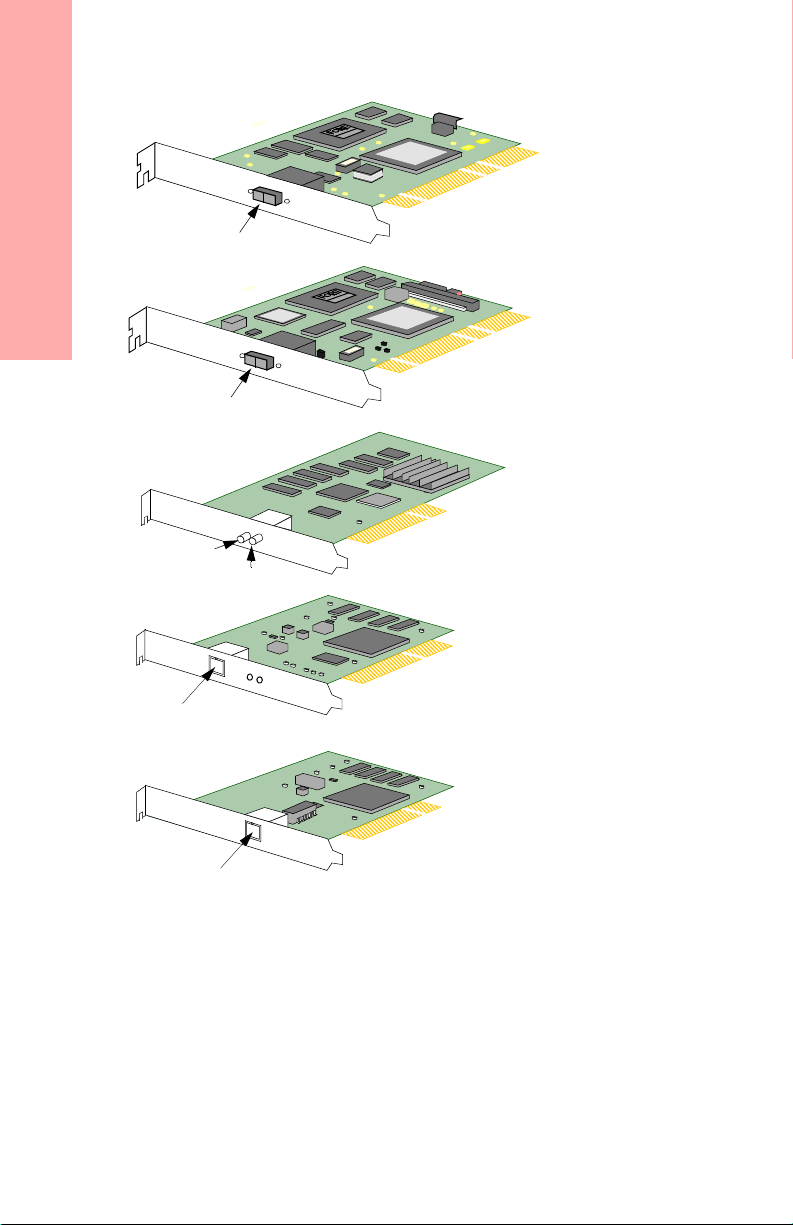
The ForeRunner PC Adapters
HE 155
5.8” x 3.3”
Requires 33MHz
PCI Bus Master Slot
UTP or SC connectors
The ForeRunner PC Adapters
SC Connector
(available with UTP also)
Available with
HE 622
5.8” x 3.3”
Available with
5.8” x 3.3”
Requires
Available with
SC Connector
(available with UTP also)
Transmit
ST Connector
Receive
Requires 33/66 MHz
PCI Bus Master Slot
SC or UTP connectors
PCA-200EPC
PCI Bus Master Slot
SC, ST, or UTP connectors
LE 155 Mbps
5.8” x 3.3”
PCI Bus Master Slot
SC or UTP connectors
UTP Connector
(available with SC also)
Requires
Available with
LE 25 Mbps
4.7” x 3.3”
PCI Bus Master Slot
UTP connectors only
UTP Connector
Requires
Available with
Page 2 PC Adapter Quickstart Guide
Page 3

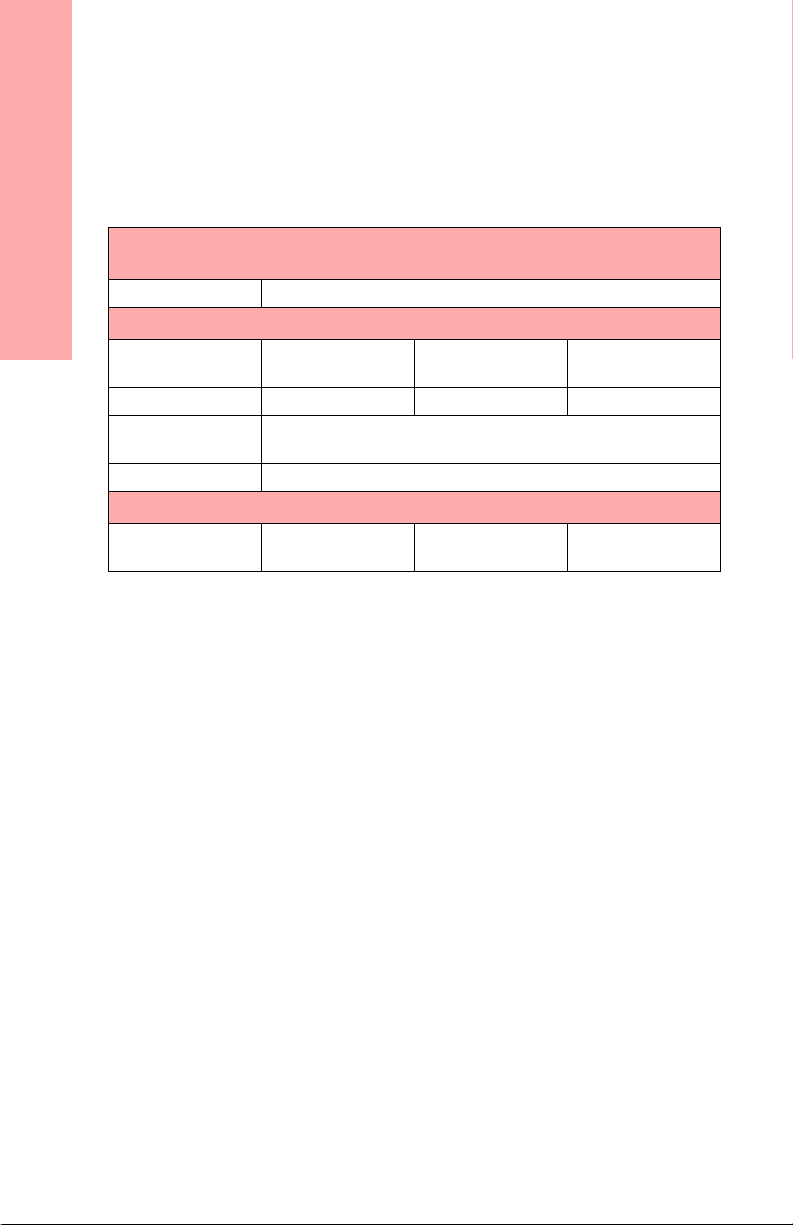
Supported Operating Systems
Adapter Supported Operating System
ForeRunnerHE WindowsNT 4.0 (Intel or DEC Alpha-based PCs)
PCA-200EPC Windows 95 and 98
WindowsNT 4.0 (Intel or DEC Alpha-based PCs)
NetWare3.12 and 4.11
ForeRunnerLE Windows9 5 and 98
Windows2 000 (“thin” driver only)
WindowsNT 4.0 (Intel or DEC Alpha-based PCs)
NetWare3.12 and 4.11
Additional Requirements
• CD-ROM drive (if necessary, diskettes can be made from the CD. Refer to page 18 of
this quickstart guide.)
• 1M free disk space in installation directory
• 16M RAM minimum (64M minimum for ForeRunnerHE adapter)
FORE WinSock Service Provider Requirements
The FORE Service Provider can be used by application d evelopers working with the
WinSock 2 SDK version 2.0 on Windows NT or Windows 95 and 98. For more information on using the Service Provider, please refer to Appendix D of the ForeRunner
200E/LE/HE ATM Adapters for the PC User’s Manual.Thismanualisavailableonthe
ForeRunner 5.0.2 software CD and can be viewed using an Adobe AcrobatReader, also
includedontheCD.Seepage16ofthisquickstartguide.
Supported Operating Systems
PC Adapter Quickstart Guide Page 3
Page 4
Before You Begin
Review the latest ForeThought for the PC release notes. A printed copy is included with
the adapter, and also is available as a PDF file from the FORE web site at:
http://www.fore.com/support/manuals/index.htm
Before You Begin
After reviewing the releaseno tes, gather the required network information:
If using LAN Emulation and all LANE services and default settings, you only
need to know information for your higher level protocols (i.e. IP address):
IP Address
If not using the default settings, you need to know additional information:
LECS ATM
PREFIX ESI/MAC SEL
Address
LES ATM Address
PREFIX ESI/MAC SEL
UNI Version (3.0 or
3.1)
ELAN Names
If using Classical IP, you will need the ATM address of the ARP server:
ATM Address of
PREFIX ESI/MAC SEL
ARP Server
Page 4 PC Adapter Quickstart Guide
Page 5
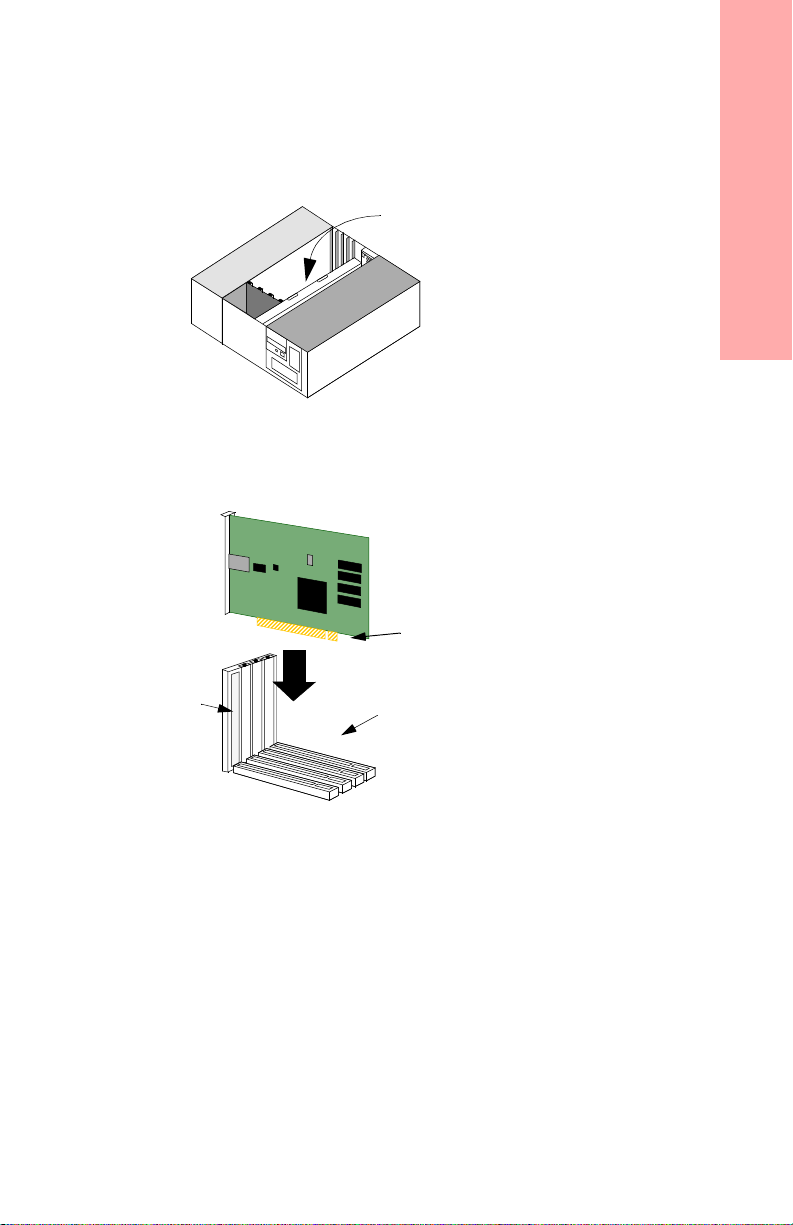
Hardware Installation
1 - Shut down the PC and make sure the
power is off.
2-OpenthePCcardbay.
Consult your PC’s documentation for platform-specific procedures.
Card Bay with PCI Bus
Master Slots
3 - Carefully insert and secure adapter in a
PCI bus master slot.
Ground yourself to a metal part of the PC chassis using an
anti-static grounding wrist strap to prevent static damage.
HE, LE, or PCA
adapter
Note that the edge connector
of an HE adapter will overhang
the end of a 32-bit PCI slot.
This is normal.
Hardware Installation
Cover Plate
Removed
PCI Expansion Slots
in Card Bay
4 - Connect the adapter to the ATM switch.
Connect the adapter to a port that matches the media type used by the
adapter. When making a connection with SC or ST fiber optic connectors, make sure the polarity of the connectors is correct (i.e., not
reversed on one end). If you have successfully connected the adapter
to the switch, the LEDs on the adapter will go out.
5-ProceedtoinstalltheForeThought drivers.
Use the operating system-specific procedures given below to install the
drivers.
• See page 6 for NetWare instructions.
• See page 8 for Windows NT instructions.
• See page 9 for Windows 95 instructions.
• See page 10 for Windows 98 instructions.
• See page 13 for Windows 2000 instructions.
PC Adapter Quickstart Guide Page 5
Page 6
Installation on NetWare
Installation on NetWare
Use the following procedure to install the adapter drivers for NetWare (if you need to
create installation diskettes, rather than installing from the ForeRunner software CD,
refertopage18ofthisquickstartguide):
1. Be sure you have the latest versions of the following NLMs. For the latest versions,
go to http://support.novell.com/search/patlst.htm.
NetWare 3.12 NetWare 4.1 and 4.11
CLIB
A3112.NLM
AFTER311.NLM
NWSNUT.NLM
NBI31x.NLM
ETHERTSM.NLM
TOKENTSM.NLM
MSM31x.NLM
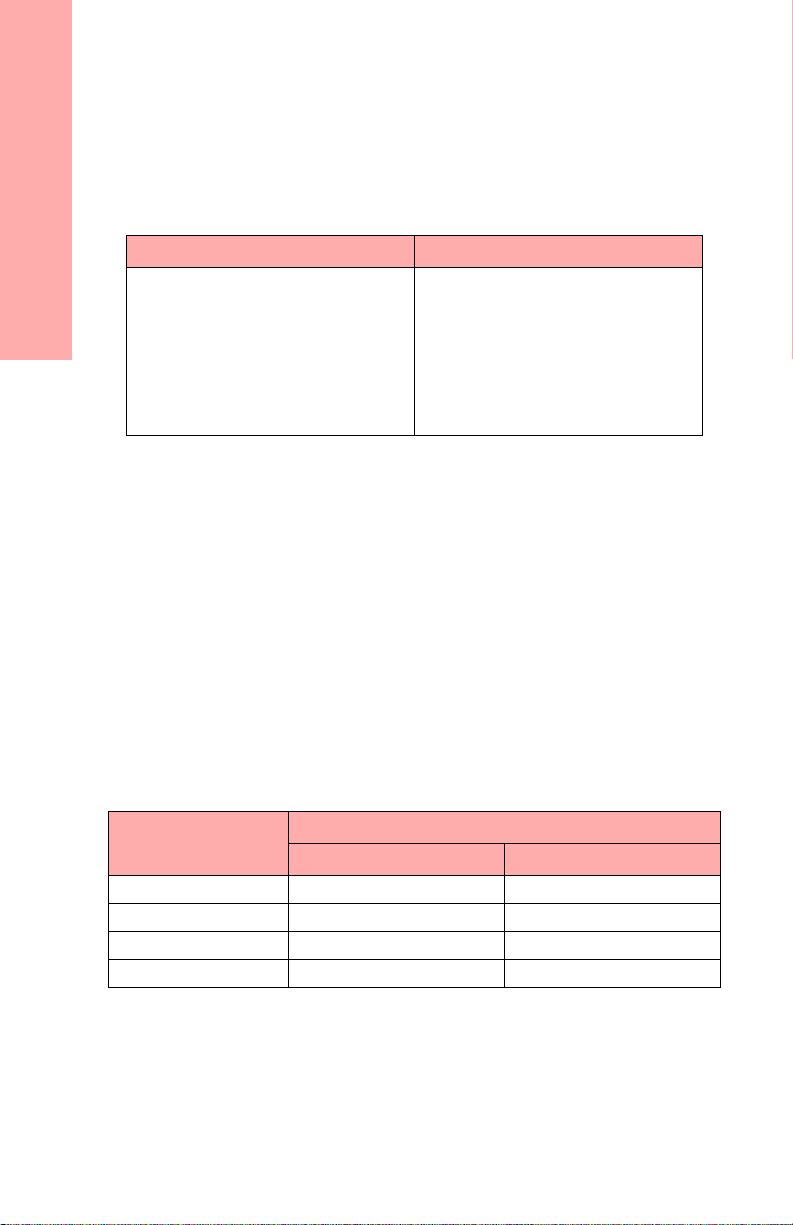
2. You must include the following NetWare start-up parameter in the server’s STARTUP.NCF file:
set minimum packet receive buffers=<n>
In this parameter, the variable <n> has the value 200 for your first FORE
adapter card, and must include an additional 100 for each additional physical
adapter you have installed in the machine. For example, if you have installed
one adapter, set the parameter to 200. If you have twoadapters, set the parameter to 300.
3. You must include the following NetWare start-up parameter in the server’s STARTUP.NCF file:
set maximum physical receive packet size=<value>
You must assign a value depending on the largest MTU size used by the
ELANstowhichthehostisconnected.
CLIB
NWSNUT.NLM
ETHERTSM.NLM
TOKENTSM.NLM
MSM.NLM
NBI.NLM
If Your MTU Size is...
1514 1584 2048
4542 4608 6144
9232 9312 10240
18188 18240 18432
4. At the NetWare server prompt, use the SEARCH ADD command to indicate a path
to the \NETWARE directory of the CD. For example, SEARCH ADD G:\NET-
WARE,whereG: indicates your CD-ROM drive.
5. Insert the ForeThought software CD in the CD-ROM drive.
Page 6 PC Adapter Quickstart Guide
Set the Maximum Physical Receive Packet Size to...
PCA and ESA Adapters LE Adapters
Page 7
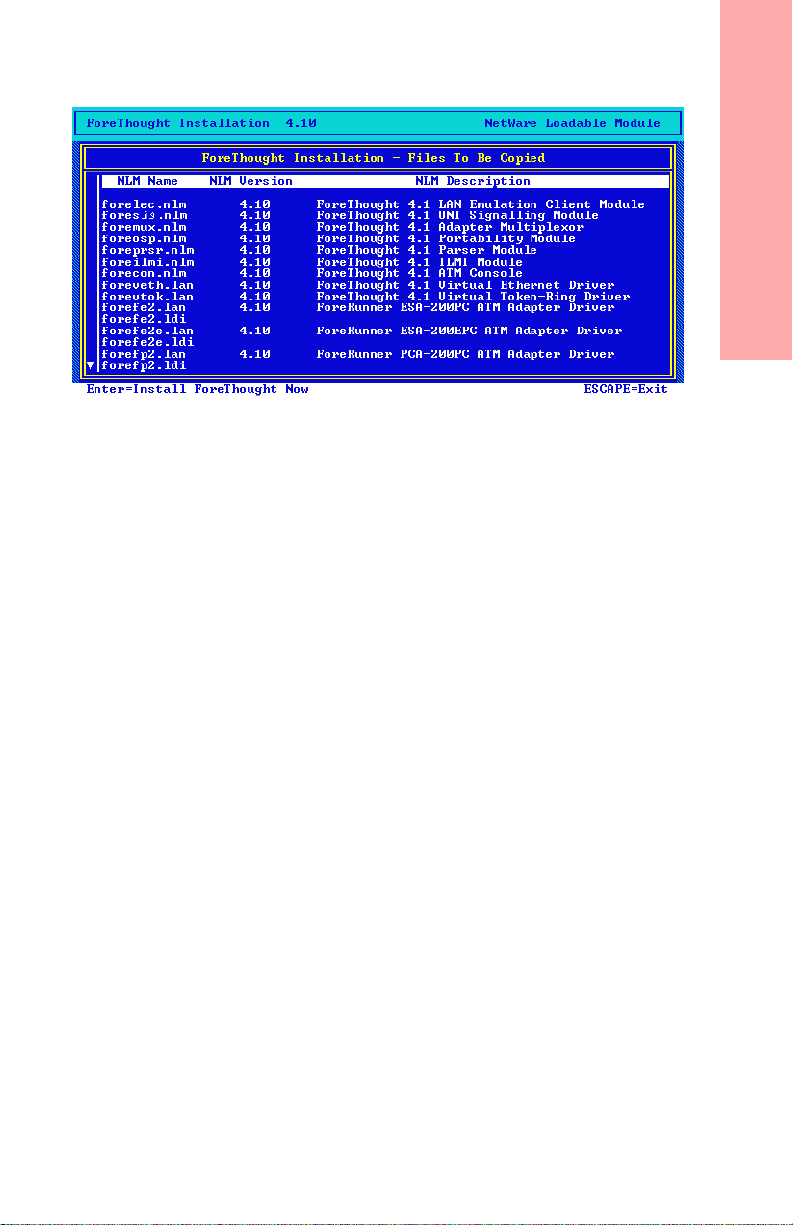
6. At the server prompt, issue the LOAD FOREINST command and run the installa-
tion utility. The ForeThought installation panel appears.
7. Press <ENTER> to proceed through the installation.
8. Edit your AUTOEXEC.NCF and STARTUP.NCF files as necessary for your site.
a. Load the appropriate ATM driver f or your adapter:
--FOREFPLE for a ForeRunnerLE adapter
--FOREFP2E for a PCA-200EPC adapter
b. LoadtheappropriateELANdriver,FOREVETHforanEthernetELAN,orFOR-
EVTOK for a Token Ring ELAN.
c. Bind required protocols to the FOREVETH or FOREVTOK driver.
9. Restart the server to implement the changes.
For complete installation procedures and a description of the LOAD commands for the
FORE drivers, referto the manual included on the ForeRunner software CD.
Installation on NetWare
PC Adapter Quickstart Guide Page 7
Page 8
Installation on Windows NT 4.0
Use the following procedure to install the adapter drivers for Windows NT 4.0 (if you
need to create installation diskettes, rather than installing from the ForeRunner software
CD, refer to page 18 of this quickstart guide):
1. In the Network Control Panel, select Add Adapter.
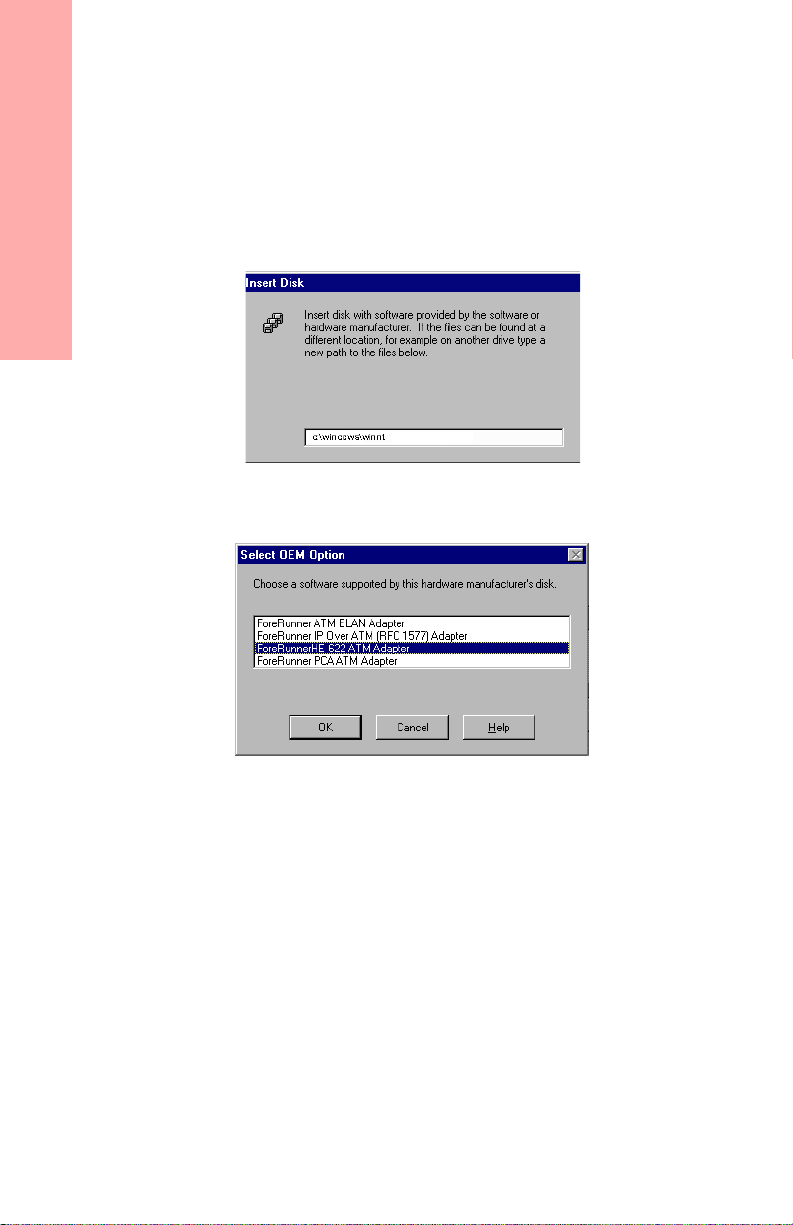
2. Select <Other> Requires disk from manufacturer in the Add Adapter dialog box.
3. When the Insert Disk dialog box appears, change the path to specify d:\win-
dows\winnt, where D: indicates yourCD-ROM drive.
Installation on Windows NT 4.0
4. Insert the ForeRunner softwareCDintheCD-ROMdriveandchoosetheOKbutton.
The Select O EM Option dialog box appears.
5. Select the ForeRunner ATM Adapter driver that matches your adapter
(PCA-200EPC, ForeRunnerHE,orForeRunnerLE) and proceed through the
installation.
6. When you return to the Network Control Panel, select Add Adapter andproceed to
install one or more ForeRunner ATMELANand/orIPOverATMdriversfromthe
\WINNT directory of the CD.
- Install an ELAN driver for each ELANto which you want to connect.
- Install an IP Over ATM driver for each Classical IP (RFC 1577) LIS to which
you want to connect .
7. Bind protocols and assign IP addresses to the ELAN and IP Over ATM drivers as
necessary for your site.
8. Reboot as prompted to loadthe drivers.
The installation is complete. For complete installation procedures, refer to the manual
included on the ForeRunner softwareCD.
Page 8 PC Adapter Quickstart Guide
Page 9
Installation on Windows 95
Use the following procedure to install the adapter drivers for Windows 95 (if you need
to create installation diskettes, rather than installing from the ForeRunner software CD,
refertopage18ofthisquickstartguide):
1. Install the ForeRunner ATM adapter driver via auto-discovery when you boot up
your machine after installing the adapter.
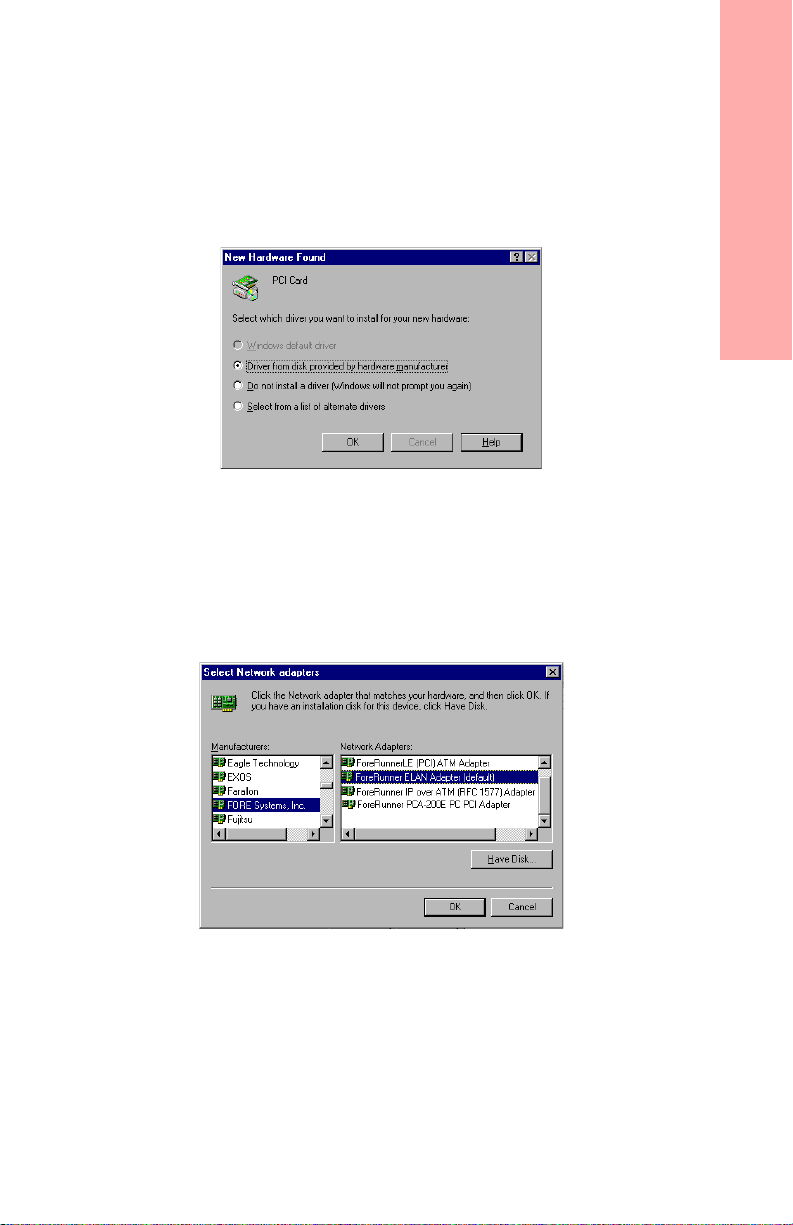
a. When prompted w ith the New Hardware Found dialog box, insertthe
ForeRunner software CD in the CD-ROM drive and click OK.
b. Change the path to specify d:\windows\win95,whered: indicates your
CD-ROM drive and click the OK button. A warning appears, reminding you to
install the ELAN or IP Over ATM adapter driver.
c. Click OK to proceed. The driver files are copied from the CD.
2. IfyoursiteisusingLANEmulation- In the Network ControlPanel, select Add.Proceed to install a FORE Systems ForeRunner ELAN adapter for each ELAN to which
you want to c onnect. This adapter will appear under FORE Systems in the Select
Networkadaptersdialogbox.
Installation on Windows 95
3. If your site is using Classical IP (RFC 1577) - In the Network Control Panel, select
Add. Proceed to install a FORE Systems IP Over ATM driver for each Classical IP
(RFC 1577) LIS to which you want to connect. For each IP Over ATM driver, you
must specify the ATM address of the ARP server.
4. Bind protocols and assign IP addresses to the ELAN and IP Over ATM drivers as
necessaryforyoursite.
5. Reboot as prompted to load the drivers.
The installation is complete. For complete installation procedures, refer to the manual
included in the \windows\docs directory of the ForeRunner software CD.
PC Adapter Quickstart Guide Page 9
Page 10
Installation on Windows 98
Using the “Thin” Driver Included with Windows98
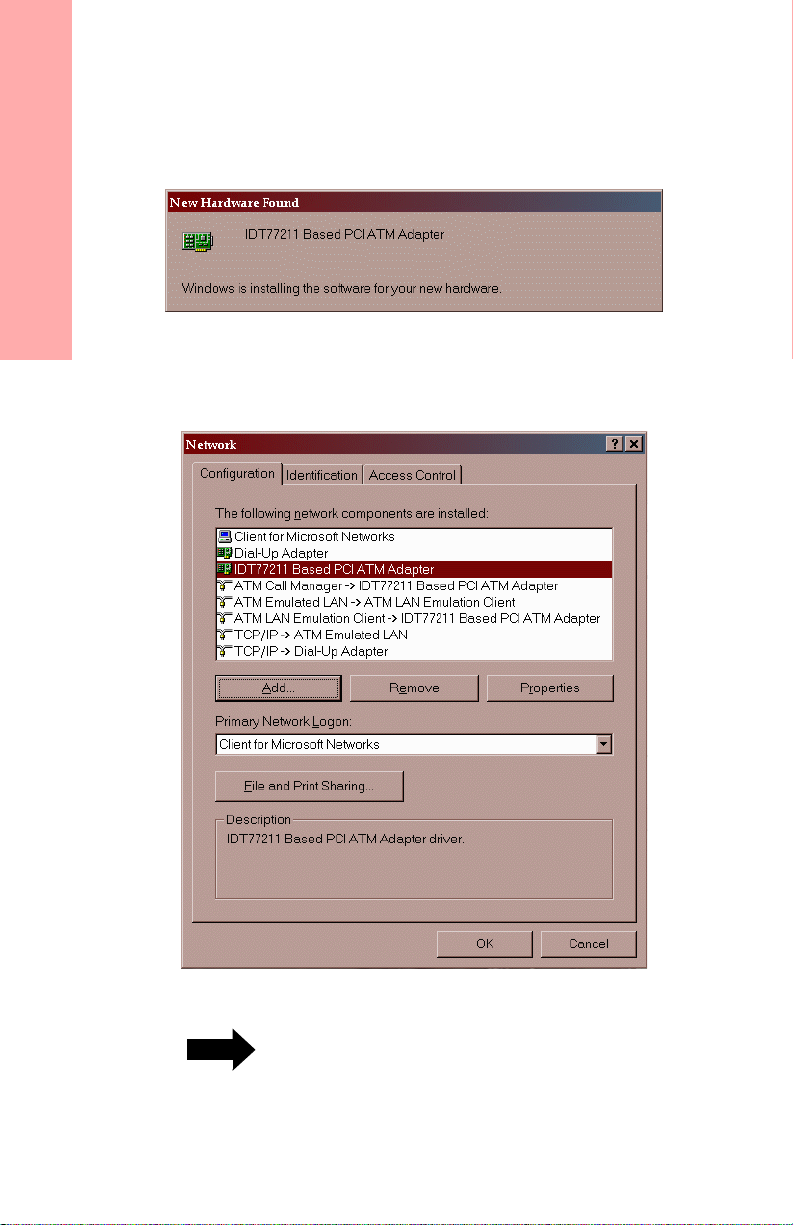
After installing the adapter, when you start up the computer Windows 98 recognizes
the adapter and displays the New Hardware Found dialog box.
Installation on Windows 98
Windows 98 then automatically installs the IDT77211 driver for the adapter, binding it
withtheMicrosoftELANclient.Youcanthenassignparametersasnecessaryforyour
site and reboot as prompted. This completes the installation.
If you are using MPOA or want to use
NOTE
Page 10 PC Adapter Quickstart Guide
additional features of the FORE “fat” drivers,
use the procedures on page 11 and page 12.
Page 11
Using the FORE “Fat” Driver for LAN Emulation/MPOA
If you want to use the FORE “fat” drivers provided on the ForeRunner software CD or
available from FORE Systems’ TAC, you must replace the driver that was automatically installed by Windows 98 (as described on page 10). Use the following procedure:
6. In the Network ControlPanel, delete the IDT77211Based PCI ATMAdapter driver
and all its bindings that were automatically configured by Windows 98.
7. In Windows Explorer or DOS, delete the c:\windows\inf\netfore.inff ile.
8. Reboot the computer. Windows 98 auto-discovers the adapter as it starts up and
prompts you for ForeThought installation files. Insert the ForeRunner software CD
and specify the \win95 directory of the CD.
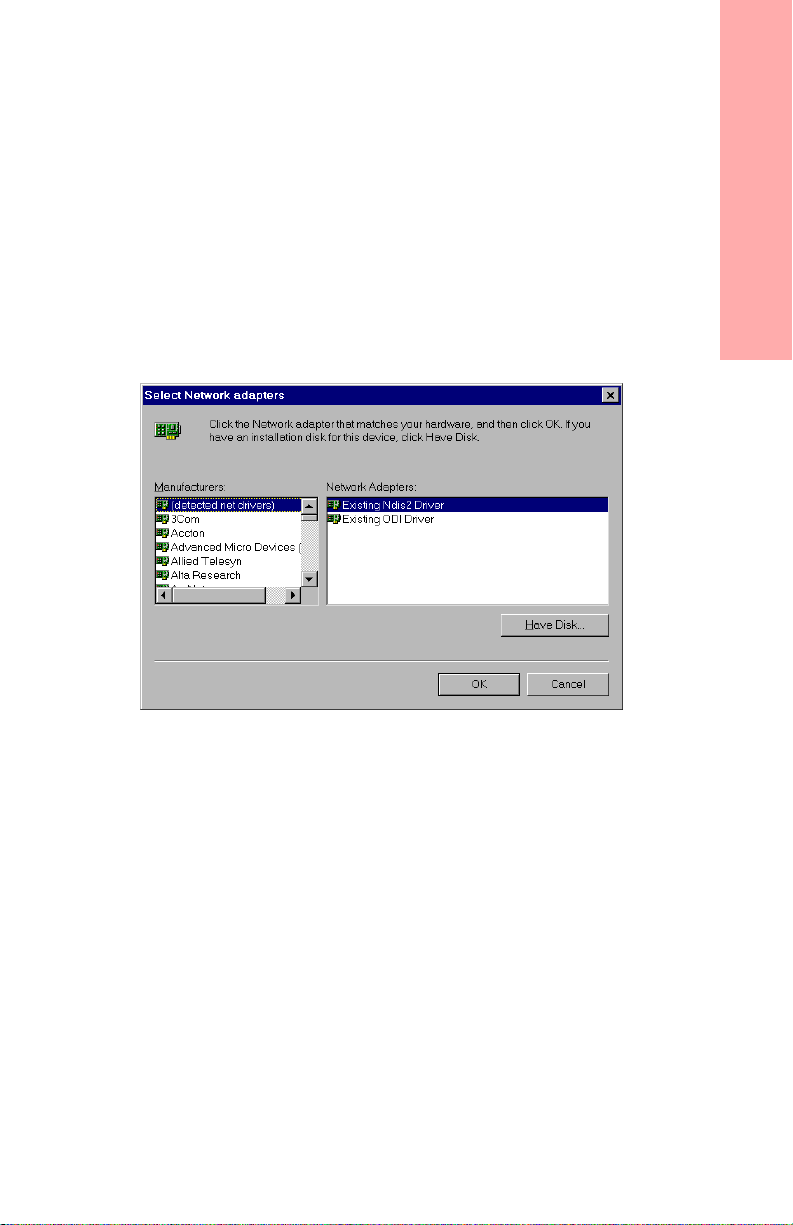
9. Proceed to install the FORE ATM drivers from the Network Control Panel. When
the Select Network adapters dialog box appears, select Have Disk... and specify the
\win95 directory of the CD.
Installation on Windows 98
10.When you return to the Network Control Panel, select AddAdapter and proceed to
install one or more ForeRunner ATM ELAN drivers from the \win95 directory of
the CD. You can also install ForeRunner IP Over ATM drivers as desired.
11. Bind protocols and assign IP addresses to the ELAN drivers as necessary for your
site.
12.Reboot as promptedto load the drivers.
The installation is complete. For complete installation procedures, refer to the manual
included in the \windows\docs directory of the ForeRunner software CD.
PC Adapter Quickstart Guide Page 11
Page 12
Using the FORE “Fat” Driver for Classical IP
If you want to use the FORE “fat” drivers provided on the ForeRunner software CD or
available from FORE Systems’ TAC, you must replace the driver that was automatically installed by Windows 98 (as described on page 10). Use the following procedure:
1. In the Network ControlPanel, delete the IDT77211Based PCI ATMAdapter driver
and all its bindings that were automatically configured by Windows 98.
2. InWindowsExplorerorDOS,deletethec:\windows\inf\netfore.inf file.
Installation on Windows 98
3. Reboot the computer. Windows 98 auto-discovers the adapter as it starts up and
prompts you for ForeThought installation files. Insert the ForeRunner software CD
and specify the \win95 directoryof the CD.
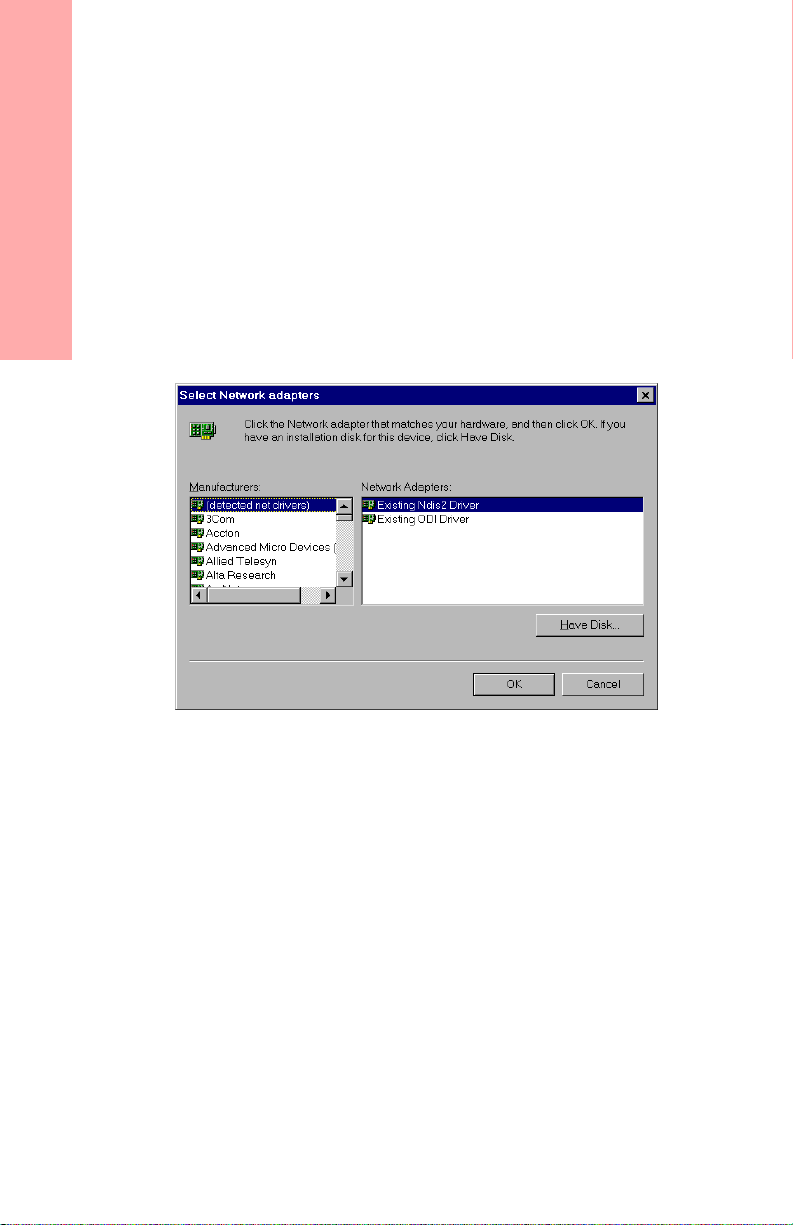
4. Proceed to install the FORE ATM drivers from the Network Control Panel. When
the Select Network adapters dialog box appears, select Have Disk... and specify the
\win95 directory of the CD.
5. When you returnto the Network Control Panel,select Add Adapter and proceed to
install one or more ForeRunnerIP Over ATM drivers from the \win95 directoryof
the CD. You must specify the ATM address of the ARP server.
You can also install ForeRunner ATM ELAN drivers as desired.
6. BindprotocolsandassignIPaddressestotheELANdriversasnecessaryforyour
site.
7. Reboot as prompted to loadthe drivers.
The installation is complete. For complete installation procedures, refer to the manual
included in the \windows\docs directory of the ForeRunnersoftware CD.
Page 12 PC Adapter Quickstart Guide
Page 13
Installation on Windows 2000
When using a ForeRunnerHE or PCA adapter with Windo ws 2000, when you start the
PC after installing the adapter, Windows 2000 discovers the hardware and automatically installs the FORE driver for the adapter.
Use the following procedure to install the ForeRunnerLE adapter driver for Windows
2000beta3:
1. After installing the adapter, when you start up the computer Windows 2000 displays the New Hardware Found dialog box.This indicates that the Windows 2000’s
Plug-and-Play feature has detectedthe ForerunnerLE adapter that you installed.
Windows 2000 then also displays the Welcome to the New Hardware Wizard
dialog box.
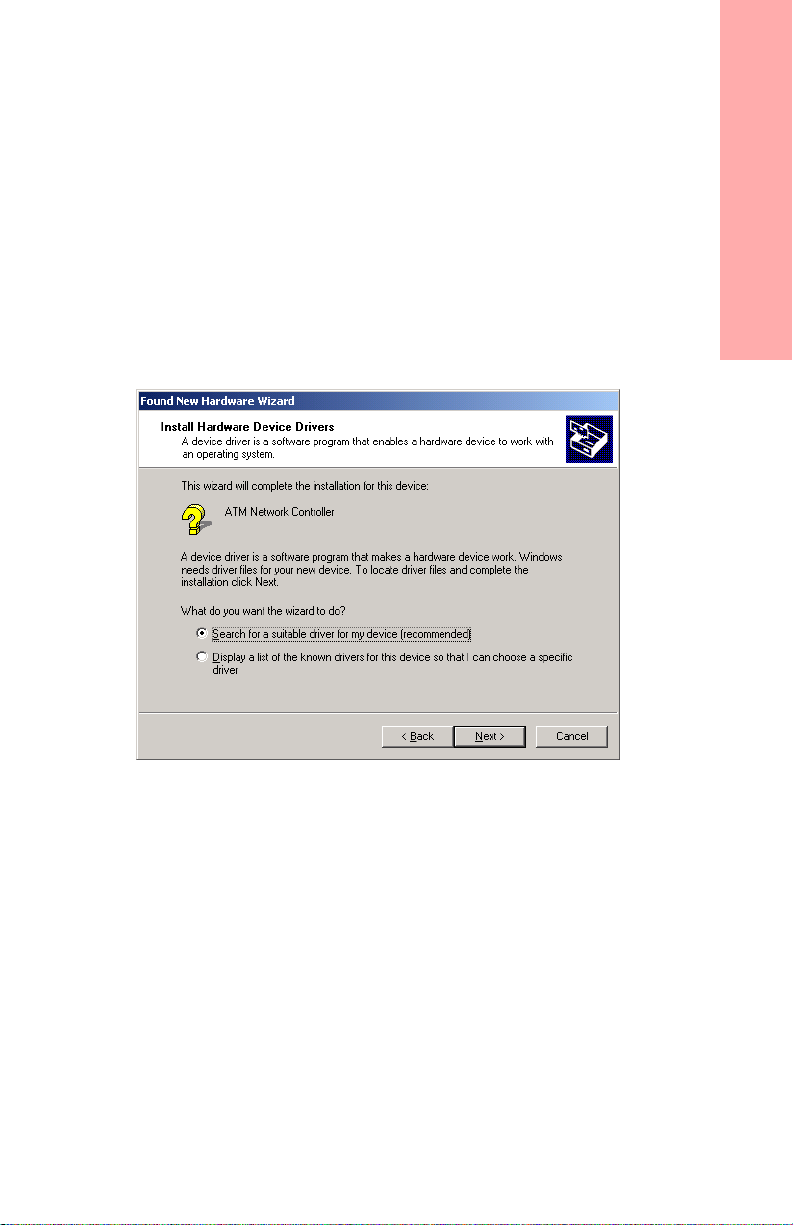
2. Click Next to proceed. Windows 2000 displays the Found New Hardware WizardInstall Hardware Device Drivers dialog box.
Installation on Windows 2000
PC Adapter Quickstart Guide Page 13
Page 14
Installation on Windows 2000
3. Select the Search for a suitable driver for my device (recommended) option (the
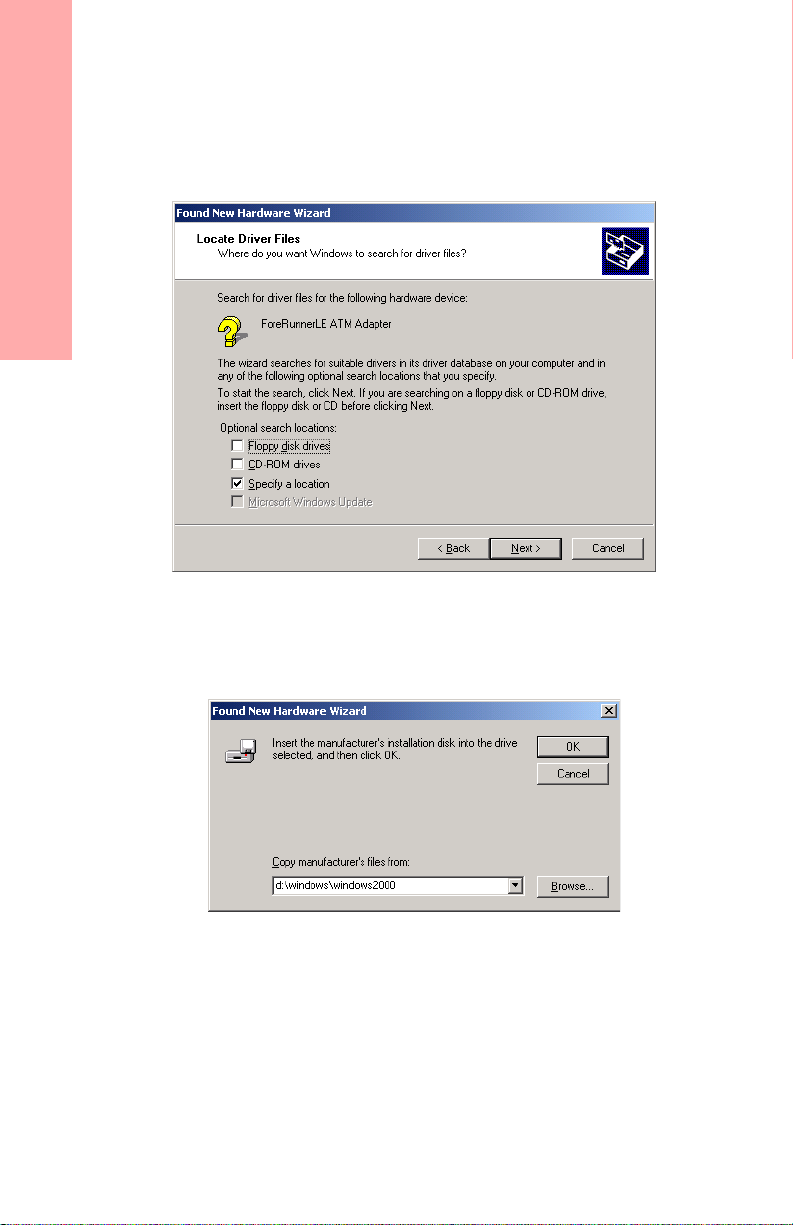
default option) and click Next to proceed. The Found New Hardware Wizard Locate Driver Files dialog box appears.
4. Insert the ForeRunner ATM Adapter Software CD in your CD drive.
5. Select Specify a loc ation and de-select the other options.
6. Click Nextto proceed. A dialog box appears in which you can specify the location
of the driver files.
Page 14 PC Adapter Quickstart Guide
Page 15
7. Specify the path d:\windows\Windows2000 (where d:\ indicates your CD
drive) and click OK.
The Found New Hardware Wizard - Driver Files Search Results dialog box
appears.
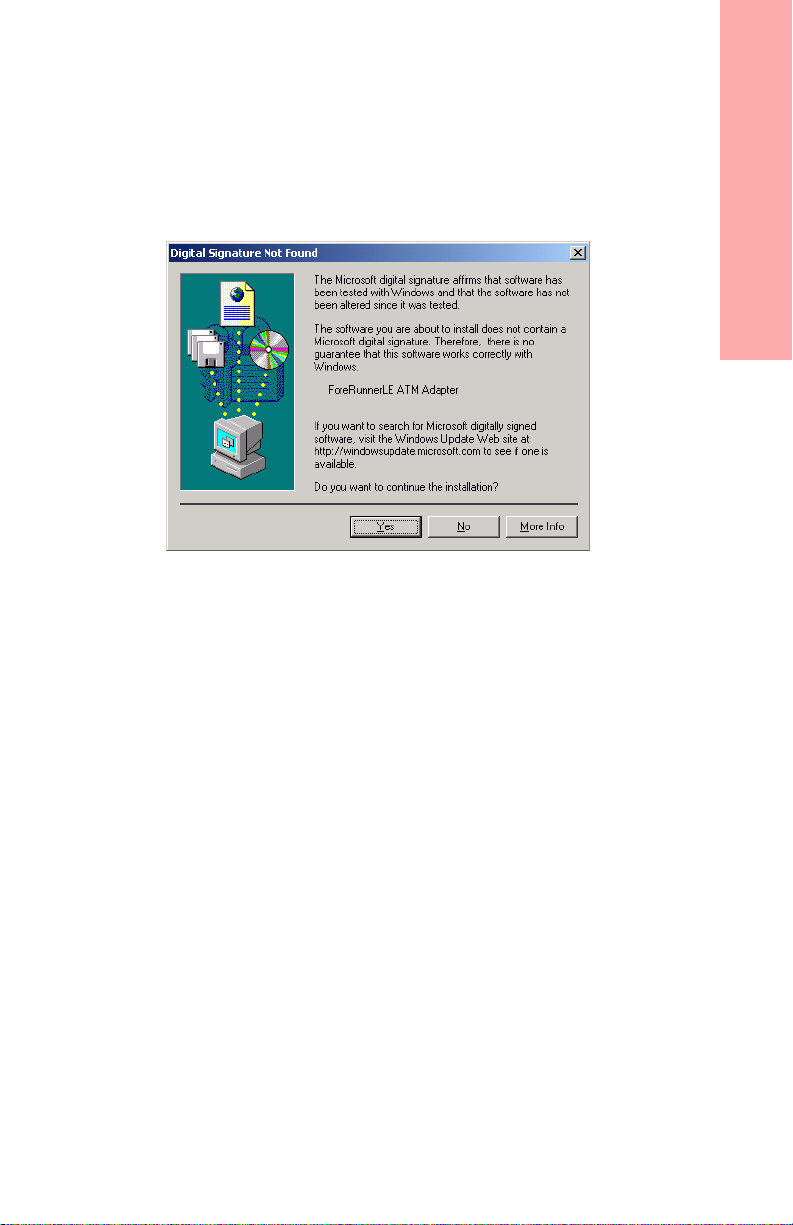
8. Click Nextto proceed. Because the ForeRunnerLE adapter did not undergo the for-
malMicrosoft Certificatio n and receiveadigital signature,the Digital SignatureNot
Found dialog box appears.
9. Click Yes to proceed.
The install wizard copies the driver to the correct location and installs a default
ATM ELAN connection. The system will display a final dialog box to show
installation is finished.
10.Click Finish to complete the installatio n process. You do not need to reboot your
PC.
To edit the properties ofthe driver, access the Network and Dialup Connections control
panel. Two icons appear, an ATM Connection icon and an ATM ELAN Connection
icon.
• If your site is using Classical IP,double-click the ATM Connection iconand edit the
TCP/IP properties and specify an ARP server address.
• If your site is using LAN Emulation, double-click the ATM ELAN Connection icon
to edit the TCP/IPproperties and, if not using the default ELAN,change the ELAN
name.
Installation on Windows 2000
PC Adapter Quickstart Guide Page 15
Page 16

For Additional Information
Viewing the On-line Manual
The on-line manual contains:
• Complete installationprocedures
•AnATM,LANE,MPOA,andClassicalIPoverview
• Troubleshooting information
For Additional Information
• Additional information for using your FORE adapter.
You can read and print the on-line manual using the AcrobatReader included with the
manual on the ForeRunner software CD.
If you already have the Acrobat Reader installed on your machine, you can simply run
Acrobat and open 502pc.pdf (the PC User Manual) in the \windows\docs or
\netware\docs directory of the software CD.
If you do not have Acrobat Reader installed on your machine, run the Acrobat installer
to load Reader on your machine. Run the ar302.exe file in the \acrobat\win directory
of the CD. The Acrobat Reader is also available, with complete documentation, from:
http://www.adobe.com/
Note for DEC Alpha Windows NT Users
Adobe Acrobat is unavailable on Windows NT running on DEC Alpha. To access the
User Manual, print the PostScript version in the \docs directory or view it using a
PostScript viewer.
Note for NetWare Users
AcrobatisunavailableinNetWare.YoumustrunAcrobatfromaWindows-based
machine.
The FORE Web Site
For the latest technical documentation and release notes for the FO RE adapters and
other FORE products, visit the FORE technical manual web site at:
http://www.fore.com/support/manuals/index.htm
The web site provides manuals in Portable Document Format (PDF). They can be
viewed or printed using Adobe Acrobat Version 3.0 R eaders.
Page 16 PC Adapter Quickstart Guide
Page 17

Contacting Technical Support
In the U.S.A., customers can reach FORE Systems’ Technical Assistance Center (TAC)
using any one of the following methods:
1. Select the “Support” link fromFORE’s World Wide Web page:
http://www.fore.com/
2. Send questions, via e-mail, to:
3. Telephone questions to “support” at:
800-671-FORE (3673) or 724-742-6999
4. FAX questions to “support” at:
724-742-7900
Technical support for customers outside the United States should be handled through
the local distributor or via telephone at the following number:
+1 724-742-6999
No matter which method is used to reach the TAC, customers should be ready to provide the following:
• A support contract ID number
• The serial number of each product in question
• All relevant information describing the problem or question
Using TACTics Online
If you have an active ForeMan Support Agreement you can now submit, update, and
track your cases electronically via TACTics Online. The latest software updates are also
availabletodownloadviaTACTicsOnline.TACticsOnlineprovidesFORE’sCustomers and Channel Partners with real time support on the World Wide Web.
To submit cases or view details of your existing cases, as well as access the other features within TACtics Online, go to:
http://www.fore.com/
Select Services and Support and follow the link for TACtics Online. If you have registered for an account please enter the account name and password. If you need to obtain
an account select Create User Accountfrom the TACtics Online login page.
Once you are logged in select the feature that you would like to access.
Contacting Technical Support
PC Adapter Quickstart Guide Page 17
Page 18

Creating Installation Diskettes
Creating Installation Diskettes
For Windows NT, Windows 95, and Windows 98
Use the following procedure if you need to create installation diskettes for Windows
NT, 95, or 98, rather than installing directly from the ForeRunner CD.
When creating diskettes for Windows, note that you must create separate installation
diskettes for LE and 200E-series adapters.
1. In a DOS window, open the \windows\winnt or \windows\win95 directory in
the ForeRunner 5.0.2 software CD, depending on your operating system. (The
\win95 directory contains the driver files for use with Windows 98 also.)
2. Insert a blank floppy diskette in your disk drive.
3. From the DOS prompt, run the CRDISK.BAT file. This command has the following
syntax:
CRDISK [source-directory] <pca|le|he>
source-directory is the path of the directory containing the Windows NT
driver files. If you don’t specify a source-directory, the default is the current
working directory.
pca indicates that you wa nt to create a diskette with the files for a PCA
adapter.
le indicates that you want to create a diskette with the files for a
ForeRunnerLE adapter.
he indicatesthat youwantto create adiskettewith thefilesfor a ForeRunnerHE
adapter.
For example, if you want to create a diskette for a PCAadapter,and the current
directory is the directory containing the ForeThought 5.0.2 Windows NT files,
use the following command:
CRDISK PCA
The CRDISK.BAT file will copy all the required files to the diskette.
NOTE: Before you run CRDISK, you must set the Windows CPU variable to
match that of the system for w hich youa re creating the disk. For exampleSET
CPU=I386 for an Intel-based system or SET CPU=ALPHA for a DEC
Alpha-based system.
4. Proceed to install the drivers using the procedure in the manual or this quickstart
guide. However, instead of inserting the CD when indicated, insert the diskette in
yourdriveandacceptthedefaultpathofA:,whereA: indicates your floppy drive.
For Windows 2000
To create installation diskettes for Windows 2000, rather than installing directly from
the ForeRunner CD, simply copy the files in the \windows\windows2000 directory to a
floppy disk. Follow the procedure given in this quickstart. When the Found New
Hardware Wizard - Locate Driver Files dialog box appears, confirm that Floppy disk
drives is checked and click Next to proceed. Windows 2000 discovers and installs the
driver files.
Page 18 PC Adapter Quickstart Guide
Page 19

For NetWare
Use the following procedure if you need to create installation diskettes for NetWare,
rather than installing directly from the ForeRunner CD:
1. Insert a blank floppy diskette in your disk drive.
2. In WindowsExplorer,copy the files within the \netware\HSMdriver\pca directory to the root directory of the diskette: FORENP2E.LAN and FORENP2E.LDI.
3. Proceed to install the drivers using the procedure in the manual or this quickstart
guide. However, you do not need to mount the CD.
IF YOUR FLOPPY DRIVE IS NOT A:, you must specify a search path to indicate the floppy drive.
Creating Installation Diskettes
PC Adapter Quickstart Guide Page 19
Page 20

FORE Systems
FORE Systems
Copyright © 1998-1999 FORE Systems, Inc.
All rights reserved.
U.S Government Restricted Rights. If you are licensing the Software on behalf of the
U.S. Government (“Government”), the following provisions apply to you. If the Software is supplied to the Department of Defense (“DoD”), it is classified as “Commercial
Computer Software” under paragraph 252.227-7014 of the DoD Supplement to the
Federal Acquisition Regulations (“DFARS”) (or any successor regulations) and the
Government is acquiring only the license rights granted herein (the license rights customarily provided to non-Government users). If the Software is supplied to any unit or
agency of the Government other than DoD, i t is classified as “Restricted Computer
Software” and the G overnment’s rights in the Software are defined in paragraph
52.227-19 of the Federal Acquisition Regulations (“FAR”) (or any successor regulations) or, in the cases of NASA, in paragraph 18.52.227-86 of the N ASA Supplement to
theFAR(oranysuccessorregulations).
Trademark Notice
FORE Systems, ForeRunner, ForeView, ForeThought, P o werHub and AVA are registered
trademarks of FORE Sy stems, Inc. ForeRunnerLE, ForeRunnerHE, CellPath, EdgeRunner,
ZeroHopRouting,MSC,TNX,VoicePlus,StreamRunner,UniversalPort,ASN,
CellStarter, Intelligent Infrastructure, I2, NetPro, FramePlus,ASX,NetworkOfSteel,
and Networks Of Steel are trademarks of FORE Systems, Inc. All other brands or
product names are trademarks of their respective holders.
FORE Systems
1000 FORE Drive
Warrendale, PA 15086-7502
Phone: 724-742-4444
FAX: 724-742-7742
http://www.fore.com
Page 20 PC Adapter Quickstart Guide
 Loading...