

Page 1
Quick Reference Guide
2016 MKC
This Quick Reference Guide is not
intended to replace your vehicle Owner’s
Manual which contains more detailed
information concerning the features of
your vehicle, as well as important safety
warnings designed to help reduce the
risk of injury to you and your passengers.
Please read your entire Owner’s Manual
carefully as you begin learning about
your new vehicle and refer to the
appropriate chapters when questions
arise. All information contained in this
Quick Reference Guide was accurate at
the time of duplication. We reserve the
right to change features, operation and/
or functionality of any vehicle specication
at any time. Your Lincoln dealer is the best
source for the most current information. For
detailed operating and safety information,
please consult your Owner’s Manual.
Lincoln MKC
May 2015
First Printing
Quick Reference Guide
Litho in U.S.A.
GJ7J 19G217 AA
WARNING
Driving while distracted can result in loss of vehicle control, crash and
injury. We strongly recommend that you use extreme caution when
using any device that may take your focus o the road. Your primary
responsibility is the safe operation of your vehicle. We recommend
against the use of any hand-held device while driving and encourage
the use of voice-operated systems when possible. Make sure you are
aware of all applicable local laws that may aect the use of electronic
devices while driving.
United States
Lincoln Customer Relationship Center
1-800-521-4140
(TDD for the hearing impaired 1-800-232-5952)
owner.lincoln.com
Canada
Lincoln Customer Relationship Centre
1-800-387-9333
lincolncanada.com
Page 2
3
2016 MKC
2
Table of Contents
Instrument Panel ...................................... 4 – 5
SYNC 3 ...................................................... 6 – 9
Convenience .................................................. 10
Lincoln Experiences ...................................... 11
Liftgate ...........................................................12
Liftgate and Built-in Storage ........................13
Function ................................................. 14 – 15
Essential Features .................................. 16 – 17
Comfort ..........................................................18
Commonly Used Voice Commands ...............19
owner.lincoln.com lincolncanada.com
LEARN MORE ABOUT
YOUR NEW VEHICLE
Scan the country-appropriate QR code with your
smartphone (make sure you have a scanner app
installed) and you can access even more information
about your vehicle.
The Lincoln Pledge1
The Lincoln Pledge is the collective promise of everyone at the
Lincoln Motor Company—from our trusted service advisors to expert
technicians to the voice on the other end of the line should you call—
that we'll be there for you and your Lincoln wherever, whenever, if ever
you need us. Here are some of the ways the Lincoln Pledge comes to
life and makes the journey of owning a Lincoln a rewarding one.
Lincoln Warranties
Be assured that everything between the bumpers of your Lincoln is
covered for four years/50,000 miles
2
as well as a six-year/70,000-mile
Powertrain Warranty for life.
2
Roadside Assistance
If ever you need help on the road, the Lincoln Motor Company will be
there for you with 24-hour/seven-days-a-week assistance nationwide.
2
Lincoln Complimentary Maintenance
The luxury of a two-year/24,000-mile maintenance plan including oil
changes and tire rotations, scheduled to accommodate your busy life.
2
Complimentary Car Wash
As an added touch, after each service visit we’re happy to provide your
Lincoln back to you washed and ready for the road ahead.
3
Complimentary Loaner
Should your Lincoln require warranty service, we’ll be there for you with
a loaner vehicle.
3
Service Parts Warranty
We'll stand behind our service and you with a two-year, unlimited-mile
warranty on both parts and labor.
2
Dedicated Support
Lincoln Client Relationship Center
and Roadside Assistance
1-800-521-4140
TDD for the Hearing Impaired
1-800-232-5952
owner.lincoln.com
How-to and informational videos.
Warranty and maintenance information.
Make your payment or schedule service online.
Shop for accessories.
Join us in Conversation
1
Canadian Roadside coverage and benefits may differ from the United States coverage.
Canadian clients should refer to the Lincoln Roadside Assistance section of the Warranty
Guide, call 1-800-387-9333 or visit the website at LincolnCanada.com for more details.
2
See dealer for complete details. Lincoln reserves the right to change
program details at any time without obligations.
3
Availability depends on dealership participation.
Our caring agents are empowered
to handle your call and concerns
from beginning to end.
MyLincoln Mobile
Page 3
*if equipped *if equipped
5
2016 MKC
4
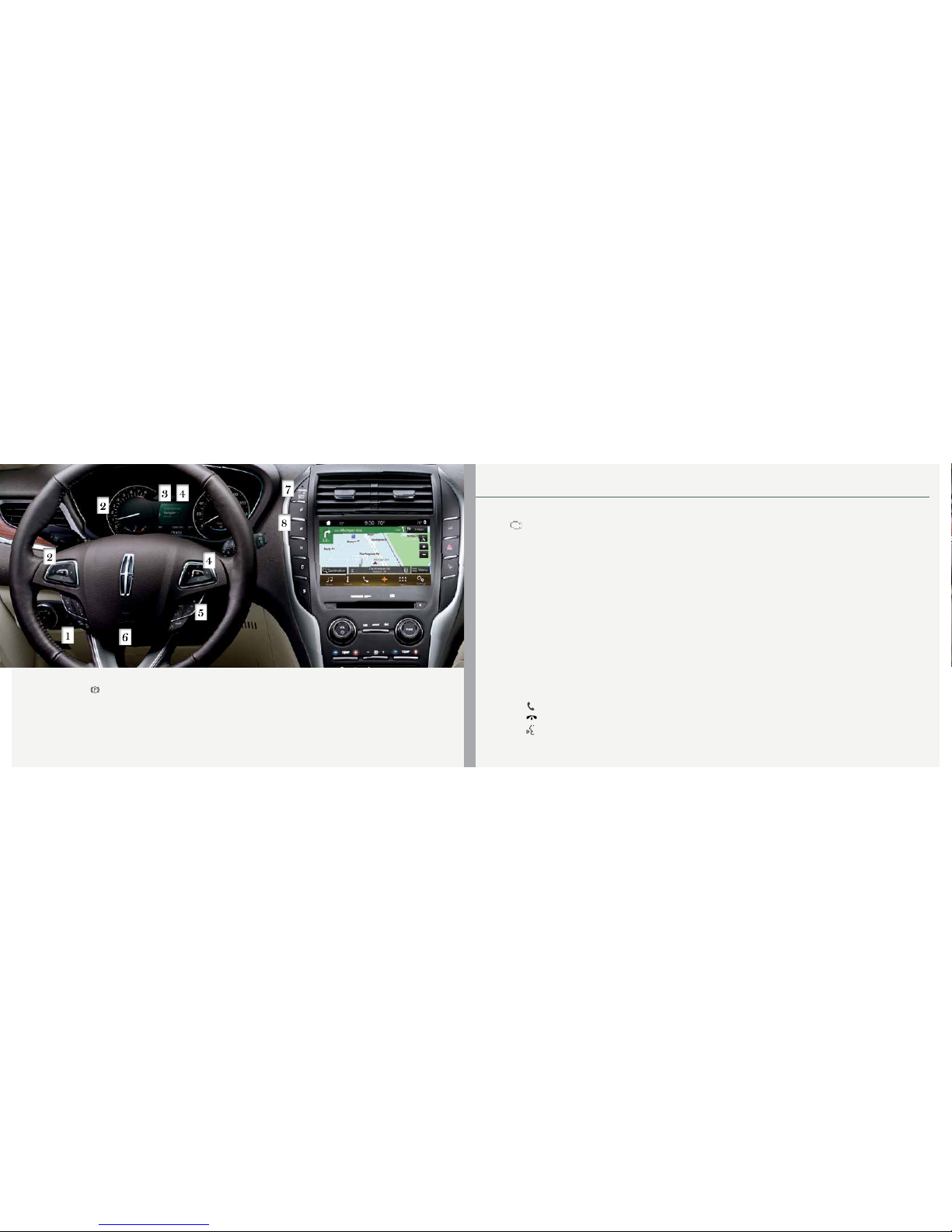
3 Service Engine Soon Light
Lights briefly when you switch on the
ignition. If it remains on or blinks after you start
the engine, the On-Board Diagnostics (OBD-II)
system has detected a problem. Drive in a
moderate fashion (avoid heavy acceleration
and deceleration) and contact your authorized
dealer as soon as possible.
4 Right Vehicle Information Display
Displays information about Entertainment,
Climate, Phone and Navigation*. Use the right,
5-way controls located on your steering wheel
to scroll through, highlight and make minor
adjustments within a selected menu. Refer to
your SYNC Supplement for more information.
5 Steering Wheel Controls
Audio
Press VOL + or – to increase or decrease
volume levels. Press |⊳ or ⊲| to access the next
or previous radio station preset, CD track or
MP3 selection.
Voice
Press to answer call.
Press
to exit phone mode or end a call.
Press
to access voice recognition.
6 Power Tilt/Telescoping Steering Column*
The 4-way rocker control allows you to adjust
the steering wheel to your desired position.
7 Push Button Start
Allows you to start your vehicle by pressing
the START STOP button while fully pressing
down on the brake pedal. If you leave your
vehicle idling for an extended period of
time, it automatically shuts down. Before the
engine shuts down, a message appears in
the information display, allowing the driver to
override the shutdown feature.
Note: Your intelligent access transmitter must
be inside the vehicle for the ignition to start.
The keyless warning alert sounds the horn twice
when you exit the vehicle with the transmitter
and the vehicle is still on.
8 Push Button Shift Transmission
Your vehicle includes an electronic
transmission. The shift buttons are on the center
stack next to the SYNC® 3 system.
Putting Your Vehicle in Gear
A. Fully press down the brake pedal.
B. Press and release one of the PRNDS
buttons to select your gear.
C. The gear shift button you select lights and
the information display shows a telltale of
the selected gear.
D. Release the brake pedal and your
transmission remains in the selected gear.
Note: When entering an automatic car wash,
always put your vehicle into Stay in Neutral
mode. To put your vehicle in Stay in Neutral
mode, make sure your vehicle is stationary
first and then:
A. Press the neutral (N) button on the shifter
assembly once. The information display
screen then reads “Press N to enter Stay
in Neutral mode”.
B. Press N on the shifter assembly again.
The information display displays a message
to confirm that you are in the Stay in
Neutral mode, and the N button flashes
continuously to confirm your selection.
C. To exit Stay in Neutral mode, fully press
down on the brake pedal, then press and
release another gear. Release the brake
pedal and your transmission remains in the
selected gear.
Instrument Panel
1 Electric Parking Brake
The operating switch
replaces the conventional handbrake, and is to the left of the steering column.
To use, pull the switch. The brake system warning lamp lights to confirm that you applied the electric
parking brake. You can release the electric parking brake manually by switching the ignition on, pressing
the brake pedal and then pressing the electric parking brake switch down. The brake system warning
lamp turns off. Refer to the Brakes chapter of your Owner’s Manual for more details.
2 Left Vehicle Information Display
Provides information about various systems on
your vehicle. Use the left, 5-way controls located
on the steering wheel to choose and confirm
settings and messages. Refer to the Information
Displays chapter in your Owner’s Manual for
more information.
Page 4
*if equipped
7
2016 MKC
6
SYNC® 3
Using SYNC 3
SYNC is a hands-free, voice recognition system used for entertainment,
information and communication.
Use the touchscreen to explore and interact with your vehicle. The
touchscreen works the same way traditional controls, knobs and buttons
do. The system provides easy interaction with your audio, climate, phone,
navigation, mobile apps and settings.
Press Settings on the feature bar in your touchscreen to personalize the
many features and settings of your vehicle all in one place.
General Tips
Press the home icon at any time to return to the home screen.
For additional support, refer to your SYNC Supplement, visit the website or call
the toll-free number. See the inside back cover of this guide for more details.
The touchscreen is sensitive, so make sure you press the desired icon accurately.
Why You Need a SYNC Owner Account
1. Set up your owner account at owner.lincoln.com (U.S.) or SyncMyRide.ca
(Canada). Register by following the on-screen instructions.
2. After registering, you can update your system and choose to download the update
onto a USB driver or use Wi-Fi to deliver automatic updates.
Pairing Your Cell Phone
with SYNC 3
1. Make sure that your vehicle is in
park (P), and that Bluetooth is set
to ON within your device.
2. Touch Add Phone on the
touchscreen. Follow the
on-screen instructions.
3. Listen for a prompt telling you to
search for SYNC on your device.
Select SYNC on your device.
4. Conrm that the PIN provided by
SYNC matches the PIN displayed
on your device.
5. The display indicates when the
pairing is successful.
Note: Your cell phone may also
prompt you to give SYNC 3 permission
to access information.
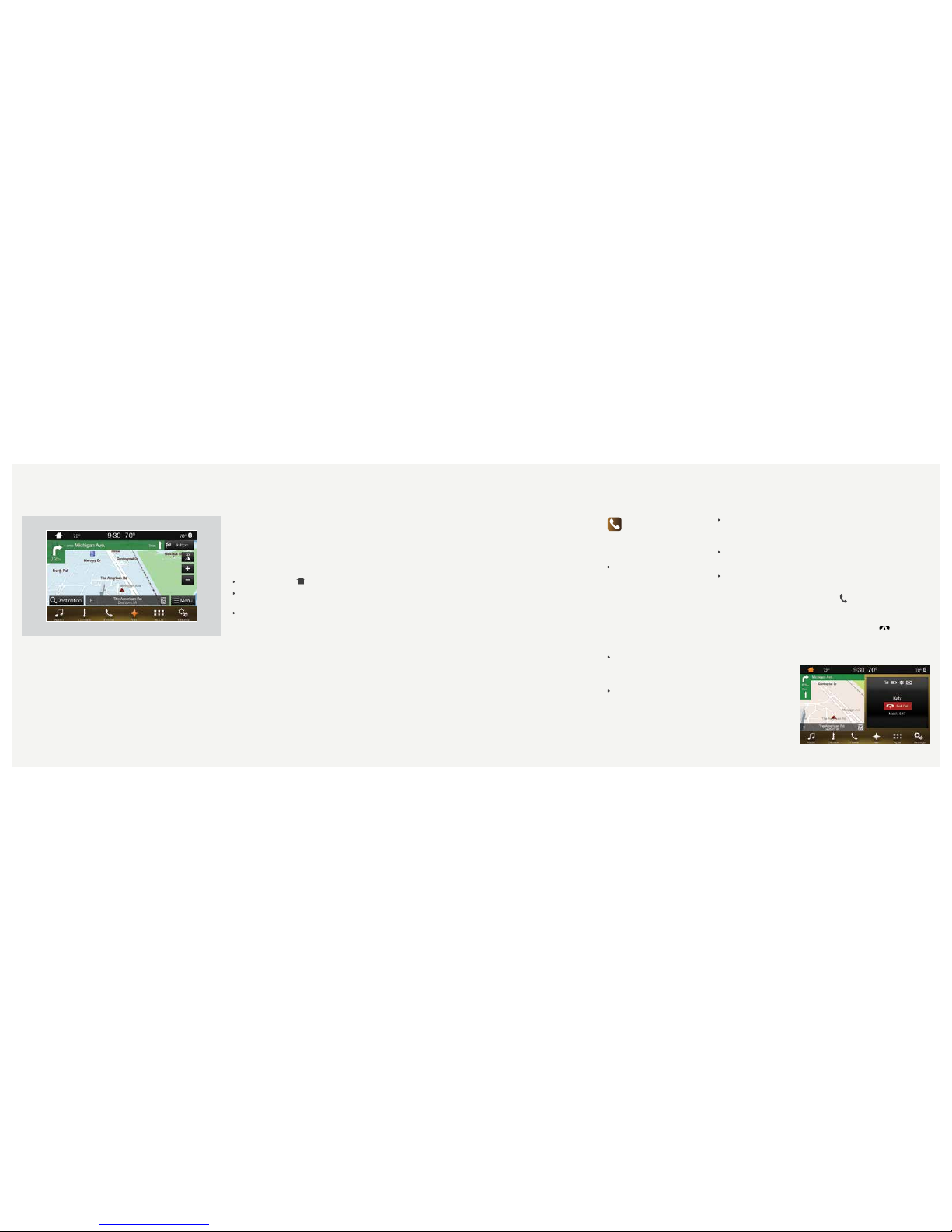
Phone
After you pair your phone,
the SYNC 3 Phone Menu becomes
available within the touchscreen.
Access and view a variety of content:
Recent Call List: Displays a list of
your recent calls and allows you to
place a call by selecting an entry
from the list. You can also sort the
calls by selecting from the dropdown menu at the top of
the screen:
⋅ All
⋅ Incoming
⋅ Outgoing
⋅ Missed
Contacts: Provides all of your
contacts from your phone in
alphabetical order. You can also
skip to a specific letter.
Your phone’s name, for example,
“Jason’s Phone”: Allows you to
view and change your settings.
From this menu, you can pair other
devices, and set various ring tones
and alerts.
Do Not Disturb: Lets you send all
calls directly to your voicemail. The
setting also sets all ring tones and
alerts to silent.
Phone Keypad: Use the
touchscreen keypad to dial a
phone number.
Text Messages: Displays all recent
text messages.
Making a Phone Call
Use SYNC to make a phone call
to anyone in your phone book by
pressing the voice button. When
prompted, give a voice command.
For example, you could say
“Call Jake Smith at home”.
SYNC repeats the command
back to you and dials
the number.
Note: You can also make phone
calls by giving the voice command
“Dial”, then verbally saying the
phone number.
Answering Incoming Calls
Whenever you have an incoming call,
the name and number of the person
calling appears in your display.
Press ACCEPT on the touchscreen or
the
phone button to answer an
incoming call.
Ending the Call
Press and hold the phone button.
Page 5
*if equipped *if equipped
9
2016 MKC
8
SYNC® 3
Text Messaging
Note: Downloading and sending text messages
using Bluetooth are cell phone-dependent features.
Certain features in text messaging are speeddependent and not available when your vehicle
is traveling at speeds over 3 mph (5 km/h).
When a new message arrives, an audible tone
sounds and the screen displays a pop-up with the
caller name and ID, if supported by your
cell phone.
You Can Select
Listen to have SYNC 3 read the message to you.
Dial to call your contact.
Close to exit the screen.
You can reply to text messages with a preset
message. See your SYNC Supplement for details.
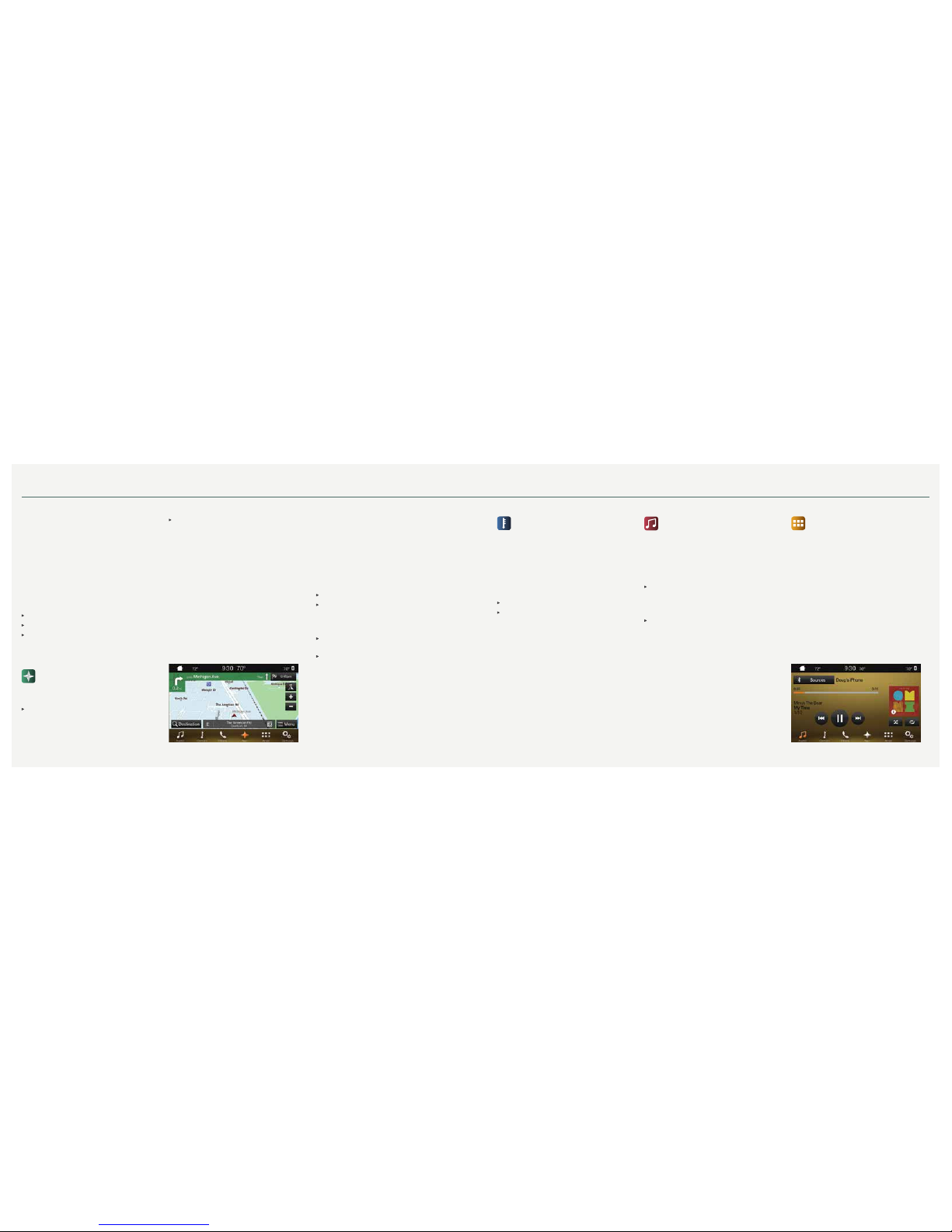
Navigation*
Press the navigation* icon to set your
destination. Select one of two ways to nd
your destination:
Destination mode lets you key in a specic
address or use a variety of search methods to
locate where you want to go.
Map mode shows advanced viewing that
includes 2-D city maps, 3-D landmarks and 3-D
city models (when available).
Refer to your SYNC Supplement for
complete details.
Set a Destination
Press Destination on your touchscreen and then
press Search. Enter a street address, intersection,
city or a point of interest (POI).
After you choose your destination, press Start Route.
The system uses a variety of screens and visible
prompts to guide you to your destination.
During your route, you can press the maneuver
arrow icon on the map if you want the system to
repeat the previous route guidance instructions.
The navigation map shows your estimated time of
arrival, remaining travel time and the distance to
your destination.
Navigation Menu
While you are on your route, you can change your
touchscreen view. To change the view, touch Menu
on the bottom of the screen, and then select Screen
View to choose from any of the following:
Full Map.
Highway Exit Info displays POI icons, including
restaurants, ATMs, etc., as they pertain to each
exit. You can select a POI as a waypoint,
if you wish.
Turn List shows all of the available turns on your
current route.
Trac List displays SiriusXM Trac and
Travel Link* information. If trac conditions
change to cause a major delay on the originally
selected route, then SYNC 3 provides an
automatic re-route.
Note: Minor traffic changes do not prompt a re-route.
*if equipped
Climate
Touch the Climate icon on the touchscreen
to access climate control features, including the
temperature, airflow direction, fan speed and other
climate features for you and your front passenger.
You can use voice commands to operate the climate
system by saying “Climate set temperature 72
degrees”. SYNC 3 makes the adjustment.
Set Your Temperature
Touch the Climate icon on the touchscreen.
Set your exact, desired temperature by using the
▲ or ▼ buttons.
Audio
No matter how you store your music, SYNC
makes it yours to enjoy when you’re behind the
wheel. Just press the Audio icon on the touchscreen.
From here, you can easily go between all of
your media sources.
Set Your Radio Presets
Tune to the station and then press and hold one
of the memory preset buttons. The audio mutes
briefly while the system saves the station, and
then the audio returns.
Two preset banks are available for AM and three
banks for FM. To access additional presets, tap
the preset button. The indicator on the preset
button shows which bank of presets you are
currently viewing.
Bring in Your Own Music
Plug your device, such as a phone or media player,
into a USB port, select SOURCE and then choose
USB. Wait for the system to nish indexing your
music to begin listening. You can even create
random playlists by using the Shue function.
The USB port begins charging your device as soon
as you plug it in.
Apps
Stream Apps
The system supports the use of certain audio apps
such as Pandora® or iHeartRadio® through a USB or
Bluetooth-enabled devices.
Each app gives you different on-screen options
depending on the app’s content. Refer to your SYNC
Supplement for more information.
Page 6
*if equipped *if equipped
11
2016 MKC
10
Convenience Lincoln Experiences
As you approach or leave your vehicle, key areas
of your vehicle automatically adjust, including the
following personalization features.
Welcome Lighting
As you approach your vehicle, select exterior lighting
illuminates. You can switch this feature on and o in
your information display. See the Information Display
chapter in your Owner’s Manual for details.
Auto-folding Exterior Mirrors*
Automatically folds the exterior mirrors toward the
glass when you place the transmission into park (P).
Auto-folding mirrors unfold and return to their original
position automatically after you unlock your vehicle,
and then open and close the driver’s door.
You can fold the mirrors on demand by pressing the
door lock control located on the door. The control
will light and the mirrors will fold in toward the glass.
Press the control again to unfold the mirrors. The
control light will turn o.
Interior Lighting
Lights select interior lighting and ambient lighting
including the push button start as you enter your
vehicle. Once you start your vehicle, the information
display and the touchscreen also light.
Easy Entry
Automatically recalls your seat and power tilt and
telescoping steering wheel positions when you push
the keyless start ignition button.
Easy Exit
Moves the driver seat rearward up to 2 inches
(5 centimeters). Additionally, the power tilt and
telescoping steering wheel moves to the full up
position when the transmission is in park (P) and
you switch o the keyless start ignition. The driver
seat and steering column return to their previous
positions when you push the keyless start
ignition button.
Note: You must have your intelligent access
transmitter with you for these features to work.
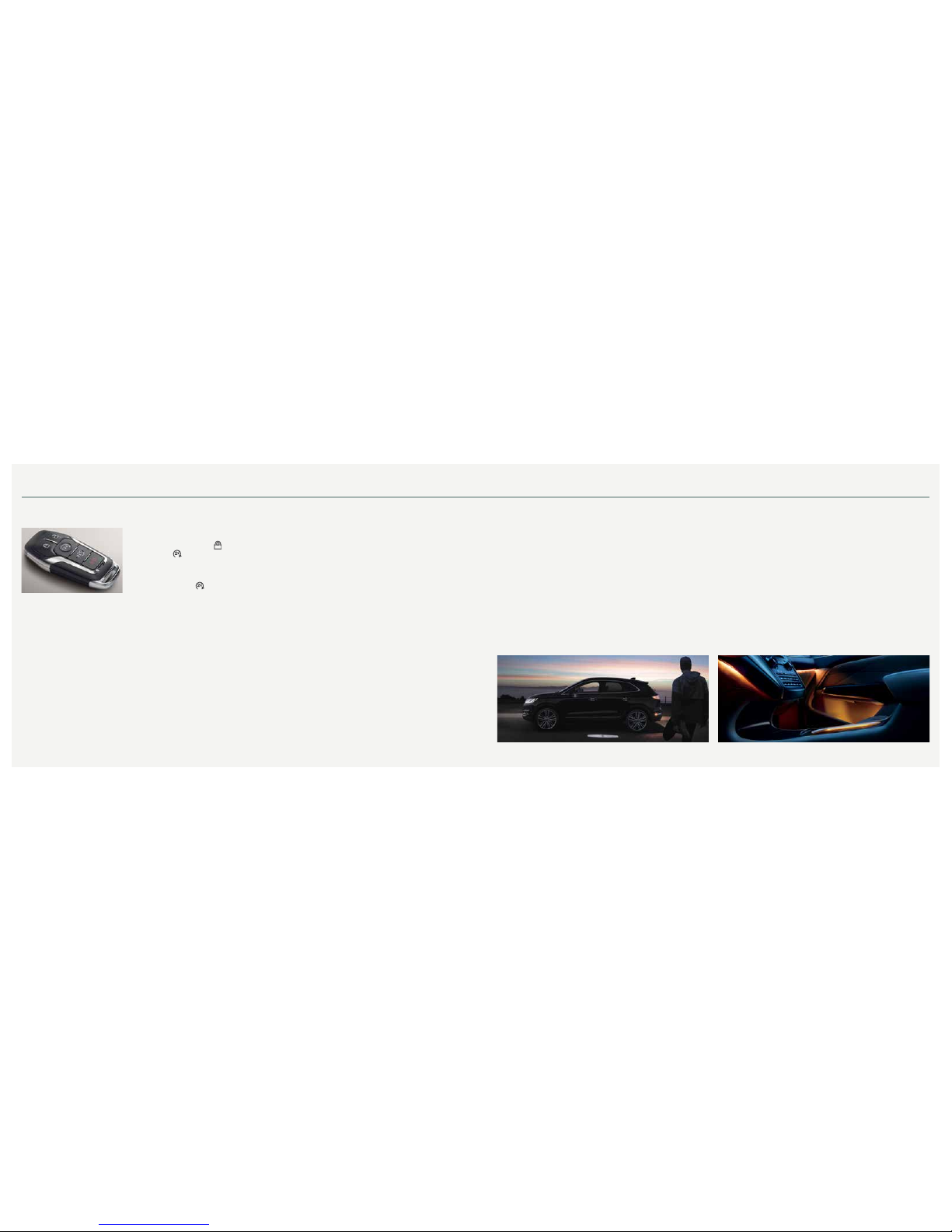
Intelligent Access
Note: Your intelligent access
transmitter must be within 3 feet
(1 meter) of the vehicle for intelligent
access to function properly.
To unlock and open the driver’s door,
pull a front exterior door handle.
To lock all of the doors, touch and
briefly hold the lock sensor area on
top of the door handle.
To open the liftgate, press the button
located in the top of the liftgate pullcup handle to unlatch the liftgate and
then pull on the outside handle.
Note: The transmitter also contains a
mechanical key blade that can be used
to unlock the driver door, if necessary.
Remote Start
Remote start allows you to start the
engine from outside your vehicle using
your transmitter. To start, press
and then press
twice within three
seconds. Once inside, shift into drive
(D) and go. To switch the engine off
from outside the vehicle after using
your remote start, press
once.
An LED on the transmitter provides
status feedback of remote start or
stop commands:
Solid green: The remote start or
extension was successful.
Solid red: The remote stop was
successful and the engine is off.
Blinking red: The remote start or
stop failed.
Blinking green: The system is waiting
for a status update from the vehicle.
Power Windows: Global Opening and Closing
You can use the transmitter to operate the windows with the ignition o.
Open the windows for a short time after you unlock your vehicle with
the remote control. After you unlock your vehicle, press and hold the
transmitter unlock button to open the windows. Release the button once
movement starts. Press the lock or unlock button to stop movement.
To close the windows, press and hold the remote control lock button.
Release the button once movement starts. Press the lock or unlock
button to stop movement.
Automatic Climate Control Settings
The remote start feature allows you to pre-condition your vehicle’s interior.
When you set the climate control system to AUTO, it automatically adjusts the
cabin temperature during a remote start.
In hot weather, the air conditioning automatically turns on. In cold weather, the
heat automatically turns on. See the Climate Control chapter of your Owner’s
Manual for more details.
MyLincoln MobileTM*
This smartphone-compatible app combines vehicle service, client support
and driver convenience features.
For more details, visit support.lincoln.com/mylincolnmobile.
Page 7
*if equipped *if equipped
13
2016 MKC
12
Ligate
Manual Liftgate
To Open the Liftgate
1. Unlock the vehicle and press the
button on the liftgate to unlatch.
2. Press the button located in the top
of the liftgate pull-cup handle.
Power Liftgate*
To Open Using the Outside Liftgate Button
1. Unlock the liftgate with the remote control
or power door control. If the intelligent
access transmitter is within 3 feet (1 meter)
behind the liftgate, the liftgate unlocks when
you press the liftgate release button.
2. Press the button located in the top
of the liftgate pull-cup handle.
3. Allow the power system to open the
liftgate after pressing the control.
4. To close, press and release the
control (pictured).
To Open Using the Remote Transmitter
Open or close the liftgate with your remote control by
pressing the
button twice within three seconds.
A tone sounds when the liftgate activates. You can
also open or close the liftgate from inside the vehicle
by pressing the
button on the instrument panel.
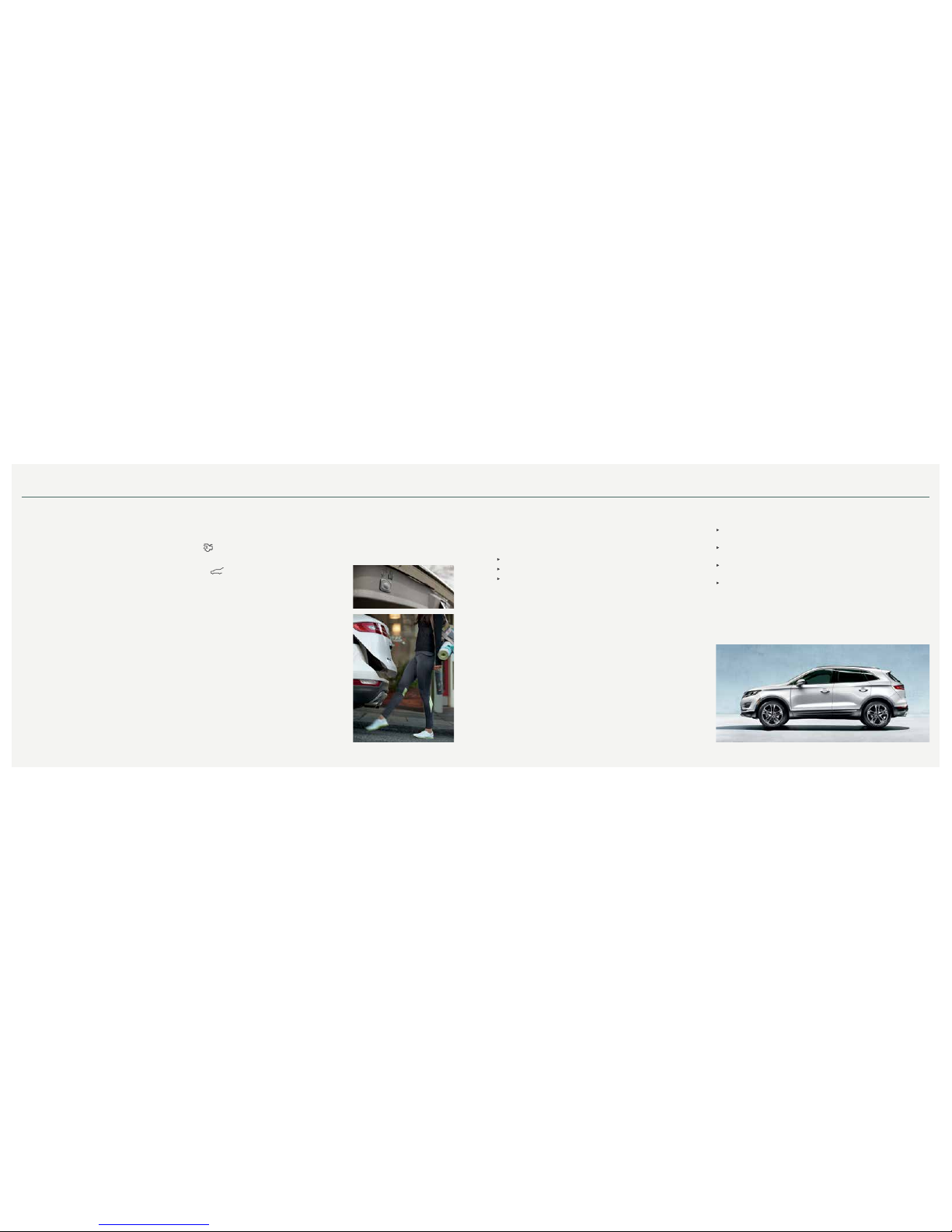
Hands-free Liftgate Operation*
1. Make sure you have your intelligent access
transmitter within 3 feet (1 meter) of the liftgate.
2. Move your foot under and back from the rear
bumper, similar to a kicking (front-to-back) motion.
Do not move your foot sideways or the sensors
may not detect the motion.
Note: In vehicles equipped with the towing package,
you must kick your foot between the trailer hitch and
the exhaust system. Do not kick under the hitch.
Obstacle Detection*
When you use the power open or close feature and the liftgate detects a
problem, warning tones sound and the liftgate stops.
The Liftgate Does Not Power Open or Close When
It detects an object in its opening or closing path.
The ignition is on and the transmission is not in park (P).
You are traveling at speeds at or above 3 mph (5 km/h).
Note: Entering the vehicle while the liftgate is closing could cause the
vehicle to bounce and activate obstacle detection.
Setting the Liftgate Open Height
Once you open the power liftgate, you can move it manually to a
desired height. If the previously programmed liftgate height is lower
than the fully opened position, you can manually push it upward.
To Program a New Height
1. Open the liftgate.
2. Stop the liftgate movement by pressing the control button on the
liftgate when it reaches your desired height. Once the liftgate stops
moving, you can also move it manually to your desired height.
3. Press and hold the control button on the liftgate until you hear a tone,
indicating that your programming of the liftgate height is successful.
The next time you use the power feature to open the
liftgate, it opens to its newly programmed height.
To change the programmed height, repeat the process above.
Built-in Storage
Cargo tie-downs, located in key areas of the rear cargo area, fold out of the
way when not in use.
Utility tray, located on the outboard side of the driver seat: store a wet
(or dry) umbrella within easy reach.
Toll-ticket holder, located between the headliner and the sun visor hinge:
slide your toll ticket in the space provided.
Rear under-floor storage helps secure items and keep them out of sight.
Ligate and Built-in Storage
Page 8
*if equipped *if equipped
15
2016 MKC
14
Function
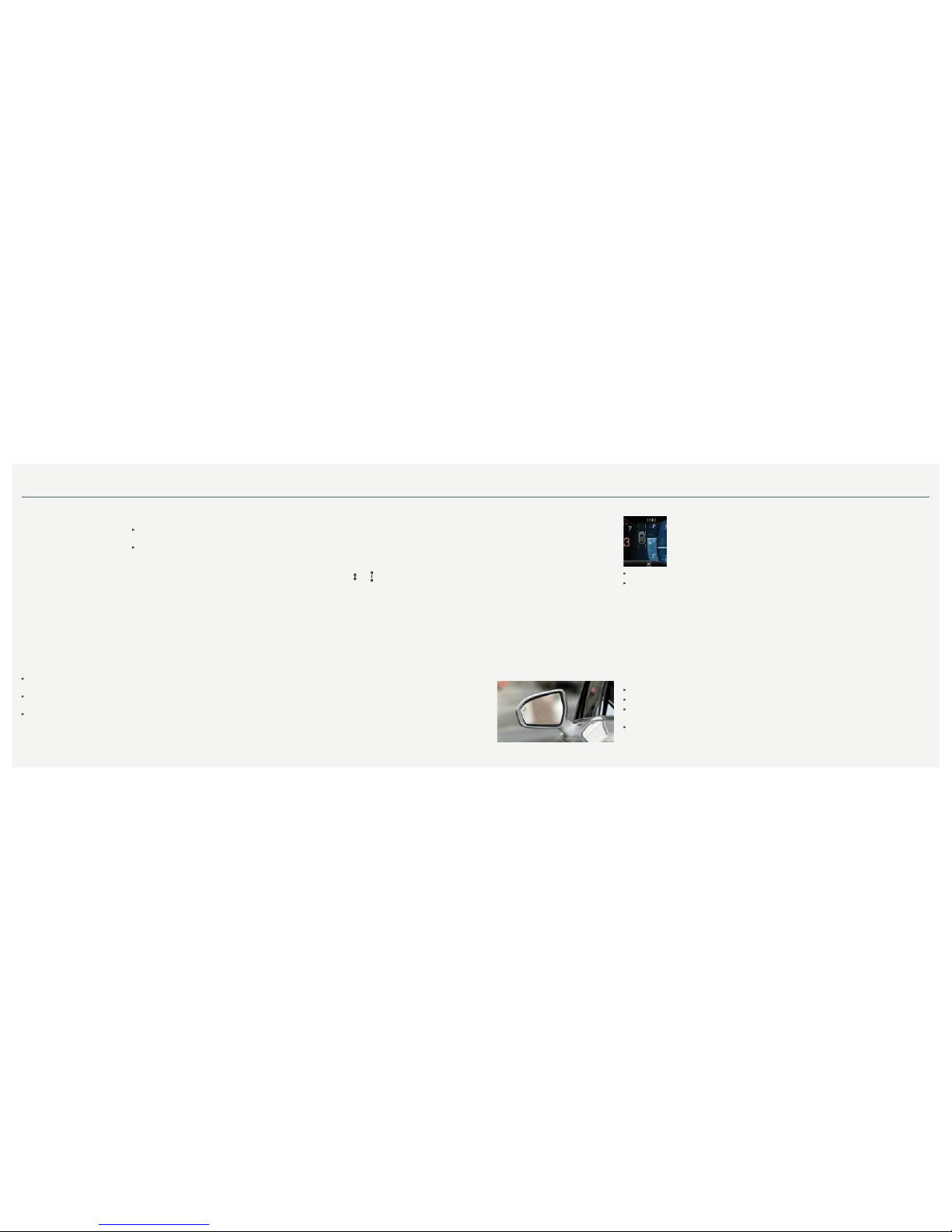
BLIS® (Blind Spot Information System)
and Cross Trac Alert*
BLIS uses radar sensors to help you
determine if a vehicle may be in your blind
spot zone. The cross trac alert feature
warns you of vehicles approaching from the
sides when the transmission is in reverse
(R). BLIS and cross trac alert display a
yellow indicator light in your exterior mirrors
and the cross trac alert also sounds tones
and displays messages to warn you from
which direction vehicles are approaching.
Refer to the Driving Aids chapter in your
Owner’s Manual for more information.
Note: Visibility aids do not replace the need
to watch where the vehicle is moving. Refer
to the Owner’s Manual for safety information,
more details and system limitations.
Lincoln Drive Control*
This feature intelligently integrates
chassis and powertrain systems for
personalized ride comfort, steering,
handling, powertrain response and
sound. Choose between two default
settings or customize your own.
Factory default settings include Normal
Handling and Normal Performance
while you are in drive (D). Select
sport (S) to engage Sport Handling
and Sport Performance settings.
Customize your Handling and
Performance settings through the
information display by navigating
through the menu to Settings >
Vehicle > Drive Control to congure:
Handling
Comfort: Provides lower steering
efforts and a more fluid suspension.
Normal: Delivers an engaging drive
experience with confident handling.
Sport: Increases handling and
control with a sporty feel.
Performance
Normal: Provides smooth power
delivery and a refined sound.
Sport: Increases engine and
transmission responsiveness,
while adding a more powerful
engine tone.
Active Park Assist with
Park Out Assist*
Active Park Assist detects an
available parallel parking space
and automatically steers the
vehicle into the space (hands-free)
while you control the accelerator,
gearshift and brakes. The system
visually and audibly instructs
you to park your vehicle. To
use active park assist, press the
button located near the shifter.
To stop the parking procedure,
grab the steering wheel or press the
control again.
Park Out Assist determines the
clearance to the front and rear of your
vehicle and automatically steers your
vehicle out of a parallel parking space
(hands-free) while you control the
accelerator, gearshift and brakes.
The system visually and audibly
instructs you to enter traffic.
See the Parking Aids chapter of your
Owner’s Manual for more details.
Note: The driver is always
responsible for controlling the
vehicle, supervising the system,
and intervening, if required.
Rear View Camera
This system provides a video image
of the area behind the vehicle. The
display automatically appears in the
touchscreen when the vehicle is in
reverse (R) and uses green, yellow
and red guides to alert you of your
proximity to objects.
Adaptive Cruise Control*
Automatically adjusts your speed to
maintain a set distance between your
vehicle and the vehicle in front of you
in the same lane. You can set the gap
distance between your vehicle and the
vehicle in front of you by pressing the
and buttons on the steering wheel.
Note: Driving aids do not replace the
need to watch where the vehicle is
moving and brake where necessary.
Refer to the Cruise Control chapter
of your Owner’s Manual for safety
information, details and limitations.
SelectShift Automatic®
Transmission
The transmission gives you the ability
to manually change gears, if you like.
To use SelectShift, press sport (S).
Use the paddle shifters, located on
the steering wheel, to manually select
gears. Pull (+) to upshift, pull (–) to
downshift. The system stays in manual
control until you make another shift
button selection, for example, drive (D).
Lane Keeping System*
This system offers drivers two features to help them stay within their lanes, lane-keeping alert and
lane-keeping aid.
A forward-facing camera in the rearview mirror reads lane markings. Should the vehicle drift out
of its lane without the driver using a direction indicator, the system can provide one or both of
the following:
Alert: Sends vibration pulses to the steering wheel.
Aid: Provides steering torque to help direct the driver to steer the vehicle back into its lane.
To switch this system on or off, use the control on the end of the direction indicator.
Front Parking Aid*
This system sounds an audible warning tone if there is an obstacle near the vehicle’s front bumper. As the vehicle
moves closer to the obstacle, the rate of the warning tone increases in frequency. The front sensors automatically
activate when the gearshift is in any position other than park (P) and the vehicle speed is below 7 mph (12 km/h). See
the Parking Aids chapter in your Owner’s Manual for complete information.
Autowipers*
To switch this feature on, move the wiper controls to intermittent wipe. The autowiper system turns the wipers on only
when moisture is present on the windshield. The wiper speed depends on how much moisture the system detects and
the sensitivity setting.
Low sensitivity turns the wipers on when the system detects a large amount of moisture on the windshield.
High sensitivity turns the wipers on when the rain sensor detects a small amount of moisture on the windshield.
To switch autowipers o, use your wiper controls. To change this feature to intermittent wipe every time you use
your wipers, use the information display.
To switch intermittent wipe back to autowipers, use the information display.
Note: Make sure you switch this feature o before entering a car wash.
Page 9
17
2016 MKC
16
Essential Features
Congurable Daytime Running Lamps*
When you start your vehicle with your headlamp control in the
autolamps position
, the congurable daytime running lamps
turn on automatically while you are driving. You can congure the
daytime running lamps ON or OFF using your information display
controls. See the Lighting chapter in your Owner’s Manual for
complete information.
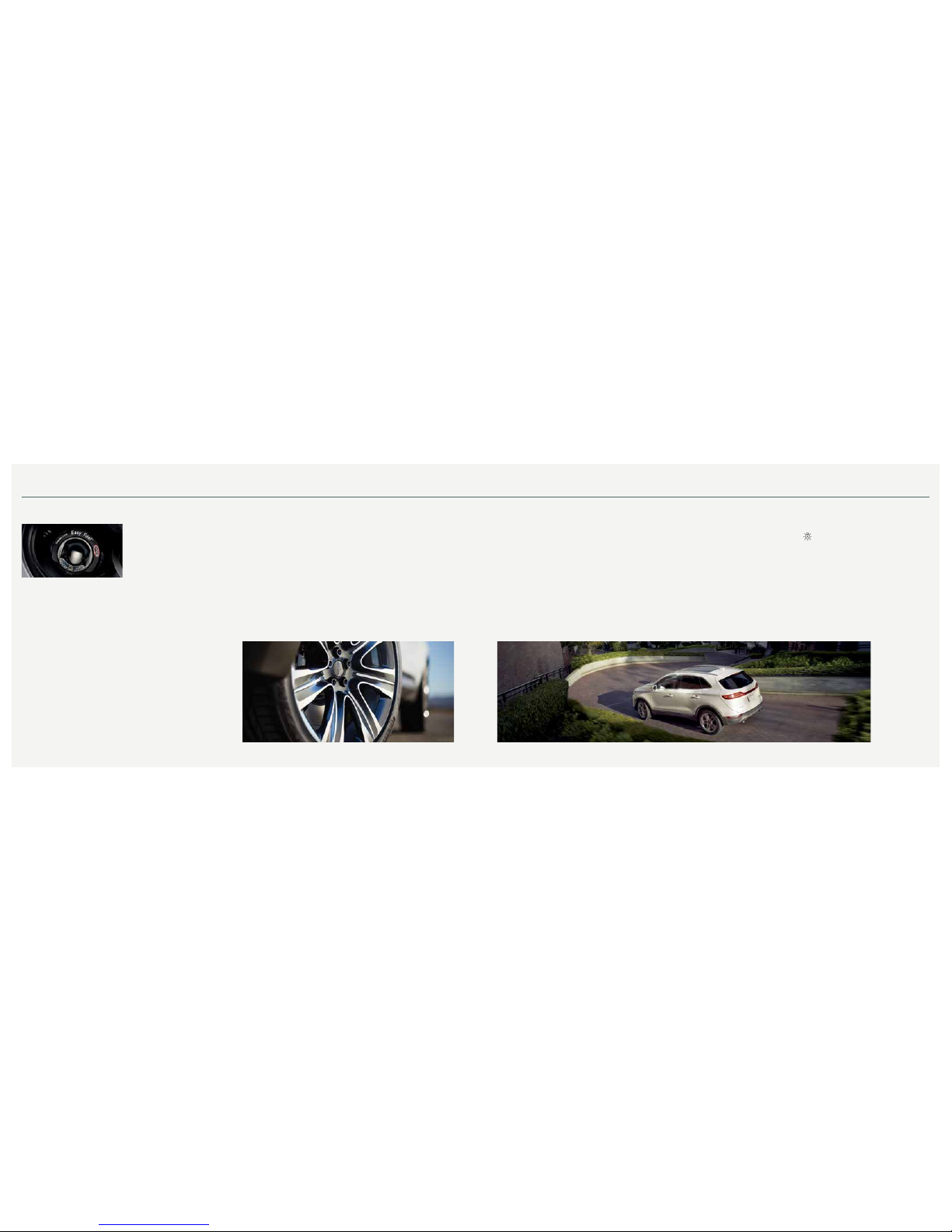
Easy Fuel® System
When Fueling Your Vehicle
1. Put your vehicle in park (P) and
switch the ignition o.
2. Open the fuel ller door. Slowly,
fully insert the fuel ller nozzle into
the fuel system. Leave the nozzle
inserted fully until you are done
pumping your fuel.
3. Wait at least 10 seconds before
removing the fuel pump nozzle to
allow any residual fuel to drain into
the fuel tank.
Note: When using a portable fuel
container, do not use aftermarket
funnels as they do not work with
the Easy Fuel system and may cause
damage. Instead, use the plastic funnel
included with your vehicle.
The fuel funnel is in the rear of the
vehicle, in the spare wheel storage
tray. Properly clean the funnel after
each use or dispose of it properly.
Automatic Engine Shutdown
Your vehicle is equipped with a
feature that automatically shuts down
the engine if it has been idling for an
extended period of time. The ignition
also turns o in order to save battery
power. You can override this feature
temporarily by pressing the brake or
accelerator pedal, or by pressing OK
or the RESET button in your
information display. Refer to the
Information Displays chapter of your
Owner’s Manual for more details.
Towing Your Vehicle
Towing your vehicle behind an RV or
any other vehicle may be limited. Refer
to Towing the Vehicle on Four Wheels
section in the Towing chapter of your
Owner’s Manual for more information.
Fuel Tank Capacity/Fuel Info
Your vehicle has a 15.5 gallon (58.5L) fuel tank. We recommend regular
unleaded gasoline with a pump (R+M)/2 octane rating of 87. To provide improved
performance, we recommend premium fuel for severe duty usage such as trailer
towing. Do not use ethanol (E85), diesel, fuel-methanol, leaded fuel or any other
fuel because it could damage or impair the emission control system.
Tire Pressure Monitoring System
Your vehicle has a tire pressure monitoring system that lights a low tire
pressure warning light in your instrument cluster when one or more of your
tires are signicantly under-inated. If this happens, stop and check your tires
as soon as possible. Inate them to the proper pressure. Refer to the Wheels and
Tires chapter of your Owner’s Manual for more information.
Location of Spare Tire and Tools
Your spare tire and tools are located beneath the carpeted load oor in the rear of your
vehicle. The spare tire is designed for emergency use only and should be replaced as soon
as possible. For complete details on changing your tire, refer to the Changing a Road Wheel
section in the Wheels and Tires chapter of your Owner’s Manual.
Rear Window Bueting
When just one of the windows is open, you may hear a pulsing noise. Lower the
opposite window until the noise subsides.
Page 10
*if equipped
19
18
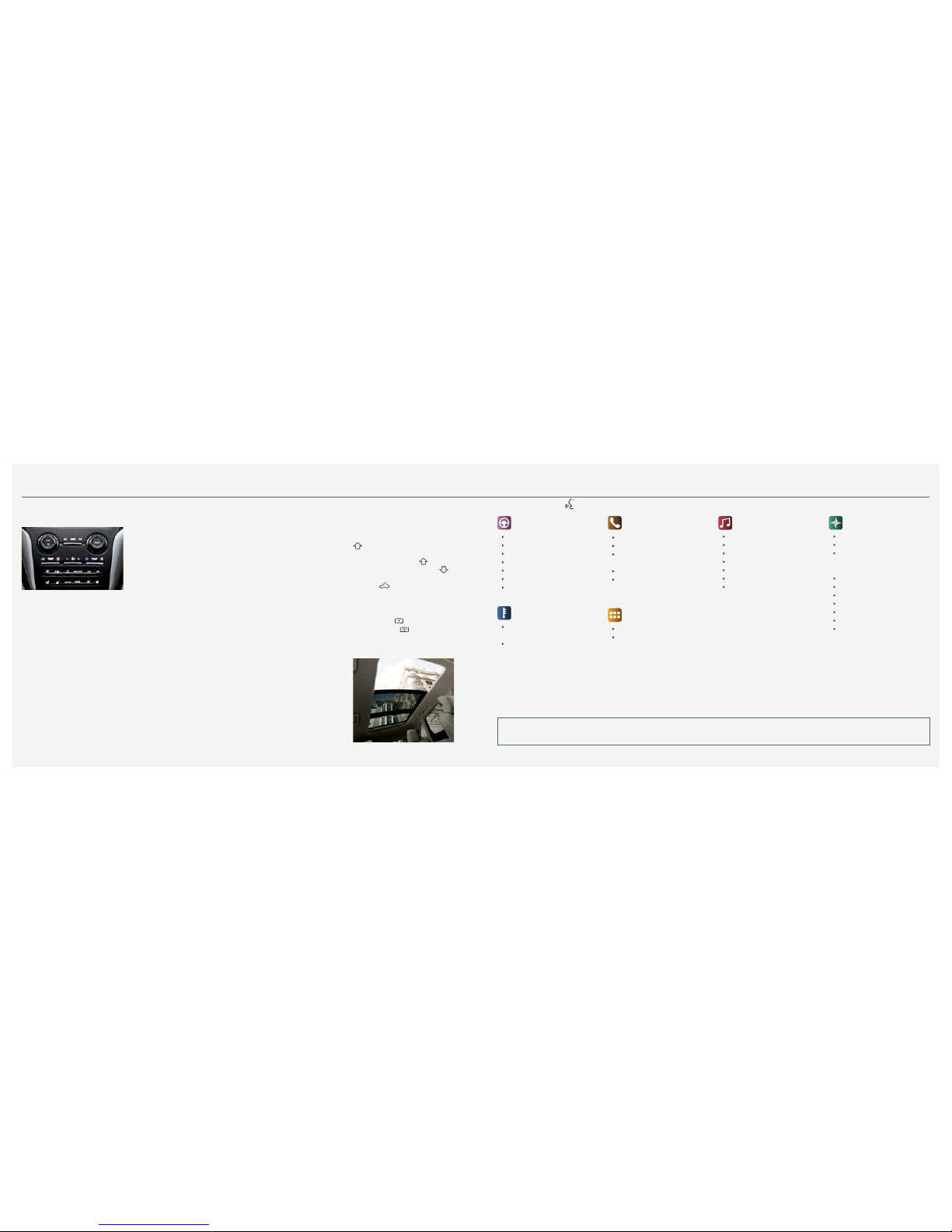
Climate Controlled Front Seats*
To use, press the heated or the
cooled seat symbol located on the
touchscreen to cycle through the
various settings and o. Warmer or
cooler settings are indicated by more
lights. The climate controlled seats
function only when the engine
is running.
Heated Steering Wheel*
Your vehicle may be equipped with
a heated steering wheel. Press the
icon in your touchscreen to turn this
feature on and o.
Note: The wood trim* does
not heat between the 10 and
2 o’clock positions.
Rear Heated Seats*
The rear heated seat controls are on
the rear of the center console. To use,
press the heated seat button to cycle
through the various heat settings and
o. Warmer settings are indicated by
more indicator lights. The rear heated
seats function only when the engine
is running.
Tilting Head Restraints
You can adjust the front-row head
restraints by pulling up to raise the
head restraint. To lower, press the
head restraint down while pressing
and holding the guide sleeve adjust/
release button. Tilt the head restraint
forward for additional comfort by
gently pulling the top of the head
restraint. Once it is in the forward-most
position, tilting it forward once more
releases it to the upright position.
Note: Do not attempt to force the
head restraint backward after it is in
a tilted position. Instead, continue
tilting it forward until the head restraint
releases to the upright position.
Second-row Seat Functionality
Fold the Seatback Down
Fold the outboard head restraints
and lower the center head restraint
first. With the seat empty, pull
the lever up to fold the seatback
forward. Pull the seatback upward
to unfold the seatback.
Recline the Seatback Down
With the seat occupied, pull the
lever up to recline the seatback.
Panoramic Vista Roof®
with Power Sunscreen*
To open the moonroof, press the
open button. It stops short of the
fully opened position. To open the
moonroof fully, press the
open
button again. To close, press the
close button. To vent the moonroof,
press the
vent button.
The sunscreen automatically opens
with the moonroof, but if the moonroof
is closed, you can open the sunscreen
by pressing the
open button. To
close it, press the
close button.
Comfort
*if equipped
Basic Commands
Main menu
Go back
Cancel
List of commands
Next page
Previous page
Help
Climate
Climate set temperature to
<# of degrees>
Climate help
Phone
Phone list of commands
Pair phone
Call <name> on cell/
at home/at work
Dial <phone number>
Listen to text messages
(phone-dependent feature)
Apps
List mobile apps
Find new apps
Audio
AM <530-1710>
FM <87.9-107.9>
Bluetooth audio
CD
USB
Sirius <0-233>
<Sirius channel name>
Navigation*
Navigation list of commands
Find an address/POI/intersection
Destination <nearest POI
category/previous destination/
home>
Cancel route
Detour
Repeat instruction
Show route
Where am I?
Zoom <in/out>
SiriusXM Traffic and Travel Link
• Show <traffic/weather map/fuel
prices/5 day forecast>
• Help
Some services may not be available in your area. For additional support, refer to your SYNC Supplement, visit the website or call the toll-free number.
For U.S. customers: Visit owner.lincoln.com or call 1-800-392-3673 (select Option 1 or 2 for language, then press 3).
For Canadian customers: Visit SyncMyRide.ca or call 1-800-565-3673 (select Option 1 or 2 for language, then press 3).
Commonly Used SYNC 3 Voice Commands SYNC®. Say the Word.
Press the voice button on your steering wheel and then say:
 Loading...