

Page 1
OPERATION
MANUAL
FVW-700
Video Writer
1st Edition
Page 2

Edit.
Rev.
Date
Description
Section/Page
1 - 2017/06/28
First edition
Edition Revision History
2
Page 3
Precautions
Caution
Operate unit only at the specified supply voltage.
Disconnect the power cord via the power plug only. Do not pull on the cable portion.
Stop
Do not place or drop heavy or sharp-edged objects on the power cord. A damaged
cord can cause fire or electrical shock hazards. Regularly check the power cord for
excessive wear or damage to avoid possible fire / electrical hazards.
Caution
Ensure the power cord is firmly plugged into the AC outlet.
Caution
Ensure the unit is properly grounded at all times to prevent electrical shock.
Hazard
Do not ground the unit to gas lines, units, or fixtures of an explosive or dangerous
nature.
Hazard
Do not operate the unit under hazardous or potentially explosive atmospheric
conditions. Doing so could result in fire, explosion, or other hazardous results.
Hazard
Do not allow liquids, metal pieces, or other foreign materials to enter the unit. Doing so
could result in fire, other hazards, or a unit malfunction.
If a foreign material does enter the unit, turn the power off and immediately disconnect
the power cord. Remove the material and contact an authorized service representative
if damage has occurred.
Hazard
Handle with care to avoid impact shock during transit, which may cause malfunction.
When you need to transport the unit, use the original or suitable alternative packing
material.
Important Safety Warnings
[Power]
[Grounding]
[Operation]
[Transportation]
3
Page 4
[Circuitry Access]
Do not remove covers, panels, casing, or access the circuitry with power applied to the
unit. Turn the power off and disconnect the power cord prior to removal. Internal
servicing / adjustment of unit should only be performed by qualified personnel.
Stop
Do not touch any parts / circuitry with a high heat factor.
Capacitors can retain enough electric charge to cause mild to serious shock, even after
the power has been disconnected. Capacitors associated with the power supply are
especially hazardous.
Hazard
Unit should not be operated or stored with cover, panels, and / or casing removed.
Operating the unit with circuitry exposed could result in electric shock / fire hazards or
a unit malfunction.
Caution
If abnormal odors or noises are noticed coming from the unit, immediately turn the
power off and disconnect the power cord to avoid potentially hazardous conditions. If
problems similar to the above occur, contact an authorized service representative
before attempting to operate the unit again.
Caution
To rack-mount or ground the unit, or to install rubber feet, do not use screws or
materials other than those supplied. Doing so may cause damage to the internal
circuits or components of the unit. If you remove the rubber feet that are attached to the
unit, do not reinsert the screws that secure the rubber feet.
Caution
Consumable items that are used in the unit must be periodically replaced. For further
details on which parts are consumables and when they should be replaced, refer to the
specifications at the end of the Operation Manual. Since the service life of the
consumables varies greatly depending on the environment in which they are used,
such items should be replaced at an early date. For details on replacing consumable
items, contact your dealer.
[Potential Hazards]
[Rack Mount Brackets, Ground Terminal, and Rubber Feet]
[Consumables]
4
Page 5
Upon Receipt
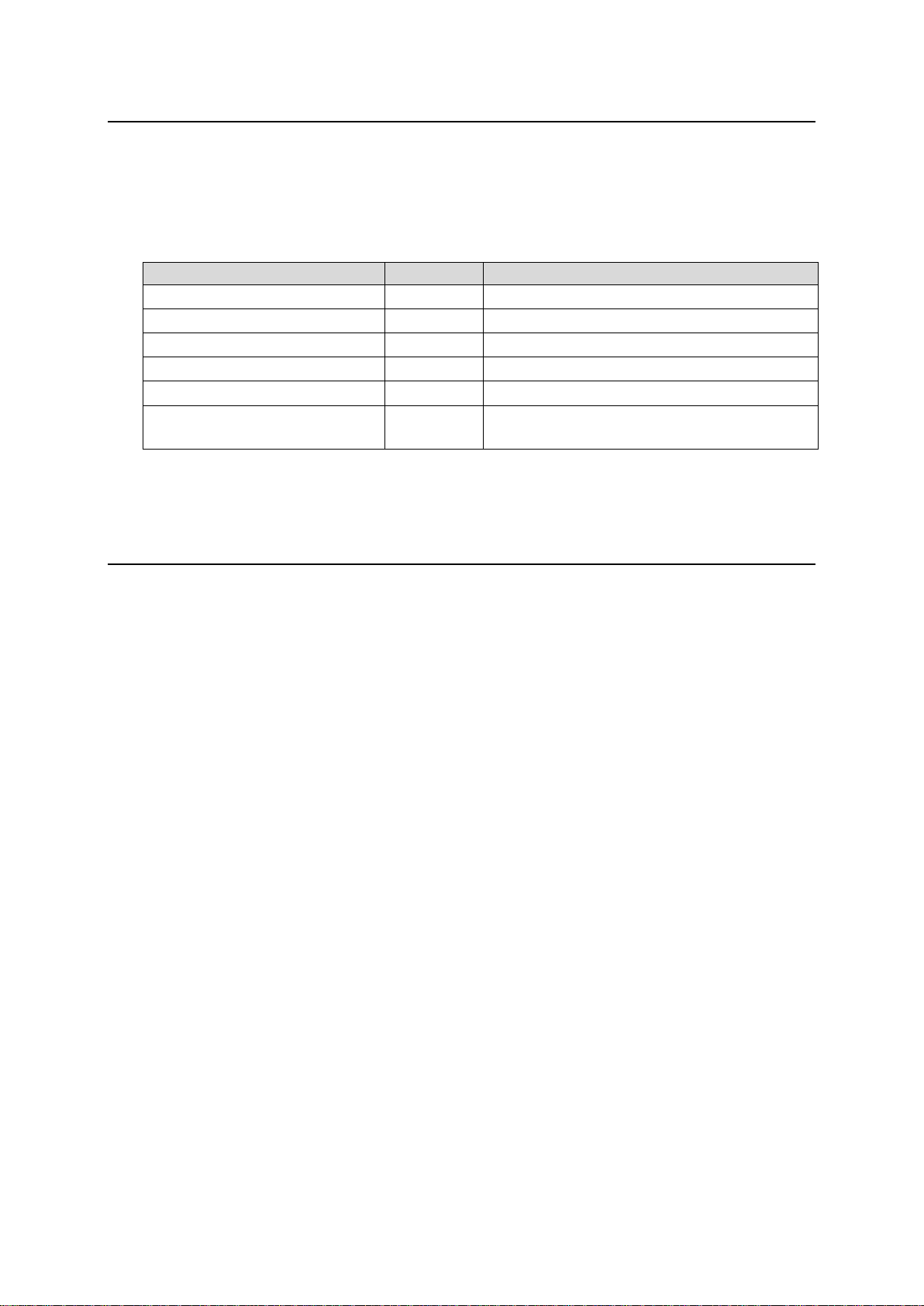
ITEM
QTY
REMARKS
FVW-700
1
AC Cord
1 set
(Includes an AC cord retaining clip)
Rack Mount Brackets
1 set
EIA standard type (Includes 4 screws)
Rubber Feet
1 set
DVI-VGA Conversion connector
1
CD-ROM
1
FVW-700 Operation Manual (PDF)
FVW-7SO Operation Manual (PDF)
The FVW-700 units and their accessories are fully inspected and adjusted prior to shipment. Operation
can be performed immediately upon completing all required connections and operational settings.
Check your received items against the packing lists below.
FVW-700 Box
Trademarks
* Microsoft Windows®, 10 IoT Enterprise Operating System is either registered trademark or
trademark of Microsoft Corporation in the United States and/or other countries
* NVIDIA and Quadro are either registered trademarks or trademarks of NVIDIA Corporation in the
United States and-or other countries.
5
Page 6
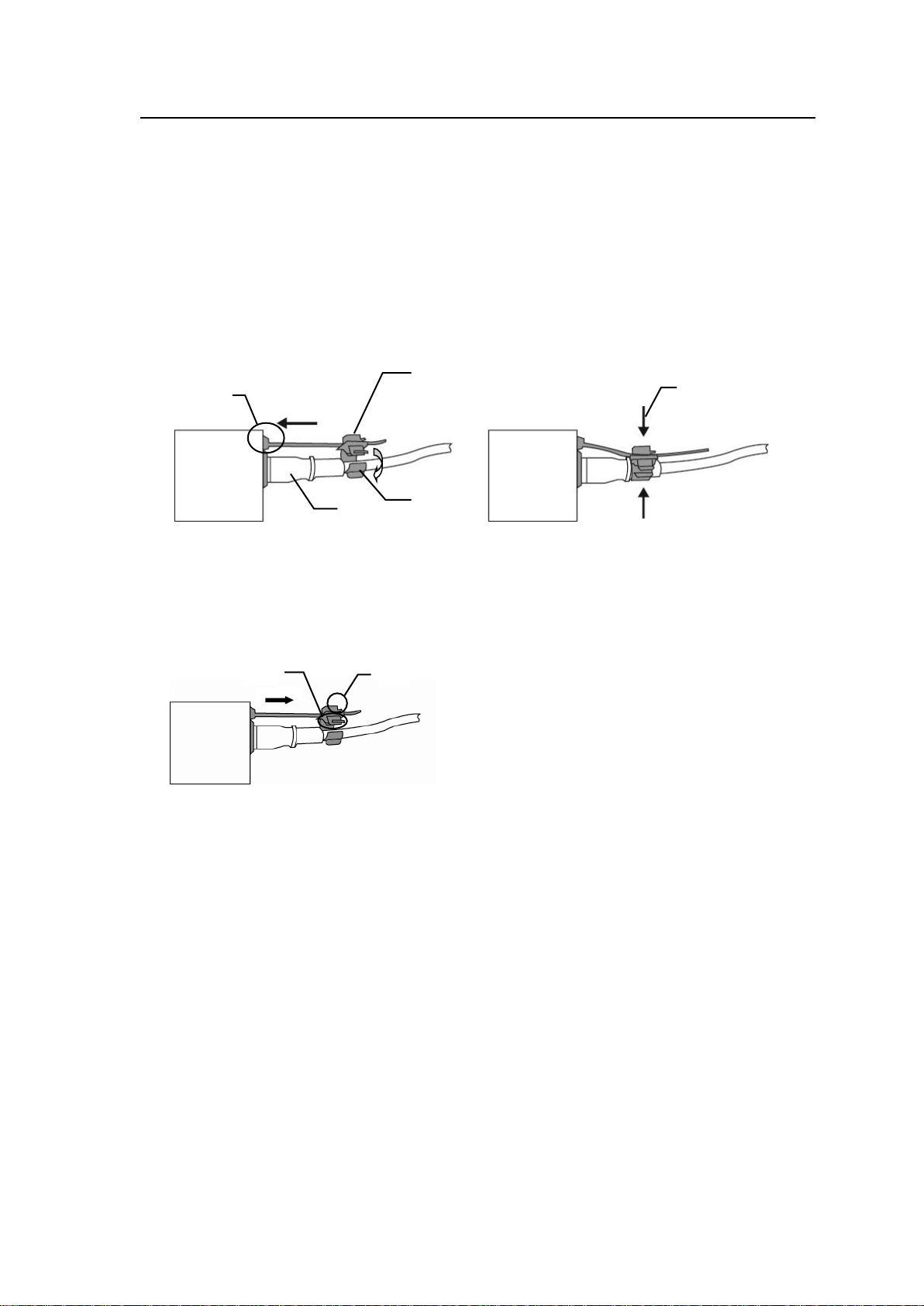
Installing the AC Cord Retention Clip
2)
4)
3)
5)
6)
1)
2)
Secure the AC cord with the supplied ladder strap/retention clip assembly to prevent accidental
removal from the unit.
Installing the clip
1) Wrap the retention clip around the AC cord (with the anchor of the ladder strap toward the
unit.)
2) Insert the anchor into the hole next to the AC IN socket.
3) Lightly fasten the clip around the AC cord.
4) Plug in the power cord.
5) Slide the clip on the ladder strap toward the plug.
6) Fasten the clip tightly.
7) Gently pull on the AC cord to ensure it is secured.
Unplugging the AC cord
1) Push the tab on the retention clip up to unfasten the clip.
2) Push the tab on the ladder strap up and slide the clip back.
3) Unplug the AC cord.
6
Page 7

Table of Contents
1. Prior to Starting ..................................................................................................................................... 8
1-1. Overview ..................................................................................................................................... 8
1-2. Features ...................................................................................................................................... 8
1-3. Precautions on FVW-700 Use .................................................................................................... 8
2. Panel Descriptions ................................................................................................................................ 9
2-1. Front Panel .................................................................................................................................. 9
2-2. Rear Panel ................................................................................................................................10
2-2-1. Alarm Connector ................................................................................................................11
3. Connection .........................................................................................................................................13
3-1. Using a Touch Panel Monitor ....................................................................................................13
3-1-1. Touch Panel Driver Installation ..........................................................................................13
4-2. System Setting ..........................................................................................................................16
4-4. Composite Out Settings ............................................................................................................17
4-5. Saving Settings .........................................................................................................................18
5. Resetting to Default ............................................................................................................................19
6. Specifications and Dimensions ..........................................................................................................20
6-1. Unit Specifications .....................................................................................................................20
Appendix 1. How to Reset BIOS ............................................................................................................22
Appendix 2. MICROSOFT SOFTWARE LICENSE TERMS ..................................................................31
7
Page 8

1. Prior to Starting
1-1. Overview
The FVW-700 system displays lines, objects, images, and movies onto video images in real time.
Creating custom icons allow you to control the application via a touch screen. It is ideal for live
broadcast environments, including weather news and sports.
1-2. Features
Draw and point in real-time over input video
Straight line, free-hand, and pre-programmed graphic shape mode available
Numbering, still images and animation placement over input video
Various types of lines, thickness, edge-width and colors
Highlight function
DSK function - Enables and disables the Video Writer object to be output onto input video.
Simple operation with draw tool, function, setting and background icons.
Freely assignable custom buttons for various tools (Add, Delete, or change Properties)
Touch panel calibration
Chromakey function
1-3. Precautions on FVW-700 Use
When using the FVW-700, note the following points.
Windows 10 is used and the OS is custormized for FVW-700.
Do not change OS settings.
Do not install software programs other than specific softwares.
Note that the C: drive of the FVW-700 is write-protected. Do not add folders and files to the C:
drive. If files are saved to the C: drive, Windows OS may hang up. Although files are
successflly saved to C: drive, the files will be lost when power is turned off.
Save all folders and files to D: drive.
8
Page 9
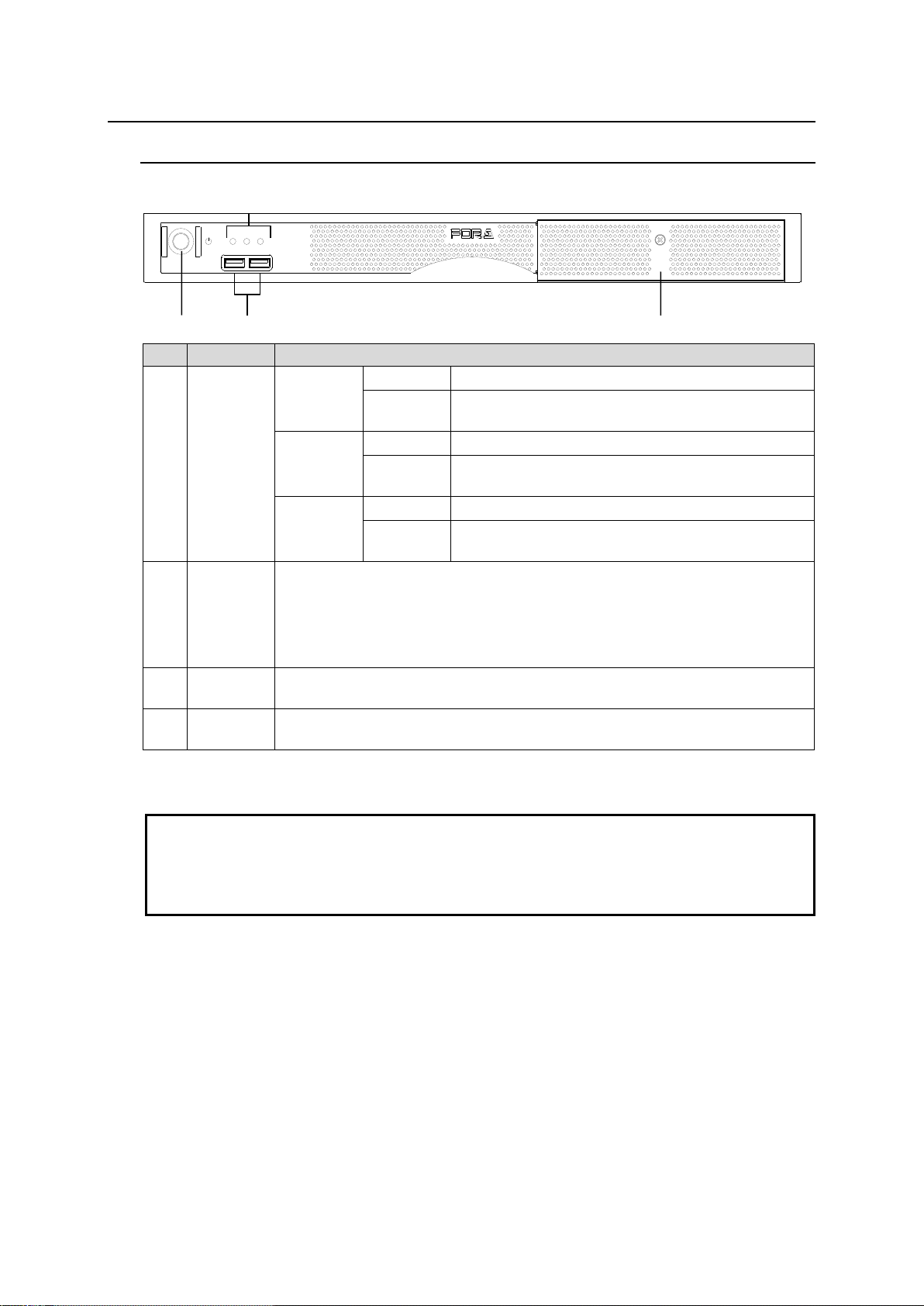
2. Panel Descriptions
FVW-700
VIDEO WRITER
MAIN POWER
POWER FAN FAN
USB 1 USB 2
No.
Item
Description
1
Status
Indicators
POWER
Lit green
Power is applied to the unit.
Unlit
The unit is powered off or no power cord is
connected
MAIN
FAN
Unlit
Air cooling fans are operating normally.
Lit red
One or more cooling fans failed. Turn off the power
and replace the fans if necessary.
POWER
FAN
Unlit
The power unit air cooling fan is operating normally.
Lit red
The power unit air cooling fan has failed. Turn off
the power and replace the power unit if necessary.
2
POWER
switch
Used to turn the unit on and off. The POWER indicator lights up when the
FVW-700 is powered on.
To turn off the FVW-700, close all applications and shutdown the OS.
Wait at least 5 seconds and turn the power back on after powering off
the FVW-700.
3
USB1,
USB2
For connecting USB devices such as keyboard, mouse, and other USB
devices (USB3.0 Standard-A connector).
4
Service
panel
Do not open. For service maintanance only.
IMPORTANT
When MAIN FAN/POWER FAN indicators light red, one or more cooling fans failed.
Turn off the power and contact your For-A agent.
Pressing down the POWER switch for more than 5 seconds forces the power off. Apply this
procedure only when problems occur. If the power is forced off while saving data, the data
might be corrupted. Data corruption in such case are not covered under warranty.
4 1 2
3
2-1. Front Panel
9
Page 10
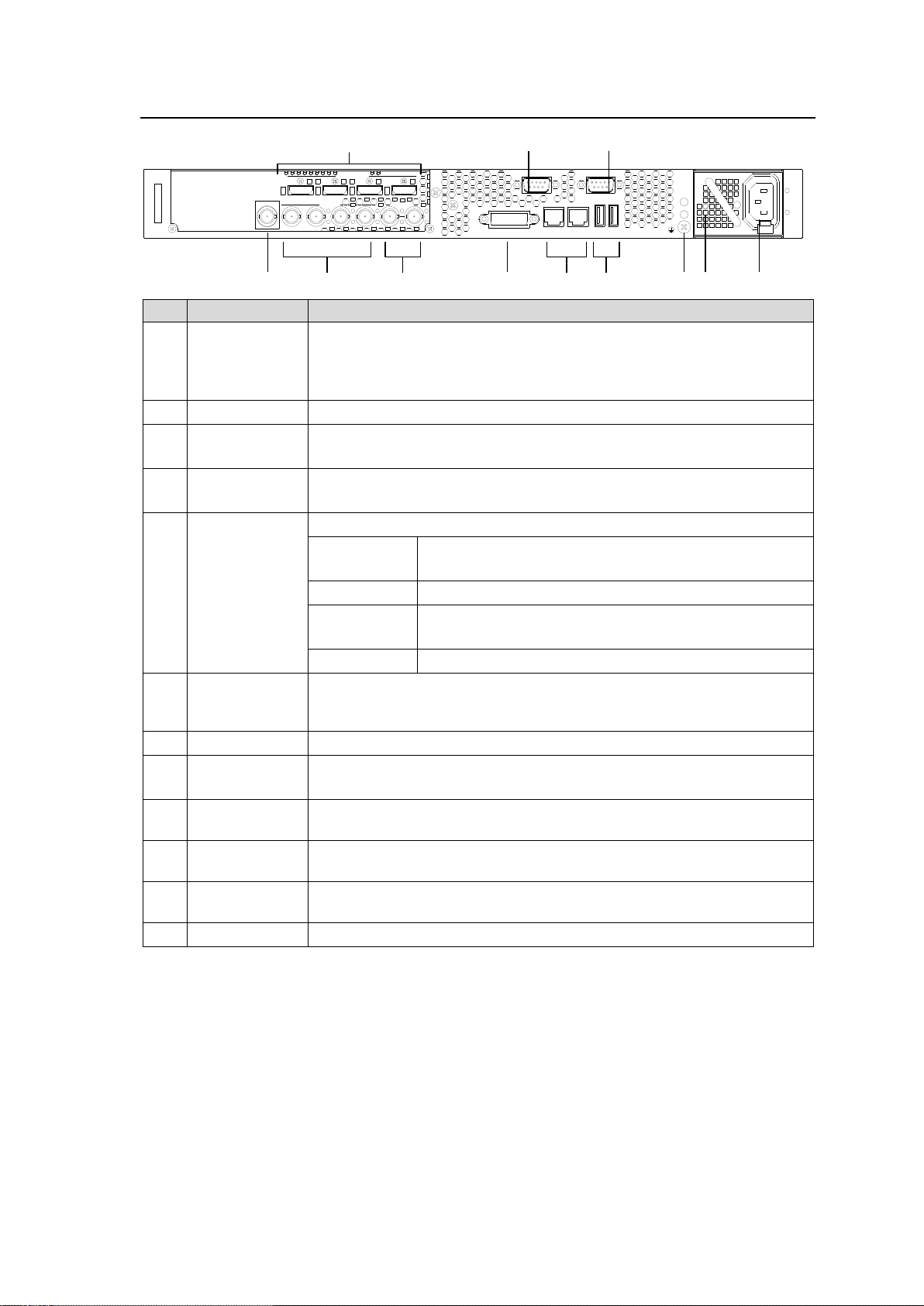
2-2. Rear Panel
A
C
1
0
0
-
2
4
0
V
5
0
/
6
0
H
z
I
N
FVW-700USB3USB4LAN1LAN2
DVI-I
SERIALALARM
DISPLAY PORT
1 2 3 4
SDI OUT
GENLOCK
SDI IN
1 2 3 4
No.
Item
Description
1
DISPLAY
PORT 1-4
Connects PC monitor or touch panel monitor units using the supplied
DisplayPort-DVI conversion connector. Operation GUI opens.
The same screen outputs to DISPLAY PORT1-4. (DisplayPort
connector)
2
ALARM
Outputs power/fan alarm. (9-pin D-sub female)
3
SERIAL
Connects touch panel units.
(RS-232C 9-pin D-sub male)
4
SDI IN
Inputs HD-SDI signals (BNC).
Inputs background video images.
5
SDI OUT 1-4
Outputs HD-SDI signals (BNC).
SDI OUT 1
Outputs background and object or object only.
(Set by FVW-700 Video Writer.)
SDI OUT 2
Outputs SDI OUT1 key signal.
SDI OUT 3
Outputs background and object or object only.
(Set by FVW-700 Video Writer.)
SDI OUT 4
Outputs SDI OUT3 key signal.
6
GENLOCK
Inputs an external reference signal (B.B. or tri-level sync) to either of two
connectors. The other connector is used for loopthrough connection and
must be terminated with a 75 ohm terminating resistor when not used.
7
DVI-I
Not used.
8
LAN1, LAN2
Connects to a computer Ethernet port.
(100BASE-TX/1000BASE-T, RJ-45)
9
USB3, USB4
Connects USB devices such as a keyboard, mouse, and other USB
devices (USB3.0 Standard-A connector)
10
Ground
Terminal
Grounds unit to protect operators against static electricity and/or
electrical shock.
11
Status Lamp
Power supply unit status lamp. Indicates the power supply is operating
normally when the lamp is lit.
12
AC IN
For connection to AC power source.(AC100V-240V 50/60Hz)
4 5 6 9 8 7 3
11
12 1 2
10
10
Page 11
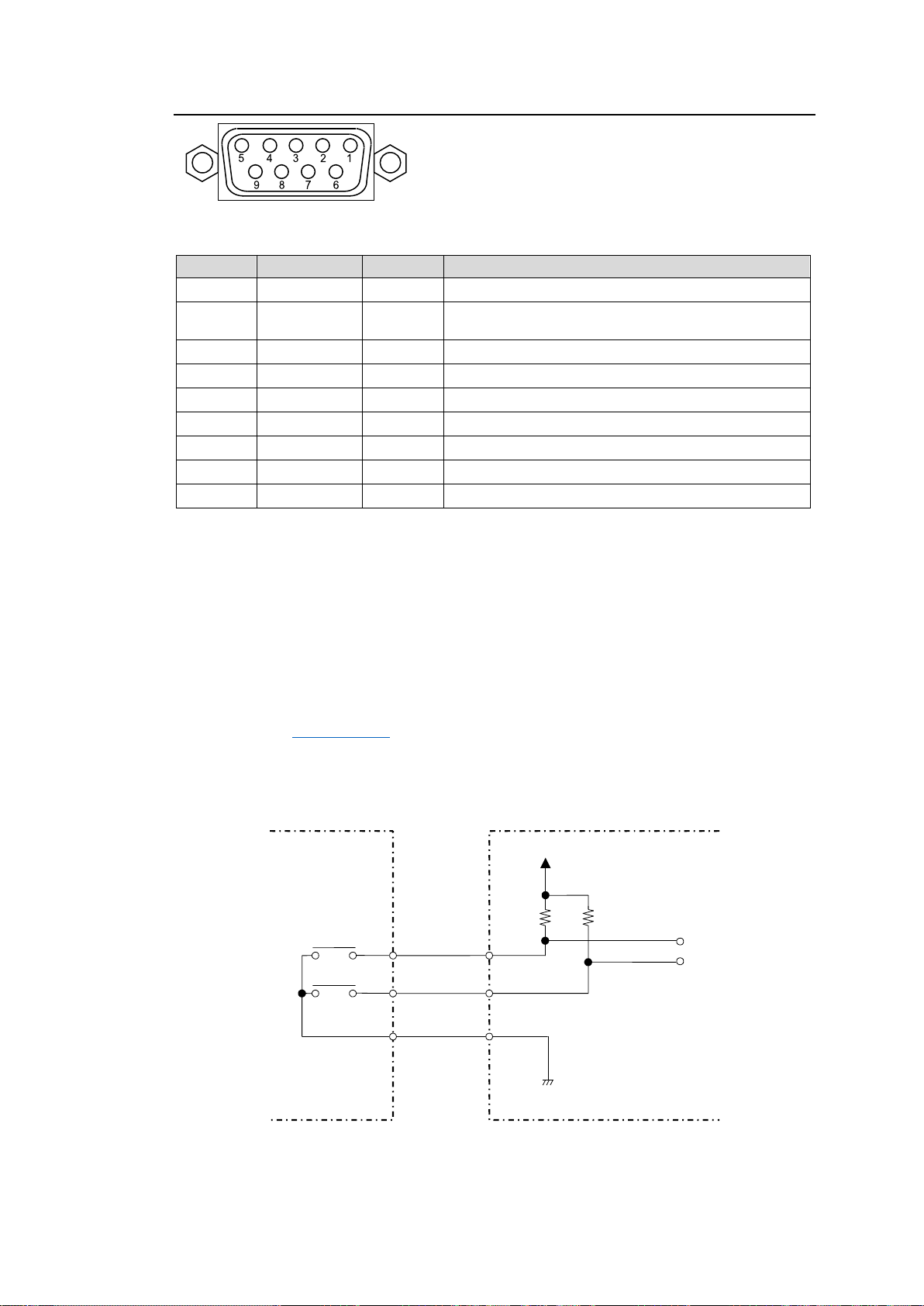
2-2-1. Alarm Connector
Pin No.
Signal Name
In/Out
Description
1
+5VOUT
Out
Outputs +5V.
2
POW
ALARM
Out
Outputs Power alarm.
(*1)
3
FAN ALARM
Out
Outputs Fan alarm.
4
COMMON
-
Common Power and Fan alarm.
(*1)
5
GND
-
Signal ground
6
NC
-
Not used
7
NC
-
Not used
8
NC
-
Not used
9
NC
-
Not used
Closed when a
malfunction occurs
or the power is off.
Alarm Output
FVW-700 side
Relay contact
Relay contact
POW ALARM
FAN ALARM
COMMON
Max: 30V
Pin Assignment Table (9-pin D-sub, female, Inch screws)
* Maximum current rating for +5V OUT is 200mA.
(*1)
Refer to the alarm output circuit diagram below.
Alarm Output Circuit
Alarm outputs are relay contact circuits that operate as follows.
Normal: Common and Open
Malfunction and Power OFF: Common and Close
Pin 4 is a Common pin for both power and fan alarm.
Contact rating is 0.5A@30VDC.
11
Page 12
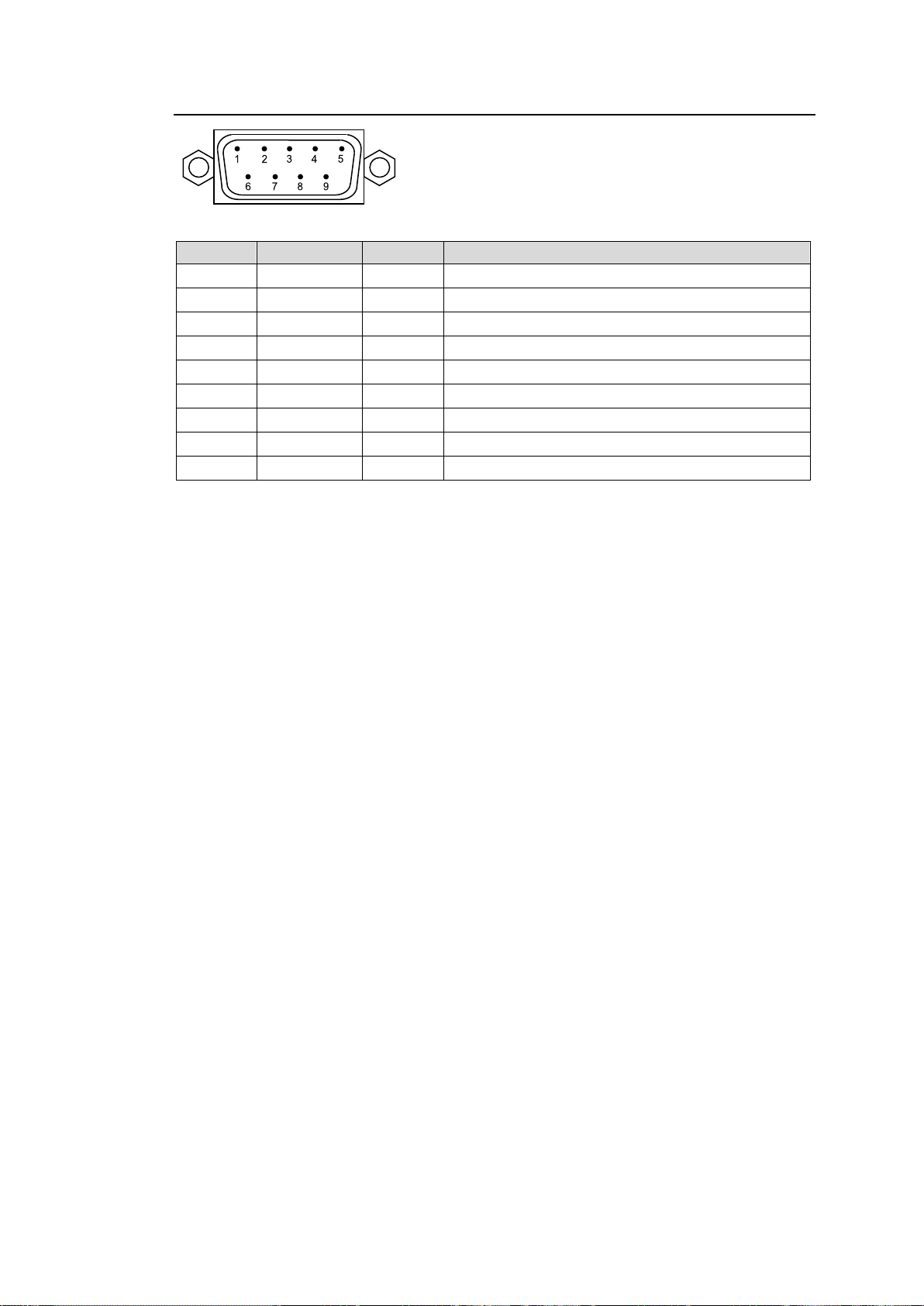
2-2-2. SERIAL Connector (RS-232C)
Pin No.
Signal Name
In/Out
Description
1
DCD
In
Data carrier detection
2
RXD
In
Receive data
3
TXD
Out
Transmit data
4
DTR
Out
Data terminal ready
5
GND
Signal ground
6
DSR
In
Data set ready
7
RTS
Out
Request to send
8
CTS
In
Clear to send
9
RI
In
Ring indicator
Pin Assignment Table (9-pin D-sub male, Inch screws)
12
Page 13
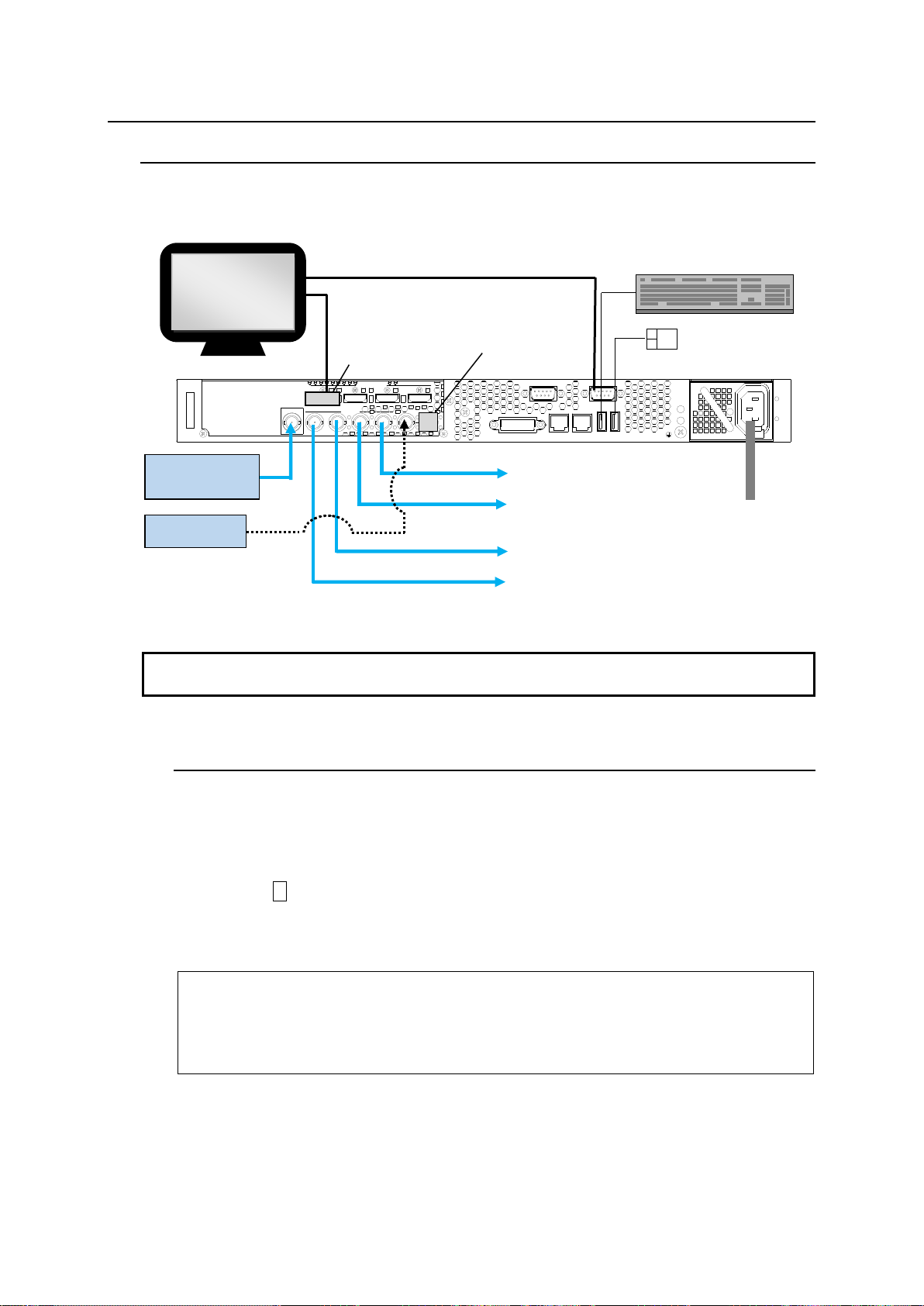
3. Connection
A
C
1
0
0
-
2
4
0
V
5
0
/
6
0
H
z
I
N
FVW-700USB3USB4LAN1LAN2
DVI-I
SERIALALARM
DISPLAY PORT
1 2 3 4
SDI OUT
GENLOCK
SDI IN
1 2 3 4
Do not connect or disconnect cables while the power is on. Doing so may damage the internal
circuitry.
**********************************************************************
The write-protection(UWF) for the boot drive(C:) is set to enable.
The any driver cannot install when write-protection is enabled.
**********************************************************************
Press any key to continue . . .
DisplayPort-DVI
conversion connector
(Supplied)
75Ω
Termination
DVI-I Cable
LINE VIDEO IN
(HD-SDI)
GENLOCK IN
KEY
VIDEO
KEY
VIDEO
HD-SDI
HD-SDI
HD-SDI
HD-SDI
AC Power
Supply
RS-232C Cable / USB Cable
Touch Panel Monitor
3-1. Using a Touch Panel Monitor
The figure below illustrates a connection example.
3-1-1. Touch Panel Driver Installation
To use a touch panel screen, some monitors may require the installation of a touch panel
driver. For the FVW-700, C: drive is write-protected. (Write protection needs to be disabled
before driver installation.) Follow the steps below to disable the write protection, install the
driver, and re-enable the write protection.
1. Click the × button in the upper right corner of the window to exit Video Writer.
2. Double-click the uwf_disable.bat in D:\forawork to execute the batch file.
3. Command Prompt opens and shows the following messages. Press any key once on
the keyboard.
13
Page 14
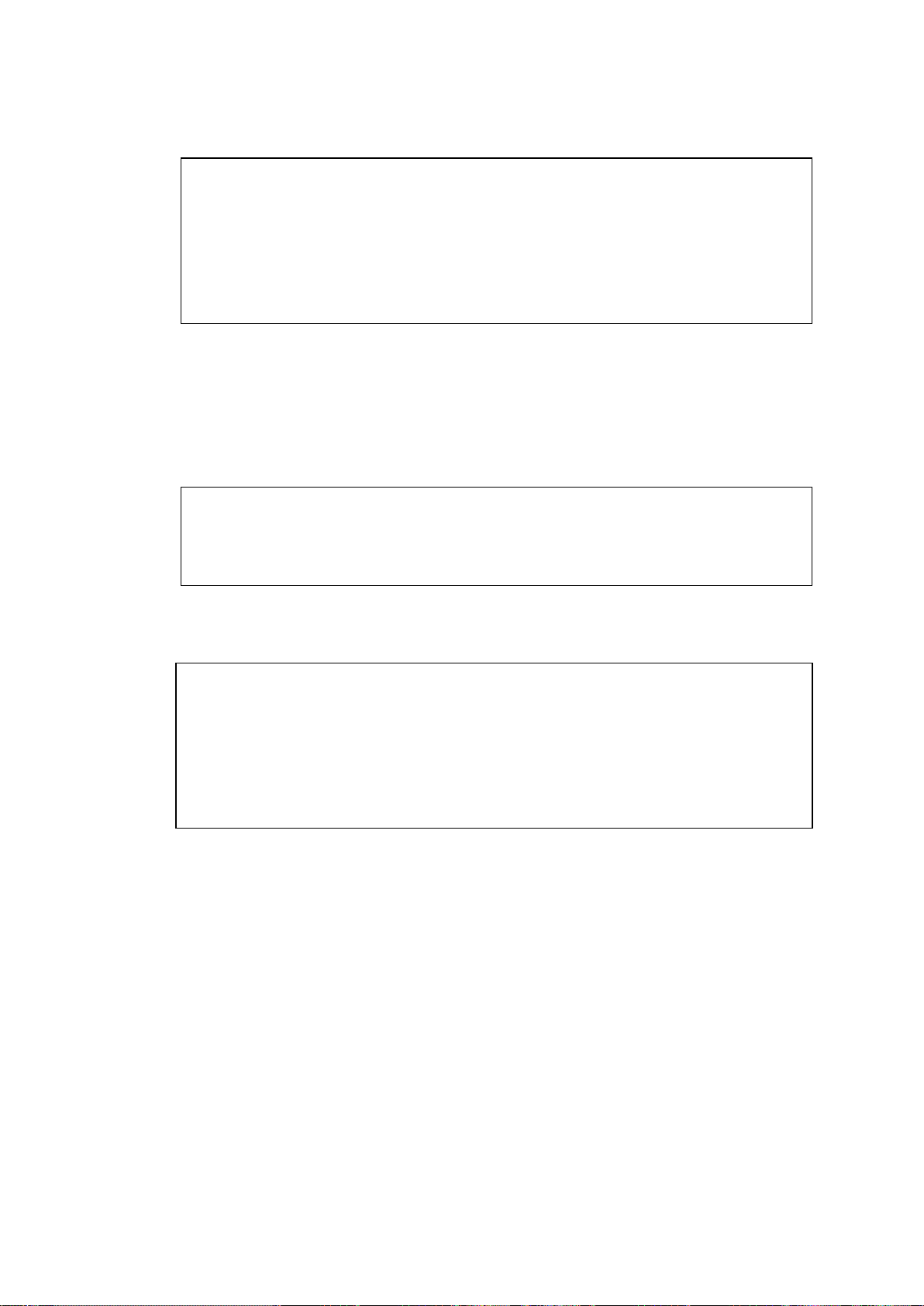
4. The following messages appear. Check that Disable is shown in Boot Command and
Unified Write Filter Configuration Utility version 10.0.14393
Copyright (c) Microsoft Corporation. All rights reserved.
Unified Write Filter will be enabled after system restart.
**********************************************************************
The write-protection for the boot drive was set to disable.
It is reflected in the next boot. Please shutdown the Windows.
**********************************************************************
Press any key to continue . . .
Unified Write Filter Configuration Utility version 10.0.14393
Copyright (c) Microsoft Corporation. All rights reserved.
Unified Write Filter will be disabled after system restart.
**********************************************************************
The write-protection for the boot drive was set to disable.
It is reflected in the next boot. Please shutdown the Windows.
**********************************************************************
Press any key to continue . . .
**********************************************************************
The write-protection(UWF) for the boot drive(C:) is set to enable.
The any driver cannot install when write-protection is enabled.
**********************************************************************
Press any key to continue . . .
press any key once on the keyboard. Command Prompt closes and FVW-700 will restart
automatically.
5. After restarting, install the touch panel driver for your touch panel. Be sure to use
the driver built for Window 10.
6. After installing the driver, double-click the uwf_enable.bat in D:\forawork to execute the
batch file.
7. Command Prompt opens and shows the following messages. Press any key once on
the keyboard.
8. The following messages appear. Check that Enable is shown in Boot Command and
press any key once on the keyboard. Command Prompt closes.
9. Windows shuts down automatically and the FVW-700 power supply turns off
automatically.
10. Wait for about 5 seconds and turn on the front panel power switch.
Driver installation is complete.
14
Page 15
4. Using Video Writer
NOTE
Video Writer is automatically started when the FVW-700 is powered on.
Normally the application does not need to be manually started.
IMPORTANT
Pressing the POWER switch down for more than 5 seconds forces the power off when Windows
becomes inoperable because of software issues. Apply this procedure only when problem
occurs.
Unplug the FVW-700 when unused for a long period of time.
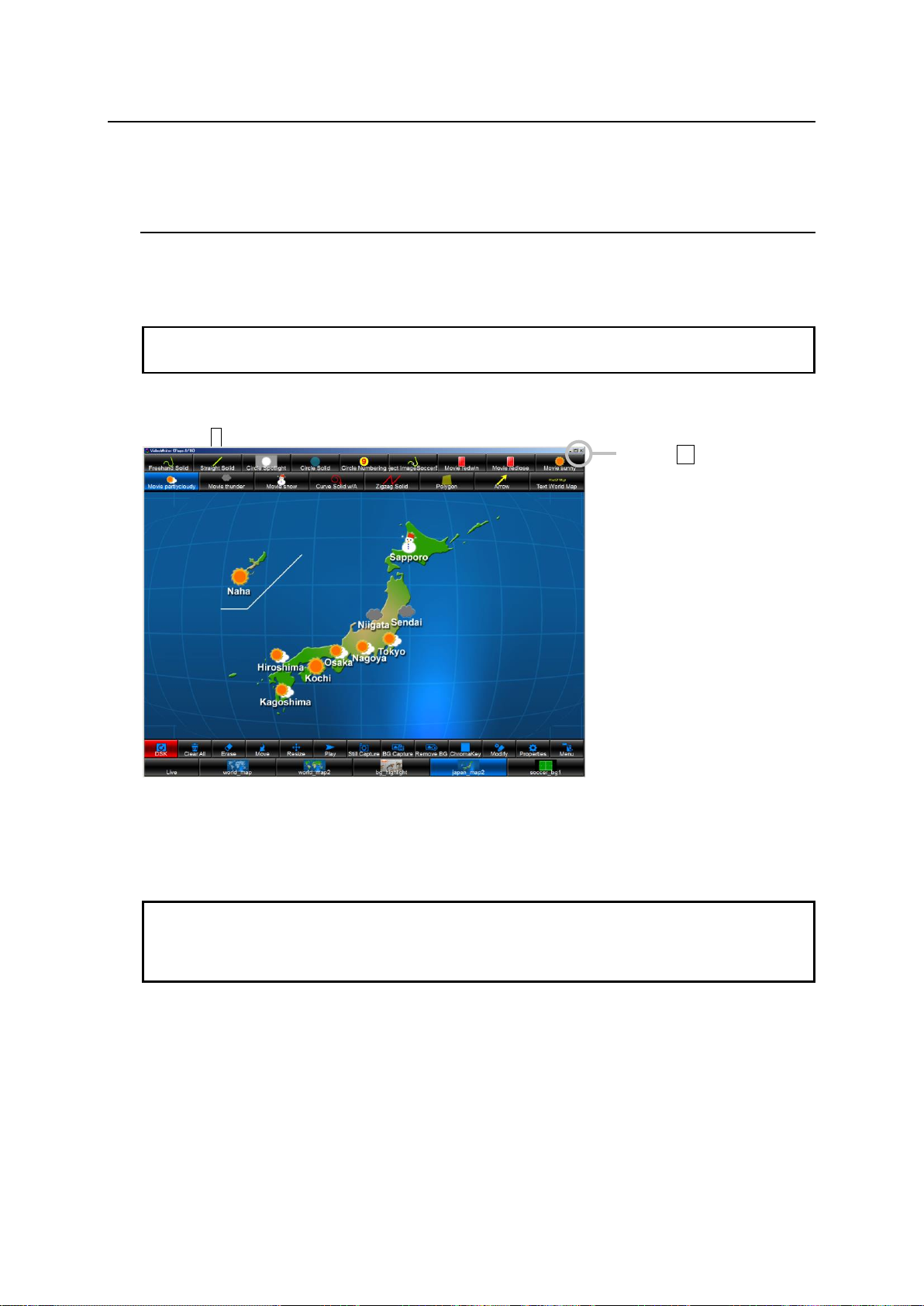
Main Window
Click the x button.
See FVW-7SO Operation Manual for details on Video Writer basic operations and settings.
4-1. Starting and Exiting Video Writer
Starting Video Writer
On the desktop, double-click the shortcut to VideoWriter.
Exiting Video Writer
Click the × button in the upper right corner of the main window.
A Shutdown operation is required before the FVW-700 is turned off. Select Shutdown from
Windows Start Menu. The FVW-700 power turns off automatically.
15
Page 16
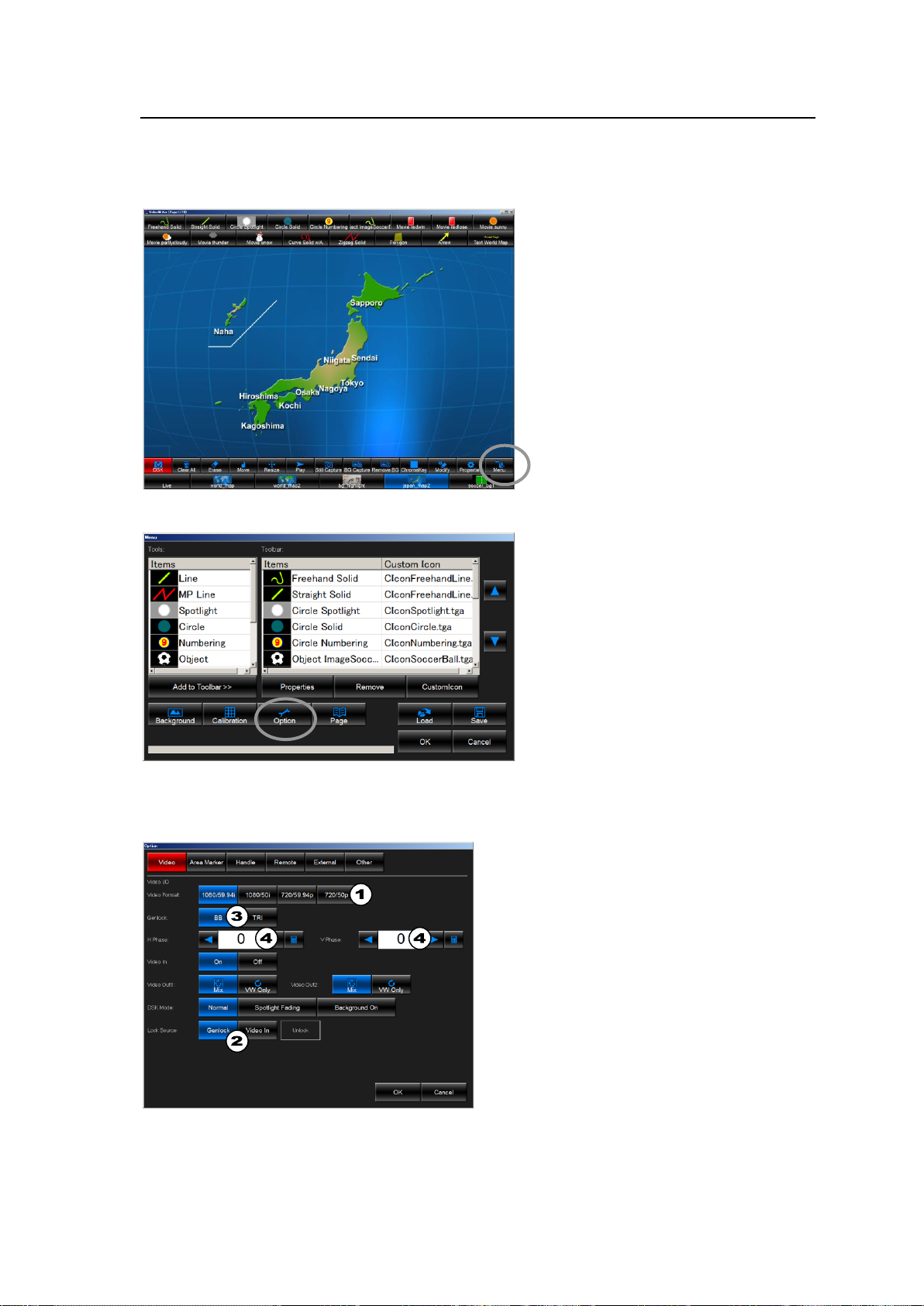
4-2. System Setting
Video Format selection
External reference signal selection
Genlock: Use of Genlock Signal.
Video In: Synchronizes to SDI IN.
1. When Genlock is selected in , set
and .
Genlock Signal selection
Genlock phase adjustment
This section describes how to select the video format, reference signal and Lock Source, and to
adjust genlock phases.
1. Click the Menu button in the main window.
2. Click the Option button.
3. The screen for video option settings appears allowing you to set various settings. Click OK
when settings are complete.
16
Page 17
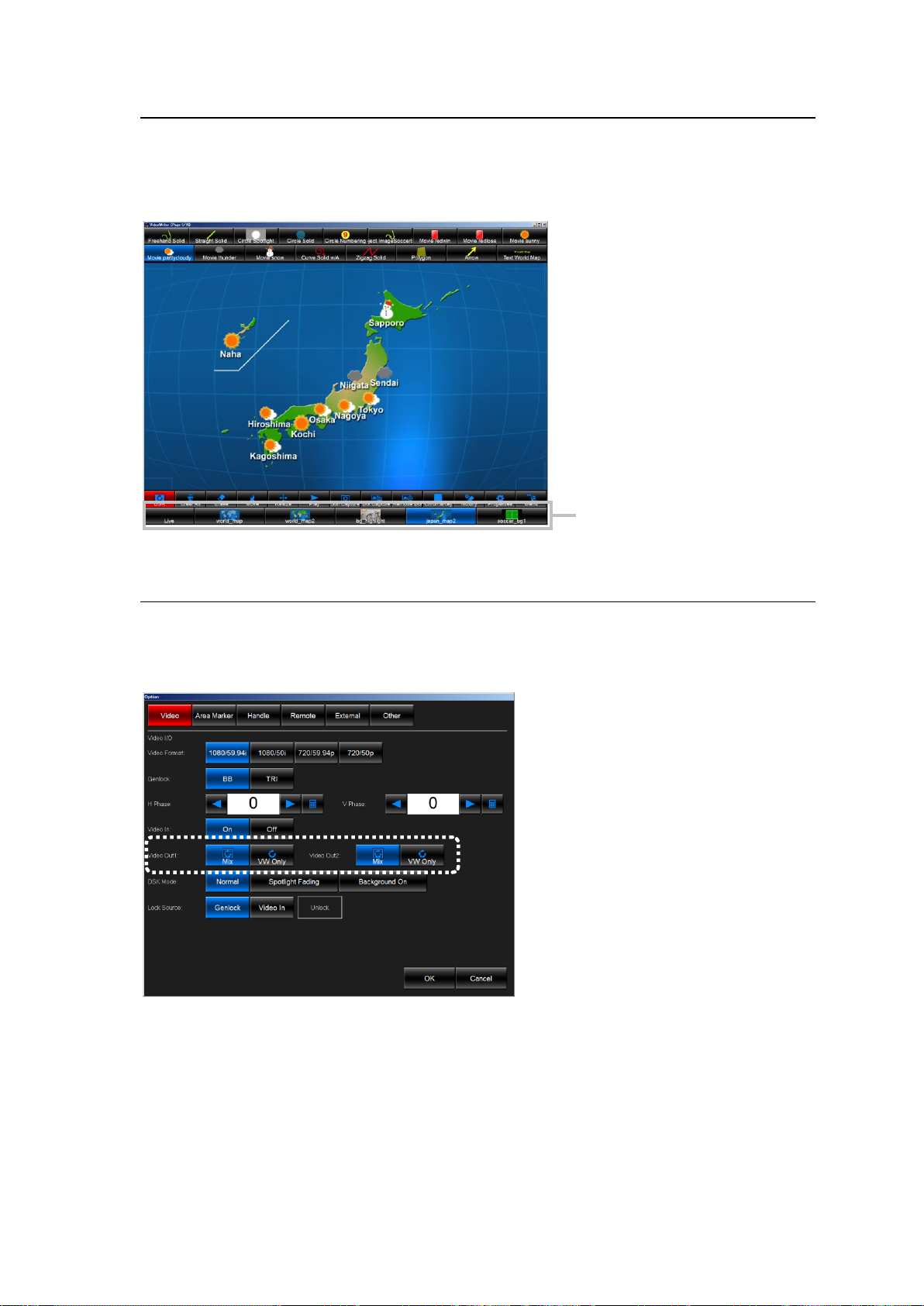
4-3. Background Image or Movie Selection
Background Buttons
This section describes how to select a background image. Select a background image by clicking a
background button in the Video Writer main window as shown below.
When Live is clicked, the movie stream that is input to FVW-700 SDI IN is applied. (Default: Live)
4-4. Composite Out Settings
This section describes how to set output images and VW objects. Allows you to select output
images from FVW-700 SDI OUT1 and SDI OUT3.
1. Open FVW-700 Menu >Option > Video dialog.
2. Set output images from SDI OUT1 in Video OUT1. (Default: Mix)
Mix: Outputs background image and VW-created object composition from SDI OUT1.
VW Only: Outputs VW-created objects only from SDI OUT1.
3. Set output images from SDI OUT3 in Video Out2. (Default: Mix)
17
Page 18
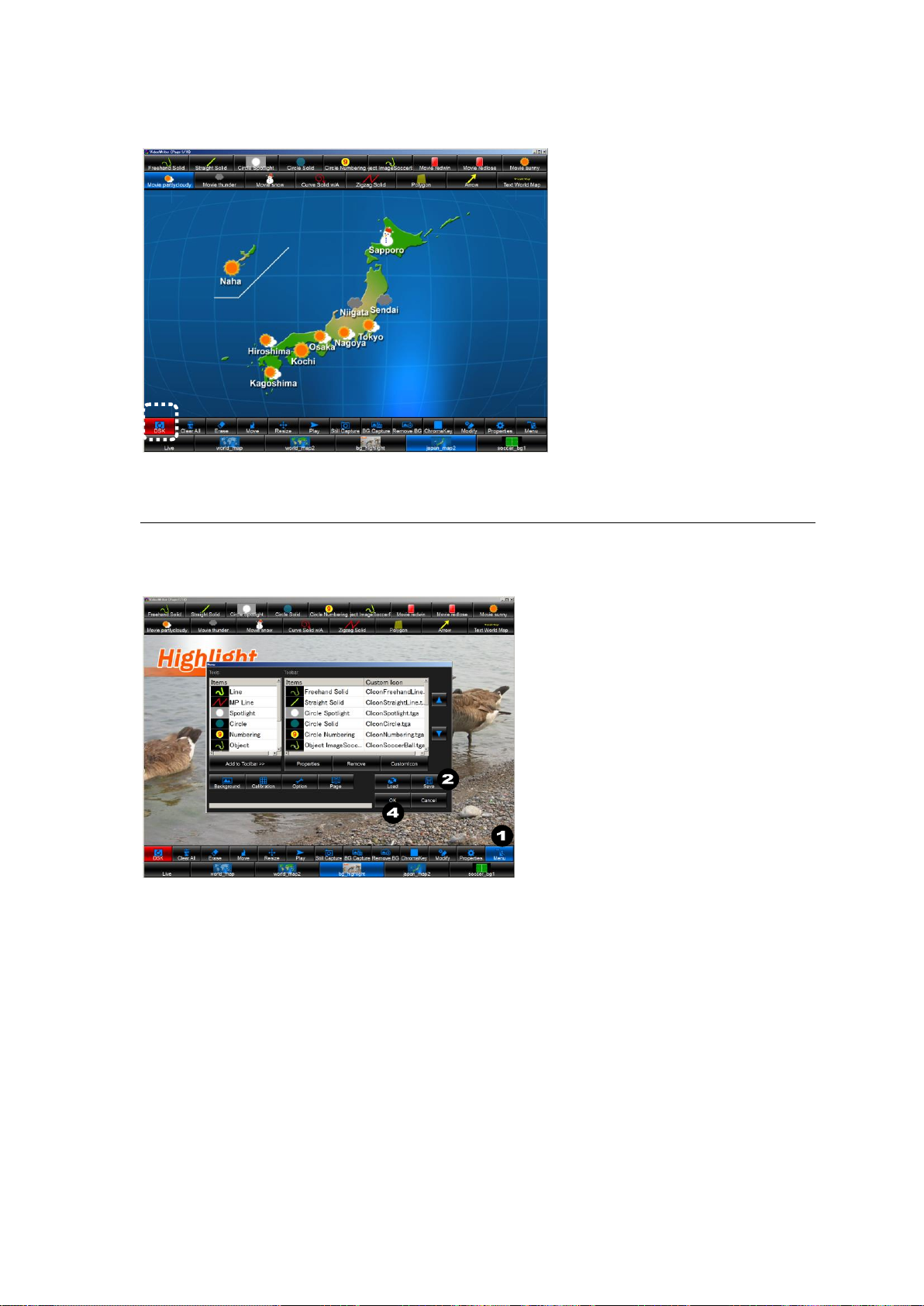
4. When set to Mix for Video OUT1 / Video OUT2, click the Main window DSK button. When the
button turns red, background and VW objects composite images are out from SDI OUT1 / SDI
OUT3.
4-5. Saving Settings
This section describes how to save the current screen image, draw tool property settings, and
background button settings into a file. File extension is .vwf.
1. Click the Menu button in the Video Writer main window.
2. Menu dialog box appears. Click Save.
3. Save As dialog box appears. Input file name and directory and click Save.
4. Returns to the Menu dialog box. Clicking OK closes the dialog box and current settings are
saved into a file.
18
Page 19
4-6. Loading Settings
File
Settings
How to Save and Load Settings
VideoWriter.ini
Properties settings of draw tools
Background button settings
Option settings
Safety area marker settings
Video format settings
External reference input settings
Click OK in the Properties dialog box.
Settings are kept until the next time the
application is started.
VideoWriter file
(vwf file)
Current on screen image
Property settings of draw tools
Background button settings
Save and load the .vwf files.
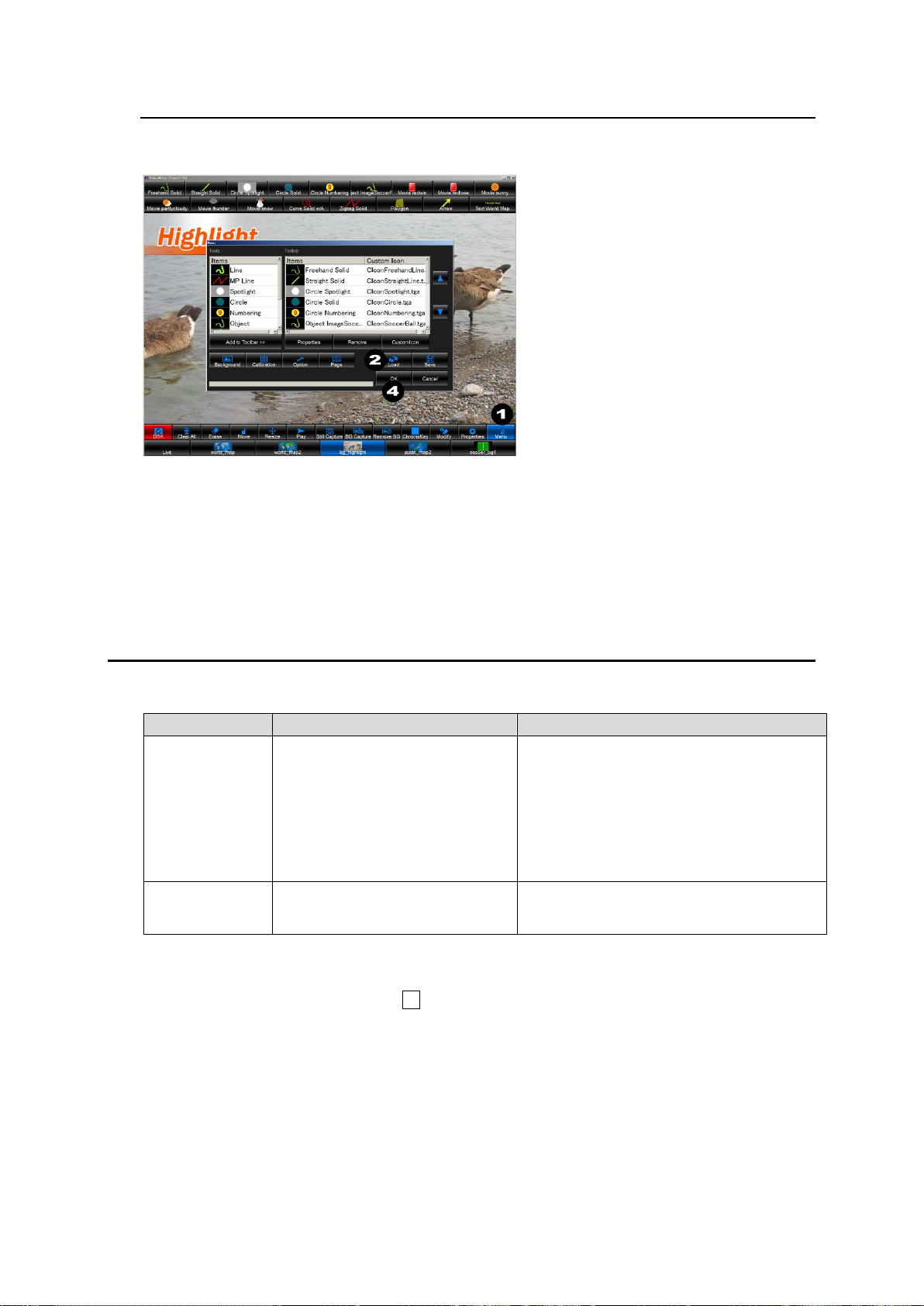
This section describes how to load settings saved under Sec. 4-5. “Saving Settings.”
1. Click the Menu button in Video Writer main window.
2. The Menu dialog box appears. Click Load.
3. An Open dialog box appears. Select the file (.vwf) to load and click OK.
4. Returns to the Menu dialog box. Clicking OK closes the dialog box and loads the selected
settings.
5. Resetting to Default
FVW-700 settings are saved as below.
To reset the above settings to default, follow the below procedure.
1. In Video Writer software, click the × button in the upper right corner of the main window to
close the application.
2. To execute a batch file, double-click default.bat located in C:\VideoWriter\.
3. The command prompt is launched automatically. Once the command prompt finishes its
process, the settings have been reset.
4. The settings are reset to default the next time Video Writer is run.
19
Page 20

6. Specifications and Dimensions
Video formats
HD-SDI
1080/59.94i, 1080/50i, 720/59.94p, 720/50p
Signal Processing
4:2:2:4 digital component
Quantizing
10-bit
Video Inputs
HD-SDI: 1.5 Gbps 75Ω, BNC x 1
Video Outputs
HD-SDI: 1.5 Gbps 75Ω, BNC x 4
(2 outputs for video signal and other 2 for key source signal. SDI IN
input is bypassed through SDI OUT1 output when the unit is
powered off.)
Genlock Input
BB: NTSC 0.429V(p-p) / PAL 0.45V(p-p) or
Tri-level Sync: 0.6V(p-p)
75Ω (termination required) or loopthrough, BNC x 1
Input Lock
±0.5H relative to genlock signal phase
I/O Delay
1 frame when the video input phase is same as that of genlock.
Interface
DVI-I
DVI-I x 1 (1280 x 1024) (Not used)
USB
USB 3.0, Series-A type connector x 4 (2 on the front panel,2 on the
rear panel)
LAN1/LAN2
100BASE-TX/1000BASE-T, RJ-45 x 2
ALARM
9-PIN D-sub (female) x 1
ALARM: Power and fan alarm (Relay make contact output)
RS232C (SERIAL)
9-pin D-sub (male) x 1
DisplayPort1-4
DisplayPort (1.2) x 4 for control screen output
Temperature
0°C - 40°C
Humidity
20% - 80% (no condensation)
Power
100VAC - 240VAC ±10%, 50/60Hz
Consumption
120VA (117W) at 100V-120VAC
132VA (109W) at 220V - 240VAC
Dimensions
430 (W) x 44 (H) x 500 (D) mm, EIA 1RU
Weight
9 kg
Consumables
(if used 24 hours a day at
normal temperature)
Cooling fans: Replace every 3 years
Power unit: Replace every 5 years
Battery: Replace every 5 years *
*Yearly battery replacement is recommended when unit is stored without powering on for long
periods.
6-1. Unit Specifications
20
Page 21
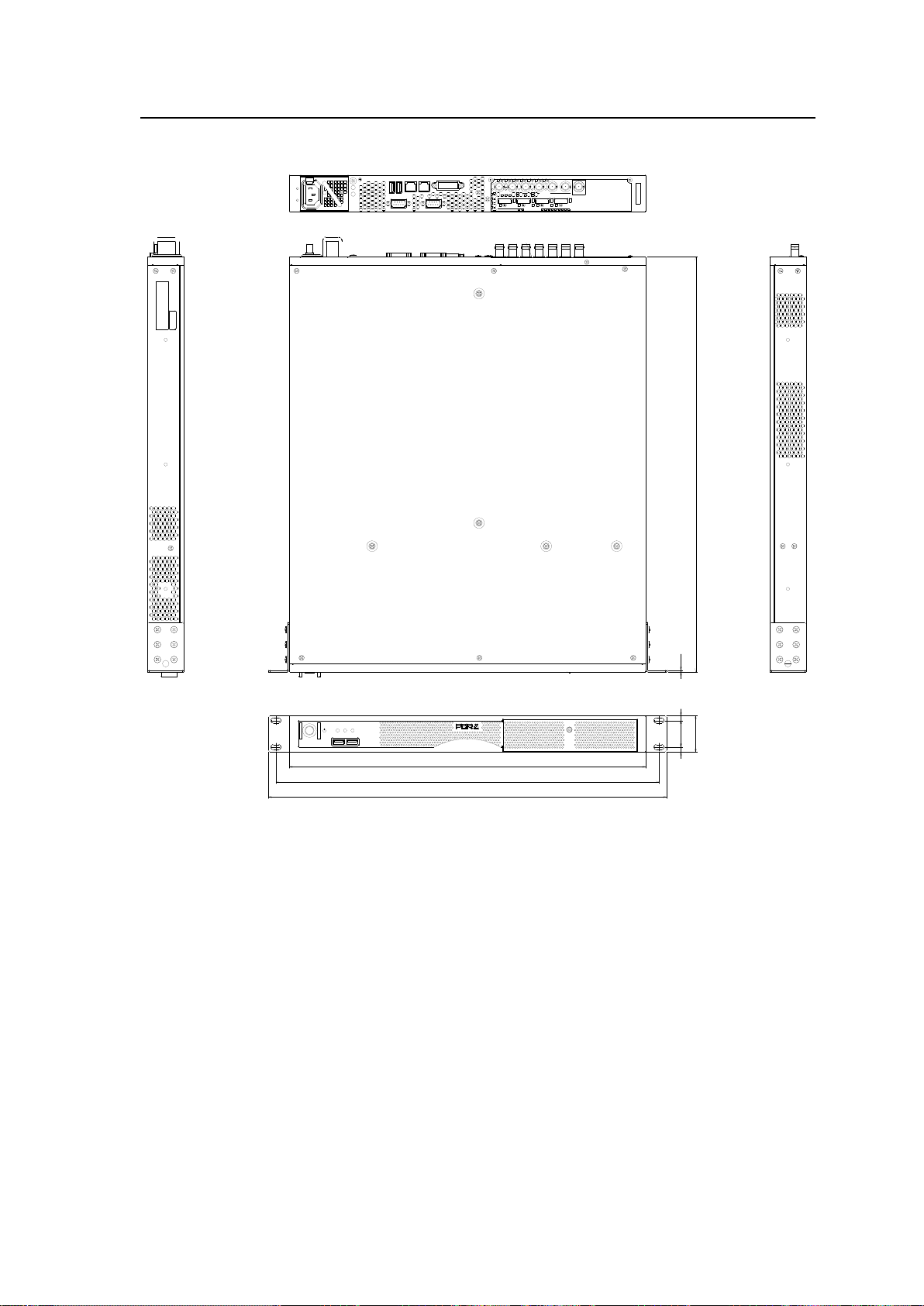
6-2. External Dimensions
4
4
6
3
2
6
430
462
480
5
0
0
2
.
3
A
C
1
0
0
-
2
4
0
V
5
0
/
6
0
H
z
I
N
FVW-700USB3USB4LAN1LAN2DVI-
I
SERIA
L
ALARM
DISPLAY POR
T
1
2
3
4
SDI OUT
GENLOCK
SDI I
N
123
4
FVW-700
VIDEO WRITER
MAIN POWER
POWERFAN FAN
USB 1 USB 2
(All dimensions in mm)
21
Page 22
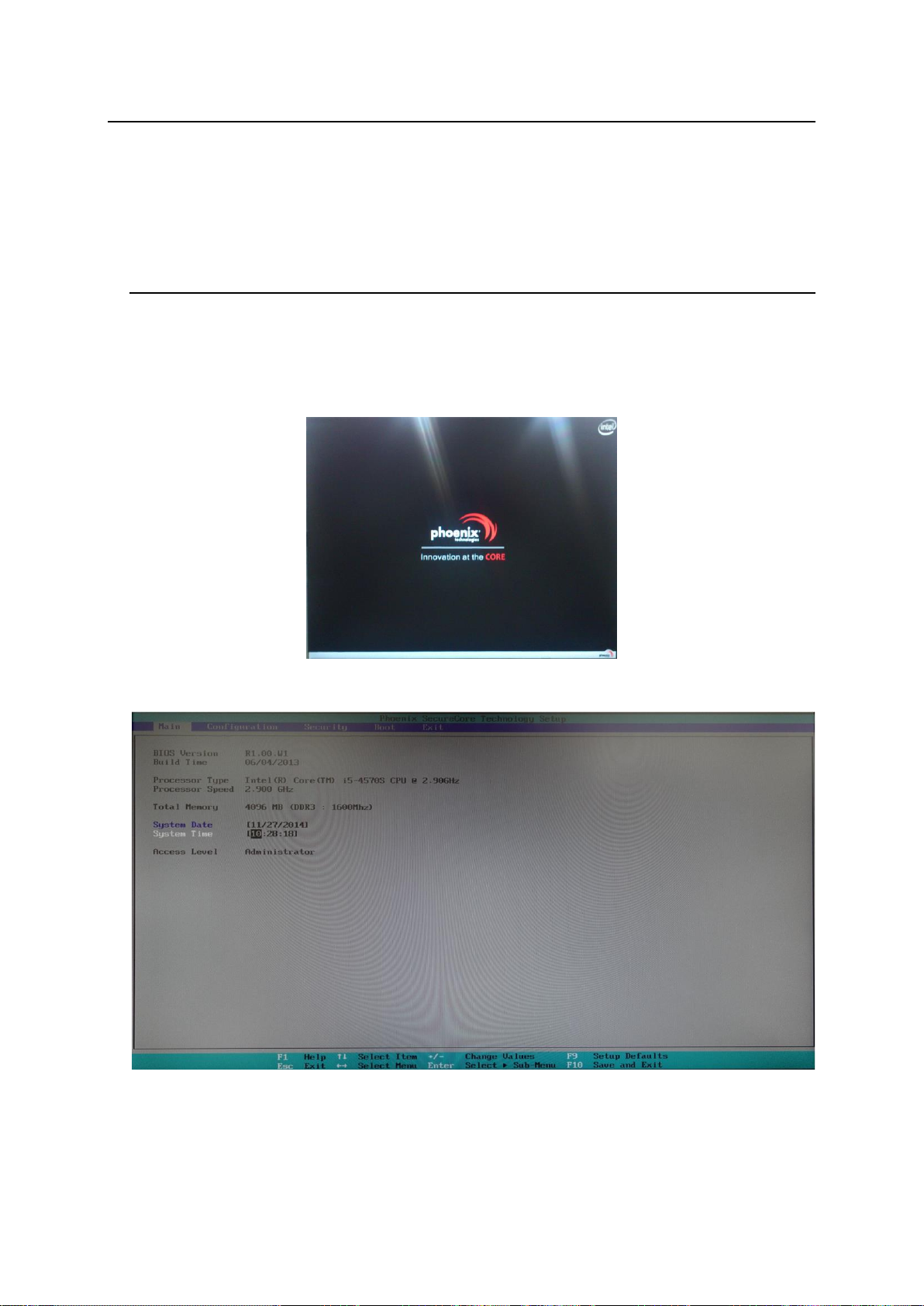
Appendix 1. How to Reset BIOS
In case the operating system cannot be started due to the lack of battery power which backs up the
BIOS settings, please consult your FOR-A reseller. Be sure to ask the FOR-A reseller to replace
the battery, because some mechanical ability is required for the battery replacement.
If you urge to recover the unit, it is possible for the moment by following the procedure below to
reset the BIOS.
1. Opening BIOS Setup Menu
1. Connect a PC monitor to the DVI-I port and a keyboard and mouse to the USB ports on the
rear of the device and turn on the power
2. The screen appears as below. Press the F2 key.
3. The Phoenix SecureCore Technology Setup screen appears.
22
Page 23
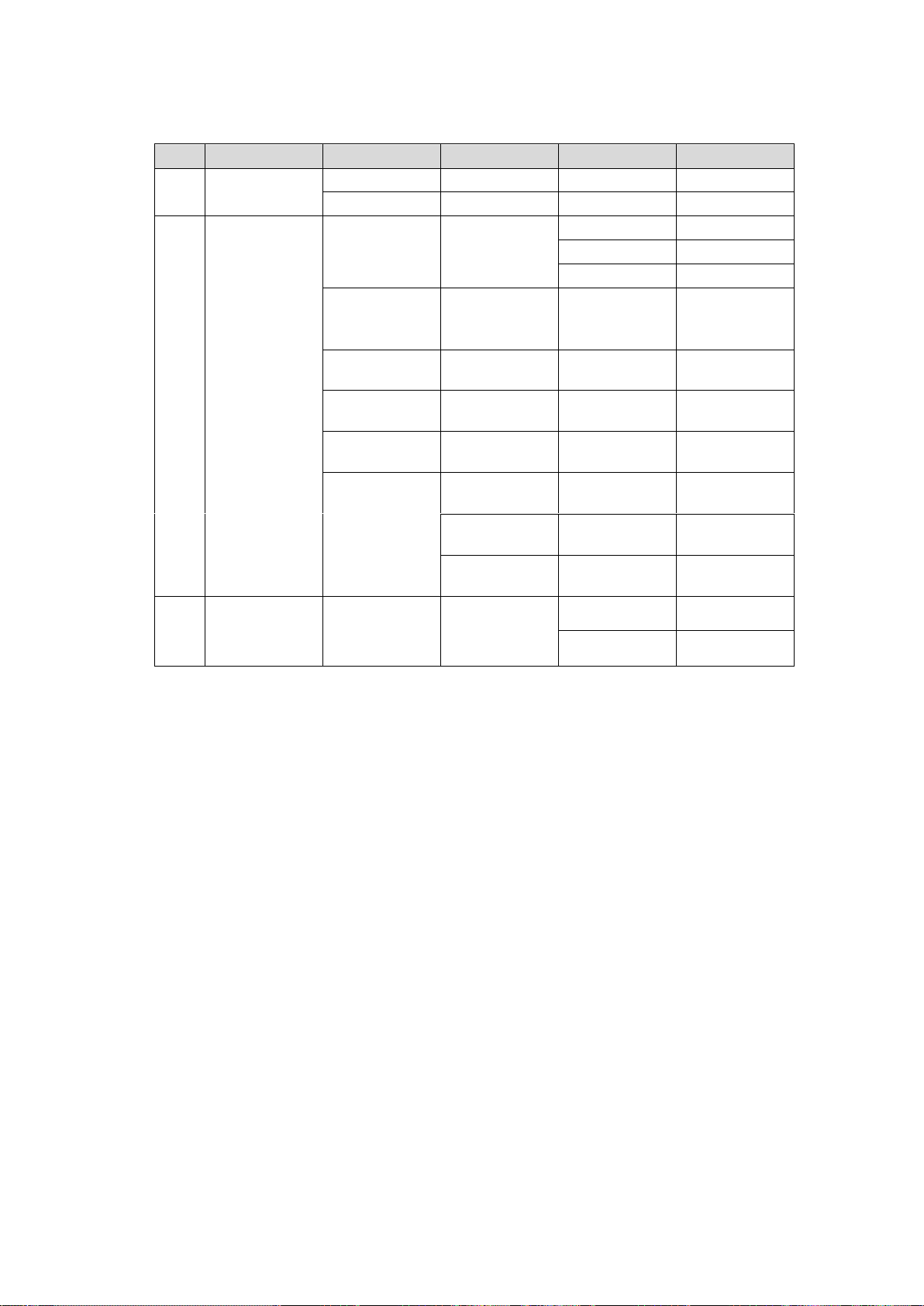
After loading default configuration settings, set the values as shown below.
Item
Menu bar
Menu Item
Submenu 1
Submenu 2
Value
(1)
Main
System Date
- - Current date
System Time
- - Current time
(2)
Configuration
PCI/PCIE
Configuration
Processor
PCI Express
Configuration
PEG0
Gen2
PEG1
Gen2
PEG2
Gen2
Power
Control
Configuration
Restore AC
power loss
-
Lase State
CPU
Configuration
EIST
-
Disable
Chipset
Configuration
Memory
Configuration
Max TOLUD
Dynamic
SATA
Configuration
Hot Plug
-
Disable (for
all items)
Super IO
Configuration
COM2
Configuration
-
RS-422
Parallel Port
Address
-
378/ IRQ7
Parallel Port
Mode
-
Standard
(3)
Boot
Boot Priority
Order
1
ATA HDD0
2
ATA HDD1
The detailed procedure is given in the following section.
23
Page 24
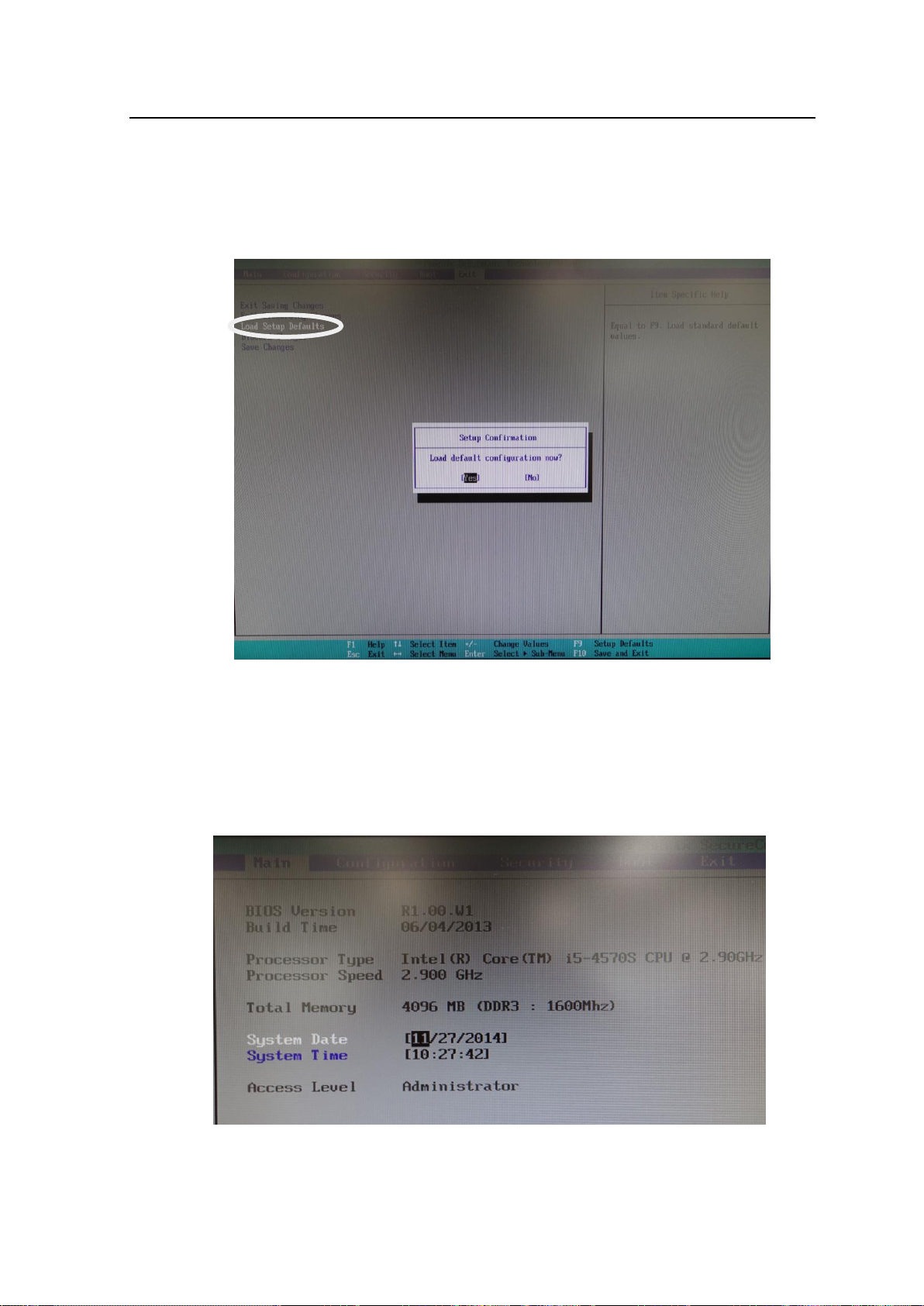
2. Setting Procedure
Default configuration
(a) On the menu bar, select Exit using the right and left arrow keys.
(b) Select Load Setup Defaults using the up and down arrow keys, and press Enter.
A confirmation message appears asking if you want to load the default configuration
settings. Press Enter. The default configuration settings will load.
(1) Date and time settings
(a) On the menu bar, select Main using the right and left arrow keys.
(b) Select System Date using the up and down arrow keys, and enter the current date using
the numeric keys. Press Enter to confirm an entry and move the cursor to month/day/year.
In the same way, set the current time under System Time.
24
Page 25
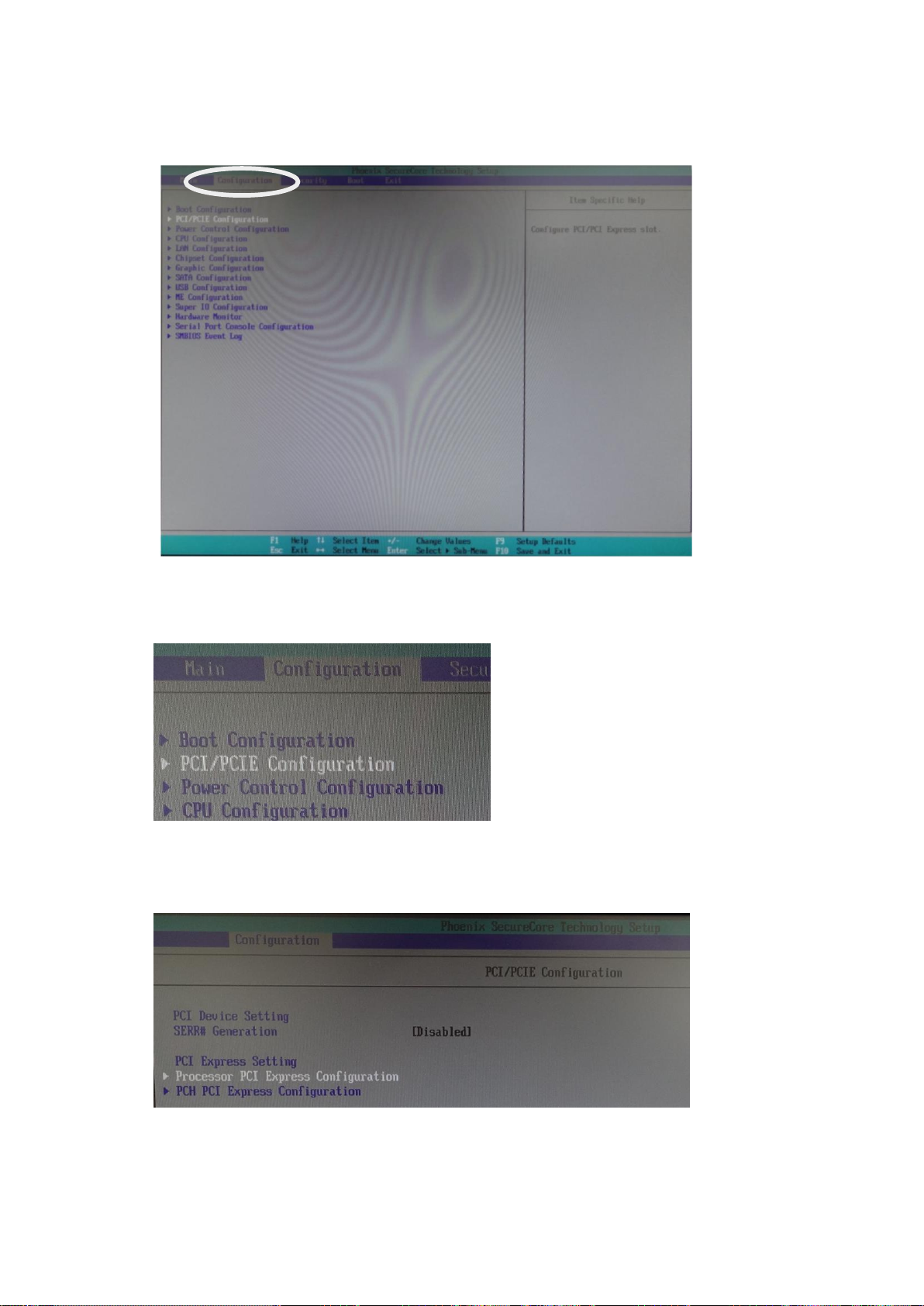
(2) Configuration menu
On the menu bar, select Configuration using the right and left arrow keys. The
Configuration menu screen appears.
PCI/PCIE Configuration
(a) Select the PCI/PCIE Configuration submenu, and press Enter to display the menu.
(b) Select Processor PCI Express Configuration using the up and down arrow keys, and
press Enter. The Options window appears. Select PEG0 and press Enter. Select Gen2
and press Enter.
25
Page 26
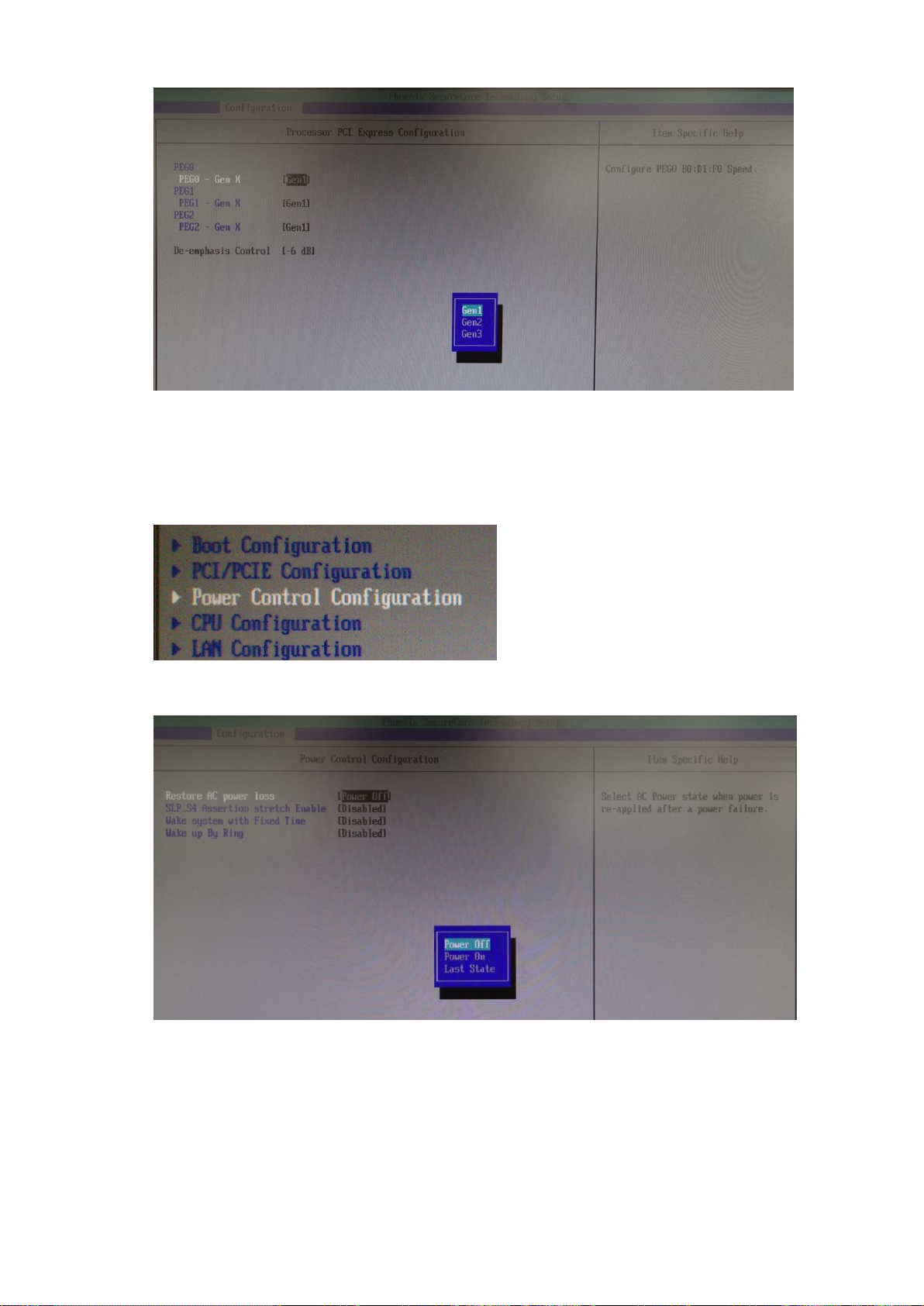
(c) In the same way, set PEG1 and PEG2 to Gen2.
Power Control Configuration
(a) Press the Esc key to return to the Configuration menu screen. Select the Power Control
Configuration submenu and press Enter.
(b) Select Restore AC power loss, and press Enter. Select Last State, and press Enter.
26
Page 27
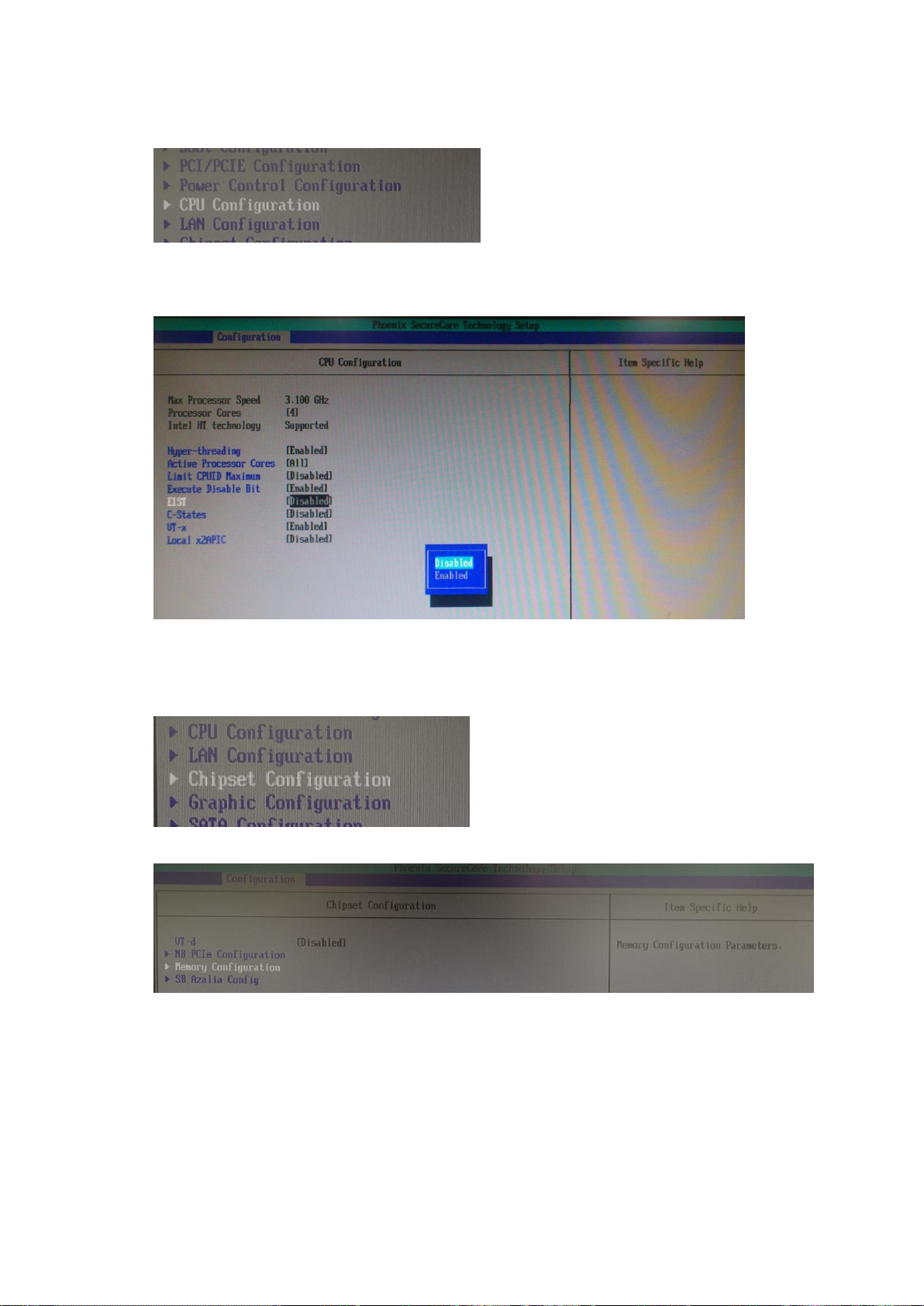
CPU Configuration
(a) Press the Esc key to return to the Configuration menu screen. Display the CPU
Configuration menu.
(b) Select EIST using the up and down arrow keys, and press Enter.
(c) Select Disabled using the up and down arrow keys, and press Enter.
Chipset Configuration
(a) Press the Esc key to return to the Configuration menu screen. Display the Chipset
Configuration menu.
(b) Select Memory Configuration using the up and down arrow keys, and press Enter.
27
Page 28
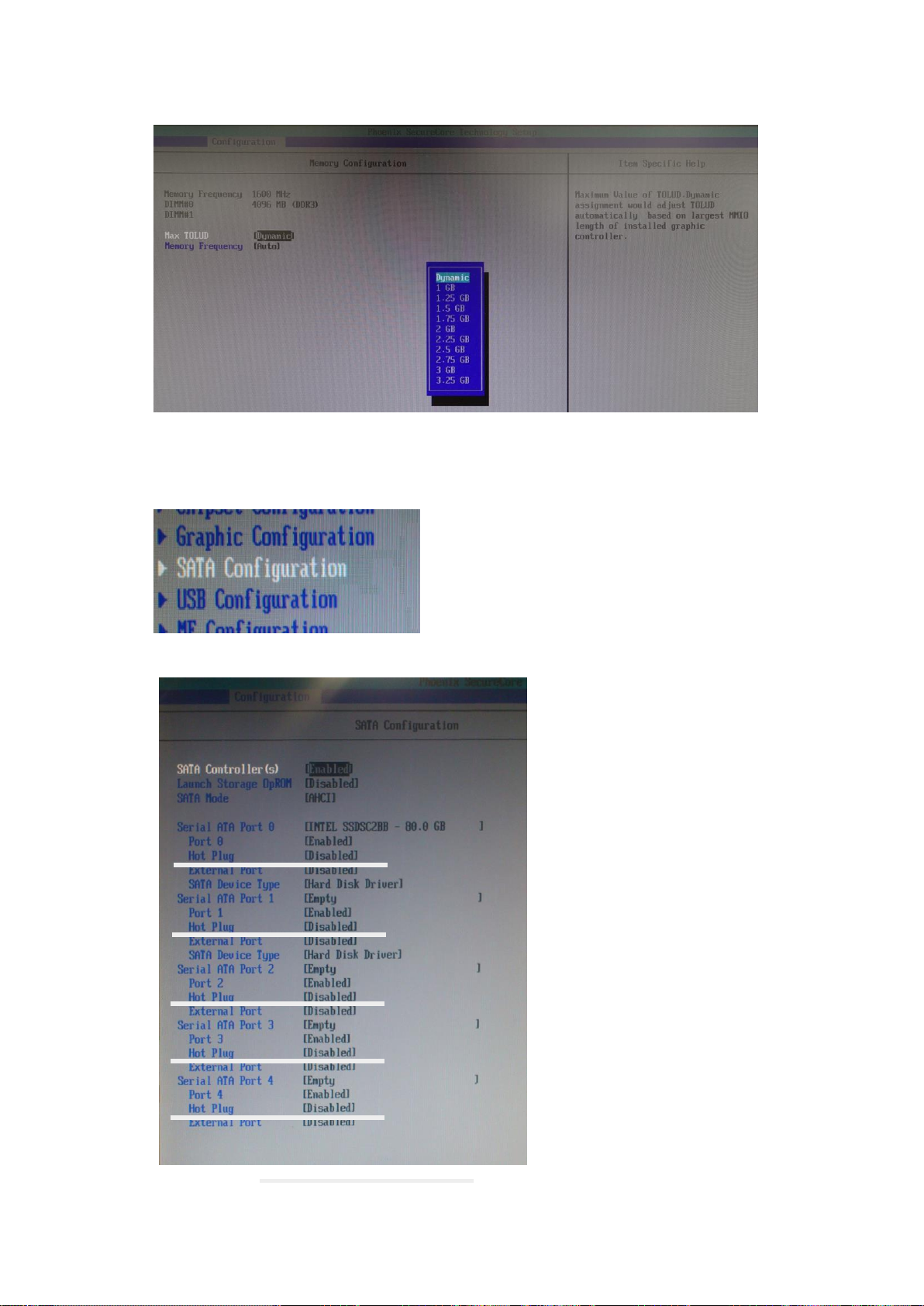
(c) Select Max TOLUD using the up and down arrow keys, and press Enter.
(d) Select Dynamic and press Enter.
SATA Configuration
(a) Press the Esc key to return to the Configuration menu screen. Display the SATA
Configuration menu.
(b) Set all Hot Plug settings to Disabled.
28
Page 29
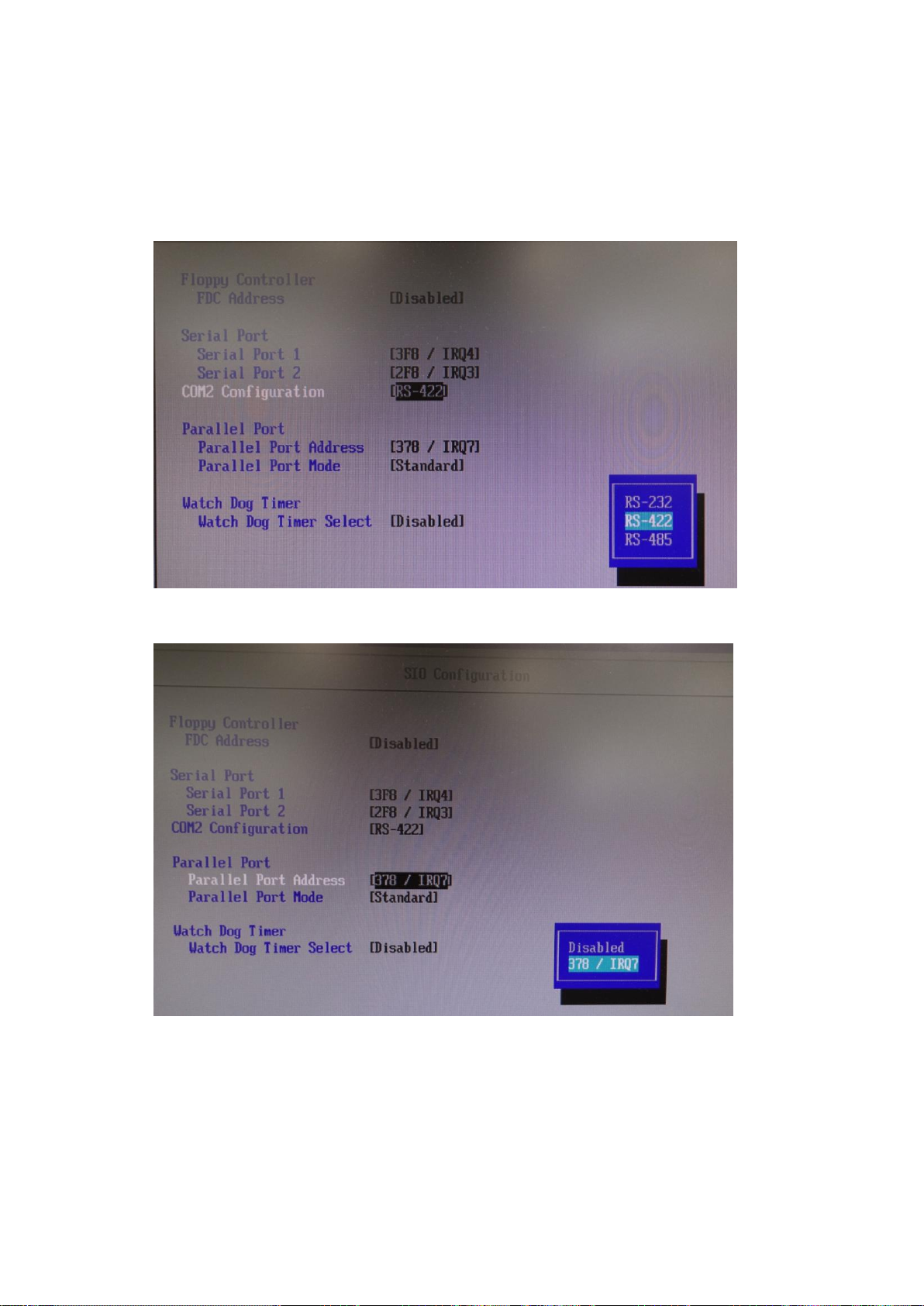
Super IO Configuration
(a) Press the Esc key to return to the Configuration menu screen. Display the Super IO
Configuration menu.
(b) Select COM2 Configuration using the up and down arrow keys, and press Enter.
(c) Select RS-422 using the up and down arrow keys, and press Enter.
(d) Select Parallel Port Address using the up and down arrow keys, and press Enter.
(e) Select 378/ IRQ7 using the up and down arrow keys, and press Enter.
29
Page 30
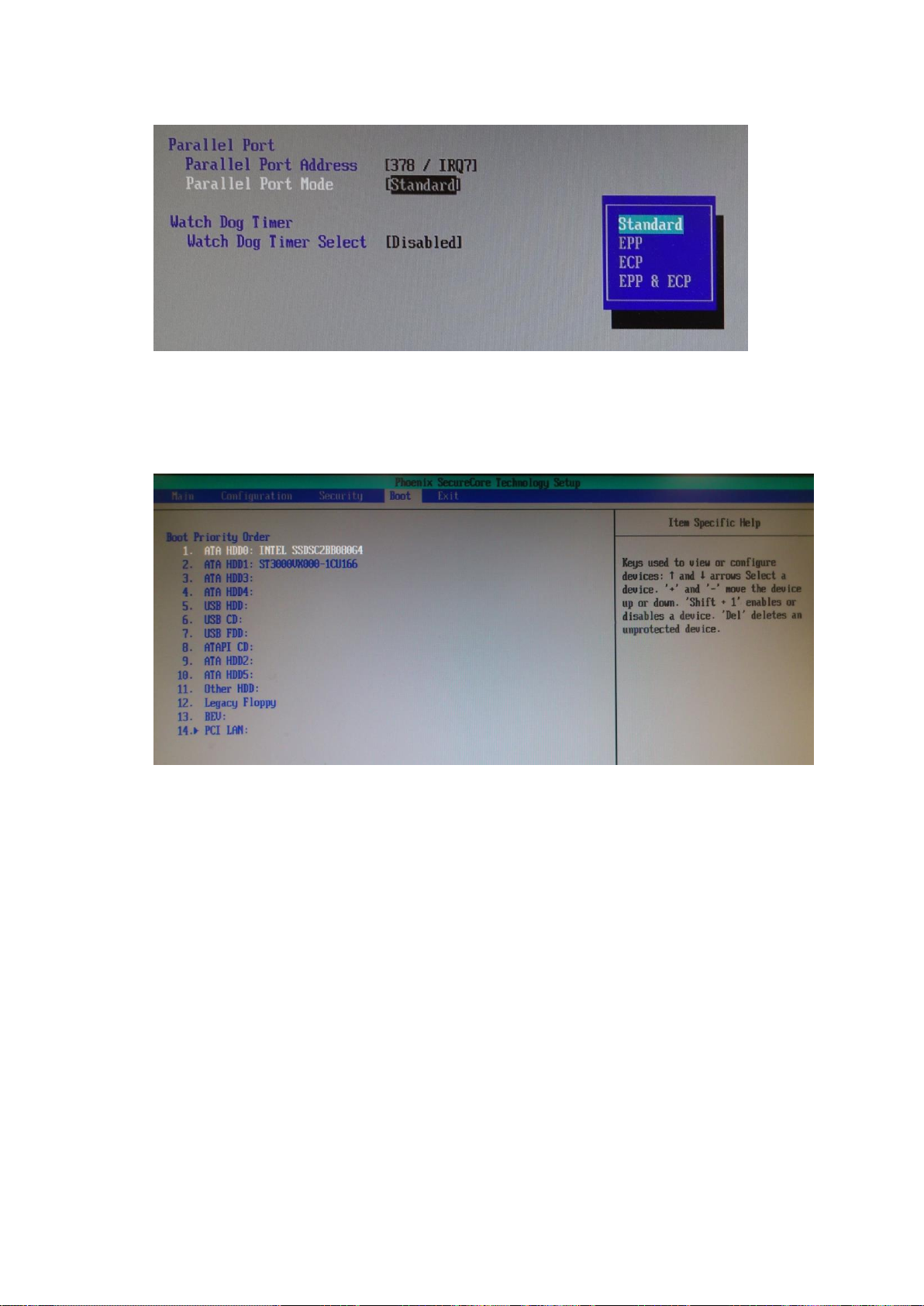
(f) Select Parallel Port Mode using the up and down arrow keys, and press Enter.
(g) Select Standard using the up and down arrow keys, and press Enter.
(3) Boot menu
(a) Press the Esc key to return to the Configuration menu screen. On the menu bar, select
Boot using the right and left arrow keys.
(b) Under Boot Priority Order, set 1 to ATA HDD0. Use the + and – keys to change the
setting.
(c) Under Boot Priority Order, set 2 to ATA HDD1.
(d) Once you have completed the settings, press the F10 key. A confirmation message
appears asking if you want to save the settings and exit the BIOS setup menus. Select
Yes and press Enter. The system restarts from the BIOS boot screen.
The procedure is complete.
30
Page 31

Appendix 2. MICROSOFT SOFTWARE LICENSE
TERMS
WINDOWS 10 IOT ENTERPRISE & MOBILE (ALL EDITIONS)
IF YOU LIVE IN (OR IF YOUR PRINCIPAL PLACE OF BUSINESS IS IN) THE UNITED STATES, PLEASE
READ THE BINDING ARBITRATION CLAUSE AND CLASS ACTION WAIVER IN SECTION 9. IT AFFECTS
HOW DISPUTES ARE RESOLVED.
Thank you for choosing Microsoft!
Depending on how you obtained the Windows software, this is a license agreement between (i) you
and the device manufacturer or software installer that distributes the software with your device; or
(ii) you and Microsoft Corporation (or, based on where you live or if a business where your principal
place of business is located, one of its affiliates) if you acquired the software from a retailer.
Microsoft is the device manufacturer for devices produced by Microsoft or one of its affiliates, and
Microsoft is the retailer if you acquired the software directly from Microsoft.
This agreement describes your rights and the conditions upon which you may use the Windows
software. You should review the entire agreement, including any supplemental license terms that
accompany the software and any linked terms, because all of the terms are important and together
create this agreement that applies to you. You can review linked terms by pasting the (aka.ms/) link
into a browser window.
By accepting this agreement or using the software, you agree to all of these terms, and consent to
the transmission of certain information during activation and during your use of the software as
per the privacy statement described in Section 3. If you do not accept and comply with these terms,
you may not use the software or its features. You may contact the device manufacturer or installer,
or your retailer if you purchased the software directly, to determine its return policy and return the
software or device for a refund or credit under that policy. You must comply with that policy, which
might require you to return the software with the entire device on which the software is installed for
a refund or credit, if any.
1. Overview.
a. Applicability. This agreement applies to the Windows software that is preinstalled on
your device, or acquired from a retailer and installed by you, the media on which you
received the software (if any), any fonts, icons, images or sound files included with the
software, and also any Microsoft updates, upgrades, supplements or services for the
software, unless other terms come with them. It also applies to Windows apps
developed by Microsoft that provide functionality such as mail, calendar, contacts, music
and news that are included with and are a part of Windows. If this agreement contains
terms regarding a feature or service not available on your device, then those terms do
not apply.
b. Additional terms. Depending on your device’s capabilities, how it is configured, and how
you use it, additional Microsoft and third party terms may apply to your use of certain
features, services and apps.
(i) Some Windows apps provide an access point to, or rely on, online services, and the
use of those services is sometimes governed by separate terms and privacy policies,
such as the Microsoft Services Agreement at (aka.ms/msa). You can view these
terms and policies by looking at the service terms of use or the app’s settings, as
applicable; please read them. The services may not be available in all regions.
(ii) The manufacturer or installer may also preinstall apps, which will be subject to
separate license terms.
31
Page 32

(iii) The software may include third party software such as Adobe Flash Player that is
licensed under its own terms. You agree that your use of Adobe Flash Player is
governed by the license terms for Adobe Systems Incorporated at
(aka.ms/adobeflash). Adobe and Flash are either registered trademarks or
trademarks of Adobe Systems Incorporated in the United States and/or other
countries.
(iv) The software may include third party programs that are licensed to you under this
agreement, or under their own terms. License terms, notices and
acknowledgements, if any, for the third party program can be view at
(aka.ms/thirdpartynotices).
2. Installation and Use Rights.
a. License. The software license is permanently assigned to the device with which you
acquired the software. You many only use the software on that device.
b. Device. In this agreement, “device” means a physical hardware system) with an internal
storage device capable of running the software. A hardware partition or blade is
considered to be a device.
c. Restrictions. The manufacturer or installer and Microsoft reserve all rights (such as rights
under intellectual property laws) not expressly granted in this agreement. For example,
this license does not give you any right to, and you may not:
(i) use or virtualize features of the software separately;
(ii) publish, copy (other than the permitted backup copy), rent, lease, or lend the
software;
(iii) transfer the software (except as permitted by this agreement);
(iv) work around any technical restrictions or limitations in the software;
(v) use the software as server software, for commercial hosting, make the software
available for simultaneous use by multiple users over a network, install the
software on a server and allow users to access it remotely, or install the software
on a device for use only by remote users;
(vi) reverse engineer, decompile, or disassemble the software, or attempt to do so,
except and only to the extent that the foregoing restriction is (a) permitted by
applicable law; (b) permitted by licensing terms governing the use of open source
components that may be included with the software; or (c) required to debug
changes to any libraries licensed under the GNU Lesser General Public License
which are included with and linked to by the software; and
(vii) when using Internet-based features you may not use those features in any way
that could interfere with anyone else’s use of them, or to try to gain access to or
use any service, data, account, or network, in an unauthorized manner.
d. Multi use scenarios.
(i) Multiple versions. If when acquiring the software, you were provided with
multiple versions (such as 32-bit and 64-bit versions), you may install and activate
only one of those versions at a time.
(ii) Multiple or pooled connections. Hardware or software you use to multiplex or
pool connections, or reduce the number of devices or users that access or use the
software, does not reduce the number of licenses you need. You may only use such
hardware or software if you have a license for each instance of the software you
are using.
32
Page 33

(iii) Device connections. You may allow up to 20 other devices to access the software
installed on the licensed device for the purpose of using the following software
features: file services, print services, Internet information services, and Internet
connection sharing and telephony services on the licensed device. The 20
connection limit applies to devices that access the software indirectly through
“multiplexing” or other software or hardware that pools connections. You may
allow any number of devices to access the software on the licensed device to
synchronize data between devices. This section does not mean, however, that you
have the right to install the software, or use the primary function of the software
(other than the features listed in this section), on any of these other devices.
(iv) Remote access. Users may access the licensed device from another device using
remote access technologies, but only on devices separately licensed to run the
same or higher edition of this software.
(v) Remote assistance. You may use remote assistance technologies to share an active
session without obtaining any additional licenses for the software. Remote
assistance allows one user to connect directly to another user’s computer, usually
to correct problems.
(vi) POS application. If the software is installed on a retail point of service device, you
may use the software with a point of service application (“POS Application”). A POS
Application is a software application which provides only the following functions:
(i) process sales and service transactions, scan and track inventory, record and/or
transmit customer information, and perform related management functions,
and/or (ii) provide information directly and indirectly to customers about available
products and services. You may use other programs with the software as long as
the other programs: (i) directly support the manufacturer’s specific use for the
device, or (ii) provide system utilities, resource management, or anti-virus or
similar protection. For clarification purposes, an automated teller machine (“ATM”)
is not a retail point of service device.
(vii) Cloud Computing Devices. If your device uses Internet browsing functionality to
connect to and access cloud hosted applications: (i) no desktop functions may run
locally on the device, and (ii) any files that result from the use of the desktop
functions may not be permanently stored on the system. “Desktop functions,” as
used in this agreement, means a consumer or business task or process performed
by a computer or computing device. This includes but is not limited to email, word
processing, spreadsheets, database, scheduling, network or internet browsing and
personal finance.
(viii) Desktop Functions. If your system performs desktop functions, then you must
ensure that they: (i) are only used to support the application, and (ii) operate
only when used with the application.
e. Specific Use. The manufacturer designed the licensed device for a specific use.
You may only use the software for that use.
f. Backup copy. You may make a single copy of the software for backup purposes,
and may also use that backup copy to transfer the software if it was acquired as stand-alone
software, as described below.
3. Privacy; Consent to Use of Data. Your privacy is important to us. Some of the software
features send or receive information when using those features. Many of these features can be
switched off in the user interface, or you can choose not to use them. By accepting this
agreement and using the software you agree that Microsoft may collect, use, and disclose the
information as described in the Microsoft Privacy Statement available at (aka.ms/privacy), and
as may be described in the user interface associated with the software features.
33
Page 34

4. Transfer
a. Software preinstalled on device. If you acquired the software preinstalled on a device,
you may transfer the license to use the software directly to another user, only with the
licensed device. The transfer must include the software and, if provided with the device,
an authentic Windows label including the product key. Before any permitted transfer,
the other party must agree that this agreement applies to the transfer and use of the
software.
b. Stand-alone software. If you acquired the software as stand-alone software, you may
transfer the software to another device that belongs to you. You may also transfer the
software to a device owned by someone else if (i) you are the first licensed user of the
software and (ii) the new user agrees to the terms of this agreement. You may use the
backup copy we allow you to make or the media that the software came on to transfer
the software. Every time you transfer the software to a new device, you must remove
the software from the prior device. You may not transfer the software to share licenses
between devices.
5. Authorized Software and Activation. You are authorized to use this software only if you are
properly licensed and the software has been properly activated with a genuine product key or
by other authorized method. When you connect to the Internet while using the software, the
software will automatically contact Microsoft or its affiliate to confirm the software is genuine
and the license is associated with the licensed device. You can also activate the software
manually by Internet or telephone. In either case, transmission of certain information will
occur, and Internet, telephone and SMS service charges may apply. During activation (or
reactivation that may be triggered by changes to your device’s components), the software may
determine that the installed instance of the software is counterfeit, improperly licensed or
includes unauthorized changes. If activation fails the software will attempt to repair itself by
replacing any tampered Microsoft software with genuine Microsoft software. You may also
receive reminders to obtain a proper license for the software. Successful activation does not
confirm that the software is genuine or properly licensed. You may not bypass or circumvent
activation. To help determine if your software is genuine and whether you are properly
licensed, see (aka.ms/genuine). Certain updates, support, and other services might only be
offered to users of genuine Microsoft software.
6. Updates. You may obtain updates only from Microsoft or authorized sources, and Microsoft
may need to update your system to provide you with those updates. The software periodically
checks for system and app updates, and may download and install them for you. To the extent
automatic updates are enabled on your device, by accepting this agreement, you agree to
receive these types of automatic updates without any additional notice.
7. Geographic and Export Restrictions. If your software is restricted for use in a particular
geographic region, then you may activate the software only in that region. You must also
comply with all domestic and international export laws and regulations that apply to the
software, which include restrictions on destinations, end users, and end use. For further
information on geographic and export restrictions, visit (aka.ms/georestrict) and
(aka.ms/exporting).
8. Support and Refund Procedures. For the software generally, contact the device manufacturer
or installer for support options. Refer to the support number provided with the software. For
updates and supplements obtained directly from Microsoft, Microsoft may provide limited
support services for properly licensed software as described at (aka.ms/mssupport). If you are
seeking a refund, contact the manufacturer or installer to determine its refund policies. You
must comply with those policies, which might require you to return the software with the
entire device on which the software is installed for a refund.
9. Binding Arbitration and Class Action Waiver if You Live in (or if a Business Your Principal
Place of Business is in) the United States.
34
Page 35

We hope we never have a dispute, but if we do, you and we agree to try for 60 days to resolve
it informally. If we can’t, you and we agree to binding individual arbitration before the
American Arbitration Association (“AAA”) under the Federal Arbitration Act (“FAA”), and not
to sue in court in front of a judge or jury. Instead, a neutral arbitrator will decide and the
arbitrator’s decision will be final except for a limited right of appeal under the FAA. Class action
lawsuits, class-wide arbitrations, private attorney-general actions, and any other proceeding
where someone acts in a representative capacity aren’t allowed. Nor is combining individual
proceedings without the consent of all parties. “We,” “our,” and “us” includes Microsoft, the
device manufacturer, and software installer.
a. Disputes covered—everything except IP. The term “dispute” is as broad as it can be. It
includes any claim or controversy between you and the manufacturer or installer, or you
and Microsoft, concerning the software, its price, or this agreement, under any legal
theory including contract, warranty, tort, statute, or regulation, except disputes relating
to the enforcement or validity of your, your licensors’, our, or our licensors’ intellectual
property rights.
b. Mail a Notice of Dispute first. If you have a dispute and our customer service
representatives can’t resolve it, send a Notice of Dispute by U.S. Mail to the
manufacturer or installer, ATTN: LEGAL DEPARTMENT. If your dispute is with Microsoft,
mail it to Microsoft Corporation, ATTN: LCA ARBITRATION, One Microsoft Way, Redmond,
WA 98052-6399. Tell us your name, address, how to contact you, what the problem is,
and what you want. A form is available at (aka.ms/disputeform). We’ll do the same if we
have a dispute with you. After 60 days, you or we may start an arbitration if the dispute
is unresolved.
c. Small claims court option. Instead of mailing a Notice of Dispute, and if you meet the
court’s requirements, you may sue us in small claims court in your county of residence
(or if a business your principal place of business) or our principal place of business–King
County, Washington USA if your dispute is with Microsoft. We hope you’ll mail a Notice
of Dispute and give us 60 days to try to work it out, but you don’t have to before going to
small claims court.
d. Arbitration procedure. The AAA will conduct any arbitration under its Commercial
Arbitration Rules (or if you are an individual and use the software for personal or
household use, or if the value of the dispute is $75,000 USD or less whether or not you
are an individual or how you use the software, its Consumer Arbitration Rules). For more
information, see (aka.ms/adr) or call 1-800-778-7879. To start an arbitration, submit the
form available at (aka.ms/arbitration) to the AAA; mail a copy to the manufacturer or
installer (or to Microsoft if your dispute is with Microsoft). In a dispute involving $25,000
USD or less, any hearing will be telephonic unless the arbitrator finds good cause to hold
an in-person hearing instead. Any in-person hearing will take place in your county of
residence (of if a business your principal place of business) or our principal place of
business—King County, Washington if your dispute is with Microsoft. You choose. The
arbitrator may award the same damages to you individually as a court could. The
arbitrator may award declaratory or injunctive relief only to you individually to satisfy
your individual claim.
e. Arbitration fees and payments.
(i) Disputes involving $75,000 USD or less. The manufacturer or installer (or
Microsoft if your dispute is with Microsoft) will promptly reimburse your filing fees
and pay the AAA’s and arbitrator’s fees and expenses. If you reject our last written
settlement offer made before the arbitrator was appointed, your dispute goes all
the way to an arbitrator’s decision (called an “award”), and the arbitrator awards
you more than this last written offer, the manufacturer or installer (or Microsoft if
your dispute is with Microsoft) will: (1) pay the greater of the award or $1,000
35
Page 36

USD; (2) pay your reasonable attorney’s fees, if any; and (3) reimburse any
expenses (including expert witness fees and costs) that your attorney reasonably
accrues for investigating, preparing, and pursuing your claim in arbitration. The
arbitrator will determine the amounts unless you and we agree on them.
(ii) Disputes involving more than $75,000 USD. The AAA rules will govern payment of
filing fees and the AAA’s and arbitrator’s fees and expenses.
(iii) Disputes involving any amount. If you start an arbitration we won’t seek our AAA
or arbitrator’s fees and expenses, or your filing fees we reimbursed, unless the
arbitrator finds the arbitration frivolous or brought for an improper purpose. If we
start an arbitration we will pay all filing, AAA, and arbitrator’s fees and expenses.
We won’t seek our attorney’s fees or expenses from you in any arbitration. Fees
and expenses are not counted in determining how much a dispute involves.
f. Must file within one year. You and we must file in small claims court or arbitration any
claim or dispute (except intellectual property disputes — see Section 9.a.) within one
year from when it first could be filed. Otherwise, it’s permanently barred.
g. Severability. If the class action waiver is found to be illegal or unenforceable as to all or
some parts of a dispute, those parts won’t be arbitrated but will proceed in court, with
the rest proceeding in arbitration. If any other provision of Section 9 is found to be illegal
or unenforceable, that provision will be severed but the rest of Section 9 still applies.
h. Conflict with AAA rules. This agreement governs if it conflicts with the AAA’s Commercial
Arbitration Rules or Consumer Arbitration Rules.
i. Microsoft as party or third-party beneficiary. If Microsoft is the device manufacturer or
if you acquired the software from a retailer, Microsoft is a party to this agreement.
Otherwise, Microsoft is not a party but is a third-party beneficiary of your agreement
with the manufacturer or installer to resolve disputes through informal negotiation and
arbitration.
10. Governing Law. The laws of the state or country where you live (or if a business where your
principal place of business is located) govern all claims and disputes concerning the software,
its price, or this agreement, including breach of contract claims and claims under state
consumer protection laws, unfair competition laws, implied warranty laws, for unjust
enrichment, and in tort, regardless of conflict of law principles. In the United States, the FAA
governs all provisions relating to arbitration.
11. Consumer Rights, Regional Variations. This agreement describes certain legal rights. You may
have other rights, including consumer rights, under the laws of your state or country. You may
also have rights with respect to the party from which you acquired the software. This
agreement does not change those other rights if the laws of your state or country do not
permit it to do so. For example, if you acquired the software in one of the below regions, or
mandatory country law applies, then the following provisions apply to you:
a. Australia. References to “Limited Warranty” are references to the express warranty
provided by Microsoft or the manufacturer or installer. This warranty is given in addition
to other rights and remedies you may have under law, including your rights and remedies
in accordance with the statutory guarantees under the Australian Consumer Law.
In this section, “goods” refers to the software for which Microsoft or the manufacturer
or installer provides the express warranty. Our goods come with guarantees that cannot
be excluded under the Australian Consumer Law. You are entitled to a replacement or
refund for a major failure and compensation for any other reasonably foreseeable loss or
damage. You are also entitled to have the goods repaired or replaced if the goods fail to
be of acceptable quality and the failure does not amount to a major failure.
36
Page 37

b. Canada. You may stop receiving updates on your device by turning off Internet access. If
and when you re-connect to the Internet, the software will resume checking for and
installing updates.
c. European Union. The academic use restriction in Section 12.d(i) below does not apply in
the jurisdictions listed on this site: (aka.ms/academicuse).
d. Germany and Austria.
(i) Warranty. The properly licensed software will perform substantially as described in
any Microsoft materials that accompany the software. However, the manufacturer
or installer, and Microsoft, give no contractual guarantee in relation to the licensed
software.
(ii) Limitation of Liability. In case of intentional conduct, gross negligence, claims
based on the Product Liability Act, as well as, in case of death or personal or
physical injury, the manufacturer or installer, or Microsoft is liable according to the
statutory law.
Subject to the preceding sentence, the manufacturer or installer, or Microsoft will only
be liable for slight negligence if the manufacturer or installer or Microsoft is in breach of
such material contractual obligations, the fulfillment of which facilitate the due
performance of this agreement, the breach of which would endanger the purpose of this
agreement and the compliance with which a party may constantly trust in (so-called
"cardinal obligations"). In other cases of slight negligence, the manufacturer or installer
or Microsoft will not be liable for slight negligence.
e. Other regions. See (aka.ms/variations) for a current list of regional variations
12. Additional Notices.
a. Networks, data and Internet usage. Some features of the software and services
accessed through the software may require your device to access the Internet. Your
access and usage (including charges) may be subject to the terms of your cellular or
internet provider agreement. Certain features of the software may help you access the
Internet more efficiently, but the software’s usage calculations may be different from
your service provider’s measurements. You are always responsible for (i) understanding
and complying with the terms of your own plans and agreements, and (ii) any issues
arising from using or accessing networks, including public/open networks. You may use
the software to connect to networks, and to share access information about those
networks, only if you have permission to do so.
b. H.264/AVC and MPEG-4 visual standards and VC-1 video standards. The software may
include H.264/MPEG-4 AVC and/or VC-1 decoding technology. MPEG LA, L.L.C. requires
this notice:
THIS PRODUCT IS LICENSED UNDER THE AVC, THE VC-1, AND THE MPEG-4 PART 2 VISUAL
PATENT PORTFOLIO LICENSES FOR THE PERSONAL AND NON-COMMERCIAL USE OF A
CONSUMER TO (i) ENCODE VIDEO IN COMPLIANCE WITH THE ABOVE STANDARDS
(“VIDEO STANDARDS”) AND/OR (ii) DECODE AVC, VC-1, AND MPEG-4 PART 2 VIDEO THAT
WAS ENCODED BY A CONSUMER ENGAGED IN A PERSONAL AND NON-COMMERCIAL
ACTIVITY AND/OR WAS OBTAINED FROM A VIDEO PROVIDER LICENSED TO PROVIDE
SUCH VIDEO. NO LICENSE IS GRANTED OR SHALL BE IMPLIED FOR ANY OTHER USE.
ADDITIONAL INFORMATION MAY BE OBTAINED FROM MPEG LA, L.L.C. SEE
WWW.MPEGLA.COM
c. Malware protection. Microsoft cares about protecting your device from malware. The
software will turn on malware protection if other protection is not installed or has
37
Page 38

expired. To do so, other antimalware software will be disabled or may have to be
removed.
d. Limited rights versions. If the software version you acquired is marked or otherwise
intended for a specific or limited use, then you may only use it as specified. You may use
other programs with the software as long as the other programs directly support the
manufacturer’s specific use for the device, or provide system utilities, resource
management, or anti-virus or similar protection.
(i) Academic. For academic use, you must be a student, faculty or staff of an
educational institution at the time of purchase.
(ii) Evaluation. For evaluation (or test or demonstration) use, you may not sell the
software, use it in a live operating environment, or use it after the evaluation
period. Notwithstanding anything to the contrary in this Agreement, evaluation
software is provided “AS IS”.
(iii) NFR. You may not sell software marked as “NFR” or “Not for Resale”.
13. Entire Agreement. This agreement (together with the printed paper license terms or other
terms accompanying any software supplements, updates, and services that are provided by the
manufacturer or installer, or Microsoft, and that you use), and the terms contained in web links
listed in this agreement, are the entire agreement for the software and any such supplements,
updates, and services (unless the manufacturer or installer, or Microsoft, provides other terms
with such supplements, updates, or services). You can review this agreement after your
software is running by going to (aka.ms/useterms) or going to Settings - System - About within
the software. You can also review the terms at any of the links in this agreement by typing the
URLs into a browser address bar, and you agree to do so. You agree that you will read the
terms before using the software or services, including any linked terms. You understand that
by using the software and services, you ratify this agreement and the linked terms. There are
also informational links in this agreement. The links containing notices and binding terms are:
· Windows 10 Privacy Statement (aka.ms/privacy)
· Microsoft Services Agreement (aka.ms/msa)
· Adobe Flash Player License Terms (aka.ms/adobeflash)
38
Page 39

***********************************************************************
NO WARRANTY
THE SOFTWARE ON YOUR DEVICE (INCLUDING THE APPS) IS LICENSED “AS IS.” TO THE MAXIMUM
EXTENT PERMITTED BY YOUR LOCAL LAWS, YOU BEAR THE ENTIRE RISK AS TO THE SOFTWARE’S
QUALITY AND PERFORMANCE. SHOULD IT PROVE DEFECTIVE, YOU ASSUME THE ENTIRE COST OF ALL
SERVICING OR REPAIR. NEITHER THE DEVICE MANUFACTURER NOR MICROSOFT GIVES ANY EXPRESS
WARRANTIES, GUARANTEES, OR CONDITIONS FOR THE SOFTWARE. TO THE EXTENT PERMITTED
UNDER YOUR LOCAL LAWS, THE MANUFACTURER AND MICROSOFT EXCLUDE ALL IMPLIED
WARRANTIES AND CONDITIONS, INCLUDING THOSE OF MERCHANTABILITY, QUALITY, FITNESS FOR A
PARTICULAR PURPOSE, AND NON-INFRINGEMENT. YOU MAY HAVE ADDITIONAL CONSUMER RIGHTS
OR STATUTORY GUARANTEES UNDER LOCAL LAWS THAT THESE TERMS CANNOT CHANGE.
IF YOUR LOCAL LAWS IMPOSE A WARRANTY, GUARANTEE, OR CONDITION EVEN THOUGH THIS
AGREEMENT DOES NOT, ITS TERM IS LIMITED TO 90 DAYS FROM WHEN THE FIRST USER ACQUIRES
THE SOFTWARE. IF THE MANUFACTURER OR MICROSOFT BREACHES SUCH A WARRANTY,
GUARANTEE, OR CONDITION, YOUR SOLE REMEDY, AT THE MANUFACTURER’S OR MICROSOFT’S
ELECTION, IS (I) REPAIR OR REPLACEMENT OF THE SOFTWARE AT NO CHARGE, OR (II) RETURN OF
THE SOFTWARE (OR AT ITS ELECTION THE DEVICE ON WHICH THE SOFTWARE WAS INSTALLED) FOR A
REFUND OF THE AMOUNT PAID, IF ANY. THESE ARE YOUR ONLY REMEDIES FOR BREACH OF A
WARRANTY, GUARANTEE, OR CONDITION YOUR LOCAL LAWS IMPOSE.
TO THE EXTENT NOT PROHIBITED BY YOUR LOCAL LAWS, IF YOU HAVE ANY BASIS FOR RECOVERING
DAMAGES, YOU CAN RECOVER FROM THE MANUFACTURER OR MICROSOFT ONLY DIRECT DAMAGES
UP TO THE AMOUNT YOU PAID FOR THE SOFTWARE (OR UP TO $50 USD IF YOU ACQUIRED THE
SOFTWARE FOR NO CHARGE). YOU WILL NOT, AND WAIVE ANY RIGHT TO, SEEK TO RECOVER ANY
OTHER DAMAGES OR REMEDY, INCLUDING LOST PROFITS AND DIRECT, CONSEQUENTIAL, SPECIAL,
INDIRECT, OR INCIDENTAL DAMAGES, UNDER ANY PART OF THIS AGREEMENT OR UNDER ANY
THEORY. THIS LIMITATION APPLIES TO (I) ANYTHING RELATED TO THIS AGREEMENT, THE SOFTWARE
(INCLUDING THE APPS), THE DEVICE, SERVICES, CORRUPTION OR LOSS OF DATA, FAILURE TO
TRANSMIT OR RECEIVE DATA, CONTENT (INCLUDING CODE) ON THIRD PARTY INTERNET SITES OR
THIRD PARTY PROGRAMS, AND (II) CLAIMS FOR BREACH OF CONTRACT, WARRANTY, GUARANTEE,
OR CONDITION; STRICT LIABILITY, NEGLIGENCE, OR OTHER TORT; VIOLATION OF A STATUTE OR
REGULATION; UNJUST ENRICHMENT; OR UNDER ANY OTHER THEORY.
THE DAMAGE EXCLUSIONS AND REMEDY LIMITATIONS IN THIS AGREEMENT APPLY EVEN IF YOU
HAVE NO REMEDY (THE SOFTWARE IS LICENSED “AS IS”), IF REPAIR, REPLACEMENT, OR A REFUND (IF
REQUIRED BY YOUR LOCAL LAW) DOES NOT FULLY COMPENSATE YOU FOR ANY LOSSES, IF THE
MANUFACTURER OR MICROSOFT KNEW OR SHOULD HAVE KNOWN ABOUT THE POSSIBILITY OF THE
DAMAGES, OR IF THE REMEDY FAILS OF ITS ESSENTIAL PURPOSE.
Check with your device manufacturer to determine if your device is covered by a warranty.
39
Page 40

Warning
This equipment has been tested and found to comply with the limits for a
Class A digital device, pursuant to Part 15 of FCC Rules. These limits are
designed to provide reasonable protection against harmful interference
when the equipment is operated in a commercial environment. This
equipment generates, uses, and can radiate radio frequency energy and,
if not installed and used in accordance with the instruction manual, may
cause harmful interference to radio communications. Operation of this
equipment in a residential area is likely to cause harmful interference, in
which case the user will be required to correct the interference at his own
expense.
Page 41

FOR-A COMPANY LIMITED
Head Office 3-8-1 Ebisu, Shibuya-ku, Tokyo 150-0013, Japan
Overseas Division Tel: +81(0)3 3446 3936 Fax: +81(0)3 3446 1470
Japan Branch Offices Osaka/Okinawa/Fukuoka/Hiroshima/Nagoya/Sendai/Sapporo
R&D/Production Sakura Center/Sapporo Center
FOR-A Corporation of America
11155 Knott Ave., Suite G&H, Cypress, CA 90630, USA.
Tel: +1 714 894 3311 Fax: +1 714 894 5399
FOR-A Corporation of America East Coast Office
2 Executive Drive, Suite 670, Fort Lee Executive Park, Fort Lee, NJ 07024, USA
Tel: +1 201 944 1120 Fax: +1 201 944 1132
FOR-A Corporation of America Distribution & Service Center
2400 N.E. Waldo Road, Gainesville, FL 32609, USA
Tel: +1 352 371 1505 Fax: +1 352 378 5320
FOR-A Corporation of America Miami Office
8333 North West 53rd Street Suite 427 Doral, FL 33166, USA
Tel: +1 305 931 1700 Fax: +1 714 894 5399
FOR-A Corporation of Canada
1131A, Leslie Street Suite 209, Toronto, Ontario M3C 2J6, Canada
Tel: +1 416 977 0343 Fax: +1 416 977 0657
FOR-A Europe S.r.l.
Via Volturno 37, 20861 Brugherio MB, Italy
Tel: +39 039 91 64 811 Fax: +39 039 878 140
FOR A UK Limited
Trident Court, 1 Oakcroft Road, Chessington, KT9 1BD, UK
Tel: +44 (0)20 3044 2935 Fax: +44(0)20 3044 2936
FOR-A Italia S.r.l.
Via Volturno 37, 20861 Brugherio MB, Italy
Tel: +39 039 881 086/103 Fax: +39 039 878 140
FOR-A Corporation of Korea
1007, 57-5, Yangsan-ro, Yeongdeungpo-gu, Seoul 150-103, Korea
Tel: +82 (0)2 2637 0761 Fax: +82 (0)2 2637 0760
FOR-A China Limited
708B Huateng Building, No. 302, 3 District, Jinsong, Chaoyang, Beijing 100021, China
Tel: +86 (0)10 8721 6023 Fax: +86 (0)10 8721 6033
FOR-A Middle East-Africa Office
Dubai Media City, Aurora Tower, Office 1407, P.O. Box 502688, Dubai, UAE
Tel: +971 (0)4 551 5830 Fax: +971 (0)4 551 5832
Agiv (India) Private Limited (FOR-A India)
2nd Floor, Valecha Chambers, Link Road, Andheri(W), Mumbai 400053
Tel: +91-22-26733623 Fax: +91-22-26393415
June 27, 2017 Printed in Japan
http://www.for-a.com/
 Loading...