

Page 1

User manual
English
Page 2

SAFETY MEASURES
We request that you read the instruction manual and recommendations set forward therein.
Also remember to correctly position the satellite antenna!
In order to avoid an electric shock, never open the housing. Damage to the
warranty seal shall void the warranty.
Disconnect the device from the mains during thunderstorms or when it is not to
be used for an extended period of time. Please remember that the warranty does
not cover damage to the equipment caused by a lightning strike.
Do not expose the device to direct sunlight. Place it away from sources of heat
and humidity. Do not cover ventilation ducts, in order to ensure the correct
circulation of air.
Place the device horizontally on a flat, even and stable surface.
If you move the device from a room that is warm to one that is cold (or vice
versa), wait at min. 1 hour before connecting it to the mains. Otherwise,
problems may arise.
The device should be placed away from vases, bottles, aquariums and other
water containers in order to avoid damage. Do not touch the mains plug with your
bare hands.
Do not place any objects on the housing of the device. This may cause
overheating and reception problems.
Before commencing maintenance or installation work, disconnect the device from the mains.
Do not clean the device with alcohol or liquids containing ammonia. If necessary, clean it with a
soft, lint-free cloth wetted with a gentle solution of water and soap.
Do not connect any cables when the mains plug is in the socket.
Check the condition of your cables. Damaged cables may cause a fire.
Please disconnect the device from the mains before connecting any cables.
DOWNLOADABLE SOFTWARE
Ferguson has taken every effort to provide users with software updates in order to ensure that
the parameters of the device are up to date. Ferguson reserves itself the right to amend,
change or modify the software used in the satellite television device as it shall choose and
without prior notification. The latest version of the software is available on the website
http://www.ferguson-digital.eu
2
Page 3

ABOUT THE INSTRUCTION MANUAL
Ferguson Sp. z o.o. has made every effort to provide the most current information about its
products. Ferguson Sp. z o.o. does not grant any guarantee as to the contents of the present
instruction manual and disclaims any implied guarantees concerning market value or suitability
for specific purposes. The information contained herein is an instruction intended to enable the
correct usage and maintenance of the device.
Ferguson Sp. z o.o. reserves itself the right to introduce amendments, changes or translations
of the instruction manual without prior notification thereof. For this reason, we recommend you
regularly visit our website in order to obtain the latest information.
MARKINGS AND SIGNS APPLIED TO THE device
CE logo.
The logo informs that the device conforms
to the terms and conditions of Directive
2004/108/EC concerning observance by
Member States of provisions regulating
electromagnetic compatibility, and to the
terms and conditions of Directives
2006/95/EC concerning observance by
Member States of provisions regulating low
voltage electricity and safety with relation
to the handling and operation of electrical
equipment.
Risk of electric shock - do not open.
This notice warns the user not to open
the device housing. The housing may
be opened solely by authorized service
technicians.
When this crossed-out wheeled bin
symbol is attached to a product it
means that the product is covered by
the European Directive 2002/96/EC.
Please inform yourself about the local
separate collection system for electrical
and electronic products.
Please act according to your local rules
and do not dispose of your old products
with your normal household waste.
Correct disposal of your old product
helps to prevent potential negative
consequences for the environment and
human health.
R&TTE
Hereby Ferguson Sp. z o.o., declares
that the device is in compliance with
the essential requirements and other
relevant provisions of Directive 1999/5/EC.
You can find the Declaration of Conformity
on www.deklaracje.ferguson.pl
This product has been designed, tested
and
manufactured according the European
R&TTE directive 1999/5/EC.
Double insulation logo.
This logo informs that the device is an
electrically safe device, provided that it is
used in accordance with the
recommendations set forward in the
chapter concerning safety.
Your product contains batteries covered
by the European Directive 2006/66/EC,
which cannot be disposed with normal
household waste. Please inform yourself
about the local rules on separate
collection of batteries because correct
disposal helps to prevent negative
consequences for the environmental
and human health.
Hot surface mark
CAUTION: HOT SURFACE. DO NOT TOUCH.
The top surface over the internal heat sink
may become hot when operating this
product continuously. Do not touch hot
areas, especially around the “Hot surface
mark” and the top panel.
Your product is designed and
manufactured with high quality
materials and components, which can
be recycled and reused.
When this logo is attached to a product, it
means a financial contribution has been
paid to the associated national recovery
and recycling system.
3
Page 4

BASIC INFORMATION
The smart controlled WiFi plug is designed with the latest advanced WiFi technology. The WiFi
plug is an APP controlled device combing with WiFi connection, mobile phone (or tablet) or a
server. This device could be controlled via an APP installed in an Android & IOS smart phones or
tablets. The APP apply WiFi and Cellular mobile network signal to connect the device, then user
can setup the APP to intelligently implement local or remote turn ON/OFF control.
Users could turn on and turn off electricity directly, or indirectly by setting multi-timer at
anytime and anywhere, to greatly save their time.
Wiring diagram
Diagram of Equipment connection
NOTE:
Please keep in mind that new software may change the functionality of the device.
Photographs and descriptions included in the instruction manual are for informational
purposes only. If you should notice an error, please report it - we shall make every
effort to have it rectified.
4
Page 5

Appearance
Function Details
1 Wifi indicator 1. LED blinks when WiFi connected successfully.
2. LED flash rapidly when WiFi connection failed or connected
abnormal.
2 Manual control
button
1.In need to manually power control, once clicking the button to turn
on, twice to button off.
2.To reset factory default, press the button about 5 seconds till LED
flash rapidly.
3.When power turn on, LED turn on, power turn off, LED turn off too.
4.To AP mode, press the button about 10 seconds till LED flash quickly
become slow flash.
3 Plug output Standard EU output plug
4 Plug input Standard EU input plug
5
Page 6

Quick Install Guide
Below Hardware devices are necessary before configuration
1) Properly work WiFi router.
2) APP devices like mobile phone, tablet etc(Android and IOS).
Configurations steps
Step 1.
Search the Apple App Store or Google Play for “WeConn”.
You can use the direct links to the application.
For this purpose scan, one of the following QR codes.
Download and install the app.
Step 2.
Check if app device(mobile phone or tablet) is normally connected to the WiFi router which need
to be configured. There are kinds interface and functions for kinds app devices, no detail
description here.
Both client and AP mode is available for this WiFi plug, below is detail operation.
Step 3. Client mode
Restore WiFi plug's factory defaults firstly: insert the WiFi plug in outlet, when blue indicator
start to flash normally, press the button on WiFi plug for about 5 seconds, then red indicator
blink rapidly, release the button finish client mode configuration.
6
Page 7
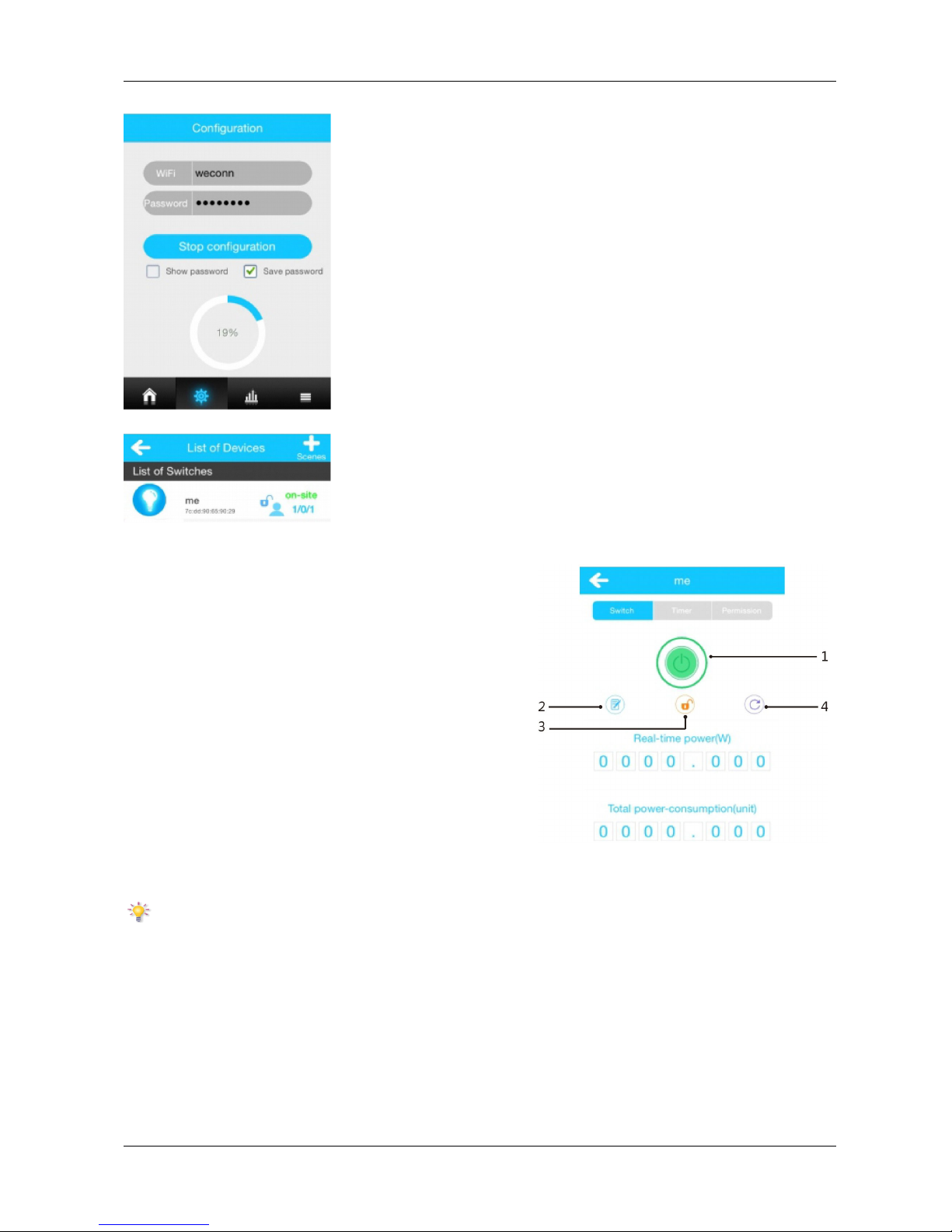
Step 4. Adding new device
1. Input WiFi SSID
2. Input WiFi Password
3. Start configuration
"on-site" indicates the current status of the LAN
1. Control key
2. Edit device name
3. Lock: When set to lock only administrator control,
when set as unlock, related members also could
control.
4. Refresh data
Step 5.Configuration of change Local network to
remote control
When the mobile phone or tablet and WiFi plug is in
different network, the APP interface will automatically
display "out-site" instead of "on-site".
This process to find and switch need some time.
7
Page 8
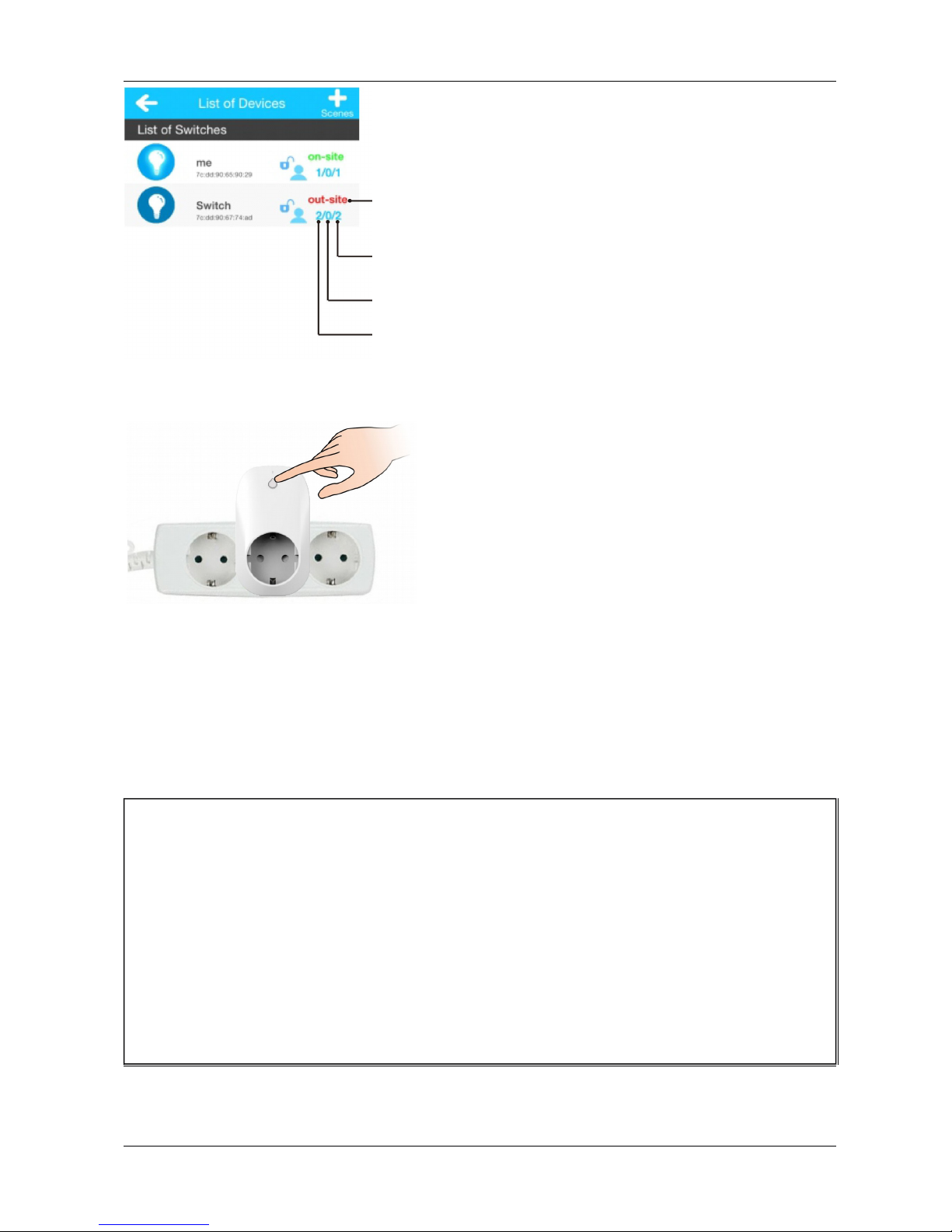
Remote control condition
The number of personnel allowed to control
The current online personnel number
Historical records
Step 6. AP mode
Press the button for about 10 seconds, until LED flash
slowly from quickly, then release the button, now WiFi
plug work as AP mode.
Step 7.Connect the AP mode operation method
Scan and connect the WiFi plug SSID in smartphone or tablet. The plug SSID comes with
"WeConn"& plug Mac address. (for example, WiFi SSID: WeConn7cadd90659033), Click
connect, when interface shows “connected” exit setup interface. Now turn on WeConn app. All
operations remain same.
AP mode means direct connection(which is wireless remote control, not control through
internet), under AP mode. Remote control is unavailable and distance can be controlled is
limited.
Remarkscheck following points if connection failed
1) check if IP address of the WiFi router is full or not, see how many devices have connected to
WiFi router already, or setup WiFi router' s connect website based on user manual, or contact
WiFi router' s distributor, after-sales service, manufacturer etc.
2) Check if WiFi router is normally working, and it's internet speed situation
3) Check if distance too long so signal too weak to connect
4) Check if APP device have connected to the configuration WiFi router normally
5) Pull WiFi plug out, 5 seconds later, insert it in outlet and configuration, reset to factory
default again.
6) Convert AP mode to client mode, only need to reset WiFi plug to factory default, then
connection it to WiFi router and configuration again.
8
Page 9
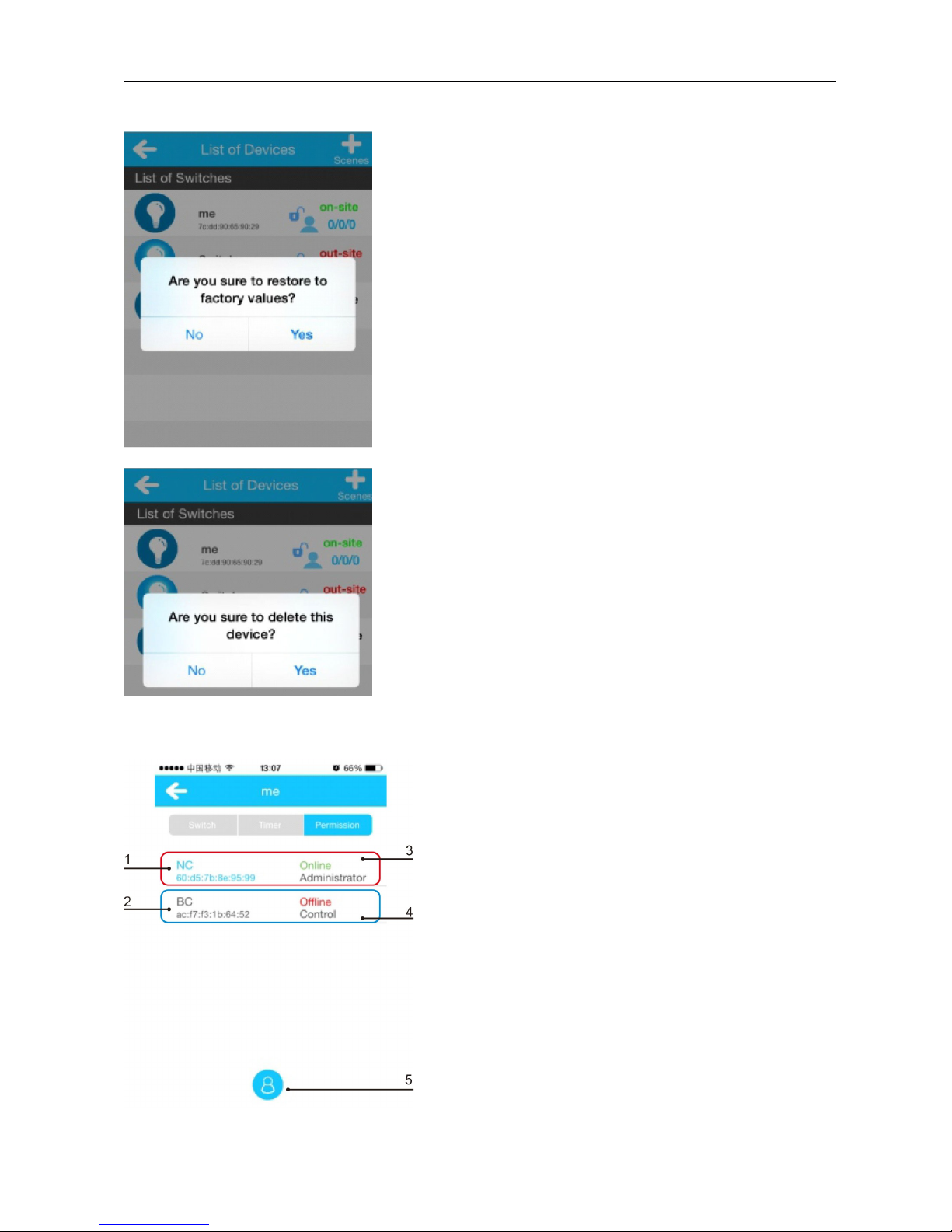
APP control reset and delete operations WiFi plug
On device list choose “on-site” (online) device press and hold
2 seconds to see reset device info.
On device list choose “out-site” (offline) device press and hold
2 seconds to see delete device info.
Control permissions settings
1. Device name
2. Mac address
3. The blue list represents your own APP device.
4. The black list represents APP devices form other
5. You’re able to set as administrator (Remarks only
one administrator for each WiFi Plug)
9
Page 10
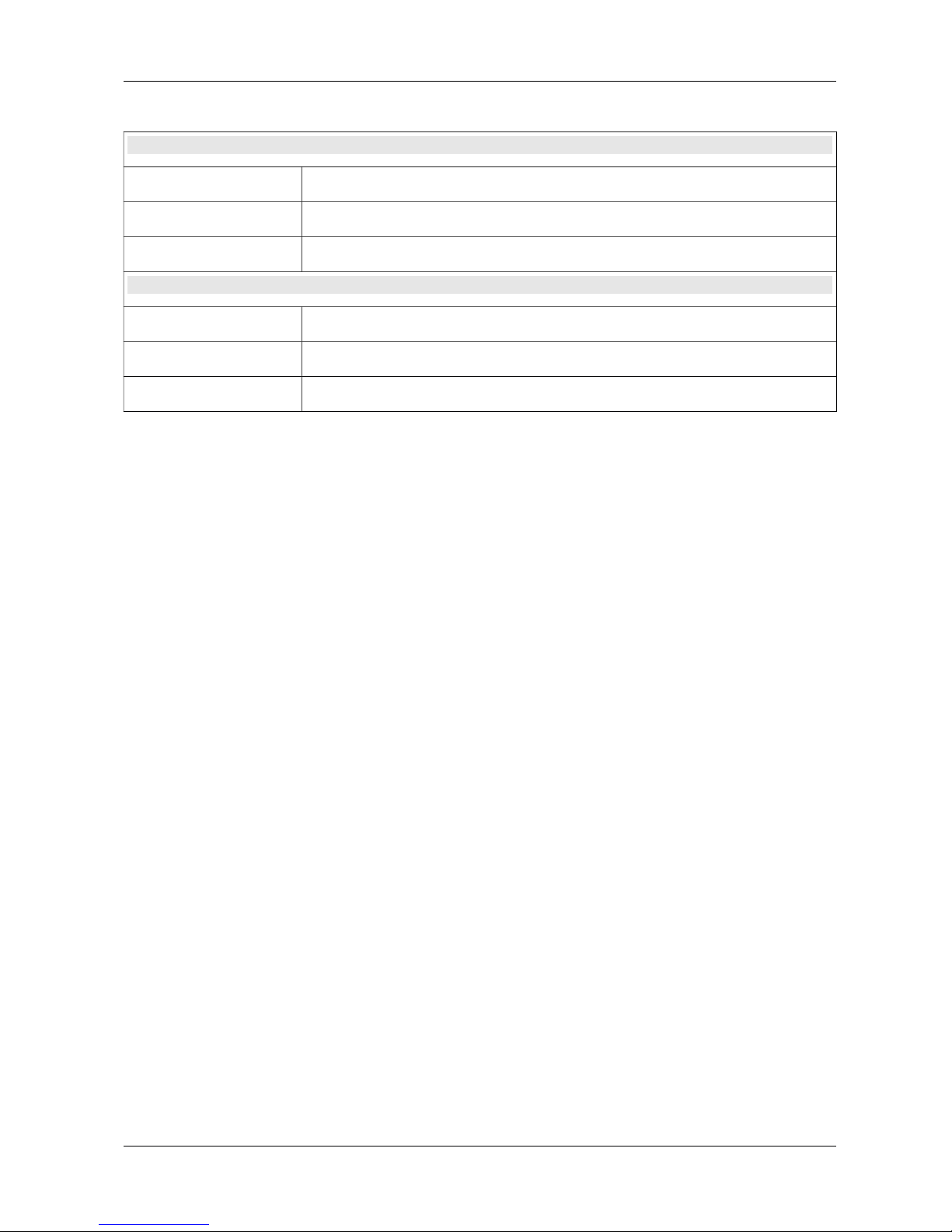
Specification
Protocol and plug Standard
Wireless Standard IEEE802.11b/g/n
Operation Frequency ISM band, 2412~2483.5MHz (Depends on country region)
Security Mac Encryption; 62/128/152 bit WEP, WPA-PSK, WPA2-PSK, WEP, TKIP
Power Parameters
Operating Voltage AC96V~264V(60Hz/50Hz)
Output Power MAX 3500W
Plug mating cycles > 5000
10
 Loading...