

Page 1
PL
instrukcja obsługi
EN
instructions manual
DE
Bedienungsanleitung
ES
manual de usuario
FR
manuel de l’utilisateur
IT
manuale d’uso
PT
manual do usuário
Page 2
UWAGA: Przeczytaj uważnie przed rozpoczęciem użytkowania. Ilustracje w instrukcji mają wyłącznie charakter poglądowy i mogą nie być zgodne z stanem
rzeczywistym.
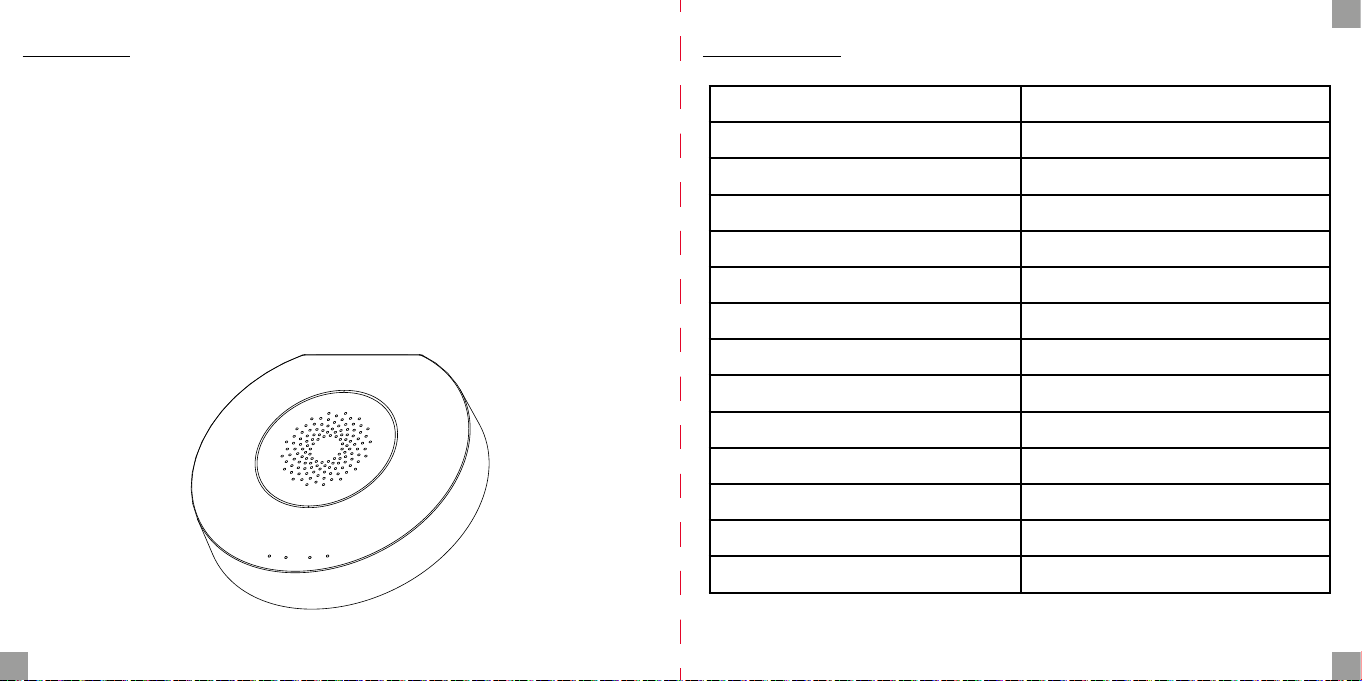
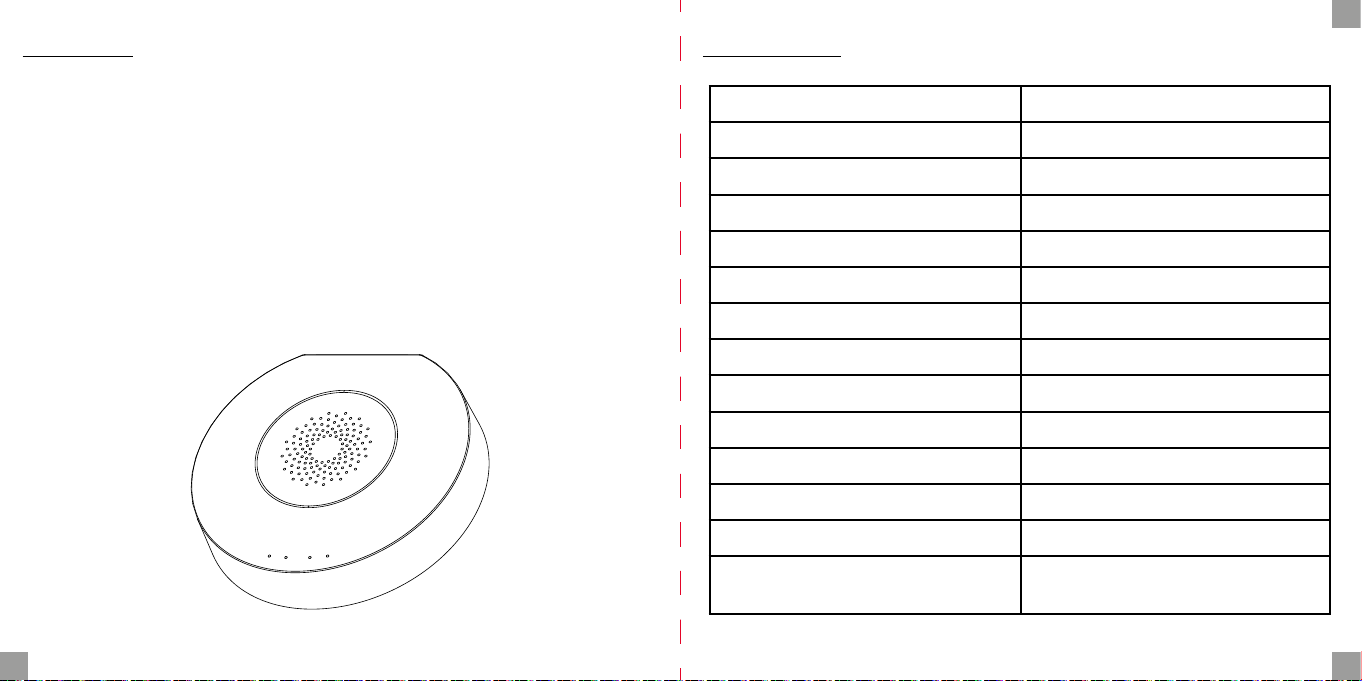
Opis produktu
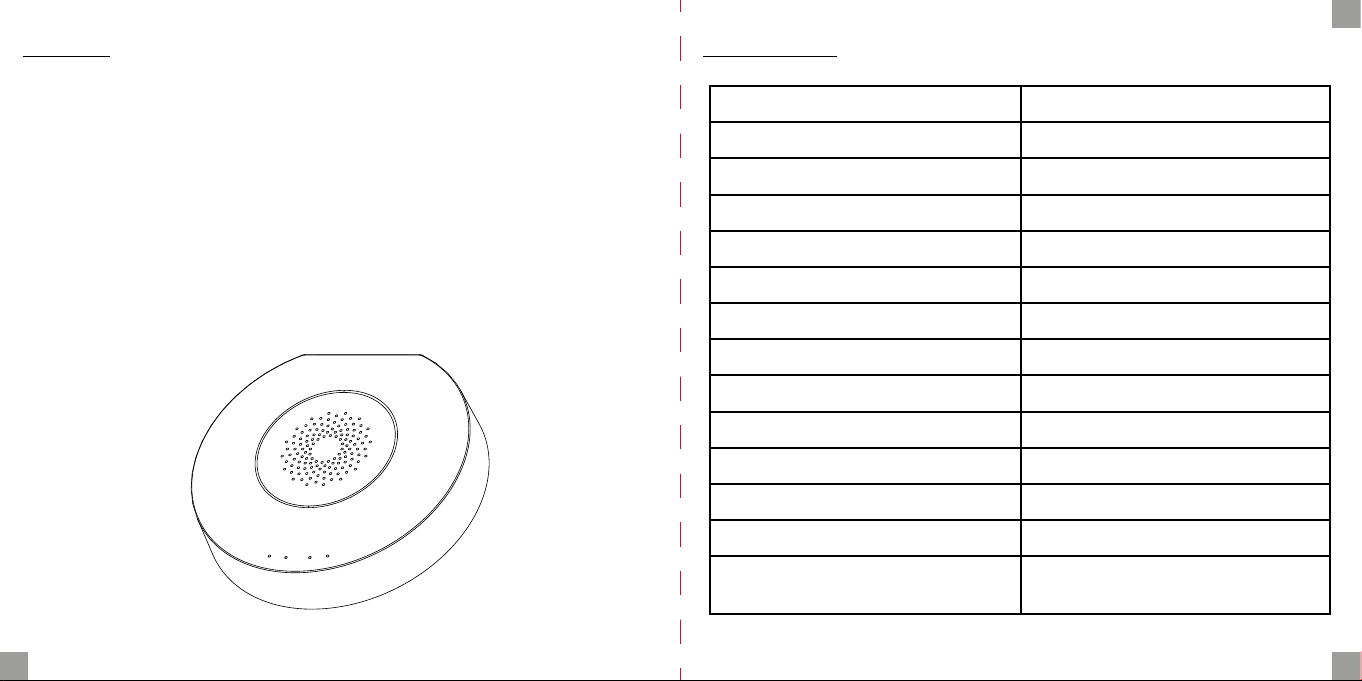
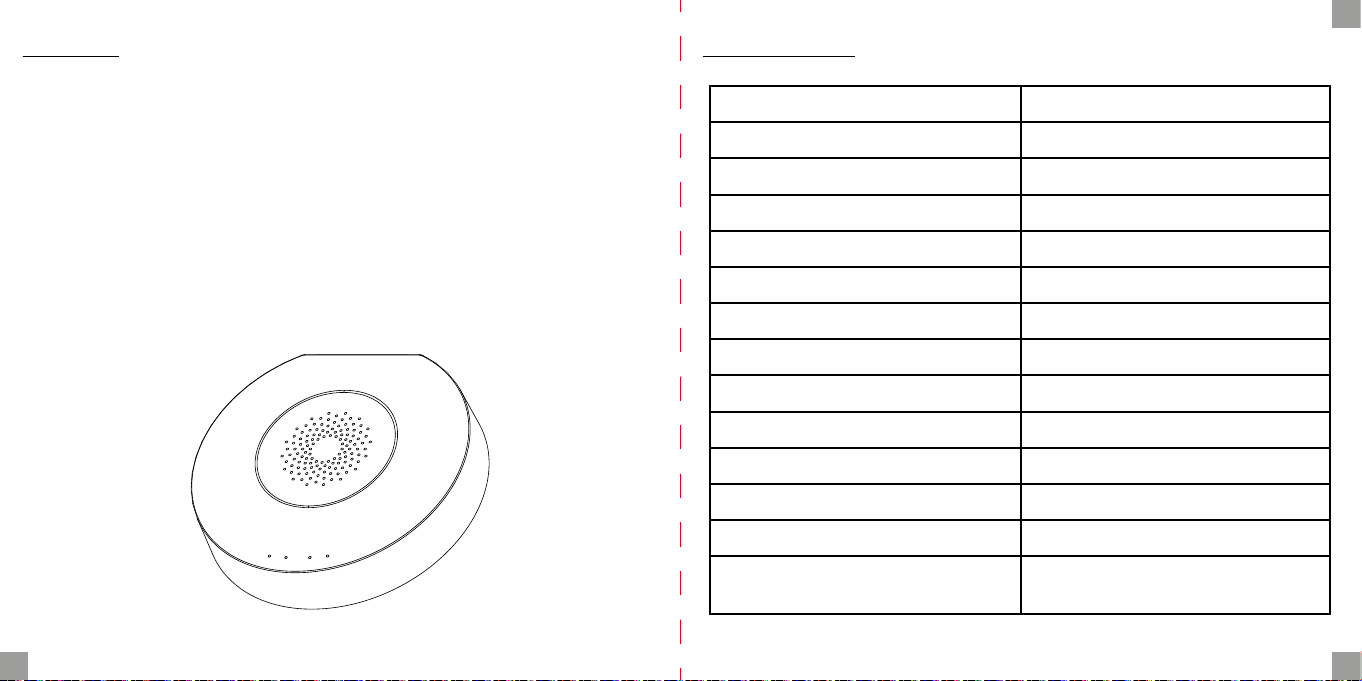
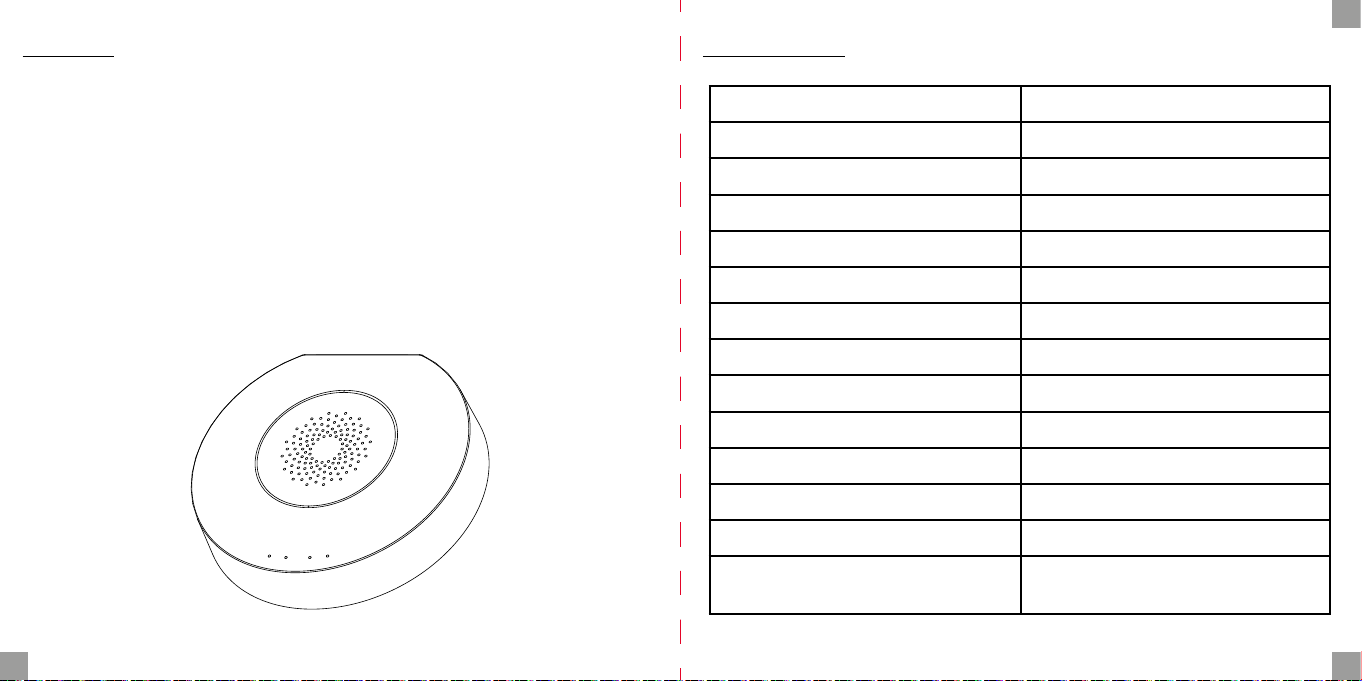
Smart Hub jest centrum kontrolnym dla urządzeń ZigBee oraz Bluetooth. Nasza
bramka współpracuje z wieloma rodzajami urządzeń ZigBee działających w standardzie 1.2HA, np. czujnikiem dymu, alarmem CO, kontaktronami, czujnikami ruchu
itp.
Przez różne kombinacje peryferiów smart home możesz używać centralki jako systemu alarmowego, zabezpieczającego, kontroli środowiskowej, automatyzacji swojego domu itp.
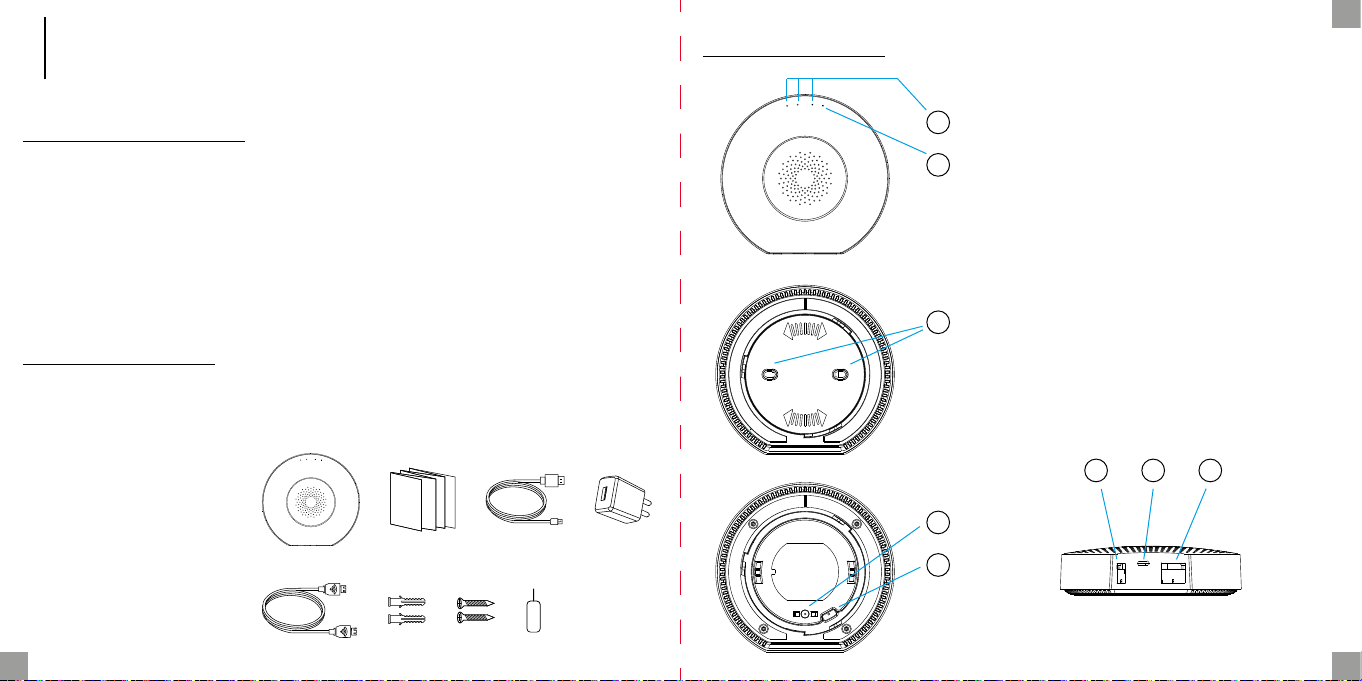
Zawartość opakowania
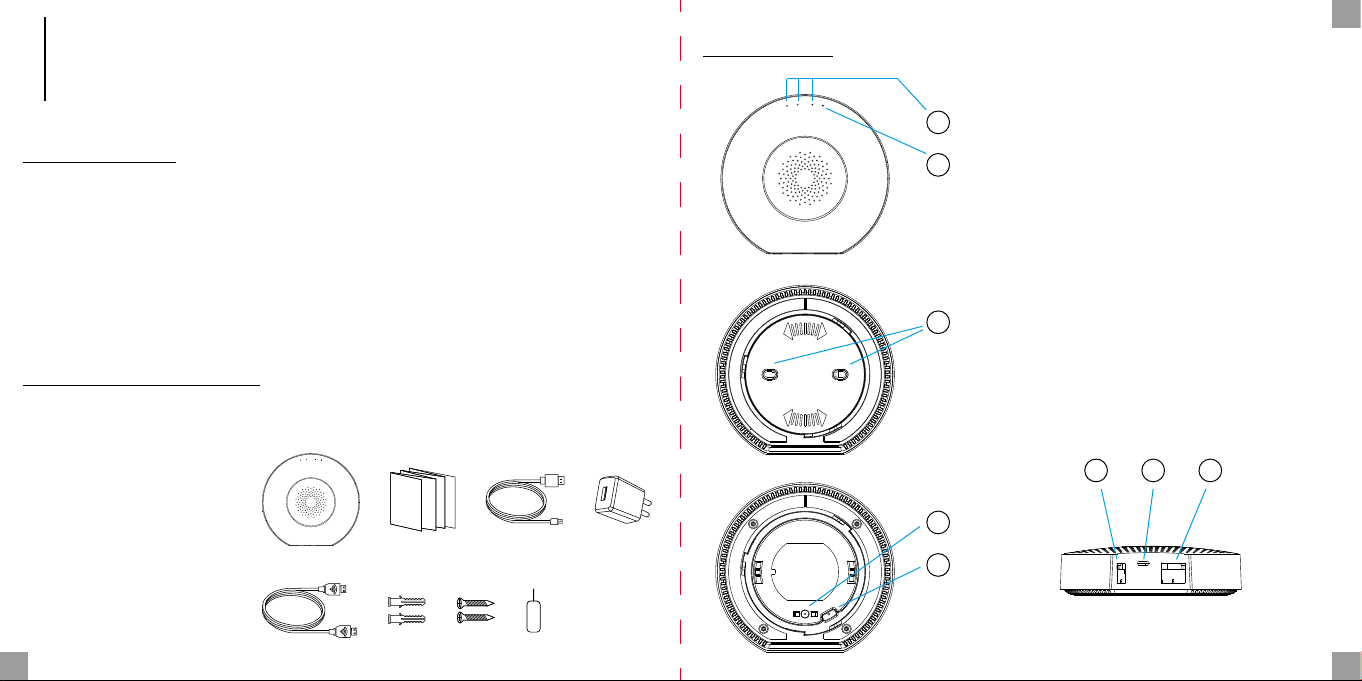
• bramka
• instrukcja
• kabel USB
• zasilacz
• wkręty montażowe
• kabel Ethernet
• igła
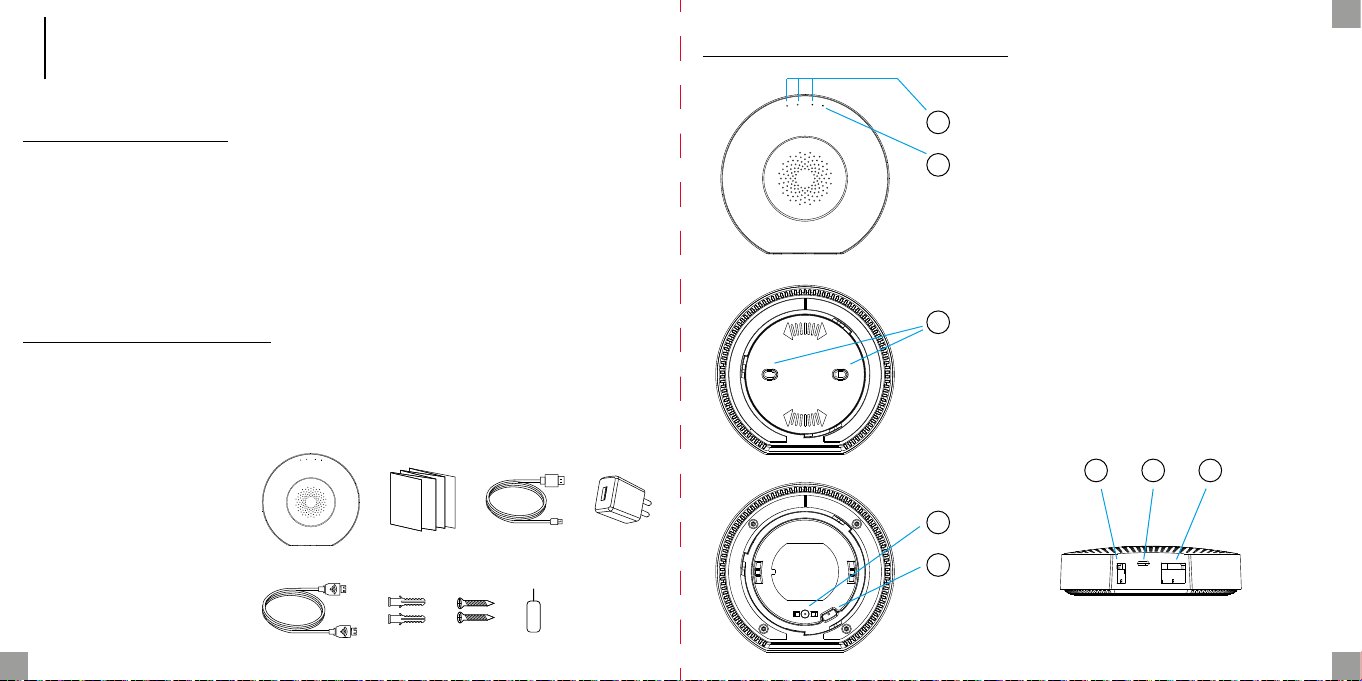
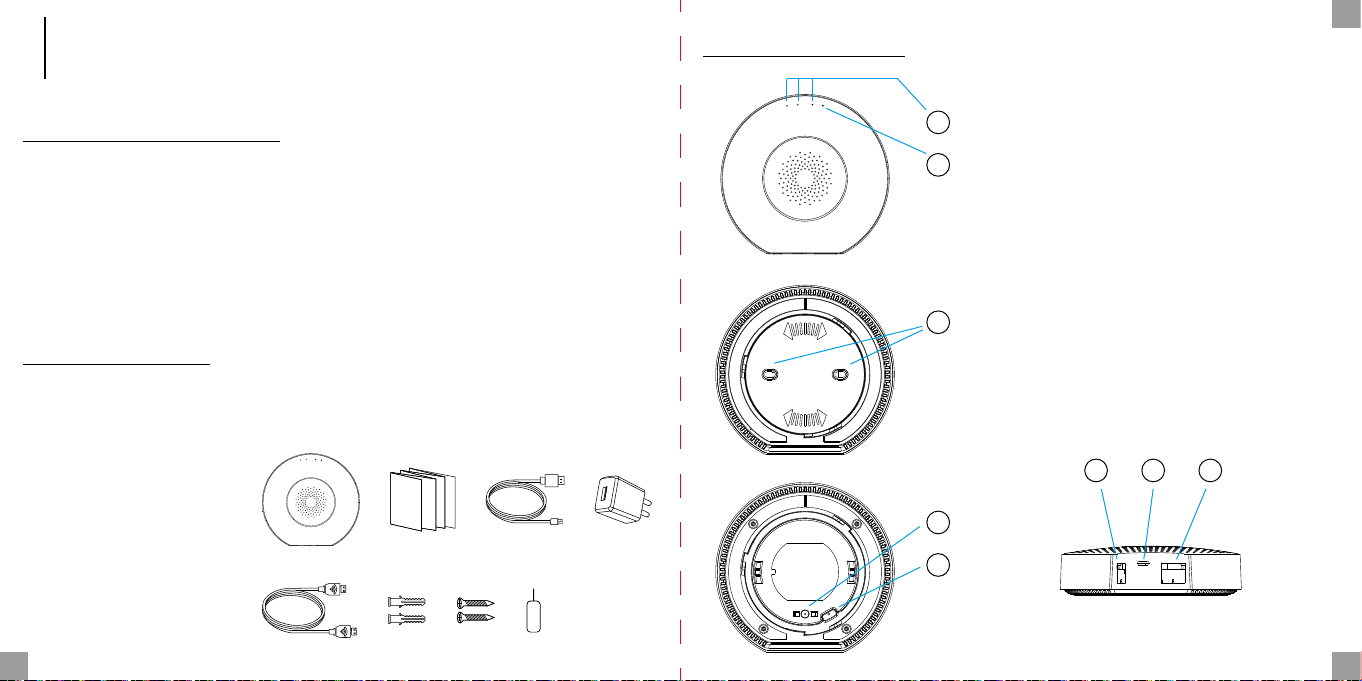
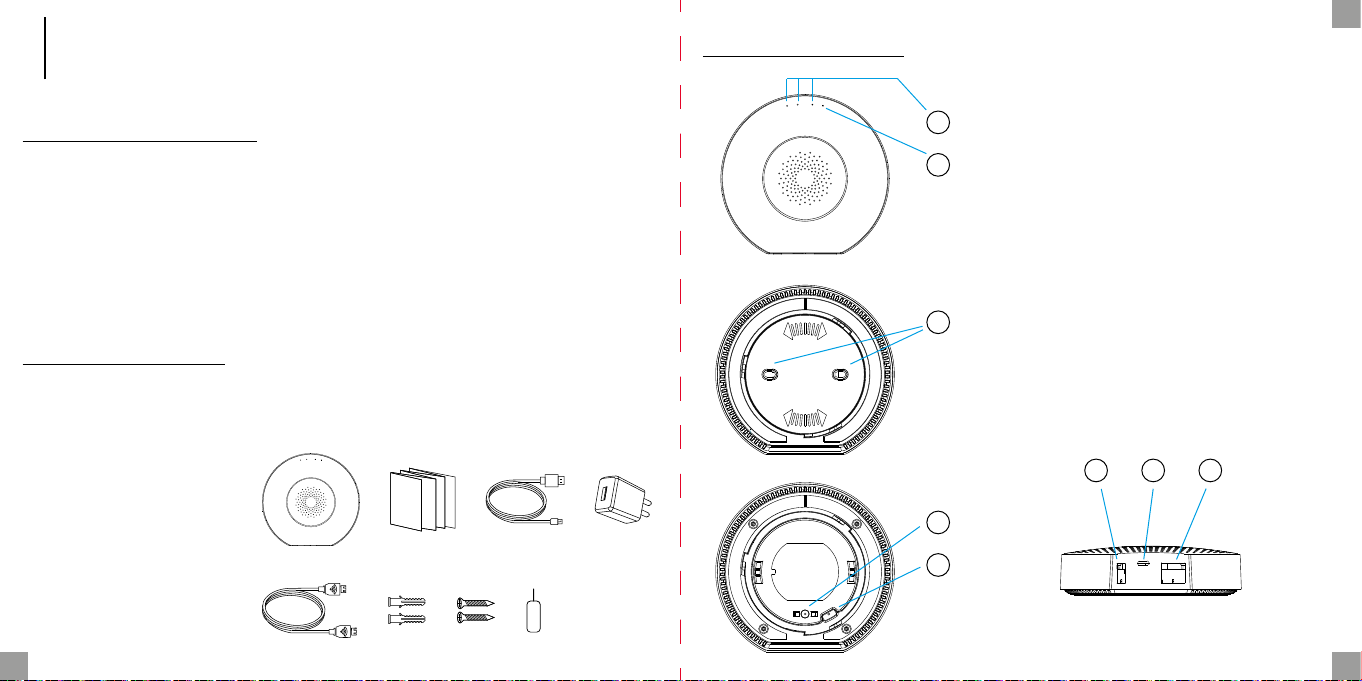
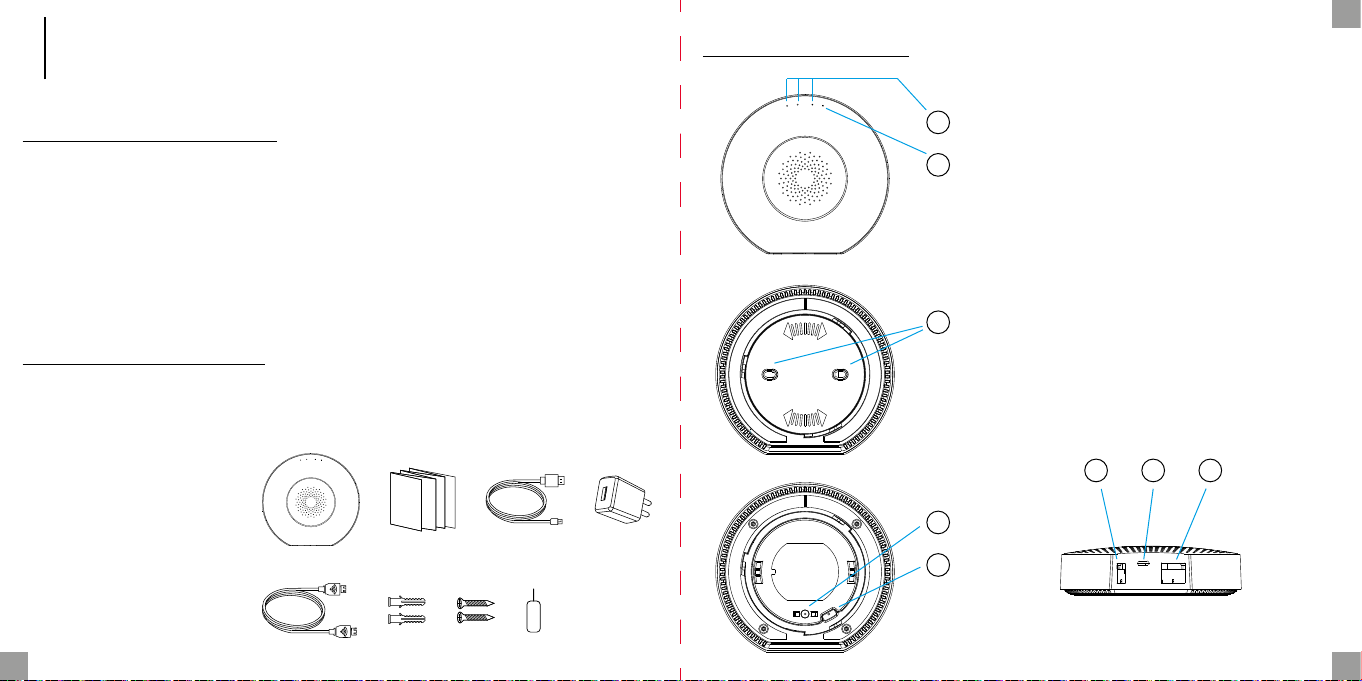
Opis bramki
PL
1
2
3
4
5
1. Wskaźniki LED statusu
2. Wskaźnik LED zasilania
3. Mocowanie
4. Alarm sabotażowy
5. Otwór resetu
6. Port USB/Port serwisowy
7. Port zasilania
8. Port Ethernet
6 7 8
2 3
Page 3
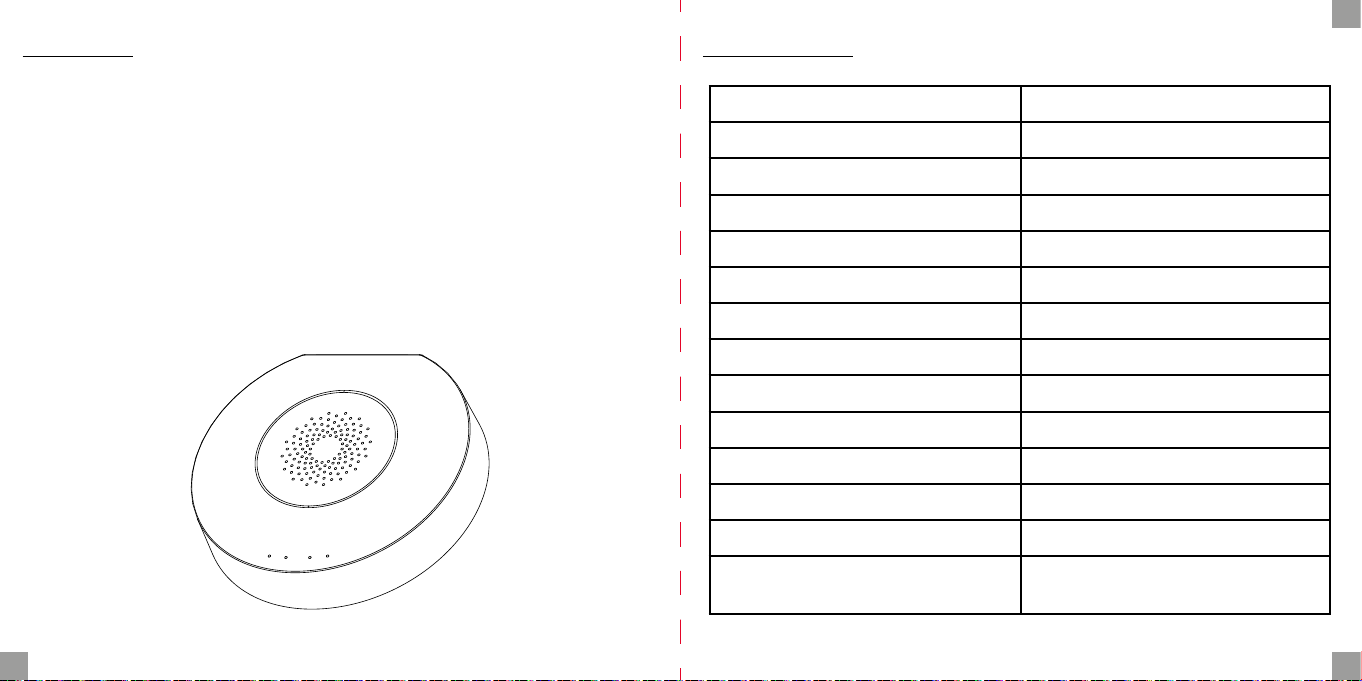
Funkcje
• Wspiera do 100 urządzeń Zigbee
• Obsługa Ethernet i Wi-Fi
• Automatyczne przełączenie sieci w przypadku zaniku połączenia
• Obsługa aktualizacji oprogramowania
• Wbudowany akumulator 2400 mAh
• Działanie na zasilaniu bateryjnym do 12 godzin przy połączeniu przez Ethernet
i do 6 godzin przy połączeniu przez Wi-Fi
• Alarm sabotażowy aktywujący się natychmiast po zdjęciu z uchwytu montażowego
PL
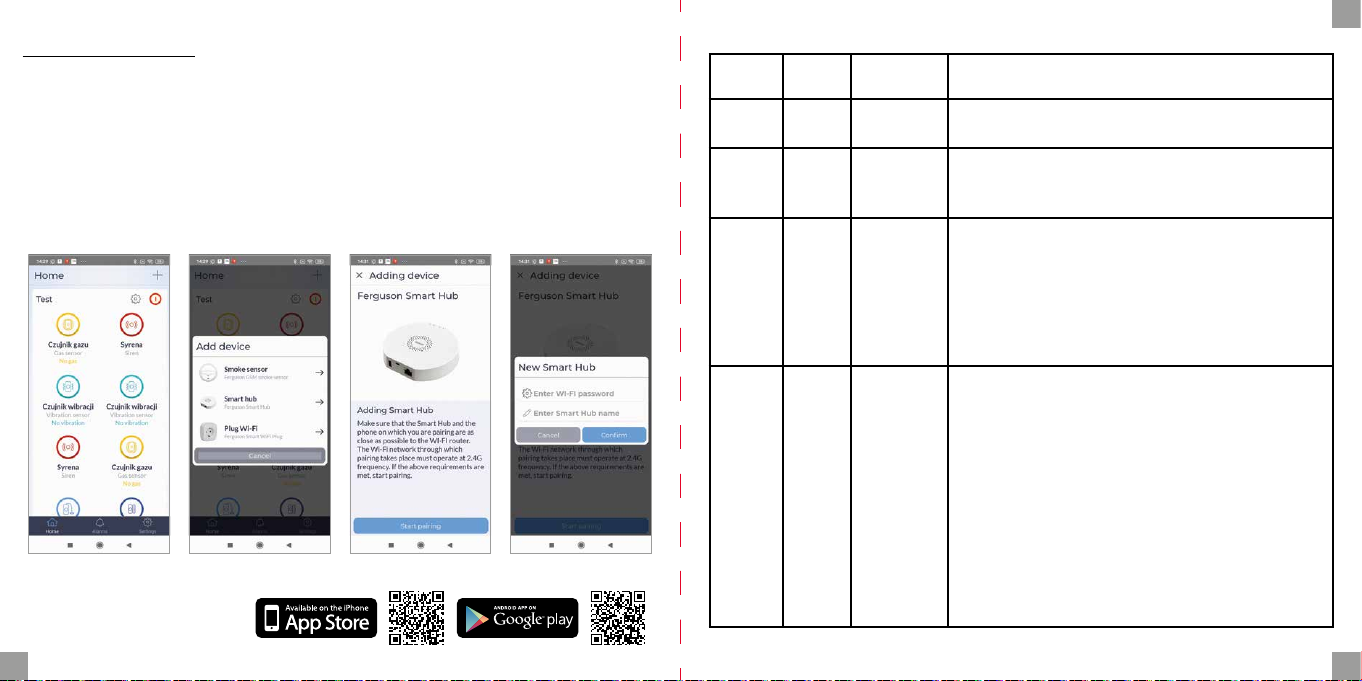
Specykacja
Zasilanie DC5V/2A
Bateria awaryjna/zapasowa 2400mAh/3.7V
Moc znamionowa 3W Ethernet, 3.5W Wi-Fi
Temperatura pracy 0°C ~ +55°C
Dopuszczalna wilgotność = <95% (bez kondensacji)
Sieć Ethernet, Wi-Fi
Komunikacja Zigbee, Bluetooth
Zasięg pracy Do 200m w przestrzeni otwartej
Wymiary 120.8 x 114.4 x 32.7 mm
Port zasilania Micro USB
Port Ethernet RJ45
Port USB USB typ A
Przycisk sabotażowy Normalnie zamknięty
Otwór reset Przyśnij przez 10 sekund by przywró-
cić ustawienia fabryczne
4 5
Page 4
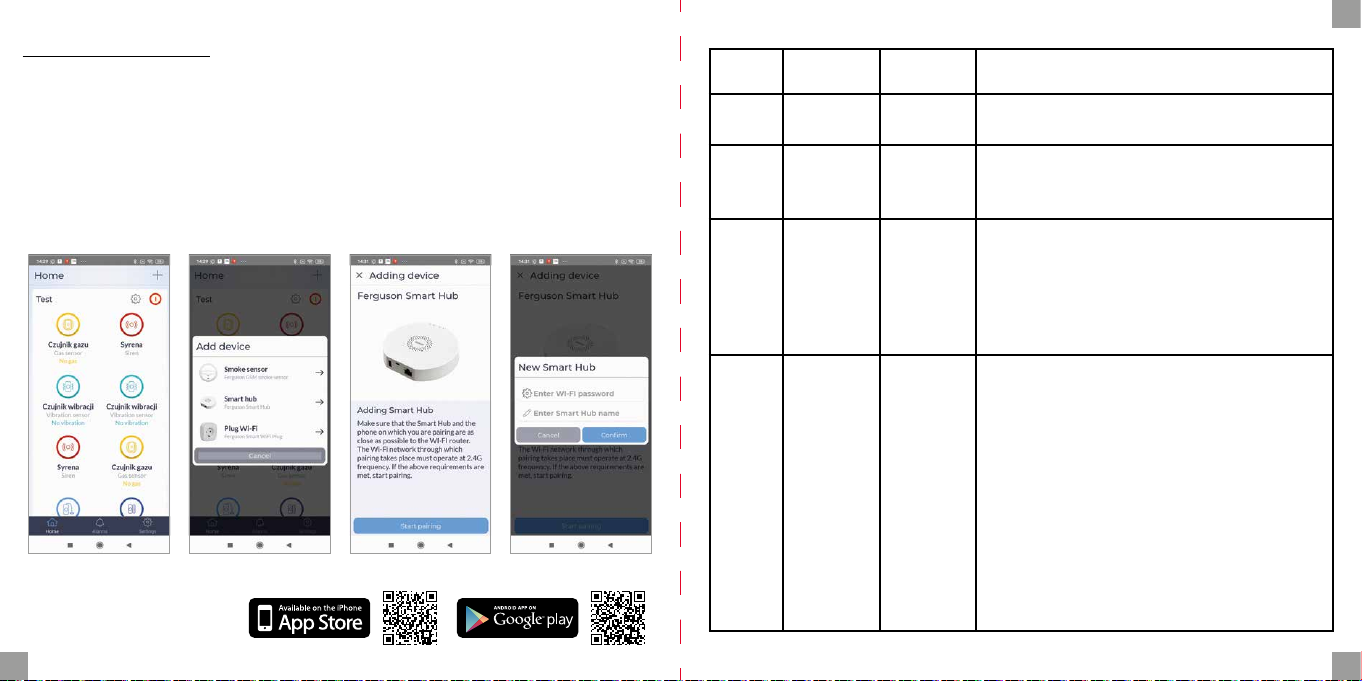
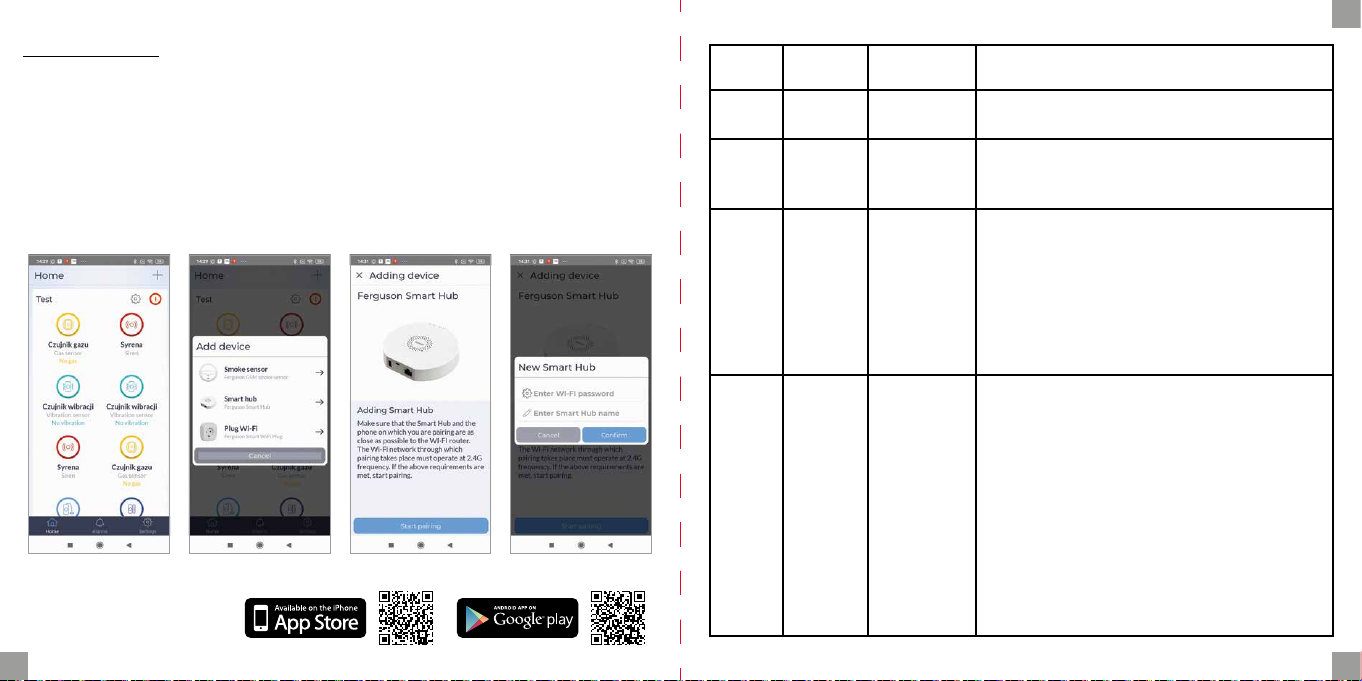
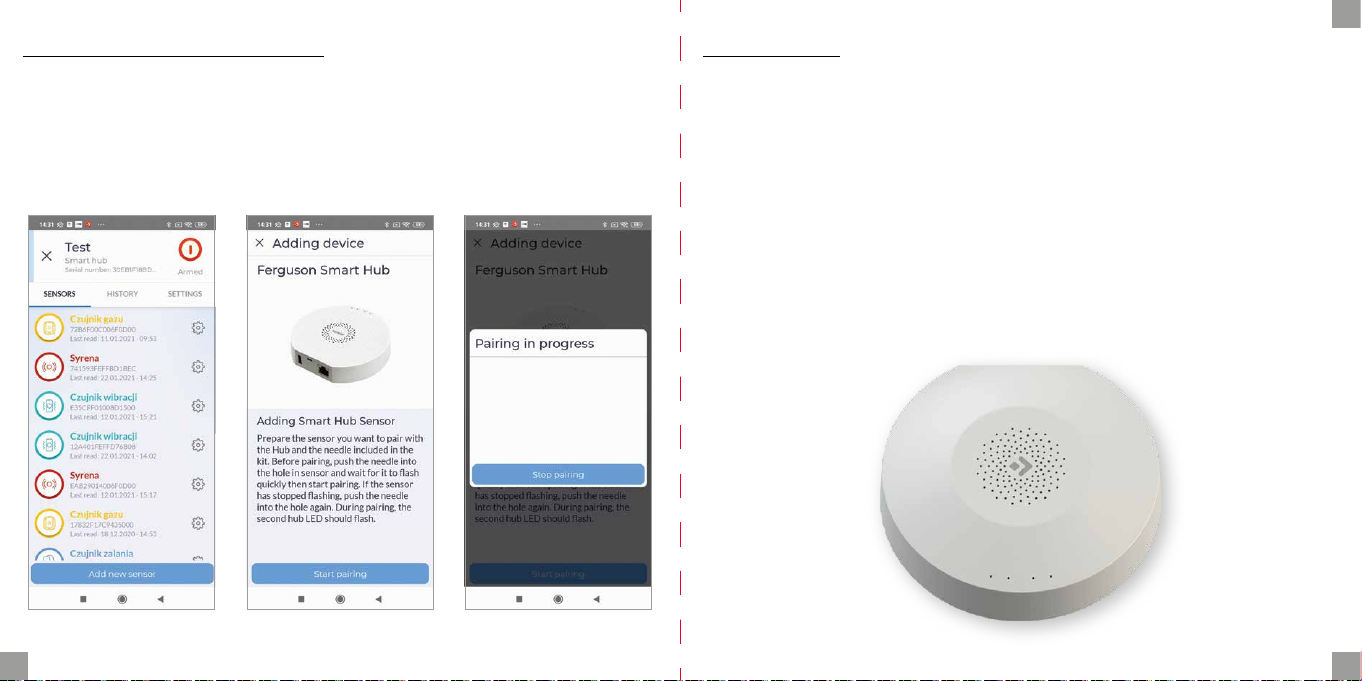
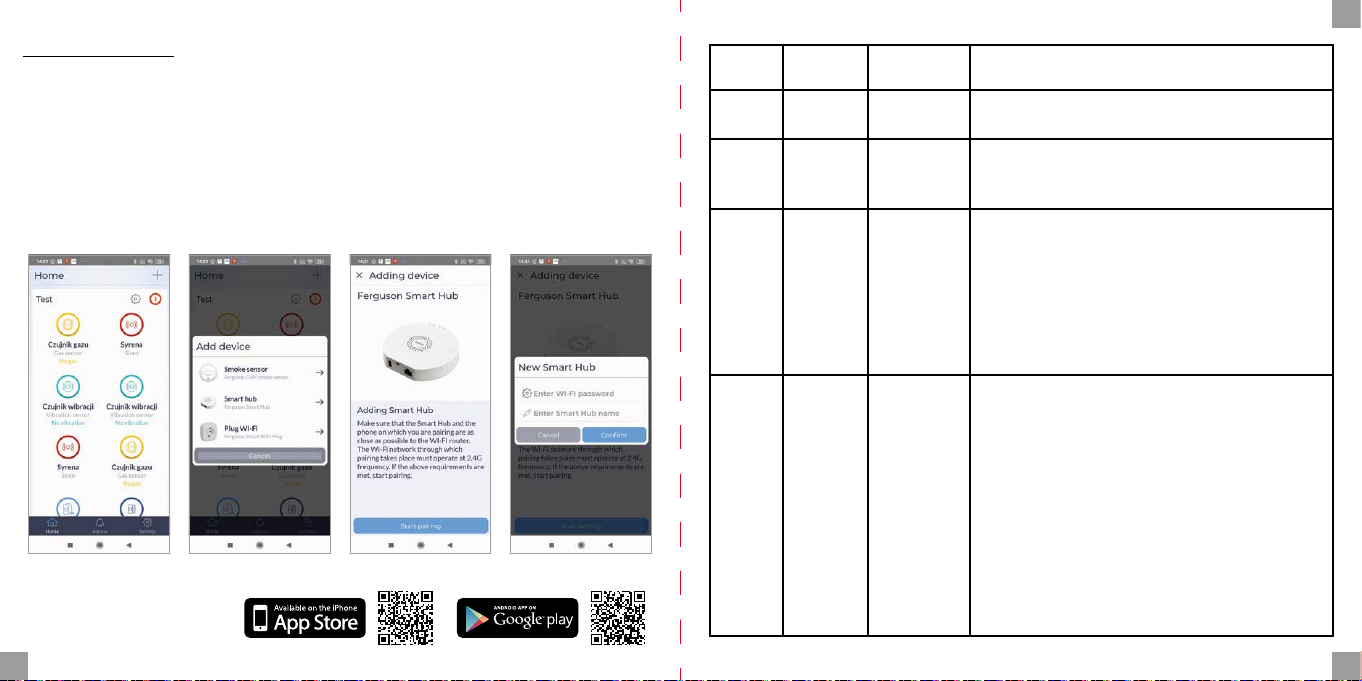
Dodawanie bramki
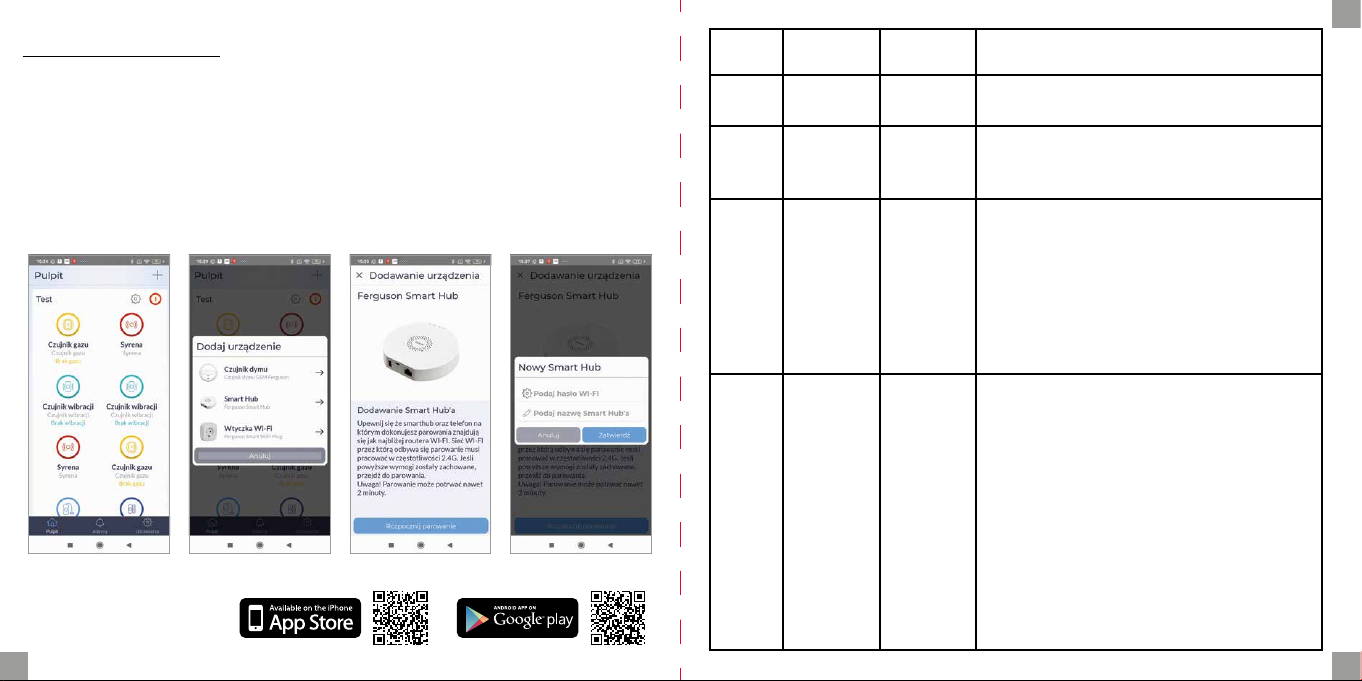
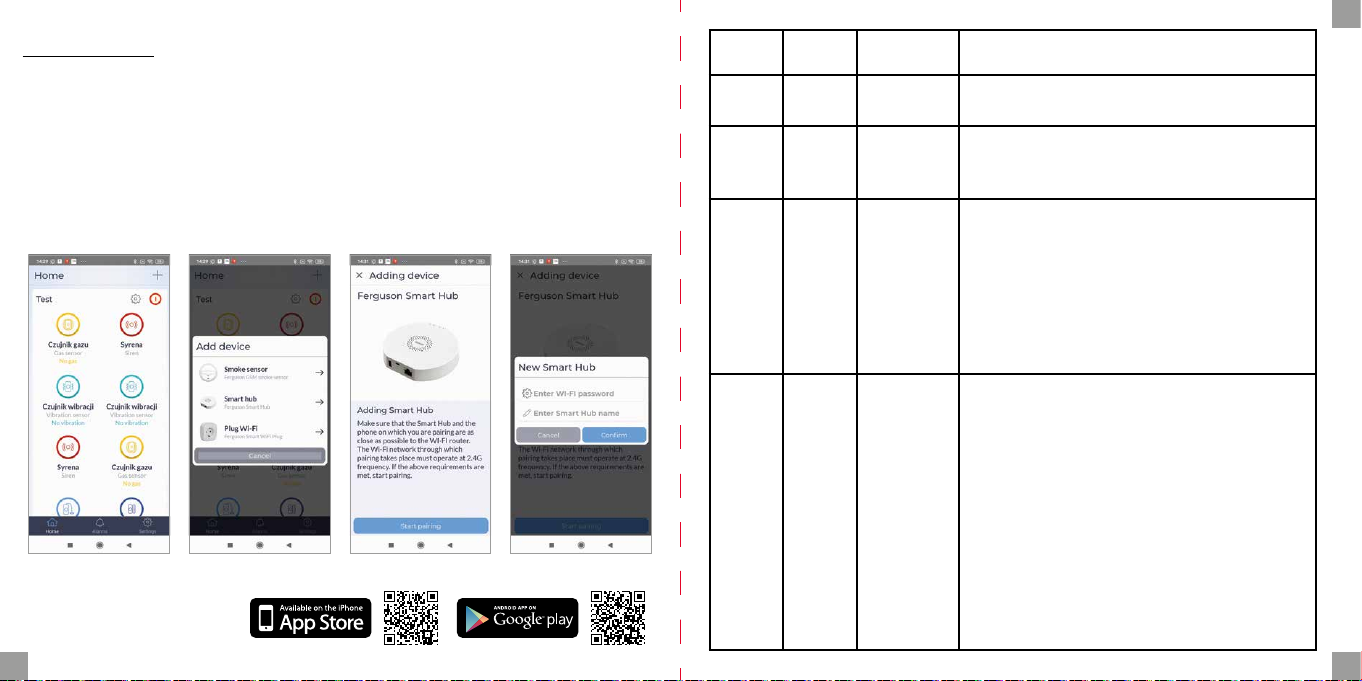
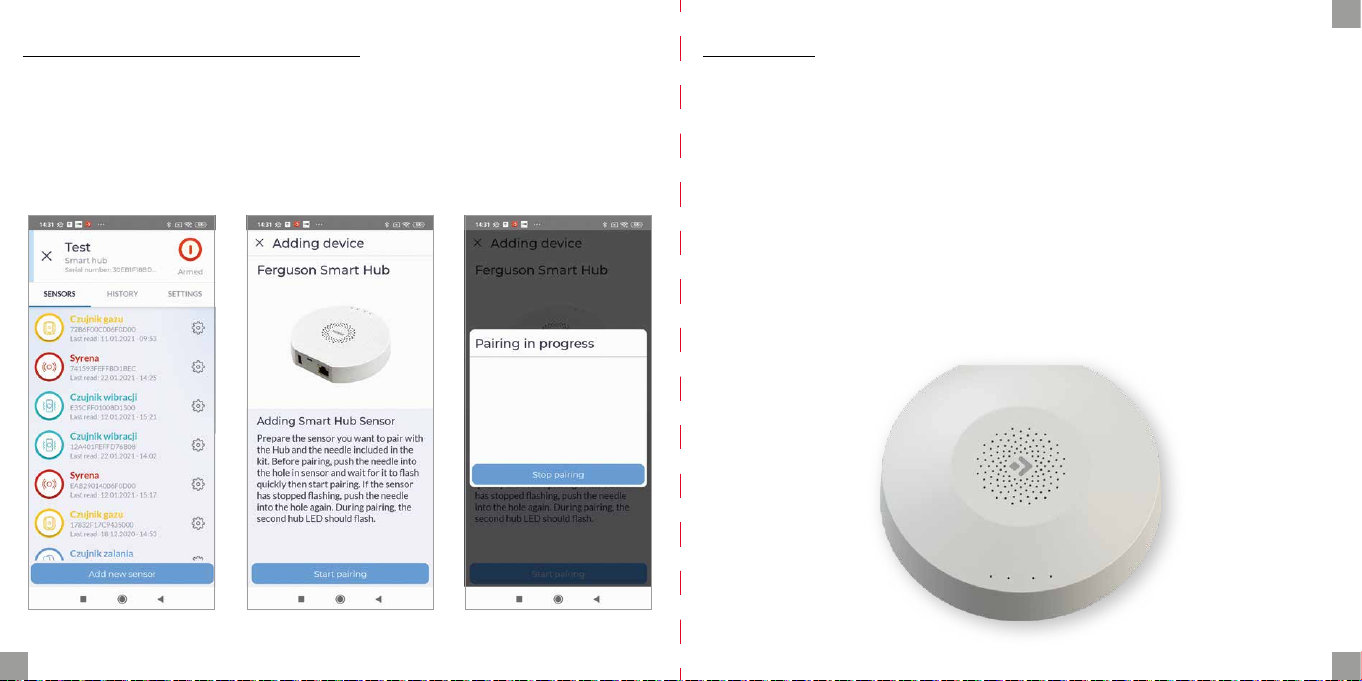
Podłącz bramkę do zasilania przy użyciu dołączonego przewodu oraz zasilacza. Pobierz aplikację Ferguson Home w sklepie Play lub AppStore. Wykonaj kroki niezbędne do uruchomienia aplikacji.
Następnie, przy użyciu symbolu „+” w zakładce „pulpit”, wybierz opcję dodania
Smart Hub. Postępuj zgonie z instrukcją zawartą w aplikacji. Po udanym połączeniu
bramka zasygnalizuje sygnałem dźwiękowym „udane połączenie”.
Parowanie może potrwać kilka minut.
aplikacja Ferguson Home
6 7
LED Kolor Opis
Power zielony
3
2 biały
1
zielony/
czerwony
żółty/
niebieski
status
zasilania
wskaźnik
led statusu
bramki
wskaźnik
led statusu
połączenia
z siecią
wskaźnik
led statusu
parowania
urządzeń
1. Świeci stale – zasilanie z zasilacza.
2. Miga – zasilanie bateryjne.
1. Zielony świeci – HUB uzbrojony tryb nocny.
2. Czerwony świeci - HUB uzbrojony.
3. Zielony miga bardzo szybko – aktualizacja.
1. Miga co sekundę – tryb
parowania bramki z Wi-Fi.
2. Świeci przez 5s - parowanie
zakończone sukcesem.
3. Miga bardzo szybko przez 2s –
parowanie z Wi-Fi nie powiodło się.
4. Świeci stale - połączenie z serwerem.
5. Miga bardzo szybko – aktualizacja.
1. Żółty miga co sekundę – parowanie
z urządzeniem ZigBee.
2. Żółty świeci przez 5s – parowanie
urządzenia ZigBee zakończone sukcesem.
3. Żółty miga bardzo szybko przez 2s –
parowanie ZigBee nie powiodło się.
4. Niebieski miga co sekundę – parowanie
z urządzeniem Bluetooth.
5. Niebieski świeci przez 5s – parowanie
urządzenia Bluetooth zakończone sukcesem.
6. Niebieski miga bardzo szybko przez 2s –
parowanie Bluetooth nie powiodło się.
7. Żółty miga bardzo szybko – aktualizacja.
PL
Page 5
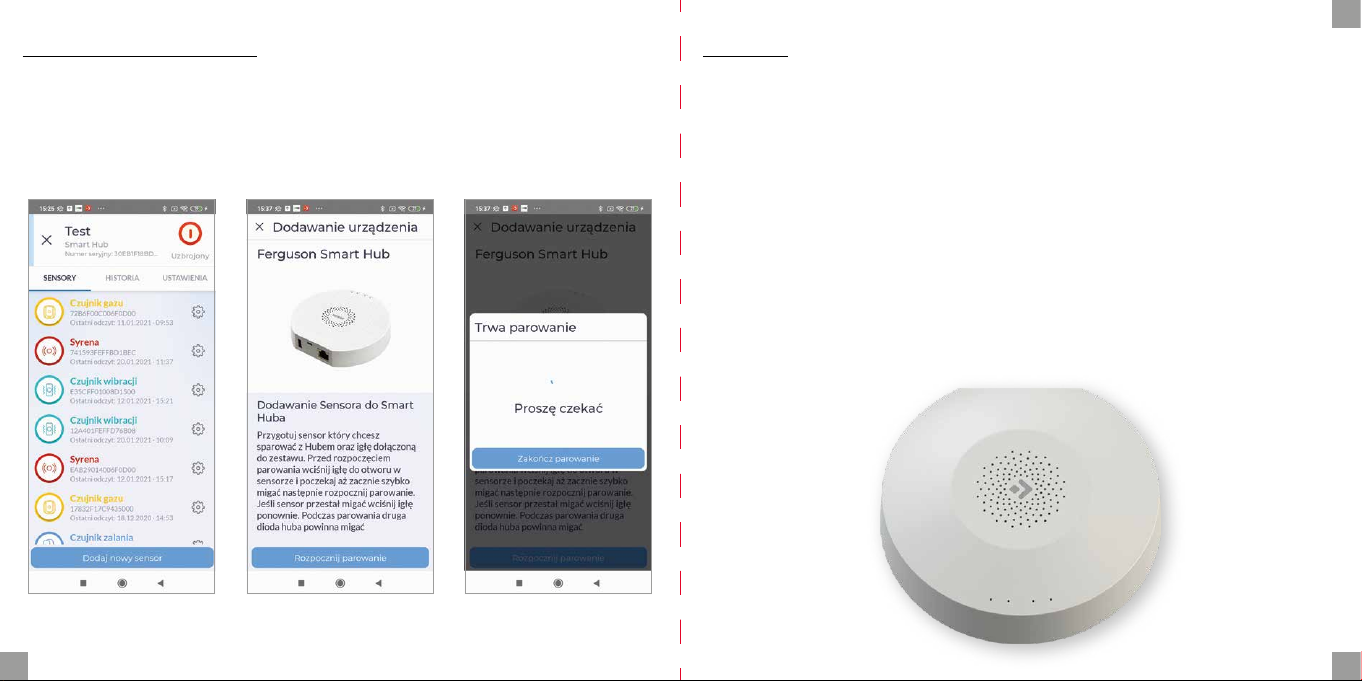
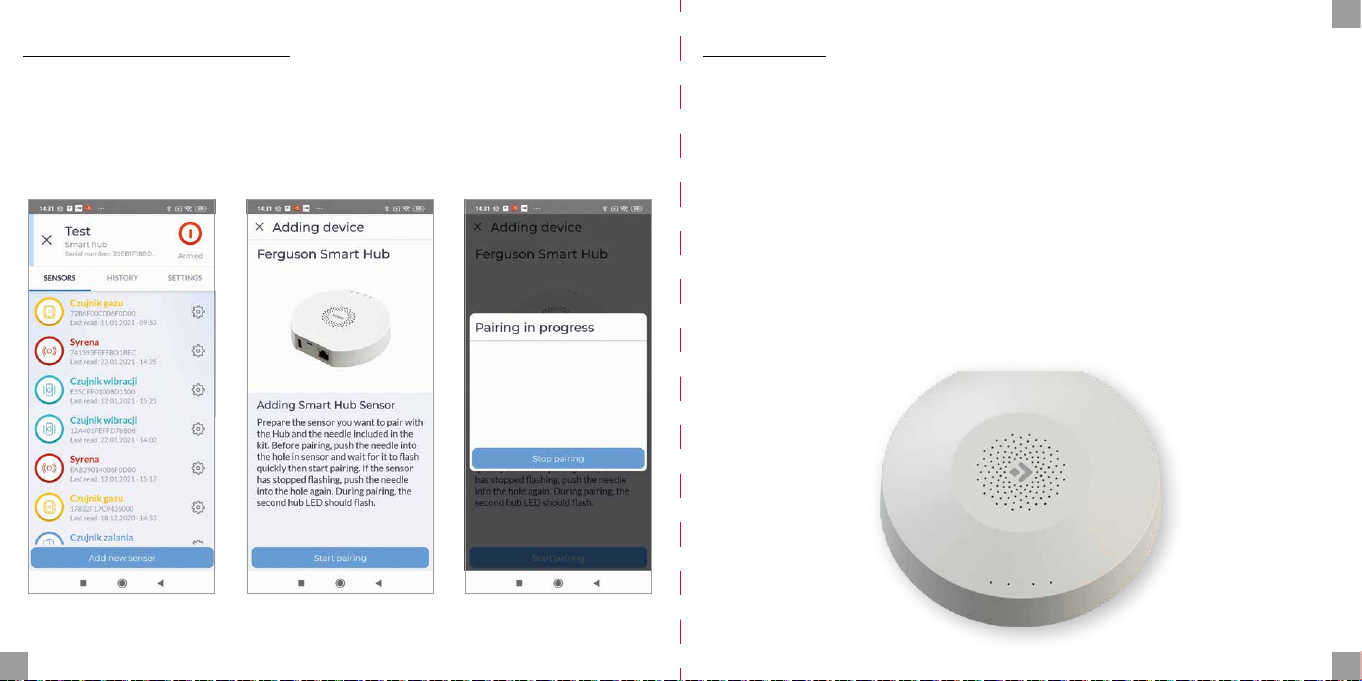
Dodawanie peryferiów
PL
Montaż
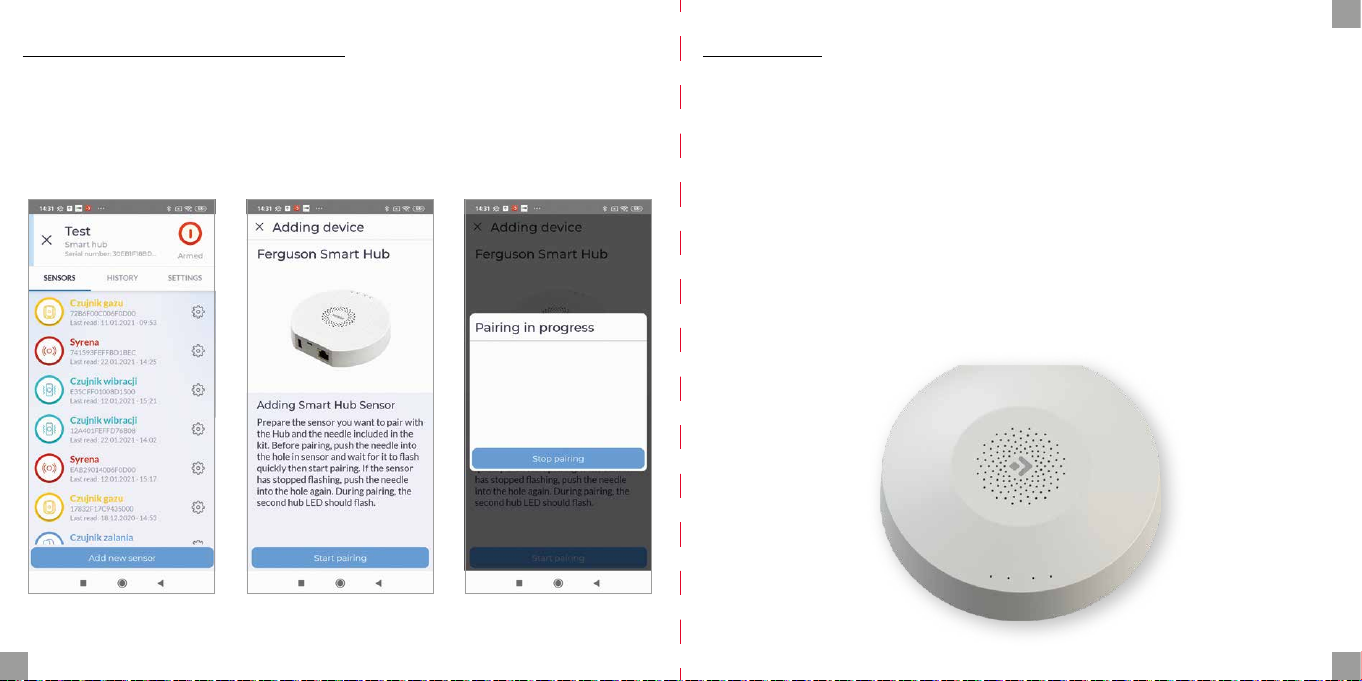
1. Wejdź w ustawienia bramki (ikona koła zębatego).
2. Na dole ekranu znajduje się przycisk dodawania nowego urządzania.
3. Przygotuj sensor który chcesz dodać.
4. Wciśnij przycisk dodania i postępuj według instrukcji w zawartej w aplikacji.
W celu montażu urządzenia:
1. Zdemontuj pokrywę montażową przekręcając ją przeciwnie do kierunku ruchu
wskazówek zegara.
2. Po wybraniu odpowiedniego miejsca montażowego, użyj śrub montażowych
do przytwierdzenia bramki do wybranej powierzchni.
Uwaga!
1. Dla lepszych parametrów komunikacji bezprzewodowej unikaj montażu na powierzchni metalowej lub w otoczeniu metalu.
2. Aby dodać urządzenia zainstaluj aplikację.
3. Dla stabilnej łączności, urządzenia peryferyjne powinny być oddalone od bramki o nie więcej niż 20 metrów. Najlepsze połączenie występuje w odległości ok
15 m od bramki.
8 9
Page 6
NOTE: Please read carefully before use. The illustrations in the manual are for
reference only and may not be accurate.
EN
Description of the control unit
Product description
The Smart Hub is the control center for ZigBee and Bluetooth devices. Our gateway works with many types of ZigBee devices operating in the 1.2HA standard, e.g.
smoke detectors, CO alarms, reed switches, motion sensors etc.
Through various combinations of smart home peripherals, you can use the control
unit as an alarm system, security system, environmental control system, home automation system, etc.
Contents of the package
• control unit
• instructions manual
• USB cable
• power supply
• mounting screws
• Ethernet cable
• needle
10 11
1
2
3
4
5
1. Status LED indicators
2. Power LED indicator
3. Fastening
4. Tamper alarm
5. Reset hole
6. USB/Service port
7. Power port
8. Ethernet port
6 7 8
Page 7
Functions
• Supports up to 100 Zigbee devices
• Ethernet and Wi-Fi support
• Automatic network switching in case of connection loss
• Support for software updates
• Built-in 2400 mAh battery
• Battery life up to 12 hours when connected via Ethernet and up to 6 hours when
connected via Wi-Fi
• Tamper alarm that is activated immediately after removal of the device from the
mounting bracket
EN
Specication
Power DC5V/2A
Backup battery 2400mAh/3.7V
Rated power 3W Ethernet, 3.5W Wi-Fi
Working temperature 0°C ~ +55°C
Permissible humidity = <95% (no condensation)
Network Ethernet, Wi-Fi
Communication Zigbee, Bluetooth
Working range Up to 200m in open space
Dimensions 120.8 x 114.4 x 32.7 mm
Power port Micro USB
Ethernet port RJ45
USB port USB typ A
Tamper button Normally closed
Reset hole Push for 10 seconds to do factory reset
12 13
Page 8
Adding a gateway
Connect the gateway to the power using the supplied cable and power adapter.
Download the Ferguson Home app in the Google Play Store or Apple AppStore. Follow the steps necessary to run the application.
Then, using the „+” symbol in the „Desktop” tab, select the option to add a Smart
Hub. Follow the instructions in the application. After a successful connection, the
gateway will signal „successful connection” with a sound signal.
Pairing may take several minutes.
Ferguson Home application
LED Color Description
Power green
3 green/red
2 white
1 yellow/blue
power
status
gateway
status LED
indicator
network
connection
status LED
indicator
device
pairing
status LED
indicator
EN
1. Steady light - powered from the power supply.
2. Blinking - battery powered.
1. Green is on - HUB is armed at night mode.
2. Red is on - HUB is armed.
3. Green is blinks very fast - update.
1. Flashes every second - gateway
pairing mode with Wi-Fi.
2. Lights up for 5s - pairing successful.
3. Flashes very quickly for 2s - Wi-Fi pairing failed.
4. Steady light - connection to the server.
5. Flashing very fast - update.
1. Yellow ashing every second pairing with a ZigBee device.
2. Yellow is on for 5s - successful
pairing of the ZigBee device.
3. Yellow ashing very fast for
2s - ZigBee pairing failed.
4. Blue ashing every second - pairing
with a Bluetooth device.
5. Blue is on for 5s - Bluetooth
device pairing successful.
6. Blue ashing very fast for 2s Bluetooth pairing failed.
7. Yellow ashing very fast - update.
14 15
Page 9
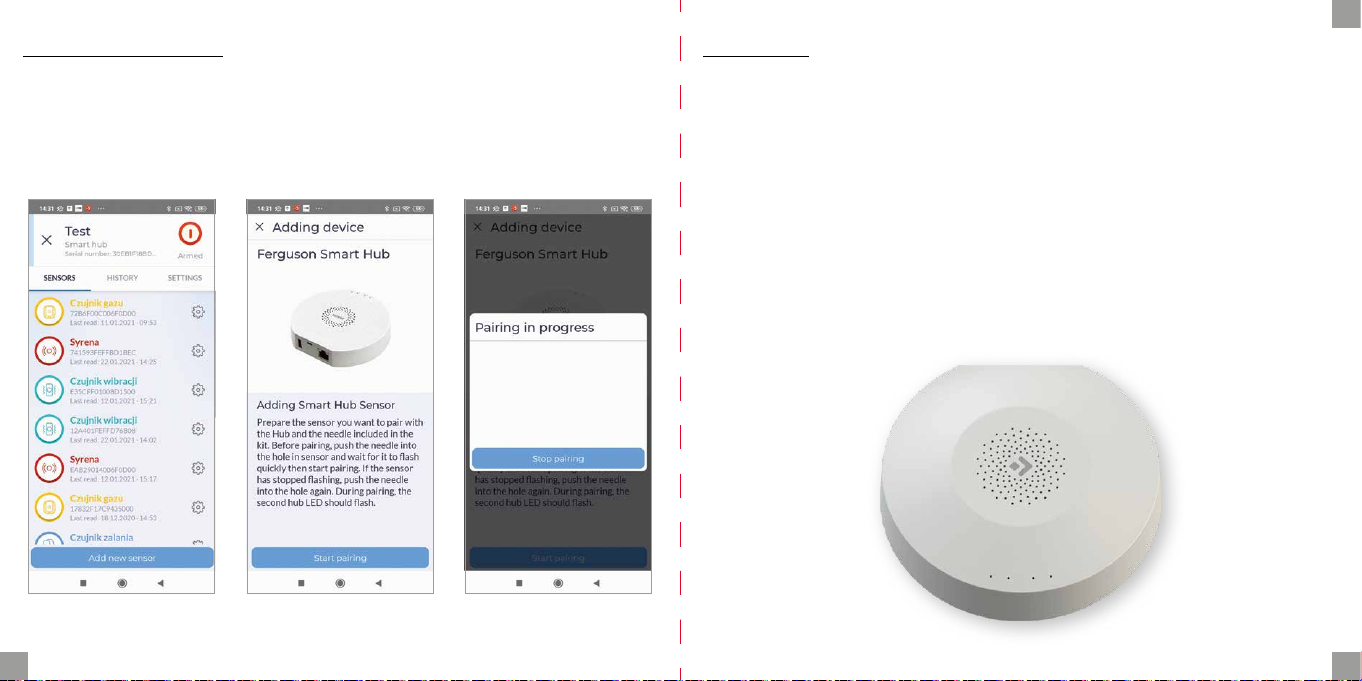
Adding peripherals
EN
Assembly
1. Enter into gateway’s setup (gear icon).
2. At the bottom of the screen there is a button for adding a new device.
3. Prepare the sensor you want to add.
4. Press the add button and follow the instructions in the application.
To assemble the device:
1. Remove the mounting cover by turning it counterclockwise.
2. After selecting the appropriate mounting location, use the mounting screws to
attach the goal to the selected surface.
Attention!
1. For better wireless communication parameters, avoid mounting on a metal surface or in a metal environment.
2. To add devices, install the application.
3. For stable communication, peripherals should be placed no more than 20 meters from the gate. The best connection is approx. 15 m from the gate.
16 17
Page 10
HINWEIS: Lesen Sie vor der Verwendung sorgfältig. Die Abbildungen in diesem
Handbuch dienen nur zur Veranschaulichung und sind möglicherweise nicht
korrekt.
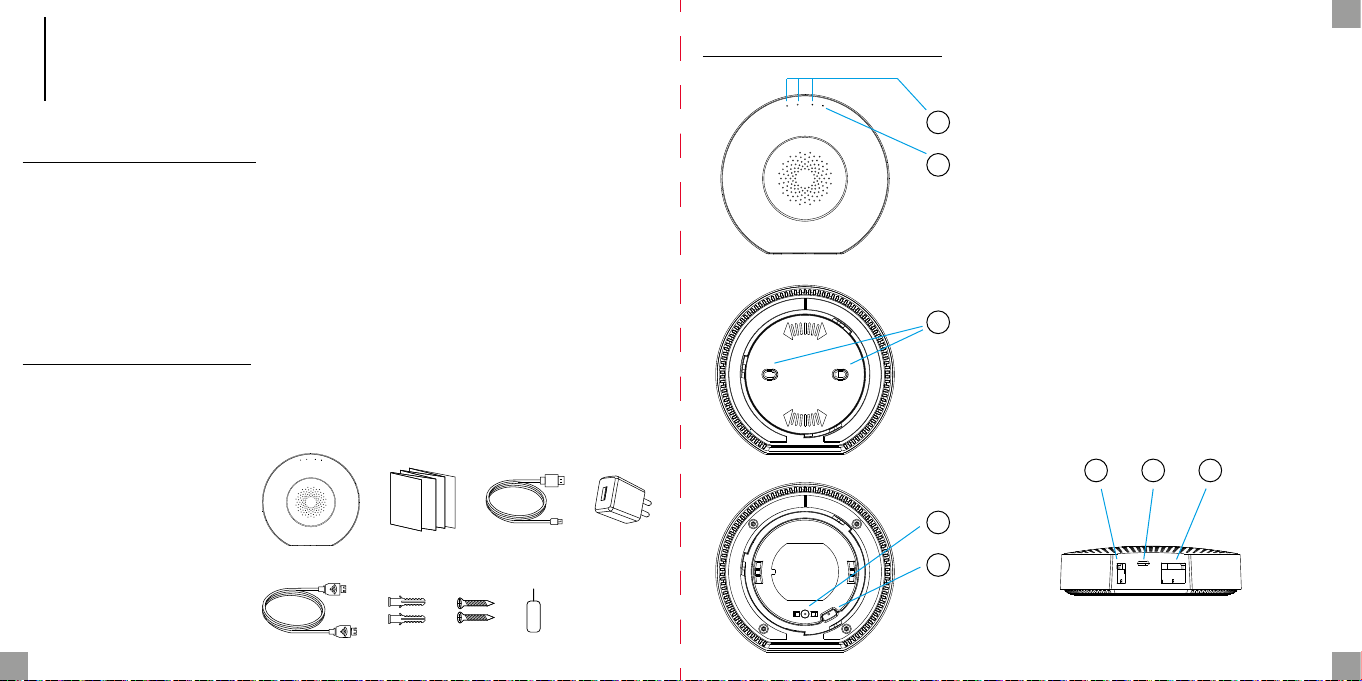
Produkt-Beschreibung
Smart Hub ist eine Steuerzentrale für ZigBee- und Bluetooth-Geräte. Unser Gateway
arbeitet mit vielen Arten von ZigBee-Geräten zusammen, die im 1.2HA-Standard
arbeiten, wie z. B. Rauchmelder, CO-Alarm, Reed-Schalter, Bewegungsmelder, usw.
Durch verschiedene Kombinationen von Smart-Home-Peripheriegeräten können
Sie das Bedienfeld als Alarmanlage, Sicherheitssystem, Umweltkontrolle, Automatisierung Ihres Hauses usw. verwenden.
Inhalt der Verpackung
• Gateway
• Bedienungsanleitung
• USB-Kabel
• Netzgerät
• Montageschrauben
• Ethernet-Kabel
• Nadel
Gateway-Beschreibung
DE
1
2
3
4
5
1. Status-LEDs
2. Power-LED-Anzeige
3. Montage
4. Sabotagealarm
5. Önung zurücksetzen
6. USB/Service-Anschluss
7. Stromanschluss
8. Ethernet-Anschluss
6 7 8
18 19
Page 11
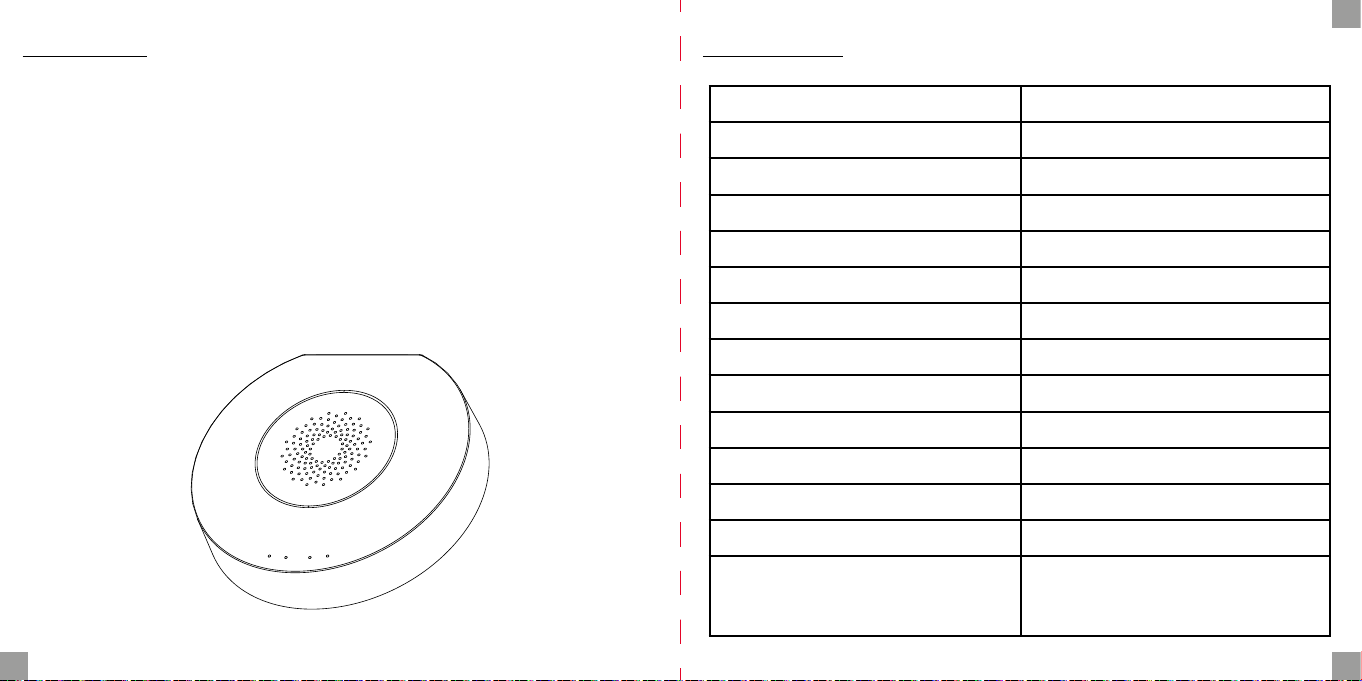
Funktionen
• Unterstützt bis zu 100 Zigbee-Geräte
• Ethernet- und Wi-Fi-Unterstützung
• Automatische Netzwerkumschaltung bei Verbindungsverlust
• Unterstützt Software-Updates
• Eingebauter 2400-mAh-Akku
• Bis zu 12 Stunden Akkulaufzeit bei Ethernet-Verbindung und bis zu 6 Stunden
bei Wi-Fi-Verbindung
• Sabotagealarm, der sofort aktiviert wird, wenn er aus der Halterung entfernt
wird
DE
Spezikation
Spannungsversorgung DC5V/2A
Eingebaute Batterie 2400mAh/3,7V
Nennleistung 3W Ethernet, 3,5W Wi-Fi
Betriebstemperatur 0°C ~ +55°C
Zulässige Luftfeuchtigkeit =<95% (nicht kondensierend)
Netzwerk Ethernet, Wi-Fi
Kommunikation Zigbee, Bluetooth
Betriebsbereich Bis zu 200m im freien Raum
Abmessungen 120,8 x 114,4 x 32,7 mm
Stromanschluss Micro USB
Ethernet-Anschluss RJ45
USB-Anschluss USB Typ A
Taste Sabotage Normalerweise geschlossen
Entstörtaste 10 Sekunden lang drücken, um die
Werkseinstellungen wiederherzustellen
20 21
Page 12
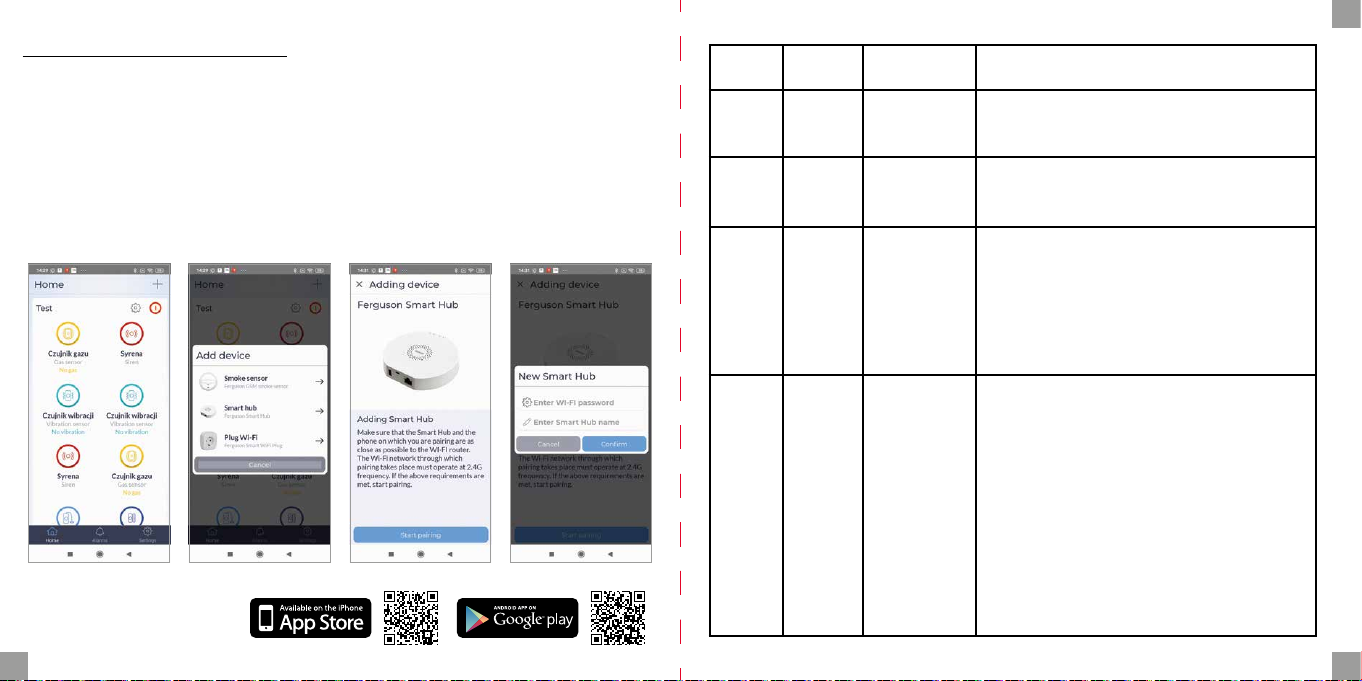
Hinzufügen des Gateways
Schließen Sie das Gateway über das mitgelieferte Kabel und das Netzteil an die Stromversorgung an. Laden Sie die Anwendung Ferguson Home im Play Store oder AppStore
herunter. Führen Sie die erforderlichen Schritte aus, um die Anwendung zu starten.
Wählen Sie dann über das „+“- Symbol in der Registerkarte „Desktop“ die Option zum
Hinzufügen von Smart Hub. Befolgen Sie die in der Anwendung enthaltenen Anweisungen. Nach erfolgreicher Verbindung signalisiert das Gateway mit einem Piepton „successful connection“.
Das Pairing kann einige Minuten dauern.
Ferguson Home Applikation
LED Farbe Beschreibung
Leistung grün Leistungsstatus
3 grün/rot
2 weiß
1 gelb/blau
Gateway-
-Status-LED-
-Anzeige
Status-LED
der Netzwerkverbindung
Pairing-Sta-
tus-LED
DE
1. Leuchtet konstant - Stromversorgung
vom Netzteil.
2. Blinkend - batteriebetrieben.
1. Grün scheinen - HUB aktiviert, Nachtmodus.
2. Rotes Licht - HUB aktiviert.
3. Grün blinkt sehr schnell - Update.
1. Blinkt jede Sekunde - Kopplungsmodus
des Wi-Fi-Gateways.
2. Leuchtet für 5s auf - Kopplung erfolgreich.
3. Blinkt schnell für 2s - Wi-FiPairing fehlgeschlagen.
4. Leuchtet dauerhaft - Verbindung zum Server.
5. Blinkt sehr schnell - Update.
1. Gelb blinkt jede Sekunde Kopplung mit ZigBee-Gerät.
2. Gelb scheint für 5s - ZigBeeGerätepaarung erfolgreich.
3. Gelb blinkt sehr schnell für 2s ZigBee-Pairing fehlgeschlagen.
4. Blau blinkt im Sekundentakt - Kopplung
mit einem Bluetooth-Gerät.
5. Blaues scheint für 5s - BluetoothGerätepaarung erfolgreich.
6. Blau blinkt sehr schnell für 2s Bluetooth-Kopplung fehlgeschlagen.
7. Gelb blinkt sehr schnell - Update.
22 23
Page 13
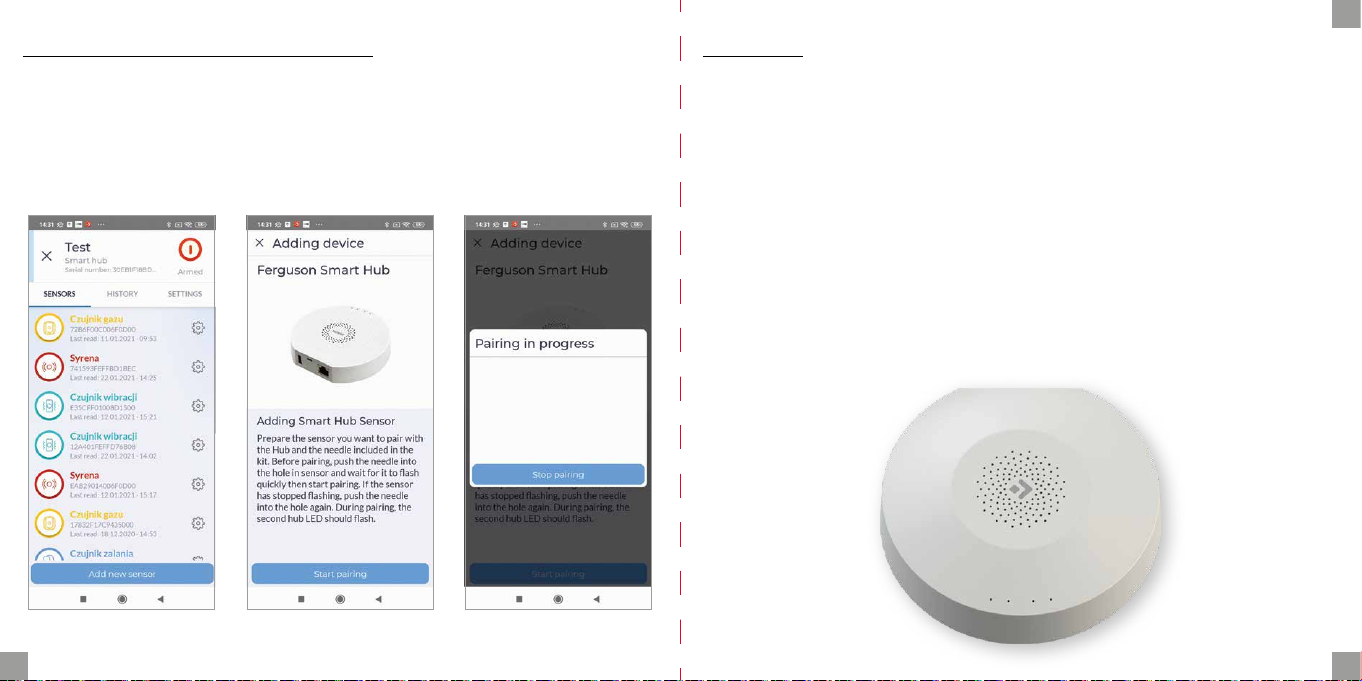
Hinzufügen von Peripheriegeräten
DE
Montage
1. Geben Sie die Gateway-Einstellungen ein (Zahnradsymbol).
2. Am unteren Bildrand bendet sich eine Schaltäche zum Hinzufügen eines neuen Geräts.
3. Bereiten Sie den Sensor vor, den Sie hinzufügen möchten.
4. Drücken Sie die Hinzufügen-Taste und folgen Sie den Anweisungen.
So montieren Sie das Gerät:
1. Entfernen Sie die Montageabdeckung, indem Sie sie gegen den Uhrzeigersinn
drehen.
2. Wenn Sie einen geeigneten Montageort ausgewählt haben, befestigen Sie das
Gateway mit den Montageschrauben an der ausgewählten Oberäche.
Hinweis!
1. Um eine bessere Leistung der drahtlosen Kommunikation zu erreichen, vermeiden Sie die Montage auf einer Metalloberäche oder in einer Metallumgebung.
2. Um Geräte hinzuzufügen, installieren Sie die Anwendung.
3. Für eine stabile Kommunikation sollten die Peripheriegeräte nicht weiter als 20
Meter vom Gateway entfernt sein. Die beste Verbindung entsteht in einem Abstand von ca. 15 Metern zum Gateway.
24 25
Page 14
NOTA: Lee atentamente antes de usar. Las ilustraciones del manual son solo
para referencia y pueden no ser precisas.
ES
Descripción de Hub
Descripción del producto
El Smart Hub es el centro de control para dispositivos ZigBee y Bluetooth. Nuestro
Hub funciona con muchos tipos de dispositivos ZigBee que operan en el estándar
1.2HA, por ejemplo con detectores de humo o monóxido de carbono, detectores de
movimiento, apertura/cierre, etc.
A través de varias combinaciones de los dispositivos periféricos para smart home
puedes utilizar Hub como sistema de alarma, sistema de seguridad, control ambiental, automatización de su hogar, etc.
Contenido de caja
• Hub
• manual
• cable USB
• fuente de alimentación
• tornillos de montaje
• cable de Ethernet
• aguja
26 27
1
2
3
4
5
1. Indicadores LED de estado
2. Indicador LED de encendido
3. Soporte de montaje
4. Alarma de sabotaje
5. Agujero de reinicio
6. Puerto USB/Puerto de servicio
7. Puerto de alimentación
8. Puerto Ethernet
6 7 8
Page 15
Funciones
• Admite hasta 100 dispositivos Zigbee
• Compatible con Ethernet y Wi-Fi
• Transferencia de red automática en caso de pérdida de conexión
• Soporte de actualización de software
• Batería integrada de 2400 mAh
• Duración de la batería hasta 12 horas con conexión por Ethernet y hasta 6 horas
con conexión por Wi-Fi
• Alarma antimanipulación que se activa inmediatamente cuando se retira del soporte de montaje
ES
Especicación
Alimentación DC5V/2A
Batería de emergencia/reserva 2400mAh/3.7V
Potencia nominal 3W Ethernet, 3.5W Wi-Fi
Temperatura de trabajo 0°C~+55°C
Humedad permitida =<95% (sin condensación)
Red Ethernet, Wi-Fi
Comunicación Zigbee, Bluetooth
Rango de trabajo Hasta 200 m en espacio abierto
Dimensiones 120,8 x 114,4 x 32,7 mm
Puerto de alimentación Micro USB
Puerto Ethernet RJ45
Puerto USB USB tipo A
Botón de sabotaje Normalmente cerrado
Agujero de reinicio Pulsa durante 10 segundos para resta-
blecer la conguración de fábrica
28 29
Page 16
Agregar Hub
Conecta Hub a la fuente de alimentación mediante el cable y el adaptador de alimentación que vienen incluidos. Descarga la aplicación Ferguson Home en Play
Store o AppStore. Sigue los pasos necesarios para iniciar la aplicación.
Luego, usando el símbolo “+” en la pestaña “Escritorio”, selecciona la opción de agregar Smart Hub. Sigue las instrucciones de la aplicación. Tras una conexión exitosa,
Hub señalará “conexión exitosa” con una señal acústica.
El emparejamiento puede tardar varios minutos.
aplicación Ferguson Home
LED Color Descripción
Alimen-
tación
3 verde/rojo
2 blanco
amarillo/
1
verde
azul
estado de
alimentación
indicador LED
del estado
de Hub
indicador LED
de estado
de conexión
con red
indicador LED
de estado de
empareja-
miento de los
dispositivos
ES
1. Luz ja - alimentada por la fuente de alimentación.
2. Parpadeando - funciona con batería.
1. Verde encendido - HUB armado en modo nocturno.
2. Rojo encendido - HUB armado.
3. Verde parpadea muy rápido - actualización
1. Parpadea cada segundo - modo de emparejamiento de Hub con Wi-Fi.
2. Encendido durante 5 segundos - emparejamiento exitoso.
3. Parpadea muy rápido durante 2 segundos - emparejamiento con Wi-Fi ha fallado.
4. Luz ja - conexión con el servidor.
5. Parpadeo muy rápido - actualización.
1. Amarillo parpadea cada segundo - emparejamiento con el dispositivo ZigBee.
2. Amarillo encendido durante 5 segundos - emparejamiento ZigBee exitoso.
3. Amarillo parpadea muy rápido durante 2 segundos - emparejamiento ZigBee ha fallado.
4. Azul parpadea cada segundo - emparejamiento con un dispositivo Bluetooth.
5. Azul encendido durante 5 segundos - emparejamiento Bluetooth exitoso.
6. Azul parpadea muy rápido durante 2 segundos - emparejamiento de Bluetooth ha fallado.
7. Amarillo parpadea muy rápido - actualización.
30 31
Page 17
Agregar dispositivos periféricos
ES
Instalación
1. Entrar en los ajustes de Hub (icono de engranaje).
2. En la parte inferior de la pantalla hay un botón para agregar nuevo dispositivo.
3. Preparar el detector que deseas agregar.
4. Presionar el botón de agregar y seguir las instrucciones de la aplicación.
Para instalar el dispositivo:
1. Retira la cubierta de montaje girándola en sentido antihorario.
2. Después de seleccionar adecuada ubicación de instalación, utiliza los tornillos
de montaje para jar Hub en la supercie seleccionada.
¡Atención!
1. Para obtener mejores parámetros de comunicación inalámbrica, evita la instalación en una supercie metálica o en un entorno metálico.
2. Para agregar dispositivos, instala la aplicación.
3. Para una comunicación estable, los dispositivos periféricos no deben estar a más
de 20 metros de Hub. La mejor conexión es a unos 15 metros de Hub.
32 33
Page 18
REMARQUE: veuillez lire attentivement avant utilisation. Les illustrations du manuel sont fournies à titre indicatif uniquement et peuvent ne pas être exactes.
FR
Description du Hub
Description du produit
Le Smart Hub est le centre de contrôle des appareils ZigBee et Bluetooth. Notre Hub
fonctionne avec de nombreux types d’appareils ZigBee fonctionnant selon la norme
1.2HA, par exemple avec des détecteurs de fumée ou de monoxyde de carbone, des
détecteurs de mouvement, ouverture/fermeture, etc.
Grâce à diverses combinaisons de périphériques pour la maison intelligente, vous
pouvez utiliser le Hub comme système d’alarme, système de sécurité, contrôle de
l’environnement, domotique, etc.
Contenu de la boîte
• Hub
• manuel
• cable USB
• source de courant
• vis de montage
• câble Ethernet
• aiguille
34 35
1
2
3
4
5
1. LED d’état
2. indicateur LED d’alimentation
3. support de montage
4. alarme de sabotage
5. réinitialiser le trou
6. port USB/port de service
7. port d’alimentation
8. port Ethernet
6 7 8
Page 19
Funciones
• Prend en charge jusqu’à 100 appareils Zigbee
• Compatible Ethernet et Wi-Fi
• Transfert automatique du réseau en cas de perte de connexion
• Assistance pour la mise à jour des logiciels
• Batterie intégrée de 2400 mAh
• Autonomie de la batterie jusqu’à 12 heures avec une connexion Ethernet et
jusqu’à 6 heures avec une connexion Wi-Fi
• Alarme de sabotage qui s’active immédiatement lorsqu’elle est retirée du support de montage
FR
Spécication
Alimentation DC5V/2A
Batterie de secours/de secours 2400mAh/3.7V
Puissance nominale 3W Ethernet, 3.5W Wi-Fi
Température de travail 0°C~+55°C
Humidité autorisée =<95% (sans condensation)
Net Ethernet, Wi-Fi
Communication Zigbee, Bluetooth
Plage de travail Jusqu'à 200 m en espace ouvert
Dimensions 120,8 x 114,4 x 32,7 mm
Port d'alimentation Micro USB
Port Ethernet RJ45
Port USB USB Type A
Bouton d'autoprotection Normalement fermé
Réinitialiser le trou Appuyez pendant 10 secondes pour
revenir aux réglages d'usine
36 37
Page 20
Ajouter Hub
Connectez le concentrateur à l’alimentation électrique à l’aide du cordon d’alimentation et de l’adaptateur fournis. Téléchargez l’application Ferguson Home sur le
Play Store ou l’AppStore. Suivez les étapes nécessaires pour démarrer l’application.
Ensuite, à l’aide du symbole «+» de l’onglet «Bureau», sélectionnez l’option pour
ajouter Smart Hub. Suivez les instructions de l’application. Après une connexion
réussie, le Hub signalera «connexion réussie» avec un signal sonore.
L’appairage peut prendre plusieurs minutes.
application Ferguson Home
38 39
LED Couleur Description
Alimen-
tation
3
2 blanc
1
vert
vert/
rouge
jaune/
bleu
statut de
pouvoir
Indicateur
LED de l'état
du Hub
indicateur
LED de
l'état de la
connexion
au réseau
Indicateur
LED de l'état
d'apparie-
ment des
appareils
1. Lumière xe - alimenté par l’alimentation.
2. Clignotant - alimenté par batterie.
1. Vert allumé - HUB armé en mode nuit.
2. Rouge allumé - HUB armé.
3. Le vert clignote très rapidement - actualisation.
1. Parpadea cada segundo - modo de emparejamiento de Hub con Wi-Fi.
2. Encendido durante 5 segundos - emparejamiento exitoso.
3. Parpadea muy rápido durante 2 segundos - emparejamiento con Wi-Fi ha fallado.
4. Luz ja - conexión con el servidor.
5. Parpadeo muy rápido – actualisation.
1. Le jaune clignote toutes les secondes
- couplage avec l’appareil ZigBee.
2. Jaune allumé pendant 5 secondes
- Appairage ZigBee réussi.
3. Le jaune clignote très rapidement pendant
2 secondes - L’appairage ZigBee a échoué.
4. Le bleu clignote toutes les secondes couplage avec un appareil Bluetooth.
5. Bleu allumé pendant 5 secondes
- Appairage Bluetooth réussi.
6. Le bleu clignote très rapidement pendant 2
secondes - Le couplage Bluetooth a échoué.
7. Le jaune clignote très rapidement - actualisation.
FR
Page 21
Ajouter des périphériques
FR
Installation
1. Entrez les paramètres du Hub (icône d’engrenage).
2. Au bas de l’écran, il y a un bouton pour ajouter un nouvel appareil.
3. Préparez le détecteur que vous souhaitez ajouter.
4. Appuyez sur le bouton d’ajout et suivez les instructions de l’application.
Pour installer l’appareil:
1. Retirez le couvercle de montage en le tournant dans le sens antihoraire.
2. Après avoir sélectionné un emplacement d’installation approprié, utilisez les vis
de montage pour xer le moyeu à la surface sélectionnée.
Attention!
1. Pour de meilleurs paramètres de communication sans l, évitez l’installation sur
une surface métallique ou dans un environnement métallique.
2. Pour ajouter des appareils, installez l’application.
3. Pour une communication stable, les périphériques ne doivent pas être à plus de
20 mètres du concentrateur. La meilleure connexion est à environ 15 mètres du
Hub.
40 41
Page 22
NOTA: leggere attentamente prima dell’uso. Le illustrazioni nel manuale sono
solo di riferimento e potrebbero non essere accurate.
IT
Descrizione del Hub
Descrizione del prodotto
Lo Smart Hub è il centro di controllo per ZigBee e dispositivi Bluetooth. Il nostro
Hub funziona con molti tipi di dispositivi ZigBee che funzionano secondo lo standard 1.2HA, ad esempio con rilevatori di fumo o monossido di carbonio, rilevatori di
movimento, apertura/chiusura, ecc.
Attraverso varie combinazioni di periferiche per smart home, è possibile utilizzare
Hub come sistema di allarme, sistema di sicurezza, controllo ambientale, domotica,
ecc.
Contenuto della scatola
• Hub
• manuale
• cavo USB
• alimentazione elettrica
• viti di montaggio
• cavo Ethernet
• ago
42 43
1
2
3
4
5
1. Indicatori LED di stato
2. Indicatore di alimentazione a LED
3. Staa di ssaggio
4. Allarme sabotaggio
5. Ripristina il foro
6. Porta USB/porta di servizio
7. Porta di alimentazione
8. Porta Ethernet
6 7 8
Page 23
Funzioni
• Supporta no a 100 dispositivi Zigbee
• Compatibile con Ethernet e Wi-Fi
• Trasferimento automatico della rete in caso di perdita di connessione
• Supporto per l’aggiornamento del software
• Batteria integrata da 2400 mAh
• Durata della batteria no a 12 ore con connessione Ethernet e no a 6 ore con
connessione Wi-Fi
• Allarme manomissione che si attiva immediatamente quando viene rimosso
dalla staa di montaggio
IT
Specicazione
Alimentazione DC5V/2A
Batteria di emergenza/riserva 2400mAh/3.7V
Potenza nominale 3W Ethernet, 3.5W Wi-Fi
Temperatura di lavoro 0°C~+55°C
Umidità ammissibile =<95% (senza condensa)
Web Ethernet, Wi-Fi
Comunicazione Zigbee, Bluetooth
Campo di lavoro Fino a 200m in spazi aperti
Dimensioni 120,8 x 114,4 x 32,7 mm
Porta di alimentazione Micro USB
Porta Ethernet RJ45
Porta USB USB tipo A
Pulsante di manomissione Normalmente chiuso
Foro di ripristino Premere per 10 secondi per ripristina-
re le impostazioni di fabbrica
44 45
Page 24
Aggiungere Hub
IT
Collegare Hub alla fonte di alimentazione utilizzando il cavo di alimentazione
e l’adattatore di alimentazione inclusi. Scarica l’app Ferguson Home da Play Store
o AppStore. Segui i passi per lanciare l’applicazione.
Quindi, utilizzando il simbolo “+” nella scheda “Desktop”, selezionare l’opzione per
aggiungere Smart Hub. Segui le istruzioni per l’applicazione. Dopo una connessione
riuscita, l’Hub segnalerà “connessione riuscita” con un segnale acustico.
L’accoppiamento potrebbe richiedere diversi minuti.
applicazione Ferguson Home
LED Colore Descrizione
Alimen-
tazione
3
2 bianco
1
verde
verde/
rosso
giallo/
blu
stato di
potenza
Indicatore
LED di stato
dell'hub
indicatore
LED di
stato della
connessione
di rete
Indicatore
LED dello
stato di
accoppiamento del
dispositivo
1. Luce ssa - alimentata dall’alimentatore.
2. Lampeggiante - funzionamento a batteria.
1. Verde acceso - HUB inserito in modalità notturna.
2. Rosso acceso - HUB attivato.
3. Il verde lampeggia molto velocemente - aggiornamento.
1. Lampeggia ogni secondo - modalità di accoppiamento dell’hub con Wi-Fi.
2. Accensione per 5 secondi - accoppiamento riuscito.
3. Lampeggia molto velocemente per 2 secondi - L’accoppiamento Wi-Fi non è riuscito.
4. Luce ssa - connessione al server.
5. Lampeggiante molto veloce - aggiornamento.
1. Il giallo lampeggia ogni secondo - accoppiamento con il dispositivo ZigBee.
2. Giallo acceso per 5 secondi - accoppiamento ZigBee riuscito.
3. Il giallo lampeggia molto velocemente per 2 secondi - l’accoppiamento ZigBee non è riuscito.
4. Il blu lampeggia ogni secondo - accoppiamento con un dispositivo Bluetooth.
5. Blu acceso per 5 secondi - accoppiamento Bluetooth riuscito.
6. Il blu lampeggia molto velocemente per 2 secondi - l’accoppiamento Bluetooth non è riuscito.
7. Il giallo lampeggia molto velocemente - aggiornamento.
46 47
Page 25
Aggiungi dispositivi periferici
IT
Installazione
1. Immettere le impostazioni dell’Hub (icona dell’ingranaggio).
2. Nella parte inferiore dello schermo c’è un pulsante per aggiungere un nuovo dispositivo.
3. Prepara il rilevatore che desideri aggiungere.
4. Premere il pulsante Aggiungi e seguire le istruzioni dell’applicazione.
Per installare il dispositivo:
1. Rimuovere il coperchio di montaggio ruotandolo in senso antiorario.
2. Dopo aver selezionato una posizione di installazione adatta, utilizzare le viti di
montaggio per ssare l’hub alla supercie selezionata.
¡Attenzione!
1. Per parametri di comunicazione wireless migliori, evitare l’installazione su una
supercie metallica o in un ambiente metallico.
2. Per aggiungere dispositivi, installa l’app.
3. Per una comunicazione stabile, i dispositivi periferici non devono essere a più di
20 metri dall’hub. La migliore connessione è a circa 15 metri dall’Hub.
48 49
Page 26
NOTA: Leia atentamente antes de usar. As ilustrações do manual são apenas
para referência e podem não ser exactas.
PT
Descrição do Hub
Descrição do produto
O Smart Hub é o centro de controlo para dispositivos ZigBee e Bluetooth. O nosso Hub trabalha com muitos tipos de dispositivos ZigBee que funcionam na norma
1.2HA, por exemplo com detectores de fumo ou monóxido de carbono, detectores
de movimento, abertura/fechamento, etc.
Através de várias combinações de dispositivos periféricos para casa inteligente
pode utilizar o Hub como sistema de alarme, sistema de segurança, controlo ambiental, automação doméstica, etc.
Conteúdo da caixa
• Hub
• manual
• cabo USB
• alimentação eléctrica
• parafusos de montagem
• cabo Ethernet
• agulha
50 51
1
2
3
4
5
1. Indicadores LED de estado
2. Indicador LED de potência
3. Suporte de montagem
4. Alarme de sabotagem
5. Orifício de reinicialização
6. Porta USB/Porta de serviço
7. Porta de alimentação
8. Porta Ethernet
6 7 8
Page 27
Funções
• Suporta até 100 dispositivos Zigbee
• Compatível com Ethernet e Wi-Fi
• Transferência automática de rede em caso de perda de conexão
• Suporte para atualização de software
• Bateria integrada de 2400 mAh
• Bateria com duração de até 12 horas com conexão Ethernet e até 6 horas com
conexão Wi-Fi
• Alarme de sabotagem que é ativado imediatamente quando removido do suporte de montagem
PT
Especicação
Alimentando DC5V/2A
Bateria de reserva/emergência 2400mAh/3.7V
Potência nominal Ethernet 3W, Wi-Fi 3.5W
Temperatura de trabalho 0°C~+55°C
Umidade permitida = <95% (sem condensação)
Internet Ethernet, Wi-Fi
Comunicação Zigbee, Bluetooth
Área de trabalho Até 200m em espaço aberto
Dimensões 120,8 x 114,4 x 32,7 mm
Porta de alimentação Micro USB
Conexão de Rede RJ45
Porta USB USB tipo A
Botão de sabotagem Normalmente fechado
Orifício de reinicialização Pressione por 10 segundos para res-
taurar as congurações de fábrica
52 53
Page 28
Adicionar Hub
Conecte o hub à fonte de alimentação usando o cabo de alimentação e o adaptador
incluídos. Baixe o aplicativo Ferguson Home na Play Store ou AppStore. Siga as etapas necessárias para iniciar o aplicativo.
Em seguida, usando o símbolo “+” na guia “Desktop”, selecione a opção para adicionar Smart Hub. Siga as instruções do aplicativo. Após uma conexão bem-sucedida,
o hub sinalizará “conexão bem-sucedida” com um sinal acústico.
O emparelhamento pode demorar vários minutos.
aplicação Ferguson Home
LED Cor Descrição
Alimen-
tação
3
2 branco
1
verde
verde/
vermelho
amarelo/
azul
status de
poder
Indicador
LED de status
do hub
Indicador
LED de status
de conexão
de rede
Indicador
LED para
status de
emparelha-
mento de
dispositivo
PT
1. Luz constante - alimentado por fonte de alimentação.
2. Piscando - operado por bateria.
1. Verde aceso - HUB armado no modo noturno.
2. Vermelho aceso - HUB armado.
3. Verde pisca muito rápido - atualização.
1. Pisca a cada segundo - Modo de emparelhamento de hub com Wi-Fi.
2. Ligue por 5 segundos - emparelhamento bem-sucedido.
3. Pisca muito rápido por 2 segundos - o emparelhamento de Wi-Fi falhou.
4. Luz constante - conexão com o servidor.
5. Piscando muito rápido - atualização.
1. Amarelo pisca a cada segundo - emparelhando com o dispositivo ZigBee.
2. Amarelo aceso por 5 segundos - emparelhamento ZigBee bem-sucedido.
3. Amarelo pisca muito rápido por 2 segundos - o emparelhamento ZigBee falhou.
4. Azul pisca a cada segundo - emparelhando com um dispositivo Bluetooth.
5. Azul aceso por 5 segundos - Emparelhamento Bluetooth bem-sucedido.
6. Azul pisca muito rápido por 2 segundos
- o emparelhamento Bluetooth falhou.
7. Amarelo pisca muito rápido - atualização.
54 55
Page 29
Adicionar dispositivos periféricos
PT
Instalação
1. Entre nas congurações do hub (ícone de engrenagem).
2. Na parte inferior da tela, há um botão para adicionar um novo dispositivo.
3. Prepare o detector que deseja adicionar.
4. Pressione o botão Adicionar e siga as instruções do aplicativo.
Para instalar o dispositivo:
1. Remova a tampa de montagem girando-a no sentido anti-horário.
2. Depois de selecionar um local de instalação adequado, use os parafusos de
montagem para xar o Hub na superfície selecionada.
Atenção!
3. Para obter melhores parâmetros de comunicação sem o, evite a instalação em
uma superfície metálica ou em um ambiente metálico.
4. Para adicionar dispositivos, instale o aplicativo.
5. Para uma comunicação estável, os dispositivos periféricos não devem estar
a mais de 20 metros do hub. A melhor conexão ca a cerca de 15 metros do Hub.
56 57
Page 30
notatki / notes / Anmerkungen / notas / remarques / appunti / notas notatki / notes / Anmerkungen / notas / remarques / appunti / notas
ES
58 59
Page 31

 Loading...