

Page 1
v1.20
User manual
Page 2

Table of contents
Downloadable software...................................................................................................2
GNU/GPL licensing information.........................................................................................2
User manual..................................................................................................................2
Markings and signs.........................................................................................................3
Basic information about the tablet....................................................................................4
1. Prior to first use.....................................................................................................4
2. Contents of box......................................................................................................4
3. Tablet parts and connectors.....................................................................................5
Tablet operation.............................................................................................................7
4. Tablet first use.......................................................................................................7
5. Basic operation of the Android operating system.........................................................8
5.1 Home screen elements......................................................................................9
5.2 Applications switching......................................................................................10
5.3 Application menu............................................................................................10
5.4 Adding widgets and shortcuts to your home screen.............................................11
5.5 WiFi configuration...........................................................................................12
5.6 Basic applications............................................................................................13
5.7 Connecting tablet to a computer.......................................................................14
6 Connect the tablet to a TV......................................................................................15
7 Factory reset.........................................................................................................16
8 Firmware Upgrade by SDHC card.............................................................................16
9 Playing Media........................................................................................................16
10 Charging the battery............................................................................................16
Glossary of terms.........................................................................................................17
Specification................................................................................................................18
Page 3
Downloadable software
Ferguson has taken every effort to provide users with software updates in order to ensure that
the parameters of the tablet are up to date. Ferguson reserves itself the right to amend, change
or modify the software used in the tablet as it shall choose and without prior notification. The
latest version of the software is available on the website http://www.ferguson-digital.eu
GNU/GPL licensing information
Please consult the legal information available on your tablet under Settings > About tablet >
Legal information (internet connection required) or visit
http://source.android.com/source/licenses.html for more information.
User manual
Ferguson has made every effort to provide the most current information about its products.
Ferguson does not grant any guarantee as to the contents of the present instruction manual
and disclaims any implied guarantees concerning market value or suitability for specific
purposes. The information contained herein is an instruction intended to enable the correct
usage and maintenance of the tablet.
Ferguson reserves itself the right to introduce amendments, changes or translations of the
instruction manual without prior notification thereof. For this reason, we recommend you
regularly visit our website http://www.ferguson-digital.eu in order to obtain the latest
information.
2
Page 4
Markings and signs
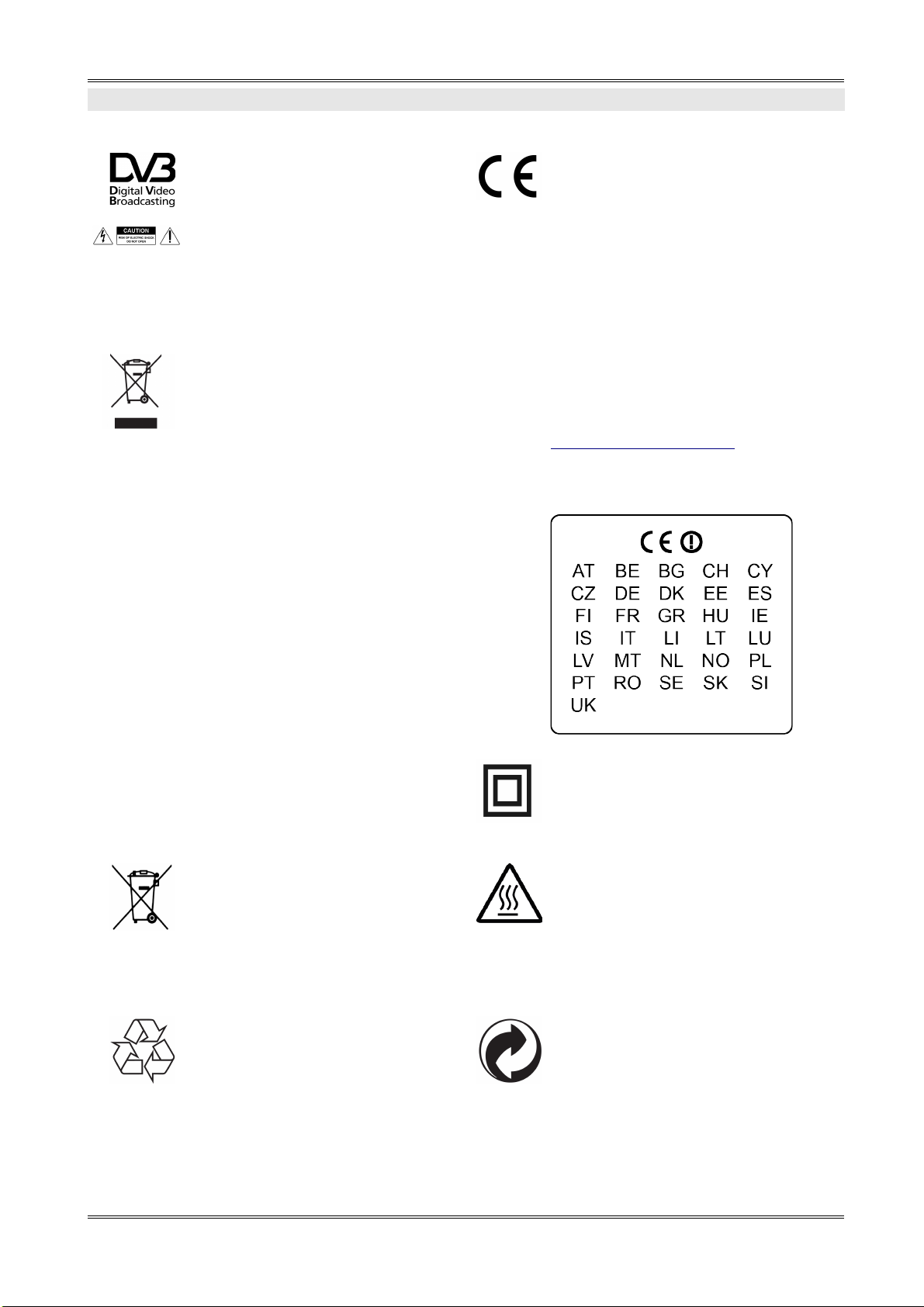
Digital signal transmission logo.
This logo informs that the receiver conforms to the Digital Video Broadcasting
standards.
CE logo.
The logo informs that the receiver conforms to the terms and conditions of Directive 2004/108/EC concerning observance
by Member States of provisions regulating
electromagnetic compatibility, and to the
terms and conditions of Directives
2006/95/EC concerning observance by
Member States of provisions regulating low
voltage electricity and safety with relation
to the handling and operation of electrical
equipment.
Risk of electric shock - do not open.
This notice warns the user not to open
the receiver housing. The housing may
be opened solely by authorized service
technicians.
When this crossed-out wheeled bin
symbol is attached to a product it
means that the product is covered by
the European Directive 2002/96/EC.
Please inform yourself about the local
separate collection system for electrical
and electronic products.
Please act according to your local rules
and do not dispose of your old products
with your normal household waste.
Correct disposal of your old product
helps to prevent potential negative consequences for the environment and human health.
R&TTE
Hereby Ferguson Sp. z o.o., declares
that the device is in compliance with
the essential requirements and other relevant provisions of Directive 1999/5/EC. You
can find the Declaration of Conformity on
www.deklaracje.ferguson.pl
This product has been designed, tested and
manufactured according the European
R&TTE directive 1999/5/EC.
This product supports Wireless LAN.
Double insulation logo.
This logo informs that the receiver is an
electrically safe device, provided that it is
used in accordance with the recommendations set forward in the chapter concerning
safety.
Your product contains batteries covered
by the European Directive 2006/66/EC,
which cannot be disposed with normal
household waste. Please inform yourself
about the local rules on separate collection of batteries because correct disposal helps to prevent negative consequences for the environmental and
human health.
Hot surface mark
CAUTION: HOT SURFACE. DO NOT TOUCH.
The top surface over the internal heat sink
may become hot when operating this
product continuously. Do not touch hot
areas, especially around the “Hot surface
mark” and the top panel.
Your product is designed and manufactured with high quality materials and
components, which can be recycled and
reused.
When this logo is attached to a product, it
means a financial contribution has been
paid to the associated national recovery
and recycling system.
3
Page 5
Basic information about the tablet
1. Prior to first use
Thank you for purchasing Ferguson tablet. To ensure you a quick and convenient use of your
new tablet, please read these instructions carefully prior to use. We hope you will absolutely
enjoy your Ferguson tablet for the longest time possible!
Do not try to disassemble the tablet, as this will void your warranty and may result in
malfunctioning of the device.
Avoid using the tablet in a high or low temperature environment, or in any environment
where the device can get in contact with moisture, dust or magnetic fields. The device
should be placed away from vases, bottles, aquariums and other water containers in
order to avoid damage.
Do not expose the tablet to strong sunlight for an extended period of time
Avoid beating of or to the product
Do not place any objects on the housing of the device. This may cause screen damage.
Don’t operate the touch screen of the tablet with sharp objects, as this may result in
scratching the screen surface.
To clean tablet do not use alcohol or liquids containing ammonia or any sort of (glass)
cleaning aid. If necessary, clean with a soft, lint-free, cotton cloth dampened with water.
Using connected headphones on the tablet for too long and/or setting the audio volume
up too high when using headphones may cause serious hearing damage.
Do not cross the road, drive a motor vehicle or bicycle while using the tablet with
headphones to avoid traffic accidents.
Only use permitted batteries, chargers and accessories with your tablet. The use of any
other products with the tablet can be dangerous and may violate the warranty
regulations
Do not operate the tablet while driving.
You may go ahead and use your Ferguson tablet right out of the box, without charging the
battery first. If the tablet isn’t switching on right out of the box, the battery is already
completely drained and you should of course recharge it first. It is best for the battery to first
run on the charge left in it, and to be fully recharged once it’s completely drained for the first
time.
2. Contents of box
Unpack the box and check whether all of the following elements are present
Tablet Ferguson
User manual
AC adapter (wall charger)
USB cable to connect to computer
4
Page 6
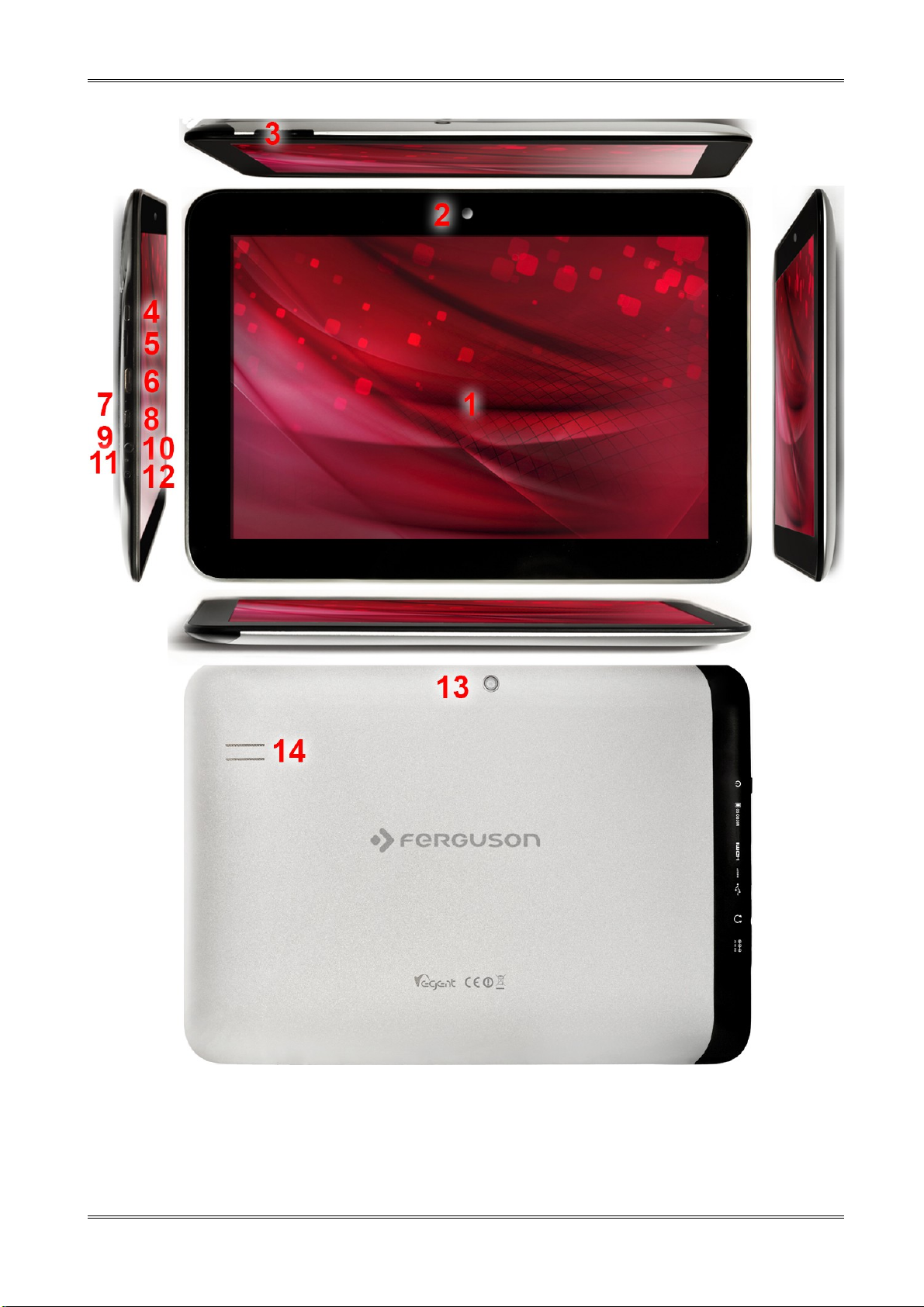
3. Tablet parts and connectors
Figure 1
1. touch screen – support soft touch
2. camera for video conferencing
5
Page 7

3. buttons quieter / louder
4. ON / OFF button - wake / sleep tablet, press and hold to turn on / off
5. microSDHC card slot
6. HDMI type C - audio-video output to HD TV
7. reset – restore factory defaults
8. USB OTG 2.0 micro-B – to connect PC, USB memory, 3G modem
9. microphone
10.headphone jack
11.charging/battery full indicator
12.power connector
13.camera photo
14.speaker
6
Page 8
Tablet operation
4. Tablet first use
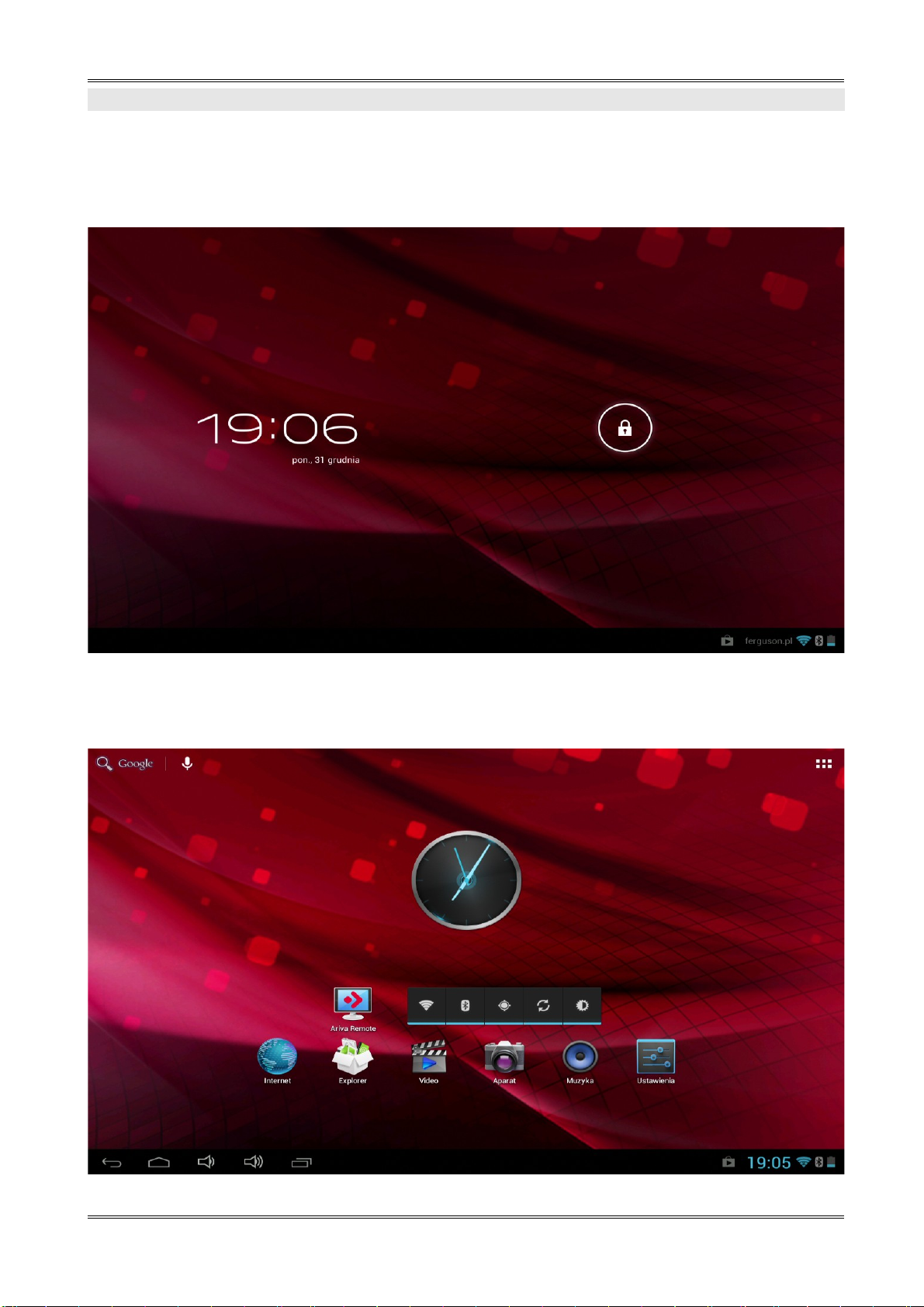
The very first start-up may take a while, approximately 2-3 minutes. When you first power on
your tablet (press button ON/OFF Figure 1 point 4), you will be presented the Android Lock
Screen.
Figure 2
Slide the lock circle to the right (to open lock symbol) to unlock the tablet. You
will then be taken to the Android Home Screen.
7
Page 9
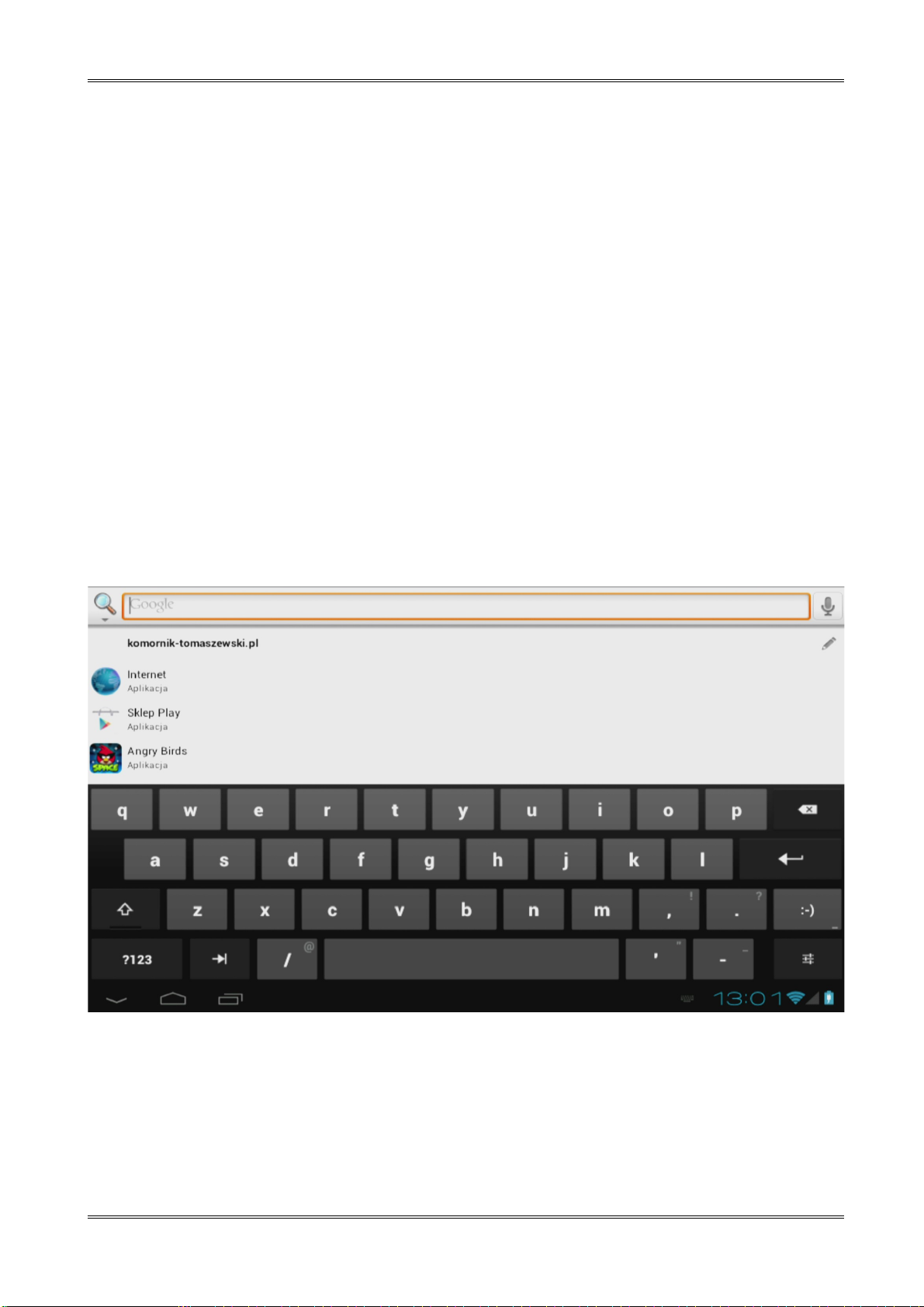
Figure 3
5. Basic operation of the Android operating system
Operating of the tablet is not much different from operating phones with a
touch screen. Used a capacitive screen does not require the use of force, it can
handle gently brushing the screen with your fingers. There is no need for a pen.
To move items on the screen, change desktops, etc simply swipe your finger
across the screen. Ferguson supports multi-touch so it is possible to zoom in
and out with two fingers. In a similar manner, rotation is performed in
applications that support it, such as maps, MapaMap.
Besides the on-screen buttons Ferguson also has three buttons on the top edge
of the housing (quieter, lauder, and suspend / wake) and four on the front
panel (menu, home, back, search).
Usually there is no need to shut down the tablet. When tablet is not in use it
automatically goes into sleep mode which takes a minimum amount of energy.
You can enter text by the virtual keyboard displayed on the screen. You can
switch the input mode, upper-case characters, numbers or special characters.
Figure 4
Ferguson has a built-in accelerometer (G-sensor) that automatically changes the screen
orientation to landscape or portrait. The accelerometer can also be used for other purposes
such as to control the game.
8
Page 10
NOTE: Support for accelerometer and / or change the screen orientation depends on
the application.
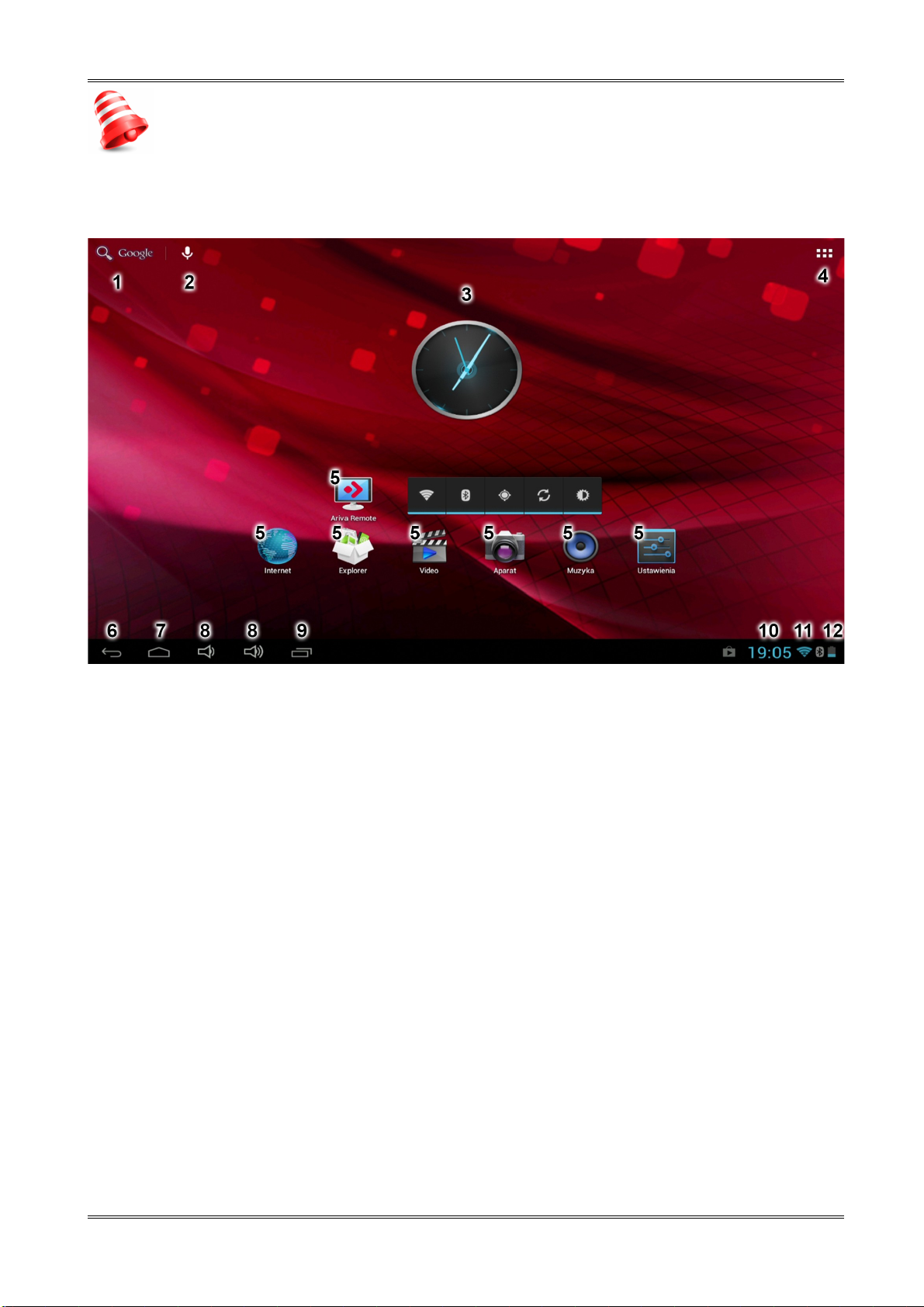
5.1 Home screen elements
Figure 5
1. Search
2. Voice commands
3. Widget (analogue clock)
4. Application and widget menu
5. Application shortcuts
Status bar is always displayed at the bottom of the tablet screen. The status bar displays both
system information, as well as function keys.
6. Back button – go to the previous screen or the previous web page while using the
Internet browser
7. Home button – brings you back to the Android Home Screen
8. quieter / louder – adjust volume
9. Multitask button – switch or close running applications
10.Time
11.Wi-Fi signal indicator
9
Page 11

12.Battery level indicator
Other indicators that may appear at the bottom right of the screen, near the indicators 10, 11
and 12:
- new mail in the mailbox
- airplane mode
- USB connection
- sound muted
- downloading
- alarm setup
- other information
The home screen consists of five pages which can be accessed by swiping the home screen
left/right.
When you click indicator 10, 11 or 12 tablet displays additional information
such as the date, the name of the connected WiFi network, applications
and system informations.
5.2 Applications switching
To see what apps are running in the background, you can access the multitasking view by
pressing the multitask button (Figure 5 point 9).
10
Page 12
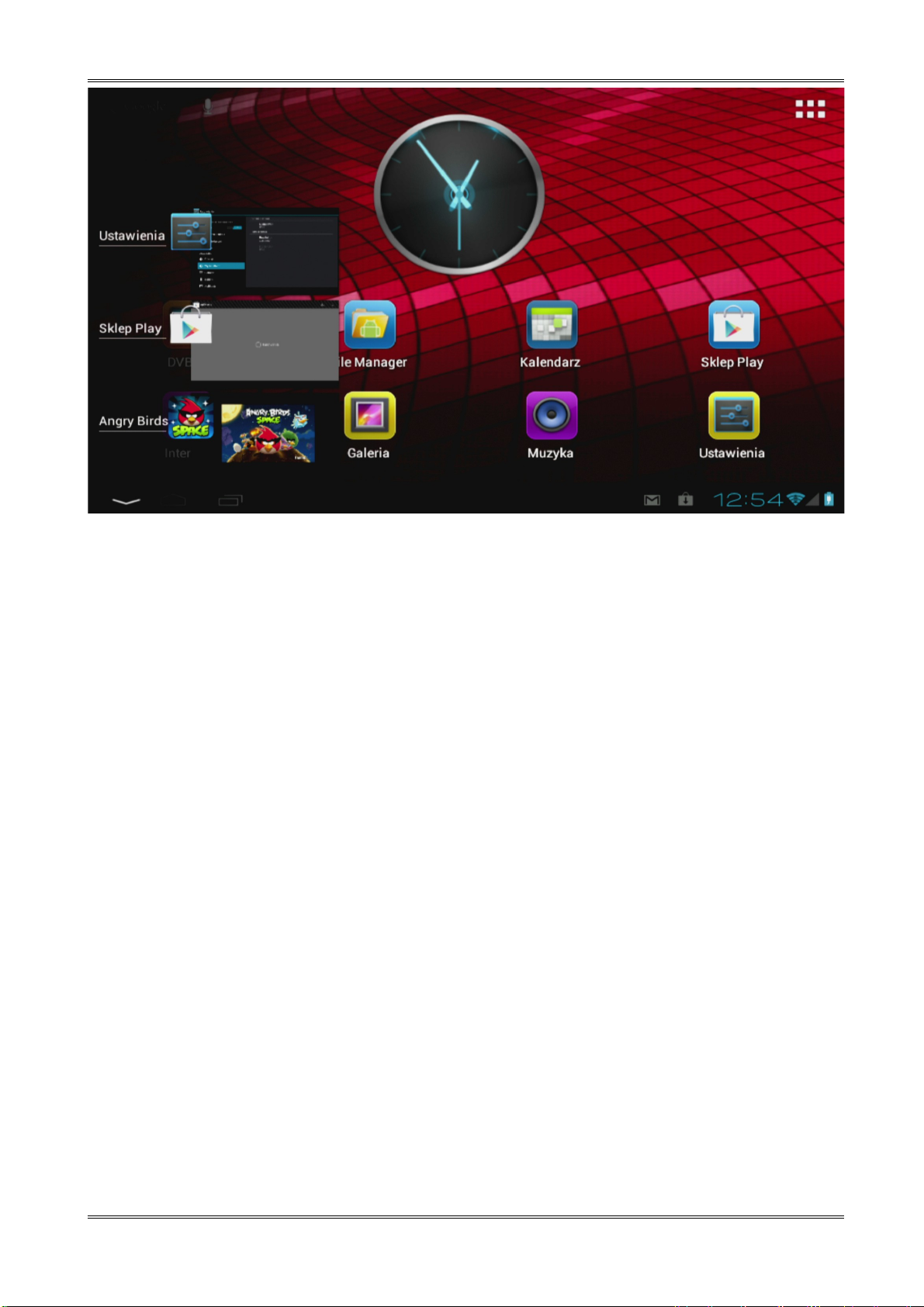
Figure 6
Click on a running app in the multitask view to quickly switch to it. You can close running app
by long pressing on it and dragging it to the left.
5.3 Application menu
Press the app and widget button (Figure 5 point 4) in the top right corner of your home screen:
When the system displays the widgets, press "Apps" to view all installed apps.
11
Page 13
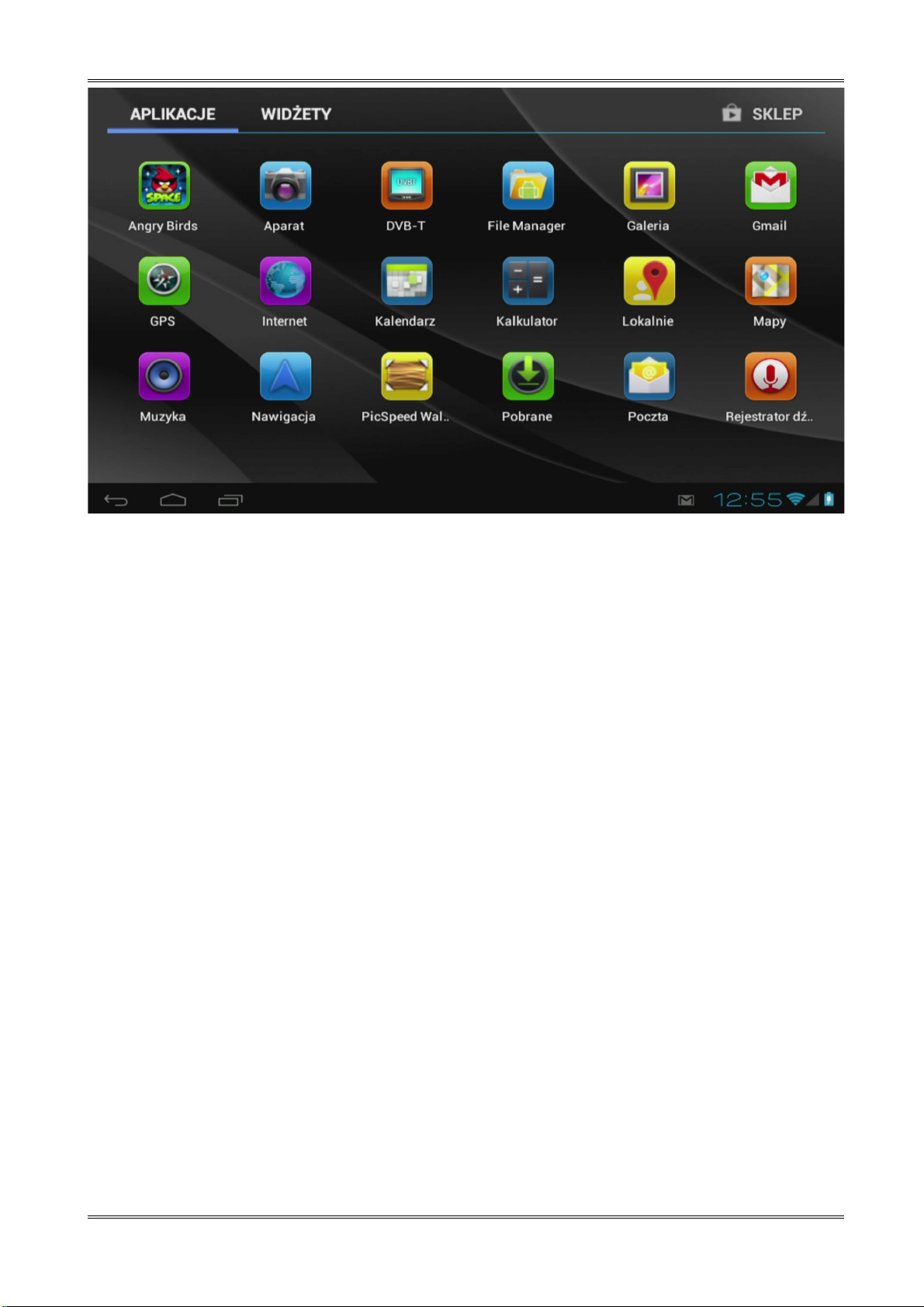
Figure 7
Here you can find all the pre-installed programs or “apps” as well as additional apps that you
installed. You can launch any app by just pressing the corresponding icon.
5.4 Adding widgets and shortcuts to your home screen
To add a widget, press the app and widget button (Figure 5 point 4) in the top right corner of
your home screen. In the following screen, you can find all the installed apps and widgets, both
separately viewable by pressing "Apps" or "Widgets" on top of the screen respectively.
Press "Widgets" to view all available widgets. When showing all widgets, you can swipe the
screen to browse to the next page (if available).
Press and hold the desired widget to have the home screen show up and release the widget to
any empty place on the home screen.
To add a shortcut to any app, press the app and widget button (Figure 5 point 4) in the top
right corner of your home screen. In the following screen, you can find all the installed apps
and widgets, both separately viewable by pressing "Apps" or "Widgets" on top of the screen
respectively.
Press "Apps" to view all installed apps.
Press and hold the desired app to have the home screen show up and release the shortcut to
any empty place on the home screen.
12
Page 14

Figure 8
To remove widgets and/or app shortcuts from your home screen, press and hold them
and drag them to the trash icon.
5.5 WiFi configuration
Press the Settings icon in the home menu or application menu to enter the settings menu. In
the settings menu you can find the options to set up your tablet.
Figure 9
13
Page 15

Set up a connection with a wireless Wi-Fi network. Slide the On/Off button to "On" to activate
Wi-Fi.
The available Wi-Fi networks appear in the network list at the right screen. Tap the network of
your choice. If the network is secured, you’re prompted to enter the network security key.
Press the “Connect” button and the tablet will connect to the network.
Once “Connected” appears underneath the network name and the wireless reception icon is
shown in the bottom status bar, you’re successfully connected to the wireless network.
5.6 Basic applications
Ferguson tablet comes with pre-installed applications. Below is a brief description of the most
important of these applications:
Internet - The web-browser for viewing web sites.
Settings - The menu to set up your tablet.
File Manager - File Explorer to browse/open the folders and documents on your tablet
Play – application store with free and paid apps
Calendar - Calendar app for making and viewing appointments
E-mail - Email client for sending and receiving email
MX player – multimedia file player
PolskaStacja.pl Player – internet radio
vCommunicator – instant messenger (gg and tlen)
Ariva Remote – remote control of Ferguson Ariva STBs
Barcopde Scanner – QR code reader
Fast notepad – simple notepad
Mobile Document Viewer – Office documents viewer
Mobile PDF Viewer - PDF file viewer
FBreader - e-book reader
NOTE:
- These applications are provided by third parties and Ferguson is not responsible for
their proper operation. If you encounter a problem, please report it to us (we will do
our best to correct it with application developer) or directly to the application
developer.
14
Page 16

- Preinstalled default applications (like e.g. the calculator) cannot be uninstalled.
15
Page 17
5.7 Connecting tablet to a computer
You can connect your tablet to a PC or Mac using the provided USB cable.
When connected to a computer, you can access the tablet internal memory and, if present, an
inserted microSDHC card as standard USB Mass Storage Device.
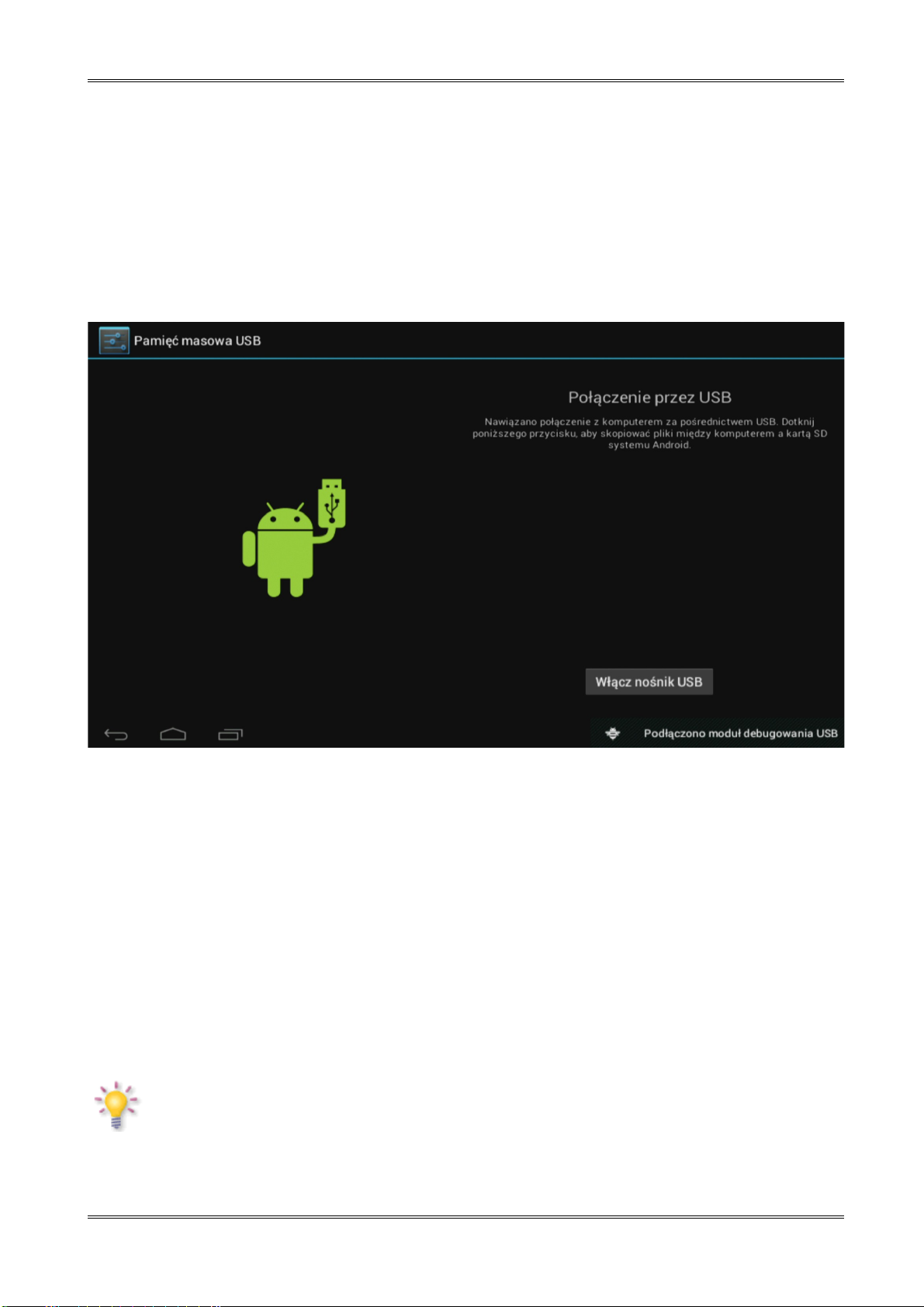
Connect the USB cable to the USB port of your tablet and to a free USB port on your computer.
In the bottom right of your tablet's screen, „USB connected” message will appear shortly after.
The following screen will appear:
Figure 10
Click on the button "Turn on USB storage". A notification window will appear, where you should
press OK.
The internal memory of your tablet will now appear as mass storage drive in your computer's
file system, and can be used e.g. to copy files from and to your tablet.
If you have a microSDHC card in your tablet, the card will be recognized by the computer as a
second mass storage drive.
To stop using the mass storage device function, click on the "Turn off USB storage" button and
remove the USB cable.
NOTE:
There are no hardware drivers needed to access the tablet’s memory. In the case your
computer prompts for any driver installation, you can simply ignore it.
16
Page 18
6 Connect the tablet to a TV
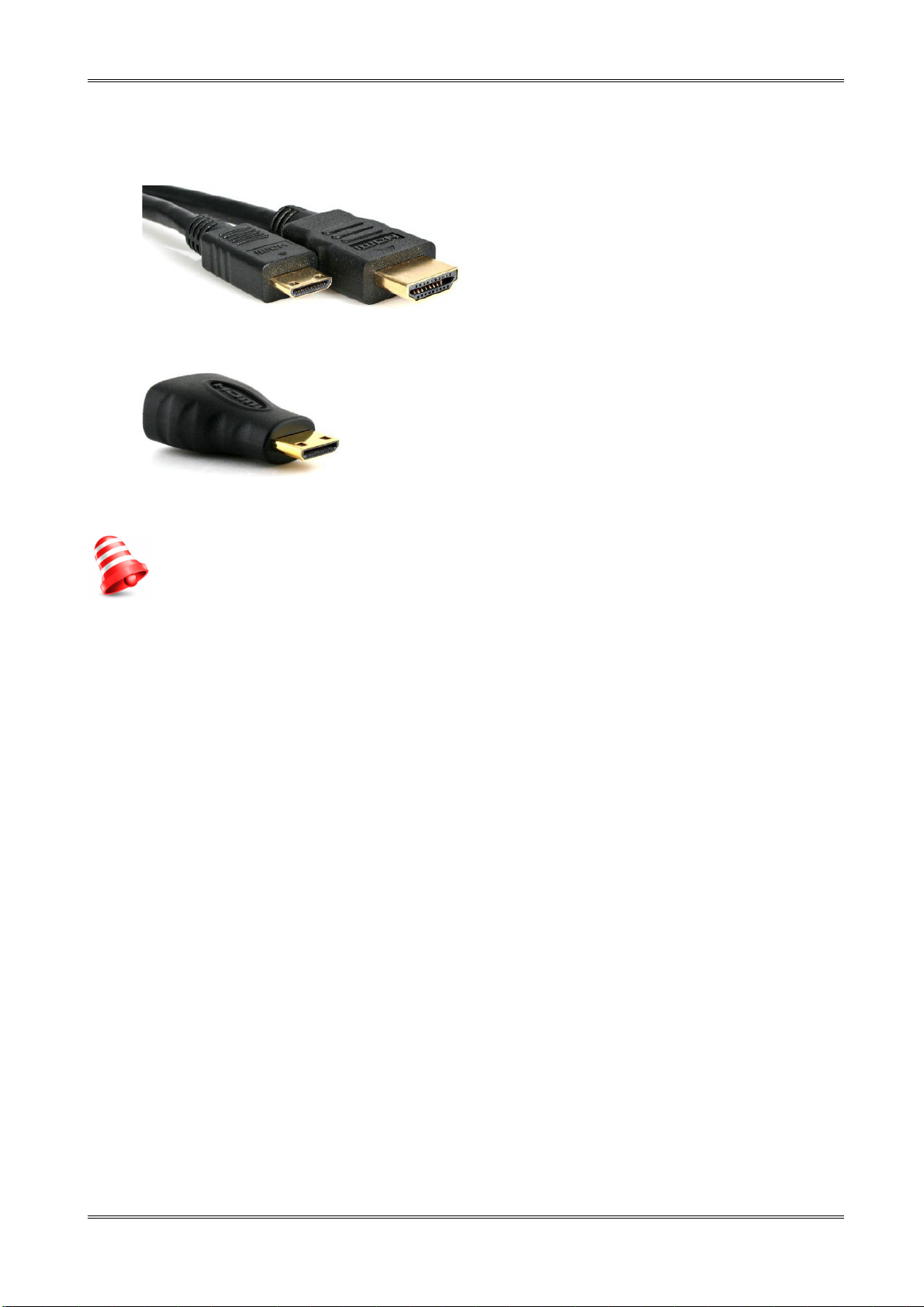
Ferguson Tablet can connect to HD TV via
• HDMI cable (type C) – HDMI (type A)
or
• HDMI (type C) – HDMI (type A) adapter and standard HDMI (type A) cable
These accessories are not included with the tablet!
NOTE: When you connected non-standard device (eg a computer monitor, a TV with
DVI) and there is no image, you can try change following settings:
- In menu „Settings” > „HDMI” > „HDMI Resolution” option to lower resolution or to
resolution with another frame rate (50 or 60Hz)
- In menu „Settings” > „Developer options” change „HDCP checking” option to „Never check”
17
Page 19
7 Factory reset
You can restore tablet to the factory state. Press in menu „Settings” > „Backup & reset” option
„Factory data reset” or Reset switch on the panel.
NOTE: Restoring the factory default settings will erase all stored settings, user
accounts and install by user applications.
8 Firmware Upgrade by SDHC card
The latest firmware is available on the manufacturer's website. Unpack and copy to SDHC card
(in the tablet) the downloaded file. Then, proceed exactly as described in the accompanying
software update instruction.
NOTE:
Please keep in mind that new software may change the functionality of the tablet.
Photographs and descriptions included in the instruction manual are for informational
purposes only. If you should notice an error, please report it - we shall make every
effort to have it rectified.
9 Playing Media
Tablet has applications to support various media. Supported extensions, containers and codecs
depends on the application. If current application can not handle a specific file, try another
application. You can download it for example from the Google Play.
10 Charging the battery
Before first use the tablet it may be necessary to recharge the battery. Connect the tablet to the
charger, plug the charger into an electrical socket.
NOTE:
- The charging time is about 4-5 hours.
- If you use the device while it is charging, the charging process will take
longer.
- When charging is complete (charging indicator becomes green), or to stop
charging, disconnect the cable from the device.
18
Page 20

Glossary of terms
Android operating system for mobile devices
such as mobile phones, smartphones and
tablets. Android is based on Linux kernel and
the GNU software. Android associates the
large community of developers writing
applications that extend the functionality of
the devices. Hundreds of thousands of
applications are now available for Android
operating system by Google Play platform
(formerly known as Android Market).
DVB-T the Digital Video Broadcasting
standard that defines modulation and error
correction in terrestrial transmissions. MPEG2 is used as the transport stream.
E-book (also: eBook or electronic
publication), e-book - the content stored in
electronic form, intended to be read with the
appropriate software installed on your
computer or tablet.
EPG - Electronic Programme Guide – a
service that displays detailed information
about current and future programmes on the
television screen.
FTA - Free-to-air – unencoded radio and
television channels that may be received on
any television set.
Google Play – Google's online store music,
videos, eBooks and applications designed for
devices running Android operating system.
Google Play is the result of transformation of
Google Music and Android Market in the
unified service.
HD (High Definition) - Used to describe
video content that is in one of the high
definition video formats. These are broadly
720i/p and 1080i/p. The 720 or 1080 refers
to the number of horizontal lines used to
define the picture and the “i” and “p” refer to
“interlaced” or “progressive scan”. Ordinary,
“SD / Standard Definition” TV used 576 lines
(PAL standard).
Global Positioning System (GPS) - a
satellite navigation systems, created by the
U.S. Department of Defense, including its
coverage over the entire globe. The system
consists of satellites orbiting the Earth,
control and monitoring stations on the ground
and signal receivers. The purpose of the
system is to provide the user with information
about the position and to facilitate the
navigation area.
Aspect ratio: The ratio of vertical and
horizontal sizes of a displayed image. The
horizontal vs. vertical ratio of conventional
TVs is 4:3, and that of widescreens is 16:9.
JPEG: A very common digital still picture
format. A still-picture data compression
system proposed by the Joint Photographic
Expert Group, which features small decrease
in image quality in spite of its high
compression ratio.
XviD: MPEG-4 based video compression
technology, that can shrink digital video to
sizes small enough to be transported over the
internet, while maintaining high visual quality.
H.264: is a next-generation video
compression format. H.264 is also known as
MPEG-4 AVC. Developed for use in high
definition systems such as HDTV, Blu-ray as
well as low resolution portable devices, H.264
offers better quality at lower file sizes than
both MPEG-2 and MPEG-4 ASP (DivX or XviD).
H.264 is sometimes referred (erroneously) as
x264 – x264 is the name of a popular
freeware encoder for the H.264 format. H.264
is also sometimes referred to as MP4, again
this is technically incorrect. MP4 is a container
format much like AVI or MKV and it can be
used to “house” many different types of
compression codecs, not just H.264.
Container. The multimedia container file is
used to identify and interleave different data
types. Simpler container formats can contain
different types of audio codecs, while more
advanced container formats can support
multiple audio and video streams, subtitles,
chapter-information, and meta-data (tags) —
along with the synchronization information
needed to play back the various streams
together. There are many container formats,
such as AVI, Matroska (MKV), MOV, MP4,
OGM, WAV, etc.
19
Page 21
Specification
Main features
screen capacitive, multitouch resolution 1280x800 10.1'' IPS
processor dualcore Rockchip RK3066 1.6GHz
Cortex A9, ARMv7 Processor (VFPv3, NEON)
SDRAM memory 1024 MiB DDR3
Android 4.1 preinstalled
2D/3D Quadcore Mali-400 MP
acceleration OpenGL ES 2.0
internal storage 16GB Nand flash
WiFi IEEE 802.11 b/g/n
Cameras front 0.3Mpix VGA,
back 2Mpix 1600x1200
G-Sensor yes
audio amplifier yes
speaker yes
battery 6800 mAh Li-ion, 3.7V, build-in
Connectors
USB USB OTG 2.0 micro-B
SDHC micro SDHC, 32GB max
HDMI 1080p, type C
Earphones connector 3.5mm
Physical characteristics
dimension
257 x 176 x 10.3mm
net weight ~700g
Enclosure Al-alloy
Environment
input voltage
(AC adapter)
AC 100-240V~50Hz/60Hz 0.5A
consumption (during AC adapter
loading)
Max 10 W
temperature 5~40
humidity <95%
20
 Loading...