

Page 1
User Guide
Page 2
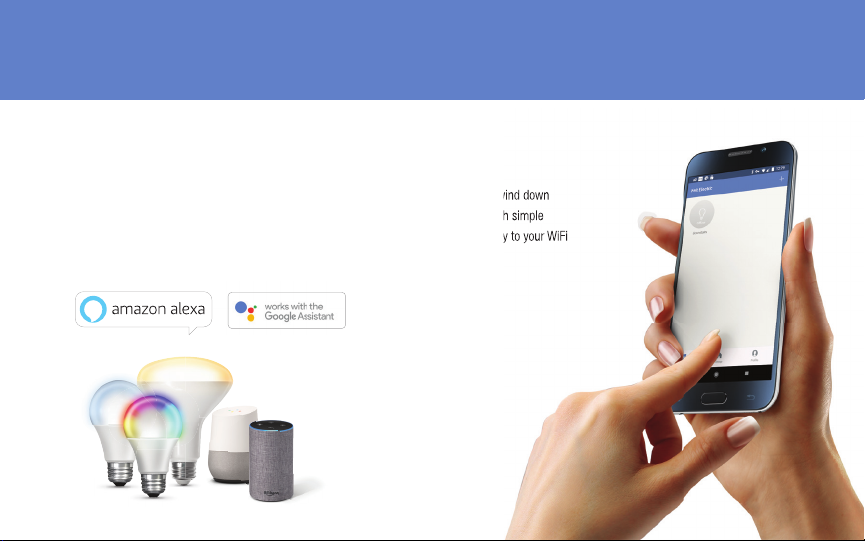
User Guide For Feit Electric App.
Set up instructions for Alexa & Google Home.
Smarter More Helpful Home Light Bulbs
That Work with Alexa or Google Home
Easily turn lights On/Off, dim, set groups and schedules. Choose energizing daylight or wind down
with relaxing soft white light. Get creative with color, it’s all up to you. Control lighting with simple
voice commands and an intuitive mobile app. Set up is simple. The bulbs connect directly to your WiFi
at home. It has never been easier to customize your home’s lighting to suit your lifestyle.
Page 3
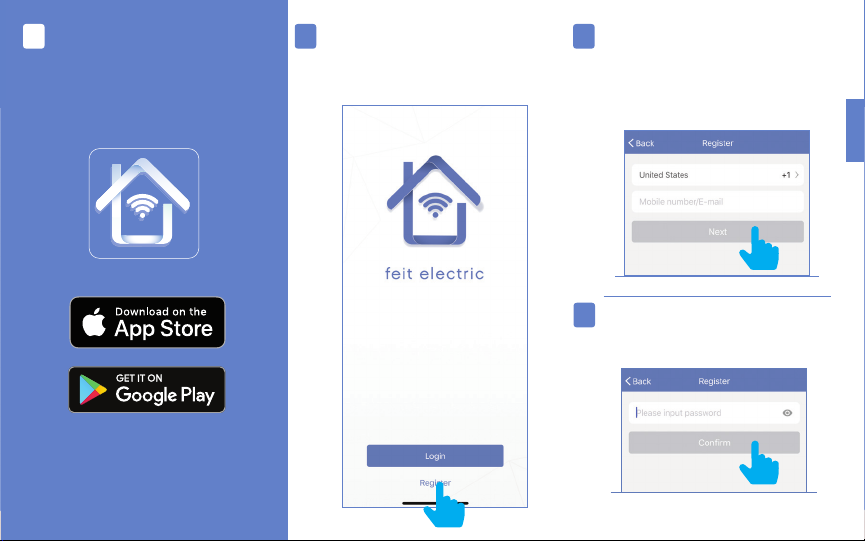
Getting Started
Download the Feit Electric App from the
Apple App StoreSM or
Android Google Play™ store.
21 3
Launch the App and tap “Register”
for new accounts or “Login”
for existing accounts.
Enter Mobile Number or E-Mail address,
then tap “Next”.
(A verifi cation code will be sent to your
device if using a Mobile Number.)
ENGLISH
4
Create a Password then tap “Confirm”.
Page 4
ENGLISH
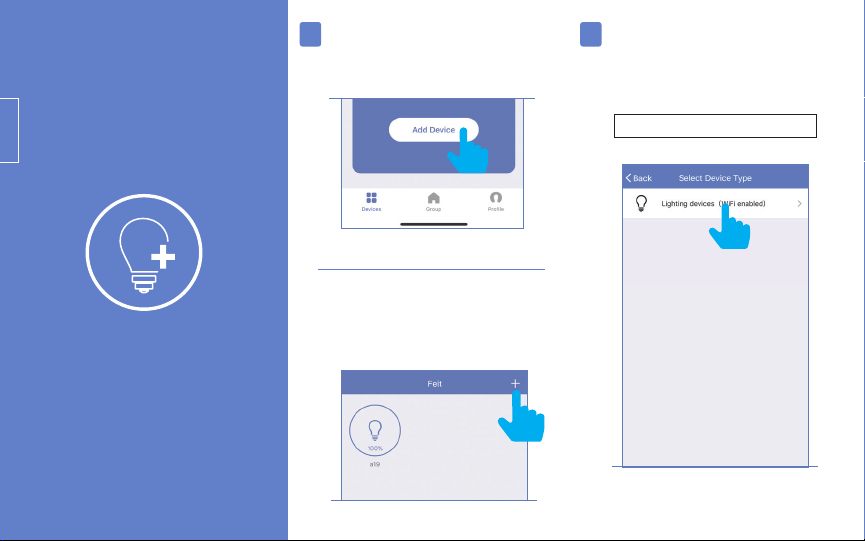
Adding Devices
5 6
Install & power On bulb(s)
then tap “Add Device”.
To add additional devices
tap the plus (+) sign in the upper
right hand corner under Devices.
Make sure you are connected to
a 2.4GHz WiFi Network then tap on
the “Lighting devices (WiFi enabled)”.
Not Compatible with 5G Wifi Networks
Page 5
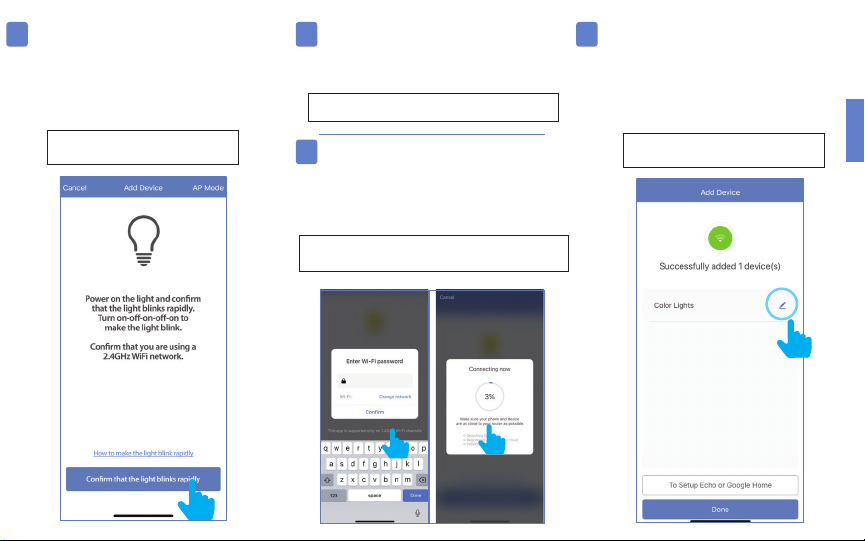
7 8
Power On the bulb(s) and confi rm
the light(s) is blinking. Then tap
“Confirm that the light blinks rapidly”.
Note: If the bulbs are not blinking,
turn bulbs ON-OFF-ON-OFF-ON.
Choose a 2.4GHz WiFi network and
enter the WiFi password, then tap “Confirm”
Note: Only works with 2.4GHz WiFi networks.
9
The status window will appear once the
device(s) have successfully connected and the
3 bullets on the bottom will turn green.
Note: If unsuccessful, the “Failed to Add” screen will
appear. Close the App and repeat the previous steps.
10
To rename the bulb(s), tap the “Pen”
icon, enter the new name and tap
“Done”. The bulb(s) are now ready to
be controlled with the Feit Electric App.
Note: Constant power to the bulb(s)
is required at all times.
ENGLISH
8
9
Page 6
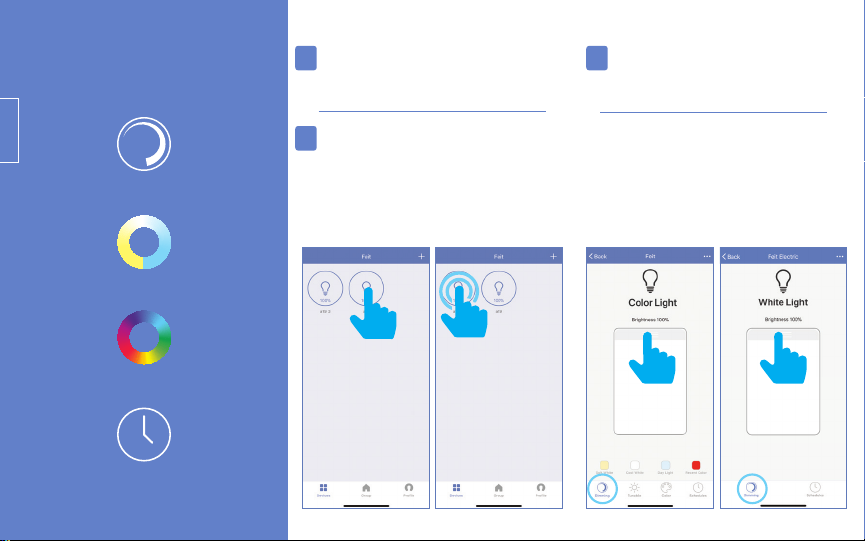
Features
Individual Bulb On/Off Dimming
11
Tap the bulb icon to
turn the bulb On/Off.
13
Slide the dimming bar up or
down to set the brightness level.
ENGLISH
Dimmable
Tunable White
Color Changing
Schedule
12
Individual Bulb Setting
Press and hold the icon for 2 seconds
for bulb settings.
11 12
Select a preset color temperature
or the last color used.
(Multi-Color + Tunable White) (White)
Page 7
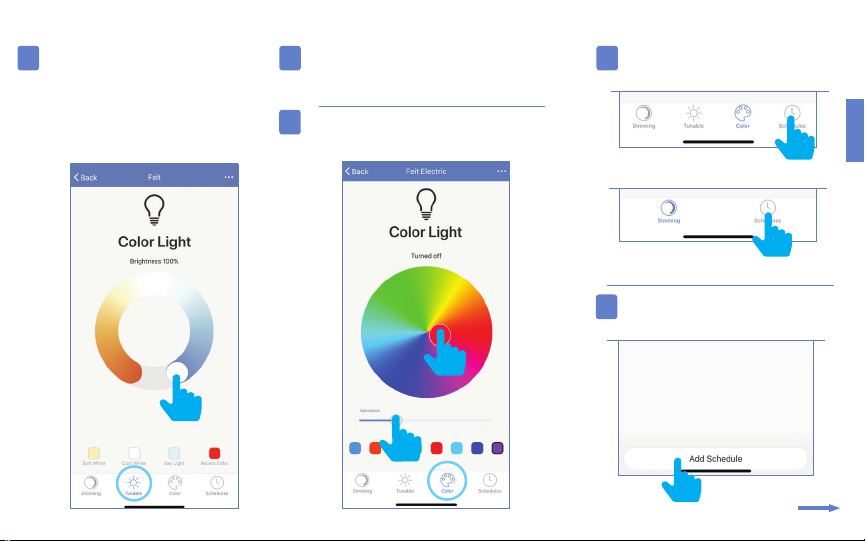
Tunable White Color Changing Schedule
14 15
Use the round slider to adjust
color temperatures from
Warm (2700K) to Cool (6500K).
Tap on any part of the color picker to select
a desired color or choose a preset color.
16
Use the slide bar to adjust
the color saturation.
15
16
17
(Multi-Color + Tunable White)
(White)
18
Tap “Add Schedule”.
Tap on “Schedule”
ENGLISH
Page 8
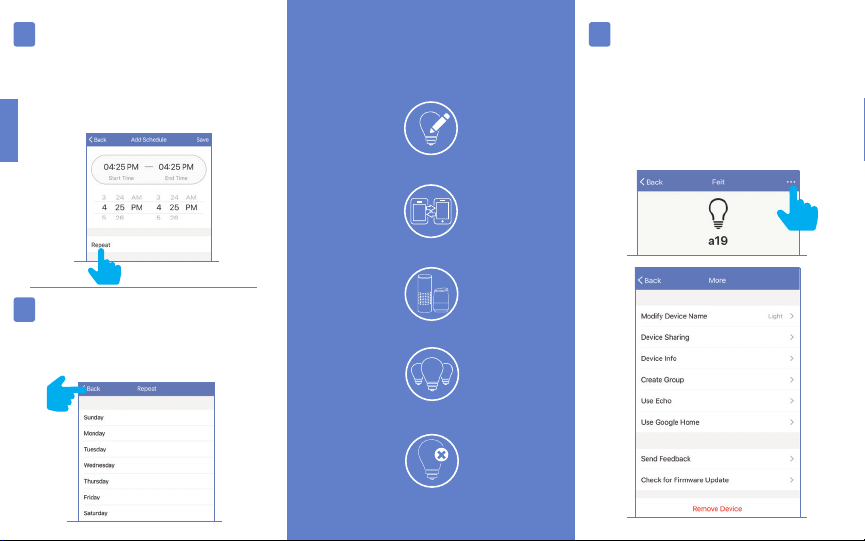
Choose a Start Time (On)
19
and End Time (Off).
To repeat on certain days of the
week tap “Repeat”, otherwise the
schedule will only occur once.
ENGLISH
20
Tap on the day(s) of the week
you would like the schedule to repeat.
Then tap “Back” then “Save”.
Additional Features
Modify Device Name
Device Sharing
Use Echo or Google Home
Grouping
Remove Devices
21
Additional features are available in the
bulb settings context menu, including
renaming and removing devices.
Tap the context menu in the upper
right corner (•••).
Page 9
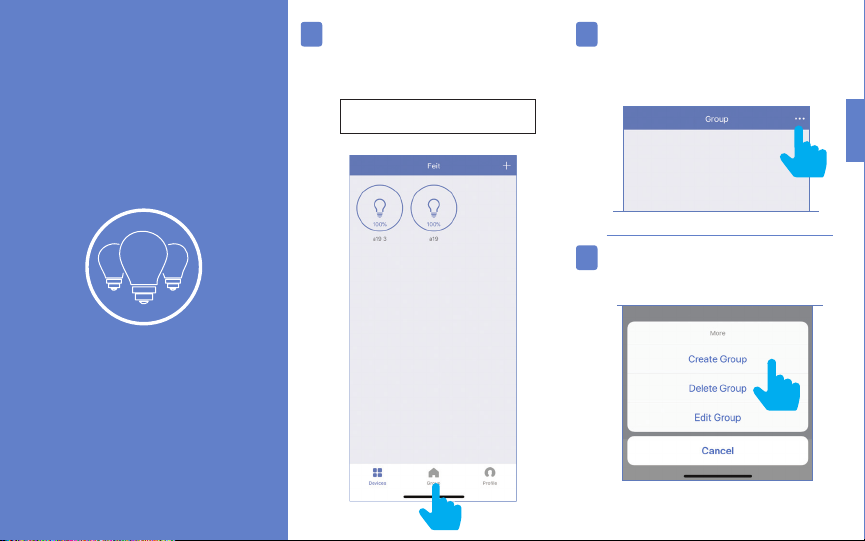
Creating Groups
22
To create groups, tap on the “Group”
icon at the bottom of the App.
Note: To create groups you will
need at least 2 bulbs.
23
Tap the context menu in the
upper right corner (•••).
ENGLISH
24
Tap on “Create Group“.
Page 10
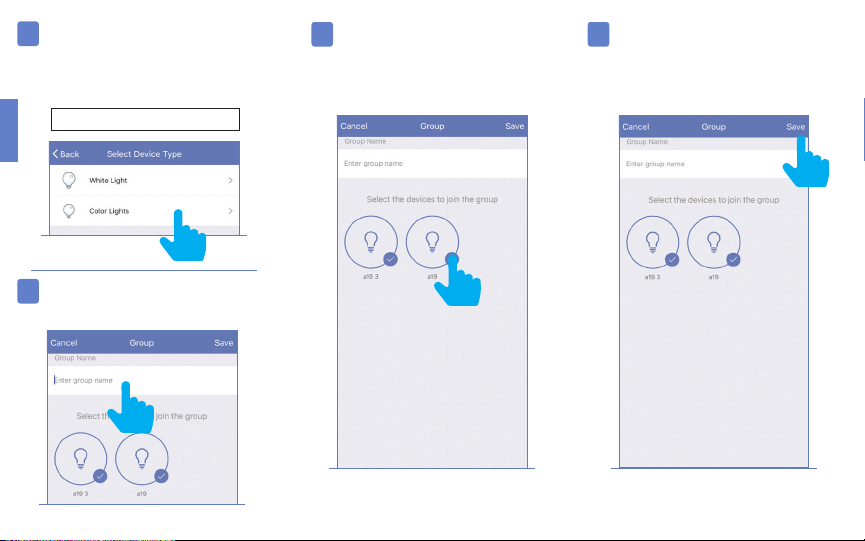
25
Tap “White Light” for soft white
bulbs.Tap “Color Lights” for
Color Changing/Tunable bulbs.
Note: You can only group like bulbs
ENGLISH
Tap the group name and
26
enter the name of the group.
27 28
Then select the bulbs
you want in the group.
Once the group is named
and the bulbs are selected,
tap “Save”.
Page 11
29
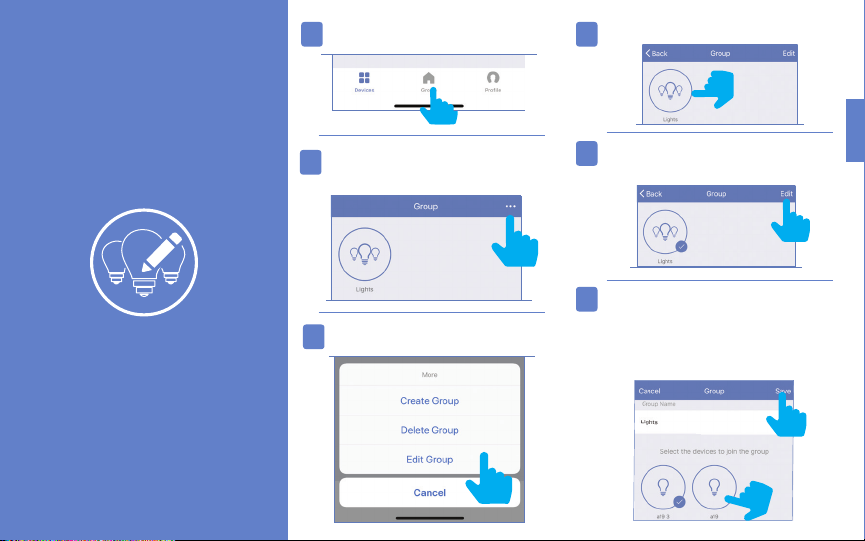
Tap the “Group” icon. Select the group you would like to edit.
32
Edit Groups
30
31
Tap the context menu
in the upper right corner (•••).
Tap “Edit Group”.
33
34
Once selected, tap “Edit” in
the upper right hand corner.
Rename the group by tapping on
the name or remove a bulb by
tapping to deselect bulb(s).
Tap “Save” once completed.
ENGLISH
Page 12
35
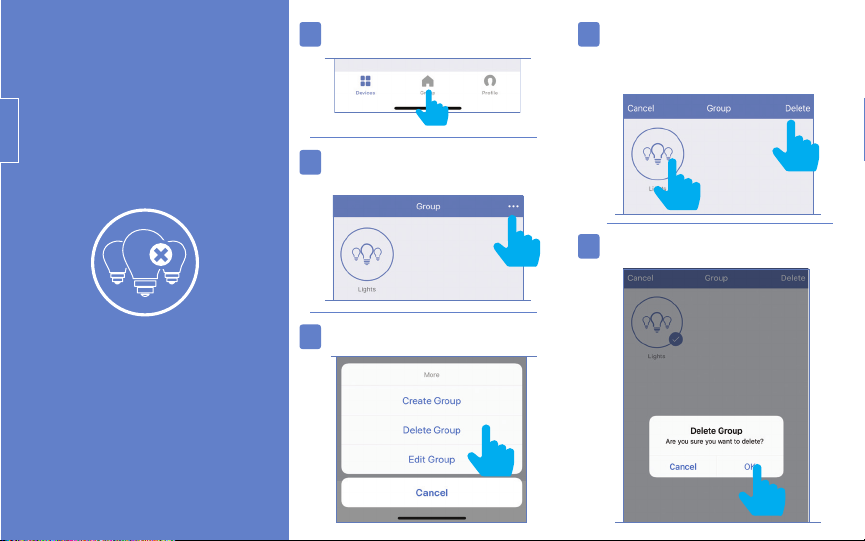
Tap the “Group” icon. Select the group you would like
38
to delete. Once selected, tap
“Delete” in the upper right corner.
ENGLISH
36
37
Tap the context menu
in the upper right corner (•••).
Tap “Delete Group”.
39
Tap “OK” to confirm.
Page 13
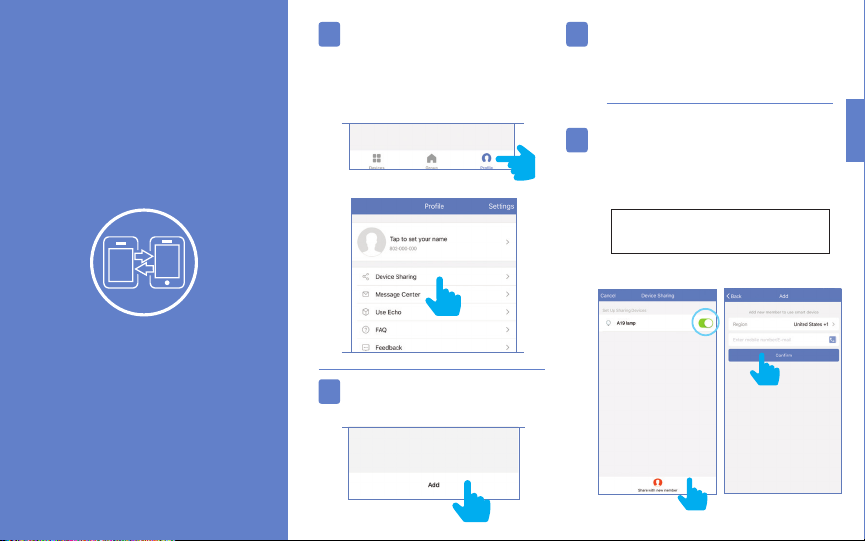
40
To share device(s) tap on the
“Profile” icon and then tap on
“Device Sharing”.
42
Select the device that you wish to share.
Tap “Share with new member”.
Device Sharing
41
Tap “Add”.
43
Enter the new member’s
mobile number or email address
then tap “Confirm”.
Note: New members must set up an
account before sharing is possible.
ENGLISH
43
42
Page 14
ENGLISH
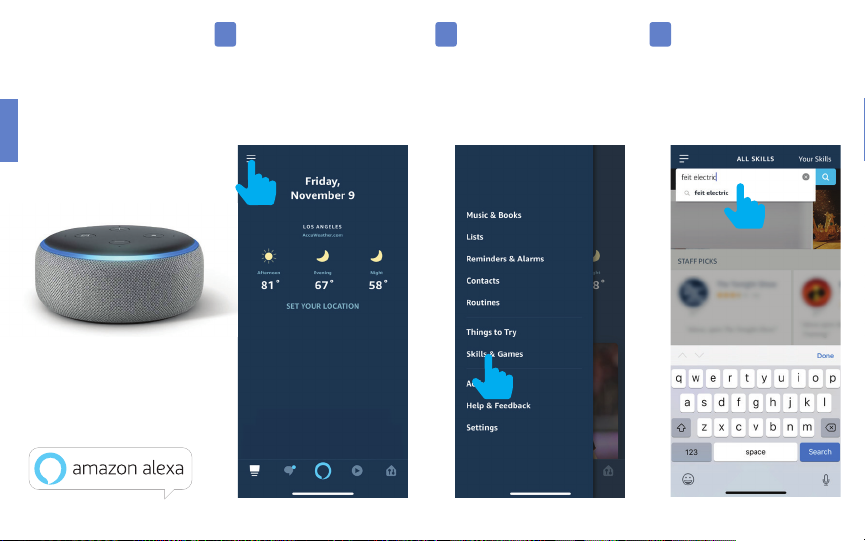
Connecting
to Alexa
1 2 3
Launch the Alexa App then
tap on the “Menu”.
(In the upper left corner)
Tap “Skills & Games ”.
In the search menu type
“Feit Electric”.
Page 15
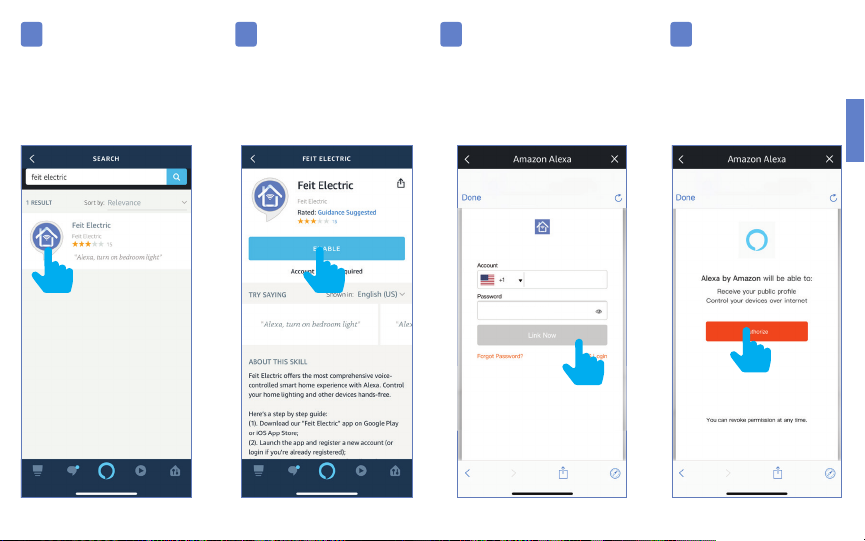
4 5 6 7
Tap “Feit Electric”. Tap “Enable”. Enter the user & password
from the Feit Electric App.
Then tap “Link Now”.
(XXX)-XXX-XXX
*********
Tap “Authorize”.
ENGLISH
Page 16
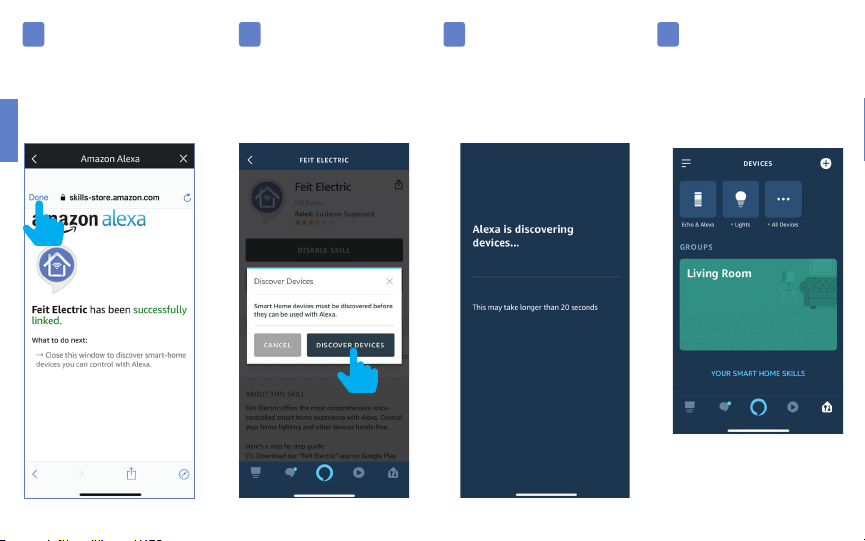
8 9
Ta p “Done”
in the upper left corner.
ENGLISH
Tap “Discover Devices”.
10 11
Alexa will now discover
and add device(s).
Once the device(s) are
discovered they will appear
under “Devices”
(lower right corner).
Note: Additional devices will
be added automatically when
added to the Feit Electric App.
Page 17
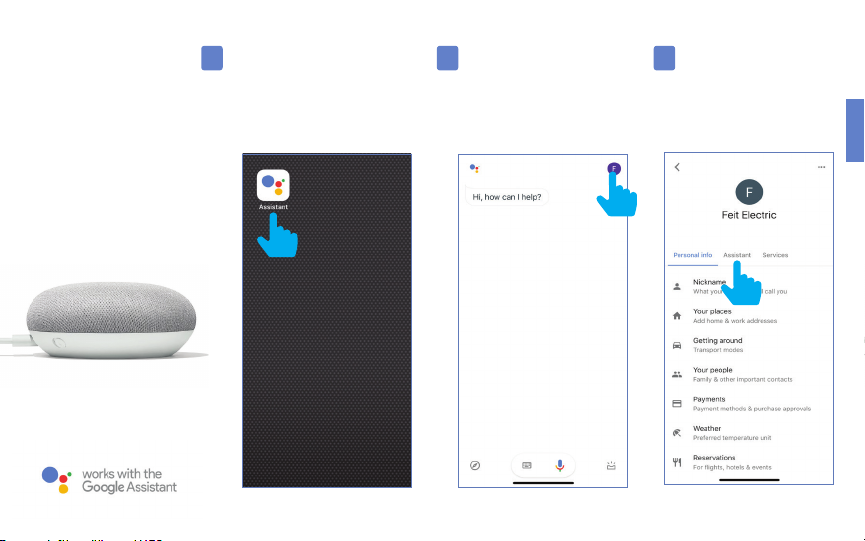
Connecting to
Google Home
1 2 3
Open the
“Google Assistant” App.
In the upper right corner tap
the “Circle” icon.
Tap “Assistant”
ENGLISH
Page 18
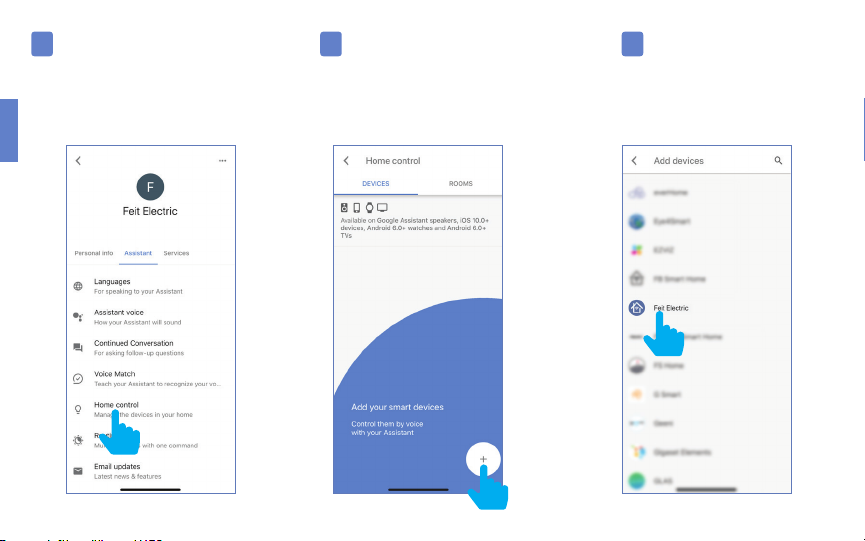
4 5 6
Tap “Home Control” To add a device tap on
the Circle (+) located in the
lower right corner.
ENGLISH
Scroll down and
tap “Feit”.
Page 19
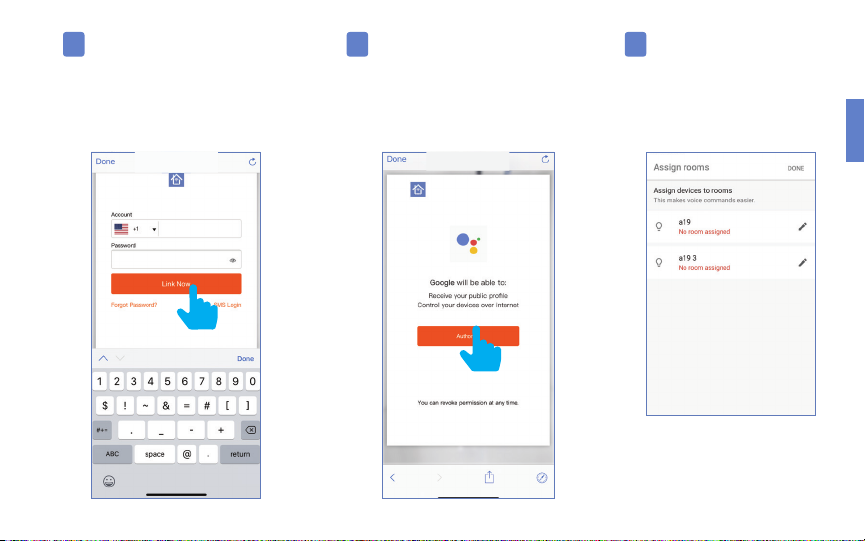
7 8
Enter the user & password
from the Feit Electric App then tap
“Link Now”.
XXXXXXX
*********
Tap “Authorize”.
9
Once device(s) are connected
tap “Done” to return to
Devices or tap the “Pen”
icon to assign a room.
Note: Additional devices will
be added automatically when
added to the Feit Electric App.
ENGLISH
Page 20
Minimum System Requirements
iOS 9.3 and Android 4.1
Exigences minimales du système
iOS 9.3 et Android 4.1
May not be compatible with all devices.
If you are unable to download the app, the product
is not compatible with your device.
Instruction manual may not reflect the latest
version of the app. For the latest version,
please visit www.feit.com/smartwifibulb.
Page 21

For Technical Support
Please contact Feit Electric at
(562) 463-BULB (2852)
[email protected]
or visit us at
www.feit.com
Page 22

Amazon, Alexa and all related logos are trademarks of Amazon.
com, Inc. or its affiliates.
© 2015 Google Inc. All rights reserved. Google, Works with
the Google Assistant and the Google Play Word are registered
trademarks of Google Inc.
App Store is a service mark of Apple Inc.
feit.com/smartwifibulb
 Loading...