

Page 1
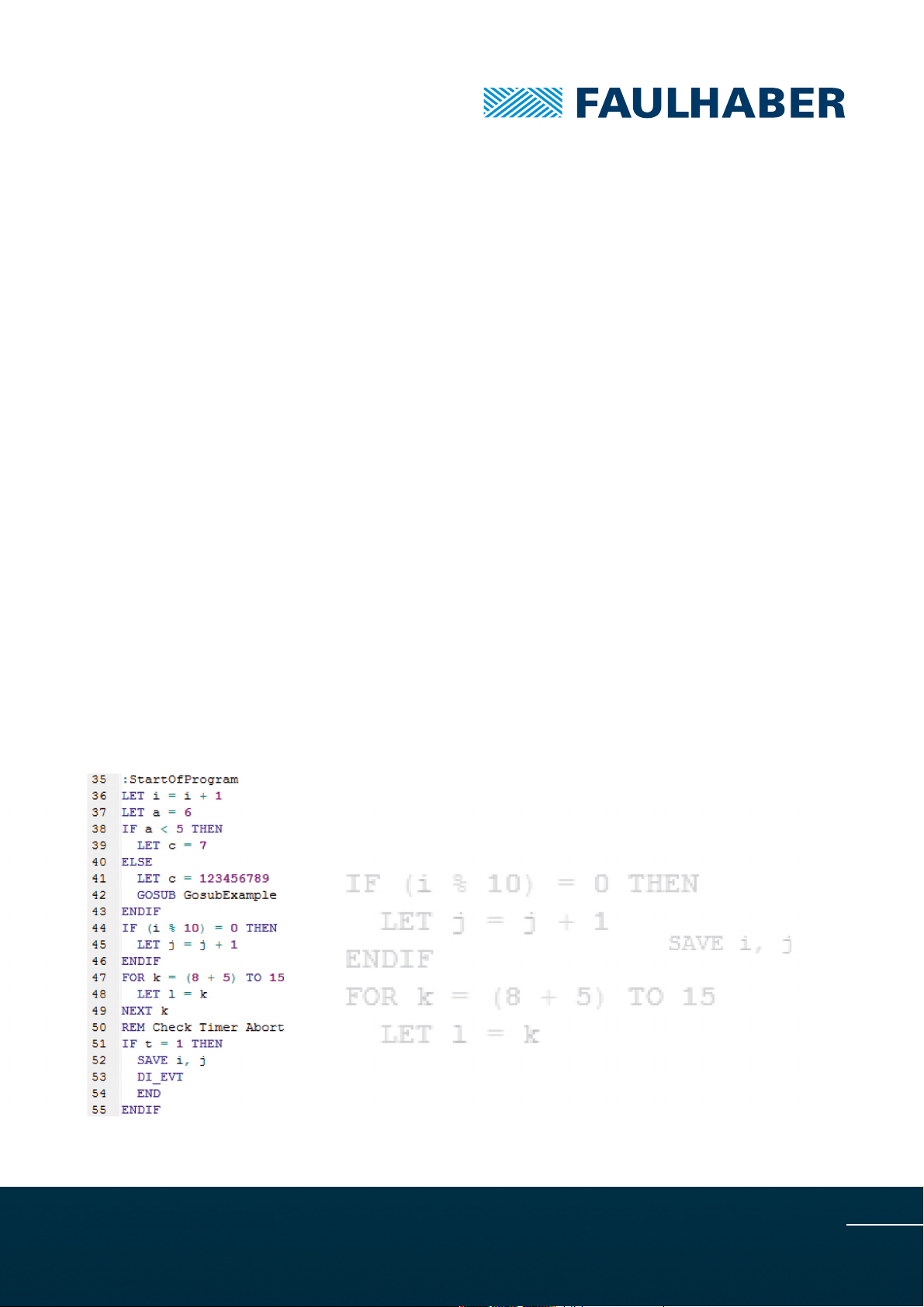
Programming
Motion Controller
MC 5010
MC 5005
MC 5004
MCS
Manual
WE CREATE MOTION
EN
Page 2

Imprint
Version:
2nd edition, 27-10-2017
Copyright
by Dr. Fritz Faulhaber GmbH & Co. KG
Daimlerstr. 23 / 25 · 71101 Schönaich
All rights reserved, including those to the translation.
No part of this description may be duplicated, reproduced,
stored in an information system or processed or
transferred in any other form without prior express written
permission of Dr. Fritz Faulhaber GmbH & Co. KG.
This document has been prepared with care.
Dr. Fritz Faulhaber GmbH & Co. KG cannot accept any
liability for any errors in this document or for the
consequences of such errors. Equally, no liability can be
accepted for direct or consequential damages resulting
from improper use of the equipment.
The relevant regulations regarding safety engineering
and interference suppression as well as the requirements
specified in this document are to be noted and followed
when using the software.
Subject to change without notice.
The respective current version of this technical manual is
available on FAULHABER's internet site:
www.faulhaber.com
2nd edition, 27-10-2017 7000.05056, 2nd edition, 27-10-20177000.05056
2
Page 3

Content
1 About this document ....................................................................................................... 4
1.1 Validity of this document ...................................................................................... 4
1.2 Associated documents ............................................................................................ 4
1.3 List of abbreviations ............................................................................................... 4
1.4 Symbols and markers ............................................................................................. 5
2 Introduction ...................................................................................................................... 6
3 Characteristics of the programming language .............................................................. 7
3.1 Command set .......................................................................................................... 7
3.2 Operators and special characters .......................................................................... 9
3.3 Instructions for creating programs ...................................................................... 10
4 Developing sequence programs using the Motion Manager ..................................... 11
4.1 Editing a program ................................................................................................ 12
4.2 Load the program to the controller and execute it ........................................... 13
4.3 Debugging a program ......................................................................................... 14
5 Control of sequence programs ...................................................................................... 15
5.1 Control via the interface ...................................................................................... 15
5.2 Start the sequence program automatically ........................................................ 16
5.3 Data exchange with the sequence programs ..................................................... 17
6 Examples of programs ................................................................................................... 18
6.1 Sequence of steps ................................................................................................. 18
6.2 Event handling ..................................................................................................... 19
2nd edition, 27-10-2017 7000.05056, 2nd edition, 27-10-20177000.05056
3
Page 4

About this document
1 About this document
1.1 Validity of this document
This document describes the programming of sequence programs for controllers of the
Motion Controller and Motion Control systems family V3.0, using the FAULHABER Motion
Manager.
This document is intended for software developers with programming experience, and for
drive technology project engineers.
All data in this document relate to the standard versions of the drives. Changes relating to
customer-specific versions can be found in the attached sheet.
1.2 Associated documents
For certain actions during commissioning and operation of FAULHABER products additional
information from the following manuals is useful:
Manual Description
Motion Manager 6 Operating instructions for FAULHABER Motion Manager PC software
Quick start guide Description of the first steps for commissioning and operation of FAULHABER Motion
Drive functions Description of the operating modes and functions of the drive
These manuals can be downloaded in pdf format from the web page www.faulhaber.com/
manuals/
.
Controllers
1.3 List of abbreviations
Abbreviation Meaning
BASIC Beginner’s All-Purpose Symbolic Instruction Code
EEPROM Electrically Erasable Programmable Read-Only Memory
Sxx Data type signed (negative and positive numbers) with bit size xx
Uxx Data type unsigned (positive numbers) with bit size xx
2nd edition, 27-10-2017 7000.05056, 2nd edition, 27-10-20177000.05056
4
Page 5
About this document
1.4 Symbols and markers
NOTICE!
Risk of damage.
Measures for avoidance
Instructions for understanding or optimising the operational procedures
Pre-requirement for a requested action
1. First step for a requested action
Result of a step
2. Second step of a requested action
Result of an action
Request for a single-step action
2nd edition, 27-10-2017 7000.05056, 2nd edition, 27-10-20177000.05056
5
Page 6

Introduction
2 Introduction
Sequence programs can be transferred to controller by the FAULHABER Motion Manager
and can be executed directly by the controller. This enables e.g. stand-alone operation
without a supervisory controller or semi-autonomous execution of smaller program
sequences.
Sequence programs are programmed in the BASIC programming language, with
FAULHABER-specific extensions.
8 user programs each with up to around 2000 lines of code are available. Optionally, one
program can also be started automatically at boot-up.
2nd edition, 27-10-2017 7000.05056, 2nd edition, 27-10-20177000.05056
6
Page 7
Characteristics of the programming language
3 Characteristics of the programming language
BASIC interpreter with a restricted command set and FAULHABER-specific extensions
Set of a total of 26 global 32-bit variables (a…z), which are used in common by all pro-
grams
Variables can be permanently saved and loaded
No line numbers; jumps are to jump labels
Jump labels are placed at the beginning of a line and start with a colon
Distinction between upper and lower case characters (commands always in upper case,
variables always in lower case characters)
Read and write access to objects in the object dictionary
Capability to respond to events during normal execution of a program
Timer for time measurement and wait loops
Arithmetic, comparison and bit operators
Special character $ for values expressed as hexadecimal numbers
Maximum length of one program: 4 kByte
Maximum length of all programs: 16 kByte
3.1 Command set
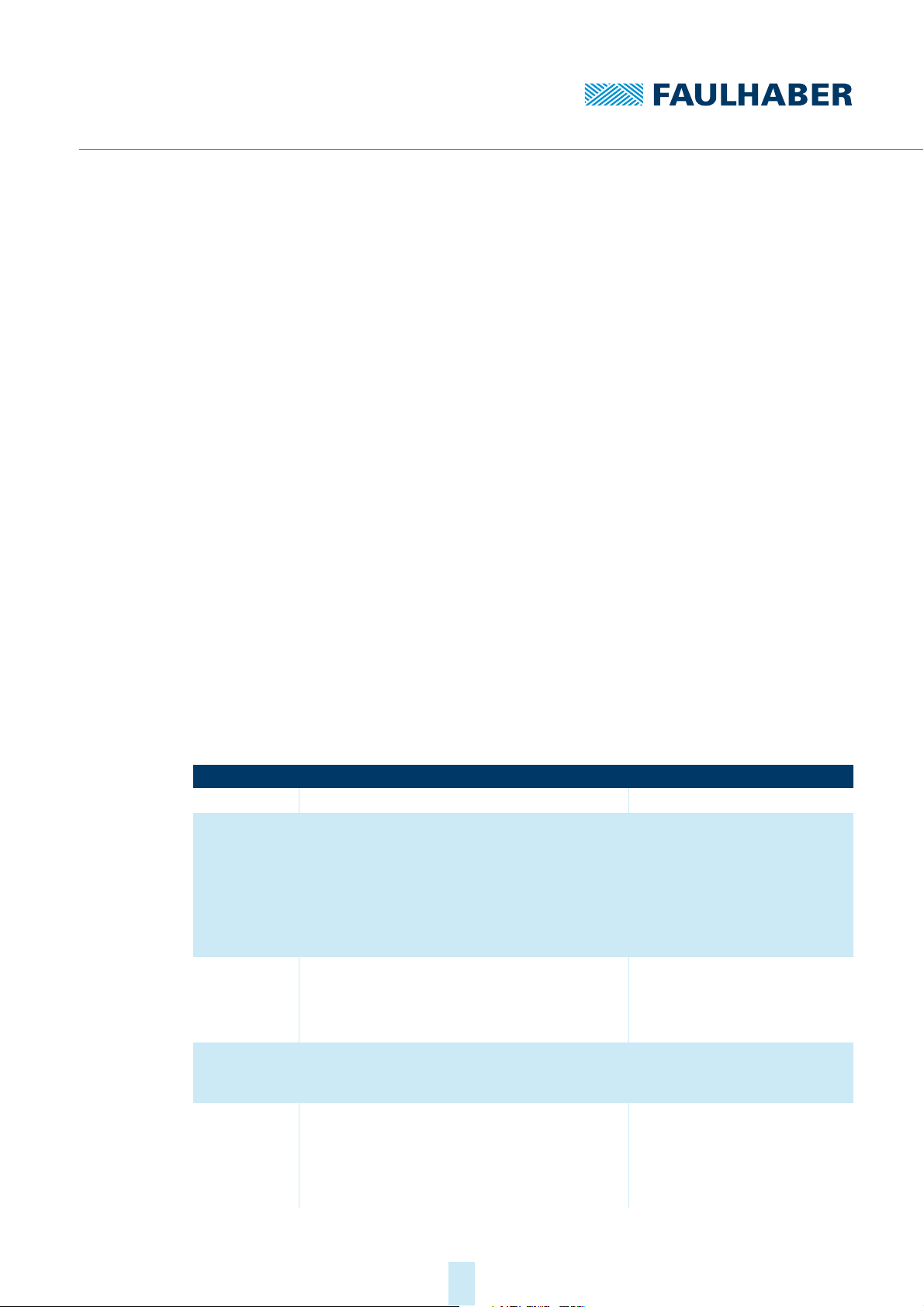
Tab. 1: Standard BASIC command set
Command Function Example
END End program END
GOTO Jump to the specified label.
May not be used in the following constructs:
IF THEN
GOSUB
FOR TO
GOSUB
RETURN
FOR TO
NEXT
IF THEN
ELSEIF THEN
ELSE
ENDIF
Jump to a sub-program at the specified label. After
execution, jump back to the calling position.
No GOTO jump may be performed from a sub-program.
Programming a loop.
No conditional GOTO jump may be performed from a
FOR loop.
Programming a branch.
No conditional GOTO jump may be performed from an
IF instruction.
ELSE
ENDIF
RETURN
NEXT
GOTO Start
GOSUB Step1
:Step1
RETURN
FOR i= 1 TO 10
NEXT i
IF a > 3 THEN
b = 1
ELSE
b = 0
ENDIF
2nd edition, 27-10-2017 7000.05056, 2nd edition, 27-10-20177000.05056
7
Page 8
Characteristics of the programming language
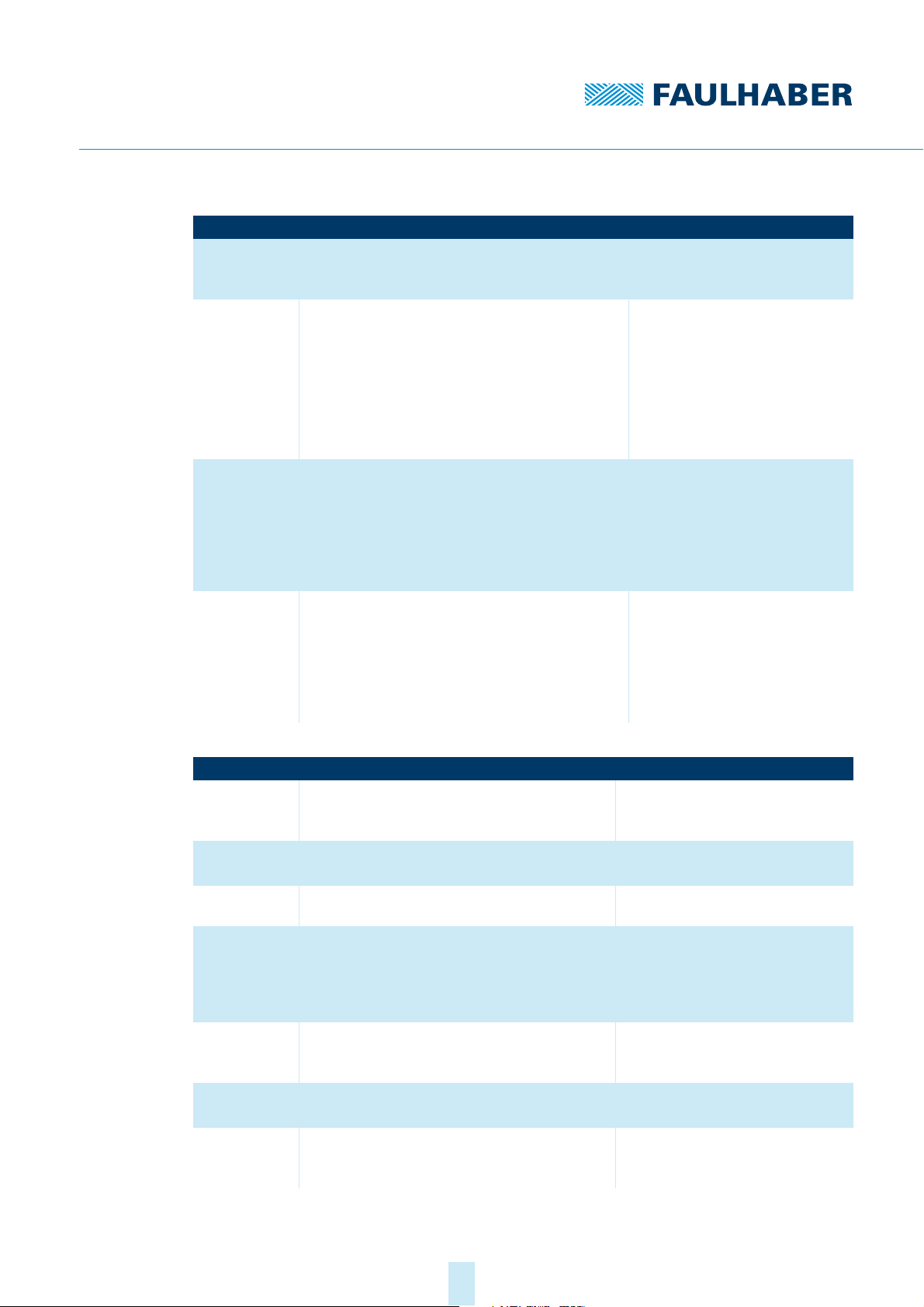
Command Function Example
REM Comment.
Placed at the beginning of a line and applies until the
end of the line.
IF THEN GOTO
IF THEN GOSUB
IF THEN EXIT
FOR
IF THEN EXIT
EVT
IF THEN
EXIT GOSUB
Conditional jump or branch into a sub-program. Used
in a line without ENDIF.
May not be used in the following constructs:
IF THEN
ELSE
ENDIF
GOSUB
RETURN
FOR TO
NEXT
Jump out of a FOR loop or an event routine. Used in a
line without ENDIF.
May not be used in the following constructs:
IF THEN
ELSE
ENDIF
GOSUB
RETURN
Jump out of a sub-program. Used in a line without
ENDIF.
May not be used in the following constructs:
IF THEN
ELSE
ENDIF
GOSUB
RETURN
REM Comment
IF z=1 THEN GOSUB Step1
FOR a = 1 TO 5
IF x = 1 THEN EXIT FOR
NEXT a
:Sub1
IF x = 1 THEN EXIT GOSUB
RETURN
Tab. 2: FAULHABER command extension
Command Function Example
SETOBJ Write an object in the object dictionary.
Syntax: SETOBJ <Index>.<Subindex> = <variable or
value>
GETOBJ Read an object in the object dictionary.
Syntax: <variable> = GETOBJ <Index>.<Subindex>
DEF_EVT_VAR Defines a variable which, when the event occurs,
returns the value of the event status bit-mask.
EN_EVT Activation of an event routine which is triggered by
the device state signalled by a change in the object
0x2324.01 (event handling).
Note: only one event routine can be active at a time
Syntax: EN_EVT <bit mask>,<event mark>
DI_EVT Deactivation of all events for processing that is being
performed in parallel.
Syntax: DI_EVT
RET_EVT Jump back from an event routine.
Syntax: RET_EVT
SAVE Permanent saving of one or more variables in the
EEPROM (comma-separated list).
Syntax: SAVE <variable1<,variable2,...>>
SETOBJ $6083.$00 = 500
a = GETOBJ $6083.$00
DEF_EVT_VAR e
EN_EVT $ffffffff, EvHandler
DI_EVT
: EvHandler
RET_EVT
SAVE a, b, z
2nd edition, 27-10-2017 7000.05056, 2nd edition, 27-10-20177000.05056
8
Page 9

Characteristics of the programming language
Command Function Example
LOAD Loading one or more previously saved variables from
the EEPROM (comma-separated list).
Syntax: LOAD <variable1<,variable2,...>>
DEF_TIM_VAR Defines a variable to be used as a timer.
Syntax: DEF_TIM_VAR <variable>
START_TIM Starts the timer with a value in ms (or stops the timer
if the value = 0).
Syntax: START_TIM <variable or value>
When the specified time has elapsed, the timer variable is 1, otherwise it is 0 (timer still running).
DEF_CYC_VAR Defines a variable for use as 1 ms cycle counter. This
can be used, for example, for time measurements.
The counter runs a maximum of 24 days and then
remains at –1.
Syntax: DEF_CYC_VAR <variable>
START_CYC Starts the cycle counter with the value 0.
Syntax: START_CYC
STOP_CYC Stops the cycle counter. The current counter reading
is stored in the defined variable and can be further
processed.
Syntax: STOP_CYC
LOAD a, b, z
DEF_TIM_VAR t
START_TIM 3000
IF t = 1 THEN
ENDIF
DEF_CYC_VAR z
START_CYC
STOP_CYC
3.2 Operators and special characters
Arithmetic operators
Addition +
Subtraction -
Multiplication *
Division /
Modulo (remainder) %
Logic operators
And operation AND
Or operation OR
Inversion NOT
Comparison operators
Greater than >
Less than <
Equal to =
Not equal to <>
Greater than or equal to >=
Less than or equal to <=
2nd edition, 27-10-2017 7000.05056, 2nd edition, 27-10-20177000.05056
9
Page 10

Characteristics of the programming language
Bit operators
Bit-wise UND &
Bit-wise ODER |
Bit-wise Inversion ~
Assignment operator
Assignment operator =
Special character Meaning
() Used for mathematical operators
, Used in EN_EVT and SAVE/LOAD
. Delimiter in SETOBJ /GETOBJ
$ Hexadecimal numbers
: Jump label, placed at the start of the line
3.3 Instructions for creating programs
A sequence program must always be constructed as a sequence of steps with a main
loop that encompasses the entire execution code (see chap. 6.1, p. 18). Wait loops cannot contain conditional jumps governed by specific events.
Sequence programs are created and edited using the FAULHABER Motion Manager.
Before downloading a sequence program on to the controller, the FAULHABER Motion
Manager performs a pre-processing step in order for instance to determine the
addresses of the jump labels and the necessary memory area.
FAULHABER Motion Manager offers the capability not only to create sequence pro-
grams, edit them and transfer them to the controller, but also to check for programming errors and correct them (debug facilities).
2nd edition, 27-10-2017 7000.05056, 2nd edition, 27-10-20177000.05056
10
Page 11
Developing sequence programs using the Motion Manager
4 Developing sequence programs using the Motion Man-
ager
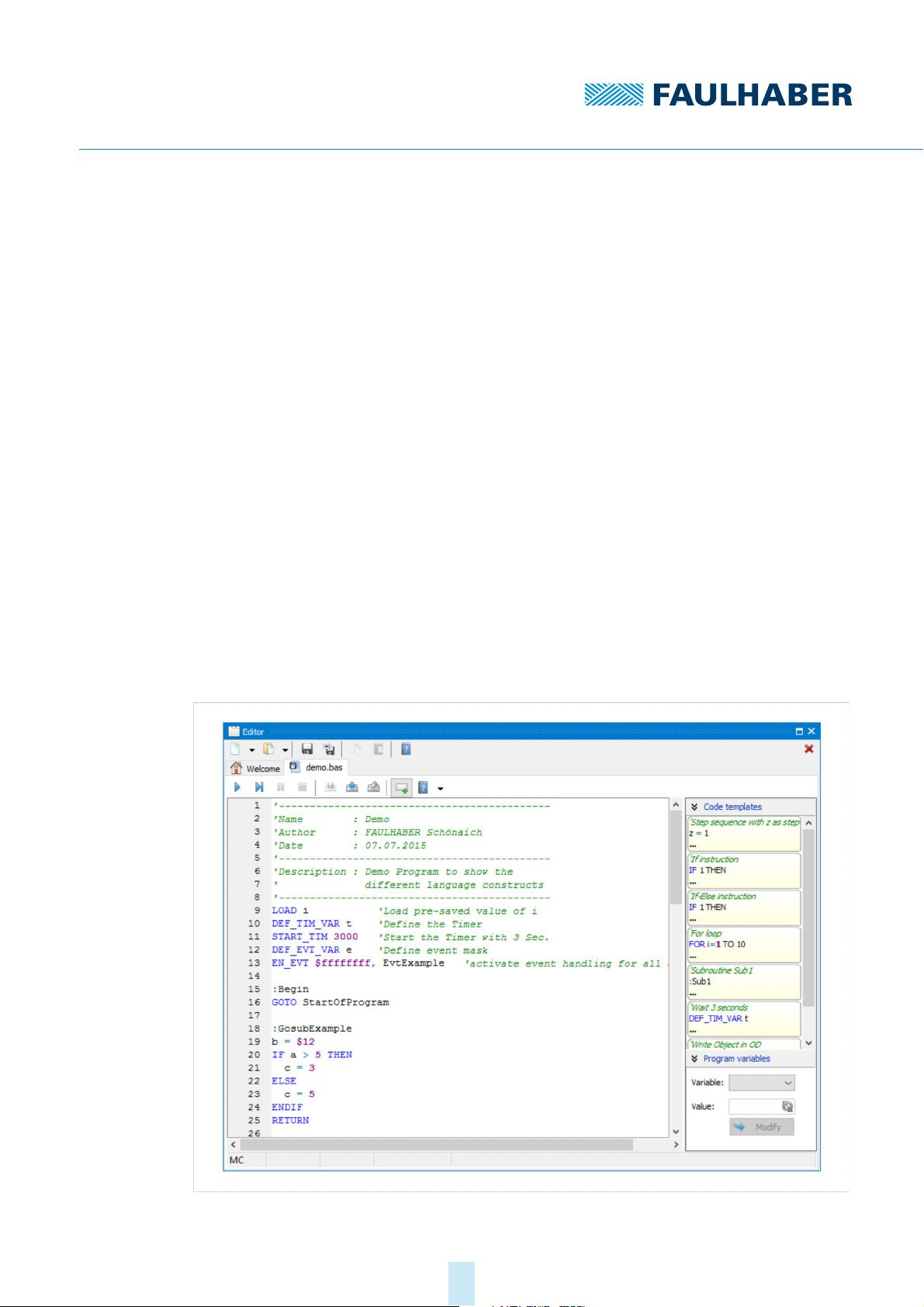
The FAULHABER Motion Manager Editor window offers an integrated development environment for sequence programs. The development environment offers the following facilities:
Syntax highlighting
Displaying and editing up to 8 user programs
Load user programs from the device memory and the PC memory, and display them
Start individual sequence programs
Stop the active sequence program
Pause the active sequence program
Single step execution
Definition of a breakpoint
Display the current program status and the current program line
Monitor and change the contents of variables
Read protection by means of an access code
Code modules for use in your own programs
2nd edition, 27-10-2017 7000.05056, 2nd edition, 27-10-20177000.05056
11
Page 12
Developing sequence programs using the Motion Manager
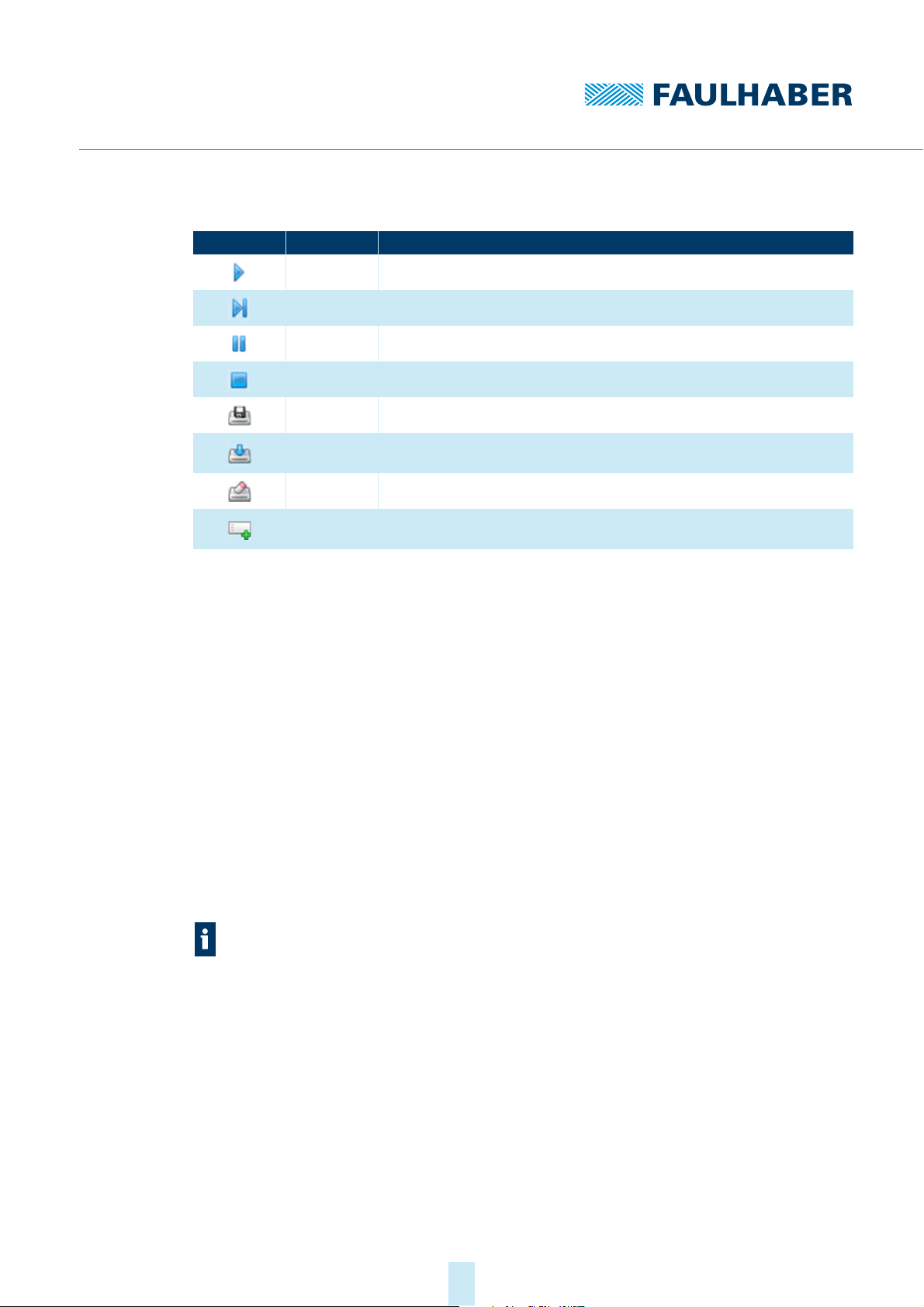
Tab. 3: Editor Function of the buttons (editor environment)
Button Name Function
Run Download the sequence program on to the controller and run it.
Step Execute the sequence program in single steps.
Halt Pause the sequence program.
Stop End the sequence program.
EEPROM-Save Save the currently loaded sequence program to the EEPROM.
Download Download the sequence program on to the controller and save it to the
Delete Delete the sequence program from the controller EEPROM.
Extras Display the code template and offer the facility to investigate the contents of
4.1 Editing a program
The command File - New - Motion Control file MC V3.x creates a new program.
The command File - Open followed by selection of the desired .bas file loads an existing
program.
When a new file is created, an empty .bas file with a pre-prepared file header is gener-
ated. After it has been edited, the file can be saved to any desired memory location.
Saved files that have already been downloaded to the controller can be opened from
the sequence programs directory of the active node by double clicking in the Node
Explorer.
Irrespective of the declared program links, there is also the facility by double clicking on
the Upload node to load all the programs saved in the controller. If an appropriate file
link exists in the programs that have been uploaded, the file content is shown in Node
Explorer. Otherwise the program content read from the device is shown.
EEPROM.
variables, and change them.
If it is desired to view the content of the device memory instead of the linked file, the
file link must be deleted in Node Explorer (Del key). At the next download of the file
the link will be re-established in Node Explorer.
Comment lines that start with ‘ are saved in the file only for purposes of documentation
and are not downloaded to the controller.
For user support a column can be displayed at the right-hand side of the editor window
(Extras key) with code templates that can be dragged into the current program using
the mouse, and there adapted to suit.
2nd edition, 27-10-2017 7000.05056, 2nd edition, 27-10-20177000.05056
12
Page 13

Developing sequence programs using the Motion Manager
4.2 Load the program to the controller and execute it
Pressing the Run button downloads the finished program to the controller and immedi-
ately executes it.
If this is a new program that has not yet been saved to the controller, a program num-
ber between 1 and 8 must be assigned to it. The program is saved to the controller
under this program number.
If the file had already been saved into a desired directory, the link to this file is gener-
ated in Node Explorer under sequence programs of the active node. This also shows the
assigned program number (e.g. P1 for program number 1).
After execution has been started, the editor area switches into debug mode (with a dif-
ferent background colour). This mode does not allow program editing. The following
information is shown in the status line of the editor window:
The currently loaded program number.
The current program line
The program status (e.g. Running)
If errors occur whilst running the program, execution is interrupted and the last line
executed is highlighted.
To return to program editing mode, program execution must be ended by pressing the
Stop button.
A program that is loaded by means of the Run button is stored in the non-volatile mem-
ory only if a program number is assigned to it. Subsequent changes are saved only to
the working memory. To save changes permanently on the controller, press the EEPROM
Save button.
When the Download button is pressed, a program can be saved to any program num-
ber.
Pressing the Delete key deletes programs that are no longer required from the device
memory.
Program links that are no longer required in Node Explorer can be deleted by pressing
the Delete key or via the context menu.
2nd edition, 27-10-2017 7000.05056, 2nd edition, 27-10-20177000.05056
13
Page 14

Developing sequence programs using the Motion Manager
4.3 Debugging a program
The following debug facilities are available for troubleshooting in sequence programs:
Pause the program at the current execution position (Halt button):
The active line is highlighted in the editor.
The Edit area remains inactive.
After a Halt the program can either be continued via Run or executed further in
single steps via Step. Pressing Stop reverts to program edit mode.
Executing the program further in single steps (Step button):
Only the next program line is executed.
The new active line is highlighted in the editor.
The Edit area remains inactive.
After Step the program can either be continued via Run or executed further in
single steps via Step. Pressing Stop reverts to program edit mode.
Pausing the program at a breakpoint:
A breakpoint can be established by clicking on the desired line number at the left-
hand edge of the window.
Program execution is paused when it reaches this line. It can then be continued via
Run or Step. Pressing Stop reverts to program edit mode.
Clicking on the breakpoint at the left-hand edge of the window deletes the break-
point. Until this has been done, no further breakpoint can be established.
A breakpoint can be established before a program is started and also during pro-
gram execution.
Investigating and changing the contents of variables:
If the Extras column on the right-hand edge of the Editor is displayed (Extras but-
ton), the contents of the individual variables can be investigated and if necessary
changed whilst the program is running or is paused.
2nd edition, 27-10-2017 7000.05056, 2nd edition, 27-10-20177000.05056
14
Page 15
Control of sequence programs
5 Control of sequence programs
A saved sequence program can be started by a supervisory computer via the interface, or
automatically when the controller is booted up.
5.1 Control via the interface
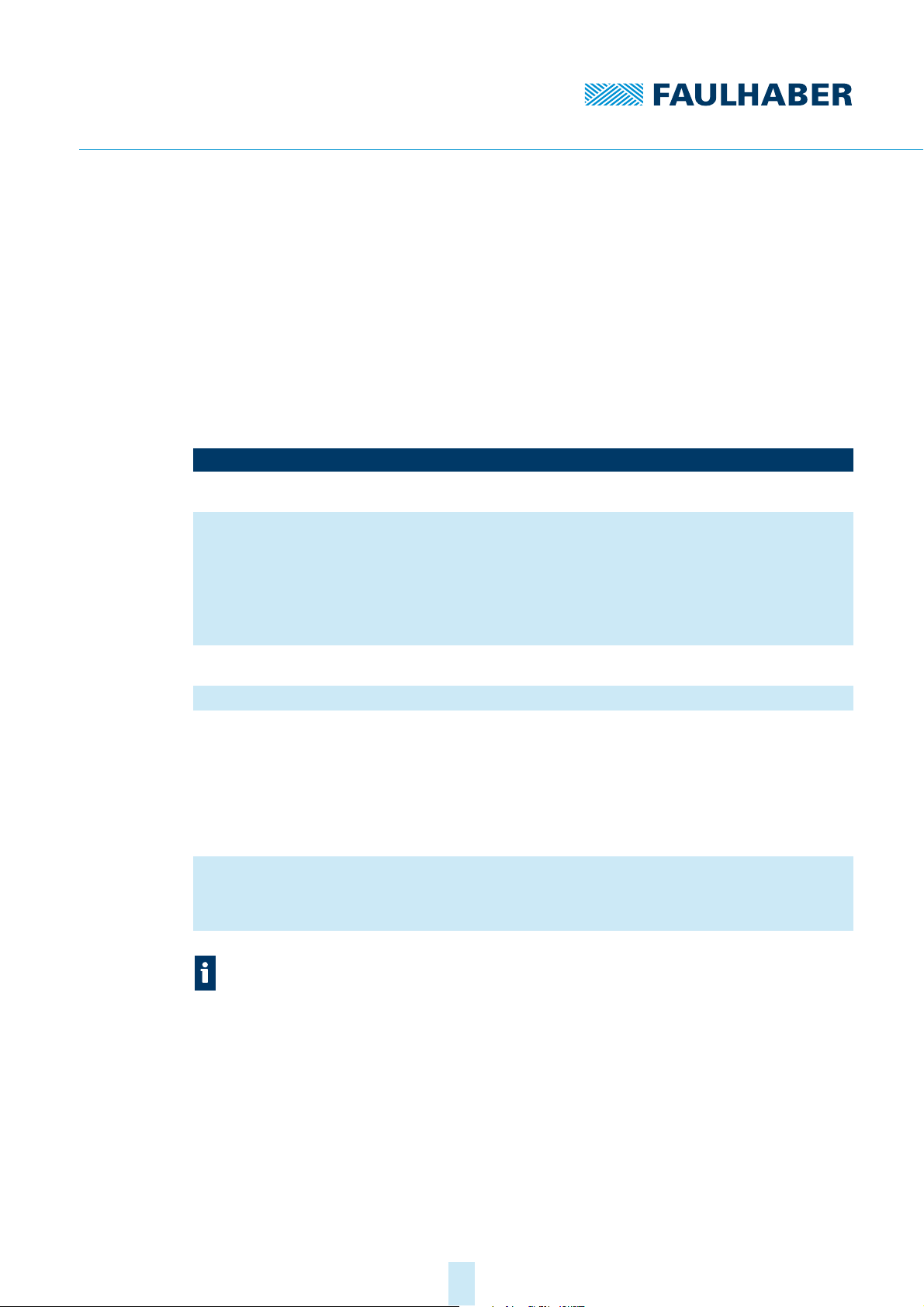
The execution of sequence programs can be controlled and monitored by a supervisory
computer, via the object 0x3001.
Tab. 4: Current Control Parameter Set
Index Subindex Name Type Attr. Meaning
0x3001 0 Number of
Entries
1 Program Control U8 rw Control of the sequence program activated via 0x3001.02
2Program Num-
ber
3 Actual Position U16 ro Address of the line currently being executed
4Actual Program
State
8 Error State U8 ro Error state:
U8 ro Number of object entries
or 0x3002.00:
1: Load the activated program from the EEPROM
(Load)
2: Start or continue the loaded program (Run)
3: Execute the individual program line (Step)
4: Pause the running program (Break)
5: End the running program (Terminate)
U8 rw Activate the sequence program at program number
U8 ro Current status of the program:
0: No action (Idle)
1: Program is currently being loaded from the EEPROM
(Reading)
2: Program is currently being saved to the EEPROM
(Saving)
3: Program is currently being deleted (Deleting)
4: Program is currently being executed (Running)
5: Program paused (Halted)
0: No error (No Error)
1: Syntax error (Parsing Error)
2: Error accessing the EEPROM (EEPROM Access Error)
Before a new program is loaded, any program already running must be ended.
Pseudo-code:
If 0x3001.04 = 4 (Running) or 0x3001.04 = 5 (Halted), then 0x3001.01 = 5 (Termi-
nate)
Wait until 0x3001.04 = 0 (Idle)
2nd edition, 27-10-2017 7000.05056, 2nd edition, 27-10-20177000.05056
15
Page 16

Control of sequence programs
Example for loading and running a sequence program in program number 1:
1. Select program 1:
0x3001.02 = 1 (P1)
2. Load program:
0x3001.01 = 1 (Load)
Wait until 0x3001.04 = 0 (no longer Reading).
3. Run program:
0x3001.01 = 2 (Run)
Program 1 is loaded and will be run.
5.2 Start the sequence program automatically
Object 0x3002.00 allows input of a program number; when the controller is booted up this
program will be started automatically.
Tab. 5: Autostart Program Number
Index Subindex Name Type Attr. Meaning
0x3002 0 Autostart Pro-
gram Number
U8 rw Program number of the sequence program that will be
started automatically.
This function is also available via the drive functions dialogue in the Motion Manager
(Device control - sequence programs).
2nd edition, 27-10-2017 7000.05056, 2nd edition, 27-10-20177000.05056
16
Page 17
Control of sequence programs
5.3 Data exchange with the sequence programs
Data exchange via object 0x3004
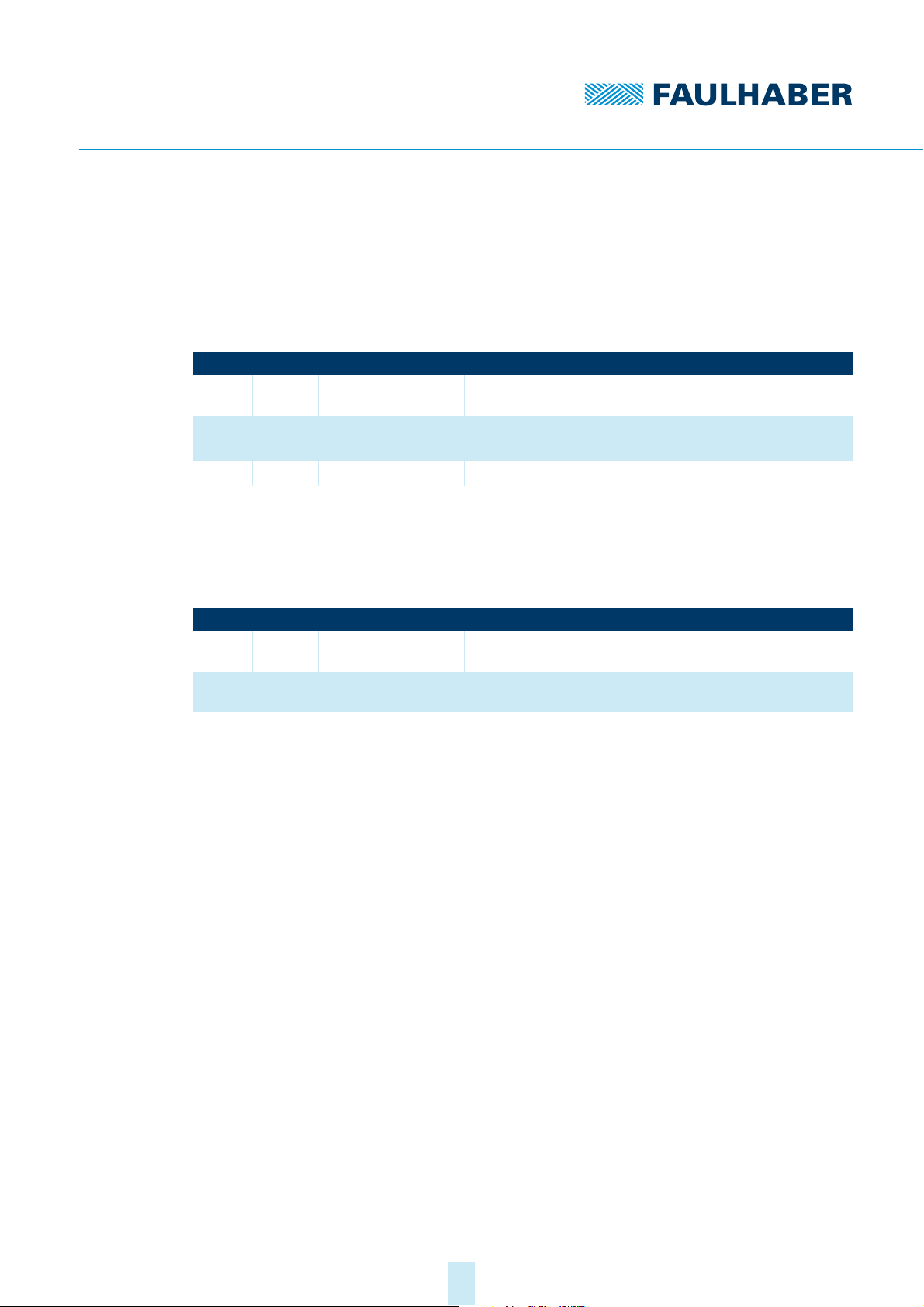
The program variables a to z can also be used for data exchange between the sequence
program and the supervisory computer. Object 0x3004.01 can be used to select a variable
and object 0x3004.02 to read or write its value.
Tab. 6: Variable Access
Index Subindex Name Type Attr. Meaning
0x3004 0 Number of
entries
1 Variable index U8 rw Variable index
2 Variable value S32 rw Variable value
Data exchange via object 0x3005
Individual variables can be directly accessed via the subindexes of object 0x3005. This can be
used for example to record variables or to map variables in a PDO. Excluded from this are
variables, which are used for event handlers, timers or counters.
U8 ro Number of object entries
0 = a, 1 = b,…
Tab. 7: Debug User Program
Index Subindex Name Type Attr. Meaning
0x3005 0 Number of
entries
1…26 User prog varia-
ble a…z
U8 ro Number of object entries
S32 rw Values of the variables a…z
2nd edition, 27-10-2017 7000.05056, 2nd edition, 27-10-20177000.05056
17
Page 18

Examples of programs
6 Examples of programs
6.1 Sequence of steps
This example provides an example of the implementation of a sequence of steps. The main
loop is processed continuously. As soon as the conditions of the current step are satisfied,
the step count (z) is incremented by one, in order to proceed to the next step, in which further conditions are tested.
REM Sequence of steps with z as the step counter
DEF_TIM_VAR t
z = 1
:MainLoop
IF z = 1 THEN GOSUB Z1
IF z = 2 THEN GOSUB Z2
IF z = 3 THEN GOSUB Z3
IF z = 4 THEN
END
ENDIF
GOTO MainLoop
:Z1
'Step 1: When the state being tested is achieved,
'the step counter will be incremented by one
a = GETOBJ $6041.$00
IF a = $0023 THEN 'Device Control Status = "Switched On"
z = 2
ENDIF
RETURN
2nd edition, 27-10-2017 7000.05056, 2nd edition, 27-10-20177000.05056
18
Page 19

Examples of programs
:Z2
‘Step 2: When the state being tested is achieved,
'(here "Target Reached") the timer will be set and the
'step counter incremented by one.
a = GETOBJ $6041.$00
IF (a & $400) = $400 THEN
'Bit 10 set in the statusword ("Target Reached")
START_TIM 2000 'Set the timer to 2
seconds
z = 3
ENDIF
RETURN
:Z3
‘Step 3: When the timer has expired,
'the step counter will be incremented by one
IF t = 1 THEN 'Timer run down
z = 4
ENDIF
RETURN
6.2 Event handling
The following program extract shows how the program can respond to the event Temperature warning limit reached.
DEF_EVT_VAR e 'Define event mask
EN_EVT $00030000, EvtOverTemp 'activate event handling for over
temperature
:EvtOverTemp
IF e & $00020000 THEN
END
ELSE
w = 1 ‘temperature warning, set variable w
ENDIF
RET_EVT
2nd edition, 27-10-2017 7000.05056, 2nd edition, 27-10-20177000.05056
19
Page 20

7000.05056, 2nd edition, 27-10-2017
© Dr. Fritz Faulhaber GmbH & Co. KG
DR. FRITZ FAULHABER
GMBH & CO. KG
Antriebssysteme
Daimlerstraße 23 / 25
71101 Schönaich • Germany
Tel. +49(0)7031/638-0
Fax +49(0)7031/638-100
[email protected]
www.faulhaber.com
 Loading...