

Page 1

NetLINE
PC Card
User’s Guide
F
arall
on
Page 2

Copyright © 2000 Farallon Communications, Inc. v.0100
All rights reserved.
This manual and any associated artwork, software, and product designs
are copyrighted with all rights reser ved. Under the copyright laws this
manual, artwork, software, and product designs may not be copied, in
whole or part, without the written consent of Farallon. Under the law,
copying includes translation to another language or format.
Farallon Communications
3089 Teagarden St.
San Leandro, CA 94577-5720
U.S.A.
For additional copies of this user’s guide, order Farallon part number
6120370-00-01.
Other products and corporate names may be trademarks of other
companies and are used only for explanation and to the owner’s benefit
without intent to infringe.
Page 3

Contents
Chapter 1 - Introduction ........................................................ 5
Features ............................................................................ 6
Chapter 2 - Installation ......................................................... 7
Installing the hardware ........................................................ 8
Installing the software ....................................................... 10
Windows 98 ................................................................ 10
Windows 95 ................................................................ 11
Windows 2000 ............................................................ 12
Windows NT 4.0 ........................................................... 13
Connecting to the network ................................................. 14
Chapter 3 - Operation ......................................................... 15
NetLINE Card LEDs ........................................................... 16
Diagnostic utility ............................................................... 17
Chapter 4 - Farallon Technical Support ................................ 19
Appendix............................................................................ 21
Specifications ................................................................... 21
Regulatory notices ............................................................ 22
Warranty ............................................................................ 25
Page 4

Page 5

Chapter 1
Introduction
The Farallon NetLINE PC Card serves as an Ethernet
adapter for any Windows compatible computer with a
PCMCIA slot. The adapter provides an RJ-45 port to
connect to a 10Base-T Ethernet network or other Ethernet
device such as a hub, cable modem or DSL modem.
5
The card is fully compliant with IEEE Ethernet standards
and PCMCIA Type II specifications. It supports Windows
95, Windows 98, Windows 2000 and Windows NT 4.0.
Please make sure that the following items are included in
your Farallon package:
■
NetLINE PC Card (with connector cable)
■
Farallon diskette
■
this user's guide
Page 6

6 Chapter 1
F
EATURES
Complies with IEEE 802.3 10Base-T Ethernet stan-
■
dards.
Complies with 16-bit PCMCIA specifications.
■
Provides LED indicators for Power, Link and Activity.
■
Operates with Windows NT 4.0, Windows 95/98 and
■
Windows 2000.
Page 7

Chapter 2
Installation
Your NetLINE PC Card can be installed in three simple
steps:
■
Installing the hardware
■
Installing the software
7
■
Connecting to the network
Install the adapter hardware and software, and then
connect your computer to your Ethernet network using
twisted pair Ethernet cable (category 3 or better) with a
RJ-45 connector.
Page 8
8 Chapter 2
I
NSTALLING THE HARDWARE
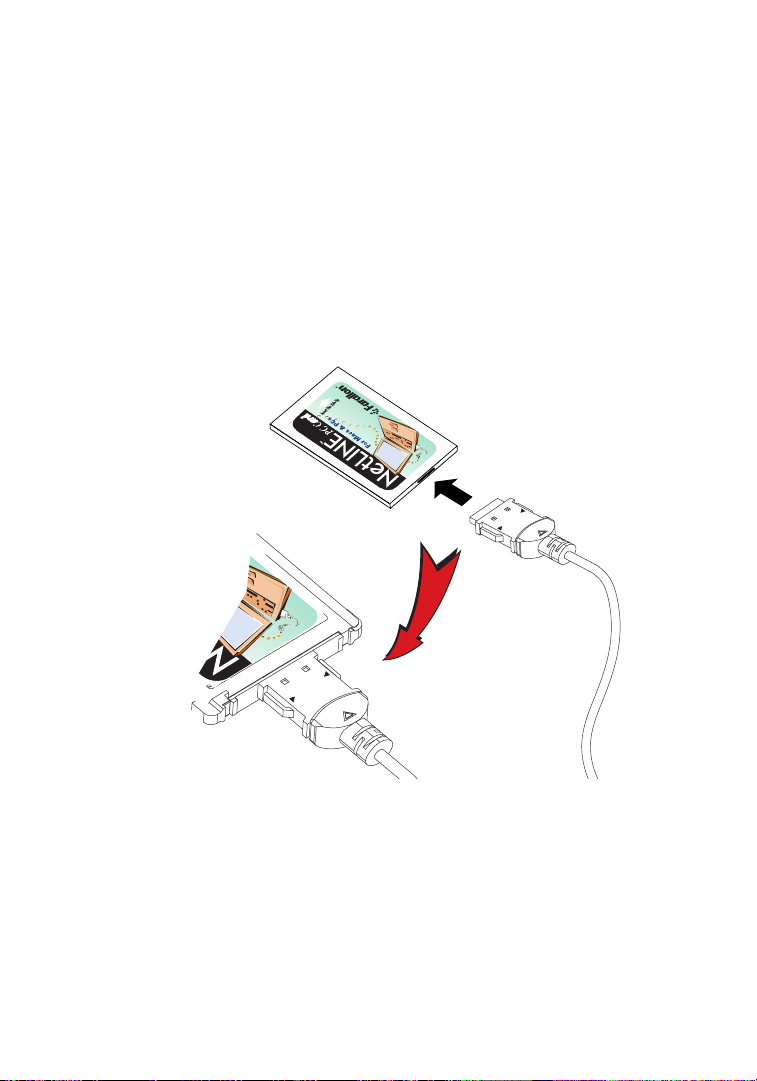
Begin installation by connecting the card. Then insert the
card in the computer’s PC card slot.
1. Hold the PC card and connector so that the arrow is
facing up.
2. Insert the flat end of the connector into the end of the
PC card until you hear a small click.
TOP
PRESS TO
RELEASE
CAUTION:
TOP
PRESS TO
RELEASE
Use care when detaching the connector from
the PC Card. Pulling the connector from the
card without squeezing the sides may cause
severe damage to the card and connector
and may void your warranty. Do not pull the
PC card out of the PC card slot by pulling on
the connector cable.
Page 9
Installation 9
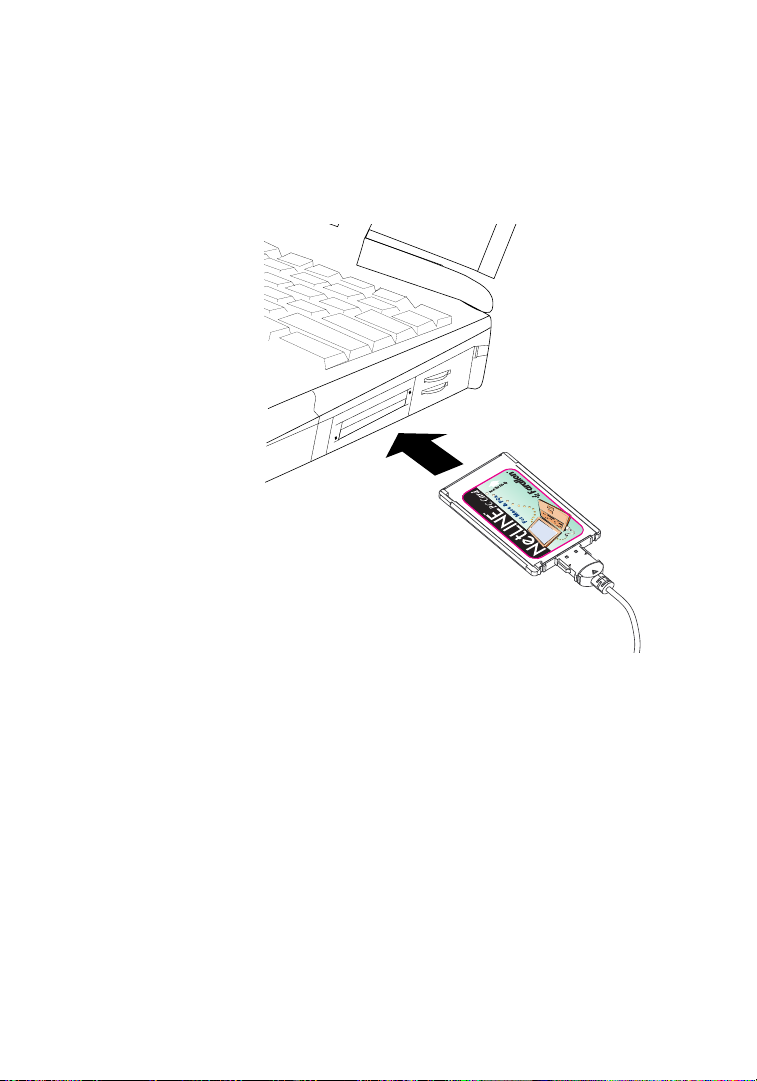
3. Slide the card into your computer’s PC card slot until
it is firmly seated.
TOP
PRESS TO
RELEASE
Page 10

10 Chapter 2
I
NSTALLING THE SOFTWARE
After you insert your NetLINE PC Card into your
computer’s PC card slot, the Windows Found New
Hardware Wizard will appear. See the following pages for
software installation instructions for:
Windows 98
■
Windows 95
■
Windows 2000
■
Windows NT 4.0
■
After you have installed the driver, connect the card to
your Ethernet network. See “Connecting to the network”
on page 14.
W
INDOWS
1. The Add New Hardware Wizard appears and searches
for device drivers for the
Click the
2. Select
click
Next
98
Farallon NetLINE PC Card
Next
button.
Search for the best driver for your device
.
.
and
3. Insert the Farallon Windows diskette into your
computer. Type A: in the “Specify a location” box and
click
Next
.
4. When the Wizard locates
5. If prompted to locate
“Copy files from” box. Then click
6. If prompted for the Win98 CD, copy the necessary
files from the CD ROM drive of your computer.
7. Click
Finish
and
Yes
NETEP16.inf
Ep16.sys
to restart your computer.
, type
, click
A:\Win98
OK.
Next
in the
.
Page 11

Installation 11
W
INDOWS
95
1. After the New Hardware Found message appears, the
Update Device Driver Wizard will open. In the Update
Device Driver Wizard window, click the
Next
button.
2. Insert the Farallon Windows disk into your computer,
and click
3. Click
A:
4. When the Wizard finds
click
Next
.
Other Locations
, then
folder on the Farallon disk.
Farallon NetLINE PC Card,
Finish
.
Browse
, and select the
5. Follow the on-screen instructions as the Wizard
copies files from the Farallon disk and from your
Windows 95 CD or disks.
6. If prompted for Win95 CD, copy the necessary files
from the CD ROM drive of your computer. If prompted
for the
Win95 folder on the Farallon disk
Ep16.sys
file, change the directory to the
(A:/Win95)
.
7. When the installation is complete, restart your
computer.
8. Your Network Control Panel should have the following
network components installed for basic peer to peer
networking and Internet access:
Client for Microsoft Networks
■
Farallon NetLINE PC Card
■
NetBEUI
■
TCP/IP
■
File and printer sharing for Microsoft Networks.
■
9. If you need to add any of the components, click the
Add
button, select the needed Protocol and add it.
Page 12
12 Chapter 2
W
INDOWS
1. The Add New Hardware Wizard will open and the
2. Insert the Farallon Windows diskette into your disk
3. Select the
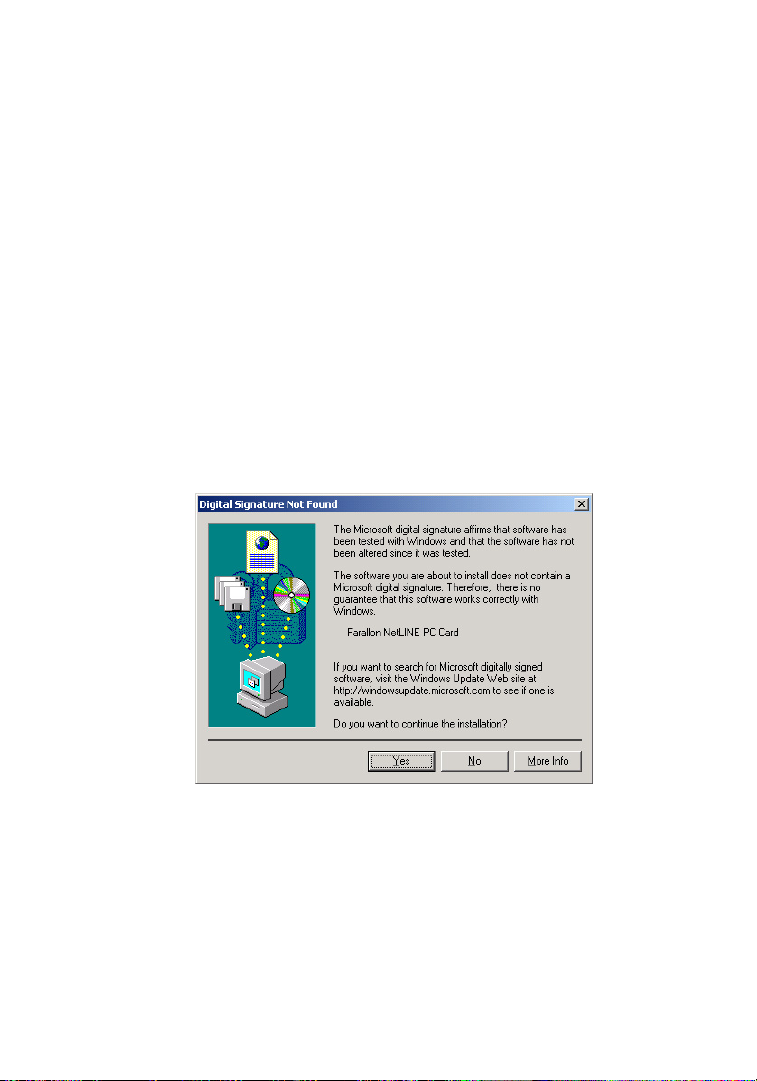
4. When the Wizard finds the driver, a message may
2000
Update Device Driver Wizard will begin. Click
drive and click
appear indicating that the driver does not have the
Windows 2000 digital signature. Click
continue. The driver is designed to work with Windows
2000 and is fully compatible with the Windows 2000
operating system.
Next
.
A:
folder on the Farallon disk.
Yes
Next
to
.
5. If prompted, restart your computer.
Page 13

Installation 13
W
INDOWS
1. Double-click
2. In the Network window, click the
3. Click the
NT 4.0
Network
My Computer
.
Add
button.
, then
Control Panel
Adapters
tab.
, then
4. In the Select Network Adapters window, click the
Have Disk
5. Insert the Farallon Windows diskette and type
6. In the Select OEM Option window, select
NetLINE PC Card
button.
A:
Farallon
and click OK.
7. When prompted, select an available IRQ and I/O.
Check WinNT Diagnostics for available resources.
8. When the Bus Location Windows opens, select:
■
Type:
PCMCIA
■
Number: 0
9. Enter your TCP/IP information when prompted.
10. Click the Close button and Restart your computer.
.
Page 14
14 Chapter 2
CONNECTING TO THE NETWORK
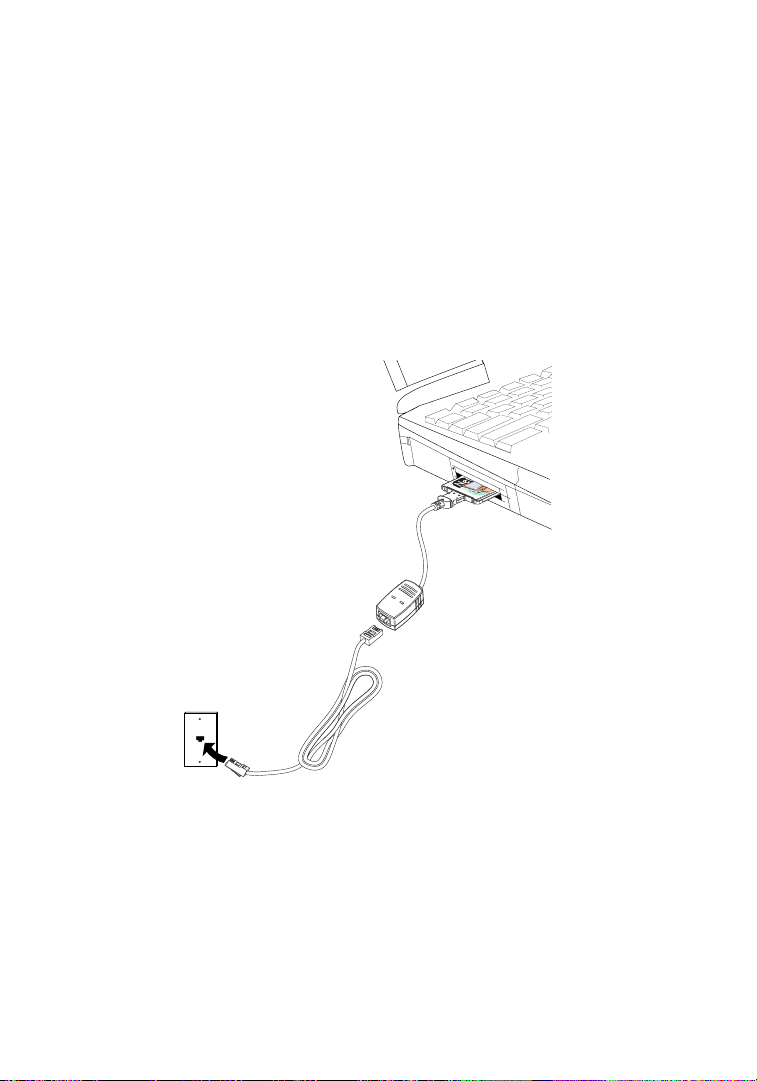
After the NetLINE PC Card is installed in your computer,
the next step is to connect it to your network.
1. Connect one end of a twisted pair Ethernet cable to
the card’s RJ-45 port and the other end to your hub,
wall jack, cable or DSL modem.
PRESS TO
RELEASE
PWR/ACT
LINK
10Base-T
wall jack
10Base-T cable with RJ-45 connectors
Page 15

15
Chapter 3
Operation
For proper card operation, verify the following:
■ The Link LED is lit (see the next page for adapter
LEDs).
■ The cable connection is secure, and the correct cable
type is being used.
■ The driver software is installed.
■ The card is correctly installed in a PCMCIA slot.
Page 16
16 Chapter 3
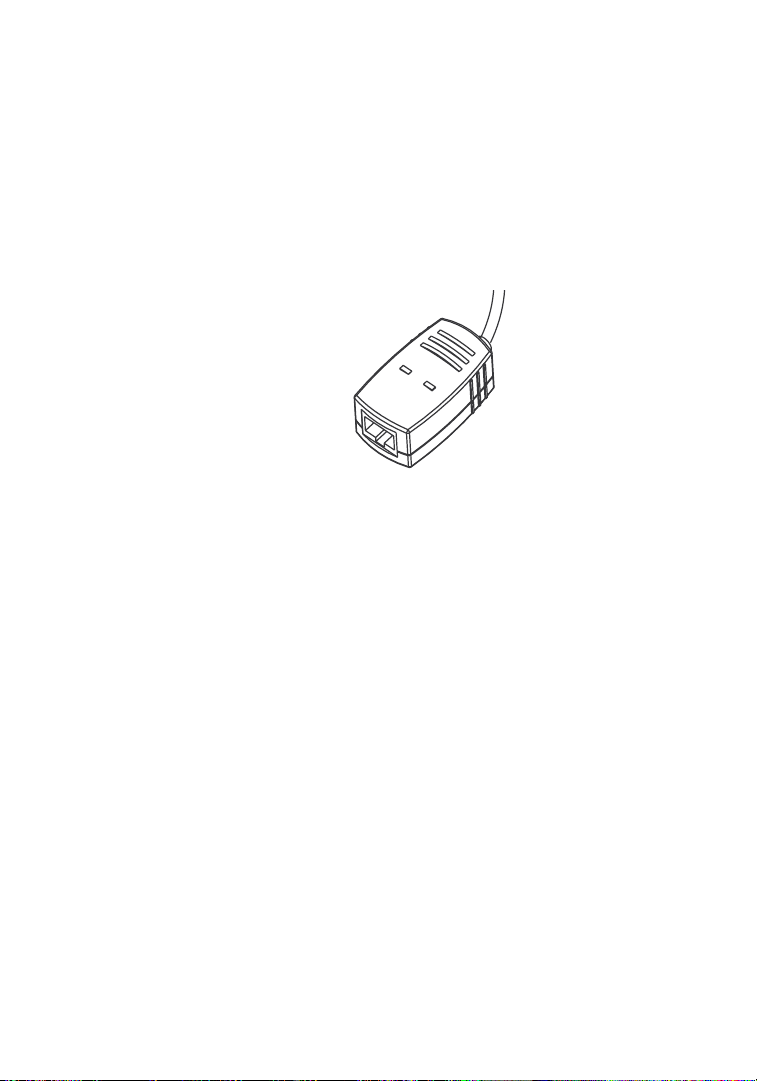
NETLINE CARD LEDS
The NetLINE Card LEDs on the end of the adapter cable
can give you information about link status and network
activity. After the card and driver are properly installed,
the LEDs will become active.
Link
: When the LED is lit green, the card has link at
10Mbps.
If the Link LED is not on, and you have a network cable
connected to the card, it may indicate one of the
following:
■ The network cable is not properly connected or is
faulty.
PWR/ACT
LINK
■ No 10Base-T device is connected at the other end of
the cable.
■ The network cable exceeds 100 meters.
■ The card is not connected properly.
■ You are using a straight-through 10Base-T cable to
connect directly to another workstation without a hub.
■ You are using a cross-over cable to connect to a hub.
Power/Activity: A flashing green light indicates that
network data is being transmitted or received by the card.
If the light is off, the adapter cable is not receiving power.
Page 17

Operation 17
DIAGNOSTIC UTILITY
Use the Diagnostic Utility included on the Farallon
diskette as a troubleshooting tool.
1. Boot to MS DOS. (If you are using Win98/2000, use
a Win95 startup disk.)
2. Insert the Farallon diskette in your computer’s disk
drive.
3. Type ep16diag and Enter.
4. Select Adapter Basic Diagnostics and Enter.
5. Make sure all of the listed test items pass, including:
■ Current I/O Base Address
■ EEPROM
■ LAN Setup Registers
■ Memory
■ LAN Controller Functions
■ Loopback Mode Testing
6. If any items fail, try another card and connection to
see if the problem is system related. If the other card
passes, the problem may be related to the NetLINE
PC Card.
Page 18

Page 19

19
Chapter 4
Farallon Technical Support
Farallon is committed to providing its customers with
reliable products and excellent technical support.
Please look in this user’s guide for possible solutions to
any problems you come across, and be sure to read any
paper release notes or electronic “Read Me” files that
you receive from Farallon.
If you contact us by telephone, please be at the site of
the problem, prepared to reproduce it and to try some
troubleshooting steps. If you have any questions,
concerns, or suggestions, please contact us:
Phone: (510) 346-8001
Phone support hours are 7:00 am to 4:30 pm PST.
Fax: (510) 346-8116
Mail: Farallon Customer Service
3089 Teagarden St.
San Leandro, California 94577-5720 USA
Email: [email protected]
Page 20

20 Chapter 4
FARALLON INTERNET INFORMATION RESOURCES
Please visit our website at www.farallon.com for Farallon
product information, suppor t resources and home
networking information.
OUTSIDE OF THE UNITED STATES AND CANADA
If you are not located in the United States or Canada, you
can get service locally by contacting your nearest Farallon
reseller or distributor. For a worldwide list of our
distributors, see our Internet information resources or
contact Farallon directly.
Page 21

Appendix
SPECIFICATIONS
Bus Interface 16-bit PC Card standard
Network Interface Standard IEEE 802.3 10Base-T
Data rate 10Mbps
21
Connectors 68-pin connector to PCMCIA
LEDs Power/Activity, Link (10Base-T)
Data Transfer Rate 10Mbps
Cable Unshielded twisted pair RJ-45
Environment Operating Temperature: 0°C to
Regulatory FCC Class B, CE Class B, VCCI
Type II slot
15-pin flat connector to media
coupler
Max length 100 meters
55°C
Operating Humidity: 10% to 80%
RH
Class B
Page 22

22 Appendix
REGULATORY NOTICES
FCC COMPLIANCE STATEMENT
FCC Rules and Regulations - Part 15. This product has been tested and
found to comply with the limits for a Class B computing device pursuant
to Part 15 of the FCC rules. These limits are designed to provide reasonable protection against harmful inter ference in a residential installation. Installed correctly, it probably will not interfere with radio or TV
reception. However, we do not guarantee the absence of interference.
This product generates and uses energy of about the same frequency
as radio and TV broadcasts. Installed incorrectly, it may interfere with
reception of radio and TV broadcasts. If you suspect this product is
causing interference, turn your computer on and off while the radio or
TV is showing interference. If the interference disappears when you turn
the computer off and reappears when you turn the computer on, something in the computer is causing interference. To reduce interference,
try these suggestions:
• Change the direction of the radio or TV antenna.
• Move the computer, radio or TV. For example, if the computer is to the
right of the TV, move it to the left of the TV. Or move them farther
apart.
• Plug the computer into a different electrical outlet than the radio or TV.
• Ensure that all expansion slots (on the back or side of the computer)
are covered. Also ensure that all metal retaining brackets are tightly
attached to the computer.
This device complies with Part 15 of the FCC Rules. Operation is subject
to the following two conditions: (1) This device may not cause harmful
interference, and (2) this device must accept any interference received,
including interference that may cause undesired operation.
CAUTION: If the device is changed or modified without permission from
Farallon, the user may void his or her authority to operate the equipment.
Page 23
23
CE MARK
This equipment conforms to the European Community CE Mark
standard for the design and manufacturing of information
technology equipment. This standard covers a broad area of
product design, including RF emissions and immunity from
electrical disturbances.
Warning: In a domestic environment this equipment may cause
radio interference, in which case the user may be required to
take adequate measures. Adequate measures include
increasing the physical distance between this product and other
electrical devices.
VCCI CERTIFICATION
This equipment conforms to VCCI Class B.
Page 24

Page 25

25
Warranty
LIMITED WARRANTY AND LIMITATION OF REMEDIES
Farallon warrants to you, the end user, that the accompanying
Farallon hardware product, which may include third par ty
products or technology (the “Product”) will be free from defects
in materials and workmanship under normal use for three years
after the date of purchase. This warranty will expire ninety (90)
days from date of purchase on all software, whether “standalone” or delivered as part of a hardware product. Farallon’s
entire liability and your sole remedy under this warranty during
the warranty period is that Farallon shall, at its option, either
repair the Product or refund the original purchase price of the
Product.
In order to make a claim under this warranty you must comply
with the following procedure:
1. Contact Farallon Customer Service within the warranty period
to obtain a Return Materials Authorization (“RMA”) number.
2. Return the defective Product and proof of purchase, shipping
prepaid, to Farallon with the RMA number prominently displayed
on the outside of the package.
If you are located outside of the United States or Canada,
please contact your dealer in order to arrange for warranty
service.
Page 26

26
THE ABOVE WARRANTIES ARE MADE BY FARALLON ALONE, AND
THEY ARE THE ONLY WARRANTIES MADE BY ANYONE
REGARDING THE ENCLOSED PRODUCT. FARALLON AND ITS
LICENSOR(S) MAKE NO OTHER WARRANTIES, EXPRESS OR
IMPLIED, INCLUDING WITHOUT LIMITATION THE IMPLIED
WARRANTIES OF MERCHANTABILITY AND FITNESS FOR A
PARTICULAR PURPOSE, REGARDING THE ENCLOSED PRODUCT.
EXCEPT AS OTHERWISE EXPRESSLY PROVIDED ABOVE,
FARALLON AND ITS LICENSOR(S) DO NOT WARRANT,
GUARANTEE OR MAKE ANY REPRESENTATION REGARDING THE
USE OR THE RESULTS OF THE USE OF THE PRODUCT IN TERMS
OF ITS CORRECTNESS, ACCURACY, RELIABILITY,
CURRENTNESS, OR OTHERWISE. THE ENTIRE RISK AS TO THE
RESULTS AND PERFORMANCE OF THE PRODUCT IS ASSUMED
BY YOU. THE EXCLUSION OF IMPLIED WARRANTIES IS NOT
PERMITTED BY SOME STATES OR JURISDICTIONS, SO THE
ABOVE EXCLUSION MAY NOT APPLY TO YOU. IN THAT CASE, ANY
IMPLIED WARRANTIES ARE LIMITED IN DURATION TO NINETY
(90) DAYS FROM THE DATE OF DELIVERY OF THE PRODUCT.
THERE MAY BE OTHER RIGHTS THAT YOU MAY HAVE WHICH
VARY FROM JURISDICTION TO JURISDICTION.
Regardless Of Whether Or Not Any Remedy Set Forth Herein
Fails Of Its Essential Purpose, In No Event Will Farallon, Its
Licensor(S) And The Directors, Officers, Employees Or Agents Of
Any Of Them Be Liable To You For Any Consequential, Incidental
Or Indirect Damages (Including Damages For Loss Of Business
Profits, Business Interruption, Loss Of Business Information,
And The Like) Arising Out The Use Or Inability To Use The
Product Even If Farallon Or Its Licensor(S) Have Been Advised Of
The Possibility Of Such Damages. Because Some States Or
Jurisdictions Do Not Allow The Exclusion Or Limitation Of
Liability For Consequential Or Incidental Damages, The Above
Limitations May Not Apply To You. Farallon And Its Licensor(S)
Liability To You For Actual Damages From Any Cause
Whatsoever, And Regardless Of The Form Of The Action
(Whether In Contract, Tort [Including Negligence], Product
Liability Or Otherwise), Will Be Limited To $50.
 Loading...