

Page 1

Top
Conferencing Systems
VCB5
DOC00074 Rev. 1.0 08.06
User’s Guide
Version 5.0
Page 2

© 2006 Emblaze-VCON Ltd. All Rights Reserved.
Information in this document is subject to change without notice. No part of this
document can be reproduced or transmitted in any form or by any means electronic or mechanical - for any purpose without written permission from
Emblaze-VCON Ltd.
Media Xchange Manager is a registered trademark of Emblaze-VCON Ltd.
All other product names are tr ademark s o r registered trademarks of their respective
companies or organizations.
Limited Warranty
Emblaze-VCON Ltd. warrants that SOFTWARE will perform according to
accompanying user documentation for a period of 90 (ninety) days from the date of
receipt; replacement SOFTWARE will be warranted for 90 (ninety) days from the
date of receipt. This Limited Warranty shall not apply to any product that in the
opinion of Emblaze-VCON Ltd. has not been installed or upgraded according to
accompanying documentation from Emblaze-VCON Ltd. or been subject to misuse,
misapplication, negligence or accident while in the hands of the purchaser.
GRANT OF LICENSE Emblaze-VCON Ltd. grants the Purchaser a non-exclusive
and non-transferable license to use the SOFTWARE product and to make one copy
solely for backup or archival purposes, which may include user documentation
provided via online or other electronic form. Additional copies may not be made nor
may anyone else be allowed to copy or otherwise reproduce any part of the licensed
software without prior written consent of Emblaze-VCON Ltd.
COPYRIGHT All trademarks(s), logo(s), name(s), software, documentation and
other supporting materials relating to the Product are trademarked, copyrighted or
owned by Emblaze-VCON Ltd. as proprietary information protected by United
States copyright laws and international and applicable national treaty provisions
and laws. Software protection extends beyond its literal code to structure, sequence
and organization; any unauthorized use or modification would constitute a
misappropriation of Emblaze- VCON’s proprietary rights and a violation of the
License agreement.
LIABILITIES Emblaze-VCON’s entire liability and the Purchaser’s exclusive
remedy shall be at Emblaze-VCON’s option, either return of the price paid or repair/
replacement of the Product not meeting Emblaze-VCON’s declared Limited
warranty. Emblaze-VCON or its suppliers shall not be liable in any event to anyone
for any indirect, incidental, consequential, special or exemplary damages including
without limitation damages for loss of business profits, business interruptions,
business information or other pecuniary loss arising out of the use of or inability to
use the said Product even if advised of the possibility of such damages. In any case,
Emblaze-VCON’s entire liability under any provision of this agreement shall be
limited to the amount actually paid by the Purchase for the Product.
ii Emblaze-VCON VCB5 User’s Guide
Page 3

Declaration Of Con fo rmity
Emblaze-VCON Ltd LTD.
Address: P.O.Box 1 2747, 22 Maskit St. Her zelia 46733, Israel
Te: +972-9-9590000 , Fax: +972-9-9567244l, Website: www.e mblaze-vc on.com
Declaration of Conformity for Terminal Equipment
Issued according to ISO/IEC Guid e 22 and EN45014 under the sole res ponsibility of the Manufact urer
Date: July 12, 2006
We hereby declare entirely on our own r esponsibility that the prod ucts:
Product (Models):
and all its associated peripherals manufactured by Emblaze-VCON Lt d., to which this declaration relat es
is in conformity with:
European Community
with the essential requirements specified in Article 3.1 (a) and 3.1 ( b) of:
Directive 89/336/EEC (EMC Directive).
Directive 73/23/EEC (Low Voltage Directiv e – LVD).
Directive 99/05/EEC (Radio Equipm ent and Telecommunications Termi nal Equipment Directive).
In accordance with the following Harmonized StandardsThe products are compliant with the foll owing standards and other norm ative documents:
EMC: EN 55022: 1998 +A1: 2000 +A2: 2003 Class B
EN 55024: 1998 +A1: 2001 +A2: 2003
Safety / Low Voltage: EN 60950
Regulatory Notice to European Customers
The "CE" mark is affixed to this product t o demonstrate conformance to the R&TT E Directive 99/05/EEC
(Radio Equipment and T elecommunications Terminal Equipment Dir ective).
VCB5
EN 61000-3-2: 2000 Class A
EN 61000-3-3: 1995 +A1: 2001
IEC 61000-4-2: 2001
IEC 61000-4-3: 2002
IEC 61000-4-4: 1995 +A1:2000 +A2: 2 001
IEC 61000-4-5: 2001
IEC 61000-4-6: 2001
IEC 61000-4-11: 2001
IEC 60950
USA & Canada
This device complies with part 15 of the FCC Rul es. Operation is subject to the following t wo conditions:
(1) This device may not cause harm ful interference, and (2) this device must accept any i nterference
received, including interf erence that may cause undesired oper ation
The products are compliant with the foll owing standards and other norm ative documents:
EMC: FCC Part 15, Class B
Safety / Low Voltage: CS 22.2 950
Member of the EMBLAZE group
UL 60950
EMBLAZE-VCON – Emblaze-VCON ltd
Beit Rakefet 1 Emblaze Square POB 2220 Ra'anana 43662
Te: +972-9--7627800, Fax: +9 72-9-7627801
Website: www.emblaze-vcon.co m
Emblaze-VCON VCB5 User’s Guide iii
Page 4

Federal Communications Comm ission Radio Frequency Interfere nce Statement
Both products - Safe@Office and VPN-1 Edg e - comply with the limits for a Class B digital dev ice,
pursuant to Part 15 of the FCC Rules. Thes e limits are designed to provide r easonable protection
against harmful interfer ence when the equipment is operated in a commercial environment. This
equipment generates, uses, and c an radiate radio frequency ener gy and, if not installed and use d in
accordance with the instructi on manual, may cause harmful i nterference to radio communicat ions.
Shielded cables must be used with this eq uipment to maintain c ompliance with FCC regulations.
Changes or modifications not expr essly approved by the manufac turer could void the user’s authority to
operate the equipment.
RoHS & WEEE Declaration and Certification
These systems have b een verified to compl y with the EU RoHS & WEEE Directi ves
throughout the design, development and supply chain definition.
EU Directive on the Restriction of the use of certain Hazardous Substa nces in electrical and electronic
equipment (RoHS – 2002/95/EC) of 27 January 2003, and Directive of the Europ ean Parliament and of
the Council of 27 January 2003 on W aste Electrical and Electronic Eq uipment (WEEE – 2002/96/CE).
This document is informationa l only and reflects laborator y performance. Your product may perform
differently, depending on com ponents and peripherals you co nnect. Accordingly, the custo mer should
not rely upon this information i n making decisions about electr ical tolerances or otherwise. No war ranty
as to accuracy or completeness is expressed or implied. The inform ation in this document may chang e
without notice.
Environmental Data – Product's Materials Information Restricted Substances
Emblaze-VCON's products does NOT contain any of the following substanc es (in concentrations
exceeding legal threshold limits):
. • Asbestos
. • colorants in components t hat come into direct contact with human sk in
. • Cadmium and its compounds (except for use in applicati ons exempted by the EU RoHS
Directive)
. • Class I and Class II CFCs (chlorofluoroc arbons) and HCFCs (hydro fluorocar bons)
. • Chloroparaffins, short chai ned (10-13 carbon chain)
. • Chromium VI and its compounds (except for use in applicatio ns exempted by the EU RoHS
Directive)
. • Halogenated dioxins or furans (i.e. polychlorinated dibenzo dioxines, polychlorinat ed
dibenzofurans)
. • Lead and its compounds (except for use i n applications exempted by the EU RoHS Dir ective)
. • Mercury (except for use in applicat ions exempted by the EU RoHS Directiv e)
. • Nickel and its compounds in com ponents that are likely to res ult in prolonged skin exposure
. • PCBs (polychlorobi phenyls) or PCTs (polychloroterphenyls)
. • PBBs (polybromobip henyls) or PBDEs (polybrominated diphenylet hers)
. • PVC (polyvinyl chloride) in plas tic parts greater than 25 grams
. • Polychlorinated na phthalene s (PCNs)
. • Tributyl tin (TBT) and triphenyl t in (TPT) compounds
Additional Materials Information
. • The cables may use PVC as an insulating material to ensure product safet y
. • The case mater ial is sheet metal
. • Product may contain post-indust rial recycled content (plast ics, metal, glass)
No CFCs (chlorofluorocarbons) , HCFCs (hydrofluorocarbons) or ot her ozone depleting substances are
used in packaging m aterial. Chromium, lead, mercury, or c admium are not intentionally added to
packaging materials and are not present in a cumulative concentr ation greater than 100 ppm as
incidental impurities. No halog enated plastics or polymers are used for packaging mat erial. The System
fully complies with the EU Directive 94/62/E EC.
Member of the EMBLAZE group
EMBLAZE-VCON – Emblaze-VCON ltd
Beit Rakefet 1 Emblaze Square POB 2220 Ra'anana 43662
Te: +972-9--7627800, Fax: +9 72-9-7627801
Website: www.emblaze-vcon.co m
iv Emblaze-VCON VCB5 User’s Guide
Page 5

The product has been tested in a typica l configuration.
Technical file held by Emblaze-VCON Ltd.
For a copy of the Original Signed Decl aration (in full conformanc e with EN45014), please contact
Emblaze-VCON's Tech Support .
Gil Ozeri | Engineer ing Manger | Emblaze-VC ON Ltd.
|
.July 12, 2006
Member of the EMBLAZE group
.......................... ..................................................................
EMBLAZE-VCON – Emblaze-VCON ltd
Beit Rakefet 1 Emblaze Square POB 2220 Ra'anana 43662
Te: +972-9--7627800, Fax: +9 72-9-7627801
Website: www.emblaze-vcon.co m
Emblaze-VCON VCB5 User’s Guide v
Page 6

Emblaze-VCON Technical Support
This User’s Guide was designed to help you set up and work with your VCB easily so
that you can enjoy its many features.
If a situation occurs that is not covered by the supplied documentation, con tact yo ur
local Emblaze-VCON distributor, and request a ssistance fro m their Emblaze-VCO Ntrained technical support department. Please describe the problem, device, and PC
operating system (if applicable), and any other relevant details.
Also, you may access the Technical Support section of the Emblaze-VCON website
(http://www.emblaze-vcon.com/support/index.shtml) in order to check its
knowledge base or initiate other customer support processes:
Page Type of support
Support Notes Troubleshoot or receive technical information about
specific Emblaze-VCON products.
Downloads Download a new software release or a free product
evaluation.
Demo
Numbers
License Key
Requests
Test your videoconferencing system.
Request a permanent license key for your organization’s
MXM(s).
vi Emblaze-VCON VCB5 User’s Guide
Page 7

Table of Contents
TABLE OF CONTENTS
Limited Warranty................................................................................................. ii
Declaration Of Conformity.................................................................................. iii
Emblaze-VCON Technical Support..................................................................... vi
1 Welcome to the VCB.............................................................. 1
1.1 Introduction..................................................................................................1
1.2 Package Contents ........................................................................................ 3
2 Defining the VCB IP Configuration ......................................... 5
2.1 Assigning a Static IP Address to the VCB ................................................... 5
3 Logging into the VCB........................................................... 11
4 Setting Up the VCB.............................................................. 13
4.1 VCB Settings...............................................................................................13
MCU Settings..............................................................................................13
Administrators List ....................................................................................16
4.2 VCB Services Configuration .......................................................................17
General........................................................................................................18
Layouts ......................................................................................................20
Media..........................................................................................................21
QoS............................................................................................................. 24
Advanced ................................................................................................... 25
5 Setting Up a Dedicated VCB Service ................................... 29
5.1 Dedicated Service for End Points.............................................................. 29
5.2 Dedicated Service for a Zone......................................................................31
6 Adding the VCB to an Ad-hoc Permission Group ................ 33
6.1 Ad-hoc Permission Group Properties ....................................................... 34
General....................................................................................................... 34
Permission Group...................................................................................... 35
7 Ad-Hoc Conferencing .......................................................... 37
7.1 Inviting from vPoint™/vPoint HD ........................................................... 37
7.2 Inviting from HD3000/2000/1000/600.................................................38
7.3 Inviting from HD5000/4000 ................................................................... 39
7.4 Inviting from Other H.323 Videoconferencing Applications ...................40
8 Chair Control During Conferences........................................ 41
9 Upgrading the VCB License Key........................................... 45
10 SSH Commands .................................................................. 47
10.1 Descriptions of SSH Commands .............................................................. 47
Emblaze-VCON VCB5 User’s Guide vii
Page 8

Page 9

1 Welcome to the VCB
1WELCOME TO THE VCB
1.1 Introduction
The VCB, Emblaze-VCON’s premier Multipoint Conferencing Unit (MCU), enables:
T Initiation and management of multipoint conferences, including both
scheduled and ad-hoc conferences, which are multipoint sessions that were
expanded from point-to-point calls.
T Wide range of rich, dynamic layouts for the simultaneous viewing of several
participants. Up to 16 users may be displayed at the same time.
T Web-based management/configuration and videoconference scheduling/
moderating applications.
T Simultaneous multicast streaming of active conferences and multimedia to
multiple passive participants.
The VCB includes advanced features, such as audio trans codin g, speed matching
and bandwidth management, as well as basic features such as continuous presence,
voice-activated switching, and multiple audio and video algorithms.
Emblaze-VCON VCB5 User’s Guide 1
Page 10

1 Welcome to the VCB
The VCB includes the Conference Moderator, which provides administrators and
users with the ability to schedule conferences in advance and to manage them
remotely. At the appointed time, the Conference Moderator initiates the conference
and connects the conference participants. Conference hosts can also control when
participants join or exit sessions, and transmit video and data streams to the
participants. For more details, see the Conference Moderator Help.
The VCB’s robust Chair Control provides several options for displaying conference
participants. A rich selection of predefined layouts expands on the tradtional
methods of Continuous Prese nce and Voice-activated Switching. Additionally,
conference organizers can choose among the following view switching modes for
each session:
Dominant
Speaker
Fixed Image Showing specific views throughout the conference’s
Timer Image Showing a rotation of Continuous Presence views,
The VCB supports the following:
T G.722.1, G.723.1, G.728 and AAC audio algori thms with audio transcoding,
allowing users to participate in a multipoint conference using different audio
standards.
T Up to 4 Mbps data rate per participant in Voice-activated Switching and in
Continuous Presence (H.263 and H.264 only - for H.261, up to 1 Mbps).
T H.261/H.263/H.263+/H.263++/H.264 video codec support in Voice-activated
Switching
H.261/H.263/H.264 video codec support in Continuous Presence.
T Dial-in conference initiation.
T Handles calls connecting up to 48 concurrent users.
T Support for sessions including H.323 end points/devices and SIP User Agents
(through the MXM's embedded SIP proxy server).
T Multi-point sessions can be joined (cascaded) onto other sessions, contingent
on similar data rates, display types, and audio/video algorithm.
VCB to VCB
VCB to other IP MCU
T Dynamic resource allocation pool – unallocated ports may be used as overflow
for configured sessions.
Showing the most recent speakers in the conference or
from within predefined groups.
duration.
changing at timed intervals.
2 Emblaze-VCON VCB5 User’s Guide
Page 11

1 Welcome to the VCB
T Applies H.239 support with HD DualStream™, in which both video and data
application-sharing may be transmitted to conference participants (whose end
points support dual streams). End points that don’t support dual streams will
receive either the data or video stream, depending on the active VCB Service’s
configuration.
T The streams may be sent in CIF, QCIF, 4CIF, VGA, SVGA, or XGA.
T Speed matching, allowing participants in Continous Presence to connect using
two different data rates (for example, 128 Kbps and 384 Kbps)
T Mode switching, allowing participants to choose the type of viewing mode
(Dominant Speaker, Fixed Image or Timer Mode) during a conference.
T Symmetric bandwidth usage during Continuous Presence calls.
T Protection of calls using H.235 (AES) encryption.
T Optional deployment of Emblaze-VCON vPoint HD videoconferencing clients.
1.2 Package Contents
When you open the VCB shipping package for the first time, check that the following
items are included. If any of the items (according to your Customer Order) are
missing or damaged, contact your Emblaze-VCON representative immediately.
• VCB Server unit
• Power cables (2)
• Network cable
• Crossover cable
• User Guide and Utilities CD-ROM
• Getting Started Guide
Emblaze-VCON VCB5 User’s Guide 3
Page 12

Page 13

2DEFINING THE VCB IP
ONFIGURATION
C
Before you can use the VCB for the first time, you have to define a unique IP
configuration for it. This task is made up of the following procedures:
T Retrieving the VCB’s initial IP configuration
T Changing the IP configuration to unique settings, such as a static IP address.
2.1 Assigning a Static IP Address to the VCB
Before you can use a VCB unit for the first time, you have to define one of its network
cards (NIC) and interface’s unique IP configuration so that you can connect to it for
management. Use one of the following methods:
T Directly through the VCB unit’s front panel
T Through interface
GbE0
.
T Through the
Hyperterminal, or similar connection program.
For standard operation, we recommend that you connect one NIC/one
interface. If nevertheless, you require connection through more than one NIC,
each NIC must belong to a different subnet.
Console
(serial) port and Secure Shell (SSH), Microsoft®
Emblaze-VCON VCB5 User’s Guide 5
Page 14
2 Defining the VCB IP Configuration
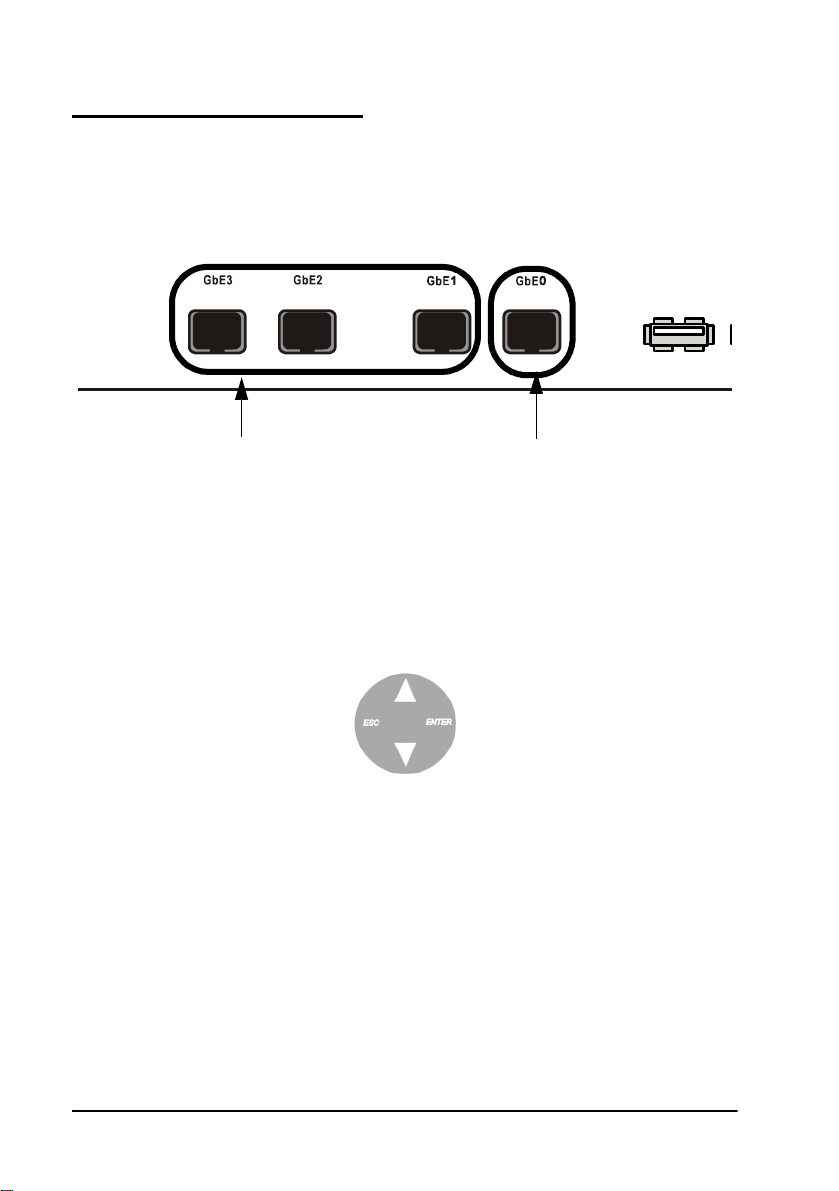
Through the Front Panel
The following procedure describes how to get the IP address from the VCB unit’s
front panel.
³ To define a static IP address
1 Connect a network cable to any one of interfaces GbE1 to GbE3.
Connect to any one
of these interfaces.
2 Turn the VCB unit on. A welcome message appears in the LCD display.
3 In the LCD display, press an arrow button until the
appears. Press the
4 Press an arrow button again until the connected networ k card and interface
appears (
NIC 1 to NIC 3
Enter
= GbE1 to GbE3) and press the
Interface GbE0 has a fixed static
IP which cannot be changed.
button.
GET IP
Enter
command
button. The
VCB unit receives an IP address from the DHCP server.
Select NIC:
1
172.20.21.22
If a cable is not connected to the interface,
0.0.0.0
appears in the display.
5 Leave the cable connected to the chosen interface.
6 Emblaze-VCON VCB5 User’s Guide
Page 15
2 Defining the VCB IP Configuration
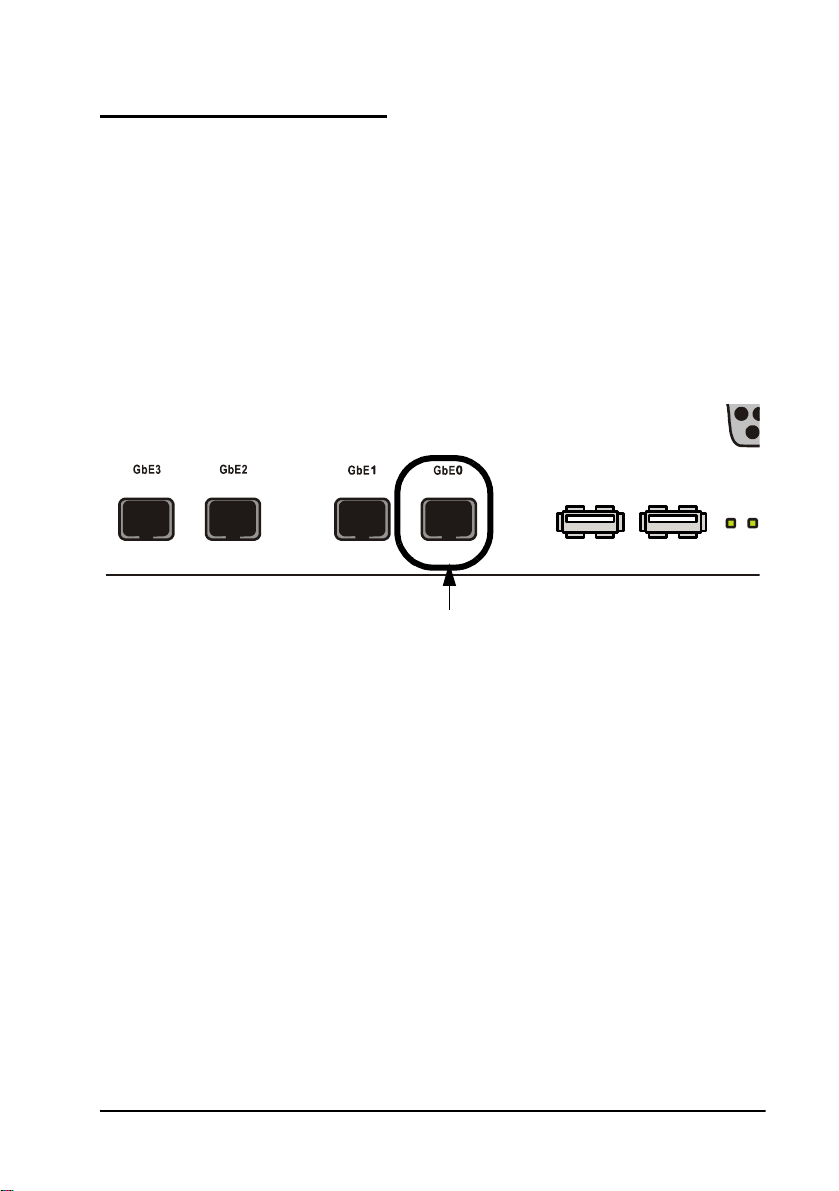
Through Interface GbE0
The following procedure describes how to access the VCB’s configuration directly
through the factory-configured interface.
³ To define a static IP address
1 Connect a communications cable between interface GbE0 and a computer.
This interface’s IP configuration is:
IP address 10.0.10.10
Subnet mask 255.255.0.0
Gateway IP
address
0.0.0.0
Connect to GbE0.
2 To access the VCB unit from another computer initially, the two systems
must, at least temporarily, belong to the same network segment. That is,
the first three fields of the address and the subnet mask must be identical.
Write down the computer’s current IP address and subnet mask so that you
can restore them later.
Change the remote computer’s IP configuration temporarily to th e same IP
address segment(10.0.10.x) and subnet mask listed in step 1.
3 Connect a network cable to any one of interfaces
4 Through the VCB Web Management program, define a static IP address for
GbE1
-
GbE3
.
the connected NIC.
5 Restore your computer’s original IP configuration.
Emblaze-VCON VCB5 User’s Guide 7
Page 16
2 Defining the VCB IP Configuration
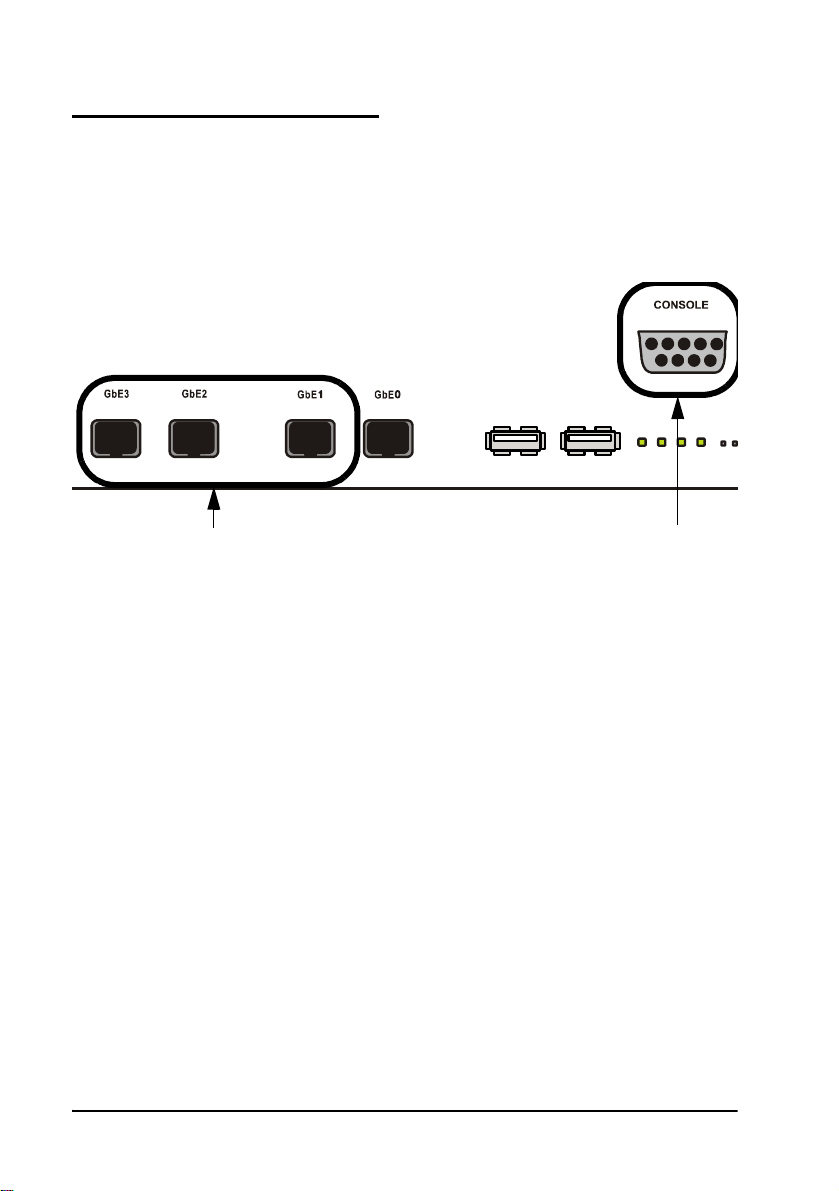
Through the Console Port
The following procedure describes how to access the VCB’s configuration directly
through the
Console
(or serial) port.
³ To define a static IP address
1 Connect a control cable between the VCB’s Console port and the remote
computer’s COM port.
From any one of these
interfaces to the network
2 Connect a network cable to any one of interfaces
3 Using Microsoft
®
HyperTerminal or a serial connection program, open a
From the CONSOLE port to
your computer’s COM port
GbE1
-
GbE3
.
connection between the computer and the VCB unit. Configure the
connection settings as follows:
Connect using: COM1 (or any other free COM port)
Bits per second 9600
Data bits 8
Parity None
Stop bits 1
Flow Control Xon/Xoff
4 Wait for the command prompt (>) to appear on the computer screen.
5 Type listip next to the command prompt.
8 Emblaze-VCON VCB5 User’s Guide
Page 17

2 Defining the VCB IP Configuration
6 After the command prompt (>), type the following syntax:
setparam ipstatic [0-3] [IP address][netmask][default gateway
address]
Make sure that the static IP address is unique, in order to avoid collisions on
the network.
7 To confirm the new IP configuration, type listip next to the command
prompt and press <Enter>.
Emblaze-VCON VCB5 User’s Guide 9
Page 18

Page 19
3 Logging into the VCB
3LOGGING INTO THE VCB
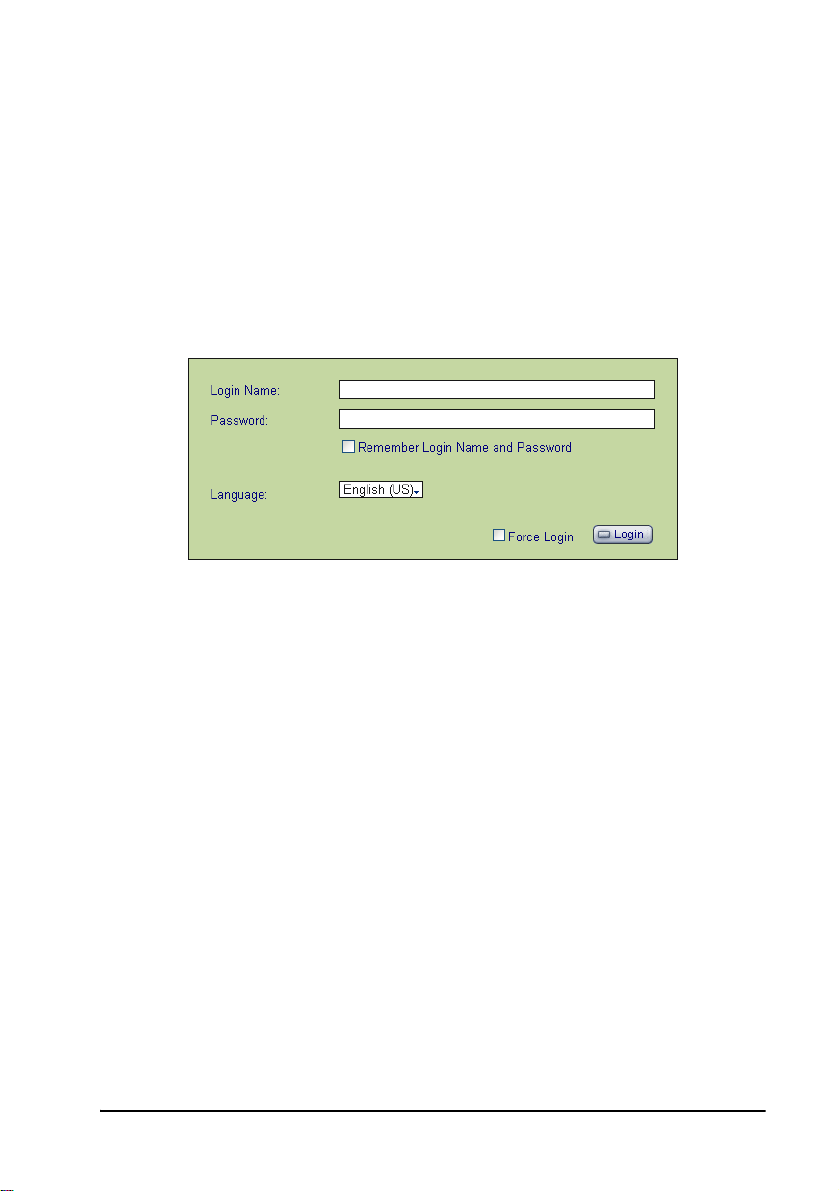
When you start the VCB program, you must first log in.
Emblaze-VCON’s Media Xchange Manager
for the VCB. The MXM manages the videoconferencing environment among end
points registered in it, including multipoint conferencing managed by the VCB.
³ To log in to the VCB
1 In your web browser, enter the URL of your VCB. The Login page appears.
Logging Into the VCB
2 Enter your login name and password. The factory-defined login
configuration is:
User Name su
Password 1234
®
(MXM) provides gatekeeper functions
3 If necessary, define the following:
Remember
Login Name
and Password
Language Language of the management program.
Force Login If a user with the same Login Name is already connected
4 Click
Emblaze-VCON VCB5 User’s Guide 11
Login
Select to allow the system to use the same login values in
the future.
from a different location, this login attempt will succeed,
disconnecting the other user.
.
Page 20
3 Logging into the VCB
5 Click the
VCB
tab to enter the VCB Configuration pages.
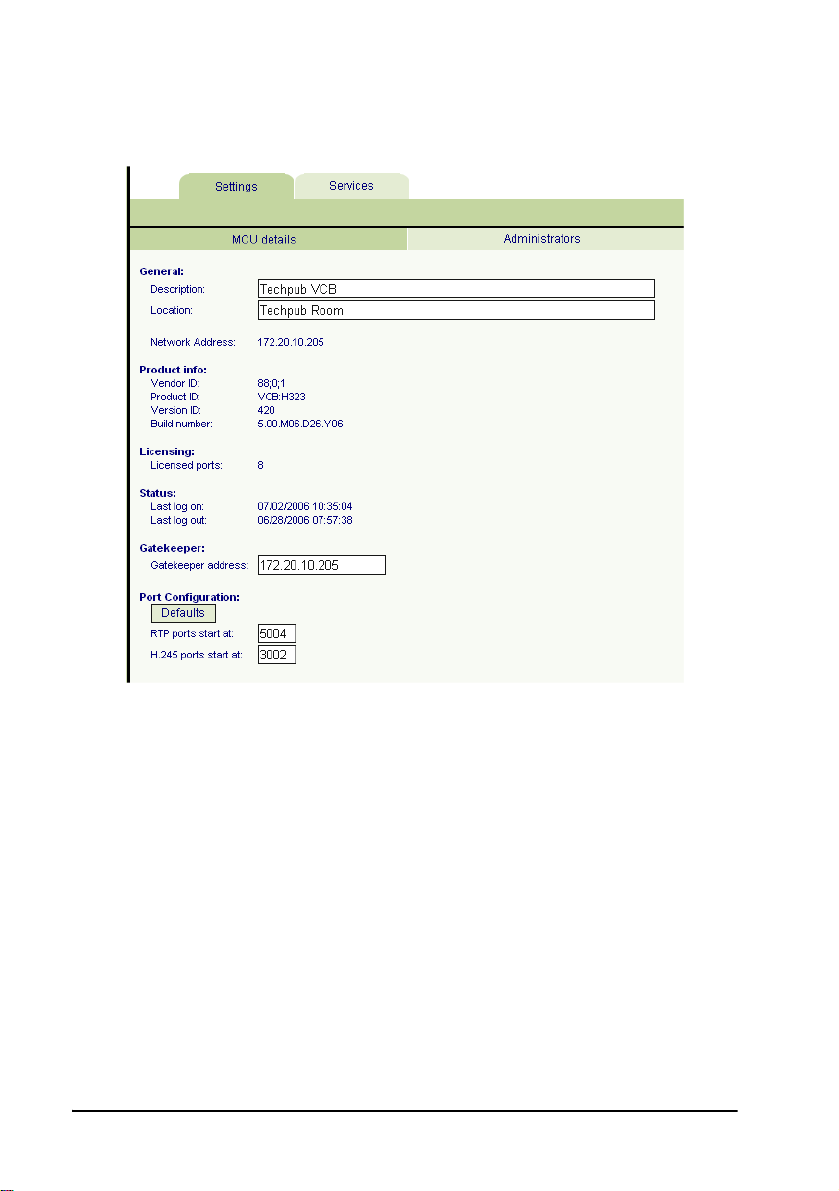
VCB Configuration is divided into Settings and Services.
VCB Settings - MCU Details
12 Emblaze-VCON VCB5 User’s Guide
Page 21

4 Setting Up the VCB
4SETTING UP THE VCB
This chapter provides instructions for setting the VCB configuration in the VCB
Configuration program, and describes the properties so that you can set up the most
suitable configuration for your installation.
4.1 VCB Settings
The
Settings
MCU Settings and Administrators categories.
MCU Settings
³ To display MCU Settings
1 After logging in, click the
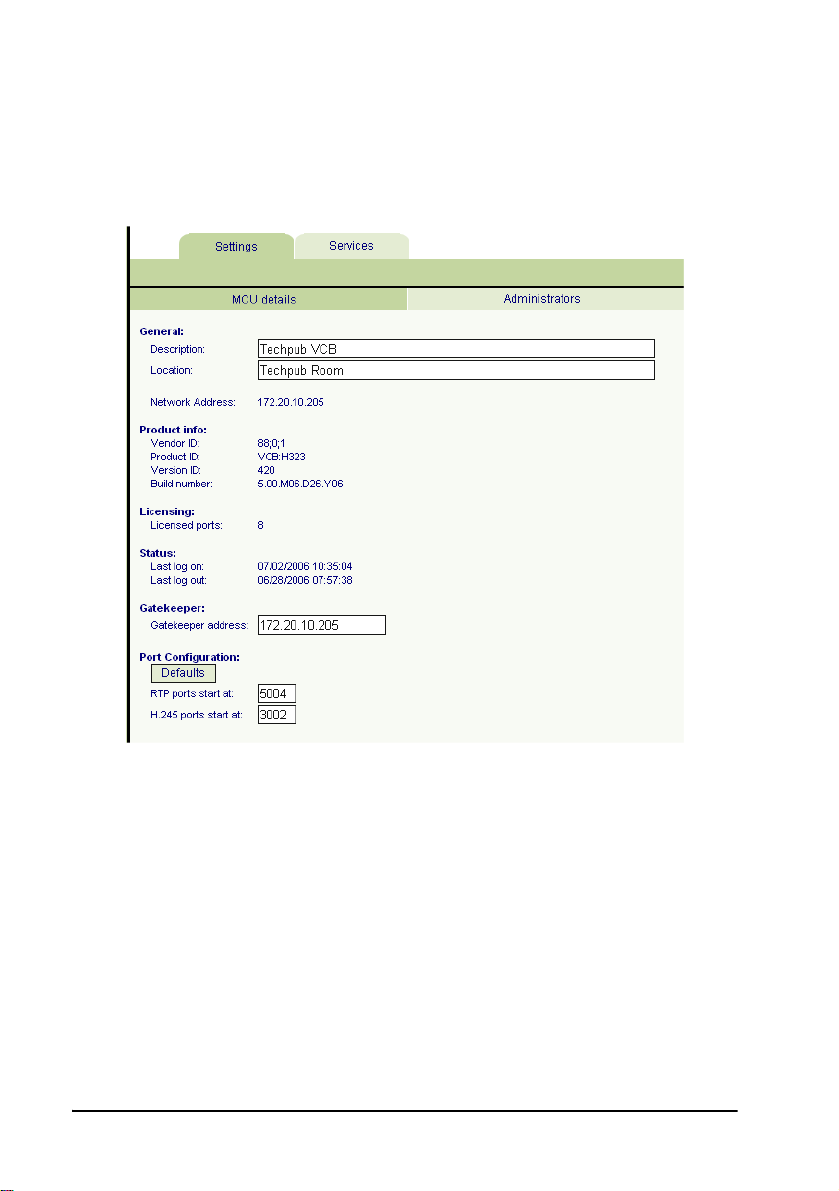
2 On this page, you can edit the parameters listed below. The other
Description Identity of the VCB. This name will appear in the MXM
Location Physical location of the VCB.
Gatekeeper
Address
Defaults Click to restore the default port configuration.
RTP Ports
Start At
H.245 Port
Range
tab contains general device configuration. These appear under the
Settings
parameters are read-only and cannot be edited in the VCB Configuration
program (for descriptions, see page 14).
Administrator after the login process is finished.
IP address of the MXM or H.323 gatekeeper.
The lowest port number allocated for video and audio
during videoconferences.
This allocation meets the Real-Time Protocol (RTP) and
Real-Time Control Protocol (RTCP) specifications,
which enable applications to synchronize and spool
audio and video information.
The lowest port number allowed for end-to-end
signalling of multimedia during videoconferences
This allocation provides for H.245 functions, such as
capability exchange, signalling of commands and
indications, and messages to open and fully describe the
content of logical channels.
tab and then
MCU Settings
.
Emblaze-VCON VCB5 User’s Guide 13
Page 22
4 Setting Up the VCB
3 To implement the changes, click
Apply
.
If an open conference is using the VCB when you make configuration changes,
some of these changes may take effect immediately. Otherwise, changes will
take effect in the next session.
In the
MCU Settings
Network
tab, the following properties are read-only:
IP address of the VCB.
Address
Ven dor I D Identity of the manufacturer.
Product ID Manufacturer's identity of the product.
Ver s io n I D Manufacturer's version identification of the product.
14 Emblaze-VCON VCB5 User’s Guide
Page 23

4 Setting Up the VCB
Build Number Version information for the VCB.
Licensed Ports Maximum number of concurrent participants that may
be serviced by in this VCB.
Last Log On Most recent date that the VCB logged in to the MXM or
H.323 gatekeeper.
Last Log Out Most recent date that the VCB logged out of the MXM or
H.323 gatekeeper.
Last Log On
If the
date, the selected node is currently logged into the MXM.
date is later than the
Last Log Out
Emblaze-VCON VCB5 User’s Guide 15
Page 24
4 Setting Up the VCB
Administrators List
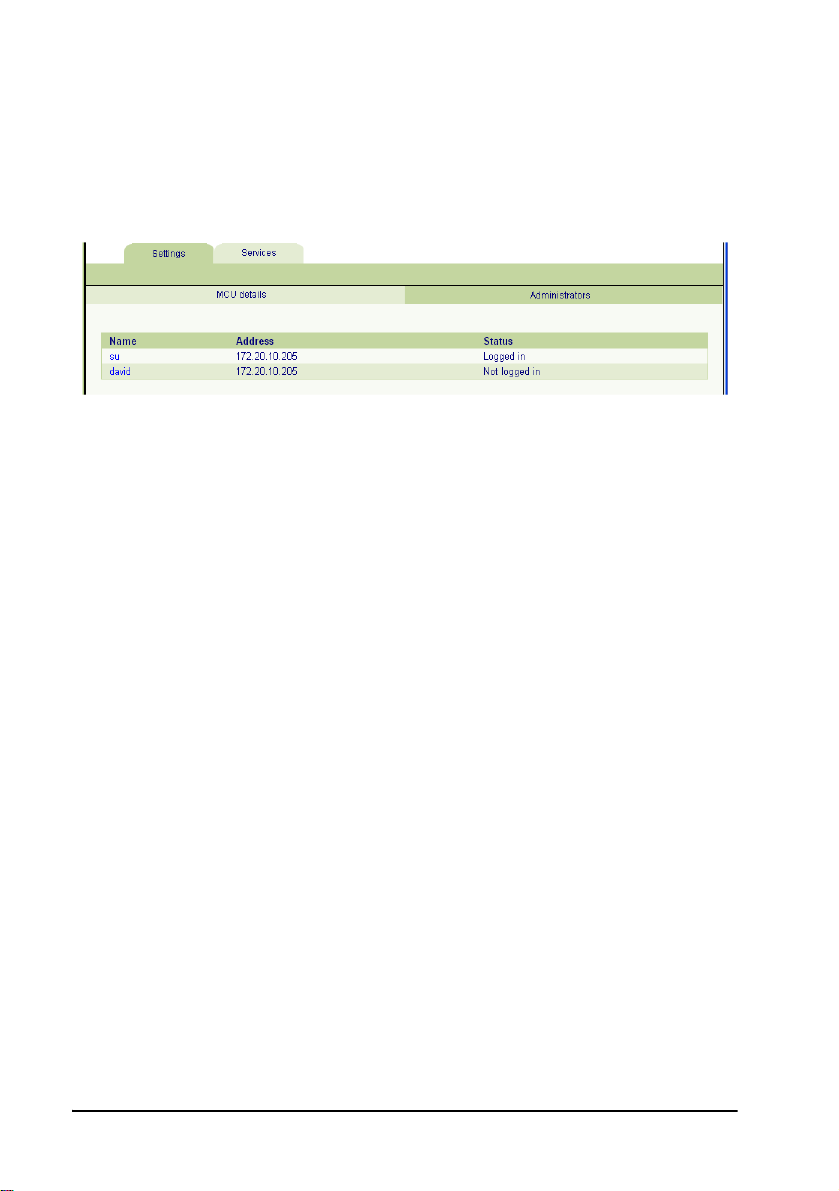
The
Administrator
tab lists administrators with permission to work with the VCB.
³ To display the list of Administrators
T In the
Settings
tab, click
Administrators
List of Administrators
.
³ To change an Administrator password
T In the
appears.
Name
column, click the name. The Edit Administrator dialog
Changing Administrator Password
To keep the same password, leave the
New Password Type a new password for the administrator.
Confirm the
Password
16 Emblaze-VCON VCB5 User’s Guide
Type the new password again.
Password
boxes blank.
Page 25
4 Setting Up the VCB
4.2 VCB Services Configuration
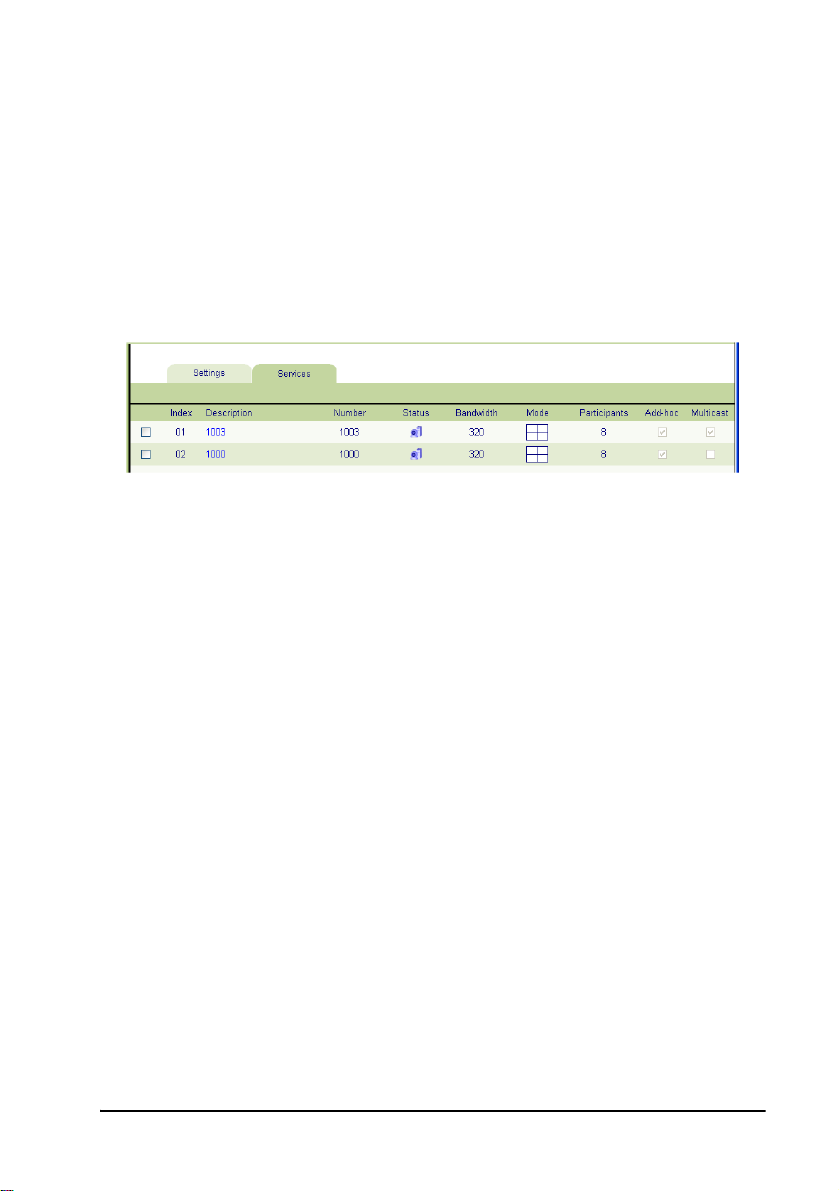
VCB Services define the usage of resources used during a multipoint
videoconference managed by the VCB.
After the VCB's installation, you can add or edit service entries. One directory
number (E.164) is created for each service type.
To handle situations in which additional participants require additional
resources, set up several VCB Services with incremental increases in
bandwidth, number of ports, or multicast capabilities.
List of VCB Services
³ To add a VCB Service
T At the bottom of the list of services, click
appears in the list with the default configuration.
Add
. A new VCB Service entry
³ To edit a VCB Service
1 Click the name of the VCB Service in the
Configuration page opens. The Configuration includes the following
categories (each in its own tab on the page).
— General
—Layouts
—Media
—QoS
—Advanced
2 Change properties according to your service specifications, or keep the
default settings. When you finish each page, click
changes. For explanations about the various properties, see the following
subsections.
3 When you finish editing the configuration, click
Services list.
Emblaze-VCON VCB5 User’s Guide 17
Description
Apply
List
column. The Service
to implement the
to return to the
Page 26
4 Setting Up the VCB
³ To delete a VCB Service
1 Click the checkbox to the left of the VCB Service entry.
2 Click
3 Click
The following subsections describe the VCB Service properties.
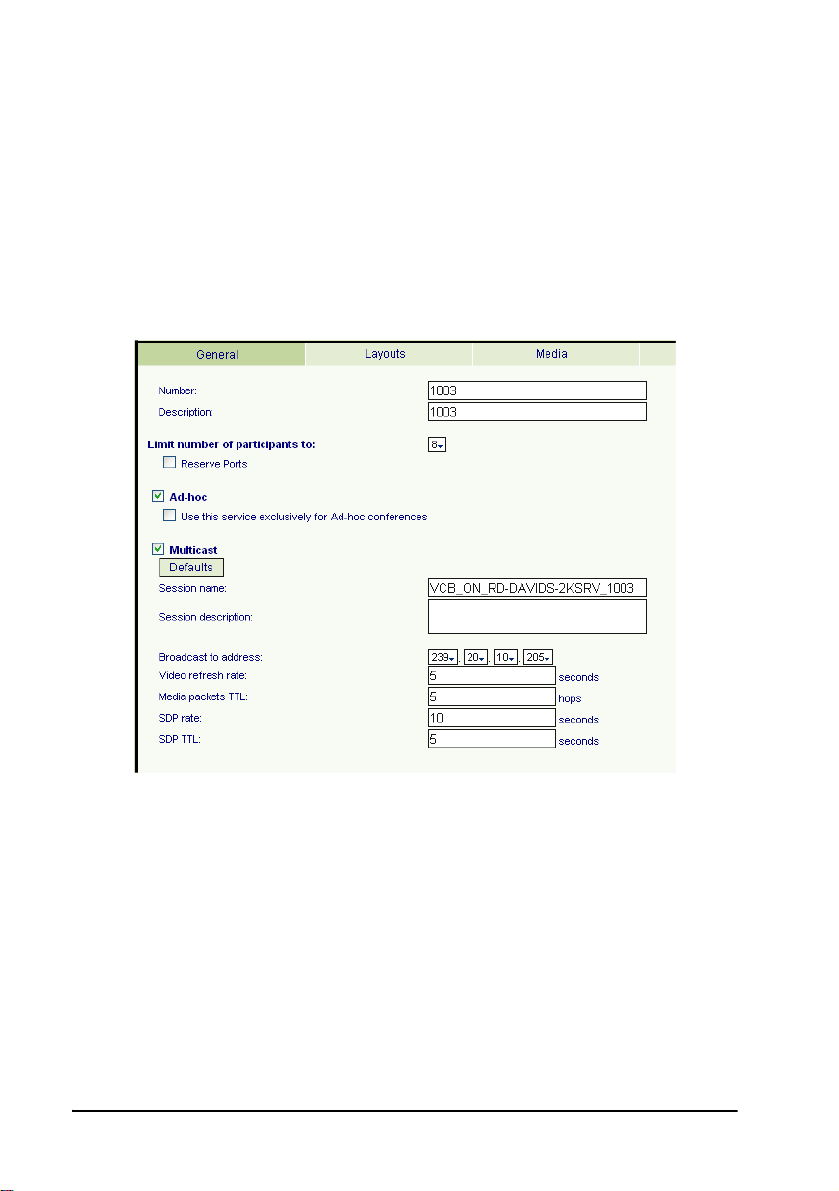
General
In the
General
Delete
.
OK
to confirm.
page, enter identity information of the VCB Service.
VCB Service - General
In the
General
Number Number to be dialed for using this service.
Description Name of the service. This name identifies the service in
Limit Number
of Participants
to
18 Emblaze-VCON VCB5 User’s Guide
tab, the following properties appear:
the VCB Services List.
The maximum number of concurrent calls allowed in
this session, according to your VCB’s license terms.
Page 27

4 Setting Up the VCB
Reserve Ports If selected, the VCB reserves an equal number of ports as
the number of maximum users in this session, in
accordance with your VCB license terms.
For example, if the session is limited to a maximum of 8
participants, the VCB will reserve 8 ports. None of those
ports will be available for other sessions.
Ad-hoc Select to enable expansion to an ad-hoc conference.
Use this
service
exclusively for
ad-hoc
conferences
Multicast Select to enable streaming sessions.
Defaults Click to restore the default multicast streaming
Session Name Type a name to identify this service's multicast session.
Session
Description
Broadcast to
Address
Video Refresh
Rate
Media Packets
TTL
SDP Rate Session Description Protocol Rate - The interval at which
SDP TTL The maximum number of routers (hops) that the SDP
This service is only available for inviting additional users
into ad-hoc videoconferences, but not available for
initiating multipoint sessions.
configuration.
Type a name or description of the multicast session.
The destination IP address for the multicast session. All
participants in the session transmit and receive from this
common IP address. This address must be a class D
address in the range of 224.0.0.0 to
239.255.255.255.
Define the interval at which the end point broadcasting
the multicast synchronizes the video display at the
receiving ends.
The maximum number of routers (hops) that the
multicast session's packets may pass through.
announcements and descriptions of the multicast
session are sent out on the Internet Multicast backbone
(Mbone), for Participants and passive third-party
viewers.
announcement for this session may pass through.
Emblaze-VCON VCB5 User’s Guide 19
Page 28
4 Setting Up the VCB
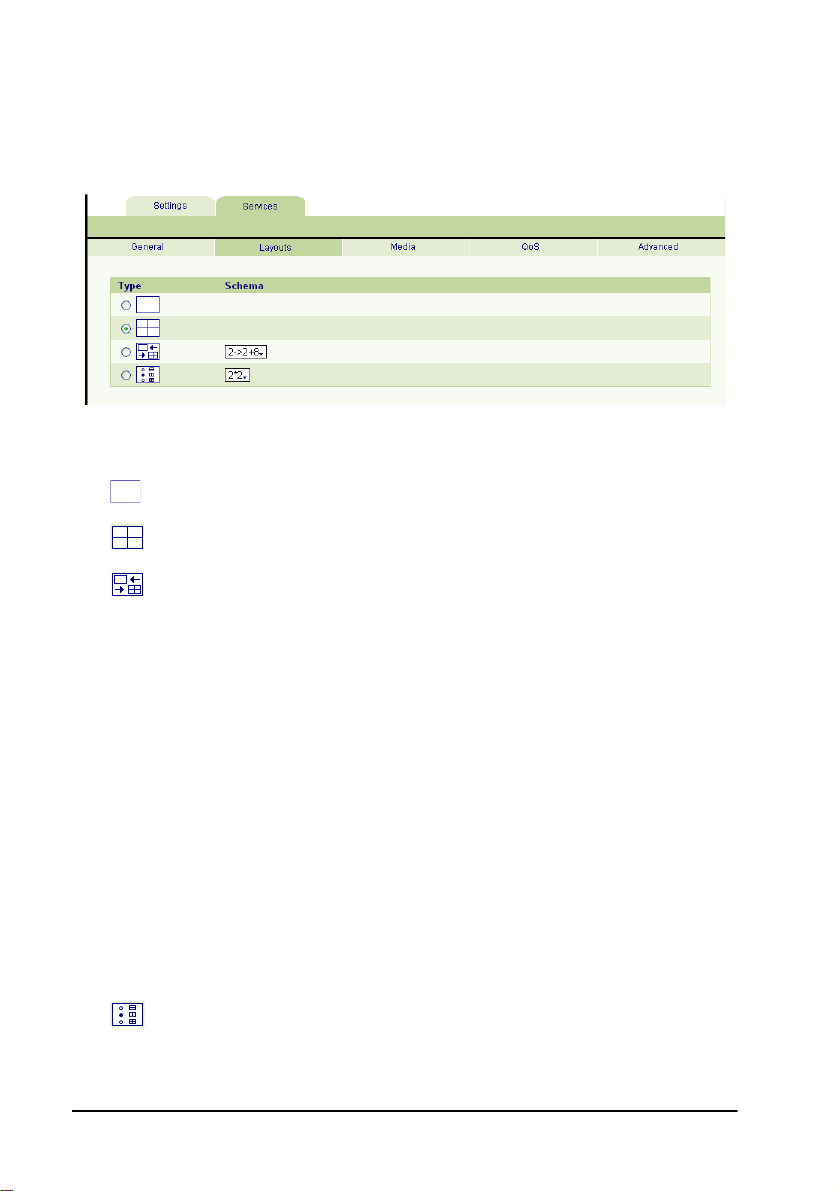
Layouts
In the
Layouts
the same time.
Choose the type and if necessary, schema for the layout:
tab, define the layout for displaying multiple users on the screen at
VCB Service - Layouts
Display one user at a time.
Display up to four users at a time.
Display changes automatically depending on the number
of users in the conference.
1->2->3->2*2->3*3->4*4
1 = 1 user
2 = 2 users
3 = 3 users
2*2 = 4 users in 2 rows
3*3 = 5-9 users in 3 rows
4*4 = 10-16 users in 4 rows.
2->2+8
When over 2 users participate, one row of 2 users and
another row of 8 windows open; each additional user
appears in a window and unused windows remain
empty.
1->1+5->1+7
1=1 user
1+5=2-6 users
1+7=7-8 users.
Display users in the same layout schema regardless of
the number of the users in the call.
In the
Schema
list, choose the layout.
20 Emblaze-VCON VCB5 User’s Guide
Page 29
4 Setting Up the VCB
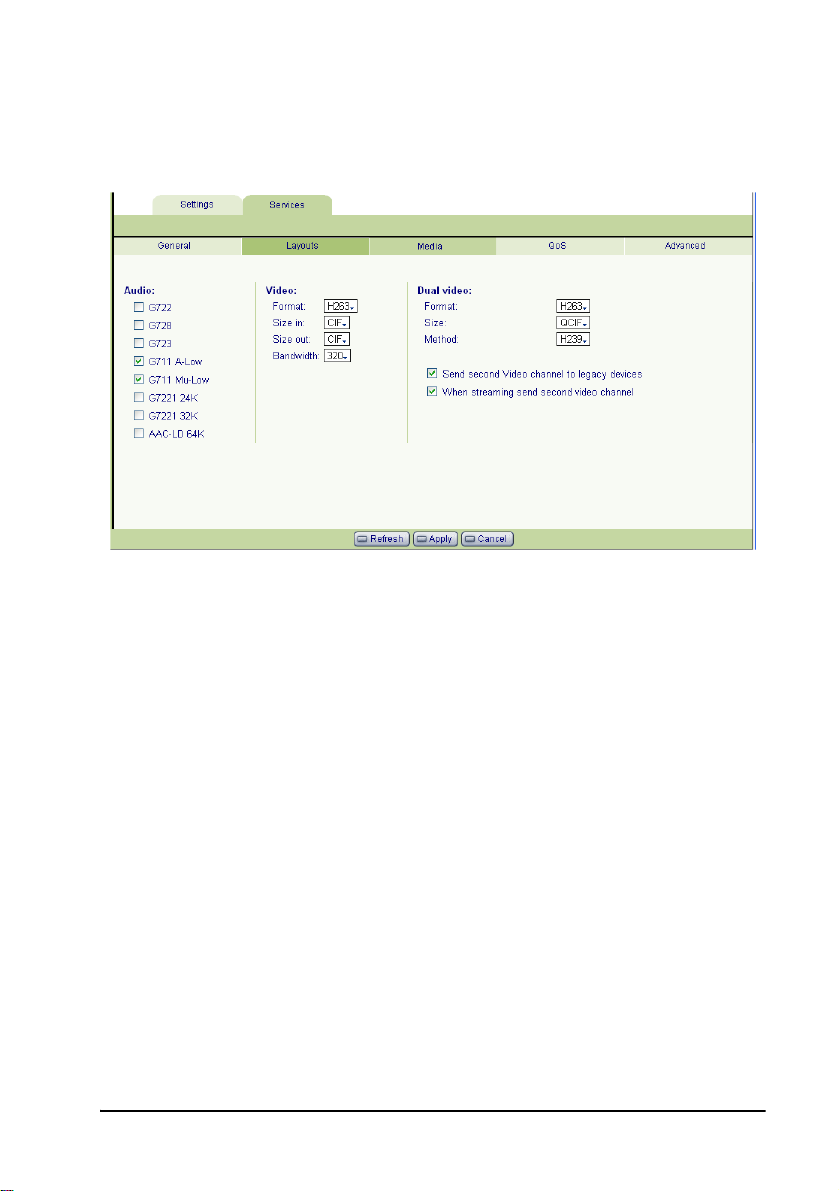
Media
The
Media
tab contains the settings for audio formats, video format s and dual-video
streaming.
VCB Service - Media
Audio
Only audio codecs that are specified in your VCB’s license may be used during
Audio
its calls. In the
using this specific VCB Service.
To reach the maximum active participants per session/server, enable no more
than two codecs per session.
list, select the codecs that are available for conferences
Video
Format The video codec (
multipoint conference.
Size In/
Size Out
Bandwidth The bandwidth available for each participant.
The size of the transmitted video images:
•
CIF
(Common Interchange Format), or normal size
•
QCIF
or quarter size
In Continuous Presense, the local side transmits QCIF
video and receives CIF or 4CIF video.
H.261, H.263, H.264
(Quarter Size Common Interchange Format),
) used in the
Emblaze-VCON VCB5 User’s Guide 21
Page 30

4 Setting Up the VCB
Dual Video
End points that support Emblaze-VCON’s HD DualStream™ (vPoint HD,
HD5000, HD4000, HD3000 and HD2000) or other dual-video capability can
send video and data streams simultaneously to a multipoint conference
through the VCB. During a conference, end points supporting HD DualStream
can view documents, graphics, and presentations as the main image, while the
video appears as a PIP inset on the screen.
Format The video codec (
streaming source.
Video Format/
Size
Method Define the permitted method for transmitting dual video
The format and resolution of the transmitted video
images.
The available formats are:
T CIF (Common Interchange Format), or normal size
- 352x288
T QCIF (Quarter Size Common Interchange Format),
or quarter size - 176x144
T 4CIF (4 x CIF) - 704x576
T XGA (Extended Graphics Array) - 1024x768
VGA
T
T
streams during a conference managed through this
service.
The H.239 standard enables end points to convert data
into a separate media stream and transmit it parallel to
the video stream. Video systems supporting H.239
display shared data and live video in separate windows.
Systems not supporting H.239 display only the shared
data in a single window.
T Choose None to block all dual video transmission.
T Choose H.239 to allow H.239 dual video
- (Video Graphics Array) 640x480
SVGA
transmission.
H.261, H.263, H.264
(Super Video Graphics Array) - 800x600
) used by the
22 Emblaze-VCON VCB5 User’s Guide
Page 31

4 Setting Up the VCB
Send second
video channel
to legacy
devices
When
streaming send
second video
channel
If a receiving end point does not support dual streams, it
receives only the stream carrying the shared data
application. However, the data app ears in video format.
If data sharing takes place during a multicast conference,
the multicast session’s Participants receive the data
stream only.
Emblaze-VCON VCB5 User’s Guide 23
Page 32
4 Setting Up the VCB
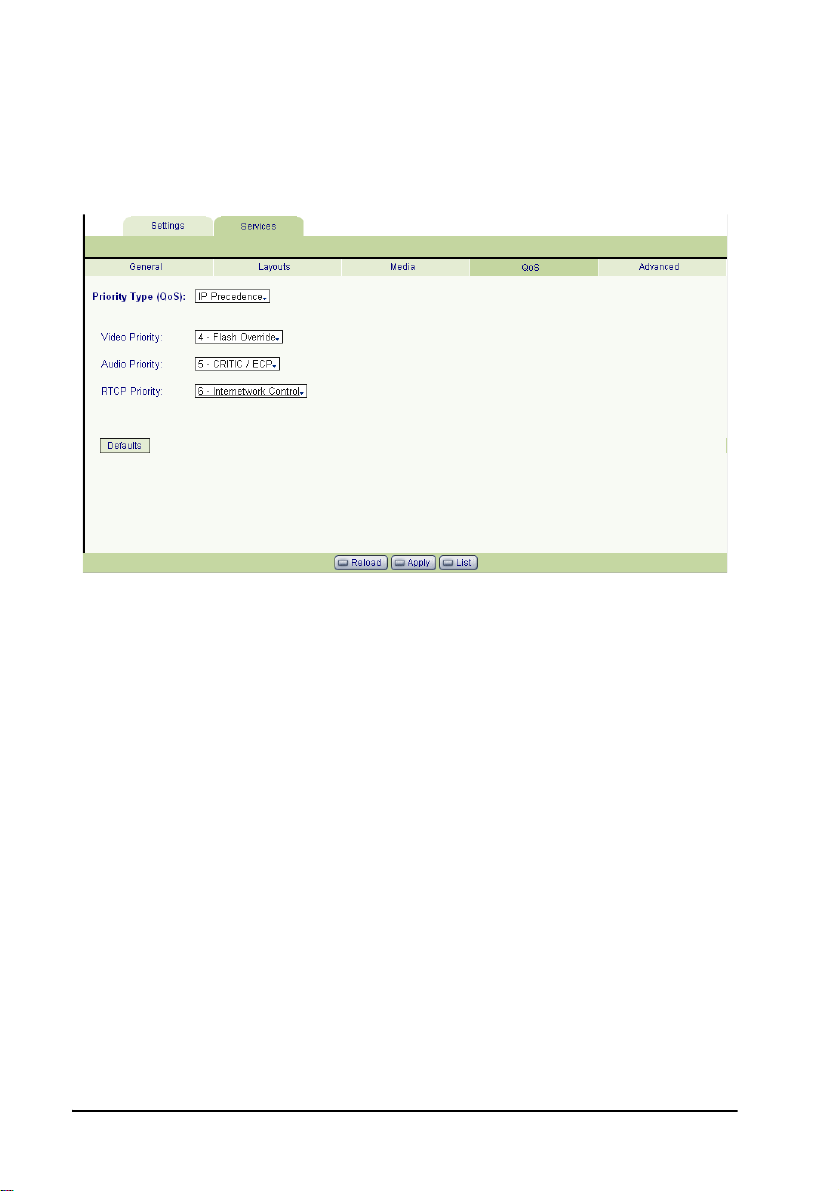
QoS
The
QoS
tab contains properties for controlling the type of Quality of Service that
will be used for transmitting packets during a multipoint conference that’s initiated
using this VCB Service.
VCB Service - QoS
Priority Type (QoS)
Select the type of QoS used for transmitting packets during heavy network
congestion conditions.
No Priority Network transfers packets using normal Best-effort (or
Routine) packet transmission.
IP Precedence Network gives priority to certain types of bits (video,
audio, control) according to the eight levels of IP
precedence.
Diffserv Network transfers packets according to specific needs of
the sending application.
24 Emblaze-VCON VCB5 User’s Guide
Page 33
4 Setting Up the VCB
Priority Values
Video, Audio
and RTCP
Priority
Defaults Click to restore the default QoS configuration.
For each packet type, select an appropriate prio rity level.
The item with the highest priority number will be sent
first, the item with the next highest number will be sent
second, and so on.
The priority levels vary, depending on whether the
selected Priority Type is IP Precedence or Diffserv.
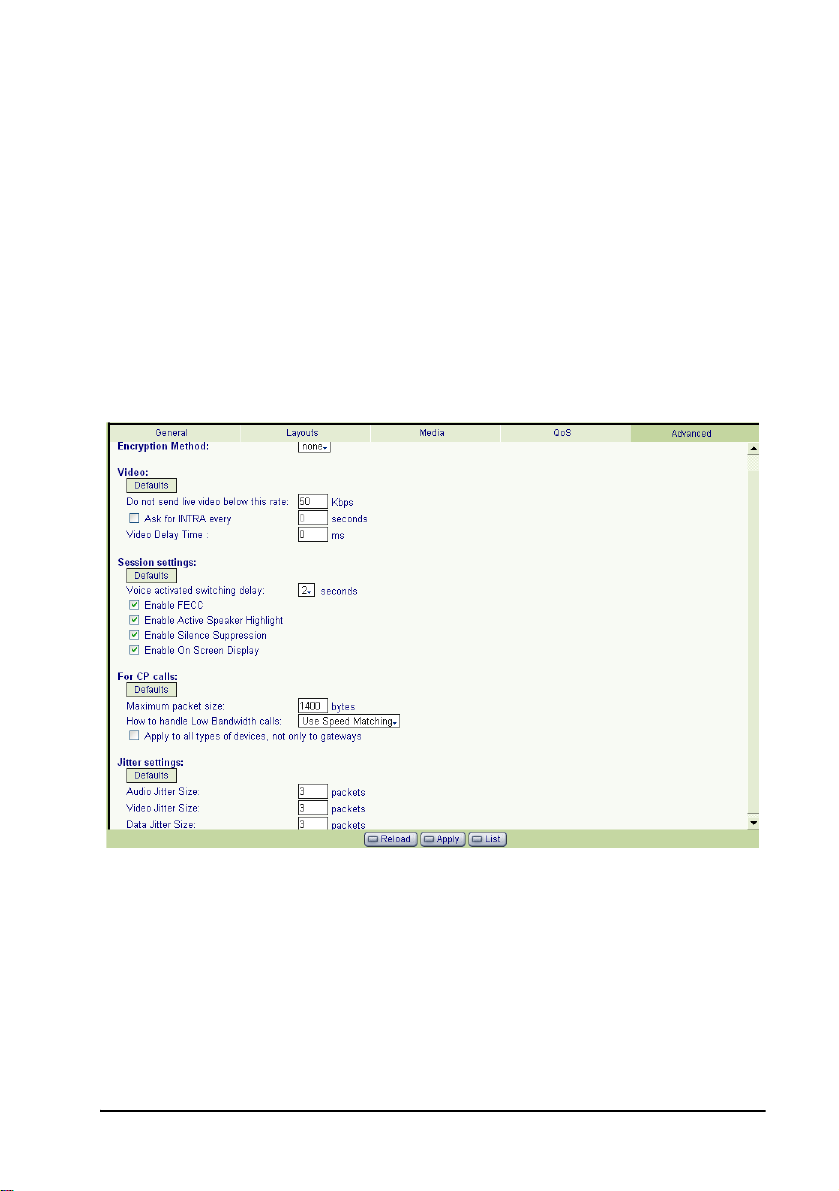
Advanced
In the
Advanced
managing multipoint conferences.
page, define additional parameters required by the VCB for
VCB Service - Advanced
Defaults Click to restore the default configuration for the
associated set of parameters.
Emblaze-VCON VCB5 User’s Guide 25
Page 34

4 Setting Up the VCB
Encryption
Method
Do Not Send
Live Video
Below This
Rate
Ask for Intra
Every ____
Seconds
Video Delay
Time
Voice-activated
Switching
Delay
Enable FECC Select to enable Far End Camera Control (FECC) to all
Enable Active
Speaker
Highlight
Choose the mode of encryption for conferences using
this service.
T Choose
T
Auto
call if the remote sides have also enabled encryption.
If they have not enabled encryption, an outgoing call
will be unsecured.
T
AES
encoding method for encrypting data transmissions
in commercial and government sectors of the USA
and its use is growing worldwide.
Select this option to encrypt all calls using this VCB
Service. If the remote sides have not also enabled
encryption, the call attempt will be unsuccessful.
The minimum bandwidth required for sending video
during a conference using this service.
Select to enable displayed end points to send periodic
intras in order to synchronize the video display at the
receiving end. This setting affects conferences managed
with this VCB Service.
In this box, define the interval between the transmission
of intras.
Delay between transmission of video packets. This
parameter is intended for preventing video burst during
transmission through various routers or servers.
Delay period before changing the displayed video during
a voice-activated switching multipoint conference. The
displayed video changes only after the source of the new
sound or voice is steady for the defined period. A delay
period is necessary to prevent quick incoherent display
changes that may be caused by sudden noises (such as a
sneeze) rather than a steady speaker.
participants in a conference using this service.
Applicable only to Voice-activated Switching mode.
Select to display a frame surrounding the active speaker
in Continuous Presence.
None
to allow unsecured calls.
enables the transmitting end point to encrypt a
(Advanced Encryption Standard) is a standard
26 Emblaze-VCON VCB5 User’s Guide
Page 35

4 Setting Up the VCB
Enable Silence
Suppression
Enable On
Screen Display
Maximum
Packet Size
In CP, how to
handle low
bandwidth
calls
Select to enable the VCB to lower bandwidth and CPU
usage during periods of low audio and silence.
Select to display the names of the displayed users in
Continuous Presence.
To allow Continuous Presence calls to proceed, set this
parameter either equal to or lower than your network’s
MTU.
If a Continuous Presence call tries to connect using a
lower bandwidth than defined by this service, the VCB
will handle the call’s bandwidth according to the selected
setting.
Do nothing
T
T
Reject the call
continue.
T
Open only audio
to continue.
T
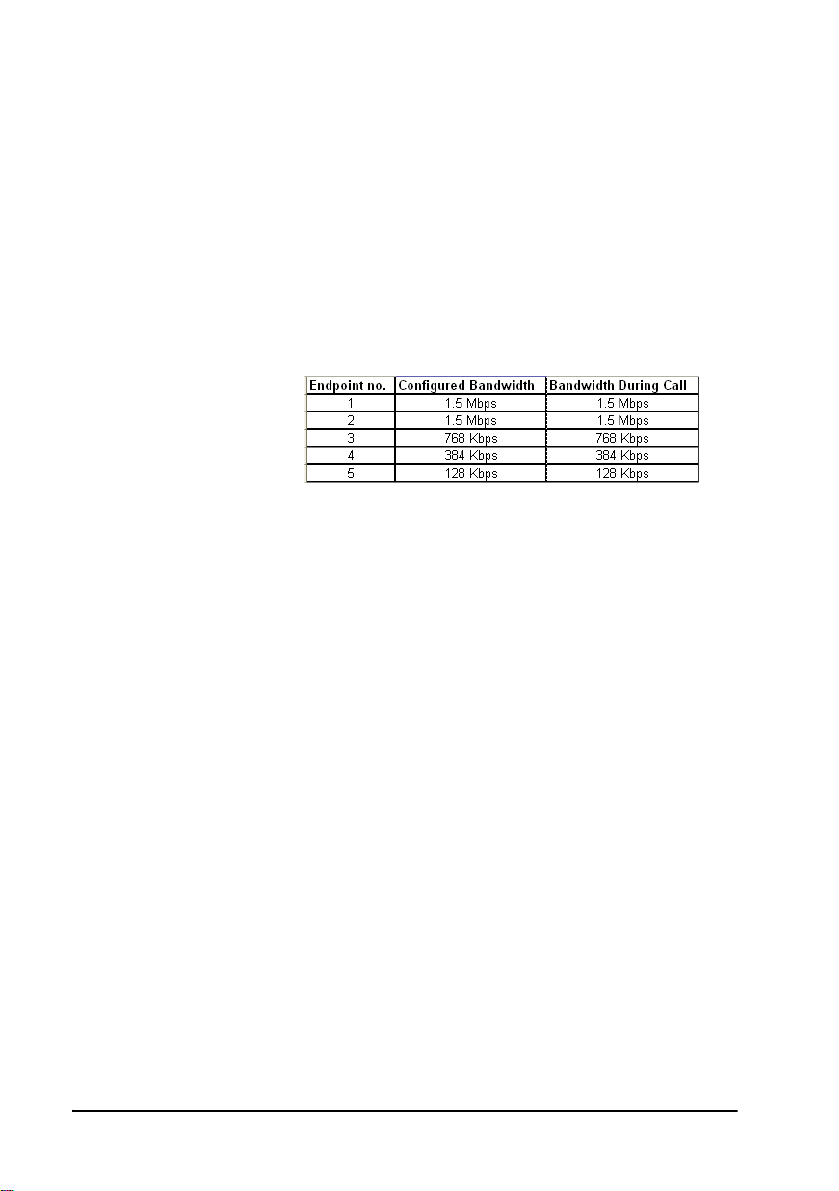
Use Speed Matching
VCB Service's defined bandwidth + 64 Kbps audio].
However, all end points not supporting this
bandwidth receive the call at the lowest bandwidth
used among all participants.
The table below shows the bandwidth used when a
Continuous Presence call of [320 x4 Kbps + 64 Kbps
audio] connects, resulting in the transfer of the full
1.5 Mbps bandwidth to those end points supporting
it, but all end points supporting less (than 1.5 Mbps)
bandwidth only receive 128 kbps.
- This setting is not applied to calls.
- The VCB does not allow the call to
- The VCB allows the audio stream
- The call continues at [4x the
Emblaze-VCON VCB5 User’s Guide 27
Page 36
4 Setting Up the VCB
In CP, how to
handle low
bandwidth
calls (cont.)
Apply to all
types of
devices, not
only to
gateways
Audio/Video/
Data Jitter Size
T
Use Symmetric Video
the VCB Service's defined bandwidth + 64 Kbps
audio]. However, all end points that do not support
the call's bandwidth receive the call at the
bandwidth defined in their configuration.
The table below shows the bandwidth used when a
Continuous Presence call of [320 x4 Kbps + 64 Kbps
audio] connects, resulting in the transfer of the full
1.5 Mbps bandwidth to those end points supporting
it, but all end points supporting less (than 1.5 Mbps)
bandwidth only receive their configured bandwidth.
To apply low bandwidth adjustment to all end po ints in a
conference, select
apply low bandwidth calling only through gateway
connections.
Smooth playback of transmitted media continues even if
the packets arrive out of order at the receiving end, up to
the number of packets defined here for each packet type.
this option.
- The call continues at [4x
Deselect this option to
28 Emblaze-VCON VCB5 User’s Guide
Page 37
5 Setting Up a Dedicated VCB Service
5SETTING UP A DEDICATED VCB
ERVICE
S
The tasks described in this chapter are procedures which you perform in
®
Emblaze-VCON’s Media Xchange Manager
application.
5.1 Dedicated Service for End Points
A dedicated VCB service is set up only for expansion to an ad-hoc conference that
includes a specific end point. That is, the service is “dedicated” to that end point.
That specific end point must be either one of the original two end points of a pointto-point conference or the invited end point.
³ To dedicate a service to a specific end point
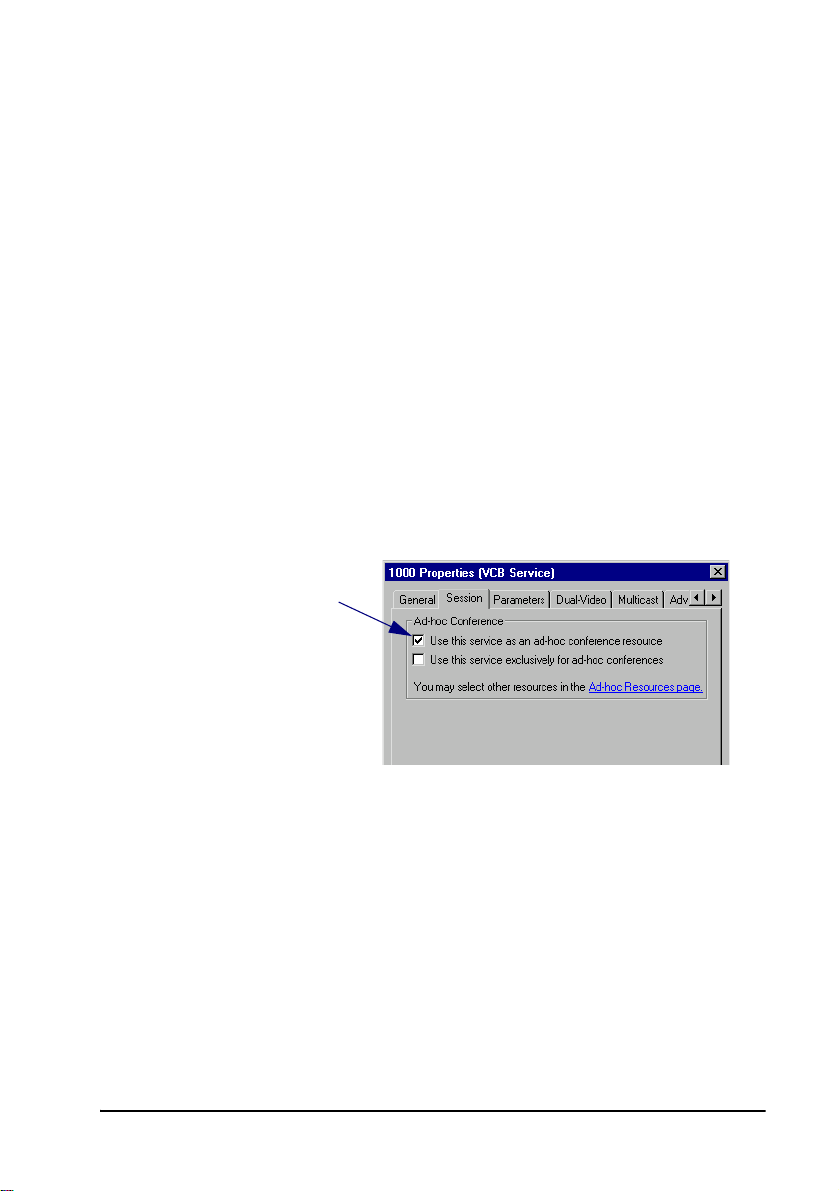
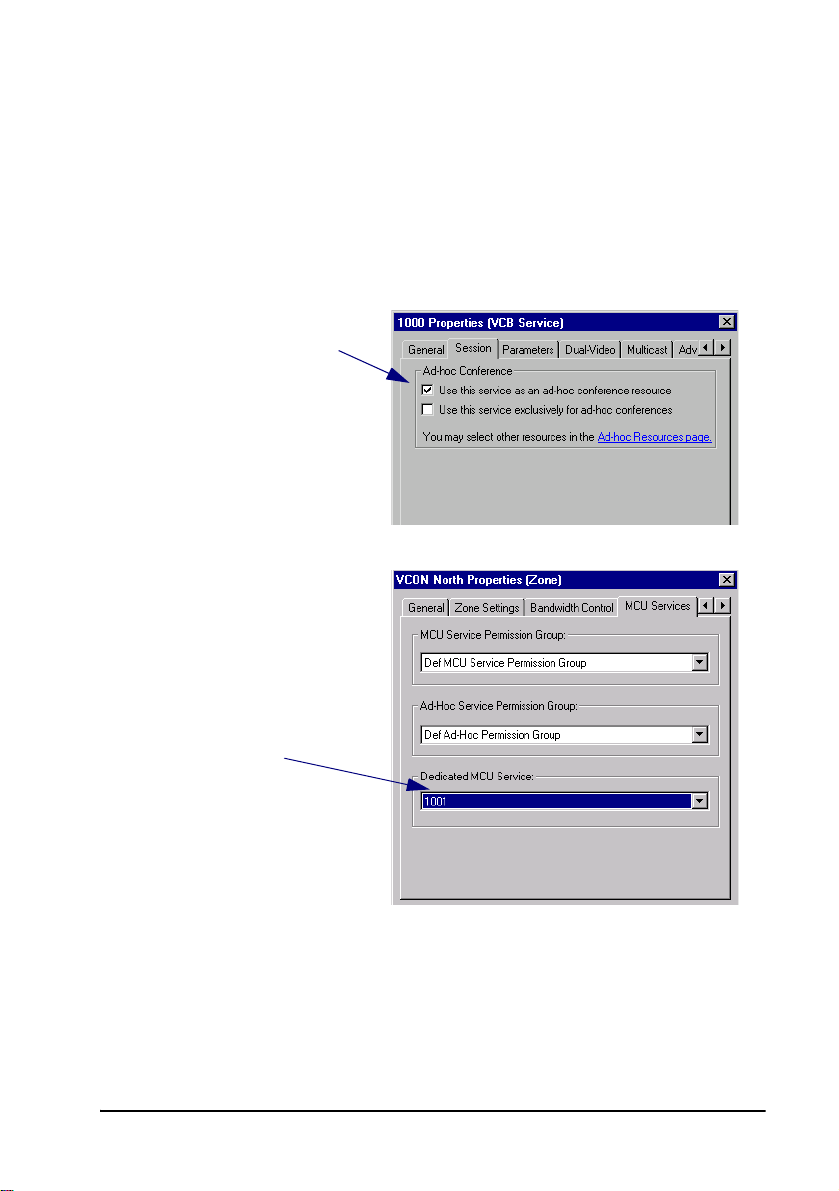
1 In the MXM Administrator, double-click the VCB Service and then click the
Session
2 Select Use this
service as an adhoc conference
resource and then
click OK (in addition,
you may also set the
service to be exclusive
for ad-hoc conferences
only).
tab.
(MXM) Administrator
Emblaze-VCON VCB5 User’s Guide 29
Page 38
5 Setting Up a Dedicated VCB Service
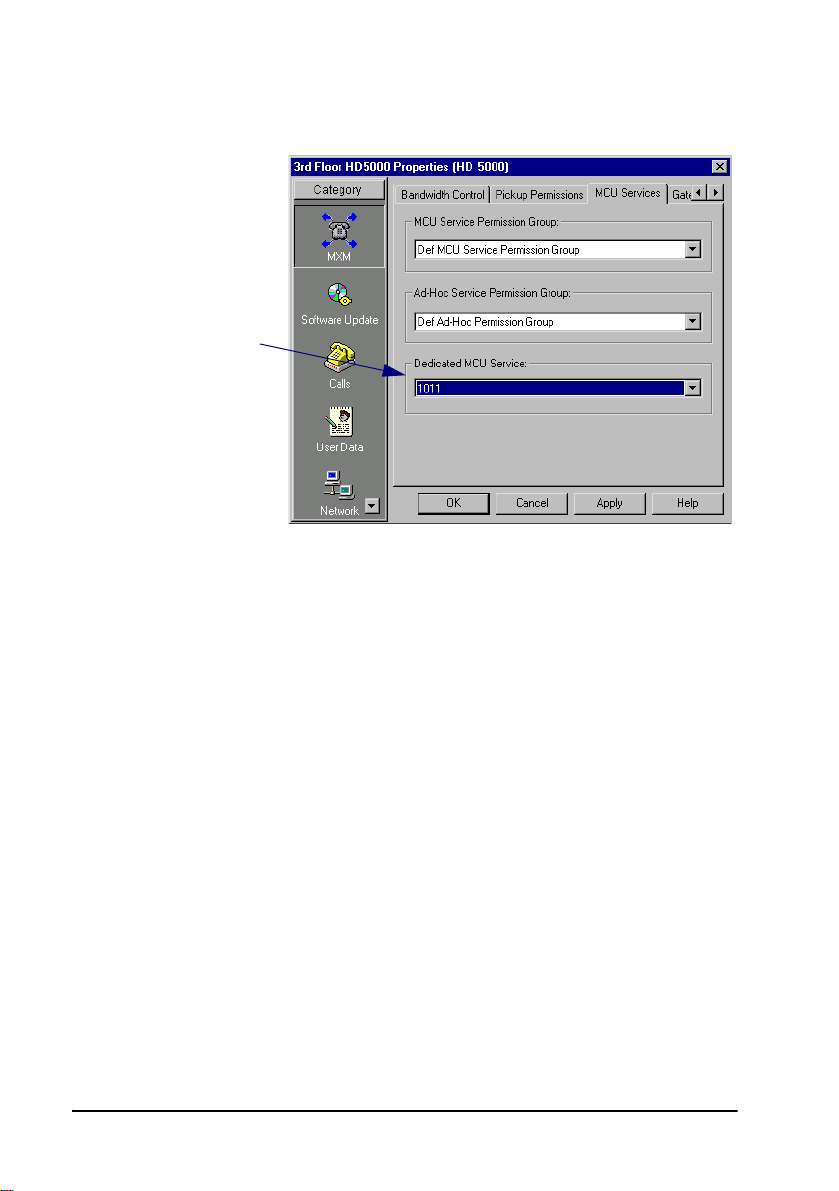
3 Double-click the end point, click
tab.
4 In the
Dedicated
MCU
Service list,
select the
service.
Click OK.
MXM
, and then click the
MCU Services
30 Emblaze-VCON VCB5 User’s Guide
Page 39
5 Setting Up a Dedicated VCB Service
5.2 Dedicated Service for a Zone
A dedicated ad-hoc service for a neighboring zone may be used only if any of that
zone's end points are in the resulting ad-hoc conference (either one of the original
two end points of the conference or the invited end point).
³ To dedicate a service to a specific end point
1 In the MXM Administrator, double-click the VCB Service and then click the
Session
2 Select Use this
service as an adhoc conference
resource and then
click OK (in addition,
you may also set the
service to be exclusive
for ad-hoc conferences
only).
tab.
3 Double-click the neighboring zone and then click the
4 In the
Dedicated
MCU
Service list,
select the
service.
Click OK.
MCU Services
tab.
Emblaze-VCON VCB5 User’s Guide 31
Page 40

Page 41

6 Adding the VCB to an Ad-hoc Permission Group
6ADDING THE VCB TO AN AD-HOC
ERMISSION GROUP
P
The tasks described in this chapter are procedures which you perform in
®
Emblaze-VCON’s Media Xchange Manager
application.
An Ad-hoc Permission group is a set of VCB services that are defined for use in adhoc conferences. It helps you control the use of resources for expanding to ad-hoc
conferences.
An Ad-hoc Permission group may consist of one service or multiple services. It may
also include combinations of services from more than one registered VCB unit. The
order in which services are requested is important and controllable by Super Userlevel administrators.
During expansion to an ad-hoc conference, the MXM only uses those services listed
in the inviting end point’s assigned permission group. After an invitiation is
initiated, the MXM first tries to use the first service defined in the permission group.
If the first service is not available, it tries to use the second defined service, and so
on. If all enabled services are unavailable, the MXM does not complete the
"invitation" to the additional end point.
By default, every registered end point is assigned to the default Ad-hoc Permission
Group. This may be changed when manually adding a new end point, or by editing
the end point’s properties.
(MXM) Administrator
³ To add an Ad-hoc Permission Group
1 In the MXM Administrator applications’s toolbar, click the New Ad-hoc
Permission Group button. The New Ad-hoc Permission Group dialog
box appears.
2 Change properties according to your permission group requirements. To
move to the next properties page, click
various properties, see pages 34 to 36.
3 Click
Emblaze-VCON VCB5 User’s Guide 33
Finish
. In the Main View, the new group appears under the Ad-hoc
Permission Group object.
Next
. For explanations about the
Page 42
6 Adding the VCB to an Ad-hoc Permission Group
6.1 Ad-hoc Permission Group Properties
In the Ad-hoc Permission Group dialog box, you can view and change the following
configuration information:
• General
• Permission Group
General
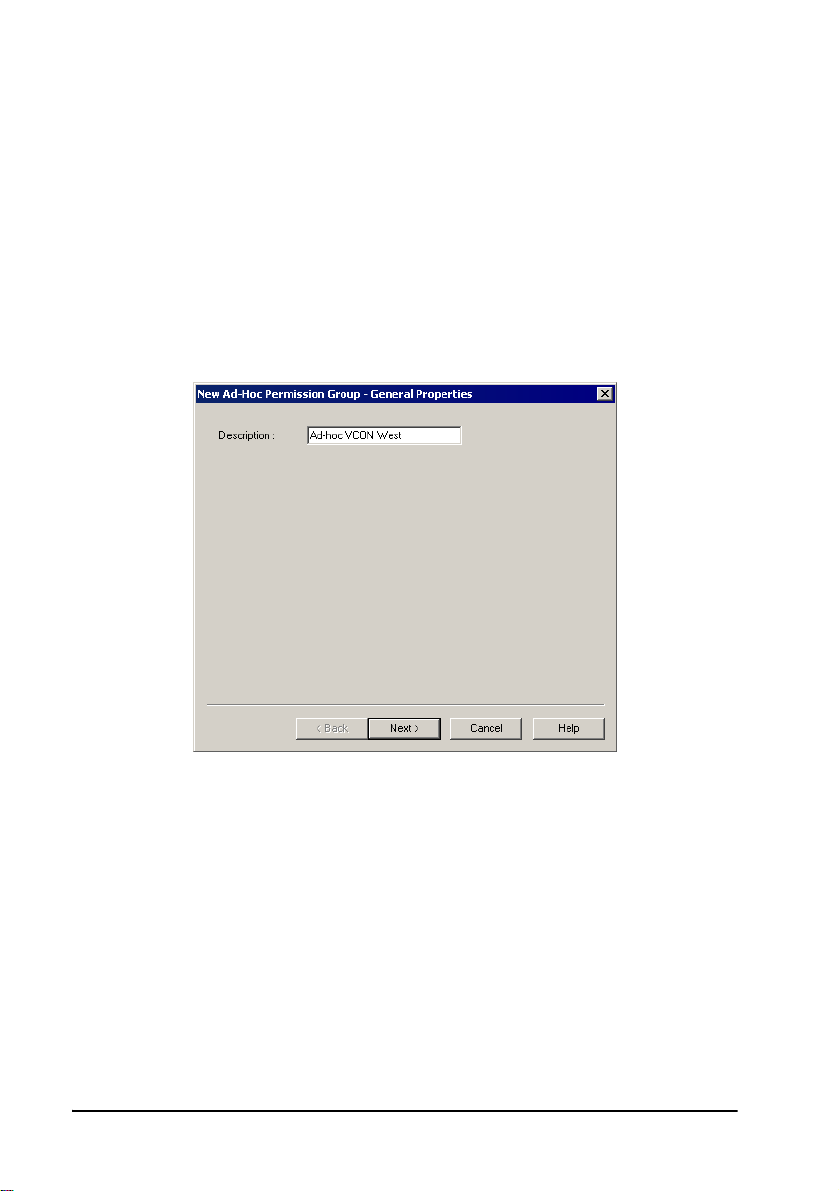
In the
Description
will appear on the system tree and in the VCB’s Properties dialog b oxes'
tab.
Info
box, type a name for the Ad-hoc Permission Group. This name
Product
New Ad-hoc Permission Group - General Properties
34 Emblaze-VCON VCB5 User’s Guide
Page 43
6 Adding the VCB to an Ad-hoc Permission Group
Permission Group
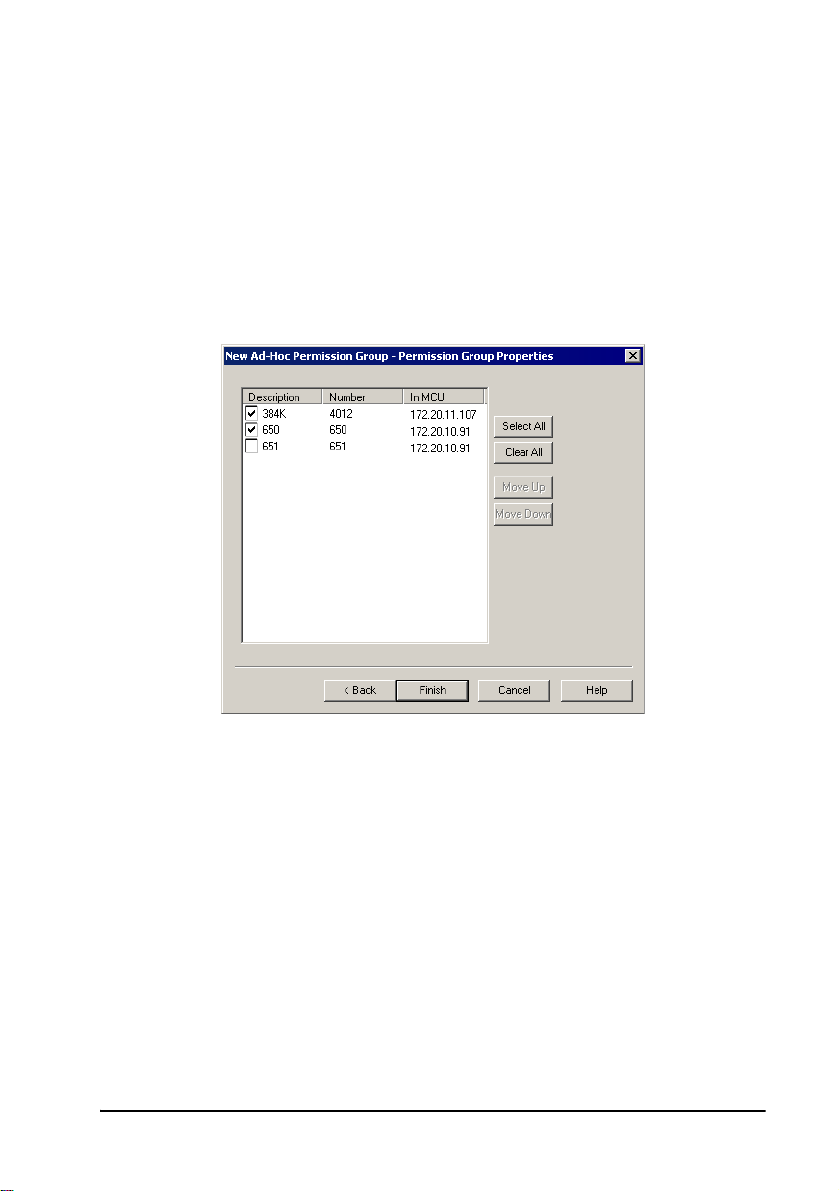
The
Permission Group
defined for use as an ad-hoc resource, which is a service which is set up to connect
ad-hoc conferences.
Select any number of VCB services from the list to be in the Ad-hoc Permission
Group. The group may also include combinations of services from more than one
registered VCB unit.
— To place all services in the permission group, click
— To clear all the selections, click
Properties page includes all registered services that are
Clear All
Select All
.
.
New Ad-hoc Permission Group - Permission Group Properties
Emblaze-VCON VCB5 User’s Guide 35
Page 44

6 Adding the VCB to an Ad-hoc Permission Group
Setting the Usage Order
The services' locations in the list determines the order in which the MXM tries to use
them. After an end point invites another end point, the MXM first tries to use the
first service defined in the permission group. If the first service is not available, it
tries to use the second defined service, and so on. If all enabled services are
unavailable, the MXM does not complete the "invitation" to the additional end
point.
In the Permission Group page, you can move the services to different places in the
usage order.
³ To set the usage order of the selected services
T Click the name (not the checkbox) of a selected service. To move the service
up and down the list to its designated place, click
as many times as necessary.
Repeat this step for as many services as necessary.
Move Up
or
Move Down
36 Emblaze-VCON VCB5 User’s Guide
Page 45

7 Ad-Hoc Conferencing
7AD-HOC CONFERENCING
To “invite and join” additional parties into an ad-hoc videoconference, users must
initiate the Invite function from their videoconferencing application during an open
session.
This chapter instructs how to invite from the following Emblaze-VCON applications:
• vPoint™
• vPoint HD
• HD5000/4000
• HD3000/2000/1000/600
• Other H.323 videoconferencing applications
7.1 Inviting from vPoint™/vPoint HD
³ To invite and join other contacts into an ad-hoc
conference
1 Enter an additional contact's user number (E.164) or address into the
Manual Dialer's address box.
2 Click
Invite
.
-or-
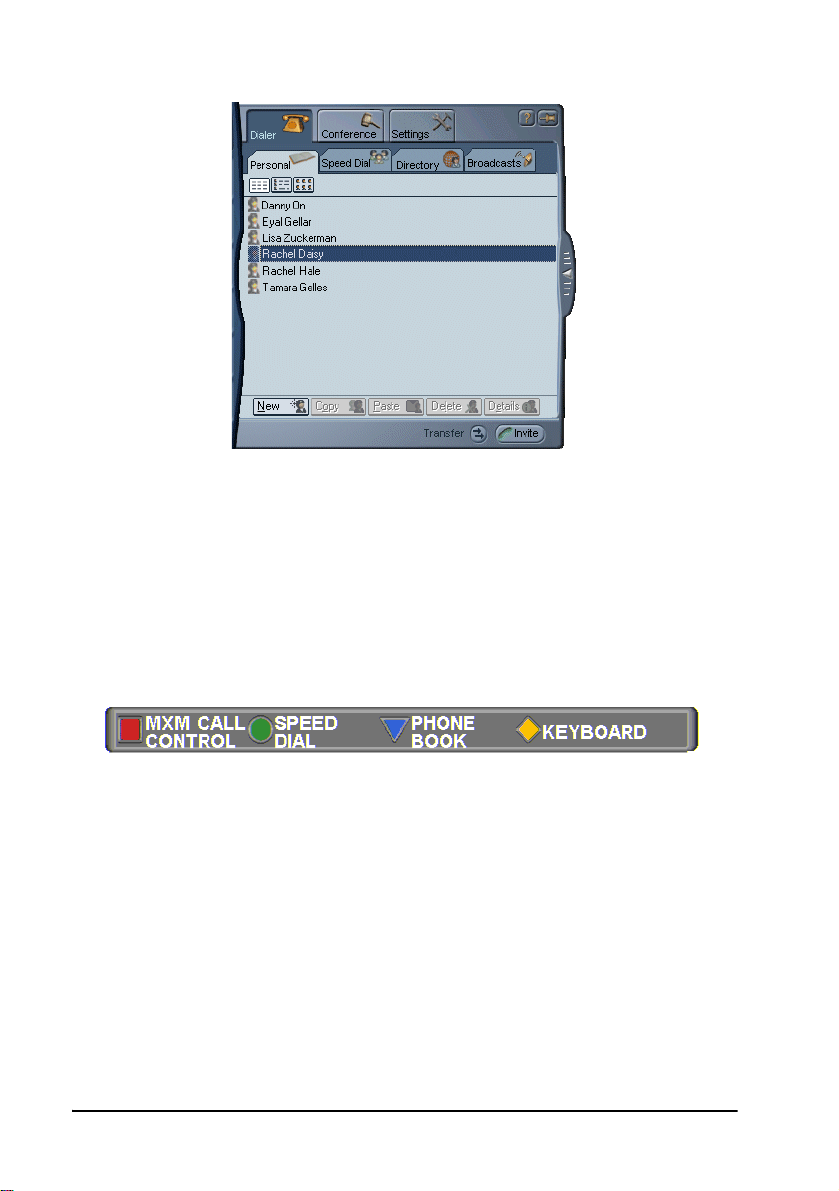
1 Open the Dialer and locate the contact that you want to invite.
2 Right-click the contact and then click
Emblaze-VCON VCB5 User’s Guide 37
Invite
.
Page 46
7 Ad-Hoc Conferencing
The session is now a multipoint conference. The parties’ video is displayed
in Continuous Presence (multiple users’ video on screen at all times) or
Voice-Activated Switching (speaker’s video only on screen), in accordance
with the MCU/VCB Service configuration.
7.2 Inviting from HD3000/2000/1000/600
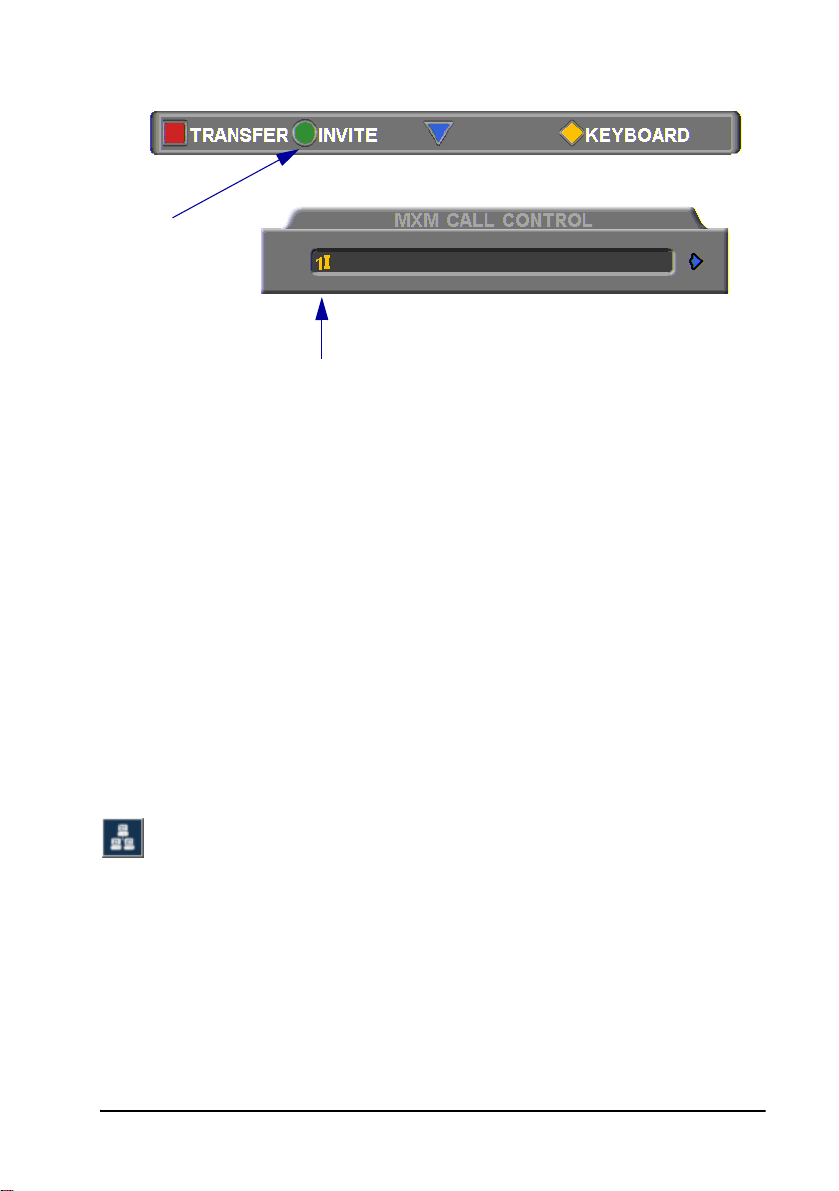
1 Press any of the number keys on the remote control. The Manual Dial
dialog box and SoftKey menu open.
2 Press the red
MXM CALL CONTROL
Softkey.
3 In the MXM Call Control box, enter the directory number of the party that
you want to invite. To browse entries from the Phone Book, press the right
and left arrow keys on the remote control.
4 Press the green
INVITE
SoftKey.
38 Emblaze-VCON VCB5 User’s Guide
Page 47
7 Ad-Hoc Conferencing
Press the green
Softkey to
transfer the
videoconference
to the entered
address
Enter the address of the additional party
for transferring the conference
5 The HD device dials the number.
After several seconds, the additional party is added to the session, which is
now a multipoint conference with VCB management. The parties’ video is
displayed in Voice-Activated Switching.
7.3 Inviting from HD5000/4000
³ To invite and join other parties into an ad-hoc
videoconference
1 Click the Telephony Services button to open the Telephony Services
menu.
2 Click Invite User.
3 In the Dial Plan Number box, enter an additional party's user number.
-or-
Click the Online Directory button and choose a name from the Online
Directory Dialer.
4 Click the Dial button.
After several seconds, the additional party is added to the session, which is now a
multipoint conference. The parties’ video is displayed in Continuous Presence
(multiple users’ video on screen at all times) or Voice-Activated Switching
(speaker’s video only on screen), in accordance with the MCU/VCB Service
configuration.
Emblaze-VCON VCB5 User’s Guide 39
Page 48

7 Ad-Hoc Conferencing
7.4 Inviting from Other H.323
Videoconferencing Applications
In VCON’s MediaConnect 6000 and other H.323 videoconferencing applications,
you must enter a code in order to invite other users to an ad-hoc videoconference. If
you do not know the code, ask the system administrator.
³ To invite and join other parties into an ad-hoc
videoconference
1 During an ongoing point-to-point videoconference, open your application’s
Dialing utility.
2 Dial
3 After dialing, an Incoming Call message may appear. Accept the call.
*77
(or an administrator-defined value) followed by the [additional
user’s directory number]. For example, dial
into the videoconference.
The session is now a multipoint conference. The parties’ video is displayed
in Continuous Presence (multiple users’ video on screen at all times) or
Voice-Activated Switching (speaker’s video only on screen), in accordance
with the MCU/VCB Service configuration.
*77751
to invite end point 751
40 Emblaze-VCON VCB5 User’s Guide
Page 49

8 Chair Control During Conferences
8CHAIR CONTROL DURING
ONFERENCES
C
As an option, organizations employing the VCB may utilize Emblaze-VCON’s
Conference Moderator, which allows users to schedule conferences in advance and
control their progression, including Chair Contr ol. Chair Con trol is the ability of one
videoconferencing user to control what the other participants in a multipoint
conference see and hear. The VCB provides many view layout schemes and
bandwidth allocation for the Chair Control capabilities.
As factory settings, Moderators, MXM Users and Power Use rs may control
the Chair, although users with Administrator privileges may change the
roles of the various types of users.
Chair Control is available during an open videoconference from the Conference
Moderator’s In Progress page.
³ To open the Conference Moderator
1 In the VCB Configuration application, click the Select Application
button near the top of the page and then click
Conferences
.
Opening Conference Moderator
2 If the Login screen appears, enter your
3 Click
Emblaze-VCON VCB5 User’s Guide 41
Login
.
Login Name
and
Password
.
Page 50
8 Chair Control During Conferences
³ To co n tr o l th e C ha i r
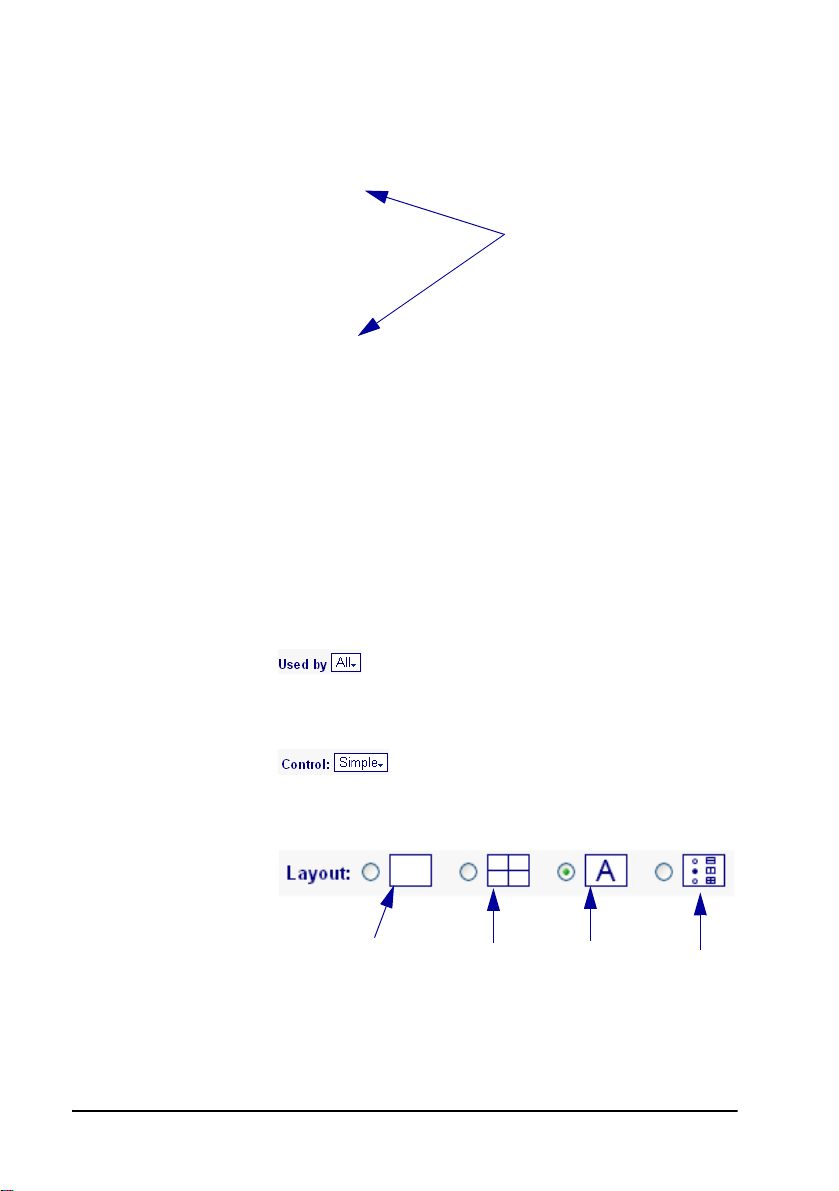
1 On the right side of the screen, click
Opening the Chair Control
2 Set Chair Control parameters for the session:
Used By Choose the participants who will view the conference
according to the parameters yo u se t no w. In t his v ers ion,
the only available option is
Control Choose the level of chair control. In this version,
control is the only availabl e option.
Chair Control
Click either the Chair
Control button or the
hotspot.
All
participants.
.
Simple
Layout Select a layout scheme. You may change this during a
session.
Voice Activated
Switching
42 Emblaze-VCON VCB5 User’s Guide
Continuous
Presence
Automatic
Layout
Transitions
Predefined
Layouts
Page 51

8 Chair Control During Conferences
The available viewing methods are:
T
Voice-Activated Switching
- The participants see
the video of the participant whose audio signal is
strongest. For example, the non-speaking
participants see the person speaking.
T
Continuous Presence
- Several participants in a
multipoint conference are viewed and heard
simultaneously.
Automatic Layout Transitions
T
- Dynamic layout
schemes, according to the selected scheme and the
number of connected participants. As the number of
connected participants changes, the display layout
changes accordingly.
Available schemes are:
— 1->2->3->2*2->3*3->4*4
—2->2+8
—1->1+5->1+7
T
Predefined Layouts
- A choice of layouts. Clicking
the arrow buttons browses through all the display
options.
3 If the viewing method is Voice-Activated Switching or Continuous
Presence, choose the view switching mode:
Dominant
Speaker
Showing the most recent speaker in the conference. In a
Continuous Presence layout, the “dominant speaker”
appears in one of the frames.
Emblaze-VCON VCB5 User’s Guide 43
Page 52
8 Chair Control During Conferences
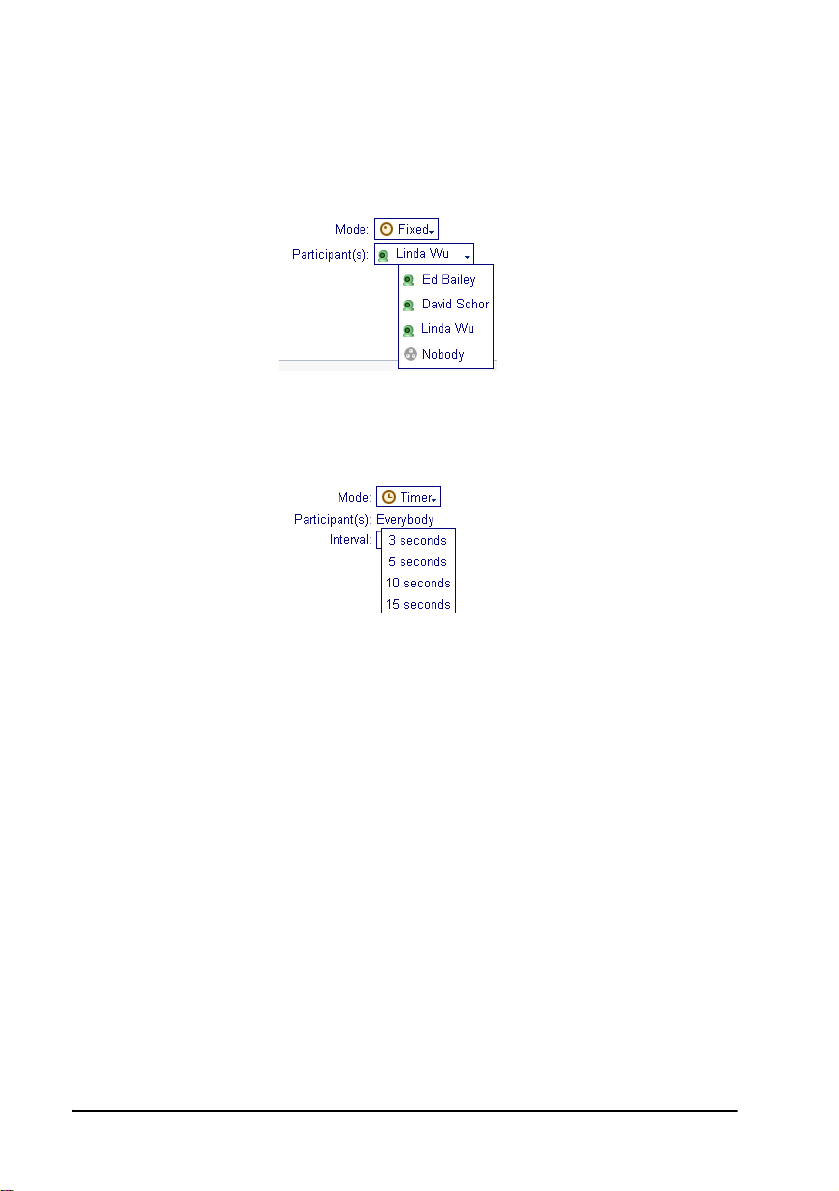
Fixed Showing specific views throughout the conference’s
duration, selected by the conference’s initiator.
From the
Participant
list box, choose the name of the
user whose video will be seen.
Timer Showing a cycle of views at rotating, timed intervals.
From the
Interval
list box, choose the rate for changing
the display.
4 Click
Apply
.
44 Emblaze-VCON VCB5 User’s Guide
Page 53

9 Upgrading the VCB License Key
9UPGRADING THE VCB LICENSE KEY
Replacing your VCB license key is required if you need to change the number of
permitted concurrent participants.
In the Web Management program, the
key, number of licensed ports, and the expiration date. When you order an upgrade,
please supply this information to your Emblaze-VCON representative according to
the instructions below.
³ To upgrade your VCB license
1 After logging in, click the
Upgrade
Settings
page contains your VCB’s license
tab and then
Upgrade
.
VCB Upgrade and License Information
2 Select and copy the license key on the page.
3 Contact your local Emblaze-VCON representative and send the license file
according to the instructions you receive.
After processing your order, the Emblaze-VCON representative will send
you a new license key by e-mail.
4 Copy the new key. In the Web Management’s Upgrade page, select the
previous key and paste the new one.
5 Click
Emblaze-VCON VCB5 User’s Guide 45
Apply
.
Page 54

Page 55

10 SSH Commands
10 SSH COMMANDS
This chapter defines the commands available when you access the VCB unit through
a Secure Shell (SSH), Hyperterminal, or similar application connected to the
Console port.
A Secure Shell application, PuTTY, is included on the CD-ROM supplied in your
VCB package.
³ To ru n t he P u TT Y pro g ram
1 Insert the VCB compact disc to your computer’s CD drive.
2 Browse to the Utilities folder’s putty.exe program.
3 Copy the putty.exe file to your desktop or another location.
4 Double-click the file’s icon to run the program.
³ To connect to the VCB
1 In the
2 Click
3 Log in using the following parameters:
User Name VCBAdmin
Password evc123$
Host Name
Open
.
box, type the VCB host computer’s IP address.
10.1 Descriptions of SSH Commands
Command
Syntax appupgrade <path>
Description Upgrade to a new version of the VCB.
Emblaze-VCON VCB5 User’s Guide 47
appupgrade
Path
- location of the install file.
For example:
appupgrade vcb/install.exe
Page 56

10 SSH Commands
Command
Syntax changeservicestartmode <Service Name><Mode>
Description Change the specified service’s starting mode.
Parameters
Command
Syntax
Description Delete all entries from the application, security, and system
Command
Syntax exec <command>
Description Execute the specified shell command. Only VCBSupport-level
changeservicestartmode
T
Automatic
T
Manual
T
Disabled
For example:
TermService, a service allowing remote desktop connection,
is disabled by default. To enable it, set the service start mode
to Manual, and then start the service using the “startservice”
command.
changeservicestartmode
clearevents
event log.
exec
users are allowed to execute this command.
TermService Manual
Command
Syntax getevents <substring>
Description Display application, security, and system event log. If a
48 Emblaze-VCON VCB5 User’s Guide
getevents
substring is specified, only events related to the substring will
be listed.
Page 57

10 SSH Commands
Command
Syntax getparam <
Description Retrieve the specified parameter.
Parameters
Command
Syntax getvcbadminparam <1> <param>.
Description Retrieve the specified VCB Admin parameter.
Parameters Name and password of the administrator.
Command
Syntax getvcbridgeparam <param>
Description Retrieve the specified VCB parameter.
getparam
param
>
T
appver
- Display the VCB/MXM application version.
T
dhcp
<0-3> - Display DHCP-defined IP configuration of
the specified NIC, and if it’s enabled or disabled.
T
hwserial
T
machinename
T
sshver
T
time
getvcbadminparam
For example:
getvcbadminparam 1 password 1234
getvcbridgeparam
To display a list of parameters, type only the command and
press <Enter>.
- The first NIC’s MAC address.
- The name of the node.
- Display the SSH Server version.
- Display the current system date and time.
Command
Syntax getvcbsessionparam <service number> <param>.
Description Retrieve the specified VCB Session parameter.
Emblaze-VCON VCB5 User’s Guide 49
getvcbsessionparam
To display a list of parameters, type only the command and
press <Enter>.
Page 58

10 SSH Commands
Command
Syntax
Description Displays system information about the VCB’s host computer,
Command
Syntax
Description Lists all SSH commands and their possible syntaxes.
Command
Syntax killprocess <process identity>
Description Aborts the specified process.
Command
Syntax listip <0-3>
Description Displays the IP address of the specified NIC.
Command
Syntax ping <hostname or IP address>
Description Check if a connection to the specified computer is online.
healthcheck
such as CPU usage, virtual memory usage.
help
killprocess
listip
ping
Command
Syntax processes <substring>
Description Display a list of processes. If a subs tring is specified, only
Command
Syntax
Description Restart the VCB unit.
Command
Syntax restartservice <Service Name>
Description Restarts the specified service.
50 Emblaze-VCON VCB5 User’s Guide
processes
processes containing the substring will be listed.
restart
restartservice
Page 59

10 SSH Commands
Command
Syntax services <service substring>
Description Lists the services that start with the substring and displays
services
their status.
services VCON will list only VCON services. For example,
• VCON VCB AGENT_1
Command
Syntax setgkaddress <IP address>
Description Define an IP address to the associated MXM.
Command
Syntax setmcuaddress <IP address>
Description Define an IP address to this VCB.
Command
Syntax setparam <
Description Define the specified parameter.
Parameters
setgkaddress
setmcuaddress
setparam
param
>
T
dhcp
<0-3> - Enable DHCP to define the IP configuration
of the specified NIC.
T
ipstatic <
static IP configuration of the specified NIC.
T
machinename
0-3><IP address><Subnet><Gateway
- Define the name of the node.
>
- Define a
T
time
- Set the current system date and time.
Command
Syntax setpassword <user name>
Description Defines the user password. If a user name is specified, the
Emblaze-VCON VCB5 User’s Guide 51
setpassword
password change applies to that user name only.
Page 60

10 SSH Commands
Command
Syntax setvcbadminparam <number> <param>.
Description Define the specified VCB Admin parameter.
Parameters Name and password of the administrator.
Command
Syntax setvcbridgeparam <param>
Description Define the specified VCB parameter.
Command
Syntax setvcbsessionparam <service number> <param> <value>.
Description Define the specified VCB Session parameter.
Command
Syntax
Description Shut down the VCB unit and turn its power off.
Command
Syntax startservice <Service Name>
Description Starts the specified service.
setvcbadminparam
setvcbridgeparam
setvcbsessionparam
shutdown
startservice
Command
Syntax stopservice <Service Name>
Description Stops the specified service.
Command
Syntax
Description Upgrade to a new version of the SSH Server.
52 Emblaze-VCON VCB5 User’s Guide
stop service
upgrade
 Loading...