

Page 1

eMachines E630/E430 Series
Quick Guide
Page 2

Copyright © 2009. All Rights Reserved.
eMachines E630/E430 Series Quick Guide
Original Issue: 10/2009
eMachines E630/E430 Series Notebook PC
Model number: __________________________________
Serial number: ___________________________________
Date of purchase: ________________________________
Place of purchase: ________________________________
Page 3

First things first
We would like to thank you for making an eMachines notebook your choice for
meeting your mobile computing needs.
Your guides
To help you use your eMachines notebook, we have designed a set of guides:
First off, the Just for Starters... poster helps you get started with setting up your
computer.
The eMachines Generic User Guide contains useful information applying to all
models in the eMachines product series. It covers basic topics such as eMachines
Recovery Management, using the keyboard, audio, etc. Please understand that
due to its nature, the Generic User Guide as well as the eMachinesSystem User
Guide mentioned below will occasionally refer to functions or features which
are only contained in certain models of the series, but not necessarily in the
model you purchased. Such instances are marked in the text with language such
as "only for certain models".
The Quick Guide introduces you to the basic features and functions of your new
computer. For more on how your computer can help you to be more productive,
please refer to the eMachinesSystem User Guide. This guide contains detailed
information on such subjects as system utilities, data recovery, expansion
options and troubleshooting. In addition it contains warranty information and
the general regulations and safety notices for your notebook. It is available in
Portable Document Format (PDF) and comes preloaded on your notebook.
Follow these steps to access it:
1 Click on Start, All Programs, eMachinesSystem.
2 Click on eMachinesSystem User Guide.
3
Note: Viewing the file requires Adobe Reader. If Adobe Reader is not
installed on your computer, clicking on eMachinesSystem User Guide will
run the Adobe Reader setup program first. Follow the instructions on the
screen to complete the installation. For instructions on how to use Adobe
Reader, access the Help and Support menu.
Page 4
4
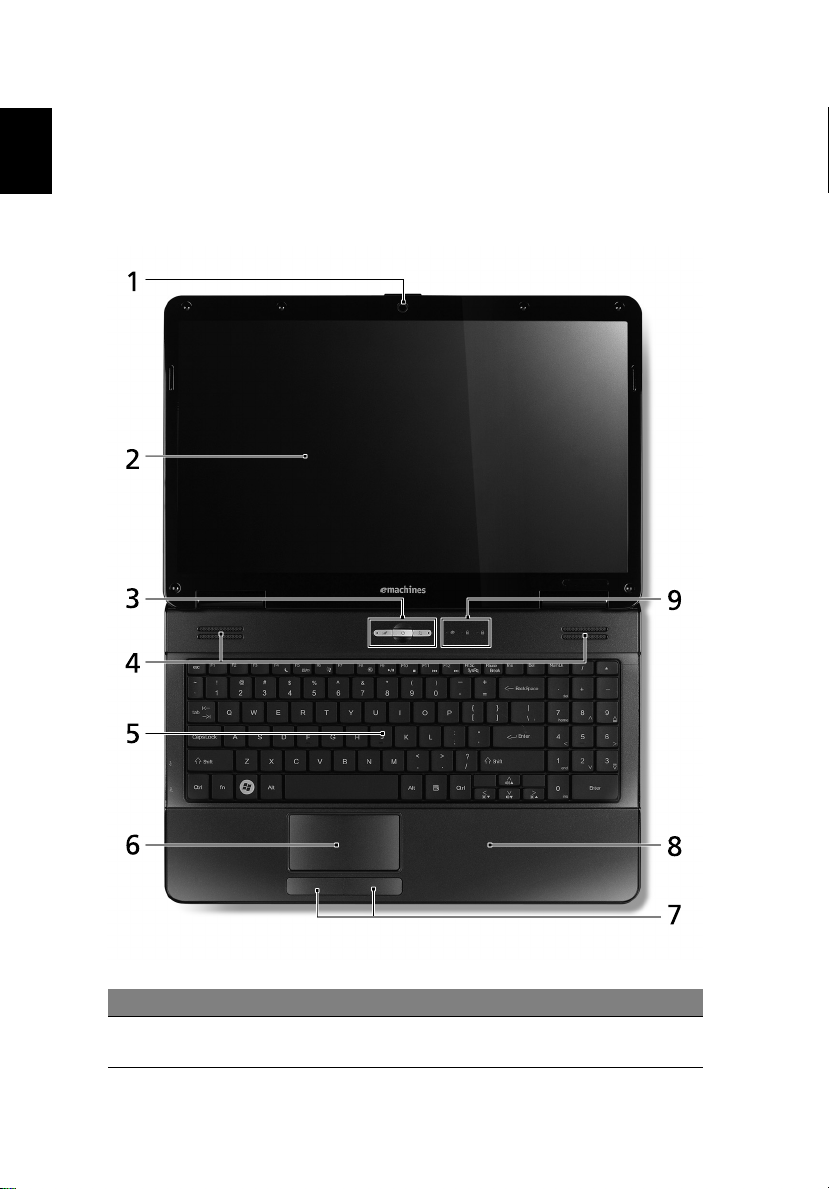
Your eMachines notebook tour
English
After setting up your computer as illustrated in the Just for Starters... poster,
let us show you around your new eMachines notebook.
Top view
# Icon Item Description
1 Integrated
webcam
Web camera for video communication.
(only for certain models)
Page 5
5
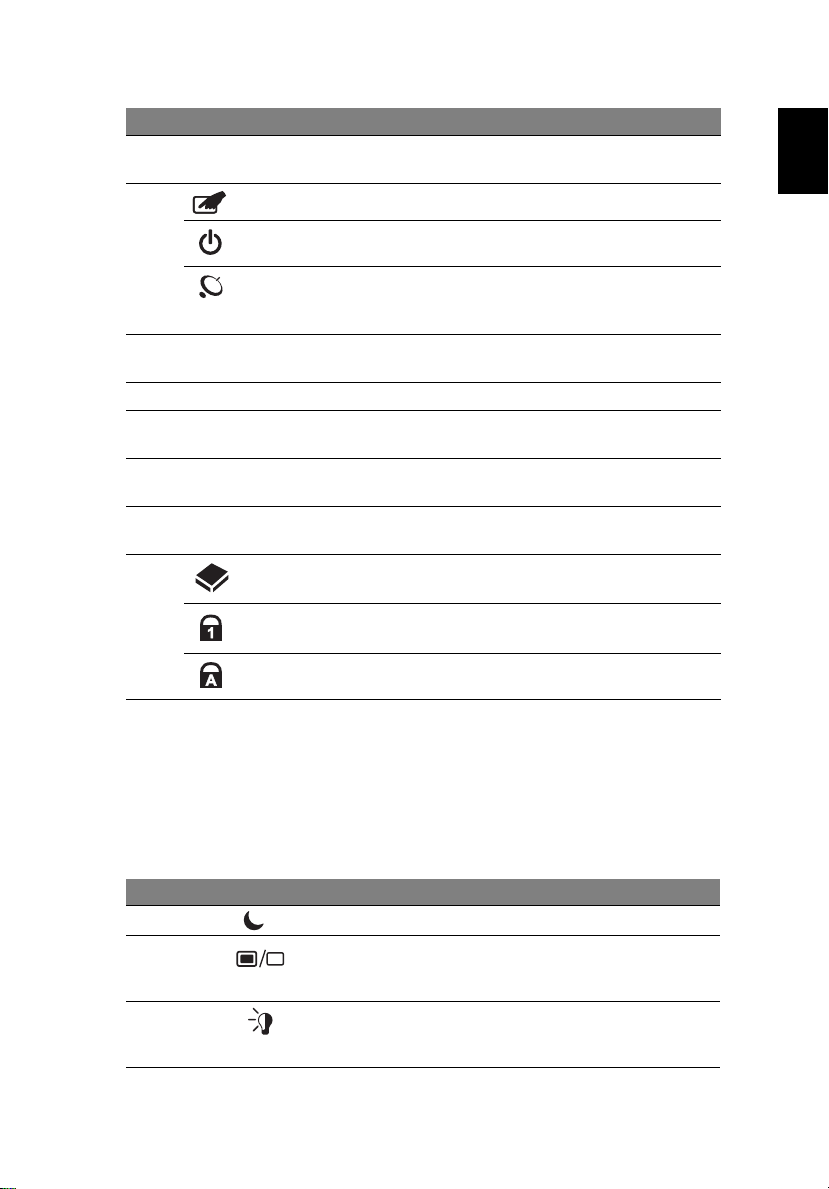
# Icon Item Description
2 Display screen Also called Liquid-Crystal Display (LCD),
displays computer output.
3 Touchpad toggle Turns the internal touchpad on and off.
Power button Turns the computer on and off.
Wireless LAN
communication
button/indicator
4 Speakers Left and right speakers deliver stereo
5 Keyboard For entering data into your computer.
6 Touchpad Touch-sensitive pointing device which
7 Click buttons
(left and right)
8 Palmrest Comfortable support area for your hands
9 HDD Indicates when the hard disk drive is active.
Num Lock Lights up when Num Lock is activated.
Caps Lock Lights up when Caps Lock is activated.
Enables/disables the wireless LAN function.
Indicates the status of wireless LAN
communication.
audio output.
functions like a computer mouse.
The left and right buttons function like the
left and right mouse buttons.
when you use the computer.
English
Hotkeys
The computer employs hotkeys or key combinations to access most of the
computer's controls like screen brightness and volume output.
To activate hotkeys, press and hold the <Fn> key before pressing the other key
in the hotkey combination.
Hotkey Icon Function Description
<Fn> + <F4> Sleep Puts the computer in Sleep mode.
<Fn> + <F5> Display toggle Switches display output between the
display screen, external monitor (if
connected) and both.
<Fn> + <F6> Screen blank Turns the display screen backlight off
to save power. Press any key to
return.
Page 6
6
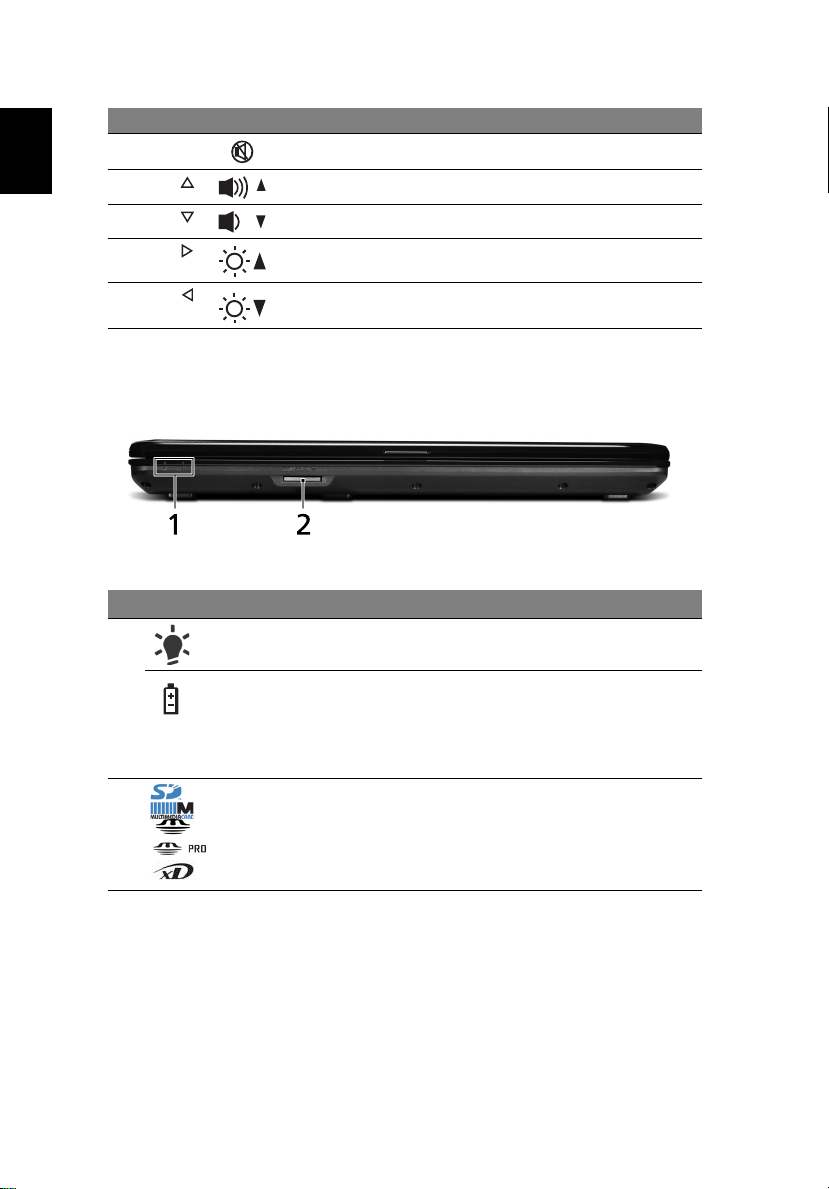
Hotkey Icon Function Description
<Fn> + <F8> Speaker toggle Turns the speakers on and off.
English
<Fn> + < >
<Fn> + < >
<Fn> + < >
<Fn> + < >
Volume up Increases the sound volume.
Volume down Decreases the sound volume.
Brightness up Increases the screen brightness.
Brightness
down
Closed front view
# Item Description
1
2 Multi-in-1
1
Power
Battery
card reader
Indicates the computer's power status.
1
Indicates the computer's battery status.
1. Charging: The light shows amber when the
battery is charging.
2. Fully charged: The light shows blue when in
AC mode.
Accepts Secure Digital (SD), MultiMediaCard
(MMC), Memory Stick (MS), Memory Stick PRO
(MS PRO), xD-Picture Card (xD).
Note: Push to remove/install the card. Only one
card can operate at any given time.
Decreases the screen brightness.
1. The front panel indicators are visible even when the computer cover is closed
up.
Page 7
7
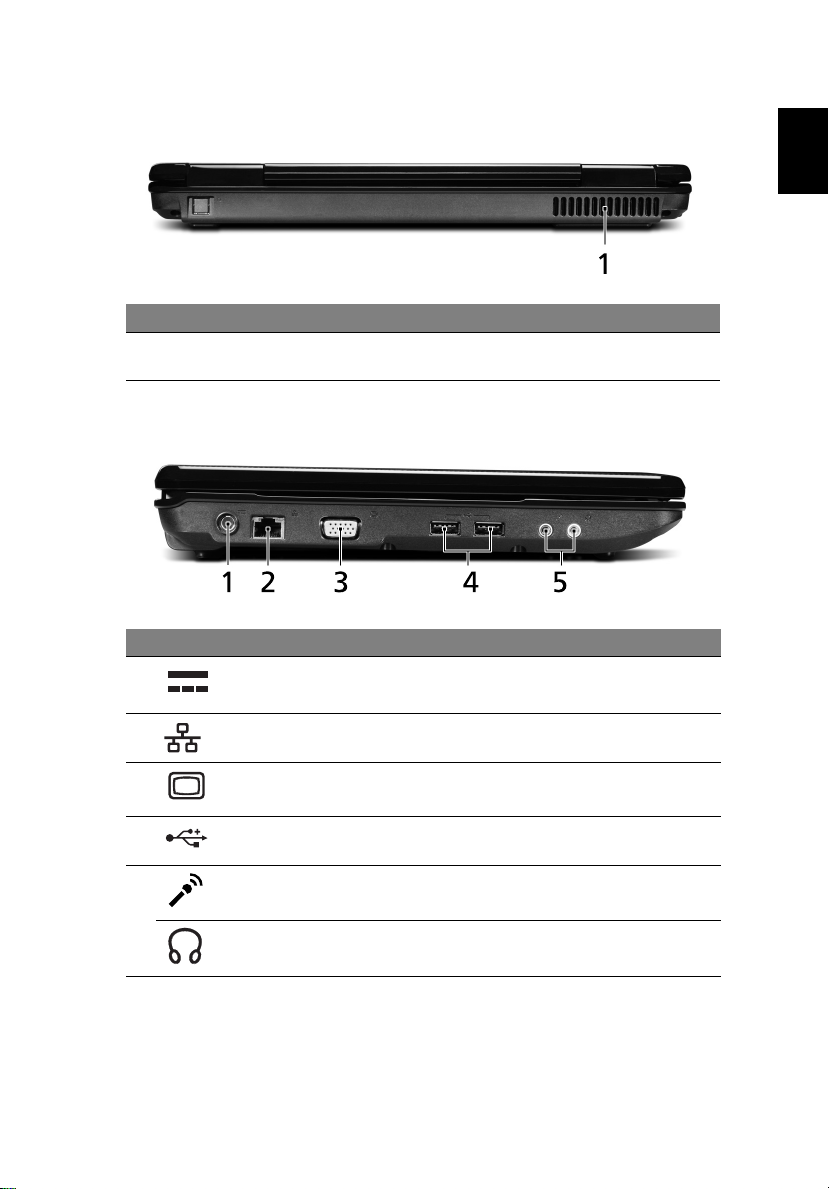
Rear view
# Item Description
1 Ventilation slots Enable the computer to stay cool, even after prolonged
use.
Left view
# Icon Item Description
1 DC-in jack Connects to an AC adapter.
English
2 Ethernet (RJ-45) port Connects to an Ethernet 10/100-based
3 External display (VGA)
port
4 USB 2.0 port Connect to USB 2.0 devices (e.g., USB
5
Microphone-in jack
Headphones/speaker/
line-out jack
network.
Connects to a display device (e.g.,
external monitor, LCD projector).
mouse, USB camera).
Accepts inputs from external
microphones.
Connects to audio line-out devices
(e.g., speakers, headphones).
Page 8
English
8
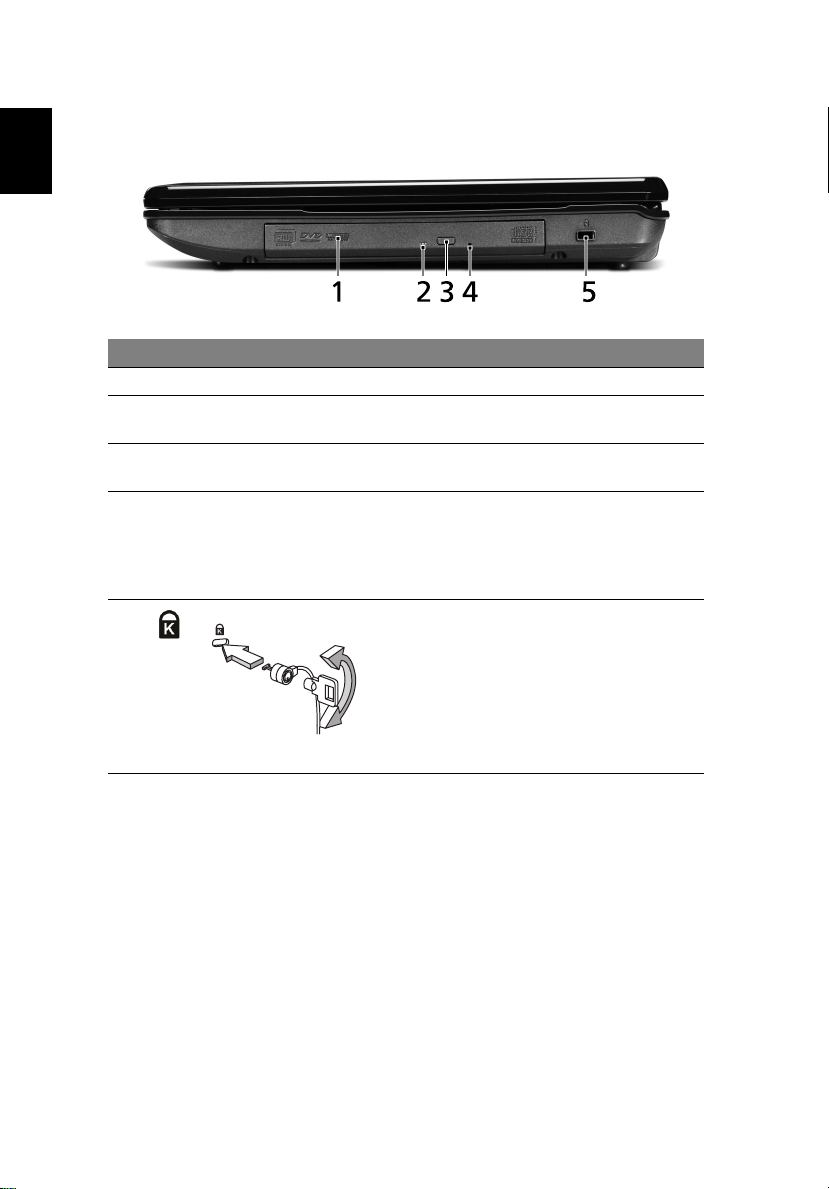
Right view
# Icon Item Description
1 Optical drive Internal optical drive; accepts CDs or DVDs.
2 Optical disk access
indicator
3 Optical drive eject
button
4 Emergency eject
hole
5 Kensington lock slot Connects to a Kensington-compatible
Lights up when the optical drive is active.
Ejects the optical disk from the drive.
Ejects the optical drive tray when the
computer is turned off.
Note: Insert a paper clip to the emergency
eject hole to eject the optical drive tray
when the computer is off.
computer security lock.
Note: Wrap the computer security lock
cable around an immovable object such as
a table or handle of a locked drawer. Insert
the lock into the notch and turn the key to
secure the lock. Some keyless models are
also available.
Page 9
9
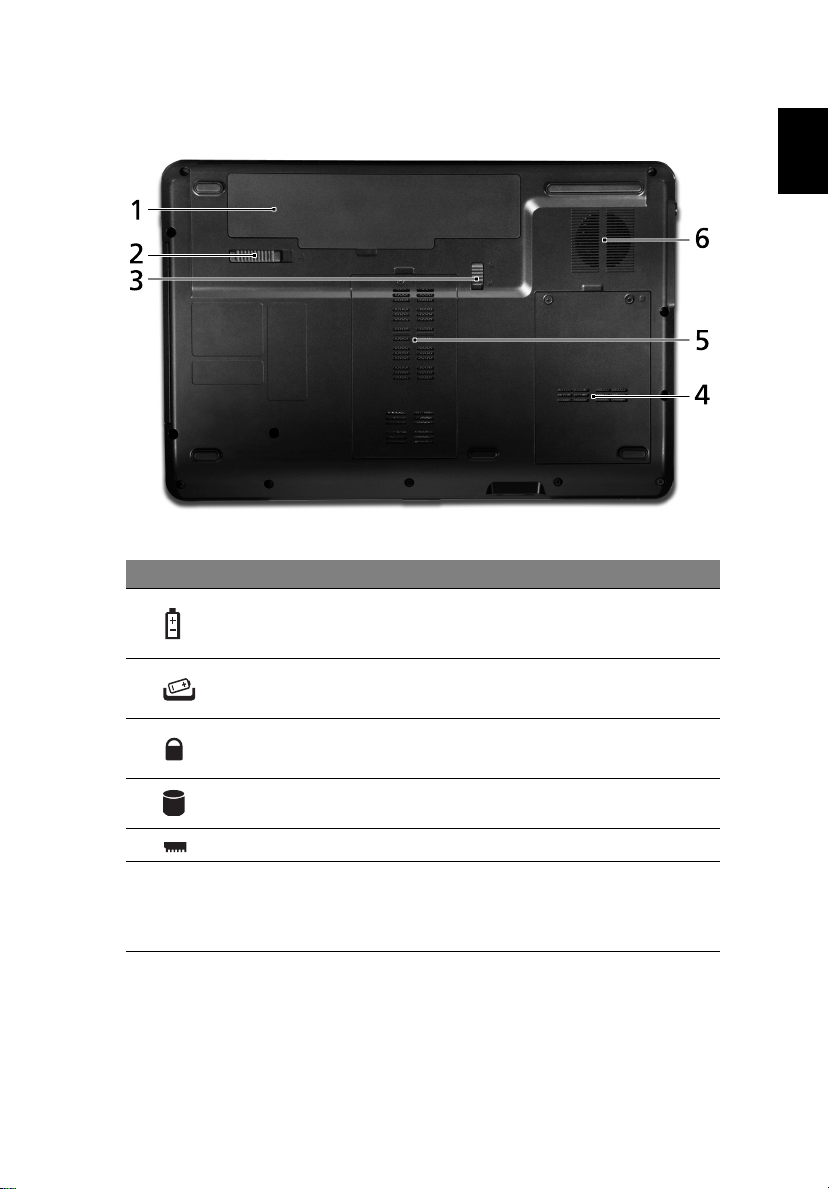
Base view
# Icon Item Description
1 Battery bay Houses the computer's battery pack.
2 Battery release latch Releases the battery for removal.
English
3 Battery lock Locks the battery in position.
4 Hard disk bay Houses the computer's hard disk (secured
with screws).
5 Memory compartment Houses the computer's main memory.
6 Ventilation slots and
cooling fan
Enable the computer to stay cool, even
after prolonged use.
Note: Do not cover or obstruct the
opening of the fan.
Page 10

10
Specifications
English
Operating
system
CPU/chipset
System memory • Dual-channel support
Display • 15.6" HD 1366 x 768
Graphics • ATI Radeon™ HD 4200 Graphics
Storage
subsystem
Audio • Two built-in stereo speakers
Communication • Integrated webcam*
Dimensions • 372.3 (W) x 246.5 (D) x 26.8/39.6 (H) mm
Privacy control • BIOS user, supervisor, HDD passwords
Power
subsystem
Special keys
and controls
I/O interface • Multi-in-1 card reader (SD™, MMC, MS, MS PRO, xD)
• Genuine Windows
•AMD Turion
•AMD Athlon
•AMD Sempron
• AMD M880G Chipset
• Up to 2 GB of DDR2 667 MHz memory, upgradeable
to 4 GB using two soDIMM modules
• 16:9 aspect ratio
• 2.5" hard disk drive
• DVD-Super Multi double-layer drive
• Multi-in-1 card reader
• High-definition audio support
• MS-Sound compatible
• WLAN: IEEE 802.11b/g
• LAN: Fast Ethernet; Wake-on-LAN ready
(14.4 x 10.8 x 1.1/1.5 inches)
• 2.7 kg (6.0 lbs.) with 6-cell battery pack
• Kensington lock slot
•ACPI 3.0
• 48.8 W 4400 mAh PSE-certified battery
• 3-pin 65 W AC adapter
•ENERGY STAR
• 99-/100-/103-key keyboard
• Touchpad pointing device
• USB 2.0 ports
• External display (VGA) port
• Headphones/speaker/line-out jack
• Microphone-in jack
• Ethernet (RJ-45) port
• DC-in jack for AC adapter
®
7
™
II dual-core processor*
™
64 II dual-core processor*
™
processor*
®
*
Page 11

11
Environment • Temperature:
• Operating: 5 °C to 35 °C
• Non-operating: -20 °C to 65 °C
• Humidity (non-condensing):
• Operating: 20% to 80%
• Non-operating: 20% to 80%
Note: * Only for certain models.
Note: The specifications listed above are for reference only. The
exact configuration of your PC depends on the model purchased.
English
 Loading...