

Page 1

TM
ELSA ERAZOR
ELSA ERAZOR
III Pro
TM
III LT
User Manual
Page 2

© 1999 ELSA AG, Aachen (Germany)
While the information in this manual has been compiled with great care, it may not be deemed an assur-
ance of product characteristics. ELSA shall be liable only to the degree specified in the terms of sale
and delivery.
The reproduction and distribution of the documentation and software supplied with this product and the
use of its contents is subject to written authorization from ELSA.
ELSA is DIN EN ISO 9001 certified. The accredited TÜV CERT certification authority has confirmed ELSA
conformity to the worldwide ISO 9001 standard in certificate number 09 100 5069, issued on June 15,
1998.
This product incorporates copyright protection technology that is protected by method claims of certain
U.S. patents and other intellectual property rights owned by Macrovision Corporation and other right
owners. Use of this copyright protection technology must be authorized by Macrovision Corporation, and
is intended for home and other limited viewing uses only unless otherwise authorized by Macrovision
Corporation. Reverse engineering or disassembly is prohibited.
Trademarks
®
Windows
, Windows NT® and Microsoft® are registered trademarks of Microsoft, Corp.
All other names mentioned may be trademarks or registered trademarks of their respective owners. The
ELSA logo is a registered trademark of ELSA AG.
Subject to change without notice. No liability for technical errors or omissions.
ELSA AG
Sonnenweg 11
52070 Aachen
Germany
ELSA, Inc.
2231 Calle De Luna
Santa Clara, CA 95054
USA
Aachen, August 1999
No. 21635/0899
Page 3
Preface
Thank you for placing your trust in this ELSA product.
Whether you chose the
a graphics board which is just as well suited to professional users as to ambitious players. The graphics processor on the board ensures high-speed generation of on-screen
graphics making this board ideal for advanced CAD and visualization applications as well
as for fast animation. ELSA products are subject to the highest of standards in production and quality control which are the foundation for consistently high product quality
ELSA ERAZOR III
This manual provides all the information you will need to get the best out of your ELSA
graphics board. For instance, which resolution is best for which monitor, or how is the
board upgraded? The accompanying ELSA utility programs are described, and you will
find detailed information about 3D acceleration.
ELSA products are subject to continual further development. It is therefore possible that
the information printed in this manual is not current in all respects.
In the README files on the
updates.
If you have further questions or need additional help, you can rely on our online services
which are available to ELSA customers. Look for information on the ELSA's website.
.
ELSA ERAZOR III Pro
ERAZOR III
or the
CD can always be found current information about
ELSA ERAZOR III LT
, you have selected
In very urgent cases the ELSA Hotline can be reached under the following number:
1-800-272-6131
or from outside the USA:
+1-408-919-9100
or in the United Kingdom:
+44-171 294 01 14
Page 4

Before you read on...
The installation of the ELSA ERAZOR III hardware and software drivers is described in full
in the Installation Guide which accompanies this manual. You should refer to that document before attempting to install your board, and before reading this manual.
Page 5

Contents
V
Contents
Introduction ....................................................................................................................1
ELSA ERAZOR III
Video-in................................................................................................................... 1
Video-out................................................................................................................. 2
What's in the box?.................................................................................................. 2
What hardware do I need?..................................................................................... 2
CE conformity and FCC radiation standard............................................................. 3
After installing the drivers ...........................................................................................5
Software installation from the CD.......................................................................... 5
The right settings.................................................................................................... 5
What are your options?...................................................................................... 6
What makes sense?........................................................................................... 7
Changing the resolution.......................................................................................... 7
Windows 95 and Windows 98........................................................................... 7
Windows NT 4.0................................................................................................ 9
highlights..................................................................................... 1
Video––what’s in, what’s out? ..................................................................................11
Signal interchange––an overview........................................................................ 11
Video-in............................................................................................................ 12
Video-out.......................................................................................................... 12
The right connection?............................................................................................ 12
One for all: The composite video adapter cable.............................................. 12
Connection to a TV set.......................................................................................... 14
ELSA video settings ....................................................................................................15
Video-in................................................................................................................. 15
The video picture on the computer monitor..................................................... 15
How does the video image get onto the computer monitor?.......................... 17
Overwhelmed?...................................................................................................... 17
What’s IN?....................................................................................................... 17
What is OUT?................................................................................................... 18
The computer display on TV/video.................................................................. 18
Useful stuff and more ..................................................................................................21
The Multimedia Player.......................................................................................... 21
Video control deluxe............................................................................................. 22
In detail: operation........................................................................................... 22
Searching for information................................................................................ 24
Neat, meetings!.................................................................................................... 24
MainActor—the principal performer.................................................................... 25
ELSA ERAZOR III Pro und ELSA ERAZOR III LT
Page 6

VI
Contents
The sequencer.................................................................................................. 25
The video editor............................................................................................... 26
The Viewer....................................................................................................... 26
Fine-tuning for performance freaks...................................................................... 27
All about graphics ....................................................................................................... 29
3D graphics representation.................................................................................. 29
The 3D pipeline................................................................................................ 29
3D interfaces......................................................................................................... 31
What APIs are available? ................................................................................ 32
Direct 3D.......................................................................................................... 32
OpenGL............................................................................................................. 33
Color Palettes, TrueColor and Gray Scales........................................................... 33
VGA.................................................................................................................. 33
DirectColor....................................................................................................... 34
VESA DDC (Display Data Channel)....................................................................... 34
DDC2B.............................................................................................................. 35
DDC2AB ........................................................................................................... 35
Video signal formats............................................................................................. 35
Composite video .............................................................................................. 35
S-VHS............................................................................................................... 35
IEEE 1394.......................................................................................................... 36
Video formats: compressors at work.................................................................... 36
RGB16 .............................................................................................................. 36
YVU9 ................................................................................................................ 36
ELSA compression ........................................................................................... 37
Technical data ............................................................................................................. 39
Characteristics of the graphics board .......................................................... 39
ELSA graphics board addresses........................................................................... 39
Ports on the graphics board.................................................................................. 40
The VGA D-shell socket .................................................................................. 40
Appendix .......................................................................................................................41
Declarations of Conformity .................................................................................. 41
Warranty conditions............................................................................................. 43
Glossary ........................................................................................................................45
Index ..............................................................................................................................49
ELSA ERAZOR III Pro und ELSA ERAZOR III LT
Page 7
Introduction
Introduction
1
You possess either the
out video functions—or the
ual describes both versions. You may not need to read everything: Sections within the
manual which refer to video functions are marked accordingly.
ELSA ERAZOR III
New NVIDIA TNT2 Pro graphics processor (
쮿
ERAZOR III LT
The raw power of 32 MB of synchronous video memory plus up to 128 MB of AGP
쮿
texture space
Pixel clock frequency up to 300 MHz
쮿
ELSA ERAZOR III Pro
With
쮿
net video and games on the big screen for Windows 98 and Windows95
Two independent 3D rendering pipelines for maximum performance
쮿
Product support via Internet WWW site
쮿
Six-year warranty
쮿
ELSA ERAZOR III Pro
ELSA ERAZOR III LT
highlights
)
optional video-in and out version for video capture, inter-
, which exists in two versions—with or with-
, which has no video functions. This man-
ELSA ERAZOR III Pro
) or TNT2 M64 (
ELSA
This board complies with the CE and FCC rules.
쮿
full compatibility with 3D shutter glasses
쮿
ELSA 3D REVELATOR
Video-in
Video recording—Full screen for PAL/NTSC
쮿
Video editing with bundled MainActor software including animated GIF and MPEG2
쮿
export.
Internet videoconferencing with bundled Microsoft NetMeeting software
쮿
Comfortable videotext and teletext display (TV tuner required, e. g. VCR)
쮿
Three independent video inputs (1 x S-Video, 2 x composite) for VCR, satellite tuner
쮿
and camera
ELSA ERAZOR III Pro and ELSA ERAZOR III LT
Page 8
Introduction
2
Video-out
Play games on the big TV screen
쮿
Record games and applications to VCR
쮿
Render animation previews directly to the VCR
쮿
Edit video directly on the TV
쮿
High quality output with 10bit DAC and flicker filter
쮿
Two simultaneous video outputs (1 x S-Video, 1 x composite)
쮿
What's in the box?
You will notice if your graphics board is missing. But you need to check that the box contained all of the following:
Graphics board
쮿
Installation Guide
쮿
User Manual
쮿
User Manual for ELSA ERAZOR III LT on CD only.
CD-ROM with installation and driver software and utilities
쮿
CD-ROM with Direct3D demo programs
쮿
Only with video-equipped graphics boards:
쮿
Adapter for video-in and video-out
If any part is missing please contact your dealer. ELSA reserves the right to vary the products supplied without prior notice.
What hardware do I need?
Computer:
쮿
ERAZOR III
processor or even better. Less muscular processors will not get the best out of the
board.
Minimum requirements are a Pentium 166 or compatible. The
only really comes to life if your computer has a Pentium II or compatible
Bus:
쮿
AGP bus.
Monitor:
쮿
scan frequency of 31.5 kHz while booting and in DOS operation.
ELSA ERAZOR III Pro and ELSA ERAZOR III LT
The
ERAZOR III
ERAZOR III
The
is available as an AGP version. Your computer must have an
works with the standard IBM VGA compatible horizontal
Page 9
Introduction
3
CE conformity and FCC radiation standard
CE
This equipment has been tested and found to comply with the limits of the European
Council Directive on the approximation of the laws of the member states relating to electromagnetic compatibility (89/336/EEC) according to EN 55022 class B.
FCC
This equipment has been tested and found to comply with the limits for a Class B digital
device pursuant to Part 15 of the Federal Communications Commission (FCC) Rules.
CE and FCC
These limits are designed to provide reasonable protection against radio frequency interference in a residential installation. This equipment generates, uses, and can radiate
radio frequency energy. It may interfere with to radio communications if not installed and
used in accordance with the instructions. However, there is no guarantee that interference will not occur in a particular installation. If this equipment does cause interference
to radio or television reception (this can be determined by turning this equipment off and
on), the user is encouraged to try to correct the interference by one or more of the following measures:
Reorient or relocate the receiving antenna.
쮿
Increase the distance between this equipment and the receiver.
쮿
Connect the equipment to an outlet on a circuit other than that to which the receiver
쮿
is connected.
Consult your dealer or an experienced radio/TV technician.
쮿
Caution: To comply with the limits for an FCC Class B computing device, always use
쮿
a shielded signal cable.
Caution to the user: The Federal Communications Commission warns the user that
changes or modifications to the unit not expressly approved by the party responsible for
compliance could void the user's authority to operate the equipment.
ELSA ERAZOR III Pro and ELSA ERAZOR III LT
Page 10

Introduction
4
ELSA ERAZOR III Pro and ELSA ERAZOR III LT
Page 11
After installing the drivers
After installing the drivers
In this chapter you will find descriptions of
where you can find the software for operating your ELSA graphics board,
쮿
the performance characteristics of your graphics board, and
쮿
how you can most effectively tuning for the combination of monitor and ELSA gra-
쮿
phics board.
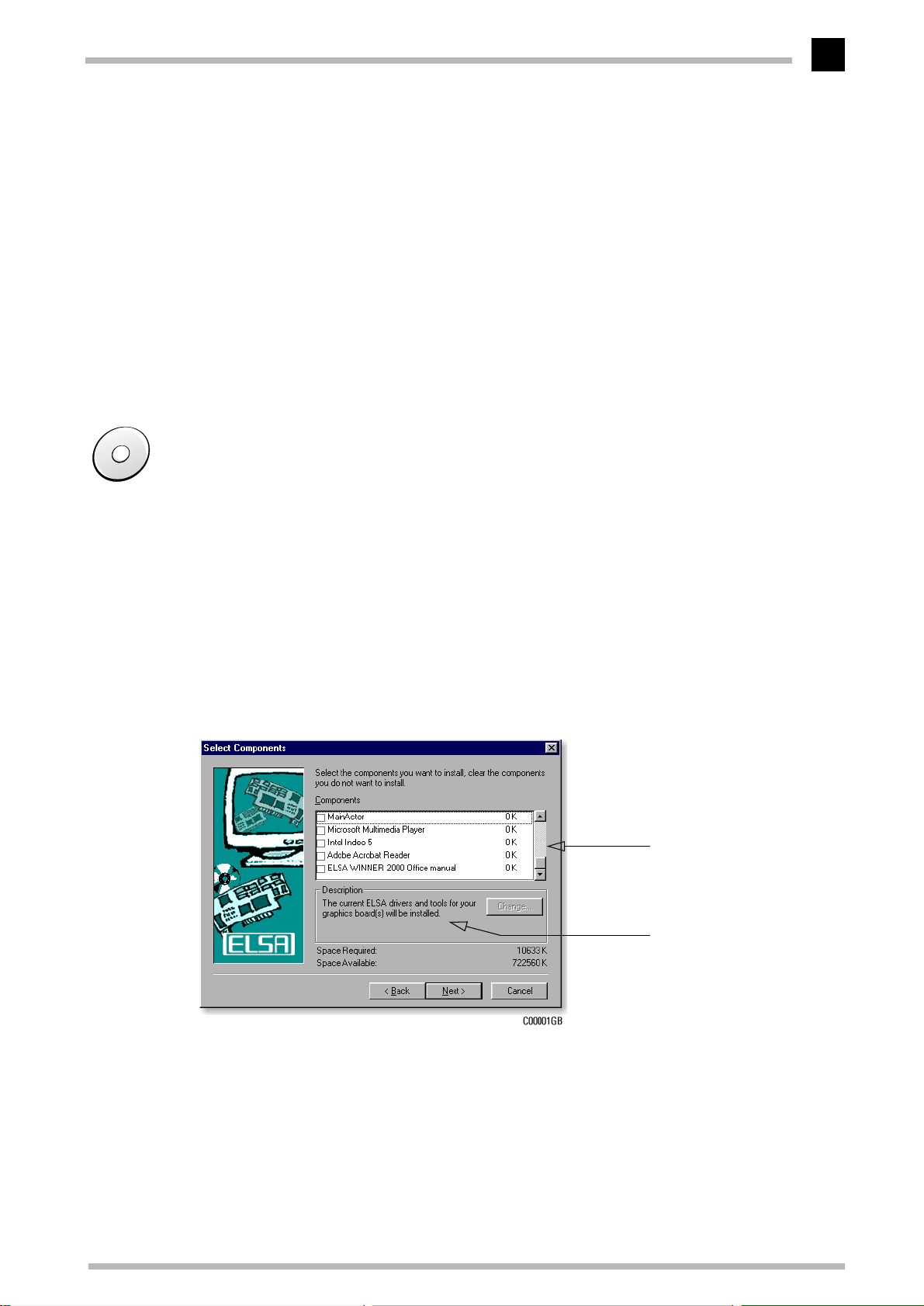
Software installation from the CD
5
The ELSA graphics board is normally supplied with software on a CD-ROM
all the utilities described in this manual on the ERAZOR III CD—unless they are a component of the operating system
Once you have successfully completed the steps described in the Installation Guide, your
ELSA ERAZOR III
way, you have very likely come to know the program ELSA CD setup. This program should
start automatically after inserting your
SETUP.EXE from the CD’s root directory.
The CD setup recognizes the operating system and the ELSA graphics board. Based on
this information, the program displays the driver and the selection of software supported.
All of these programs are on the
is integrated into your computer system with installed drivers. In this
.
ERAZOR III
ERAZOR III
CD.
CD, but if not, then you can run the
List of software which can
be installed
.
You will find
Information about the entries listed
The right settings
Our tip is: Invest a little time at this stage and you won’t regret it. Take your time to set
up your system just right. Your eyes will thank you for it, and you are guaranteed to have
more fun in front of your screen.
ELSA ERAZOR III Pro and ELSA ERAZOR III LT
Page 12
After installing the drivers
6
To set up your system properly, the following questions should be answered:
What is the maximum resolution I can set on my system?
쮿
Which color depth do I want to use?
쮿
What value should I set for my display refresh rate?
쮿
To help you find the answers to these questions, this chapter has been divided according
to the operating systems available. Just look for the section about the operating system
you use. All the information you need is here and all the software you need, if not already
a part of your operating system, is on the
What are your options?
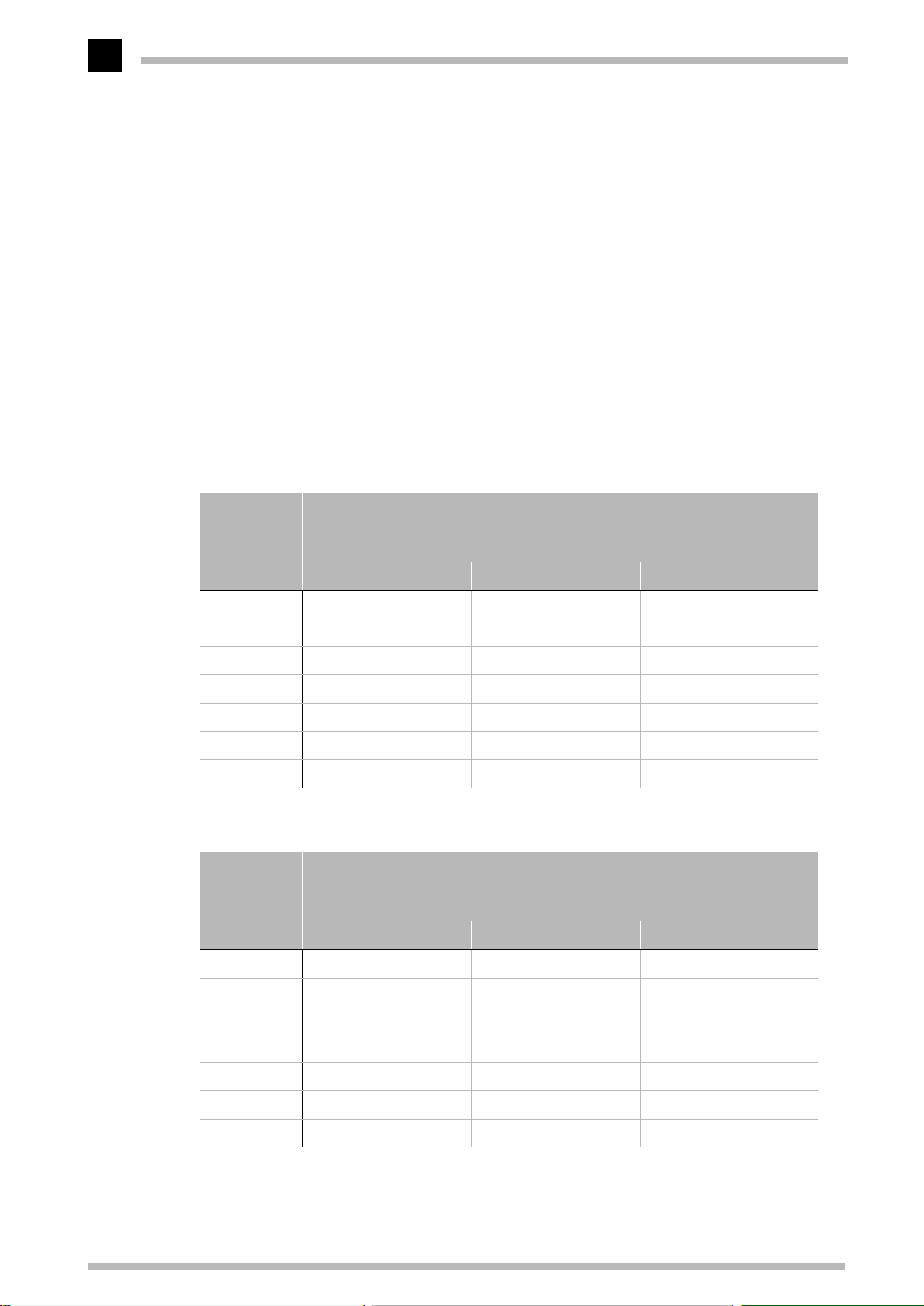
The tables below show the maximum possible resolutions for the ELSA graphics board.
Note that these resolutions cannot be achieved under all operating conditions.
ERAZOR III
CD.
ELSA
ERAZOR III
Pro
Color depth: 256 colors (8bit) HighColor (16bit) TrueColor (24bit/32bit)
1920 x 1440 60 – 75 60 – 75 60 – 75
1600 x 1200 60 – 160 60 – 90 60 – 90
1280 x 1024 60 – 160 60 – 120 60 – 120
1152 x 864 60 – 160 60 – 160 60 – 160
1024 x 768 60 – 160 60 – 160 60 – 160
800 x 600 60 – 160 60 – 160 60 – 160
640 x 480 60 – 160 60 – 160 60 – 160
HighColor = 65,536 colors, TrueColor = 16.7 million colors
ELSA
ERAZOR III
LT
Color depth: 256 colors (8bit) HighColor (16bit) TrueColor (24bit/32bit)
Max. Refresh Rate (Hz)
Max. Refresh rate (Hz)
1920 x 1440 60 – 75 60 – 75 60
1600 x 1200 60 – 85 60 – 85 60 – 85
1280 x 1024 60 – 100 60 – 100 60 – 100
1152 x 864 60 – 140 60 – 140 60 – 140
1024 x 768 60 – 160 60 – 160 60 – 160
800 x 600 60 – 160 60 – 160 60 – 160
640 x 480 60 – 160 60 – 160 60 – 160
HighColor = 65,536 colors, TrueColor = 16.7 million colors
ELSA ERAZOR III Pro and ELSA ERAZOR III LT
Page 13
After installing the drivers
7
What makes sense?
There are some basic ground rules for you to follow when setting up your graphics system. On the one hand, there are the ergonomic guidelines, although nowadays these are
met by most systems, and on the other hand there are limitations inherent to your system, e.g. your monitor. The question of whether your applications need to run using large
color depths––perhaps even TrueColor––is also important. This is an important condition
for many DTP or CAD workstations. We recommend that games and “normal” Windows
applications are operated in HighColor with 65,536 colors.
“More Pixels, more fun”
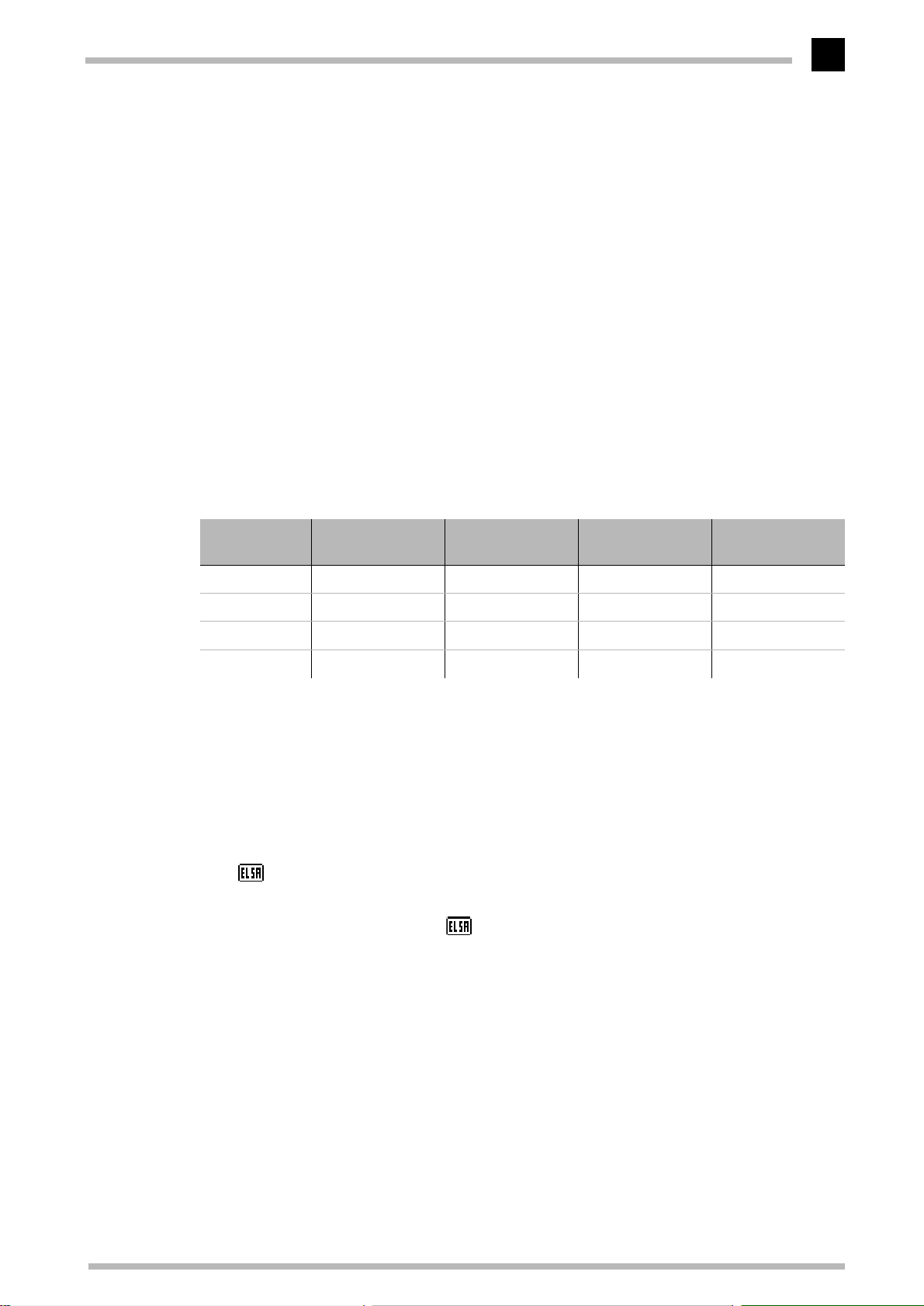
This is an opinion which is widespread, but which is not entirely true under all circumstances. The general rule is that a refresh rate of 73 Hz meets the minimum ergonomic
requirements. The resolution to be selected also depends on the capabilities of your monitor. The table below is a guide to the resolutions you might select:
Monitor
size
17“ 15.5“- 16“ 800 x 600 1024 x 768 1024 x 768
19“ 17.5“- 18.1“ 1024 x 768 1280 x 1024 1152 x 864
20“/21“ 19“- 20“ 1024 x 768 1600 x 1200 1280 x 1024
24“ 21“- 22.5“ 1600 x 1000 1920 x 1200 1600 x 1000
Typical
image size
Minimum
resolution
Maximum
resolution
Ergonomic
resolution
Changing the resolution
You set the resolution of your graphics board in the Control Panel under Windows.
Windows 95 and Windows 98
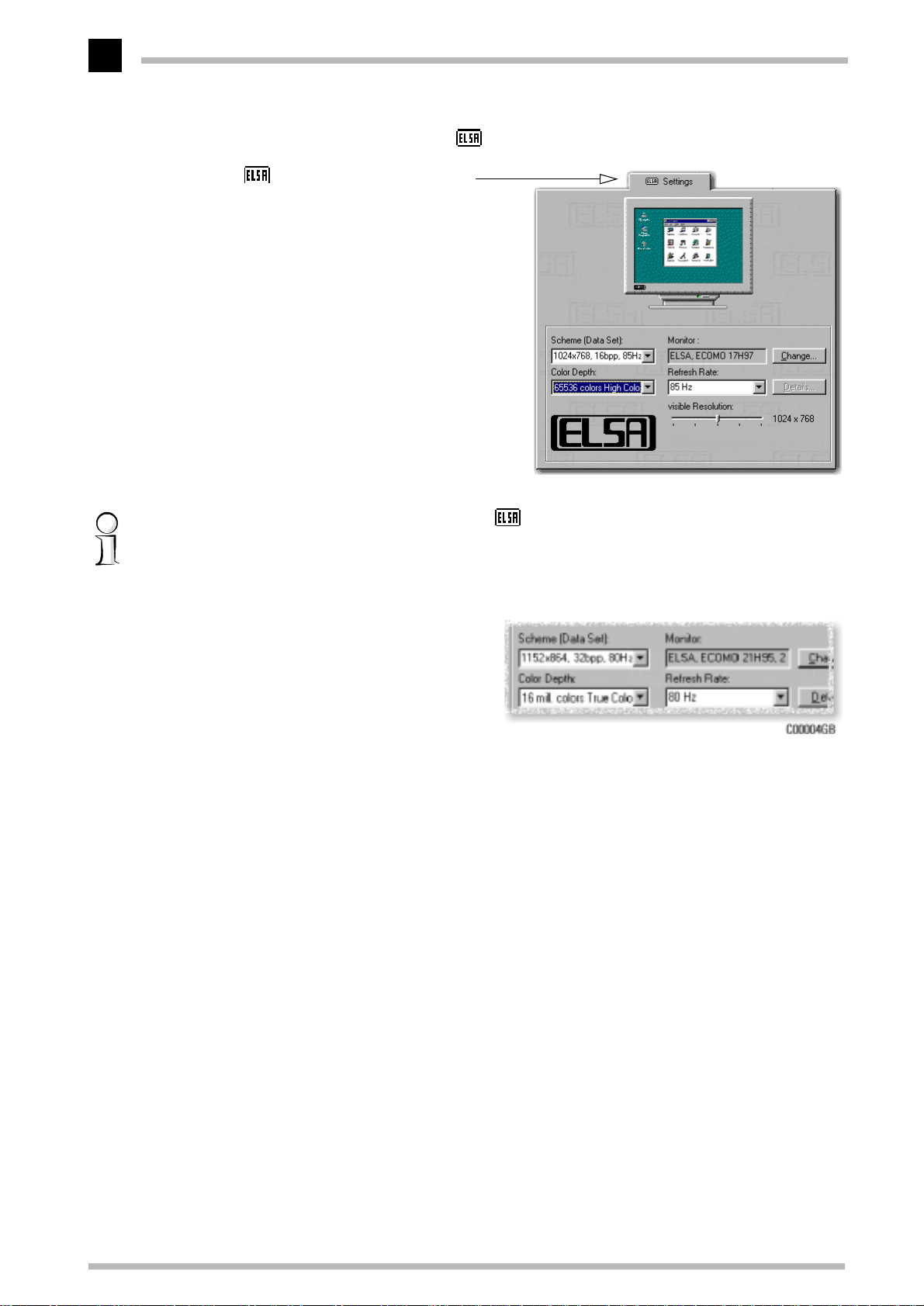
The ' Settings' are automatically integrated into the Control Panel during the installation of the
WINman Suite
for the best performance. The ' Settings' provide some great features. Once you
have specified the graphics board model and the monitor data, the program will automatically detect which settings are possible and which are not. This means, for instance,
that it is impossible for you to select an incorrect refresh rate which might damage your
monitor.
. You can use these Settings to tweak your graphics system
Click on
햲
You will find the
햳
Start
, then select
Display
Settings
Control Panel
왘
.
icon in the Control Panel. When you start this program,
you are shown a dialog box where you can modified the display settings.
ELSA ERAZOR III Pro and ELSA ERAZOR III LT
Page 14
After installing the drivers
8
Here you should click on the ' Settings' tab.
햴
' Settings' has all the options
for setting up the graphics board
for your monitor.
ERAZOR III
Under Windows 98, you can reach the
then clicking on the
Advanced...
'
Settings'
by selecting the Settings tab and
.
It is important to carry out the following settings or checks step by step:
the monitor type
쮿
the resolution of the monitor
쮿
image (Scheme, Data Set) and
the color depth
쮿
the refresh rate.
쮿
Choosing the monitor
If your monitor supports DDC, the preset values will be displayed under 'Scheme'. If this
is not the case, click on
Change...
to call up the database of monitor types. You will be
presented with a list of monitor manufacturers and monitor models. If your manufacturer
is present, click on the entry and then select your model. If your monitor is not listed,
there are two options. One option is to select the '_Standard monitor' from the list of
manufacturers and then select the resolution you wish to work with.
A second option requires information about the technical specifications for your monitor.
Consult your monitor manual to ensure that you have the correct information. Click on
Change...
in the 'Monitor type database' window. In addition to the information regard-
ing the monitor manufacturer, and the model designation, you will have to enter the fre-
ELSA ERAZOR III Pro and ELSA ERAZOR III LT
Page 15
After installing the drivers
9
quency ranges for the horizontal and vertical scan frequencies and specify the diagonal
size of your monitor.
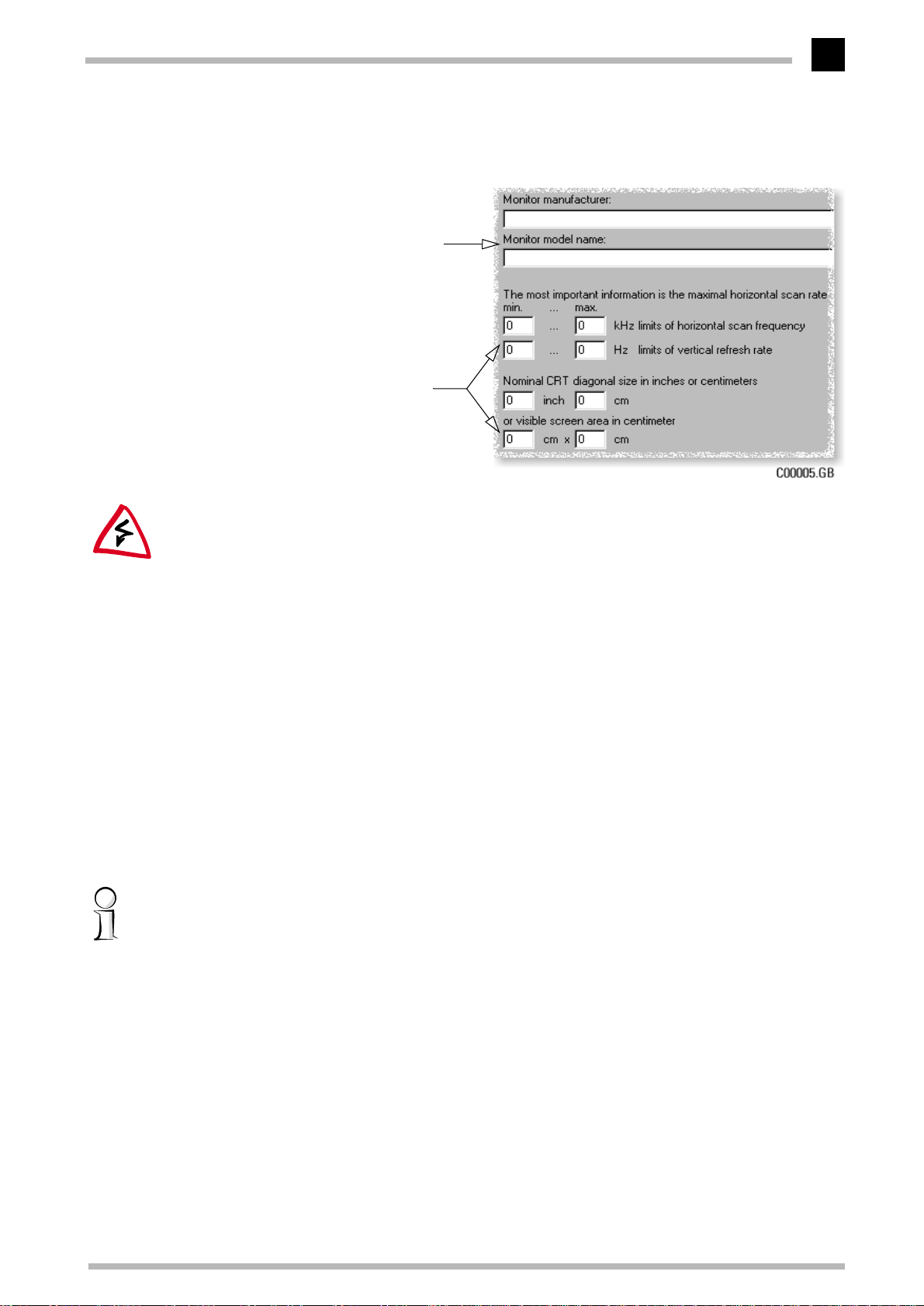
If your monitor type is not listed in the
monitors database you can enter the
monitor manufacturer and model type
here.
The vertical and horizontal frequency
ranges and the diagonal size of the
screen are the important settings.
Check your entries for the image frequencies carefully, as otherwise you might damage
.
your monitor
Look these up in your monitor manual or consult the monitor manufacturer.
Windows NT 4.0
The settings for the graphics driver are included in the Control Panel under Windows NT
4.0. Use the command sequence
Start
to call the dialog window where you should find the icon for
this symbol to open the window with its various tabs. Click on the 'Settings' tab.
You can select the possible settings for 'Color palette', 'Font size', 'Resolution' and 'Display frequency' from this dialog box. The available selection is determined by the ELSA
driver you have installed. You should always check the configuration you have selected
by clicking on the
You will find further information on how to customize your graphics settings under Windows NT 4.0 in your system manual.
Settings
왘
Test
Control Panel
왘
button.
Display
. Double click on
ELSA ERAZOR III Pro and ELSA ERAZOR III LT
Page 16

After installing the drivers
10
ELSA ERAZOR III Pro and ELSA ERAZOR III LT
Page 17
Video––what’s in, what’s out?
11
Video––what’s in, what’s out?
This section is relevant only for those boards equipped for video functionality. You can
check if this is the case with your board by looking at the connectors on the mounting
bracket of the ELSA ERAZOR III. If your board is fitted with a VGA connector only, then
you unfortunately cannot make use of the functions described here.
The
ELSA ERAZOR III
adapter cable supplied. The sockets on the composite video adapter cable allow you to
connect three video sources and two output devices. Exciting new possibilities are
opened up under Windows 98 and Windows 95 with the board’s video capabilities–
especially the video-in function.
Signal interchange––an overview
has a video socket to which you connect the composite video
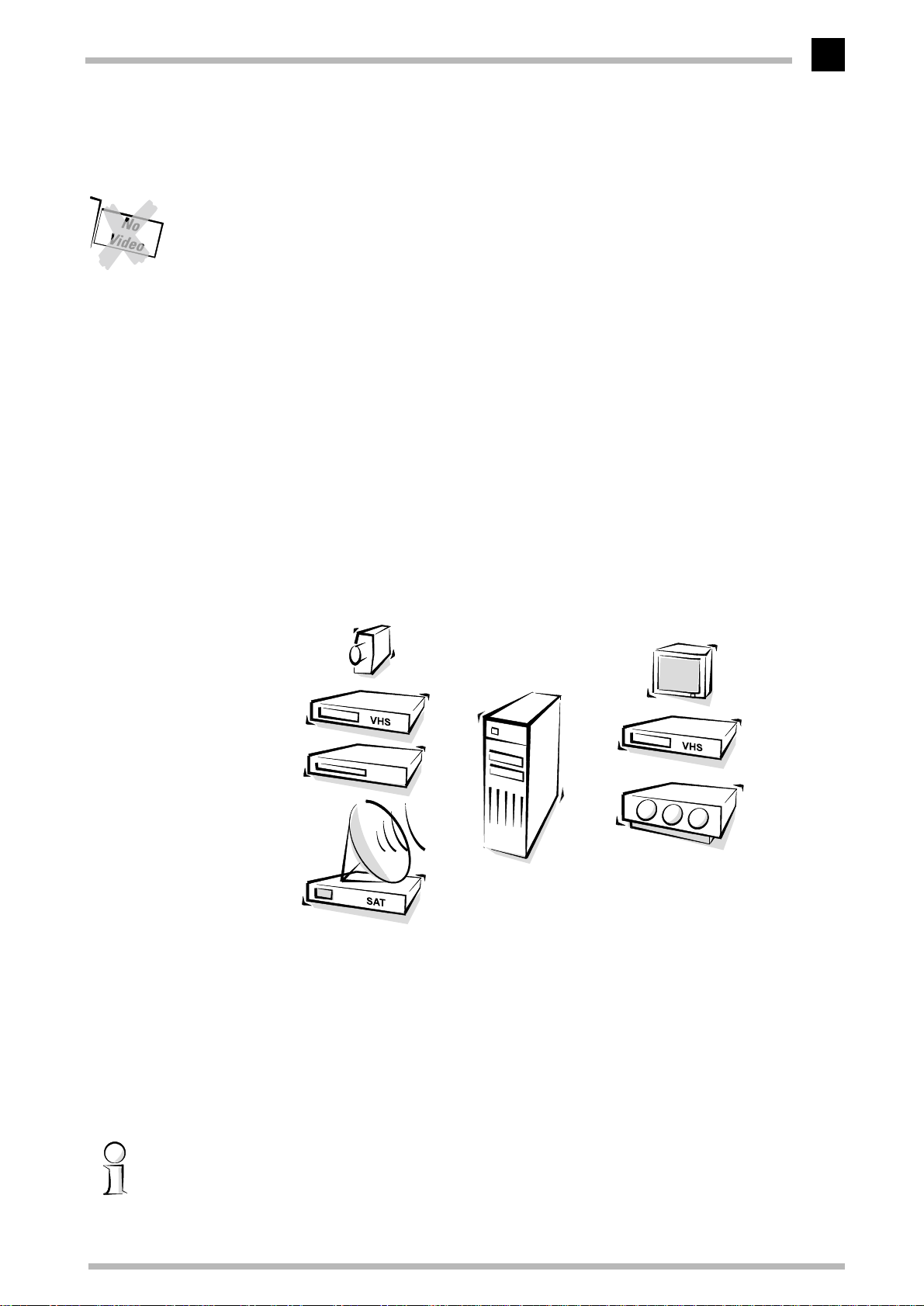
Below we will show you just how open the
Video-In Computer with
Video camera
Video recorder
Laser disk
player
Satellite
decoder
ELSA ERAZOR III
ELSA
ERAZOR III
is to all sides.
Video-Out
Television
Video
recorder
Projector
The illustration shows you, on the left, the input devices which can be connected to the
graphics board. Your ELSA graphics board has three inputs, two of these are composite
video inputs and one is a S-VHS input. The board is capable of processing the PAL, NTSC
and SECAM video standards.
On the right, you see the devices capable of displaying the VGA signal from the computer.
You can send the content of the computer screen through the video-out sockets to a television, a video recorder or a projector.
You can operate your ELSA ERAZOR III with a monitor and a TV simultaneously.
ELSA ERAZOR III Pro and ELSA ERAZOR III LT
Page 18
Video––what’s in, what’s out?
12
Video-in
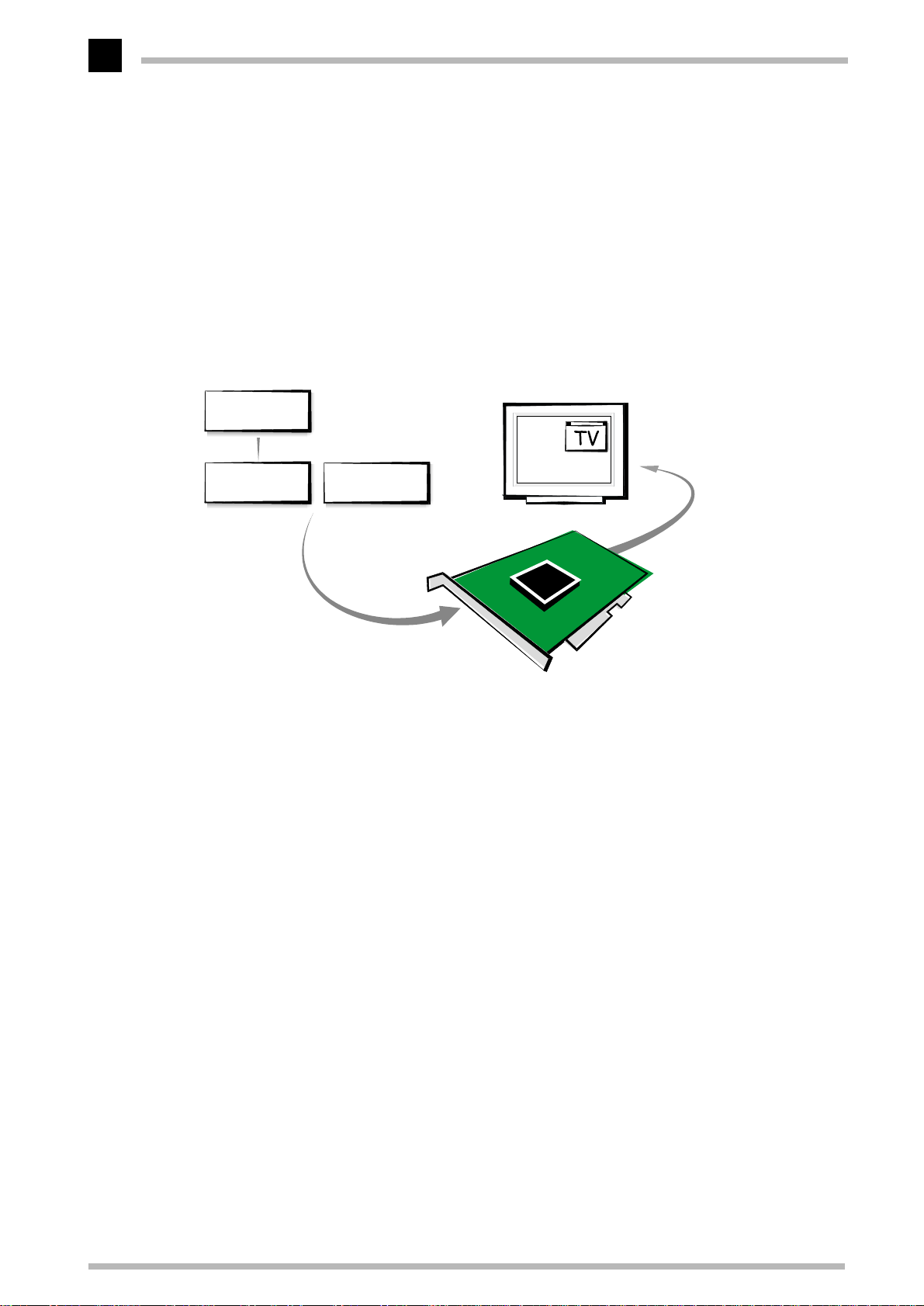
Before the
to connect the antenna to the
mation for several channels, and not a simple, unambiguous video signal as required by
ELSA ERAZOR III
the
simply take the antenna-output of your video recorder. Instead, the video recorder’s Scart
connector must be connected with the composite input of the
Example video signal processing with
Antenna signal
Cable or
TV tuner
ELSA ERAZOR III
. If you wish to display a TV picture on your monitor, then you cannot
Video camera
can react, the signals must be clear. It is of no use if you try
ELSA ERAZOR III
. The antenna’s HF signal transmits infor-
ELSA ERAZOR III
.
ELSA ERAZOR III
TV picture in the Video
Capture window on the
computer monitor
ELSA ERAZOR III
Video-out
Unlike a computer monitor, a television set is not able to process the VGA signal from a
graphics board. Comparing the 15-pin output for the monitor with a coaxial antenna cable
makes it immediately clear that the signals are handled in fundamentally different ways.
ELSA ERAZOR III
The
nals for the television. This signal can of course be used by other devices such as projectors with a video input or a video camera.
is equipped with its own translator, a chip which converts VGA sig-
The right connection?
The video socket is on the mounting bracket of the
video adapter cable into this video socket (see page 36).
One for all: The composite video adapter cable
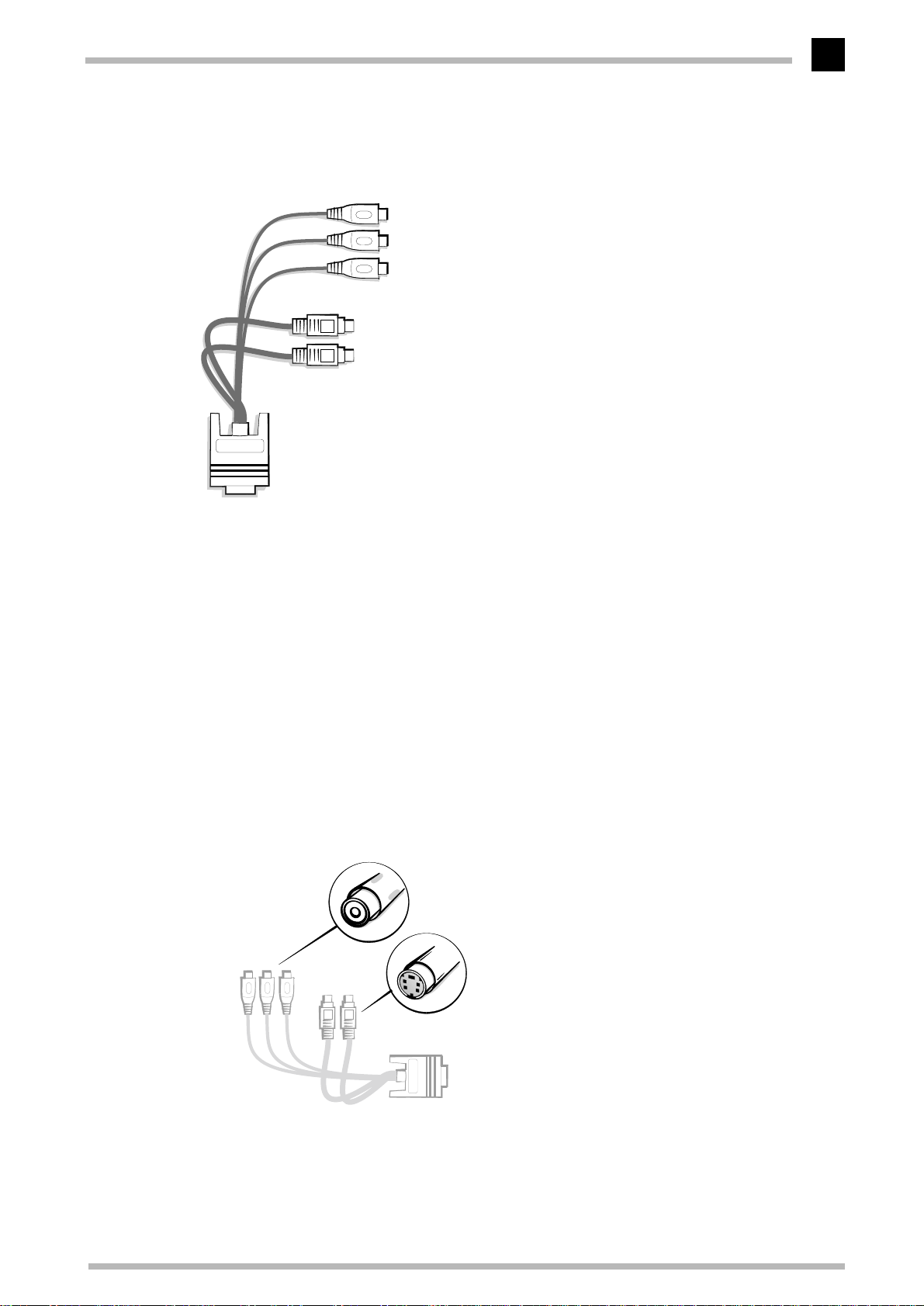
The composite video adapter cable supplied with the board provides everything you
need: Video-in and video-out connections. First plug the wide connector with the VIDEO
ELSA ERAZOR III
. Plug the composite
ELSA ERAZOR III Pro and ELSA ERAZOR III LT
Page 19
Video––what’s in, what’s out?
IN 2 – video – composite video (FBAS)
IN 3 – video – composite video (FBAS)
OUT – video – composite video (FBAS)
OUT – S-Video – S-VHS
IN 1 – S-Video – S-VHS
Plug for connecting to the output (VIDEO) on the
ELSA ERAZOR III
(15-pin D-sub-plug)
Composite video connector socket on the composite video adapter
cable
S-Video connector socket on the composite
video adapter cable
13
socket in to the
ELSA ERAZOR III
. Five cables come out of this plug. Each cable is cov-
ered by a sleeve marked with the assignment of the various sockets.
When connecting a device to the composite video adapter cable you need only consider
the following:
What kind of device do I want to attach?
쮿
– Input device, e. g. a video camera
– Output device e. g. a video recorder
What connections are there on the device?
쮿
– S-VHS (Y/C) and/or
– Composite video (FBAS).
Use the S-VHS connection for preference if the device has both an S-VHS connection and
a composite video connection.
ELSA ERAZOR III Pro and ELSA ERAZOR III LT
Page 20

Video––what’s in, what’s out?
14
Connection to a TV set
You can connect any normal television to the
instructions for your television to find out what video standards it supports. PAL or NTSC
devices—it depends on the model—can be connected to the
ELSA ERAZOR III
ELSA ERAZOR III
. Look in the operating
.
ELSA ERAZOR III Pro and ELSA ERAZOR III LT
Page 21
ELSA video settings
15
ELSA video settings
Besides the ELSA video settings, which allow a very detailed configuration for video-in
and video-out, you should take a look at the ELSA VideoControl. This tool is a very convenient solution for the centralized control over the video-in and video-out functions.
Video-in
If you have installed the
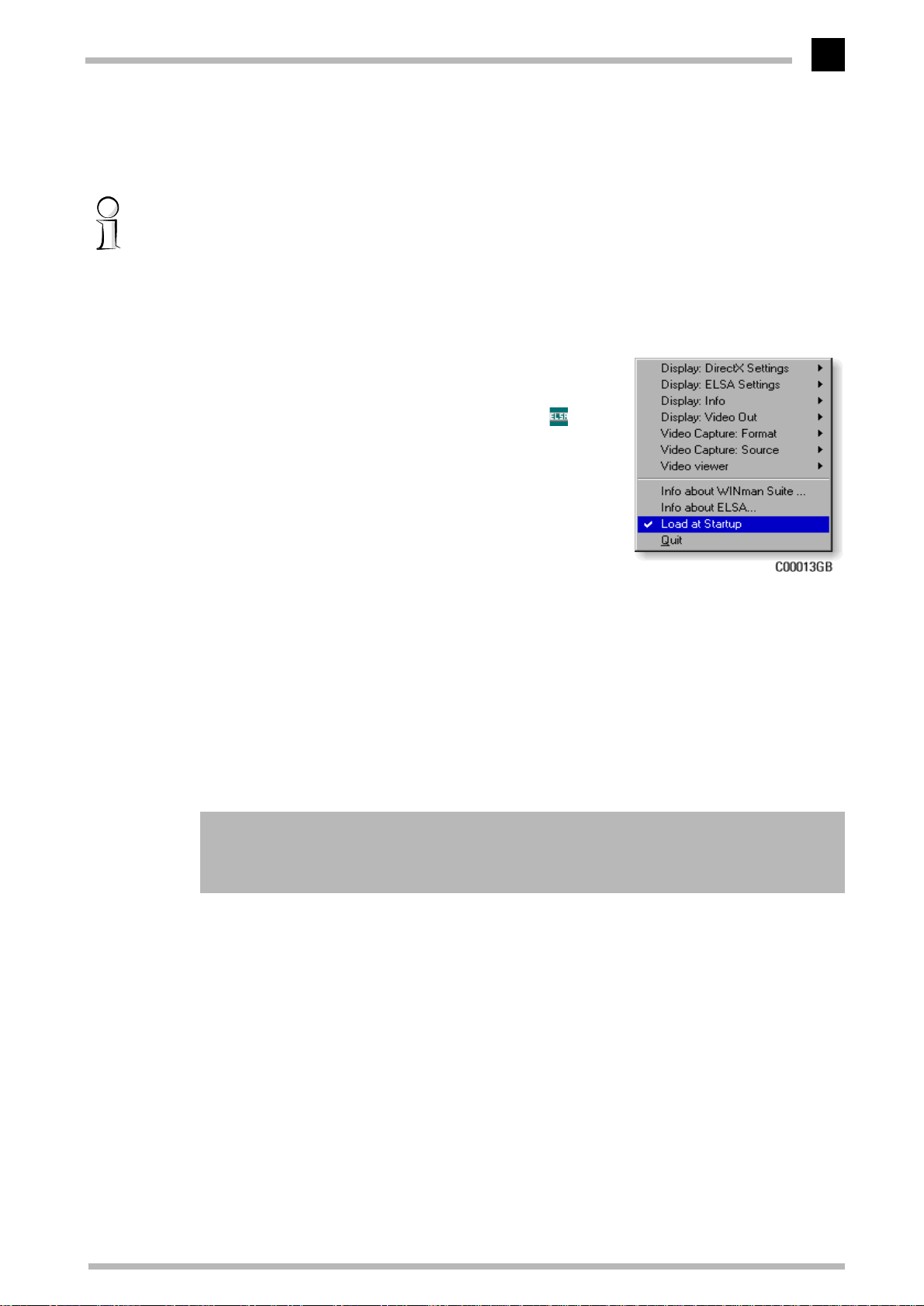
'ELSA Video-In/Out Utility', an ELSA icon will appear in
the task bar at the bottom right of your screen ( ). A
click on this icon opens up a dialog box from which you
can call up the commands for the video settings. The
video input for the
adjusted using the ELSA video settings. You can set
the following options:
The connector ('Video Capture: Source')
쮿
The video standard ('Video Capture: Source')
쮿
The resolution of the video recording ('Video Capture: Format')
쮿
A preview window for the signal at the video input ('Video and videotext viewer')
쮿
If you have connected a video input device to the
change your settings under 'Video capture: Format' and 'Video capture: Source'.
ELSA ERAZOR III
ELSA WINman Suite
can be defined and
and the
ELSA ERAZOR III
, you will need to
The video picture on the computer monitor
It may be enticing to record video material, but... We must remind you that copyrightprotected material must not be copied or duplicated without permission. ELSA accepts
no responsibility for copyright violations!
You can connect any normal video camera or any video device to the graphics board.
Connect the video output on the device to the suitable socket in the composite video
adapter cable. Their is no risk of confusing the input sockets because of the different
shapes of the composite video and S-Video plugs.
Make sure that you do not mix up the input and output sockets on the composite video
adapter cable when connecting the video camera.
The video input on the
application that supports this standards should work.
ELSA ERAZOR III
is compatible with Video for Windows. Thus any
ELSA ERAZOR III Pro and ELSA ERAZOR III LT
Page 22
ELSA video settings
16
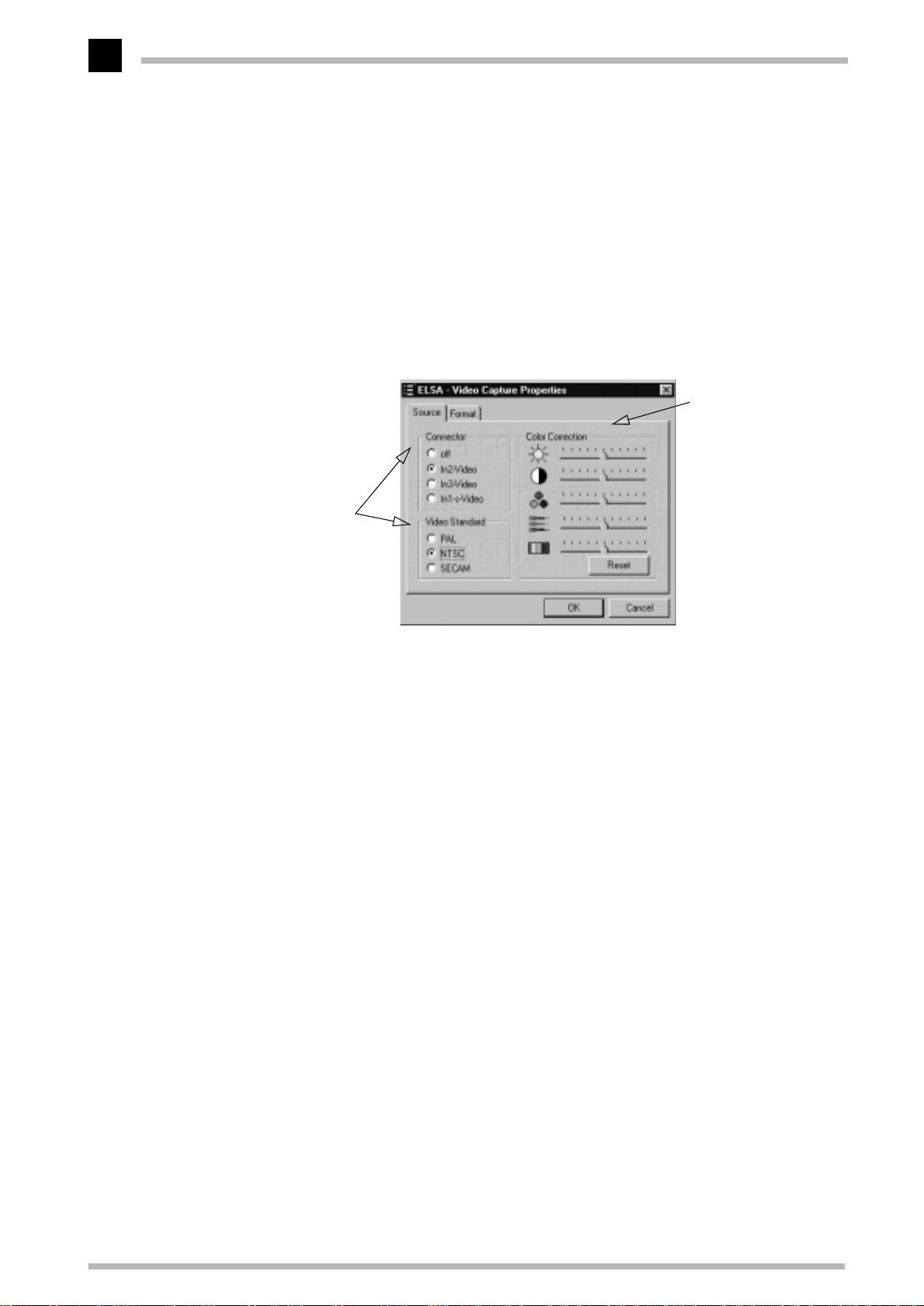
Once you have connected the video source, started your computer and loaded Windows,
click on the ELSA symbol in the task bar in the bottom right of the screen and select the
Video Capture: Format 왘 Start
'Video Capture: Source'
Now you should specify which video source you wish to use on the 'ELSA - Video Capture
Properties' tab. The color correction options allow you to adapt the input signal. This
covers brightness, contrast, color, image sharpness and hue. The setting for the hue,
however, is only effective for NTSC input signals.
If I don't want it in, it's
got to stay out. Bide
by this motto when
deciding which video
connector is to be
used and the
connector’s video
standard.
command from the dialog box.
The color correction
affects the video image
only, not the whole
screen.
Select
PAL, NTSC
SECAM
or
as your video standard. PAL is the normal video standard
in Europe. The manual for your video recorder or video camera can help if you have any
queries.
Select which video input you wish to be active from the Connection option group. For
example, you can connect a video recorder to each of the two composite inputs (In2 video
and In3 video) and a video camera to the S-VHS input (In1 S-Video). Clicking on the relevant input determines which video source sends your signal to the
ELSA ERAZOR III
.
ELSA ERAZOR III Pro and ELSA ERAZOR III LT
Page 23
ELSA video settings
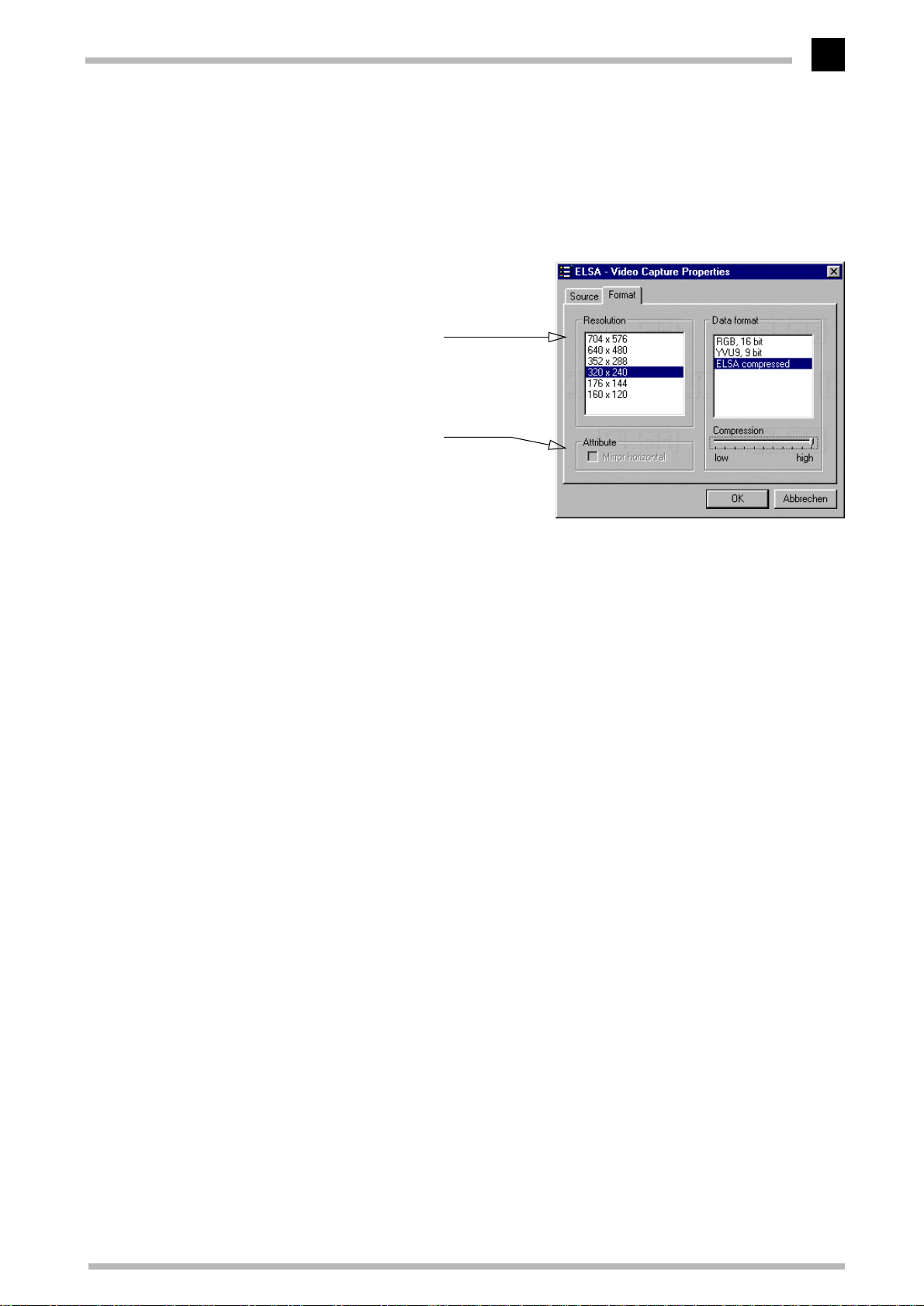
'Video Capture: Format'
Clicking on the 'Format' tab brings up a selection of possible video resolutions. Select
the resolution you require for video display and recording and confirm your settings by
clicking OK.
You can select the resolu-
tions supported for display
on a television from this
window.
Turn the picture upside-
down if you want to.
17
How does the video image get onto the computer monitor?
The
ERAZOR III
exciting application when the video camera is connected is to use Microsoft NetMeeting
(20). You can set up conferences over a TCP/IP network or a telephone connection which
will also send video information. For example, you can show on the screen the video
image of the participants in a conference. Entire video sequences can be recorded with
MainActor, another program on the
mated video sequences to Internet pages (22).
CD has programs you can use to display the video image. One particularly
ERAZOR III
CD. Special formats allow linking of ani-
Overwhelmed?
A whole new world of opportunities opens up with the video interface on the graphics
board. If you’re too dazzled by the wealth of options available, you might like to look at
the tips and ideas listed below.
What’s IN?
With your camera, you can
쮿
– Hold Internet video conferences using Microsoft NetMeeting. Your picture adds
weight to your opinion. Those taking part in the conference can see each other,
and the conference experience is more lifelike.
With your video recorder, you can
쮿
– Play live video or TV on your desktop. A news ticker or a video clip from your
favorite tape will run in an extra window on your monitor.
ELSA ERAZOR III Pro and ELSA ERAZOR III LT
Page 24
ELSA video settings
18
What is OUT?
쮿
쮿
– Make recordings of still images or video sequences from the video recorder.
Using MainActor you can record and edit your valuable archive material. Digital
images can be manipulated as you wish.
With your television, you can
– finally experience big-time games action in large format. A sound card will make
your games playing a multimedia pleasure.
– check the image you have recorded on the video recorder.
With your video recorder, you can
Record games sequences as video.Your heroic campaign against the Orcs can be
–
preserved for posterity on video tape. Or incorporate some digital specials into
your tape of your family.
The computer display on TV/video
What you see on your computer monitor can also be displayed on video, TV, or via a video
beamer. The entire screen, or even just a part of it; the active window of any application,
for example.
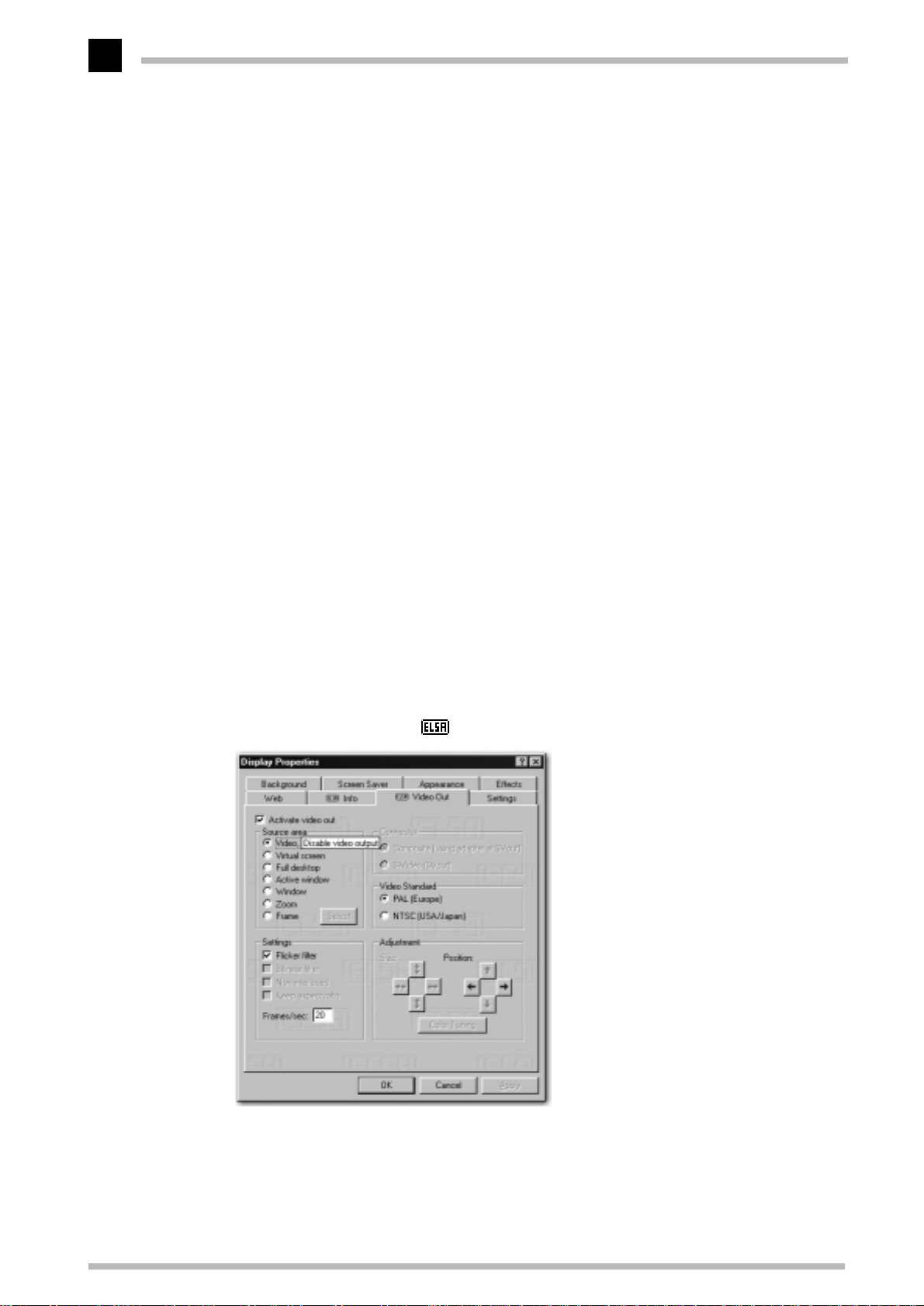
Click on the ELSA symbol in the task bar and use
햲
Display: 'Video Out'
to call the dialog for the ' Video Out'.
Next, check if the video output is active.
햳
ELSA ERAZOR III Pro and ELSA ERAZOR III LT
Page 25

ELSA video settings
Now check the video standard. Depending on the standard you require, activate
햴
either PAL or NTSC.
Under 'Connector', select the video input type, be it composite or S-Video.
햵
Should a black and white image appear on your TV, call the Video Out dialog
and click on
to adjust the color-carrier frequency until a colorful and stable picture is seen on
your TV.
By now, you should see your monitor display on the video device. In the 'Source area''
field you will see several options for the deciding which part of the image should be displayed. Under 'Settings' and 'Adjustment' you can further optimize the quality, size and
position of the on-screen image.
Color Tuning
. In the Color Tuning window, move the slider left or right
19
ELSA ERAZOR III Pro and ELSA ERAZOR III LT
Page 26

ELSA video settings
20
ELSA ERAZOR III Pro and ELSA ERAZOR III LT
Page 27
Useful stuff and more
Useful stuff and more
21
Apart from the ELSA drivers, the
utilities for use with the
Information about other programs can be taken from the README files on the CD.
ELSA ERAZOR III
ERAZOR III
, a selection of which we will intorduce here.
CD also contains additional programs and
The Multimedia Player
Until now, a variety of programs for the playback of CDs, videos and other media was
available under Multimedia in the Accessories folder of the Windows start menu. These
have now been succeeded by the Microsoft Multimedia Player. It handles the most common multimedia formats, all under one common user interface—regardless of whether
the data is coming from the Internet or the local hard disk. The Multimedia Player is
responsible for the playback of RealAudio and RealVideo, as well as WAV, AVI and
Quicktime files.
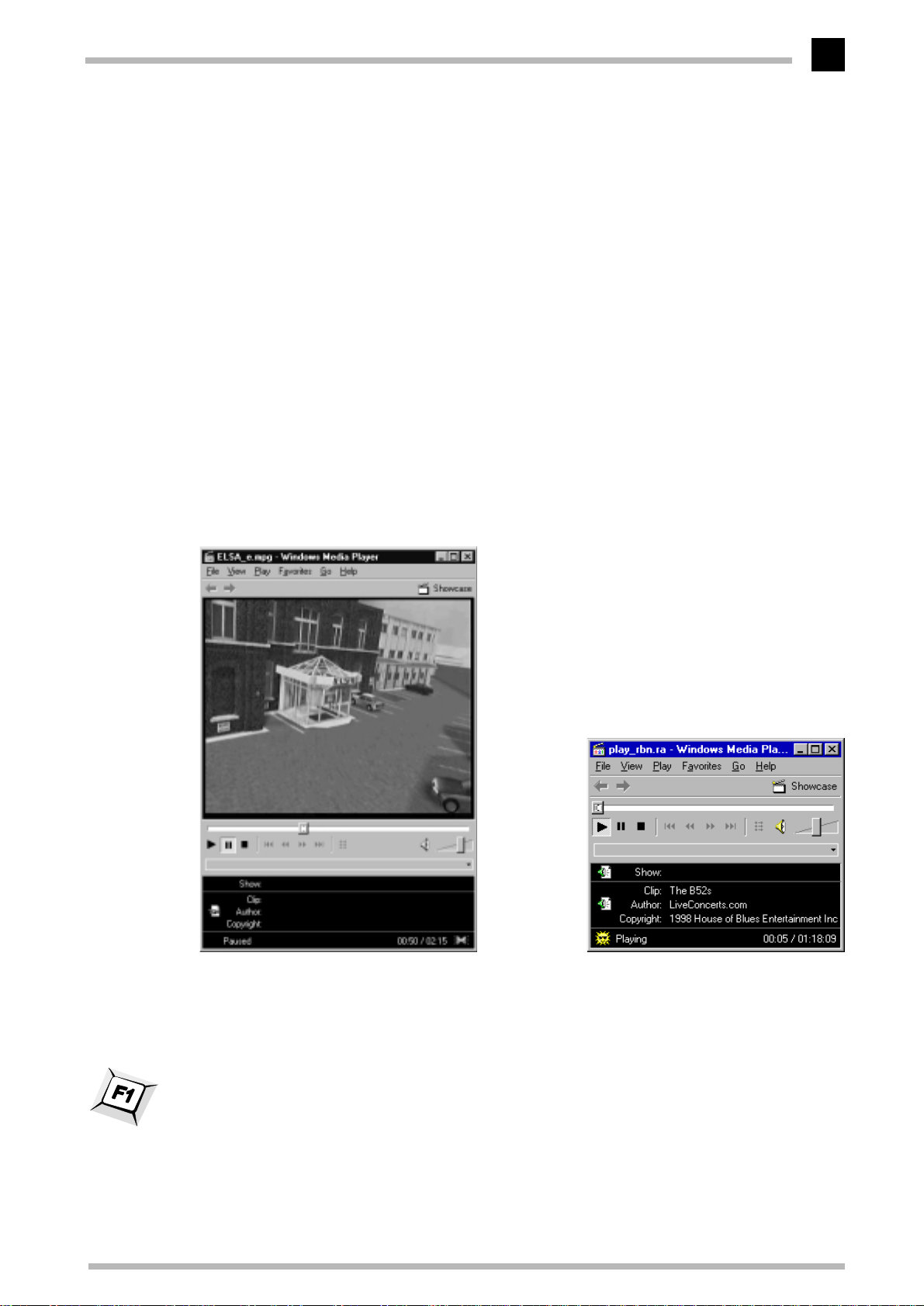
Video playback or Internet live radio: The
Microsoft Multimedia Player handles all
common multimedia formats.
After the installation, the file extensions of media files are permanently associated with
the Multimedia Player. You can thus double-click the media files in the Windows
Explorer or My Computer folder to conveniently launch the Player and start the playback.
The use of the Multimedia Player is intuitive, and it includes a comprehensive help function to clarify questions or solve problems while working with the program.
ELSA ERAZOR III Pro and ELSA ERAZOR III LT
Page 28
Useful stuff and more
22
Video control deluxe
With the ELSA VideoControl tool, you have a program at your disposal that provides useful functions and has an attractive interface.
Moreover, ELSA VideoControl is constructed according to the WDM (Windows Driver
Model) open interface standard. Therefore, anyone who wants to is in the position to
program his own extensions or rummage around the internet to see whether someone
else has already been creative.
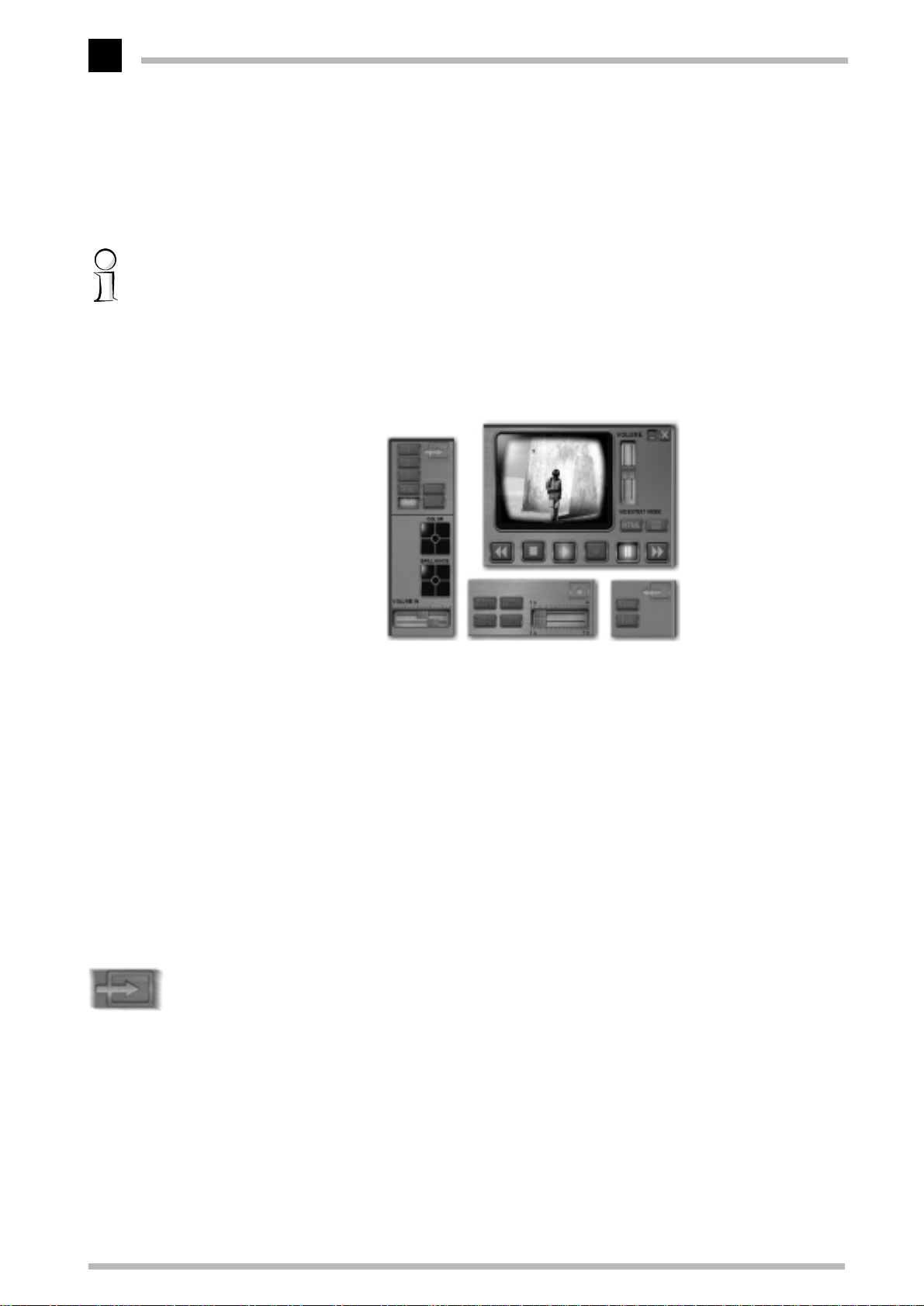
The program interface is divided into several functional sections:
Videoi-in section
Which video source
do I choose? Should the
input signal be adjusted?
Record section
Which recording mode
do I choose?
Video-out section
How is the video output
to be done?
Control section
Video start or
stop? Forward,
backward or pause?
Record, level control
or videotext output?
In detail: operation
ELSA VideoControl is operated intuitively with the mouse. When pressing the left mouse
button, you can “grab” the controls and change settings by moving the mouse. A tip:
With the right mouse button, you can move the sliders together, and, in the case of some
buttons ('HTML' or 'Wcam'), select the file directory.
Video-in section
Up to three external input signals can be managed with ELSA VideoControl. In addition,
it is possible to play files in AVI format or the new motion JPEG process (MJPEG), as well
as any other format for which the appropriate codec is installed in your system. Also,
since DVD support is gaining more interest, in addition to a drive, an installed DVD
decoder, such as
ELSAmovie
, is a prerequisite to playing DVD videos.
For video inputs 1 - 3, the 2D cross hairs enable the adjustment of color saturation, as
well as brightness and contrast. Using the sliders, you can change the level of the signal
for the audio input.
ELSA ERAZOR III Pro and ELSA ERAZOR III LT
Page 29
Useful stuff and more
Record section
In the record mode, you can choose between 'Video' and 'Single'. In Video mode, a
switch is made to full image as soon as the Record button is activated and the recording
is made in MJPEG format. A small tip: A 90-minute film with VHS quality fills less than
3GB of hard drive space with this compression process.
23
Vonly
Timed
button, you move the signal to video output. This function is
The sliders belong to the
the recording duration with the help of the slider. The selected time is displayed in the
monitor window. The 'Wcam' function enables you to store an individual image every x
seconds. The position of the slider determines the point in time. You can choose
between 1second or 1hour.
Video-out section
With a click on the
particularly helpful if, for example, you would like to continue to work in Mainactor while
maintaining control of the full image on the television. With the
switch the video image on your monitor to full image mode.
Control section
Anyone who has ever operated a videocassette or cassette recorder will immediately
understand this section. The video control buttons are self-explanatory. We will consciously leave a documentation gap, with the exception to note that the ' ' button
automatically “rewinds”.
Videotext is also interesting. If you click on the ' ' button, an additional videotext
window appears. If the preview window remains black, the error could lie with the cable
connections. In any case, check to see which video input the television tuner is connected to and whether that input has been activated as a video source.
and
Wcam
buttons. If 'Timed' is active, you can define
Full
button, you can
In order to receive videotext, you must have a television or satellite tuner connected to
one of the video inputs.
The 'HTML' button allows the videotext page to be stored as an HTML file. You determine the directory yourself—the files will be stored there under the sender name and a
serial number.
ELSA ERAZOR III Pro and ELSA ERAZOR III LT
Page 30
Useful stuff and more
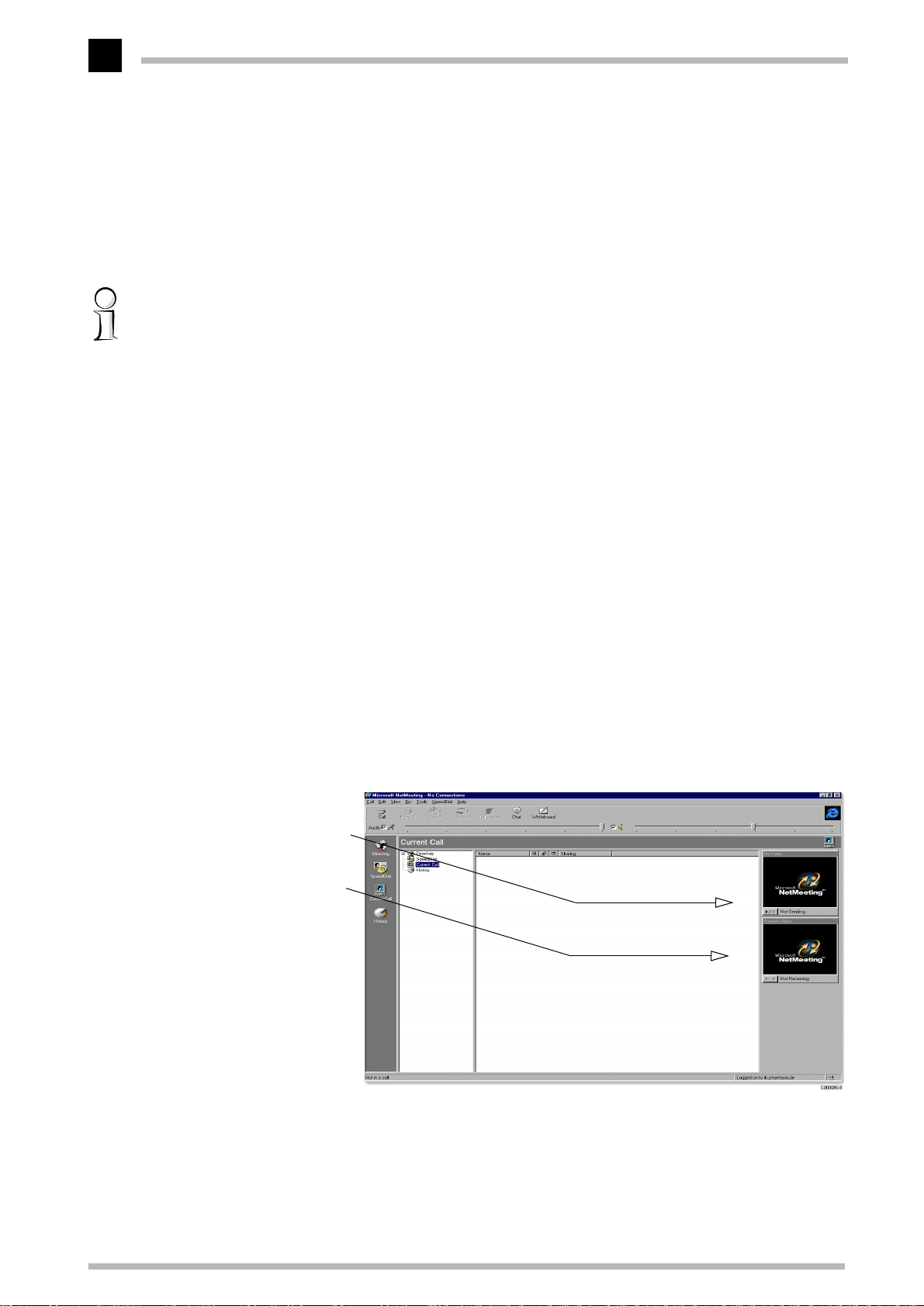
Your picture could be
shown in video here...
...and the remote site
here.
24
Searching for information
Operating the browser can be learned quickly. First and most important: your videotext
session can be fully controlled with the mouse. Double-click on the page number you
wish to view. You can also select the page number from the keyboard. Simply type in
the numbers to start the search.
You don’t only have to search for a certain page number. You can also click on any other
text appearing on-screen and the browser will display the first page it finds which contains the text you selected.
Neat, meetings!
You will find Microsoft's NetMeeting conferencing program on the
following list is a short summary.
With NetMeeting you can, for instance:
Call up anyone over a network or through a modem
쮿
Carry on conversations over the Internet
쮿
See the people you call up using a modem or network
쮿
Work in one application with others (application sharing)
쮿
Use the whiteboard to draw during an online conference
쮿
Send written messages in chat mode
쮿
Set up a call link, so that others can call you from your webpages
쮿
Send files to all the participants in a conference
쮿
ERAZOR III
CD. The
ELSA ERAZOR III Pro and ELSA ERAZOR III LT
You can connect a video camera to the video input of the
can be shown in a Microsoft NetMeeting conference.
ELSA ERAZOR III
. The picture
Page 31
Useful stuff and more
25
The F1 key or the
information about the program here.
?
menu command calls up NetMeeting's online help. You will find more
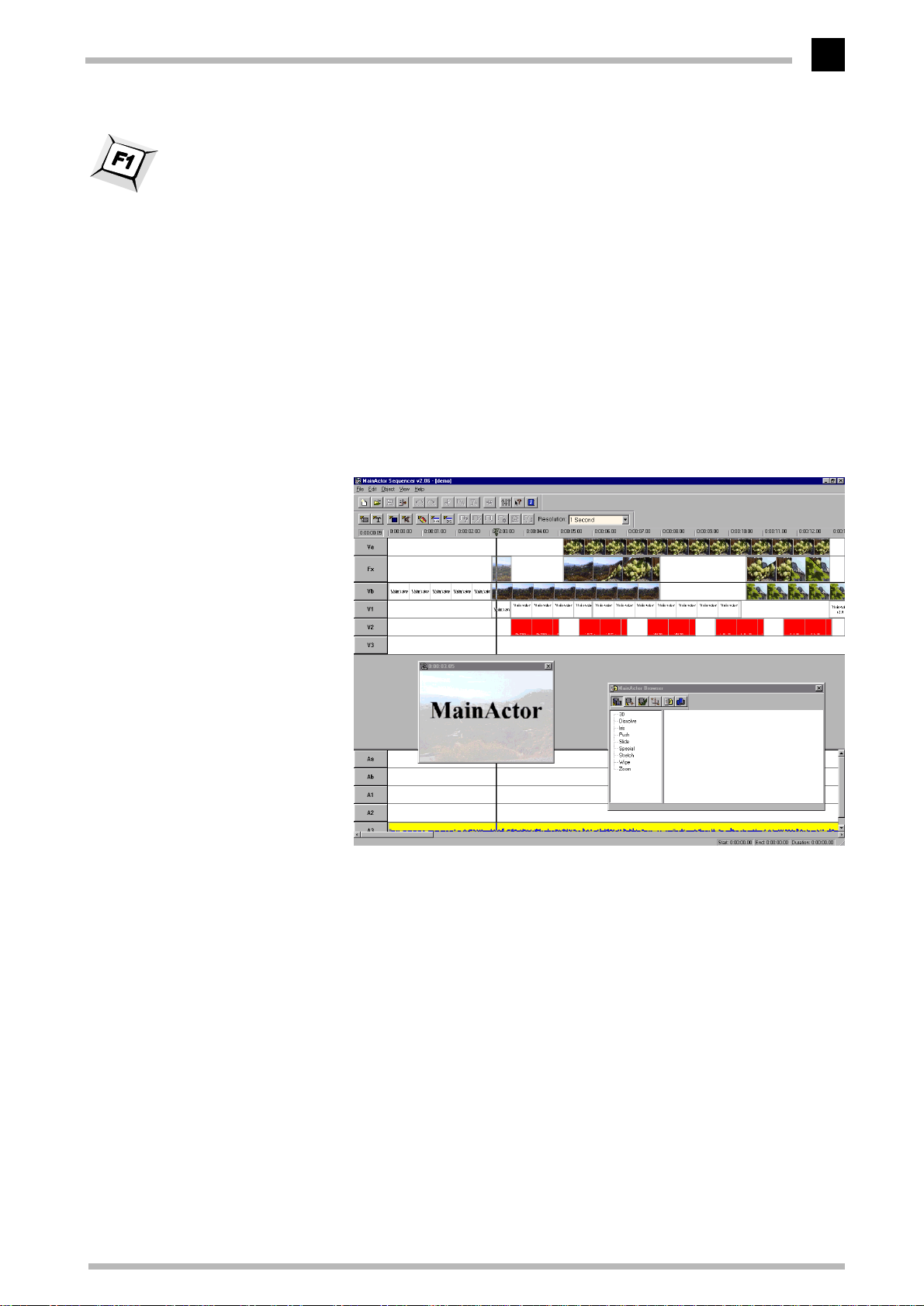
MainActor—the principal performer
You will find MainActor on the CD. The program consists of three modules with which
you are able to create sophisticated video productions.
The sequencer
MainActor sequencer is a professional video sequencer that allows you to produce videos with sound, animations, titles and videoclips. Additional effects and filters give you
the ability to easy manipulate your video material.
ELSA ERAZOR III Pro and ELSA ERAZOR III LT
Page 32
Useful stuff and more
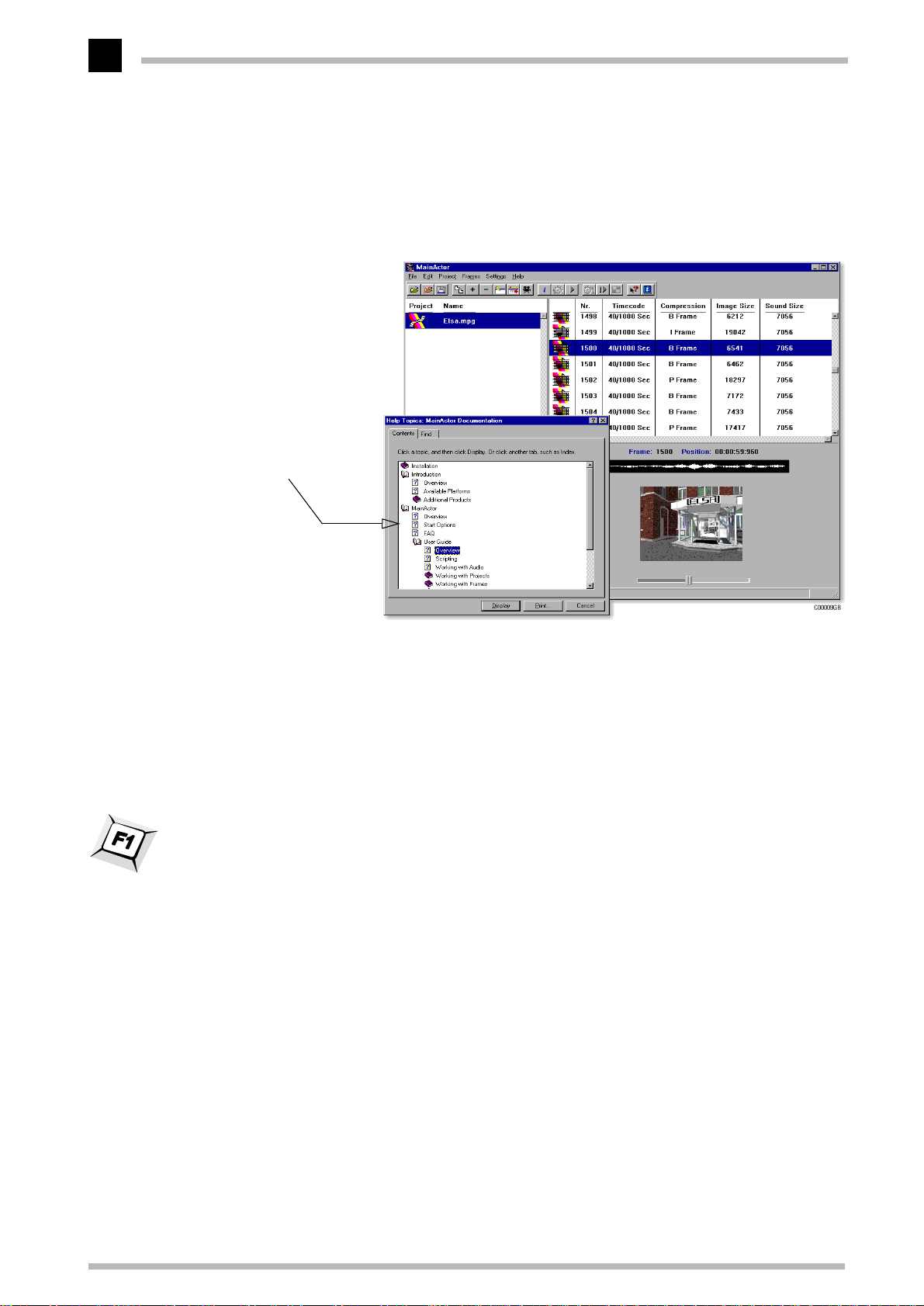
It is easy to start using
MainActor, thanks to its
comprehensive online
help.
26
The video editor
MainActor sequencer allows you to load, edit, and playback any animations, images and
sounds; you can also convert these to a wide variety of formats.
stored as new animations or images.
Edited projects may be
The Viewer
MainView is the external player for MainActor. It is used if you only wish to playback videos, without having to load them into MainActor. MainView can also be called from other
programs.
Open MainActor's online help by pressing F1 or selecting Help from the menu bar. You
will find more information about the program here.
ELSA ERAZOR III Pro and ELSA ERAZOR III LT
Page 33
Useful stuff and more
27
Fine-tuning for performance freaks
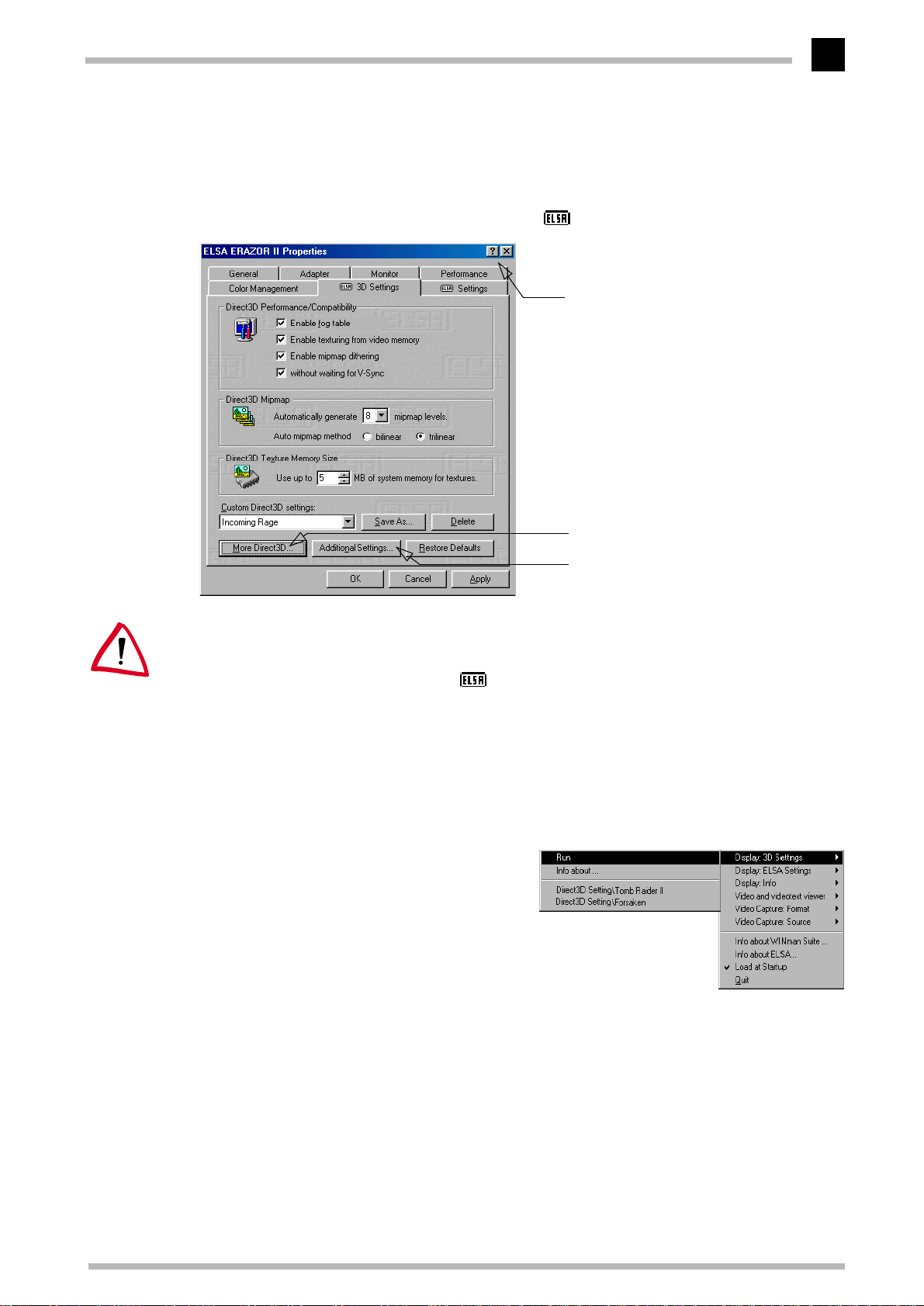
After installing the ELSA graphics drivers under Windows 95 and Windows 98 you will
find a new tab in the 'Display Properties': The ' 3D Settings'.
The question mark provides the answers!
Click on this symbol and then on the area
of the dialog about which you want more
information.
There’s more!
Click on this button for additional dialog
windows.
Because Windows 98 allows the operation of multiple graphics boards, the 3D Settings
for the ERAZOR are to be found in another location. Under 'Display Properties' select in
'Settings' 왘
turn:
Advanced...
왘 ' 3D Settings'
.
These settings let you set up the optimal games performance on your system. In most
cases you don’t need to adjust anything. Once in a while if you see display errors on
screen or if there are problems with the speed, you can adjust the Direct3D or settings.
The settings which are optimal for any game can saved under an identifiable name and
quickly recalled without having to restart your system.
Once saved, the settings can be easily
recalled: the individual 3D configurations
for your games can be found in the
ELSA WINman Suite
.
Experimentation pays! Give your combatant a little extra “zip” and optimize his chances
against the competition. If the descriptions here are too cryptic, just take a look at the
glossary in this manual or use the comprehensive help system. Simply click on the question mark at the top right-hand corner of the dialog window, and then click on the item in
question. If you accidentally dump your system into the crawler-lane, just click on the
emergency button
Restore Defaults
. The standard settings will be called into action.
ELSA ERAZOR III Pro and ELSA ERAZOR III LT
Page 34

Useful stuff and more
28
ELSA ERAZOR III Pro and ELSA ERAZOR III LT
Page 35
All about graphics
Object data Tesselation
Geometrical
transformation
Rendering
Display
on the
monitor
29
All about graphics
This is the chapter where we really get stuck in. Anyone who wants to know more about
graphics—especially in connection with the
of technical stuff right here.
ELSA ERAZOR III
3D graphics representation
Today it is considered de rigeur to know all about 3D. Your curiosity will be aroused as
soon as you experience the first visual wizardry generated by your new graphics board.
Two features of the 3D display will leap out at you: it's both realistic and fast. The
amount of work required here is known only to the processor, but we will describe it in
detail to you below.
—will finde a whole load
The 3D pipeline
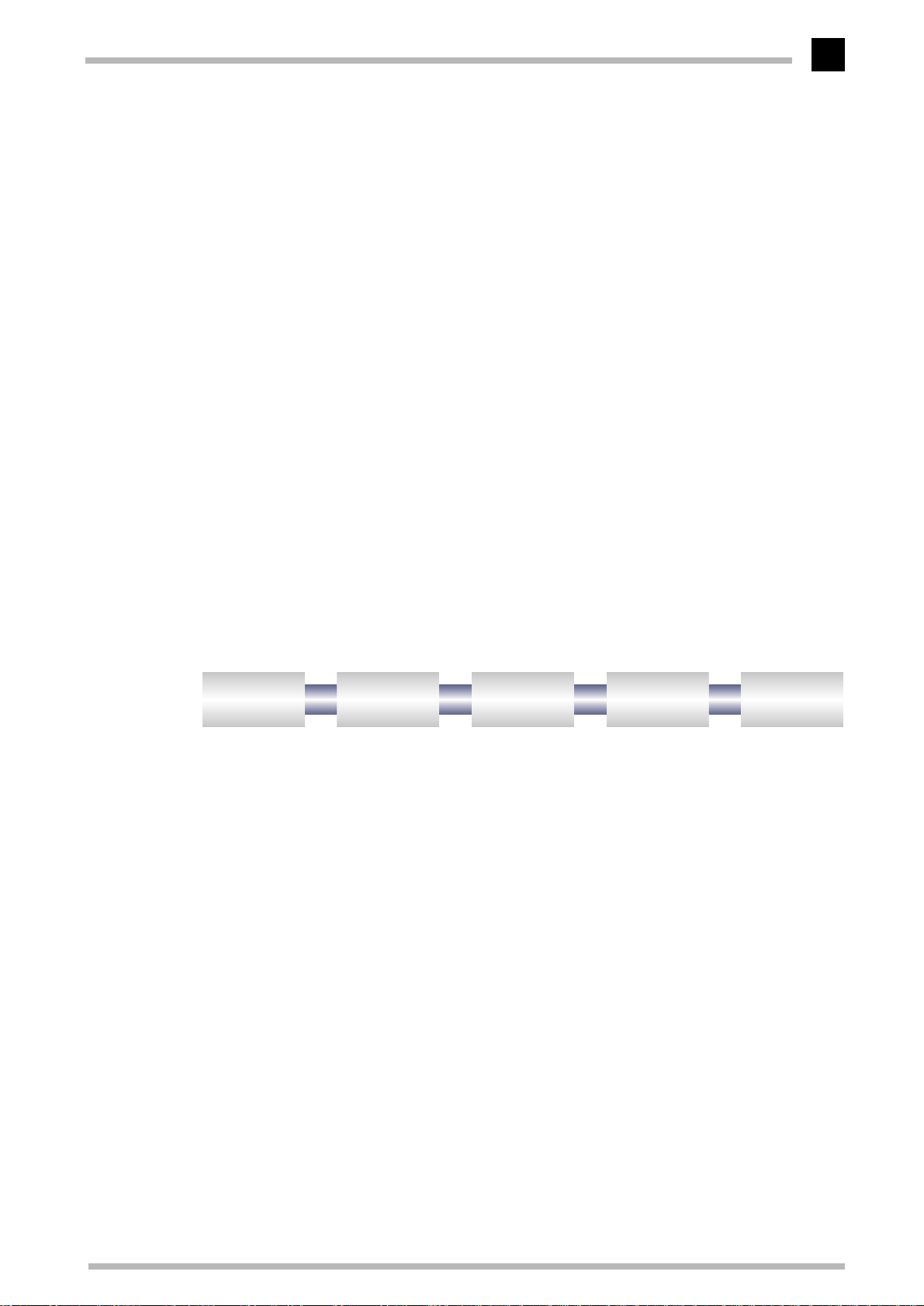
What actually happens when a monitor displays a 3D object? The data describing the 3D
object are passed through what is known as the 3D pipeline, in which the mathematical
calculations for its representation in space and perspective on the monitor are carried
out. What happens in detail?
Start: The object data
The pipeline starts at the object. The object description is made up of the data (points).
Tesselation
In the first step, the object is broken down into a number of polygons or triangles. The
vertices of the triangles are described by coordinate points (x, y and z) with the 'z' value
containing the depth information. Depending on the representation, these vertices also
contain information concerning the material and texture. The volume of data to be processed increases enormously because of this conversion of the image information.
Geometrical transformation
This part of the 3D pipeline is very processor-intensive, as all the calculations for the 3D
scene are carried out at this stage. Simplified, it comprises of the following steps:
ELSA ERAZOR III Pro and ELSA ERAZOR III LT
Page 36

All about graphics
30
Illumination
쮿
Transformation
쮿
from the observer's point of view.
Back face culling
쮿
observation perspective chosen. Any object having an invisible front surface is
omitted.
3D clipping
쮿
partially or fully invisible. The invisible faces or parts of objects will be removed.
Scaling on the screen
쮿
sional space using normalized coordinates. The on-screen image coordinates will
only now be computed.
Rendering
At this stage, the 3D scene is filled with color shades and textures are applied. Different
processes and methods are also applied here.
T exture mapping
쮿
materials and textures are assigned. Different methods are used here to make the
textures appear realistic, even when enlarged or reduced. As a first step, the textures are computed:
– The illumination of the scene by different light sources is calculated.
– In transformation, the objects are aligned in perspective as seen
– This process computes hidden surfaces resulting from the
– In this process, each polygon is checked to determine whether it is
– The above steps are now calculated for three-dimen-
– At this stage, the 3D object undergoes a sort of ”face lift”. The
– Point sampling is the simplest method. A pixel-by-pixel comparison is made
between the texture template and the surface to be filled. This method leads to
a very coarse representation, especially when enlarged.
– In linear mapping, a new color value is interpolated from the adjacent pixels (or
telexes) of a texture. This gives better results than point sampling, as the hard
boundary between the coarse pixels is blurred.
– The MIP mapping method stores a large number of enlargement stages for the
texture. The depth information of a primitive is then used to determine which
enlargement stages of the texture will be used in drawing. Normal textures sel-
dom contain more than 256 colors.
The first 15 bits of a 16-bit wide color representation are reserved for the colors
(5/5/5 > R/G/B). Information concerning the transparency of the texture is car-
ried in the alpha channel. The last bit is reserved for this information. Finally, a
distinction is made in MIP mapping between bilinear and trilinear filtering. Bilin-
ear filtering interpolates between two pixels of two textures, trilinear filtering
interpolates between four pixels for each of two textures.
– Bump mapping introduces a new dimension. Relief or raised textures can only
be generated with the other methods in two dimensions using light and shadow
effects. In bump mapping, the texture is additionally assigned height informa-
tion, which allows very realistic three-dimensional effects to be created.
ELSA ERAZOR III Pro and ELSA ERAZOR III LT
Page 37

All about graphics
The staircase effect is corrected by anti-aliasing. This is either done by interpolating
mixed pixels, in which a new color value is computed from two adjacent color values, or by using transparent pixels of the same color which are overlaid over adjacent pixels.
31
Shading
쮿
on the 3D object and provide for a very realistic overall impression. Here, too, there
are different methods which are more or less processor-intensive:
– Flat shading assigns a color value to each polygon. This results in a mosaic-like,
– In Gouraud shading, all the vertices of the polygons are assigned a color value.
– The Phong shading method additionally takes a normal vector of reflectivity into
– Certain applications use ray tracing methods. This is a very computer-intensive
The frame buffer
쮿
The finished image will not be written to the frame buffer until this complex sequence of steps is completed. The frame buffer is made up of front and back buffer.
The back buffer acts as a buffer page, in which the next image to be displayed is
built up. This prevents the process of image drawing being visible. The duplicate
storage method is also known as double buffering.
– Shading takes account of the effects created by different light sources
jagged representation, which demands only a short processing time.
The remaining pixel information for the polygon is interpolated. This method
gives a very gentle color transition, even with fewer polygons than are required
for flat shading.
consideration when interpolating. An even more realistic impression is gener-
ated by the representation of reflections and mirror images.
and time-consuming process in which each individual pixel and its reflection in
3D space is calculated.
Flipping: Display on the monitor
The content of the front buffer is displayed on the monitor. When the drawing process
in the back buffer is completed, this image is then passed to the front buffer in a process
known as flipping.
The next image will only ever be displayed once the image drawing process in the back
buffer is completed. This procedure should be repeated at least 20 times a second to give
a smooth representation of 3D scenarios. In this context, we speak of frames per second
(fops), a very important value for 3D applications. A cinema film runs at 24 fps.
3D interfaces
Software interfaces, including 3D interfaces, are known as APIs (Application Program
Interface). The question is what are these interfaces used for, and how do they work.
ELSA ERAZOR III Pro and ELSA ERAZOR III LT
Page 38

All about graphics
32
In simple terms: They make developers' work easier. The methods by which the various
interfaces function, are comparable: In the past it was necessary to address the various
hardware components directly in programming if you wanted to exploit their capabilities
to the full. The APIs are a kind of translator operating between the hardware and the
software.
The specification of standard definitions was the precondition for the proper function of
these translation routines. These definitions are implemented by the hardware manufacturers during development and optimized for the hardware concerned. Developers can
implement complex procedures relatively easily by using these definitions. They can use
a uniform command set when programming and do not need to know the characteristics
specific to the hardware.
What APIs are available?
There are a good dozen more or less commonly found 3D APIs. However, in recent years,
two formats have established themselves as the favorites: Direct 3D and OpenGL. ELSA
graphics boards support these commonly found 3D interfaces. The functional differences
between the interfaces are slight. The decisive questions for the user concern extensibility, flexibility and possible portability to existing applications.
Direct 3D
As a development of Mode X and DirectDraw under Windows 3.1x, Direct 3D is a branch
of the DirectX multimedia family which was developed directly for Windows 95 to accelerate the slow 3D display characteristics of the operating system. Direct 3D is based on
Microsoft's Common Object Model (COM), which is also used as the foundation to OLE
technology (Object Linking and Embedding). Direct 3D cooperates with Direct Draw in
two-dimensional display. A typical situation would be, for instance, rendering a 3D
object while Direct Draw is placing a two-dimensional background bitmap. Microsoft
claims to have corrected some of the weaknesses of the old version in the most recent
version 5.0.
Immediate mode and retained mode
As can be assumed from the two terms, immediate mode is a programming mode that is
close to the hardware. Retained mode, on the other hand, is a programming mode that
is largely predefined through an API interface. What does this mean in detail? Looking
at the two systems hierarchically, the immediate mode is also known as the low-level
mode. The programming interface level is close to the hardware level and permits the
programmer direct access to special functions in the hardware component concerned.
The retained mode (high-level mode) makes it possible, for example, to load a defined 3D
object with textures into a Windows application. Here it can be manipulated and moved
using simple API commands. Translation takes place in real time, without the need to
know the technical structure of the object.
ELSA ERAZOR III Pro and ELSA ERAZOR III LT
Page 39
All about graphics
33
For further information see the Internet WWW site http://www.microsoft.com
OpenGL
Following its success in gaining a good reputation amongst professionals using CAD/
CAM programs, OpenGL is now increasingly penetrating the PC market. OpenGL is platform-independent and makes a distinction between immediate and display list modes. A
display list stores specific sequences that can be recalled again later. The object descriptions can then be taken directly from the list, resulting in very high performance. However, if objects need to be manipulated frequently, the display list will have to be
generated again from new. In this case, the speed advantage is lost. OpenGL provides
a wide range of graphics features, from rendering a simple geometric point, line, or filled
polygon, to the most sophisticated representations of curved surfaces with lighting and
texture mapping. The some 330 routines of OpenGL provide software developers access
to these graphics capabilities:
For further information see the Internet WWW site http://www.sgi.com
Color Palettes, TrueColor and Gray Scales
Common graphics modes are listed in the following table. Not all graphics modes are
available on the
Graphics mode bpp bpg
VGA 0x12
VGA 0x13
Standard 8
HighColor 15
Tr ueColor 24
(bpp = bits per pixel; bpg = bits per gun)
ELSA ERAZOR III
4
8
8
16
16
32
boards.
6+6+6
6+6+6
6+6+6
6+6+6
5+5+5
6+6+4
5+6+5
8+8+8
8+8+8+8
Colors
(from palette)
16 of 262,144
256 of 262,144
256 of 262,144
256 of 16.7 million
32,768
65,536
65,536
16.7 million
16.7 million
Max. gray levels
16
64
64
256
32
16
32
256
256
VGA
In VGA graphics adapters, the digital color information stored in the video memory (4 bits
for 16 colors or 8 bits for 256 colors) is converted into a digital 18-bit value in the graphics
adapter in a CLUT (ColorLookUpTable). The 3 x 6 bits are converted separately for R/G/
B (red/green/blue) in the RAMDAC (D/A converter) and transferred to the monitor as analog signals on just three lines (plus sync lines). The original color values are converted
into completely different values by means of a translation table. The value stored in the
ELSA ERAZOR III Pro and ELSA ERAZOR III LT
Page 40

All about graphics
34
video memory is thus not a color value, but only a pointer to a table in which the actual
color value is found. The advantage of this method: Only 8 bits need to be stored for each
pixel, although the color values are 18 bits wide; the disadvantage: Only 256 colors can
be displayed simultaneously from a palette of 262,144 possible colors.
DirectColor
The situation is different in the case of DirectColor (TrueColor, RealColor and HighColor).
In this case, the value stored in the video memory is not translated but is passed directly
to the D/A converter. This means that the full color information must be saved for each
pixel. The meanings of the terms RealColor, TrueColor, and HighColor can be confused,
as they are not always used unambiguously.
HighColor and RealColor
HighColor and RealColor usually describe a 15 or 16-bit wide graphics mode, while TrueColor should only be used for the more professional 24-bit mode (or 32-bit) mode.
15 bits provide 5 bits each for the red, green and blue values, resulting in 32 levels per
RGB component and thus 32,768 (= 32 x 32 x 32) different color hues.
The 16-bit graphics modes are organized differently. Most common are (R-G-B) 5-6-5
(e.g. XGA) and 6-6-4 (e.g. i860). 5-6-5 means that 5 bits are used for each of red and
blue and 6 bits are used for green. In the case of 6-6-4, 6 bits are used for red and green
and 4 bits for blue. Both ways of assigning the bits correspond to the color sensitivity of
the human eye: this is highest for green and lowest for blue. 65,536 different colors can
be displayed.
TrueColor
The TrueColor mode is more complex, using 24 bits per pixel. Here, 8 bits are available
for each color component (256 levels), resulting in 16.7 million different color hues. There
are more colors available than pixels on the screen (1.3 million pixels at a resolution of
1280 x 1024 ).
VESA DDC (Display Data Channel)
The Display Data Channel provides a serial data channel between the monitor and the
graphics board, as long as both support DDC and the monitor cable includes the additional DDC wire. This feature allows the monitor data to be sent automatically to the
graphics board (e.g. name, type, max. horizontal frequency, timing definitions etc.) or
even for the graphics board to send instruction to the monitor.
There are various standards; DDC2B and DDC2AB.
ELSA ERAZOR III Pro and ELSA ERAZOR III LT
Page 41
All about graphics
35
DDC2B
A bi-directional data channel based on the I2C access-bus protocol is used for the communication between monitor and graphics board. In the case of a standard IBM VGA
compatible 15-pin monitor connector, pin 12 (formerly used as monitor ID bit 1) is used
for data transmission (SDA), and the pin 15 (formerly used as monitor ID bit 3) is used as
transmission clock (SCL). The graphics board can request the short EDID information (see
DDC1) as well as the more comprehensive VDIF information (VESA Display Identification
File).
DDC2AB
With DDC2AB additional to DDC2B, the computer can send commands for controlling the
monitor, e.g. for adjusting the screen position or the brightness (similar to ACCESS bus).
Modern monitors and graphics boards no longer use this standard.
The pin assignment of the VGA D-shell socket can be found in the chapter 'Technical
data'.
Video signal formats
There are two common standards for the transmission of video signals: Composite video
and S video. The IEEE 1394 format is currently supported only by Sony equipment.
The monitor and graphics board communicate on three color channels. The color information is split into three color signals for red, green and blue (RGB). Video information
for a television, on the other hand, only makes a distinction between monochrome and
color information (luminance and chrominance).
Composite video
Composite video––also known as FBAS––packs the luminance and chrominance information in a single signal. In this way, all the information required for a video image can
be transmitted over a single cable. This method is a great benefit for transmissions from
a television transmitter. But this method also has clear disadvantages regarding signal
quality: The nesting of luminescence (Y) and chrominance (C) is imprecise and leads to
errors in the video image.
S-VHS
The solution to the disadvantages of composite video format is clear. S-VHS or Y/C
offers the answer: the separation of the Y and C signals. The cost of having the second
cable necessary to implement this is more than compensated for by the enhanced image
quality. Video cameras that use the Hi-8 or SVHS-C method separate the Y and the C
ELSA ERAZOR III Pro and ELSA ERAZOR III LT
Page 42
All about graphics
36
signals wile recording. When transferring the signal to a television or a video recorder,
you should use the Hosiden connector or an S-VHS-compatible Scart cable, if possible.
IEEE 1394
This format––also known as FireWire––is a special case. It is the best solution in terms
of quality, as it is a digital process. This development was a joint Apple and Sony initiative for transmitting digital video information. The video data are transmitted directly as
they are produced, line by line. The throughput for IEEE 1394 is currently 100 Mbps.
Transfer rates of 200 and 400 Mbps are already in sight.
Video formats: compressors at work
Recording videos on your hard disk can quickly take up a great deal of its capacity. The
amount of space required depends directly on the resolution and on the data format. The
Video for Windows driver support the formats RGB16 and YVU9. Especially noteworthy
is the video compression technique developed by ELSA.
RGB16
This data format works in RGB color space. 5 bits/pixel are required for each of the three
color components red, green and blue, and another 1 bit/pixel is required for the filling.
This means that a total of 16 bits/pixel, or 2 bytes/pixel, are required for storing one
frame of video. The color resolution of RGB16 pictures is similar to RealColor under Windows. The advantage of RGB16 is that this format can be directly “understood” by Windows. The disadvantage is the large amount of storage space required. With a
resolution of 320x240 pixels, a single picture takes up 150 kilobytes, and with a resolution of 640x480 pixels, four times the capacity, or 600 KB per image, is required.
YVU9
YVU9 requires less space with 9 bits/pixel. This format works in YVU color space and
provides 256 gray shades per pixel in comparison with just 32 gray shades with RGB16.
The compression of these files is achieved by reducing the color resolution. The human
eye is more sensitive to differences in brightness than to differences in color, which
means that the compressed YVU images are, qualitatively, no different to those which
are not compressed. A YVU9 picture at 320x240 resolution takes up about 84 KB. A
YVU9 picture with a resolution of 640x480 pixels requires four times the capacity, or 336
KB per image.
When processing YVU9 video you should use the 'MainActor' program. Other video processing programs frequently do not support this format.
ELSA ERAZOR III Pro and ELSA ERAZOR III LT
Page 43

All about graphics
37
ELSA compression
The ELSA video compression technique reduces the data quantity even further. A special
process stores just 3 to 5 bits per pixel. Like YVU9, the ELSA video compression works
in YVU color space. The compression rate depends on the type of images being compressed. Images clean of interference can be better compressed than noisy ones. Large
unchanging areas, uniform brightness and low color variation also enable a better compressed than with complex images. A frame with 320x240 pixels compressed with the
ELSA technique takes up about 48 KB. A frame with 640x480 pixels generally reaches a
higher rate of compression than with 320x240 pixels, and takes up approximately 120 KB.
Your computer carries out the ELSA video compression in real time while you record the
video. Utilizing the ELSA compression presents you with several advantages:
you can record videos at a higher frame rate,
쮿
you can record videos in higher resolutions,
쮿
the drop rate is lower, and
쮿
you can record longer video sequences on hard disk than is possible without data
쮿
compression.
ELSA ERAZOR III Pro and ELSA ERAZOR III LT
Page 44

All about graphics
38
ELSA ERAZOR III Pro and ELSA ERAZOR III LT
Page 45
Technical data
Technical data
39
Those of you with a technical bent will find more detailed information regarding the
ERAZOR III
in this chapter. All interfaces and their assignments are described in detail.
ELSA
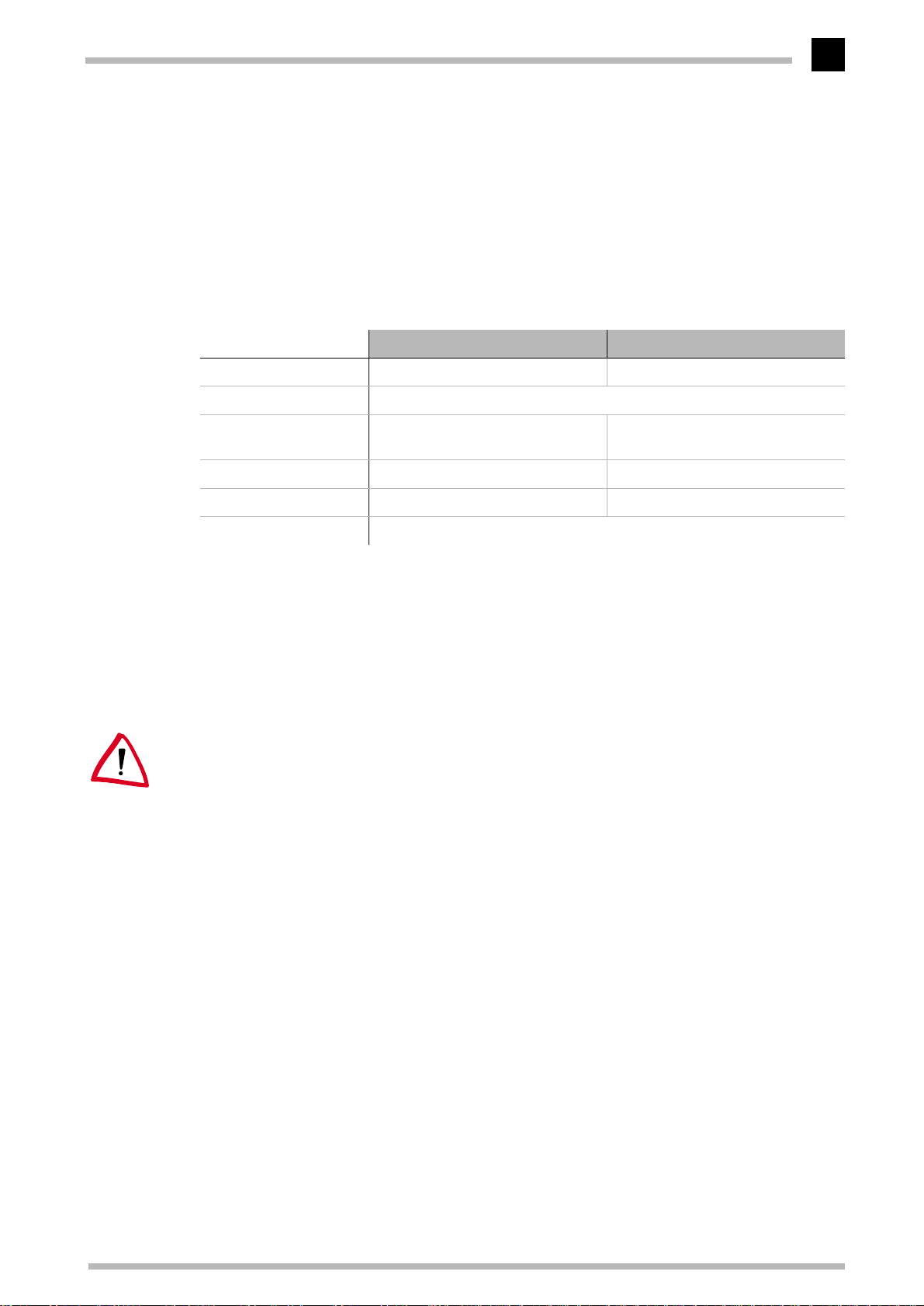
Characteristics of the graphics board
ELSA ERAZOR III Pro ELSA ERAZOR III LT
Graphics processor TNT2 Pro by NVIDIA TNT2 M64 by NVIDIA
RAMDAC pixel timing
On-board memory
BIOS
Bus system
VESA DDC
32MB
mit 1,6GBps bandwidth
Flash-BIOS with VBE 3.0 Support BIOS with VBE 3.0 Support
AGP, 2x/4x AGP, 2x/4x
300MHz
32MB with
1,6GBps bandwidth
DDC2B
ELSA graphics board addresses
The ELSA graphics boards are 100% IBM VGA compatible and occupy the same memory
area and specific addresses in the I/O range. The memory range above 1MB is automatically assigned through the PCI BIOS interface.
If you come across any address conflicts, try to modify the I/O address of the expansion
board causing the conflict. The addresses of the ELSA graphics boards cannot be
changed! The ERAZOR III also requires an interrupt (IRQ) which is free. This may have
to be reserved in the computer’s BIOS. For help with this theme, refer to the manual for
your mainboard.
To ensure that your system functions properly, the addresses and ranges occupied by the
ELSA graphics board must not be accessed simultaneously by other hardware components. The following addresses are assigned:
I/O addresses:
쮿
Standard VGA I/O (3B0-3DF)
Memory addresses:
쮿
Video RAM (A0000-BFFFF)
Video BIOS-ROM (C0000-C7FFF)
ELSA ERAZOR III Pro and ELSA ERAZOR III LT
Page 46
Technical data
40
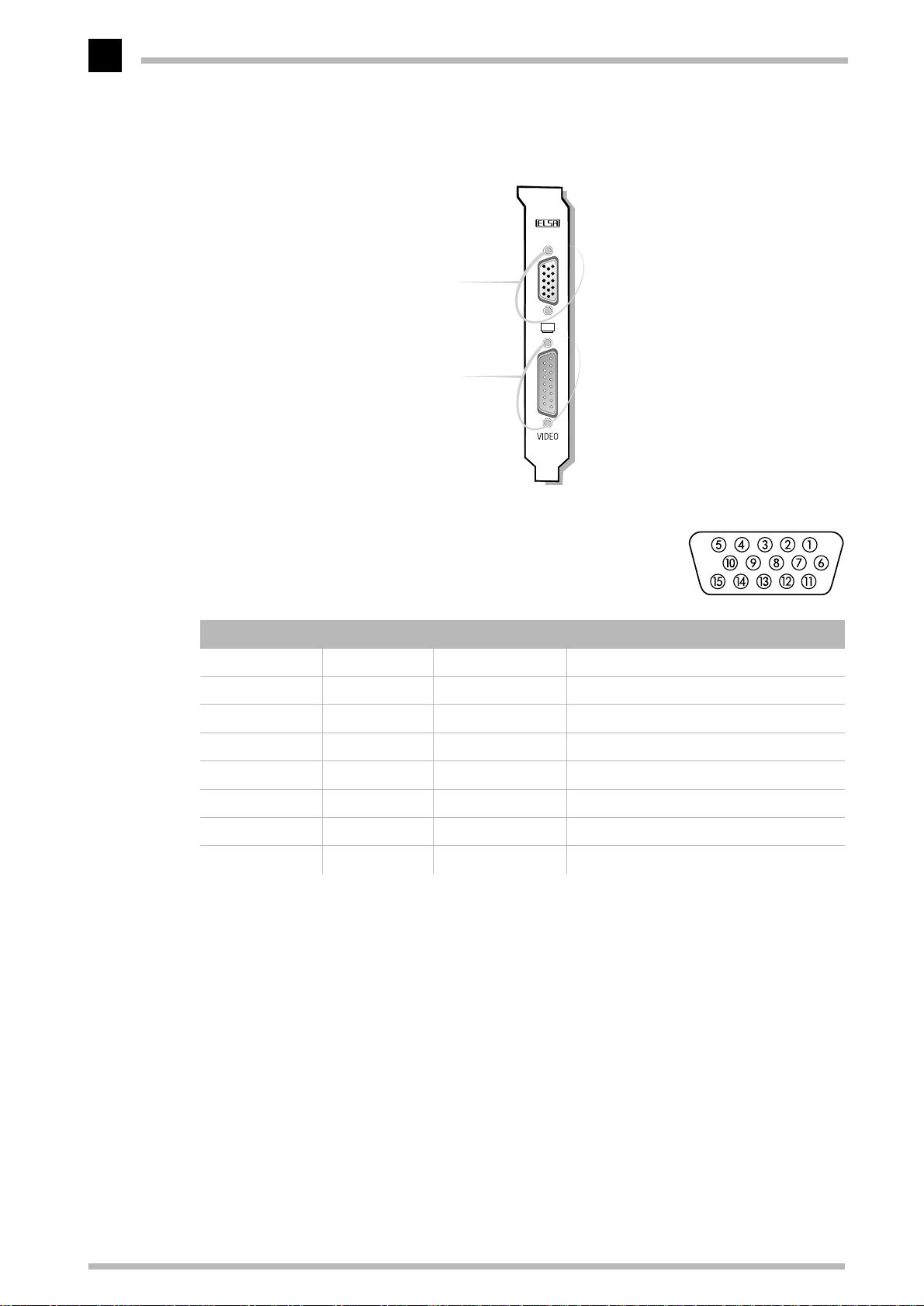
Ports on the graphics board
VGA D-shell socket
Monitor connection socket
(15-pin)
VIDEO D-sub plug
Connector for the composite video
adapter cable (15-pin)
The VGA D-shell socket
Pin assignment
Connection Signal Connection Signal
1Red 9 +5 V
2 Green 10 Sync ground
3 Blue 11 Monitor ID2
4 Monitor ID0 12 Bidirectional data (SDA, DDC1/2B)
5 DDC ground 13 Horizontal synchronization
6 Red ground 14 Vertical synchronization
7 Green ground 15 D ata timing (SCL, DDC2B)
8 Blue ground
ELSA ERAZOR III
The
issues analog signals in accordance with the requirements of
Guideline RS-170. The synchronization information is sent separately.
ELSA ERAZOR III Pro and ELSA ERAZOR III LT
Page 47
Appendix
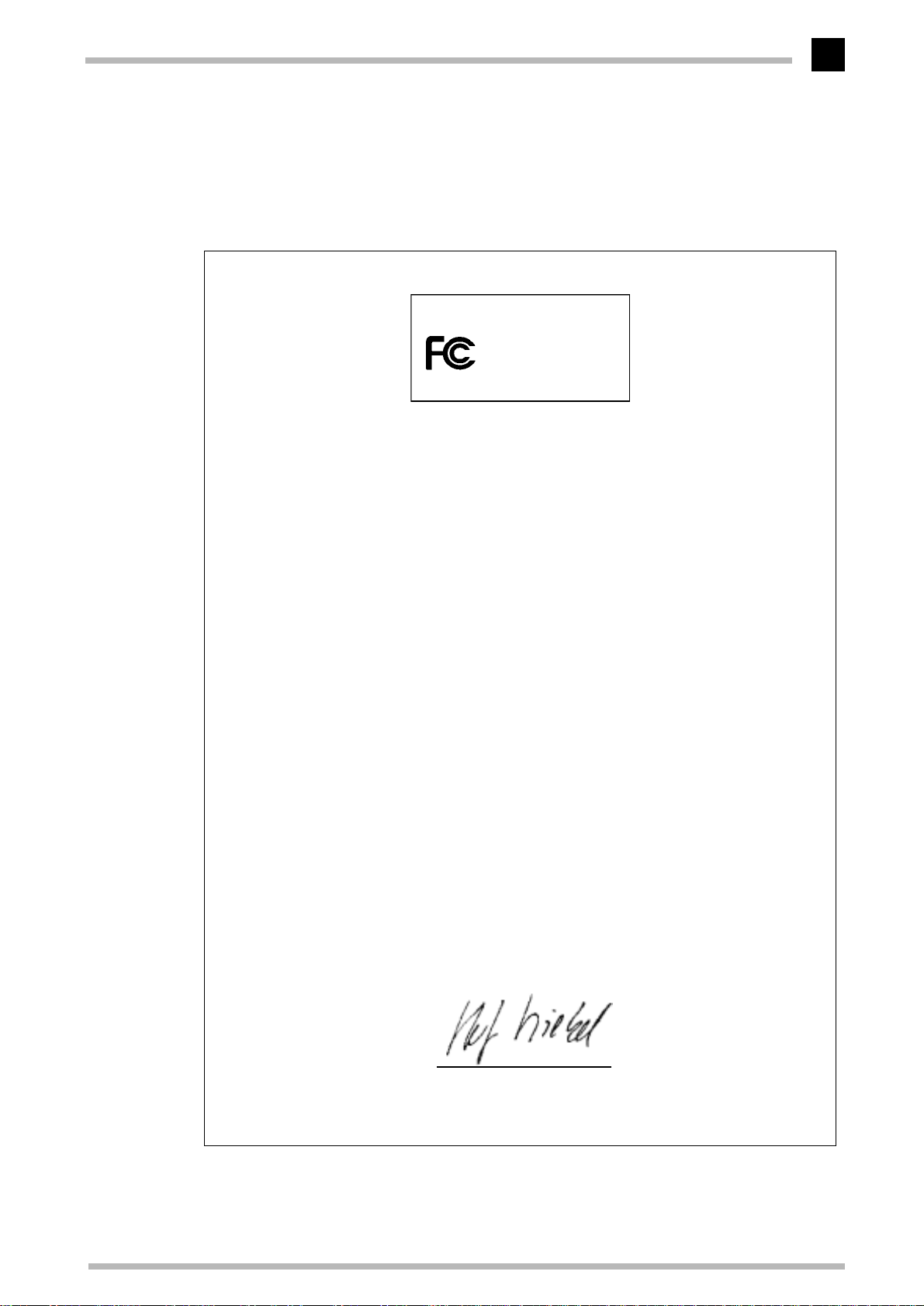
Declarations of Conformity
Appendix
41
(/6$$*
)25+20(252)),&(86(
(5$=25,,,SURr$
7HVWHG7R &RPSO\
:LWK)&&6WDQGDUGV
&RPSOLDQFH,QIRUPDWLRQ6WDWHPHQW
'HFODUDWLRQRI&RQIRUPLW\3URFHGXUH
5HVSRQVLEOH3DUW\ (/6$,QF
$GGUHVV &DOOH'H/XQD
6DQWD&ODUD&$
86$
3KRQH
7\SHRI(TXLSPHQW *UDSKLFV%RDUG
0RGHO1DPH (5$=25,,,SUR$
7KLVGHYLFHFRPSOLHVZLWK3DUWRIWKH)&&UXOHV
2SHUDWLRQLVVXEMHFWWRWKHIROORZLQJWZRFRQGLWLRQV
WKLVGHYLFHPD\QRWFDXVHKDUPIXOLQWHUIHUHQFHDQG
WKLVGHYLFHPXVWDFFHSWDQ\LQWHUIHUHQFHUHFHLYHGLQFOXGLQJLQWHUIHUHQFHWKDWPD\
FDXVHXQGHVLUHGRSHUDWLRQ
6HHXVHUPDQXDOLQVWUXFWLRQVLILQWHUIHUHQFHWRUDGLRUHFHSWLRQLVVXVSHFWHG
2QEHKDOIRIWKHPDQXIDFWXUHULPSRUWHU
WKLVGHFODUDWLRQLVVXEPLWWHGE\
$DFKHQ$XJXVWWK
6WHIDQ.ULHEHO
93(QJLQHHULQJ
(/6$$**HUPDQ\
ELSA ERAZOR III Pro and ELSA ERAZOR III LT
Page 48
42
:
Appendix
(/6$$*
)25+20(252)),&(86(
(5$=25,,,/7
7HVWHG7R &RPSO\
LWK)&&6WDQGDUGV
&RPSOLDQFH,QIRUPDWLRQ6WDWHPHQW
'HFODUDWLRQRI&RQIRUPLW\3URFHGXUH
5HVSRQVLEOH3DUW\ (/6$,QF
$GGUHVV &DOOH'H/XQD
6DQWD&ODUD&$
86$
3KRQH
7\SHRI(TXLSPHQW *UDSKLFV%RDUG
0RGHO1DPH (5$=25,,,/7
7KLVGHYLFHFRPSOLHVZLWK3DUWRIWKH)&&UXOHV
2SHUDWLRQLVVXEMHFWWRWKHIROORZLQJWZRFRQGLWLRQV
WKLVGHYLFHPD\QRWFDXVHKDUPIXOLQWHUIHUHQFHDQG
WKLVGHYLFHPXVWDFFHSWDQ\LQWHUIHUHQFHUHFHLYHGLQFOXGLQJLQWHUIHUHQFHWKDWPD\
FDXVHXQGHVLUHGRSHUDWLRQ
6HHXVHUPDQXDOLQVWUXFWLRQVLILQWHUIHUHQFHWRUDGLRUHFHSWLRQLVVXVSHFWHG
2QEHKDOIRIWKHPDQXIDFWXUHULPSRUWHU
WKLVGHFODUDWLRQLVVXEPLWWHGE\
$DFKHQ$XJXVWWK
6WHIDQ.ULHEHO
93(QJLQHHULQJ
(/6$$**HUPDQ\
ELSA ERAZOR III Pro and ELSA ERAZOR III LT
Page 49

Appendix
Warranty conditions
The ELSA AG warranty, valid as of June 01, 1998, is given to purchasers of ELSA products in addition to
the warranty conditions provided by law and in accordance with the following conditions:
1 Warranty coverage
a) The warranty covers the equipment delivered and all its parts. Parts will, at our sole discretion, be
replaced or repaired free of charge if, despite proven proper handling and adherence to the operating instructions, these parts became defective due to fabrication and/or material defects. Also we
reserve the right to replace the defective product by a successor product or repay the original purchase price to the buyer in exchange to the defective product. Operating manuals and possibly supplied software are excluded from the warranty.
b) Material and service charges shall be covered by us, but not shipping and handling costs involved
in transport from the buyer to the service station and/or to us.
c) Replaced parts become property of ELSA.
d) ELSA are authorized to carry out technical changes (e.g. firmware updates) beyond repair and re-
placement of defective parts in order to bring the equipment up to the current technical state. This
does not result in any additional charge for the customer. A legal claim to this service does not ex-
ist.
43
2 Warranty period
The warranty period for ELSA products is six years. Excepted from this warranty period are ELSA color
monitors and ELSA videoconferencing systems with a warranty period of 3 years. This period begins at
the day of delivery from the ELSA dealer. Warranty services do not result in an extension of the warranty
period nor do they initiate a new warranty period. The warranty period for installed replacement parts
ends with the warranty period of the device as a whole.
3 Warranty procedure
a) If defects appear during the warranty period, the warranty claims must be made immediately, at
the latest within a period of 7 days.
b) In the case of any externally visible damage arising from transport (e.g. damage to the housing), the
transport company representative and ELSA should be informed immediately. On discovery of dam-
age which is not externally visible, the transport company and ELSA are to be immediately informed
in writing, at the latest within 7 days of delivery.
c) Transport to and from the location where the warranty claim is accepted and/or the repaired device
is exchanged, is at the purchaser's own risk and cost.
d) Warranty claims are only valid if the original purchase receipt is returned with the device.
4 Suspension of the warranty
All warranty claims will be deemed invalid
a) if the device is damaged or destroyed as a result of acts of nature or by environmental influences
(moisture, electric shock, dust, etc.),
b) if the device was stored or operated under conditions not in compliance with the technical specifi-
cations,
ELSA ERAZOR III Pro and ELSA ERAZOR III LT
Page 50

44
Appendix
c) if the damage occurred due to incorrect handling, especially to non-observance of the system de-
scription and the operating instructions,
d) if the device was opened, repaired or modified by persons not authorized by ELSA,
e) if the device shows any kind of mechanical damage,
f) if in the case of an ELSA Monitor, damage to the cathode ray tube (CRT) has been caused especially
by mechanical load (e.g. from shock to the pitch mask assembly or damage to the glass tube), by
strong magnetic fields near the CRT (colored dots on the screen), or through the permanent display
of an unchanging image (phosphor burnt),
g) if, and in as far as, the luminance of the TFT panel backlighting gradually decreases with time, or
h) if the warranty claim has not been reported in accordance with 3a) or 3b).
5 Operating mistakes
If it becomes apparent that the reported malfunction of the device has been caused by unsuitable software, hardware, installation or operation, ELSA reserves the right to charge the purchaser for the resulting testing costs.
6 Additional regulations
a) The above conditions define the complete scope of ELSA’s legal liability.
b) The warranty gives no entitlement to additional claims, such as any refund in full or in part. Com-
pensation claims, regardless of the legal basis, are excluded. This does not apply if e.g. injury to
persons or damage to private property are specifically covered by the product liability law, or in cas-
es of intentional act or culpable negligence.
c) Claims for compensation of lost profits, indirect or consequential detriments, are excluded.
d) ELSA is not liable for lost data or retrieval of lost data in cases of slight and ordinary negligence.
e) In the case that the intentional or culpable negligence of ELSA employees has caused a loss of data,
ELSA will be liable for those costs typical to the recovery of data where periodic security data back-
ups have been made.
f) The warranty is valid only for the first purchaser and is not transferable.
g) The court of jurisdiction is located in Aachen, Germany in the case that the purchaser is a merchant.
If the purchaser does not have a court of jurisdiction in the Federal Republic of Germany or if he
moves his domicile out of Germany after conclusion of the contract, ELSA’s court of jurisdiction ap-
plies. This is also applicable if the purchaser's domicile is not known at the time of institution of
proceedings.
h) The law of the Federal Republic of Germany is applicable. The UN commercial law does not apply
to dealings between ELSA and the purchaser.
ELSA ERAZOR III Pro and ELSA ERAZOR III LT
Page 51

Glossary
Glossary
45
3D –
쮿
쮿
쮿
쮿
쮿
쮿
쮿
쮿
쮿
쮿
Three-dimensional
3D clipping –
formation in which invisible surfaces or parts of
a 3D object are removed.
3D pipeline –
representation of virtual 3D scene on the monitor. These include tesselation, geometri-
cal transformation and rendering.
AGP –
and is a further development by INTEL based on
the PCI bus. The AGP bus provides a greater
bandwidth for data transmission and communicates directly with main memory. The bus is
primarily intended for 3D graphics boards.
Aliasing –
Jagged transitions are often formed between
adjacent pixels in the representation of diagonals or curves. These "jaggies" can be
smoothed out by anti-aliasing.
Alpha blending –
each pixel for creating transparent materials.
Back buffer –
region built up in the background in the frame
buffer during double buffering.
Back face culling –
late the hidden faces of a 3D object.
BIOS –
System. A program code in the read-only memory (ROM) of a computer which performs the
self-test and several other functions during system startup.
Bump mapping –
are assigned depth information which allows
the display of relief or raised structures.
stands for Accelerated Graphics Port
Abbreviation of Basic Input/Output
Process in geometric trans-
Sum of all steps required for the
the familiar "staircase effect".
Additional information for
is the name for the image
Method used to calcu-
Process by which textures
Bus system –
쮿
for the transfer of information between individual system components, especially to
expansion boards (e.g. PCI bus).
Chrominance –
쮿
signal.
Clipping –
쮿
representation are determined in clipping.
These parts are then not displayed.
D/A converter –
쮿
signal converter which converts a digital input
signal to an analog output signal.
DCC –
쮿
computer-based production of professional
visualizations and animations for the field of
digital media and the entertainment industry.
DDC –
쮿
special data channel through which a DDCcapable monitor can send its technical data to
the graphics board.
DirectColor –
쮿
RealColor and HighColor. The value that is
stored in the video RAM is not translated but
transferred directly to the D/A converter. This
means that the full color information must be
saved for each pixel.
Double buffering –
쮿
two display buffers. This means that the next
image can be drawn in the page of the display
buffer, which is initially invisible. This image
will be displayed once it is ready and the next
image will be prepared in the other page of the
buffer. Animations and games can be made to
look more realistic with this technique than
with simple single buffer.
(Digital Content Creation) DCC is the
stands for Display Data Channel. A
A system of parallel data lines
Color information in the video
parts of polygons invisible to the
Digital/Analog converter: A
Generic term for TrueColor,
means that there are
ELSA ERAZOR III Pro and ELSA ERAZOR III LT
Page 52

46
Glossary
DPMS –
쮿
Management Signaling. This standard allows
an energy-saving operation of monitors in several steps. The graphics boards described in
this manual support VESA DPMS.
DRAM –
쮿
Access Memory. Volatile memory for read and
write operations.
EDO-RAM –
쮿
Output Random Access Memory (Hyper Page
Mode). EDO-RAM is very common on graphics
boards, as the most recently used data persist
in memory. A number of read accesses to similar data occur during the generation of an
image, so that use of EDO-RAM gives a significant speed advantage.
FCC –
쮿
has been tested and found to comply with the
limits for a Class B digital device pursuant to
Part 15 of the FCC Rules, designed to provide
reasonable protection against harmful interference in a residential installation.
Abbreviation of VESA Display Power
Abbreviation of Dynamic Random
Abbreviation for Extended Data
FCC compliance means that a device
Geometrical transformation –
쮿
of the object in space is determined from the
observer's point of view.
Gouraud shading –
쮿
Graphics accelerator –
쮿
accelerator board, i.e a board particularly
suited for graphics intensive user environments.
HighColor –
쮿
(bits per pixel) graphics mode, i. e. 32,768 or
65,536 colors.
Horizontal frequency –
쮿
quency (scan frequency) of a monitor in kHz.
This value must be set in accordance with the
operating limits of the monitor, otherwise the
monitor might be damaged in extreme cases.
Horizontal scan frequency –
쮿
scan frequency of a monitor in kHz. This value
must be set in accordance with the operating
limits of the monitor, otherwise the monitor
might be damaged in extreme cases.
designates a 15-bpp or 16-bpp
'Shading'.
The horizontal fre-
The position
refers to a graphics
The horizontal
FIFO method –
쮿
used in batch processing and queues in which
the first signal to arrive is processed first.
Fixed-frequency monitor –
쮿
can only be operated at a specific resolution
and refresh rate.
Flat shading –
쮿
Flipping –
쮿
buffer is displayed.
Frame buffer –
쮿
which the image next to be displayed on the
screen is generated. In addition, transparency
effects are calculated in the frame buffer.
Front buffer –
쮿
image page in double buffering.
(first in, first out) a system
A monitor that
'Shading'.
The image generated in the back
Part of the graphics memory in
is the name for the visible
Interpolation –
쮿
stretched or shrunk in order to fit into the display window. If pixels are simply multiplied (for
example, a block of four equally colored pixels
represents the original pixel), aliasing effects
("blocks" and "stairs") will occur. This can be
avoided by interpolation procedures (using
average colors for inserted pixels). Horizontal
interpolation is relatively easy to perform, since
the pixels are drawn to the screen in lines.
Vertical interpolation is more difficult and
requires a complete pixel line to be buffered.
MIP mapping –
쮿
textures are assigned to an object depending
on distance. The representation of the object
becomes more detailed as the observer
approaches the object.
A video image must be
In MIP mapping a number of
ELSA ERAZOR III Pro and ELSA ERAZOR III LT
Page 53

Glossary
47
Multifrequency/Multisync monitor –
쮿
monitor that can be operated at various horizontal scan frequencies, or that automatically
adapts itself to different video signals (resolutions).
OpenGL –
쮿
E.g. implemented in Windows NT and available for Windows 95. Based on Iris GL from Silicon Graphics and licensed from Microsoft.
Page Flipping –
쮿
back buffer is displayed
PCI bus –
쮿
nent Interconnect Bus. An advanced bus system, i.e. a system of parallel data lines to
transfer information between individual system
components, especially to expansion boards.
Phong shading –
쮿
Pixel –
쮿
Pixel frequency –
쮿
(number of pixels drawn per second in MHz).
Primitive –
쮿
object, such as a triangle. 3D landscapes are
generally broken down into triangles.
RAM –
쮿
ory. Chip memory of a computer or expansion
board that can be read from and written to
(unlike ROM = Read Only Memory).
RAMDAC –
쮿
signals to analog signals on a graphics board.
VGA monitors are only capable of processing
analog signals.
RealColor –
쮿
15-bpp or 16-bpp (bits per pixel) graphics mode,
i.e. 32,768 or 65,536 colors).
Refresh rate –
쮿
Hz) indicates how many times per second an
image on the monitor is refreshed.
3D software interface (3D API).
The image generated in the
Abbreviation of Peripheral Compo-
'Shading'.
Picture element. Dot in the image.
Pixel clock frequency
Simple, polygonal geometrical
Abbreviation of Random Access Mem-
The RAMDAC converts the digital
RealColor normally designates a
or image refresh frequency (in
A
Rendering –
쮿
sentation of a 3D scene, in which the position
and color of each point in space is determined.
The depth information is held in the Z buffer,
the color and size information is held in the
frame buffer.
Resolution –
쮿
tal and vertical direction on the screen, for
example 640 horizontal by 480 vertical pixels
(640 x 480).
RGB –
쮿
Green/Blue color format.
ROM –
쮿
Semiconductor memory that can only be read
and not written to.
S-Video
쮿
video information, where the signals for
chrominance and luminance are separated. This results in a higher picture quality.
Shading –
쮿
define the colors on curved surfaces in order to
give an object a natural appearance. To
achieve this, the surfaces are subdivided into
many small triangles. The three most important 3D shading methods differ in the algorithm
used to apply colors to these triangles:
Flat shading: the triangles are uniformly colored.
Gouraud shading: The color shades on a triangle are calculated by interpolating the vertex
colors, resulting in a smooth appearance of the
surface.
Phong shading: the color shades on a triangle
are calculated by interpolating the normal vector.
Shutter glasses –
쮿
scopic LCD projection of 3D scenery to give the
observer a strong impression of space.
Process for calculating the repre-
The number of pixels in horizon-
Color information is saved in the Red/
Abbreviation of Read Only Memory.
–
or S-VHS. Signal transmission of
Shading or rendering is a way to
Goggles which use stereo-
ELSA ERAZOR III Pro and ELSA ERAZOR III LT
Page 54

48
Glossary
Single buffer –
쮿
ering, where the image buffer is duplicated, the
single buffering mode is not able to access the
next image, which has already been calculated.
This means that animations will run jerkily.
Tearing –
쮿
buffering between the front buffer and the back
buffer. The image change between the front
buffer and the back buffer is synchronized in
tearing.
Tesselation –
쮿
are divided up into polygons (triangles) in tesselation. The vertices, color and, if required,
transparency values, are determined for the triangles.
Textures –
쮿
object, including perspective correction, for
example wallpaper on a wall or a wood texture
By contrast with double buff-
A distinction is made in double
The objects for 3D calculations
Wrapping a bitmap around an
on furniture. Even a video can be used as a texture map.
TrueColor –
쮿
colors (24 or 32 bits per pixel). In this mode, the
color information saved in the display memory
is not translated by a look-up table, but passed
directly to the D/A converter. This means that
the full color information must be saved for
each pixel.
VESA –
쮿
Standards Association. A consortium for the
standardization of computer graphics.
VRAM –
쮿
ory chip for fast graphics boards.
Z buffer –
쮿
the third dimension) for each pixel.
Graphics mode with 16.7 million
Abbreviation of Video Electronics
Abbreviation for video RAM. Mem-
3D depth information (position in
ELSA ERAZOR III Pro and ELSA ERAZOR III LT
Page 55

Index
Index
49
!
쮿
3D clipping
3D pipeline
3D Settings
A
쮿
Addresses
...............................................................45
AGP
Aliasing
Alpha blending
Anti-aliasing
................................................................31
API
B
쮿
Back buffer
Back face culling
BIOS
Bump mapping
..........................................................39, 45
Bus
C
쮿
Chrominance
Clipping
Color palettes
Color Tuning
COM
Composite video
..............................................30, 45
.............................................29, 45
...................................................27
.....................................................39
.........................................................45
.............................................45
.................................................31
.............................................31, 45
..........................................30
........................................................39, 45
........................................30, 45
...........................................35, 45
.........................................................45
...............................................33
.................................................19
..............................................................32
...........................................35
Composite video adapter cable
D
쮿
D socket
DDC
........................................................40
...............................................................45
Declaration of Conformity
Direct 3D
Direct3D
DirectColor
DirectDraw
DMA
Double buffer
DPMS
DRAM
.......................................................33
........................................................27
..............................................34, 45
...................................................32
.............................................................39
................................................45
............................................................46
...........................................................46
....................12
............................41
E
쮿
EDO-RAM
ELSAmovie
F
쮿
............................................................3, 46
FCC
Filtering
Flat shading
Flipping
Frame buffer
Front buffer
G
쮿
.....................................................46
....................................................22
.........................................................30
......................................31, 46, 47
...................................................31, 46
...........................................31, 46
.............................................31, 46
Geometrical transformation
Gouraud shading
Grey scales
H
쮿
....................................31, 47
...................................................33
Hardware description
HighColor
................................................34, 46
Horizontal frequency
I
쮿
I/O address
Immediate mode
Interpolation
Interrupt
................................................................39
IRQ
L
쮿
Luminance
M
쮿
Memory
Memory addresses
MIP mapping
MJPEG
Mode X
Monitor
O
쮿
................................................................32
OLE
OpenGL
...................................................39
...........................................32
.................................................46
........................................................39
....................................................35
........................................................39
..........................................30, 46
..........................................................22
.........................................................32
...........................................................8
.............................................27, 33, 47
...................29, 46
...................................39
....................................46
.......................................39
ELSA ERAZOR III Pro and ELSA ERAZOR III LT
Page 56

50
Index
P
쮿
Page flipping
PCI bus
..........................................................47
Performance
Phong shading
Pin assignment
Point sampling
Primitive
..................................................30, 47
Products supplied
R
쮿
RAMDAC
Ray tracing
RealColor
Refresh rate
Rendering
Resolution
Retained mode
S
쮿
Scan frequency
Shading
...................................................31, 47
Shutter glasses
.................................................47
.................................................27
........................................31, 47
.............................................40
..............................................30
...........................................2
................................................39, 47
....................................................31
................................................34, 47
..................................................47
...............................................30, 47
.....................................................47
.............................................32
.............................................46
.............................................47
Single buffer
S-VHS
S-Video
T
쮿
Tearing
...........................................................35
.........................................................47
..........................................................48
Tesselation
Texture
....................................................29, 48
Texture mapping
Transformation
TrueColor
V
쮿
VESA
.............................................................48
VESA DDC
...............................................................33
VGA
VideoControl
VRAM
W
쮿
WDM
Z
쮿
Z buffer
...........................................................48
............................................................22
.........................................................48
.................................................48
.............................................29, 48
...........................................30
.............................................30
..........................................33, 34, 48
.....................................................39
.................................................22
ELSA ERAZOR III Pro and ELSA ERAZOR III LT
 Loading...