

Page 1

Fiery
SERVER & CONTROLLER SOLUTIONS
®
EXP8000 Color Server
Welcome
Page 2

© 2005 Electronics for Imaging, Inc. The information in this publication is covered
under Legal Notices for this product.
45049594
13 July 2005
Page 3

ELCOME
W
WELCOME
This Welcome document provides system requirements and an overview of how to set up the
Fiery EXP8000 Color Server so that you can begin printing. It describes the initial tasks you
must perform and points you to sections in the user documentation where the procedures are
described in detail. This document also provides a description of the user documents on the
User Software and Documentation DVD and instructions on printing them.
This document assumes that you have already installed the digital press components. Details
about the digital press, the network, remote computers, software applications, and Microsoft
Windows are beyond the scope of this document.
Terminology and conventions
3
This document uses the following terminology and conventions.
Term or convention Refers to
Aero Fiery EXP8000 (in illustrations and examples)
Fiery EXP8000 Fiery EXP8000 Color Server
Mac OS Apple Mac OS X
Titles in italics
Windows Microsoft Windows 2000, Windows XP, Windows Server
Other documents in this set
2003
Topics for which additional information is available by
starting Help in the software
Tips and information
Important information
Important information about issues that can result in physical
harm to you or others
Page 4

WELCOME
About the documentation
This document is part of a set of documentation provided to users and system administrators
of Fiery EXP8000. The documents are on the User Software and Documentation DVD and
are in PDF (Portable Document Format). These files can be viewed online or printed using
Adobe Reader. When viewed online, these files contain links and cross-references that allow
you to quickly and easily locate needed information. Use the most recent version of Reader to
take advantage of advanced search capabilities. For more information, see “Installing and
using Adobe Reader” on page 5.
The following comprise the documentation set for your Fiery EXP8000:
• Print Server Setup Roadmap provides a graphical overview of minimum setup requirements
to have the Fiery EXP8000 function on your network.
• Welcome provides an introduction to the Fiery EXP8000 and to the user documentation.
• Configuration and Setup explains configuration and administration of the Fiery EXP8000
for supported platforms and network environments. It also includes guidelines for
providing printing services to users.
4
• Printing from Windows and Printing from Mac OS describe how to install the printer
drivers on Windows and Mac OS computers, how to establish printing connections for
different networks, and to begin printing from users’ computers. Each document also
describes the installation and use of print-related utilities, such as Job Monitor and Printer
Delete Utility.
• Print Options provides information about print options for the Fiery EXP8000. This
document describes print options and features that you access from the printer driver,
Command WorkStation job overrides, and Hot Folders job properties.
• Utilities describes how to install, configure, and use the software utilities included on the
User Software and Documentation DVD.
• Color Printing explains how to manage color output on the Fiery EXP8000. This
document provides information about ColorWise Pro Tools, including how to calibrate
the Fiery EXP8000 and set ColorWise
computers.
• Graphic Arts Package addresses the specific needs and requirements of graphic arts
professionals and commercial print shops.
• Fiery Color Reference provides an overview of color management concepts and workflows,
and describes how to manage color from various applications.
• Workflow Examples explains complicated printing scenarios and provides cross-references
to relevant information in the documentation set.
print options from Windows and Mac OS
Page 5
•
About Help
WELCOME
Variable Data Printing supplements the information in Workflow Examples with reference
information about variable data printing (VDP). This document provides an overview of
FreeForm and where to set FreeForm options.
• Glossary provides definitions for popular color concepts, printing applications, and
printing terms used in the documentation set.
• Customer Release Notes provide last-minute product information and workarounds for
some of the problems you may encounter.
Most of the user software, utilities, and printer drivers contain Help that is accessible from
Help buttons or main toolbar menus. Help provides detailed procedures on using the
application and, in some cases, provides additional detail. The documentation refers you to
Help for more information as appropriate.
Installing and using Adobe Reader
5
For your convenience, the current version of Adobe Reader for Windows and Mac OS X is
included on the User Software and Documentation DVD. This version features enhanced
capabilities for full rules-based searches across the documentation set. We strongly suggest
that you install the current version of Reader to take advantage of these capabilities, unless
you have installed the equivalent version of Adobe Acrobat.
T
O
A
INSTALL
1 Insert the User Software and Documentation DVD into the DVD drive of your computer.
2 Double-click the DVD icon.
3 Open the Adobe Reader folder.
4 Open the folder for your platform and double-click the installer file within (.exe for Windows,
.dmg for Mac OS X).
5Follow the on-screen installation instructions.
DOBE
R
EADER
Page 6

:
WELCOME
6
Using Adobe Reader
View or print the PDF files provided on the User Software and Documentation DVD using
Reader or Acrobat. Once you install Reader, you can double-click a PDF icon to open the file.
Note specifically the advanced search capability of the version of Reader that is provided on
the User Software and Documentation DVD. You can search for a word or phrase across the
Fiery EXP8000 documentation set by examining all the documents within a specific language
folder on the User Software and Documentation DVD. For information about using this and
other features of Reader, see the Help that accompanies the application.
N
OTE
You can view user documentation from the DVD or copy the language folder that you
want to your desktop. If you copy the files to your computer, keep all the files in the language
folder. Do not rename the files. The cross-reference links will not work properly.
Page 7
WELCOME
System requirements for user computers
To install the Fiery EXP8000 user software on a Windows or Mac OS computer,
the computer must be equipped with a built-in or external DVD-ROM drive or be able to
network with the Fiery EXP8000 to download user software. The following table lists the
minimum system requirements.
Minimum requirements for Windows 2000/XP/Server 2003 Mac OS
Operating system Windows 2000 with Service Pack 3
Windows XP recommended with Service Pack 2
Windows Server 2003 Standard Edition,
Enterprise Edition, or Datacenter Edition
(any of these must be the 32-bit version)
Memory for printing and utilities
(Downloader, ColorWise Pro
Tools, and
Job Monitor)
8MB of RAM for printing
32MB of RAM for utilities
Mac OS X v10.2.4 or later Native (PostScript
printer driver only)
32MB of RAM for printing
64MB of RAM for utilities
7
Networking protocol IPX/SPX or TCP/IP AppleTalk (Ether Talk supported)
TCP/IP (required for Mac OS X v10.2 or later)
Networking protocol for Fiery
utilities
WebTools Java-enabled web browser:
TCP/IP TCP/IP
(required for Mac OS X v10.2 or later)
(Ether Talk supported)
AppleTalk can be used for Downloader.
N
OTE
:
•Safari v1.2 or later for Mac OS X
•Internet Explorer 6, Mozilla Firefox 1.0 (Windows)
Portions of WebTools require Java JVM v1.4.2 browser support.
N
OTE
:
A monitor and video memory that supports 16-bit color at a minimum resolution of 800x600
A TCP/IP-enabled network and the IP address or DNS name of the Fiery EXP8000
Web Services enabled on the Fiery EXP8000
Page 8
WELCOME
Minimum requirements for Windows 2000/XP/Server 2003 Mac OS
Command WorkStation Windows-based computer with a 200-MHz or
greater Pentium processor
60MB available hard disk space for installation 80MB available hard disk space for installation
128MB of RAM
A monitor that supports 16-bit color at a
Impose on Command
WorkStation Windows Edition
only
minimum resolution of 1024
Video adapter card with 2MB of video memory
TCP/IP networking protocol installed
In addition to requirements for Command
WorkStation:
•Windows-based computer with 333-MHz
Pentium processor
x
768
Mac OS X Native v10.2.4 or later
300MHz Apple Macintosh G3
500MB is recommended for writing full previews
of raster files and handling large PS or PDF files
8
• 90MB of available hard disk space
•Dongle to be installed on parallel port for every
client workstation
Other network requirements
IPX (Novell) network Novell server
Novell NetWare software v5.x or later
N
OTE
:
The iPrint feature of NetWare v6.x is not supported.
NDPS gateway in NetWare v5.x or later
Support for Ethernet SNAP, Ethernet II, Ethernet 802.3, and Ethernet 802.2 frame types
Page 9
WELCOME
Preparing to print
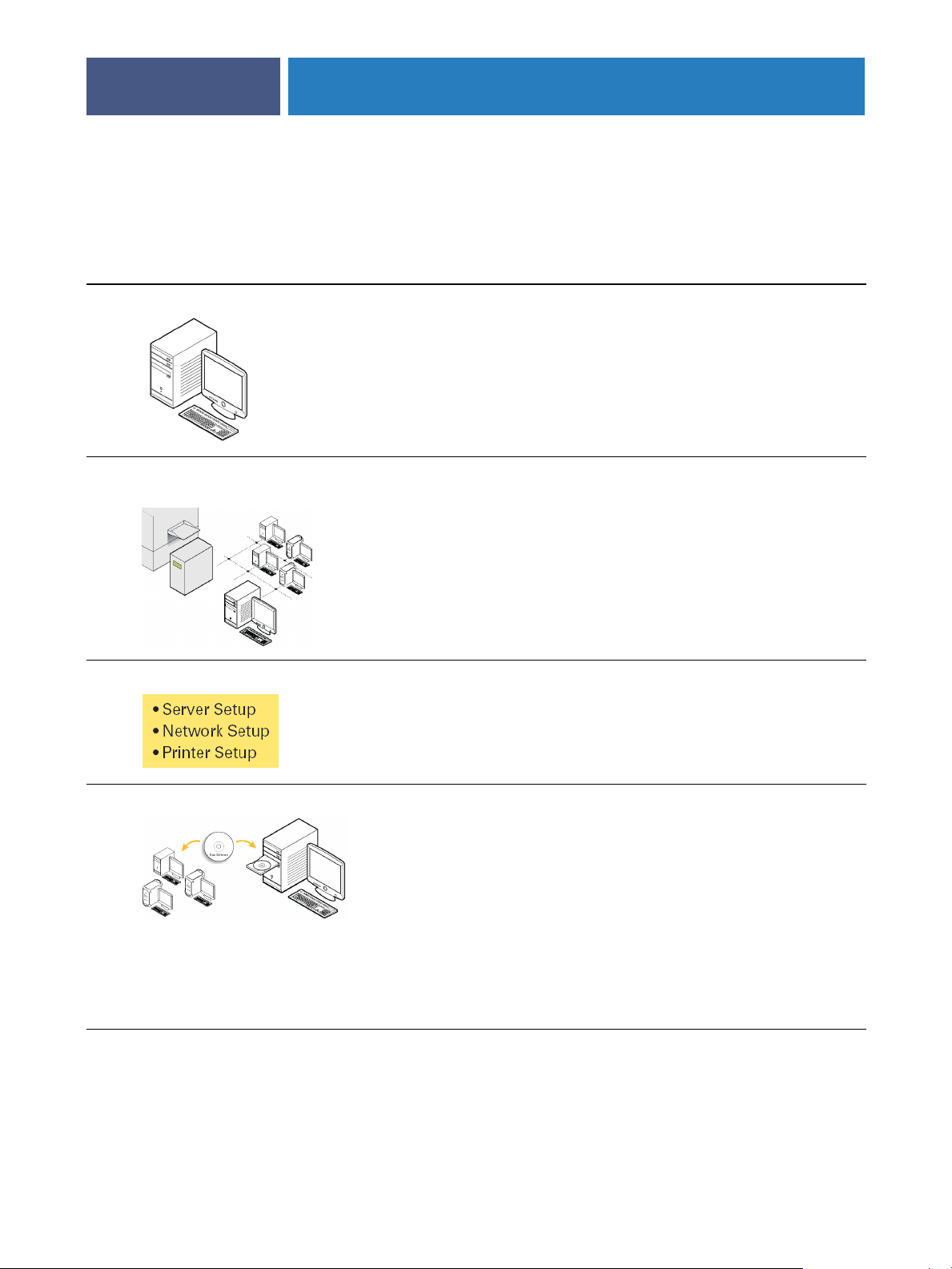
To set up your Fiery EXP8000 for printing, perform the following tasks:
Step Task Quick reference
1
Configure the network server
2
Connect the Fiery EXP8000 to a
functioning network
Configure network servers to specify
Fiery EXP8000 print queues and
Fiery EXP8000 users.
Prepare a network node. Connect the
Fiery EXP8000 to the digital press and
the network. If you use the Fiery
Advanced Controller Interface (FACI),
connect it to the Fiery EXP8000.
“Configuring the network server” on
page 10
“Connecting the Fiery EXP8000 to a
functioning network” on page 10
9
3
Setup the Fiery EXP8000
4
Prepare users for printing
At the FACI, configure at least Server
Setup, Network Setup, and Printer
Setup.
At each computer from which users
print:
•Install the appropriate printer files
and connect to one or more print
connections.
•Install utilities and an Internet
browser on computers where users
will use them.
•Verify the Fiery EXP8000 in the list
of printers and print a test job.
“Setting up the Fiery EXP8000” on
page 10
“Preparing user computers for printing”
on page 12
Fiery EXP8000 is now available on the network and is ready for printing.
Page 10

:
WELCOME
Configuring the network server
If you require a network server, you must configure it to provide user access to the
Fiery EXP8000 as a networked printer before you configure Fiery EXP8000 network settings
in Setup. For more information, see Configuration and Setup .
Connecting the Fiery EXP8000 to a functioning network
When you add the Fiery EXP8000 to a network, it is assumed that a network administrator
has already installed a network cabling system and has connected computers and servers.
T
O
CONNECT
F
IERY
EXP8000
THE
1Prepare a network node for the Fiery EXP8000.
2 Connect the Fiery EXP8000 to the digital press.
3Attach the network cable to the network connector of the Fiery EXP8000.
TO
A
NETWORK
For more information, see Configuration and Setup .
10
4 Print a Test Page to verify that the digital press is functioning normally.
For more information, see Configuration and Setup .
Setting up the Fiery EXP8000
Setup configures the Fiery EXP8000 to communicate with other devices and manage print
jobs. You must perform Setup the first time you turn on the Fiery EXP8000 after new system
software is loaded, or any time that Server software is reinstalled.
N
OTE
Setup from the Control Panel is not supported. Use local or remote Setup. For more
information, see Configuration and Setup .
Configure the Setup menus in the following order:
Server Setup
Network Setup
Fiery EXP8000.
Printer Setup
This is the minimum configuration required to enable your Fiery EXP8000 so that users can
begin printing. To configure network settings in Setup, you need a live network connection so
that the Fiery EXP8000 can query the network for zones, servers, and server-based queues.
specifies system options.
specifies all the active network systems that transmit print jobs to the
specifies how print jobs and queues are managed.
Page 11
WELCOME
T
O
F
PREPARE
FOR
1 Make sure that the network is installed and operational.
2 Print a digital press Test Page to verify that the digital press is functioning properly.
3Turn off the digital press and connect the interface cable from the digital press to
the Fiery EXP8000.
4To confirm this connection, restart the Fiery EXP8000 and print a Test Page from Command
WorkStation.
IERY
EXP8000
CONFIGURATION
The Fiery EXP8000 Control Panel is not supported. You can print a Test Page from
Command WorkStation when you are connected to the Fiery EXP8000. To do so, choose
Print Pages from the Server menu in the Active Jobs window.
5 With both the digital press and the Fiery EXP8000 turned off, connect the network cable to
the Fiery EXP8000.
6Turn on the digital press and the Fiery EXP8000.
11
T
O
PRINT
C
THE
ONFIGURATION
1 In Command WorkStation, choose Print Pages from the Server menu.
2 Click Configuration.
3 Click Print.
PAGE
FROM
C
OMMAND
W
ORK
S
TATION
Page 12

WELCOME
12
Preparing user computers for printing
Before you can print to the Fiery EXP8000, you must install the appropriate Fiery EXP8000
software printer files from the User Software and Documentation DVD and connect users’
computers to the Fiery EXP8000 over the network.
Windows computers
To set up printing for the supported Windows operating systems, do the following:
•Install the printer drivers and corresponding printer driver files.
• Configure installable print options.
• Configure the print connection between the client and the Fiery EXP8000.
For more information, see Printing from Windows .
Mac OS computers
To set up printing on a Mac OS computer, do the following:
•Install the printer driver and PPD files.
•Set up the Fiery EXP8000 in the Chooser (Mac OS X Classic) or the Print Center
(Mac OS X).
• Configure installable print options.
For details, see
Utilities provides instructions for both Windows and Mac OS computers on the following
topics:
•Installing Fiery utilities
• Configuring the connection for Fiery utilities
•Using Fiery utilities
•Installing printer and screen fonts (Mac OS only)
Printing from Mac OS
.
Page 13

WELCOME
Shutting down and rebooting the Fiery EXP8000
You may have to shut down the Fiery EXP8000 for service. When you do, network access to
the digital press is interrupted. Before you remove or attach any cables to the Fiery EXP8000
to perform service, shut down the Fiery EXP8000.
If necessary, you can restart the Fiery EXP8000. Restarting the Fiery EXP8000 from FieryBar
resets the Fiery EXP8000 system software without restarting the system entirely. Rebooting
the Fiery EXP8000 from the Windows Start menu restarts the system entirely.
TO SHUT DOWN THE FIERY EXP8000
1 Make sure that the Fiery EXP8000 is not receiving, processing, or printing any files.
Wait until no processing or printing jobs appear in the Command WorkStation Active Jobs
window, or FieryBar indicates Idle in the RIPping and Printing areas.
If the system has just finished processing, wait at least five seconds after the system reaches
Idle before beginning the shutdown procedure.
13
NOTE: Before you remove the Fiery EXP8000 from the network, notify the network
administrator.
2 Shut down and turn off the digital press.
For instructions, see the documentation that accompanies your digital press.
3 Close all open applications except FieryBar.
4 Choose Shut Down from the Windows Start menu.
5 Select Shut Down and click OK.
Before you access internal components, make sure that all cables are disconnected from the
back of the Fiery EXP8000.
Page 14

WELCOME
TO RESTART THE FIERY EXP8000
1 Make sure that the Fiery EXP8000 is not receiving, processing, or printing any files.
Wait until no processing or printing jobs appear in the Command WorkStation Active Jobs
window, or FieryBar indicates Idle in the RIPping and Printing areas.
2 Shut down and turn off the digital press.
For instructions, see your digital press documentation.
3 Close all open applications except FieryBar.
4 Right-click FieryBar and choose Restart Fiery from the menu that appears.
A confirmation message appears.
5 Click OK.
Wait for the Fiery EXP8000 server software to shut down and restart. You may have to wait
one minute or more. FieryBar displays an Exited status while the server is restarting.
6Turn on the digital press.
14
For instructions, see the documentation that accompanies your digital press.
Page 15
WELCOME
Space requirements for Fiery EXP8000 installation
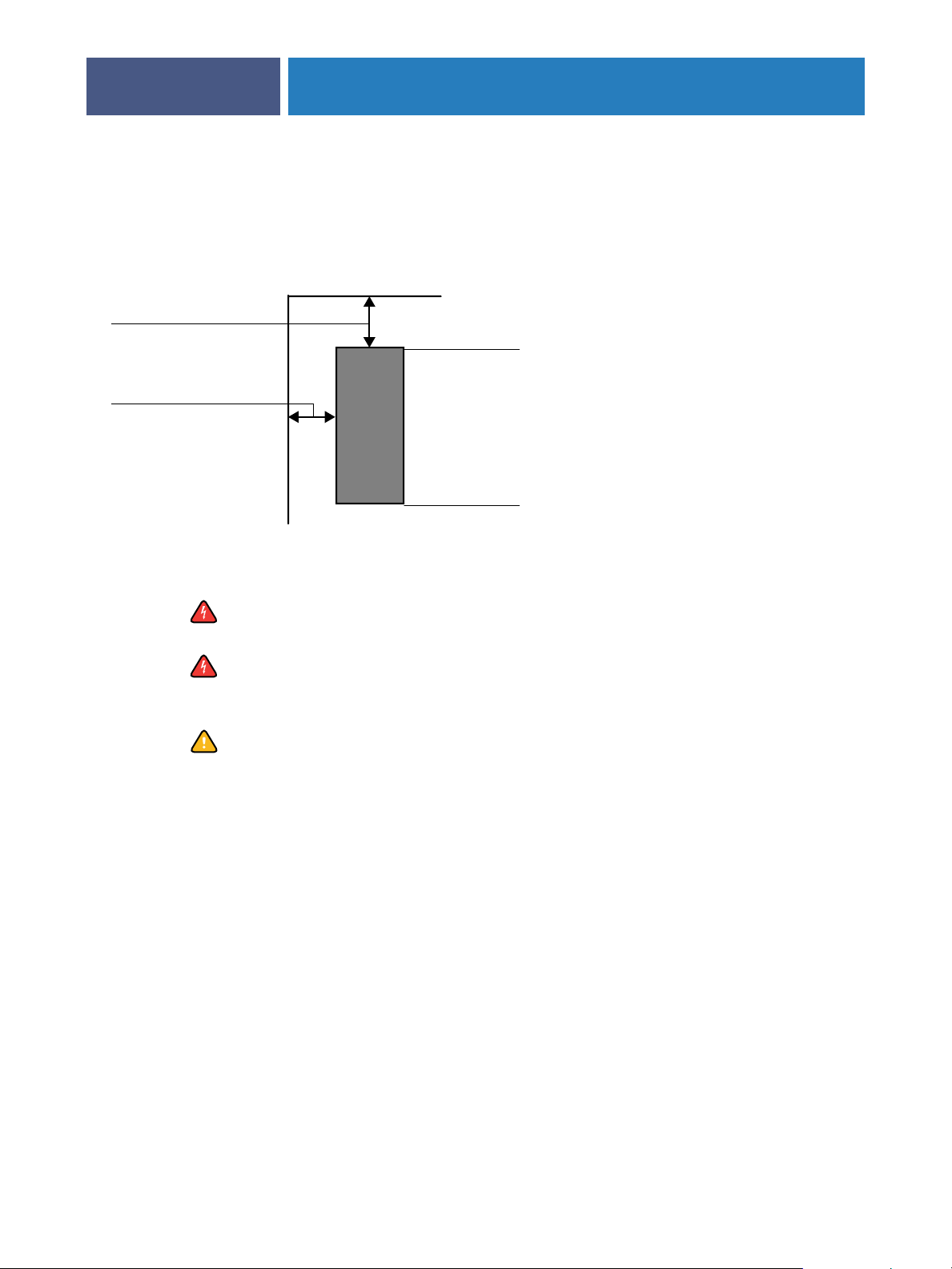
Make sure there is enough space near the digital press for Fiery EXP8000 installation at your
site. You need a minimum of 8 inches (20cm) at the back and sides of the Fiery EXP8000, as
shown in the following illustration.
15
20 cm/8 inches minimum
20 cm/8 inches minimum
Safety warnings
Cleaning the Fiery EXP8000 display window
Back panel of the Fiery EXP8000
Front panel of the Fiery EXP8000
The Fiery EXP8000 display window is a liquid crystal display (LCD) that is made of glass and
can break. Do not subject it to strong shocks.
If the display window breaks and the liquid crystal material leaks out, do not inhale, ingest, or
touch it. If the material gets on your skin or clothing, wash it off with soap and water
immediately.
Do not apply excessive pressure to the panel. This changes the color of the panel.
Clean the Fiery EXP8000 display window with a soft cloth moistened with isopropyl alcohol
or ethyl alcohol. Never use water or ketone, as these may permanently alter the display.
 Loading...