

Page 1

Page 2

Page 3

1
Follow these steps to install the DYMO CardScan Image Capture software
and scanner.
Unpacking your CardScan Scanner
1 Unpack your scanner and save the packing materials.
2 Make sure you have all the items shown in Figure 1.
Calibration Card
This side up
Kalibrierungskarte
Diese seite nach oben
Carte d’etalonnage
Ce côté vers le haut
à Tarjeta de calibración
Esta lado para arriba
P9192
CardScan
®
Figure 1
USB cable
Quick Start Guide
Software DVD
CardScan scanner
Calibration card
Quick Start Guide
Page 4

2
Installing the Software
This section describes how to install the CardScan Image Capture software.
Depending on your system, you may be asked to restart your computer at
the end of the installation.
NOTE To install the CardScan Image Capture software, you must
be logged in as Administrator.
To install the software
1 Close any open applications.
2 Insert the CardScan Image Capture
software CD into your CD-ROM drive.
After a few seconds, the installation
screen appears.
If the installation screen does not
appear, do the following:
a. On the Windows taskbar, click Start and then choose Run. The Run
dialog box appears.
b. Enter D:\setup.exe (where D is the letter assigned to the DVD drive),
and then click OK.
3 When prompted, enter the product key located on the DVD
sleeve, and then click Continue to complete the installation.
NOTE If you choose not to enter the product key at this time, you
will begin a 30-day trial period.
Figure 2
Page 5
3
Connecting Your CardScan Scanner
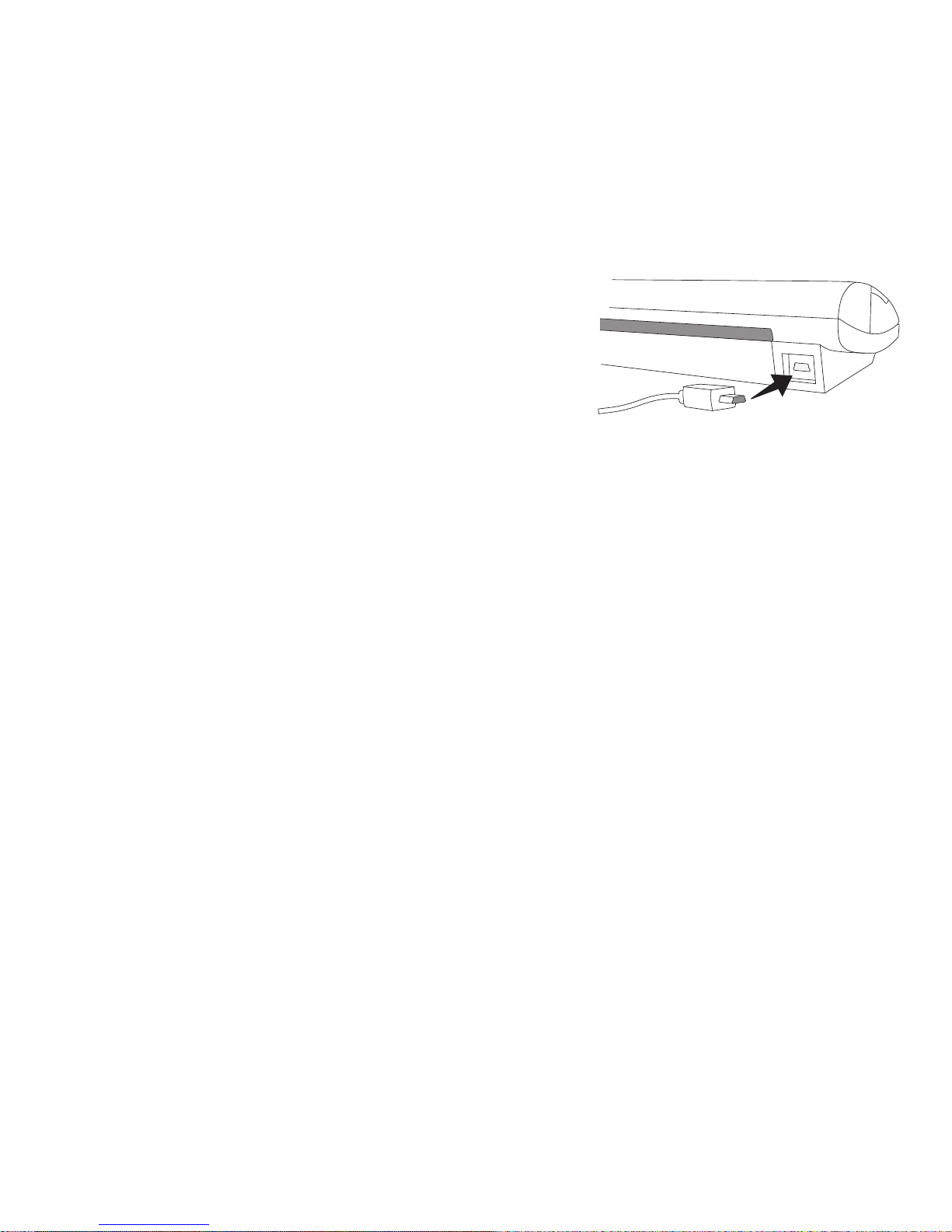
To connect your CardScan scanner
1 Plug the USB cable into the USB port
on the back of the scanner.
2 Connect the other end of the USB
cable into an available USB port on
your computer.
NOTE If the scanner was already
connected, unplug the scanner and then plug the scanner in again.
Figure 3
Page 6

4
Starting CardScan Image Capture
The first time you start the software, you are asked to register the
product.
To start CardScan Image Capture for the first time
1 Do one of the following:
• Double-click on your desktop.
• Click Start, then Programs>DYMO>CardScan Image
Capture>DYMO CardScan Image Capture.
The CardScan Image Capture software is activated automatically and
the DYMO Product Registration dialog box appears.
2 In the DYMO Product Registration dialog box, click Register Now
and then follow the on-screen instructions to register the software.
NOTE You can register the software later by choosing Register from the
Help menu.
For complete details on using the software, refer to the online Help.
If you need further assistance, contact Technical Support at (877) 724-8324.
You can also obtain support at www.dymo.com.
Page 7
 Loading...