

Page 1
Before You Begin
You must have at least the following:
• Pentium 233-MHz or faster or equivalent with 32MB RAM
• Available USB 1.1 Port For USB 1.1 Operation
• Available USB 2.0 Port For USB 2.0 Operation
• Windows XP, 2000, Mac OS 8, 9, or 10/X for USB 1.1 Operation
• Windows XP, 2000 or Mac OS X for USB 2.0 Operation
Check Your Package Contents
These are the items included with your purchase:
If any of the below items are missing, please contact your reseller.
©2006 D-Link Corporation. All rights reserved. Trademarks or registered trademarks are the property of their respective
holders. Software and specifications subject to change without notice.
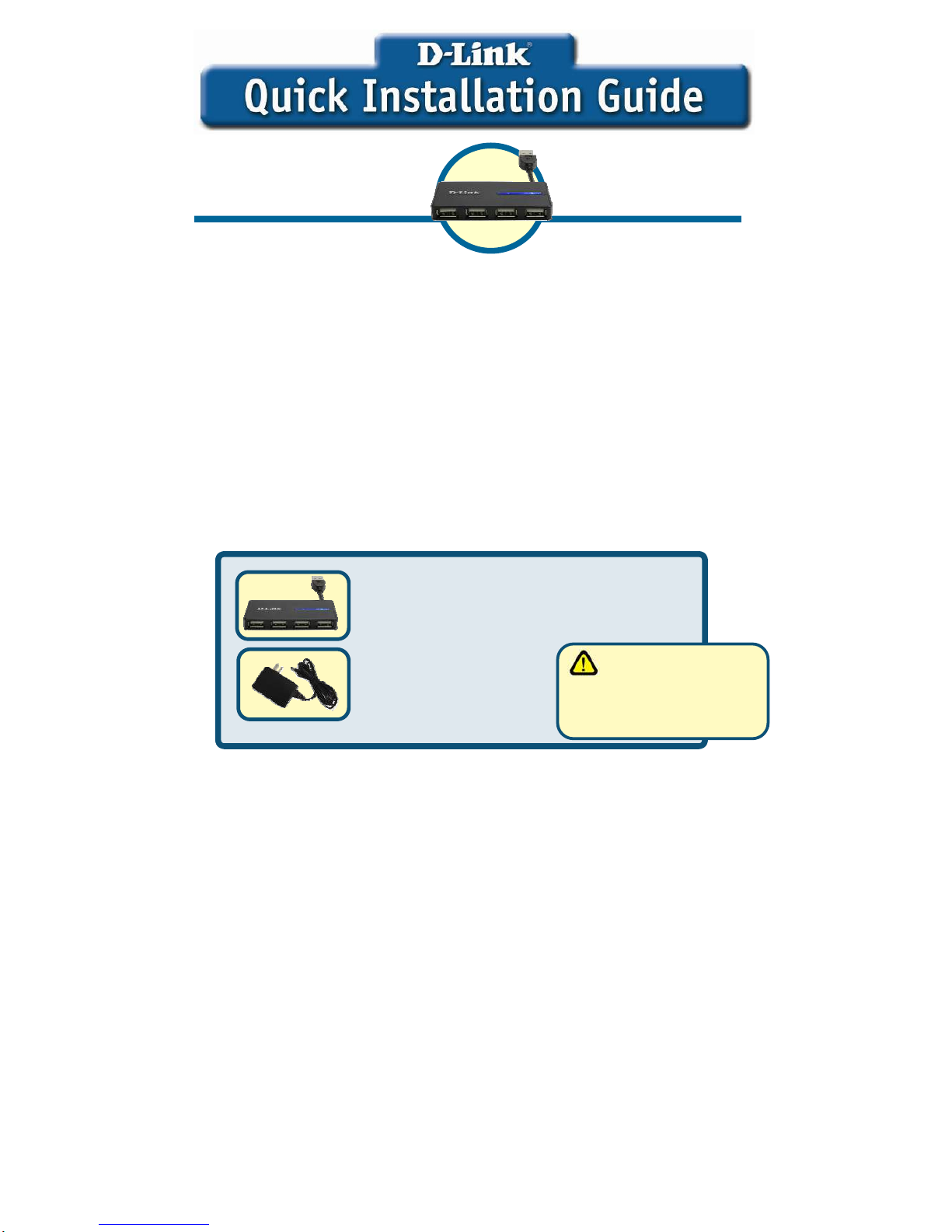
DUB-104 4-Port USB 2.0 Pocket Hub
This product can be used with
the following operating systems:
Windows XP, Windows 2000, Mac
OS 8, 9, and 10.1 or above.
DUB-104
4-Port USB 2.0 Pocket Hub
Power Adapter (5V 2.5A)
Using a power supply
with a different voltage rating
will damage and void the
warranty for this product.
Page 2
2
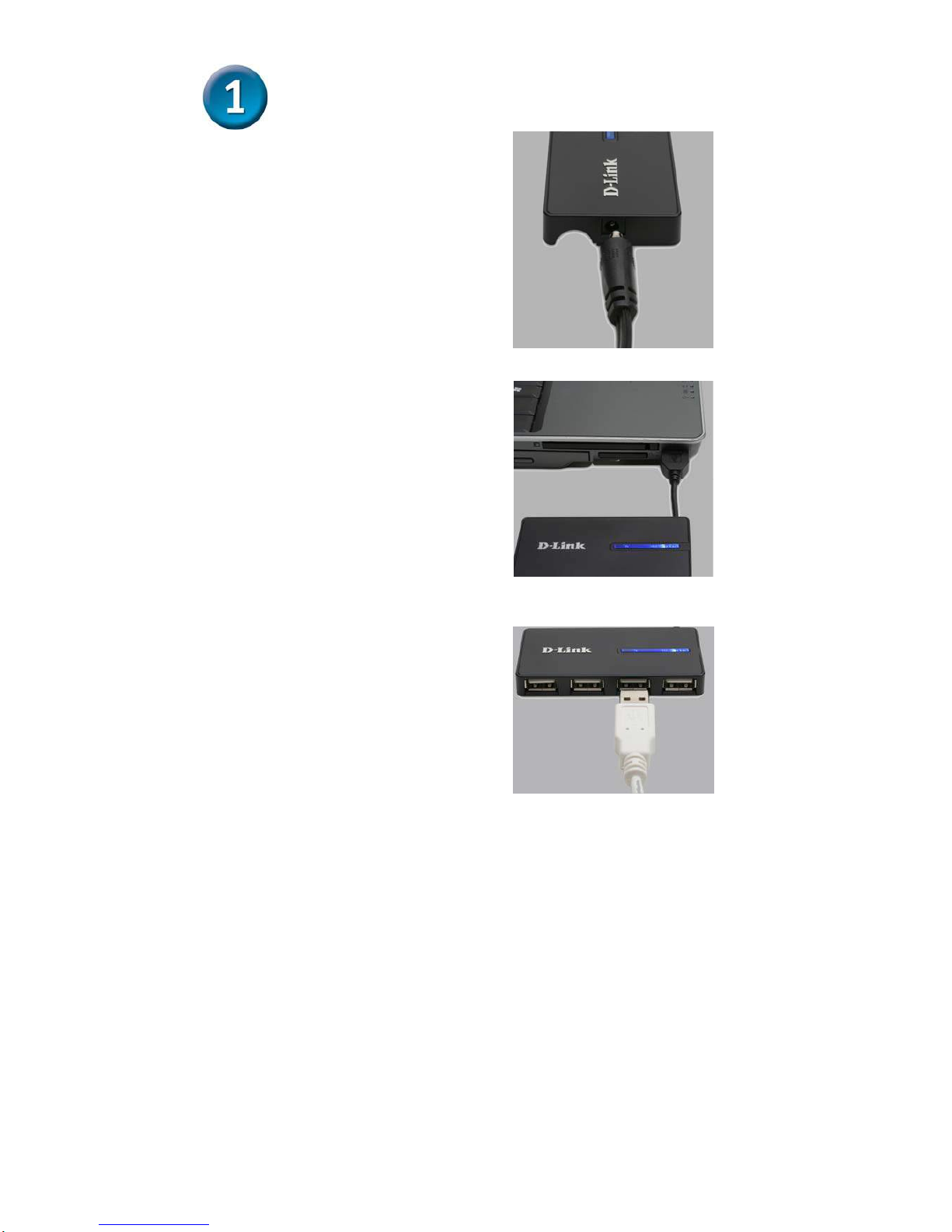
Installing the DUB-104
A. Plug the AC adapter into the
DUB-104 and into a power
socket in a power-strip or a
wall jack. (optional)
C. Your computer will automatically
detect and install the DUB-104.
You may now connect USB 2.0
or USB 1.1 devices to an
available USB port on the front of
the DUB-104.
B. Plug the USB type A dongle
(found on the bottom of the
DUB-104) into an available
USB 2.0 port on your computer
(or a USB 1.1 port if you don’t
have USB 2.0).
Page 3
3
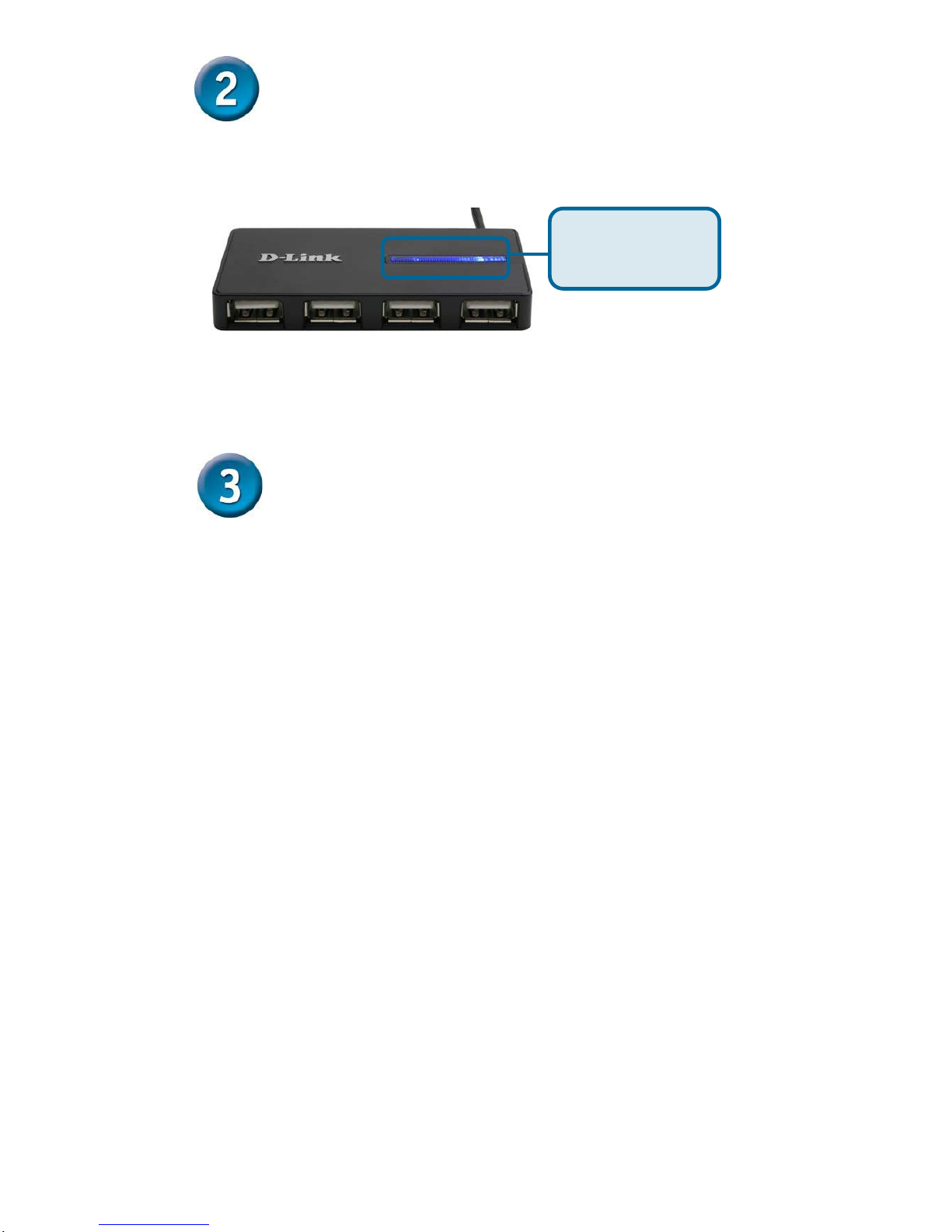
LED indicator
• The Power LED indicator is blue and lights up when the DUB-H4 is powered on by
using the external power adapter or by running on power supplied from the
computer (bus powered).
• If a port becomes overloaded, a “current exceeded” event will take place. The LED
will go off and the message “USB HUB Current Limit Exceeded” appears on the
monitor. Reset the DUB-104 by disconnecting the power adapter (if used) or
disconnecting the dongle from the PC for 5 seconds and then powering it back on
by connecting the AC power adapter or reconnecting the dongle to the PC.
Tips
• When connecting USB cables between USB devices and the DUB-104, make sure
that the cables are connected securely.
• Remember that when connecting USB 1.1 devices to a USB 2.0 hub or host
adapter, the USB 1.1 device will not work at USB 2.0 speeds.
• The DUB-104 does not have an on/off switch. It is always on once the external
power adapter has been plugged into a power source or the dongle has been
connected to a PC’s USB port.
• Connecting USB 1.1 devices to the DUB-104 may cause all USB devices
connected to the hub to work at USB 1.1 speed. To ensure 480Mbps throughput for
your USB 2.0 devices, don’t connect USB 1.1 and USB 2.0 devices to the hub at
the same time.
• D-Link recommends that while using a USB device that includes an AC power
adapter, that you use the power adapter to ensure proper power and current supply
to that device.
• Please remember to unplug devices properly to ensure that no data loss or
corruption takes place with your operating system.
Power LED:
Blue = Power is On
Off= Power is Off
 Loading...