

Page 1

3050 Ver.C PUTEK-PK-MAN-0223
USB Modem
Quick Installation Guide
Page 2

Table of Contents
3
3
4
4
4
5
6
6
7
7
8
8
Introduction
Features
System Requirements
LEDs of Front Panel
Sockets of Rear Panel
Package Checklist
Installation
Hardware Installation
Installation Procedure for Windows 2000
Installation Procedure for Windows 98
Installation Procedure for Windows ME
Installaiton Procedure for Windows XP
Modem Dailing Location
For WIN 2000/XP
For WIN 98/ME
Page 3

3
Voice
Voice/Audio mode.
Full-Duplex speaker phone
System Requirements
Windows 98, Windows 2000,
Windows ME, Windows XP
USB Port
Introduction
Features
This modem supports the following communication
standards. ITU-T is also known as CCITT.
Data
V.92
V.90, V.34, V.32bis, V.32, V.22bis, V.21, V.22
Bell 103 & 212A
V.44, V.42bis & MNP 5 (Data compression)
V.42 & MNP2-4 (Error correction)
Fax
V.17 (14400bps FAX)
V.29 (9600bps FAX)
V.27 (4800bps FAX)
Page 4

DATA Data Transmission indicator
CD Carrier Detect indicator
OH Off Hook
MR Modem Ready
PWR Power Ready
Sockets of Rear Panel
PHONE Phone jack
LINE Telephone line jack
USB USB Connector
MIC Microphone jack
SPK Speaker (for Stereo only) jack
LEDs of Front Panel
Package Checklist
One USB modem/ One USB cable/ One Phone Cable
One CD Driver/ User’s manual
Page 5
5
Installation
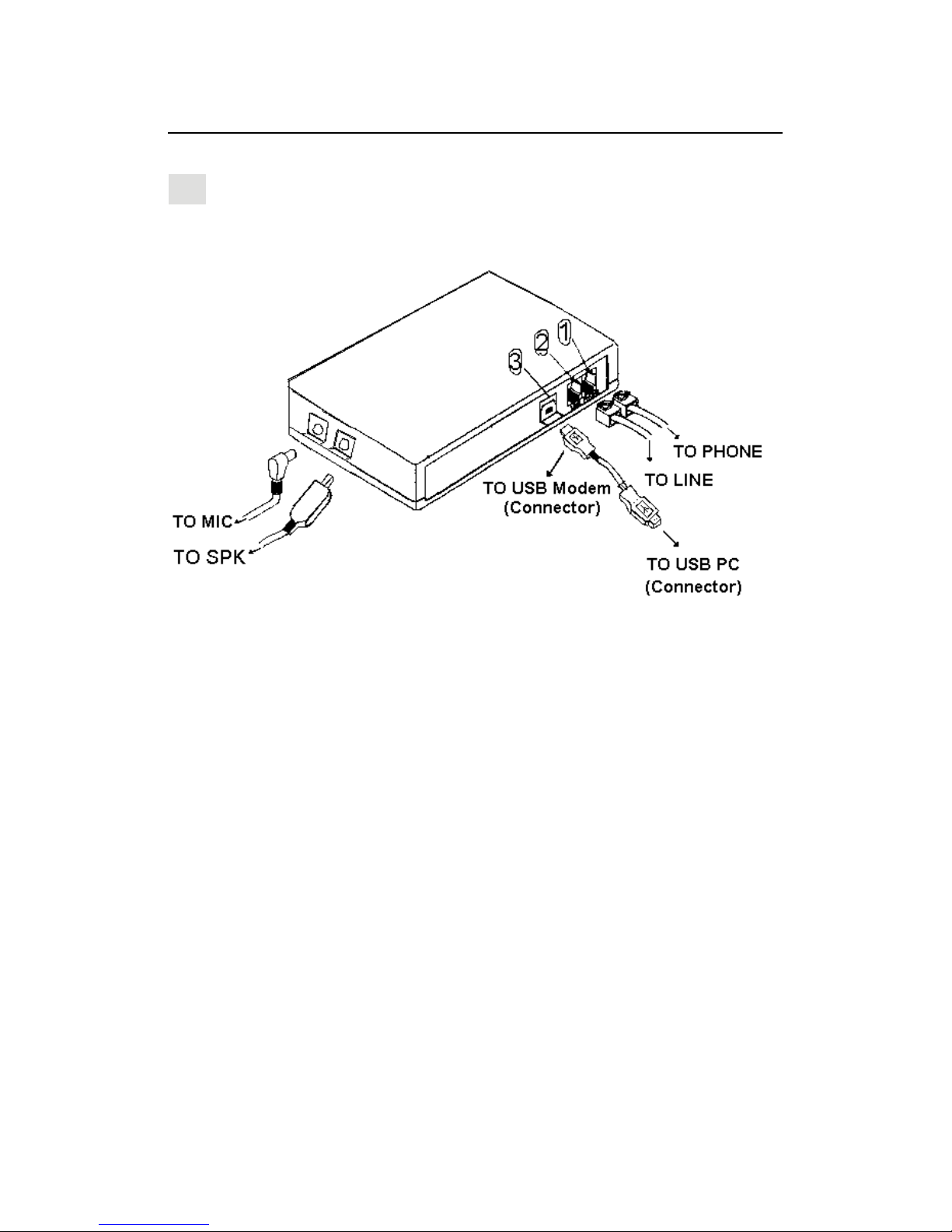
1.Plug the device terminal of the USB cable into the connector
marked (3) on the back of the modem.
2.Plug the other end of this cable into the USB port on the
back of your computer .
3.Plug one end of the phone cable into the modem’s LINE
jack (2) .Plug the other end into the phone outlet.
4.To use telephone and the modem on the same line, plug one
end of the optional phone cable into the PHONE jack (1) on
the modem; plug the other end into the phone. Lift the
telephone handset and listen for a DIAL TONE to check the
connection.
Hardware Installation
Page 6

Installation Procedures for Windows 98
Installation Procedures for Windows 2000
1. Once you have completed the hardware installation, switch
on your computer and put the CD into the CD-ROM. The
wizard searches for new hardware. Click Next.
2.Select Search for a suitable driver for my device
(recommended) and click Next.
4.Click Browse to search for driver files and open it.
e.g., D:\DRIVER\win2000. Cilck OK.
5.Windows found the driver of this modem. Click Next.
3.Select Specify a location and click Next.
6.Click Yes for Digital Sinature.
7.Click Finish to complete the installation .
3. Select Specify a location (Please click Browse to search
for driver files and open it. e.g., D:\DRIVER\win98) and click
Next .
4.Windows found the driver of this modem. Click Next.
2.Select the Search for the best driver for your device
(Recommended) and click Next.
1.Once you have completed the hardware installation, switch
on your computer and put the CD into the CD-ROM. The
wizard searches for new hardware. Click Next.
5.Click Finish to complete the installation .
Page 7

7
Installation Procedures for Windows XP
Installation Procedures for Windows ME
1. Once you have completed the hardware installation, switch
on your computer and put the CD into the CD-ROM. The
wizard searches for new hardware. Select install from a list
or specific location (Advanced). Click Next.
2. Select Search for the best driver in these locations and
Include this location in the search: (Please click Browse to
search for driver files and open it. e.g., D:\DRIVER\WinXP)
and click Next.
3. Click Continue Anyway.
4. Click Finish.
4.Click Finish to complete the installation.
3.Windows found the driver of this modem. Click Next.
2.Select Search for the best driver for your device
(Recommended) and Specify a location.(Please click Browse
to search for driver files and open it. e.g., D:\DRIVER\winme)
and click Next.
1. Once you have completed the hardware installation, switch
on your computer and put the CD into the CD-ROM. The
wizard searches for new hardware. Select Specify the location
of the driver (Advanced) and click Next.
Page 8
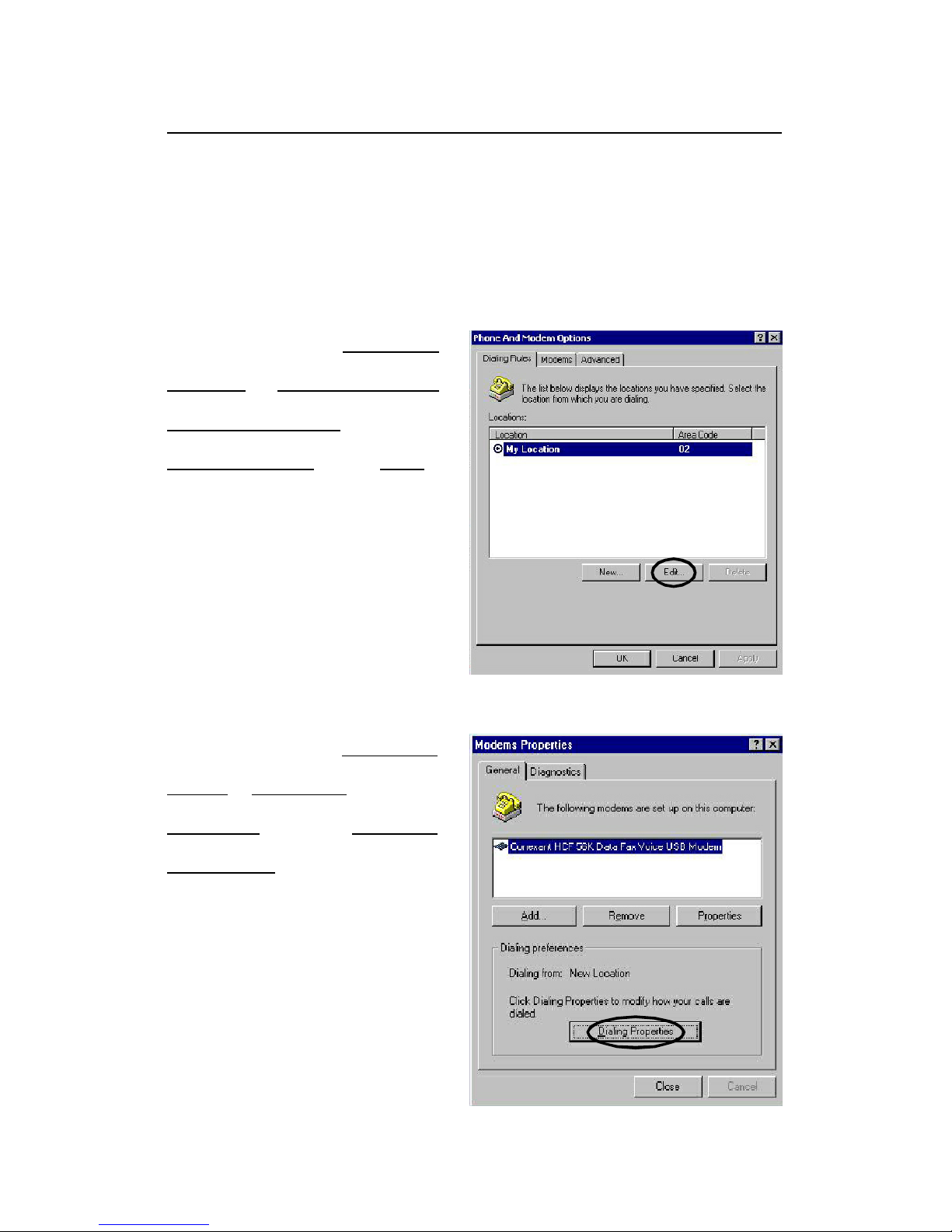
For WIN 98/ME
Please click Control
Panel->Modems->Under
General click Dialing
Properties , and then you
can change your location.
For WIN 2000/XP
Please click Control
P ane l - > P h on e And
Modem Options ->Under
Dialing Rules click Edit ,
and then you can change
your location.
**If you want to change your dialing location, please
follow the instructions:
Modem Dialing Location
 Loading...