

Page 1

D-Link System, Inc.™
xStack Storage DSN-Series SAN Arrays
VMware ESX 3.0.2 & 3.5
Rev. A
D-Link Systems, Inc. Page 1
December 2, 2009
Page 2

xStack Storage DSN-Series SAN Arrays
VMware ESX 3.0.2 & 3.5
© 2009 D-Link Systems, Inc. All Rights Reserved
DISCLAIMER OF LIABILITY: With respect to documents available from this server, neither DLink Systems, Inc. nor any of their employees, makes any warranty, express or implied,
including the warranties of merchantability and fitness for a particular purpose, or assumes any
legal liability or responsibility for the accuracy, completeness, or usefulness of any
information, apparatus, product, or process disclosed, or represents that its use would not
infringe privately owned rights.
DISCLAIMER OF ENDORSEMENT: Reference herein to any specific commercial products,
process, or service by trade name, trademark, manufacturer, or otherwise, does not
necessarily constitute or imply its endorsement, recommendation, or favoring by D-Link
Systems, Inc.. The views and opinions of authors expressed herein do not necessarily state or
reflect those of D-Link Systems, Inc., and shall not be used for advertising or product
endorsement purposes.
COPYRIGHT: VMware, ESX Server and Virtual Infrastructure are copyrights of EMC. XStack
Storage is a trademark of D-Link Systems, Inc.. Permission to reproduce may be required.
All other brand or product names are or may be trademarks or service marks, and are used
to identify products or services, of their respective owners.
Copyright © 2009 D-Link Systems, Inc.™
D-Link Systems, Inc.
17595 Mount Herrmann Street
Fountain Valley, CA 92708
www.DLink.com
D-Link Systems, Inc. Page 2
December 2, 2009
Page 3

xStack Storage DSN-Series SAN Arrays
VMware ESX 3.0.2 & 3.5
Executive Summary
The xStack Storage Series iSCSI storage arrays from D-Link provide cost-effective, easy-todeploy shared storage solutions for applications like the VMware Infrastructure 3 server
virtualization software. In this document the features and performance of the D-Link xStack
Storage™ Series iSCSI storage arrays along with typical server systems are configured,
instructions for use with VMware are given, and recommendations are made.
Overview
Server virtualization programs such as VMware run best when the datacenter or enterprise is
organized into “farms” of servers that are connected to shared storage. By placing the virtual
machines’ virtual disks on storage area networks accessible to all the virtualized servers, the
virtual machines can be migrated from one server to another within the farm for purposes of load
balancing or failover. VMware Infrastructure 3 uses the VMotion live migration facility in its
Distributed Resource Scheduling feature and provides a High Availability component which
takes advantage of shared storage to quickly boot up a virtual machine on a different ESX server
after the original ESX server fails. Shared storage is key to enabling VMotion because, when a
virtual machine is migrated from one physical server to another, the virtual machine’s virtual disk
doesn’t actually move. Only the virtual disk’s ownership is changed while it continues to reside in
the same place.
The xStack Storage iSCSI storage arrays provide excellent performance, reliability and
functionality and do not require specialized hardware and skills to set up and maintain. The Fibre
Channel storage network starts with the fabric, which involves the use of FC host bus adapters
(HBAs) in each server, connected by fiber cables to one or more FC switches, which in turn can
network multiple storage arrays, each supporting a scalable number of high speed disk
enclosures. An application’s request for an input or output (IO) to storage originates as a SCSI
(Small Computer System Interface) request, is packed into an FC packet by the FC HBA, and
sent down the fiber cable to the FC switch for dispatch to the storage array that contains the
requested data, similar to the way Internet Protocol (IP) packets are sent over Ethernet. For
smaller IT shops or for those that are just starting out in the virtualization arena, an alternate
shared storage paradigm is emerging that employs iSCSI (Internet SCSI) to connect the servers to
the storage. In this case the communication between the server and the data storage uses standard
Ethernet network interface cards (NICs), switches and cables. SCSI IO requests are packed into
standard Internet protocol packets and routed to the iSCSI storage through Ethernet switches and
routers. With iSCSI customers can leverage existing networking expertise and equipment to
simplify their implementation of a storage network. Like Fibre Channel, iSCSI supports blocklevel data transmission for all applications, not just VMware. For security iSCSI provides CHAP
authentication as well as IPSEC encryption.
Servers can communicate with iSCSI storage using two methods. The first involves the use of an
add-in card called an iSCSI hardware initiator or host bus adapter, analogous to the Fibre Channel
HBA, which connects directly to the datacenter’s Ethernet infrastructure. The second does the
iSCSI conversion in software and sends the Ethernet packets through the standard Ethernet NIC.
D-Link Systems, Inc. Page 3
December 2, 2009
Page 4

xStack Storage DSN-Series SAN Arrays
VMware ESX 3.0.2 & 3.5
The xStack Storage Series iSCSI SAN solution is designed for different sized customers and
varying environments and is easy to configure to provide storage to VMware hosts.
This document will describe the xStack Storage Series, document how to configure with
VMware, and then, using a database workload running on two virtual machines to demonstrate
usage.
The configuration shown in this paper represent a single, high-level view of the usage of the
xStack Storage array with a simple virtualization workload running on only 5 disks in each array.
Typical customer use scenarios will employ larger disk arrays supporting a variety of
applications, which may result in varying performance results.
xStack Storage Family
D-Link’s virtualized storage technology is revolutionizing the way small and medium enterprises
will manage their storage. Our virtualized storage pool eliminates the complexities associated
with managing traditional RAID. Best of all, D-Link’s iSCSI storage arrays are affordable.
Provision your storage from a single pool of available storage. There is no need to dedicate drive
groups or entire arrays to RAID types or manage individual LUNS. Wizard driven provisioning is
as simple as selecting a volume size and the appropriate application type from a menu. Seasoned
storage administrators have the option of defining volumes with more granularity if desired. The
advanced intelligence of the system allows for multiple virtual volumes with mixed RAID types
to coexist on the same drives. Each application can have a Quality of Service tailored to the needs
of the specific application. Application aware cache algorithms dynamically adjust to each
application, further optimizing performance. By eliminating RAID groups, volumes can span
across the total quantity of disks in the system, thereby further increasing performance. The
benefits of these features become increasingly critical in mixed workload and virtualized server
environments where multiple application types concurrently access the system resources.
All xStack Storage family models are comprised of these features. And, all targets work with
either VMWare ESX 3.0.2 & 3.5 Server.
D-Link Systems, Inc. Page 4
December 2, 2009
Page 5
xStack Storage DSN-Series SAN Arrays
VMware ESX 3.0.2 & 3.5
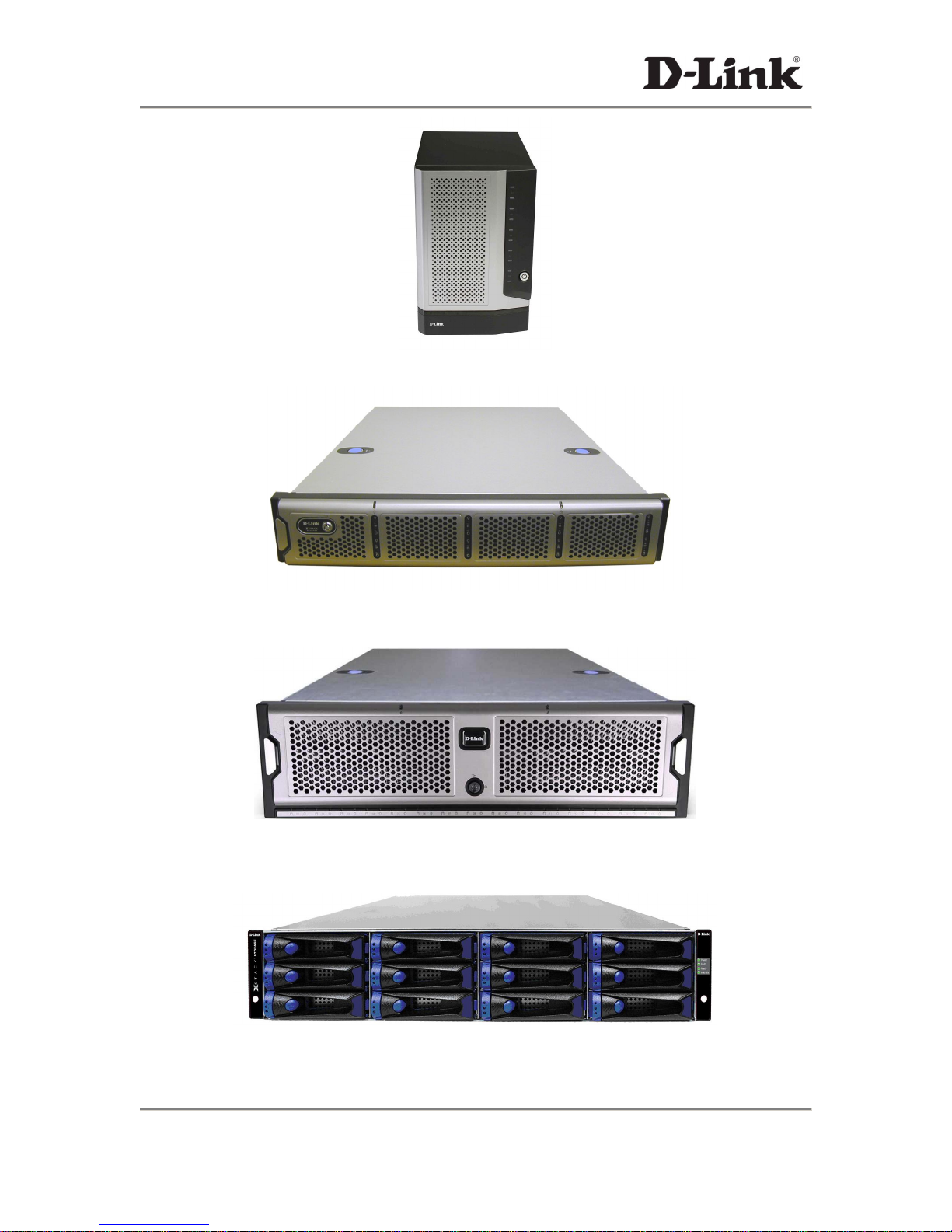
The D-Link DSN-1100-10 iSCSI SAN
The D-Link DSN-2100-10 iSCSI SAN
The D-Link DSN-3200-10 & 3400-10 iSCSI SAN
The D-Link DSN-5110-10, & 5210-10 & 5410-10 iSCSI SAN
D-Link Systems, Inc. Page 5
Figure 1: The xStack Storage family
December 2, 2009
Page 6

xStack Storage DSN-Series SAN Arrays
VMware ESX 3.0.2 & 3.5
VMware and iSCSI
This section will describe the steps needed to attach iSCSI storage to a VMware ESX server host.
Once attached and formatted, the storage can be provided to guest virtual machines as virtual
disks that appear as local storage to the guest. An alternate method, in which the guest is attached
directly to iSCSI storage through a software iSCSI initiator supplied with the guest’s operating
system, is not covered in this document.
ESX 3.0.2 Configuration
Connectivity from a host running VMware’s ESX server to iSCSI storage is provided through a
built-in software initiator (support for hardware iSCSI initiators will be provided at a later date).
The physical network interface cards (NICs) that connect to the Ethernet network in which the
iSCSI storage is located must be included within a VMware virtual switch that also includes the
ESX Service Console and the VMkernel (which supports VMotion traffic as well as iSCSI
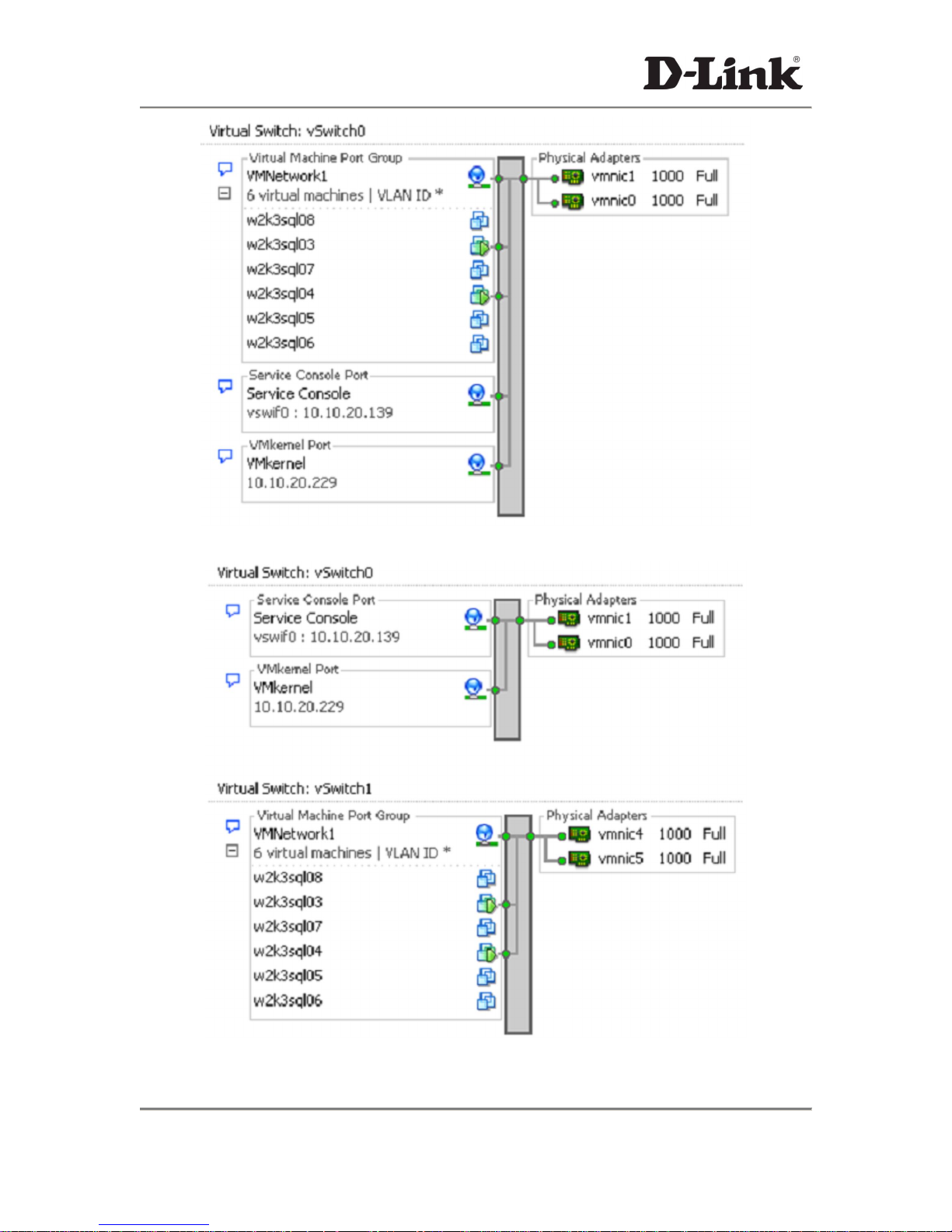
packets). For a two-NIC system it is recommended that the NICs be teamed as shown in Figure 2.
This provides NIC/cable failover and iSCSI traffic load balancing across the NICs to multiple
iSCSI targets with different IP addresses.
Since the VM and iSCSI traffic are mixed in this configuration, CHAP authentication and IPSEC
encryption should be employed in the iSCSI connection. (Alternately, in a two- NIC
configuration the VM and iSCSI traffic can be each placed on their own non-teamed NICs for
total isolation). The network configuration is created in Virtual Center (VC) using the Virtual
Infrastructure Client. The ESX server to be connected is highlighted, then the Configuration tab is
selected, then Networking.
If there are more than two NICs available in the ESX server host, it is recommended that two
virtual switches be created, one which hosts the Service Console and VMkernel (including iSCSI
and VMotion traffic), and one which is dedicated to virtual machine (VM) traffic. The two NICs
carrying iSCSI traffic should be cabled to redundant Ethernet switches. An example for four
NICs showing two 2-NIC teams is shown in Figure 3.
D-Link Systems, Inc. Page 6
December 2, 2009
Page 7
xStack Storage DSN-Series SAN Arrays
VMware ESX 3.0.2 & 3.5
Figure 2: ESX Two NIC Configuration for iSCSI
Figure 3: ESX Four NIC Configuration for iSCSI
D-Link Systems, Inc. Page 7
December 2, 2009
Page 8

xStack Storage DSN-Series SAN Arrays
VMware ESX 3.0.2 & 3.5
Connecting the ESX Server Host to the iSCSI Array
The process to connect an ESX Server host to an iSCSI storage array has three steps: First, the
iSCSI software initiator in ESX is configured to point to the storage target. Then the target
storage array is configured to enable access from the ESX host and the host’s disk LUNs (Logical
Unit Numbers) are created. Finally it is necessary to format the storage with the VMware File
System (VMFS).
Configure iSCSI Software Initiator in ESX
As a security measure iSCSI access is disabled by default in ESX.
To enable it, from the ESX host in VC:
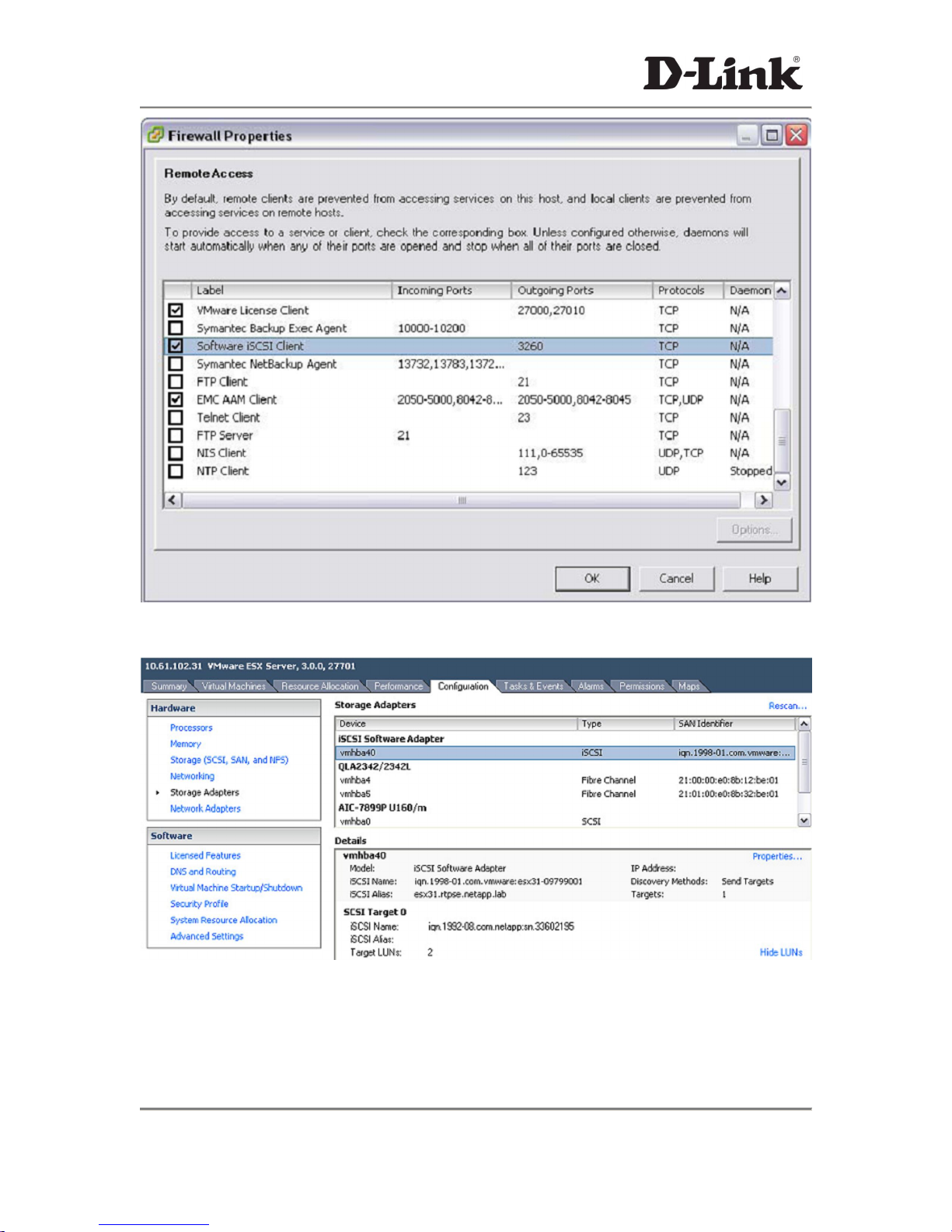
ESX Server → Configuration → Security Profile → Properties → enable Software iSCSI Client
Next, select Configuration → Storage Adapters, and then highlight iSCSI Software Adapter.
Notice the SAN Identifier. In this test, for host r3esx1950c, the identifier is iqn.1998-
01.com.vmware:r3esx1950c-7b658143. In the Details pane select Properties to bring up the iSCSI
Initiator Properties page. Select Configure and then select Status: Enabled if necessary. Finally,
select the Dynamic Discovery tab, select Add and on the Add Send Targets Server page enter the
IP address of the iSCSI storage array and change the Port from its 3260 default if necessary.
Configure Target Storage Array and Create the LUNs
First, the LUNs that will be assigned to VMware are created on the target storage array. Use the
xStack Storage® Management Center.
Format Storage
Back in Virtual Center select ESX Server → Configuration → Storage Adapters and then select
Rescan → Scan for New Storage Devices. The LUN(s) defined on the iSCSI storage array should
show up.
If this is the first host to access this LUN it is necessary to format the storage with the VMware
file system, VMFS3. From the Configuration tab select Storage (SCSI, SAN and NFS) and click
on Add Storage. Select Disk/LUN, and then select the LUN to be formatted. Supply a Datastore
Name (for example, NX1950-1). For Disk/LUN Formatting accept the default maximum file size
(256 GB), block size (1MB), and capacity or change them if desired. The datastore should show
up in the list of storage devices. When the next ESX server is connected to the same iSCSI
storage array the datastore should show up after the Scan for New Storage step.
Once the storage LUN has been added to an ESX host, VMs can be created on that ESX host with
their virtual disks using the LUN storage. Since the LUN is shared between all ESX server hosts
connected to the iSCSI storage array the VMs may be live migrated from one host to another
using VMotion.
D-Link Systems, Inc. Page 8
December 2, 2009
Page 9

xStack Storage DSN-Series SAN Arrays
VMware ESX 3.0.2 & 3.5
Basic Setup
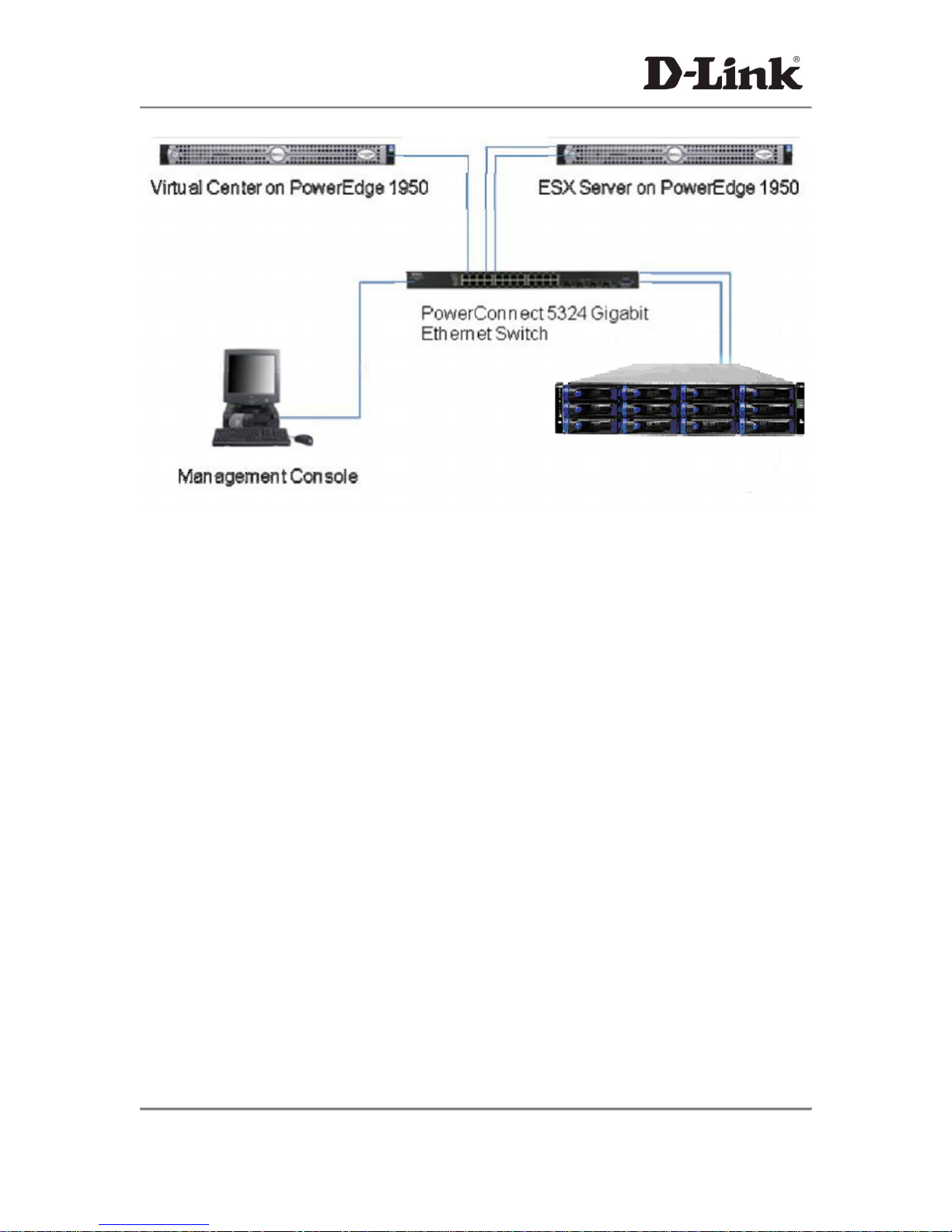
To provide a basic setup using an xStack Storage iSCSI storage offering, a PowerEdge 2850 ESX
host with two Intel® dual-core Xeon® processors running at 2.66GHz and with 4GB memory
was connected as described in the previous section to five-disk RAID 5 LUNs on one xStack
Storage DSN-3200-10 storage array. We used the two built-in NICs for the ESX Service Console,
VMkernel (including iSCSI traffic) and the virtual machine (VM) traffic as shown in Figure 2.
For testing this basic setup, two Windows Server 2003 R2 VMs with Microsoft SQL Server 2005
running a medium size (1 GB) version of the D-Link DVD Store database test application were
created with their 10GB virtual disks stored on the five-disk LUN on one array. The VMs were
then cloned three times with the copies’ virtual disks placed on similar LUNs on each of the other
three arrays. The VMs were configured with 4 virtual CPUs and 512MB each so that each virtual
CPU roughly had the resources of a single processor core.
The SQL Server database on each VM is created on that VM’s local disk so it, too, is stored on
the LUN. Since the database size (1 GB) exceeds the memory available to the VM (512 MB),
SQL Server will have to access its content from the LUN during the test.
The two VMs attached to a single iSCSI storage array were then stressed using an order entry
simulator (included as part of the DVD Store kit) which models users logging into the online
DVD Store, browsing for DVDs by title, artist or category, and finally making a DVD purchase.
A complete cycle of logging in, browsing, and purchasing counts as one order. The number of
users and the amount of time they spend thinking during an order can be controlled by the
simulator. In this test, the think time was set to 0 seconds so that each driver thread can be
thought of as a super user entering orders without stopping.
Starting with 2 such driver threads per VM, a workload was applied to each VM pair for 4
minutes and the average orders per minute and response time recorded. Then the VMs’ databases
were restored to their original state and a larger workload applied. The workload was increased
until the orders per minute rate stopped increasing. At that point the storage array could handle no
more IOs per second (IOPS) even as the applied workload increased.
D-Link Systems, Inc. Page 9
December 2, 2009
Page 10
xStack Storage DSN-Series SAN Arrays
VMware ESX 3.0.2 & 3.5
Figure 4: Basic Setup (typical servers, switch and xStack Storage DSN-3200-10 iSCSI SAN Solution)
D-Link Systems, Inc. Page 10
December 2, 2009
Page 11
xStack Storage DSN-Series SAN Arrays
VMware ESX 3.0.2 & 3.5
STORAGE CONNECTIVITY
With the introduction of VMware Virtual Infrastructure 3.0, several new storage connectivity
options were introduced. This section covers the available storage options and reviews settings
specific to each technology.
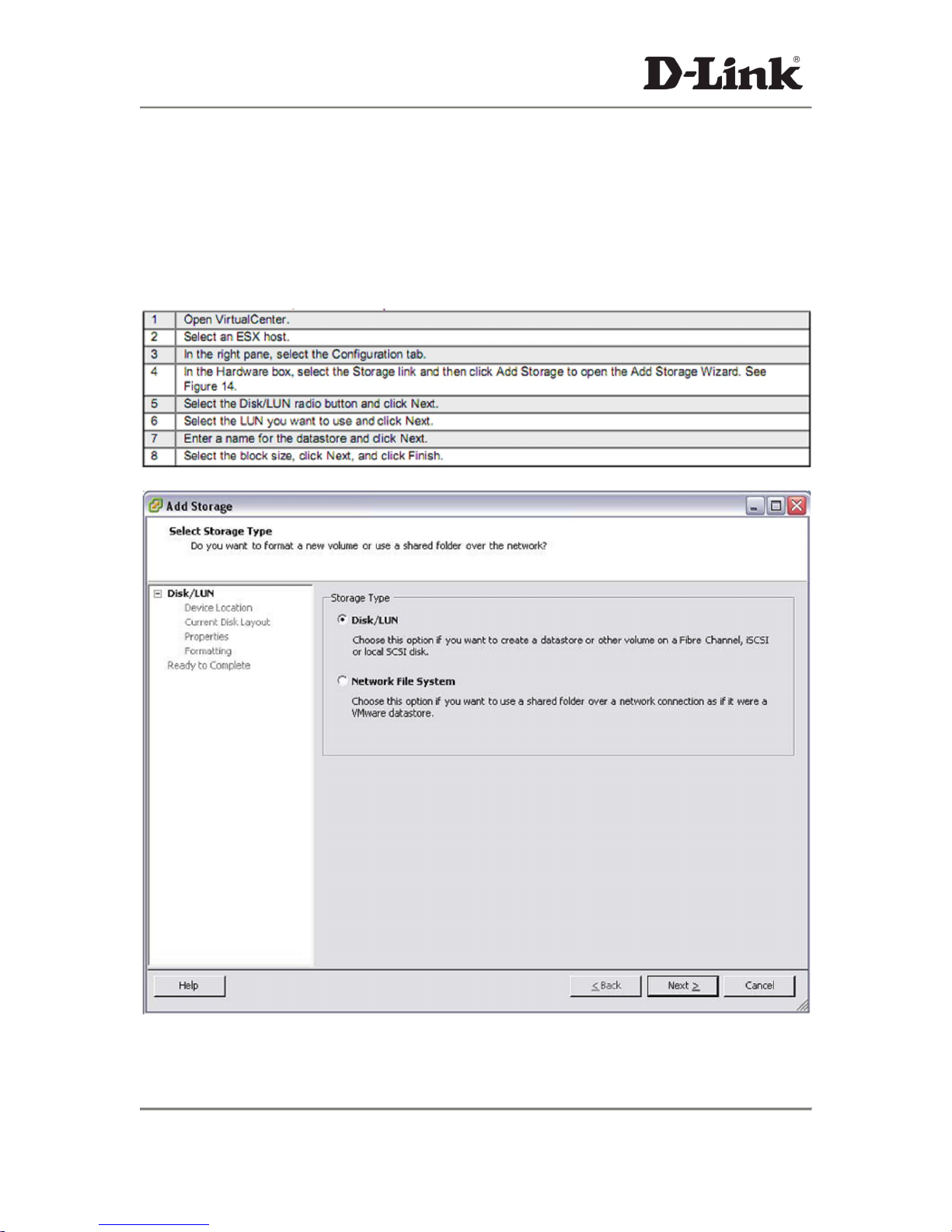
To add a LUN as a datastore, follow these steps.
D-Link Systems, Inc. Page 11
Figure 5: Add Storage
December 2, 2009
Page 12
xStack Storage DSN-Series SAN Arrays
VMware ESX 3.0.2 & 3.5
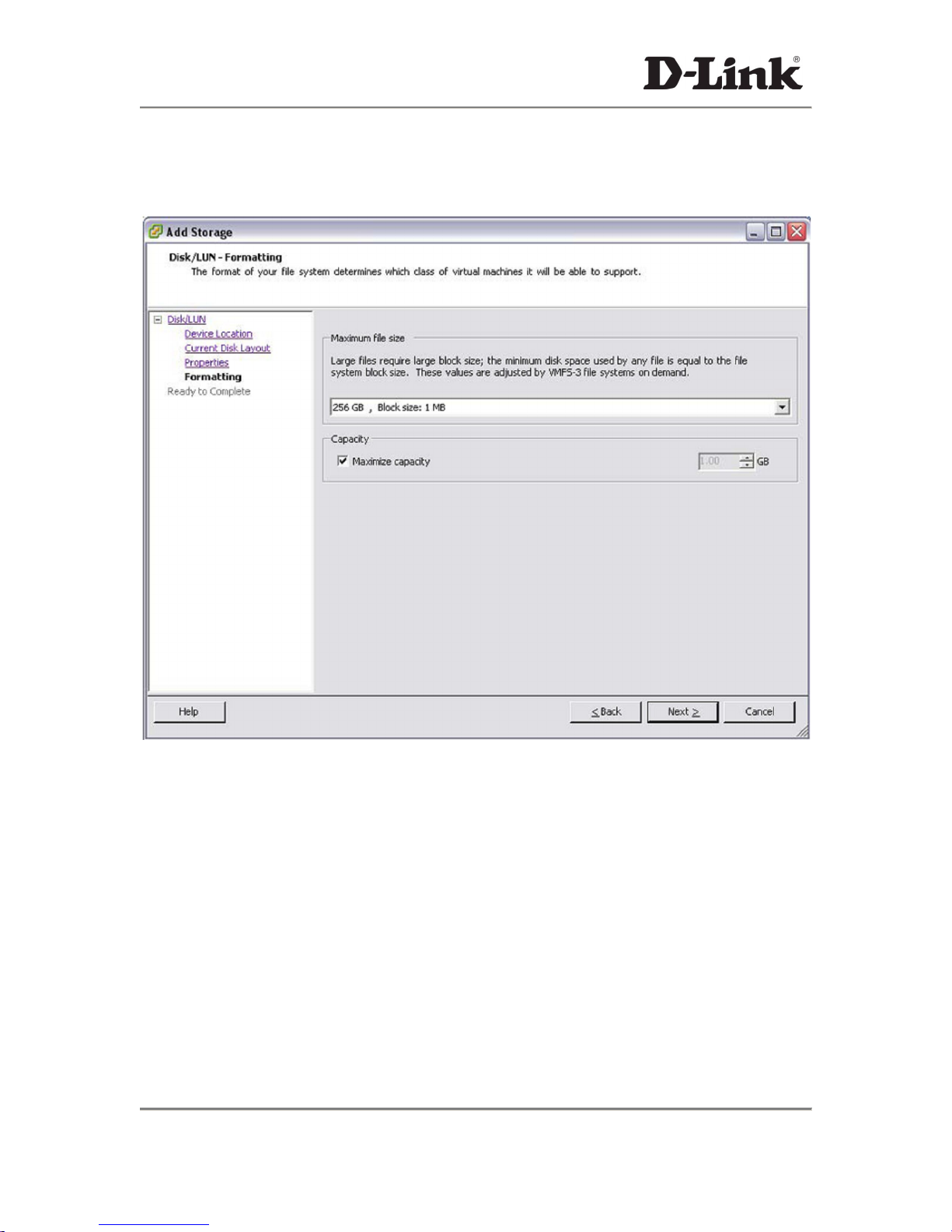
Note that the default block size of a Virtual Machine File System is 1MB. This block size
supports storing virtual disk files up to a maximum of 256GB in size. If you plan to store virtual
disks larger than 256GB in the datastore, you must increase the block size to be greater than the
default. See Figure 6.
Figure 6: Disk/LUN Formatting
iSCSI/IP SAN Connectivity
As a best practice, D-Link recommends separating iSCSI traffic from other IP network traffic by
implementing a separate network or VLAN than the one used for VMotion or virtual machine
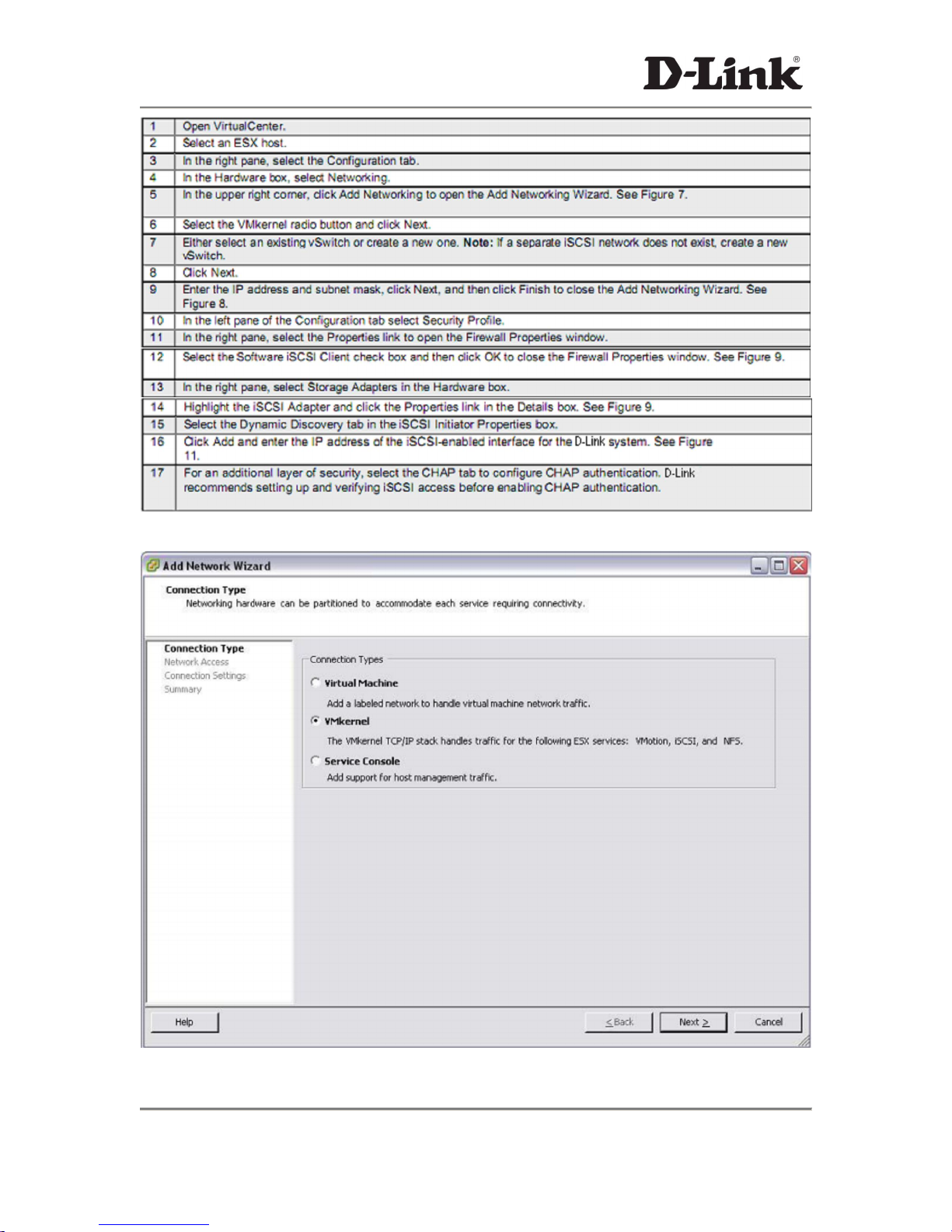
traffic. To enable ISCSI connectivity, the ESX Server requires a special connection type, referred
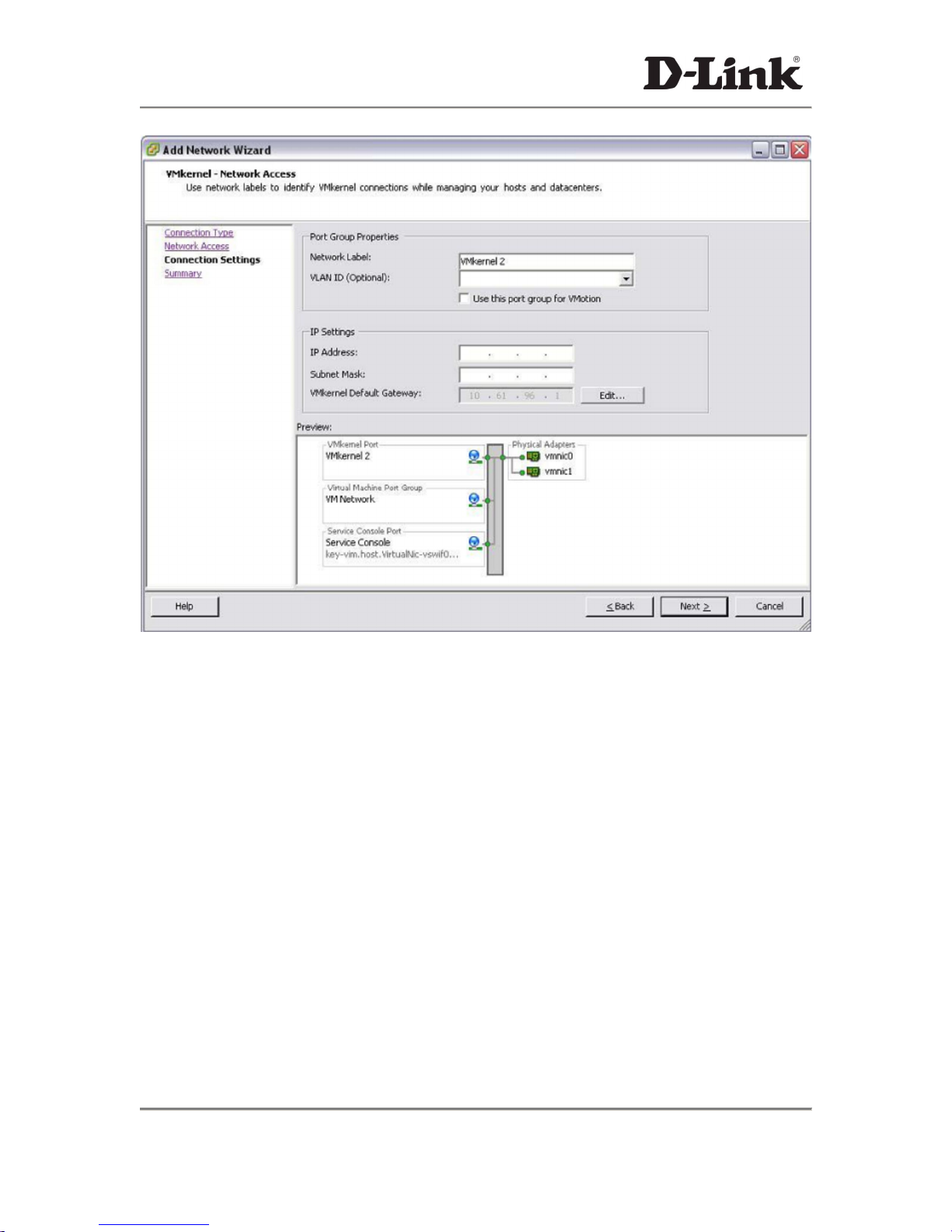
to as a VMkernel port, along with a service console port. The VMkernel network requires an IP
address that is currently not in use on the ESX Server. To configure the iSCSI connectivity,
follow these steps.
D-Link Systems, Inc. Page 12
December 2, 2009
Page 13
xStack Storage DSN-Series SAN Arrays
VMware ESX 3.0.2 & 3.5
Figure 7: Add Network Wizard | VMKernel for TCP/IP and iSCSI
D-Link Systems, Inc. Page 13
December 2, 2009
Page 14
xStack Storage DSN-Series SAN Arrays
VMware ESX 3.0.2 & 3.5
Figure 8: VMKernel | Network Access
D-Link Systems, Inc. Page 14
December 2, 2009
Page 15
xStack Storage DSN-Series SAN Arrays
VMware ESX 3.0.2 & 3.5
Figure 9: Firewall Properties | Enabling Software iSCSI Client via Port 3260
Figure 10: Initial iSCSI Software Adapter Configuration Screen
D-Link Systems, Inc. Page 15
December 2, 2009
Page 16
xStack Storage DSN-Series SAN Arrays
VMware ESX 3.0.2 & 3.5
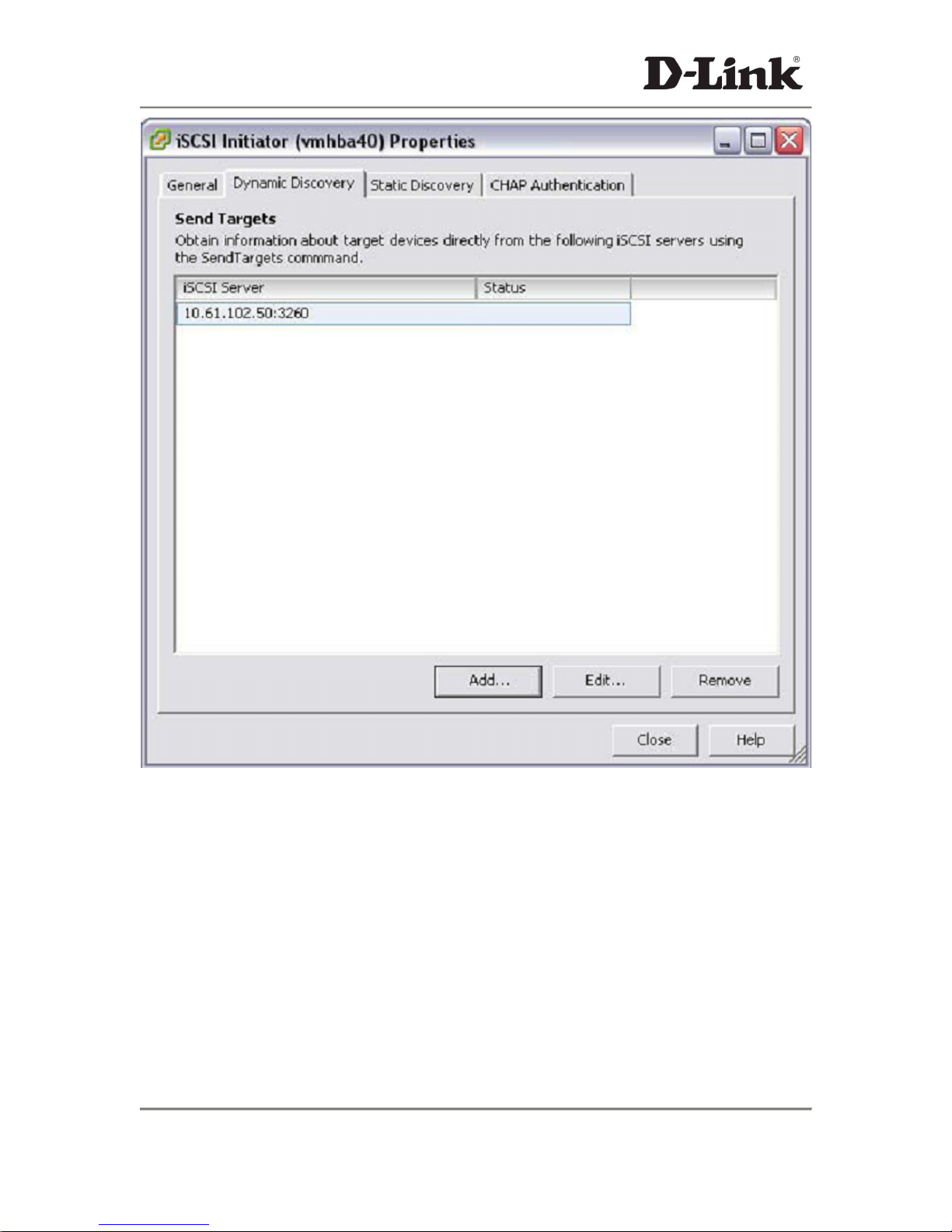
Figure 11: iSCSI Initiator Properties Window
D-Link offers iSCSI HBAs for use with iSCSI implementations. For larger deployments,
scalability benefits may be realized in storage performance by implementing iSCSI HBAs. Note
that this statement is not a requirement or a recommendation, but rather a consideration when
designing dense storage solutions. The benefits of iSCSI HBAs are best realized because the
storage arrays will have a higher aggregated I/O load than that of any individual VI3 Server.
iSCSI offers several options for addressing storage. If you are not ready to use iSCSI for your
primary data access, you may consider iSCSI for several other uses. iSCSI could be used to
connect to data stores that store CD-ROM ISO images. Also, iSCSI can be used as a redundant or
failover path for a primary Fibre Channel path.
D-Link Systems, Inc. Page 16
December 2, 2009
Page 17
xStack Storage DSN-Series SAN Arrays
VMware ESX 3.0.2 & 3.5
ESX 3.5 Configuration
Connectivity from a host running VMware’s ESX 3.5 server to iSCSI storage is much similar to
ESX 3.0.2 Server in the above configuration. However, there are some basic differences noted in
this section.
This section lists the steps required to configure the software initiator on the VMware ESX 3.5
Server. Connect to the ESX server/VirtualCenter using VI Client, and follow the below steps:
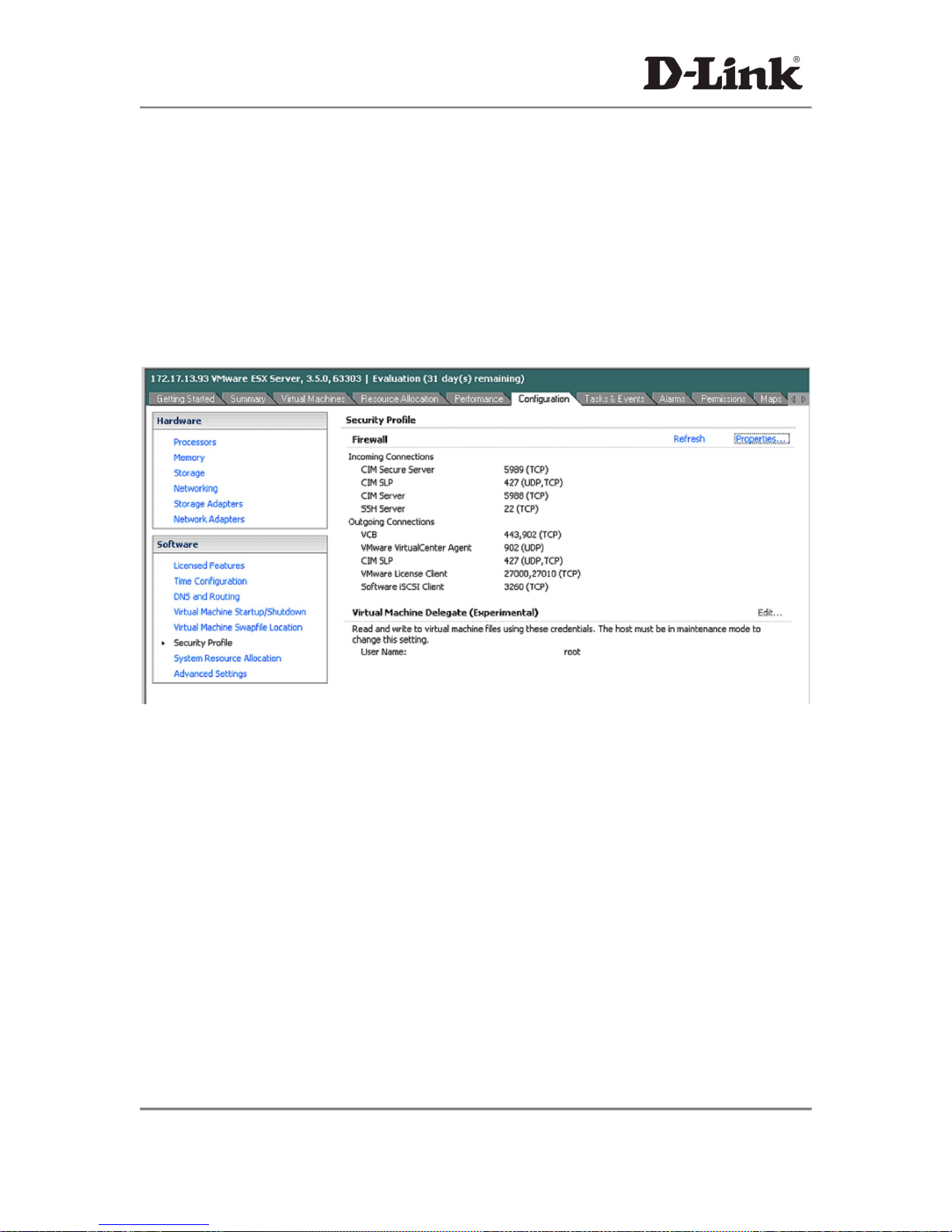
1. Select Configuration->Security Profile on the ESX server.
Figure 12: Security Profile Configuration Tab
D-Link Systems, Inc. Page 17
December 2, 2009
Page 18
xStack Storage DSN-Series SAN Arrays
VMware ESX 3.0.2 & 3.5
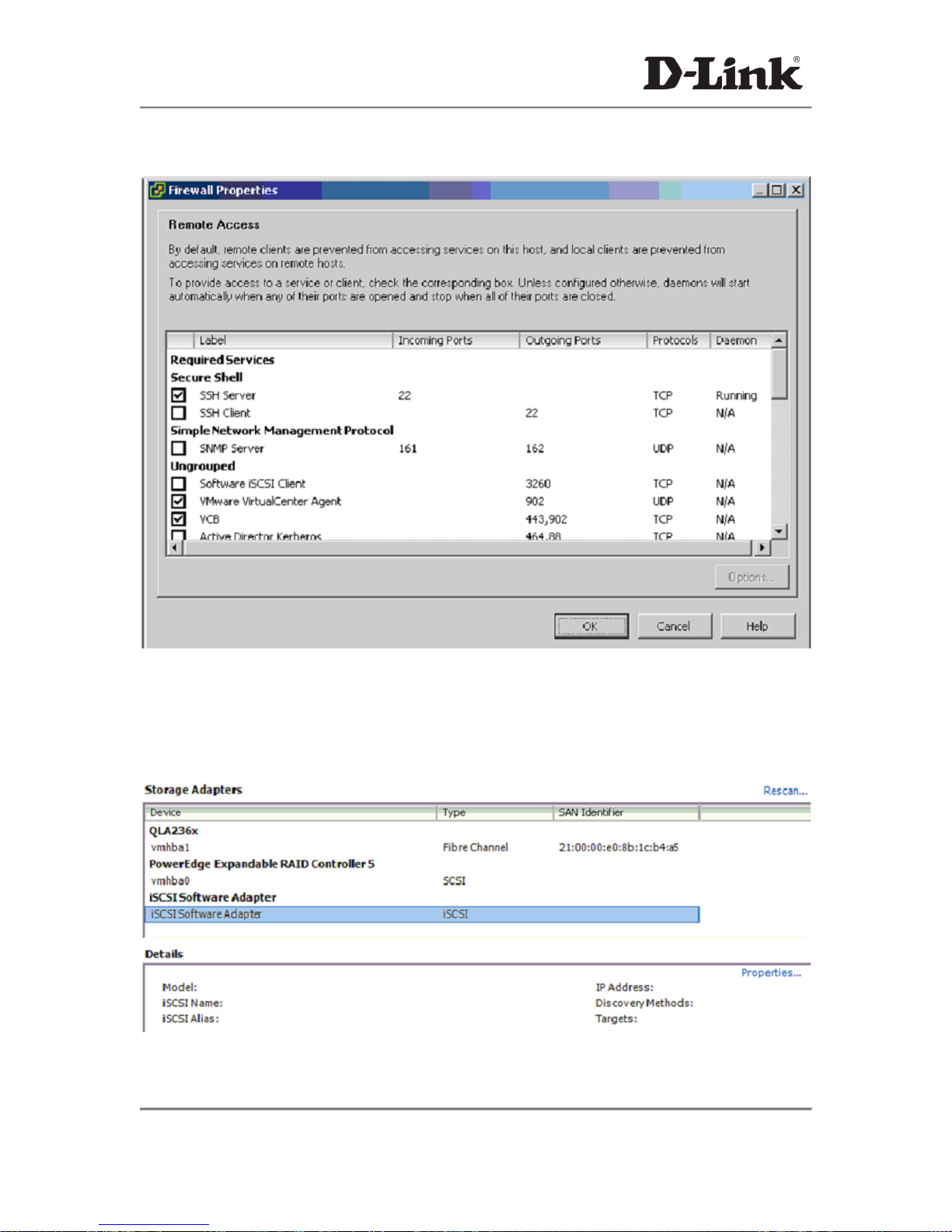
2. Click on Properties. The Firewall Properties box appears.
Figure 13: Firewall Properties Window
3. Check Software iSCSI Client.
4. Select Configuration->Storage Adapters on the ESX server.
5. Select iSCSI software adapter and click on Properties.
Figure 14: iSCSI software adapter under Storage Adapters on VI client
D-Link Systems, Inc. Page 18
December 2, 2009
Page 19
xStack Storage DSN-Series SAN Arrays
VMware ESX 3.0.2 & 3.5
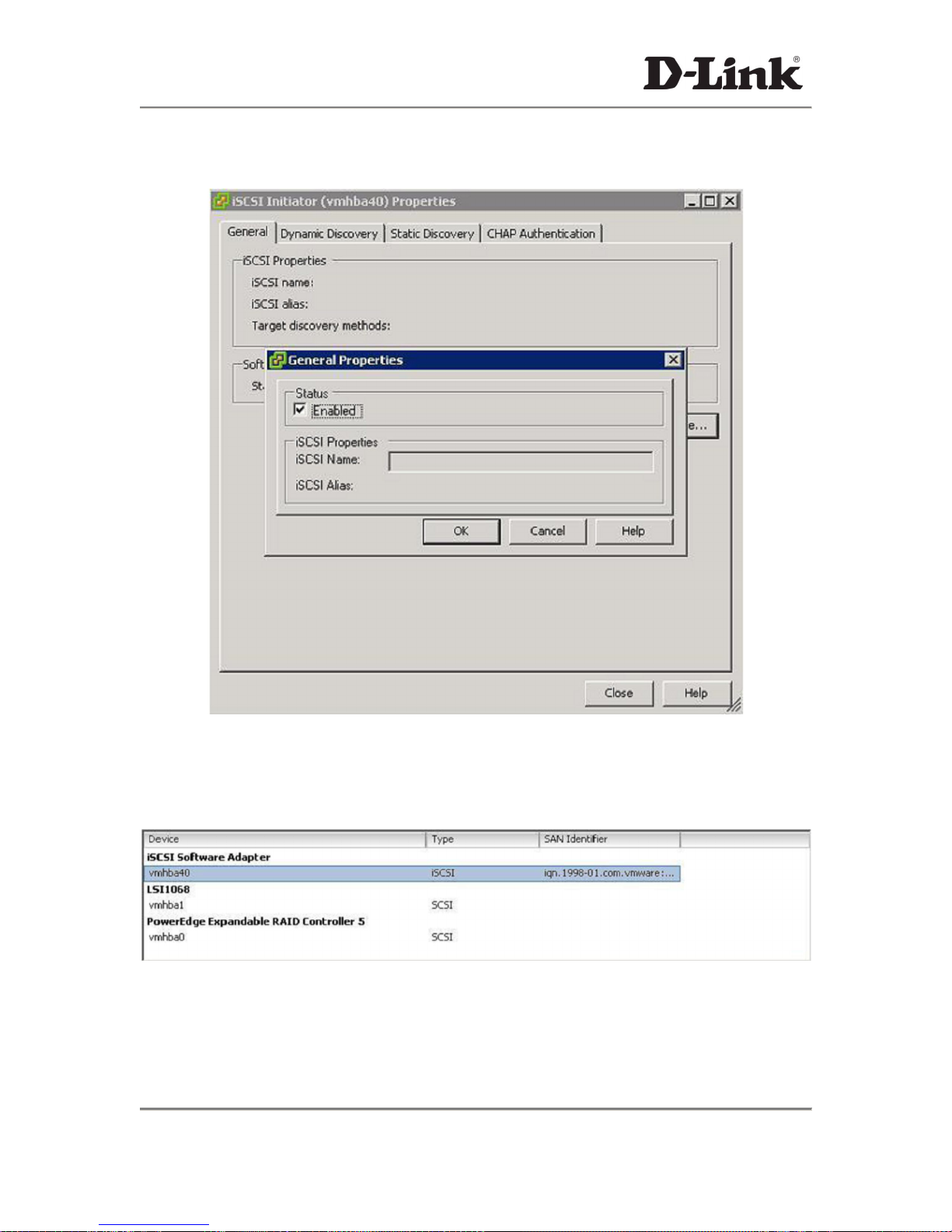
6. The iSCSI initiator Properties window appears.
7. Under the general tab select Configure tab. Select the Enabled checkbox and click OK. Select Close.
Figure 15: iSCSI software initiator properties window
8. Select iSCSI software adapter under storage. You should now see your iSCSI Target name
listed.
Figure 16: iSCSI software initiator properties window
D-Link Systems, Inc. Page 19
December 2, 2009
Page 20
xStack Storage DSN-Series SAN Arrays
VMware ESX 3.0.2 & 3.5
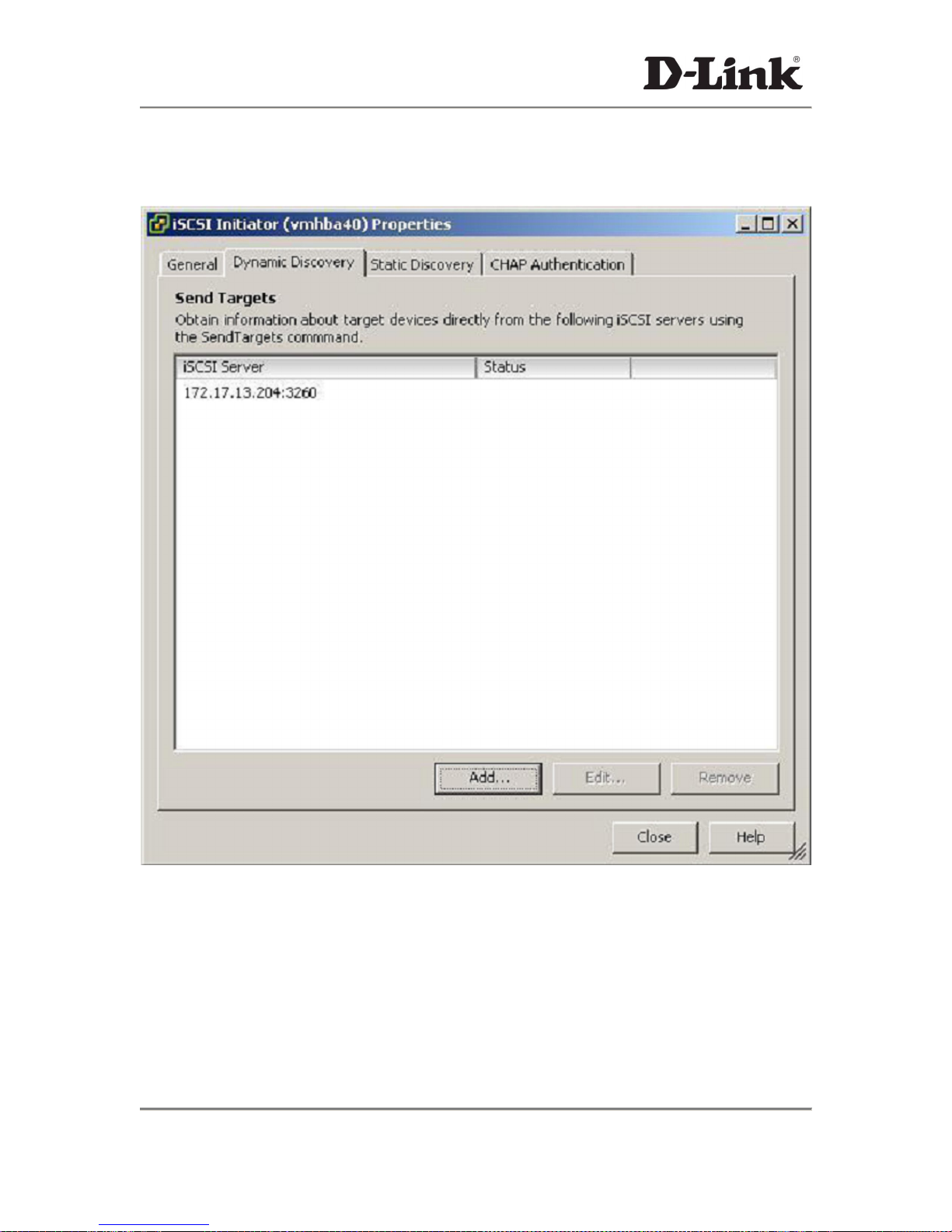
9. Select Properties under storage adapters. Select Dynamic Discovery. Select Add. Provide the IP address
of the xStack Storage iSCSI Data Port and click OK. There may be a slight delay before the process
completes.
Figure 17: iSCSI software initiator properties window
10. Click Close.
D-Link Systems, Inc. Page 20
December 2, 2009
Page 21
xStack Storage DSN-Series SAN Arrays
VMware ESX 3.0.2 & 3.5
Configure iSCSI storage on ESX 3.5 Server
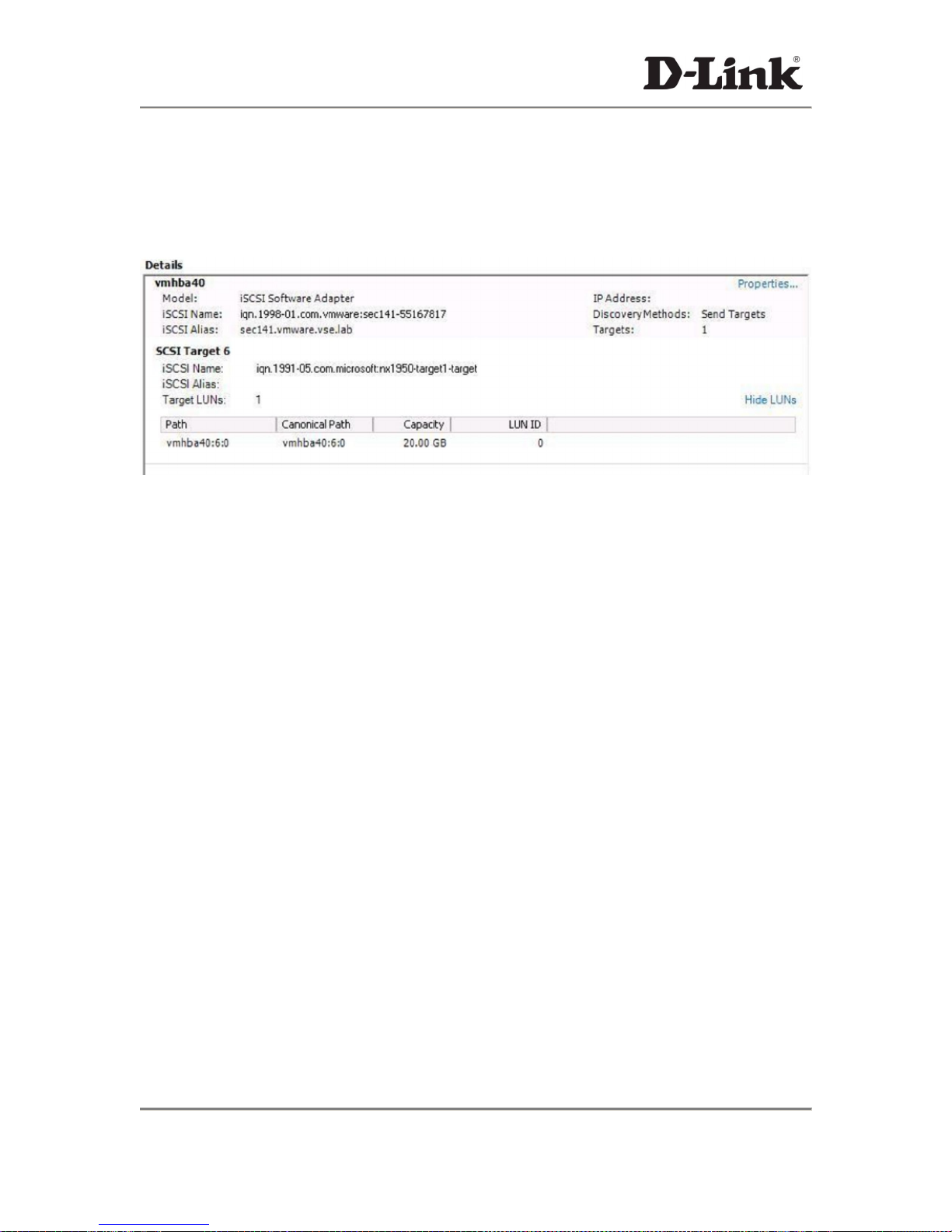
Connect to the ESX server/Virtual Center using VI Client and follow the steps below. 1. Go to
the configuration tab and select Storage Adapters. Select the iSCSI Software Adapter and click
Rescan. The newly created iSCSI target and LUN should be visible from the ESX server.
Figure 18: iSCSI target and LUNs as visible through VI client
2. Go to the configuration tab and select Storage. Click on Add Storage, select Disk/Lun and click
Next. Select the newly added storage and click Next.
3. Select the newly created iSCSI LUN and click Next.
4. Review the disk layout and click Next
5. Provide a name for the VMFS datastore and click Next.
6. Select the appropriate block size and capacity for the VMFS datastore and click Next.
7. Review the disk layout and click Finish to create the VMFS datastore. The new datastore is
now ready to be used for storing virtual machine images.
D-Link Systems, Inc. Page 21
December 2, 2009
Page 22

xStack Storage DSN-Series SAN Arrays
VMware ESX 3.0.2 & 3.5
Performance Tuning
Tuning your environment is very important. ALWAYS update the BIOS, firmware, drivers, and
patches to the latest and greatest version. By doing so, you may circumvent a problem before you
even get to it. Test your design in the lab before you put it into production. You can design the
best system on paper, but due to issues that you might not be aware of, your design may not
deliver optimal performance.
If you are looking to squeeze every ounce of speed out of your SAN environment, you will want
to create multiple RAID arrays and deliver each array to a separate server. This way the IO of one
server and the spindles it uses will not affect the others but if you are planning to do this, you will
need to plan carefully how you plan on using your SAN. If you need to reconfigure your SAN at
a later time, you may need to delete one or more arrays and start again.
If at all possible, you should build a separate iSCSI network for your SAN environment. Yes, you
can connect your SAN to the existing gig-e network and mount its drives from another building
but you may pay a performance penalty by doing so plus you are competing with normal network
traffic. As applications begin using more and more of a gigabyte connection or others begin using
the bandwidth for video streaming, MP3 downloading, or whatever, if you elect to put your SAN
on a normal communications network, be prepared for the day when you will need to move it.
One case in which you may wish to put one leg of your SAN on a corporate network is when you
are conducting SAN to SAN replication. With the D-Link xStack Storage series SAN, you can
limit the amount of bandwidth you allocate for replication.
SUMMARY
VMware Virtual Infrastructure gives customers several methods of providing storage to virtual
machines. Each of these storage methods enables customers to have flexibility in their
infrastructure design, which in turn provides cost savings, increased storage utilization, and
enhanced data recovery. This technical report is not intended to be a definitive implementation or
solutions guide. Expertise may be required to solve user-specific deployments.
Conclusions and Recommendations
In conclusion, the D-Link xStack Storage series SAN is an excellent value for the money and
offers high end features with a reasonable price tag. Combine it with VMWare ESX (or other
virtual) server, and you have the major tools you need to build a state-of-the-art server
environment without breaking your budget.
The xStack Storage Series provides a range of performance and functionality that match the
various levels of iSCSI storage applications and user environments.
For those datacenters and businesses requiring fast and robust storage, especially those who
already have made investments in elaborate hardware and expertise, the xStack Storage Series
iSCSI provides a ready means to deploy large iSCSI SANs either standalone or in conjunction
with existing (Fibre Channel) SANs.
D-Link Systems, Inc. Page 22
December 2, 2009
Page 23

xStack Storage DSN-Series SAN Arrays
VMware ESX 3.0.2 & 3.5
The D-Link xStack Storage Series is a good entry level iSCSI solution and is ideal for customers
who have file-intensive environments and are looking to deploy virtualization for a small subset
of application data. As proven in various implementations, the xStack Storage Series iSCSI
provides customers a compelling value proposition offering versatility, ease of use and
expandability at an affordable price.
D-Link Systems, Inc. Page 23
December 2, 2009
 Loading...