

Page 1

QUICK
INSTALLATION
GUIDE
MIRRORSTREAMER TV ADAPTER
FOR MIRACAST™ WIRELESS DISPLAY
DSM-260
GUÍA DE INSTALACIÓN RÁPIDA
快速安裝指南
PETUNJUK PEMASANGAN CEPAT
Page 2
DSM-260
2
ENGLISH
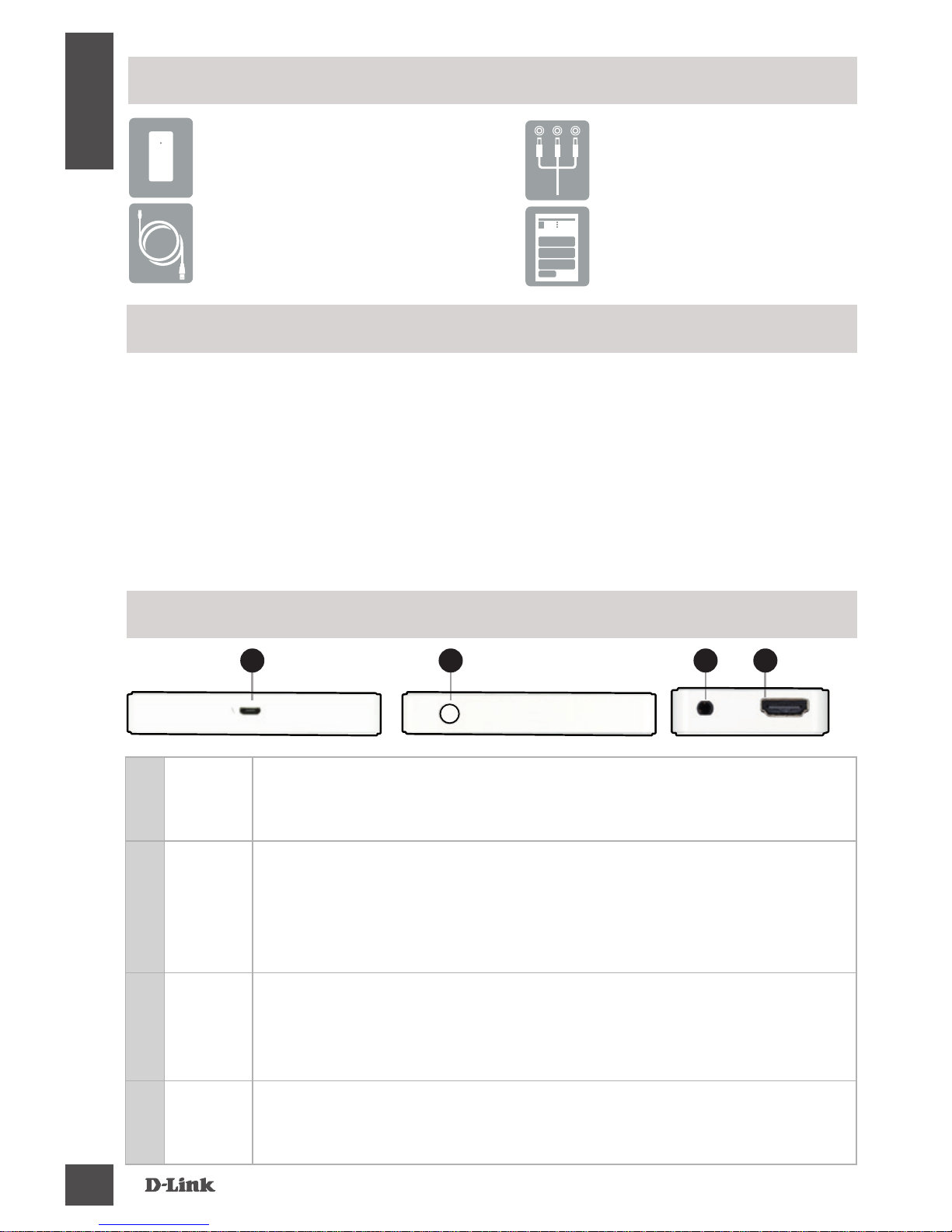
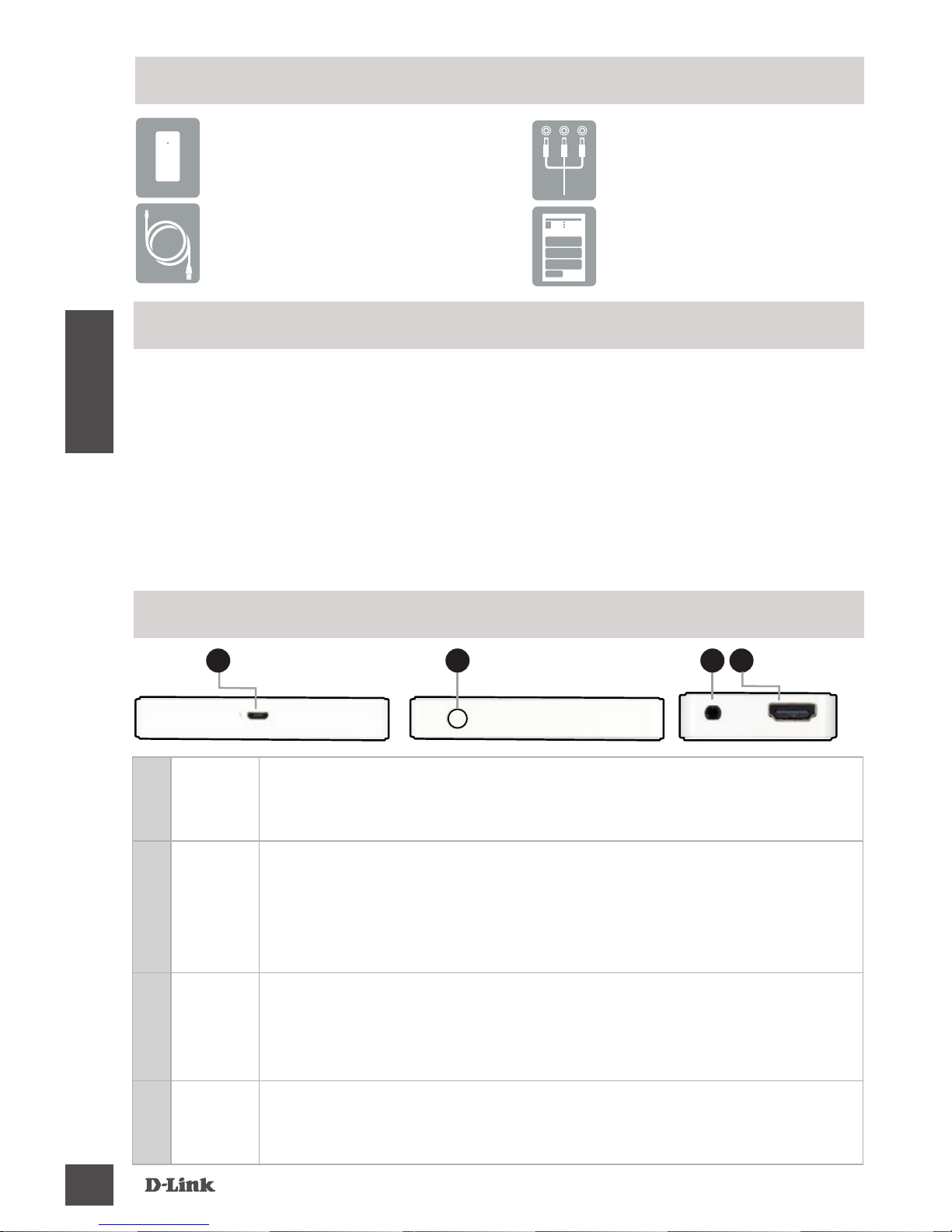
If any of the above items are missing, please contact your reseller.
DSM-260 MirrorStreamer
TV Adapter
Micro USB Cable
A/V Cable
Quick Install Guide
Package Contents
Minimum Requirements
• Mobile Device (Smart Phone/Tablet) or Laptop with
installed wireless adapter
• TV with an HDMI input (for HD quality) or composite analog
connections.
• Wireless router with Internet connection (WAN Mode)
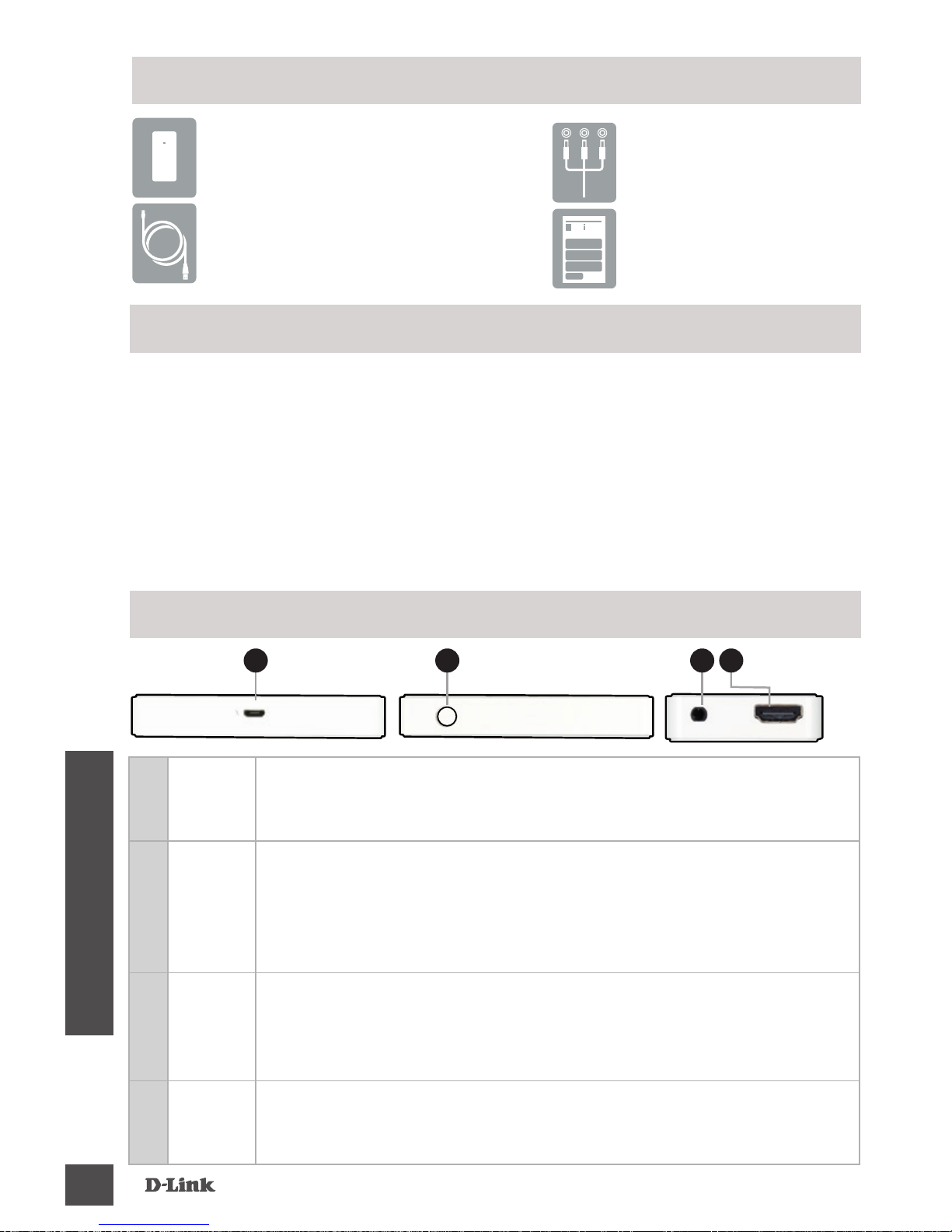
1
Micro
USB
Port
Connect the supplied USB cable here
2
Mode/
Reset
Press and hold up to 5 seconds to toggle between Miracast and DLNA
mode.
Press and hold between 5-10 seconds to reboot the DSM-260.
Press and hold over 15 seconds to reset the DSM-260 to the factory
default settings.
3
A/V
Port
Firmly connect the supplied A/V cable here and the other end into
your TV or home theater receiver. If you are using an HDMI connection,
you do not have to connect this cable. Note that you can only receive
up to 480p quality with a composite connection.
4
HDMI
Port
Connect an HDMI cable (not included) here and the other end
into your TV or home theater receiver. Must be used for HD quality
(720p/1080p) display.
Hardware Overview
21
Left Side Right Side Bottom
3 4
Page 3
DSM-260
3
ENGLISH
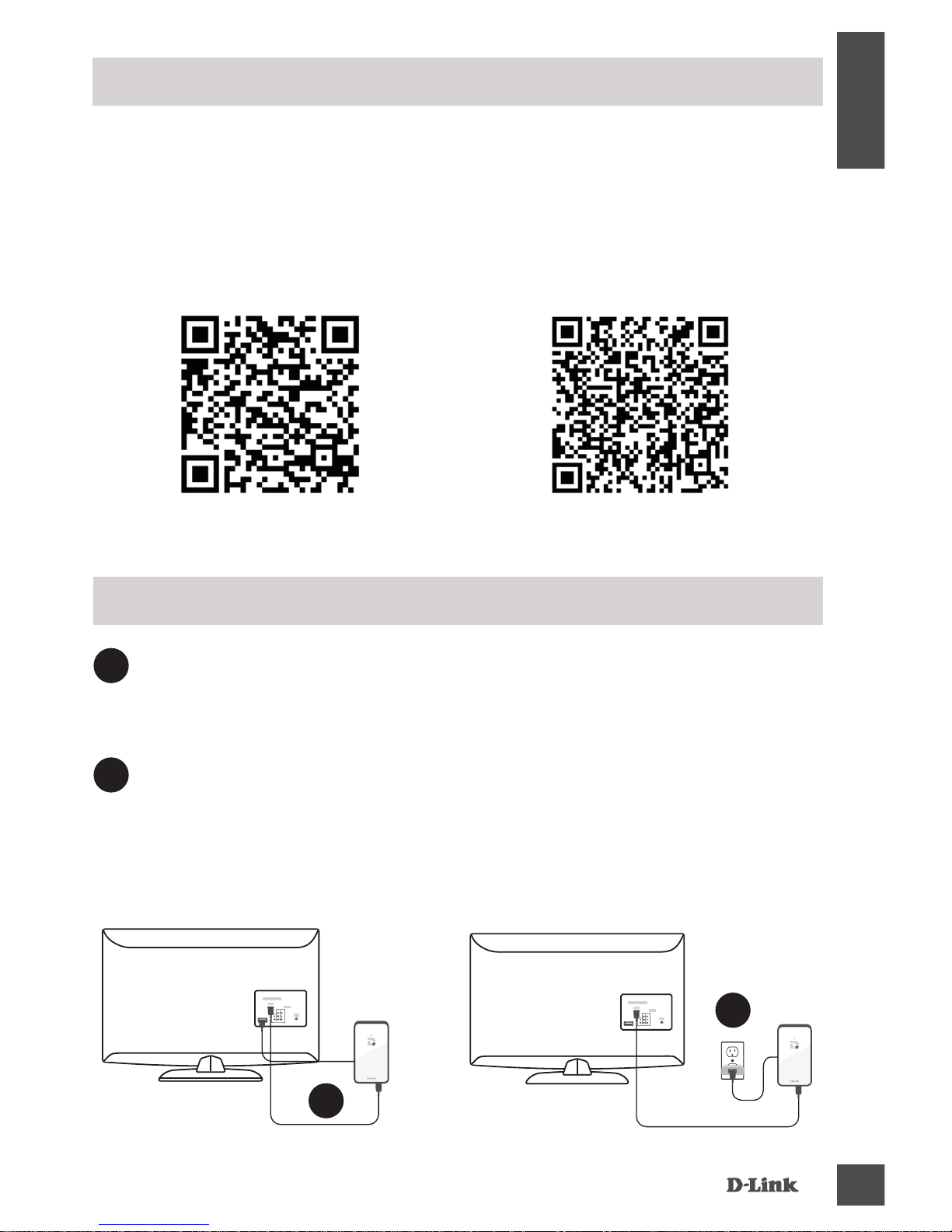
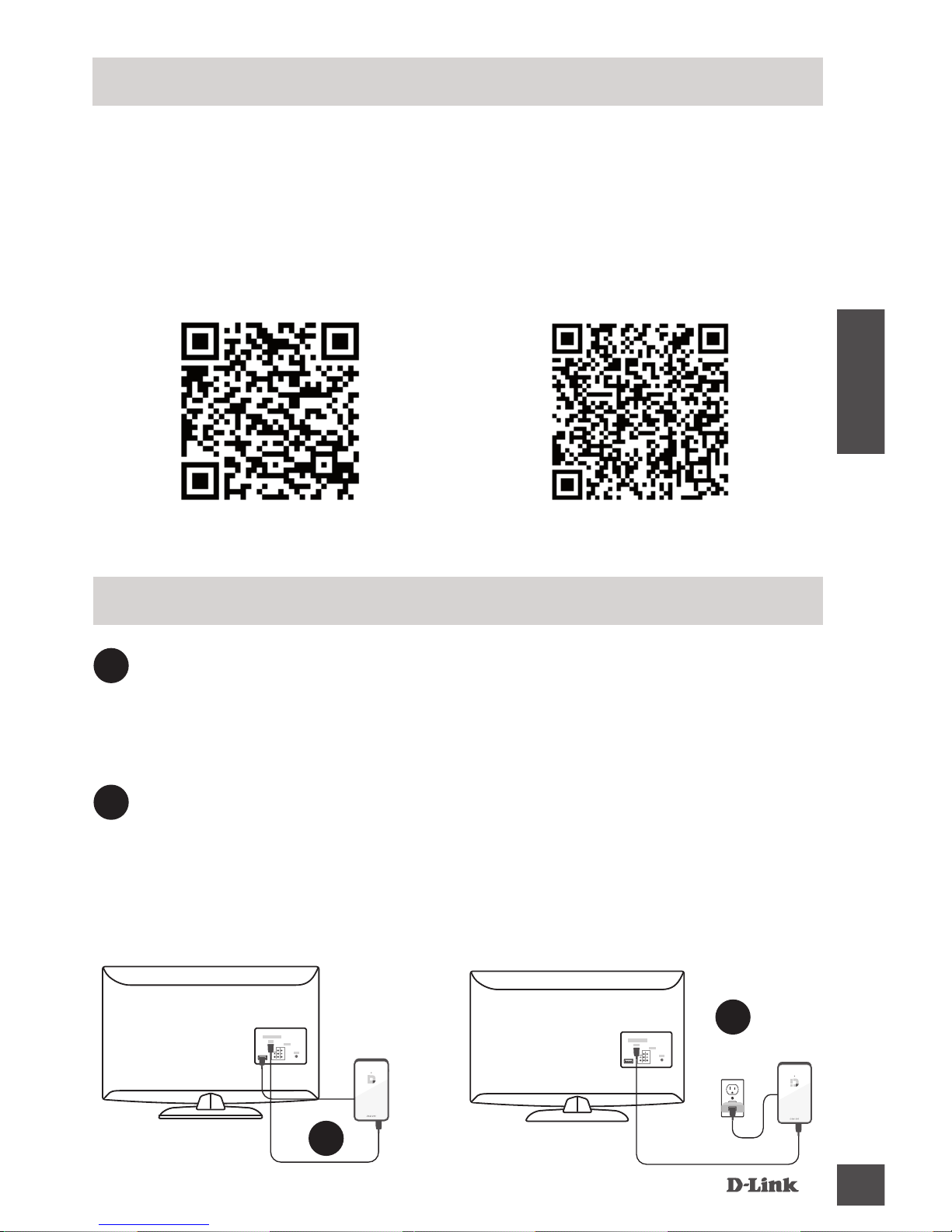
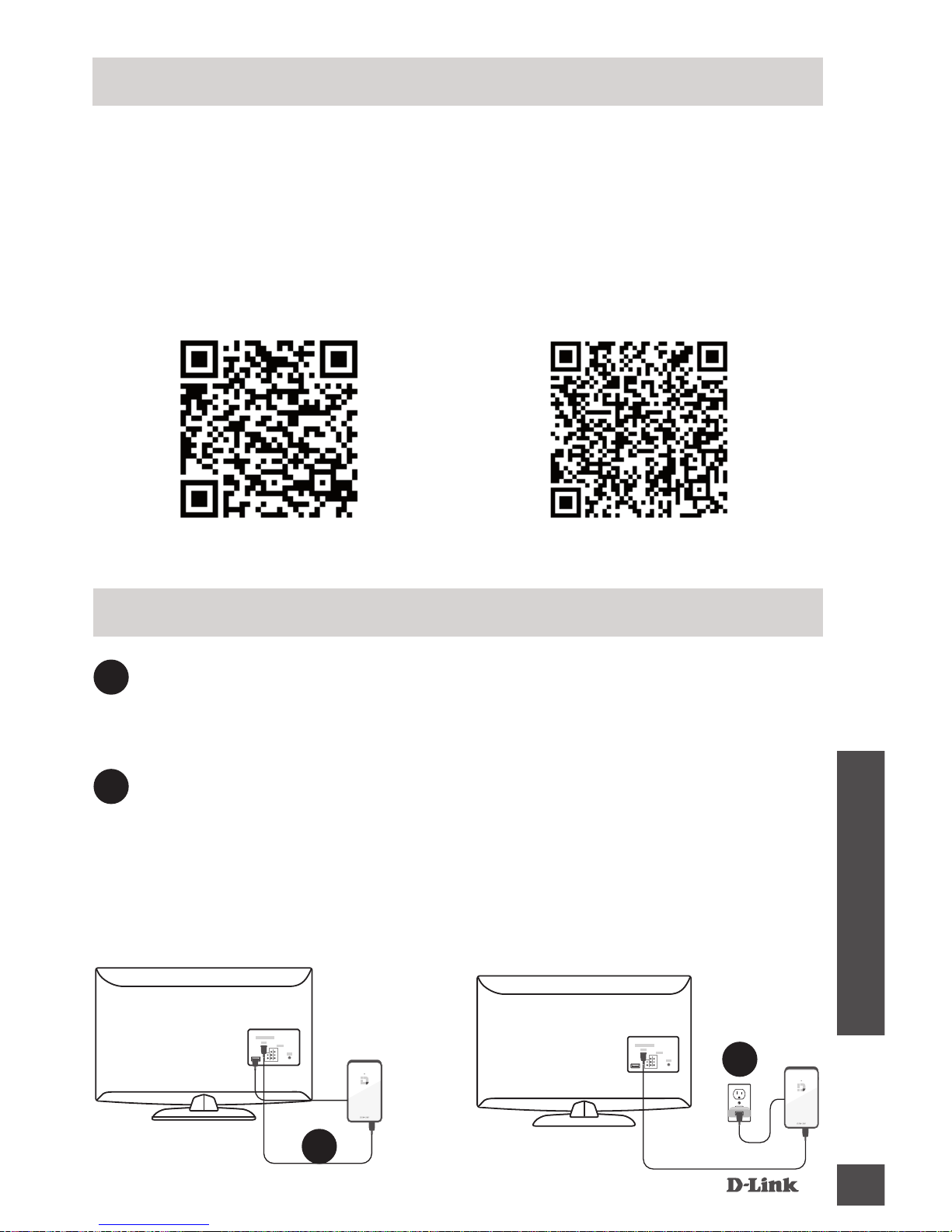
Download the D-Link Media app from either the App Store (iOS)
or Google Play (Android) or scan the QR code below.
Note: Your TV remote may work with the DSM-260 but you will
need the Media app to enter text.
Before you Start
Apple iOS Android
1
1
Plug an HDMI cable to the HDMI port on the DSM-260 then
connect to an HDMI port on your TV. Note that HDMI is
required for HD resolution.
Connect to Your TV
2
Plug the supplied micro USB cable to the USB port on the
DSM-260 then connect to a USB port on your TV or to a USB
power adapter (not included).
Note: The USB port is only for power, not data transfer.
HDMI
HDMI
OR
2
Page 4
DSM-260
4
ENGLISH
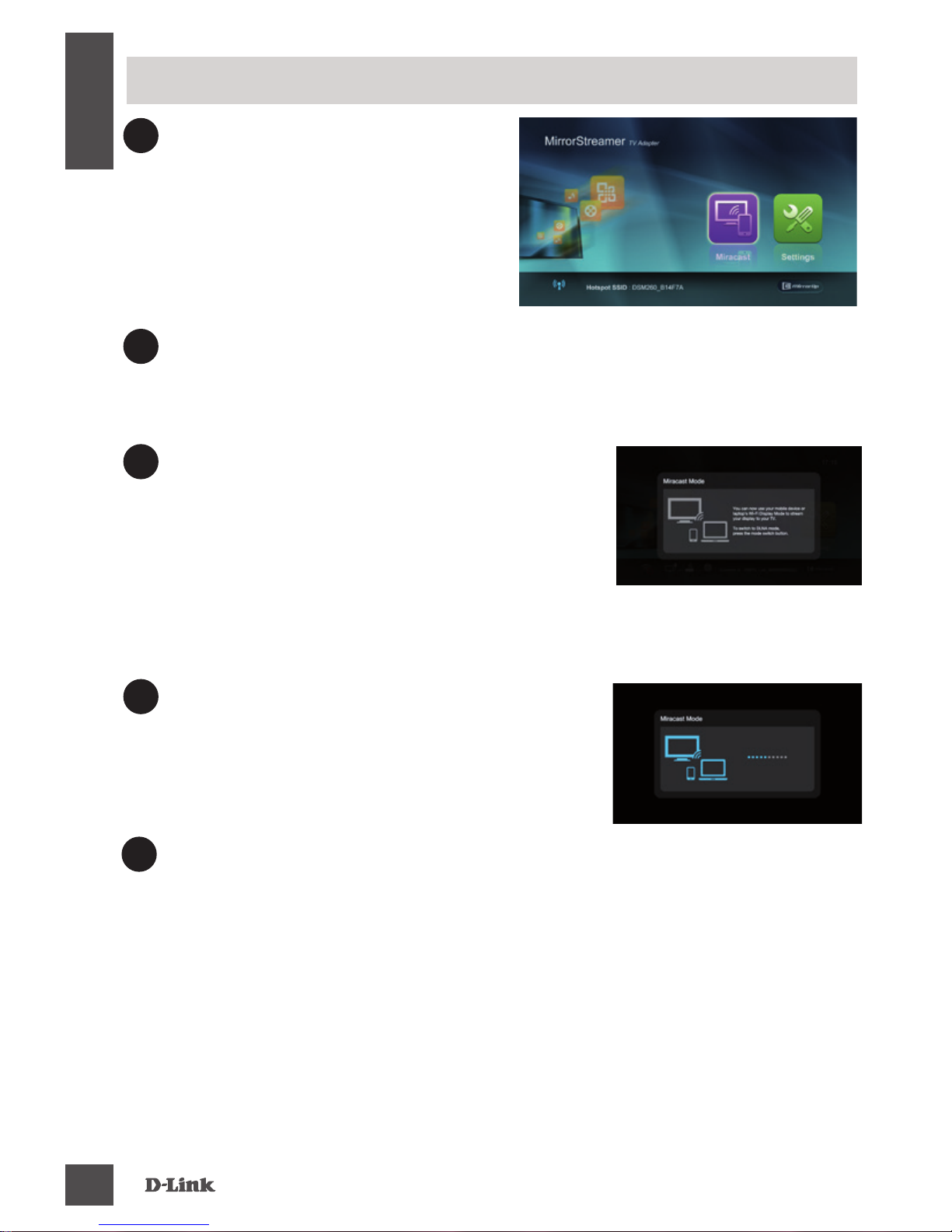
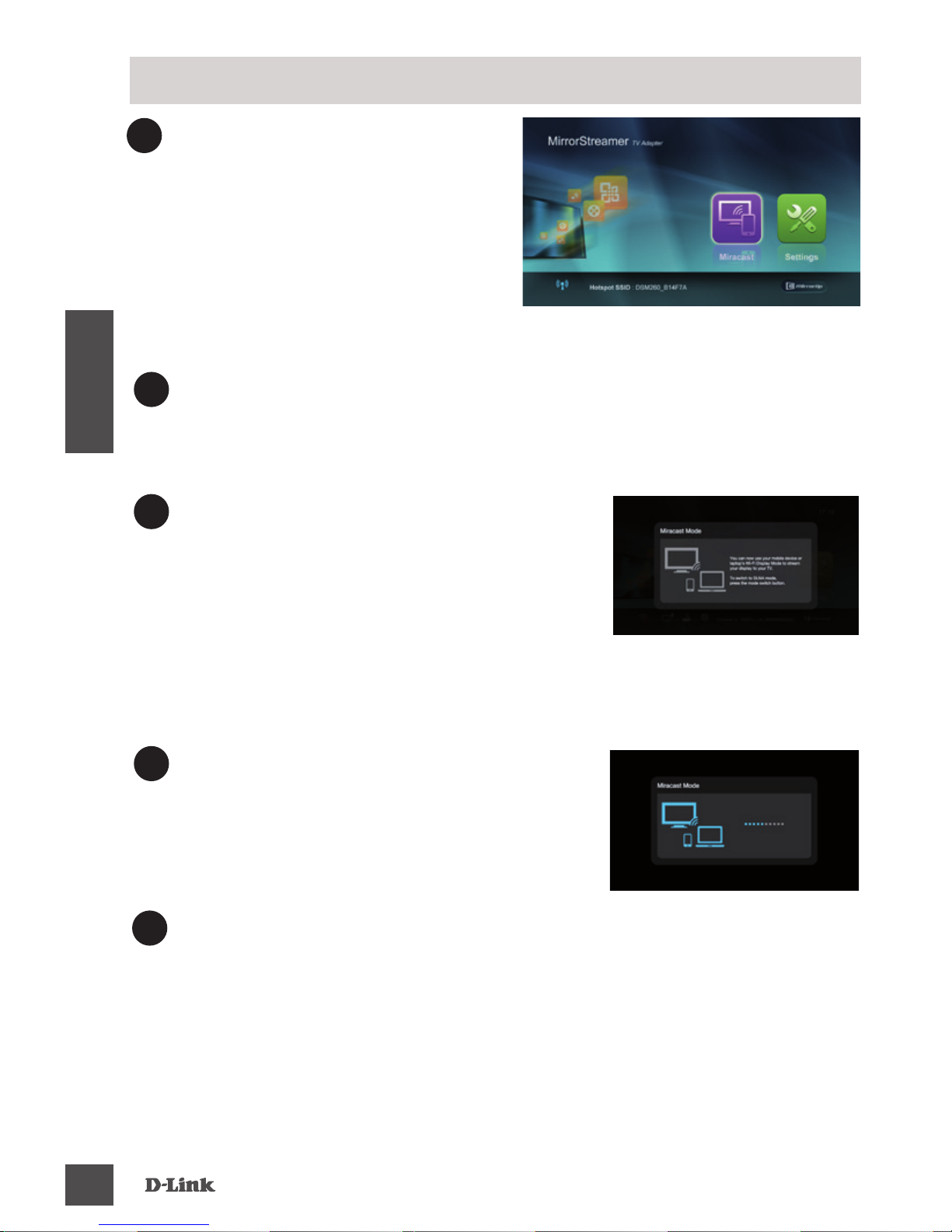
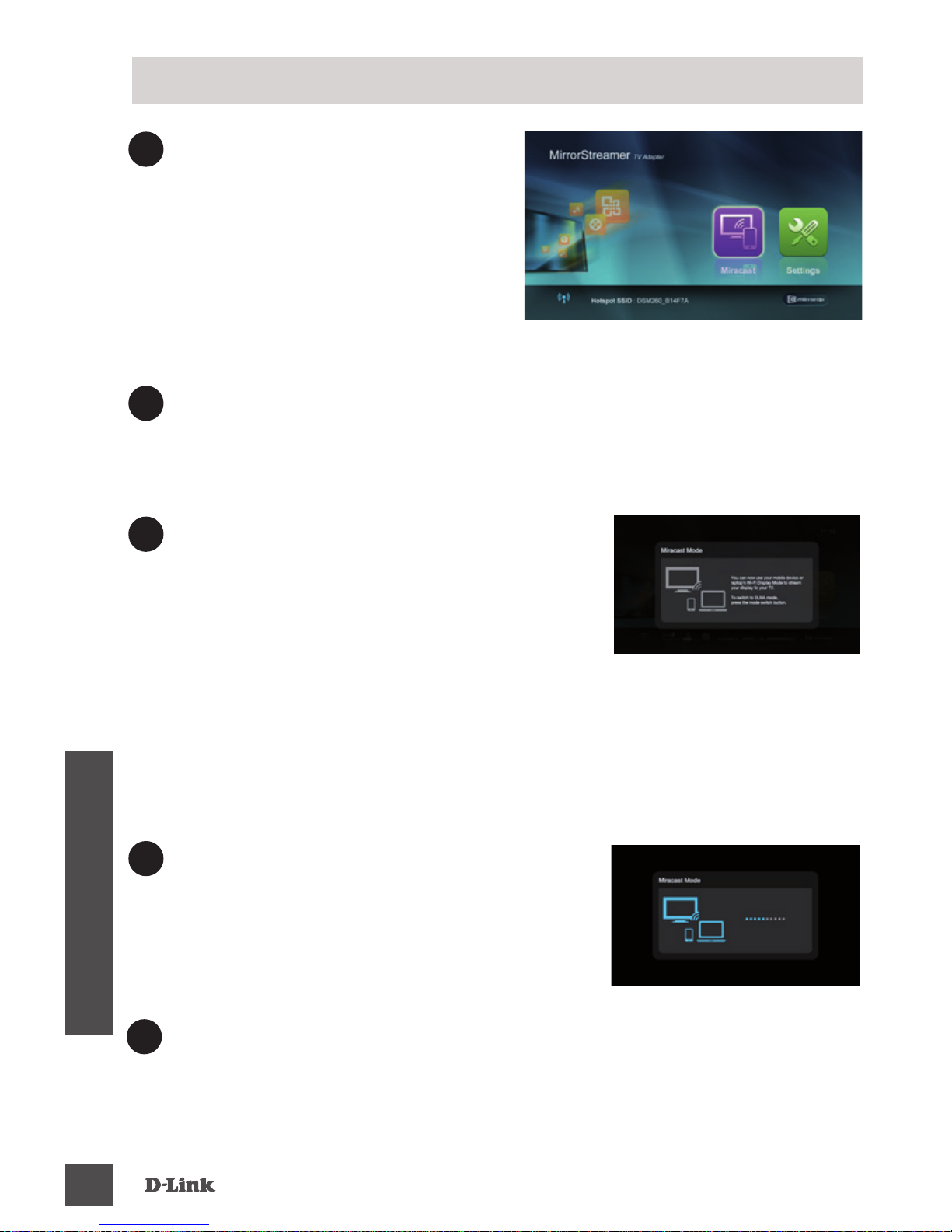
3
The LED on the top of the DSM260 will illuminate blue. Switch
your TV channel to the correct
HDMI input source. You will
see the D-Link logo on the TV
followed by the main menu.
4
On your mobile device, open the wireless utility and connect
to the DSM-260. The wireless settings will be displayed on
the bottom of the menu screen.
5
Once you connect you can use either
your TV remote or the downloaded
D-Link Media app to navigate. Select
Miracast and enter.
Note: The remainder of this Install Guide will assume that you
have installed the D-Link Media app.
Miracast Users
6
On your mobile device, change the
wireless display to ON and select
the DSM-260. Allow a few seconds to
authenticate.
7
The display on your mobile device will now be displayed on
your TV.
Your Miracast setup is complete!
Page 5
DSM-260
5
ENGLISH
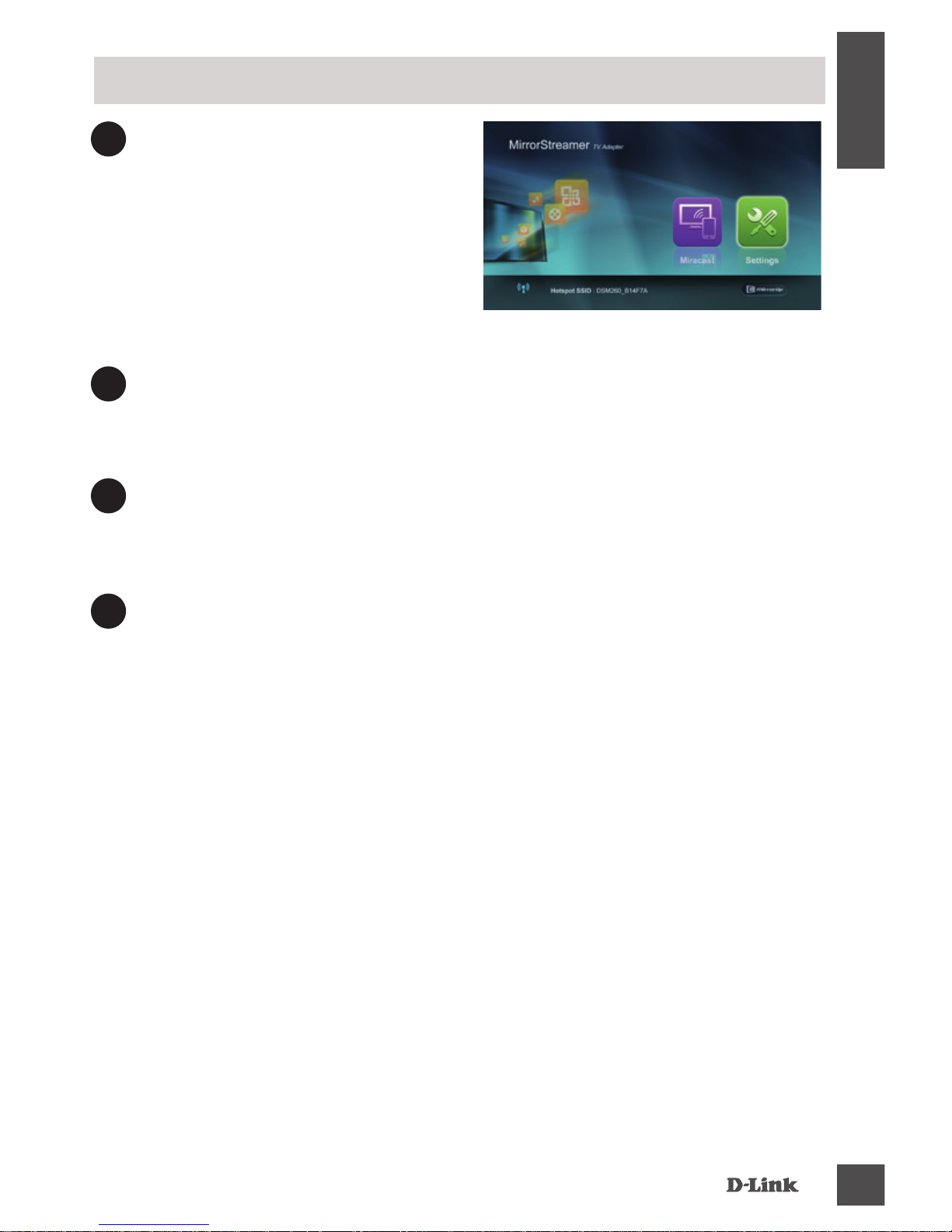
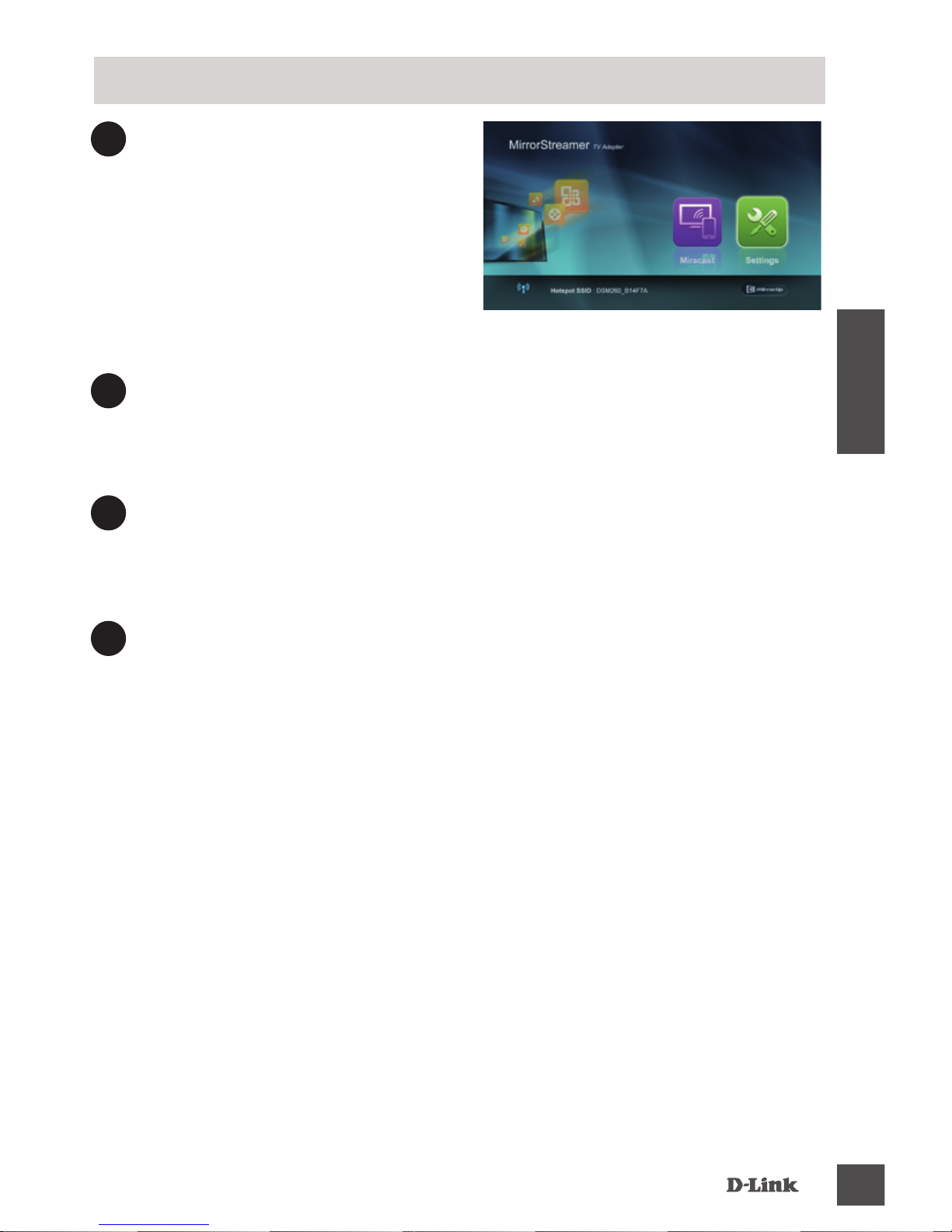
3
The LED on the top of the
DSM-260 will illuminate blue.
Switch your TV channel to the
correct HDMI input source.
You will see the D-Link logo on
the TV followed by the main
menu.
4
On your mobile device, open the wireless utility and connect
to the DSM-260. The wireless settings will be displayed on
the bottom of the menu screen.
5
Once you connect you can use either your TV remote or the
downloaded D-Link Media app to navigate. Select Setting
and press OK.
Non-Miracast Users (DLNA*)
6
Select Network and press the right arrow button. Select
WAN (if connecting to wireless router) or Wi-Fi Hotspot
(if displaying content from your device only without an
Internet connection).
* DLNA (Digital Living Network Alliance) is a industry standard
technology that allows devices on your home network to share
video, music, and photos.
Page 6
DSM-260
6
ENGLISH
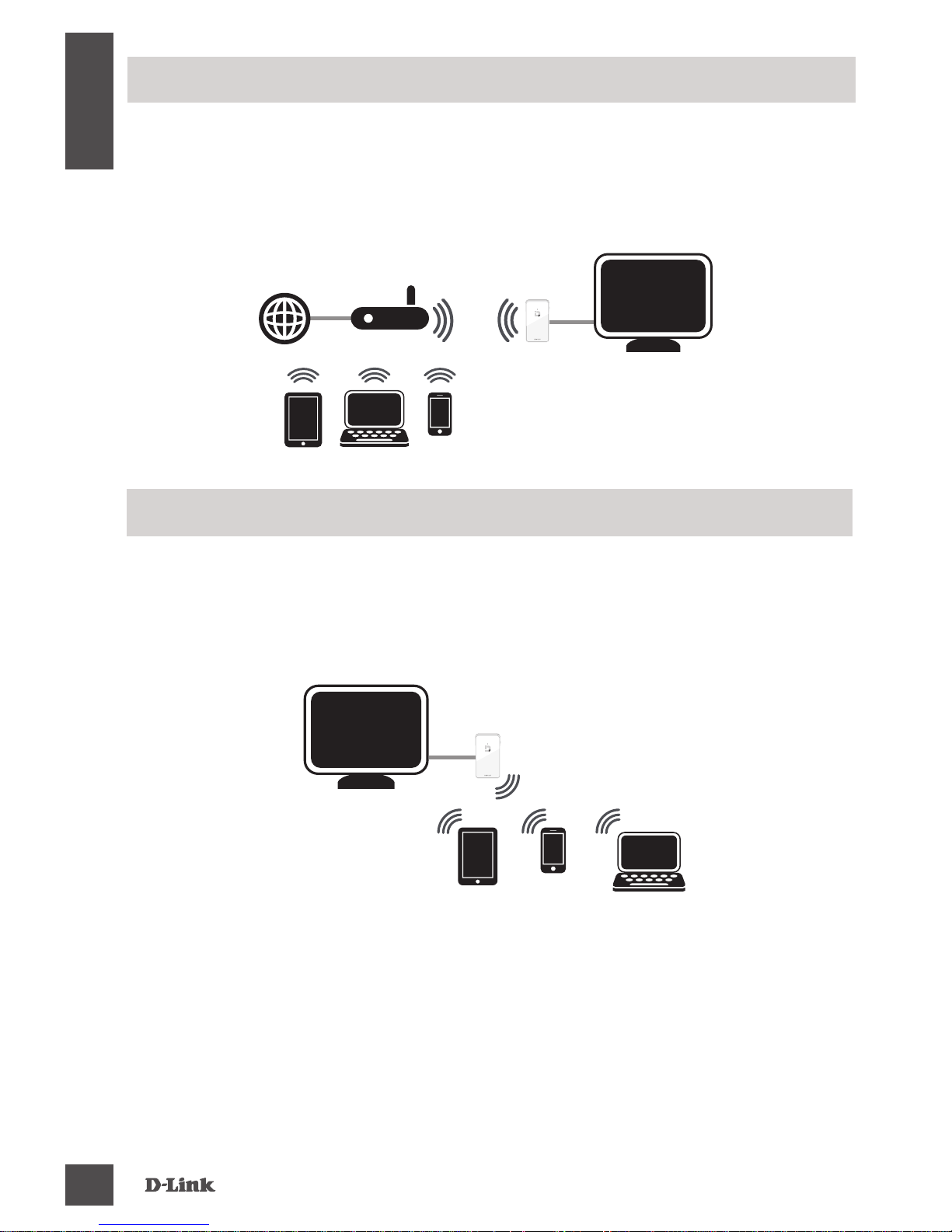
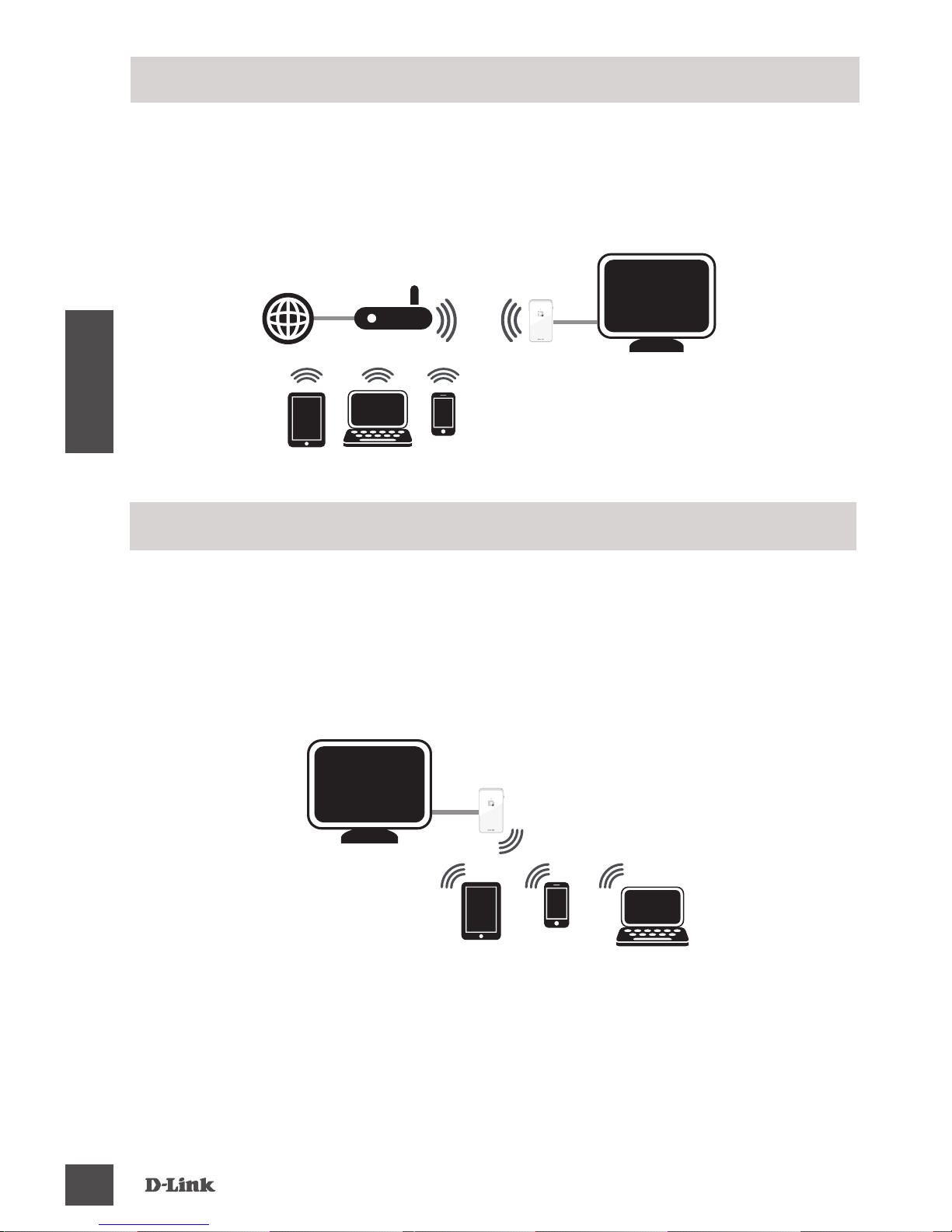
WAN Mode - If you want to stream content from the Internet
(e.g., stream a video from YouTube) to your TV, use this mode.
The DSM-260 and your mobile devices must connect to your
wireless router.
A - WAN Mode
Wi-Fi Hotspot Mode (default) - This mode allows you to
connect wirelessly from the DSM-260 to your laptop or mobile
device and stream local content to your TV. If you need an
Internet connection, use WAN Mode.
B - Wi-Fi Hotspot Mode
Page 7
DSM-260
7
ENGLISH
Another alternative to non-Miracast devices is to download
the MirrorOp app. The DSM-260 is a MirrorOp receiver and
will work with MirrorOp-enabled senders such as your
Windows and Mac devices.
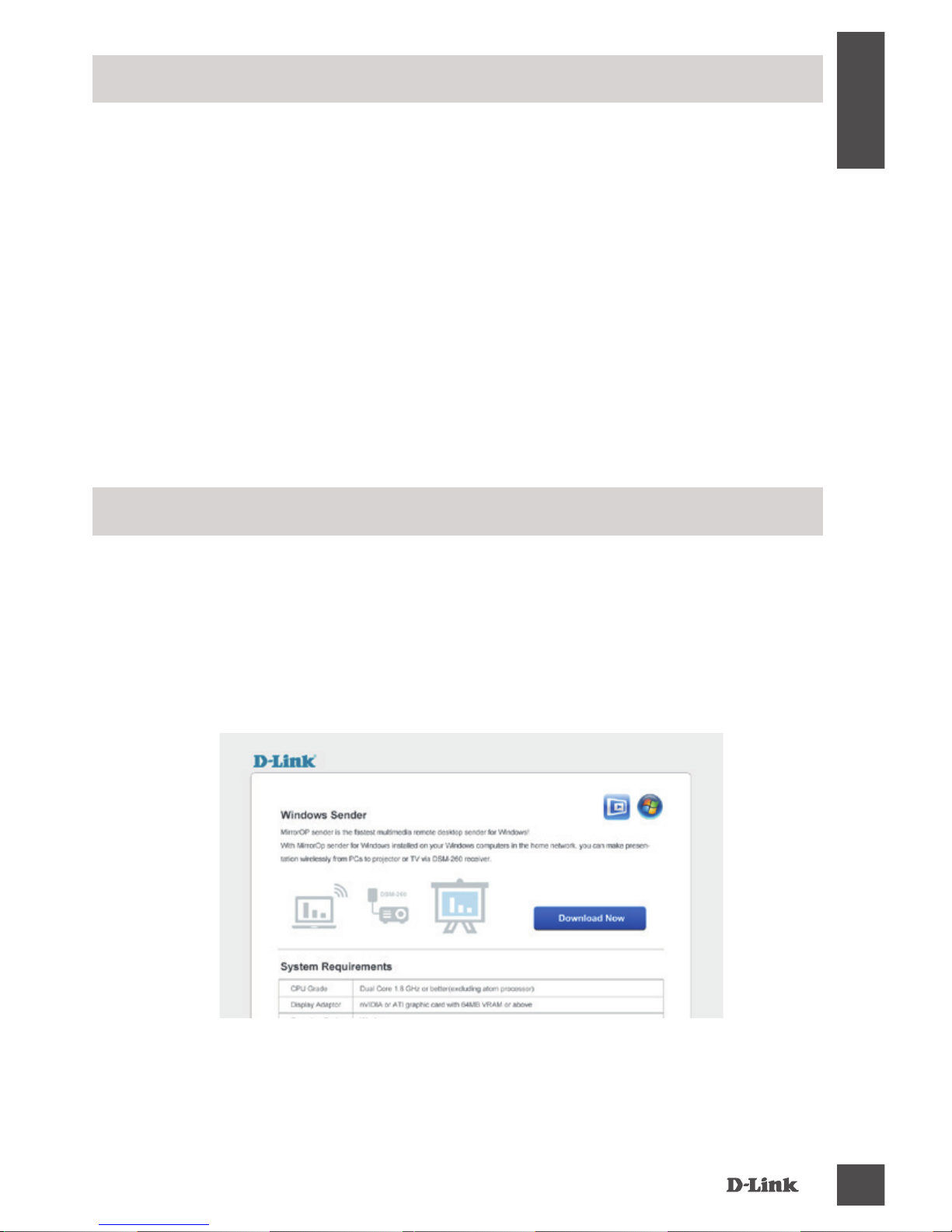
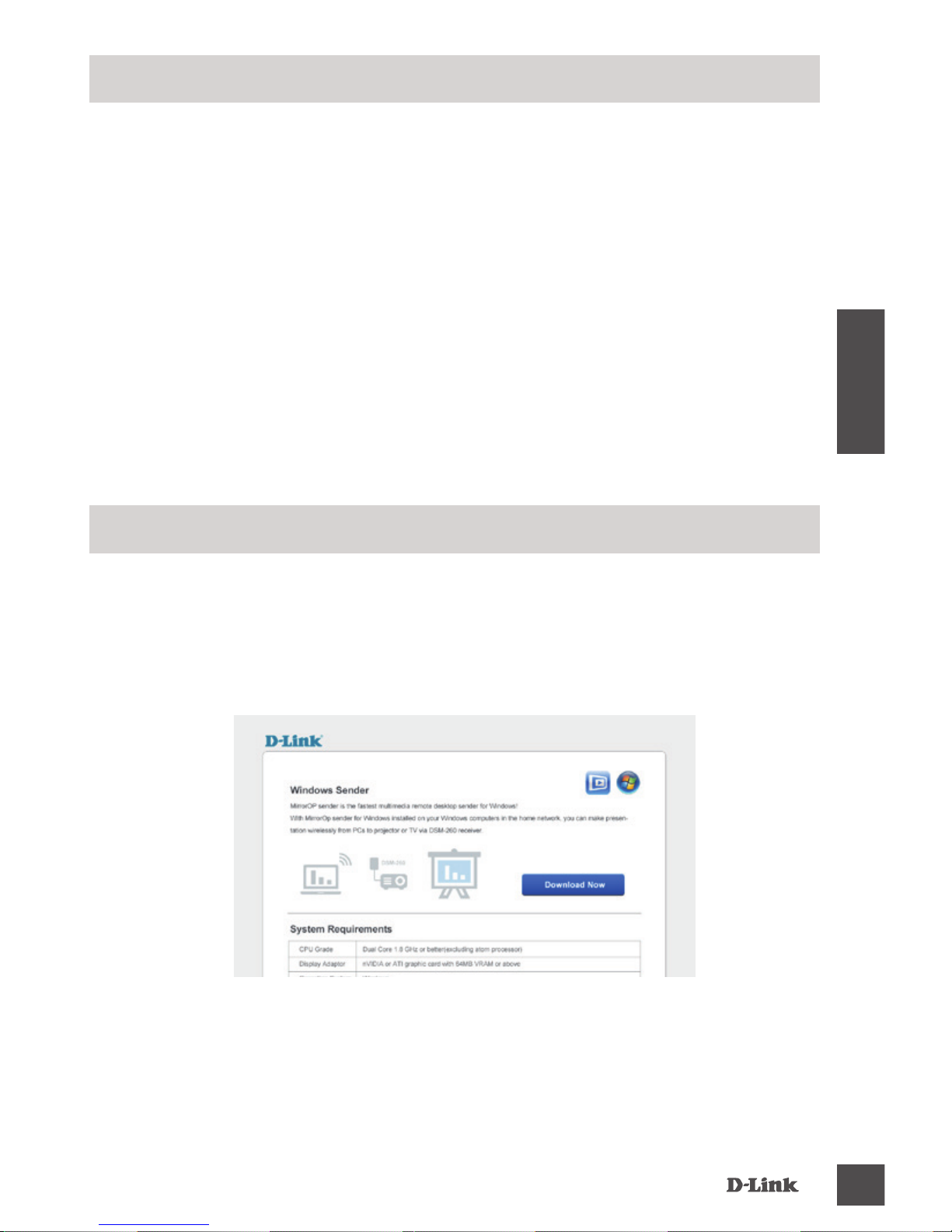
The MirrorOp sender for Windows is included with the
DSM-260. Download it from the DSM-260 and then install it
on your laptop.
MirrorOp
1. Link your laptop to the DSM-260 Hotspot SSID via Wi-Fi.
Launch your browser and input the IP address: 192.168.8.1
in the address bar and press enter. The download page
will appear.
2. Download the sender application and install it on your
laptop.
A - Download via Wi-Fi Hotspot mode
Page 8
DSM-260
8
ENGLISH
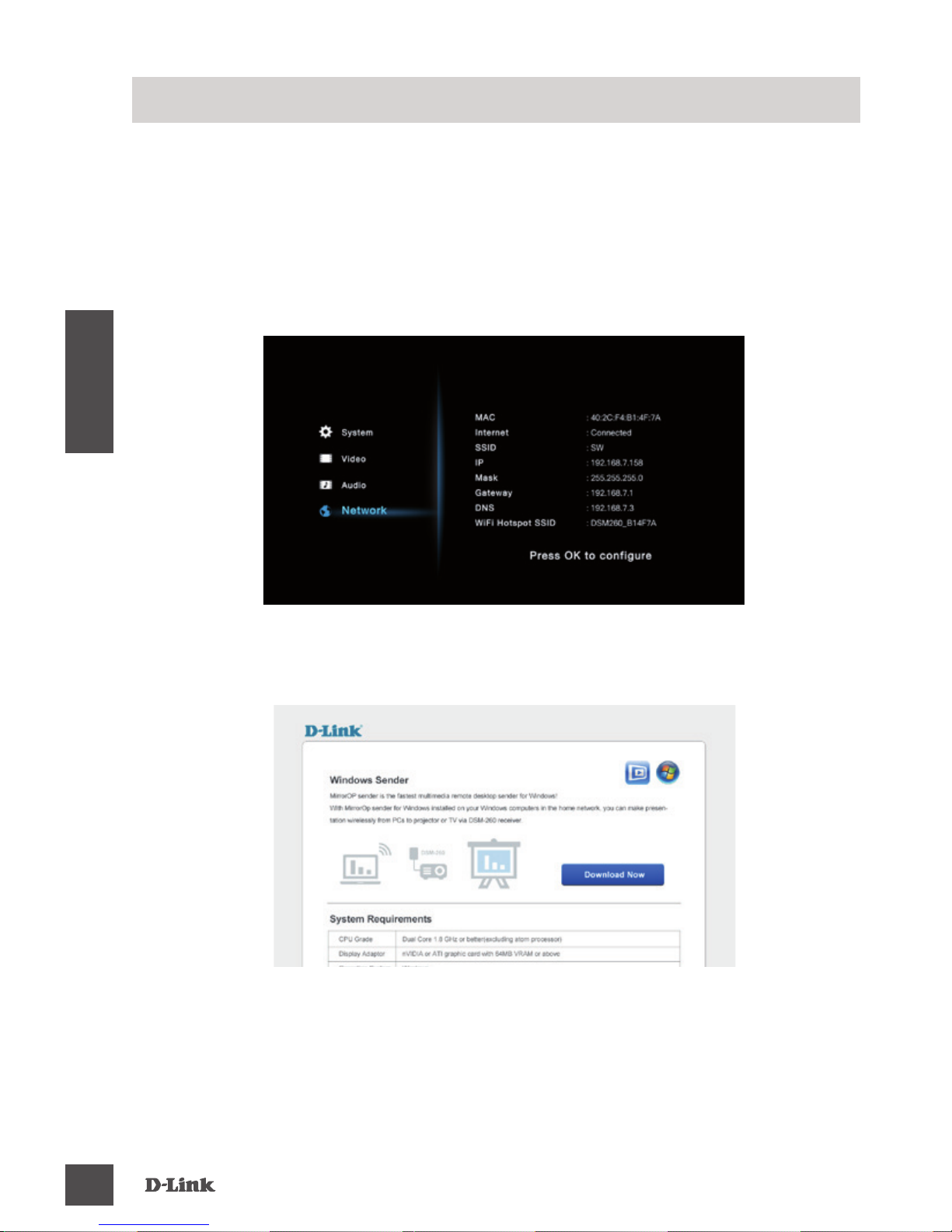
4. Download the sender application and install it on your
laptop.
Launch the MirrorOp Sender app, select the DSM-260 from
the list of available MirrorOp receivers, and press Play.
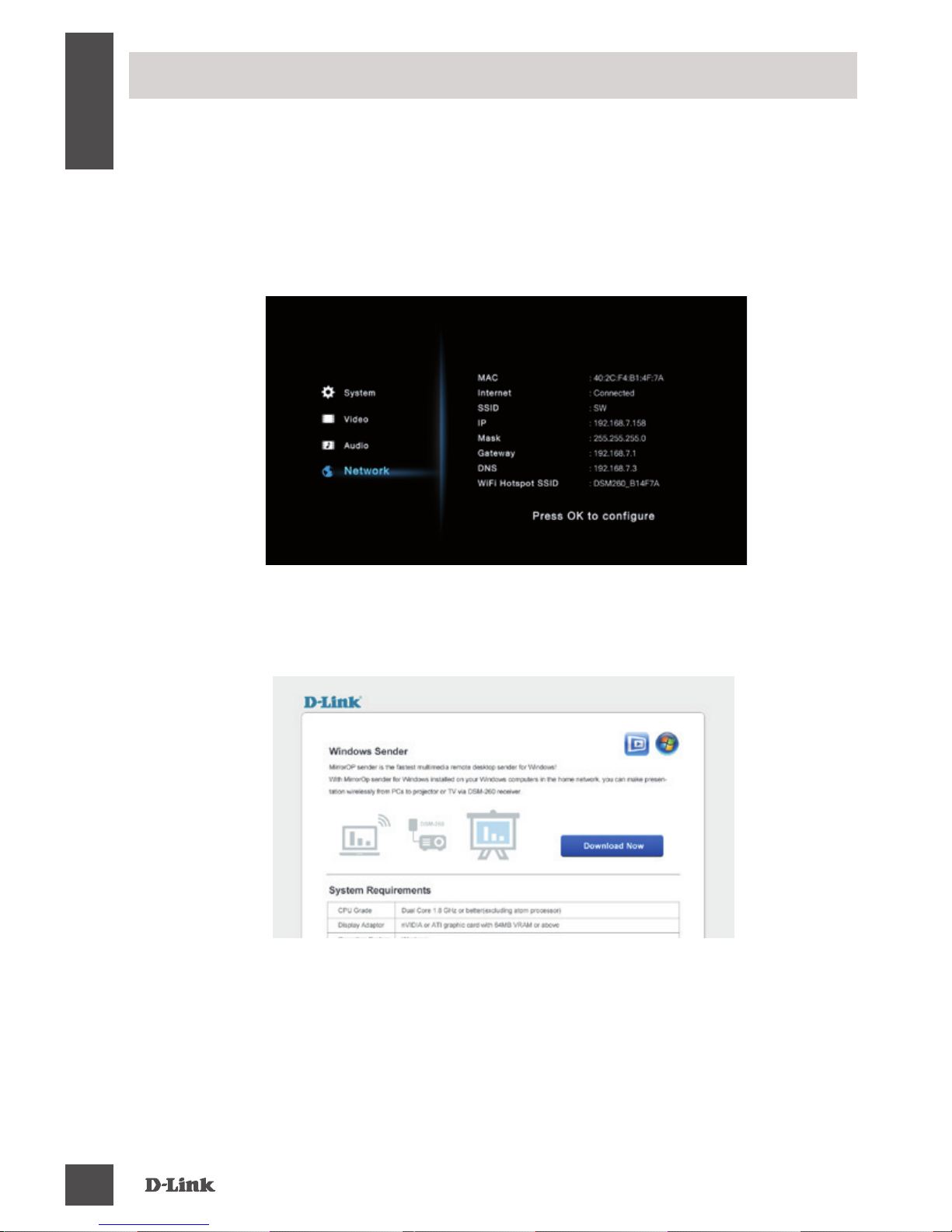
3. Launch your browser and input the IP address in the
address bar and press enter. The download page will
appear.
1. Link the DSM-260 to the router via Wi-Fi and then link your
laptop to the router via Wi-Fi.
2. Find the IP address as shown in the DSM-260 settings
window.
B - Download via WAN mode
Page 9

DSM-260
9
ENGLISH
If are unable to see a picture on your TV:
If connected directly to your TV
• Ensure that the USB adapter is connected properly to
your DSM-260 and that it is plugged in to a working USB
port (or power adapter).
• Verify that the cables for your DSM-260 and your TV are
pushed in all the way and in the correct ports.
If connected to your home theater receiver
• Verify that the cables for your DSM-260, TV, and receiver
are pushed in all the way and in the correct ports.
Troubleshooting
Page 10

DSM-260
10
ENGLISH
TECHNICAL SUPPORT
Australia:
Tel: 1300-766-868
24/7 Technical Support
Web: http://www.dlink.com.au
E-mail: [email protected]
India:
Tel: +91-832-2856000
Toll Free 1800-233-0000
Web: www.dlink.co.in
E-Mail: [email protected]
Singapore, Thailand, Indonesia,
Malaysia, Philippines, Vietnam:
Singapore - www.dlink.com.sg
Thailand - www.dlink.co.th
Indonesia - www.dlink.co.id
Malaysia - www.dlink.com.my
Philippines - www.dlink.com.ph
Vietnam - www.dlink.com.vn
Korea:
Tel : +82-2-2028-1810
Monday to Friday 9:00am to 6:00pm
Web : http://d-link.co.kr
E-mail : [email protected]
New Zealand:
Tel: 0800-900-900
24/7 Technical Support
Web: http://www.dlink.co.nz
E-mail: [email protected]
South Africa and Sub Sahara
Region:
Tel: +27 12 661 2025
08600 DLINK (for South Africa only)
Monday to Friday 8:30am to 9:00pm
South Africa Time
Web: http://www.d-link.co.za
E-mail: [email protected]
Saudi Arabia (KSA):
Tel: +966 01 217 0008
Fax: +966 01 217 0009
Saturday to Wednesday 9.30AM to 6.30PM
Thursdays 9.30AM to 2.00 PM
E-mail: [email protected]
D-Link Middle East - Dubai, U.A.E.
Plot No. S31102,
Jebel Ali Free Zone South,
P.O.Box 18224, Dubai, U.A.E.
Tel: +971-4-8809022
Fax: +971-4-8809066 / 8809069
Technical Support: +971-4-8809033
General Inquiries: [email protected]
Tech Support: [email protected]
Egypt
1, Makram Ebeid Street - City Lights Building
Nasrcity - Cairo, Egypt
Floor 6, ofce C2
Tel.: +2 02 26718375 - +2 02 26717280
Technical Support: +2 02 26738470
General Inquiries: [email protected]
Tech Support: [email protected]
Kingdom of Saudi Arabia
Ofce # 84 ,
Al Khaleej Building ( Mujamathu Al-Khaleej)
Opp. King Fahd Road, Olaya
Riyadh - Saudi Arabia
Tel: +966 1 217 0008
Technical Support:
+966 1 2170009 / +966 2 6522951
General Inquiries: [email protected]
Tech Support: [email protected]
You can nd software updates and user documentation on the D-Link website.
Tech Support for customers in
Page 11
DSM-260
11
ENGLISH
TECHNICAL SUPPORT
Pakistan
Islamabad Ofce:
61-A, Jinnah Avenue, Blue Area,
Suite # 11, EBC, Saudi Pak Tower,
Islamabad - Pakistan
Tel.: +92-51-2800397, 2800398
Fax: +92-51-2800399
Karachi Ofce:
D-147/1, KDA Scheme # 1,
Opposite Mudassir Park, Karsaz Road,
Karachi – Pakistan
Phone: +92-21-34548158, 34326649
Fax: +92-21-4375727
Technical Support: +92-21-34548310,
34305069
General Inquiries: [email protected]
Tech Support: [email protected]
Iran
Unit 5, 5th Floor, No. 20, 17th Alley ,
Bokharest St. , Argentine Sq. ,
Tehran IRAN
Postal Code : 1513833817
Tel: +98-21-88880918,19
+98-21-88706653,54
General Inquiries: [email protected]
Tech Support: [email protected]
Morocco
M.I.T.C
Route de Nouaceur angle RS et CT 1029
Bureau N° 312 ET 337
Casablanca , Maroc
Phone : +212 663 72 73 24
Email: [email protected]
Lebanon RMA center
Dbayeh/Lebanon
PO Box:901589
Tel: +961 4 54 49 71 Ext:14
Fax: +961 4 54 49 71 Ext:12
Email: [email protected]
Bahrain
Technical Support: +973 1 3332904
Kuwait:
Technical Support: + 965 22453939 /
+965 22453949
Türkiye Merkez İrtibat Ofisi
Ayazağa Maslak yolu
Erdebil Cevahir İş Merkezi No: 5/A
Ayazağa / Maslak İstanbul
Tel: +90 212 2895659
Ücretsiz Müşteri Destek Hattı: 0 800
211 00 65
Web:www.dlink.com.tr
Teknik Destek: [email protected]
073-796-2797
Page 12
DSM-260
12
ESPAÑOL
Si alguno de los elementos anteriores no se encuentra, por favor póngase en
contacto con su distribuidor.
DSM-260 MirrorStreamer
TV Adapter
Cable Micro USB
Cable A/V
Guía de Instalación
Rápida
Contenido del Empaque
Requerimientos Mínimos
• Dispositivo móvil (Smart Phone / Tablet) o portátil con
adaptador inalámbrico instalado
• TV con una entrada HDMI (para calidad HD) o conexiones
analógicas compuestas.
• Router Inalámbrico con conexión a Internet (Modo WAN)
1
Puerto
Micro
USB
Conecte el cable USB incluido aquí
2
Modo/
Reset
Mantenga pulsado hasta 5 segundos para alternar entre el modo
Miracast y DLNA.
Mantenga presionado entre 5-10 segundos para reiniciar el DSM-260.
Mantenga pulsado durante 15 segundos para reiniciar el DSM-260 a los
ajustes predeterminados de fábrica.
3
Puerto
A/V
Conecte aquí rmemente el cable A/V y el otro extremo a su Televisor o
al receptor de su Home Theater. Si está utilizando una conexión HDMI,
no es necesario conectar este cable. Tenga en cuenta que sólo se
puede recibir, con una conexión compuesta, hasta 480p de resolución
4
Puerto
HDMI
Conecte un cable HDMI (no incluido) aquí y el otro extremo a su
televisor o al receptor de su Home Theater. Debe ser usado para
calidad HD (720p/1080p) de visualización.
Descripción General del Hardware
21
Lado izquierdo Lado derecho
Parte inferior
3 4
Page 13
DSM-260
13
ESPAÑOL
Descargue la aplicación D-Link Media ya sea de la App Store
(iOS) o Google Play (Android) o escanee el código QR de más
abajo.
Nota: El control a distancia del televisor puede trabajar con el
DSM-260 pero necesita la aplicación Media para introducir texto.
Antes de Comenzar
Apple iOS Android
1
1
Conecte un extremo del cable HDMI al puerto HDMI del DSM260 y el otro extremo conéctelo al puerto HDMI del televisor.
Tenga en cuenta que el HDMI es necesario para resolución de
alta denición.
Conectar a su TV
2
Conecte el cable micro USB al puerto USB del DSM-260
luego conéctelo a un puerto USB de su televisor o al
adaptador de corriente USB (no incluido).
Nota: El puerto USB es sólo para la alimentación de energía, no
para la transferencia de datos.
HDMI
HDMI
O
2
Page 14
DSM-260
14
ESPAÑOL
3
El LED en la parte superior del
DSM-260 se iluminará de color
azul. Cambie el canal de su TV
a la fuente de entrada HDMI
correcta. Usted verá el logotipo
de D-Link en el televisor y
luego el menú principal.
4
En el dispositivo móvil, abra la utilidad inalámbrica y
conéctese al DSM-260. La conguración inalámbrica se
mostrará en la parte inferior de la pantalla del menú.
5
Una vez conectado se puede utilizar
el mando a distancia del televisor
o la aplicación descargada, D-Link
Media, para navegar. Seleccione
Miracast e ingrese.
Nota: El resto de esta Guía de Instalación asumirá que usted
ha instalado la aplicación D-Link remoto.
Usuarios Miracast
6
En el dispositivo móvil, cambie la
pantalla de conexión inalámbrica a
ON y seleccione el DSM-260. Espere
unos segundos para autenticar.
7
La pantalla del dispositivo móvil ahora se mostrará en el
televisor.
Su conguración Miracast está completada!
Page 15
DSM-260
15
ESPAÑOL
3
El LED en la parte superior
del DSM-260 se iluminará de
color azul. Cambie el canal de
su TV a la fuente de entrada
HDMI correcta. Usted verá
el logotipo de D-Link en el
televisor y luego el menú principal.
4
En el dispositivo móvil, abra la utilidad inalámbrica y
conéctese al DSM-260. La conguración inalámbrica se
mostrará en la parte inferior de la pantalla de menú.
5
Una vez conectado se puede utilizar para navegar el mando
a distancia del televisor o la aplicación descargada D-Link
Media. Seleccione Ajustes y presiones OK.
Usuarios No Miracast (DLNA*)
6
Seleccione Red y pulse el botón de echa derecha.
Seleccione WAN (si se conecta a un router inalámbrico) o
Wi-Fi Hotspot ( Solamente, si la visualización del contenido
de su dispositivo es sin una conexión a Internet).
* DLNA (Digital Living Network Alliance) es una tecnología estándar
de la industria que permite a los dispositivos de la red doméstica
compartir vídeo, música y fotos.
Page 16
DSM-260
16
ESPAÑOL
Mode WAN -Si desea transmitir contenido desde Internet
(por ejemplo, una secuencia de vídeo desde YouTube) a su
televisor, utilice este modo. El DSM-260 y los dispositivos
móviles deben conectarse a su router inalámbrico.
A – Modo WAN
Modo Wi-Fi Hotspot (por defecto) - Este modo le permite
conectarse de forma inalámbrica desde el DSM-260 a su
ordenador portátil o dispositivo móvil y transmitir contenido
local a su TV. Si usted necesita una conexión a Internet, utilice
el modo WAN.
B - Modo Wi-Fi Hotspot
Page 17
DSM-260
17
ESPAÑOL
Otra alternativa a los dispositivos no Miracast es descargar la
aplicación MirrorOp. El DSM-260 es un receptor MirrorOp y
trabajará con los receptores habilitados con MirrorOp como
con sus dispositivos Windows y Mac.
El emisor MirrorOp para Windows está incluido en el DSM-
260. Puede descargarlo desde el DSM-260 y luego instalarlo
en su computador portátil.
MirrorOp
1. Conecte su computador portátil al Hotspot SSID DSM-260
a través de Wi-Fi. Abra su navegador y escriba la dirección
IP: 192.168.8.1. en la barra de direcciones y pulse Enter.
Aparecerá la página de descarga.
2. Descargue la aplicación del emisor e instálelo en su
computador portátil.
A - Descargar vía Wi-Fi en modo Hotspot
Page 18
DSM-260
18
ESPAÑOL
4. Descargue la aplicación del emisor e instálelo en su
computador portátil.
Inicie la aplicación emisor MirrorOp, seleccione el DSM-260
de la lista de receptores MirrorOp disponibles y pulse el
botón Reproducir.
3. Abra su navegador y escriba la dirección IP en la barra de
direcciones y pulse Enter. Aparecerá la página de descarga.
1. Vincule el DSM-260 al router a través de Wi-Fi y conecte su
computador portátil al router a través de Wi-Fi.
2. Encuentre la dirección IP como se muestra en la ventana de
conguración del DSM-260.
B - Descargar vía modo WAN
Page 19

DSM-260
19
ESPAÑOL
Si no puede ver la imagen en el televisor:
Si se conecta directamente a su televisor
• Asegúrese de que el adaptador USB está conectado
correctamente al DSM-260 y que está conectado a un
puerto USB (o adaptador de alimentación de energía).
• Verique que los cables de su DSM-260 y el televisor
están presionados hasta el fondo y en los puertos
correctos.
Si está conectado al receptor Home Theater
• Verique que los cables de su DSM-260, TV, y el receptor
están presionados hasta el fondo y en los puertos
correctos.
Solución de Problemas
Page 20
DSM-260
20
ESPAÑOL
SOPORTE TÉCNICO
Usted puede encontrar actualizaciones de softwares o
rmwares y documentación para usuarios a través de nuestro
sitio www.dlinkla.com
SOPORTE TÉCNICO PARA USUARIOS EN LATINO AMERICA
Soporte técnico a través de los siguientes teléfonos de D-Link
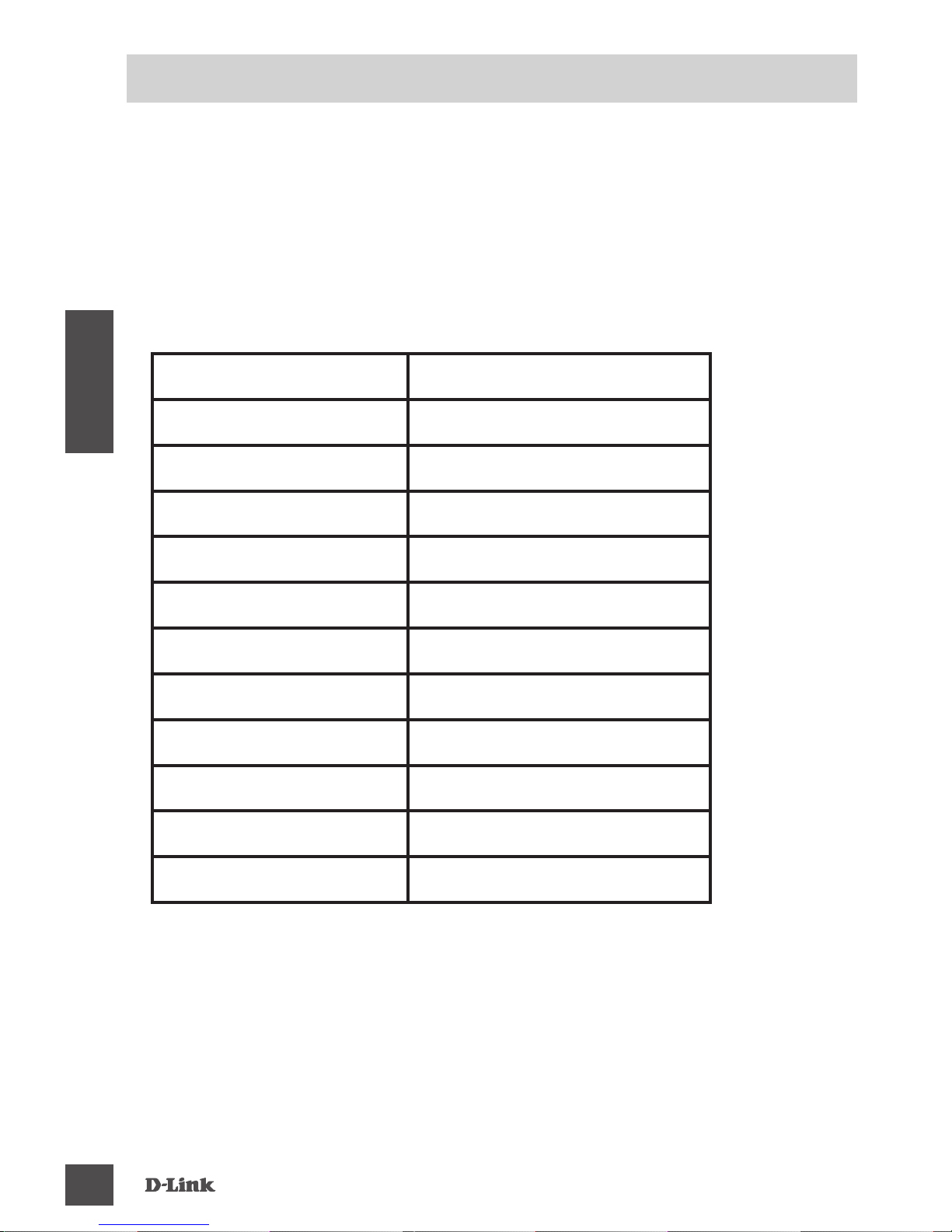
PAIS NUMERO
Argentina 0800 - 12235465
Chile 800 260200
Colombia 01800 - 510070
Costa Rica 0800 - 0521478
Ecuador 1800 - 035465
El Salvador 800 - 6335
Guatemala 1800 - 8350255
México 01800 - 0626270
Panamá 011 008000525465
Perú 0800 - 00968
Venezuela 0800 - 1005767
Soporte Técnico de D-Link a través de Internet
Horario de atención Soporte Técnico en www.dlinkla.com
e-mail: [email protected] & [email protected]
Page 21
DSM-260
21
中
文
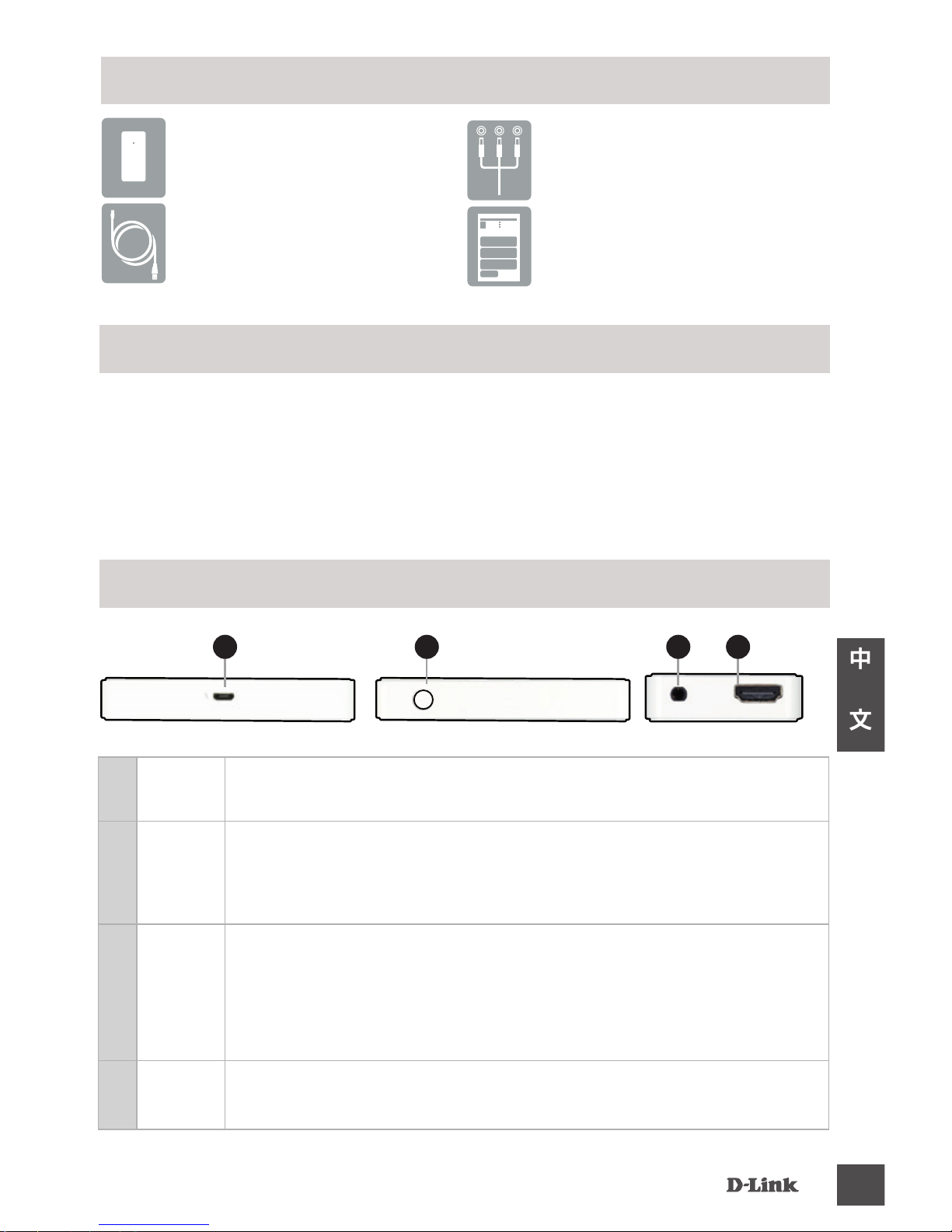
上述內容物有任何遺漏時,請聯絡經銷商。
DSM-260 MirrorStreamer
電視轉接器
USB 連接線
A/V 連接線
快速安裝指南
包裝內容物
基本需求
•行動裝置(智慧型手機/平板電腦)或裝有無線網卡的筆記型電腦
•具HDMI(高畫質)或類比複合視訊輸入插孔的電視
•具上網功能的無線路由器(WAN模式)
1
USB
插孔
插入隨附USB連接線。
2
模式/
重設
按住5秒,能切換Miracast與DLNA模式。
按住5-10秒,DSM-260重開機。
按住15秒以上,DSM-260將恢復成出廠預設值。
3
A/V
插孔
將隨附A/V連接線一端插入此處,另一端插入電視或家
庭劇院接收器。使用HDMI連接線時,無須用到A/V連
接線。請注意,使用複合類比連接線時,僅能接收到
480p的畫質。
4
HDMI
插孔
將HDMI連接線(未附)一端插入此處,另一端插入電視或
家庭劇院接收器。用於顯示高畫質(720p/1080p)畫面。
硬體名稱與功能
21
左側 右側 底端
3 4
Page 22
DSM-260
22
中
文
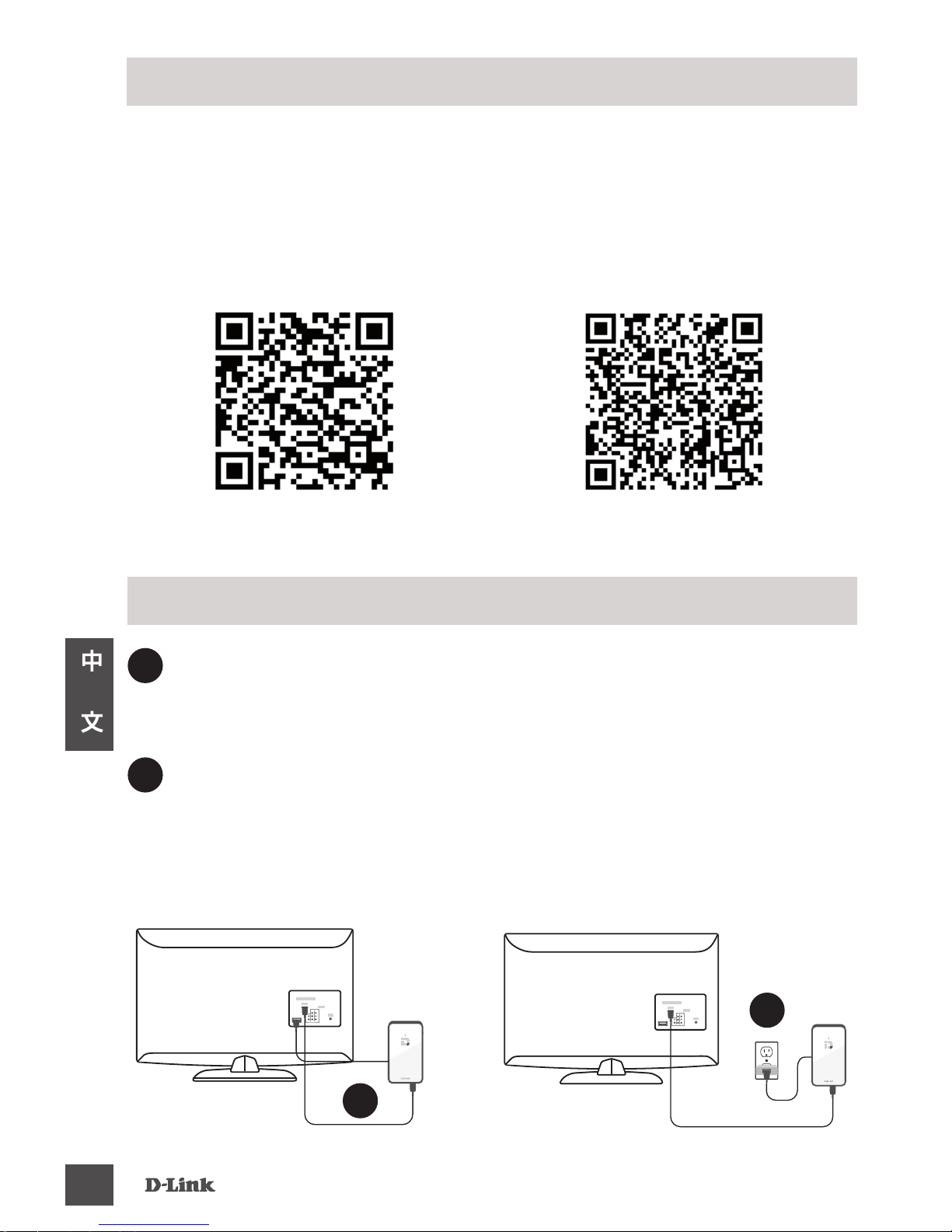
從App線上商店(iOS)或Google Play(Android)下載D-Link Media app,或
是掃描下面的QR碼。
註:使用的電視或許支援DSM-260遙控操作,但是仍需要Media app
以輸入文字。
開始操作前
Apple iOS Android
1
1
將HDMI連接線分別插入DSM-260與電視的HDMI插孔,請注意欲
獲得高畫質解析度,必須使用HDMI。
連接電視
2
將隨附USB連接線分別插入DSM-260與電視的USB插孔。或者是插
入USB電源轉接器(未附)。
註:USB插孔僅用於供電,無法傳輸資料
。
HDMI
HDMI
或
2
Page 23
DSM-260
23
中
文
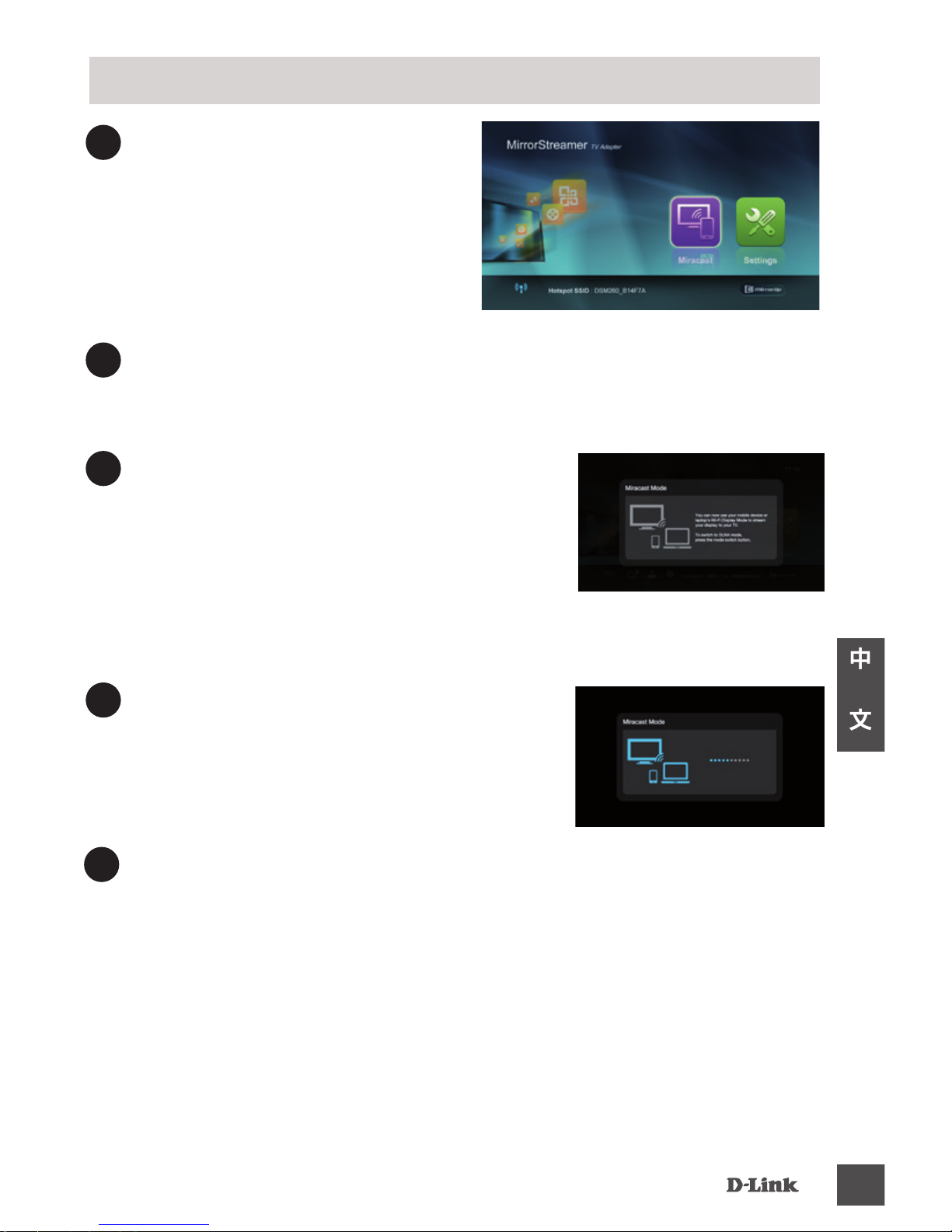
3
DSM-260上方的藍色LED指示燈
亮起。請將電視頻道切換至正
確的HDMI輸入來源。此時將看
到電視畫面出現D-Link商標,
接著顯示主選單。
4
開啟行動裝置的無線功能,接著連線至DSM-260。選單畫面下方
將顯示無線設定。
5
連線完成後,可遠端使用電視或下
載 D-Link Media app 來操作。請選擇
「Miracast」後按下「Enter」。
註:本安裝指南接下來將假設使用者已
經安裝D-Link遙控應用程式。
Miracast使用者
6
將行動裝置的無線顯示切換成「ON」
,接著選擇DSM-260。請稍候幾秒以等
待授權作業。
7
現在,行動裝置畫面將顯示在電視上。
Miracast設定完成!
Page 24
DSM-260
24
中
文
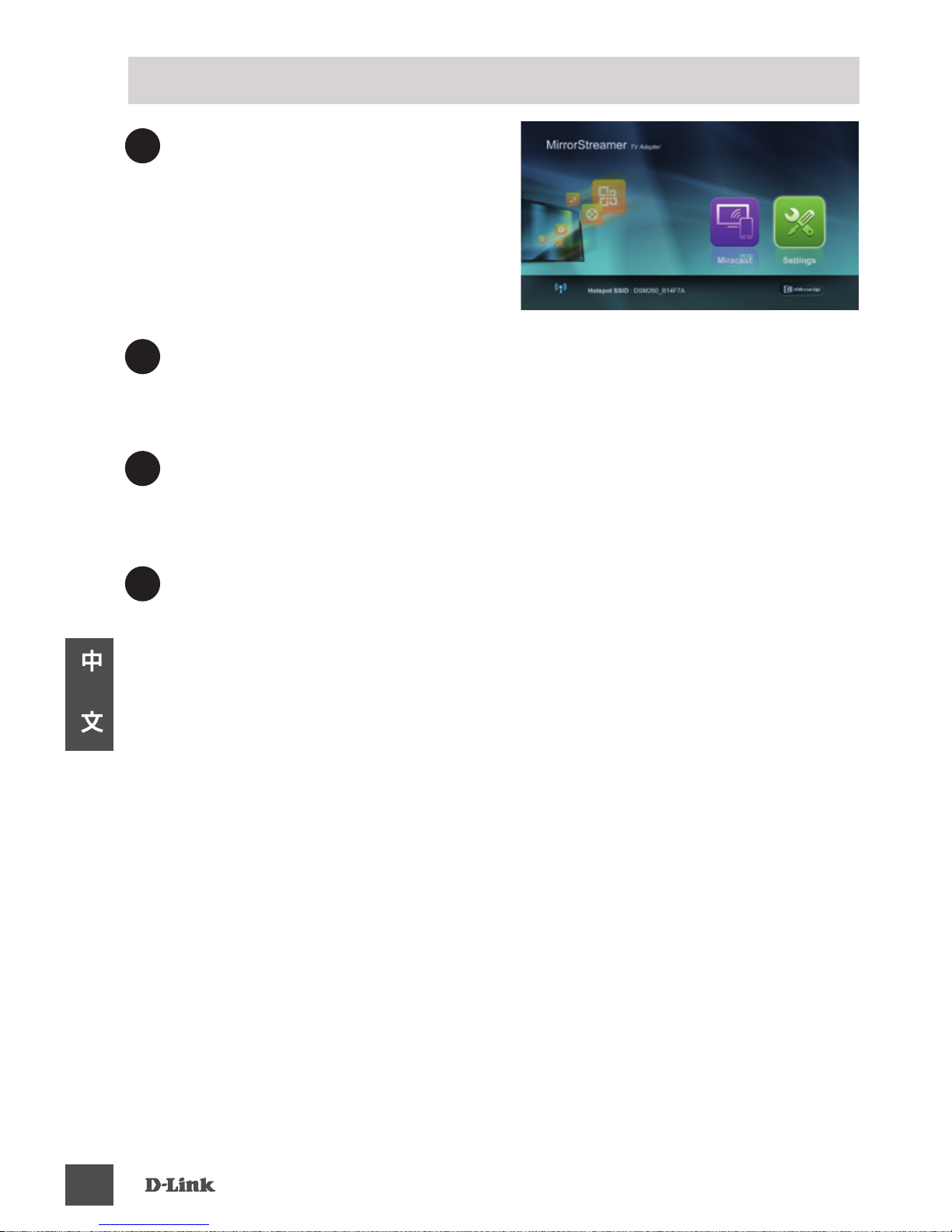
3
DSM-260上方的藍色LED指示燈
亮起。請將電視頻道切換至正
確的HDMI輸入來源。此時將看
到電視畫面出現D-Link商標,
接著顯示主選單。
4
開啟行動裝置的無線功能,接著連線至DSM-260。選單畫面下方
將顯示無線設定。
5
連線完成後,可遠端使用電視或下載 D-Link Media app 來操作。
請選擇「設定」後按下「OK」。
非Miracast使用者(即DLNA*)
6
選擇「網路」且按下右箭頭鈕。選擇「WAN」(連接至無線路
由器時)或「Wi-Fi熱點」(僅從行動裝置顯示內容且未連線上
網時)。
*
DLNA(數位生活網路聯盟)是一種業界標準技術,能讓連接至家
用網路的裝置,共同分享影像、音樂與照片。
Page 25
DSM-260
25
中
文
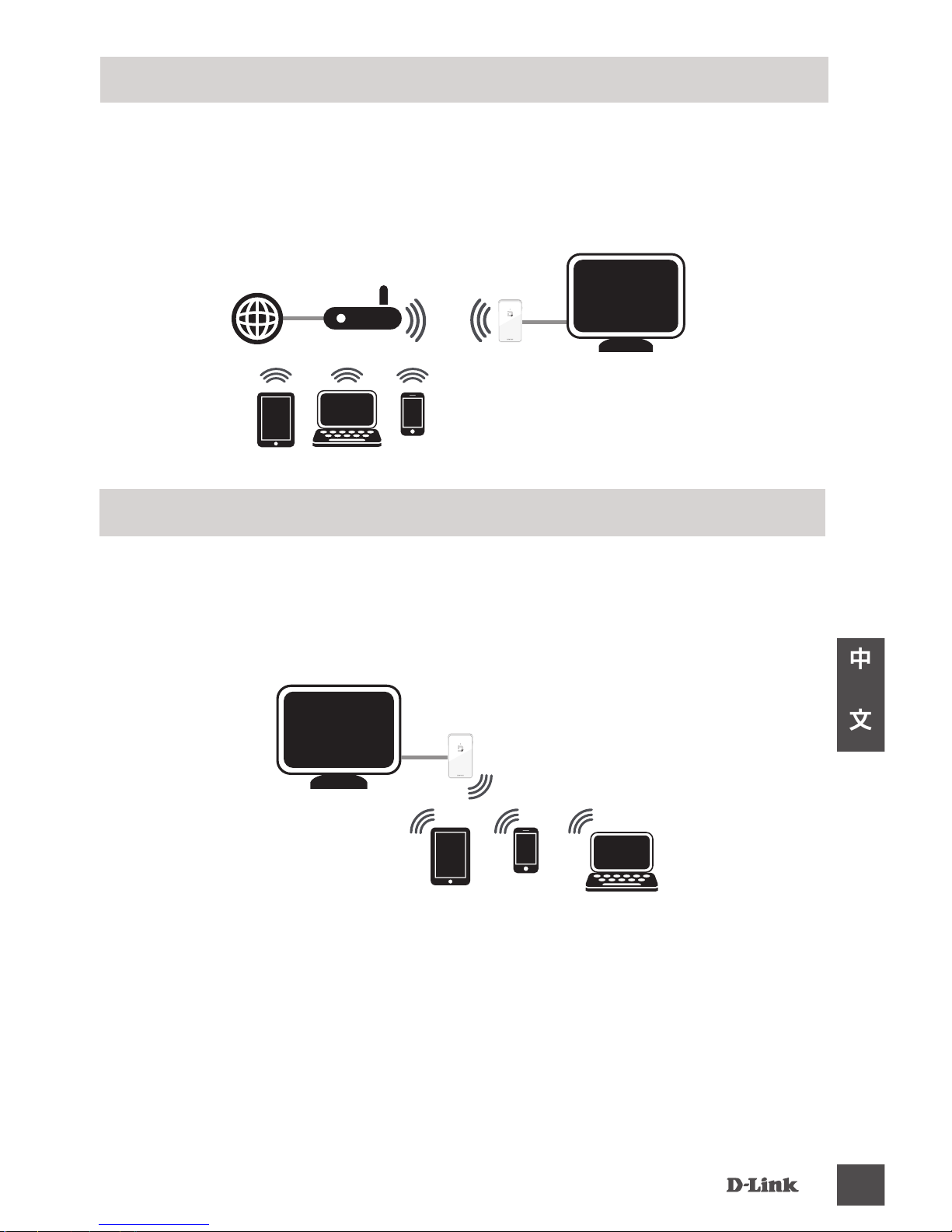
WAN模式 - 欲將網際網路串流內容(如YouTube串流影像)傳輸至電視
時,請使用本模式。DSM-260與行動裝置必須連接至無線路由器。
A - WAN 模式
Wi-Fi熱點模式(預設值) - 本模式能從DSM-260無線連接至筆記型電
腦或行動裝置,將本地端串流內容傳輸至電視。需要上網時,請使
用WAN模式。
B - Wi-Fi熱點模式
Page 26
DSM-260
26
中
文
對於不支援Miracast的行動裝置(智慧型手機/平板電腦),另一種可行
方法是下載MirrorOP應用程式。DSM-260為MirrorOP接收器,能用於
執行MirrorOP的發送裝置,如Windows、Mac裝置。
只要啟動應用程式,從現有MirrorOP接收器列表中,選擇DSM-260且
按下「播放」即可。
MirrorOp
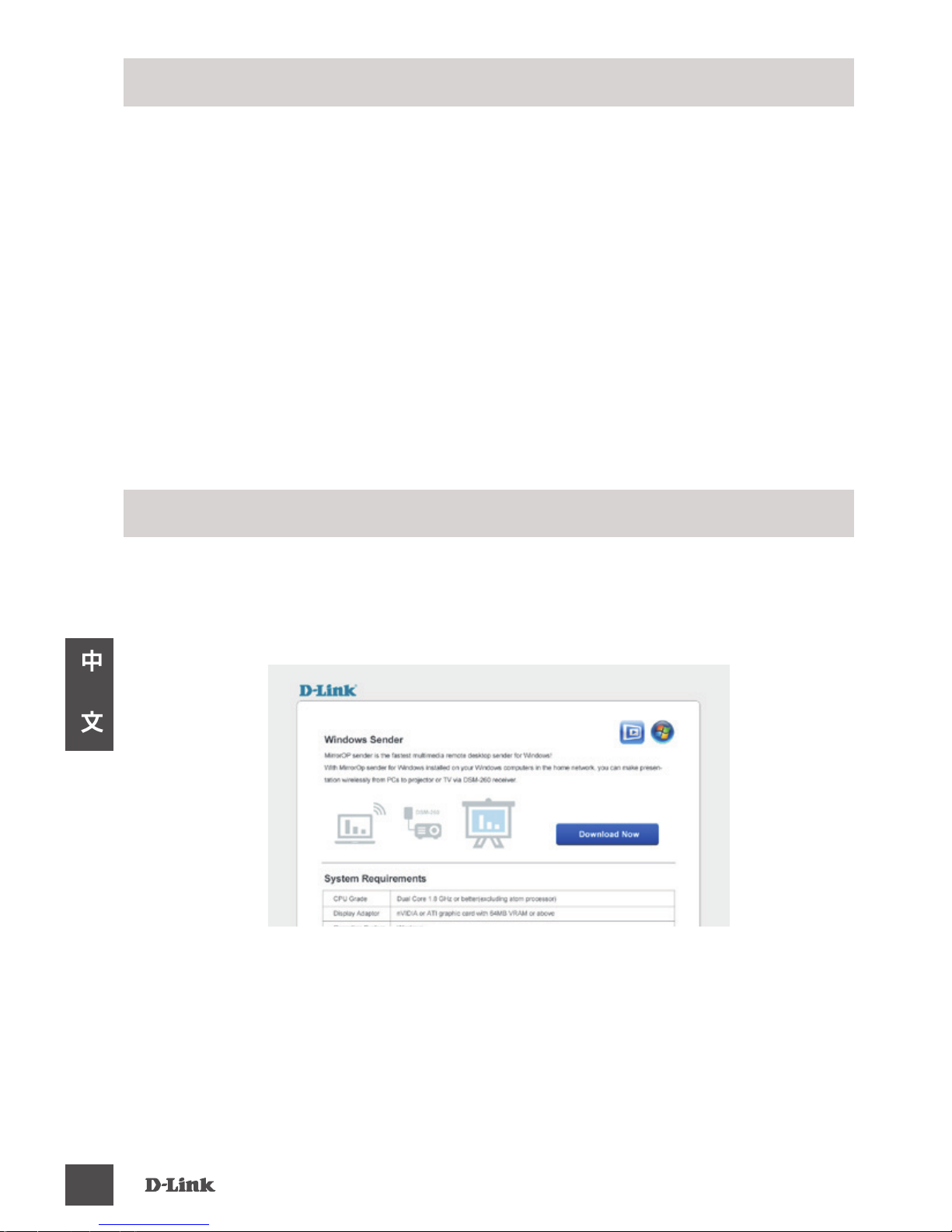
1. 請將筆電的無線功能啟用並連線到DSM-260的無線熱點名稱,之
後開啟網頁瀏覽器,在網址列輸入IP位址: 192.168.8.1並按下Enter
來開啟下載的頁面。
2. 請下載應用程式並安裝在您的筆電。
A - 使用Wi-Fi熱點模式來下載
Page 27
DSM-260
27
中
文
4. 請下載應用程式並安裝在您的筆電。
執行MirrorOp Sender app並從可用的清單中選擇DSM-260,然後按
下Play即可。
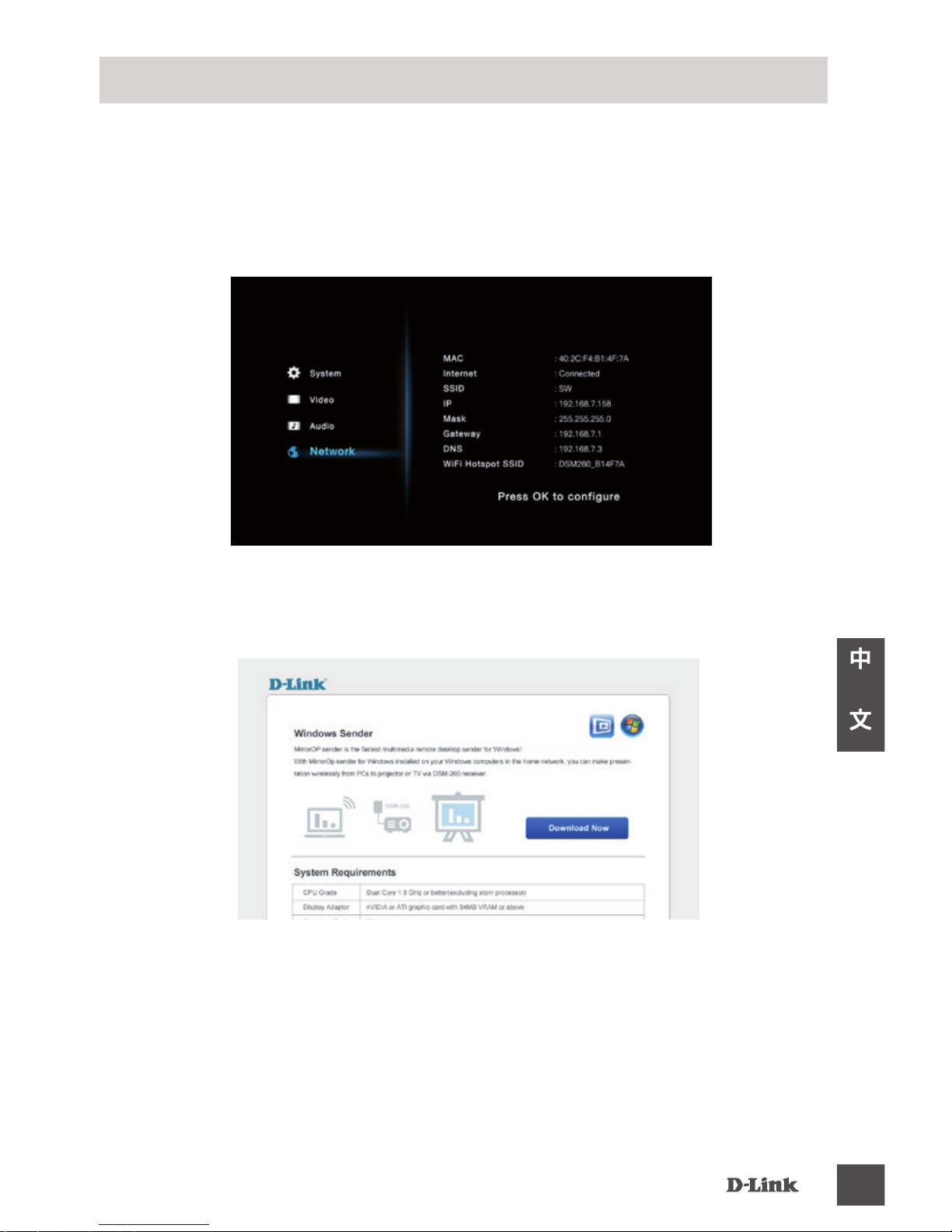
3. 請開啟網頁瀏覽器,在網址列輸入前一個步驟查看到的IP位址並按
下Enter來開啟下載的頁面。
1. 請將DSM-260以無線方式連線到路由器,再將您的筆電以無線方式
連線到同一台路由器。
2. 請查看DSM-260設定畫面中顯示的IP位址。
B - 使用WAN模式下載
Page 28
DSM-260
28
中
文
電視上沒有畫面:
直連電視時:
• 確認DSM-260的USB轉接器有接好且插入適用USB插孔(或電源轉
接器)。
• 確認DSM-260與電視連接線有完全推入且位於正確插孔。
連接至家庭劇院接收器時:
• 確認DSM-260、電視與家庭劇院接收器連接線有完全推入且位於
正確插孔。
故障排除
Page 29
DSM-260
29
中
文
D-Link
友訊科技 台灣分公司 技術支援資訊
如果您還有任何本使用手冊無法協助您解決的產品相關問題,台灣地區
用戶可以透過我們的網站、電子郵件或電話等方式與D-Link台灣地區技
術支援工程師聯絡。
D-Link 免付費技術諮詢專線
0800-002-615
手機付費電話 (02)6600-0123#8715
服務時間:週一至週五,早上9:00到晚上9:00
(不含周六、日及國定假日)
網 站:http://www.dlink.com.tw
電子郵件:[email protected]
如果您是台灣地區以外的用戶,請參考D-Link網站,
全球各地分公司
的聯絡資訊以取得相關支援服務。
產品保固期限、台灣區維修據點查詢,請參考以下網頁說明:
http://www.dlink.com.tw
產品維修:
使用者可直接送至全省聯強直營維修站或請洽您的原購買經
銷商。
Page 30
DSM-260
30
BAHASA INDONESIA
Bila salah satu dari item diatas ada yang hilang, mohon hubungi penjual Anda.
DSM-260 MirrorStreamer
TV Adapter
Kabel Micro USB
Kabel A/V
Panduan Instalasi
Cepat
Isi Kemasan
Persyaratan Minimum
• Perangkat Mobile (Smart Phone/Tablet) atau Laptop
dengan adaptor nirkabel yang terinstall dengan benar
• TV dengan input HDMI (untuk kualitas HD) atau koneksi
analog.
• Wireless router dengan koneksi internet (Mode WAN)
1
Port
Micro
USB
Hubungkan kabel USB yang tersedia di posisi ini.
2
Mode/
Reset
Tekan dan tahan sampai 5 detik untuk beralih antara mode Miracast
dan mode DLNA.
Tekan dan tahan antara 5-10 detik untuk me-reboot DSM-260.
Tekan dan tahan lebih dari 15 detik untuk me-reset DSM-260 ke
pengaturan awal pabrikan.
3
A/V
Port
Hubungkan kabel A/V yang telah disediakan di sini dan ujung lainnya
ke TV atau home theater. Jika Anda menggunakan koneksi HDMI,
Anda tidak perlu menghubungkan kabel ini. Perhatikan bahwa Anda
hanya bisa menerima hingga kualitas 480p dengan koneksi komposit.
4
HDMI
Port
Sambungkan kabel HDMI (tidak termasuk dalam kemasan) di sini dan
ujung lainnya ke TV atau penerima home theater. Harus digunakan
untuk kualitas HD (720p/1080p).
Perangkat Keras
21
Sisi Kiri SIsi Kanan
Dasar
Perangkat
3 4
Page 31
DSM-260
31
BAHASA INDONESIA
Download aplikasi “D-Link Media App” baik dari App Store (IOS)
atau Google Play (Android) atau pindai kode QR di bawah ini.
Catatan: TV remote Anda dapat bekerja dengan DSM-260
tetapi Anda akan membutuhkan aplikasi Media App untuk
memasukkan teks.
Sebelum Anda Mulai
1
1
Sambungkan kabel HDMI ke port HDMI pada DSM-260
kemudian hubungkan ujung satunya ke port HDMI pada TV
Anda. Perhatikan bahwa HDMI diperlukan untuk resolusi HD.
Sambungkan ke TV Anda
2
Sambungkan kabel mikro USB yang disediakan ke port USB
pada DSM-260 kemudian hubungkan ke port USB pada TV
atau ke adaptor daya USB (tidak termasuk).
Catatan: Port USB hanya digunakan untuk daya, dan bukan
untuk transfer data.
HDMI
HDMI
ATAU
2
Apple iOS Android
Page 32
DSM-260
32
BAHASA INDONESIA
3
LED pada bagian atas DSM260 akan menyala biru.
Alihkan saluran TV Anda ke
sumber input HDMI yang
benar. Anda akan melihat
logo D-Link pada TV dan
diikuti oleh menu utama.
4
Pada perangkat mobile Anda, buka utilitas nirkabel dan
hubungkan ke DSM-260. Pengaturan nirkabel akan
ditampilkan di bagian bawah layar menu.
5
Setelah Anda terhubung, Anda
dapat menggunakan remote TV
atau aplikasi “D-Link Media App”
yang telah di download untuk
menavigasi. Pilih Miracast dan tekan
Enter.
Catatan: Sisa dari Panduan Install akan menganggap bahwa
Anda telah menginstal aplikasi remote D-Link.
Pengguna Miracast
6
Pada perangkat mobile Anda, ubah
pengaturan nirkabel ke ON dan pilih
DSM-260. Biarkan beberapa detik
untuk otentikasi.
7
Tampilan layar pada perangkat mobile Anda akan
ditampilkan di TV Anda
Page 33
DSM-260
33
BAHASA INDONESIA
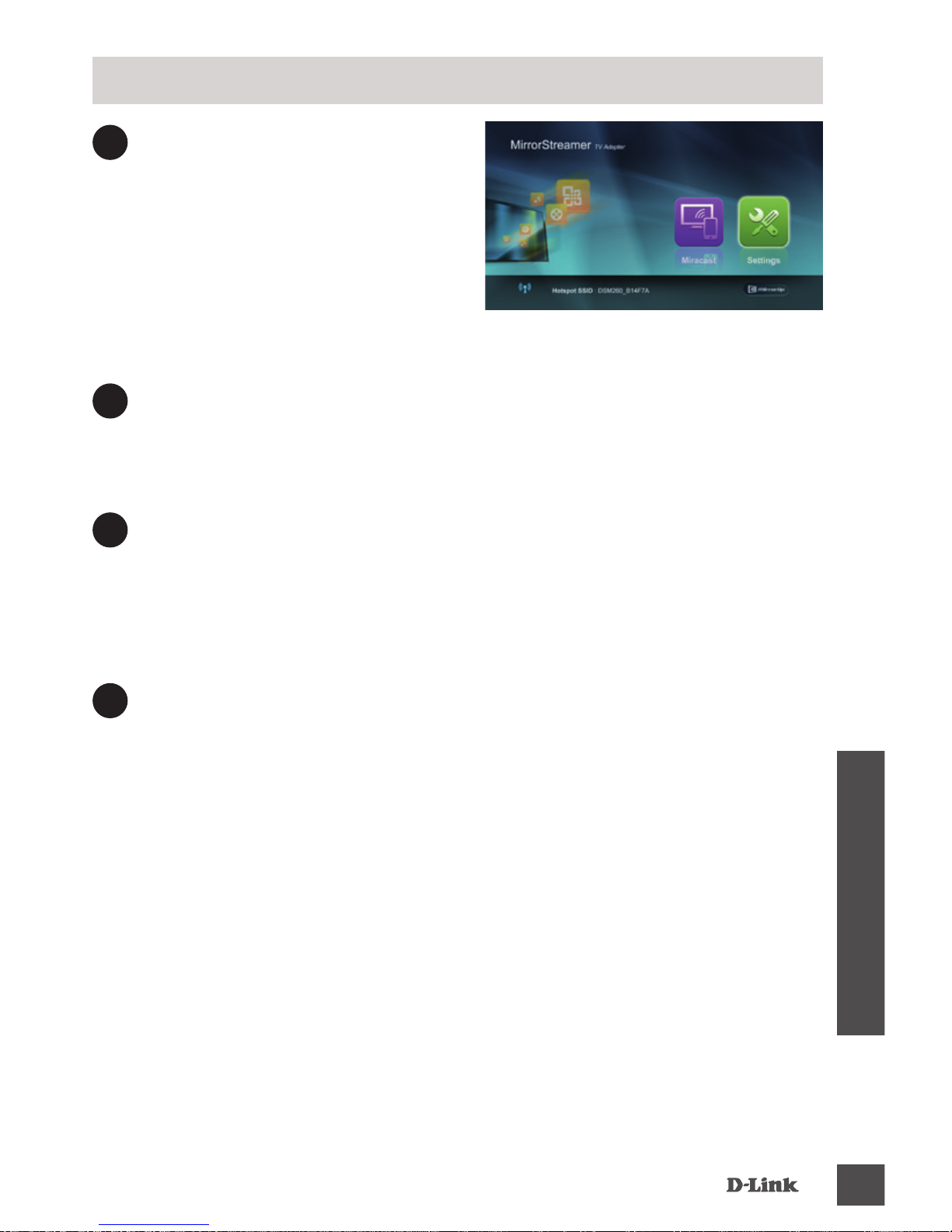
3
LED pada bagian atas DSM260 akan menyala biru.
Pindakhan saluran TV Anda
ke sumber input HDMI yang
benar. Anda akan melihat logo
D-Link pada TV diikuti oleh
menu utama.
4
Pada perangkat mobile Anda, buka utilitas nirkabel dan
hubungkan ke DSM-260. Pengaturan nirkabel akan
ditampilkan di bagian bawah layar menu.
5
Setelah Anda terhubungkan, Anda dapat menggunakan
salah satu TV remote atau aplikasi “D-Link Media App” yang
telah di download untuk menavigasi. Pilih Setting dan
tekan OK.
Pengguna Non-Miracast (DLNA*)
6
Pilih Network dan tekan tombol panah kanan. Pilih WAN
(jika terhubung ke router nirkabel) atau Wi-Fi Hotspot (jika
hanya ingin menampilkan konten dari perangkat Anda
tanpa koneksi internet).
* DLNA (Digital Living Network Alliance) adalah standar teknologi
industri yang memungkinkan perangkat pada jaringan rumah
Anda untuk berbagi video, musik, dan foto.
Page 34
DSM-260
34
BAHASA INDONESIA
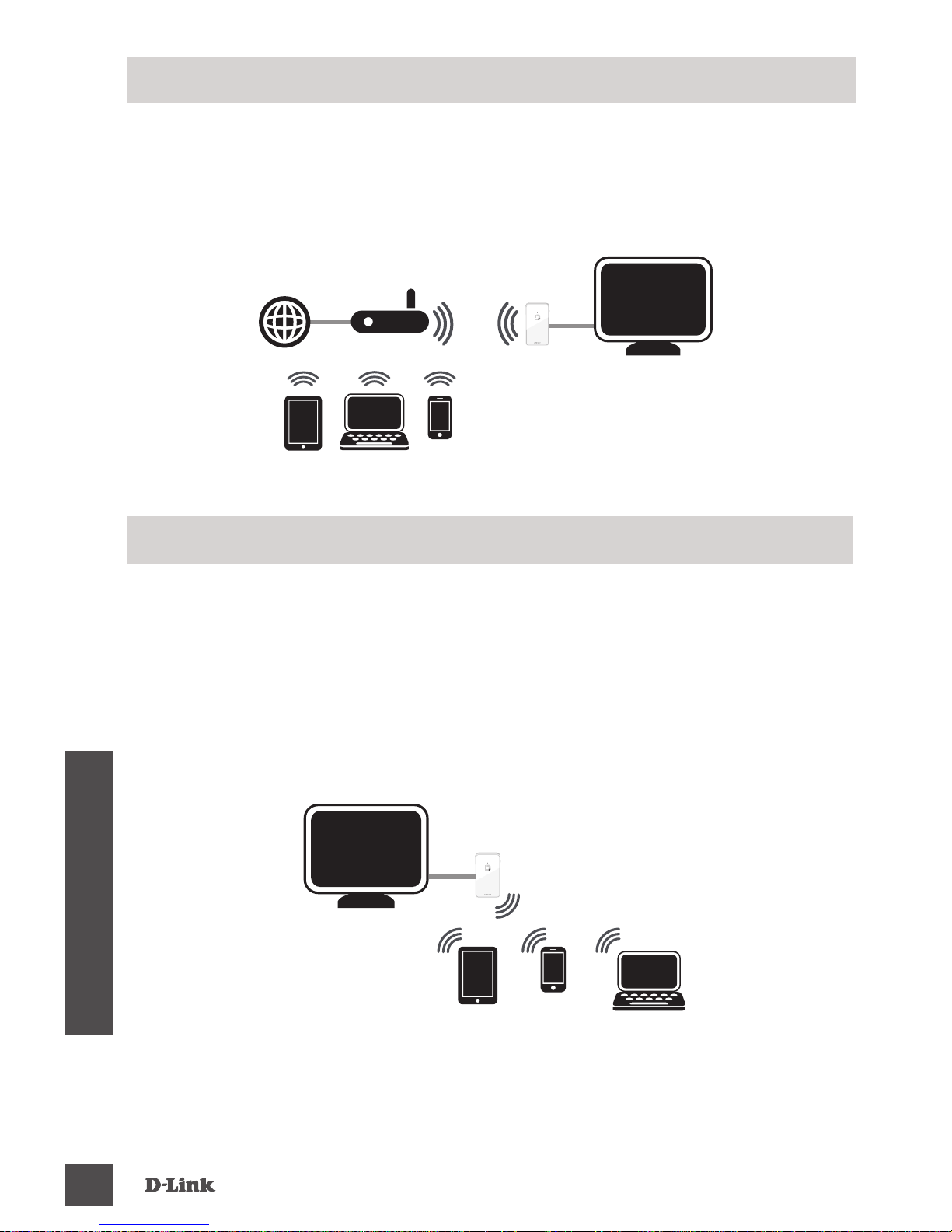
Mode WAN - Jika Anda ingin melakukan streaming konten
dari Internet (misalnya, video dari YouTube) ke TV Anda,
gunakan mode ini. DSM-260 dan perangkat mobile Anda
harus terhubung ke router nirkabel Anda.
A – Mode WAN
Wi-Fi Hotspot Mode (default) - Mode ini memungkinkan
Anda untuk terhubung secara nirkabel dari DSM-260 ke laptop
atau perangkat mobile dan streaming konten lokal untuk TV
Anda. Jika Anda membutuhkan koneksi internet, gunakan
Mode WAN.
B – Mode Wi-Fi Hotspot
Page 35
DSM-260
35
BAHASA INDONESIA
Cara lain untuk perangkat non-Miracast adalah dengan
mengunduh aplikasi MirrorOp. DSM-260 adalah penerima
MirrorOp dan akan dapat bekerja dengan pengirim MirrorOp
seperti perangkat Windows atau Mac anda.
Pengirim MirrorOp sudah termasuk dalam DSM-260. Anda
dapat mengunduhnya dari DSM-260 kemudian menginstallnya di laptop Anda.
MirrorOp
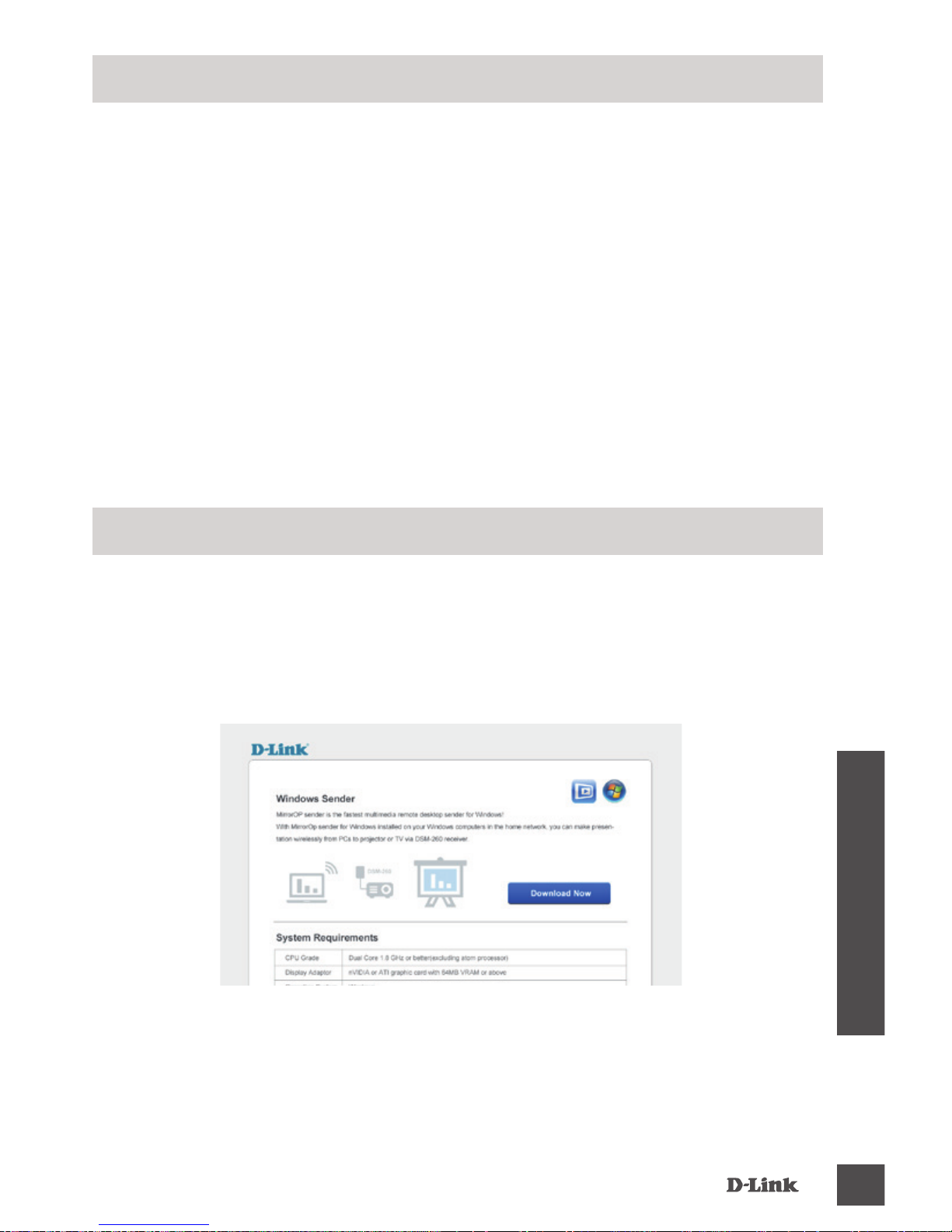
1. Hubungkan laptop Anda dengan DSM-260 Hotspot SSID
melalui Wi-Fi. Jalankan browser dan masukkan alamat
IP: 192.168.8.1 dalam kolom alamat dan tekan “Enter”.
Halaman untuk mengunduh akan tampil.
2. Unduh aplikasi pengirim dan install pada laptop Anda.
A - Mengunduh melalui mode Wi-Fi Hotspot
Page 36
DSM-260
36
BAHASA INDONESIA
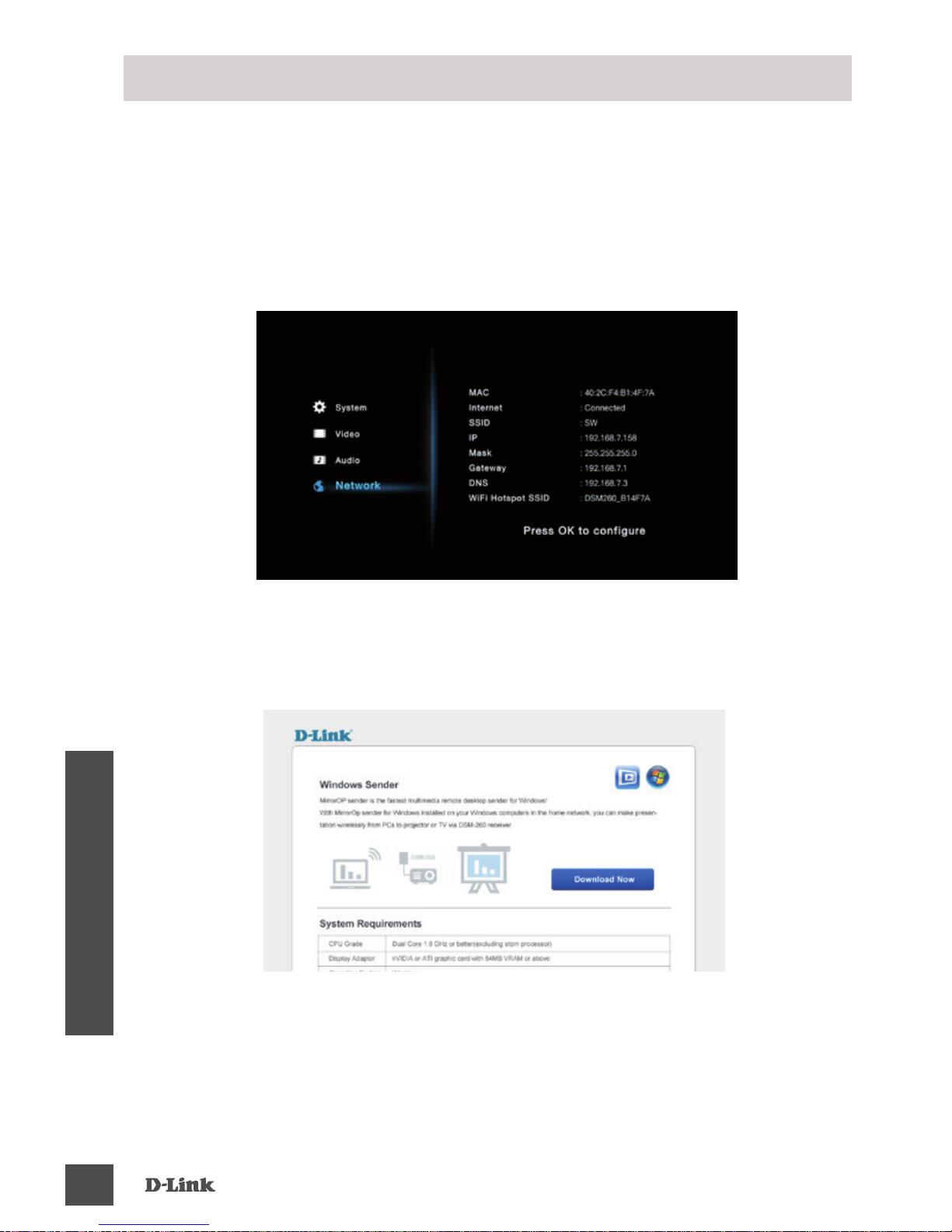
1. Hubungkan DSM-260 dengan router melalui Wi-Fi
kemudian hubungkan juga laptop Anda ke router melalui
Wi-Fi.
2. Temukan alamat IP seperti yang ditunjukkan dalam
halaman pengaturan DSM-260.
B - Unduh melalui mode WAN
4. Unduh aplikasi untuk mengirim dan install pada laptop
Anda.
Jalankan aplikasi pengirim MirrorOp, kemudian pilih DSM260 dari daftar penerima MirrorOp yang tersedia, kemudian
tekan “Play”.
3. Jalankan browser Anda dan masukkan alamat IP
dalam kolom alamat dan tekan “Enter”. Halaman untuk
mengunduh akan tampil.
Page 37

DSM-260
37
BAHASA INDONESIA
Bila anda tidak dapat melihat tampilan pada TV:
Bila terhubung secara langsung ke TV:
• Pastikan adaptor USB terhubung dengan benar ke DSM260 dan bahwa perangkat terhubung ke port USB yang
benar (atau ke adaptor daya)
• Pastikan kabel pada DSM-260 dan pada TV sudah
terhubung dengan baik dan benar
Bila terhubung ke receiver home theater:
• Pastikan semua kabel pada DSM-260, TV dan receiver
sudah terhubung dengan baik dan benar.
Penanganan Masalah
Page 38

DSM-260
38
BAHASA INDONESIA
Dukungan Teknis
Update perangkat lunak dan dokumentasi pengguna
dapat diperoleh pada situs web D-Link.
Dukungan Teknis untuk pelanggan:
Dukungan Teknis D-Link melalui telepon:
Tel: +62-21-5731610
Dukungan Teknis D-Link melalui Internet:
Email : [email protected]
Website : http://support.dlink.co.id
Page 39
DSM-260
39
NOTE
Page 40
WIRELESS NETWORK REMINDER
Wireless Network Name (SSID)
Wireless Network Password
Ver.1.02(DI) 2013/10/28 29072600D260A13
 Loading...