

Page 1
DSL-G2562DG ADSL/VDSL Wizard Setup Guide
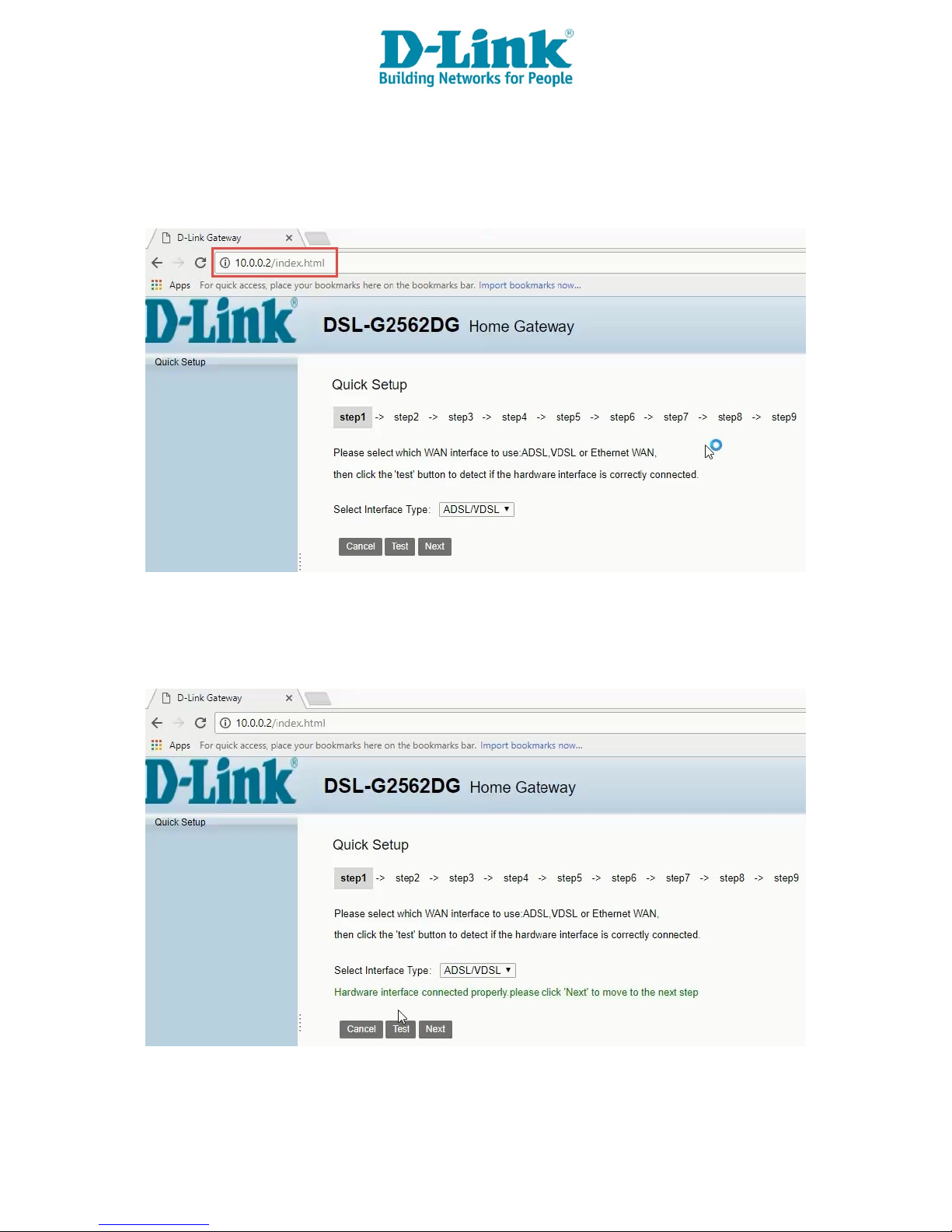
1) Type in the IP address bar 10.0.0.2 into your web-browser (IE, Chrome, Firefox etc)
2) Make sure your router is connected as per the Quick Installation Guide (QIG) for DSL service.
Select Interface Type: ADSL/VDSL
Click on [Test] to confirm your connection
Click on [Next] to proceed
Page 2
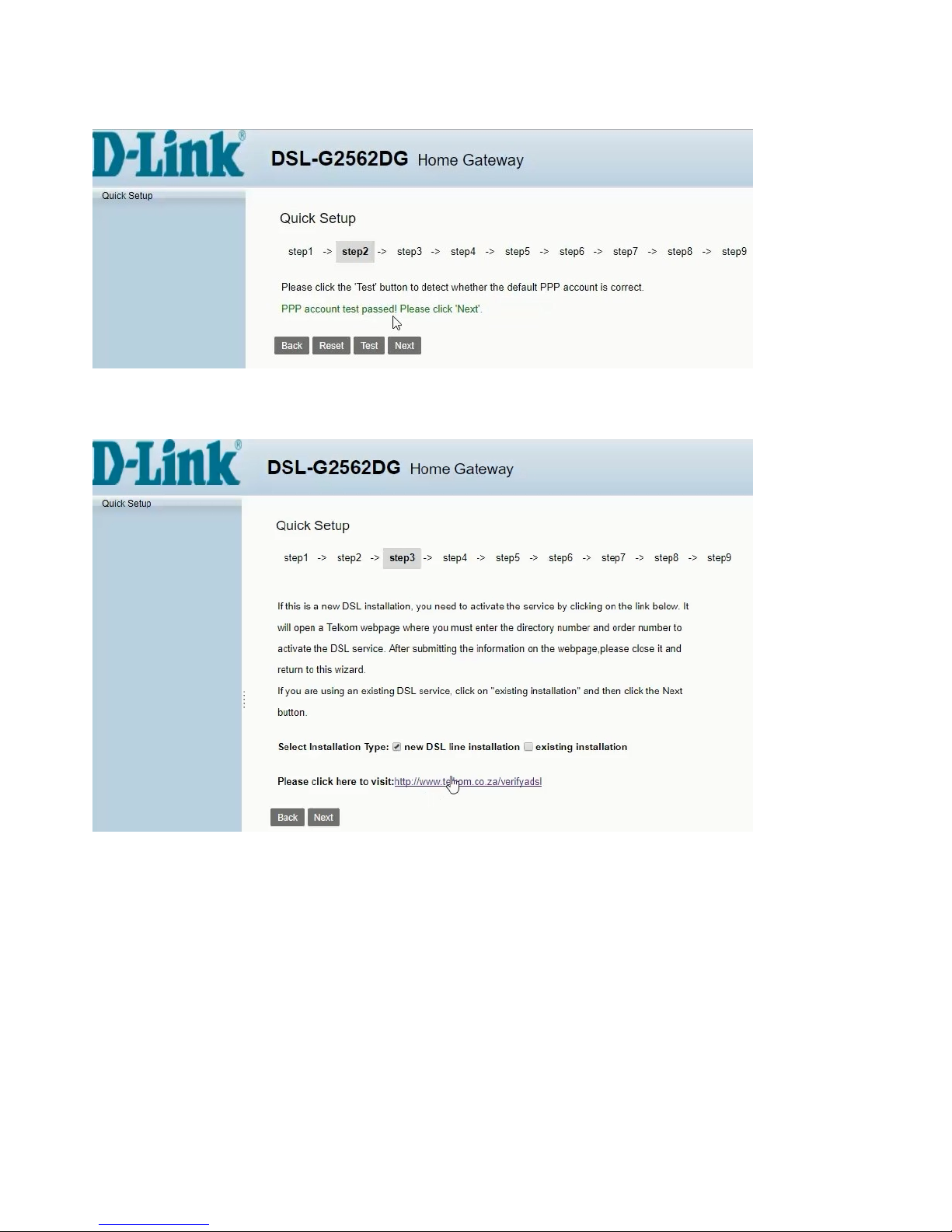
3) Click on [Test] to confirm your default PPP account
Click on [Next] to proceed
Note: If the test fails, please contact Telkom Support for port recreation/verification
4) For new DSL line installation, make sure the correct option is ticked and click the URL to proceed
This will take you to the Telkom Webpage for DSL verification
Page 3
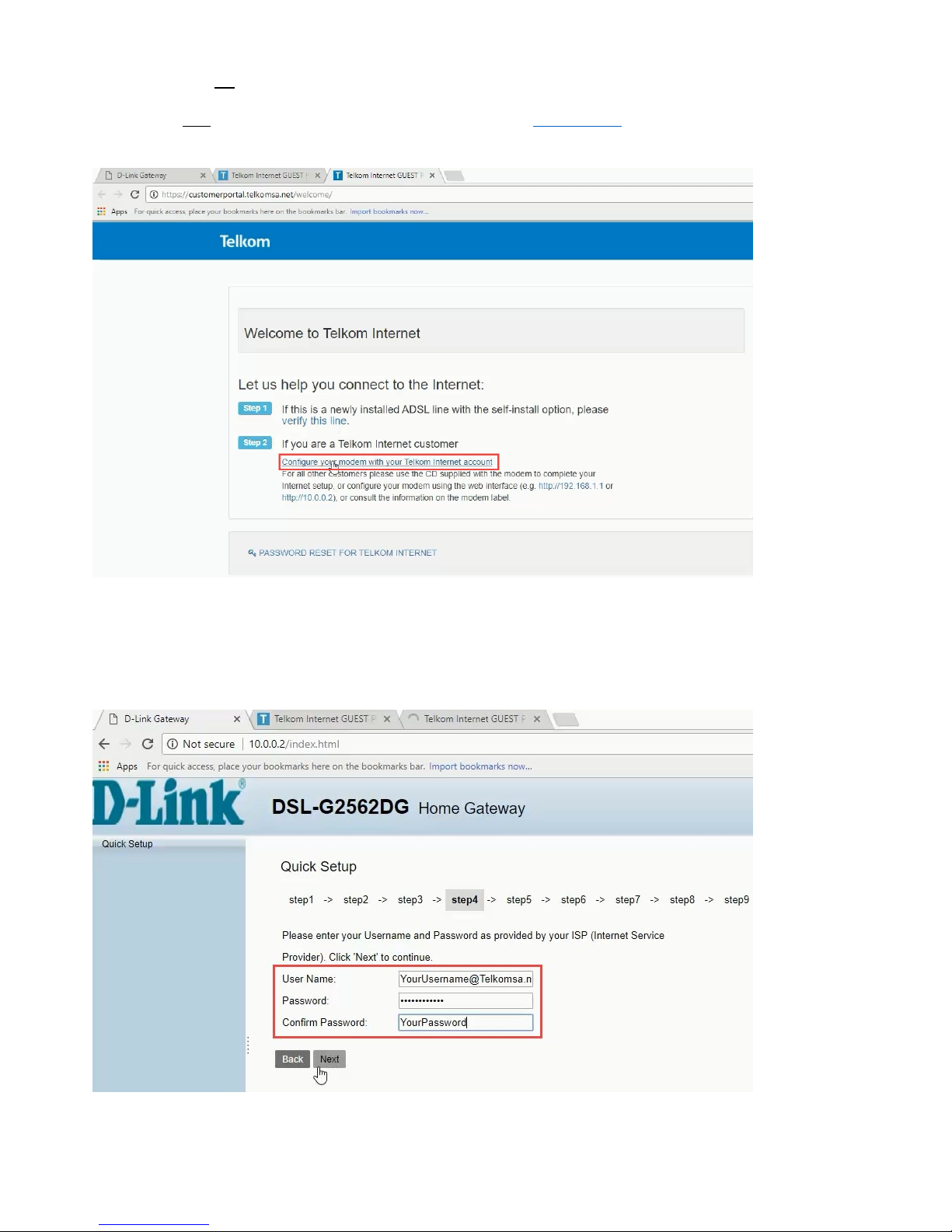
5) Continue as instructed on the Telkom Webpage
If you have not received your PPPoE details,
proceed with [Configure your modem with your Telkom Internet account]
If you have your PPPoE details sent to you via SMS, proceed with http://10.0.0.2
Click on [Next] to proceed to Step 4
6) Enter your PPPoE account details received from Telkom via SMS
Click on [Next] to proceed
Note: Your PPPoE details should have been sent to you in an SMS and should end with @telkomsa.net
If you do not have these details please contact Telkom support to retrieve your details
Page 4
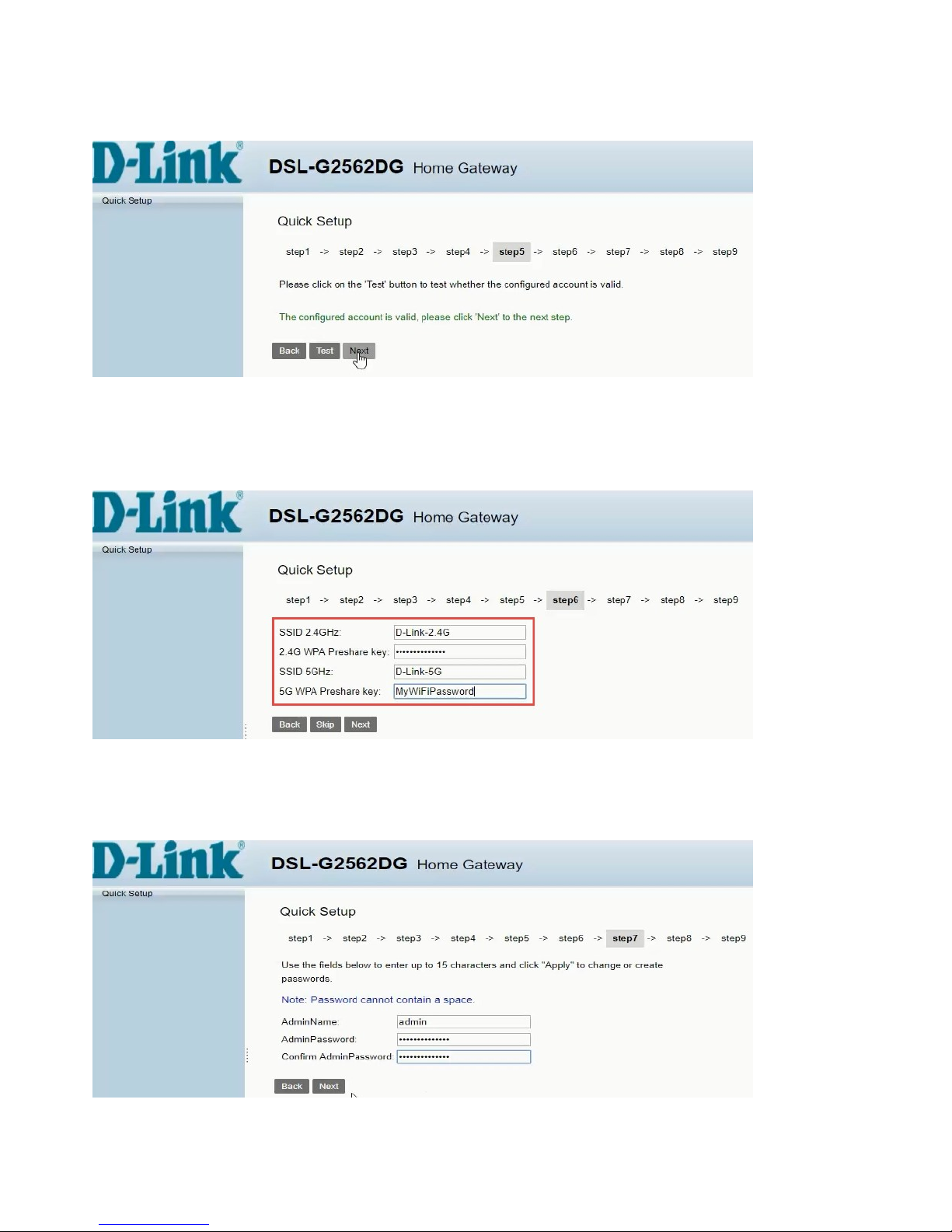
7) Click on [Test] to test account.
Click on [Next] to proceed
Note: If the test fails, please make sure the correct details were entered on step 4
Alternatively, contact Telkom Support for a password reset
8) D-Link modem comes set with unique default WIFI password on both the 2.4 & 5 GHz band for security purposes. The
default password can be located on the back of the router. You can change the default password for both bands below
(minimum of 8 characters) or [skip] to leave as default. Click on [Next] to proceed.
Note: Write down the passwords somewhere safe as you will need them to connect to your Wi-Fi
9) For security purposes, it is strongly advised that you change our default modem login password during the first setup.
Default AdminName: admin / AdminPassword: admin
Fill in new username & password for logging into your router
Click on [Next] to proceed
Page 5
10) If you are subscribed to Telkom VPN Lite’s services, entered the details provided.
If not, click on [Skip] to proceed
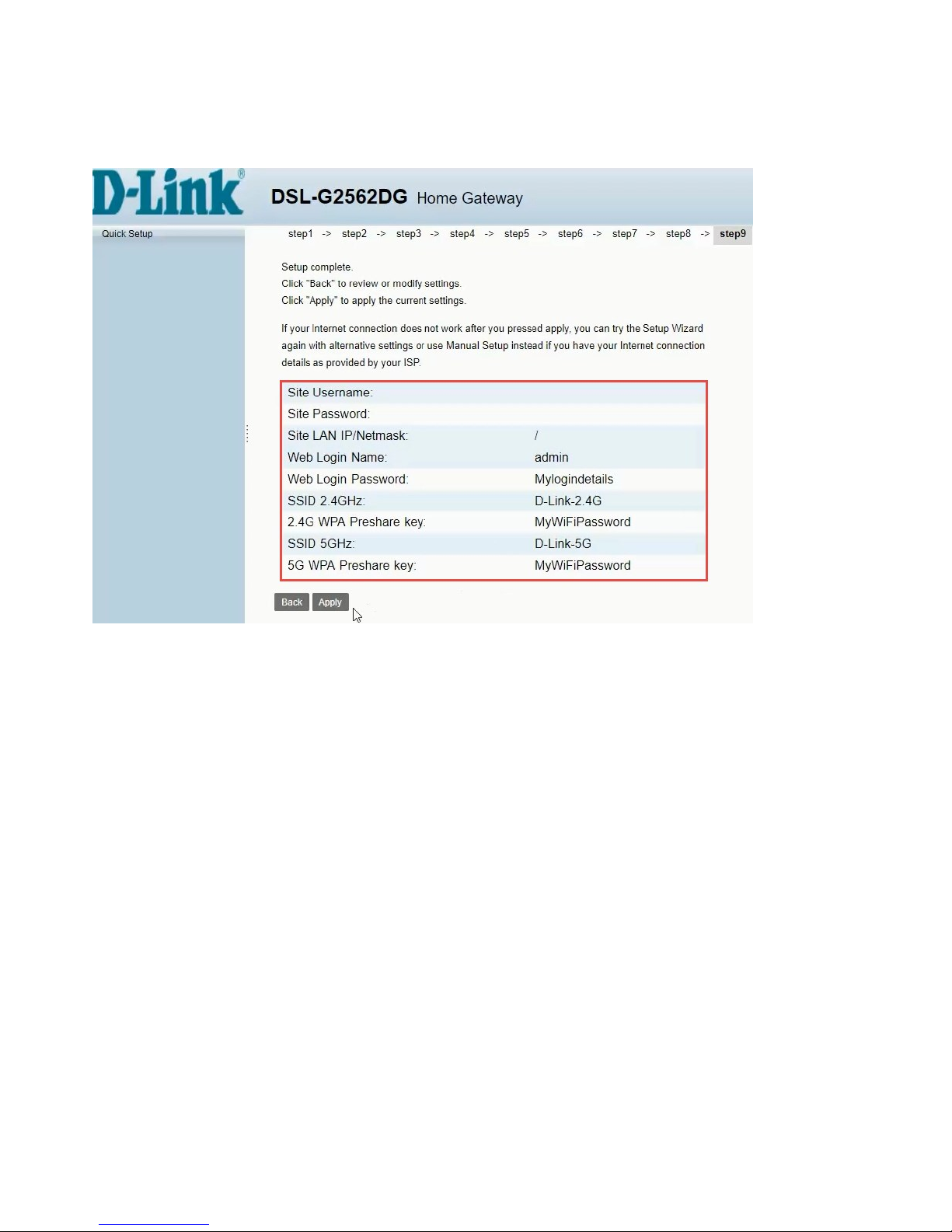
11) Here you will be able to see a summary of the wizard setup. Click on [Apply] to complete the setup.
You will be taken back to modem login page. You can login to the modem with the details set on step 9 above.
 Loading...