

Page 1
QUICK
INSTALLATION
GUIDE
WIRELESS N300 ADSL2+ MODEM ROUTER
DSL-124
КРАТКОЕ РУКОВОДСТВО ПО УСТАНОВКЕ
GUÍA DE INSTALACIÓN RÁPIDA
GUIA DE INSTALAÇÃO RÁPIDA
快速安裝指南
PETUNJUK PEMASANGAN CEPAT
クイックインストールガイド
Page 2
DSL-124
2
ENGLISH
CONTENTS OF
PACKAGING
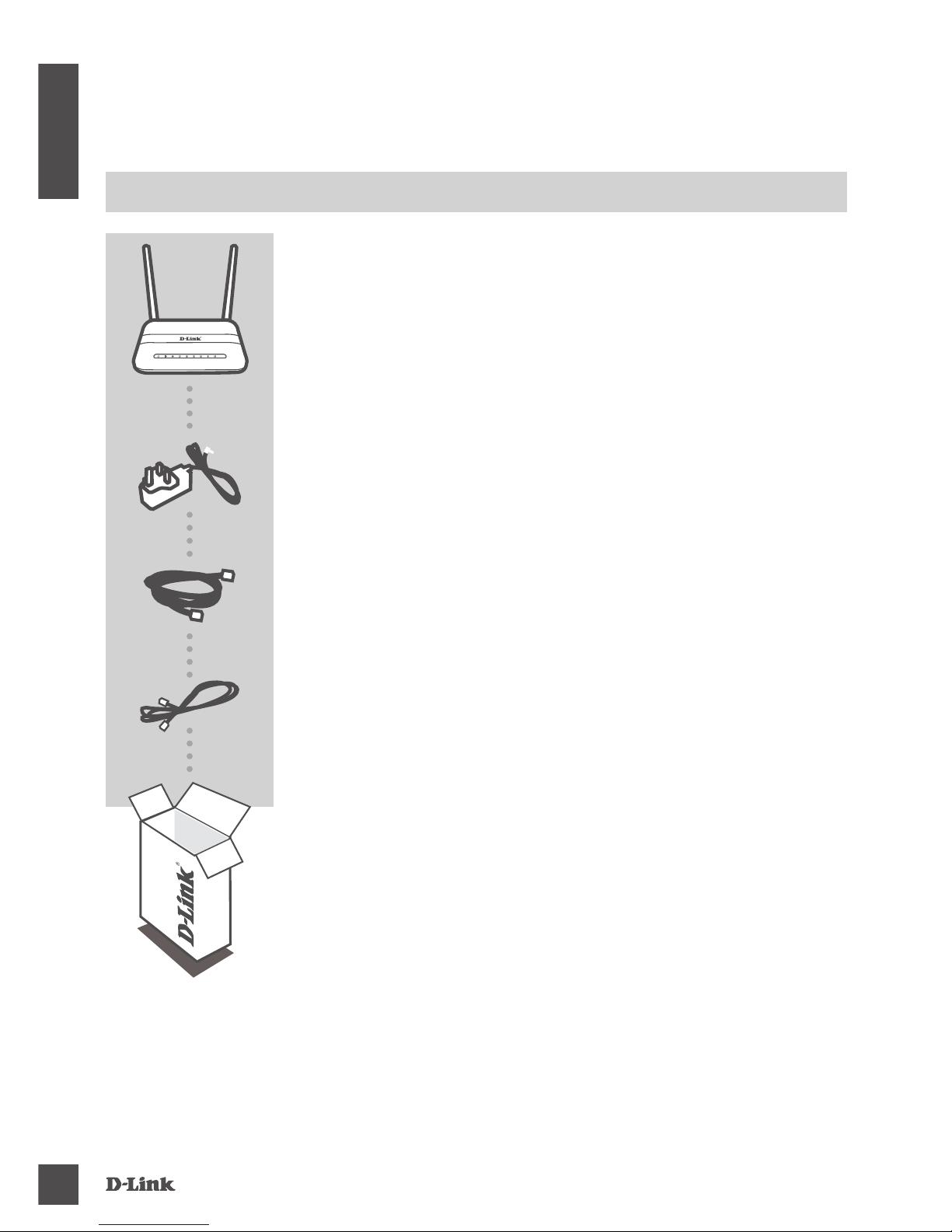
CONTENTS
POWER ADPTER
ETHERNET CABLE
If any of these items are missing or damaged, contact your
reseller
RJ-11 PHONE CABLE
WIRELESS N300 ADSL2+ MODEM ROUTER
DSL-124
Page 3
D S L-124
3
ENGLISH
PRODUCT SETUP
Step 1
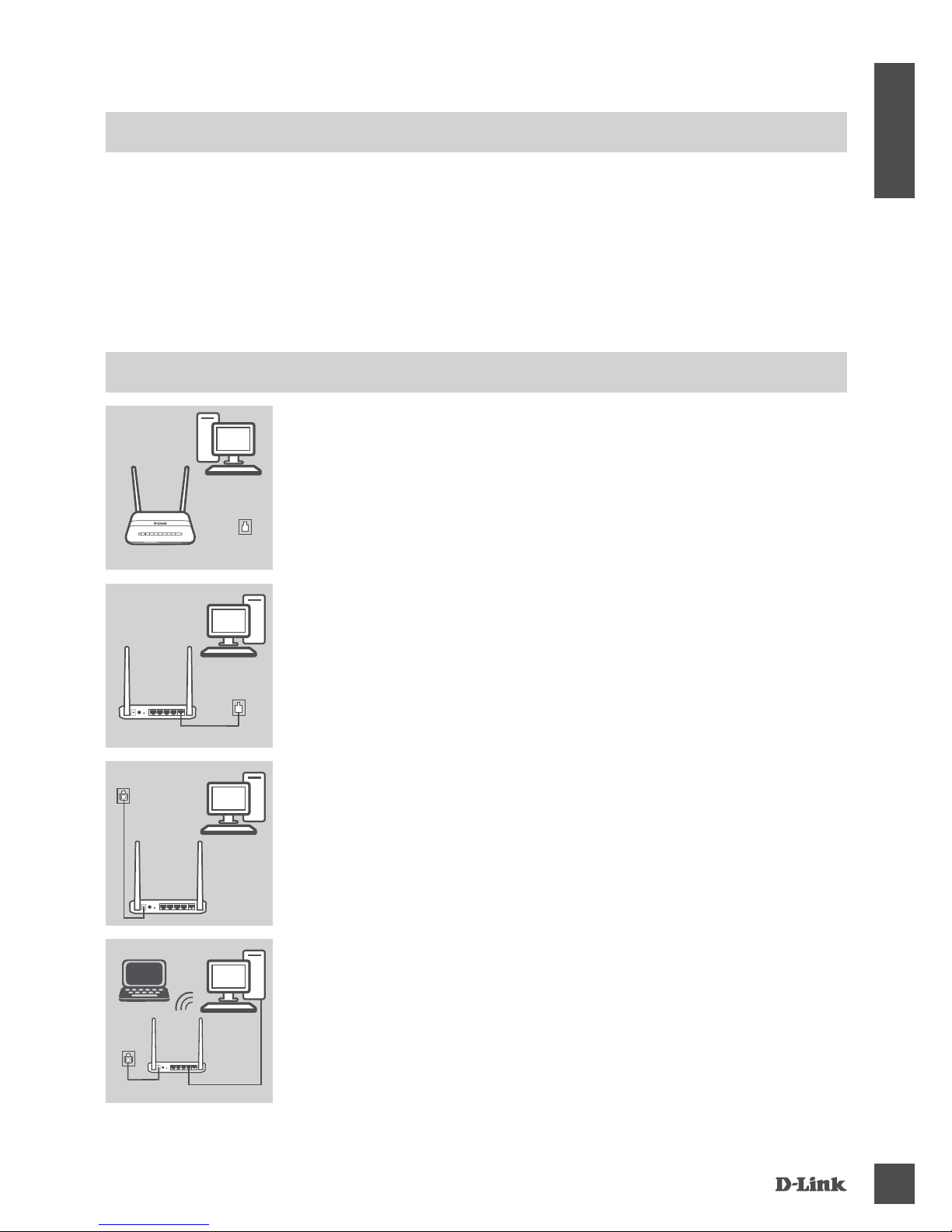
Position your DSL-124 near your PC and a telephone wall jack
which provides DSL service. Keep the modem router in an open
area for better wireless coverage.
PC
DSL-124 Phone
Step 2
Plug one end of the supplied DSL phone cable into the DSL port on
the back of the modem router, and the other end into the telephone
wall jack.
PC
DSL-124
HARDWARE SETUP
Step 3
Connect the supplied power adapter to the modem router and a
power outlet, and press the power button. The device LEDs will light
up. Wait approximately one minute before proceeding to step 4.
DSL-124
Power
PC
Step 4
Plug one end of the supplied Ethernet cable into the port labeled
1 on the back of the modem router, and the other end into the
Ethernet port on your computer.
If you are setting up the DSL-124 using a laptop or mobile
device, connect using the default Wi-Fi network name D-Link.
DSL-124
Power
PC
SYSTEM REQUIREMENTS
• ADSL/VDSL Internet service
• Computer with:
• Microsoft Windows
®
10/8/7/Vista/XP SP3 or Mac with OS X 10.3 or higher
• Internet Explorer 9, Firefox 23, Safari 7, or Chrome 28 or higher version with Java installed
and enabled
PC
Phone
Page 4
DSL-124
4
ENGLISH
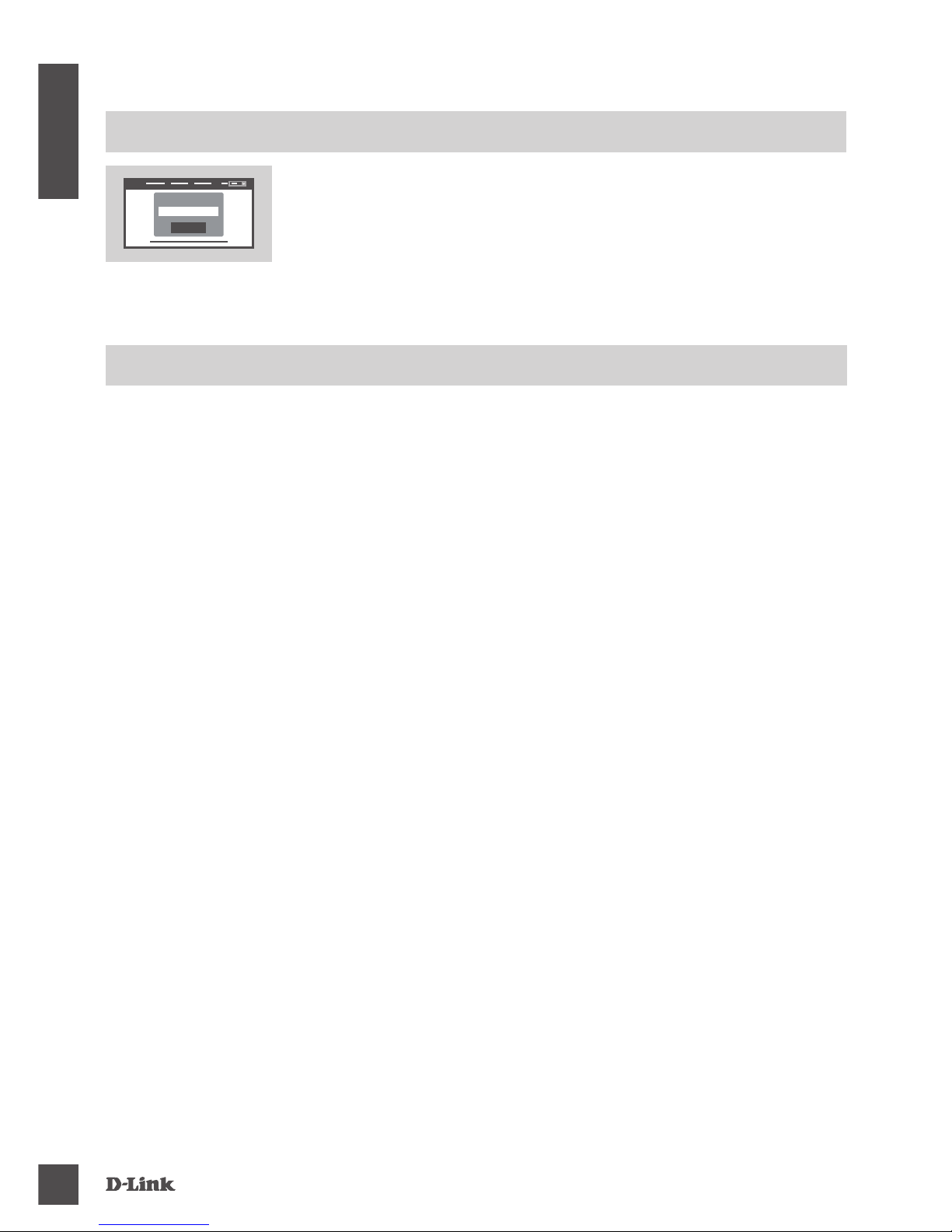
To configure your DSL-124, open a supported web browser on A
connected computer and enter the default IP address 192.168.1.1
into the address bar, and follow the onscreen instructions. If
prompted, the default user name is admin and the default password
is admin.
Log In
Admin Password:
CONFIGURE USING THE BUILT-IN WEB INTERFACE
1. HOW DO I RESET MY DSL-124 MODEM ROUTER TO THE FACTORY DEFAULT
SETTINGS?
- Ensure the modem router is powered on.
- Use an unfolded paperclip to press and hold the reset button on the bottom of the device for
more than 5 seconds until all the front LEDs turn on. The modem router will reset to the factory
defaults and begin rebooting.
Note: Resetting the modem router to the factory defaults will erase the current conguration
settings. To recongure your settings, log in to the modem router as outlined above, then run the
Setup Wizard.
2. HOW DO I ADD A NEW WIRELESS CLIENT OR PC IF I HAVE FORGOTTEN MY
WI-FI NAME (SSID) OR WI-FI PASSWORD?
- Use the web-based user interface to check or choose your wireless settings.
- Make sure you write down these settings so that you can enter them for each wireless. The
back of this document features an area to record this important information.
- If your device supports WPS, you may press the WPS button on the side of the modem router
for approximately 5 seconds to begin the WPS pairing process. Refer to your wireless device's
documentation for information on how to pair a device using WPS.
3. WHY CAN'T I GET AN INTERNET CONNECTION USING DSL?
- If you are replacing a DSL modem or combination DSL modem router, make sure to completely
disconnect and power off your existing equipment. Connect your DSL-124 to the wall jack which
worked with your previous DSL modem.
- Verify that the BROADBAND LED is lit solid green. If it isn't, please contact your ISP to make
sure the service has been connected and enabled by your ISP.
- If the BROADBAND LED is lit solid green, but the INTERNET LED is lit solid red or off, or you
are having trouble with the Setup Wizard, make sure that the username, password, and other
information provided by your ISP are correct.
- If you are still having trouble, you may need to contact your ISP for additional Bring Your Own
Device (BYOD) conguration steps. Refer to the product manual, available at
support.dlink.com for additional conguration help.
TROUBLESHOOTING
CONFIGURATION
Page 5

D S L-124
5
ENGLISH
TECHNICAL SUPPORT
Australia:
Tel: 1300-700-100
24/7 Technical Support
Web: http://www.dlink.com.au
E-mail: [email protected]
India:
Tel: +91-832-2856000
Toll Free 1800-233-0000
Web: www.dlink.co.in
E-Mail: [email protected]
Singapore, Thailand, Indonesia,
Malaysia, Philippines, Vietnam:
Singapore - www.dlink.com.sg
Thailand - www.dlink.co.th
Indonesia - www.dlink.co.id
Malaysia - www.dlink.com.my
Philippines - www.dlink.com.ph
Vietnam - www.dlink.com.vn
Korea:
Tel : +82-2-2028-1810
Monday to Friday 9:00am to 6:00pm
Web : http://d-link.co.kr
E-mail : [email protected]
New Zealand:
Tel: 0800-900-900
24/7 Technical Support
Web: http://www.dlink.co.nz
E-mail: [email protected]
South Africa and Sub Sahara
Region:
Tel: +27 12 661 2025
08600 DLINK (for South Africa only)
Monday to Friday 8:30am to 9:00pm South
Africa Time
Web: http://www.d-link.co.za
E-mail: [email protected]
D-Link Middle East - Dubai, U.A.E.
Plot No. S31102,
Jebel Ali Free Zone South,
P.O.Box 18224, Dubai, U.A.E.
Tel: +971-4-8809022
Fax: +971-4-8809066 / 8809069
Technical Support: +971-4-8809033
General Inquiries: [email protected]
Tech Support: [email protected]
Egypt
1, Makram Ebeid Street -
City Light Building - oor 5
Nasrcity - Cairo, Egypt
Tel.: +2 02 23521593 - +2 02 23520852
Technical Support: +2 02 26738470
General Inquiries: [email protected]
Tech Support: [email protected]
Kingdom of Saudi Arabia
Ofce # 84 ,
Al Khaleej Building ( Mujamathu Al-Khaleej)
Opp. King Fahd Road, Olaya
Riyadh - Saudi Arabia
Tel: +966 1121 70008
Technical Support:
+966 1121 70009
General Inquiries: info.sa@ dlinkmea.com
Tech Support: support.sa@ dlinkmea.com
Pakistan
Islamabad Ofce:
61-A, Jinnah Avenue, Blue Area,
Suite # 11, EBC, Saudi Pak Tower,
Islamabad - Pakistan
Tel.: +92-51-2800397, 2800398
Fax: +92-51-2800399
Karachi Ofce:
D-147/1, KDA Scheme # 1,
Opposite Mudassir Park, Karsaz Road,
Karachi – Pakistan
Phone: +92-21-34548158, 34326649
Fax: +92-21-4375727
Technical Support: +92-21-34548310, 34305069
General Inquiries: [email protected]
Tech Support: [email protected]
You can nd software updates and user documentation on the D-Link website.
Tech Support for customers in
Page 6
DSL-124
6
ENGLISH
TECHNICAL SUPPORT
Iran
Unit 5, 5th Floor, No. 20, 17th Alley , Bokharest
St. , Argentine Sq. ,
Tehran IRAN
Postal Code : 1513833817
Tel: +98-21-88880918,19
+98-21-88706653,54
General Inquiries: [email protected]
Tech Support: [email protected]
Morocco
M.I.T.C
Route de Nouaceur angle RS et CT 1029
Bureau N° 312 ET 337
Casablanca , Maroc
Phone : +212 663 72 73 24
Email: [email protected]
Lebanon RMA center
Dbayeh/Lebanon
PO Box:901589
Tel: +961 4 54 49 71 Ext:14
Fax: +961 4 54 49 71 Ext:12
Email: [email protected]
Bahrain
Technical Support: +973 1 3332904
Kuwait:
Technical Support: + 965 22453939 / +965
22453949
Page 7

Page 8

Ver. 1.00(DI)_130x183 2016/10/06
 Loading...