

Page 1
Version 1.0 | 02/25/2014
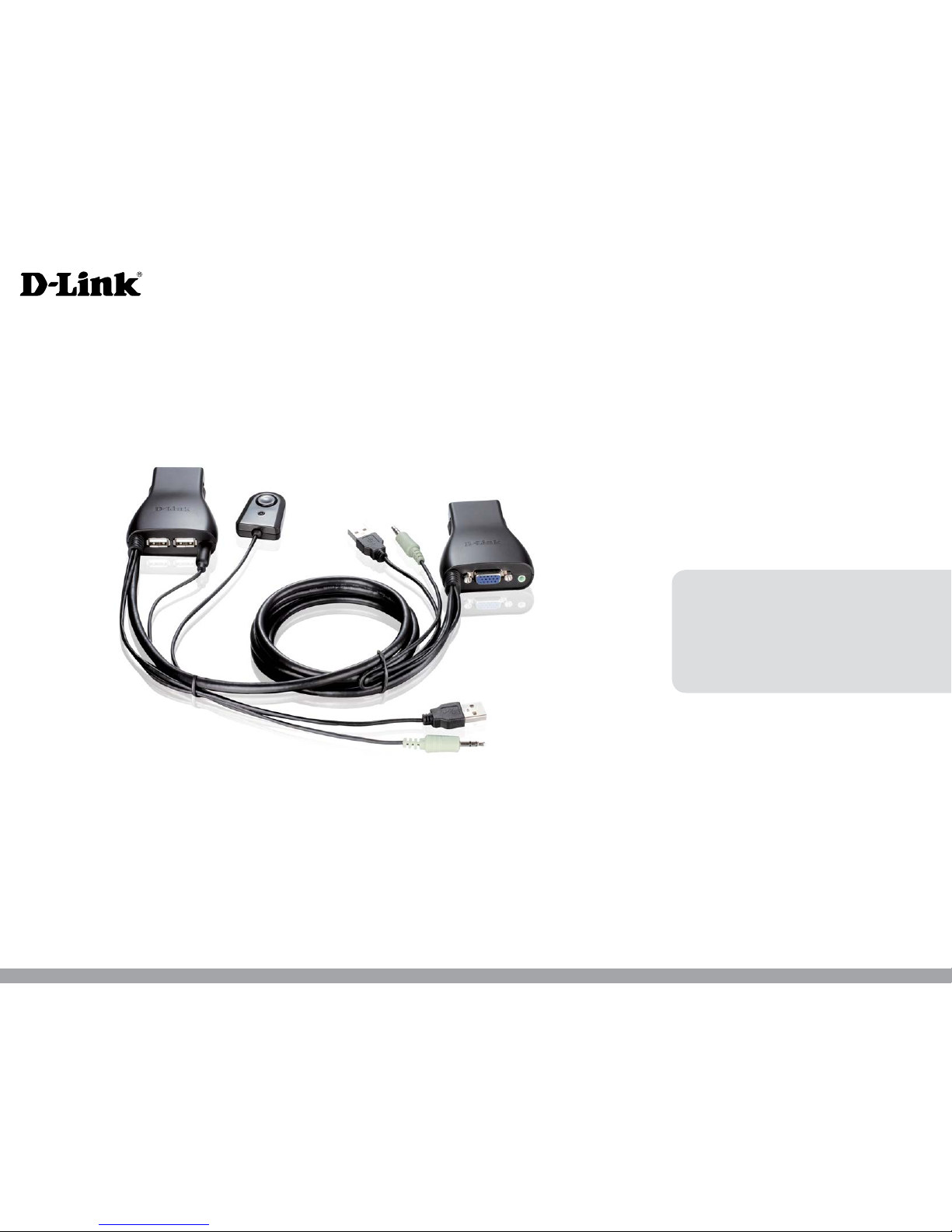
DKVM-222
User Manual
2-Port USB KVM Switch with Audio Support
Page 2

2D-Link DKVM-222 User Manual
Table of Contents
Preface ................................................................................ 3
Manual Revisions .......................................................................... 3
Trademarks .....................................................................................3
Product Overview .............................................................. 4
Package Contents ......................................................................... 4
System Requirements ................................................................. 4
Features ............................................................................................ 4
Product Overview ......................................................................... 5
KVM Installation ................................................................ 6
Hardware Installation .................................................................. 6
Software Installation ................................................................... 7
Windows® ................................................................................ 7
Mac ............................................................................................ 8
KVM Operation ..................................................................9
Accessing the KVM .......................................................................9
Windows® ................................................................................ 9
Mac ..........................................................................................10
Linux ........................................................................................11
Troubleshooting .............................................................. 12
Technical Specications .................................................. 14
Page 3

3D-Link DKVM-222 User Manual
Preface
D-Link reserves the right to revise this publication and to make changes in the content hereof without obligation to notify
any person or organization of such revisions or changes.
Manual Revisions
Trademarks
D-Link and the D-Link logo are trademarks or registered trademarks of D-Link Corporation or its subsidiaries in the United
States or other countries. All other company or product names mentioned herein are trademarks or registered trademarks
of their respective companies.
Copyright © 2014 by D-Link Corporation.
All rights reserved. This publication may not be reproduced, in whole or in part, without prior expressed written permission
from D-Link Systems, Inc.
Revision Date Description
1.0 April 4, 2014 • DKVM-222 Revision A1
Preface
Preface
Page 4

4D-Link DKVM-222 User Manual
Product OverviewProduct Overview
If any of the above items are missing, please contact your reseller.
Package Contents
System Requirements
• 2-Port USB KVM Switch with Audio Support
• Remote
• CD-ROM (includes software and manual)
• Quick Install Guide
• USB Keyboard
• USB Mouse
• VGA Monitor
• Speakers (optional)
• Two Computers with available USB Ports
• Windows® 8, Windows® 7, Windows Vista®, Windows® XP (SP 2 or higher), Windows® 2000, and Mac OS (10.5 and
above)
Features
• Control two computers with one monitor, USB keyboard and USB mouse
• Switch audio between two computers
• Supports DDC, DDC2, and DDC2B
• Compact and portable design
• Remote switch toggles between PCs
• Supports up to 2048 x 1536 monitor resolution
• Compatible with VGA, SVGA and MultiSync monitors
Page 5
5D-Link DKVM-222 User Manual
Product Overview
Product Overview
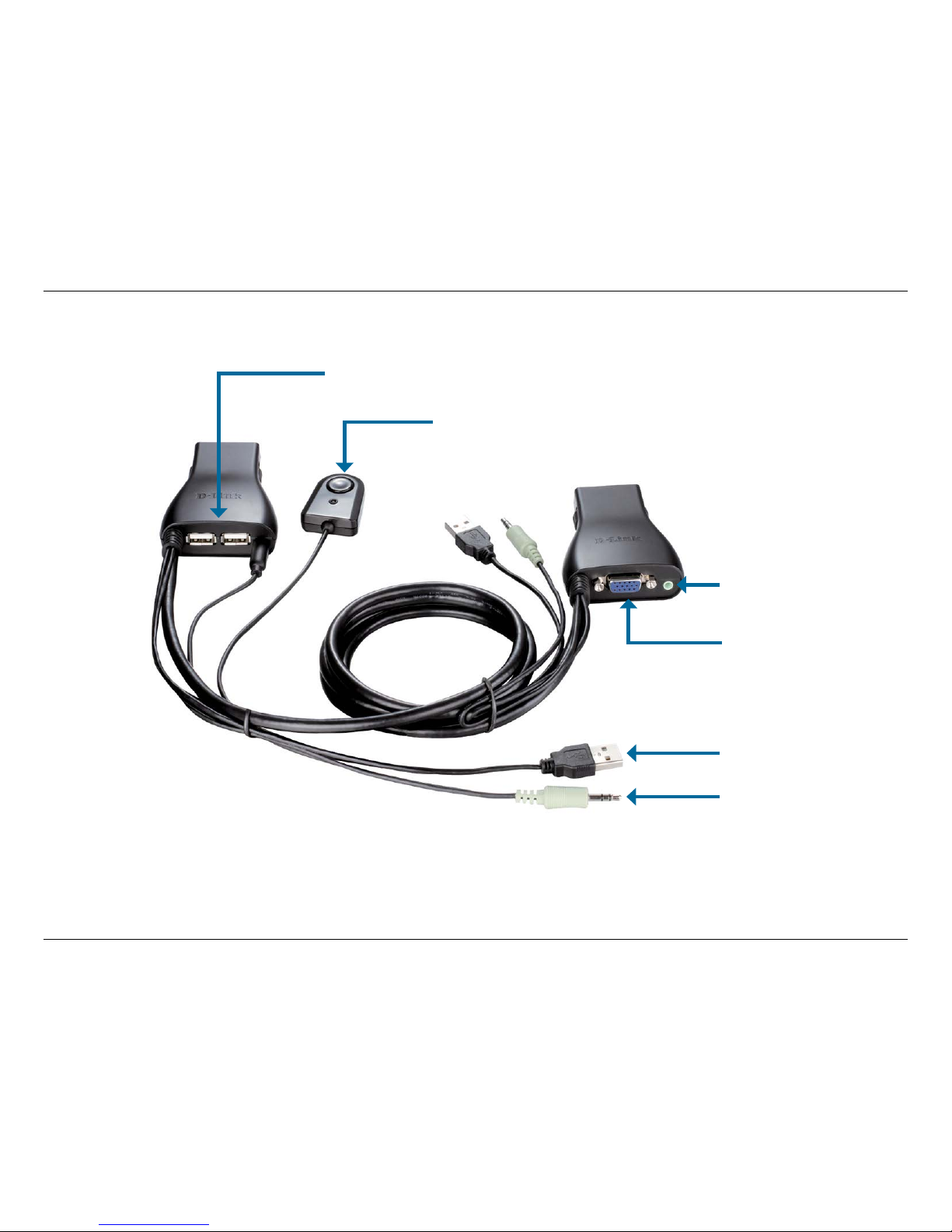
Audio Connector
Connects to PC audio port
Audio Port
Connects to speakers
VGA Connector
Connects to monitor cable
USB Connector
Connects to PC USB Port
USB Ports
Connect to keyboard and mouse
Remote Button
Toggles between PCs
Page 6
6D-Link DKVM-222 User Manual
KVM InstallationKVM Installation
Hardware Installation
Note:
This KVM Switch will not detect whether a computer is on or o if the “Power On” function is
set in the BIOS. If you switch to a computer that is turned o, nothing will be displayed on the
monitor.
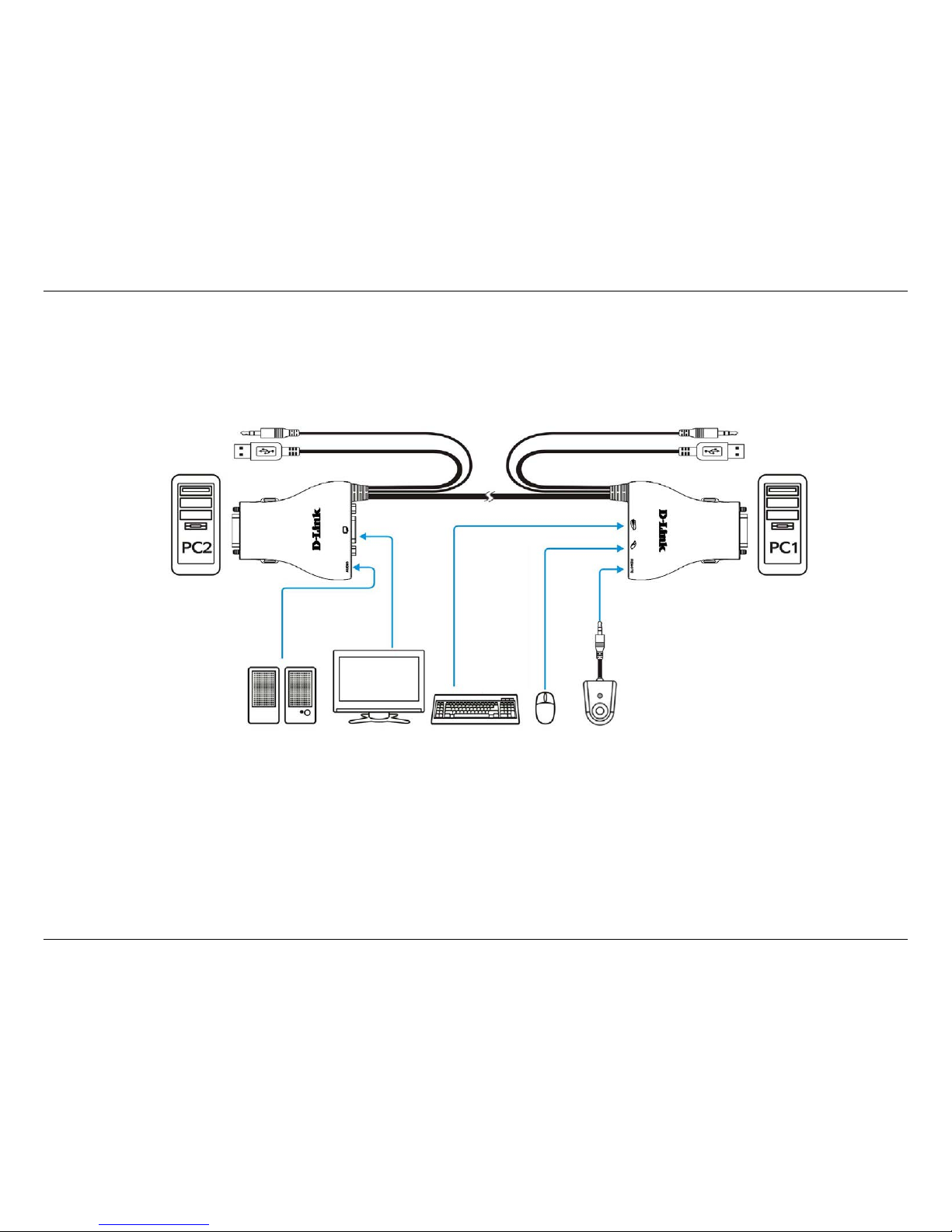
Please follow the diagram below to connect the KVM switch to your workstation computers. Speakers are optional.
Speakers Monitor Keyboard Mouse Remote
Page 7
7D-Link DKVM-222 User Manual
KVM Installation
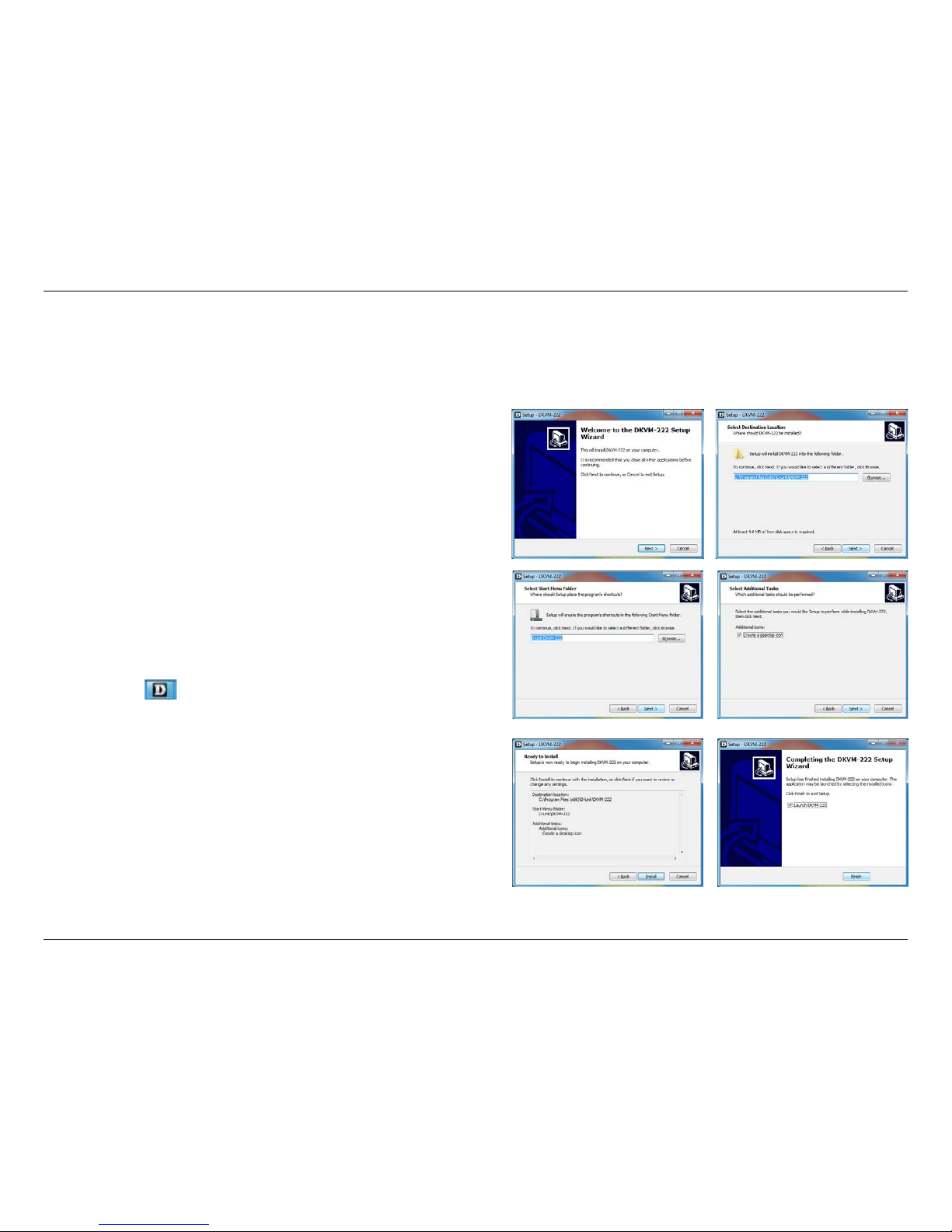
1. Please insert the installation CD-ROM into your computer's
CD drive. When the autorun screen appears, click Install.
2. When the Setup Wizard appears, click Next.
3. Please follow the installation steps on the screen.
4. Click Finish to complete the installation and launch the KVM
software.
5. When the installation is completed, a D-Link icon will appear in
the taskbar area indicating the ready status of the connected
computer.
Task bar area:
Software Installation
Windows®
Page 8
8D-Link DKVM-222 User Manual
KVM Installation
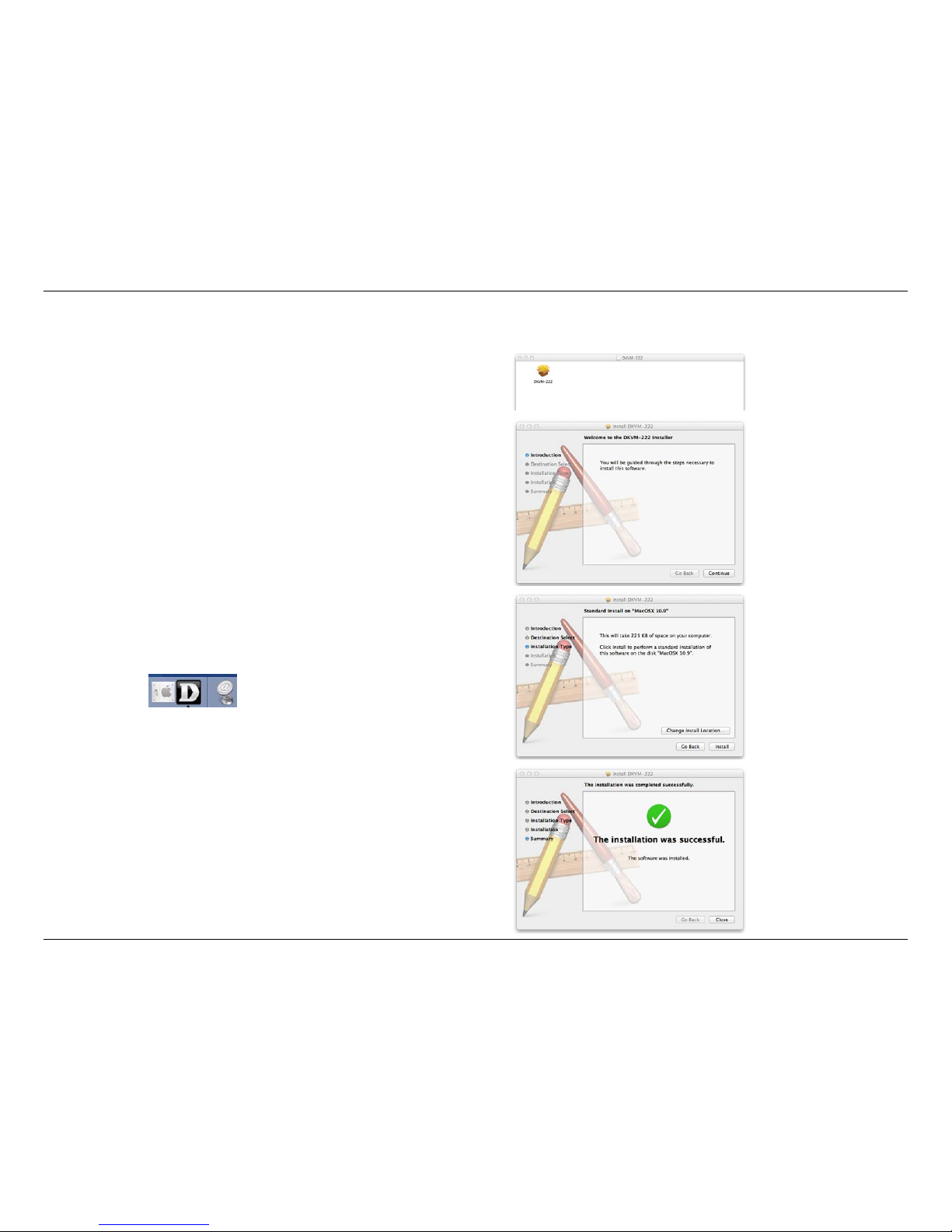
1. Please insert the installation CD-ROM into your computer's
CD drive.
2. From a Finder window, click on your CD drive and then open
the Utility folder.
3. Double-click DKVM-222_MAC_Utility.DMG and then
double-click on DKVM-222 package installer to install the
software.
4. Please follow the installation steps on the screen.
5. Click Close to complete the installation and launch the KVM
software.
6. When the installation is completed, a D-Link icon will appear
in the doc area indicating the ready status
of the connected computer.
Mac
(10.5 and higher)
Page 9
9D-Link DKVM-222 User Manual
KVM OperationKVM Operation
Software Settings
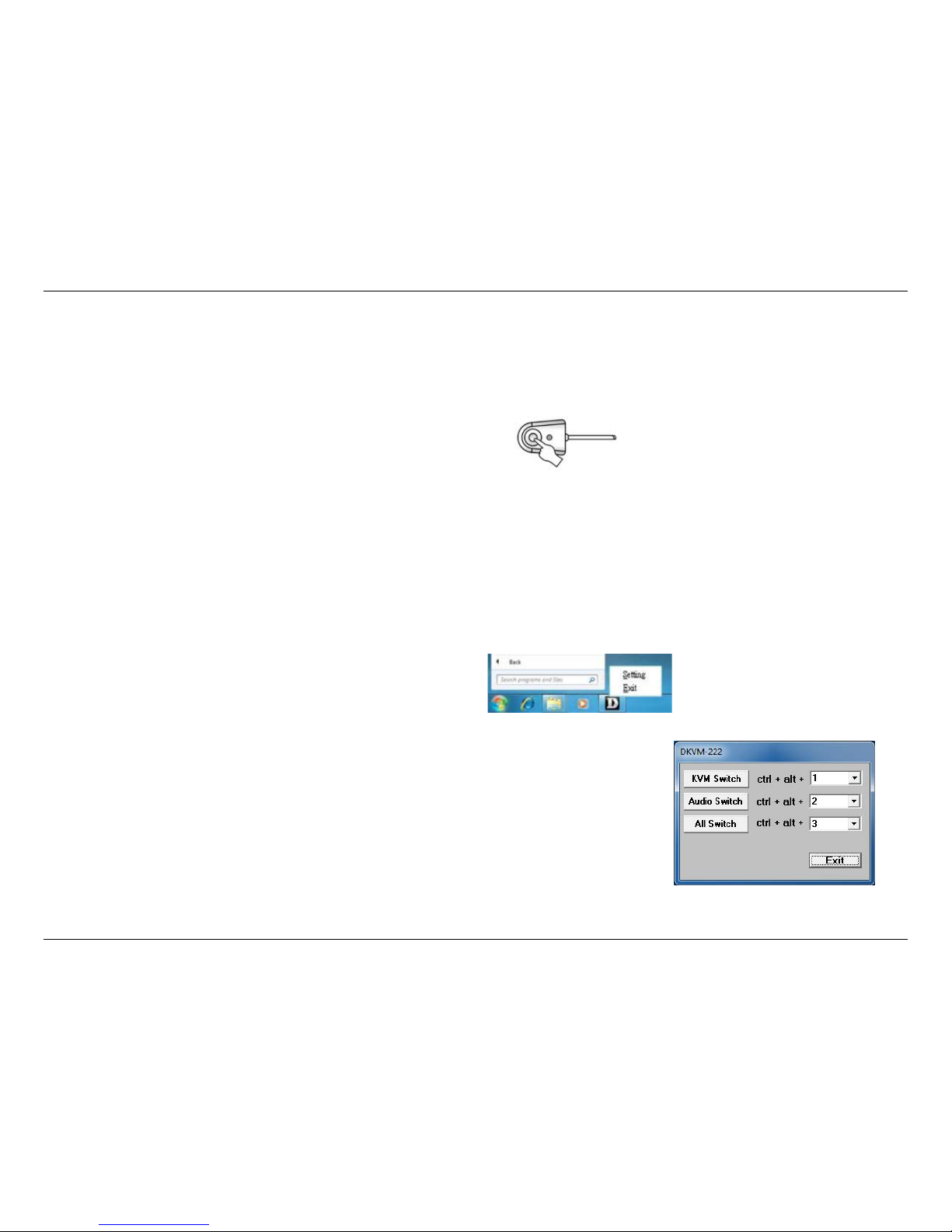
Right-click on the D-Link icon and select Setting.
The following options are available:
a. KVM Switch: This hotkey will switch between PCs but maintain the audio feed of
the original computer.
b. Audio Switch: This hotkey will switch the audio to the other PC, but maintain
control of the original computer.
c. All Switch: This hotkey will switch between PCs, including audio.
You may choose a number for each hotkey. Please choose dierent numbers for each
setting.
Remote Switching
Push the remote button to switch between computers.
The green and orange LEDs indicate the selected PC.
Hot key Switching
Press the Scroll Lock key two times to switch between PCs, including audio.
Press the Caps Lock key two times to switch between PCs but maintain the audio feed of the original computer.
Software Switching
a. Left-click on the D-Link icon to switch between PCs.
b. You may also use a specied keyboard hotkey to switch between PCs. See the instructions below.
Accessing the KVM
Windows®
Page 10
10D-Link DKVM-222 User Manual
KVM Operation
Remote Switching
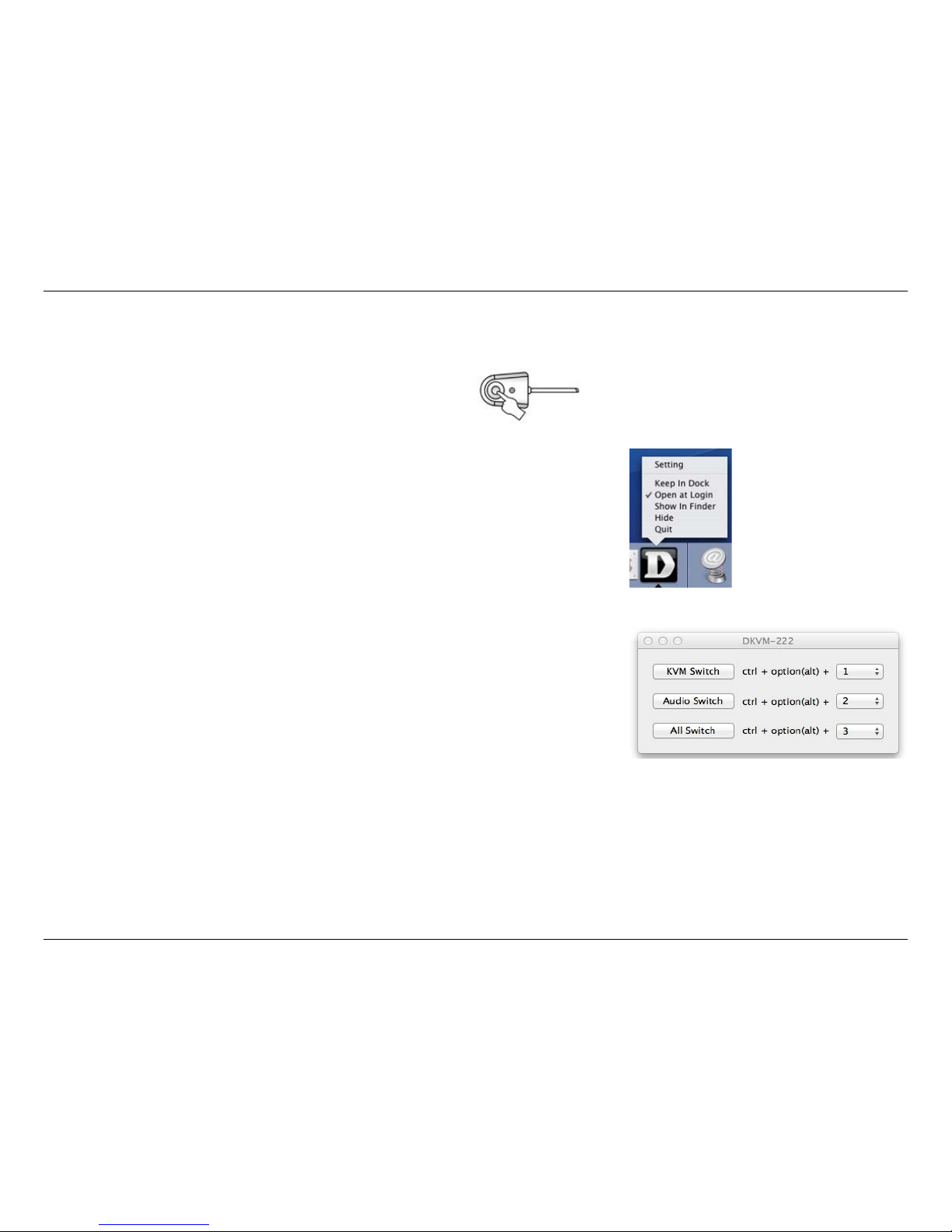
Push the remote button to switch between computers.
The green and orange LEDs indicate the selected PC.
Software Switching
a. Click on the D-Link icon to switch between PCs.
b. You may also use a specied keyboard hotkey to switch between PCs. See the
instructions below.
Software Settings
Click and hold on the D-Link icon located in the doc area for 3 seconds and select
Setting.
The following options are available:
a. KVM Switch: This hotkey will switch between PCs but maintain the audio
feed of the original computer.
b. Audio Switch: This hotkey will switch the audio to the other PC, but maintain
control of the original computer.
c. All Switch: This hotkey will switch between PCs, including audio.
You may choose a number for each hotkey. Please choose dierent numbers for
each setting.
Mac
Page 11

11D-Link DKVM-222 User Manual
KVM Operation
Linux
Remote Switching
Push the remote button to switch between computers.
The green and orange LEDs indicate the selected PC.
Page 12

12D-Link DKVM-222 User Manual
TroubleshootingTroubleshooting
Troubleshooting
When turning the computer on, the keyboard/mouse is not detected, or a keyboard/mouse error message is displayed.
• Make sure that the keyboard/mouse is properly connected to the DKVM-222. Check that the keyboard cable is
securely plugged into the correct USB keyboard port and not the USB mouse port. Check that the USB mouse
cable is plugged into the correct USB mouse port and not the USB keyboard port.
• Verify that the keyboard/mouse works when plugged into the computer directly.
• If the computer's BIOS does not support USB boot-up, the system may be unable to detect the mouse and
keyboard during startup. Please ensure that your PC BIOS supports USB boot-up, and upgrade your PC's
rmware if necessary.
• Try using a dierent USB keyboard/mouse
The computer's BIOS is correctly congured but the computer is still unable to detect the mouse and keyboard.
• Be sure to directly connect the USB KVM switch to USB port on the PC's motherboard rather than through a
port on a PCI card, Card Bus, or USB Hub.
If the image on your monitor is not clear.
• Verify that all video monitor cables are inserted properly.
• Try lowering the resolution and refresh rate of your monitor.
• Try using a shorter video cable.
If your audio is not functioning properly.
• Make sure that the speakers are properly connected to the DKVM-222.
• Verify that the speaker works when plugged directly into the computer.
• Try using a dierent set of speakers.
Page 13

13D-Link DKVM-222 User Manual
Troubleshooting
When switching to PC2, the computer still displays PC1.
• The KVM switch may not function correctly while a computer is powered o or still booting up. Ensure that the
second PC is powered on and use the hot key or remote button to switch between computers.
How do I set a hot key in Mac 10.6?
• Press CTRL + click or right-click on the D-Link icon in the doc area and click on Setting to open the settings
menu to set a hotkey.
Page 14

14D-Link DKVM-222 User Manual
Technical SpecicationsTechnical Specications
Console Connectors
Keyboard: 1 x USB female
Mouse: 1 x USB female
Monitor: 1 x HDB-15 female VGA, SVGA, XGA, MultiSync
Audio: 1 x 3.5mm Mini Stereo Jack Female
Remote: 1 x 2.5 mm 4 Pin Phone Jack (Female)
Computer Connectors (PC1 & PC2)
Keyboard/Mouse: USB Type A Male
Monitor: HDB - 15 Male
Audio: 3.5 mm Mini Stereo Jack Male (green)
Cable Length
KVM Cable - 1.8M
Switching Control
Remote Button
Hot key commands
Software Selection
Monitor Resolution
Up to 2048 X 1536
LEDs
Status
Power
Bus Powered (No External Power Adapter Required)
Software Requirements
Windows® 2000 / XP (SP2 or higher) / Vista® / 7 / 8
Mac OS (10.5 and higher)
Operating Temperature
32°F TO 122°F (0°C TO 50°C)
Operating Humidity
80% Maximum (Non-condensing)
Certications
FCC
CE
Technical Specications
 Loading...