

Page 1
Quick Install Guide
for Windows 2000
DFE-680TX/TXD
10/100 Ethernet PC Card
Please note that you will need Cat5, RJ-45 cable to complete your network
installation. Please see Appendix B for more information regarding cables.
Inserting the DFE-680TX/TXD 10/100
1
With the laptop turned ON, insert
the DFE-680TX/TXD 10/100 Ethernet PC
Card into your laptop.
Gently insert the front end (with the
yellow arrow on the card pointing
toward the computer) of the PC Card
all the way into the PCMCIA slot on
your laptop, until it is firmly seated.
Ethernet PC Card into your laptop.
Running the Found New Hardware
2
The following Welcome. Screen will
be displayed.
Click Next.
Wizard
9
Page 2
Running the Found New Hardware
2
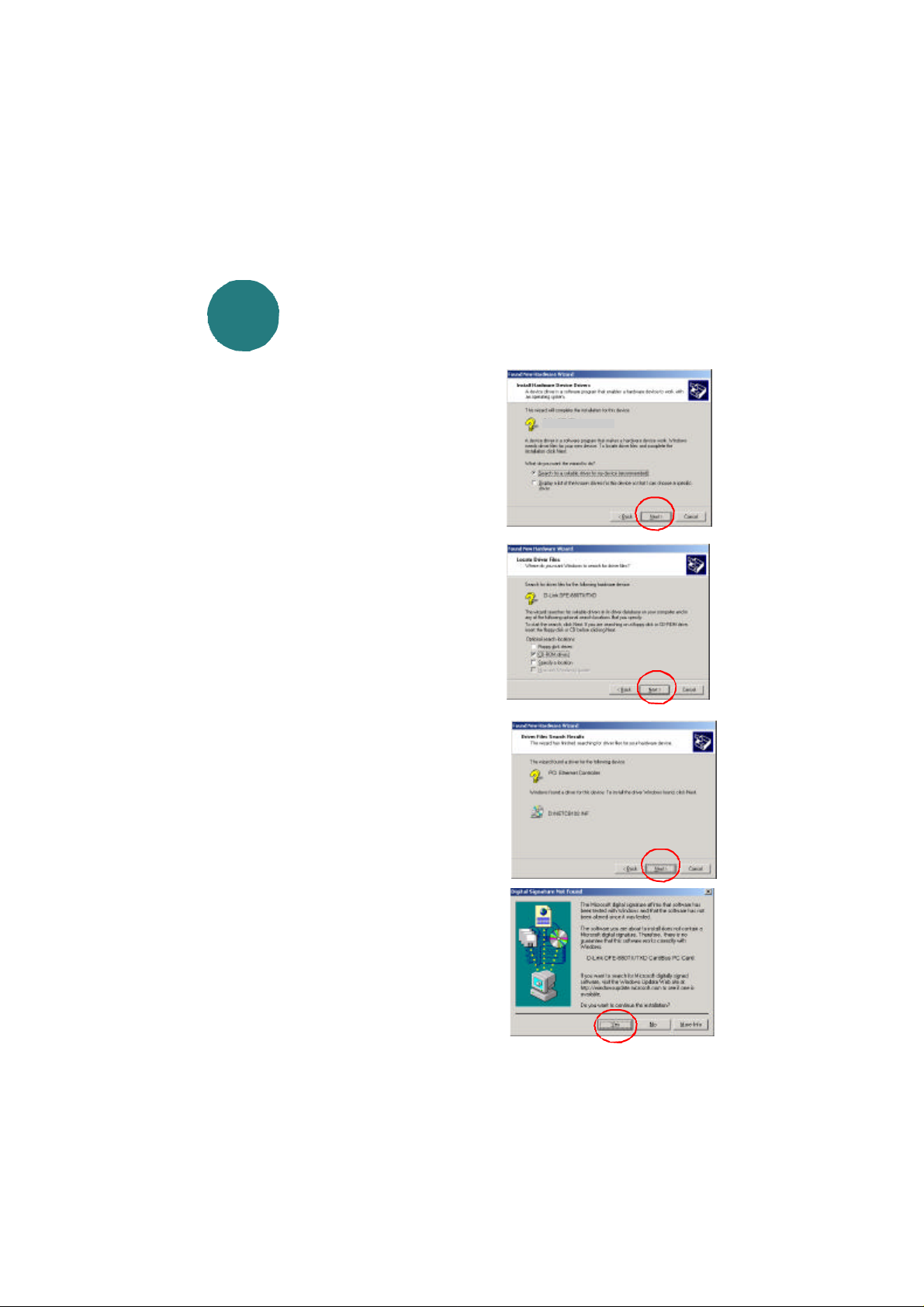
Select Search for a suitable driver for my
device at this screen.
Click Next to continue the installation.
At the following screen, choose CD-ROM
drive. Insert the CD that is included with the
PC Card.
Click Next.
The Hardware Wizard will find the driver for
your PC Card.
Wizard continued
PCI Ethernet Controller
Click Next, to continue.
The following screen will appear.
Click Yes to continue.
10
Page 3
Running the Found New Hardware
2
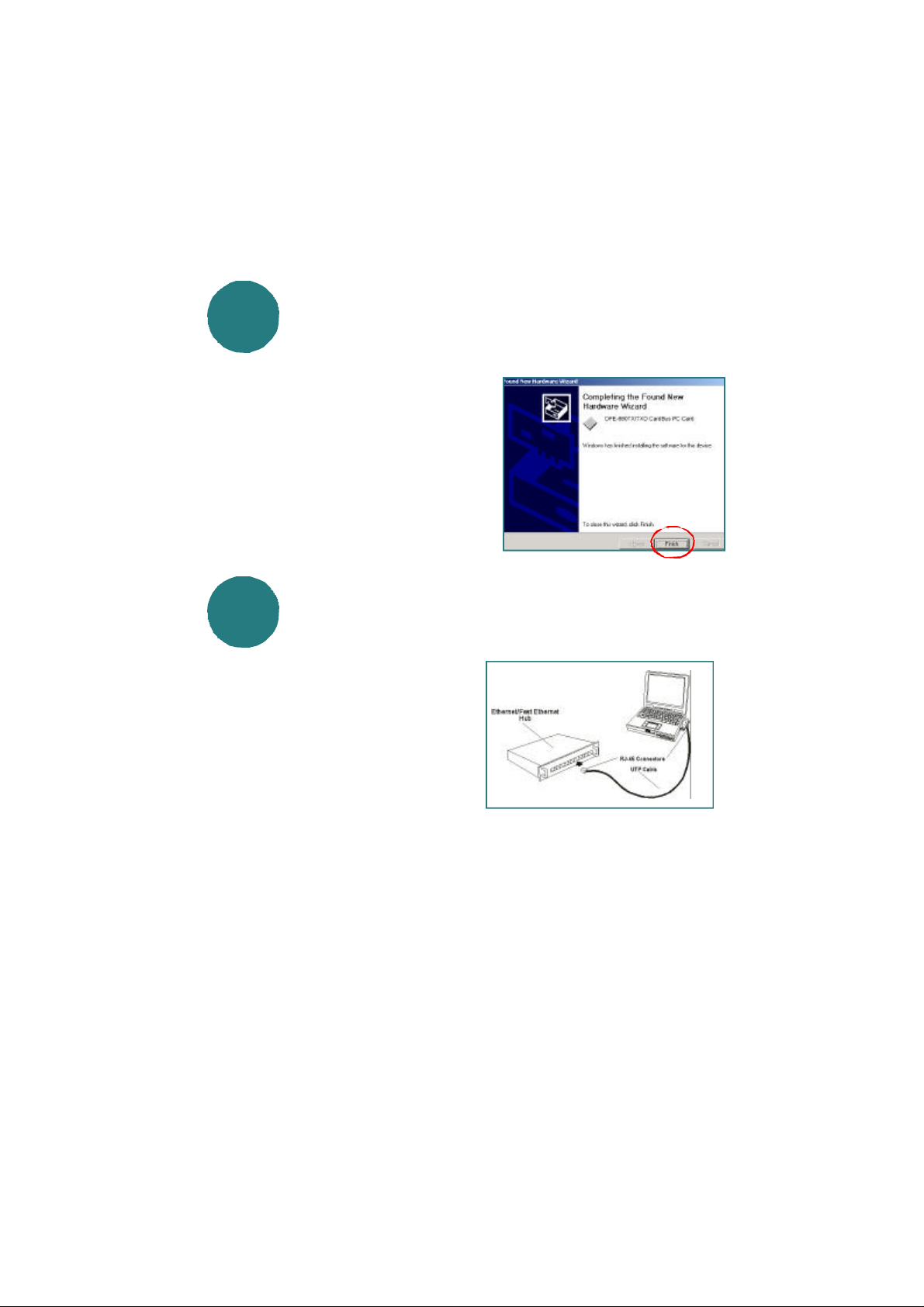
The Hardware Wizard has completed the
installation.
Click Finish.
Please see Appendix B for information
on verifying proper installation of your
DFE-680TX/TXD.
Wizard continued
Connecting to your network
3
After the Hardware Wizard has completed
the installation of the DFE-680TX/TXD,
you can now make your network
connection.
Please insert one end of the RJ-45 plug
into the opening in the DFE-680TX/TXD
Ethernet PC Card, and then insert the other
end of the RJ-45 cable into your
networking hub or switch.
You are now networked!
Please see Appendix A for more information on types and lengths of cable that
can be used to connect your network.
Note: For more information on alternate networking possibilities, please see the
Networking Basics and the Getting Started sections of the User's Manual.
11
Page 4
For instructions on configuration, please see your User's Manual.
AAPPENDIX
Connecting Your Network Cable
Category 5 UTP cable can be used for both
Fast Ethernet cabling and for traditional
Ethernet cabling.
Connecting for Fast Ethernet cabling
Cat5 cable is required for Fast Ethernet
operation. The maximum cable length between
the DFE-680TX/TXD and the supporting hub is
300 ft. The cable must be straight (not a
crossover cable), with an RJ-45 plug at each end.
Connecting for traditional (10Mbps) Ethernet cabling
Category 3, Category 4, and Category 5 UTP cable, as well as EIA/TIA-568 100-ohm STP
cable, all qualify under traditional Ethernet cabling rules. The maximum cable run
between the DFE-680TX/TXD and the supporting hub is 300 ft.
The cable must be straight (not a crossover cable) with an RJ-45 plug at each end.
APPENDIX
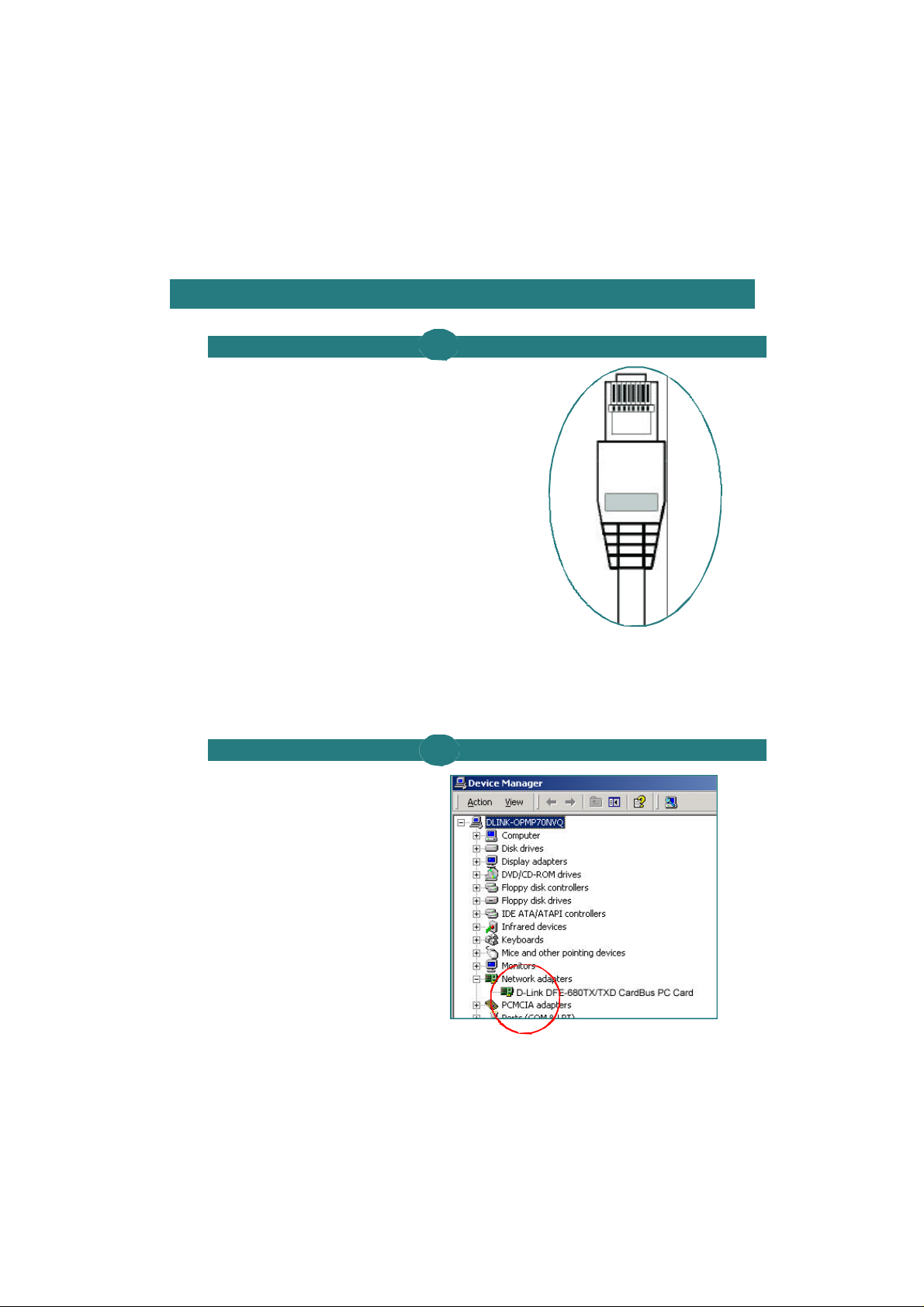
To check for the proper installation
of your DFE-680TX/TXD, please
click on START > SETTINGS >
CONTROL PANEL>, double click
on the SYSTEM icon. At the
SYSTEM PROPERTIES window,
click on the DEVICE MANAGER
tab. Your DFE-680TX/TXD will
appear under NETWORK
ADAPTERS, as shown.
B
12
 Loading...