

Page 1

Dialogic® 4000 Media Gateway Series
Reference Guide
www.dialogic.com
Page 2

Dialogic® 4000 Media Gateway Series Reference Guide
Dialogic® 4000 Media Gateway Series Reference Guide
Copyright And Legal Disclaimer
Fifth Edition (September 2009) 64-0347-05
Copyright © 2008-2009 ialogic Corporation. Dialogic Corporation. All Rights Reserved. You may not reproduce this document
in whole or in part without permission in writing from Dialogic Corporation at the address provided below.
All contents of this document are furnished for informational use only and are subject to change without notice and do not
represent a commitment on the part of Dialogic Corporation or its subsidiaries ("Dialogic"). Reasonable effort is made to ensure
the accuracy of the information contained in the document. However, Dialogic does not warrant the accuracy of this information
and cannot accept responsibility for errors, inaccuracies or omissions that may be contained in this document.
INFORMATION IN THIS DOCUMENT IS PROVIDED IN CONNECTION WITH DIALOGIC® PRODUCTS. NO LICENSE, EXPRESS OR
IMPLIED, BY ESTOPPEL OR OTHERWISE, TO ANY INTELLECTUAL PROPERTY RIGHTS IS GRANTED BY THIS DOCUMENT. EXCEPT
AS PROVIDED IN A SIGNED AGREEMENT BETWEEN YOU AND DIALOGIC, DIALOGIC ASSUMES NO LIABILITY WHATSOEVER,
AND DIALOGIC DISCLAIMS ANY EXPRESS OR IMPLIED WARRANTY, RELATING TO SALE AND/OR USE OF DIALOGIC PRODUCTS
INCLUDING LIABILITY OR WARRANTIES RELATING TO FITNESS FOR A PARTICULAR PURPOSE, MERCHANTABILITY, OR
INFRINGEMENT OF ANY INTELLECTUAL PROPERTY RIGHT OF A THIRD PARTY.
Dialogic products are not intended for use in medical, life saving, life sustaining, critical control or safety systems, or in nuclear
facility applications.
Due to differing national regulations and approval requirements, certain Dialogic products may be suitable for use only in
specific countries, and thus may not function properly in other countries. You are responsible for ensuring that your use of
such products occurs only in the countries where such use is suitable. For information on specific products, contact Dialogic
Corporation at the address indicated below or on the web at www.dialogic.com.
It is possible that the use or implementation of any one of the concepts, applications, or ideas described in this document, in
marketing collateral produced by or on web pages maintained by Dialogic may infringe one or more patents or other intellectual
property rights owned by third parties. Dialogic does not provide any intellectual property licenses with the sale of Dialogic
products other than a license to use such product in accordance with intellectual property owned or validly licensed by Dialogic
and no such licenses are provided except pursuant to a signed agreement with Dialogic. More detailed information about such
intellectual property is available from Dialogic's legal department at 9800 Cavendish Blvd., 5th Floor, Montreal, Quebec, Canada
H4M 2V9. Dialogic encourages all users of its products to procure all necessary intellectual property licenses required to
implement any concepts or applications and does not condone or encourage any intellectual property infringement and
disclaims any responsibility related thereto. These intellectual property licenses may differ from country to country and it is
the responsibility of those who develop the concepts or applications to be aware of and comply with different national license
requirements.
Dialogic, Dialogic Pro, Brooktrout, Diva, Cantata, SnowShore, Eicon, Eicon Networks, NMS Communications, NMS (stylized),
Eiconcard, SIPcontrol, Diva ISDN, TruFax, Exnet, EXS, SwitchKit, N20, Making Innovation Thrive, Connecting to Growth, Video
is the New Voice, Fusion, Vision, PacketMedia, NaturalAccess, NaturalCallControl, NaturalConference, NaturalFax and Shiva,
among others as well as related logos, are either registered trademarks or trademarks of Dialogic Corporation or its subsidiari
Dialogic's trademarks may be used publicly only with permission from Dialogic. Such permission may only be granted by
Dialogic's legal department at 9800 Cavendish Blvd., 5th Floor, Montreal, Quebec, Canada H4M 2V9. Any authorized use of
Dialogic's trademarks will be subject to full respect of the trademark guidelines published by Dialogic from time to time and
any use of Dialogic's trademarks requires proper acknowledgement.
Microsoft and Windows are registered trademarks of Microsoft Corporation in the United States and/or other countries. Other
names of actual companies and products mentioned herein are the trademarks of their respective owners.
es.
page 1
Page 3

Dialogic Corporation License Agreement For Use Of Software
Dialogic Corporation License Agreement For Use Of Software
This is an Agreement between you, the Company, and your Affiliates (referred to in some instances as "You" and in other
instances as "Company") and all Your Authorized Users and Dialogic Corporation ("Dialogic").
YOU SHOULD CAREFULLY READ THE SOFTWARE LICENSE AGREEMENT ("AGREEMENT") ON THIS SEALED PACKAGE BEFORE
OPENING THE PACKAGE. BY OPENING THE PACKAGE, YOU ACCEPT THE TERMS AND CONDITIONS OF THIS AGREEMENT. IF
YOU DO NOT AGREE WITH OR ARE UNWILLING TO ACCEPT THESE
TERMS AND CONDITIONS, YOU MAY RETURN THE PACKAGE IN UNOPENED "AS NEW" CONDITION (INCLUDING ALL
DOCUMENTATION AND BINDERS OR OTHER CONTAINERS) FOR A FULL REFUND. BY DOWNLOADING, INSTALLING, COPYING
OR OTHERWISE USING THE ENCLOSED SOFTWARE ("PROGRAM"), YOU FURTHER AGREE AND ACKNOWLEDGE THAT YOU
HAVE READ THIS AGREEMENT AND UNDERSTAND IT, AND THAT BY TAKING ANY ONE OR MORE OF SUCH STEPS/ACTIONS
YOU AGREE TO BE BOUND BY SUCH TERMS AND CONDITIONS. DIALOGIC IS UNWILLING TO LICENSE THE SOFTWARE TO
YOU IF YOU DO NOT ACCEPT AND AGREE TO BE BOUND BY THE TERMS AND CONDITIONS OF THIS AGREEMENT.
Intellectual Property
The enclosed Software ("Program") and all accompanying documentation are individually and collectively owned by Dialogic
Corporation ("Dialogic"), its subsidiaries and/or its suppliers and are protected by all applicable intellectual property laws and
international treaty provisions. Therefore, You and Your Authorized Users must treat the Program and documentation like any
other material so protected, except as expressly permitted in this Agreement. In particular, but without limitation, You
acknowledge that the Program and its accompanying documentation constitute valuable intellectual property rights, including
without limitation trade secrets and copyrights, and confidential information of Dialogic. The Program and all programs
developed thereunder and all copies thereof (including without limitation translations, compilations, partial copies with
modifications and updated works) are proprietary to Dialogic and title to all applicable copyrights, trade secrets, patents and
other intellectual property rights therein remains in Dialogic, its subsidiaries, and/or its suppliers. Except as expressly permitted
in this Agreement, You shall not sell, transfer, publish, disclose, display or otherwise make available the Program or copies
thereof to others. You agree to secure and protect the Program, its accompanying documentation and copies thereof in a
manner consistent with the maintenance of Dialogic's rights therein and to take appropriate action by instruction or agreement
with Your employees and/or consultants who are permitted access to the Program to satisfy Your obligations hereunder.
Violation of any provision of this paragraph shall be the basis for immediate termination of this Agreement. Because
unauthorized use or transfer of the Software or documentation may diminish substantially the value of such materials and
irrevocably harm Dialogic, if You breach the provisions of this Section of this Agreement, Dialogic shall be entitled to injunctive
and/or other equitable relief, in addition to other remedies afforded by law, to prevent a breach of this Section of this Agreement.
Grant of License
Subject to the terms and conditions of this Agreement Dialogic grants to You a non-exclusive, personal, non-transferable
license to use the Program in object code form only and solely in accordance with the following terms and conditions:
• You may make, install and use only one (1) copy of the Program on a single-user computer, file server, or on a workstation
of a local area network, and only in conjunction with a legally acquired Dialogic® hardware or software product You may
also make one copy solely for backup or archive purposes;
• The primary Authorized User on the computer on which the Program is installed may make a second copy for his/her
exclusive use on either a home or portable computer;
• You may copy the Program into any machine readable or printed form for backup or modification purposes in support of
Your use of one copy of the Program;
• You may distribute the Program in object code only and only as part of, or integrated by You into, a computer system that
(i) contains a Dialogic hardware product, (ii) includes a substantial amount of other software and/or hardware manufactured
or marketed by You and (iii) is marketed and sublicensed to an end user for the end user's own internal use in the regular
course of business (a "Licensed System");
• Each end user to whom a Licensed System is distributed must agree to license terms with respect to the Program that are
at least as protective of Dialogic's rights in the Program as those set forth in this Agreement;
• You shall receive one (1) Program master disk, and shall be solely responsible for copying the Program into the Licensed
Systems and for warranting the physical media on which it is copied
• You may make one (1) copy of the documentation accompanying the Program, provided that all copyright notices contained
within the documentation are retained;
• You may modify the Program and/or merge it into another Program for Your use in one computer; (any portion of this
Program will continue to be subject to the terms and conditions of this Agreement);
• You may transfer the Program, documentation and the license to another eligible party within Your Company if the other
party agrees to accept the terms and conditions of this Agreement. If You transfer the Program and documentation, You
must at the same time either transfer all copies whether in printed or machine readable form to the same party or destroy
any copies not transferred; this includes all modifications and portions of the Program contained in or merged into other
Programs;
page 2
Page 4

Dialogic® 4000 Media Gateway Series Reference Guide
• You shall not remove, and each copy of the Program shall contain, the same copyright, proprietary, patent and/or other
applicable intellectual property or other ownership notices, plus any restricted rights legends that appear in the Program
and/or this Agreement and, if You copy the Program onto media to which a label may be attached, You shall attach a label
to the media that includes all such notices and legends that appear on the Program master disk and envelope;
• You may not rent or lease the Program. You may not reverse engineer, decompile or disassemble the Program. Except as
is strictly necessary for You to integrate the Program with other software and/or hardware to produce the Licensed Systems,
You shall not copy, modify or reproduce the Program or documentation in any way. You shall use Your best efforts to ensure
that any user of the Program does not reverse engineer, decompile or disassemble the Program to derive a source code
equivalent of the Program;
• If You transfer possession of any copy, modification or merged portion of the Program or documentation to another party
in any way other than as expressly permitted in this Agreement, this license is immediately and automatically terminated;
• The Program may be used only in conjunction with Dialogic hardware;
• The Program shall not be exported or re-exported in violation of any export provisions of the United States or any other
applicable jurisdiction.
Upgrades
If the Program is provided as an upgrade and the upgrade is an upgrade from another product licensed to You and Your
Authorized Users by Dialogic, the upgrade is governed by the license agreement earlier provided with that software product
package and the present Agreement does not grant You additional license(s).
Term
The Agreement is effective until terminated. You may terminate it at any time by notifying Dialogic and/or by destroying the
Program and all accompanying documentation together with all copies, modifications and merged portions in any form. The
Agreement will also terminate automatically upon the occurrence or lack of occurrence of certain terms and/or conditions set
forth in this Agreement, or if You fail to comply with any term or condition of this Agreement. You agree that upon any such
termination You shall destroy or return to Dialogic the Program and all accompanying documentation supplied by Dialogic,
together with any and all copies, modifications and merged portions in any form. All provisions of this Agreement relating to
disclaimers of warranties, limitation of liability, remedies, or damages, and licensor's proprietary rights shall survive
termination.
Limited Warranty
Dialogic solely warrants the media on which the Program is furnished to You to be free from defects in materials and
workmanship under normal use for a period of ninety (90) days from the date of purchase by You as evidenced by a copy of
Your receipt. If such a defect appears within the warranty period, You may return the defective media to Dialogic for replacement
without charge provided Dialogic, in good faith, determines that it was defective in materials or workmanship. Replacement
is Your sole remedy with respect to such a defect. Dialogic offers no warranty for Your reproduction of the Program. This
Limited Warranty is void if failure of the Program has resulted from accident, misuse, abuse or misapplication.
Disclaimers, Limitations of Liability and Customer Remedies
Except as set forth in the "Limited Warranty" Section of this Agreement, the Program and accompanying documentation are
provided to You "as is." Neither Dialogic, its subsidiaries, its suppliers, nor its licensor(s) (if any) warrants that the Program
will meet Your requirements or that its use will be uninterrupted or error-free. Except as set forth in the "Limited Warranty"
Section, EACH OF DIALOGIC, ITS SUBSIDIARIES, ITS SUPPLIERS AND ITS LICENSOR(S) (IF ANY) DISCLAIMS ANY AND ALL
REPRESENTATIONS AND WARRANTIES, EXPRESS OR IMPLIED, WITH RESPECT TO THE PROGRAM AND ACCOMPANYING
DOCUMENTATION, INCLUDING BUT NOT LIMITED TO THE IMPLIED WARRANTIES OF NON-INFRINGEMENT, MERCHANTABILITY,
FITNESS FOR A PARTICULAR PURPOSE, OR AGAINST LATENT DEFECTS. Except as set forth in the "Limited Warranty" Section,
neither Dialogic, its subsidiaries, its suppliers, nor its licensor(s) (if any) shall have any liability to You or any third party for
any claim, loss or damage of any kind, including but not limited to lost business profits, business interruption, loss of
information, or other pecuniary loss and indirect, punitive, incidental, economic, consequential or special damages, arising
out of or in connection with this Agreement and/or the use, inability to use the Program and/or the Program's performance
or inability to perform nor from or in connection with the Program's accompanying documentation, or any data or equipment
related thereto or used in connection therewith. In no event shall Dialogic's, its subsidiaries', its suppliers' or its licensor(s)'s
liability for damages, whether arising out of contract, negligence, warranty, or patent or copyright infringement, exceed the
fees You paid for the Program. No representation or warranty regarding the Program may be made without Dialogic's, its
subsidiaries', its suppliers', or its licensor(s)'s (if any) prior written consent, and any warranty or representation made by You
or Your customers regarding the Program shall not constitute an obligation of Dialogic, its subsidiaries, its suppliers, or other
licensor(s) (if any). This limited warranty gives You specific legal rights. You may have other rights, which may vary from
jurisdiction to jurisdiction. Also, as some jurisdictions do not allow the exclusion or limitation for certain damages, some of
the above limitations may not apply to You.
page 3
Page 5

Dialogic Corporation License Agreement For Use Of Software
Right to Audit
If this Program is licensed for use in a Company, Your Company and You individually and collectively agree to keep all usual
and proper records and books of accounts and all usual proper entries relating to each installation of the Program during the
term of this Agreement and for a period of three (3) years thereafter. During this period, Dialogic may cause an audit to be
made of the applicable records in order to verify Your compliance with this Agreement and prompt adjustment shall be made
to compensate for any errors or omissions disclosed by such audit. Any such audit shall be conducted by an independent
certified public accountant selected by Dialogic and shall be conducted during the regular business hours at Your offices and
in such a manner as not to interfere with Your normal business activities. Any such audit shall be paid for by Dialogic unless
material discrepancies are disclosed. For such purposes, "material discrepancies" shall mean three percent (3%) or more of
the Authorized Users within the Company. If material discrepancies are disclosed,
Your Company agrees to pay Dialogic for the costs associated with the audit as well as the license fees for the additional
licensed channels or additional authorized users. In no event shall audits be made more frequently than semi-annually unless
the immediately preceding audit disclosed a material discrepancy.
Supplementary Software
Any Supplementary Software provided with the Program and/or referred to in this Agreement is provided "as is" with no
warranty of any kind.
Miscellaneous
You acknowledge that You have read this Agreement, that You understand it, and that You agree to be bound by its terms
and conditions, and You further agree that this is the complete and exclusive statement of the Agreement between the Dialogic
and You ("the Parties"), which supersedes and merges all prior proposals, understandings and all other agreements, oral and
written, between the Parties relating to the Program. You agree to indemnify and hold harmless Dialogic and its subsidiaries,
affiliates, suppliers, officers, directors and employees from and against any claim, injury, loss or expense, including reasonable
attorneys' fees, arising out of (i) Your failure to comply with the provisions of this Agreement, or (ii) any other wrongful conduct
by or on behalf of You. This Agreement applies to all updates, future releases, modifications and portions of the Program
contained in or merged into other programs. This Agreement may not be modified or altered except by written instrument
duly executed by Dialogic. No action, regardless of form, arising out of this Agreement or the use of the Program may be
brought by You more than two (2) years after the cause of action has first arisen. Except as provided herein, neither this
Agreement nor any rights granted are assignable or transferable, and any assignment or transfer will be null and void. If You
authorize any other person to copy the Program, You shall obligate that person in writing to comply with all conditions of this
Agreement. Dialogic shall have the right to collect from You its reasonable expenses incurred in enforcing this agreement,
including attorney's fees. The waiver or failure of Dialogic to exercise in any respect any right provided for herein shall not be
deemed a waiver of any further right hereunder. All rights and remedies, whether conferred hereunder or by any other
instrument or law, will be cumulative and may be exercised singularly or concurrently. Failure by either Dialogic or You to
enforce any term or condition of the Agreement will not be deemed a waiver of future enforcement of that or any other term
or conditions. The terms and conditions stated herein are declared to be severable. Should any term(s) or condition(s) of this
Agreement be held to be invalid or unenforceable the validity, construction and enforceability of the remaining terms and
conditions of this Agreement shall not be affected. It is expressly agreed that Dialogic and You are acting as independent
contractors under this Agreement. These terms and conditions will prevail notwithstanding any different, conflicting or
additional terms and conditions that may appear on any other agreement between Dialogic and You. Deviations from these
terms and conditions are not valid unless agreed to in writing in advance by an authorized representative of Dialogic. Any
notices sent to Dialogic under this Agreement must be sent by registered mail or courier to the attention of Dialogic's legal
department at the address below or such other address as may be listed on www.dialogic.com from time to time as being
Dialogic's Montreal headquarters.
U.S. Government Restricted Rights
The Program and all accompanying documentation are provided with RESTRICTED RIGHTS. Use, duplication or disclosure by
the U.S. Government is subject to restrictions as set forth in subparagraph (c)(1)(iii) of The Rights in Technical Data and
Computer Software clause at DFARS 252.227-7013 or subparagraph (c) (1) and (2) of the Commercial Computer
Software-Restricted Rights at 48 CFR52.227-19, both as applicable.
Governing Law
Any and all claims arising under this Agreement shall be construed and controlled by the laws in force in the Province of
Quebec, Canada, excluding its principles of conflict of laws and the United Nations Convention on Contracts for the Sale of
Goods. Dialogic is not obligated under any other agreements unless they are in writing and signed by an authorized
representative of Dialogic.
page 4
Page 6

Dialogic® 4000 Media Gateway Series Reference Guide
Contractor/ manufacturer is:
Dialogic CORPORATION.
9800 Cavendish Blvd., Montreal, Quebec, Canada H4M 2V9
This Agreement has been drafted in English at the express wish of the parties. Ce contrat a été rédigé en anglais à la demande
expresse des parties.
page 5
Page 7

Contents
Copyright And Legal Disclaimer ...................................................................... 1
Dialogic Corporation License Agreement For Use Of Software ............................. 2
About This Publication................................................................................... 9
Feature Overview ......................................................................................... 9
PBX Interoperability.................................................................................... 14
®
Dialogic
Data Security Overview............................................................................... 42
Call Processing With The Dialogic
Call Address Processing With The Dialogic
Address Map Processing With The Dialogic
Diva® SIPcontrolTM Software Configuration ...................................... 15
®
Diva® SIPcontrolTM Software ...................... 46
®
Diva® SIPcontrolTM Software........... 49
®
Diva® SIPcontrolTM Software .......... 50
®
Number Processing With The Dialogic
Cause Code Mapping With The Dialogic
Event Logging With The Dialogic
®
Diva® SIPcontrolTM Software................. 50
®
Diva® SIPcontrolTM Software .............. 54
Diva® SIPcontrolTM Software........................ 60
Configuration Scenarios .............................................................................. 62
®
SNMP Support For A Dialogic
Verify The Line Configuration With The Dialogic
Create A Trace With The Dialogic
Diva® Media Board .......................................... 93
®
Diva® Line Test Tool ............. 100
®
Diva® Diagnostics Tool ............................. 105
Customer Service ..................................................................................... 107
page 7
Page 8

page 8
Page 9

Dialogic® 4000 Media Gateway Series Reference Guide
Dialogic® 4000 Media Gateway Series Reference Guide
About This Publication
The Dialogic® 4000 Media Gateway Series are pre-installed with the Windows® versions of the Dialogic® Diva®
System Release software and the Dialogic
information about both software versions, such as Diva SIPcontrol configuration parameters, the Dialogic
Diagnostics tool, the Dialogic® Diva® Line Test tool, and the SNMP configuration for Dialogic® Diva® Media Boards.
Various configuration scenarios are also included, as well as information about the different support options.
®
Diva® SIPcontrolTM software. This reference guide contains relevant
®
Diva®
The term "Dialogic® 4000 Media Gateways" is used herein to refer collectively to the Dialogic® 4000 Media
Gateway Series and the term "Dialogic
®
4000 Media Gateway" is used herein to refer a gateway in the Dialogic®
4000 Media Gateway Series.
Feature Overview
For the list of Dialogic® Diva® SIPcontrolTM software features, see below.
For the list of Dialogic® Diva® Media Board features, see page 12.
Dialogic® Diva® SIPcontrolTM software features
General features
• Support for Microsoft® Office Communications Server 2007 Release 2
• Noise suppression support
• Echo cancellation selectable via GUI
• Forward the display name from SIP to Q.SIG and vice versa
• Support for Windows Vista® and Windows Server® 2008
• Diva SIPcontrol software update via web interface
• Interoperability with Dialogic® Host Media Processing (HMP) software 3.0WIN and 3.1LIN
• Configuration via web interface
• Standard web browsers can be used for configuring. The Dialogic® Diva® SIPcontrolTM Software has been
tested with the following browsers:
• Microsoft® Internet Explorer® version 6 and 7
• Mozilla Firefox version 2.0 and 3.0
• Remote configuration of the Diva SIPcontrol software from any computer in the network
• Cause codes: Configurable translation of ISDN cause code to SIP response code and vice versa; consequently,
the Diva SIPcontrol software can adapt to the specific behavior of the PSTN, PBX, and/or SIP peer.
• Configuration changes during runtime: Modify most parameters of the Diva SIPcontrol software without the
need to restart the service; active calls are not affected by configuration updates and continue undisturbed.
• Support for North American numbering plan: The configuration of multiple area codes is handled as local.
Therefore, the Dialogic® Diva® SIPcontrolTM Software dialplan engine is able to automatically format dialed
numbers according to local phone provider requirements without any additional regular expressions.
• Interoperability with the Dialogic® Brooktrout® Bfv API SDK: The Dialogic® Brooktrout® SR140 Fax Software
version 5.2.1 has been confirmed via testing to be V.34/T.38 interoperable with the Diva SIPcontrol software.
The Brooktrout SR140 Fax Software is high-performance, host-based T.38 fax software for IP networks.
• Codec configuration: Configuration options for supported audio and fax codecs. See Media processing on
page 10 for supported codecs.
• Support for Proxy and Registrar authentication
• Support for registering the Diva SIPcontrol software as an e-phone gateway
page 9
Page 10

Feature Overview
• Support for Early Media: Early Media is supported for calls from SIP to the PSTN. For calls from the PSTN to
SIP, it depends on the used line protocol.
• Configuration of Dialogic® Diva® Media Board parameters via the web interface
• Interoperability with the Dialogic® Host Media Processing (HMP) software
• Support for up to 64 ports per system for Dialogic® Diva® BRI and Analog Media Board installations
• Support for up to 240 ports per system for Dialogic® Diva® PRI Media Board installations
Call handling
• Support for TLS and SSL encryption and authentification
• Support for SRTP (secure Real-time Transport Protocol)
• Support for SIPS (Secure SIP)
• Support for RTCP
• SIP methods: ACK, BYE, INVITE, NOTIFY*, REFER, CANCEL, OPTIONS
• Configurable IP transport layer TCP, UDP, or TLS
• Basic call incl. numbering services:
• Called Party Number
• Calling Party Number
• Redirecting Number
• Call Routing
• Call Hold/Retrieve (e.g., Re-Invite mapping towards ISDN)
• PSTN-side Call Transfer (i.e., Refer points to PSTN)
• PSTN-side incoming Call Diversion
• Message Waiting Activation / Deactivation
• Support of REDIRECT (Moved Temporarily)
• SIP Session Timer (RFC 4028)
• Simplified Number Normalization based on PSTN connection parameters
• Number Manipulation using Regular Expressions
* NOTIFY in combination with SUBSCRIBE are used to provide the feature Message Waiting Activation /
Deactivation with regular SIP clients. However, in a gateway configuration applications are using the features
without the need for the Dialogic
®
Diva® SIPcontrolTM software to use SUBSCRIBE.
Media processing
• Support for the following codecs:
• G.711 A-law and u-law
• G.726 (16, 24, 32, and 40 kbps)
•G.729
• GSM-FR
• iLBC
Note: For G.729, you need to purchase and activate a license before you can use it. See the Dialogic® 4000
Media Gateway Quickstart Guide for more information.
Note: iLBC is only available on Dialogic® Diva® V-2PRI and V-4PRI Media Boards.
• RTP dynamic payload audio/telephony event
• RTP profile RTP/AVP
• DTMF via RTP payload/telephony event (RFC 2833)
page 10
Page 11

Dialogic® 4000 Media Gateway Series Reference Guide
• PSTN-side fax tone detection via RTP event (RFC 2833)
• Echo Canceller with up to 256 ms
• T.38 Fax up to V.34 (SuperG3 Fax)
Reliability
• Load balancing and failover on PSTN side
• Load balancing and failover on SIP side (optionally uses OPTIONS for keep-alive check)
• Alive check for active calls on SIP side via SIP session timer
Supported RFCs
• RFC2617 - HTTP Digest Authentication
• RFC2833 - RTP Payload for DTMF Digits, Telephony Tones and Telephony Signals
• RFC3261 - Session Initiation Protocol
• RFC3262 - Reliability of Provisional Responses in Session Initiation Protocol (SIP)
• RFC3264 - An Offer/Answer Model with Session Description Protocol
• RFC3265 - SIP-specific Event Notification
• RFC3326 - The Reason Header Field for the Session Initiation Protocol (SIP)
• RFC3389 - RTP Payload for Comfort Noise
• RFC3398 - ISDN to SIP mapping
• RFC3420 - Internet Media Type message/sipfrag
• RFC3515 - REFER method
• RFC3550 - Realtime Transport Protocol (RTP)
• RFC3551 - RTP/AVP profile
• RFC3711 - The Secure Real-time Transport Protocol (SRTP)
• RFC3842 - Message Waiting Indication for SIP
• RFC3891 - SIP "Replaces" header
• RFC3892 - SIP Referred - By Mechanism
• RFC3951 - Internet Low Bit Rate Codec (iLBC)
• RFC3952 - Real-time Transport Protocol (RTP) Payload Format for internet Low Bit Rate Codec (iLBC) Speech
• RFC3960 - Early Media and Ringing Tone Generation in the Session Initiation Protocol (SIP)
• RFC4028 - Session Timers in SIP
• RFC4497 - Interworking between SIP and QSIG
• RFC4566 - Session Description Protocol (SDP)
• RFC4568 - SDP Security for Media Streams
• Draft: Diversion Indication in SIP (draft-levy-sip-diversion-08)
page 11
Page 12

Feature Overview
Enhanced routing
• Defines which CAPI controller is used for which calls from SIP
• Increased flexibility of load balancing and failover functionality; load balancing and failover can be used
together and are available for calls to the PSTN as well
• Number-based routing also available for calls to the PSTN
• Matching rules for number-based routing can contain regular expressions
• Routing based on calling or redirected number, the redirected number is only available for calls from the PSTN
Enhanced address manipulation
• Define the number manipulation on three different stages of the call routing (inbound, route selection,
outbound)
• Unlimited number of regular expressions for number manipulation at each stage of call routing
• Different dialplans can be entered for each controller and each SIP peer, which can ease the deployment in
an environment with multiple locations
Dialogic® Diva® Media Board features
This list includes only features relevant for the Dialogic® 4000 Media Gateways. If you are interested in the
complete list of features, consult the Dialogic
®
Diva® System Release Reference Guide available at:
www.dialogic.com/manuals.
General features
• Support for the ISDN basic rate interface (BRI), the ISDN primary rate interface (PRI), the channelized E1
interface, and the channelized T1 interface
• Support for fractional PRI, E1, and T1 lines
• Support for multiple PRI, E1, and T1 lines
• Automatic Diva Media Board detection
• Support for ISDN lines with a transfer rate of 64 kbps or 56 kbps (for example some regions in the USA)
• Support for channelized T1 lines with a transfer rate of 56 kbps (see Channelized T1 (robbed bit signaling)
on page 14)
• Support for unchannelized lines with a transfer rate of 64 kbps or 56 kbps
• Support for R2 signaling E1 lines with a transfer rate of 64 kbps
• Support for up to 120 B-channels
• Support for all known switch types (ISDN protocols)
• Support for Q.SIG protocol (see Q.SIG features on page 14)
• Additional security through support of RSA
• Dialogic® Diva® V-PRI Multiport Media Boards: Creation of a trace message in the trace file if maximum
operation temperature is exceeded.
• Support for collecting phone number ranges or a specific number on incoming calls by the software.
• Support for a wide range of Windows® event logs. Driver and connection errors and informative messages
are listed in the MOM (Microsoft
see the Dialogic
®
Diva® Configuration Manager Online Help file (DSMain.chm).
®
Operation Manager). For a detailed description of the errors and messages
• Support for call deflection or call rerouting
• Support for redirecting number emulation (for incoming calls). In this case, the called party number is
delivered as redirecting number to the application.
• ECT Link Balance: To avoid confusion with call transfer and multiple incoming calls, each incoming call is
delivered to a separate TEI. This feature is only valid for Dialogic
®
Diva® BRI Media Boards and
Point-to-Multipoint interfaces.
page 12
Page 13

Dialogic® 4000 Media Gateway Series Reference Guide
• Call Rate Limiter: Limitation of the amount of outgoing calls per second. Some switches may require limitation
of calls in order to grant stability of the PSTN network.
• Support for DTMF transmission, DTMF detection, DTMF clamping
DSP-based features
• Real time protocol (RTP)
• Dynamic anti-jitter buffering
• Comfort noise generation (CNG)
• Voice activity detection (VAD)
• Support for 256 ms echo cancellation on all channels in parallel on Diva V-PRI Multiport Media Boards
Fax and modem features
Note: These features are available only after activating the corresponding license. See the Dialogic® 4000 Media
Gateway Quickstart Guide for more information.
• TDM fax support, up to V.34 (33.600 bps and lower bit rates)
• Support for Fax G3, T.30, V.34 HDX, V.17, V.29, V.27ter, V.21, V.34
• Fax Compression MH, MR, MMR
• Error Correction Mode ECM
• Fax Polling
• Reversal Fax Direction
• Fax Password, Sub Addressing, 'new header line'
• Page Formats A4, B4, A3
• Resolutions fine, super fine, ultra fine
• Color Fax JPEG format
• T.38 FoIP (PSTN - IP Gateway mode)
• Support for color fax via CAPI (JPEG format; sending and receiving single or multi-page documents;
fallback to gray scale if remote side does not support color fax)
• Data modem support, up to V.90
• All modem modulations POS up to V.90 (client and server side)
• V.21, V.23, V.22, V.22bis, Bell 103, Bell 212A, V.32, V.32bis, V.34, V.90, including error correction MNP,
V.42, SDLC and compressions V.42bis, MNP 5
• POS modulations V.22 FC, V.22bis FC, V.29 FC
• Text telephone modem: V.18, V.21, Bell 103, V.23, EDT, Baudot 45, Baudot 47, Baudot 50, DTMF
• Extended modulations V.23 half duplex, V.23 on hook (SMSC mode), V.23 off hook, Bell 202 (POS), Telenot
• RAS (Remote Access Service) support
• Connection to ISDN routers, enabling access to a remote LAN or the Internet
• Network access for PPP-compatible clients
• Connection to a Windows® server from digital, analog, and mobile networks with only one telephone
number
• Automatic detection of ISDN service, synchronous/asynchronous framing, and B-channel protocol of
incoming calls
• Synchronous/asynchronous conversion
• Support for LAN protocols: TCP/IP, IPX/SPX, NetBIOS, NetBEUI, LAN Manager API
page 13
Page 14

PBX Interoperability
• Support for ISDN B-channel protocols: HDLC, X.75, V.120, V.110, PIAFS 1.0 and 2.1, modem V.34+ and
V.90, fax connections, V.42/LAPM (error correction), and V.42bis compression
• Encryption, data compression, number checking, shorthold mode, callback function
• Modem emulation support
• COM port for 16-bit Windows® applications
• TAPI-compliant pre-initialized Dialogic® Diva® modems (Diva V.120 Modem (64K), Diva Fax Modem
(Fax Class 1/ Fax Class 2), Diva Analog Modem)
• Diva V.120 Modem (56K)
• Diva V.110 Modem
• Diva X.75 Modem (64K)
• Diva X.75 Modem (56K)
• Diva PPP-Modem (64K)
• Diva PPP-Modem (56K)
• Diva X.25 Modem
• Diva Generic Modem (network access for PPP-compatible clients, automatic detection of ISDN service,
synchronous/asynchronous framing and B-channel protocol, synchronous/asynchronous conversion,
encryption, data compression, number checking, shorthold mode, callback function)
Q.SIG features
• Support for generic Q.SIG according to ECMA and ISO (For more information, see "Supplementary services"
in the Dialogic
• Tests have been conducted for the various switch types (for a complete list of all supported types see
"Supplementary services" in the Dialogic
®
Diva® System Release Reference Guide available at: www.dialogic.com/manuals.)
®
Diva® System Release Reference Guide available at:
www.dialogic.com/manuals.)
Channelized T1 (robbed bit signaling)
• Trunk modes (loop, ground, and wink start)
• Tone dialing (DTMF and MF)
• Pulse dialing
• Ringer and busy tone detection
• 56 kbps transfer rate
• Call transfer
PBX Interoperability
Dialogic® 4000 Media Gateways are designed and tested for PBX interoperability with the installed base of
enterprise communications systems. They are also tested and approved for use with Microsoft
Communications. The general use configuration guides and PBX interoperability matrix at
http://www.dialogic.com/microsoftuc/pbx_integration.htm provide guidance and configuration information for
many different PBX vendors and models.
®
Unified
page 14
Page 15

Dialogic® 4000 Media Gateway Series Reference Guide
Dialogic® Diva® SIPcontrolTM Software Configuration
This section provides a detailed description of the Diva SIPcontrol software configuration parameters.
Dialogic® 4000 Media Gateway-specific configuration examples are provided in Configuration Scenarios on
page 62.
The Diva SIPcontrol software can be configured via the Diva SIPcontrol software web interface.
To open the Diva SIPcontrol software web interface:
1. Click Start > Programs > Dialogic Diva > SIPcontrol Configuration. By default, the access to the web
interface is only allowed from localhost (127.0.0.1) and by default, the port number to which the server is
listening is set to 10005.
2. If you need to access the configuration via remote access, you must set a password. To do so, open the
main configuration web interface locally and click Password on the left hand side under Configuration.
Enter a minimum 7 digit long password and confirm it. Click Save to make the new password active.
3. If necessary, open the port in the local firewall settings.
To do so:
• Click Start > Settings > Control Panel > Windows Firewall.
• In the Windows Firewall dialog box, click the Exceptions tab and click Add Port....
• In the Add a Port dialog box, enter a name, e.g., Diva SIPcontrol, and enter the port number 10005.
Select TCP as protocol and click OK to close the dialog box.
Now you may access the Diva SIPcontrol software web interface on any of the IP addresses of the computer
where SIPcontrol is installed, and configure the settings according to your needs. The Diva SIPcontrol software
configuration is divided into the following sections:
• PSTN Interfaces on page 16
• Network Interfaces on page 21
• SIP Peers on page 22
• Routing on page 27
• Security Profiles on page 30
• Dialplans on page 32
• Address Maps on page 35
• Cause Code Maps on page 37
• Codec Profiles on page 38
• Registrations on page 40
• System Settings on page 41
Mandatory configurations are:
1. Choose and enable one network interface.
2. Create and enable one SIP peer.
3. Create and configure one route for PSTN to SIP calls and another route for SIP to PSTN calls.
Before you start configuring, you might want to take a look at the Configuration Tips and Hints on page 16 that
include useful information for the configuration.
page 15
Page 16

Dialogic® Diva® SIPcontrolTM Software Configuration
Configuration Tips and Hints
• Changes to the configuration will only take effect after you click Save at the bottom of each configuration page.
• The settings will be lost if you close the Dialogic® Diva® SIPcontrolTM software web interface without having
saved the configuration at the bottom of each configuration page.
• A restart of the Diva SIPcontrol software is recommended if you change the IP address or the port on which
SIPcontrol is listening. If you do not restart, the Diva SIPcontrol software will continue listening on the
previously configured port and IP address.
Note: The restart will terminate active connections.
• The names for specific configuration elements are limited to 32 alphanumeric characters and must not be
repeated, i.e., you cannot assign the same name for two SIP peers.
• The configuration session times out after 30 minutes of inactivity and a new login is required to access the
session again. If the new login screen appears when you try to save the configuration, login again and click
the "Back" button of the browser. The configuration session opens with the settings before the time out and
you can save the configuration.
• To remove the password login page, logout from the web interface and restart the Dialogic® Diva® WebConfig
service as described below. Then open Windows
®
Explorer, go to C:\Program Files\Diva Server\httpd\login,
and delete the login file.
• To restart the Dialogic® Diva® WebConfig service, click Start > Settings > Control Panel > Administrative
Tools. In the Administrative Tools window, select Services. In the Services window, right-click the
Dialogic Diva WebConfig service and select Restart.
• The Diva SIPcontrol software provides a secure configuration via the web interface (HTTPS). The default port
for the HTTPS is 10006. The Diva SIPcontrol software provides a default certificate, but for security reasons
you should install your own webserver certificates. The location depends on the operating system:
• Windows Server® 2003 (32-bit):
Program Files\Diva Server\divawebconfig\cert
• Windows Server® 2008 (64-bit):
ProgramData\Dialogic Diva\divawebconfig\cert
• To use TLS for SIP calls, you need to upload the certificates as described under Security Profiles on page 30
and enable the TLS port as described under Network Interfaces on page 21.
• To open the online help for a specific parameter, click the parameter and a window with the help text will pop up.
PSTN Interfaces
This section describes the Diva SIPcontrol software's PSTN interface related settings, e.g., which lines are used
by the Diva SIPcontrol software or how Call Transfer is performed on this line. Line Parameters such as the
signaling protocols (Q.Sig, ETSI) can be configured on the Board Configuration page. For more information,
see Dialogic
®
Diva® SIPcontrolTM Software Reference Guide available via the web interface under
Documentation.
At least one PSTN interface must be enabled for the Diva SIPcontrol software to be able to work. Disabled PSTN
interfaces are ignored for both inbound and outbound calls. For each line, you may select a dialplan that you
can configure as described in
Dialplans on page 32.
To change the settings for the enabled interface, click the Details button on the right hand side. To open the
online help for a specific parameter, click the parameter and a window with the help text will pop up.
Note: PSTN interfaces without a binding to the CAPI service in the Dialogic® Diva® Configuration Manager are
disabled in the Diva SIPcontrol software web interface and cannot be configured.
page 16
Page 17
Dialogic® 4000 Media Gateway Series Reference Guide
The following configuration menus are available for each Diva Media Board:
• General on page 17
• Enhanced on page 17
• Address Normalization on page 18
• PSTN Call Transfer Settings on page 19
• Message Waiting Indication (MWI) on page 20
General
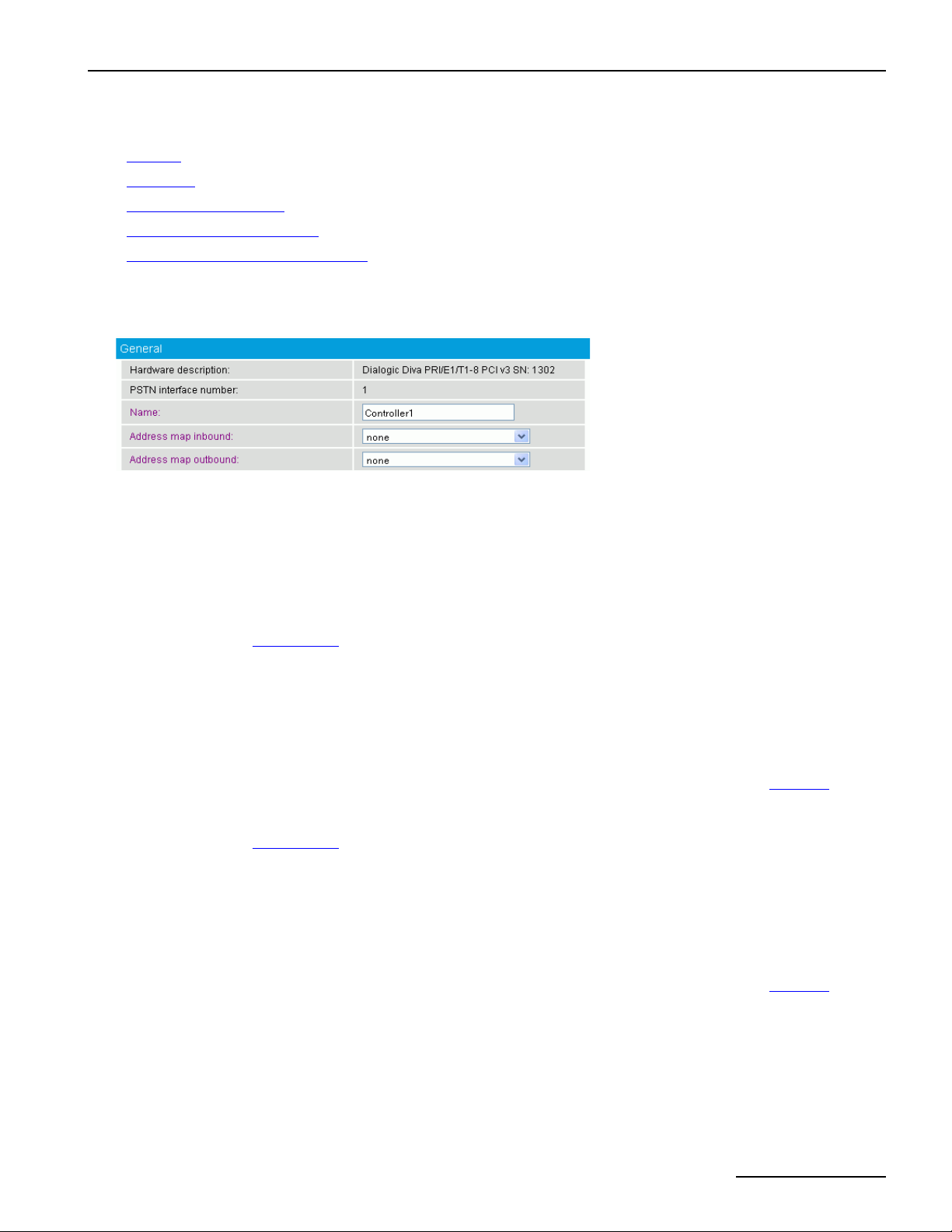
You may configure the parameters shown in the graphic and explained in the table below:
Hardware
description:
PSTN interface
number:
Name: Displays the name of the installed Dialogic® Diva® Media Board. The name may be modified in
Address map
inbound:
Address map
outbound:
Displays the installed Dialogic® Diva® Media Board. This entry is predefined by the system and
cannot be changed.
Displays the number of the CAPI controller. The number is set automatically by the system.
order to display the purpose of the interface or the name of the PBX it is connected to.
Select the name of a regular expression list to be applied on calls received on this interface. See
Address Maps on page 35 for more information about setting up a regular expression list. If you
upgraded from Dialogic® Diva® SIPcontrolTM Software version 1.5 or 1.5.1, an address map is
automatically generated here to provide the same number processing behavior in the current Diva
SIPcontrol software version as in former Diva SIPcontrol software versions. If you used regular
expressions in Diva SIPcontrol software version 1.5.1, they will be included in this address map as
well, unless they cannot be converted to the new scheme. In this case, the entry <Use Windows
Registry values> is available. The Diva SIPcontrol software will then use the regular expressions
defined in the registry keys that were used by Diva SIPcontrol software 1.5.1.
Regular expressions may be used to add or remove dial prefixes required by a PBX or to rewrite
public phone numbers of different number ranges into a common format. See the
page 65 for more information.
Select the name of a regular expression list to be applied on calls sent out by this interface. See
Address Maps on page 35 for more information about setting up a regular expression list. If you
upgraded from Dialogic® Diva® SIPcontrolTM Software version 1.5 or 1.5.1, an address map is
automatically generated here to provide the same number processing behavior in the current Diva
SIPcontrol software version as in former Diva SIPcontrol software versions. If you used regular
expressions in Diva SIPcontrol software version 1.5.1, they will be included in this address map as
well, unless they cannot be converted to the new scheme. In this case, the entry <Use Windows
Registry values> is available. The Diva SIPcontrol software will then use the regular expressions
defined in the registry keys that were used by the Diva SIPcontrol software 1.5.1.
Regular expressions may be used to add or remove dial prefixes required by a PBX or to rewrite
public phone numbers of different number ranges into a common format. See the
page 65 for more information.
Examples on
Examples on
Enhanced
Here you may configure the settings for Early media support. Early media refers audio and video data that is
exchanged before a session is accepted by the called user. It may be unidirectional or bidirectional, and can be
generated by the calling party, the called party, or both. Typical examples of early media generated by the called
party are ringing tone and announcements (e.g., queuing status). Early media generated by the calling party
typically consists of voice commands or DTMF tones to drive interactive voice response (IVR) systems.
page 17
Page 18
Dialogic® Diva® SIPcontrolTM Software Configuration
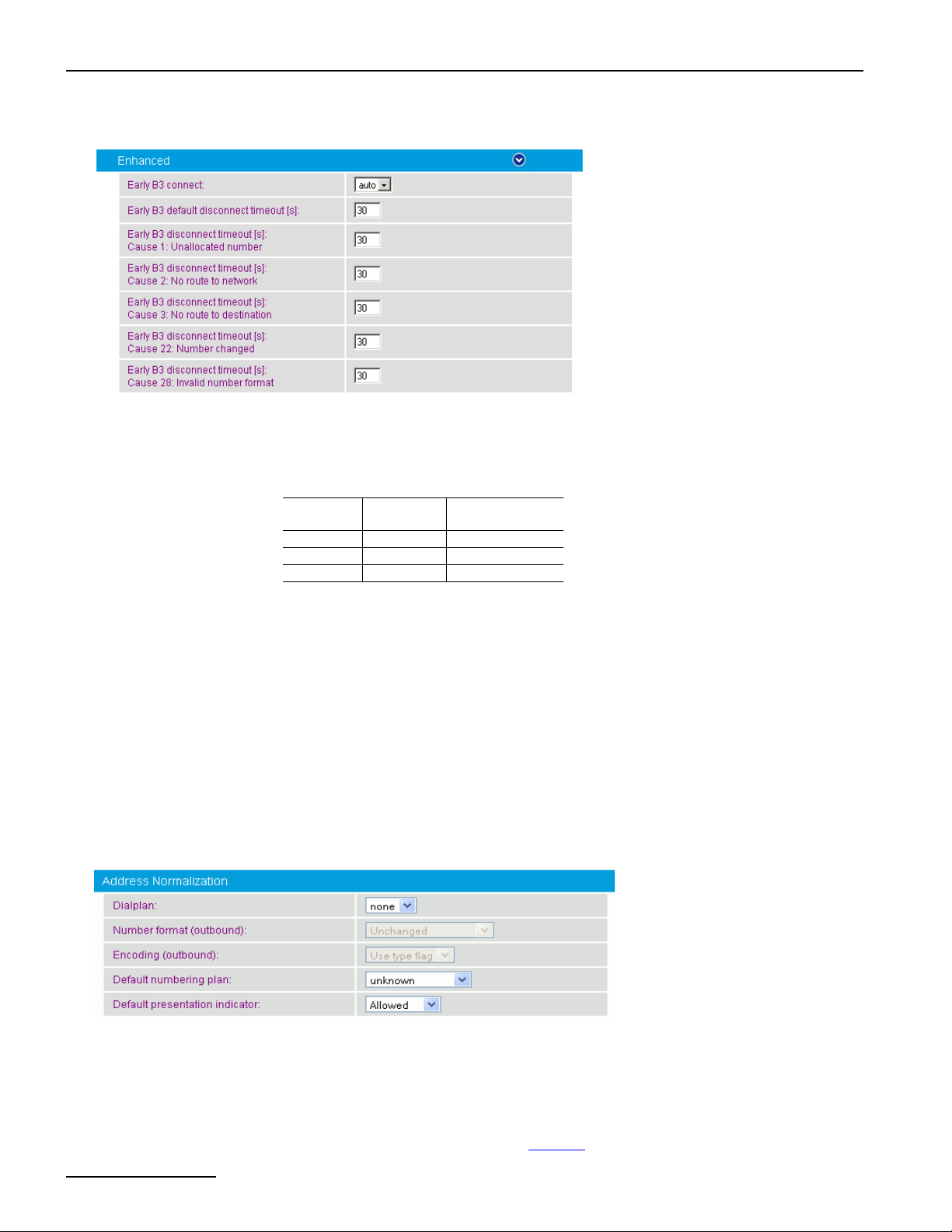
You may configure the parameters shown in the graphic and explained below:
Early B3 connect: With this parameter you can determine if early media should be enabled on this controller
EarlyB3 default disconnect
timeout
EarlyB3 disconnect timeout
[s] Cause <x>:<reason for
disconnect timeout>:
[s]:
(EarlyB3) or whether early media should be enabled even if no "inband tones available"
signal is received from PSTN (EarlyB3ForceMedia).
The following values determine if EarlyB3 and EarlyB3ForceMedia are enabled or not:
Value EarlyB3 EarlyB3Force
Media
auto enabled not enabled
on enabled enabled
off not enabled not enabled
The default value is auto.
Specifies the disconnect timeout value for early media calls to the PSTN, depending on the
received cause value. The disconnect timer is released if a call to the PSTN is terminated
before the receiver answers the call. This allows the caller to listen to a network
announcement describing the reason for the failure (e.g., "The number you have dialed is
not available. Please try again later.")
Default: 30 seconds
With these parameters, you may define the disconnect timeout for the different disconnect
timeout reasons. The default value for each reason is 30 seconds.
Address Normalization
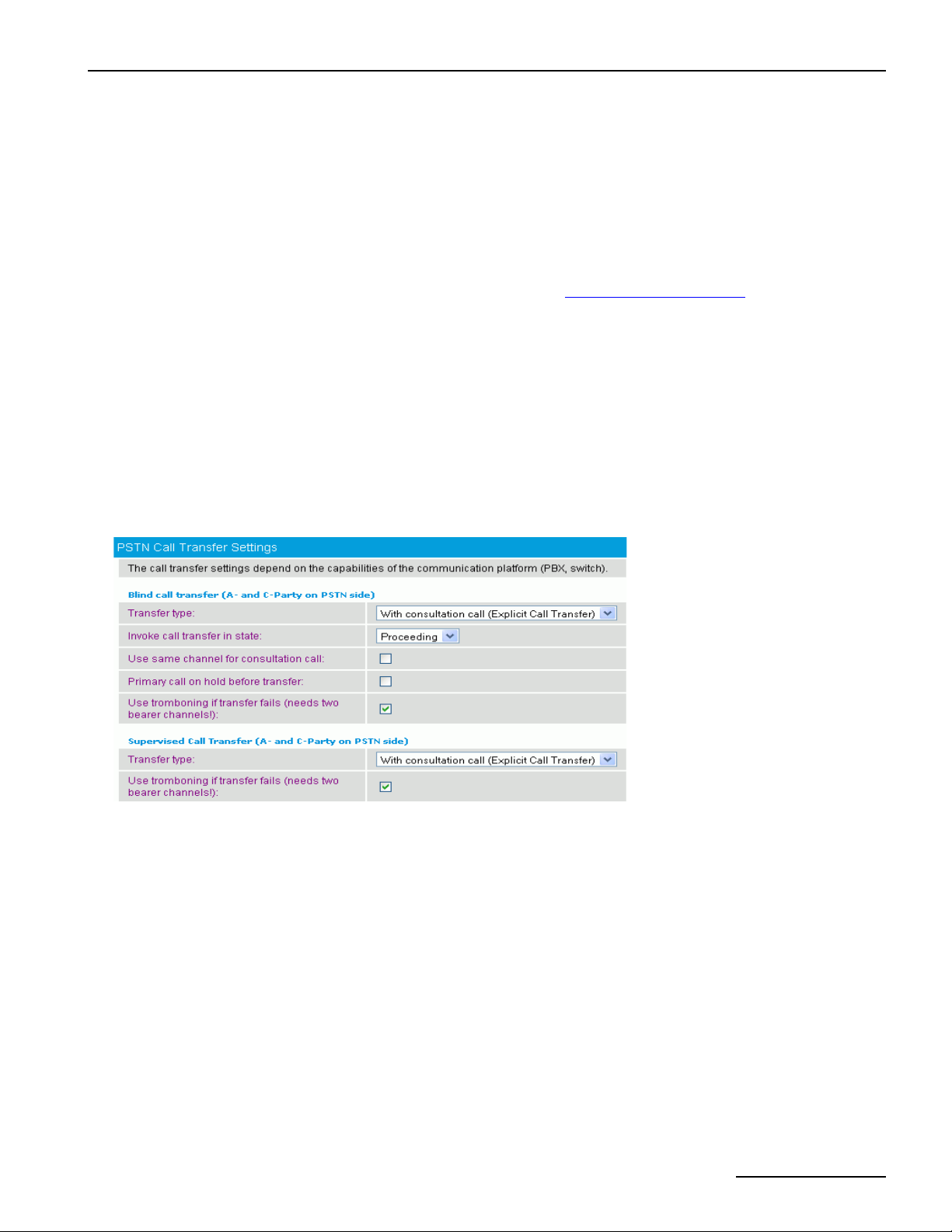
You may configure the parameters shown in the graphic and explained below:
Dialplan: Select the local dialplan to be used by the dialplan module of the Dialogic® Diva® SIPcontrolTM
page 18
Software. The selected dialplan applies only to this controller.
In most cases, the PSTN interfaces within the system share a common dialplan of the local
environment, but configuring the dialplan per controller allows for handling variants, e.g., if the
controllers are connected to different PBXs or if one controller is directly connected to the public
network.
Configure the local dialplan as described under Dialplans on page 32 before you select it here.
Page 19
Dialogic® 4000 Media Gateway Series Reference Guide
Number format
(outbound):
Encoding
(outbound):
Default
numbering plan:
Default
presentation
indicator:
This parameter determines the shortest format allowed in calls sent out by this interface. You may
modify this parameter only if you selected a dialplan from the drop down menu. The following options
are available:
Unchanged: The number signaled in the SIP message will be used unchanged for dialing.
International number: The number is always converted to an international number, including
country and area code.
National number: The number is converted to a national number unless it is an international number
with a different country code.
Extension: The number is reduced as possible. An internal number is reduced to its extension only.
For more information about number formats, see How Numbers Are Processed on page 63.
Determines if numbers in calls sent out by this interface should either be encoded as unknown number
with national or international prefix digits, or as national or international number with type flags.
Change this setting only if the PBX rejects calls from the Diva SIPcontrol software despite the dialed
number being correct. This might occur if, for example, the signaled numbering plan is not supported.
If no presentation is specified via address rewriting, the presentation indicator to set on calling party
number for calls to ISDN. Select here, whether the calling party number should be shown or not.
PSTN Call Transfer Settings
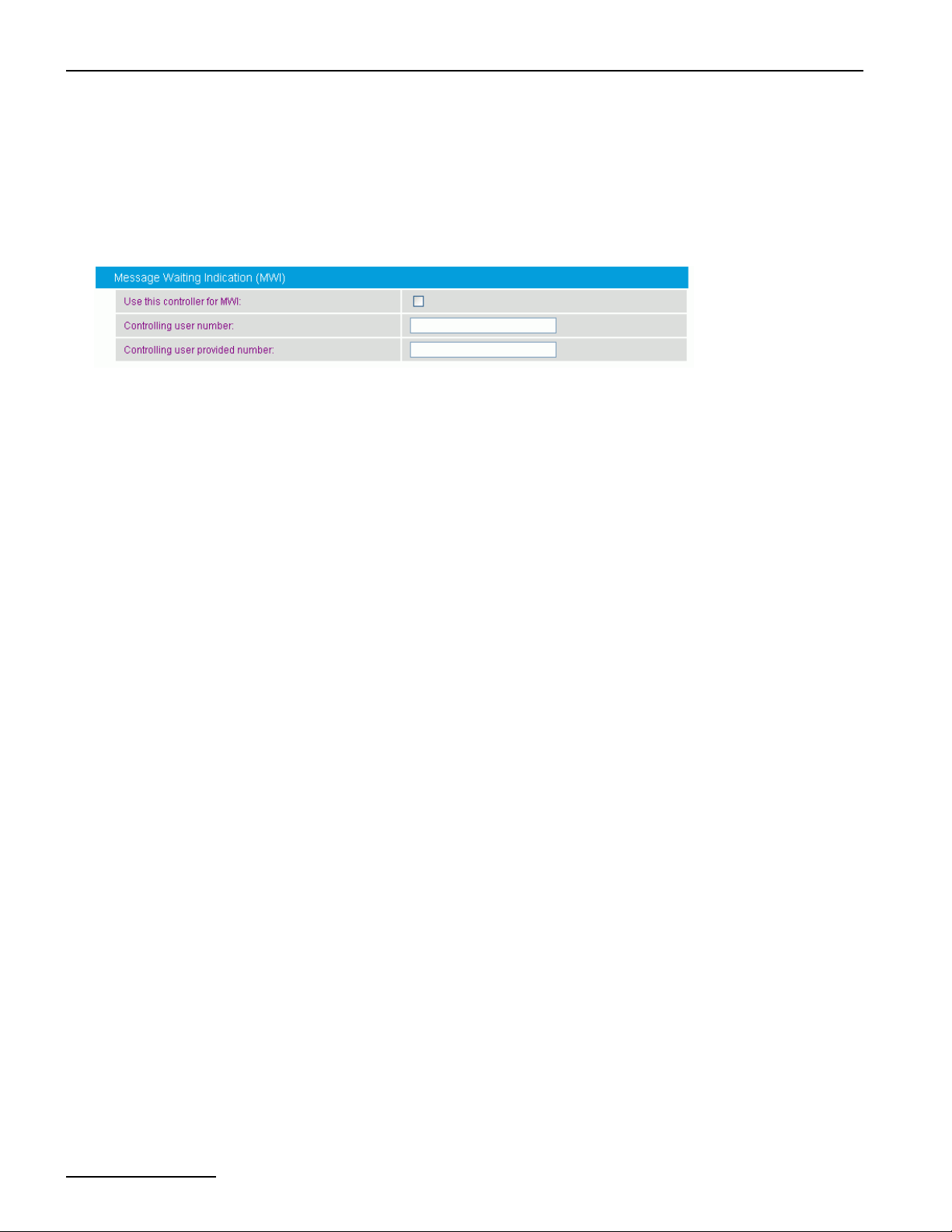
Some Call Transfer options can be configured in the Blind Call Transfer section and in the Supervised Call
Transfer section.
Transfer type: The following options are available:
Without consultation call (Call Deflection): The call is transmitted automatically.
With consultation call (Explicit Call Transfer): After the transfer to the destination party, the
channel is freed. The transfer may be announced or unannounced.
With consultation call via tromboning: The call transfer is emulated. Two B-channels are
blocked during the call transfer.
Complete transfer
in state:
Use same channel
for implicit call:
Primary call on
Hold before
transfer:
The blind call transfer is typically handled via an implicit call to the transfer destination. Once this
call reaches the state specified via the option Invoke Call Transfer in state, the call transfer is
completed. Default setting is Connected. If the calling party should hear the ring back tone from
the transfer destination, this parameter must be set to Proceeding or Alerting.
The B-channel used for the primary call is used for the consultation call as well. This requires that
the option Hold primary call before transfer is enabled. For Dialogic
Boards and protocols using inband signaling, this option must be enabled.
Select this option to place the primary call on hold before a call to the transfer destination is
initiated.
®
Diva® Analog Media
page 19
Page 20
Dialogic® Diva® SIPcontrolTM Software Configuration
Use tromboning if
transfer fails
(needs two bearer
channels):
Select this option if the Call Transfer should be emulated in case it could not be transferred with
Call Deflection or Explicit Call Transfer.
Message Waiting Indication (MWI)
You may configure the parameters shown in the graphic and explained below:
Use this controller for
MWI:
Controlling user
number:
Controlling user
provided number:
The controller to use for MWI needs to be connected to a PBX port, which allows for updating
of the message waiting indication.
A PBX typically requests an authentication to allow for updating of the message waiting
indication. This authentication is done by a Controlling user number. The administrator of
the PBX can provide this number.
The Controlling user provided number (CUPN) is the ISDN number provided by the
controlling user, e.g., the ISDN number of the originating user of the indicated message. Few
PBXs (e.g., Nortel) require the CUPN. The administrator of the PBX can provide more
information.
page 20
Page 21
Dialogic® 4000 Media Gateway Series Reference Guide
Network Interfaces
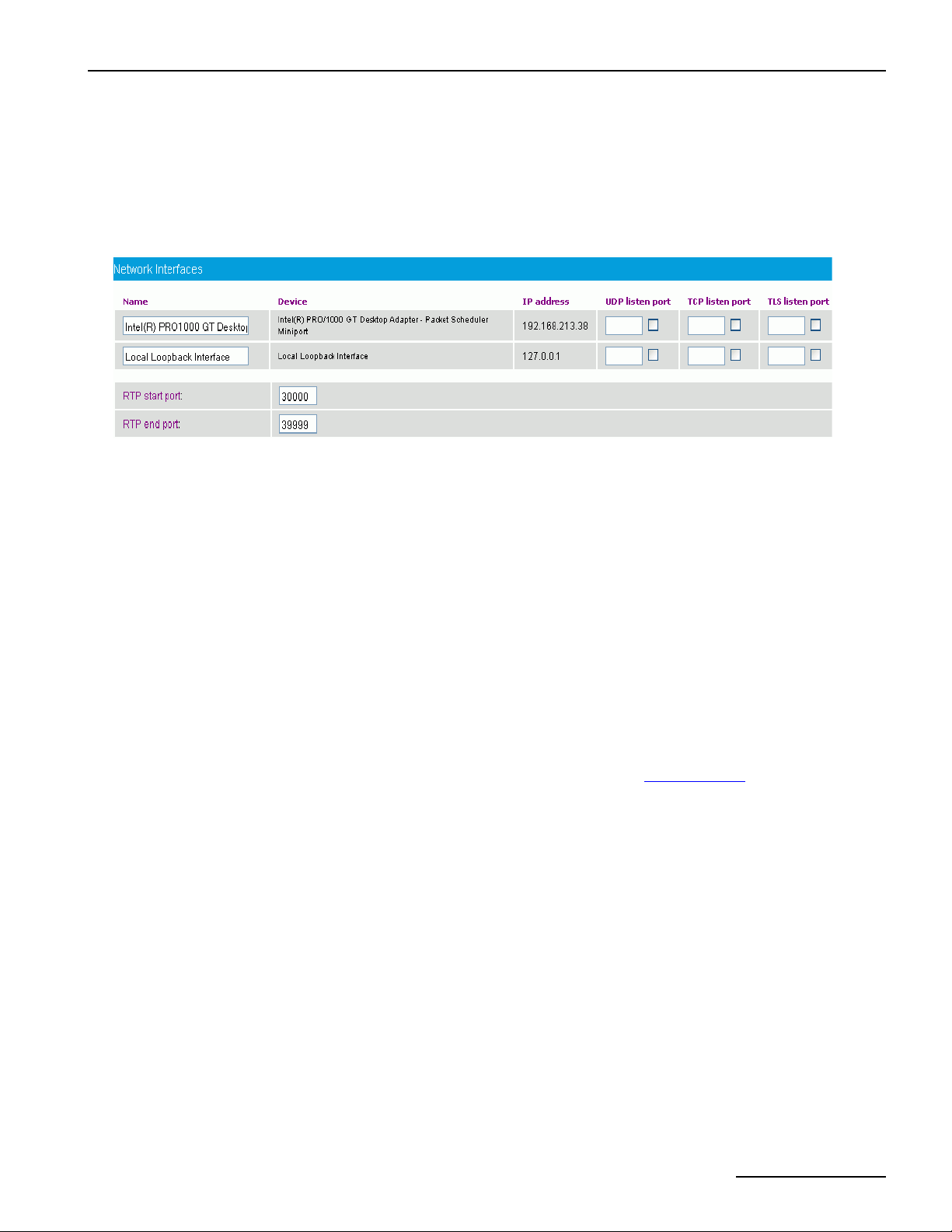
The Network Interfaces configuration allows for configuring the global network parameters of the
Dialogic® Diva® SIPcontrolTM software, such as the IP addresses and the ports on which the Diva SIPcontrol
software will be listening. The Diva SIPcontrol software supports only a single IP address.
To open the online help for a specific parameter, click the parameter and a window with the help text will pop up.
You may configure the parameters shown in the graphic and explained below:
Name Displays the name of the installed Ethernet adapter. The preset designation may be replaced
Device Displays the complete description of the installed Ethernet adapter assigned by the operating
IP address Displays the IP address of the computer on which the Diva SIPcontrol software is installed.
UDP listen port If you use UDP as IP protocol for calls from SIP, enable the check box to display the standard
TCP listen port If you use TCP as IP protocol for calls from SIP, enable the check box to display the standard
TLS listen port If you use TLS for encrypted calls, enable the check box to display the standard port number
RTP start port Defines the lowest port of the range in which the Diva SIPcontrol software sends and receives
RTP end port Defines the highest port of the range in which the Diva SIPcontrol software sends and receives
with a unique identifier, such as "Internal Network".
system.
port number 5060. This standard port can be used if no other SIP application is running on the
same computer as the Diva SIPcontrol
interface.
port number 5060. This standard port can be used if no other SIP application is running on the
same computer as the Diva SIPcontrol
interface.
5061. You may change the port number, but it must not be the same as the TCP Listen Port
number. Note that you may only enable one network interface. If you use TLS, you need to
upload security certificates and set the cipher level in the
RTP streams. Change this value only if problems occur.
RTP streams. Change this value only if problems occur.
software. Note that you may only enable one network
software. Note that you may only enable one network
Security Profiles on page 30.
page 21
Page 22
Dialogic® Diva® SIPcontrolTM Software Configuration
SIP Peers
A SIP peer is a specific endpoint to and from which the Dialogic® Diva® SIPcontrolTM software will establish calls.
The peer-specific settings may be used to adapt the Diva SIPcontrol software's behavior towards this peer.
To add a SIP peer, click the Add button. To change the settings for the enabled SIP peer, click the Details button
on the right hand side. To open the online help for a specific parameter, click the parameter and a window with
the help text will pop up. The following menus are available for configuration:
• General below
• Enhanced on page 23
• Security on page 25
• Session Timer on page 25
• Address Normalization on page 26
• Authentication on page 26
General
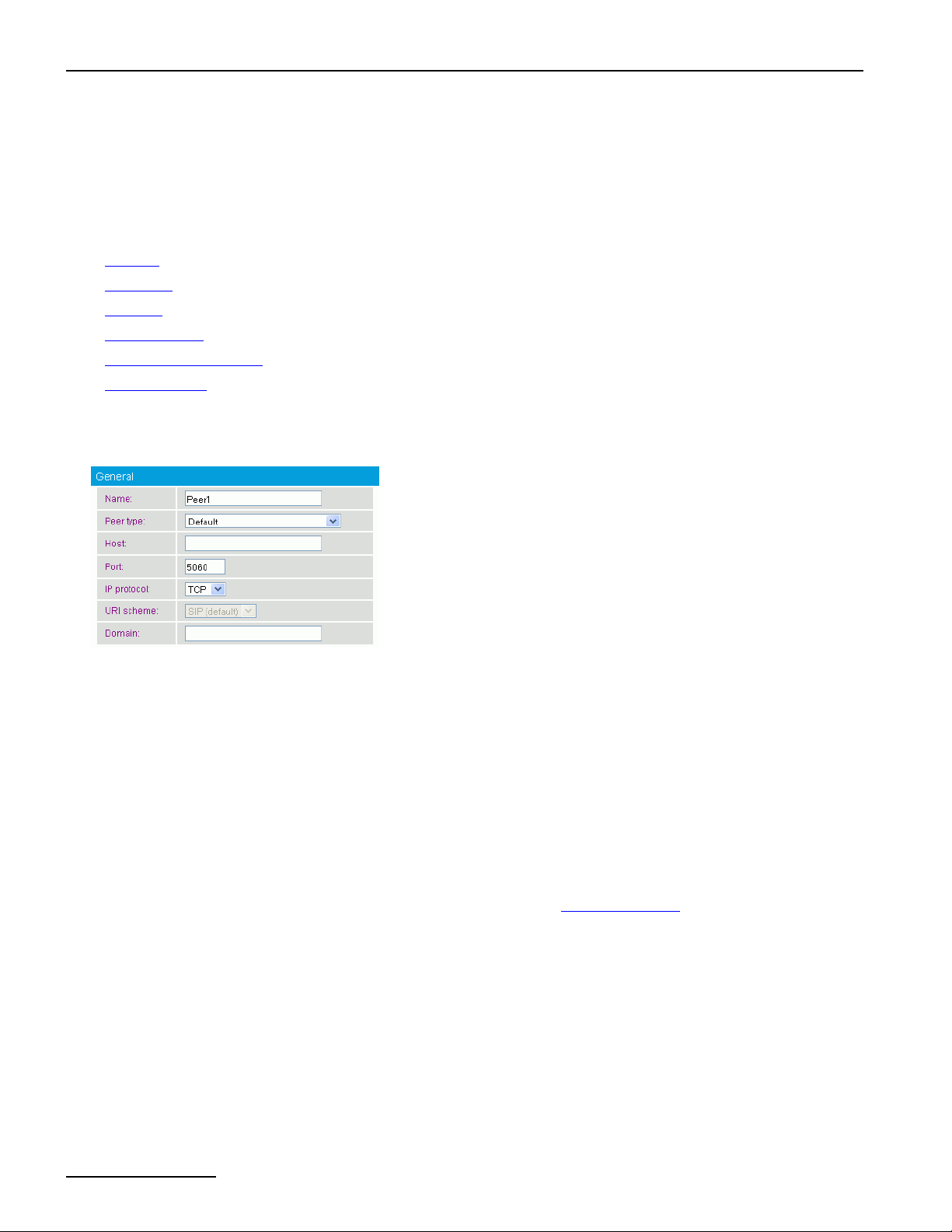
You may configure the parameters shown in the graphic and explained below:
Name: Enter a name for the SIP peer. A SIP peer is a specific endpoint to and from which the Diva
Peer type: Some SIP peers need a specific peer, such as a Microsoft® Exchange Server, to work properly with
Host: Enter the host name or IP address of the peer. The name must be resolvable by local name
Port: Displays the SIP port on which the remote peer is listening. The default is 5060, which is the
IP protocol: Select the IP protocol to be used for calls to this peer. Calls from this peer are accepted with all
URI scheme: This option is only available if you selected TLS as IP protocol.
Domain: Enter the domain name, e.g., dialogic.com, or the IP address. The domain name must comply
SIPcontrol software establishes the calls.
the Diva SIPcontrol software. If this is the case for your configuration, select the specific SIP peer.
If not, select Default.
resolution. During the establishment of a call, the host name is sent by this peer exactly as entered
here, unless an address map applies that converts the host name in a different format. For more
information about name resolution, see the Windows
standard port for SIP.
protocols and on all ports/addresses configured in
If you selected MS Exchange 2007 or MS OCS2007 / Mediation Server as Peer type, set
the protocol to TCP. If you selected e-phone, set the protocol to UDP.
Calls are transmitted via various proxy servers. Some of them do not transmit the calls as
encrypted calls. If you select SIP (default), you allow that calls are transmitted via such proxy
servers.
To make sure that a call is sent encrypted to the proxy of the remote side, select SIPS (secure
SIP). If the call is routed via a proxy server that is not able to route the call encrypted, it rejects
the call and the call is sent to another proxy until it can be transmitted.
with the DNS rules. The domain name entry here is only needed if the SIP peer does not use its
hostname as source domain when it places a call.
®
documentation.
Network Interfaces as described on page 21.
page 22
Page 23
Dialogic® 4000 Media Gateway Series Reference Guide
Enhanced
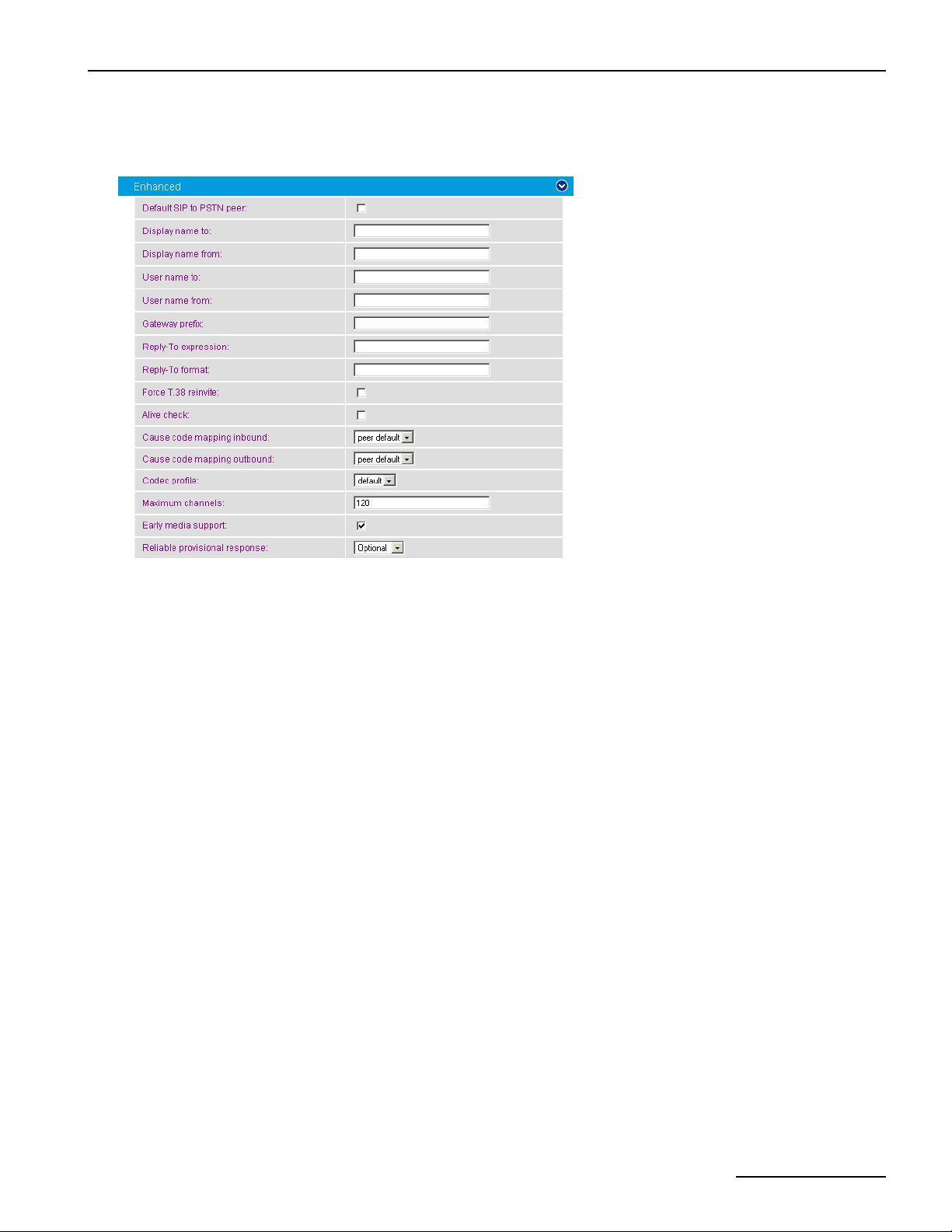
You may configure the parameters shown in the graphic and explained below:
Default SIP to
PSTN peer:
Enable this option if the selected peer type should be used as default peer. Calls from unconfigured
SIP peers will be assigned to this peer, and therefore are handled with these settings. If several
peers are configured as default, the Diva SIPcontrol software takes the first to transmit the call.
Display name to: Enter the name that is to be sent in the "To" header of the INVITE message on calls from the PSTN
to SIP.
Display name
from:
Enter the name that is to be sent in the "From" header of the INVITE message on calls from the
PSTN to SIP. To send the calling party number include an asterisk (*) in the display name. For
instance, if the display name is "Dialogic *" and the calling number is 123, then the remote side
receives "Dialogic 123". To include an asterisk in the display name, enter "\*". To include a
backslash enter "\\".
User name to: You may enter a user name in front of the host name, e.g., [email protected]. The user name
is needed for the default route when no called party number is transmitted, e.g., for Dialogic
®
Analog Media Boards.
Diva
®
If a call from SIP does not contain a user name, the name entered here is transmitted as calling
party number to the PSTN.
User name from: Enter the user name that is added to the SIP address when a number from the PSTN is suppressed.
You may also enter the complete SIP address consisting of <username>@<local-IP/hostname>.
If a call from SIP does not contain a user name, the name entered here is transmitted as called
party number to the PSTN.
Gateway prefix: You can configure this parameter only if you selected e-phone as Peer type in the Edit SIP Peer
Configuration window.
This prefix is added at the beginning of the address in the "Reply-To" and "Contact" headers, which
are copies of the "From" address. If this string is not empty, the parameter "phone-context" will
be added in both headers.
Reply-To
expression:
You can configure this parameter only if you selected e-phone as Peer type in the Edit SIP Peer
Configuration window.
Enter the expression that may be necessary for the e-phone server to handle the call. Normally,
this is necessary to omit the 0 (zero) for external calls and to manipulate the address so the
e-phone server is able to call back.
page 23
Page 24

Dialogic® Diva® SIPcontrolTM Software Configuration
Reply-To format: You can configure this parameter only if you selected e-phone as Peer type in the Edit SIP Peer
Configuration window.
Enter the format that may be necessary for the e-phone server to handle the call. Normally, this
is necessary to omit the 0 (zero) for external calls and to manipulate the address so the e-phone
server is able to call back.
Force T.38
reinvite:
Some peers do not switch the media channel to T.38 if they receive a fax call, e.g., if they do not
evaluate the fax calling tone. If you select this option, the Dialogic
®
Diva® SIPcontrolTM software
tries to initiate the media channel switch.
Alive check: If you select this option, the failover procedure is expedited because the Diva SIPcontrol software
does not wait for a call time-out if a peer does not respond. To achieve this, the Diva SIPcontrol
software sends "pings" periodically to the peer via OPTIONS requests. If the peer does not send
a valid answer, it will be treated as "inactive" and no calls will be routed to this peer until the peer
responds to the "pings" again. In this case, the Diva SIPcontrol software will automatically direct
calls to this peer again.
Cause code
mapping inbound:
Cause code
mapping
Select the cause code mapping for calls coming from this SIP peer that you configured under
Cause Code Maps as described on page 37.
Select the cause code mapping for calls to this SIP peer that you configured under Cause Code
Maps as described on page 37.
outbound:
Codec profile: Select the codec list that you configured under Codec Profiles on page 38. If you do not select a
list, an internal default list is used with the following default priority order:
1. G.711A
2. G.711u
3. G.726 (16, 24, 32, and 40 kbps)
4. G.729, if licensed
5. iLBC, if available on the used Dialogic® Diva® Media Board
6. GSM-FR
7. DTMF via RFC2833 (no real codec, but internally handled as codec)
8. T.38, if supported by the used Diva Media Board
In calls from SIP to the PSTN, the first codec of the PSTN device is applied that is also in the
default codec list of the Diva SIPcontrol software.
Maximum
channels:
Early media
support:
Reliable
provisional
response:
page 24
Specifies the number of channels that this SIP peer is able to handle at the same time. This setting
is used by the Diva SIPcontrol software to distribute calls in a load-balancing scenario and to avoid
speech quality degradation and/or call failures at the peer due to overload conditions.
Specifies whether the peer supports early media for calls to PSTN. For non-human peers this
should be disabled.
SIP defines two types of responses, provisional and final. Provisional responses provide information
on the progress of the request processing and final responses transmit the result of the request
processing.
This parameter specifies whether reliable provisional responses (RFC3262) should be used.
The following values are available:
Disabled: Reliable provisional response is not used.
Optional: Reliable provisional response may be used.
Required: Reliable provisional response is mandatory.
Page 25
Dialogic® 4000 Media Gateway Series Reference Guide
Security
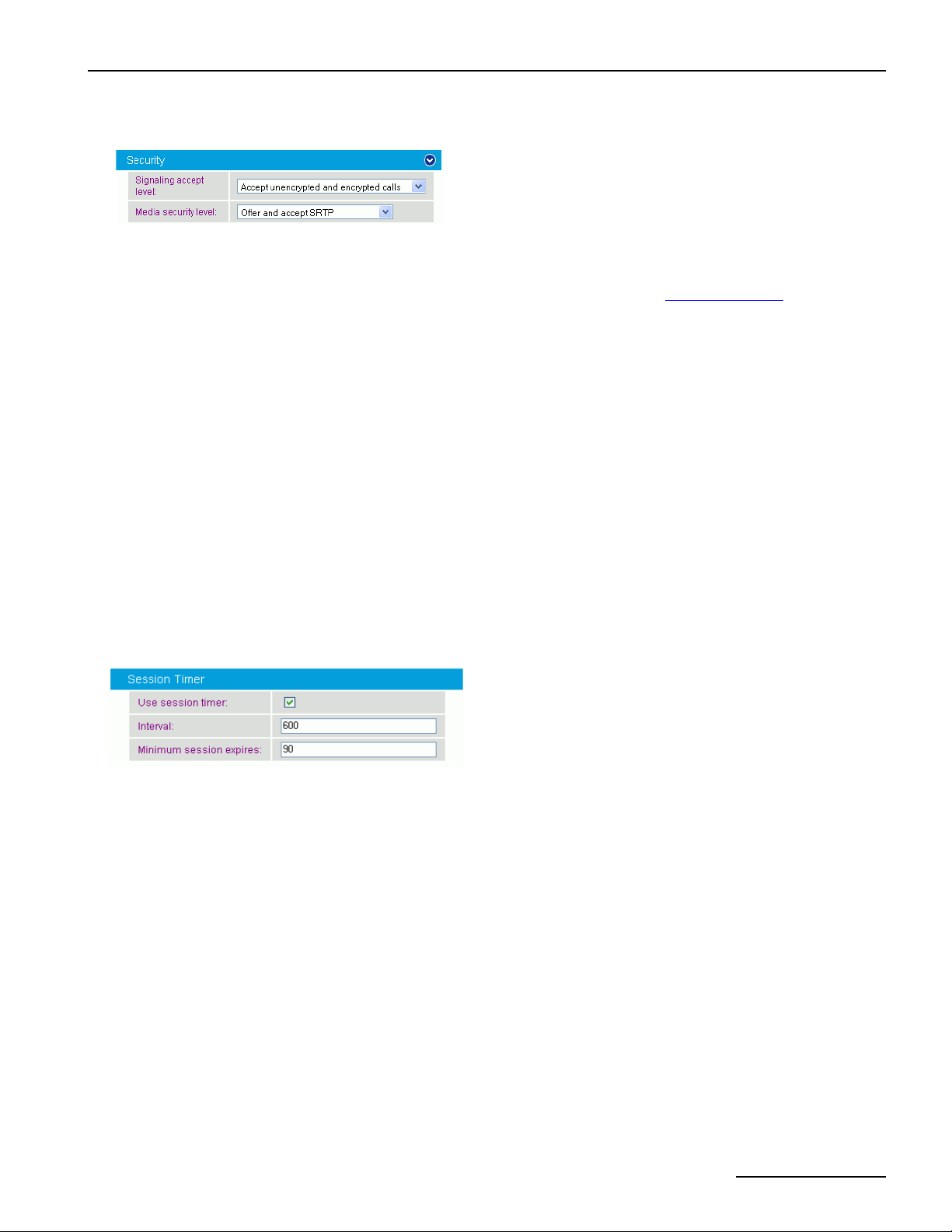
You may configure the parameters shown in the graphic and explained below:
Signaling accept level: This parameter defines, how the call information should be accepted. To accept
encrypted calls, you need to activate TLS as listen port in the
Accept unencrypted calls only: Only signaling sent with TCP or UDP is accepted. Any
encrypted signaling is rejected.
Accept encrypted and unencrypted calls: All calls are accepted, independent from the
encryption mode.
Accept encrypted calls only: Only signaling with TLS is accepted; unencrypted signaling
is rejected.
Accept encrypted call with SIPS URI only: Only signaling encrypted with the URI scheme
secure SIP is accepted. Calls sent with TLS encryption are rejected.
Media security level: The Secure Real-time Transport Protocol (SRTP) authenticates packets and encrypts data and
thus adds security to the voice stream. SRTP should be used together with TLS.
No SRTP: The voice stream is not secured with SRTP.
Offer and accept SRTP: The voice stream is secured with SRTP, if possible.
Require SRTP for encrypted calls: Calls via TLS need to use SRTP, otherwise they are
rejected.
Note: If you select Require SRTP for encrypted calls, calls without SRTP are still allowed
via UDP or TCP, unless Signaling accept level does not allow calls via UDP or TCP.
Network Interfaces configuration.
Session Timer
You may configure the parameters shown in the graphic and explained below:
Use session timer: Activates session monitoring via SIP session timers using the time-out values given here. Refer
Interval: If Use session timer is enabled, you may set a time-out in seconds until a call is considered to
Minimum session
expires:
to RFC4028 for details.
be aborted. Refreshes are normally performed after the first half of the interval has elapsed. The
minimum value is 90 seconds. The default value is 600 seconds.
If Use session timer is enabled, you may set a time in seconds between two session refresh
messages that the Diva SIPcontrol software will accept. The minimum value is 90 seconds.
page 25
Page 26
Dialogic® Diva® SIPcontrolTM Software Configuration
Address Normalization
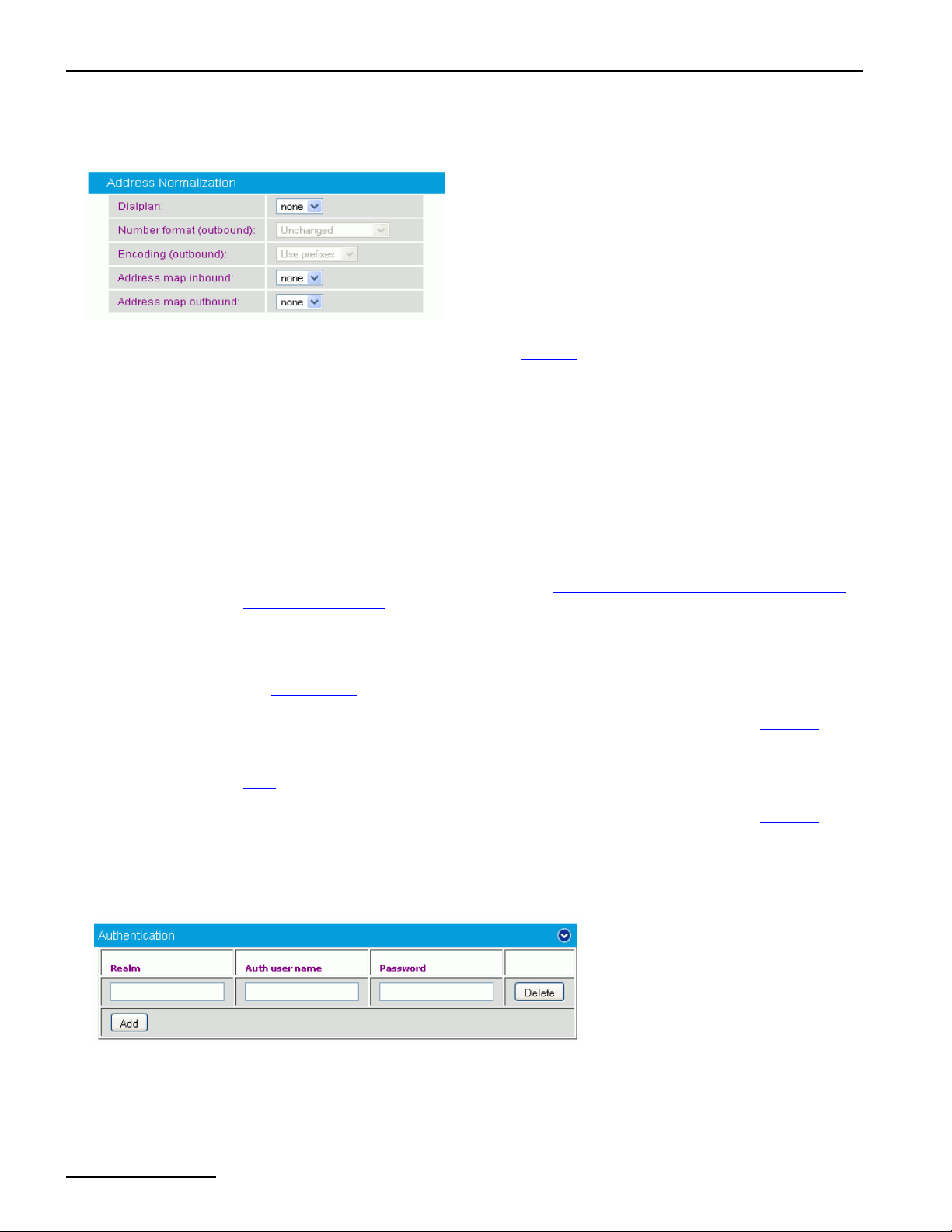
You may configure the parameters shown in the graphic and explained below:
Dialplan: Select the local dialplan to be used by the dialplan module of the Dialogic® Diva® SIPcontrolTM
Software. Configure the local dialplan under
it here.
The dialplan selected here applies only to outgoing calls.
Dialplans as described on page 32 before you select
Number format
(outbound):
Encoding
(outbound):
Address map
inbound:
Address map
outbound:
This parameter determines the shortest format allowed that is sent in calls to this SIP peer. You
may modify this parameter only if you selected a dialplan from the drop down menu. The following
options are available:
Unchanged: The number signaled in the SIP message will be used unchanged for dialing.
International number: The number is always converted to an international number, including
country and area code.
National number: The number is converted to a national number unless it is an international
number with a different country code.
Extension: The number is reduced as much as possible. An internal number is reduced to its
extension only.
For more information about number formats, see Number Processing With The Dialogic® Diva®
SIPcontrolTM Software on page 50.
Determines if numbers in calls to this SIP peer should either be encoded as unknown number with
national or international prefix digits or as national or international number with type flags.
Name of the regular expressions list applied to the addresses received on calls from this SIP peer.
Address Maps on page 35 for more information about setting up a regular expression list.
See
Regular expressions may be used to add or remove dial prefixes required by a PBX or to rewrite
public phone numbers of different number ranges into a common format. See the
page 52 for more information.
Select the name of a regular expression list to be applied on calls to this SIP peer. See Address
Maps on page 35 for more information about setting up a regular expression list.
Regular expressions may be used to add or remove dial prefixes required by a PBX or to rewrite
public phone numbers of different number ranges into a common format. See the
page 65 for more information.
Examples on
Examples on
Authentication
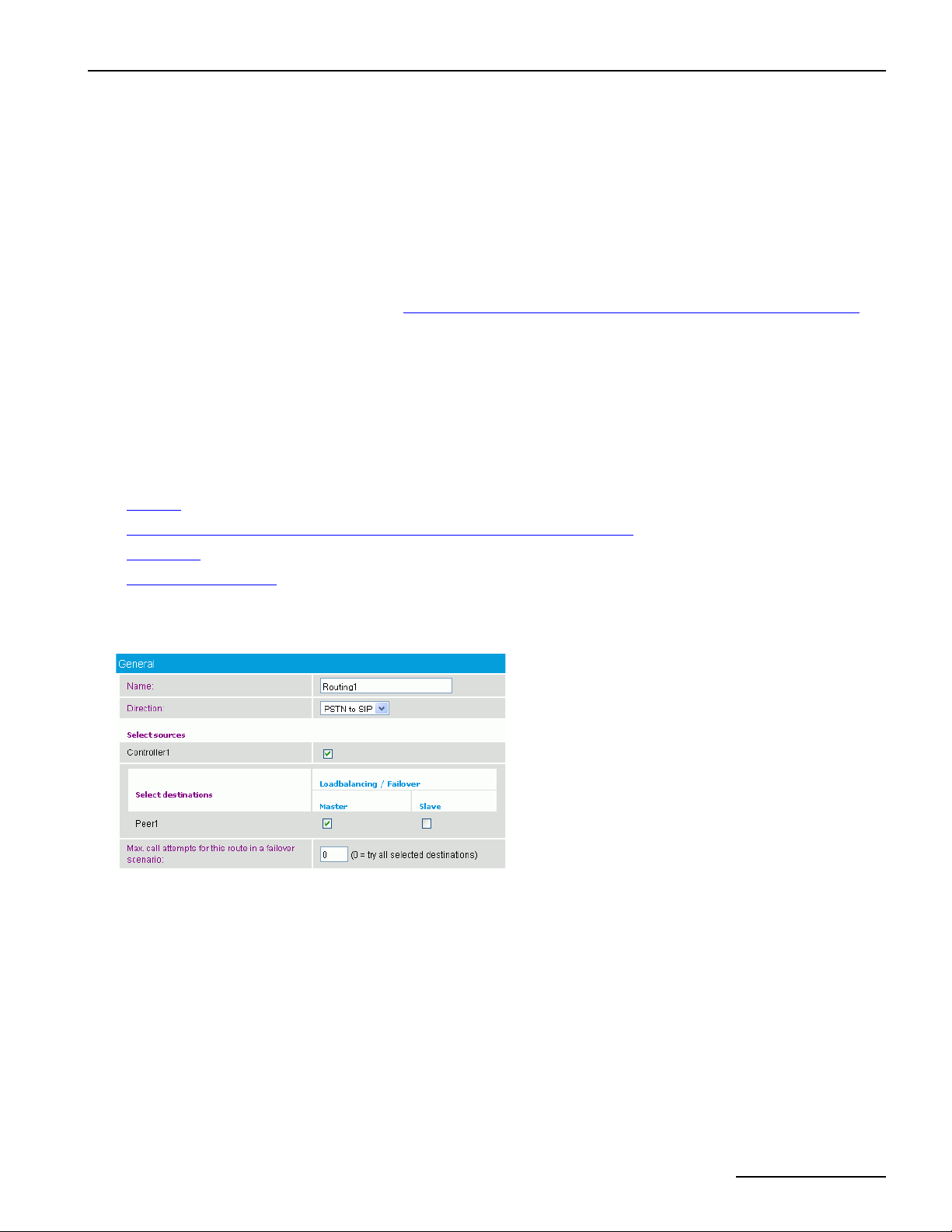
You may configure the parameters shown in the graphic and explained below:
Realm: A realm is a protection domain with its own user names and passwords. Enter the realm used by the
SIP peer for authentication. The realm entered here needs to be the same as the realm of the
endpoint.
Auth User Name: Enter a user name to be used with this realm.
Password: Enter the password to be used with this realm.
page 26
Page 27
Dialogic® 4000 Media Gateway Series Reference Guide
Routing
The Routing configuration defines the destination to which incoming calls are forwarded. Possible criteria that
may determine the destination are:
• called, calling, and redirected number or SIP address of a call for which the redirected number is only available
for calls originating in the PSTN,
• the source where a call originated, i.e., a PSTN interface name or a specific SIP peer,
• the current channel allocation across a set of several possible destinations in a load-balancing environment,
and
• the current status of a destination. See Call Processing With The Dialogic® Diva® SIPcontrolTM Software on
page 46 for more information.
To add a routing, click the Add button. To change the settings for the enabled routing, click the Details button
on the right hand side. Since routes are processed in their configured order, the first matching route takes the
call. To change the order, click the "arrow up" and "arrow down" buttons. To open the online help for a specific
parameter, click the parameter and a window with the help text pops up.
For more information about possible routing configurations, see the Routing examples in the Dialogic® Diva®
SIPcontrolTM Software Reference Guide.
The following menus are available for configuration:
• General below
• Address Normalization For Condition Processing (Using Source Dialplan) on page 28
• Conditions on page 28
• Address Manipulation on page 29
General
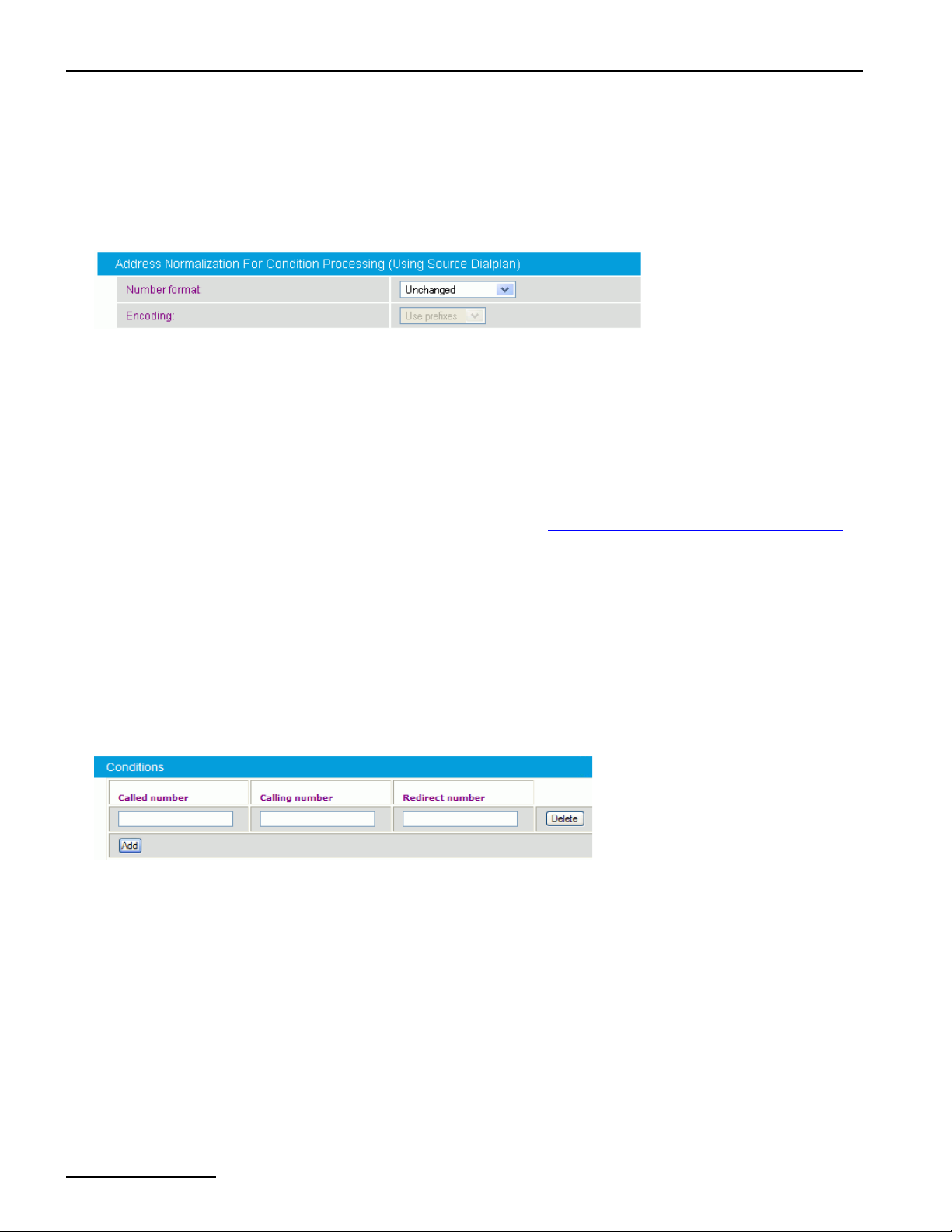
You may configure the parameters shown in the graphic and explained below:
Name: Enter a unique name for the route, e.g., "Calls to MS Exchange Server".
Direction: Select if this route is for calls from SIP to PSTN or vice versa.
Select Sources: Depending on the selected direction, this part either lists the configured PSTN interfaces or SIP
Select
Destinations:
peers. The route will only be considered for a call if the call originated from a selected source.
Note: A source may be selected even if it is currently disabled. In this case, the call will already
have been rejected before the route is queried. At least one source interface is required for the
route.
You may select the possible destinations for the route, i.e., the set of CAPI controllers or SIP peers
to which the call may be routed. The master or slave setting allows for configuring priorities. The
Dialogic
first and considers the slaves only if all masters have failed or could not accept calls due to their
call load.
®
Diva® SIPcontrolTM Software will always try to establish a call to one of the masters
page 27
Page 28
Dialogic® Diva® SIPcontrolTM Software Configuration
Max. call attempts
for this route in a
failover scenario:
Enter the number of times the Diva SIPcontrol software should try to call the recipient in a failover
environment. If you enter 0 (zero), the Diva SIPcontrol software tries all selected destinations. A
value of 1 disables the failover functionality and tries only the first destination of a route.
Address Normalization For Condition Processing (Using Source Dialplan)
You may configure the parameters shown in the graphic and explained below:
Number format: This parameter determines the shortest format allowed in calls using this route. You may modify
Encoding: Determines if numbers in calls using this route should either be encoded as unknown number with
this parameter only if you selected a dialplan from the drop down menu. The following options are
available:
Unchanged: The number signaled in the SIP message will be used unchanged for dialing.
International number: The number is always converted to an international number, including
country and area code.
National number: The number is converted to a national number unless it is an international
number with a different country code.
Extension: The number is reduced as much as possible. An internal number is reduced to its
extension only.
For more information about number formats, see Number Processing With The Dialogic® Diva®
SIPcontrolTM Software on page 50.
national or international prefix digits or as national or international number with type flags.
Conditions
You may configure certain conditions for a route. If you do not configure any conditions, the route is used as
default route.
Note: If prefixes need to match, the digits of the prefix need to be prepended by a caret symbol ("^"); otherwise,
these digits would match within the number as well, e.g. 0 would also match [email protected].
You may configure the parameters shown in the graphic and explained below:
Called number: If the routing is supposed to be valid only for specific calls, enter the called party number to which
the route should apply. The Dialogic
party number against the called number entered here. If they do not match, the Diva SIPcontrol
software verifies the next routing until it finds a match.
Calling number: If the routing is supposed to be valid only for specific calls, enter the calling party number to which
the route should apply. The Diva SIPcontrol software compares the current calling party number
against the calling number entered here. If they do not match, the Diva SIPcontrol software verifies
the next routing until it finds a match.
Redirect number: If the routing is supposed to be valid only for specific calls, enter the redirecting number to which
the route should apply. The Diva SIPcontrol software compares the current redirecting number
against the redirect number entered here. If they do not match, the Diva SIPcontrol software
verifies the next routing until it finds a match.
®
Diva® SIPcontrolTM Software compares the current called
Note: A route can only be matched if the three condition parts (called number, calling number, and redirect
number) match their call address counterpart in any of the lines. Empty condition entries always match, i.e., a
line with the three condition parts left empty will always apply, thus working as a default route.
page 28
Page 29

Dialogic® 4000 Media Gateway Series Reference Guide
Address Manipulation
You may configure the parameter shown in the graphic and explained below:
Address Map: If a route matches, the address manipulation setting allows for modifying the call addresses
according to your needs. For example, if calls with the called party number starting with "9" should
be directed to a specific peer, it might be desirable to remove this digit. This can be done with a
special address map configured. Note that you need to configure the address map as described
Address Maps on page 35 before you may select it here.
under
page 29
Page 30
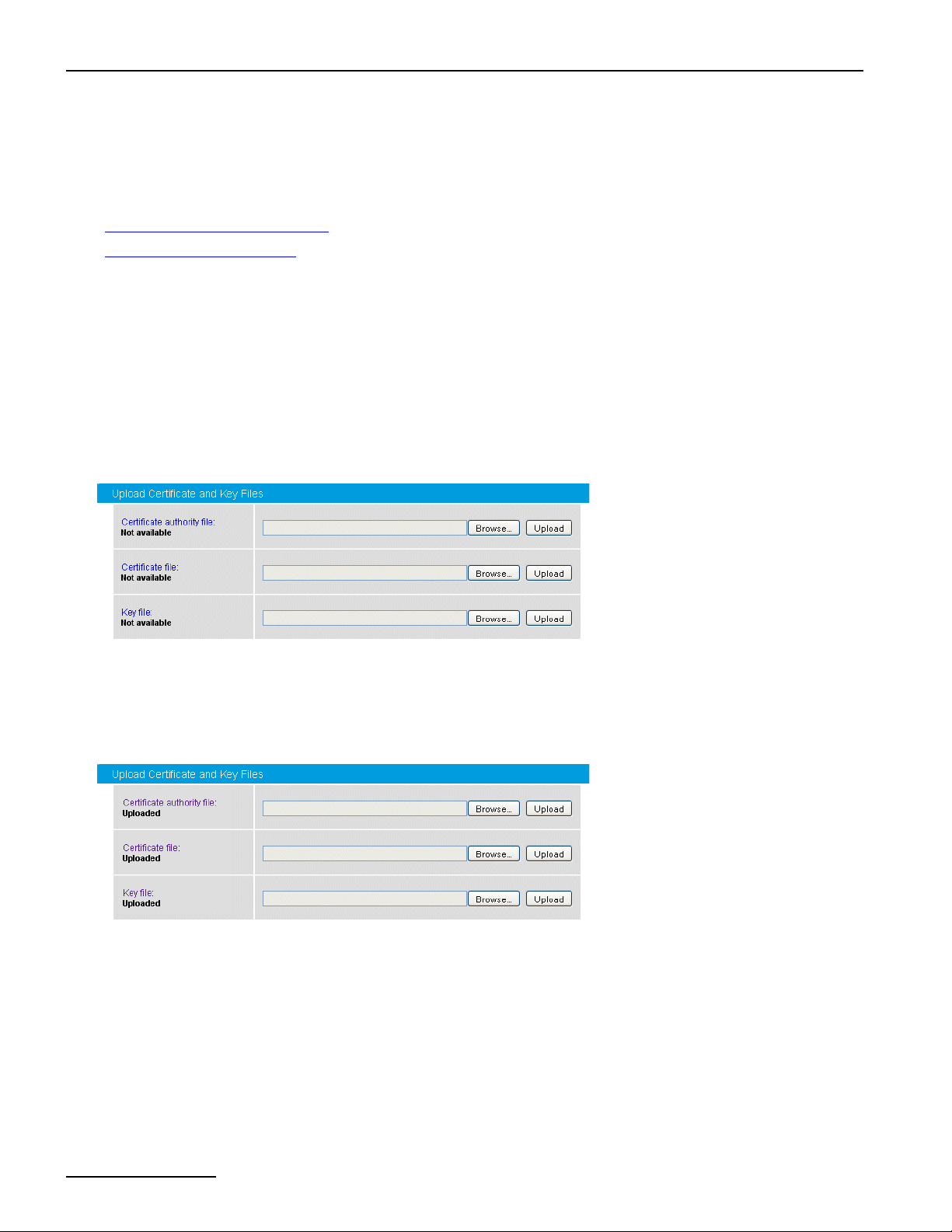
Dialogic® Diva® SIPcontrolTM Software Configuration
Security Profiles
When you use the Transport Layer Security (TLS) protocol for secure communication, you need to set various
security settings.
The following menus are available for configuration:
• Upload Certificate And Key Files below
• Global Security Parameters on page 31
Upload Certificate And Key Files
For authentication and data encryption, certificates need to be installed on the computer with the Diva SIPcontrol
software and on remote computers. When a secure domain is opened, server and client authenticate each other
with a so called "SSL handshake". With this handshake, the identity of a user is certified and the user can be
trusted. All necessary certificates are provided by a Certificate Authority (CA) and they are issued for one domain
name. For test purposes or internal usage, you can also create and sign your own self-signed certificate, e.g.,
with one of the many tools available on the internet, just google for "self-signed certificate" and you will find a
list of possible tools. But you need to be aware that self-signed certificates do not provide the same security as
CA-signed certificates. All files need to be in "pem" format, that means base-64-encoded.
The screen below shows the web interface with no certificates uploaded.
To upload a certificate:
1. Click Browse, in the File Upload window go to the folder where the certificate file is located, and click Open.
2. In the Diva SIPcontrol software web interface click Upload. After the certificates are uploaded web interface
looks like this:
Certificate authority file: This file is the root certificate, which is used to sign a certificate. It is only needed for
MTLS or TLS authentication.
With this file, the CA ensures that the public key contained in the certificate belongs to
the server stated in the certificate.
Certificate file: This file is also generated from the CA and it contains the public key of the server on
Key file: This file contains the private key for each endpoint, and it is used for decrypting of
which the Diva SIPcontrol software is installed. This file is used for encrypting of
information.
information. The key file must not be password protected.
page 30
Page 31
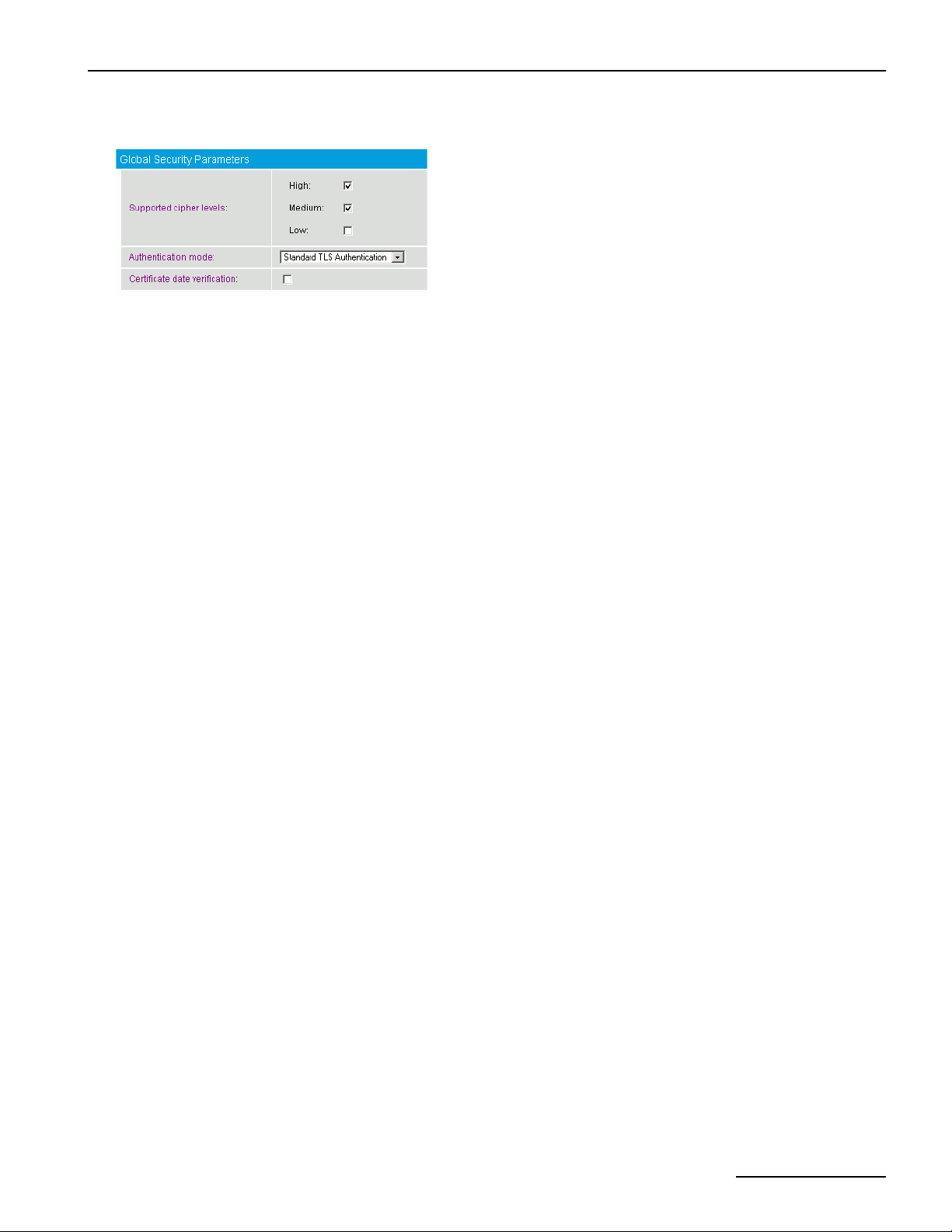
Global Security Parameters
Dialogic® 4000 Media Gateway Series Reference Guide
Supported cipher levels: Cipher is an algorithm for encrypting and decrypting data. During the SSL
handshake between client and server, the cipher level is negotiated. A low cipher
level should only be used for systems that do not transmit any important
information.
High: This currently means cipher suites with key lengths larger than 128 bits,
and some with 128-bit keys.
Medium: Currently some suites using 128-bit encryption.
Low: Currently suites using 64- or 56-bit encryption algorithms but excluding
export cipher suites.
Authentication mode: Select how the server-client authentication should be handled.
Mutual Authentication: MTLS is used by Microsoft® Office Communications
Server (OCS) 2007 Server roles and by Microsoft
®
Exchange 2007 UM role to
communicate with each other. In this mode, both peers need to authenticate each
other and both client and server exchange certificates.
For connecting to Microsoft® OCS 2007 R2 Mediation Server via TLS, use Standard
TLS authentication mode. For a direct connection to Microsoft
®
Exchange 2007
UM role via TLS, use MTLS authentication mode.
Standard TLS Authentication: This is the normal authentication mode, in which
the client asks the server for authentication to ensure a secure connection to the
correct server.
No Authentication: In this mode, neither the server nor the client need to proof
its authentication.
The default setting is: Standard TLS Authentication.
Certificate date verification: If enabled, the expiration date of the peer certificate is verified. If the certificate
is expired, an informational message is displayed and the call is aborted.
page 31
Page 32

Dialogic® Diva® SIPcontrolTM Software Configuration
Dialplans
With help of the local phone settings, the Dialogic® Diva® SIPcontrolTM Software is able to convert a received
call address to a normalized form, e.g., the E.164 format. This does not only ease the definition of subsequent
conditions or maps, but it also converts the call to the format as required by the receiver.
The dialplan module supports the following features:
• Number expansion and reduction: called, calling, and redirected numbers are converted to one of the following
formats: international, national, local, or internal (extension-only) format; for each format, either prefix digits
or digital number type flags may be used.
• Adding and removing of the line access code: If not present, dialed numbers are automatically prepended by
the digit(s) needed to get access to the public telephone network.
• Support for North American numbering plan: Up to 10 area codes may be configured to be treated differently.
For example, in many areas dialing into neighboring areas requires to not dial a long-distance prefix.
Important information about the outside access digit configuration
• Configure the outside access digit only if there is a PBX between the PSTN and the Diva SIPcontrol software,
and if this PBX requires the outside access digit for external calls. If you need to configure the outside access
digit, also configure the following related options:
• Incoming PSTN access code provided by the PBX: This option defines if the Diva SIPcontrol software
expects the outside access digit in the calling number in external calls from the PBX.
The PBX normally prepends the outside access digit to the calling number of incoming external calls in
order to enable callback functionality at internal phones. If this is the case, enable this option.
• PSTN access code provided by the SIP caller: This option defines if the Diva SIPcontrol software
expects the outside access digit in the called number of external calls from SIP to the PSTN.
It is normally required to prepend the outside access digit to call an external number from an internal
phone, in this case, these are phones on the SIP side; however, in some configurations this is not required,
such as a configuration that is part of the North American numbering plan (NANP), where an internal
number can be identified based on its length. If it is possible to identify an internal call purely by the
length of the called number, this option can be disabled. In all other configurations with outside access
digits this option has to be enabled.
It is recommended to have this option enabled in dialplans with the outside access digit set.
• The Diva SIPcontrol software's number normalization function does not remove outside access digits as a
PBX can do for external calls. If the Diva SIPcontrol software needs to behave like a PBX with an outside
access digit for external calls, use the Address Map functionality in combination with a Routing module.
To add a dialplan, click the Add button. To change the configuration settings, click the Details button on the
right hand side. To open the online help for a specific parameter, click the parameter and a window with the help
text pops up.
page 32
Page 33
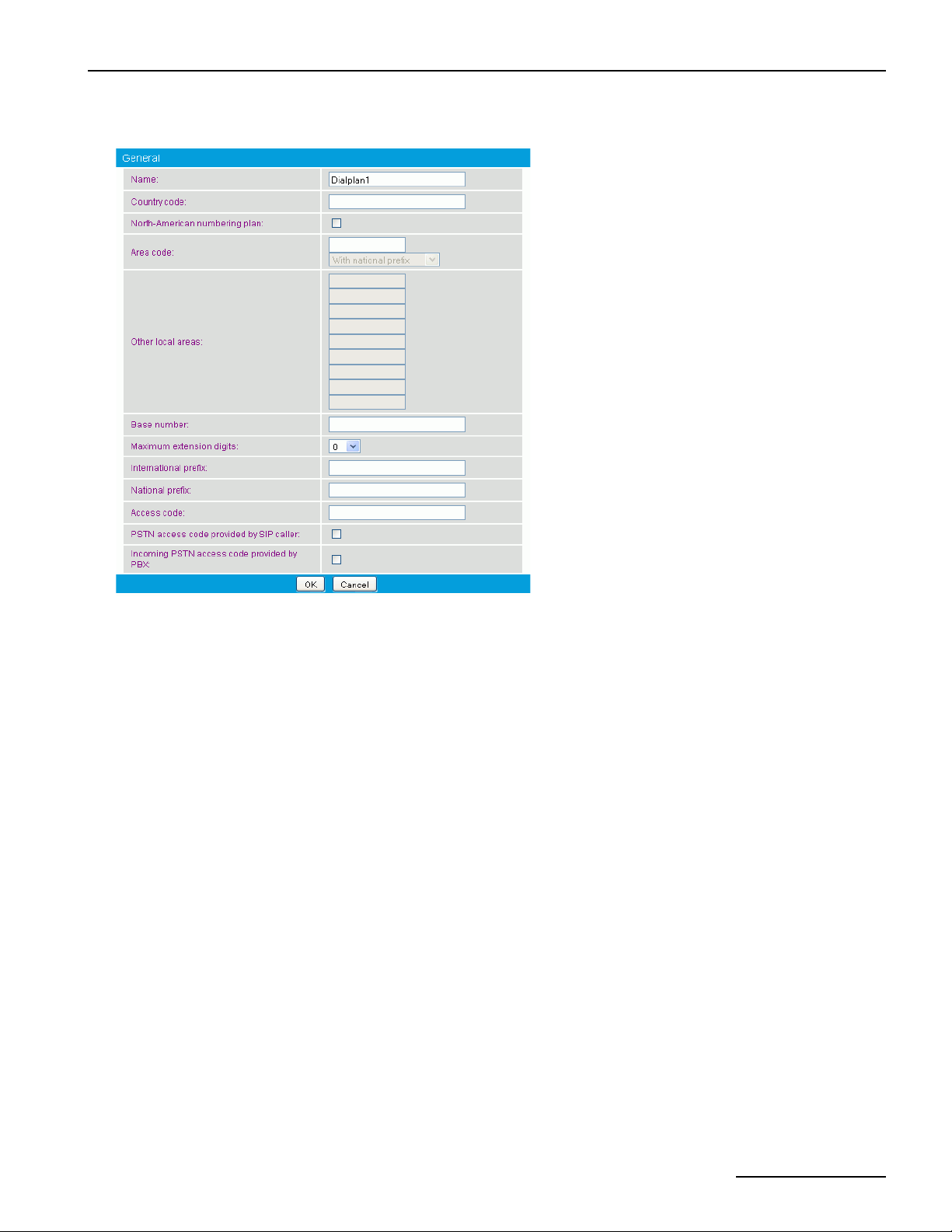
Dialogic® 4000 Media Gateway Series Reference Guide
You may configure the parameters shown in the graphic and explained below:
Name: Enter a name to easily identify the dialplan, e.g., Stuttgart office.
Country code: Enter the country code without any prefixes of the country in which the computer with the
North-American
numbering plan:
Area code: If you do not use the North American numbering plan (NANP), enter the area code without
Other local areas: You may enter various area codes that are considered local and should be called without
Base number: Enter your subscriber or trunk number without country and area code. If you use MSNs,
Maximum extension
digits:
installed Dialogic
Select this option if the North American numbering plan (NANP) is needed for your
configuration. With the NANP, a city can have more than one area code, consequently it is
not evident how to dial a number in the same city. The Diva SIPcontrol software allows you
to enter various area codes that are considered local and should be called without
long-distance prefix. See Area code and Other local areas for more information.
the leading zero here. If the NANP is needed for your configuration, enter the code for the
home area here and enter the codes for the other local areas in Other local areas.
If you need to use NANP, you can choose between the following number transmission
methods:
With national prefix: The long-distance code is added to the number.
Local: The number is transmitted without any area code.
Without national prefix: The number is transmitted without the long-distance prefix.
the long-distance prefix. This is the case in some countries where the North American
numbering plan is deployed, e.g., in the USA. With the NANP a city can have more than
one area code, consequently it is not clear how to dial a number in the same city.
leave this field empty and enter the length of the MSNs in Maximum extension digits.
Specify the maximum number of extension digits. Use the "arrow up" and "arrow down"
buttons to do so.
®
Diva® SIPcontrolTM Software is located, e.g. 1 for US or 49 for Germany.
International prefix: Enter the international prefix for your country, e.g., 00.
National prefix: Enter the digits of the national prefix, e.g., 0 in Germany.
page 33
Page 34

Dialogic® Diva® SIPcontrolTM Software Configuration
Access code: Enter the digits that are needed to get access to the public network, e.g., 9.
PSTN access code
provided by the SIP
caller:
Incoming PSTN
access code provided
by the PBX:
Select this option if the SIP caller has to provide the access code. If the length of the called
number is not sufficient to identify it as an internal number, activate this option to avoid
ambiguous numbers. This is usually the case if you are not using the North American
Numbering Plan (NANP).
Select this option if the PBX adds the access code to the calling number for incoming external
calls.
page 34
Page 35
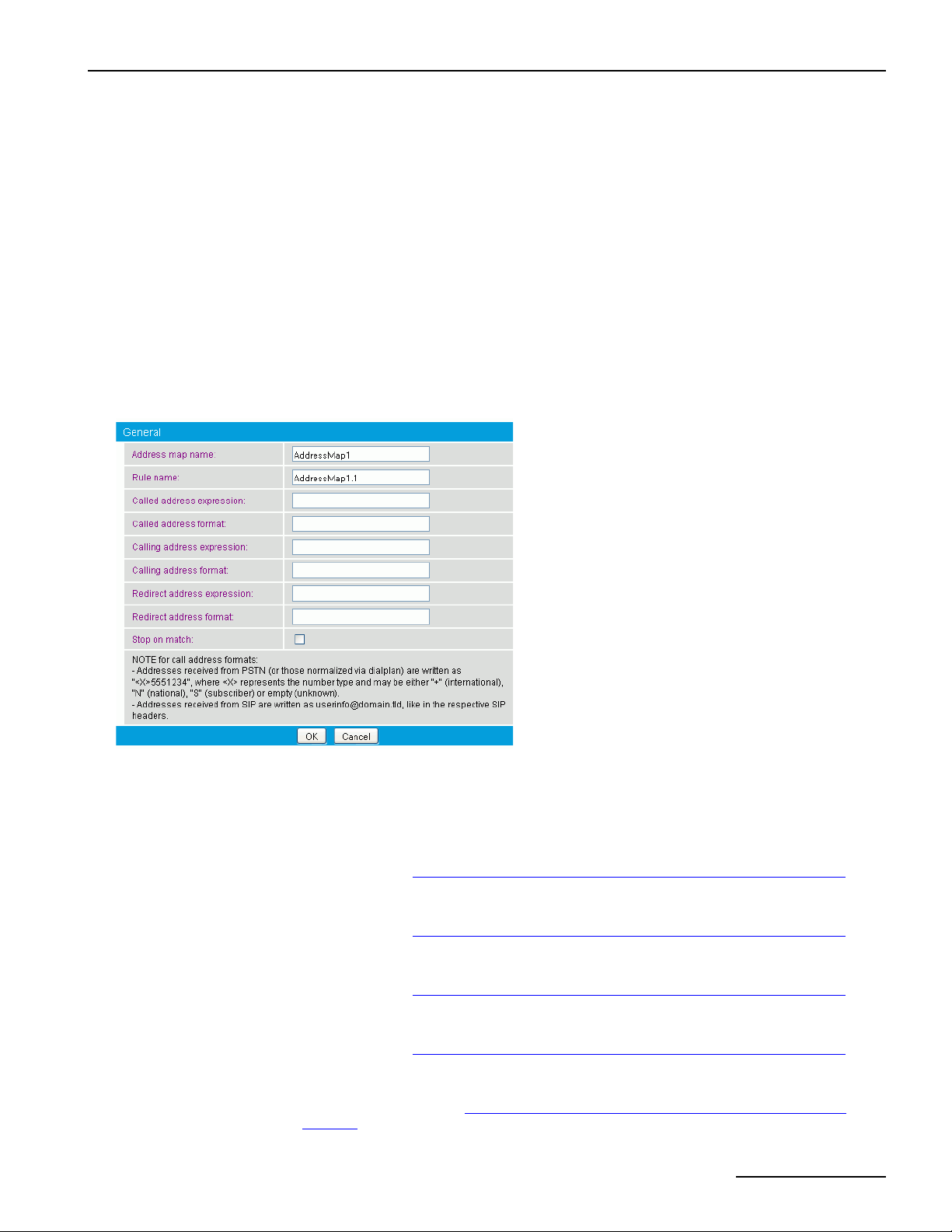
Dialogic® 4000 Media Gateway Series Reference Guide
Address Maps
In general, address maps should be used for cases that are not covered by the dialplan. Possible scenarios are:
• set the calling number to that of the central office on SIP-to-PSTN calls,
• change the called extension to another value if an employee left,
• remove trunk prefixes while routing to a global voicemail server.
Each address map consists of a number of rules that are checked and applied from first to last until a matching
rule is found that has the Stop on match option enabled. A rule matches only if all three expressions of that
rule match. The order of the address maps is not important, but the order of the rules within a map is significant
and can therefore be changed with the "arrow down" and "arrow up" buttons.
To add an address mapping, click the Add button. To change the settings for each address mapping, click the
Details button on the right hand side. To open the online help for a specific parameter, click the parameter and
a window with the help text pops up.
You may configure the parameters shown in the graphic and explained below:
Address map name: Enter a name for the address map that helps you remember the purpose of the map. This
Rule name: Enter a name for the rule of the map, e.g., "Remove 9 from all incoming calls".
Called address
expression:
Called address format: If the address format entered here matches a called address, the format string is applied
Calling address
expression:
Calling address format: If the address format entered here matches a calling address, the format string is applied
Redirect address
expression:
name is shown in other menus where an address map may be selected.
Note: The name may be edited only during the creation of a map.
If the regular expression entered here matches a called address, the format string is applied
to the result. See
page 50 for more information on regular expressions.
to the result. See
page 50 for more information on regular expressions and formats.
If the regular expression entered here matches a calling address, the format string is applied
to the result. See
page 50 for more information on regular expressions.
to the result. See
page 50 for more information on regular expressions and formats.
If the regular expression entered here matches a redirected address, the format string is
applied to the result. See
Software on page 50 for more information on regular expressions.
Number Processing With The Dialogic® Diva® SIPcontrolTM Software on
Number Processing With The Dialogic® Diva® SIPcontrolTM Software on
Number Processing With The Dialogic® Diva® SIPcontrolTM Software on
Number Processing With The Dialogic® Diva® SIPcontrolTM Software on
Number Processing With The Dialogic® Diva® SIPcontrolTM
page 35
Page 36

Dialogic® Diva® SIPcontrolTM Software Configuration
Redirect address
format:
Stop on match: If all expressions match all addresses of a call, this flag determines if the Dialogic® Diva®
If the address format entered here matches a redirected address, the format string is applied
to the result. See
page 50 for more information on regular expressions and formats.
SIPcontrol
matching is aborted.
Number Processing With The Dialogic® Diva® SIPcontrolTM Software on
TM
Software should continue to search for matching rules. If set, the address
Note: If expressions should match from the beginning, prepend the caret symbol ("^") at the beginning of the
expression, for example:
Number: 1234567
Expression: ^123
Format: 4567
Result: 45674567
page 36
Page 37
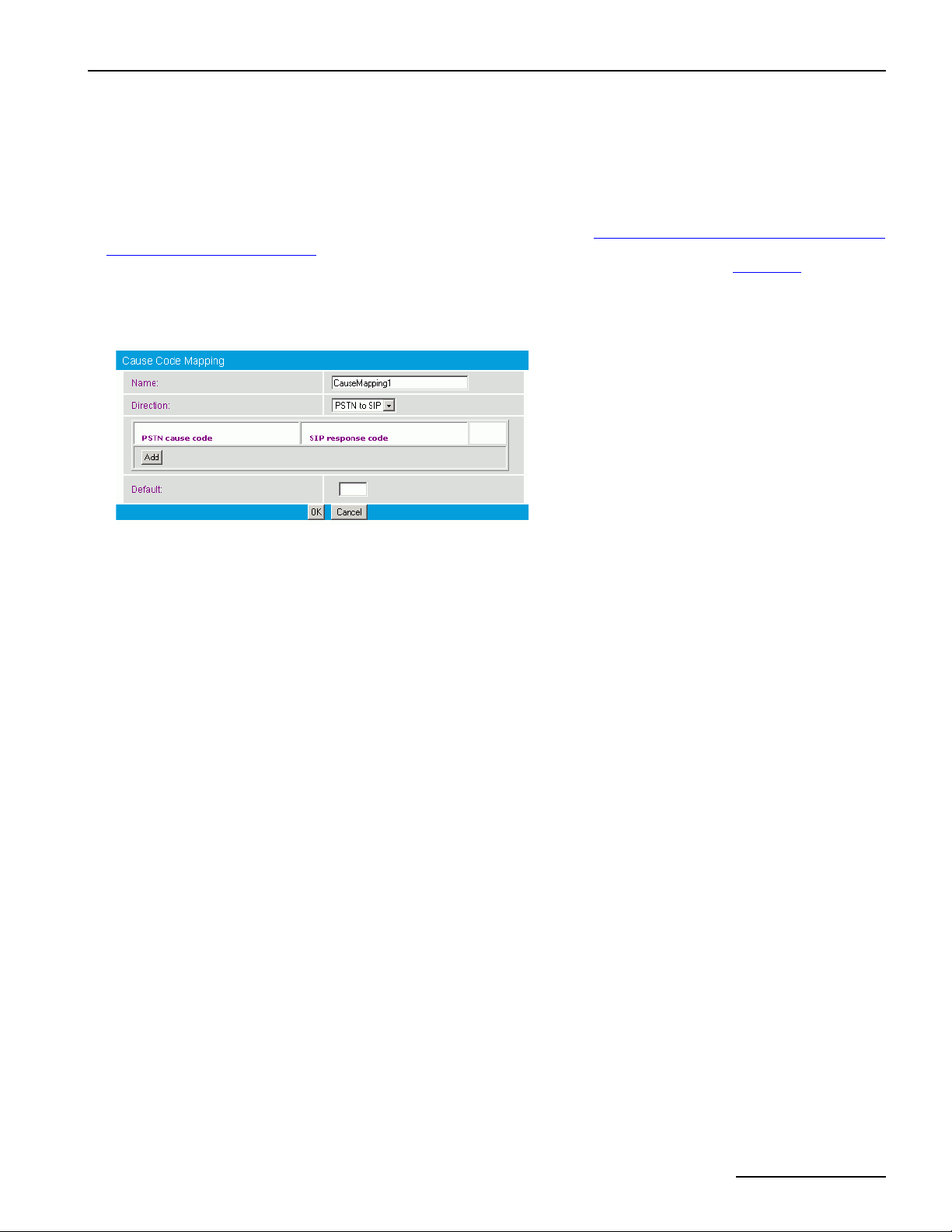
Dialogic® 4000 Media Gateway Series Reference Guide
Cause Code Maps
Depending on the type of SIP peer selected, different default mapping tables are used to adapt SIPcontrol's
responses to the values expected by that peer.
If the internal default mapping table provided by the Dialogic® Diva® SIPcontrolTM Software does not fulfill your
needs, e.g., because your local PBX uses non-standard cause codes, you may configure your own cause code
mapping table, which will be checked before the default table is. See
Cause Code Mapping With The Dialogic®
Diva® SIPcontrolTM Software on page 54 for the cause/response code mapping table. If you create your own
cause code mapping table, make sure to select it in the SIP Peer Configuration under Enhanced.
To add a cause code, click the Add button. To change the settings, click the Details button on the right hand
side. To open the online help for a specific parameter, click the parameter and a window with the help text will
pop up. You may configure the parameters shown in the graphic and explained below:
Name Enter a name to easily identify the cause code mapping table.
Direction Select the direction for which this table is used:
•Select PSTN to SIP to configure mappings of PSTN cause codes to SIP response codes. This mapping
is used if a call from a SIP endpoint to a PSTN endpoint cannot be completed.
•Select SIP to PSTN to configure mappings of SIP response codes to PSTN cause codes. This mapping
is used if a call from a PSTN endpoint to a SIP endpoint cannot be completed.
PSTN Cause
Code
SIP Response
Code
Default Enter the cause or response code that the Dialogic® Diva® SIPcontrolTM software should use per default
Enter the PSTN cause code equivalent to the SIP response code entered in this menu. The PSTN cause
code is also known as Q.850 cause code. Valid values are 1 to 127.
Enter the SIP response code equivalent to the PSTN cause code entered in this menu. The values are
only valid in the range from 400 to 699.
if no mapping for the received cause or response code is specified in this table.
Note: If this value is not configured and no mapping for the received cause or response code is specified
in this table, the Diva SIPcontrol software's internal default mapping table will be used.
page 37
Page 38
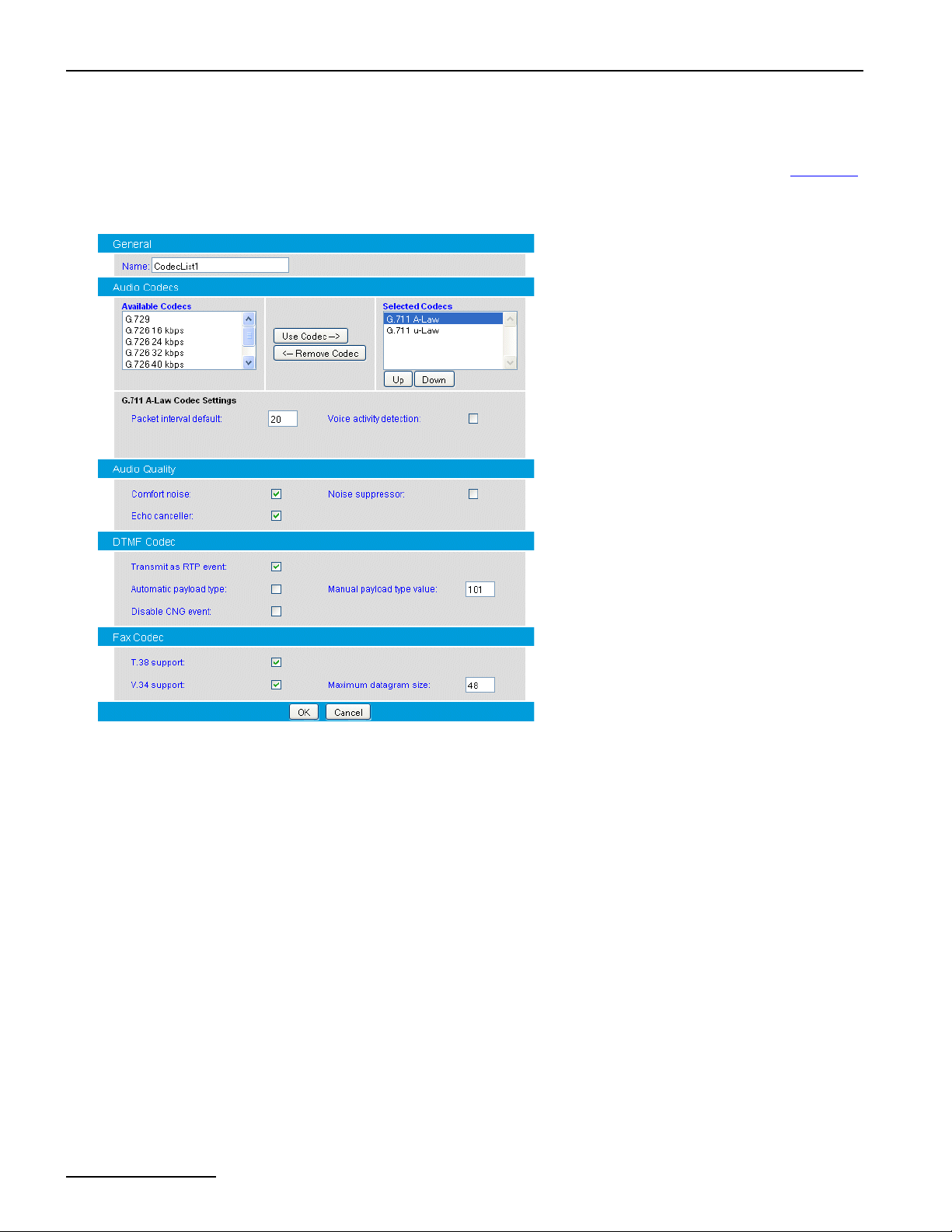
Dialogic® Diva® SIPcontrolTM Software Configuration
Codec Profiles
To configure the codec list, click the Add button. To change the settings, click the Details button on the right
hand side. If you create a codec profile, make sure to select it in the SIP Peer Configuration under Enhanced.
To open the online help for a specific parameter, click the parameter and a window with the help text will pop
up. You may configure the parameters shown in the graphic and explained below:
Name: Enter a name to easily identify the codec list. You may select the codec list in the SIP Peer configuration.
Available
Codecs:
Selected
Codecs:
Packet interval
default:
Voice activity
detection:
Comfort noise
support:
Noise
suppressor:
Echo canceller: If you enable this parameter, the audio echo canceller is active.
page 38
This list includes all available codecs. If you want to use a certain codec, select it and click Use Codec.
The codec will be moved to the Selected Codecs list. The G.729 codec can only be used after you
have purchased and activated a license. See License Activation in the Dialogic
Series Quickstart Guide for more information.
By default, the G.711 A-law and G.711 µ-law codecs are selected. If you want to delete a certain codec,
select it and click Remove Codec. The codecs are used according to their position in the list, with the
first codec being the first to be used. To change the order, use the Up and Down buttons.
Interval between RTP packets in an RTP stream. Also known as packetization time or RTP frame size.
If you activate voice activity detection, silence during a conversation is detected and the data rate is
reduced.
If you enable the comfort noise feature and the voice activity detection (VAD) is active on your system,
packets with low artificial background noise are sent to fill periods of total silence. Among others, total
silence in digital transmissions can have the unwanted effect that the called party may think that the
transmission has been lost and hang up prematurely.
Enable this parameter if you want to use the noise suppressor functionality.
Note: The echo canceller is activated as long as only one used codec has this parameter enabled.
®
4000 Media Gateway
Page 39

Dialogic® 4000 Media Gateway Series Reference Guide
Transmit DTMF
as RTP event:
Automatic
payload type:
With RTP events, DTMF and fax tones can be sent and received as digital notifications instead of audio
signals.
G.726, iLBC, and DTMF have a dynamic RTP payload. If you select this option, the Dialogic® Diva®
SIPcontrol
TM
software sets the values automatically. Only if the endpoint cannot handle the
automatically set value, enter it manually under Manual payload type value.
Manual
payload type
value:
Disable CNG
event:
Some endpoints expect a certain payload type value. You can enter any value between 96 and 127.
In calls from SIP to the PSTN, the Diva SIPcontrol software uses the value suggested by the endpoint.
Generally, this parameter is left at its default value.
This parameter defines which RTP events should NOT be supported locally, i.e., which events should
be transported inband. Unsupported events are also negotiated as not available to the peer.
Each bit set defines the respective event as being NOT supported, with bit 0 of the first array entry
representing event 0, and bit 8 of the 32nd entry representing event 255.
See
http://www.iana.org/assignments/audio-telephone-event-registry/audio-telephone-event-registry.x
html for a list of possible events.
Only events 0-15 (DTMF "0"-"9", "*", "#", "A"-"D"), and 36 (CNG) are supported; all other event bits
are set to 1.
T.38 Support: T.38 is a protocol that enables fax transmissions on the IP network in real time. Enable this option if
T.38 fax should be supported. Note that this feature is supported on Dialogic
®
Diva® Media Boards
with multiple ports only after activating the respective license. See License Activation in the Dialogic
4000 Media Gateway Series Quickstart Guide for more information.
V.34 Support: The V.34 fax transmission protocol allows facsimiles to be transmitted at a maximum speed of 33.600
bps. Enable this option if V.34 should be supported. Note that this feature is supported on Diva Media
Boards with multiple ports only after activating the respective license. See License Activation in the
Dialogic
®
4000 Media Gateway Series Quickstart Guide for more information.
®
Maximum
datagram size:
This value defines the maximum amount of data that can be transmitted in one T.38 packet. Some
endpoints are limited to packets of a certain size. You can enter a value between 32 and 192. Default
is 48 bytes.
page 39
Page 40
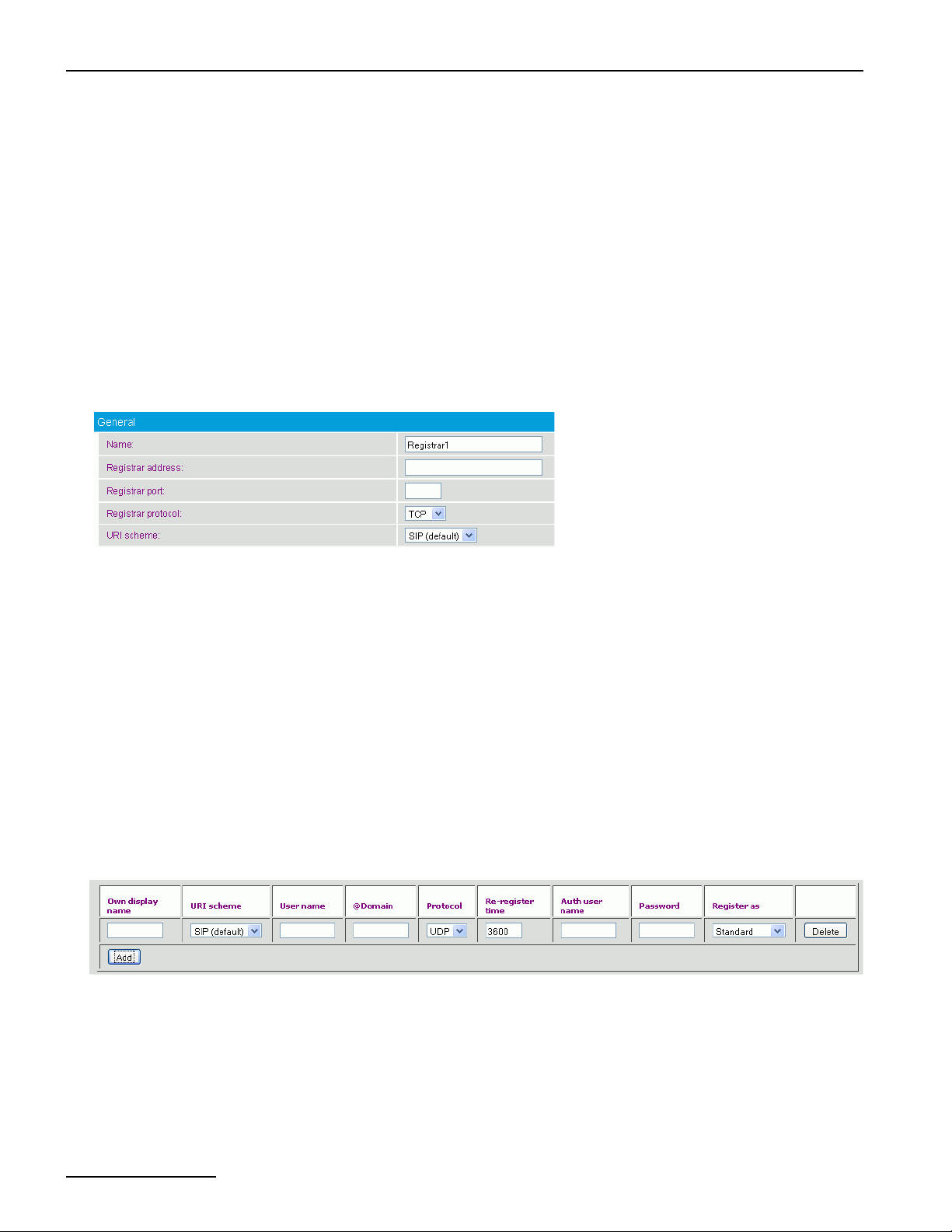
Dialogic® Diva® SIPcontrolTM Software Configuration
Registrations
SIP devices can communicate directly if the URL of both devices is known, but in general, SIP gateways are used
in a network to enable functionalities such as routing, registration, authentication, and authorization.
Registration at a registrar server can be useful because in many cases, only the SIP address of a user is known
but the location (SIP address of the device) is unknown or may change. A registrar server keeps track of the
location of user agents from which the registrar server has received REGISTER requests. Thus, only the SIP
address of the user needs to be sent to the registrar server, which then returns one or more contact addresses
of the user.
If the Dialogic® Diva® SIPcontrolTM Software is configured to use a registrar server, it registers with the server
as soon as it is active. Thus, all local addresses configured for registration are registered with the server. You
may use either a private registrar service or a public registrar server.
To configure a registrar server, click the Add button. To change the settings, click the Details button on the
right hand side. To open the online help for a specific parameter, click the parameter and a window with the help
text will pop up. You may configure the parameters shown in the graphic and explained below:
Name: Enter a name for the registrar configuration.
Registrar address: Enter the IP address or the hostname of the registrar server.
Registrar port: Enter the port number of the registrar server. Usually, the registrar server is listening on port
5060.
Registrar
protocol:
URI scheme: This option is only available if you selected TLS as Registrar protocol.
Select the protocol the registrar server uses.
Calls are transmitted via various proxy servers. Some of them do not transmit the calls as
encrypted calls. If you select SIP (default), you allow that calls are transmitted via such
proxy servers.
To make sure that a call is sent encrypted to the proxy of the remote side, select SIPS (secure
SIP). If a call is routed via a proxy server that is not able to route the call encrypted, it rejects
the call and the call is send to another proxy until it can be transmitted.
To configure the settings for each user that should register at the same registrar server, click Add and configure
the following parameters:
Own display
name:
Enter the name that should be displayed at the registrar server.
URI scheme: Select either SIP(default) or SIPS as URI scheme.
User name: Enter the name or number that the Diva SIPcontrol software uses to register at the registrar
Domain: Enter the domain name of the registrar server.
Protocol: Select UDP if you register as e-phone gateway.
page 40
server.
Page 41
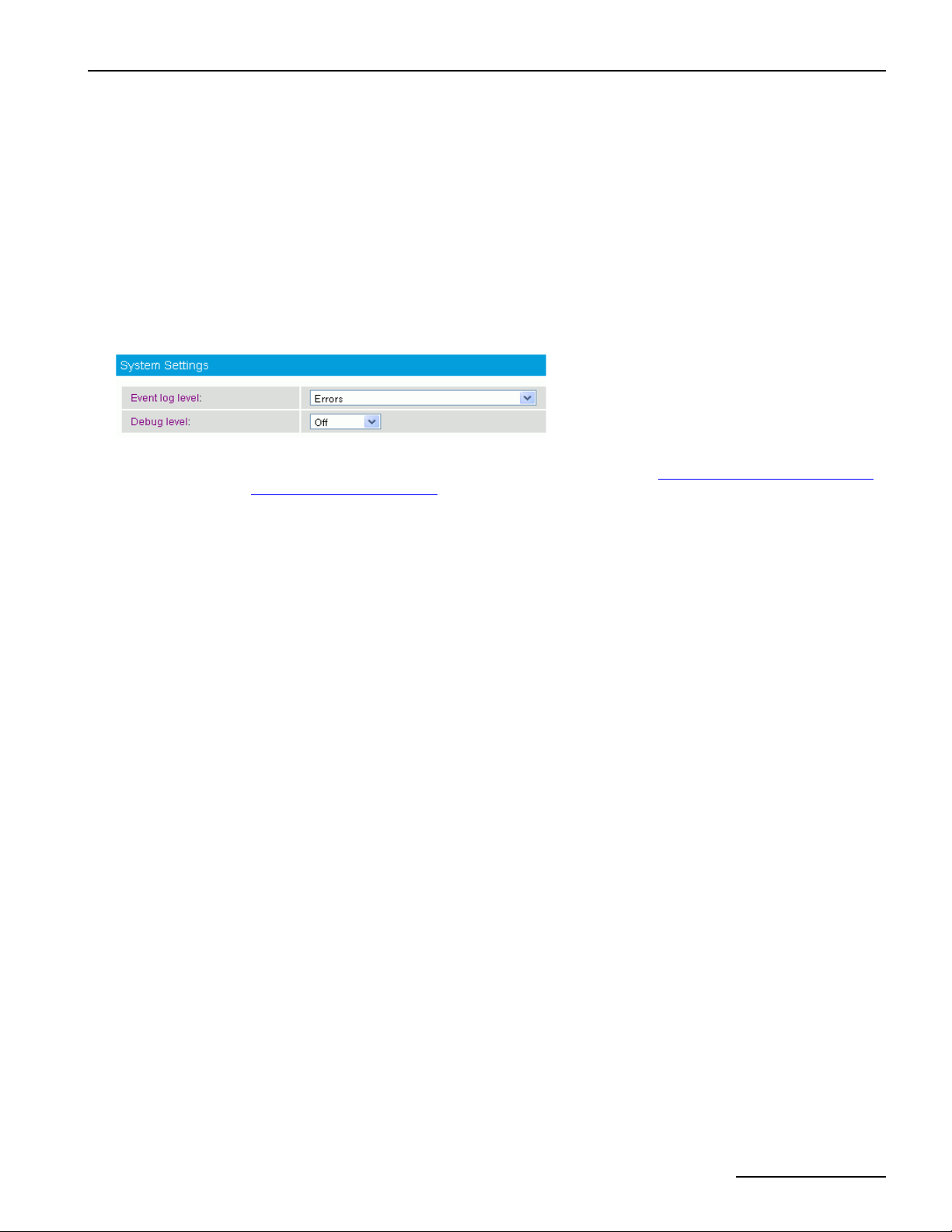
Dialogic® 4000 Media Gateway Series Reference Guide
Re-register time: Enter the re-register time in seconds. This is the time the registration to the registrar server
Auth user name: Enter a user name for authentication at the registrar server.
Password: Enter your password for authentication at the registrar server.
Register as: Leave the setting at the default value Standard. Select e-phone GW only if you use e-phone
remains valid. After this time has elapsed, the SIP stack service would need to re-register to
be available again. The default value is 3600 seconds.
®
and you want the Dialogic
Diva® SIPcontrolTM Software to function as gateway for e-phone.
System Settings
You may configure the parameters shown in the graphic and explained below:
Event Log Level: A computer with the Diva SIPcontrol software installed may write different types of events into the
System Event Log. The details for each event log are described in
Diva® SIPcontrolTM Software on page 60.
Debug Level: The debug level setting may be used for debugging and tracing purposes. During normal operation,
it should be set to Off to lessen the effect on system performance.
Event Logging With The Dialogic®
page 41
Page 42

Data Security Overview
Data Security Overview
Since version 2.0, the Dialogic® Diva® SIPcontrolTM software provides additional security options for transmitted
and received data:
• Secure HTTP: You may use Secure HTTP (HTTPS) to transmit data between the web-based configuration
interface of the Diva SIPcontrol software and your web browser.
• TLS: The Transport Layer Security (TLS) protocol may be used to encrypt and authorize SIP messages.
• Secure RTP: The Secure Real-time Transport Protocol (SRTP) may be used for encrypting the data of the
actual conversation.
Note: The HTTPS and TLS protocols require digital identity Certificates (e.g., public key certificates).
Secure HTTP
HTTP is a protocol that transmits data between the web-based configuration interface of the Diva SIPcontrol
software and your web browser. Even though the HTTP interface has access security (via a password), the
transmitted data is not entirely secure. The data is transmitted as clear text and thus it is possible for the
transmission to be intercepted and, in turn, for the data to be read.
HTTPS uses HTTP over an encrypted Secure Sockets Layer (SSL) or Transport Layer Security (TLS) connection
and with a different default port than HTTP.
As an example, if a message containing a request to change a password was captured by a third party, the third
party could log on to the Diva SIPcontrol software web interface and change the configuration. HTTPS encrypts
and authenticates HTTP data, and thus the data is no longer transmitted as clear text and is not easily readable.
HTTPS requires two actions by the user:
• Both the Diva SIPcontrol software and the computer on which the web browser used to connect to the Diva
SIPcontrol software via HTTPS is running must be configured with the proper certificate.
• When accessing the Diva SIPcontrol software web interface, use https:// instead of the non-secure http://
followed by the URL of the PC on which the Diva SIPcontrol software is installed.
TLS
SIP (Session Initiation Protocol) is a signaling protocol used for VoIP calls over the Internet. SIP messages contain
information such as call-party information, call media type, whether it is a secure call, and if so, what encryption
algorithm is used, etc. SIP can be carried by UDP, TCP, or TLS transports. Both UDP and TCP transport data in
clear text. As a result, UDP and TCP can easily be monitored by a third party. TLS, on the other hand, carries
SIP data in a secure way by encrypting the data and authenticating the transport connections. Authentication
provides that you are talking to the intended peer. For authentication purposes, you need to install
Certificates
as described in Security Profiles on page 30 and enable TLS as transport protocol, as described in Network
Interfaces on page 21.
Secure RTP
Once a Voice over IP (VoIP) call is established, voice data is transported in packets with the Real-time Transport
Protocol (RTP). The voice data can be easily extracted from RTP packets and replayed using commercially
available software. SRTP adds security by encrypting voice data and authenticating packets. Digital identity
certificates are not required, the parameters are negotiated during call initiation time. SRTP mode is activated
typically in combination with TLS, but in some cases (e.g., testing, intranet connections only) it is useful to allow
SRTP also without TLS being activated.
For encryption and decryption of data, SRTP uses ciphers. The two parties involved in a conversation must be
"compatible" in the sense that each party understands the other party's cipher requirements and supports them.
The Diva SIPcontrol software supports the following ciphers: DH, ADH, AES (128-256 bits), 3DES (64 bits), DES
(64 bits), RC4 (64bytes), RC4 (256 bytes), MD5, SHA1.
SRTP can be set for each SIP peer in the Security configuration, as described on page 25. The cipher level can
be set in the Global Security Parameters as described on page 31.
page 42
Page 43
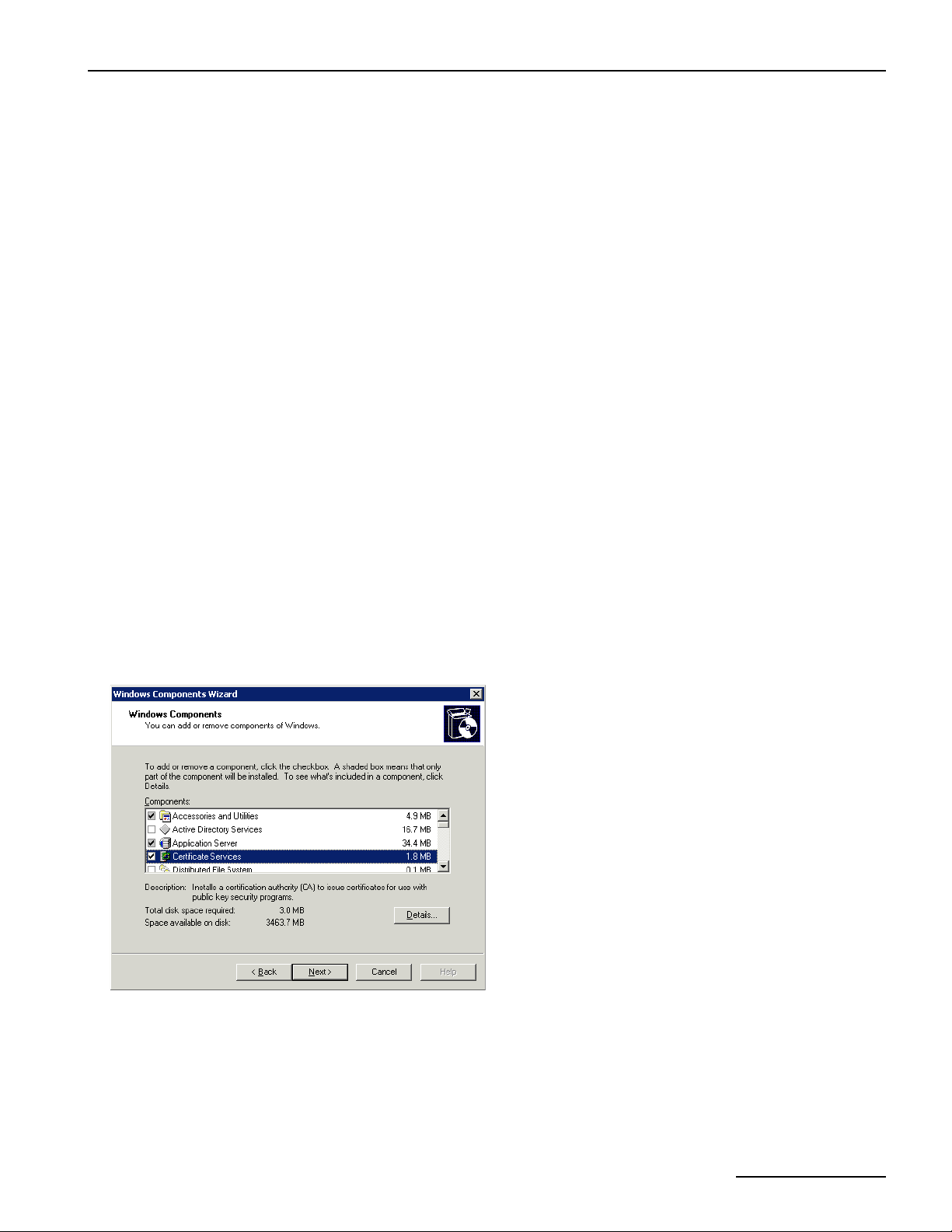
Dialogic® 4000 Media Gateway Series Reference Guide
Certificates
For authentication and data encryption, certificates need to be installed on the computer on which the Diva
SIPcontrol software is installed and on remote computers. When a secure domain is opened, server and client
authenticate each other with a so called "SSL handshake". With this handshake, the identity of a user is certified
and it is assured that the user can be trusted. All necessary certificates should be provided by a Certificate
Authority (CA), and they are issued for one domain name. For test purposes or internal usage, you can also
create and sign your own self-signed certificate, but you need to be aware that self-signed certificates do not
provide the same security as CA-signed certificates. Also, many web browsers check if the certificate is signed
by a CA, and, if it is not, a warning message will pop up asking whether the user really wants to trust that web
site, which can make the user feel insecure.
Using certificates with Microsoft® Office Communications Server (OCS) 2007
Microsoft® OCS 2007 requires that:
• server certificates contain one or more CRL (Certificate Revocation List) distribution points.
CRL distribution points are locations from which CRLs can be downloaded to verify that the certificate has not
been revoked since the time it was issued.
• server certificates support EKU (Enhanced Key Usage).
EKUs are needed for server authentication and ensure that the certificate is valid only for the purpose of
authenticating servers. This EKU is essential for MTLS (Mutual TLS).
• the gateway server certificate has a FQDN (Fully Qualified Domain Name) either in the Certification field
CN (Common Name) / SN (Subject Name) or SAN (Subject Alternative Name) or both.
How to generate certificates using Microsoft® Certificate Services and upload them in the Diva
SIPcontrol web interface
Microsoft® Certificate Services is a component of the Microsoft® Windows Server® operating system. On
Microsoft® Windows Server® 2003, it can be installed through the Windows® Component Wizard.
Note: Do not install the Microsoft® Certificate Services on your Dialogic® 4000 Media Gateway, but on a separate
computer.
1. Create a key file and a certificate request with a third party program.
2. On your Microsoft® Certificate Services web site, got to Advanced Certificate Request and select the
second option to submit a base-64-encoded request.
page 43
Page 44
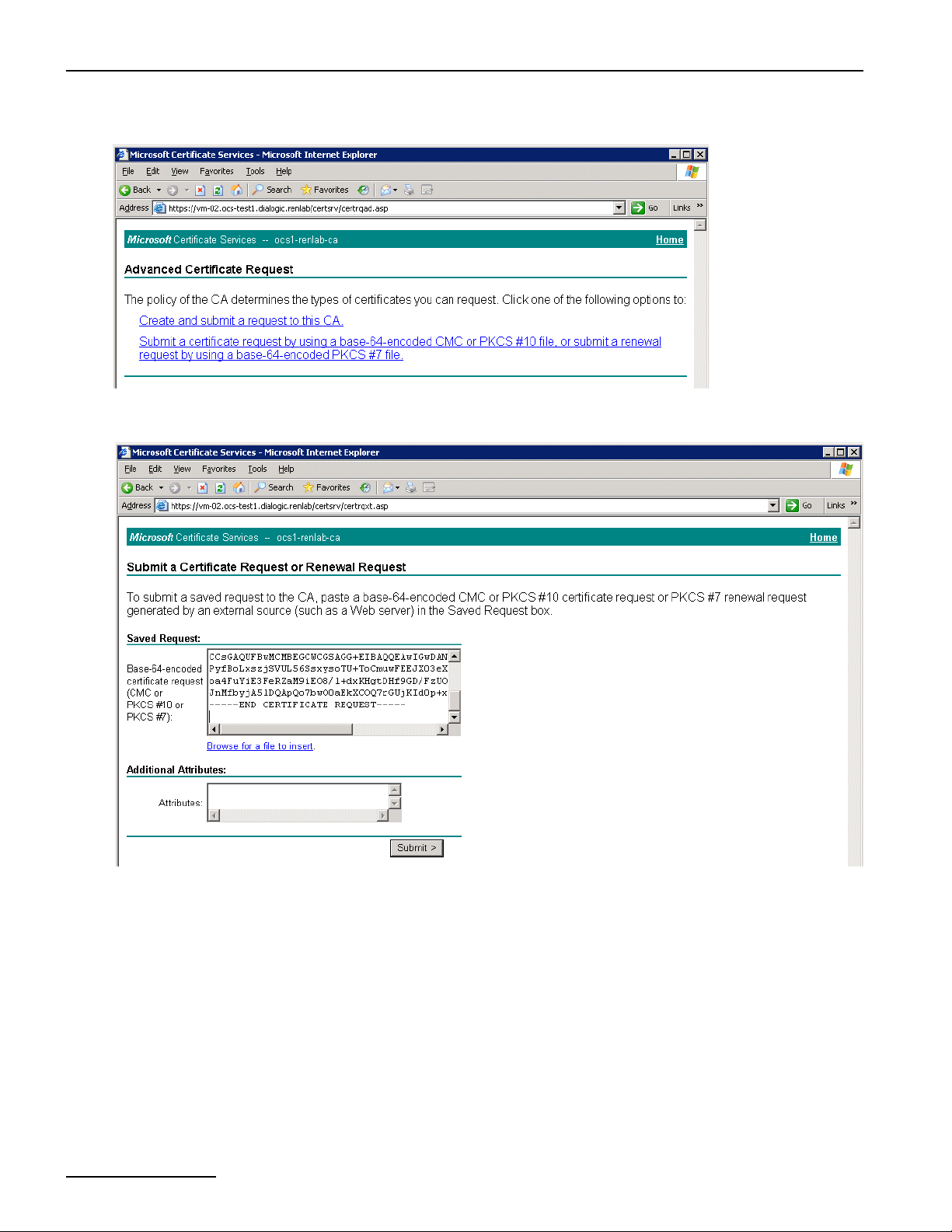
Data Security Overview
3. Open the key file with Wordpad, select the contents, paste it into the Microsoft® Certificate Services web
site, and click Submit.
4. Go to the Microsoft® Certification Authority Management console and sign the certificate request.
page 44
Page 45
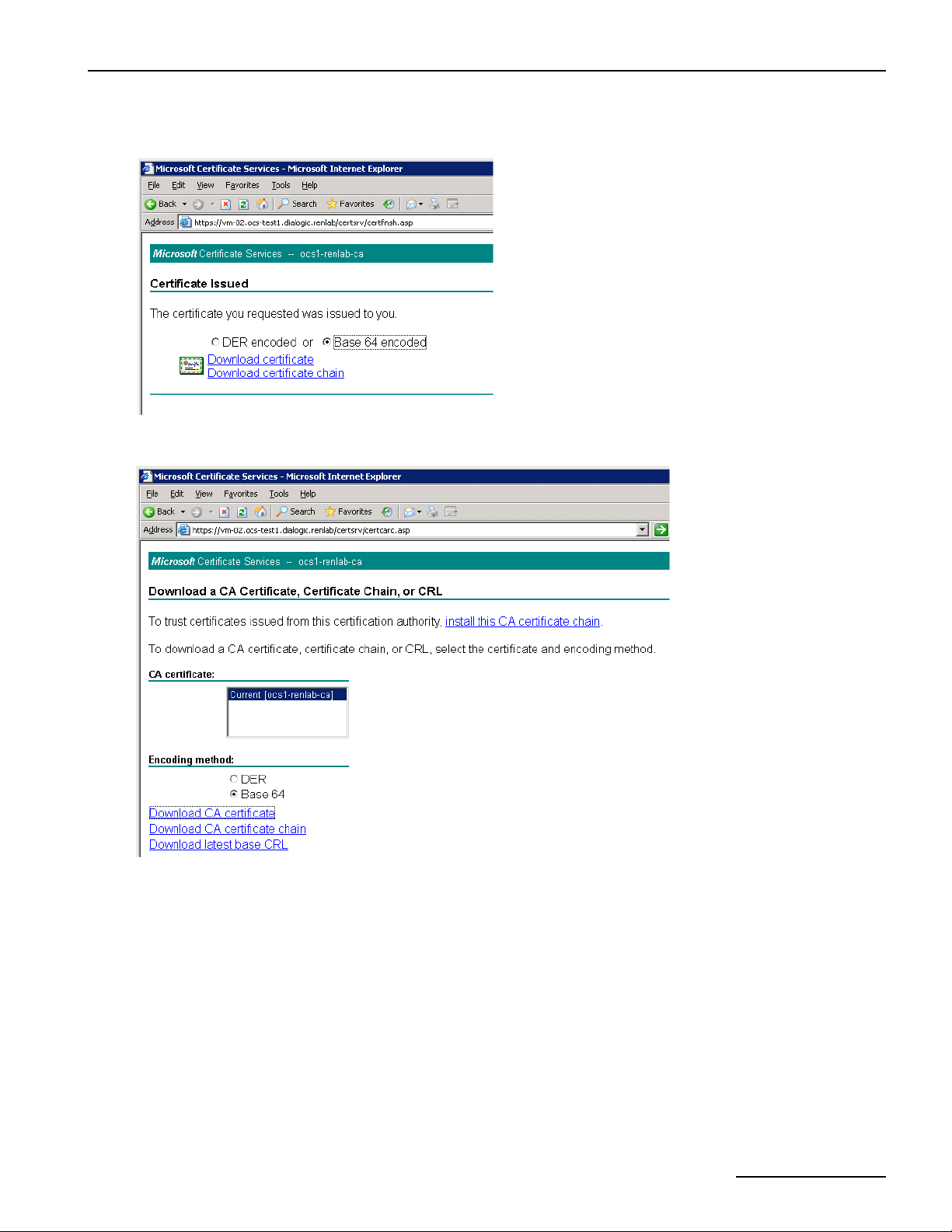
Dialogic® 4000 Media Gateway Series Reference Guide
5. Go to the Microsoft® Certificate Services download page for signed certificates, select Base 64 encoded,
and click Download certificate.
6. Go to the Microsoft® Certificate Services download page for the CA certificate, select Base 64, and click
Download CA certificate.
7. Upload the key file, the certificate file, and the certificate authority file. To do so, open the Diva SIPcontrol
web interface and on the left hand side click SIPcontrol configuration.
8. Click Security Profiles and then Details.
9. Next to Key file, click Browse, go to the folder where you stored the file, and click Open to upload it.
10. Repeat the procedure in step 9 for the certificate file and the certificate authority file.
11. In Authentication mode, select how the server-client authentication should be handled.
12. Click OK to close the Security Profiles window.
13. At the bottom of the Diva SIPcontrol web interface click Save to save the configuration.
14. Since changes in the Security Profiles require a restart, click Service status at the left hand side of the web
interface and then click Restart SIPcontrol.
page 45
Page 46
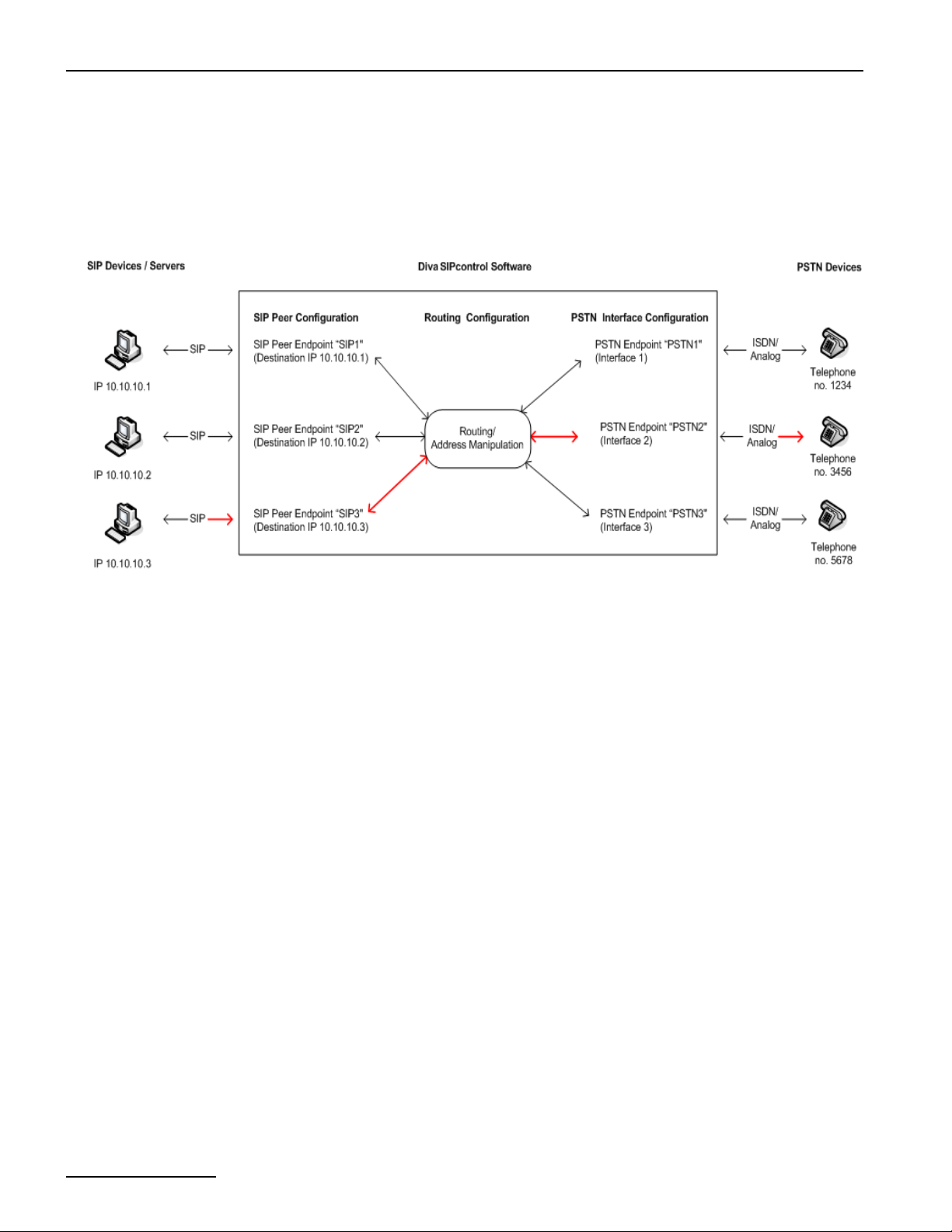
Call Processing With The Dialogic® Diva® SIPcontrolTM Software
Call Processing With The Dialogic® Diva® SIPcontrolTM Software
The Dialogic® Diva® SIPcontrolTM Software uses an endpoint-based approach to process calls, which means that
every PSTN interface and every configured SIP peer is considered as a single endpoint. The endpoint saves the
Diva SIPcontrol software settings for the respective PSTN interface or SIP peer. Each call originates at a specific
endpoint (on the SIP side after assigning the SIP call request to one of the configured peers) and needs a route
to find its designated endpoint (the destination). Thus, the most simple configuration needs one PSTN endpoint,
one SIP peer, and one route as shown in red in the graphic below.
This graphic shows that an endpoint is only a virtual object of a real device. The endpoint saves the settings for
the corresponding device. For example, if a call should be routed from SIP device 3 to PSTN device 2 as marked
red in the graphic, then:
• The settings of SIP device 3 need to be configured as SIP peer endpoint in the SIP Peer Configuration,
• the settings PSTN device 2 needs to be configured as PSTN endpoint in the PSTN Interface
Configuration, and
• the condition "called address is 3456" needs to be configured in the Routing Configuration to route the
call to the correct device.
If you have for example a SIP or PSTN device 4 with no endpoints configured in the Diva SIPcontrol software,
then you cannot establish a call, because the Diva SIPcontrol software will not know the settings of the device.
The PSTN endpoint is found via its controller number. On the SIP side, multiple SIP peers may connect via the
same network interface. Therefore, the assignment is more complex:
1. The host/domain name and port number of the received "FROM" header is compared against the SIP peer
settings.
2. If no host matches, the same address is compared against the "Domain" parameters of the SIP peers.
3. If no match is found, the Diva SIPcontrol software looks for a SIP peer with the Default SIP to PSTN Peer
option enabled.
4. If the call cannot be assigned, regardless of whether the call originated in the PSTN or SIP network, the call
is rejected.
page 46
Page 47
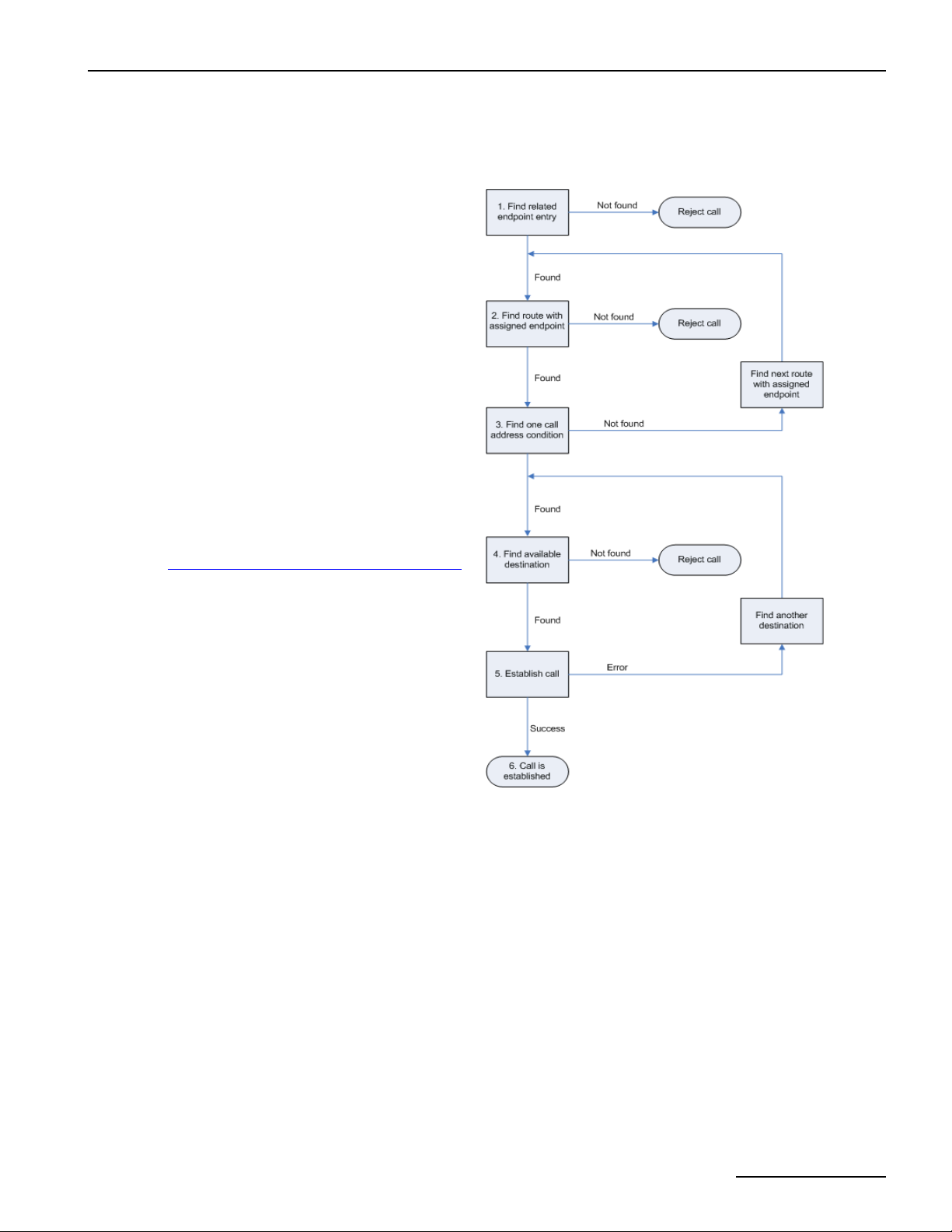
Dialogic® 4000 Media Gateway Series Reference Guide
Every route defines only one direction. Therefore, at least two routes are needed to support both PSTN-to-SIP
and SIP-to-PSTN connections. The basic call (without address manipulation) is processed as follows:
1. Find and assign an endpoint for an incoming call
request (PSTN: lookup by CAPI controller
number; SIP: lookup by "From" address of
received message).
2. Go sequentially through the list of routes and
find the first route that has this endpoint
defined in its configured sources list.
3. Determine whether at least one call address
condition of this route matches simultaneously
the called, calling, and redirected addresses of
the call request; if not, find another route.
4. If any route condition matches, verify in the list
of configured destinations which one is the
most preferred. This is done based on settings.
See
Some things to know about call processing
below for more information.
5. Try to establish the call via this destination. If
the destination is unavailable or rejects the call,
try the next destination of the route. Note that
the call will be aborted immediately if a cause
code is received that signals final failure, e.g.,
user busy or unallocated number.
6. The call is established.
Some things to know about call processing
• Each route may point to several destinations, between which the Diva SIPcontrol software chooses according
to the following settings (in decreasing order of importance):
• availability (destination enabled),
• alive state of destination (if enabled to be verified),
• priority (Master/Slave),
• channel load quota (a factor calculated by comparing used vs. total supported channels).
• For each call only one route is chosen. Even if another route would also match the call criteria, only the first
matching route is ever evaluated. Therefore, default routes should be created carefully.
• Load balancing/failover is only performed between the destinations of a single route.
• Routes without any conditions always match (as long as the source endpoint is listed in route sources).
page 47
Page 48

Call Processing With The Dialogic® Diva® SIPcontrolTM Software
Emergency calls
In many environments, certain numbers, e.g., 110/112 in Germany or 911 in the U.S., have to be handled
differently from others. For example, they might need to be dialed without any access digit.
This can be achieved by creating an additional route from any configured SIP peers to one or more PSTN interfaces
and setting the called address expression to the emergency number(s). The route should be placed at the top
position in the list. Should there be a dialplan and/or address map configured for the respective PSTN interfaces,
it may be necessary to add another regular expression to the address maps of the interfaces to handle those calls.
Routing conditions
The Dialogic® Diva® SIPcontrolTM Software organizes the conditions of a route in a list. Each list entry consists
of different expressions for called, calling, and redirected address. The route matches only if all three expressions
simultaneously match the respective call addresses. Empty expressions are considered to match, so there is no
need to add wildcards into unused expressions. As a result, if a call should match either a called address or a
calling number, two list entries have to be created, with called expression in the first and calling expression in
the second row. If both have to match concurrently, both expressions have to be entered into the same list entry.
page 48
Page 49

Dialogic® 4000 Media Gateway Series Reference Guide
Call Address Processing With The Dialogic® Diva® SIPcontrolTM Software
The call addresses provided by the caller may be modified at different stages of the call processing within the
Diva SIPcontrol software. The reason for multiple manipulation is that it allows for modifying the address where
it is needed, which means that more complex environments can be configured with less effort since data does
not need to be entered redundantly at different places. It also makes it easier to "team" SIP peers or PSTN
interfaces with different settings.
The Diva SIPcontrol software converts addresses automatically, without any intervention from the user. This
means that the Diva SIPcontrol software adds or removes a special prefix to a number with a known number
type, e.g. "+" for international numbers, when converting between a number and an address. See
formats: on page 52 for a list of prefixes.
Note: Number type flags from digital networks, e.g., ISDN or SS7 are converted into special prefixes on the
SIP side. International numbers get a "+" prefix, national numbers get an "N" prefix, and subscriber numbers
get an "S" prefix.
The automatic conversions are done for calling numbers, called numbers, and redirected numbers.
Possible scenarios
• At a PSTN interface, a line access digit must be prepended in order to call to the public network, while another
PSTN interface is directly connected and does not need an access digit.
Solution: Add a regular expression to outbound address map of the first interface.
• All calls to a number beginning with "9" shall be routed to one specific SIP peer while removing this digit.
Solution: Manipulate the called number in the route. This way the SIP peer may also receive calls to other
numbers (via other routes) without having to deal with different number formats.
• SIP peer "A" needs the dialed numbers to be formatted in E.164 format, while SIP peer "B", which is in
load-balancing or fail-over partnership with "A", needs it in an extension-only format.
Solution: Define different number formats in the SIP peer settings.
• SIP peer "A" is located at a different location than SIP peer "B", e.g., London and Stuttgart. Therefore, both
need different location settings regarding country and area codes, etc.
Solution: Create different dialplans and assign each dialplan to one SIP peer.
Common
How addresses are manipulated
Note: Each step is optional.
1. Save the inbound call addresses as "A".
2. Apply the "address map inbound" of the endpoint assigned to the call setup request to "A", resulting in "B".
3. To check the first route: apply the number format settings of the route together with the dialplan of the
source endpoint to the call addresses "B", resulting in "C".
4. Check the route as described in the route processing section (5) against addresses "C". If the route does
not match, discard the changes and try the next route with "B" again.
5. If the route matches, apply the route address map to the addresses "C", resulting in "D".
6. After selecting one of the destinations of the route, normalize the addresses "D" using the dialplan and
number format of the destination endpoint, resulting in addresses "E".
7. Apply the outbound address map of the destination endpoint to "E", giving the effective call addresses "F"
sent to the destination.
8. If the call to the selected destination endpoint fails and if there are other endpoints in a fail-over configuration,
start with step 6 again with the respective settings of the next endpoint.
page 49
Page 50

Address Map Processing With The Dialogic® Diva® SIPcontrolTM Software
Address Map Processing With The Dialogic® Diva® SIPcontrolTM Software
Address maps are processed as follows:
1. Get the first map rule of the address map.
2. Verify if called, calling, and redirect expression each match the respective part of the call addresses (or are
empty). If not, verify the next map rule.
3. If all three expressions match, apply each format string of the rule to the respective address match.
4. If the option Stop on match is enabled, stop processing. Otherwise, continue with the next rule as described
in step 2.
Number Processing With The Dialogic® Diva® SIPcontrolTM Software
The Dialogic® Diva® SIPcontrolTM software provides two mechanisms for number processing. Both mechanisms
can be used together:
1. Number normalization based on a dialplan as described below.
2. Number modification using regular expressions as described on page 51.
Number normalization based on a dialplan
The number normalization based on a dialplan can work in an environment in which the Diva SIPcontrol software
is connected to a private SIP network and a public switched telephone network (PSTN), optionally with a PBX
between the PSTN and the Diva SIPcontrol software. If the Diva SIPcontrol software is used as a gateway between
a private circuit switched network and a public SIP-based network, the number normalization function of the
Diva SIPcontrol software should not be used.
The Diva SIPcontrol software also supports dialplans using the North American numbering plan (NANP). See
North-American numbering plan: on page 33 for more information.
The number normalization is done in two steps:
1. The received called, calling and redirected numbers are analyzed based on the dialplan configured for the
PSTN Interface or SIP Peer.
2. The number is converted into the configured target format. Six target formats are available:
• International number with prefixes: All numbers are converted to an international number with the
prefix for international calls and, if required, an outside access digit.
• International number with number type: All numbers are converted to an E.164 number with the
number type flag set to "international" ("+" is used in SIP addresses).
• National number with prefixes: If possible, all numbers are converted to a national number with the
prefix for national calls and an outside access digit, as required. Exception: Numbers with different country
code will be converted to an international number with prefix for international calls and outside access
digit, if required.
• National number with number type: If possible, all numbers are converted to a national number with
the number type flag set to "national". Exception: Numbers with different country code will be converted
to an international number with number type set to "international". Note: This target format should not
be used for calls to SIP networks.
• Extension only with prefixes: All numbers are reduced as much as possible; only the required prefixes
are prepended.
• Extension only with number type: All numbers are reduced as much as possible. Instead of prefixes
the appropriate number type is set. Note: This target format should not be used for calls to SIP networks.
page 50
Page 51

Dialogic® 4000 Media Gateway Series Reference Guide
Important information about the outside access digit configuration
• Configure the outside access digit only if there is a PBX between the PSTN and the Diva SIPcontrol software,
and if this PBX requires the outside access digit for external calls. If you need to configure the outside access
digit, also configure the following related options:
• Incoming PSTN access code provided by the PBX: This option defines whether the Diva SIPcontrol
software expects the outside access digit in the calling number in external calls from the PBX.
The PBX normally prepends the outside access digit to the calling number in incoming external calls in
order to enable callback functionality at internal phones. If this is the case, enable this option.
• PSTN access code provided by the SIP caller: This option defines whether the Diva SIPcontrol software
expects the outside access digit in the called number in external calls from the SIP side to the PSTN.
It is normally required to prepend the outside access digit to call an external number from an internal
phone. In this case, these are phones on the SIP side. However, in some configurations this is not required,
especially in a configuration that is part of the North-American numbering plan (NANP), where an internal
number can be identified based on its length. If it is possible to identify an internal call purely by the
length of the called number, this option can be disabled. In all other configurations with outside access
digit this option has to be enabled.
It is recommended to have this option enabled in dialplans with outside access digit.
• The Diva SIPcontrol software's number normalization function does not remove outside access digits as a
PBX can for external calls. If the Diva SIPcontrol software needs to behave like a PBX with an outside access
digit for external calls, use the Address Map functionality in combination with a Routing module.
Number modification using regular expressions
The Dialogic® Diva® SIPcontrolTM software organizes regular expressions into address maps, and each endpoint
or route may be assigned one map. Each address map contains a number of regular expressions together with
the respective output format string that ensures that virtually every required manipulation scheme can be
configured.
By using separate address maps, instead of rules embedded into the routes and endpoints, it is possible to share
the same settings across different objects. For example, if several PSTN interfaces are connected to the same
PBX, they will most probably be configured with the same settings and, therefore, can share an address map
that the Diva SIPcontrol software lets you assign for each individual controller.
The Diva SIPcontrol software uses the style of regular expressions used by Perl. Most tutorials and how-to's
covering Perl regular expressions can apply to the Diva SIPcontrol software.
Common expressions:
Character Meaning
. Matches any character
^ Matches the beginning of a number only
$ Matches the end of a number
\+ Matches the plus sign ("+")
* Matches any number of occurrences of the previous character
{n} Matches the previous character exactly n times
{n,m} Matches the previous character between n and m times, both inclusive
( ) Marks a sub-expression to be referenced in format string and also groups sets of
characters
| Alternate operator, matches either the left or right sub-expression
[ ] Matches any character given within the square brackets, i.e [123] matches either 1, 2,
or 3, but not 4, 5, or 123.
page 51
Page 52

Number Processing With The Dialogic® Diva® SIPcontrolTM Software
Common formats:
Character Meaning
0-9,+ Inserts the respective character into the output
(?n(digits)) Inserts the digits given only if the nth sub-expression of the expression matched
$& Outputs what matched the whole expression
$n Outputs the nth matched sub-expression
+ Indicates an international number type, if it is the first character in the string
N Indicates a national number type, if it is the first character in the string
S Indicates a subscriber number type, if it is the first character in the string
$(S) Inserts the current calling (source) number
$(D) Inserts the called (destination) number
$(R) Inserts the first redirected number
$(R2) Inserts the second redirected number
$(Rn) Inserts the nth redirected number (up to the 9th)
Examples
Note: In all examples, the hyphen ("-") is only used for clarification. It must not be included either in the dialed
numbers or in the configured expressions and formats.
The examples may be used for calling or called number normalization for both the inbound and outbound
directions.
Omit the prefix digits
Task: A leading "33" prefix should be removed from the number.
Example: 33-444-5555 should be converted to 444-5555.
Expression entry: ^33
Format entry: (none)
Note: If the number does not start with "33", it passes unchanged.
Add the prefix digits
Task: The number needs the leading prefix "9".
Example: 444-5555 should go out as 9-444-5555.
Expression entry: .*
Format entry: 9$&
Replace the international number type by prefix
Task: A call that is indicated as an international call should be placed with prefixes instead.
Example: The number +1-472-333-7777 should be dialed as 011-472-333-7777
Expression entry: ^\+
Format entry: 01
page 52
Page 53

Dialogic® 4000 Media Gateway Series Reference Guide
Replace the international dial prefix by number type
Task: A call that has an international dial prefix should be placed with an international number type instead of
the prefix.
Example: The number (01)1-472-333-7777 should be dialed as +1-472-333-7777
Expression entry: ^01
Format entry: +
Replace an extension by another
Task: Calls for specific extensions should be indicated with other extensions.
Example: The extension 1111 should be replaced by 2222, and extension 3333 by extension 4444.
First expression entry: 1111(@.*)?$
First format entry: 2222
Stop on Match: true
Second expression entry: 3333(@.*)?$
Second format entry: 4444
Stop on Match: true
Note: This example applies only for calls from the SIP to the PSTN.
Replace the "N" in a national number
The "N" can be set to signal a number as national number.
Task: Replace the "N" in a national number with the national prefix.
Example: N123-45678 should be signaled as 0123-45678
Expression: ^N
Format entry: 0
Display the "user=phone" parameter without E.164
The "user=phone" parameter is set automatically if the number is a valid "tel:" URI. The number is either in
E.164 format or has the "phone-context=XXX" parameter added. If you need the "user=phone" without E.164,
you need to provide the phone-context parameter.
Task: Display "user=phone" parameter without E.164 and provide phone-context parameter.
Example: Present the phone number +1(123)727-0203 without E.164.
Expression: ^(.*)
Format entry: $1;phone-context=+1(123)$1
page 53
Page 54

Cause Code Mapping With The Dialogic® Diva® SIPcontrolTM Software
Cause Code Mapping With The Dialogic® Diva® SIPcontrolTM Software
If the Dialogic® Diva® SIPcontrolTM software uses Microsoft® Office Communications Server 2007 as SIP peer,
the cause/response code tables are used as specified by Microsoft. See
Microsoft® Office Communications Server (OCS) 2007 SIP peers on page 57 for a detailed list of cause/response
codes.
If the Diva SIPcontrol software does not use Microsoft® OCS 2007, the default cause/response code mapping is
used. See
Default cause code mapping below for a detailed list of cause/response codes.
Default cause code mapping
The Dialogic® Diva® SIPcontrolTM software includes a default cause/response code mapping table that includes
the most common cause codes according to RFC 3398 and RFC 4497. If you need to define a cause code mapping
other than in the table, you can configure it in the Cause Code Mapping Configuration.
For ISDN to SIP code mappings, see ISDN cause code to SIP response code below.
For SIP to ISDN code mappings, see SIP response code to ISDN cause code on page 55.
ISDN cause code to SIP response code
Default cause code mapping for
ISDN cause
code
1 Unallocated number 404 Not found
2 No route to specified transit network 404 Not found
3 No route to destination 404 Not found
16 Normal call clearing 603 Decline (The PBX of Philips sends this code
17 User busy 486 Busy here
18 No user response 603 Decline (The PBX of Philips sends this code
19 No answer from the user 480 Temporarily unavailable
20 Subscriber absent 480 Temporarily unavailable
21 Call rejected 603 Decline
22 Number changed 410 Gone
23 Redirection to new destination 410 Gone
26 Non-selected user clearing 404 Not found
27 Destination out of order 502 Bad gateway
28 Address incomplete 484 Address incomplete
29 Facility rejected 501 Not implemented
31 Normal, unspecified 480 Temporarily unavailable
34 No circuit available 503 Service unavailable
38 Network out of order 503 Service unavailable
41 Temporary failure 503 Service unavailable
42 Switching equipment congestion 503 Service unavailable
47 Resource unavailable 503 Service unavailable
Description SIP response code
forwarded to the
SIP peer
Description
during call set-up if the user rejects the
call.)
during call set-up if the user rejects the
call.)
page 54
Page 55

Dialogic® 4000 Media Gateway Series Reference Guide
ISDN cause
code
55 Incoming class barred within Closed
57 Bearer capability not authorized 403 Forbidden
58 Bearer capability not presently available 503 Service unavailable
63 Service or option not available,
65 Bearer capability not implemented 488 Not acceptable here
69 Requested Facility not implemented 501 Not implemented
70 Only restricted digital available 488 Not acceptable here
79 Service or option not implemented 501 Not implemented
87 User not member of Closed User Group
88 Incompatible destination 503 Service unavailable
102 Recover on Expires timeout 504 Server time-out
111 Protocol error 500 Server internal error
127 Interworking, unspecified 500 Server internal error
Any code other than listed above: 500 Server internal error
Description SIP response code
forwarded to the
SIP peer
403 Forbidden
User Group (CUG)
488 Not acceptable here
unspecified
403 Forbidden
(CUG)
Description
SIP response code to ISDN cause code
SIP response
code from the
SIP peer
400 Bad Request 41 Temporary failure
401 Unauthorized 21 Call rejected
402 Payment required 21 Call rejected
403 Forbidden 21 Call rejected
404 Not found 1 Unallocated number
405 Method not allowed 63 Service or option unavailable
406 Not acceptable 79 Service/option not implemented
407 Proxy authentication required 21 Call rejected
408 Request timeout 41 Temporary failure
410 Gone 22 Number changed
413 Request entity too large 63 Service or option unavailable
414 Request-URI too long 63 Service or option unavailable
415 Unsupported media type 79 Service/option not implemented
416 Unsupported URI scheme 79 Service/option not implemented
420 Bad extension 79 Service/option not implemented
421 Extension required 79 Service/option not implemented
Description ISDN cause code Description
page 55
Page 56

Cause Code Mapping With The Dialogic® Diva® SIPcontrolTM Software
SIP response
code from the
SIP peer
423 Interval too brief 63 Service or option unavailable
480 Temporarily unavailable 19 No answer from user
481 Call/transaction does not exist 41 Temporary failure
482 Loop detected 25 Exchange routing error
483 To o many h o p s 25 Exchange routing error
484 Address incomplete 28 Invalid number format (address
485 Ambiguous 1 Unallocated number
486 Busy here 17 User busy
488 Not acceptable here 65 Bearer capability not implemented
500 Server internal error 41 Temporary failure
501 Not implemented 79 Service/option not implemented
502 Bad gateway 38 Network out of order
503 Service unavailable 63 Service or option unavailable
504 Server time-out 41 Temporary failure
505 Version not supported 79 Service/option not implemented
513 Message too large 63 Service or option unavailable
600 Busy everywhere 17 User busy
603 Decline 21 Call rejected
604 Does not exist anywhere 1 Unallocated number
606 Not acceptable 65 Bearer capability not implemented
Any code other than listed above: 31 Normal, unspecified
Description ISDN cause code Description
incomplete)
page 56
Page 57

Dialogic® 4000 Media Gateway Series Reference Guide
Default cause code mapping for Microsoft® Office Communications Server (OCS) 2007 SIP peers
The Dialogic® Diva® SIPcontrolTM software includes a default cause/response code mapping table for Microsoft®
OCS 2007 SIP peers that includes the most common (as of the date of publication of this document) cause codes
according to RFC 3398 and RFC 4497. If you need to define a cause code mapping other than in the table, you
can configure it in the Cause Code Mapping Configuration.
For ISDN to SIP code mappings, see Microsoft® OCS 2007 ISDN cause code to SIP response code below.
For SIP to ISDN code mappings, see Microsoft® OCS 2007 SIP response code to ISDN cause code on page 58.
Microsoft® OCS 2007 ISDN cause code to SIP response code
ISDN cause
code
1 Unallocated number 404 Not found
2 No route to specified transit network 404 Not found
3 No route to destination 404 Not found
16 Normal call clearing 603 Decline (The PBX of Philips sends this code
17 User busy 486 Busy here
18 No user response 408 Request timeout
19 No answer from the user 480 Temporarily unavailable
20 Subscriber absent 480 Temporarily unavailable
21 Call rejected 603 Decline
22 Number changed 410 Gone
23 Redirection to new destination 410 Gone
26 Non-selected user clearing 404 Not found
27 Destination out of order 502 Bad gateway
28 Address incomplete 484 Address incomplete
29 Facility rejected 501 Not implemented
31 Normal, unspecified 480 Temporarily unavailable
34 No circuit available 503 Service unavailable
38 Network out of order 503 Service unavailable
41 Temporary failure 503 Service unavailable
42 Switching equipment congestion 503 Service unavailable
47 Resource unavailable 503 Service unavailable
55 Incoming class barred within Closed
57 Bearer capability not authorized 403 Forbidden
58 Bearer capability not presently
65 Bearer capability not implemented 488 Not acceptable here
69 Requested Facility not implemented 501 Not implemented
70 Only restricted digital available 488 Not acceptable here
Description SIP response code
User Group (CUG)
available
forwarded to
Microsoft
2007
403 Forbidden
503 Service unavailable
®
OCS
Description
during call set-up if the user rejects the
call.)
page 57
Page 58

Cause Code Mapping With The Dialogic® Diva® SIPcontrolTM Software
ISDN cause
code
Description SIP response code
forwarded to
Microsoft
®
OCS
Description
2007
79 Service or option not implemented 501 Not implemented
87 User not member of Closed User Group
403 Forbidden
(CUG)
88 Incompatible destination 400 Bad request
102 Recover on Expires timeout 504 Server time-out
111 Protocol error 500 Server internal error
127 Interworking, unspecified 500 Server internal error
Any code other than listed above: 500 Server internal error
Microsoft® OCS 2007 SIP response code to ISDN cause code
SIP response
code from
Microsoft
2007
400 Bad Request 41 Temporary failure
401 Unauthorized 21 Call rejected
402 Payment required 21 Call rejected
403 Forbidden 21 Call rejected
404 Not found 1 Unallocated number
405 Method not allowed 63 Service or option unavailable
406 Not acceptable 79 Service/option not implemented
407 Proxy authentication required 21 Call rejected
408 Request timeout 102 Recovery on timer expiry
410 Gone 22 Number changed
413 Request entity too large 127 Interworking, unspecified
414 Request-URI too long 127 Interworking, unspecified
415 Unsupported media type 79 Service/option not implemented
416 Unsupported URI scheme 127 Interworking, unspecified
420 Bad extension 127 Interworking, unspecified
421 Extension required 127 Interworking, unspecified
423 Interval too brief 127 Interworking, unspecified
480 Temporarily unavailable 18 No user responding
481 Call/transaction does not exist 41 Temporary failure
482 Loop detected 25 Exchange routing error
483 Too many hops 25 Exchange routing error
484 Address incomplete 28 Invalid number format (address
485 Ambiguous 1 Unallocated number
Description ISDN cause code Description
®
OCS
incomplete)
page 58
Page 59

Dialogic® 4000 Media Gateway Series Reference Guide
SIP response
code from
Microsoft
®
Description ISDN cause code Description
OCS
2007
486 Busy here 17 User busy
488 Not acceptable here 65 Bearer capability not implemented
500 Server internal error 41 Temporary failure
501 Not implemented 79 Service/option not implemented
502 Bad gateway 38 Network out of order
503 Service unavailable 41 Temporary failure
504 Server time-out 102 Recovery on timer expiry
505 Version not supported 127 Interworking, unspecified
513 Message too large 127 Interworking, unspecified
600 Busy everywhere 17 User busy
603 Decline 21 Call rejected
604 Does not exist anywhere 1 Unallocated number
606 Not acceptable 65 Bearer capability not implemented
Any code other than listed above: 31 Normal, unspecified
page 59
Page 60

Event Logging With The Dialogic® Diva® SIPcontrolTM Software
Event Logging With The Dialogic® Diva® SIPcontrolTM Software
A computer with the Diva SIPcontrol software installed may write the following types of events into the System
Event Log:
• Errors
• Warnin gs
• Informational messages
You can view the events in the Windows® Event Viewer. To do so, click Programs > Settings > Control Panel
> Administrative Tools. In the Administrative Tools window, double-click Event Viewer and then
Application, where the Diva SIPcontrol software stores the events.
Errors
An error is a significant problem such as loss of data or loss of functionality. For example, if a service fails to
load, an error event will be logged.
See below for possible error events. Variables are enclosed in angle brackets. Parameters enclosed in square
brackets are optional:
Event ID Event Text Event Description
2000 Service could not start. <Reason> The <Reason> is text that explains why the service could not start.
2001 Service could not stop. <Reason> The <Reason> is text that explains why the service could not stop.
2002 Updating configuration failed. <Reason> The new configuration could not be activated, probably due to invalid
2003 Cannot bind to IP address.
<IP address>:<port> [<protocol>].
2004 TLS initialization failed, call attempt
aborted.
configuration data.
The service cannot be bound to the IP address.
The configured TLS settings are invalid, or a required file is missing.
For calls to SIP only: the call is aborted unless an alternate
destination without TLS encryption is available.
Warnings
A warning is an event that is not necessarily significant but may indicate a possible future problem.
See the following table for possible warnings. Variables are enclosed in angle brackets:
Event ID Event Text Event Description
3000 SIP peer <Host Name> is not available. The SIP peer does not respond to keep-alive check requests, and
3001 Cannot process call from <Calling Number>
to <Called Number>. No more licenses
available.
3002 Cannot process outgoing PSTN call to
<Called Number> from <Calling Number>.
No free PSTN channel available.
3003 Call transfer to <Called Number> failed.
<Optional Reason>
3004 Registration to <Registrar Host Name> with
user<User Host Name> failed.
3005 SIP peer <Host Name> is available again. An inactive SIP peer is alive again (has responded to alive check
has therefore been marked as inactive. It will receive no calls from
SIPcontrol until the ongoing keep-alive check receives valid
responses.
The number of currently active calls has reached the number of
licensed channels and a further call has been declined thereof.
The <Calling Number> and <Called Number> of the PSTN call are
inserted as signaled from the line.
The <Called Number> and <Calling Number> are inserted. It can
be a PSTN or SIP address.
The <Called Number> is the PSTN-based number. The reason is
optional and may contain any text.
The Registration to a Registrar with the user to register failed.
request)
page 60
Page 61

Dialogic® 4000 Media Gateway Series Reference Guide
3006 Cannot process call from <Calling Address>
to <Called Address>. Codec negotiation
failed.
3007 Can not establish TLS connection to
<address>: <Reason>.
3008 TLS certificate verification failed with error
<OpenSSL errorcode>.
3009 TLS Data Error An error occuring during TLS data processing. The trace may give
A call could not be established because non of the audio codecs
support by and allowed for the SIP peer could be used for the call
and no alterntive targets were available.
No TLS connection could be established to the SIP peer. <Optional
Reason> gives more details if available.
The TLS certificate presented by the peer could not be verified
successfully. The error code is the value returned by the TLS library.
additional information.
Informational messages
Informational messages refer to successful operation events such as starting or stopping the service:
See the following for informal events. Variables are enclosed in angle brackets:
Event ID Event Text Event Description
4000 Service started. Service has been started successfully.
4001 Service stopped. Service was requested to stop or shutdown, and did so successfully.
4002 Configuration successfully updated. Called when service configuration has been successfully updated.
4003 Call from <Calling Number> to <Called
Number> established.
4004 Call from <Calling Number> to <Called
Number> disconnected.
4005 Call from <Calling Number> successfully
transferred to <Called Number>.
4006 Registration to <Registrar Host Name> with
user<User Host Name> is successful.
4008 Cannot process call from <Calling Number>
to <Called Number>, <Reason>.
4009 Available/changed licensed channels
<Licensed channels>.
4010 Available/changed PSTN channels
<PSTNChannels>.
The <Calling Number> and the <Called Number> are inserted. The
Number can be a PSTN or SIP address.
The <Calling Number> and the <Called Number> are inserted. The
Number can be a PSTN or SIP address.
The <Calling Number> is the calling number. The <Called
Number> is the number of the transfer destination.
The registration to a registrar with the user to register is successful.
The <Calling Number> and <Called Number> are inserted, the SIP
or Q.850 cause code text is inserted at runtime. Different reasons
(busy, rejected,…) are translated to runtime.
List the amount of licensed channels. If no license file is read, the
default is "8" licensed channels. Issued if the licensed amount
changes, e.g., after a new license file has been installed.
Gives the amount of available channels to the telephone network.
Called if the number changes due to configuration updates or
controllers being enabled/disabled.
page 61
Page 62
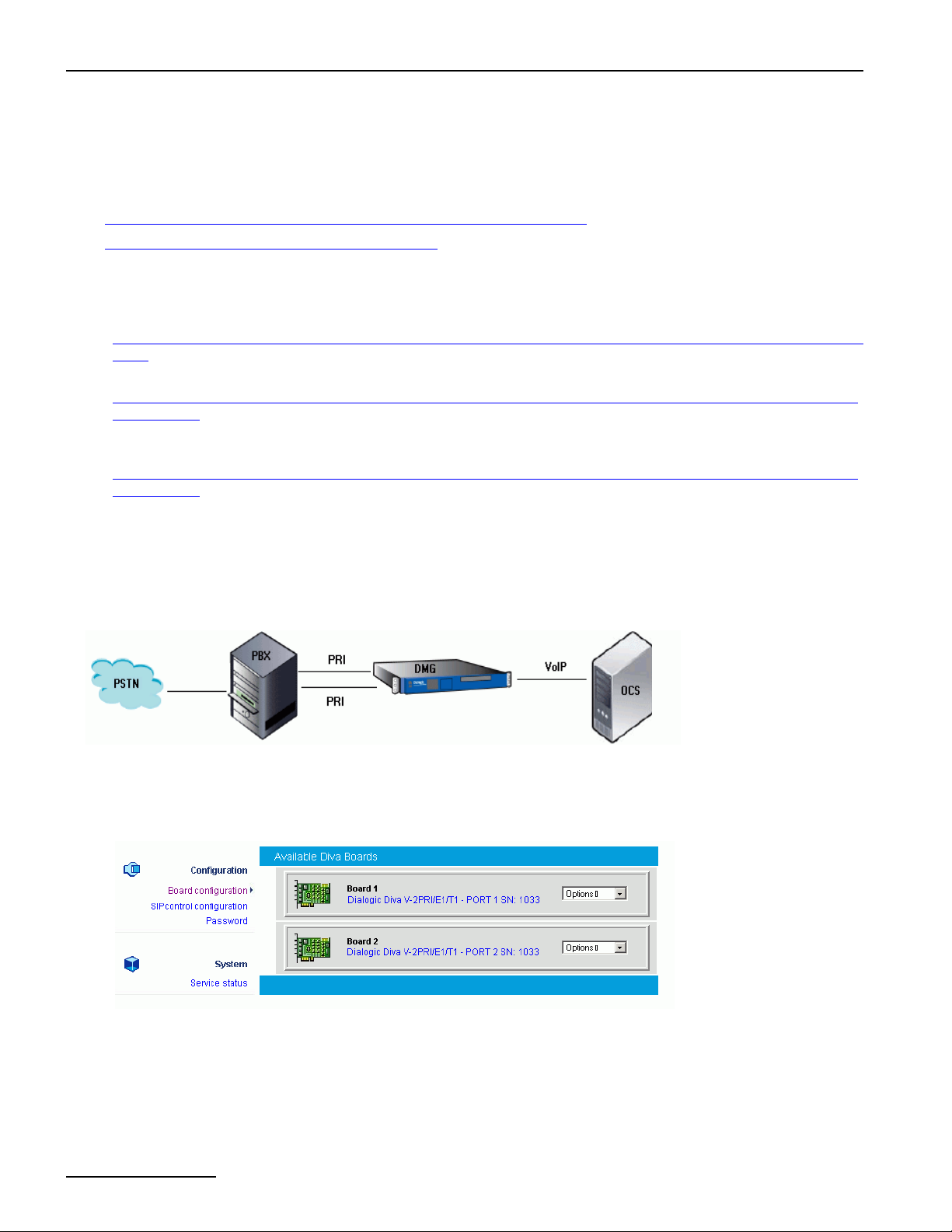
Configuration Scenarios
Configuration Scenarios
The following scenarios describe common configurations for a Dialogic® 4060 Media Gateway with one Dialogic®
®
Diva
V-2PRI/E1/T1 Media Board installed. All scenarios can also be applied to a Dialogic® 4120 Media Gateway.
The scenarios are based on the Dialogic
• Use cases for Microsoft® Office Communications Server (OCS) 2007 below
• Use case for Microsoft® Exchange Server 2007 on page 90
Use cases for Microsoft® Office Communications Server (OCS) 2007
The following are use cases for the Dialogic® Media Gateway and the OCS 2007:
1. Using the Dialogic® 4060 Media Gateway between the PBX and Microsoft® Office Communications Server
2007: Both lines of the Diva Media Board are connected between the PBX and the Microsoft® Office
Communications Server (OCS) 2007.
2. Using the Dialogic® 4060 Media Gateway between PBX/PSTN and the Microsoft® Office Communications
Server 2007: One line of the Diva Media Board is connected to the PBX and one line is connected directly
to the PSTN. The Dialogic® Media Gateway is connected to the Microsoft® Office Communications Server
(OCS) 2007.
3. Using the Dialogic® 4060 Media Gateway between the PSTN and PBX/Microsoft® Office Communications
Server 2007: One line of the Diva Media Board is connected to the PBX and one line is connected to the
PSTN. The Dialogic® Media Gateway is connected between the PSTN and the PBX. The Microsoft® Mediation
Server is installed on the Dialogic
®
Media Gateway being operated in Germany.
®
Media Gateway.
Using the Dialogic® 4060 Media Gateway between the PBX and Microsoft® Office Communications
Server 2007
This configuration scenario describes the necessary steps to configure the Dialogic® Media Gateway between
the PBX and the Microsoft
®
Office Communications Server (OCS) 2007 as shown in the graphic.
1. Open the Dialogic® Diva® SIPcontrolTM Software web interface to configure the required parameters. To do
so, click Start > Programs > Dialogic Diva > SIPcontrol Configuration.
2. In the Diva SIPcontrol software web interface, click Board configuration on the left hand side to open the
Available Diva Boards page.
page 62
Click either the board icon or the name of the Dialogic® Diva® Media Board to open the Board Configuration
- Detail page.
Page 63
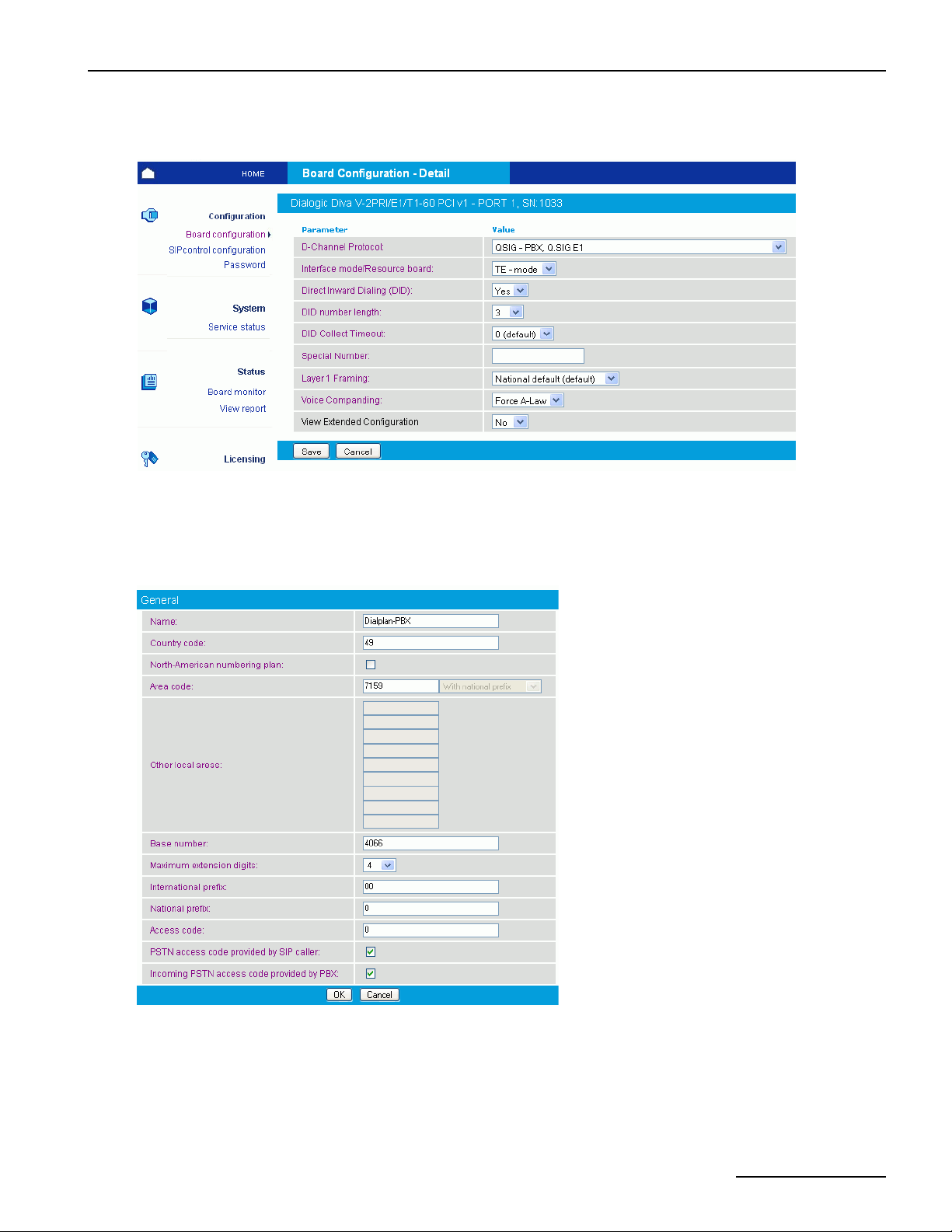
Dialogic® 4000 Media Gateway Series Reference Guide
3. Configure the D-Channel Protocol of the PBX. In the example, QSIG-PBX, Q.SIG E1 is selected. Click
Save.
4. Repeat step 2 and 3 for the other PRI line.
5. In the Diva SIPcontrol web interface, click SIPcontrol configuration on the left hand side to open the
SIPcontrol Configuration page. For this configuration scenario, a dialplan, the PSTN interface, the network
interface, a SIP peer, and a routing need to be configured.
6. Open the Dialplan Configuration, click Add, and enter the following parameters:
page 63
Page 64
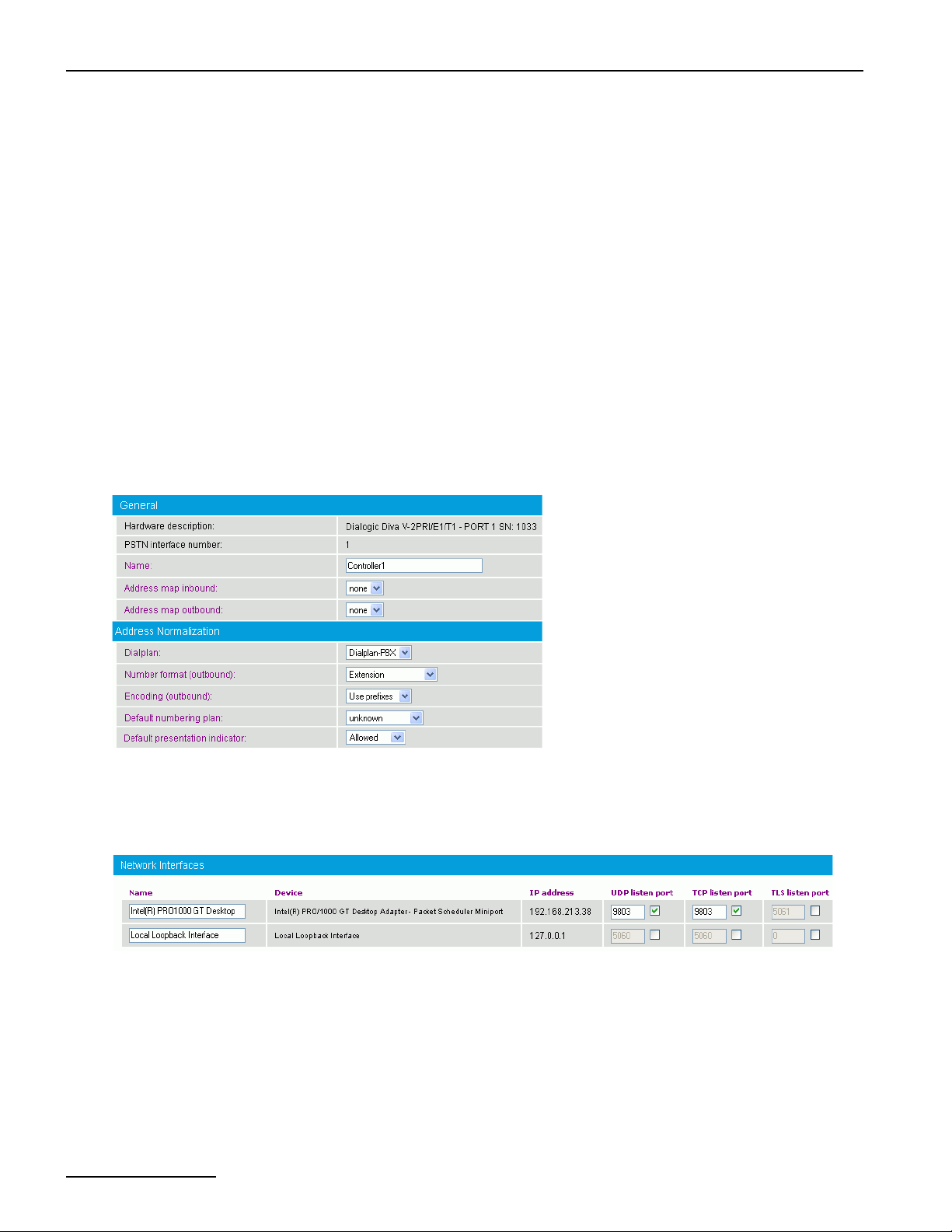
Configuration Scenarios
• Name: Enter a unique name to easily identify the dialplan.
• Country code: Enter the country code of the country in which the Dialogic® Media Gateway is located.
• Area code: Enter the area code of the region in which the Dialogic® Media Gateway is located.
• Base number: Enter the subscriber or trunk number.
• Maximum extension digits: Select the maximum number of extension digits that are provided.
• International prefix: Enter the international prefix of the country in which the Dialogic® Media Gateway
is located.
• National prefix: Enter the national prefix that needs to be dialed for long distance calls within the country
in which the Dialogic
®
Media Gateway is located.
• Access code: Enter the digit that is necessary to access the public network.
• Enable the options PSTN access code provided by SIP caller and Incoming PSTN access code
provided by PBX.
Click OK to save the settings and to close the window.
7. Under PSTN Interface Configuration, configure both lines of the Dialogic® Diva® Media Board with the
same settings. To do so, click Details at the right and select the Dialplan you configured above and set
Number format (outbound) to Extension and Encoding (outbound) to Use prefixes. Leave the
remaining parameters at their default values.
Click OK to save the settings and to close the window.
8. Configure the second line with the same settings.
9. Under Network Interface Configuration, enable your Ethernet adapter and set the SIP Listen Port to
9803.
page 64
Page 65
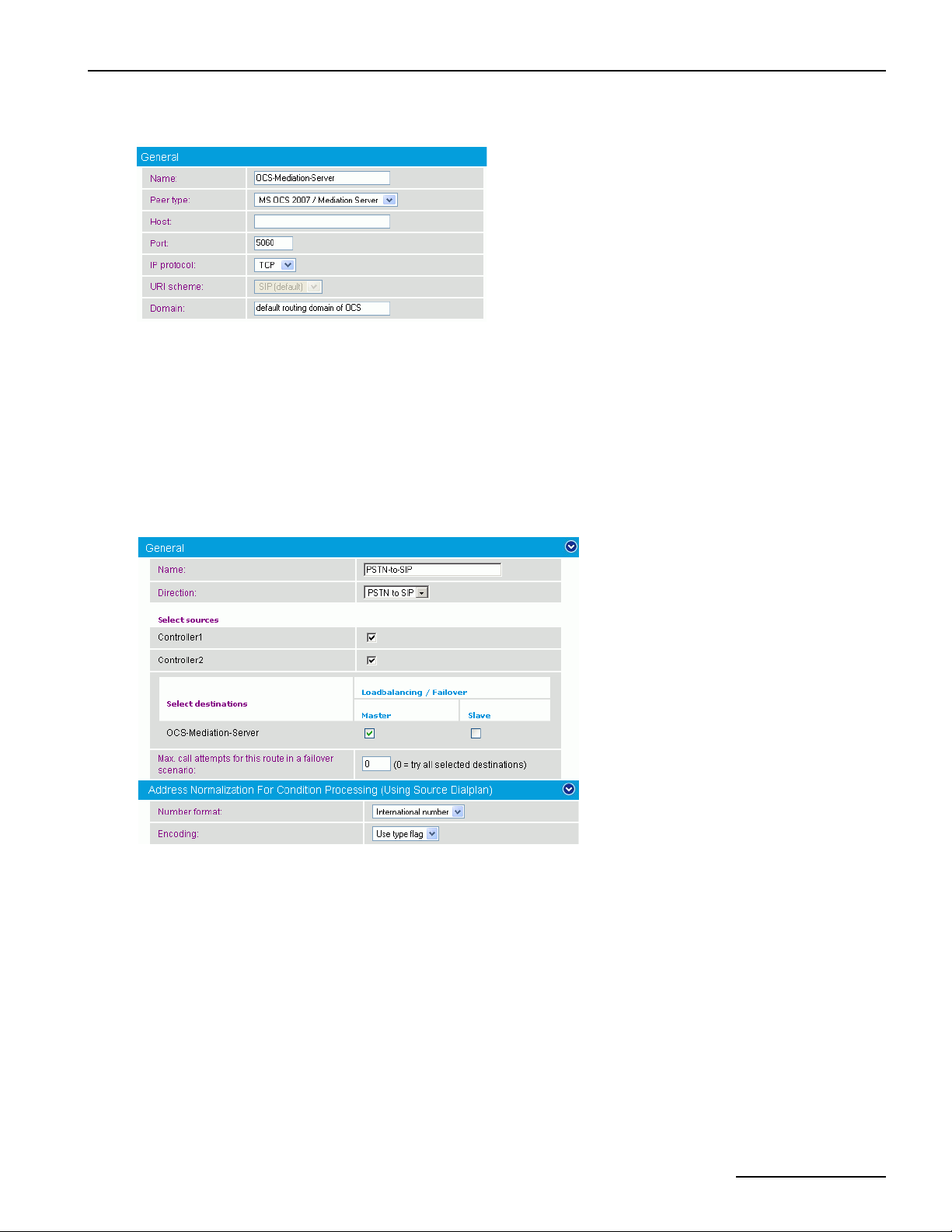
Dialogic® 4000 Media Gateway Series Reference Guide
10. Open the SIP Peer Configuration, click Add, and configure the following parameters:
Under Edit SIP Peer Configuration, configure the following parameters:
• Name: Enter a unique name to easily identify the SIP peer.
• Peer type: Select MS OCS 2007/ Mediation Server from the dropdown menu.
• Host: Enter the IP address or host name of the host PC.
• Domain: For the correct domain entry, see the configuration of your Microsoft® Office Communications
Server.
Click OK to save the settings and to close the window.
11. Create two routings, one for each direction (PSTN to SIP and SIP to PSTN). To configure the routing from
PSTN to SIP, open the Routing Configuration, click Add, and configure the following parameters:
• Name: Enter a unique name to easily identify the routing.
• Direction: Select PSTN to SIP from the dropdown menu.
• Select sources: Select both controllers of the Diva Media Board.
• Select destinations: Select the above configured SIP peer as master destination.
• Number format: Select International number from the dropdown menu.
• Encoding: Select Use type flag from the dropdown menu.
Click OK to save the settings and to close the window.
page 65
Page 66
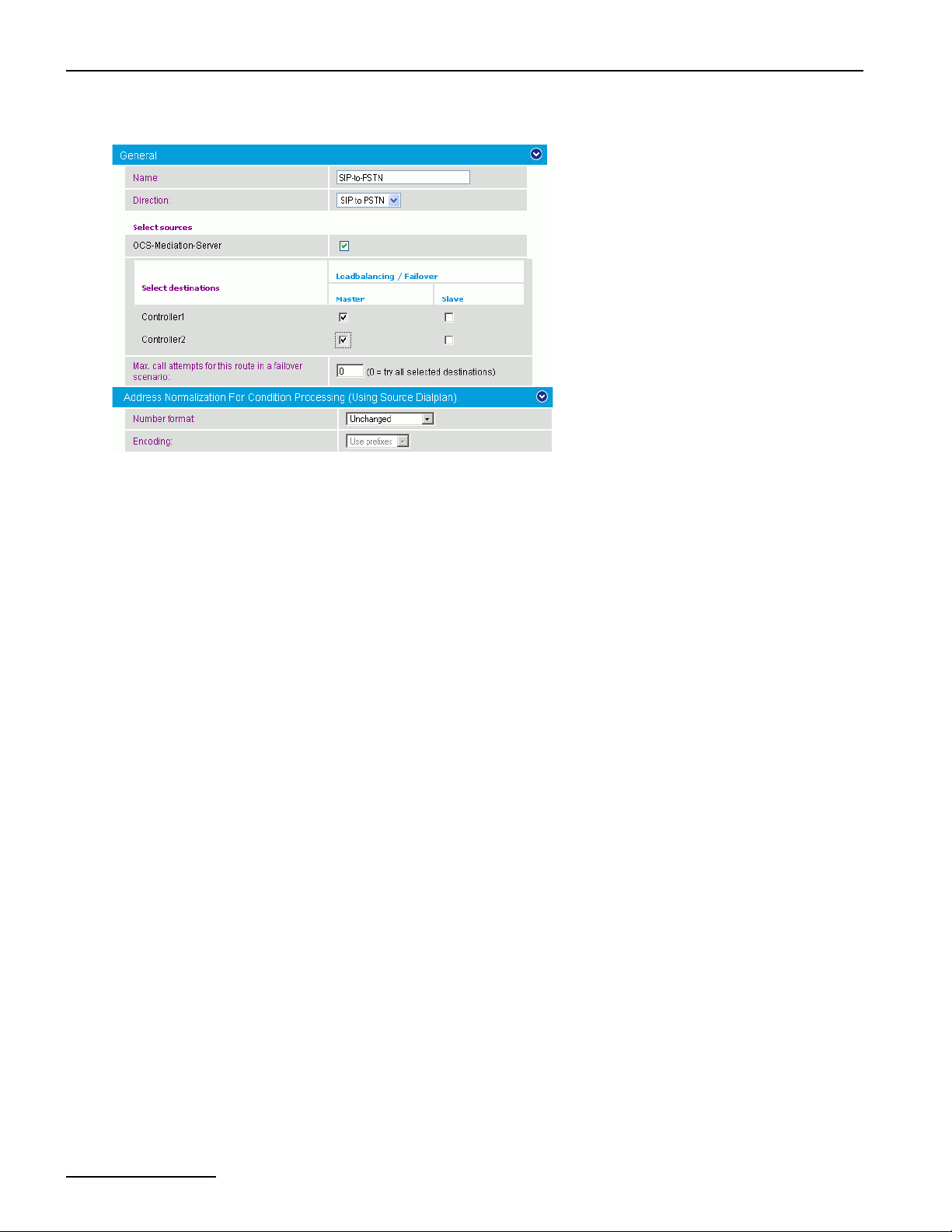
Configuration Scenarios
12. For the routing from SIP to PSTN, click Add again, and configure the following parameters:
• Name: Enter a unique name to easily identify the routing.
• Direction: Select SIP to PSTN from the dropdown menu.
• Select sources: Select the above configured SIP peer as source.
• Select destinations: Select both controllers of the Diva Media Board.
Click OK to save the settings and to close the window.
13. Click Save in the main configuration page to save the settings and to activate the changes.
14. Configure the Microsoft® Office Communications Server 2007 as described in the Dialogic® 4000 Media
Gateway Quickstart Guide.
page 66
Page 67
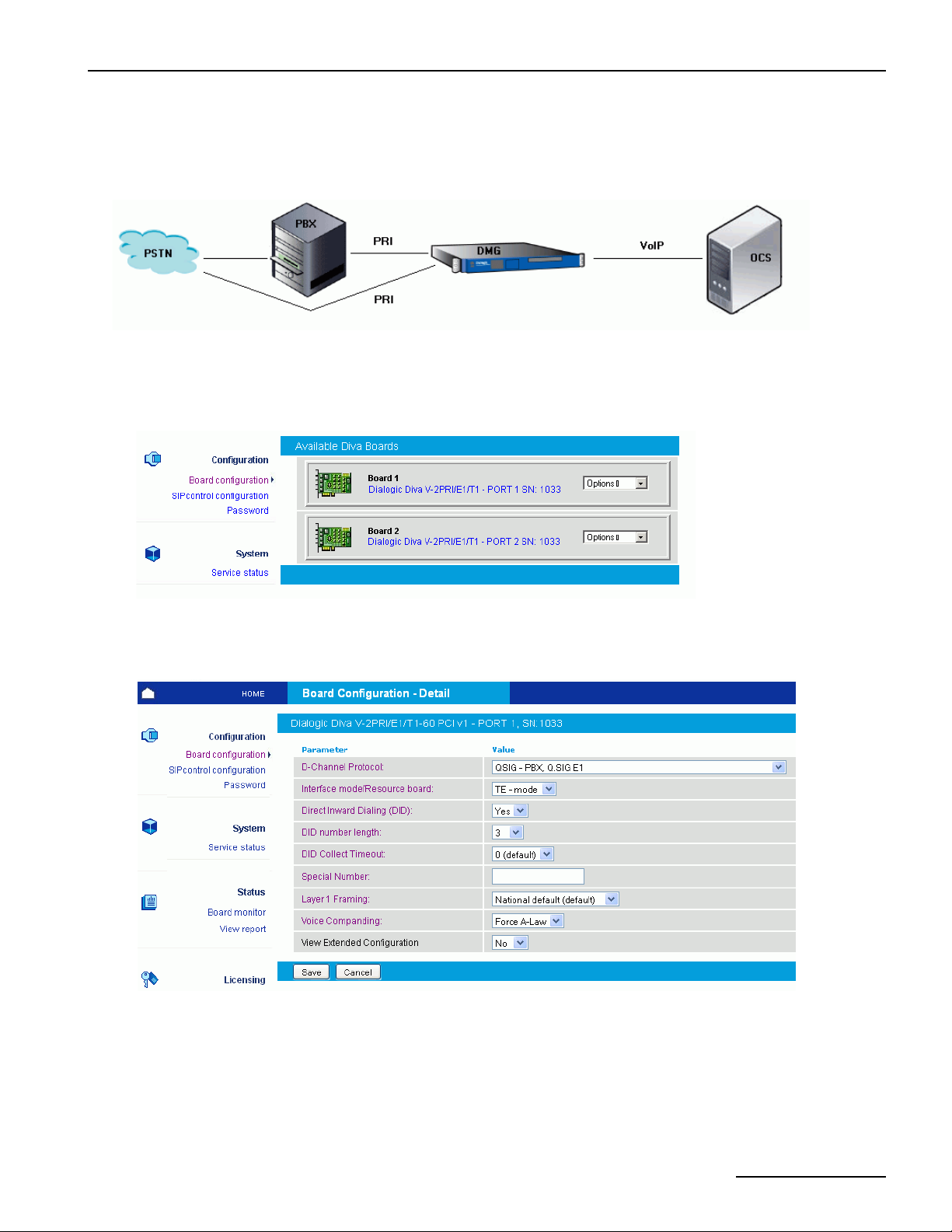
Dialogic® 4000 Media Gateway Series Reference Guide
Using the Dialogic® 4060 Media Gateway between PBX/PSTN and the Microsoft® Office
Communications Server 2007
This configuration scenario describes the necessary steps if one line of the Dialogic® Media Gateway is connected
to the PBX and one line is connected directly to the PSTN as shown in the graphic.
1. Open the Dialogic® Diva® SIPcontrolTM Software web interface to configure the required parameters. To do
so, click Start > Programs > Dialogic Diva > SIPcontrol Configuration.
2. In the Diva SIPcontrol software web interface, click SIPcontrol on the left hand side to open the Board
Configuration page.
Click either the board icon or the name of the first Dialogic® Diva® Media Board line to open the Board
Configuration - Detail page.
3. Configure the D-Channel Protocol of por t 1 . In t h e exam p l e, QSIG-PBX, Q.SIG E1 is selected. Click Save.
4. Click Board configuration again and select port 2 of your Diva Media Board to open the Board
Configuration - Detail page again.
page 67
Page 68
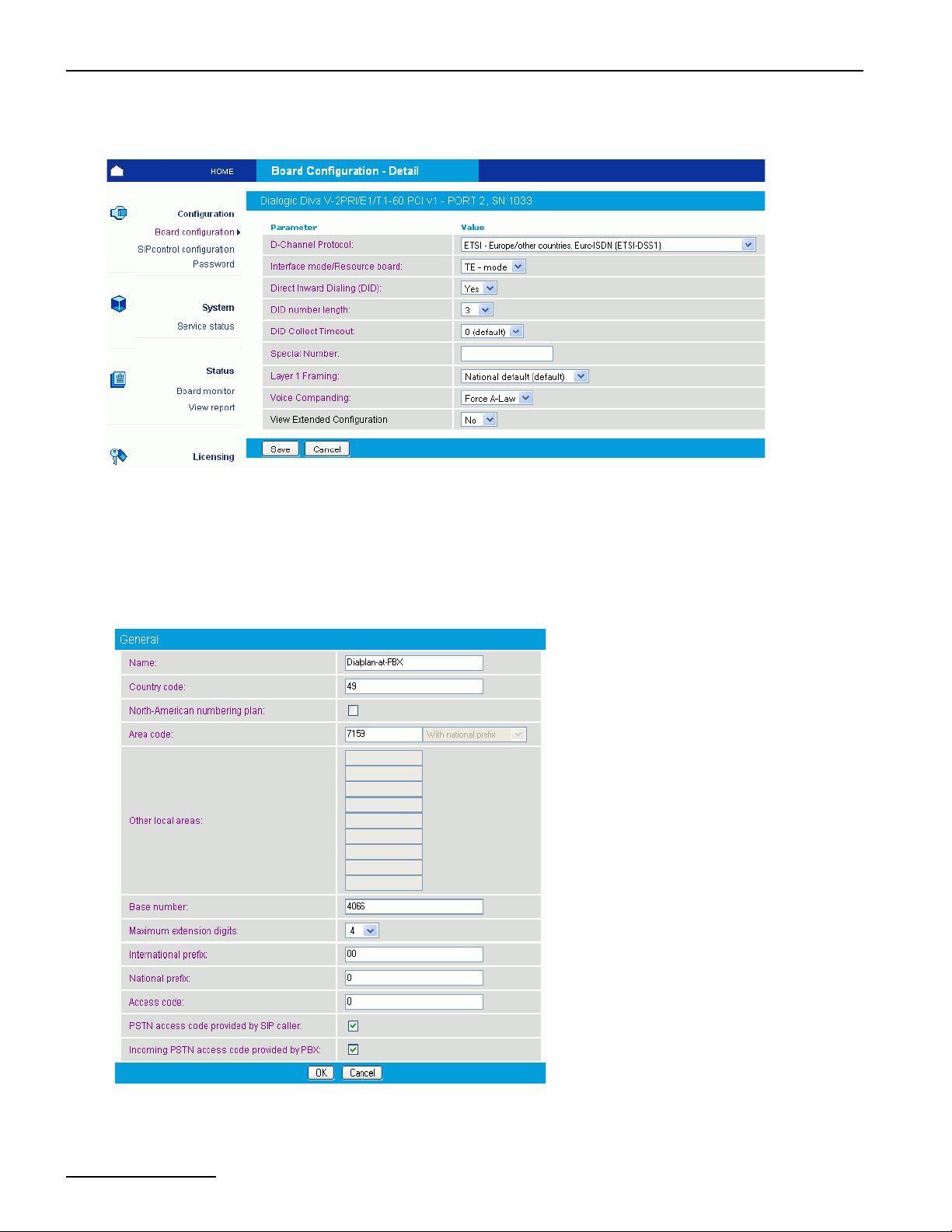
Configuration Scenarios
5. Configure the D-Channel Protocol of the PRI line connected to the PSTN. In the example,
ETSI-Europe/other countries, Euro-ISDN (ETSI-DSS1) is selected. Click Save.
6. In the Diva SIPcontrol web interface, click SIPcontrol configuration on the left hand side to open the
SIPcontrol Configuration page.
For this configuration scenario, two dialplans, the two PSTN interfaces, the network interface, a SIP peer,
an address map, and three routings need to be configured.
7. Configure two dialplans; one for the line connected to the PBX and one for the line connected directly to the
PSTN. To do so, open the Dialplan Configuration, click Add, and configure the following parameters for
the PBX dialplan:
page 68
Page 69
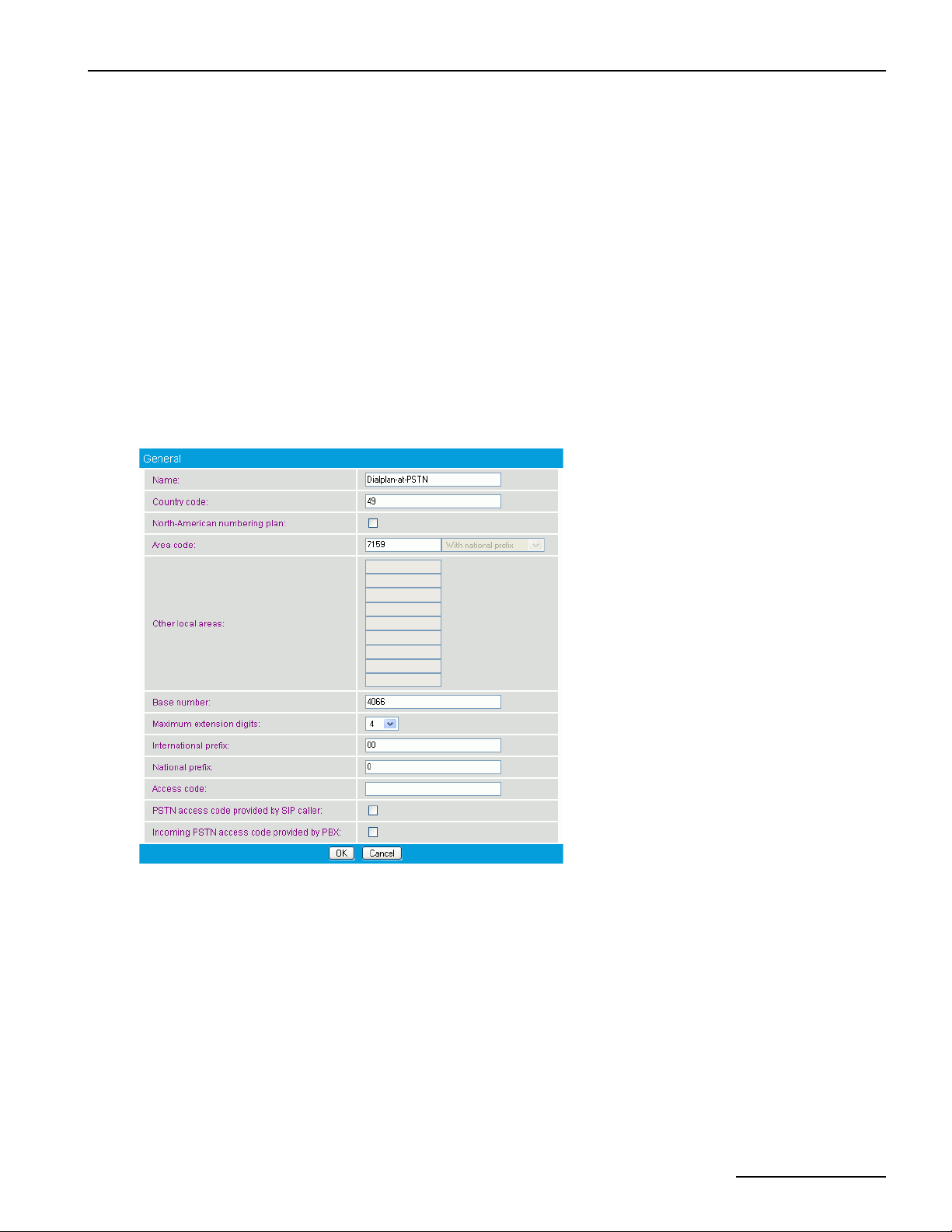
Dialogic® 4000 Media Gateway Series Reference Guide
• Name: Enter a unique name to easily identify the dialplan.
• Country code: Enter the country code of the country in which the Dialogic® Media Gateway is located.
• Area code: Enter the area code of the region in which the Dialogic® Media Gateway is located.
• Base number: Enter the subscriber or trunk number.
• Maximum extension digits: Select the maximum number of extension digits that are provided.
• International prefix: Enter the international prefix of the country in which the Dialogic® Media Gateway
is located.
• National prefix: Enter the national prefix that needs to be dialed for long distance calls within the country
in which the Dialogic
®
Media Gateway is located.
• Access code: Enter the digit that is necessary to access the public network.
• Enable the options PSTN access code provided by SIP caller and Incoming PSTN access code
provided by PBX.
Click OK to save the settings and to close the window.
8. To configure the PSTN dialplan, click Add again, and configure the following parameters.
• Name: Enter a unique name to easily identify the dialplan.
• Country code: Enter the country code of the country in which the Dialogic® Media Gateway is located.
• Area code: Enter the area code of the region in which the Dialogic® Media Gateway is located.
• Base number: Enter the subscriber or trunk number.
• Maximum extension digits: Select the maximum number of extension digits that are provided.
• International prefix: Enter the international prefix of the country in which the Dialogic® Media Gateway
is located.
• National prefix: Enter the national prefix that needs to be dialed for long distance calls within the country
in which the Dialogic
®
Media Gateway is located.
Click OK to save the settings and to close the window.
page 69
Page 70
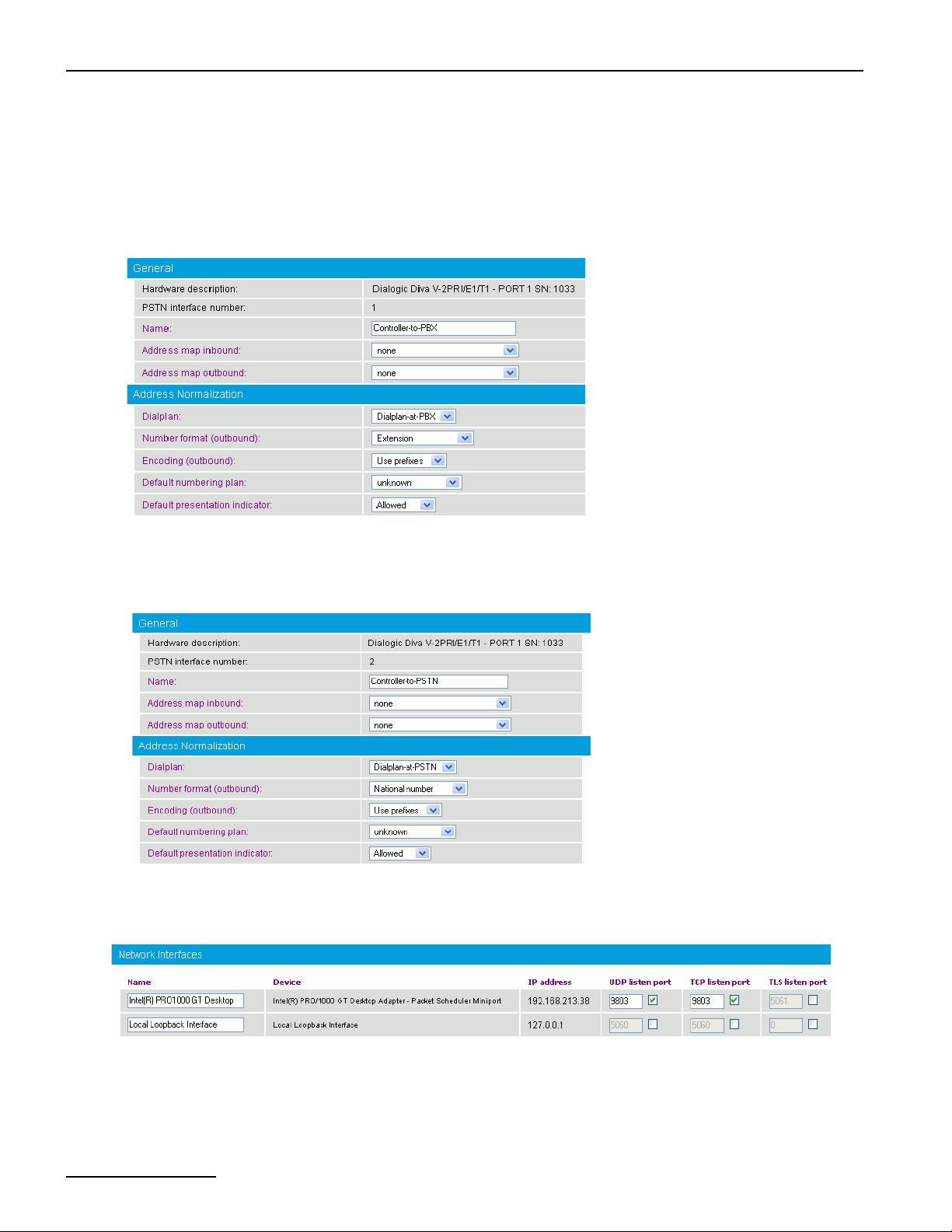
Configuration Scenarios
9. Under PSTN Interface Configuration, configure controller 1 with the PBX-specific settings and controller
2 with the PSTN-specific settings. The controller number that you configure with the PBX-specific settings
needs to correspond to the line number in the Diva Configuration Manager that you configured with the
switch type of your PBX. The same is true for the controller with the switch type of the PSTN line.
• To configure the PBX-specific parameters, click Details at the right of the controller connected to the PBX.
Select the Dialplan you configured for the PBX, set Number format (outbound) to Extension, and
Encoding (outbound) to Use prefixes.
Click OK to save the settings and to close the window.
• To configure the PSTN-specific parameters, click Details at the right of the controller connected to the
PSTN line. Select the Dialplan you configured for the PSTN, set Number format (outbound) to National
Number, and Encoding (outbound) to Use prefixes.
Click OK to save the settings and to close the window.
10. Under Network Interface Configuration, enable your Ethernet adapter and as SIP Listen Port enter
9803.
page 70
Page 71
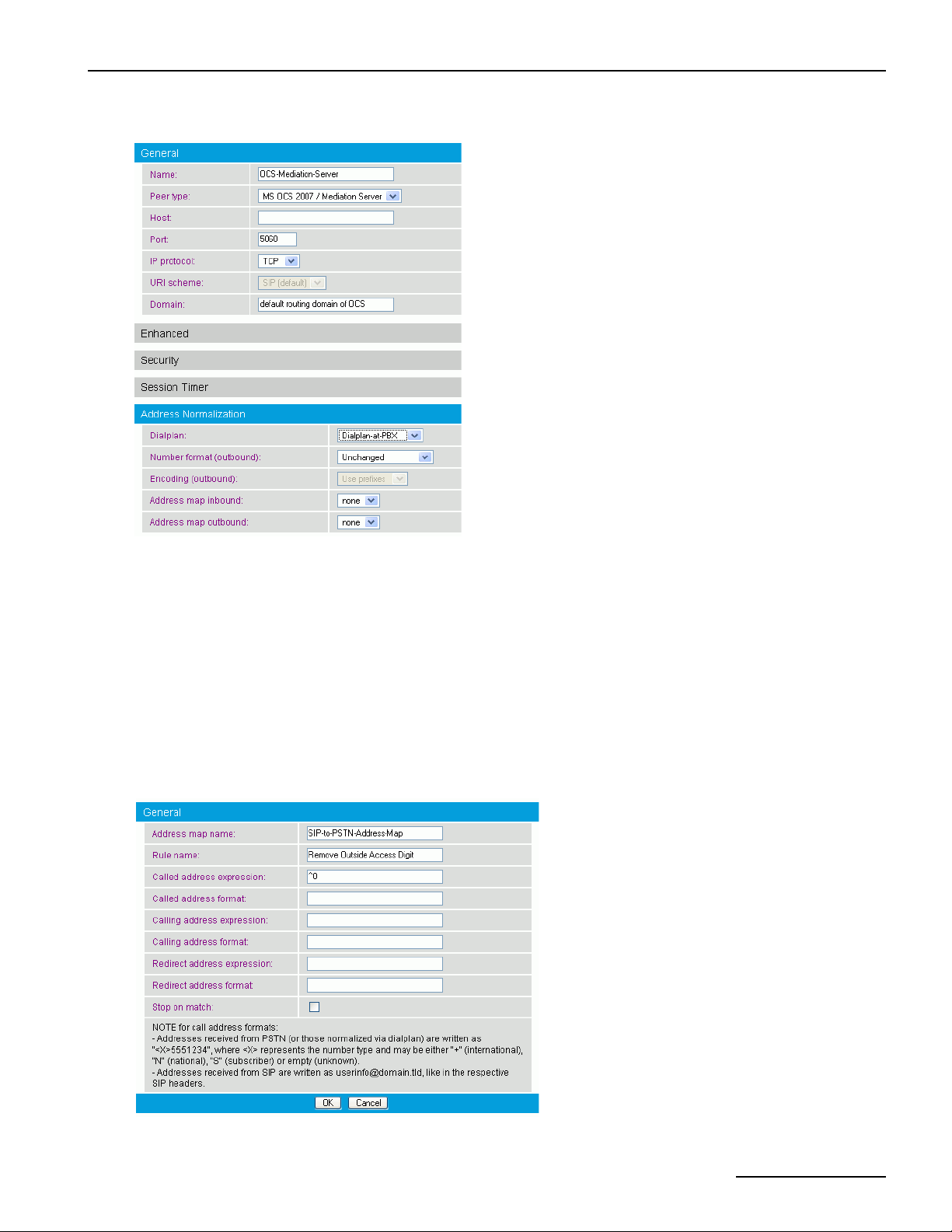
Dialogic® 4000 Media Gateway Series Reference Guide
11. Open the SIP Peer Configuration, click Add, and configure the following parameters:
Under Edit SIP Peer Configuration, configure the following parameters:
• Name: Enter a unique name to easily identify the SIP peer.
• Peer type: Select MS OCS 2007/ Mediation Server from the dropdown menu.
• Host: Enter the IP address or host name of the host PC.
• Domain: For the correct domain entry, see the configuration of your Microsoft® Office Communications
Server 2007.
Under Address Normalization Configuration, select the dialplan you configured for the controller
connected to the PBX.
Click OK to save the settings and to close the window.
12. Create an address map for the SIP to PSTN direction to remove the outside access digit. To do so, open the
Address Map Configuration, click Add, and configure the following parameters:
page 71
Page 72
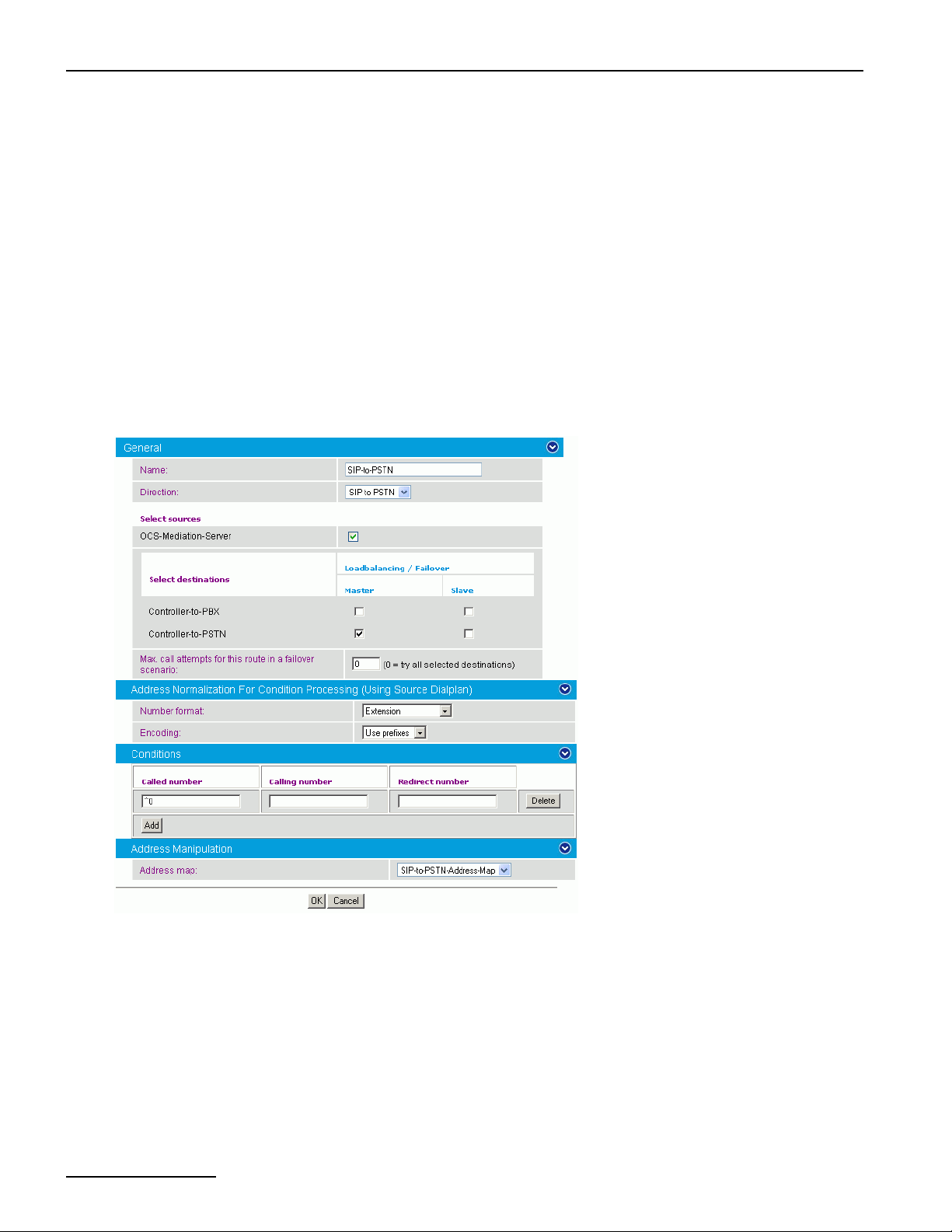
Configuration Scenarios
• Address map name: Enter a descriptive name of the address map.
• Rule name: Enter a name that explains the address map rule.
• Called address expression: Enter the expression as displayed in the graphic above to remove the
outside access digit.
Click OK to save the settings and to close the window.
13. Create three routings:
• one from the Microsoft® Office Communications Server (OCS) 2007 directly to the PSTN,
• one from the Microsoft® OCS 2007 via the PBX to the PSTN, and
• one from the PSTN/PBX via the Dialogic® Media Gateway to Microsoft® OCS 2007.
In this scenario, the order of the routings is important because only one routing will be configured with a
condition. In this example, the routings are configured in the correct order but it is also explained how to
change the order in case you configured them differently.
14. Create the route from Microsoft® OCS 2007 to the PSTN first. To do so, open the Routing Configuration,
click Add and configure the following parameters:
page 72
• Name: Enter a unique name to easily identify the routing.
• Direction: Select SIP to PSTN from the dropdown menu.
• Select sources: Select the above configured SIP peer as master destination.
• Select destinations: Select the controller you configured for the PSTN.
• Number format: Select Extension from the dropdown menu.
• Encoding: Select Use prefixes from the dropdown menu.
• Under Conditions, click Add, and in Called number enter ^0 to omit the outside access digit.
Click OK to save the settings and to close the window.
Page 73
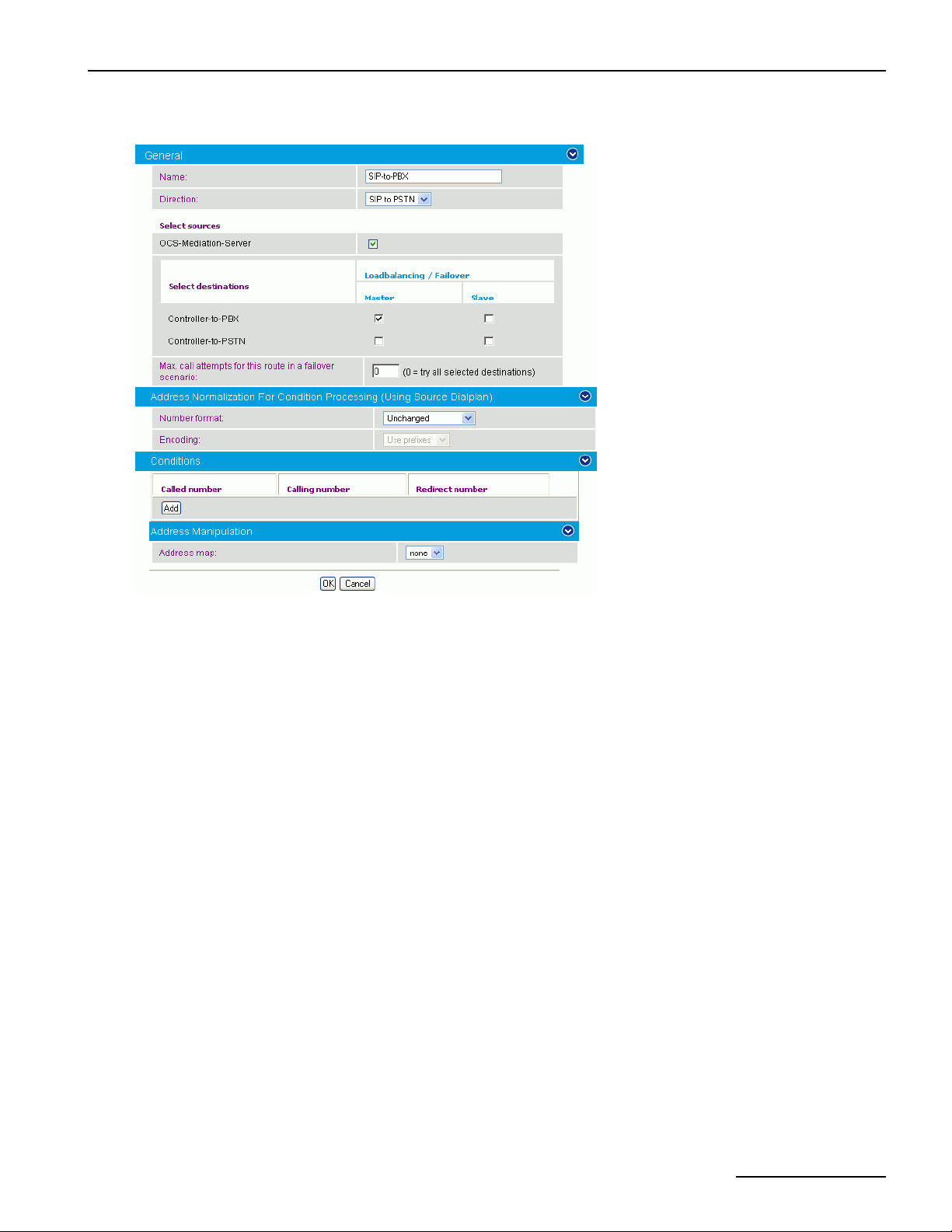
Dialogic® 4000 Media Gateway Series Reference Guide
15. Click Add again, and configure the route from Microsoft® OCS 2007 to the PBX.
• Name: Enter a unique name to easily identify the routing.
• Direction: Select SIP to PSTN from the dropdown menu.
• Select sources: Select the above configured SIP peer as master destination.
• Select destinations: Select the controller you configured for the PBX.
Click OK to save the settings and to close the window.
page 73
Page 74
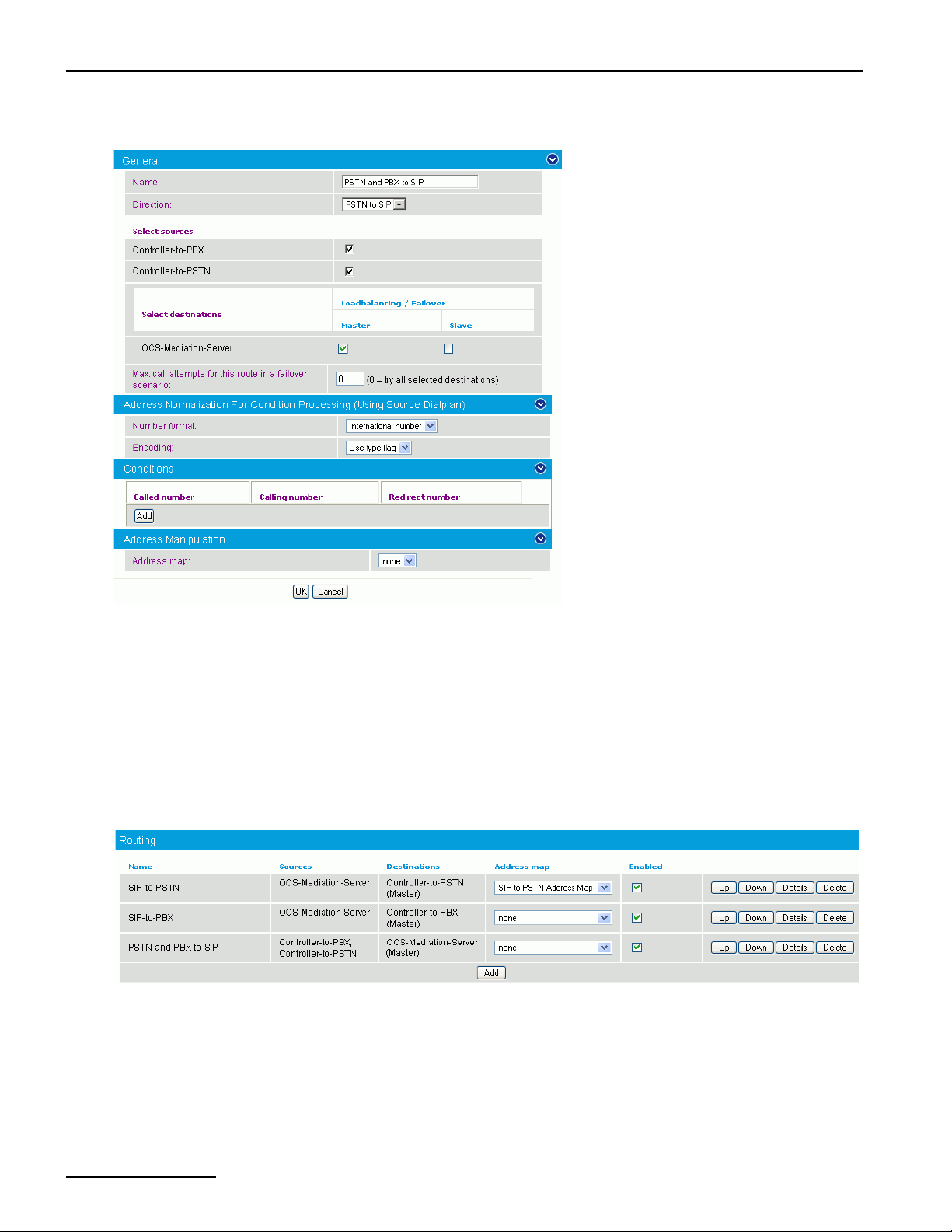
Configuration Scenarios
16. Click Add again to configure the third route. Configure the following parameters:
• Name: Enter a unique name to easily identify the routing.
• Direction: Select PSTN to SIP from the dropdown menu.
• Select sources: Select both controllers of the Diva Media Board.
• Select destinations: Select the above configured SIP peer as master destination.
• Number format: Select International number from the dropdown menu.
• Encoding: Select Use type flag from the dropdown menu.
Click OK to save the settings and to close the window.
17. To change the order of the routings in the main configuration page, click the arrow up or arrow down buttons.
The order needs to be the same as shown in this graphic:
18. Click Save in the main configuration page to save the settings and to activate the changes.
19. Configure the Microsoft® Office Communications Server 2007 as described in the Dialogic® 4000 Media
Gateway Quickstart Guide.
page 74
Page 75
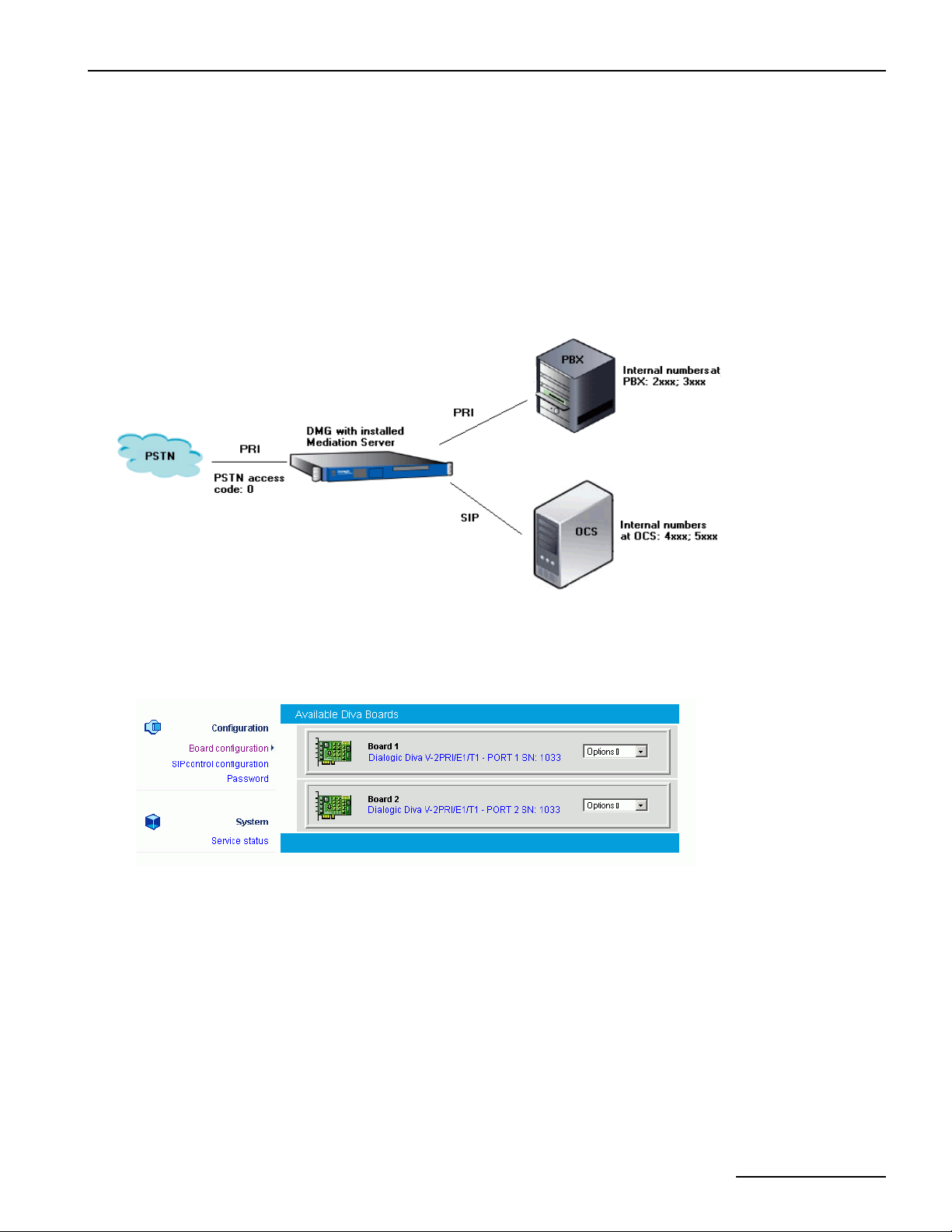
Dialogic® 4000 Media Gateway Series Reference Guide
Using the Dialogic® 4060 Media Gateway between the PSTN and PBX/Microsoft® Office
Communications Server 2007
This configuration scenario describes the necessary steps if the Dialogic® Media Gateway is connected between
the PSTN and PBX/Microsoft
can also route calls from the PBX to the PSTN, and vice versa. One PRI line is connected to the PBX, which is
configured behind the gateway, and one PRI line is connected directly to the PSTN. The Microsoft
®
Office Communications Server (OCS) 2007. This way, the Diva SIPcontrol software
®
Mediation
Server is installed on the gateway. The PBX is configured for the extensions starting with 2 or 3. The Microsoft
OCS 2007 is configured for the extensions starting with 4 or 5. The Diva SIPcontrol software expects a PSTN
access code in calls from Microsoft
®
OCS 2007 or from the PBX to the PSTN; in this case it is an additional 0
(zero). The Diva SIPcontrol software is configured to remove the access code before forwarding the call to the
PSTN. For convenience, the Diva SIPcontrol software is also configured to add the outside access code to the
calling number in calls coming from the PSTN.
®
1. Open the Dialogic® Diva® SIPcontrolTM software web interface to configure the required parameters. To do
so, click Start > Programs > Dialogic Diva > SIPcontrol Configuration.
2. In the Diva SIPcontrol software web interface, click Board configuration on the left hand side to open the
Available Diva Boards page.
Click either the board icon or the name of the first Dialogic® Diva® Media Board line to open the Board
Configuration - Detail page.
page 75
Page 76
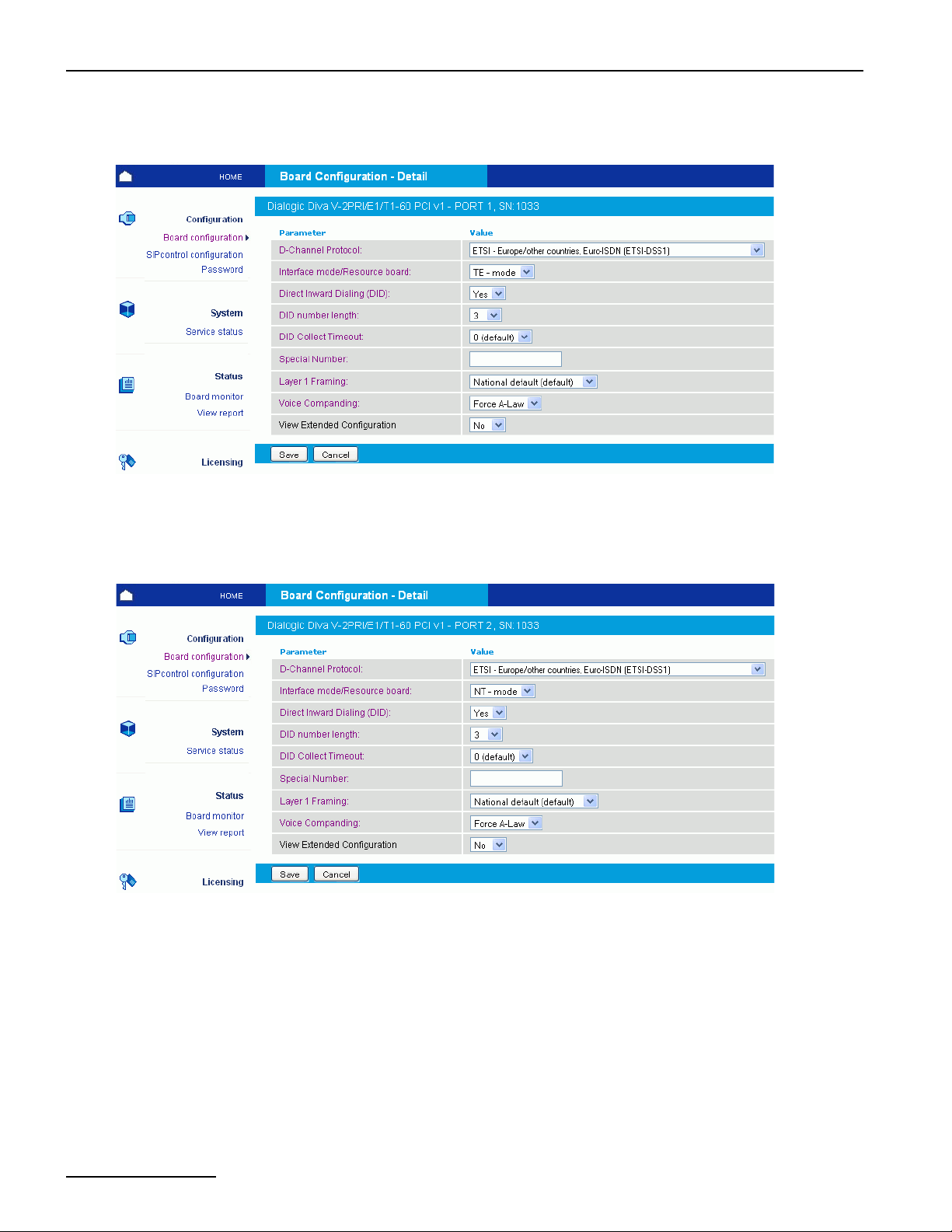
Configuration Scenarios
3. Configure the D-Channel Protocol of the PRI line connected to the PSTN. In the example,
ETSI-Europe/other countries, Euro-ISDN (ETSI-DSS1) is selected. Click Save.
4. Click Board configuration again and select port 2 of your Diva Media Board to open the Board
Configuration - Detail page for this board.
5. Configure the D-Channel Protocol and the Interface mode/Resource board of the PRI line connected
to the PBX. In the example, ETSI-Europe/other countries, Euro-ISDN (ETSI-DSS1) and NT - mode
are selected. Click Save.
6. In the Diva SIPcontrol web interface, click SIPcontrol configuration on the left hand side to open the
SIPcontrol Configuration page.
For this configuration scenario, a dialplan, two address maps, the two PSTN interfaces, the network interface,
a SIP peer, and eight routings need to be configured.
page 76
Page 77
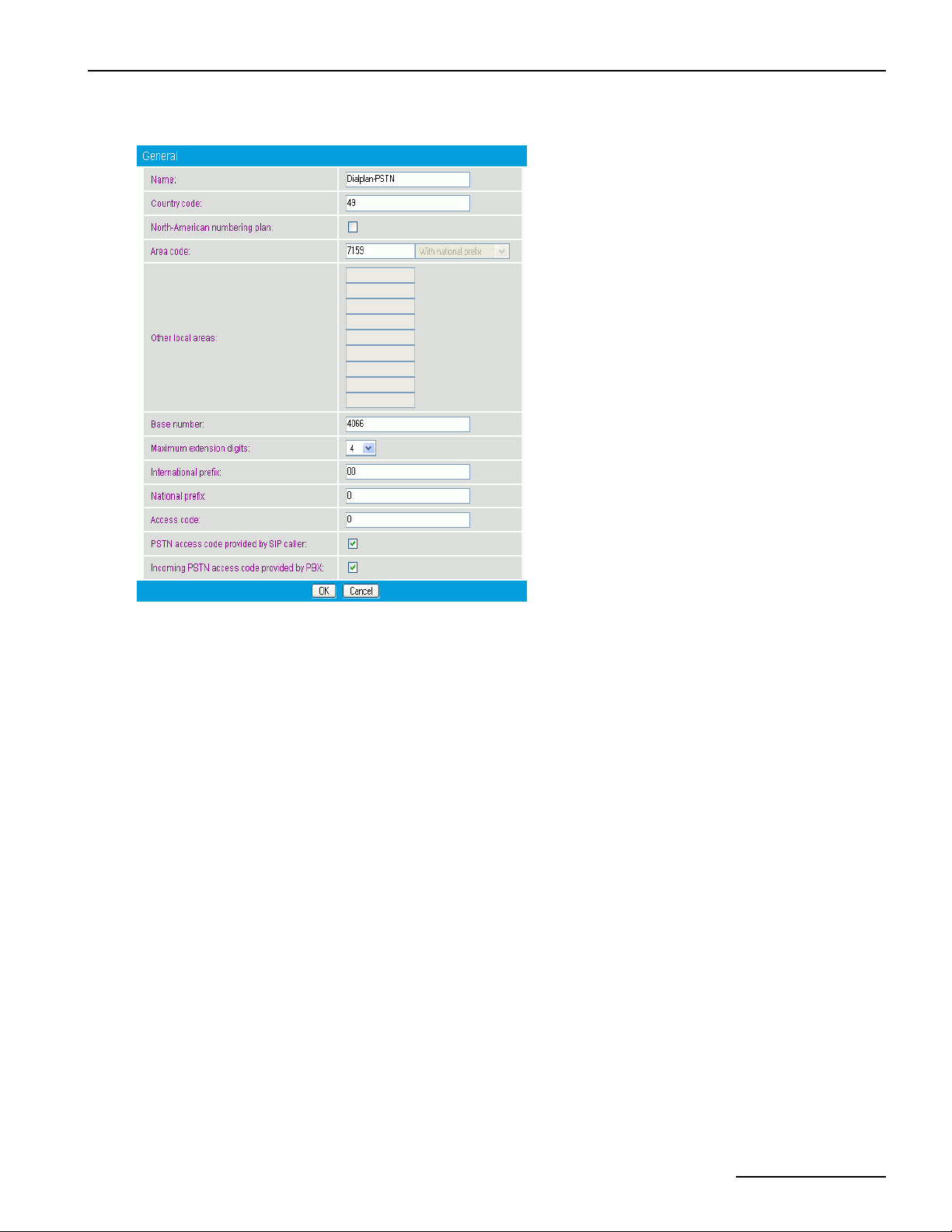
Dialogic® 4000 Media Gateway Series Reference Guide
7. Open the Dialplan Configuration, click Add, and configure the following parameters for the dialplan:
• Name: Enter a unique name to easily identify the dialplan.
• Country code: Enter the country code of the country in which the Dialogic® Media Gateway is located.
• Area code: Enter the area code of the region in which the Dialogic® Media Gateway is located.
• Base number: Enter the subscriber or trunk number.
• Maximum extension digits: Select the maximum number of extension digits that are provided.
• International prefix: Enter the international prefix of the country in which the Dialogic® Media Gateway
is located.
• National prefix: Enter the national prefix that needs to be dialed for long distance calls within the country
in which the Dialogic
®
Media Gateway is located.
• Access code: Enter the digit that is necessary to get access to the public network.
• Enable the options PSTN access code provided by SIP caller and Incoming PSTN access code
provided by PBX.
Click OK to save the settings and to close the window.
page 77
Page 78
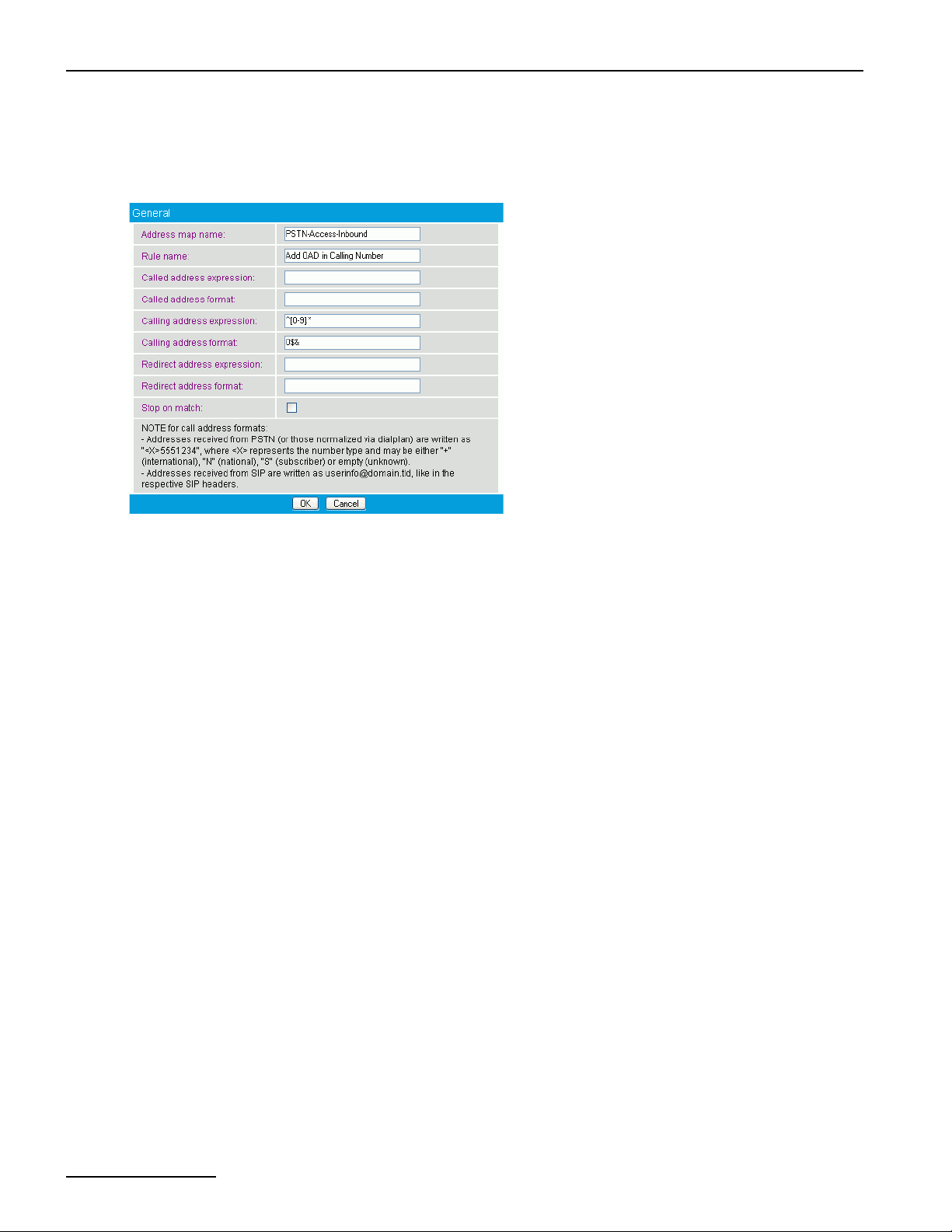
Configuration Scenarios
8. Create two address maps, one each for incoming and outgoing calls. The address maps are necessary to
either add or omit the OAD (Outside Access Digit) in the calling number.
• To create the address map for incoming calls, open the Address Map Configuration, click Add, and
configure the following parameters:
• Address map name: Enter a name for the incoming call address map.
• Rule name: Enter a name that describes the address map rule. This name will be displayed on the
main configuration page.
• Calling address expression: Enter the calling address expression as shown in the graphic above.
With this expression, the OAD will be added to incoming calls.
• Calling address format: Enter the calling address format as shown in the graphic above.
Click OK to save the settings and to close the window.
page 78
Page 79
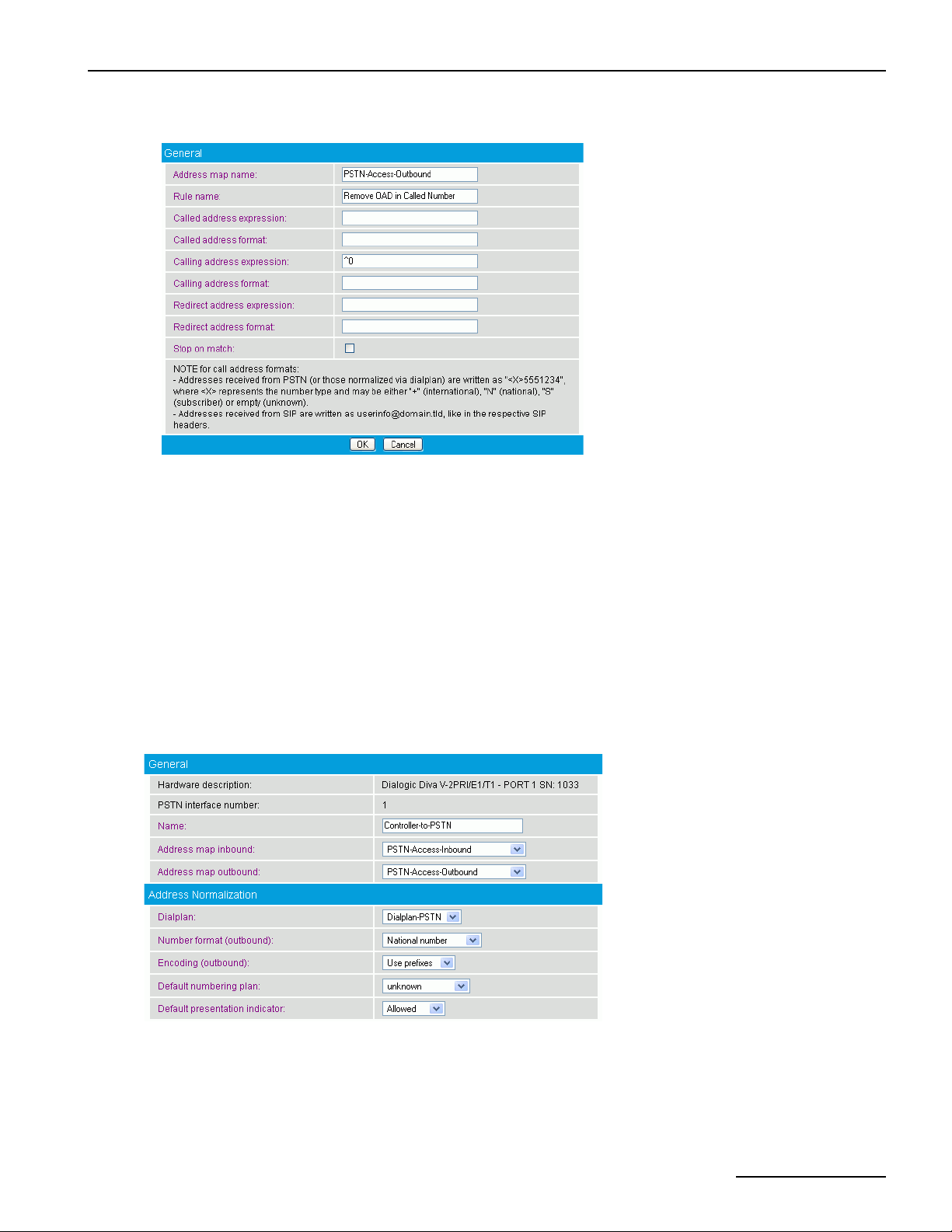
Dialogic® 4000 Media Gateway Series Reference Guide
• To create the second address map, click Add again, and configure the following parameters:
• Address map name: Enter a name for the outgoing call address map.
• Rule name: Enter a name that describes the address map rule. This name will be displayed on the
main configuration page.
• Calling address expression: Enter the calling address expression as shown in the graphic above.
With this expression, the OAD will be removed from outgoing calls.
Click OK to save the settings and to close the window.
9. Under PSTN Interface Configuration, configure controller 1 with PBX-specific settings and controller 2
with PSTN-specific settings. The controller number you configure with PBX-specific settings needs to
correspond to the line number in the Diva Configuration Manager that you configured with the switch type
of your PBX. The same is true for the controller with the switch type of the PSTN line.
• To configure PSTN-specific parameters, click Details at the right of the controller connected to the PSTN
line. Select the inbound and outbound address map that you configured for access from the PSTN. Select
the Dialplan you configured for the PSTN, set Number format (outbound) to National Number, and
Encoding (outbound) to Use prefixes.
Click OK to save the settings and to close the window.
page 79
Page 80
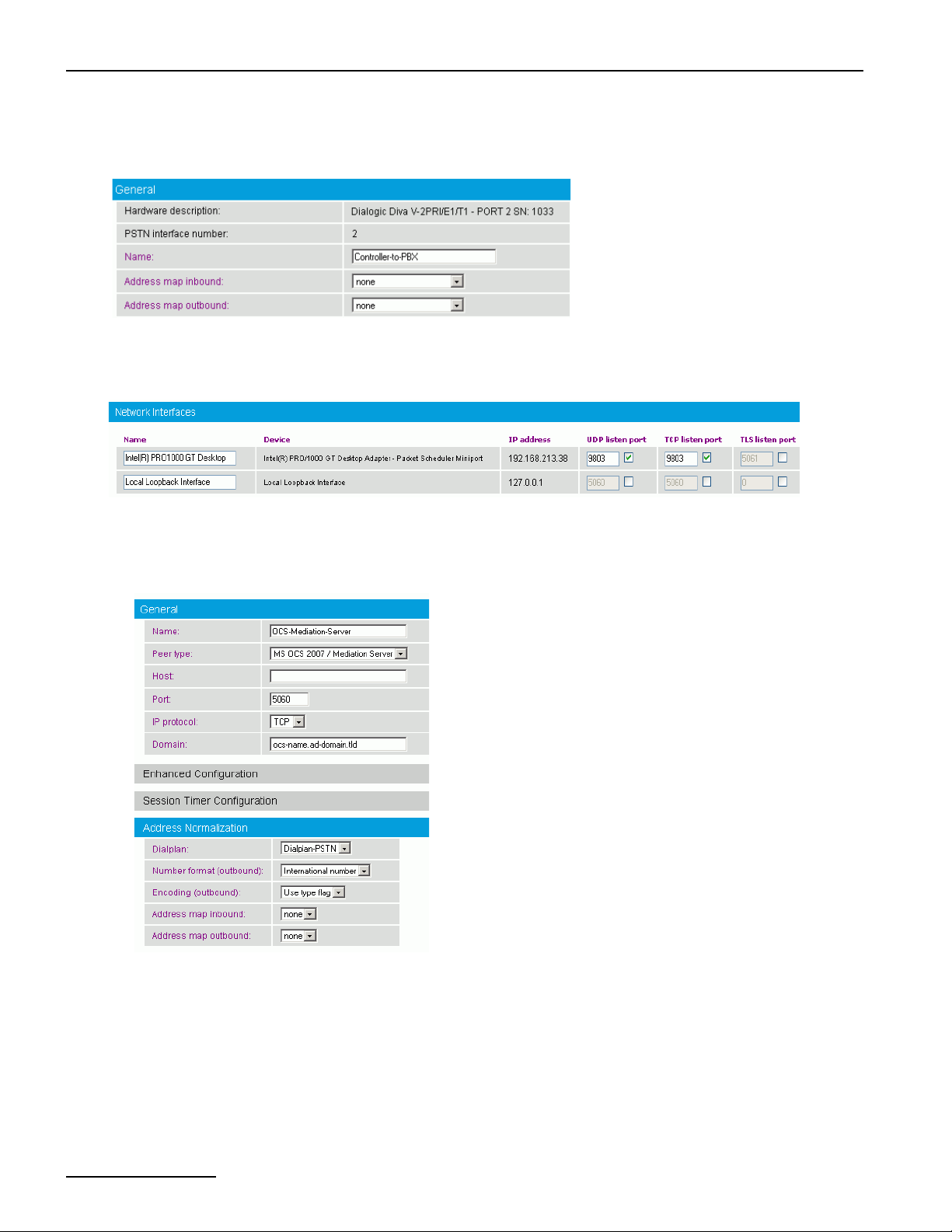
Configuration Scenarios
• To identify the controller that is connected to the PBX later in the configuration, click Details at the right
of the respective controller. Enter a unique name for this controller, e.g., "Controller-to-PBX", as in the
graphic below. Leave the remaining parameters at their default values.
Click OK to save the settings and to close the window.
10. Under Network Interface Configuration, enable your Ethernet adapter and set the SIP Listen Port to
9803.
11. Create two SIP peers, one for the PSTN to the Microsoft® Mediation Server installed on the Dialogic® Media
Gateway and one for the PSTN to PBX connection.
• To configure the first SIP peer, open the SIP Peer Configuration, click Add, and enter the following
parameters:
page 80
Under Edit SIP Peer Configuration, configure the following parameters:
• Name: Enter a unique name to easily identify the SIP peer.
• Peer type: Select MS OCS 2007/ Mediation Server from the dropdown menu.
• Host: Enter the IP address or host name of the host PC.
• Domain: For the correct domain entry, see the configuration of your Microsoft® Office
Communications Server 2007.
Under Address Normalization Configuration, configure the following parameters:
Page 81
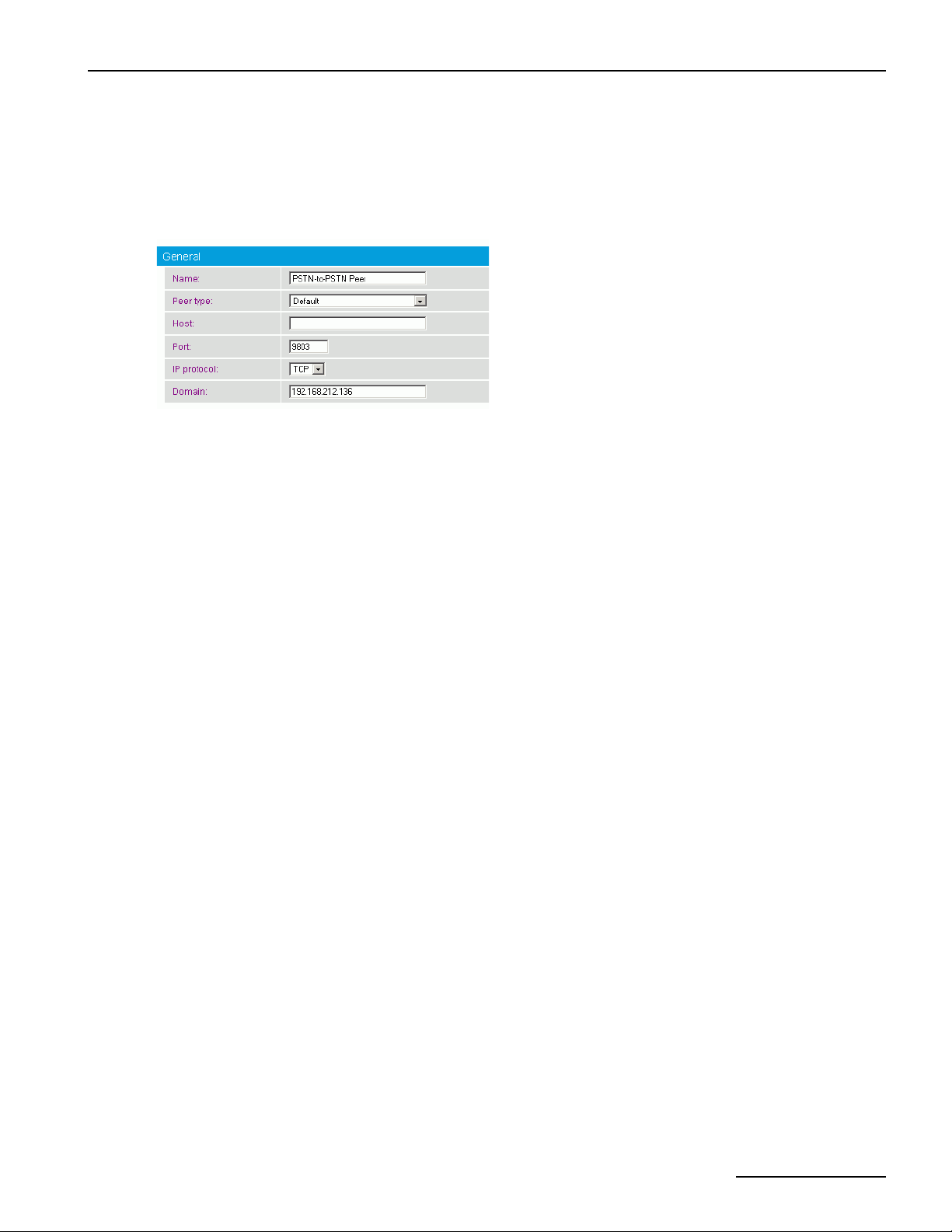
• Dialplan: Select the dialplan you configured for the controller connected to the PBX.
• Number format (outbound): Select International number form the dropdown menu.
• Encoding (outbound): Select Use type flag from the dropdown menu.
Click OK to save the settings and to close the window.
• To create the second SIP peer, click Add again, and configure the following parameters:
Under Edit SIP Peer Configuration, configure the following settings:
• Name: Enter a unique name to easily identify the SIP peer.
• Peer type: Select Default from the dropdown menu.
• Host: Enter the IP address or host name of the host PC.
• Domain: Enter the IP address of the host PC.
Click OK to save the settings and to close the menu.
This peer is the loopback SIP peer that is needed to correctly route calls from the PBX to the PSTN.
12. Create eight routings:
• one from the PSTN to Microsoft® Office Communications Server (OCS) 2007,
• one from the PBX to Microsoft® OCS 2007,
• one from Microsoft® OCS 2007 to the PBX,
• one from Microsoft® OCS 2007 to the PSTN,
• two from the PSTN to the PBX, via the PSTN-to-PSTN SIP peer,
• two from the PBX to the PSTN, via the PSTN-to-PSTN SIP peer.
In this scenario, the order of the routings is important because only one routing will be configured with a
condition. In this example, the routings are configured in the correct order but it is also explained how to
change the order in case you configured them differently.
Dialogic® 4000 Media Gateway Series Reference Guide
page 81
Page 82
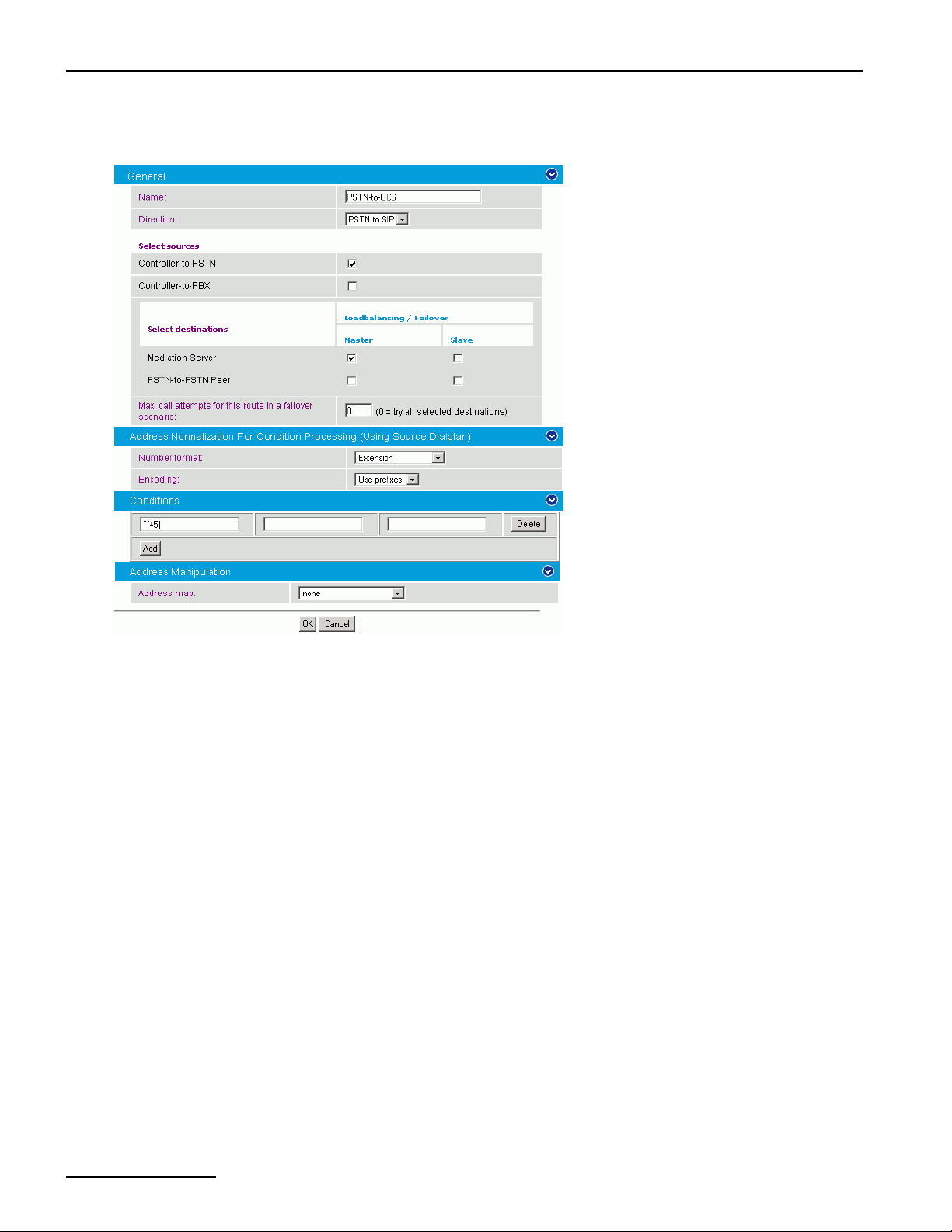
Configuration Scenarios
13. Create the route from the PSTN to Microsoft® OCS 2007 first. To do so, open the Routing Configuration,
click Add and configure the following parameters:
• Name: Enter a unique name to easily identify the routing.
• Direction: Select PSTN to SIP from the dropdown menu.
• Select sources: Select the controller you configured for the PSTN as source.
• Select destinations: Select the SIP peer you configured for the Microsoft® Mediation Server as Master
destination.
• Number format: Select Extension from the dropdown menu.
• Encoding: Select Use prefixes from the dropdown menu.
• Under Conditions, click Add, and in Called number, enter ^[45]. Thus, any extension starting with 4
or 5 is routed to the Microsoft® Mediation Server that was configured to manage these extensions.
Click OK to save the settings and to close the window.
page 82
Page 83
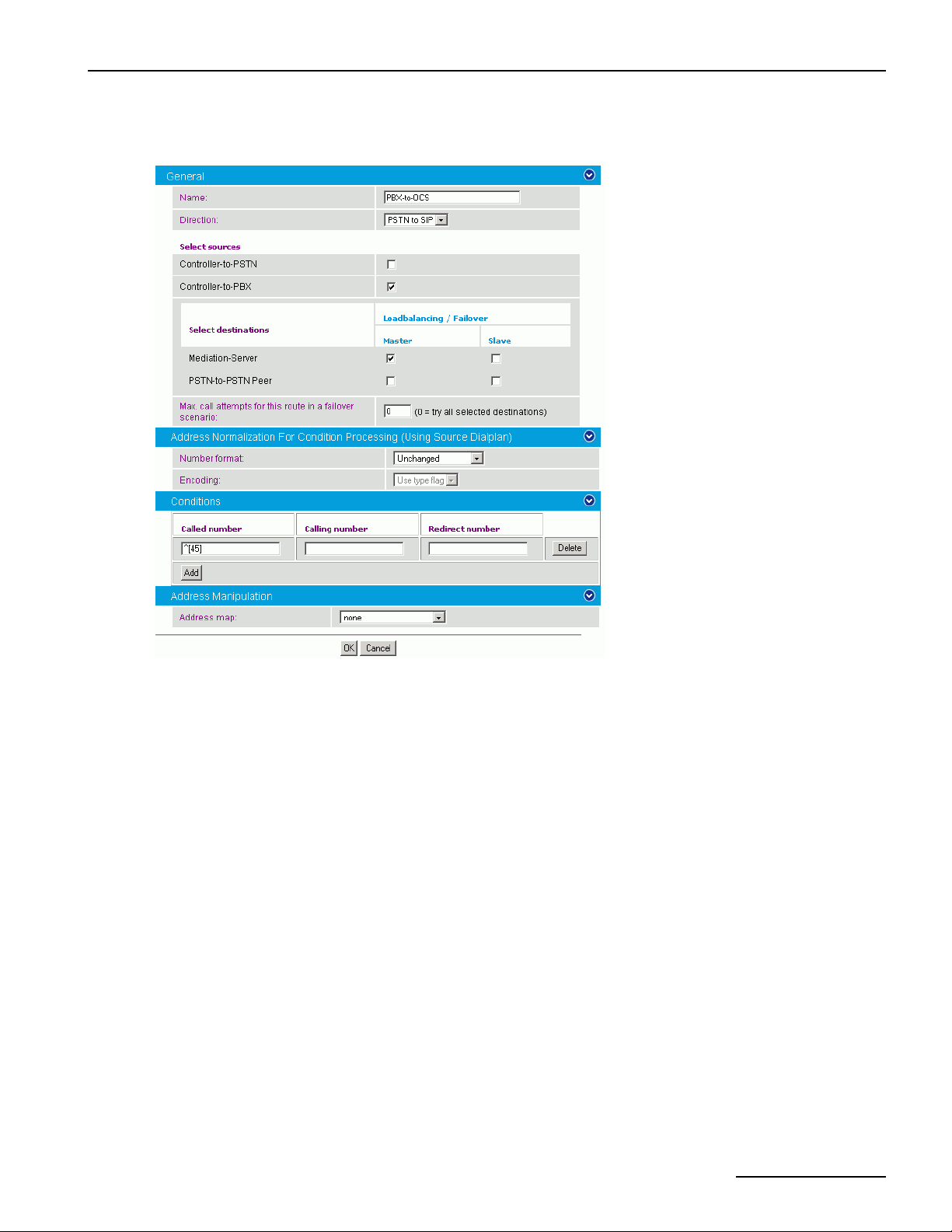
Dialogic® 4000 Media Gateway Series Reference Guide
14. Create the second route from the PBX to the Microsoft® OCS 2007. To do so, click Add under Routing
Configuration and configure the following parameters:
• Name: Enter a unique name to easily identify the routing.
• Direction: Select PSTN to SIP from the dropdown menu.
• Select sources: Select the controller you configured for the PBX as source.
• Select destinations: Select the SIP peer you configured for the Mediation Server as Master destination.
• Under Conditions, click Add, and in Called number, enter ^[45] so that extensions starting with 4 or
5 are routed to the Microsoft
®
Mediation Server that was configured for these extensions.
Click OK to save the settings and to close the window.
page 83
Page 84
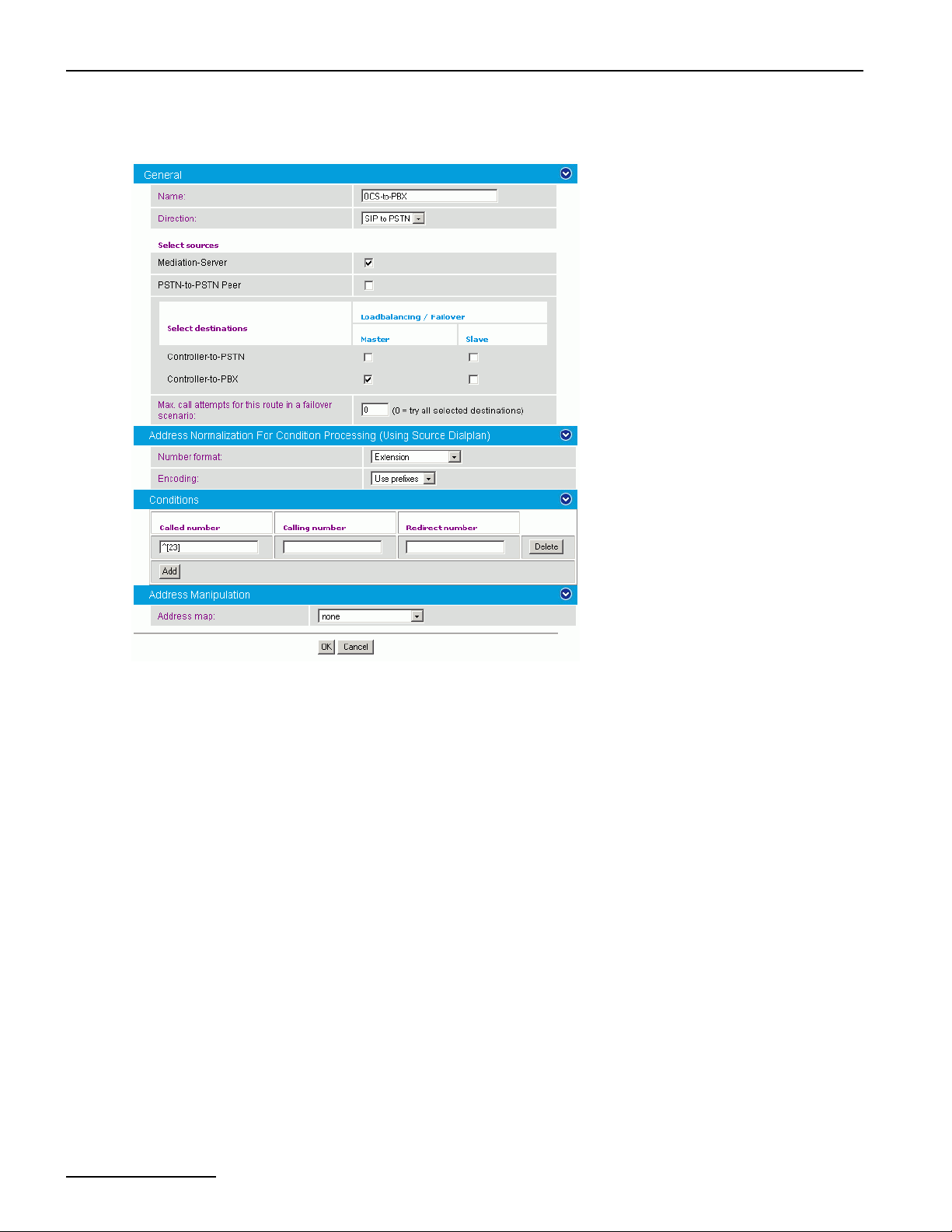
Configuration Scenarios
15. Create the third route from the Microsoft® OCS 2007 to the PBX. To do so, click Add under Routing
Configuration and configure the following parameters:
• Name: Enter a unique name to easily identify the routing.
• Direction: Select SIP to PSTN from the dropdown menu.
• Select sources: Select the SIP peer you configured for the Microsoft® Mediation Server as source.
• Select destinations: Select the controller you configured for the PBX as Master destination.
• Number format: Select Extension from the dropdown menu.
• Encoding: Select Use prefixes from the dropdown menu.
• Under Conditions, click Add, and in Called number, enter ^[23] so that extensions starting with 2 or
3 are routed to the PBX that was configured for these extensions.
Click OK to save the settings and to close the window.
page 84
Page 85
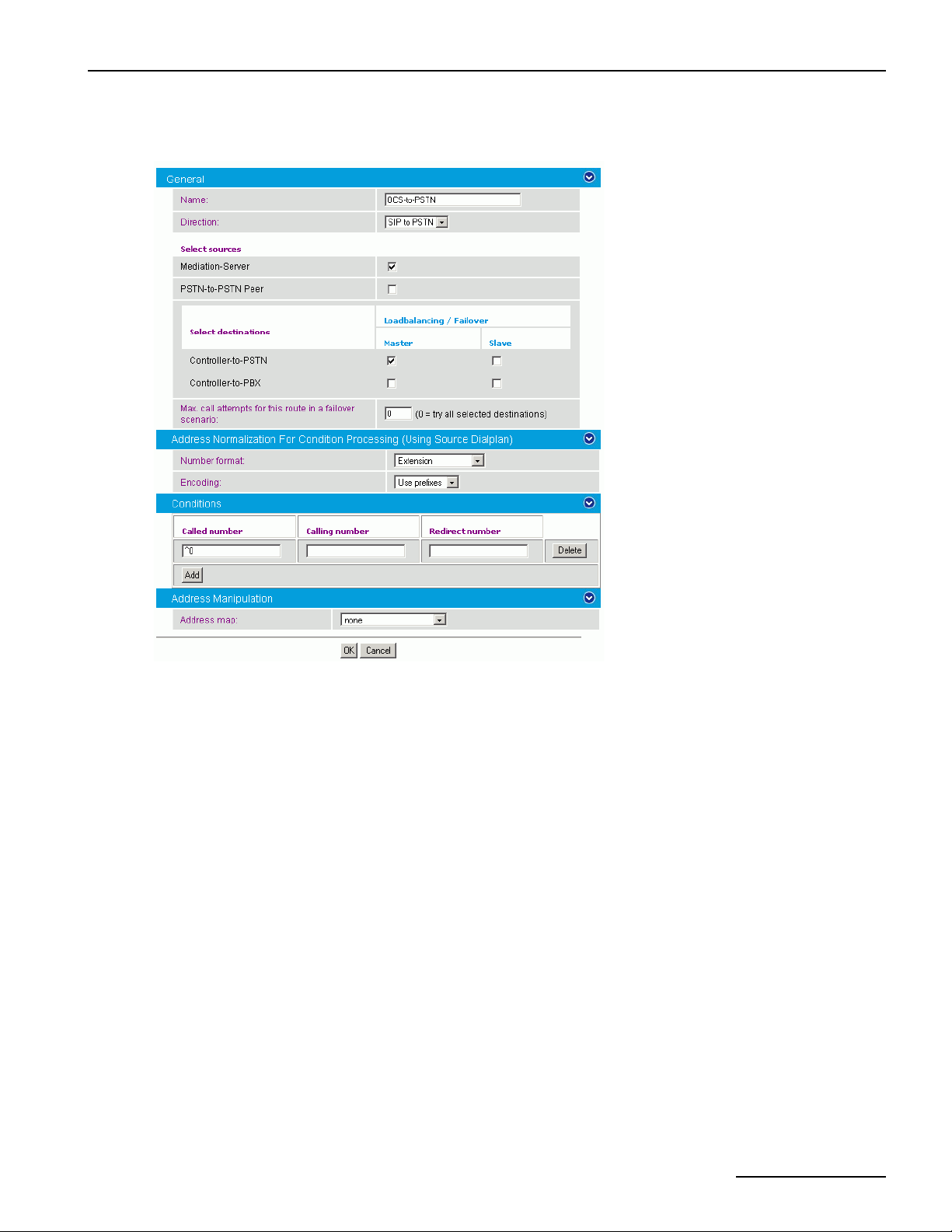
Dialogic® 4000 Media Gateway Series Reference Guide
16. Create the fourth route from the Microsoft® OCS 2007 to the PSTN. To do so, click Add under Routing
Configuration and configure the following parameters:
• Name: Enter a unique name to easily identify the routing.
• Direction: Select SIP to PSTN from the dropdown menu.
• Select sources: Select the SIP peer you configured for the Microsoft® Mediation Server as source.
• Select destinations: Select the controller you configured for the PSTN as Master destination.
• Number format: Select Extension from the dropdown menu.
• Encoding: Select Use prefixes from the dropdown menu.
• Under Conditions, click Add, and in Called number, enter ^0 to route all calls starting with 0 directly
to the PSTN.
Click OK to save the settings and to close the window.
page 85
Page 86
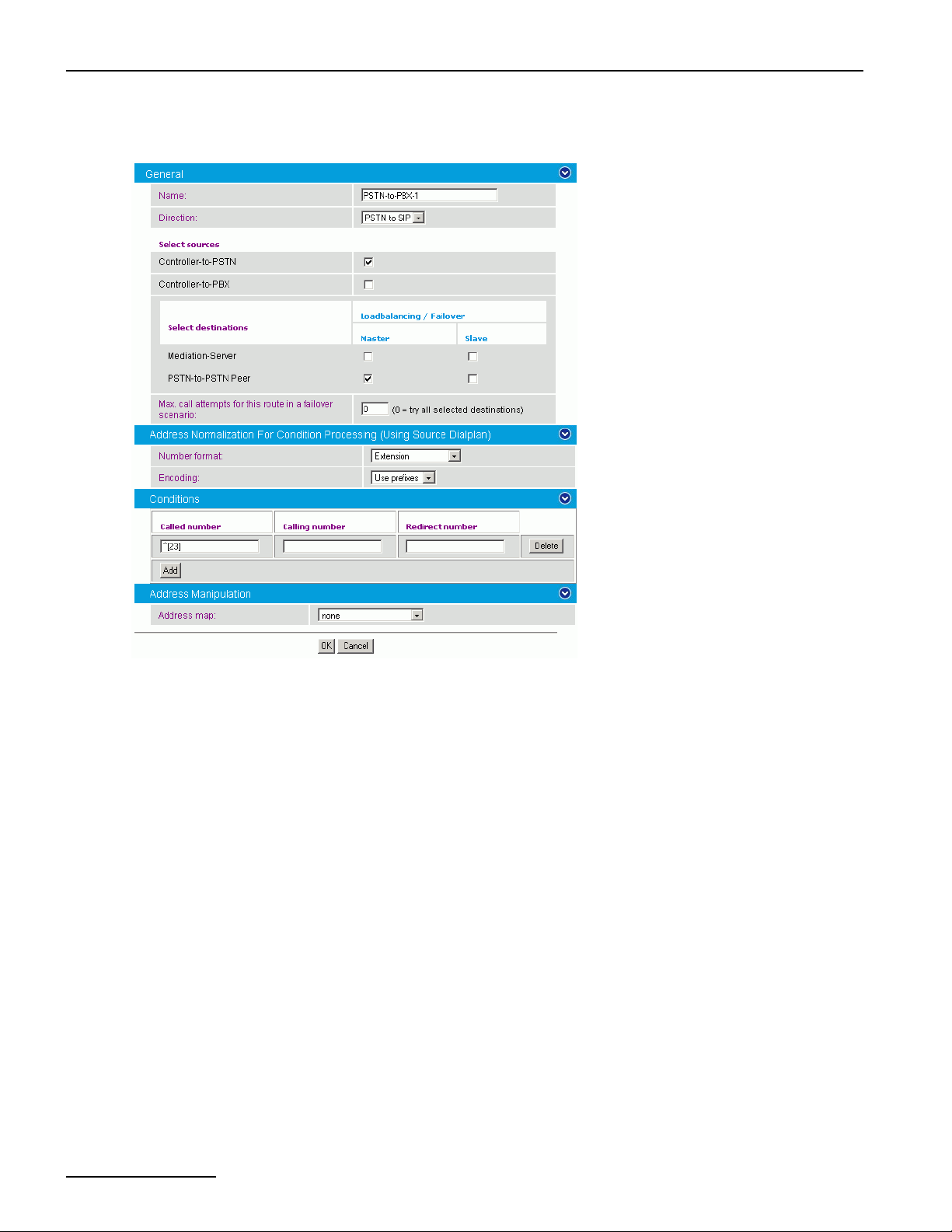
Configuration Scenarios
17. Create the fifth route from the PSTN to the PBX. To do so, click Add under Routing Configuration and
configure the following parameters:
• Name: Enter a unique name to easily identify the routing.
• Direction: Select PSTN to SIP from the dropdown menu.
• Select sources: Select the controller you configured for the PSTN as source.
• Select destinations: Select the SIP peer you configured for the PSTN as Master destination.
• Number format: Select Extension from the dropdown menu.
• Encoding: Select Use prefixes from the dropdown menu.
• Under Conditions, click Add, and in Called number, enter ^[23] so that extensions starting with 2 or
3 are routed to the PBX that was configured for these extensions.
Click OK to save the settings and to close the window.
page 86
Page 87
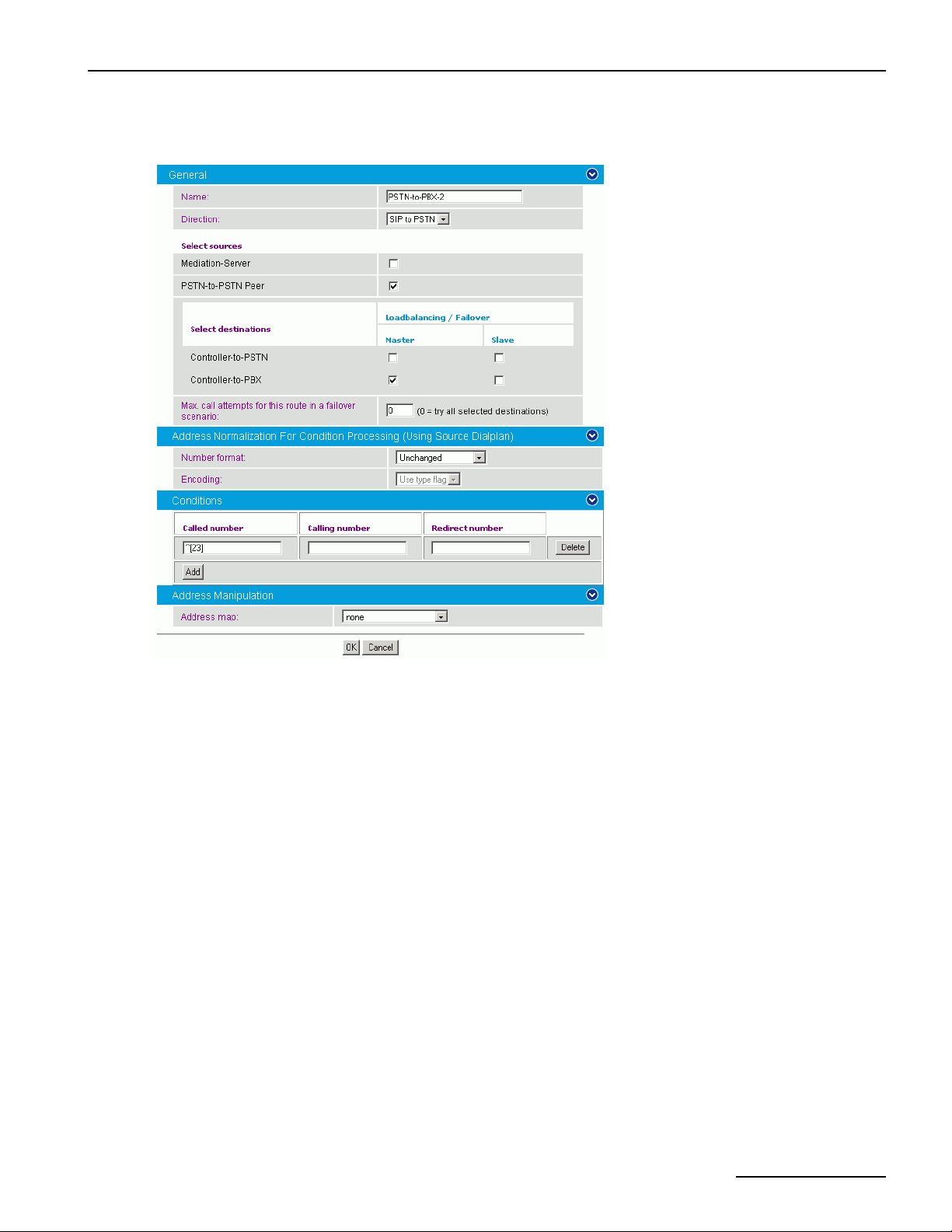
Dialogic® 4000 Media Gateway Series Reference Guide
18. Create the sixth route also from the PSTN to the PBX. To do so, click Add under Routing Configuration
and configure the following parameters:
• Name: Enter a unique name to easily identify the routing.
• Direction: Select SIP to PSTN from the dropdown menu.
• Select sources: Select the SIP peer you configured for the PSTN as source.
• Select destinations: Select the controller you configured for the PBX as Master destination.
• Under Conditions, click Add, and in Called number, enter ^[23] so that extensions starting with 2 or
3 are routed to the PBX that was configured for these extensions.
Click OK to save the settings and to close the window.
page 87
Page 88
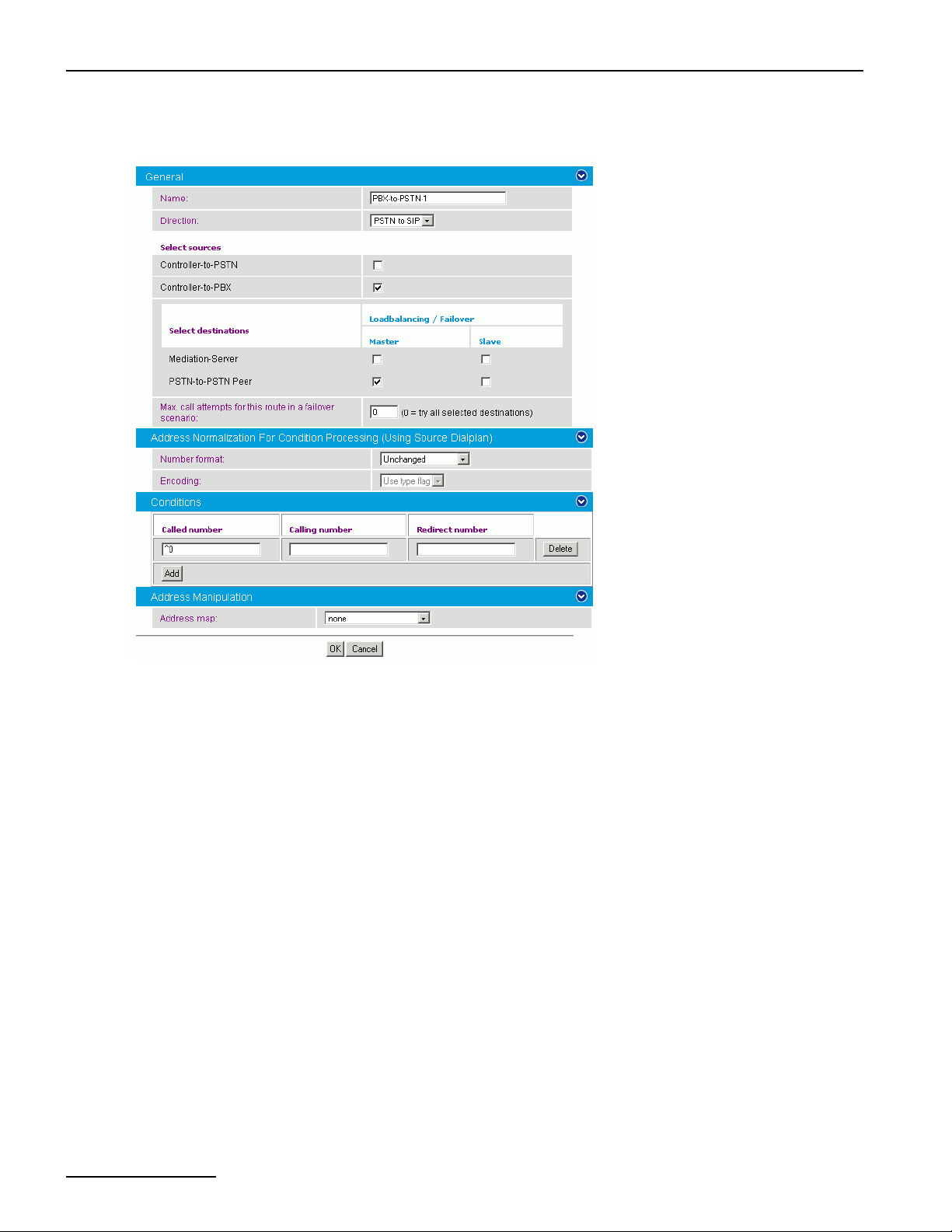
Configuration Scenarios
19. Create the seventh route from the PBX to the PSTN. To do so, click Add under Routing Configuration and
configure the following parameters:
• Name: Enter a unique name to easily identify the routing.
• Direction: Select PSTN to SIP from the dropdown menu.
• Select sources: Select the controller you configured for the PBX as source.
• Select destinations: Select the SIP peer you configured for the PSTN as Master destination.
• Under Conditions, click Add, and in Called number, enter ^0 to route all calls starting with 0 to the
loopback SIP peer and then to the PSTN.
Click OK to save the settings and to close the window.
page 88
Page 89
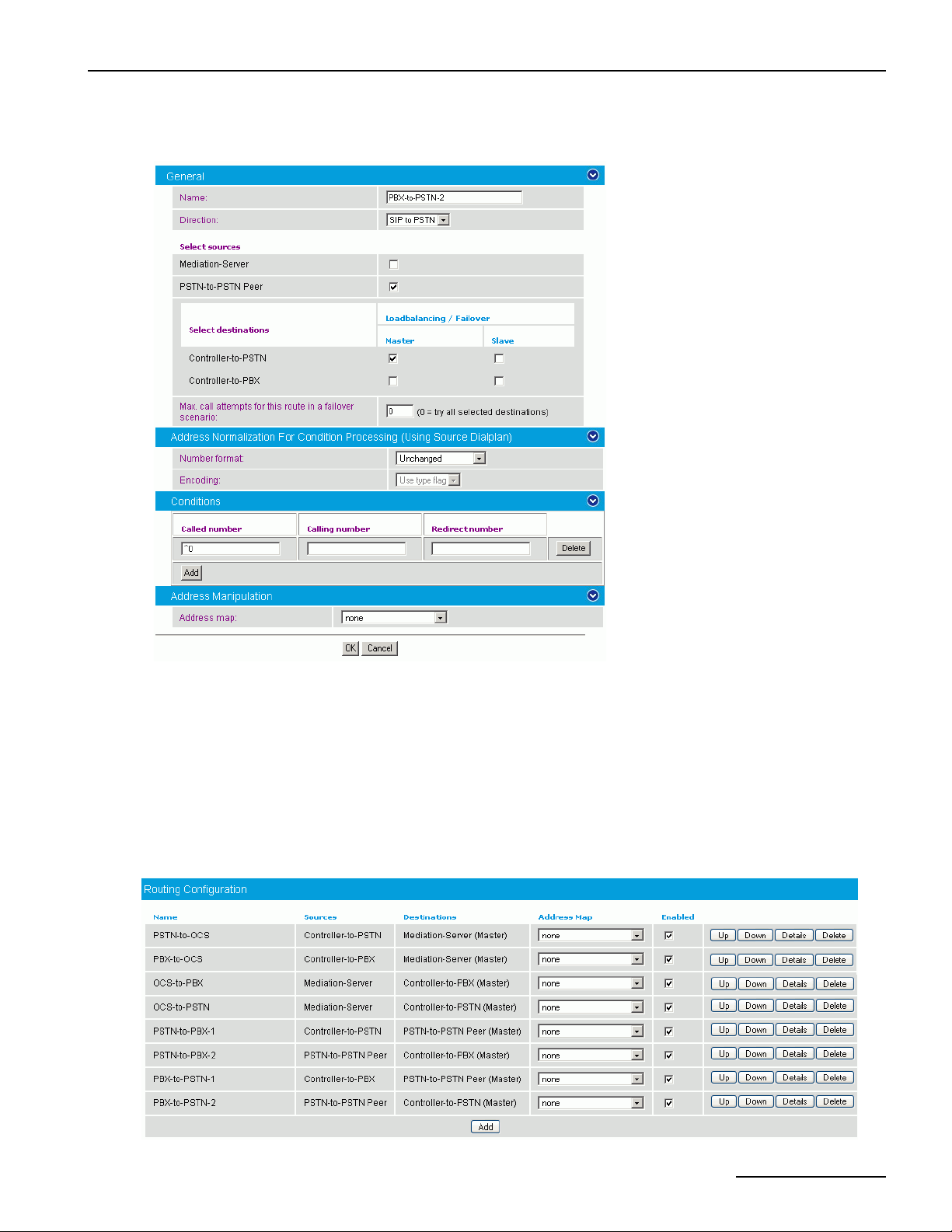
Dialogic® 4000 Media Gateway Series Reference Guide
20. Create the eighth route also from the PBX to the PSTN. To do so, click Add under Routing Configuration
and configure the following parameters:
• Name: Enter a unique name to easily identify the routing.
• Direction: Select SIP to PSTN from the dropdown menu.
• Select sources: Select the SIP peer you configured for the PSTN as source.
• Select destinations: Select the controller you configured for the PSTN as Master destination.
• Under Conditions, click Add, and in Called number, enter ^0 to route all calls starting with 0 from the
loopback SIP peer directly to the PSTN.
Click OK to save the settings and to close the window.
21. To change the order of the routings in the main configuration page, click the arrow up or arrow down buttons.
The order needs to be the same, as shown in following graphic:
page 89
Page 90
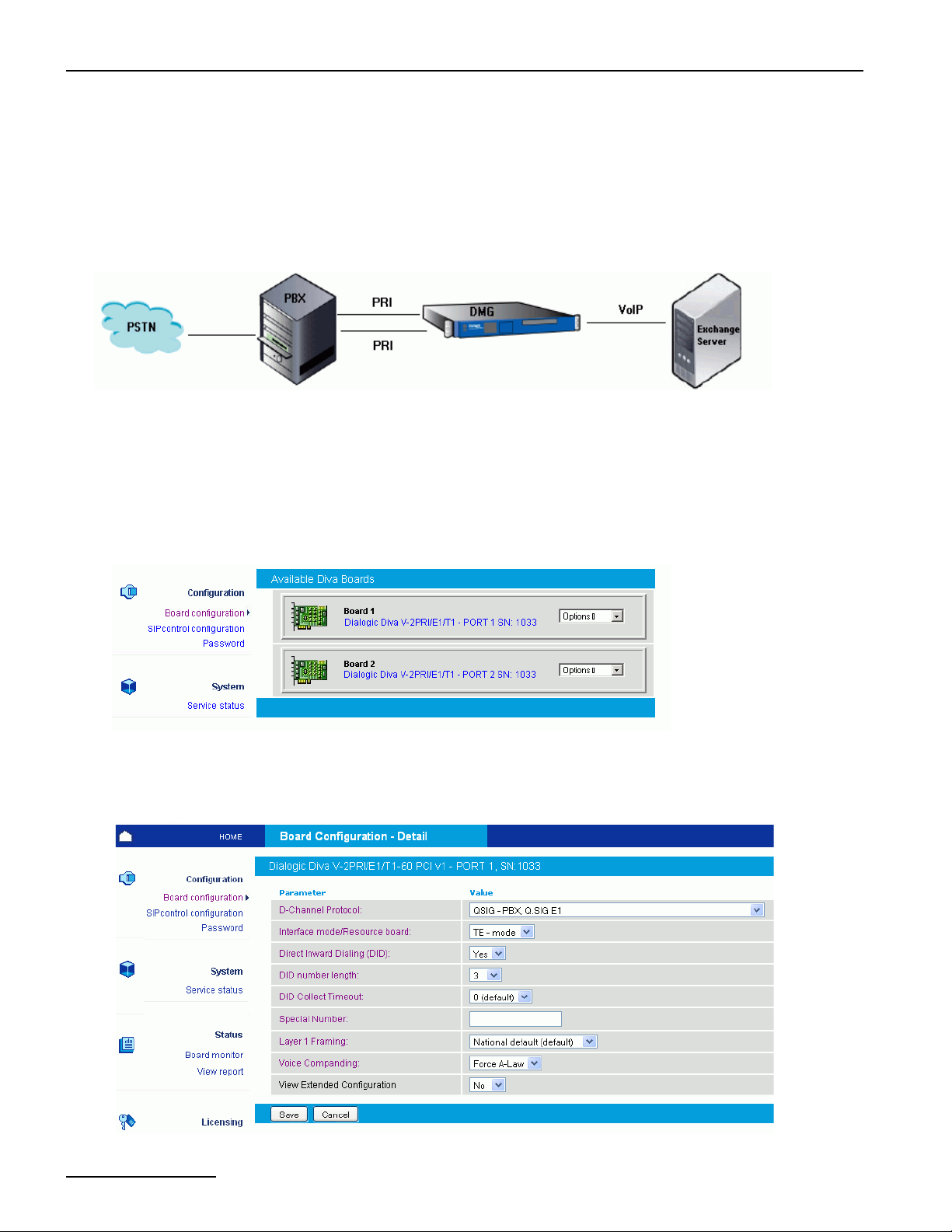
Configuration Scenarios
22. Click Save in the main configuration page to save the settings and activate the changes.
23. Configure the Microsoft® Office Communications Server 2007 as described in the Dialogic® 4000 Media
Gateway Quickstart Guide.
Use case for Microsoft® Exchange Server 2007
This configuration scenario describes the necessary steps to configure the Dialogic® 4060 Media Gateway between
the PBX and the Microsoft® Exchange Server 2007 as shown in the grapic.
1. Activate the fax license as described in the Dialogic® 4000 Media Gateway Series Quickstart Guide.
1. Activate the fax license as described in License Activation in the Dialogic® 4000 Media Gateway Quickstart
Guide.
2. Open the Dialogic® Diva® SIPcontrolTM Software web interface to configure the required parameters. To do
so, click Start > Programs > Dialogic Diva > SIPcontrol Configuration.
3. In the Diva SIPcontrol software web interface, click Board Configuration on the left hand side to open the
Available Diva Boards page.
Click either the board icon or the name of the Dialogic® Diva® Media Board to open the Board Configuration
- Detail page.
4. Configure the D-Channel Protocol of the PBX. In the example, QSIG-PBX, Q.SIG E1 is selected. Click
Save.
page 90
Page 91
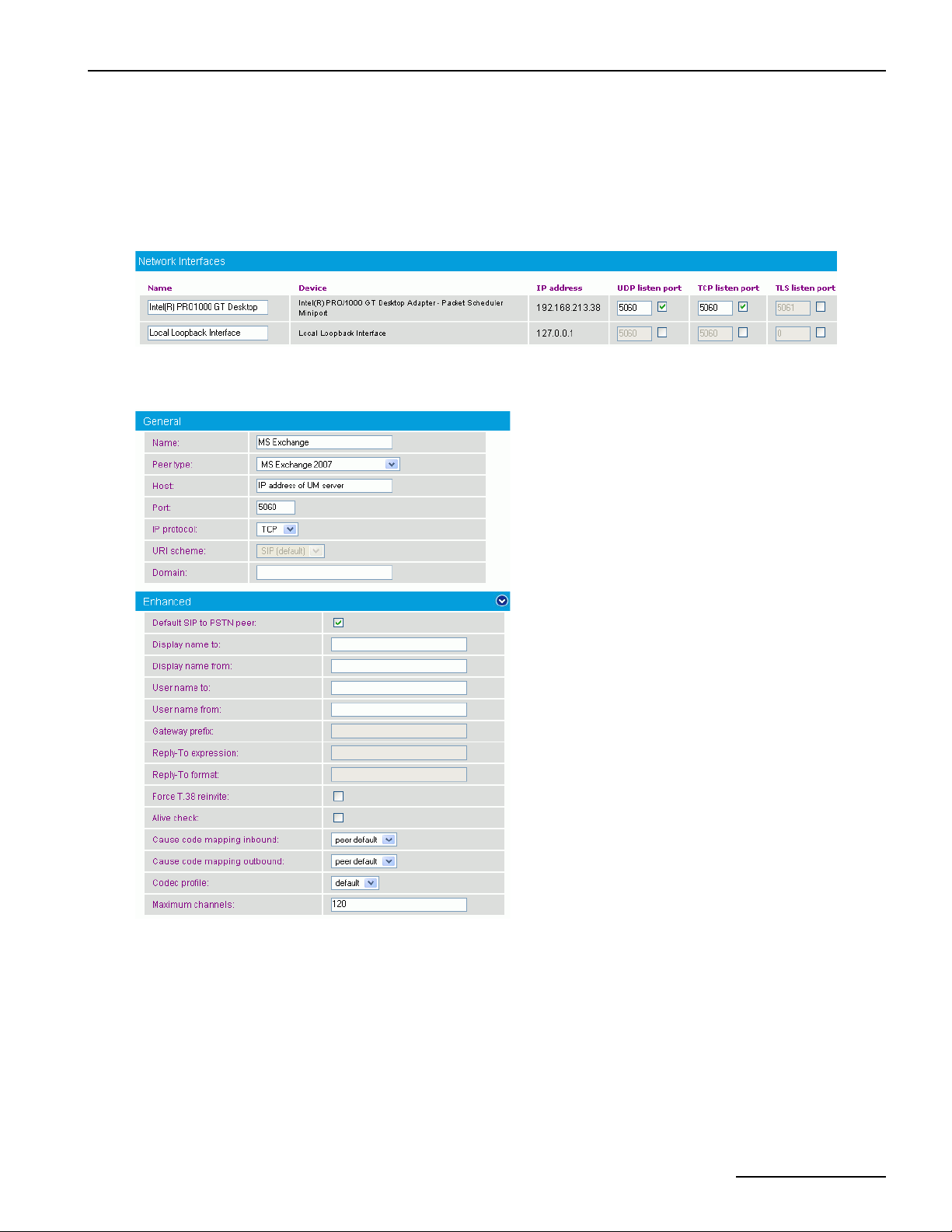
Dialogic® 4000 Media Gateway Series Reference Guide
5. Repeat steps 3 and 4 for the other PRI line.
6. In the Diva SIPcontrol software web interface, click SIPcontrol configuration on the left hand side to open
the SIPcontrol Configuration page. For this configuration scenario, the PSTN interface, the network
interface, a SIP peer, and a routing need to be configured.
7. Go to Network Interface Configuration, set the SIP Listen Port to 5060, and check the Enabled box
of your Ethernet adapter.
8. Configure the SIP peer settings. To do so, open the SIP Peer Configuration, click Add, and configure the
following parameters:
Under Edit SIP Peer Configuration, configure the following parameters:
• Name: Enter a name for the SIP peer configuration.
• Peer type: Select MS Exchange 2007 as peer type.
• Host: Enter the IP address or host name of your Unified Messaging server.
Under Enhanced Configuration, enable the Default SIP to PSTN peer check box.
Click OK to save the settings and to close the window.
page 91
Page 92
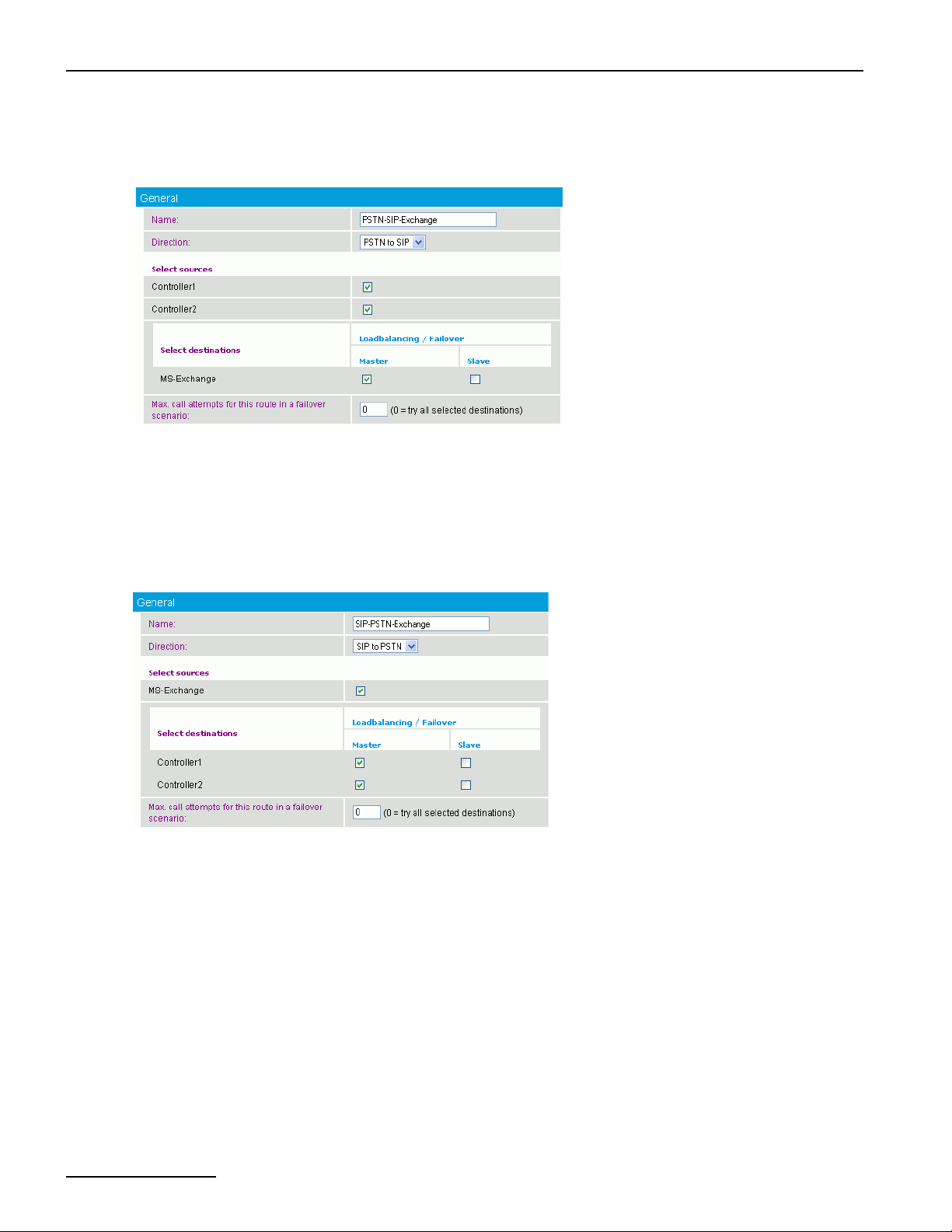
Configuration Scenarios
9. Configure one routing for the PSTN to SIP and one for SIP to the PSTN. To do so, click Routing Configuration
and then click Add to open the Edit Routing Configuration window.
• For the PSTN to SIP route, configure the following parameters:
• Name: Enter a unique name to easily identify the routing.
• Direction: Select PSTN to SIP from the dropdown menu.
• Select sources: Select both controllers as source.
• Select destinations: Select the SIP peer as Master destination.
Click OK to save the settings and to close the window.
• For the SIP to the PSTN route, click Add again and configure the following parameters:
• Name: Enter a unique name to easily identify the routing.
• Direction: Select PSTN to SIP from the dropdown menu.
• Select sources: Select both controllers as source.
• Select destinations: Select the SIP peer as Master destination.
Click OK to save the settings and to close the window.
10. Click Save in the main configuration page to save the settings and activate the changes.
page 92
Page 93
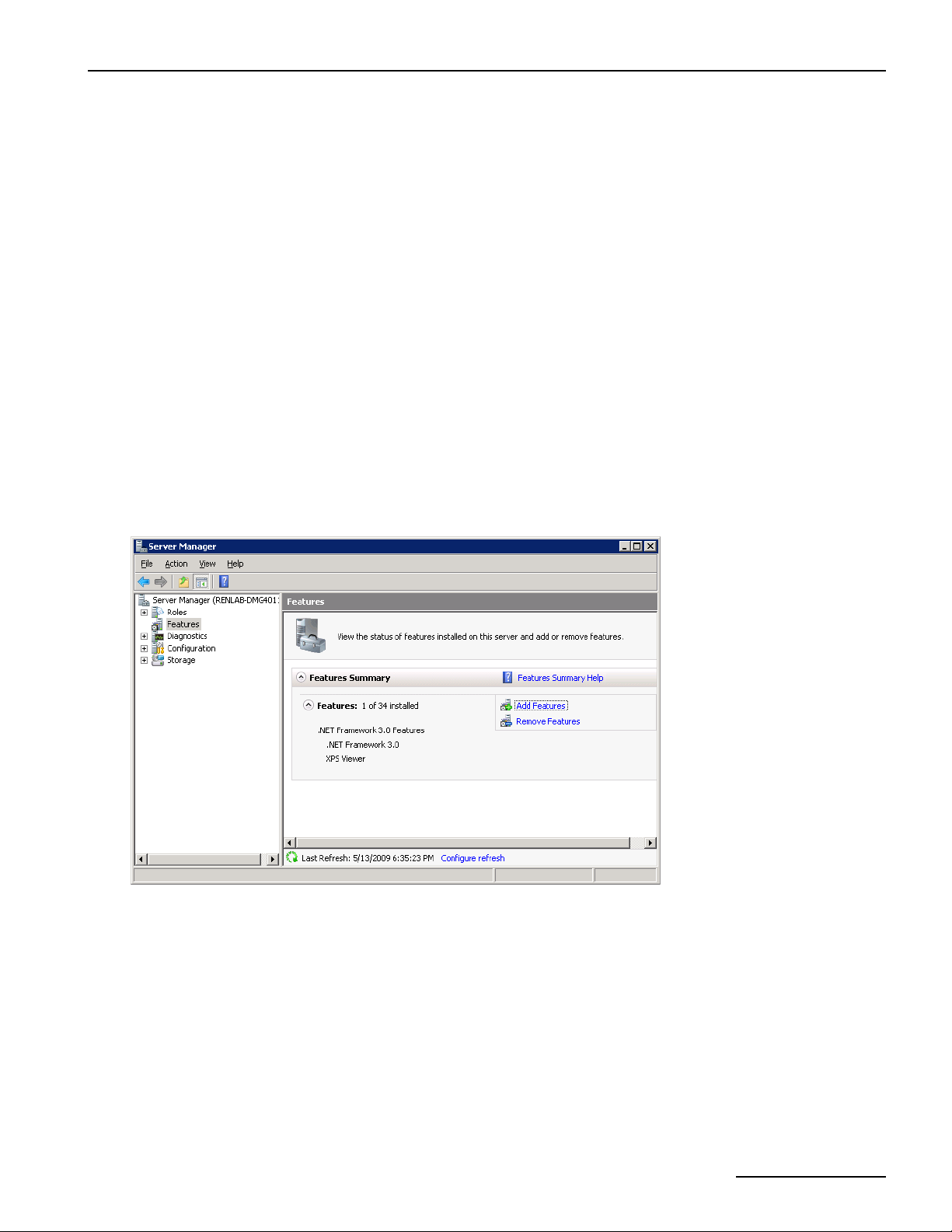
Dialogic® 4000 Media Gateway Series Reference Guide
SNMP Support For A Dialogic® Diva® Media Board
The Windows® implementation of the Simple Network Management Protocol (SNMP) is used to configure remote
devices or to monitor network performance, to audit network usage, and to detect network faults or inappropriate
access. The SNMP support is only available if the service is installed for your operating system. The output
formats are defined in the MIB specification. To see the messages of the SNMP, you need specific SNMP tools
that are not part of the Dialogic
®
Diva
Configuration Manager as described below.
To activate SNMP support for a Dialogic® Diva® Media Board
1. Install the Windows® SNMP Service as described below.
2. Add the SNMP Service in the Diva Configuration Manager as described on page 95.
3. Install an SNMP tool, e.g., Net.SNMP (optional, for testing only).
4. Restart your computer.
5. Verify the service status as described on page 95.
6. Verify the function of the SNMP Service as described on page 97.
®
Diva® System Release software. To activate the SNMP service, use the Dialogic®
To install the Windows® SNMP Service under Microsoft® Windows Server® 2008:
1. Open the Microsoft® Server Manager via Start > Server Manager.
2. In the Server Manager window, go to Features and click the Add Features link.
page 93
Page 94
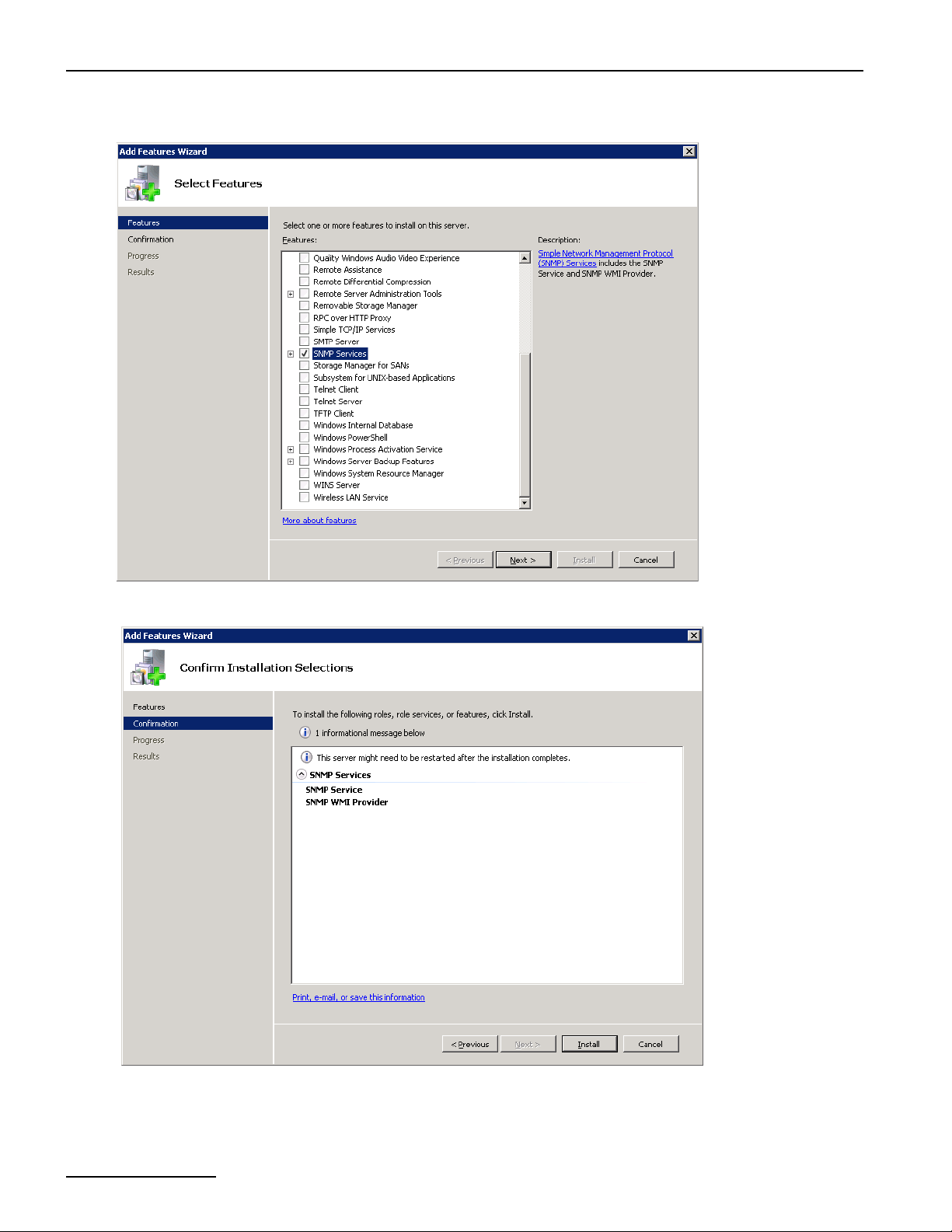
SNMP Support For A Dialogic® Diva® Media Board
3. In the Add Features Wizard window, select SNMP Services and click Next.
4. Click Install, to intall the SNMP Services.
page 94
Page 95
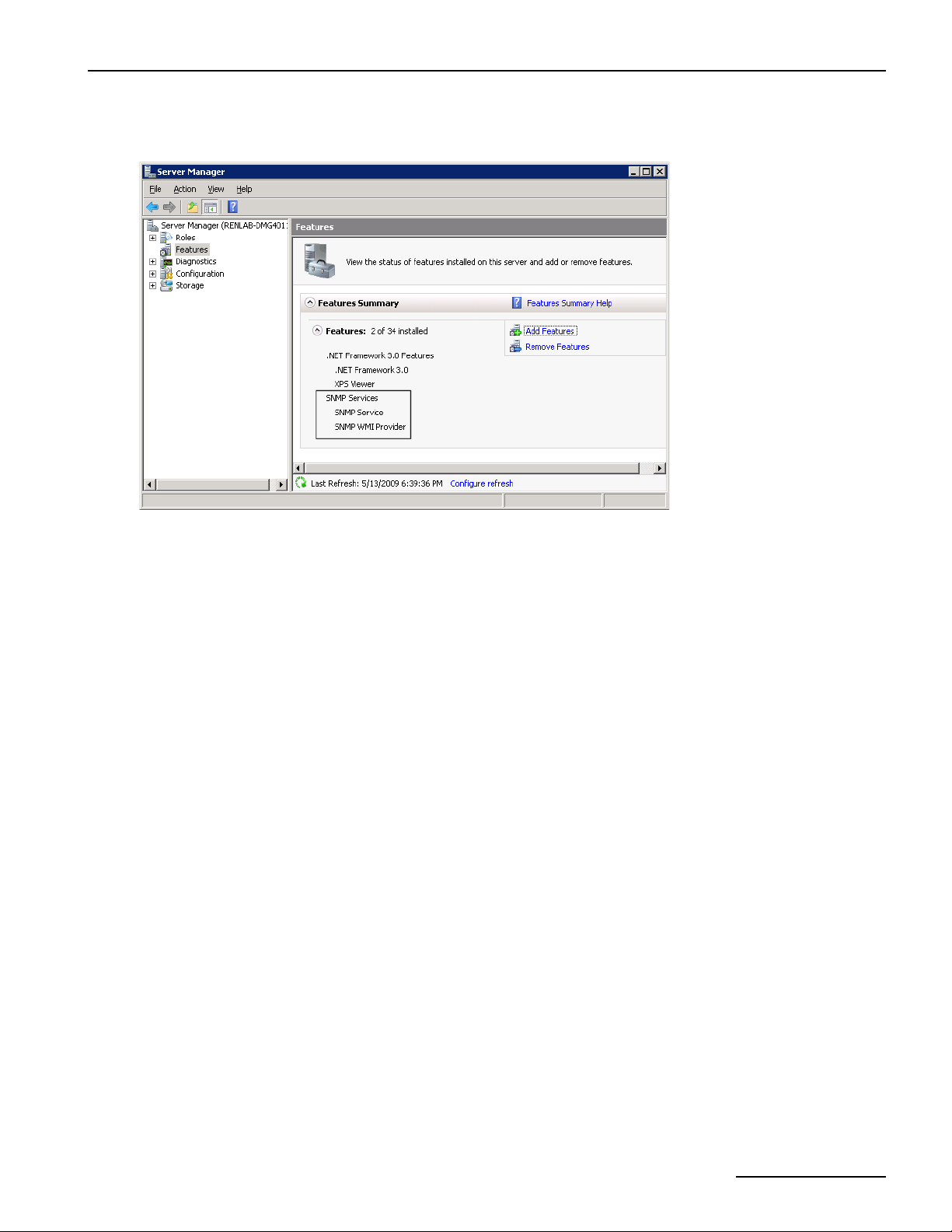
Dialogic® 4000 Media Gateway Series Reference Guide
5. After the installation of the SNMP Services has finished, close the Add Features Wizard window. You will
see the SNMP Services added to the list of installed features in the Server Manager window.
You can now add the SNMP Service to the Dialogic® Diva® Configuration Manager as described below.
To add the SNMP Service in the Dialogic® Diva® Configuration Manager
1. Click Start > All Programs > Dialogic Diva > Configuration Manager to open the Diva Configuration
Manager.
2. In the menu bar, click Insert > SNMP Service. The SNMP Service is added to the Services layer.
3. Activate the configuration. Once the configuration is activated, the Dialogic® Diva® System Release software
validates if Windows
®
SNMP support is available. If it is not available, an error message is displayed and the
SNMP icon is removed from the configuration.
Note: You do not need to connect the SNMP service to any Dialogic® Diva® Media Board. The SNMP is always
available for all installed Diva Media Boards.
You can now install the SNMP tool and restart the PC. To install the SNMP tool correctly, consult the documentation
of the tool.
To verify the service status
1. Click Start > Control Panel > Administrative Tools to open the Administrative Tools window.
2. In the Administrative Tools window, double-click Services.
3. In the Services window, right-click SNMP Service and select Properties from the list.
page 95
Page 96
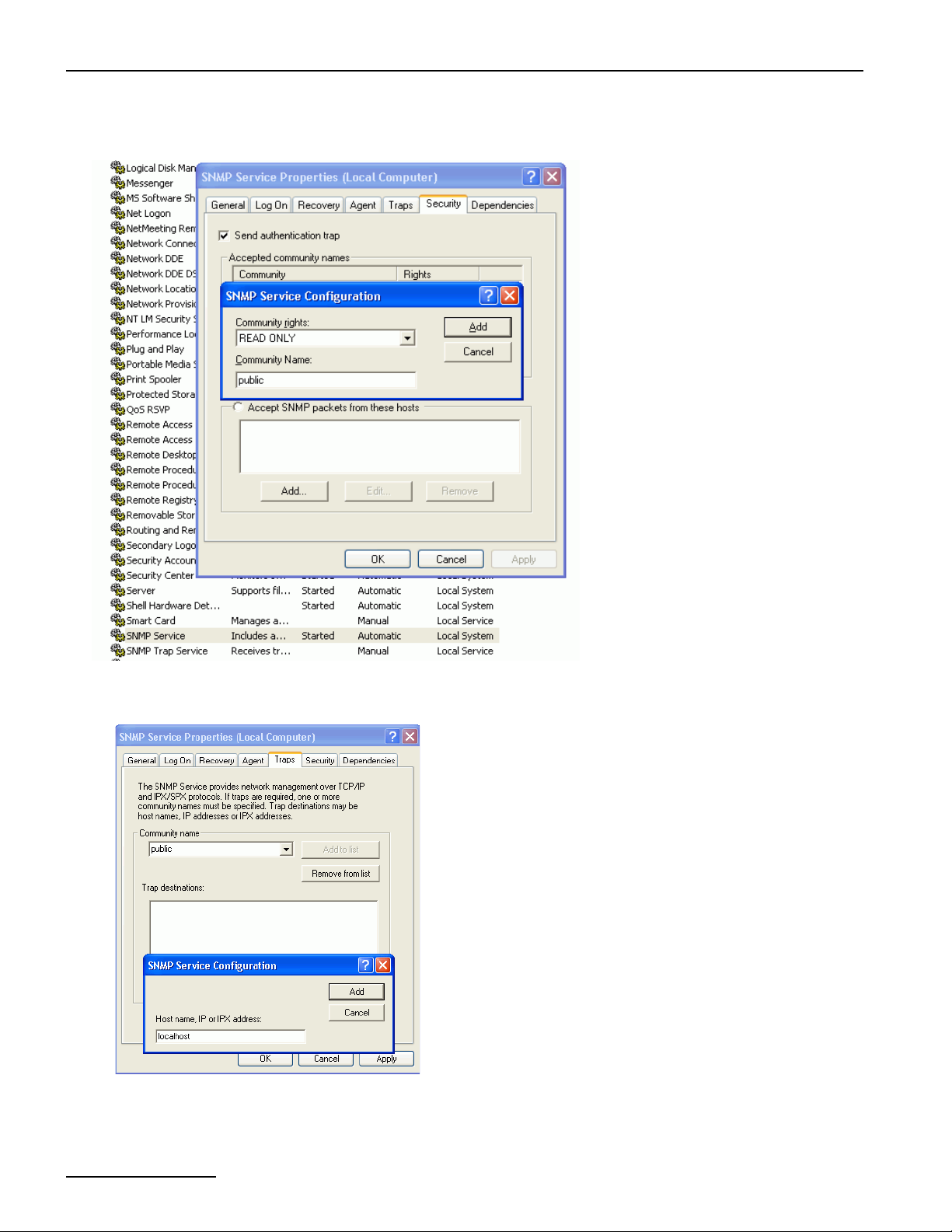
SNMP Support For A Dialogic® Diva® Media Board
4. In the Properties dialog box, click the Security tab and under Accepted community names, click Add.
Enter a community name, for instance, public, and for Community rights, select READ ONLY.
5. Click the Traps tab, enter the community name you added in the Security tab, and click Add to list.
6. Under Traps destinations, click Add, enter the name or IP address of the host computer, and click Add.
7. The host name is added to the list of Trap destinations.
8. Click OK to close the dialog box.
page 96
Page 97

Dialogic® 4000 Media Gateway Series Reference Guide
9. Restart the SNMP Service. To do so, right-click SNMP Service in the Services window and select Restart
from the list.
10. Close the Services window.
To verify the function of the SNMP Service
1. Click Start > Run and type cmd to open a DOS window.
2. In the DOS window type: snmpwalk -v 2c -c public localhost interface | find_"Diva"
The result should be similar to the following, which is for a Dialogic® Diva® V-4PRI Media Board:
IF-MIB::ifDescr.101 = STRING: Dialogic_Diva_V-4PRI/E1/T1_1030
IF-MIB::ifDescr.133 = STRING: Dialogic_Diva_V-4PRI/E1/T1_1030
IF-MIB::ifDescr.164 = STRING: Dialogic_Diva_V-4PRI/E1/T1_1030
IF-MIB::ifDescr.195 = STRING: Dialogic_Diva_V-4PRI/E1/T1_1030
3. In the DOS window type: snmptrapd -f -L o
The result should be similar to the following:
2006-01-28 11:14:35 NET-SNMP version 5.2.1.2 Started.
You can create an output of traps if you change the status of the layer 1/2, for instance by disconnecting
the cable from the Diva Media Board. The result after changing the status of layer 1/2 should be similar to
the following:
2006-01-28 11:16:25 localhost [127.0.0.1] (via UDP: [127.0.0.1]:1053) TRAP, SNMP v1, community public
SNMPv2-SMI::enterprises.434.2 Link Up Trap (0) Uptime: 1:16:47.06
IF-MIB::ifIndex.101 = INTEGER: 101
SNMPv2-SMI::enterprises.434.2 Link Down Trap (0) Uptime: 1:16:48.57
IF-MIB::ifIndex.101 = INTEGER: 101
2006-01-28 11:16:26 localhost [127.0.0.1] (via UDP: [127.0.0.1]:1053) TRAP, SNMP v1, community public
SNMPv2-SMI::enterprises.434.2 Link Up Trap (0) Uptime: 1:16:48.81
IF-MIB::ifIndex.101 = INTEGER: 101
Supported MIBs, OIDs, and traps
This section provides information about supported MIBs, OIDs, and traps by the Dialogic® Diva® SNMP service
and about the relationship between supported OIDs and Dialogic
®
Diva® Media Board management interface
variables.
MIB-II (RFC
1213/2233)
MIB-II interfaces.ifTable.ifEntry.
Path Description
ifIndex Unique index of Dialogic® Diva® interfaces starting with
ifDescr For Diva Media Boards, the board name and it's serial number
ifType The type of the interface according to IANA: PRI, BRI, ISDN.
ifMTU Since the concept of MTU is not applicable on Dialogic® Diva®
ifSpeed The maximum interface speed in bps
ifAdminStatus Always up
ifOperStatus The current operating status of the interface
ifIndex-offset + 1 (see option -oN). First, all installed
Dialogic
available B-channels.
are returned. For B-channels, the string "BRI +
ifIndex_of_board + number_of_b- channel_on_board" is
returned.
interfaces, they return always 0.
®
Diva® Media Boards are listed, followed by the
page 97
Page 98

SNMP Support For A Dialogic® Diva® Media Board
ifInBytes, ifInPackets, ifInErrors, ifOutBytes,
ifOutPackets, ifOutErrors
ifPhysAddr Returns vendor-id, PnP-id, serial number of Diva Media
LinkUp/LinkDown Traps For status changes of interfaces a trap is generated that
ISDN-MIB
(RFC2127)
ISDN-MIB transmission.isdnMib.isdnMibObjects.isdnBasic
transmission.isdnMib.isdnMibObjects.isdnSign
alingGroup
isdnSignalingGetIndex Number of possible D-channels (equals number of installed
RateGroup
.isdnBasicRateTable.isdnBasicRateEntry
isdnBasicRateIfType isdns or isdnu (IANA-ifType 75, 76)
isdnBasicRateLineTopology pointToPoint or pointToMultipoint
isdnBasicRateIfMode TE mode or NT mode
isdnBasicRateSignalMode D-channel active or inactive
For Dialogic® Diva® Media Boards, the added values of the
D- and B-channel interface counters are returned. mantool
reports these values in the following paths "Statistics\\[D|B]Layer2\\[R|X]-[Bytes|Frames|Errors]".
For B-channels, the following values are reported:
"State\\B[n]\\L2 Stats\\R- [Bytes|Frames|Errors]".
Boards formatted as hex string. Returns no information for
B-channels.
includes the appropriate ifOperStatus varbind. Trap
destinations and access parameters must be configured in
the underlying master agent (trapsink, etc.).
Diva Media Boards)
Dialogic® Diva® BRI Media Boards
ISDN-MIB transmission.isdnMib.isdnMibObjects.isdnBear
erGroup.isdnBearerTable.isdnBearerEntry
isdnBearerChannelType dialup or leased
isdnBearerOperStatus idle, active, unknown
isdnBearerChannelIndex Index of B-channel per Diva Media Board
isdnBearerPeerAddress Remote address
isdnBearerPeerSubAddress Remote sub address
isdnBearerCallOrigin Answer or originate
isdnBearerInfoType Info type as per Q.931 (unrestrictedDigital)
isdnBearerCallConnectTime Time measured from start of divasnmpx
DIAL-CONTRO
L-M I B
transmission.dialControlMib.dialControlMibObj
ects.callActive.callActiveTable.callActiveEntry
callActiveSetupTime Timeticks at start of call, measured from start of divasnmpx.
callActiveIndex Unique index
callActivePeerAddress Address of remote partner
callActivePeerSubAddress Subaddress of remote partner
callActivePeerId Always 0 (unknown)
callActivePeerIfIndex Always 0 (unknown)
B-channels
page 98
Page 99

Dialogic® 4000 Media Gateway Series Reference Guide
callActiveLogicalIfIndex Index of entry in ifTable for the interface used by this call.
callActiveConnectTime 0 if the call was not connected, otherwise timeticks measured
from start of divasnmpx.
callActiveCallState State of call
callActiveCallOrigin Direction of call: Answer or originate
DIAL-CONTRO
L-MIB
(RFC2128)
DIAL-CONTRO
L-MIB
transmission.dialControlMib.dialControlMibObj
ects.callHistory
callHistoryTableMaxLength The maximum number of entries in the callHistoryTable
(read/write).
callHistoryRetainTimer The minimum amount of time in minutes that a
callHistoryEntry will be maintained before being deleted.
transmission.dialControlMib.dialControlMibObj
ects.callHistory.callHistoryTable.callHistoryEntr
y
callHistoryPeerAddress Address of remote partner
callHistoryPeerSubAddress Subaddress of remote partner
callHistoryPeerId Always 0
callHistoryPeerIfIndex Always 0
callHistoryLogicalIfIndex Index of entry in ifTable for the interface used by this call.
callHistoryDisconnectCause Reason for disconnecting this call
callHistoryDisconnectText empty
callHistoryConnectTime Timeticks measured from start of divasnmpx.
callHistoryDisconnectTime Timeticks measured from start of divasnmpx.
callHistoryCallOrigin Direction of call: Answer or originate.
The definition for the ISDN-, DIAL-CONTROL-, and DS1-MIB can be imported into any management application
to decode the OIDs reported by divasnmpx. For net-snmp, simply copy these files to the standard MIB path
(usually <%program files%>\netsnmp\share\snmp\mibs) and tell the snmp command line tools to use them
by exporting/setting the environment variable "MIBS" with the names of the appropriate MIBs (or simply the
keyword ALL), e.g., Set MIBS=ALL.
page 99
Page 100
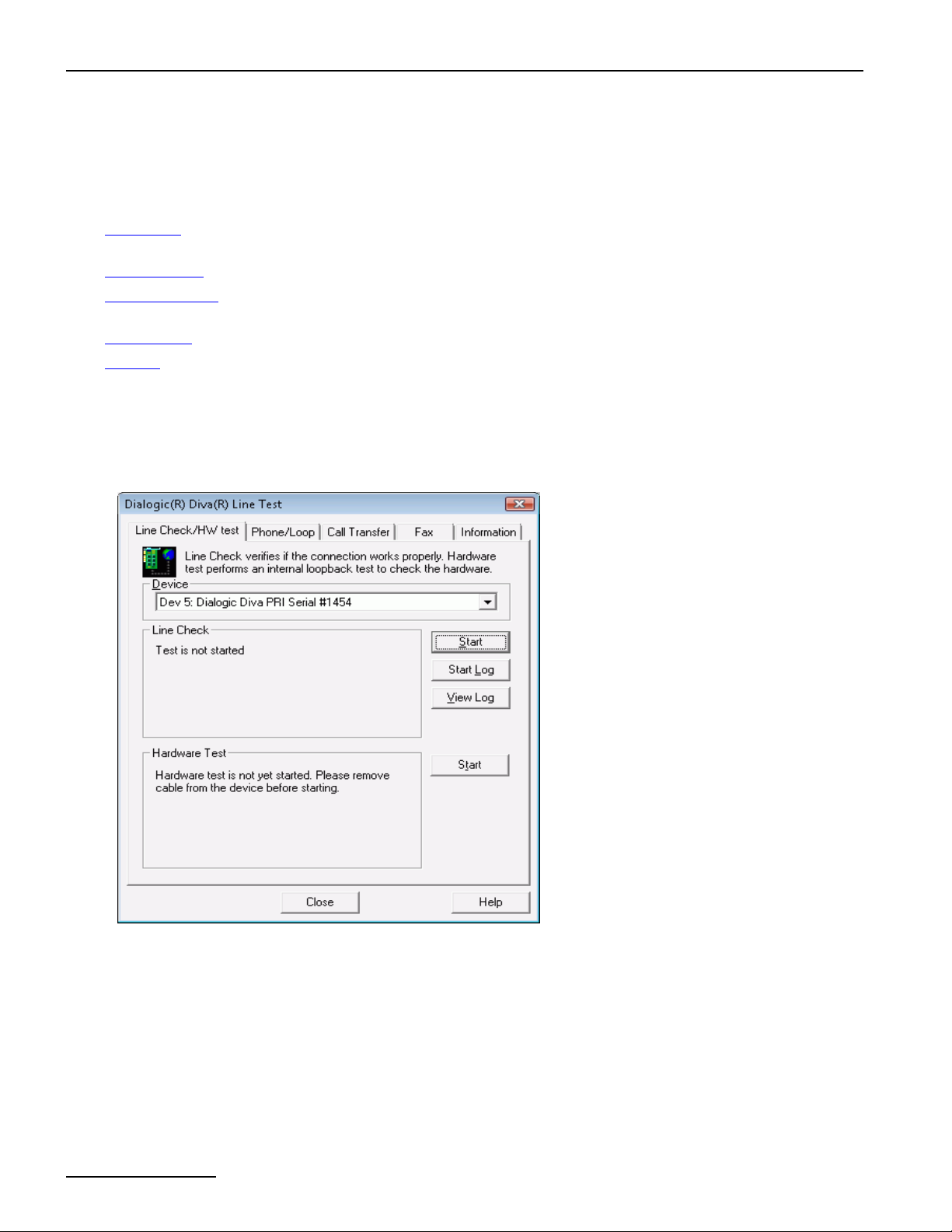
Verify The Line Configuration With The Dialogic® Diva® Line Test Tool
Verify The Line Configuration With The Dialogic® Diva® Line Test Tool
To check the line configuration, use the Dialogic® Diva® Line Test tool available under Start > Programs >
Dialogic Diva > Line Test.
The Diva Line Test tool offers the following tests:
• Line Check: Performs a quick check of your Dialogic® Diva® System Release software installation and the
physical connection.
• Hardware test: Performs a test of the physical controller only.
• Phone/Loop test: Performs basic inbound or outbound phone tests to test the connection to other telephones
or to itself.
• Call Transfer: Performs different call transfer tests, with the option to choose the transfer type.
• Fax test: Performs basic inbound or outbound fax tests.
The Diva Line Test tool also has a Blink LED button integrated on the information page to easily identify a physical
Diva Media Board or the physical line of a controller.
Line Check
1. Open the Diva Line Test tool and click the Line Check/HW Test tab.
2. Under Device select the line of the Dialogic® Diva® Media Board to test.
3. Click Start to begin the test.
If the line check test reports an error, verify that:
page 100
 Loading...